steering wheel MERCEDES-BENZ A-CLASS HATCHBACK 2018 Owner's Manual
[x] Cancel search | Manufacturer: MERCEDES-BENZ, Model Year: 2018, Model line: A-CLASS HATCHBACK, Model: MERCEDES-BENZ A-CLASS HATCHBACK 2018Pages: 609, PDF Size: 10.73 MB
Page 210 of 609
R
The driver is requ ired tokeep their hands on
th esteering wheel at all times and be able to
inter vene at any time tocor rect the course of
th eve hicle and keep it in lane.
R The status of Active Steering Assist is dis‐
pla yed in thest atus bar of the multifunction
displa y.
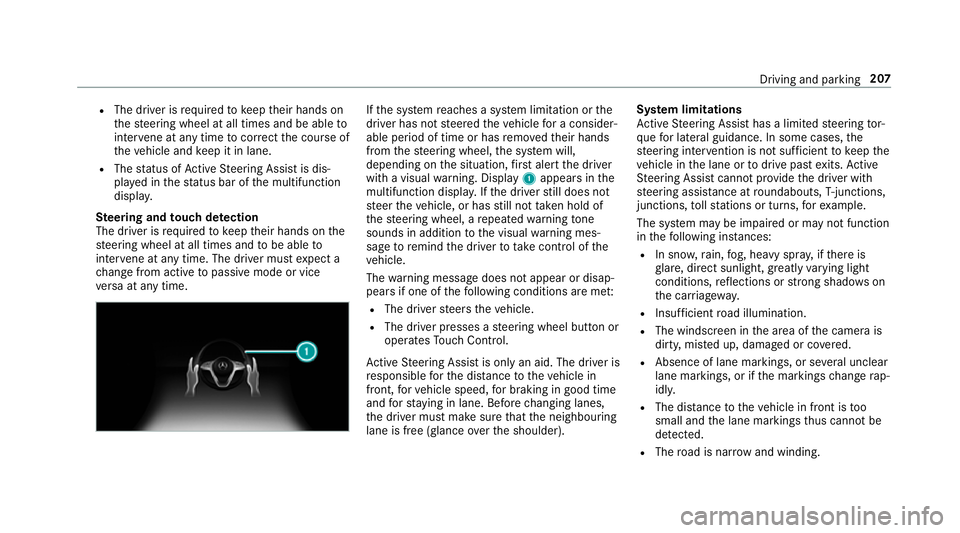
Ste ering and touch de tection
The driver is requ ired tokeep their hands on the
st eering wheel at all times and tobe able to
inter vene at any time. The driver mu stexpect a
ch ange from active topassive mode or vice
ve rsa at any time. If
th e sy stem reaches a sy stem limitation or the
driver has not steered theve hicle for a consider‐
able period of time or has remo vedth eir hands
from thesteering wheel, the sy stem will,
depending on the situation, firs t alert the driver
with a visual warning. Display 1appears in the
multifunction displa y.Ifth e driver still does not
st eer theve hicle, or has still not take n hold of
th esteering wheel, a repeated warning tone
sounds in addition tothe visual warning mes‐
sage toremind the driver totake control of the
ve hicle.
The warning message does not appear or disap‐
pears if one of thefo llowing conditions are me t:
R The driver steers theve hicle.
R The driver presses a steering wheel button or
operates Touch Control.
Ac tive Steering Assist is only an aid. The driver is
re sponsible forth e dis tance totheve hicle in
front, forve hicle speed, for braking in good time
and forst ay ing in lane. Before changing lanes,
th e driver must make sure that the neighbouring
lane is free (glance over the shoulder). Sy
stem limitations
Ac tive Steering Assist has a limited steering tor‐
qu efo r lateral guidance. In some cases, the
st eering inter vention is not su fficient tokeep the
ve hicle in the lane or todrive past exits. Active
St eering Assist cann otprov ide the driver with
st eering assis tance at roundabouts, T-junctions,
junctions, tollst ations or turns, forex ample.
The sy stem may be impaired or may not function
in thefo llowing ins tances:
R In sno w,rain, fog, heavy spr ay, if there is
gl are, direct sunlight, greatlyvarying light
conditions, reflections or stro ng shado wson
th e car riag ew ay.
R Insuf ficient road illumination.
R The windsc reen in the area of the camera is
dirty, mis ted up, damaged or co vered.
R Absence of lane markings, or se veral unclear
lane markings, or if the markings change rap‐
idl y.
R The dis tance totheve hicle in front is too
small and the lane markings thus cannot be
de tected.
R The road is nar row and winding. Driving and parking
207
Page 211 of 609
R
Obs tacles on the lane or projecting out into
th e lane.
The sy stem does not pr ovide assis tance in the
fo llowing conditions:
R On tight bends, roundabouts and when turn‐
ing.
R When towing a trailer.
R When actively changing lane without swit ch‐
ing on the turn signal. &
WARNING Risk of accident if Active
St eering Assist unexpectedly stops func‐
tioning
If th e sy stem limitations of Active Steering
Assist are reached there is no guarantee that
th e sy stem will remain active or will keep the
ve hicle in lane. #
Alw ayske ep your hands on thesteering
wheel and obser vethe tra ffic carefull y. #
Alw aysst eer theve hicle paying atten‐
tion totraf fic conditions. &
WARNING Risk of accident if Active
St eering Assist unexpectedly inter venes
A malfunction in the de tection of lane mark‐
ings and objects can occu r.
This could cause unexpected steering inter‐
ve ntion. #
Steer according totraf fic conditions. Ac
tivating/deactivating Active Steering
Assist
Re quirements:
R ESP ®
is activated, but is not inter vening.
R Active Dis tance Assi stDISTRONIC is acti va‐
te d.
Multimedia sy stem:
, © .
Settings .
Schnellzugriff
(Quick access) #
Select aAct. Steer. Asst . Fu
nction of Active Lane Change Assi st
% The following function is countr y-dependent
and only available in conjunction with the
Driving Assi stance Package.
Ac tive Lane Change Assi stsupports the driver
when changing lanes byapplying steering torque
if th e driver operates a turn signal.
Assis tance when changing lanes is pr ovided if all
th efo llowing conditions are me t:
R You are driving on a mo torw ay orroad with
multiple lanes in the direction of tr avel.
R The neighbouring lane is separated bya bro‐
ke n lane ma rking.
R Novehicle is de tected in the adjacent lane.
R The driven speed is between 80 km/h and
180 km/h.
R Active Lane Change Assi stis switched on in
th e multimedia sy stem.
R Active Steering Assist is switched on and
active. 208
Driving and parking
Page 212 of 609
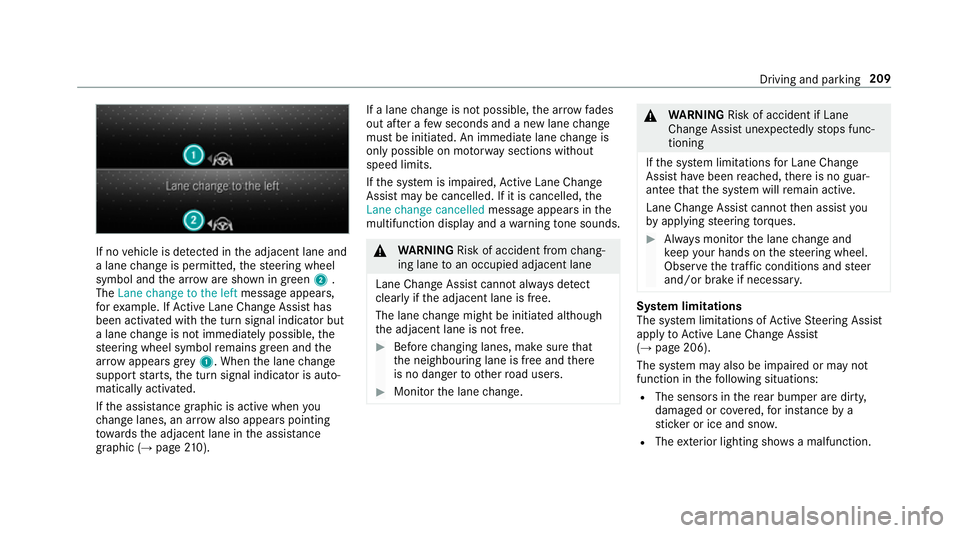
If no
vehicle is de tected in the adjacent lane and
a lane change is permit ted, thesteering wheel
symbol and the ar row are shown in green 2.
The Lane change to the left message appears,
fo rex ample. If Active Lane Change Assi sthas
been activated with the turn signal indicator but
a lane change is not immediately possible, the
st eering wheel symbol remains green and the
ar row appears grey 1 . When the lane change
suppo rtstarts, the turn signal indicator is auto‐
matically activated.
If th e assis tance graphic is acti vewhen you
ch ange lanes, an ar rowalso appears pointing
to wa rdsth e adjacent lane in the assis tance
graphic (→ page 210). If a lane
change is not possible, the ar row fa des
out af ter a few seconds and a new lane change
must be initiated. An immediate lane change is
on ly possible on mo torw ay sections without
speed limits.
If th e sy stem is impaired, Active Lane Change
Assi stmay be cancelled. If it is cancelled, the
Lane change cancelled message appears inthe
multifunction display and a warning tone sounds. &
WARNING Risk of accident from chang‐
ing lane toan occupied adjacent lane
Lane Chan geAssi stcannot al ways detect
clear lyifth e adjacent lane is free.
The lane change might be initiated although
th e adjacent lane is not free. #
Before changing lanes, make sure that
th e neighbouring lane is free and there
is no danger to otherroad users. #
Monitor the lane change. &
WARNING Risk of accident if Lane
Change Assi stunexpectedly stops func‐
tioning
If th e sy stem limitations for Lane Change
Assist ha vebeen reached, there is no guar‐
antee that the sy stem will remain active.
Lane Change Assist cannot then assist you
by applying steering torques. #
Alw ays monitor the lane change and
ke ep your hands on thesteering wheel.
Obser vethe tra ffic conditions and steer
and/or brake if necessar y. Sy
stem limitations
The sy stem limitations of Active Steering Assist
apply toActive Lane Change Assi st
( → page 206).
The sy stem may also be impaired or may not
function in thefo llowing situations:
R The sensors in there ar bumper are dirty,
damaged or co vered, for ins tance by a
st icke r or ice and sno w.
R The exterior lighting sho wsa malfunction. Driving and parking
209
Page 213 of 609
Ac
tivating/deactivating Active Lane Change
Assi st
Multimedia sy stem:
, © .
Settings .
Assistance .
Act.
lane chan. assist #
Activate or deacti vate the function.
Fu nction of Active Eme rgency Stop Assist
If th e driver continues toigno rethewa rning to
put their hands on thesteering wheel, Active
Dis tance Assi stDISTRONIC reduces the speed.
If th e driver still does not respond, theBegin-
ning emergency stop message is shown inthe
multifunction displa y.The vehicle is decelerated
in stages toast andstill. Atspeeds below
60 km/h the hazard warning lights switch on
automaticall y.
When theve hicle is stationar y,thefo llowing
actions are car ried out:
R theve hicle is secured with the electric park‐
ing brake
R Active Dis tance Assi stDISTRONIC is ended
R theve hicle is unloc ked R
if possible, an emer gency call is placed to
th e Mercedes-Benz emer gency call centre
The driver can cancel the deceleration at any
time byper form ing one of thefo llowing actions:
R steering
R depressing the brake or accelerator pedal
R pressing a steering wheel button or operating
To uch Control
R activating or deactivating Active Dis tance
Assi stDISTRONIC Overvi
ewofActive Di stance Assist
DISTRO NIC displa ysinthe instrument clus‐
ter The assis
tance graphic and thest atus display
show thest atus of thefo llowing functions in the
instrument clus ter:
R Active Dis tance Assi stDISTRONIC
R Route-based speed adap tation
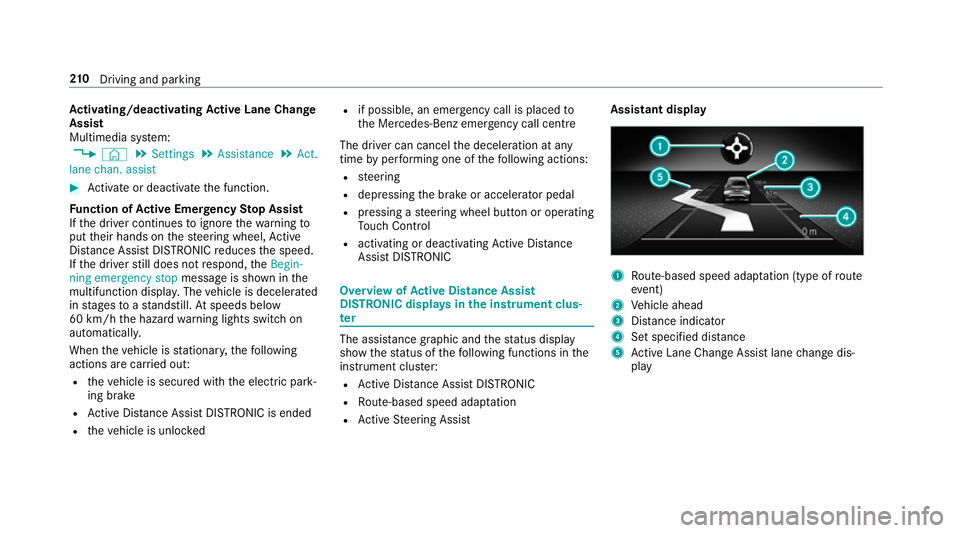
R Active Steering Assist Assistant display
1
Route-based speed adap tation (type of route
eve nt)
2 Vehicle ahead
3 Distance indica tor
4 Set specified di stance
5 Active Lane Change Assi stlane change dis‐
play 210
Driving and pa rking
Page 214 of 609
Ac
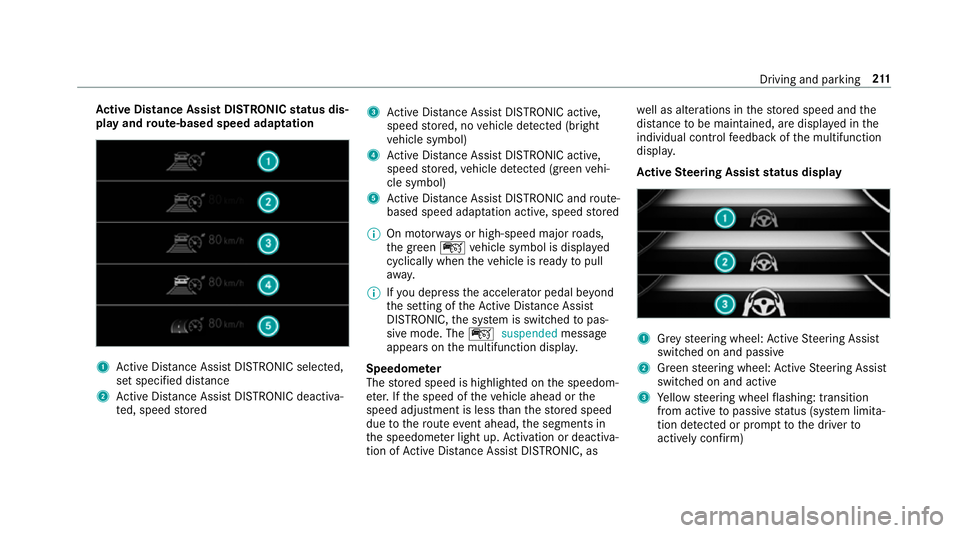
tive Di stance Assist DISTRO NICstatus dis‐
play and route-based speed adaptation 1
Active Dis tance Assi stDISTRONIC selected,
set speci fied dis tance
2 Active Dis tance Assi stDISTRONIC deacti va‐
te d, speed stored 3
Active Dis tance Assi stDISTRONIC acti ve,
speed stored, no vehicle de tected (bright
ve hicle symbol)
4 Active Dis tance Assi stDISTRONIC acti ve,
speed stored, vehicle de tected (green vehi‐
cle symbol)
5 Active Dis tance Assi stDISTRONIC and route-
based speed adap tation acti ve, speed stored
% On mo torw ays or high-speed major roads,
th e green çvehicle symbol is displa yed
cyclically when theve hicle is ready topull
aw ay.
% Ifyo u depress the accelerator pedal be yond
th e setting of theAc tive Dis tance Assi st
DISTRONIC, the sy stem is switched topas‐
sive mode. The çsuspended message
appears on the multifunction displa y.
Speedome ter
The stored speed is highlighted on the speedom‐
et er. If the speed of theve hicle ahead or the
speed adjustment is less than thestored speed
due tothero ute event ahead, the segments in
th e speedome ter light up. Activation or deacti va‐
tion of Active Dis tance Assi stDISTRONIC, as we
ll as alterations in thestored speed and the
dis tance tobe maintained, are displa yed in the
individual control feedback of the multifunction
displa y.
Ac tive Steering Assist status display 1
Grey steering wheel: Active Steering Assist
switched on and passive
2 Green steering wheel: Active Steering Assist
switched on and active
3 Yellow steering wheel flashing: transition
from active topassive status (sy stem limita‐
tion de tected or prom pttothe driver to
actively con firm) Driving and pa
rking 211
Page 217 of 609
Ac
tivating the start-off assi st &
WARNING Risk of skidding and having
an accident from wheels spinning
When you use start-off assist, individual
wheels could spin and you could lose cont rol
of theve hicle.
If ESP ®
is deactivated, there is a risk of skid‐
ding and accident! #
Make sure that no persons or obstacles
are in the close vicinity of your vehicle. #
Deactivating ESP ®
(→ page 189). #
Movethesteering wheel tothest ra ight-
ahead position. #
Depress the brake pedal firm ly wi thyour left
fo ot and keep it depressed. #
Enga getheh drive position (→ page166). #
Select the sportiest available drive program
B orC(→ page161). #
Rapidly depress the accelerator pedal full y. #
Take your foot off the brake, but keep the
accelerator pedal depressed.
The vehicle pulls away at maximum accelera‐
tion. #
Swit chon ESP ®
once the acceleration proce‐
dure is comple te. ESP ®
will otherwise not be
able tostabilise theve hicle if theve hicle
st arts toskid or a wheel starts tospin.
Cancelling thest art-off assi st #
Remo veyour foot from the accelerator pedal. #
Reactivate the ESP ®
. DY
NA MIC BODY CONT ROL function DY
NA MIC BODY CONTROL continuously adjusts
th ech aracteristics of the suspension dampers to
th e cur rent operating and driving conditions.
The da mping is tuned individually for each wheel
and is af fected bythefo llowing factors:
R The road sur face conditions
R Vehicle load
R The drive program selected R
The driving style
The drive program can be adjus ted using the
DY NA MIC SELECT switch. Park
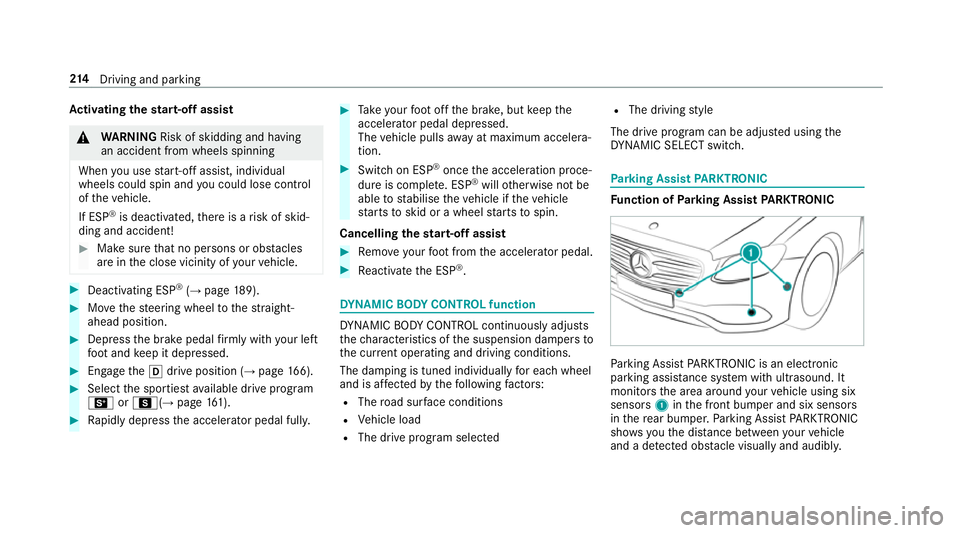
ing Assist PARKTRONIC Fu
nction of Parking Assist PARKTRONIC Pa
rking Assist PARKTRONIC is an electronic
parking assi stance sy stem with ultrasound. It
monitors the area around your vehicle using six
sensors 1inthe front bumper and six sensors
in there ar bumper. Parking Assist PARKTRONIC
sho wsyouth e dis tance between your vehicle
and a de tected obs tacle visually and audibly. 214
Driving and pa rking
Page 222 of 609
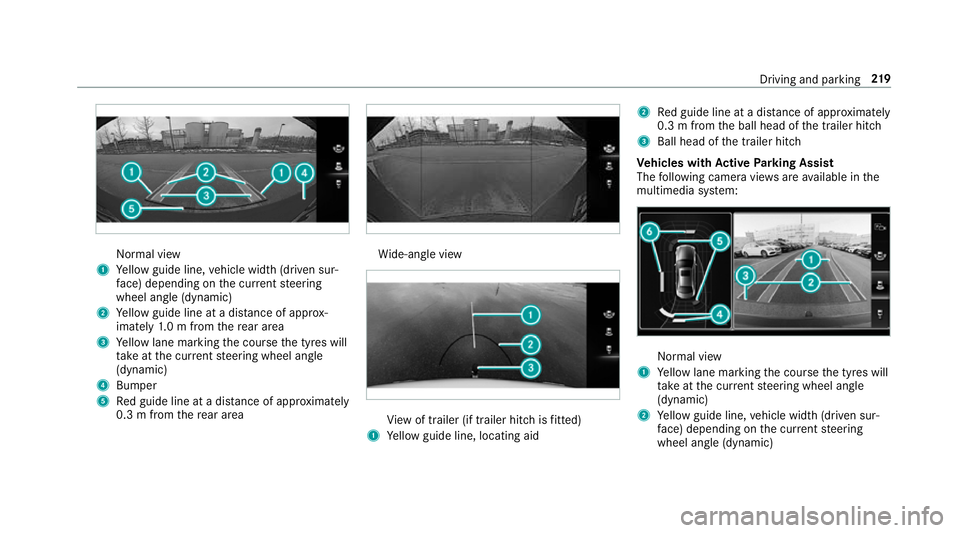
Normal view
1 Yellow guide line, vehicle width (driven sur‐
fa ce) depending on the cur rent steering
wheel angle (dynamic)
2 Yellow guide line at a dis tance of appr ox‐
imately 1.0 m from there ar area
3 Yellow lane marking the course the tyres will
ta ke atthe cur rent steering wheel angle
(dynamic)
4 Bumper
5 Red guide line at a dis tance of appr oximately
0.3 m from there ar area Wi
de-angle view Vi
ew of trailer (if trailer hitch is fitted)
1 Yellow guide line, locating aid 2
Red guide line at a dis tance of appr oximately
0.3 m from the ball head of the trailer hitch
3 Ball head of the trailer hitch
Ve hicles with Active Parking Assist
The following camera vie wsare available in the
multimedia sy stem: Normal view
1 Yellow lane marking the course the tyres will
ta ke atthe cur rent steering wheel angle
(dynamic)
2 Yellow guide line, vehicle width (driven sur‐
fa ce) depending on the cur rent steering
wheel angle (dynamic) Driving and parking
219
Page 225 of 609
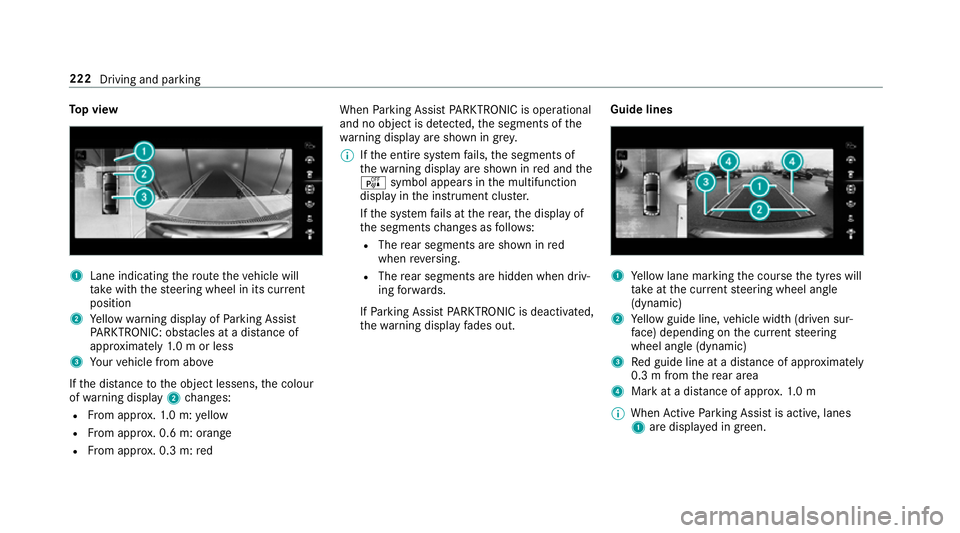
To
p view 1
Lane indicating thero ute theve hicle will
ta ke with thesteering wheel in its cur rent
position
2 Yellow warning display of Parking Assist
PA RKTRONIC: obstacles at a dis tance of
appr oximately 1.0 m or less
3 Your vehicle from abo ve
If th e dis tance tothe object lessens, the colour
of wa rning display 2changes:
R From appr ox.1. 0 m: yellow
R From appr ox. 0.6 m: oran ge
R From appr ox. 0.3 m:red When
Parking Assist PARKTRONIC is operational
and no object is de tected, the segments of the
wa rning display are shown in grey.
% Ifth e entire sy stem fails, the segments of
th ewa rning display are shown in red and the
é symbol appears inthe multifunction
display in the instrument clus ter.
If th e sy stem fails at there ar, the display of
th e segments changes as follo ws:
R The rear segments are shown in red
when reve rsing.
R The rear segments are hidden when driv‐
ing forw ards.
If Pa rking Assist PARKTRONIC is deacti vated,
th ewa rning display fades out. Guide lines 1
Yellow lane marking the course the tyres will
ta ke atthe cur rent steering wheel angle
(dynamic)
2 Yellow guide line, vehicle width (driven sur‐
fa ce) depending on the cur rent steering
wheel angle (dynamic)
3 Red guide line at a dis tance of appr oximately
0.3 m from there ar area
4 Mark at a distance of appr ox.1. 0 m
% When Active Parking Assist is active, lanes
1 are displa yed in green. 222
Driving and parking
Page 243 of 609
Ac
tivating/deactivating Blind Spot Assi stor
Ac tive Blind Spot Assi st
Multimedia sy stem:
, © .
Settings .
Assistance #
Activate or deacti vate Blind Spot Assist .Ac
tive Lane Keeping Assist Fu
nction of Active Lane Keeping Assist Ac
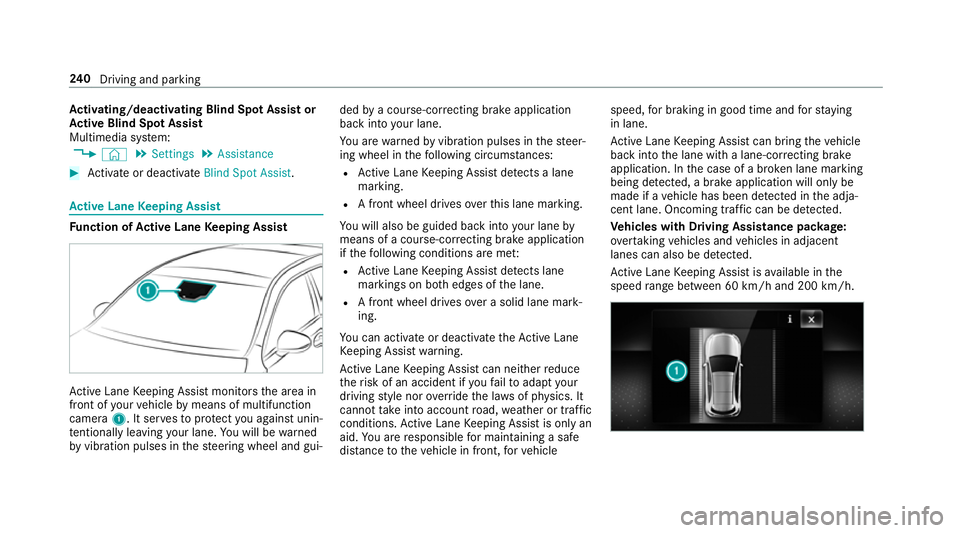
tive Lane Keeping Assist monitors the area in
front of your vehicle bymeans of multifunction
camera 1. It ser vesto protect you against unin‐
te ntional lyleaving your lane. You will be warned
by vibration pulses in thesteering wheel and gui‐ ded
bya course-cor recting brake application
ba ck into your lane.
Yo u are warned byvibration pulses in thesteer‐
ing wheel in thefo llowing circums tances:
R Active Lane Keeping Assist de tects a lane
marking.
R A front wheel drives overth is lane marking.
Yo u will also be guided back into your lane by
means of a course-cor recting brake application
if th efo llowing conditions are me t:
R Active Lane Keeping Assist de tects lane
markings on bo thedges of the lane.
R A front wheel drives over a solid lane mark‐
ing.
Yo u can activate or deactivate theAc tive Lane
Ke eping Assist warning.
Ac tive Lane Keeping Assist can neither reduce
th erisk of an accident if youfa ilto adapt your
driving style nor override the la wsof ph ysics. It
cannot take into account road, weather or traf fic
conditions. Active Lane Keeping Assist is only an
aid. You are responsible for maintaining a safe
dis tance totheve hicle in front, forve hicle speed,
for braking in good time and forst ay ing
in lane.
Ac tive Lane Keeping Assist can bring theve hicle
back into the lane with a lane-cor recting brake
application. In the case of a broken lane marking
being de tected, a brake application will only be
made if a vehicle has been de tected in the adja‐
cent lane. Oncoming tra ffic can be de tected.
Ve hicles with Driving Assistance pac kage:
ov ertaking vehicles and vehicles in adjacent
lanes can also be de tected.
Ac tive Lane Keeping Assist is available in the
speed range between 60 km/h and 200 km/h. 240
Driving and pa rking
Page 262 of 609
When
telephoning, you must obse rveth e legal
re qu irements forth e count ryin which you are
cur rently driving.
Re quirements:
R The mobile phone is connec tedto the multi‐
media sy stem.
On-board computer: , Telephone
The most recent telephone calls (dialled,
re cei ved and missed calls) are displa yed on the
Telephone menu. #
Toselect an entr y:swipe upwards or down‐
wa rds on the left-hand Touch Control. #
Press the left-hand Touch Control.
If th ere is only one telephone number
sa ve dto an entr y:thete lephone number is
selec ted. #
Ifth ere are multiple telephone numbers
sa ve dto an entr y:swipe upwards or down‐
wa rds on the left-hand touch cont rolto
select the desired telephone number. #
Press the left-hand Touch Control.
The telephone number will be dialled. The
following displa ysmay appear ins tead of the
te lephone numbers dialled:
R Please wait :th e application is starting. If a
Blue tooth ®
connection tothe mobile phone
is not es tablished, the menu for auth orising
and connecting a mobile phone will be dis‐
pla yed on the multimedia sy stem
(→ page 369).
R Updating data: the call list is being updated.
R Importing contacts : contacts are being
impor ted from the mobile phone or a storage
medium.
Ac cepting/rejecting a call
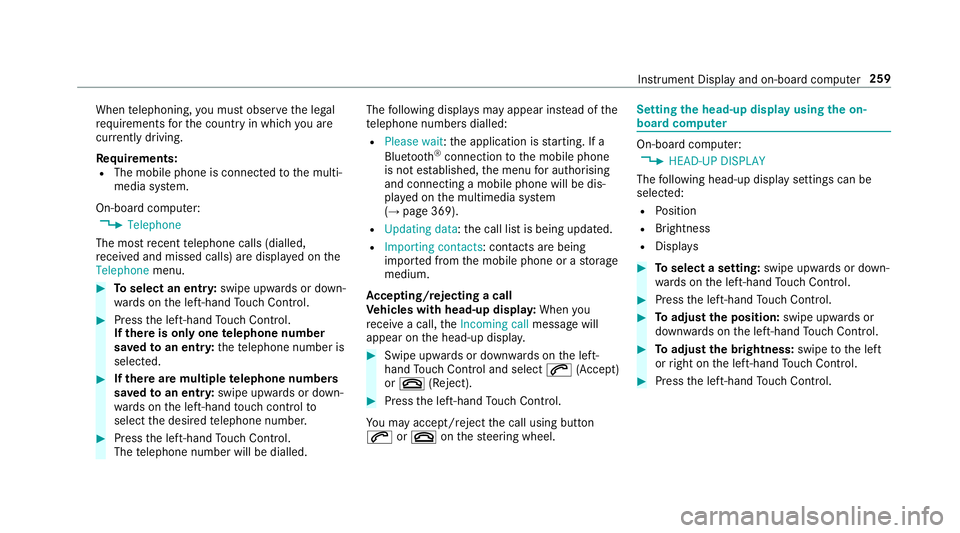
Ve hicles with head-up displa y:When you
re cei vea call, theIncoming call message will
appear on the head-up displa y. #
Swipe up wards or down wards on the left-
hand Touch Control and select 6(Accept)
or ~ (Reject). #
Press the left-hand Touch Control.
Yo u may accept/ reject the call using button
6 or~ onthesteering wheel. Setting
the head-up display using the on-
board compu ter On-board computer:
, HEAD-UP DISPLAY
The following head-up display settings can be
selec ted:
R Position
R Brightness
R Displa ys #
Toselect a setting: swipe upwards or down‐
wa rds on the left-hand Touch Control. #
Press the left-hand Touch Control. #
Toadjust the position: swipe upwards or
down wards on the left-hand Touch Control. #
Toadjust the brightness: swipetothe left
or right on the left-hand Touch Control. #
Press the left-hand Touch Control. In
stru ment Display and on-board computer 259