turn on MERCEDES-BENZ B-Class 2017 W246 Comand Manual
[x] Cancel search | Manufacturer: MERCEDES-BENZ, Model Year: 2017, Model line: B-Class, Model: MERCEDES-BENZ B-Class 2017 W246Pages: 202, PDF Size: 6.35 MB
Page 85 of 202

XTo selectDeleteorDelete All: turn and
press the controller.
A prompt appears.
XSelect YesorNo.
Selecting Yesdeletes the selected destina-
tion or all destinations.
Map functions
General notes
Company logos displayed on the map are trade- marks of the respective companies and used
solely for the purpose of indicating the locations
of these companies. The use of such logos on
the map does not indicate approval of, support
of or advertising by these companies for the
navigation system itself.
Map settings
Setting the map scale
Requirement: the map is in full screen mode, the
menu is faded out (Ypage 54).
The lower left-hand section of the map shows
the currently set map scale and compass nee-
dle.
Right-hand-drive vehicles: the currently set map
scale and compass needle are displayed in the
lower right-hand section of the map.
XTo show the map in full screen mode: to
hide the menu, push the %button.
or
XSlide the controller to the center of the map
and press to confirm.
XTo set the map scale: as soon as you turn the
controller, the scale bar appears on the bot-
tom of the display.
XTurn the controller until the needle points to
the desired map scale.
Once you are finished selecting a map scale,
the new map scale will be shown.
Selecting map orientation
XTo switch to navigation mode: press the
ß button.
XTo show the menu: slide6the controller.
XTo select Options: turn and press the con-
troller.
XSelect Map Orientation.
The #dot indicates the current setting.
XTurn and press the controller.
The map orientation is set.
The image is an example of the 3D map display
with crosshair.
Map functions83
Navigation
Z
Page 86 of 202
Change
map direc-
tionExplanation
North Up0The map view is displayed
so that north is always up.
Heading Up¤ The map view is aligned to
the direction of travel. The
direction of travel is always at
the top; the red tip of the sym-
bol points north.
3-D Map¤ The map view is aligned to
the direction of travel. The
map displays a 3D oblique
view with elevation; the red tip
of the symbol points north.
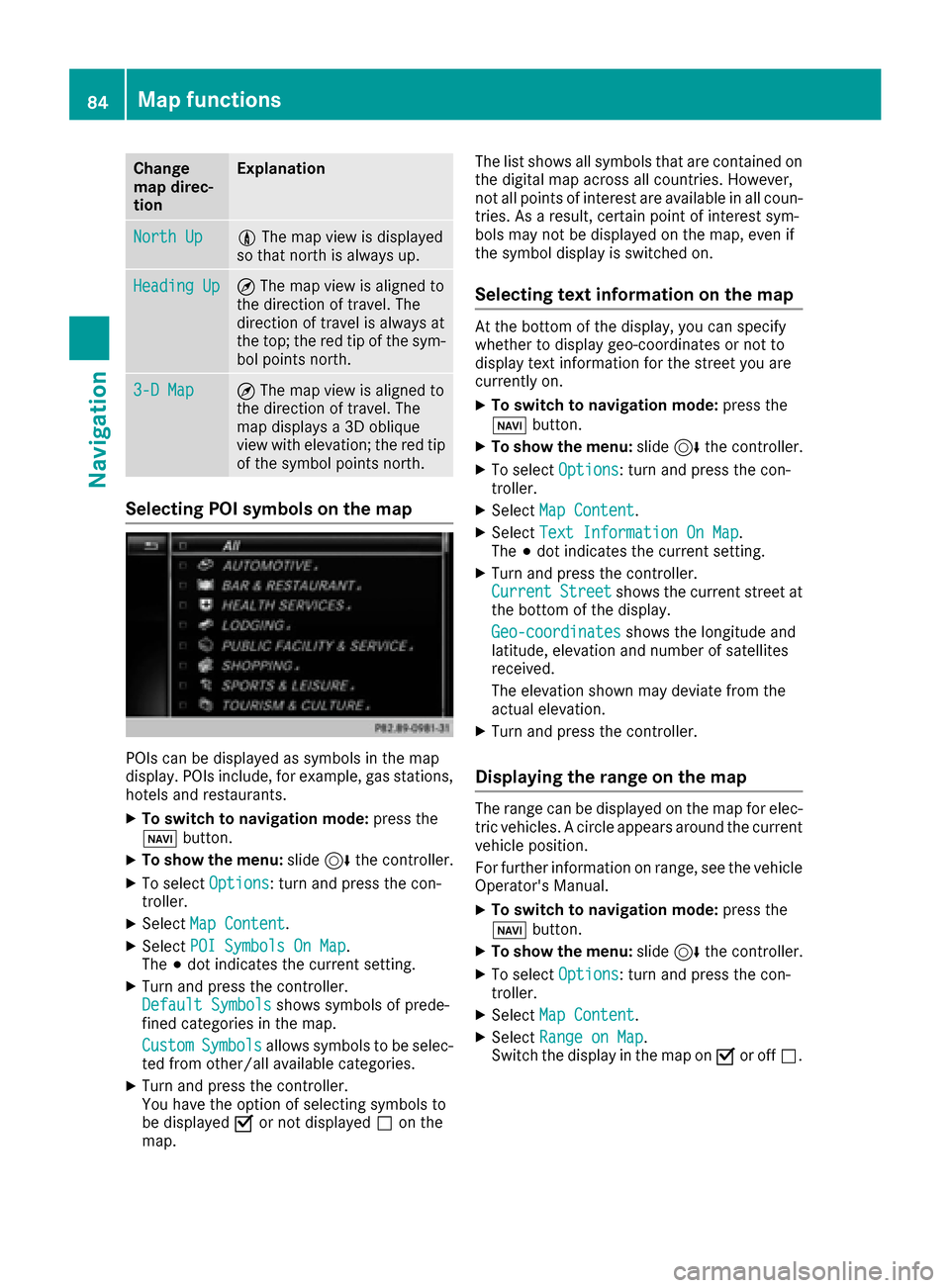
Selecting POI symbols on the map
POIs can be displayed as symbols in the map
display. POIs include, for example, gas stations,
hotels and restaurants.
XTo switch to navigation mode: press the
ß button.
XTo show the menu: slide6the controller.
XTo select Options: turn and press the con-
troller.
XSelect Map Content.
XSelectPOI Symbols On Map.
The #dot indicates the current setting.
XTurn and press the controller.
Default Symbolsshows symbols of prede-
fined categories in the map.
Custom
Symbolsallows symbols to be selec-
ted from other/all available categories.
XTurn and press the controller.
You have the option of selecting symbols to
be displayed Oor not displayed ªon the
map. The list shows all symbols that are contained on
the digital map across all countries. However,
not all points of interest are available in all coun-
tries. As a result, certain point of interest sym-
bols may not be displayed on the map, even if
the symbol display is switched on.
Selecting text information on the map
At the bottom of the display, you can specify
whether to display geo-coordinates or not to
display text information for the street you are
currently on.
XTo switch to navigation mode:
press the
ß button.
XTo show the menu: slide6the controller.
XTo select Options: turn and press the con-
troller.
XSelect Map Content.
XSelectText Information On Map.
The #dot indicates the current setting.
XTurn and press the controller.
CurrentStreetshows the current street at
the bottom of the display.
Geo-coordinates
shows the longitude and
latitude, elevation and number of satellites
received.
The elevation shown may deviate from the
actual elevation.
XTurn and press the controller.
Displaying the range on the map
The range can be displayed on the map for elec-
tric vehicles. A circle appears around the current
vehicle position.
For further information on range, see the vehicle
Operator's Manual.
XTo switch to navigation mode: press the
ß button.
XTo show the menu: slide6the controller.
XTo select Options: turn and press the con-
troller.
XSelect Map Content.
XSelectRange on Map.
Switch the display in the map on Oor off ª.
84Map functions
Navigation
Page 87 of 202
Switching highway information on/off
While driving on the highway, gas stations, rest
stops, rest areas and highway exits are dis-
played along with their immediate distances
from the current vehicle position (
Ypage 73).
XTo switch to navigation mode:press the
ß button.
XTo show the menu: slide6the controller.
XTo select Options: turn and press the con-
troller.
XSelect Map Content.
XSelectHighway Information.
Switch the display in the map on Oor off ª.
Traffic Sign Assist
The function is available depending on the
equipment installed in the vehicle.
The map shows traffic signs detected by Traffic
Sign Assist (see the vehicle Operator's Manual).
XTo switch to navigation mode: press the
ß button.
XTo show the menu: slide6the controller.
XTo select Options: turn and press the con-
troller.
XSelect Map Content.
XSelectTraffic Sign Assist.
Switch the display in the map on Oor off ª.
Displaying the next crossroads
If route guidance is not active, the next cross-
roads can be displayed at the upper edge of the
display.
XTo switch to navigation mode: press the
ß button.
XTo show the menu: slide6the controller.
XTo select Options: turn and press the con-
troller.
XSelect Map Content.
XSelectNext Intersecting Street.
Switch the display in the map on Oor off ª.
Showing the map version
XTo switch to navigation mode: press the
ß button.
XTo show the menu: slide6the controller.
XTo select Options: turn and press the con-
troller.
XSelect Map Content.
XSelectMap Version.
Information on the current map version is
shown. Information about new versions of the
digital map can be obtained from an author-
ized Mercedes-Benz Center.
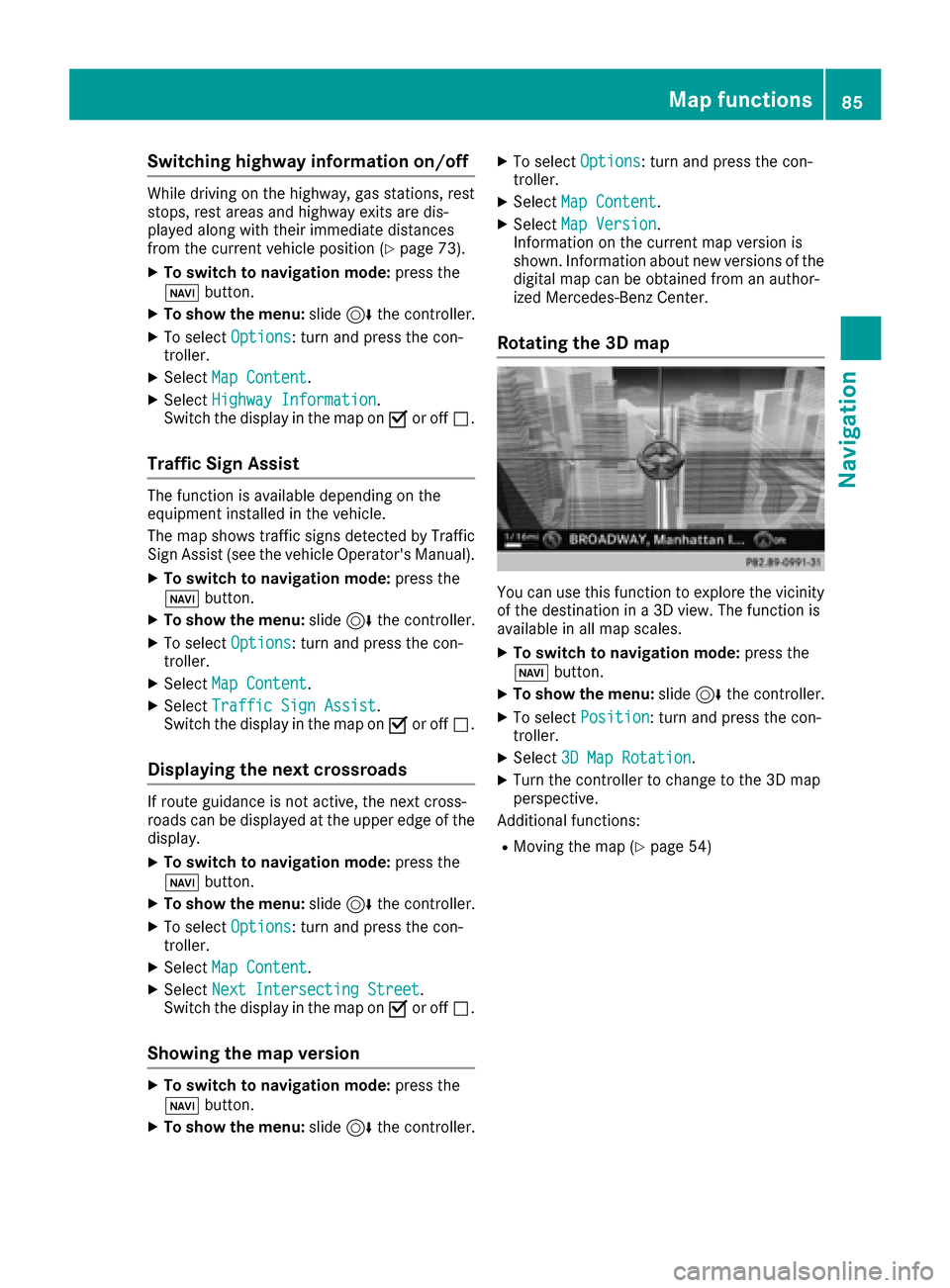
Rotating the 3D map
You can use this function to explore the vicinity
of the destination in a 3D view. The function is
available in all map scales.
XTo switch to navigation mode: press the
Ø button.
XTo show the menu: slide6the controller.
XTo select Position: turn and press the con-
troller.
XSelect 3D Map Rotation.
XTurn the controller to change to the 3D map
perspective.
Additional functions:
RMoving the map (Ypage 54)
Map functions85
Navigation
Z
Page 88 of 202
Map display
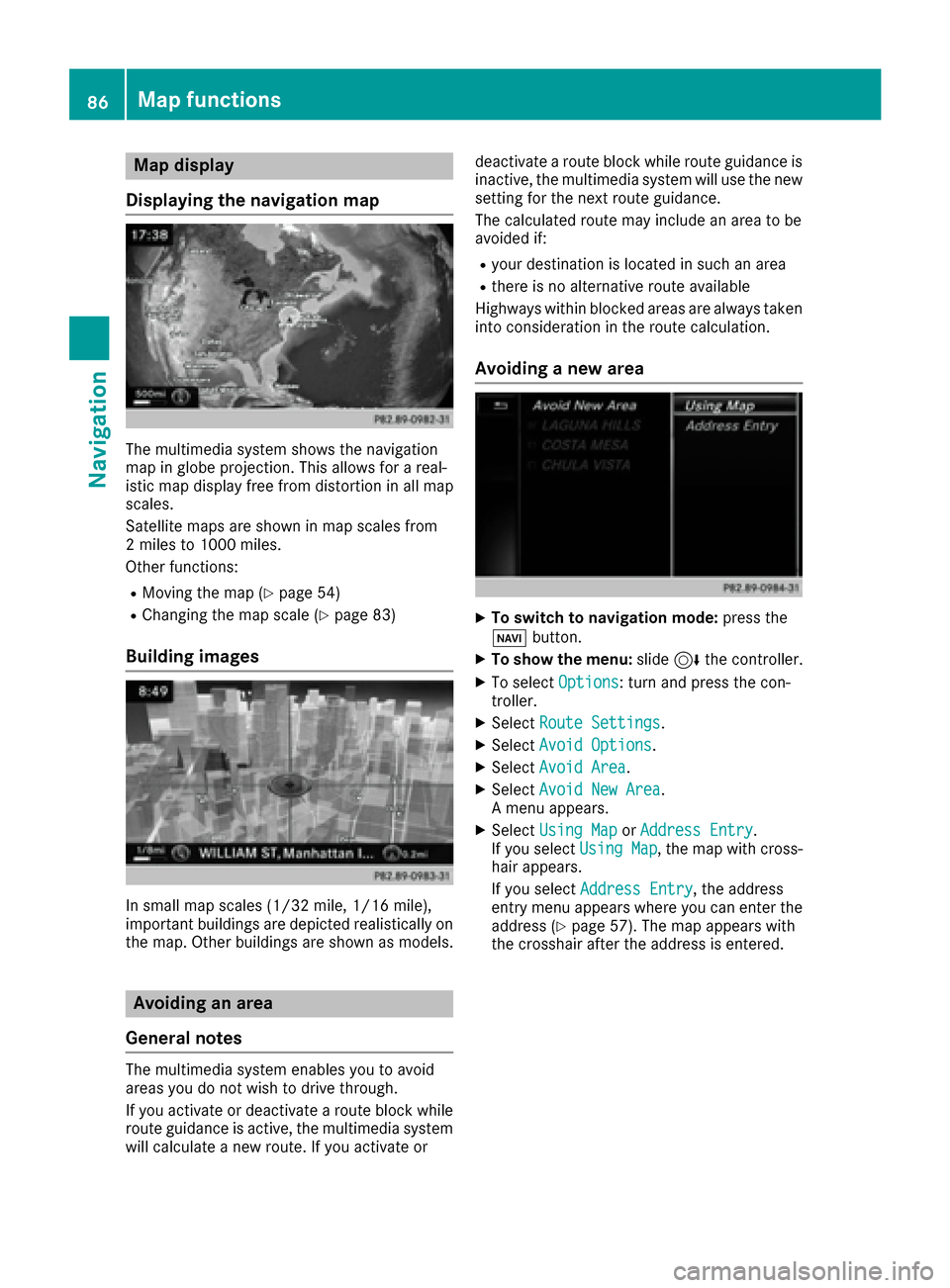
Displaying the navigation map
The multimedia system shows the navigation
map in globe projection. This allows for a real-
istic map display free from distortion in all map
scales.
Satellite maps are shown in map scales from
2 miles to 1000 miles.
Other functions:
RMoving the map (Ypage 54)
RChanging the map scale (Ypage 83)
Building images
In small map scales (1/32 mil e,1/16 mile),
important buildings are depicted realistically on
the map. Other buildings are shown as models.
Avoiding an area
General notes
The multimedia system enables you to avoid
areas you do not wish to drive through.
If you activate or deactivate a route block while
route guidance is active, the multimedia system
will calculate a new route. If you activate or deactivate a route block while route guidance is
inactive, the multimedia system will use the new
setting for the next route guidance.
The calculated route may include an area to be
avoided if:
Ryour destination is located in such an area
Rthere is no alternative route available
Highways within blocked areas are always taken
into consideration in the route calculation.
Avoiding a new area
XTo switch to navigation mode: press the
Ø button.
XTo show the menu: slide6the controller.
XTo select Options: turn and press the con-
troller.
XSelect Route Settings.
XSelectAvoid Options.
XSelectAvoid Area.
XSelectAvoid New Area.
A menu appears.
XSelect Using MaporAddress Entry.
If you select Using Map, the map with cross-
hair appears.
If you select Address Entry
, the address
entry menu appears where you can enter the
address (
Ypage 57). The map appears with
the crosshair after the address is entered.
86Map functions
Navigation
Page 89 of 202
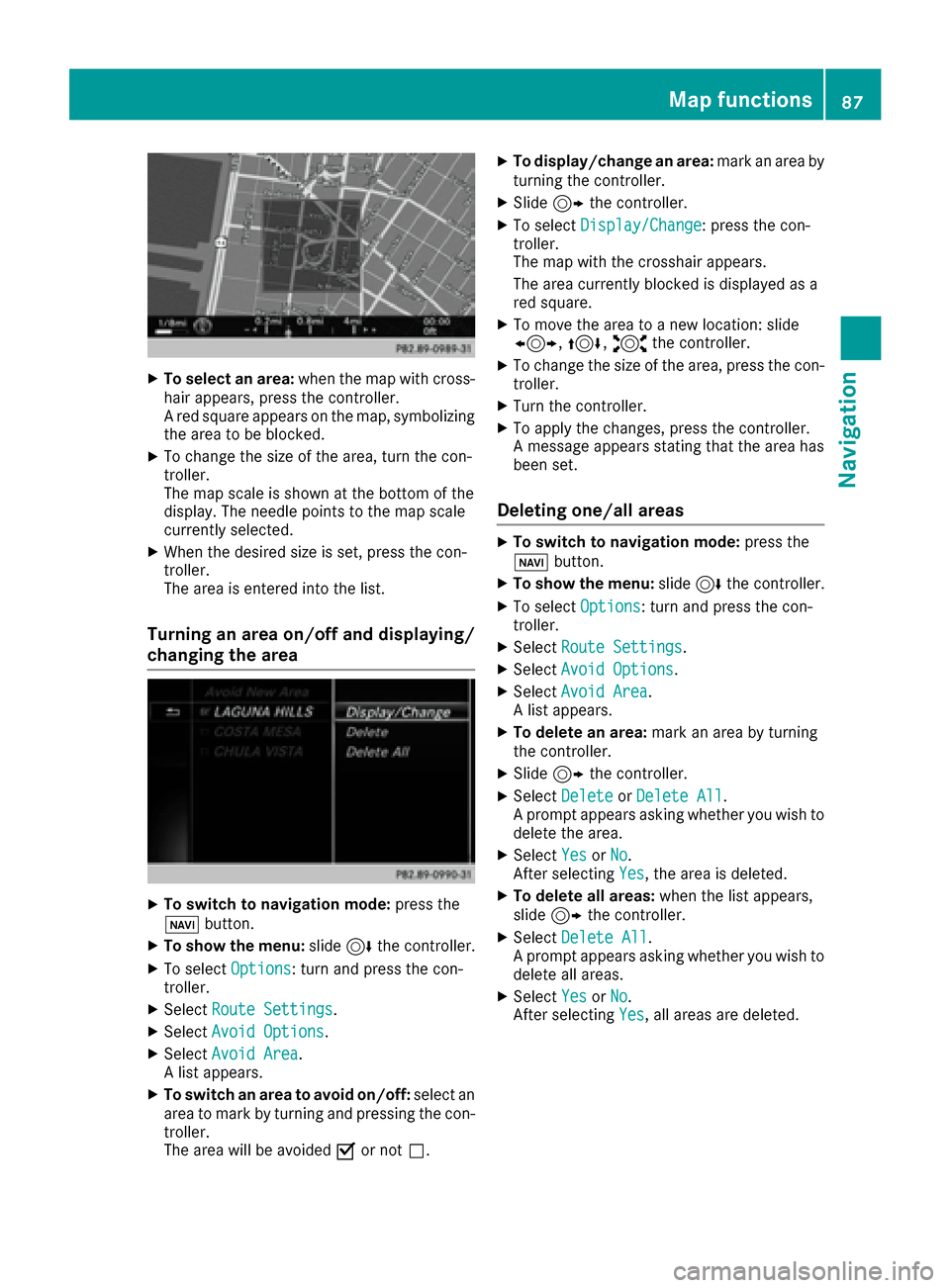
XTo select an area:when the map with cross-
hair appears, press the controller.
A red square appears on the map, symbolizing
the area to be blocked.
XTo change the size of the area, turn the con-
troller.
The map scale is shown at the bottom of the
display. The needle points to the map scale
currently selected.
XWhen the desired size is set, press the con-
troller.
The area is entered into the list.
Turning an area on/off and displaying/
changing the area
XTo switch to navigation mode: press the
ß button.
XTo show the menu: slide6the controller.
XTo select Options: turn and press the con-
troller.
XSelect Route Settings.
XSelectAvoid Options.
XSelectAvoid Area.
A list appears.
XTo switch an area to avoid on/off: select an
area to mark by turning and pressing the con-
troller.
The area will be avoided Oor not ª.
XTo display/change an area: mark an area by
turning the controller.
XSlide 9the controller.
XTo select Display/Change: press the con-
troller.
The map with the crosshair appears.
The area currently blocked is displayed as a
red square.
XTo move the area to a new location: slide
1, 4,2the controller.
XTo change the size of the area, press the con-
troller.
XTurn the controller.
XTo apply the changes, press the controller.
A message appears stating that the area has
been set.
Deleting one/all areas
XTo switch to navigation mode: press the
ß button.
XTo show the menu: slide6the controller.
XTo select Options: turn and press the con-
troller.
XSelect Route Settings.
XSelectAvoid Options.
XSelectAvoid Area.
A list appears.
XTo delete an area: mark an area by turning
the controller.
XSlide 9the controller.
XSelect DeleteorDelete All.
A prompt appears asking whether you wish to
delete the area.
XSelect YesorNo.
After selecting Yes, the area is deleted.
XTo delete all areas: when the list appears,
slide 9 the controller.
XSelect Delete All.
A prompt appears asking whether you wish to
delete all areas.
XSelect YesorNo.
After selecting Yes, all areas are deleted.
Map functions87
Navigation
Z
Page 90 of 202
SIRIUS XM service
Displaying SIRIUS XM service informa-
tion
You can display the SIRIUS XM service informa-
tion.
XTo switch to navigation mode: press the
Ø button.
XTo show the menu: slide6the controller.
XTo select Traffic: turn and press the con-
troller.
XSelect SIRIUS Service.
The provider's phone number (SIRIUS XM)
and the serial number of your service module
are displayed.
Registering the SIRIUS XM service
XCall the provider telephone number shown on
the multimedia system display.
iYou can also have the satellite service acti-
vated online. To do so, visit the SIRIUS XM
Radio website at http://www.sirius.com
(USA).
Once the connection has been established:
XFollow the service employee's instructions.
The activation process may take up to ten
minutes.
If registration is not included when purchasing
the system, your credit card details will be
required to activate your account.
Updating the digital map
Introduction
The digital maps generated by the map software
become outdated in the same way as conven-
tional road maps. Optimal route guidance can
only be provided by the navigation system in
conjunction with the most up-to-date map soft-
ware.
Information about new versions of the digital
map can be obtained from an authorized
Mercedes-Benz Center. You can have the digital
map updated there using a data medium, or you
can update it yourself.
For USA and Mexico, it is possible to update the
map data for the multimedia system free of
charge for a period of three years. Information on the availability of this service for your vehicle
can be obtained from an authorized Mercedes-
Benz Center.
Entitlement to the free update
For the first three years after your vehicle is reg-
istered, you are entitled to all available updates
to the map software for the multimedia system.
They are usually installed during a regular vehi-
cle service. After this period, you can purchase
further updates from an authorized Mercedes-
Benz Center.
The free updates relate to the vehicle and not to
an individual. If there is a change of ownership
within the three years after first registration, the
new owner is entitled to the map software
updates.
Updating at an authorized Mercedes-
Benz Center
If an update for your map software is available,
you will receive it free of charge at an authorized
Mercedes-Benz Center during your vehicle's
annual service. You can arrange a separate
appointment for this at an authorized Mercedes-
Benz Center on request.
The update can only be performed:
Rat an authorized Mercedes-Benz Center
Rfor navigation data for North America
The map software is not provided on DVD.
Carrying out a manual update
After the free update of the map data has
expired or when buying map data, you can
update the data yourself.
The update process may take some time (up to
45 minutes), depending on the size of the digital
map. The update will be completed more quickly if the vehicle is stationary. If you begin the
update while the vehicle is stationary and the
starter battery has insufficient power, the mul-
timedia system may switch off automatically.
This protects the battery. In order to prevent
this, a suitable power supply to the vehicle must
be maintained.
88Map functions
Navigation
Page 91 of 202
Navigation functions
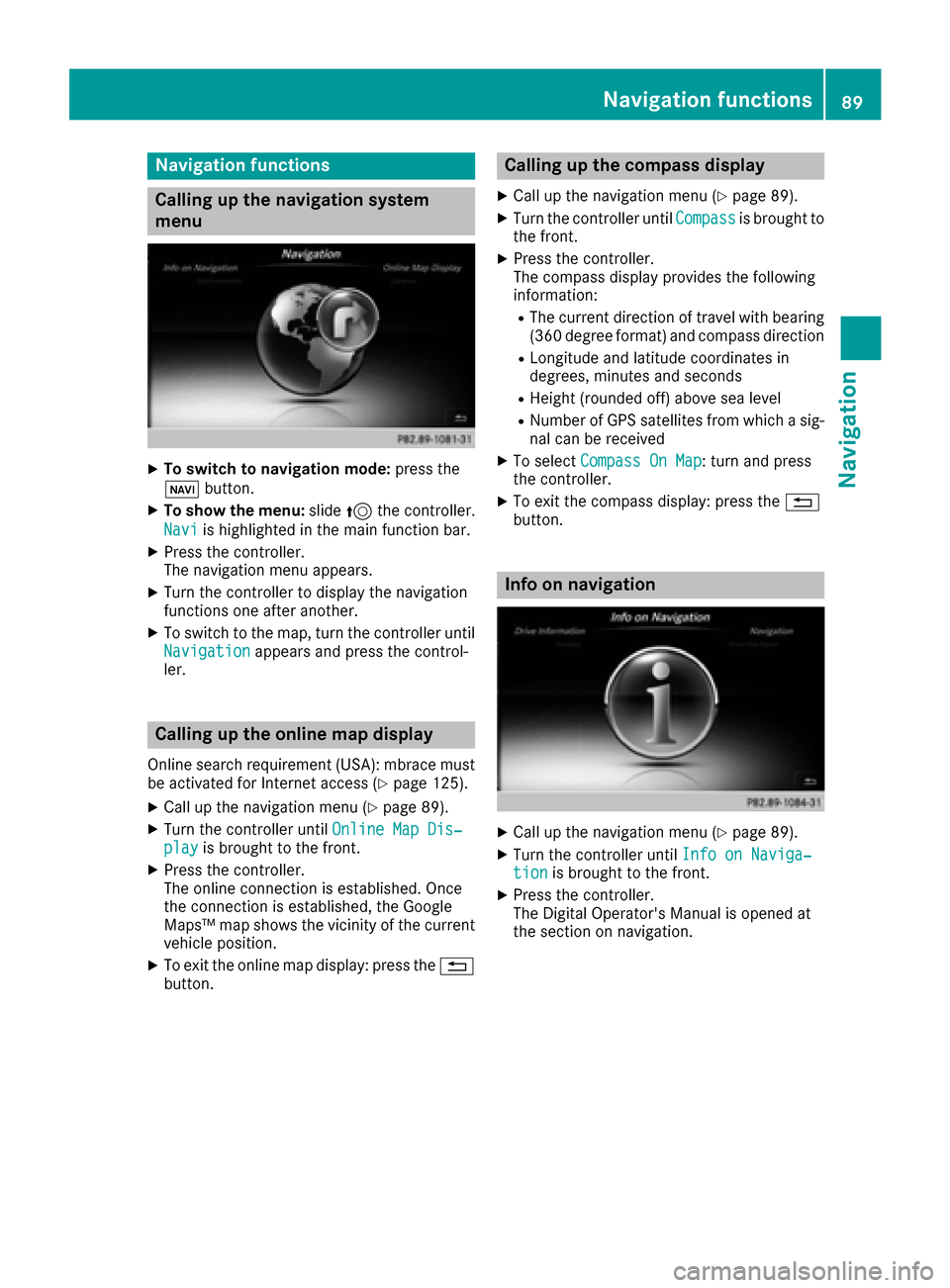
Calling up the navigation system
menu
XTo switch to navigation mode:press the
ß button.
XTo show the menu: slide5the controller.
Navi
is highlighted in the main function bar.
XPress the controller.
The navigation menu appears.
XTurn the controller to display the navigation
functions one after another.
XTo switch to the map, turn the controller until
Navigationappears and press the control-
ler.
Calling up the online map display
Online search requirement (USA): mbrace must
be activated for Internet access (Ypage 125).
XCall up the navigation menu (Ypage 89).
XTurn the controller until Online Map Dis‐playis brought to the front.
XPress the controller.
The online connection is established. Once
the connection is established, the Google
Maps™ map shows the vicinity of the current
vehicle position.
XTo exit the online map display: press the %
button.
Calling up the compass display
XCall up the navigation menu (Ypage 89).
XTurn the controller until Compassis brought to
the front.
XPress the controller.
The compass display provides the following
information:
RThe current direction of travel with bearing
(360 degree format) and compass direction
RLongitude and latitude coordinates in
degrees, minutes and seconds
RHeight (rounded off) above sea level
RNumber of GPS satellites from which a sig- nal can be received
XTo select Compass On Map: turn and press
the controller.
XTo exit the compass display: press the %
button.
Info on navigation
XCall up the navigation menu (Ypage 89).
XTurn the controller until Info on Naviga‐tionis brought to the front.
XPress the controller.
The Digital Operator's Manual is opened at
the section on navigation.
Navigation functions89
Navigation
Z
Page 94 of 202
Your multimediasyste mequipment
These operatin ginstruction sdescribe all th e
standar dan doptional equipment of your multi-
media system, as available at th etime of going
to press. Country-specifi cdifference sare pos -
sible. Bear in min dthat your vehicle may no t
feature all function sdescribed here. Thi salso
applies to safety-relevan tsystems an dfunc-
tions.
Read th einformation on qualifie dspecialis t
workshop sin th evehicle Operator's Manual.
Important safet ynotes
GWARNING
If you operat emobile communication equip-
men twhil edriving, you will be distracted from
traffic conditions. You could also los econtro l
of th evehicle. There is aris kof an accident.
Only operat ethis equipment when th evehicle
is stationary.
If you mak e acallon your mobile phone whil e
driving, always use hands-free mode. Only use
th emobile phone when road, weather an dtraffic
condition spermit .Some jurisdiction sprohibit
th edriver from usin g amobile phone whil edriv-
in g a vehicle.
Bear in min dthat at aspeed of 30 mph (approx-
imately 50 km/h), th evehicle cover s adistanc e
of 44 ft (approximately 14 m) per second.
Excessive levels of electromagnetic radiation
may cause damage to your health an dth ehealth
of others.
There is scientific discussio nsurroundin gth e
possible health risks posed by electromagnetic
fields .You can reduce this ris kby usin gan exte -
rio rantenna.
Therefore, connec tyour mobile communica-
tion sequipment to th evehicle' sexterio r
antenn awhereve rpossible.
General notes
Telephon y
The Bluetoot h®interface on th emultimedia sys -
te m is available fo rtelephony. If your mobile phone supports th
eBluetoot h
®
profilePBAP (Phone Book Access Profile),th e
contact sare automatically displaye din th emul-
timedia system.
You can use th etext messag ean de-mail func-
tion sif your mobile phone supports th eMA P
Bluetoot h
®profile (Message Access Profile) .
Observ eth eother requirements fo rth ee-mail
an dtext messag efunction s (
Ypage 114).
Wit h a suitable mobile phone ,you can use th e
hands-free syste mandreceiv evCards via th e
Bluetoot h
®interface .
You can obtain more information about suitable
mobile phone son th eInternet at
http://www.mercedes-benz.com/connect .
You can also obtain more information by calling.
In th eUSA, you can get in touch wit hth e
Mercedes-Ben zCustomer Assistanc eCente ron
1-800-FOR-MERCede s(1-800-367-6372 ).
In Canada, you can get in touch with the Cus-
tomer Relations Center on 1-800-387-0100.
Call disconnection while the vehicle is in motion
A call may be disconnected if:
Rthere is insufficient network coverage in cer-
tain areas.
Ryou move from one transmitter/receiver area
(cell) into another and no channels are free.
Ryou use a SIM card that is not compatible with
the network available.
Operating options
You can operate the telephone by:
Rusing the controller:
turning
sliding 1 or4
pressing
Rusing the 6or~ button on the multi-
function steering wheel
Rusing the Voice Control System (see the sep-
arate operating instructions)
92General notes
Telephone
Page 97 of 202
XTo selectConn. Device: turn and press the
controller.
The device list is displayed.
XTo select Search for Phones: turn and
press the controller.
A message is displayed that Bluetooth
®must
be activated on the mobile phone and must be
made visible to other devices.
XTo select StartSearch: press the controller.
The available mobile phones are displayed in
the device list.
The duration of the search depends on the num- ber of Bluetooth
®telephones within range and
their characteristics.
If a new phone is found, it appears in the device list with the Ïsymbol. You can now author-
ize (connect) the mobile phone found
(
Ypage 95).
If the maximum number of authorized devices in
the device list is reached, you will be requested
to de-authorize a mobile phone (
Ypage 97).
When you call up the device list again, de-
authorized devices will be removed from the list.
To update the device list, start the search again.
Symbols in the device list
Sym-
bolExplanation
ÏNew mobile phone found, not yet
authorized.
ÑMobile phone is authorized, but is
not connected.
#Mobile phone is authorized and
connected.
Authorizing a mobile phone (connect-
ing)
Authorization via Secure Simple Pairing
If the multimedia system has found your mobile
phone, you can authorize (connect) it.
XTo select a mobile phone from the device list: turn the controller and press to confirm.
A code is displayed in the multimedia system
and on the mobile phone. The code is the same
XMultimedia system:
selectYes.
XMobile phone: confirm the code. Depending
on the mobile phone used, you may have to
confirm the connection to the multimedia sys-
tem and for the PBAP and MAP Bluetooth
®
profiles separately. You may also save the
confirmation on the mobile phone (see the
manufacturer's operating instructions).
The mobile phone is now authorized and con-
nected to the multimedia system. You can
now speak using the hands-free system.
To ensure an optimum language quality, you can
set the mobile phone's transmission and recep-
tion volume (
Ypage 97).
The code is different
XMultimedia system: selectNo.
The process is canceled. Repeat the authori-
zation.
Authorization via passkey entry (access
code)
If the multimedia system has found your mobile
phone, you can authorize (connect) it.
XTo select a mobile phone from the device list: turn the controller and press to confirm.
The input menu for the passkey is displayed.
The passkey is a one- to sixteen-digit number
combination which you can choose yourself.
Depending on the mobile phone used, you
may have to enter a number sequence of four
digits or more.
XMultimedia system: enter the passkey using
the character bar.
XSelect ¬once all the numbers have been
entered.
XMobile phone: enter the same passkey and
confirm your entry. Depending on the mobile
phone used, you may have to confirm the
connection to the multimedia system and for
the PBAP and MAP Bluetooth
®profiles sepa-
rately. You may also save the confirmation on
the mobile phone (see the manufacturer's
operating instructions).
The mobile phone is now authorized and con-
nected to the multimedia system. You can
now speak using the hands-free system.
To ensure an optimum language quality, you can
set the mobile phone's transmission and recep-
tion volume (
Ypage 97).
Connecting/disconnecting a mobile phone95
Telephone
Z
Page 98 of 202
If theAuthorization Failedmessage
appears, you may have entered a different pass-
key or exceeded the prescribed time limit.
Repeat the procedure.
iIf you wish to re-authorize the mobile phone
after de-authorizing it, you can choose
another passkey for it.
iMercedes-Benz recommends de-authoriza-
tion in the multimedia system as well as on
the mobile phone (
Ypage 97). Subsequent
authorization may otherwise fail.
Establishing the connection from the
mobile phone
The Bluetooth®device name of the multimedia
system is MB Bluetooth.
XMultimedia system: call up the telephone
menu.
XTo switch to the menu bar: slide 6the con-
troller.
XTo select Conn. Device: turn and press the
controller.
The device list is displayed.
XTo select Connect via Phone: turn and
press the controller.
A message is displayed, stating that you can
start the search on your mobile phone.
XMobile phone: start the search for a Blue-
tooth®device (see manufacturer's operating
instructions).
The multimedia system is displayed with the
name MB Bluetooth
in the mobile phone's
device list.
XSelect MB Bluetooth.
A prompt appears in the multimedia system's
display asking if the mobile phone should be
authorized.
XMultimedia system:select Yes.
If No
is selected, the procedure is canceled.
If your mobile phone supports Secure Simple
Pairing, a code is now displayed on both devi-
ces.
The code is the same
XMultimedia system:select Yes.
XMobile phone:confirm the code. Depending
on the mobile phone used, you may have to
confirm the connection to the multimedia sys-
tem and for the PBAP and MAP Bluetooth
®
profiles separately. You may also save the
confirmation on the mobile phone (see the
manufacturer's operating instructions).
The mobile phone is now authorized and con-
nected to the multimedia system. You can
now speak using the hands-free system.
To ensure an optimum language quality, you
can set the mobile phone's transmission and
reception volume (
Ypage 97).
The code is different
XMultimedia system:select No.
The process is canceled. Repeat the proce-
dure.
If your mobile phone does not support Secure
Simple Pairing, an input menu is displayed for
the passkey. The passkey is a one- to sixteen-
digit number combination which you can choose
yourself. Enter the same passkey in both the
multimedia system and on the mobile phone and
confirm. Depending on the mobile phone used,
you may have to confirm the connection to the
multimedia system and for the PBAP and MAP
Bluetooth
®profiles.
Reconnecting automatically
The multimedia system always searches for the
last connected mobile phone.
If no connection can be made to the most
recently connected mobile phone, the system
searches for the mobile phone that was con-
nected before that one.
Switching between mobile phones
If you have authorized more than one mobile
phone, you can switch between the individual
phones.
XTo call up the telephone menu: press the
% button.
XTo switch to the menu bar: slide 6the con-
troller.
XTo select Conn. Device: turn and press the
controller.
The device list is displayed.
XTo select the desired mobile phone: turn and press the controller.
The selected mobile phone is connected if it is
within Bluetooth
®range and if Bluetooth®is
activated.
96Connecting/disconnecting a mobile phone
Telephone