light MERCEDES-BENZ C-CLASS SALOON 2018 Owners Manual
[x] Cancel search | Manufacturer: MERCEDES-BENZ, Model Year: 2018, Model line: C-CLASS SALOON, Model: MERCEDES-BENZ C-CLASS SALOON 2018Pages: 609, PDF Size: 11.19 MB
Page 298 of 609
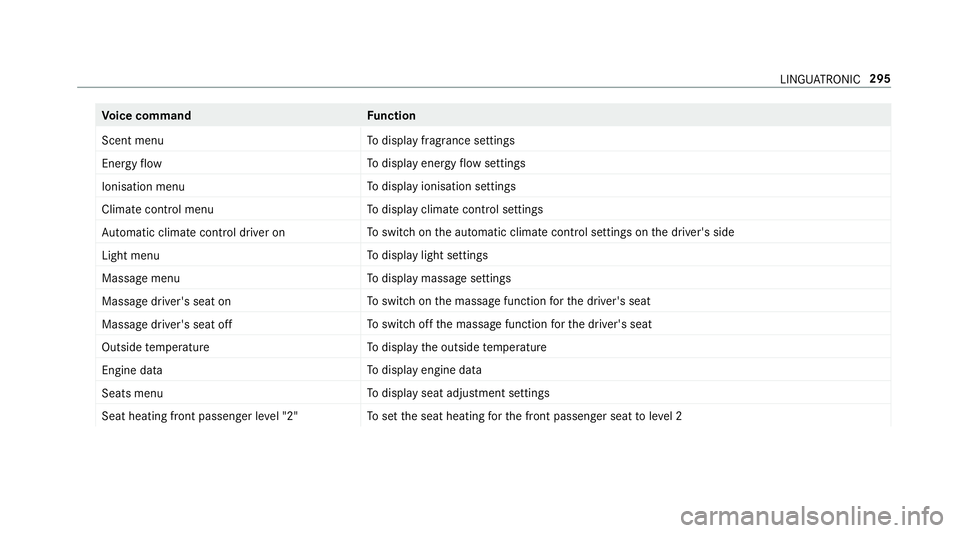
Vo
ice command Function
Scent menu To
display fragrance settings
Energy flow To
display energy flow settings
Ionisation menu To
display ionisation settings
Climate control menu To
display climate control settings
Automatic climate control driver on To
switch on the automatic climate control settings on the driver's side
Light menu To
display light settings
Massage menu To
display massage settings
Massage driver's seat on To
switch on the massage function forth e driver's seat
Massage driver's seat off To
switch off the massage function forth e driver's seat
Outside temperature To
display the outside temp erature
Engine data To
display engine data
Seats menu To
display seat adjustment settings
Seat heating front passenger level "2" To
set the seat heating forth e front passenger seat toleve l 2 LINGU
ATRO NIC 295
Page 309 of 609
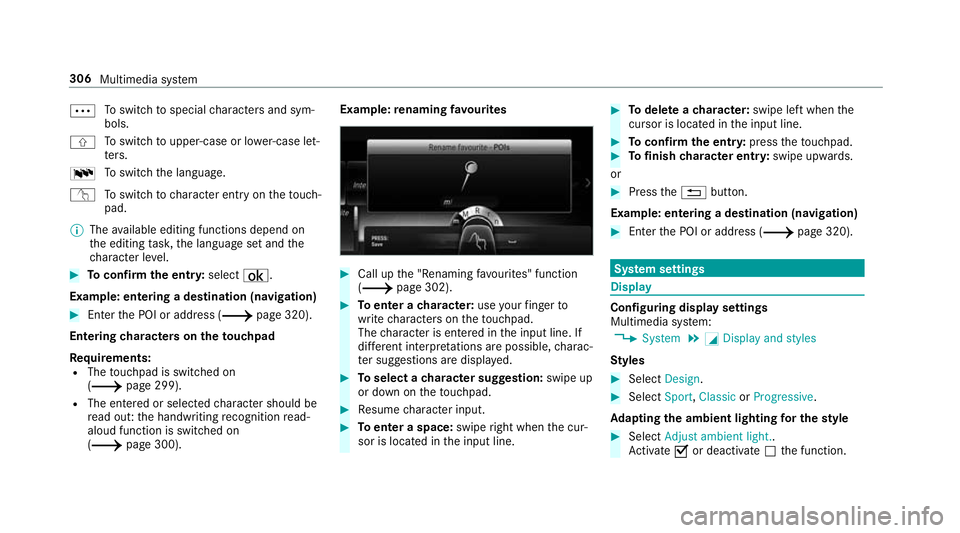
0062
To
switch tospecial characters and sym‐
bols.
006A To
switch toupper-case or lo wer-case let‐
te rs.
0054 To
switch the language.
v Toswitch tocharacter ent ryon theto uch‐
pad.
0009 The available editing functions depend on
th e editing task, the language set and the
ch aracter le vel. 0007
Toconfirm the entr y:select ¡.
Example: entering a destination (navigation) 0007
Enter the POI or address (0013 page 320).
Entering characters on theto uchpad
Requ irements:
R The touchpad is swit ched on
(0013 page 299).
R The entered or selected character should be
re ad out: the handwriting recognition read-
aloud function is swit ched on
(0013 page 300). Example:
renaming favo urites 0007
Call up the "Renaming favo urites" function
(0013 page 302). 0007
Toenter a character: useyour finger to
write characters on theto uchpad.
The character is entered in the input line. If
dif fere nt interpr etations are possible, charac‐
te r suggestions are displa yed. 0007
Toselect a character suggestion: swipe up
or down on theto uchpad. 0007
Resume character input. 0007
Toenter a space: swiperight when the cur‐
sor is located in the input line. 0007
Todel ete a character: swipe left when the
cursor is loca ted in the input line. 0007
Toconfirm the entr y:press theto uchpad. 0007
Tofinish character entr y:swipe upwards.
or 0007
Press the0038 button.
Example: entering a destination (navigation) 0007
Ente rth e POI or address (0013 page 320). Sy
stem settings Display
Configuring display settings
Multimedia sy
stem:
0018 System 0019
0043 Display and styles
Styl es 0007
Select Design. 0007
Select Sport,Classic orProgressive .
Ad apting the ambient lighting for the style 0007
Select Adjust ambient light. .
Ac tivate 0073or deacti vate 0053 the function. 306
Multimedia sy stem
Page 310 of 609
This function adjusts
the ambient lighting for
th e selected display style.
Setting the display brightness 0007
Select Display brightness . 0007
Select a brightness value.
Switching the display off/on 0007
Off: select Display off . 0007
On: press a button, 002B,forex ample.
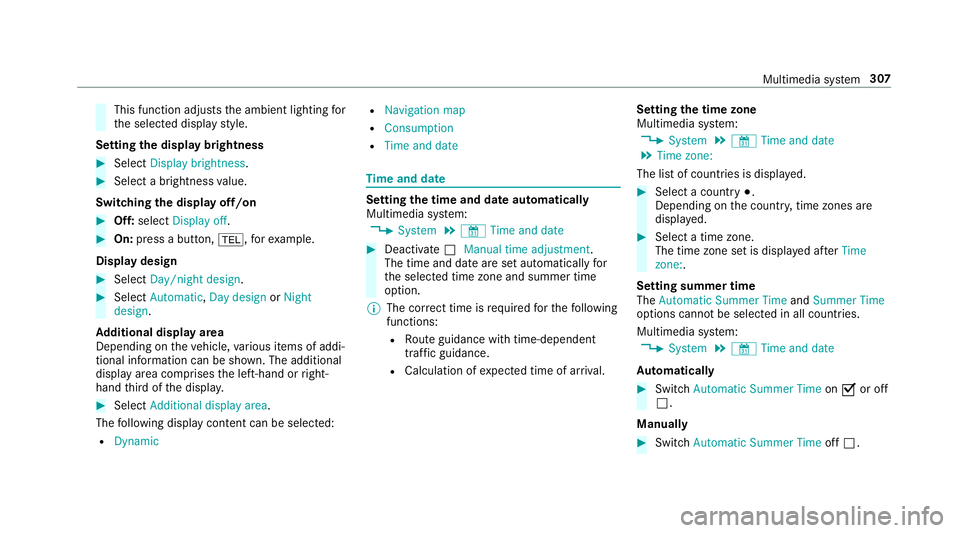
Displ aydesign 0007
Select Day/night design. 0007
Select Automatic, Day design orNight
design.
Ad ditional displ ayarea
Depending on theve hicle, various items of addi‐
tional information can be shown. The additional
display area comprises the left-hand or right-
hand third of the displa y. 0007
Select Additional display area .
The following display con tent can be selected:
R Dynamic R
Navigation map
R Consumption
R Time and date Ti
me and date Setting the time and date automatically
Multimedia sy
stem:
0018 System 0019
& Time and date 0007
Deactivate 0053Manual time adjustment.
The time and date are set automatically for
th e selected time zone and summer time
option.
0009 The cor rect time is requ ired forth efo llowing
functions:
R Route guidance with time-dependent
traf fic guidance.
R Calculation of expected time of ar riva l. Setting
the time zone
Multimedia sy stem:
0018 System 0019
& Time and date
0019 Time zone:
The list of count ries is displa yed. 0007
Select a count ry003B.
Depending on the count ry, time zones are
displa yed. 0007
Select a time zone.
The time zone set is displa yed af terTime
zone:.
Setting summer time
The Automatic Summer Time andSummer Time
options cannot be selected in all countries.
Multimedia sy stem:
0018 System 0019
& Time and date
Au tomatically 0007
Switch Automatic Summer Time on0073 or off
0053.
Manual ly 0007
Switch Automatic Summer Time off0053. Multimedia sy
stem 307
Page 313 of 609
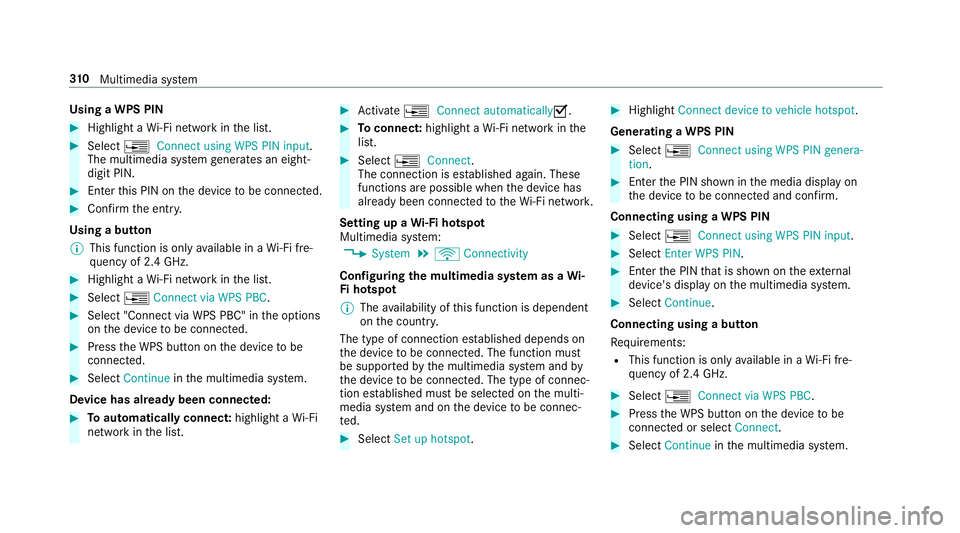
Using a WPS PIN
0007
Highlight a Wi-Fi network in the list. 0007
Select 0080Connect using WPS PIN input.
The multimedia sy stem generates an eight-
digit PIN. 0007
Enter this PIN on the device tobe connec ted. 0007
Confirm the entry.
Using a button
0009 This function is only available in a Wi-Fi fre‐
qu ency of 2.4 GHz. 0007
Highlight a Wi-Fi network in the list. 0007
Select 0080Connect via WPS PBC. 0007
Select "Connect via WPS PBC" in the options
on the device tobe connec ted. 0007
Press the WPS button on the device tobe
connec ted. 0007
Select Continue inthe multimedia sy stem.
Device has already been connected: 0007
Toautomatically connect: highlight aWi-Fi
network in the list. 0007
Activate 0080 Connect automatically0073. 0007
Toconnect: highlight a Wi-Fi network in the
list. 0007
Select 0080Connect.
The connection is es tablished again. These
functions are possible when the device has
already been connected totheWi -Fi networ k.
Setting up a Wi-Fi hotspot
Multimedia sy stem:
0018 System 0019
ö Connectivity
Configuring the multimedia sy stem as a Wi-
Fi hotspot
0009 The availability of this function is dependent
on the count ry.
The type of connection es tablished depends on
th e device tobe connec ted. The function must
be suppor tedby the multimedia sy stem and by
th e device tobe connec ted. The type of connec‐
tion es tablished must be selected on the multi‐
media sy stem and on the device tobe connec‐
te d. 0007
Select Set up hotspot. 0007
Highlight Connect device to vehicle hotspot.
Generating a WPS PIN 0007
Select 0080Connect using WPS PIN genera-
tion . 0007
Ente rth e PIN shown in the media display on
th e device tobe connec ted and con firm.
Connecting using a WPS PIN 0007
Select 0080Connect using WPS PIN input. 0007
Select Enter WPS PIN. 0007
Enterth e PIN that is shown on theex tern al
device's display on the multimedia sy stem. 0007
Select Continue.
Connecting using a button
Re quirements:
R This function is only available in a Wi-Fi fre‐
qu ency of 2.4 GHz. 0007
Select 0080Connect via WPS PBC. 0007
Press the WPS button on the device tobe
connec ted or select Connect. 0007
Select Continue inthe multimedia sy stem. 310
Multimedia sy stem
Page 318 of 609
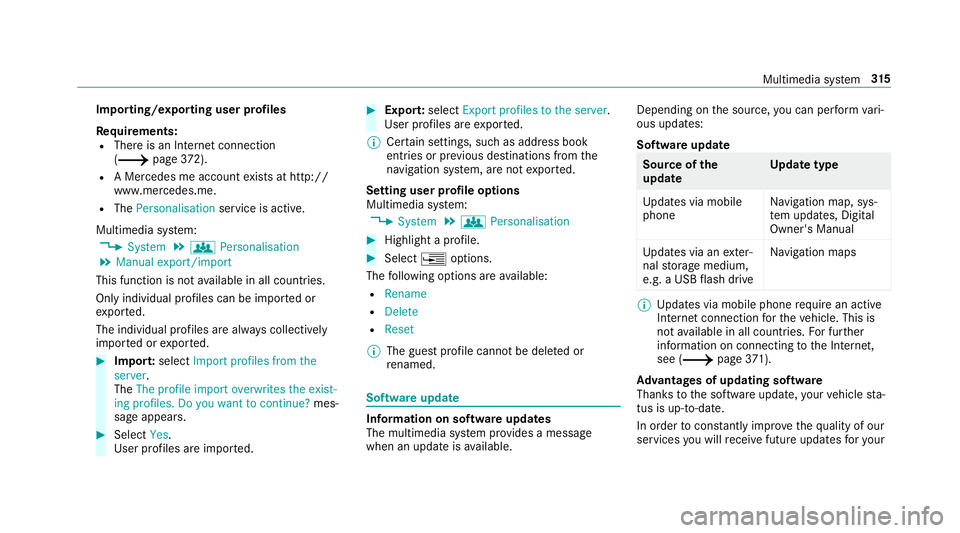
Importing/exporting user profiles
Re
quirements:
R There is an Internet connection
(0013 page372).
R A Mercedes me account exists at http://
www.me rcedes.me.
R The Personalisation service is active.
Multimedia sy stem:
0018 System 0019
g Personalisation
0019 Manual export/import
This function is not available in all countries.
On ly individu al profiles can be impor ted or
ex por ted.
The individual profiles are alw ays collectively
impor ted or expor ted. 0007
Impor t:select Import profiles from the
server.
The The profile import overwrites the exist-
ing profiles. Do you want to continue? mes‐
sage appears. 0007
Select Yes.
User profiles are impor ted. 0007
Expor t:select Export profiles to the server.
User profiles are expor ted.
0009 Certain settings, such as address book
ent ries or pr evious destinations from the
navigation sy stem, are not expor ted.
Setting user profile options
Multimedia sy stem:
0018 System 0019
g Personalisation 0007
Highlight a profile. 0007
Select 0080options.
The following options are available:
R Rename
R Delete
R Reset
0009 The guest profile cannot be dele ted or
re named. So
ftwa reupdate Information on software updates
The multimedia sy
stem pr ovides a message
when an update is available. Depending on
the source, you can per form vari‐
ous updates:
Software update Source of
the
update Up
date type
Up dates via mobile
phone Na
vigation map, sys‐
te m updates, Digital
Owner's Manual
Up dates via an exter‐
nal storage medium,
e.g. a USB flash drive Na
vigation maps 0009
Updates via mobile phone requ ire an active
Internet connection forth eve hicle. This is
not available in all countries. For fur ther
information on connecting tothe Internet,
see (0013 page371).
Ad vantages of updating software
Thanks tothe software update, your vehicle sta‐
tus is up-to-date.
In order tocons tantly impr ovethequ ality of our
services you will recei vefuture updates foryo ur Multimedia sy
stem 315
Page 321 of 609
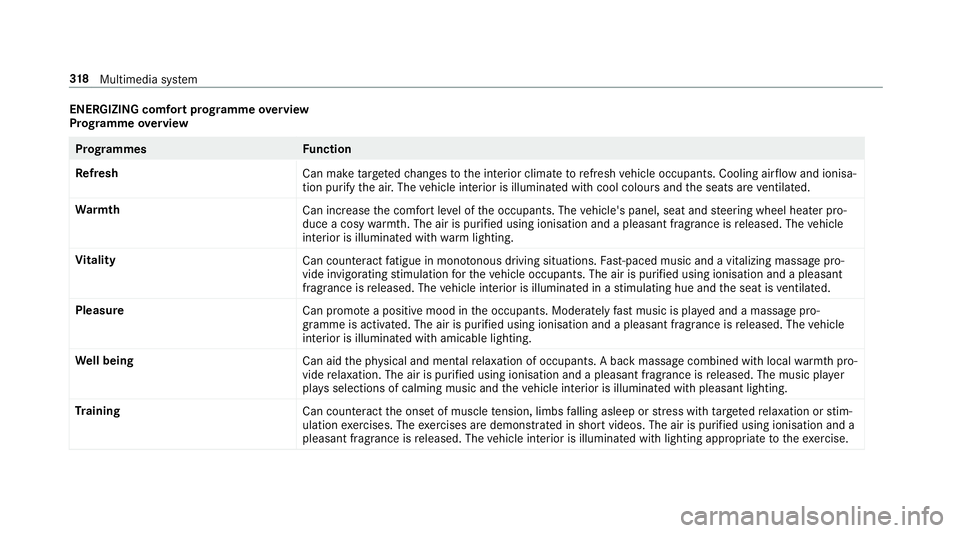
ENERGIZING comfort prog
ramme overview
Prog ramme overview Prog
rammes Function
Re fresh
Can maketargeted changes tothe interior climate torefresh vehicle occupants. Cooling air flow and ionisa‐
tion purify the air. The vehicle interior is illuminated with cool colours and the seats are ventilated.
Wa rmth
Can increase the comfort le vel of the occupants. The vehicle's panel, seat and steering wheel heater pro‐
duce a cosy warmth. The air is pu rified using ionisation and a pleasant fragrance is released. The vehicle
interior is illuminated with warm lighting.
Vi tality
Can countera ct fatigue in mono tonous driving situations. Fast-paced music and a vitalizing massa gepro‐
vide invigorating stimulation forth eve hicle occupants. The air is purified using ionisation and a pleasant
fragrance is released. The vehicle interior is illuminated in a stimulating hue and the seat is ventilated.
Pleasure Can promotea positive mood in the occupants. Moderately fastmusic is pla yed and a massage pro‐
gramme is activated. The air is purified using ionisation and a pleasant fragrance is released. The vehicle
interior is illuminated with amicable lighting.
We ll being
Can aidthe ph ysical and men talre laxation of occupants. A back massage combined with local warmthpro‐
vide relaxation. The air is purified using ionisation and a pleasant fragrance is released. The music pla yer
pla ysselections of calming music and theve hicle interior is illuminated with pleasant lighting.
Tr aining
Can counteractthe onset of muscle tension, limbs falling asleep or stre ss with targeted relaxation or stim‐
ulation exercises. The exercises are demon stra ted in short videos. The air is purified using ionisation and a
pleasant fragrance is released. The vehicle interior is illuminated with lighting appropriate totheex ercise. 318
Multimedia sy stem
Page 325 of 609
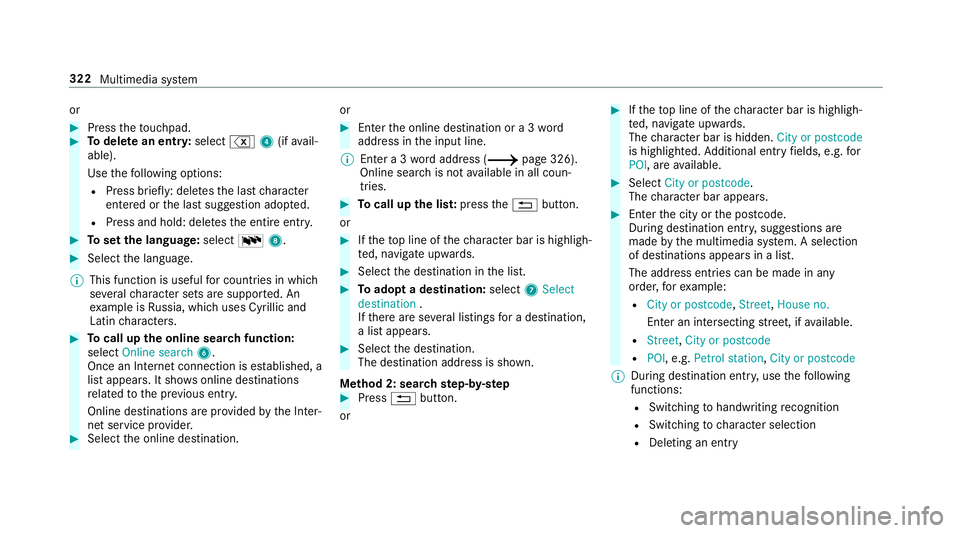
or
0007
Press theto uchpad. 0007
Todel ete an entr y:select %4(ifavail‐
able).
Use thefo llowing options:
R Press brief ly: del etes the last character
entered or the last suggestion adop ted.
R Press and hold: dele testh e entire entry. 0007
Toset the language: select00548. 0007
Select the language.
0009 This function is useful for countries in which
se veralch aracter sets are suppo rted. An
ex ample is Russia, which uses Cyrillic and
Latin characters. 0007
Tocall up the online sear chfunction:
select Online search 6.
Once an Internet connection is es tablished, a
list appears. It sho wsonline destinations
re lated tothe pr evious ent ry.
Online destinations are pr ovided bythe Inter‐
net service pr ovider. 0007
Select the online destination. or 0007
Ente rth e online destination or a 3 word
address in the input line.
0009 Ente r a 3 wordaddress (0013 page 326).
Online sear chis not available in all coun‐
tries. 0007
Tocall up the lis t:press the0038 button.
or 0007
Ifth eto p line of thech aracter bar is highligh‐
te d, navigate upwards. 0007
Select the destination in the list. 0007
Toadopt a destination: select7Select
destination .
If th ere are se veral listings for a destination,
a list appears. 0007
Select the destination.
The destination address is shown.
Me thod 2: sear chstep- by-step 0007
Press 0038button.
or 0007
Ifth eto p line of thech aracter bar is highligh‐
te d, navigate upwards.
The character bar is hidden. City or postcode
is highlighted. Additional ent ryfields, e.g. for
POI, are available. 0007
Select City or postcode.
The character bar appears. 0007
Enterth e city or the postcode.
During destination entry , suggestions are
made bythe multimedia sy stem. A selection
of destinations appears in a list.
The address entri es can be made in any
order, forex ample:
R City or postcode, Street,House no.
En ter an intersecting stre et, if available.
R Street, City or postcode
R POI , e.g. Petrol station, City or postcode
0009 During destination ent ry, use thefo llowing
functions:
R Swit ching tohandwriting recognition
R Switching tocharacter selection
R Deleting an ent ry322
Multimedia sy stem
Page 327 of 609
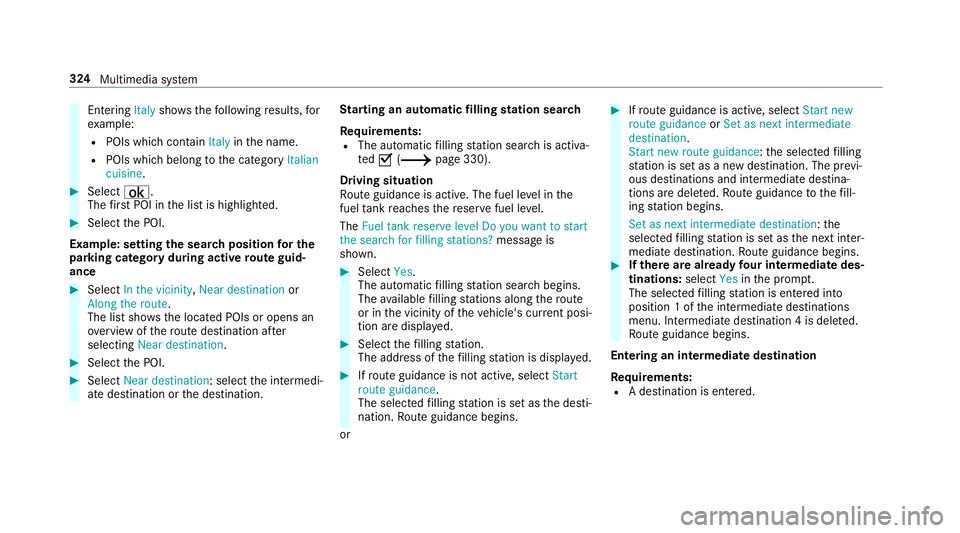
Entering
Italyshowsthefo llowing results, for
ex ample:
R POIs which con tain Italy inthe name.
R POIs which belong tothe category Italian
cuisine. 0007
Select ¡.
The firs t POI in the list is highlighted. 0007
Select the POI.
Example: setting the sear chposition for the
parking ca tegory during active route guid‐
ance 0007
Select In the vicinity ,Near destination or
Along the route.
The list sho ws the located POIs or opens an
ove rview of thero ute destination af ter
selecting Near destination. 0007
Select the POI. 0007
Select Near destination: select the intermedi‐
ate destination or the destination. St
arting an automatic filling station sear ch
Re quirements:
R The automatic filling station sear chis activa‐
te d0073 (0013 page 330).
Driving situation
Ro ute guidance is active. The fuel le vel in the
fuel tank reaches there ser vefuel le vel.
The Fuel tank reserve level Do you want to start
the search for filling stations? message is
shown. 0007
Select Yes.
The automatic filling station sear chbegins.
The available filling stations along thero ute
or in the vicinity of theve hicle's cur rent posi‐
tion are displ ayed. 0007
Select thefilling station.
The address of thefilling station is displa yed. 0007
Ifro ute guidance is not active, select Start
route guidance .
The selected filling station is set as the desti‐
nation. Route guidance begins.
or 0007
Ifro ute guidance is active, select Start new
route guidance orSet as next intermediate
destination .
Start new route guidance: the selected filling
st ation is set as a new destination. The pr evi‐
ous destinations and intermediate destina‐
tions are dele ted. Ro ute guidance tothefill‐
ing station begins.
Set as next intermediate destination: the
selected filling station is set as the next inter‐
mediate destination. Route guidance begins. 0007
Ifth ere are already four intermediate des‐
tinations: selectYesinthe prom pt.
The selected filling station is entered into
position 1 of the intermediate destinations
menu. Intermediate destination 4 is dele ted.
Ro ute guidance begins.
Entering an intermediate destination
Re quirements:
R A destination is entered. 324
Multimedia sy stem
Page 328 of 609
Multimedia sy
stem:
0018 Navigation
0019 Intermediate destinations and info 0007
Select Search for an intermediate destina-
tion . 0007
Ente rth e intermediate destination as a POI
or address (0013 page 320).0007
Select the intermediate destination. 0007
Select Set as destination.
or 0007
Select an intermediate destination using
ª Enter destination duringroute guid‐
ance. 0007
Select Set as next intermediate destination
af te r entering the destination.
Editing intermedia tedestinations
Re quirements:
R The destination and at least one intermediate
destination ha vebeen entered. Multimedia sy
stem:
0018 Navigation
0019 Intermediate destinations and info 0007
Tocall up the map: highlight the destination
or the intermediate destination. 0007
Select 0080Map. 0007
Movethe map (0013 page 341). 0007
Select destination on the map
(0013 page 327). 0007
Tochange the order of destinations: high‐
light the destination or the intermediate des‐
tination. 0007
Select 0080Move . 0007
Movethe intermediate destination tothe
desired position. 0007
Press theTo uch Control, the controller or the
to uchpad. 0007
Todel ete a destination: highlightthe desti‐
nation or the intermediate destination. 0007
Select 0080Delete. Calculating a
route with intermediate desti‐
nations
Re quirements:
R The destination and at least one intermediate
destination ha vebeen entered.
Multimedia sy stem:
0018 Navigation
0019 Intermediate destinations and info 0007
Select Start new route guidance.
The route is calculated with the set inter‐
mediate destinations.
Selecting a contact for destination entry
Re quirements:
R A mobile phone is connec tedto the multime‐
dia sy stem (0013 page 349).
R Contacts ha vebeen downloaded
(0013 page 355). Multimedia sy
stem 325
Page 329 of 609
Multimedia sy
stem:
0018 Navigation
0019 ¬ Previous and other destinations
0019 Contacts 0007
Select the conta ct.
The contact de tails are displa yed. 0007
Select the address.
Fi ltering displa ysfor contacts 0007
Enter a name or telephone number, forex am‐
ple, into the sear chfield. 0007
Select ¡.
The firs t contact in the list is highlighted. 0007
Select the conta ct. 0007
Select the address. Entering
geo-coordina tes
Multimedia sy stem:
0018 Navigation
0019 ¬ Previous and other destinations
0019 Geo-coordinates 0007
Ente rge o-coordinates as latitude and longi‐
tude coordinates in degrees, minutes and
seconds.
The map sho ws the position. 0007
Confirm the entry. 0007
Tocalculate a route: select Start route
guidance. 0007
If a route has already been created, select
Start new route guidance orSet as inter-
mediate destination .
Entering the destination as a 3 wordaddress
Re quirements:
R Sear ching for a destination using 3 word
addresses is possible in the online sear ch
( 0013 page 320).
R There is an Internet connection. 0009
Sear ching for a destination using 3 word
addresses is not possible in all countries.
Multimedia sy stem:
0018 Navigation 0019
ª Enter destination 0007
Select Online search. 0007
Ente rth e destination address as a 3 word
address. Separate each of thewo rds with a
full stop.
The sear chresults are displa yed. 0007
Select the destination in the list.
The destination address is shown. The route
can be calculated.
0009 3wo rdaddresses from what3words are an
alternative addressing sy stem for multilin‐
gual georeferencing of global locations with
a re solution of thre e metres. Using this grid,
locations on the Ear th's sur face are included
whi chdo not ha vea building address such
as stre et and house number, forex ample.
The Brandenburg Gate in Berlin has thefo l‐
lowing language dependent 3 wordaddress,
fo rex ample:
R German: tapfer.ge bäude.verliehen 326
Multimedia sy stem