phone MERCEDES-BENZ CL CLASS 2010 Owner's Manual
[x] Cancel search | Manufacturer: MERCEDES-BENZ, Model Year: 2010, Model line: CL CLASS, Model: MERCEDES-BENZ CL CLASS 2010Pages: 500, PDF Size: 9.32 MB
Page 104 of 500
X
Switching manually to the street list
without predictive speller: Slide ZV.
or
X Select ¬ in the second line from the
bottom and press W.
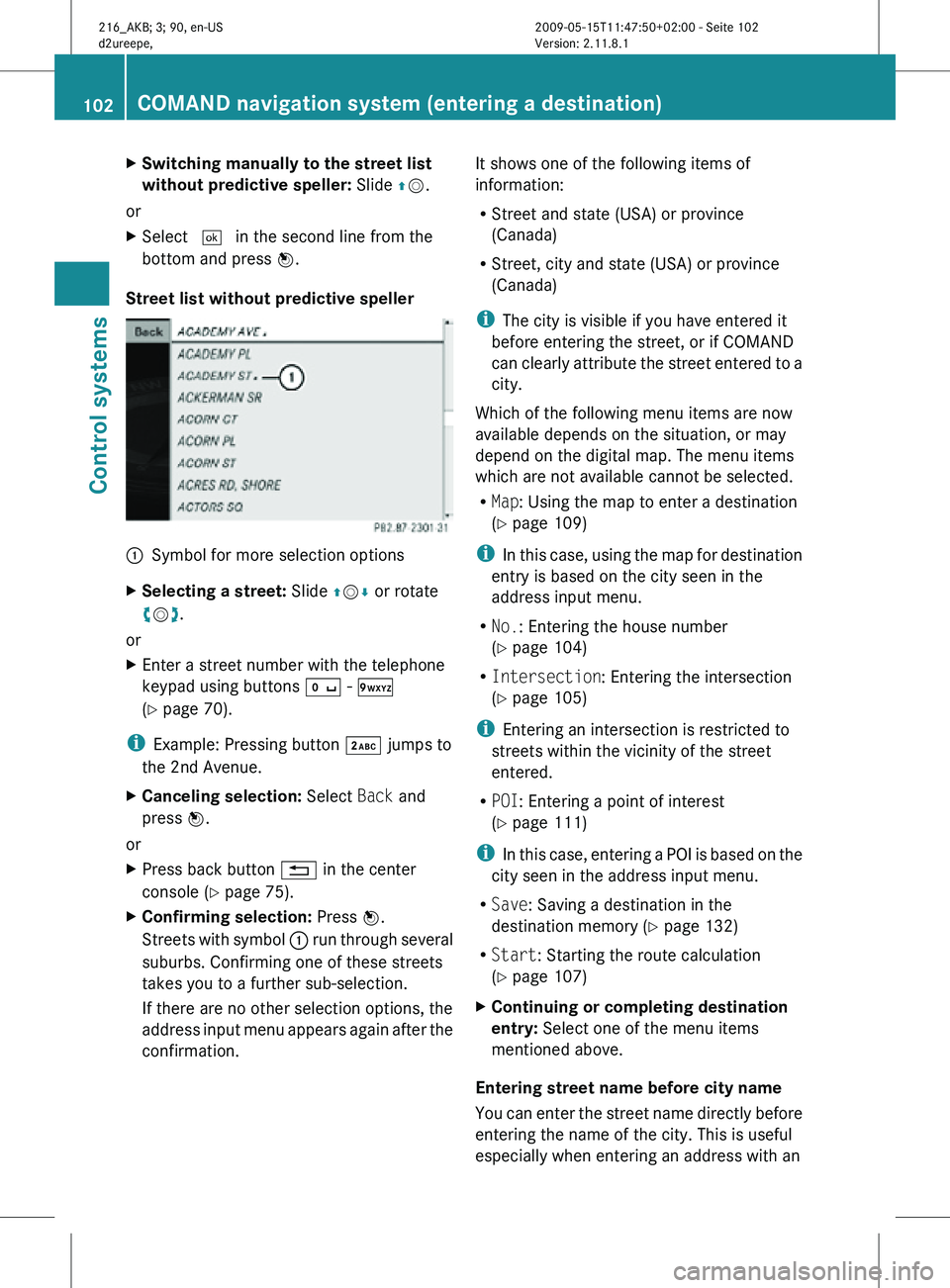
Street list without predictive speller :
Symbol for more selection options
X Selecting a street: Slide ZVÆ or rotate
cVd.
or
X Enter a street number with the telephone
keypad using buttons Å - Ã
(Y page 70).
i Example: Pressing button · jumps to
the 2nd Avenue.
X Canceling selection: Select Back and
press W.
or
X Press back button % in the center
console (Y page 75).
X Confirming selection: Press W.
Streets with symbol : run through several
suburbs. Confirming one of these streets
takes you to a further sub-selection.
If there are no other selection options, the
address input menu appears again after the
confirmation. It shows one of the following items of
information:
R
Street and state (USA) or province
(Canada)
R Street, city and state (USA) or province
(Canada)
i The city is visible if you have entered it
before entering the street, or if COMAND
can clearly attribute the street entered to a
city.
Which of the following menu items are now
available depends on the situation, or may
depend on the digital map. The menu items
which are not available cannot be selected.
R Map: Using the map to enter a destination
(Y page 109)
i In this case, using the map for destination
entry is based on the city seen in the
address input menu.
R No.: Entering the house number
(Y page 104)
R Intersection: Entering the intersection
(Y page 105)
i Entering an intersection is restricted to
streets within the vicinity of the street
entered.
R POI: Entering a point of interest
(Y page 111)
i In this case, entering a POI is based on the
city seen in the address input menu.
R Save: Saving a destination in the
destination memory (Y page 132)
R Start: Starting the route calculation
(Y page 107)
X Continuing or completing destination
entry: Select one of the menu items
mentioned above.
Entering street name before city name
You can enter the street name directly before
entering the name of the city. This is useful
especially when entering an address with an 102
COMAND navigation system (entering a destination)Control systems
216_AKB; 3; 90, en-US
d2ureepe,
Version: 2.11.8.1 2009-05-15T11:47:50+02:00 - Seite 102
Page 107 of 500
X
Selecting numbers: Slide XVY or rotate
cVd.
X Confirming number selection: Press W.
or
X Entering a number with the telephone
keypad using buttons Å - Ã
(Y page 70).
X Deleting individual numbers: Select F
in the bottom line and press W.
X Deleting an entire entry: Select F in the
bottom line and press W and hold until the
entire entry is deleted.
X Canceling an entry: Select % in the
bottom line and press W.
or
X Press back button % in the center
console (Y page 75).
X Confirming entry: Select ¬ in the
second line from the bottom and press W.
If COMAND cannot clearly attribute the
house number to a city, the city input menu
appears.
Entering city: Proceed as described in the
“Entering a city” section (Y page 98).
After the city has been entered, the address
input menu appears again.
If COMAND can clearly attribute the house
number to a city, the address input menu
also appears.
In both cases, the address input menu
shows the house number, street, city and
state (USA) or province (Canada).
Which of the following menu items are now
available may depend on the data version of
the digital map. The menu items which are not
available cannot be selected.
R Map: Using the map to enter a destination
(Y page 109)
i In this case, using the map for destination
entry is based on the city seen in the
address input menu.
R POI: Entering a point of interest
(Y page 111) i
In this case, entering a POI is based on the
city seen in the address input menu.
R Save: Saving a destination in the
destination memory (Y page 132)
R Start: Starting the route calculation
(Y page 107)
X Continuing or completing destination
entry: Select one of the menu items
mentioned above.
Entering an intersection i
The intersection can only be entered after
the street has been entered.
You can only enter intersections which are
available on the digital map.
X In the address input menu, select
Intersection.
The list of intersections appears either with
or without the predictive speller
(Y page 106). Whether or not the
predictive speller appears depends on how
many intersections are available for the
selected street.
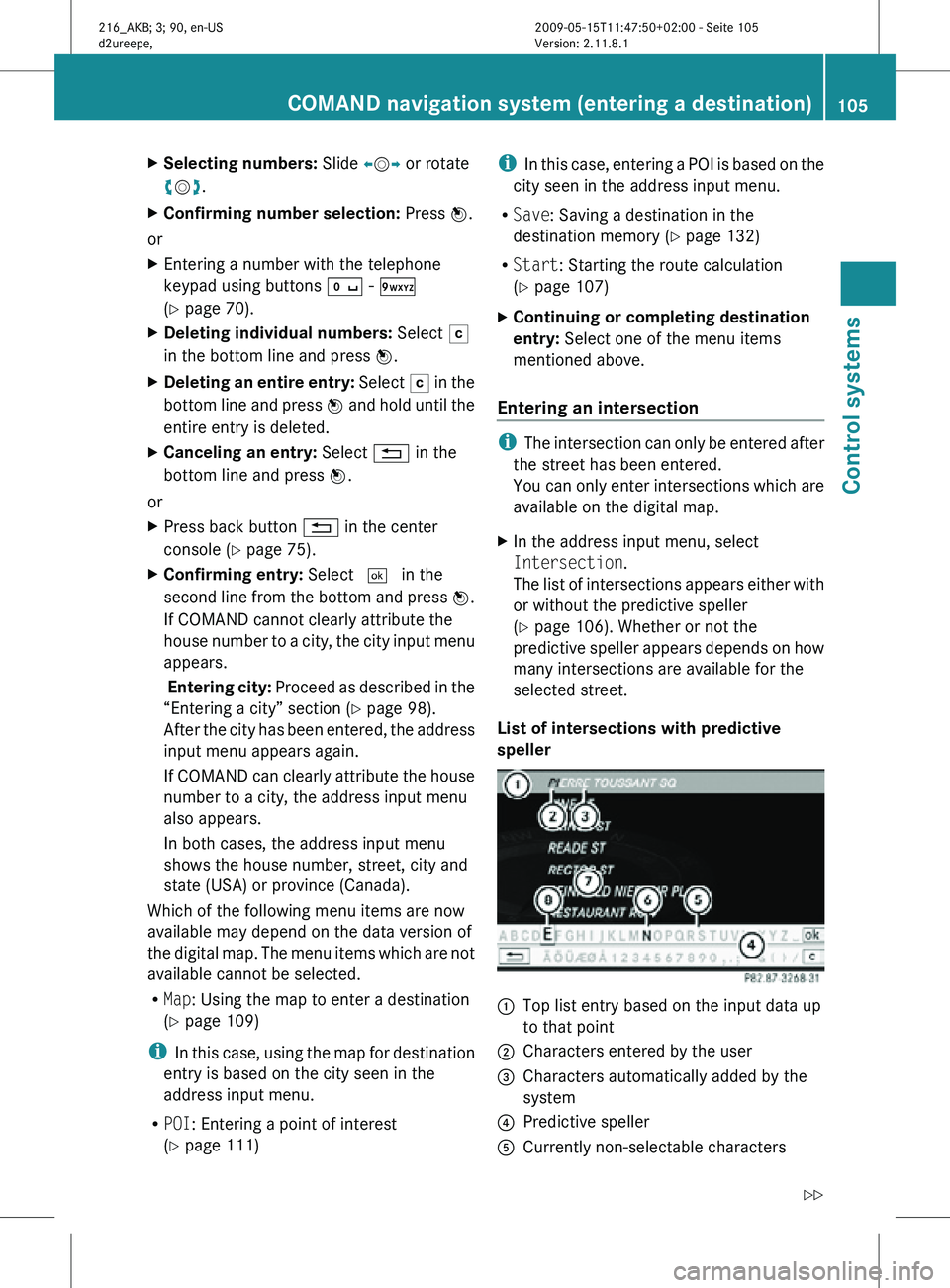
List of intersections with predictive
speller :
Top list entry based on the input data up
to that point
; Characters entered by the user
= Characters automatically added by the
system
? Predictive speller
A Currently non-selectable characters COMAND navigation system (entering a destination)
105Control systems
216_AKB; 3; 90, en-US
d2ureepe,Version: 2.11.8.1 2009-05-15T11:47:50+02:00 - Seite 105 Z
Page 113 of 500
X
Select Navi Q Destination Q
Stopover Q Change Stopover.
X Enter another destination as a stopover.
Deleting the stopover If a stopover has already been entered, you
can delete it.
X
Select Navi Q Destination Q
Stopover Q Delete Stopover.
COMAND deletes the stopover and
calculates the route to the main
destination.
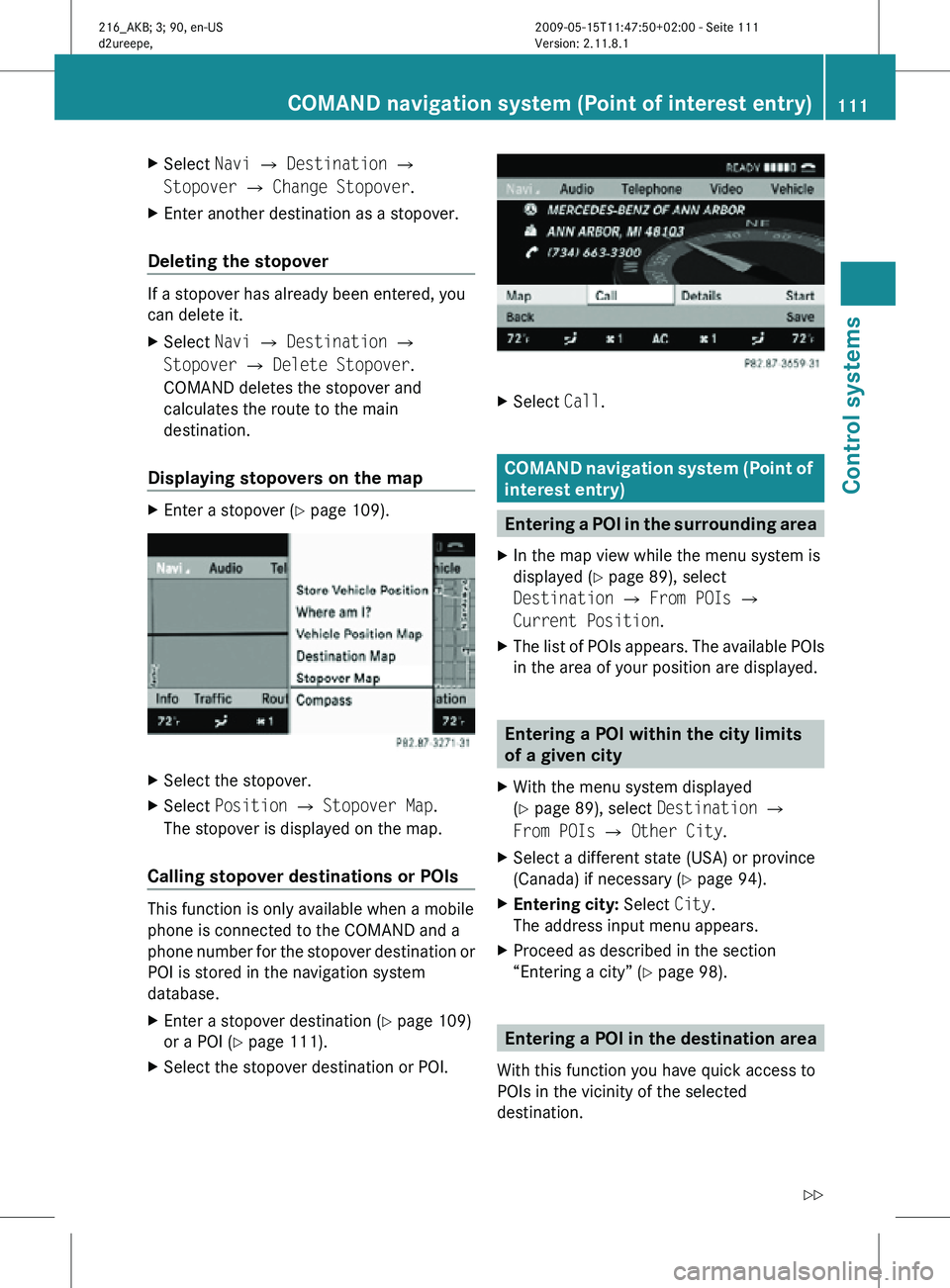
Displaying stopovers on the map X
Enter a stopover (Y page 109). X
Select the stopover.
X Select Position Q Stopover Map.
The stopover is displayed on the map.
Calling stopover destinations or POIs This function is only available when a mobile
phone is connected to the COMAND and a
phone number for the stopover destination or
POI is stored in the navigation system
database.
X
Enter a stopover destination (Y page 109)
or a POI ( Y page 111).
X Select the stopover destination or POI. X
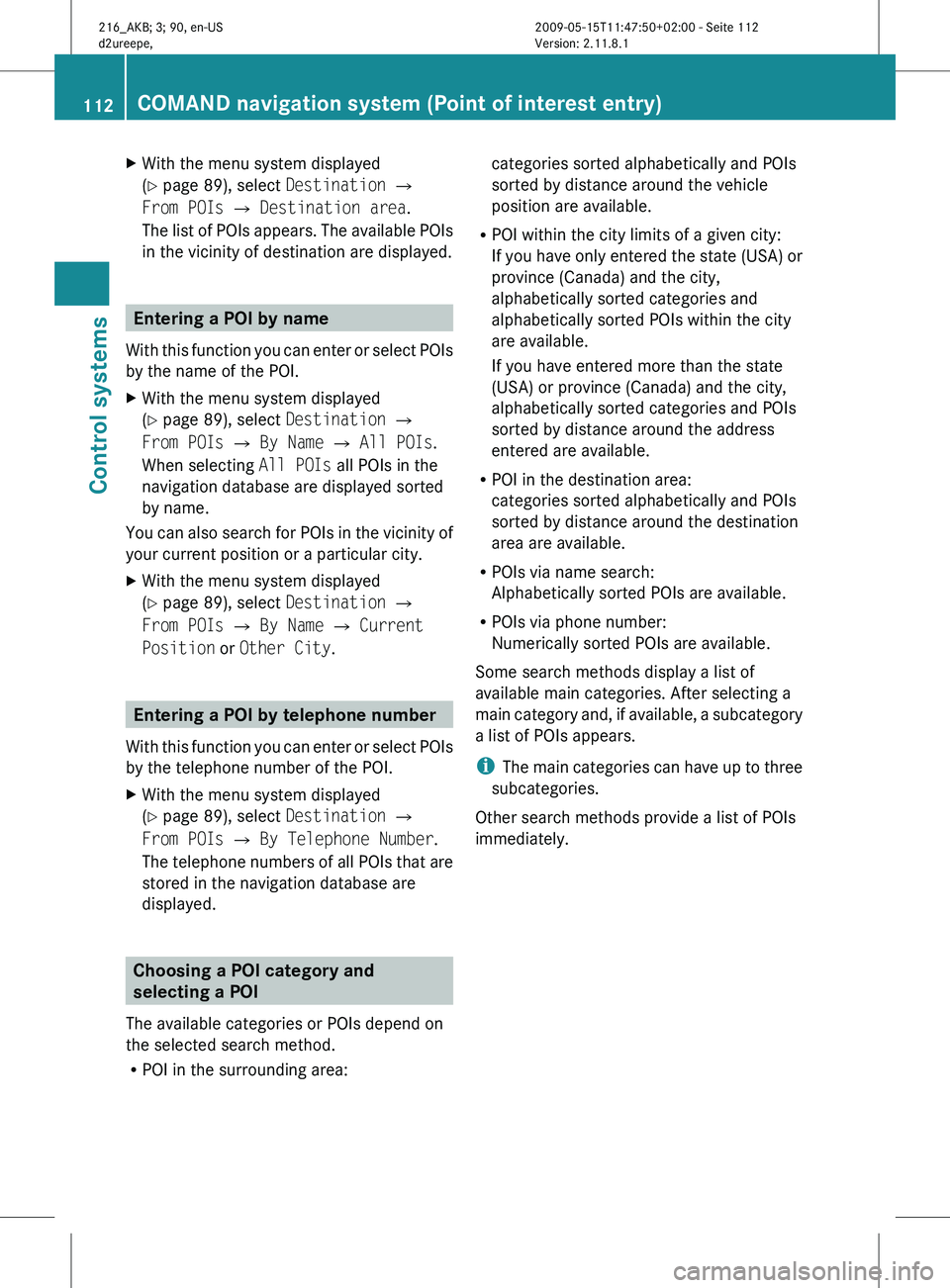
Select Call. COMAND navigation system (Point of
interest entry)
Entering a POI in the surrounding area
X In the map view while the menu system is
displayed ( Y page 89), select
Destination Q From POIs Q
Current Position.
X The list of POIs appears. The available POIs
in the area of your position are displayed. Entering a POI within the city limits
of a given city
X With the menu system displayed
(Y page 89), select Destination Q
From POIs Q Other City.
X Select a different state (USA) or province
(Canada) if necessary ( Y page 94).
X Entering city: Select City.
The address input menu appears.
X Proceed as described in the section
“Entering a city” (Y page 98). Entering a POI in the destination area
With this function you have quick access to
POIs in the vicinity of the selected
destination. COMAND navigation system (Point of interest entry)
111Control systems
216_AKB; 3; 90, en-US
d2ureepe,Version: 2.11.8.1 2009-05-15T11:47:50+02:00 - Seite 111 Z
Page 114 of 500
X
With the menu system displayed
(Y page 89), select Destination Q
From POIs Q Destination area.
The list
of POIs appears. The available POIs
in the vicinity of destination are displayed. Entering a POI by name
With this
function you can enter or select POIs
by the name of the POI.
X With the menu system displayed
(Y page 89), select Destination Q
From POIs Q By Name Q All POIs.
When selecting All POIs all POIs in the
navigation database are displayed sorted
by name.
You can also search for POIs in the vicinity of
your current position or a particular city.
X With the menu system displayed
(Y page 89), select Destination Q
From POIs Q By Name Q Current
Position or Other City. Entering a POI by telephone number
With this
function you can enter or select POIs
by the telephone number of the POI.
X With the menu system displayed
(Y page 89), select Destination Q
From POIs Q By Telephone Number.
The telephone
numbers of all POIs that are
stored in the navigation database are
displayed. Choosing a POI category and
selecting a POI
The available categories or POIs depend on
the selected search method.
R POI in the surrounding area: categories sorted alphabetically and POIs
sorted by distance around the vehicle
position are available.
R POI within the city limits of a given city:
If you
have only entered the state (USA) or
province (Canada) and the city,
alphabetically sorted categories and
alphabetically sorted POIs within the city
are available.
If you have entered more than the state
(USA) or province (Canada) and the city,
alphabetically sorted categories and POIs
sorted by distance around the address
entered are available.
R POI in the destination area:
categories sorted alphabetically and POIs
sorted by distance around the destination
area are available.
R POIs via name search:
Alphabetically sorted POIs are available.
R POIs via phone number:
Numerically sorted POIs are available.
Some search methods display a list of
available main categories. After selecting a
main category and, if available, a subcategory
a list of POIs appears.
i The main categories can have up to three
subcategories.
Other search methods provide a list of POIs
immediately. 112
COMAND navigation system (Point of interest entry)
Control systems
216_AKB; 3; 90, en-US
d2ureepe,
Version: 2.11.8.1 2009-05-15T11:47:50+02:00 - Seite 112
Page 124 of 500
The
Off Road
message and an arrow showing
the compass heading to the destination
appear on the display.
As soon as the system can allocate the
vehicle position to the map again, route
guidance continues in the usual way. Navigation announcements
G
Warning!
Navigation announcements are intended to
direct you
while driving without diverting your
attention from the road and driving.
Please always use navigation announcements
instead of consulting the map display for
directions. Consulting the symbols or map
display for directions may cause you to divert
your attention from driving and increase your
risk of an accident.
i If Chinese is set as the system language,
the navigation announcements are in
English. For information on how to set the
system language see ( Y page 81).
Navigation announcements are muted
during telephone calls. You can, however,
call up a current announcement at any
time. You can also call up a current
announcement at any time if you have
missed an announcement.
Route guidance is active already.
X Calling up a current announcement:
Select Navi Q RPT.
or
X Press favorite button h if
the button has
been programmed with this function
(Y page 81). X
Switching off navigation messages:
Press button 8 during an
announcement.
You will see the message The driving
instructions have been muted. for a
short while.
i The announcements remain switched off
even if
you start a new route guidance or if
COMAND is switched off/on with button
u.
If you switch COMAND off by removing the
SmartKey from the starter switch and then
switch the ignition back on after more than
3 minutes, the announcements are
automatically switched back on.
X Switching navigation announcements
back on manually: Select Navi Q RPT.
X Adjusting volume of the messages:
Adjust the volume during an automatic
announcement (
Y page 76).
or
X Call up an announcement manually using
Navi Q RPT and adjust the volume
(Y page 76).
i You can use the function Audio
Fadeout (Y
page 93) to reduce the volume
of audio sources during navigation
announcements. COMAND navigation system (during
route guidance)
Cancel route guidance
X Select Destination Q Cancel Route
Guidance in map view with the menu
system displayed (Y
page 89). Continuing canceled route guidance
X Select Destination Q Continue
Route Guidance in map view with the
menu system displayed (Y
page 89).
COMAND calculates the route. 122
COMAND navigation system (during route guidance)
Control systems
216_AKB; 3; 90, en-US
d2ureepe,
Version: 2.11.8.1 2009-05-15T11:47:50+02:00 - Seite 122
Page 136 of 500
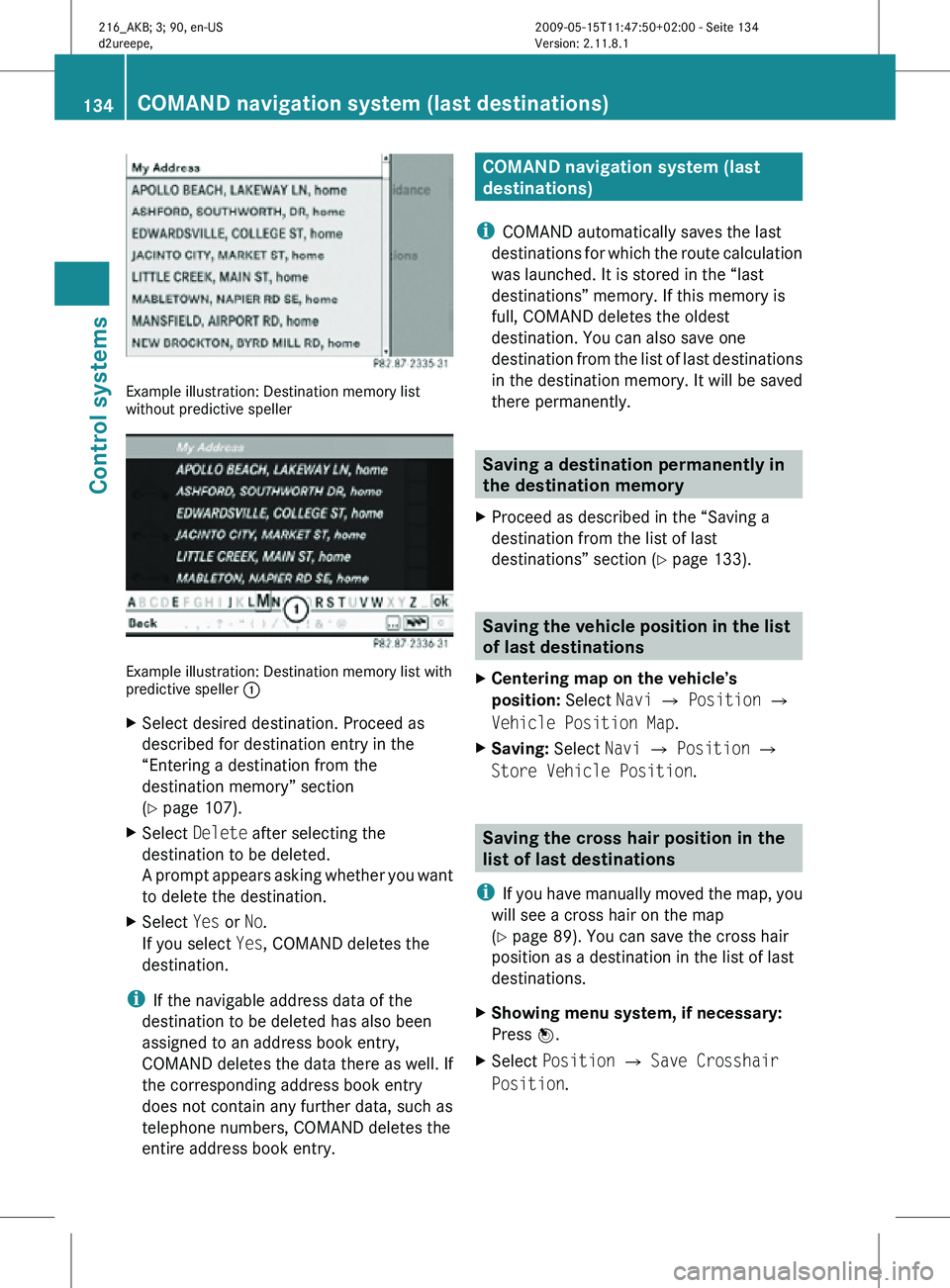
Example illustration: Destination memory list
without predictive speller
Example illustration: Destination memory list with
predictive speller
:
X Select desired destination. Proceed as
described for destination entry in the
“Entering a destination from the
destination memory” section
(Y page 107).
X Select Delete after selecting the
destination to be deleted.
A prompt appears asking whether you want
to delete the destination.
X Select Yes or No.
If you select Yes, COMAND deletes the
destination.
i If the navigable address data of the
destination to be deleted has also been
assigned to an address book entry,
COMAND deletes the data there as well. If
the corresponding address book entry
does not contain any further data, such as
telephone numbers, COMAND deletes the
entire address book entry. COMAND navigation system (last
destinations)
i COMAND automatically saves the last
destinations for which the route calculation
was launched. It is stored in the “last
destinations” memory. If this memory is
full, COMAND deletes the oldest
destination. You can also save one
destination from the list of last destinations
in the destination memory. It will be saved
there permanently. Saving a destination permanently in
the destination memory
X Proceed as described in the “Saving a
destination from the list of last
destinations” section ( Y page 133). Saving the vehicle position in the list
of last destinations
X Centering map on the vehicle’s
position: Select Navi Q Position Q
Vehicle Position Map.
X Saving: Select Navi Q Position Q
Store Vehicle Position. Saving the cross hair position in the
list of last destinations
i If you have manually moved the map, you
will see a cross hair on the map
(Y page 89). You can save the cross hair
position as a destination in the list of last
destinations.
X Showing menu system, if necessary:
Press W.
X Select Position Q Save Crosshair
Position. 134
COMAND navigation system (last destinations)Control systems
216_AKB; 3; 90, en-US
d2ureepe,
Version: 2.11.8.1 2009-05-15T11:47:50+02:00 - Seite 134
Page 137 of 500
Deleting one of the last destinations
X Select Navi Q Destination Q From
Last Destinations.
The list of last destinations appears.
X Select desired destination.
The address of the destination appears.
X Select Delete.
X Select Yes or No. COMAND telephone
Safety notes
G
Warning!
Some jurisdictions prohibit the driver from
using a cellular telephone while driving.
Whether or not prohibited by law, for safety
reasons, the
driver should not use the cellular
telephone while the vehicle is in motion. Stop
the vehicle in a safe location before placing or
answering a call.
If you nonetheless choose to use the mobile
phone 3
while driving, please use the
handsfree feature and be sure to pay
attention to the traffic situation at all times.
Use the mobile phone only when road,
weather and traffic conditions permit.
Otherwise, you may not be able to observe
traffic conditions and could endanger yourself
and others.
Bear in mind that at a speed of just 30 mph
(approximately 50 km/h), your vehicle is
covering a distance of 44 feet (approximately
14 m) every second. General notes
i USA only:
This device complies with Part 15 of the
FCC Rules. Operation is subject to the
following two conditions:
1. This device may not cause harmful
interference, and
2.
this device must accept anyinterference received, including
interference that may cause undesired
operation.
Any unauthorized modification to this
device could void the user’s authority to
operate the equipment.
i Canada only:
This device complies with RSS-210 of
Industry Canada. Operation is subject to
the following two conditions:
1. This device may not cause interference, and
2. this device must accept any interference received, including
interference that may cause undesired
operation of the device.
Any unauthorized modification to this
device could void the user’s authority to
operate the equipment.
3 Observe all legal requirements COMAND telephone
135
Control systems
216_AKB; 3; 90, en-US
d2ureepe, Version: 2.11.8.1 2009-05-15T11:47:50+02:00 - Seite 135 Z
Page 138 of 500
Using the Bluetooth
®
interface COMAND provides telephony via the
Bluetooth
®
interface by connecting a
Bluetooth ®
-compatible mobile phone. The
following functions can be used when a
suitable mobile phone is connected to the
Bluetooth ®
interface:
R Hands-free phone operation
R Phone book
R Reception of electronic business cards
(vCards 4
)
i For
further
information on suitable mobile
phones and connecting Bluetooth ®
-
enabled mobile phones to COMAND
R visit www.mbusa-mobile.com
R call the Mercedes-Benz Customer
Assistance Center at
1-800-FOR-MERCedes
(1-800-367-6372) (in the USA)
R call Customer Service at
1-800-387-0100 (in Canada)
Calls disconnected while the vehicle is
in motion A call may be disconnected if
R
there is insufficient network coverage
R you move from one transmitter/receiver
area (cell)
into another and no channels are
free or the cell is full
Operating options i
The components
and operating principles
of COMAND can be found on ( Y page 68).
You can operate the mobile phone using the
following:
R the keys on the mobile phone
R the COMAND telephone keypad in the
center console R
the COMAND controller
R the multifunction steering wheel
R the Voice Control System (Y page 217)
Unless otherwise specified, the descriptions
and illustrations in this section apply to
COMAND or the telephone keypad in the
center console. Thus, in order to use the
described functions you always have to call
up the Telephone menu. The fastest way to
get to the Telephone menu is pressing
shortcut button S.
You can
control other functions of the mobile
phone via the COMAND, instrument cluster
control system (Y page 211) or Voice Control
System (Y page 217).
Caller ID COMAND can display the telephone number
and the name of the caller, e.g. for an
incoming call and also in other menus or
displays.
For the telephone number to be displayed,
the caller must transmit his telephone
number.
This is also the case for name displays. For
this, the telephone number and the name of
the caller must also be saved in the mobile
phone book.
Functional restrictions
You will not be able to use the telephone, or
you
may
have to wait a while, in the following
situations:
R If the Bluetooth function in COMAND or
on the mobile phone is switched off.
R If the telephone has not yet logged into the
network.
The telephone tries to log into a network
automatically. If no network is available,
you will also not be able to make a “911”
emergency call. If you attempt to make an
4 vCards are electronic business cards used by e-mail applications, mobile phones, PDAs, etc. to exchange
contact information. 136
COMAND telephone
Control systems
216_AKB; 3; 90, en-US
d2ureepe,
Version: 2.11.8.1 2009-05-15T11:47:50+02:00 - Seite 136
Page 139 of 500
outgoing call, the
No Service message will
appear for a short while.
R The SIM card is not inserted in GSM type
phone.
R When you remove the SmartKey from the
starter switch during a call in hand-free
mode, the call will be maintained for up to
30 minutes. It will then be terminated.
Switch to “Private Mode” on the mobile
phone before switching off COMAND to
maintain the call beyond that time limit.
Refer to the operating instructions of your
mobile phone.
R When you want to switch off COMAND
during a call in hands-free mode, the
message You cannot shut off COMAND
until you have finished your
telephone call. appears. Activating telephone mode
X Select Telephone.
or
X Press button 6 on telephone keypad.
or
X Press shortcut button S once or twice.
i The number of times you have to press
shortcut button S depends on the
operating mode currently selected. Telephone keypad With the telephone keypad
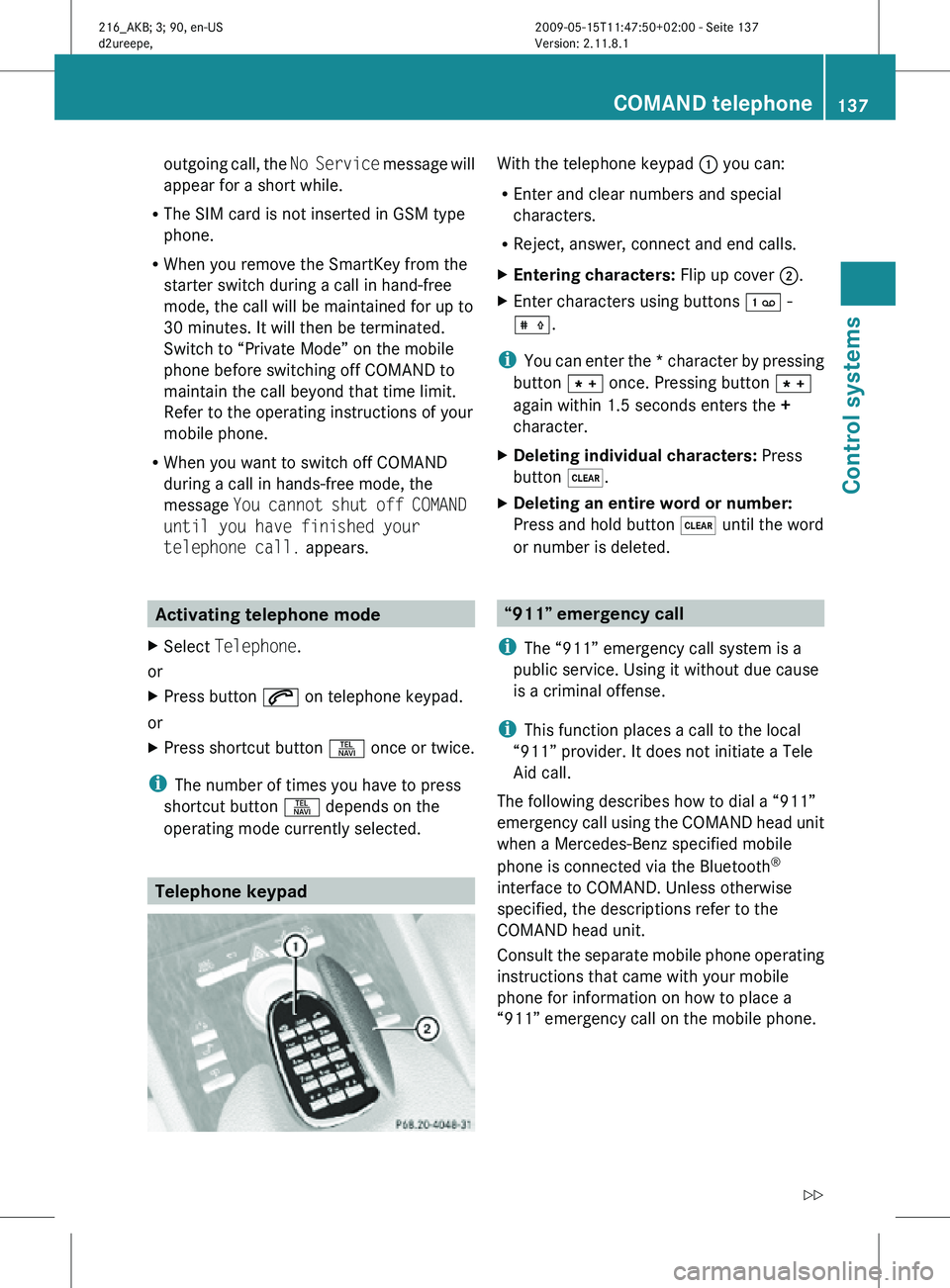
: you can:
R Enter and clear numbers and special
characters.
R Reject, answer, connect and end calls.
X Entering characters: Flip up cover ;.
X Enter characters using buttons ´ -
Æ.
i You can enter the * character by pressing
button à once. Pressing button Ã
again within 1.5 seconds enters the +
character.
X Deleting individual characters: Press
button $.
X Deleting an entire word or number:
Press and hold button $ until the word
or number is deleted. “911” emergency call
i The “911” emergency call system is a
public service. Using it without due cause
is a criminal offense.
i This function places a call to the local
“911” provider. It does not initiate a Tele
Aid call.
The following describes how to dial a “911”
emergency call using the COMAND head unit
when a Mercedes-Benz specified mobile
phone is connected via the Bluetooth ®
interface to COMAND. Unless otherwise
specified, the descriptions refer to the
COMAND head unit.
Consult the separate mobile phone operating
instructions that came with your mobile
phone for information on how to place a
“911” emergency call on the mobile phone. COMAND telephone
137Control systems
216_AKB; 3; 90, en-US
d2ureepe, Version: 2.11.8.1 2009-05-15T11:47:50+02:00 - Seite 137 Z
Page 140 of 500
The following conditions must be met for a
“911” emergency call via COMAND:
R
Mobile phone must be switched on.
R The corresponding mobile
communications network must be
available.
i Emergency calls may not be possible with
all telephone networks or if certain network
services and/or telephone functions are
active. Check with your local service
providers.
If you cannot make an emergency call, you
will have to initiate rescue measures yourself.
Placing a “911” emergency call using
COMAND with the mobile phone
unlocked X
Press button S to switch to telephone
mode.
X Enter 911 using the telephone keypad in
the center console.
X Press button 6 on the telephone
keypad in the center console.
or
X Select 6 in the COMAND display and
press W for dialing to begin.
Connecting call… appears in the
COMAND display while the mobile phone
establishes the connection.
X Wait until the emergency call center
answers, then describe the emergency.
i Depending on the phone type, if no SIM
card is inserted in a GSM mobile phone or
if there is no service on a CDMA mobile
phone, NO SERVICE may appear in the
COMAND display. In that case, you only can
make an emergency call on the mobile
phone itself, without the use of COMAND. Placing a “911” emergency call with the
mobile phone locked i
If the mobile phone is locked, you only can
make an emergency call on the mobile
phone itself, without the use of COMAND. Bluetooth interface
Bluetooth ®
is a technology for wireless
exchange of data over short distances of up
to approximately 33 feet (10 m). You can
connect your mobile phone to COMAND or
exchange vCards using Bluetooth ®
.
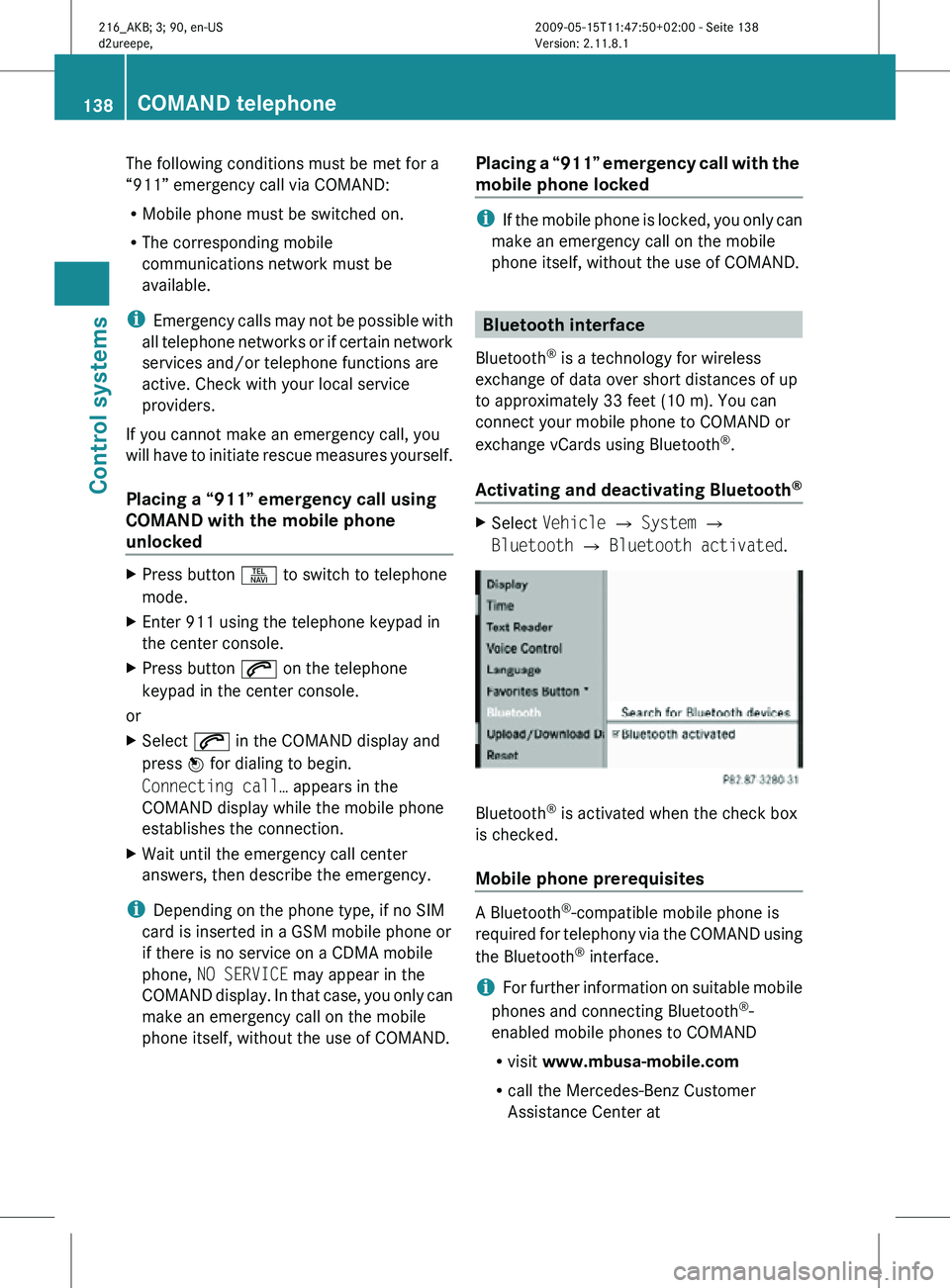
Activating and deactivating Bluetooth ® X
Select Vehicle Q System Q
Bluetooth Q Bluetooth activated. Bluetooth
®
is activated when the check box
is checked.
Mobile phone prerequisites A Bluetooth
®
-compatible mobile phone is
required for telephony via the COMAND using
the Bluetooth ®
interface.
i For further information on suitable mobile
phones and connecting Bluetooth ®
-
enabled mobile phones to COMAND
R visit www.mbusa-mobile.com
R call the Mercedes-Benz Customer
Assistance Center at 138
COMAND telephoneControl systems
216_AKB; 3; 90, en-US
d2ureepe,
Version: 2.11.8.1 2009-05-15T11:47:50+02:00 - Seite 138