phone MERCEDES-BENZ CL CLASS 2010 Workshop Manual
[x] Cancel search | Manufacturer: MERCEDES-BENZ, Model Year: 2010, Model line: CL CLASS, Model: MERCEDES-BENZ CL CLASS 2010Pages: 500, PDF Size: 9.32 MB
Page 179 of 500
X
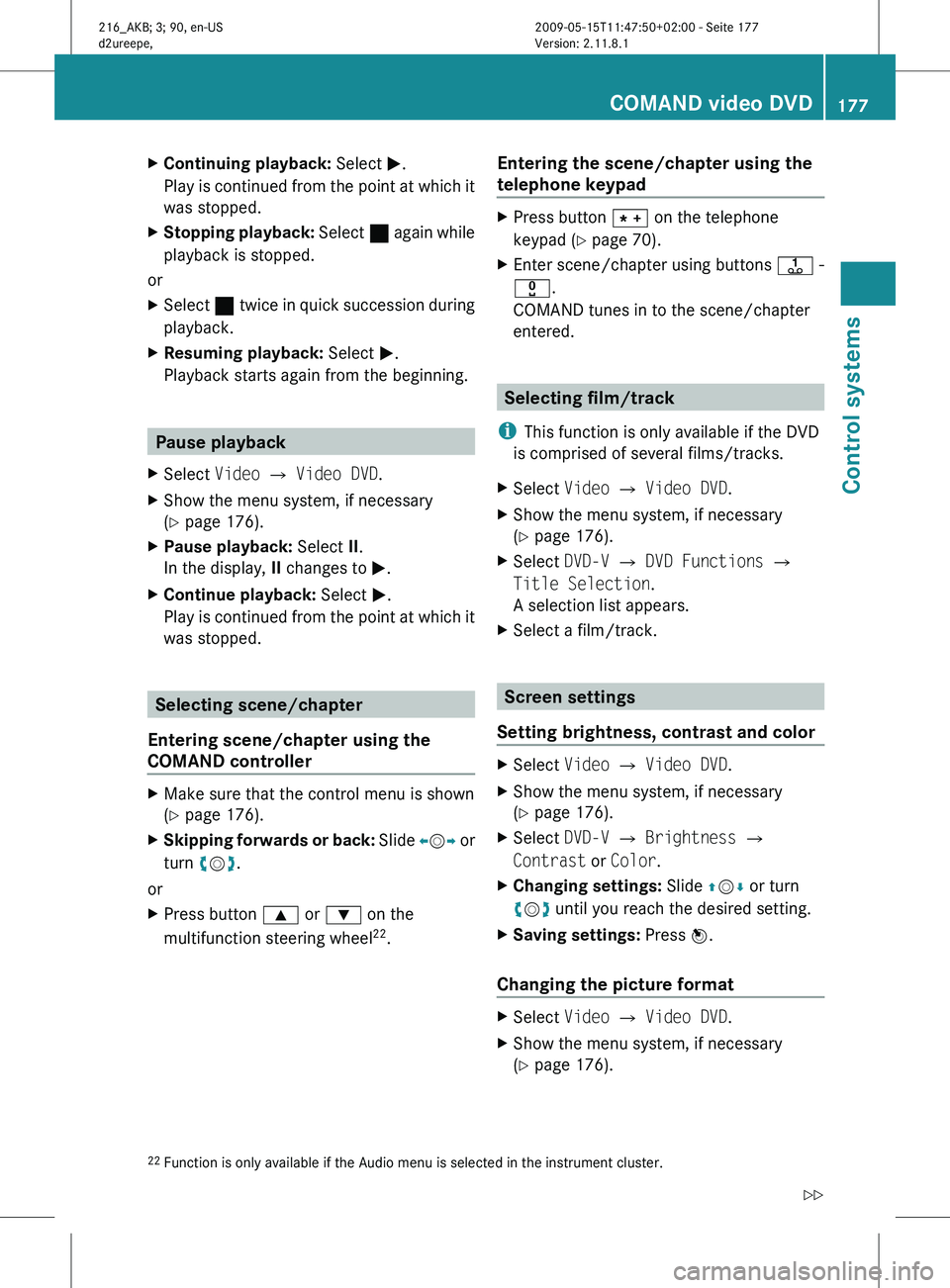
Continuing playback: Select M.
Play is
continued from the point at which it
was stopped.
X Stopping playback: Select ¯
again while
playback is stopped.
or
X Select ¯ twice in quick succession during
playback.
X Resuming playback:
Select M.
Playback starts again from the beginning. Pause playback
X Select Video Q Video DVD.
X Show the menu system, if necessary
(Y page 176).
X Pause playback: Select II.
In the display, II changes to M.
X Continue playback: Select M.
Play is
continued from the point at which it
was stopped. Selecting scene/chapter
Entering scene/chapter using the
COMAND controller X
Make sure that the control menu is shown
(Y page 176).
X Skipping forwards or back: Slide X
VY or
turn cVd.
or
X Press button 9 or : on the
multifunction steering wheel 22
. Entering the scene/chapter using the
telephone keypad X
Press button à on the telephone
keypad (
Y page 70).
X Enter scene/chapter using buttons j -
x.
COMAND tunes in to the scene/chapter
entered. Selecting film/track
i This function is only available if the DVD
is comprised of several films/tracks.
X Select Video Q Video DVD.
X Show the menu system, if necessary
(Y page 176).
X Select DVD-V Q DVD Functions Q
Title Selection.
A selection list appears.
X Select a film/track. Screen settings
Setting brightness, contrast and color X
Select Video Q Video DVD.
X Show the menu system, if necessary
(Y page 176).
X Select DVD-V Q Brightness Q
Contrast or Color.
X Changing settings: Slide ZVÆ or turn
cVd until you reach the desired setting.
X Saving settings: Press W.
Changing the picture format X
Select Video Q Video DVD.
X Show the menu system, if necessary
(Y page 176).
22 Function is only available if the Audio menu is selected in the instrument cluster. COMAND video DVD
177
Control systems
216_AKB; 3; 90, en-US
d2ureepe, Version: 2.11.8.1 2009-05-15T11:47:50+02:00 - Seite 177 Z
Page 189 of 500
track, provided it has been played for
longer
that
8 seconds. When the track has
been played for less than 8 seconds, you
will skip to the track before the current one.
When you select an option other than
Normal Track Sequence, the track is
chosen at random.
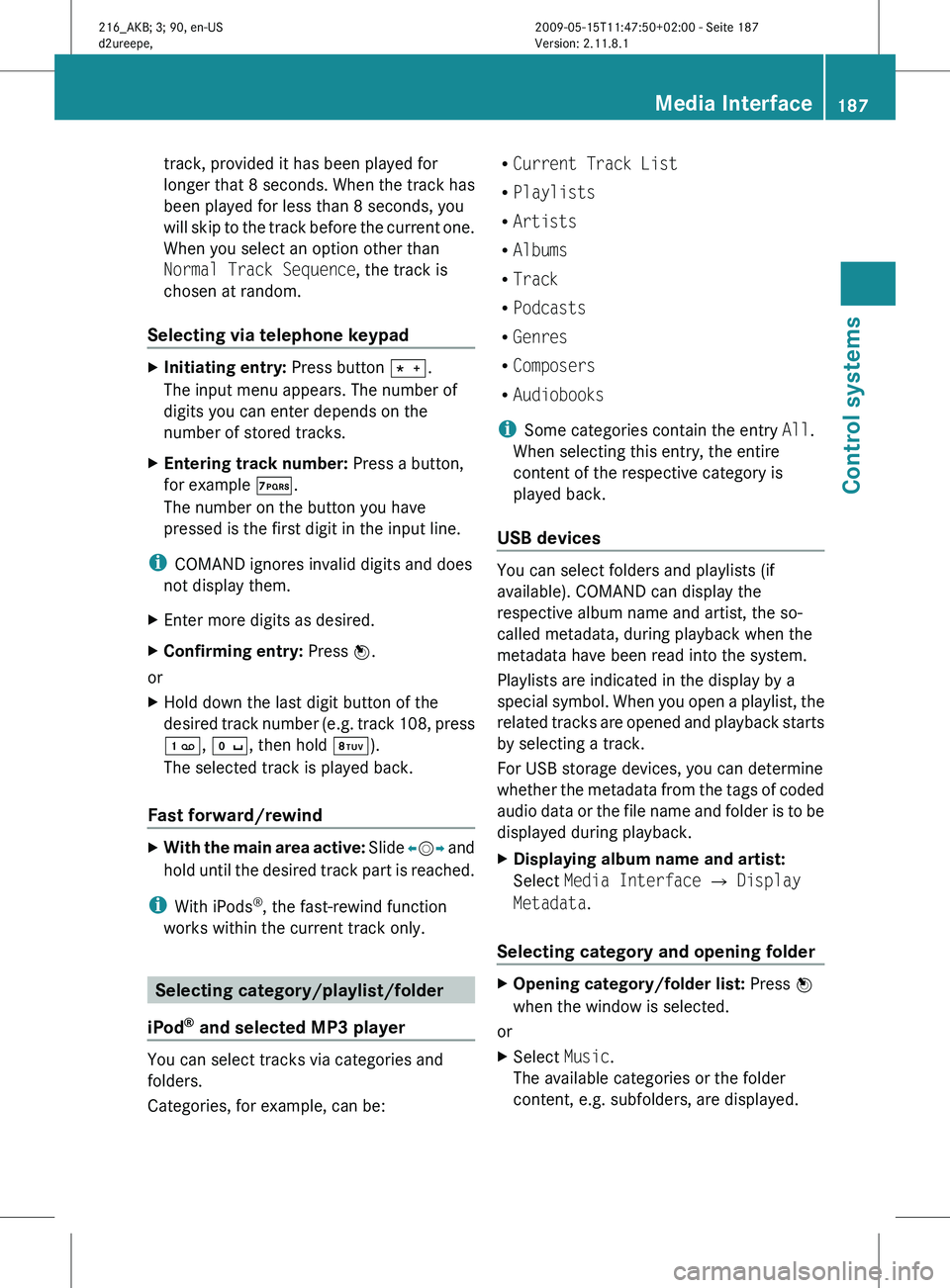
Selecting via telephone keypad X
Initiating entry: Press button Ä.
The input menu appears. The number of
digits you can enter depends on the
number of stored tracks.
X Entering track number: Press a button,
for example Á.
The number on the button you have
pressed is the first digit in the input line.
i COMAND ignores invalid digits and does
not display them.
X Enter more digits as desired.
X Confirming entry: Press W.
or
X Hold down the last digit button of the
desired track
number (e.g. track 108, press
´, Å, then hold Â).
The selected track is played back.
Fast forward/rewind X
With the main area active: Slide X
VY and
hold until the desired track part is reached.
i With iPods ®
, the fast-rewind function
works within the current track only. Selecting category/playlist/folder
iPod ®
and selected MP3 player You can select tracks via categories and
folders.
Categories, for example, can be: R
Current Track List
R Playlists
R Artists
R Albums
R Track
R Podcasts
R Genres
R Composers
R Audiobooks
i Some categories contain the entry All.
When selecting this entry, the entire
content of the respective category is
played back.
USB devices You can select folders and playlists (if
available). COMAND can display the
respective album name and artist, the so-
called metadata, during playback when the
metadata have been read into the system.
Playlists are indicated in the display by a
special
symbol.
When you open a playlist, the
related tracks are opened and playback starts
by selecting a track.
For USB storage devices, you can determine
whether the metadata from the tags of coded
audio data or the file name and folder is to be
displayed during playback.
X Displaying album name and artist:
Select Media Interface Q Display
Metadata.
Selecting category and opening folder X
Opening category/folder list: Press W
when the window is selected.
or
X Select Music.
The available categories or the folder
content, e.g. subfolders, are displayed. Media Interface
187
Control systems
216_AKB; 3; 90, en-US
d2ureepe, Version: 2.11.8.1 2009-05-15T11:47:50+02:00 - Seite 187 Z
Page 190 of 500
i
The menu option Music is not available
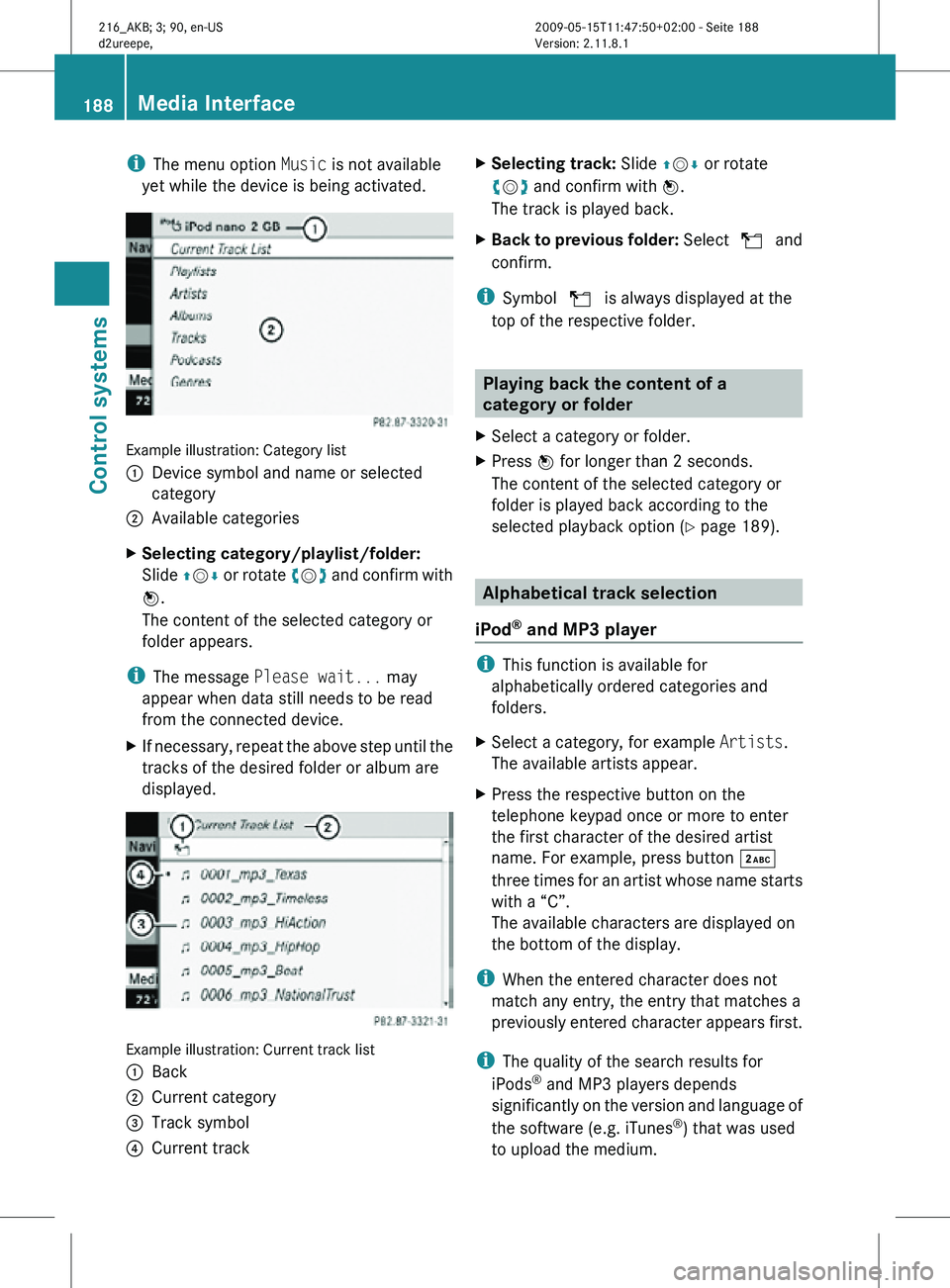
yet while the device is being activated. Example illustration: Category list
:
Device symbol and name or selected
category
; Available categories
X Selecting category/playlist/folder:
Slide ZVÆ or rotate cVd and confirm with
W.
The content of the selected category or
folder appears.
i The message Please wait... may
appear when data still needs to be read
from the connected device.
X If necessary, repeat the above step until the
tracks of the desired folder or album are
displayed. Example illustration: Current track list
:
Back
; Current category
= Track symbol
? Current track X
Selecting track: Slide ZVÆ or rotate
cVd and confirm with W.
The track is played back.
X Back to previous folder: Select U and
confirm.
i Symbol U is always displayed at the
top of the respective folder. Playing back the content of a
category or folder
X Select a category or folder.
X Press W for longer than 2 seconds.
The content of the selected category or
folder is played back according to the
selected playback option ( Y page 189). Alphabetical track selection
iPod ®
and MP3 player i
This function is available for
alphabetically ordered categories and
folders.
X Select a category, for example Artists.
The available artists appear.
X Press the respective button on the
telephone keypad once or more to enter
the first character of the desired artist
name. For example, press button ·
three times for an artist whose name starts
with a “C”.
The available characters are displayed on
the bottom of the display.
i When the entered character does not
match any entry, the entry that matches a
previously entered character appears first.
i The quality of the search results for
iPods ®
and MP3 players depends
significantly on the version and language of
the software (e.g. iTunes ®
) that was used
to upload the medium. 188
Media InterfaceControl systems
216_AKB; 3; 90, en-US
d2ureepe,
Version: 2.11.8.1 2009-05-15T11:47:50+02:00 - Seite 188
Page 191 of 500
USB storage device
i
This function is available for
alphabetically ordered directories. The
function is
not available within playlists for
example.
X Within a folder, press the respective button
on the telephone keypad once or more to
enter the first character of the desired
artist name. For example, press button
l three
times for an artist whose name
starts with a “C”.
The available characters are displayed on
the bottom of the display.
When the directory contains folders only,
COMAND will search for folders. Selecting active partition (USB
storage devices only)
You can
select this function with USB storage
devices when the storage space is
partitioned. The system supports up to 4
partitions (primary or logical, FAT formatted).
i The Windows formatting program
supports FAT partitions of up to 32 gigabyte
by default.
X Select Media Interface Q Select
Active Partition. Playback options
The following options are available:
R Normal Track Sequence
Tracks are
played back in regular order (e.g.
in numerical or in alphabetical order).
R Random Tracks
All available tracks on the current medium
are played back in random order.
R Category Mix or Random Folder (with
USB devices when Folder was selected) Tracks of the currently active category or
folder
and
its subfolders are played back in
random order.
X Selecting playback options: Select
Media Interface in the basic display.
The list of options appears. The dot
#
indicates the currently selected option.
X Select an option. COMAND vehicle menu
Introduction
In this menu, you can program the following
vehicle functions: Function
Multi-function Contour Seat
Settings (Y page 198)
Rear Window Sunshade (Y page 190)
Easy Entry/Exit Feature
(Y page 190)
Exterior Lighting Delayed Shut-off
(Y page 191)
Interior Lighting Delayed Shut-off
(Y page 191)
Ambient Lighting (Y page 192)
Automatic Mirror Folding
(Y page 192)
Locator Lighting (Y page 192)
Automatic Locking (Y page 193)
Trunk Opening-height Restriction
(Y page 193)
You can select the individual vehicle
functions in two ways. COMAND vehicle menu
189
Control systems
216_AKB; 3; 90, en-US
d2ureepe, Version: 2.11.8.1 2009-05-15T11:47:50+02:00 - Seite 189 Z
Page 204 of 500
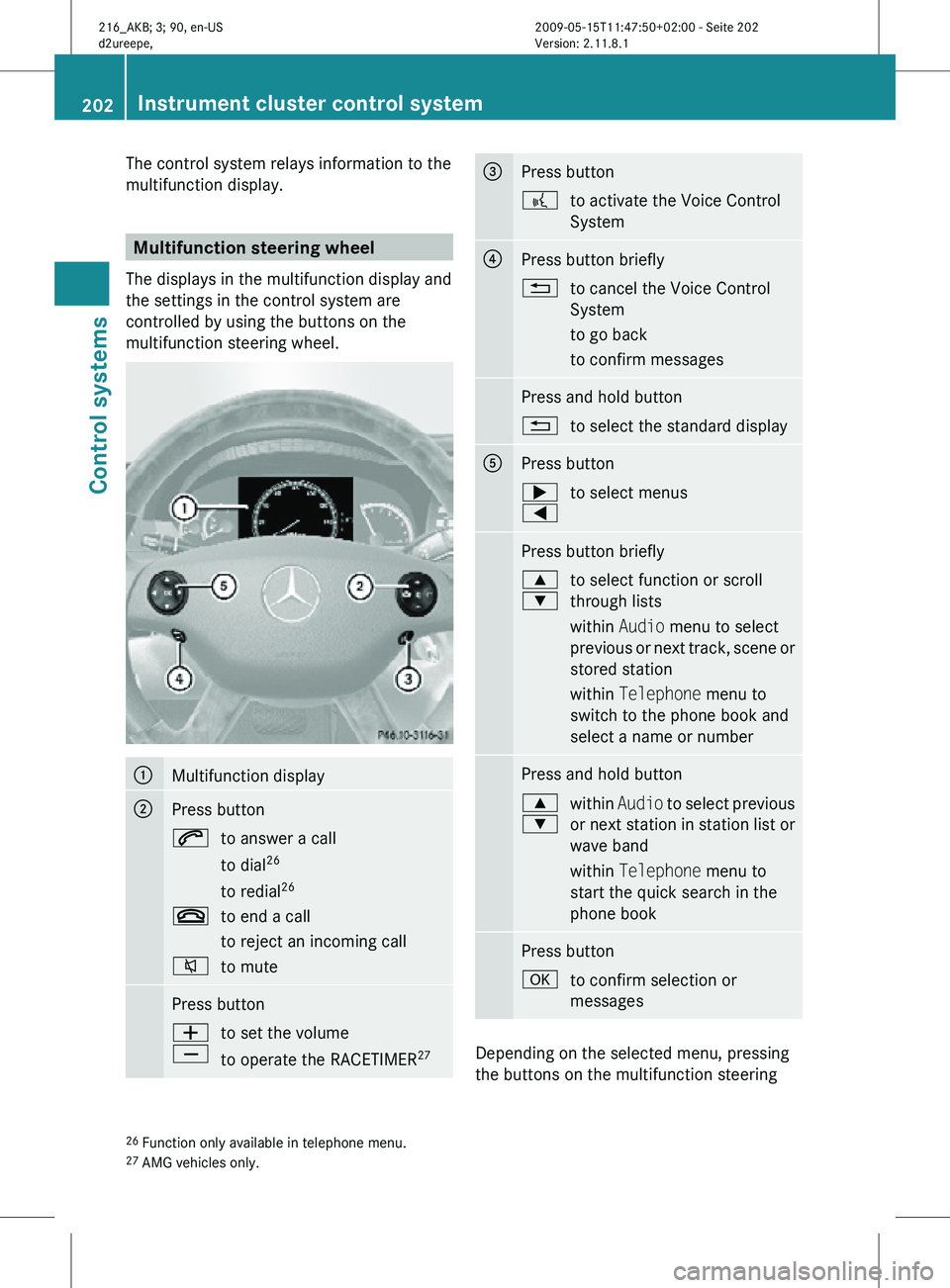
The control system relays information to the
multifunction display.
Multifunction steering wheel
The displays in the multifunction display and
the settings in the control system are
controlled by using the buttons on the
multifunction steering wheel. :
Multifunction display
;
Press button
6
to answer a call
to dial26
to redial 26
~ to end a call
to reject an incoming call
8 to mute Press button
W
X
to set the volume
to operate the RACETIMER
27 =
Press button
?
to activate the Voice Control
System ?
Press button briefly
%
to cancel the Voice Control
System
to go back
to confirm messages Press and hold button
%
to select the standard display A
Press button
;
=
to select menus Press button briefly
9
:
to select function or scroll
through lists
within Audio menu to select
previous or next track, scene or
stored station
within Telephone menu to
switch to the phone book and
select a name or number Press and hold button
9
:
within
Audio to select previous
or next station in station list or
wave band
within Telephone menu to
start the quick search in the
phone book Press button
a
to confirm selection or
messages Depending on the selected menu, pressing
the buttons on the multifunction steering
26 Function only available in telephone menu.
27 AMG vehicles only. 202
Instrument cluster control systemControl systems
216_AKB; 3; 90, en-US
d2ureepe,
Version: 2.11.8.1 2009-05-15T11:47:50+02:00 - Seite 202
Page 206 of 500
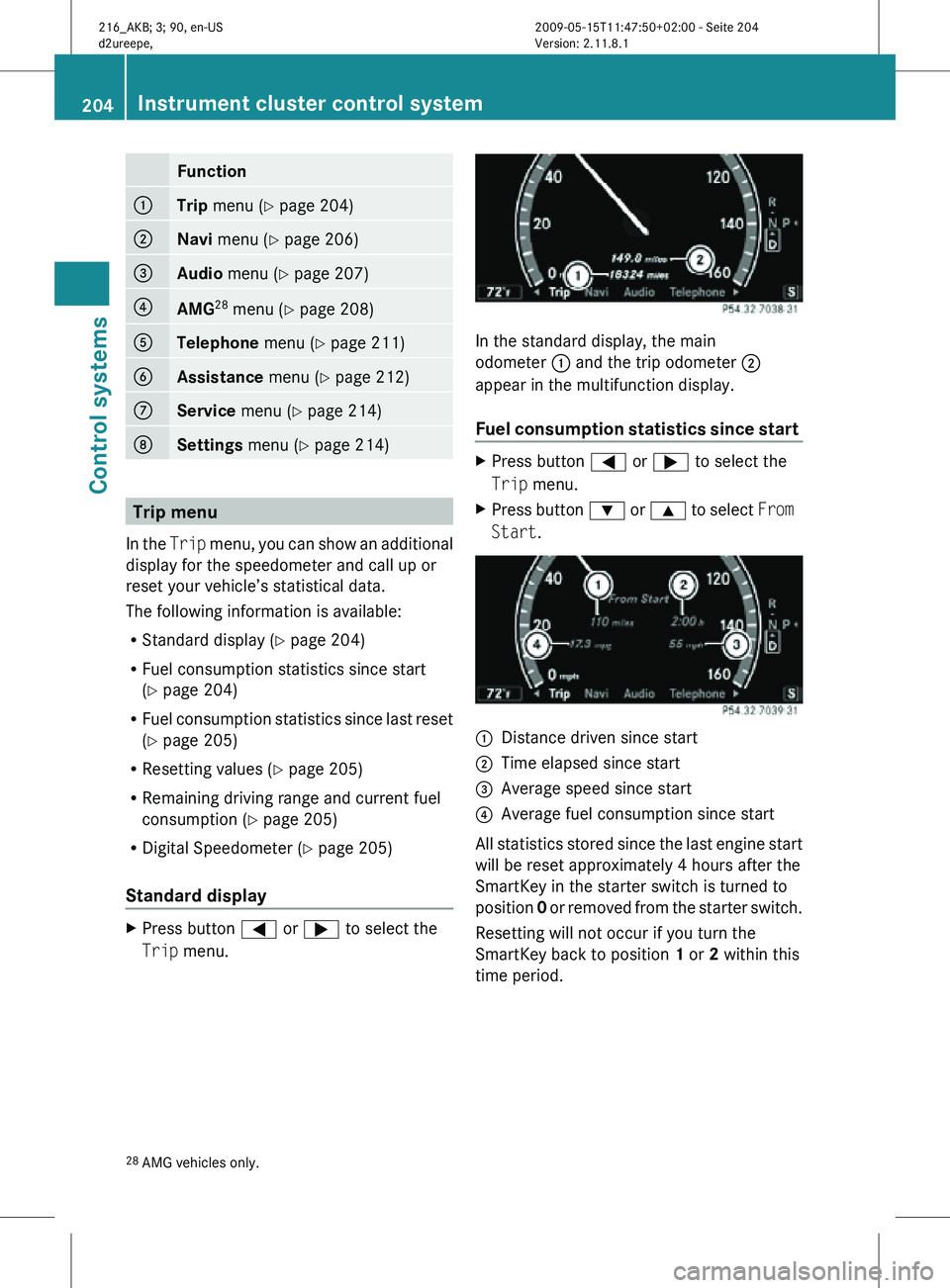
Function
:
Trip
menu (Y page 204) ;
Navi menu (Y page 206)
=
Audio
menu (Y page 207) ?
AMG
28
menu (Y page 208) A
Telephone
menu (Y page 211) B
Assistance
menu (Y page 212) C
Service
menu (Y page 214) D
Settings menu (Y page 214)
Trip menu
In the Trip menu, you can show an additional
display for the speedometer and call up or
reset your vehicle’s statistical data.
The following information is available:
R Standard display ( Y page 204)
R Fuel consumption statistics since start
(Y page 204)
R Fuel consumption statistics since last reset
(Y page 205)
R Resetting values ( Y page 205)
R Remaining driving range and current fuel
consumption (Y page 205)
R Digital Speedometer ( Y page 205)
Standard display X
Press button = or ; to select the
Trip menu. In the standard display, the main
odometer : and the trip odometer ;
appear in the multifunction display.
Fuel consumption statistics since start
X
Press button = or ; to select the
Trip menu.
X Press button : or 9 to select From
Start. :
Distance driven since start
; Time elapsed since start
= Average speed since start
? Average fuel consumption since start
All statistics stored since the last engine start
will be reset approximately 4 hours after the
SmartKey in the starter switch is turned to
position 0 or removed from the starter switch.
Resetting will not occur if you turn the
SmartKey back to position 1 or 2 within this
time period.
28 AMG vehicles only. 204
Instrument cluster control systemControl systems
216_AKB; 3; 90, en-US
d2ureepe,
Version: 2.11.8.1 2009-05-15T11:47:50+02:00 - Seite 204
Page 213 of 500
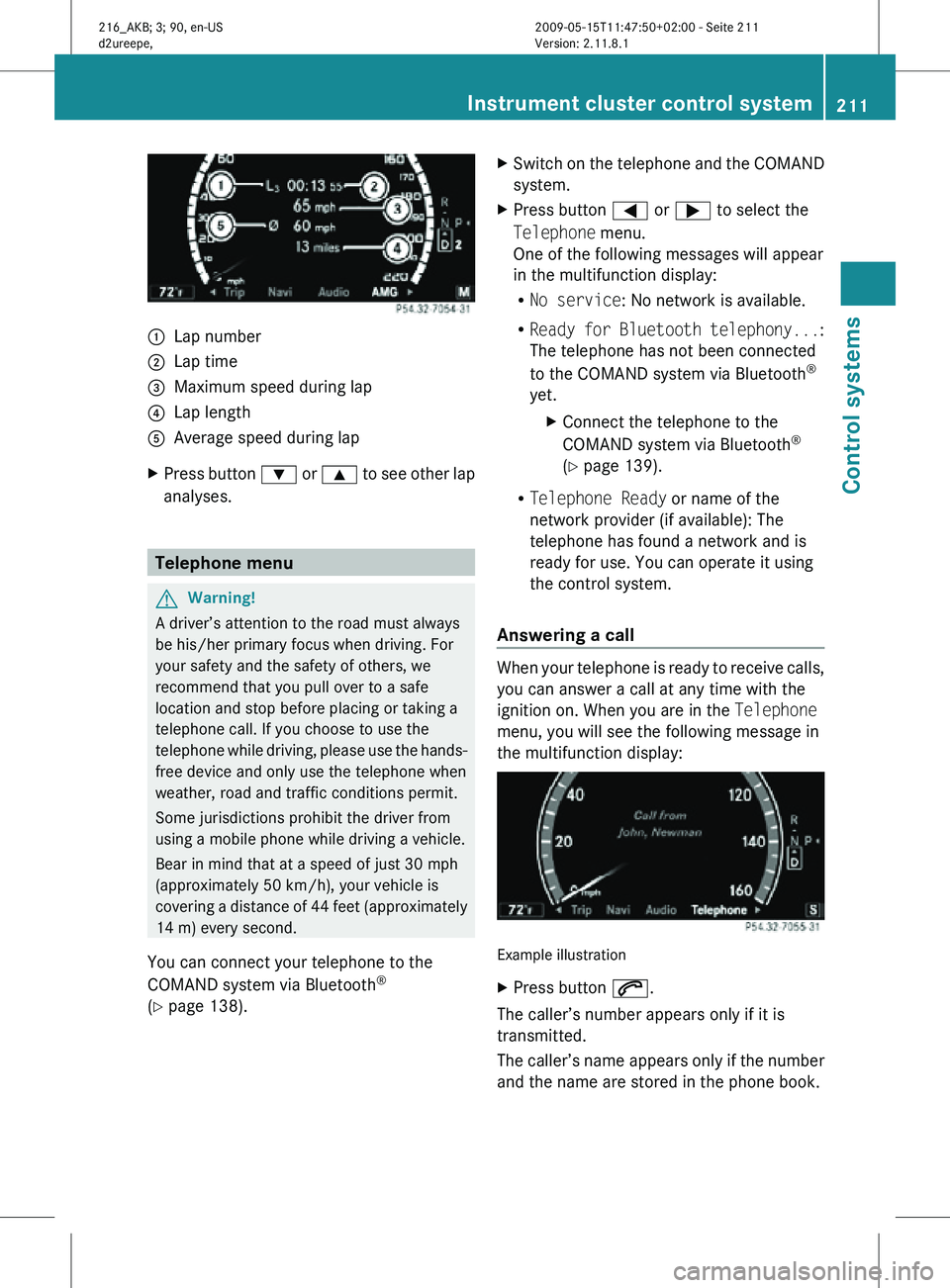
:
Lap number
; Lap time
= Maximum speed during lap
? Lap length
A Average speed during lap
X Press button : or 9 to see other lap
analyses. Telephone menu
G
Warning!
A driver’s attention to the road must always
be his/her primary focus when driving. For
your safety and the safety of others, we
recommend that you pull over to a safe
location and stop before placing or taking a
telephone call. If you choose to use the
telephone while driving, please use the hands-
free device and only use the telephone when
weather, road and traffic conditions permit.
Some jurisdictions prohibit the driver from
using a mobile phone while driving a vehicle.
Bear in mind that at a speed of just 30 mph
(approximately 50 km/h), your vehicle is
covering a distance of 44 feet (approximately
14 m) every second.
You can connect your telephone to the
COMAND system via Bluetooth ®
(Y page 138). X
Switch on the telephone and the COMAND
system.
X Press button = or ; to select the
Telephone menu.
One of the following messages will appear
in the multifunction display:
R
No service: No network is available.
R Ready for Bluetooth telephony... :
The telephone has not been connected
to the COMAND system via Bluetooth ®
yet. XConnect the telephone to the
COMAND system via Bluetooth ®
(Y page 139).
R Telephone Ready or name of the
network provider (if available): The
telephone has found a network and is
ready for use. You can operate it using
the control system.
Answering a call When your telephone is ready to receive calls,
you can answer a call at any time with the
ignition on. When you are in the Telephone
menu, you will see the following message in
the multifunction display:
Example illustration
X
Press button 6.
The caller’s number appears only if it is
transmitted.
The caller’s name appears only if the number
and the name are stored in the phone book. Instrument cluster control system
211Control systems
216_AKB; 3; 90, en-US
d2ureepe, Version: 2.11.8.1 2009-05-15T11:47:50+02:00 - Seite 211 Z
Page 214 of 500
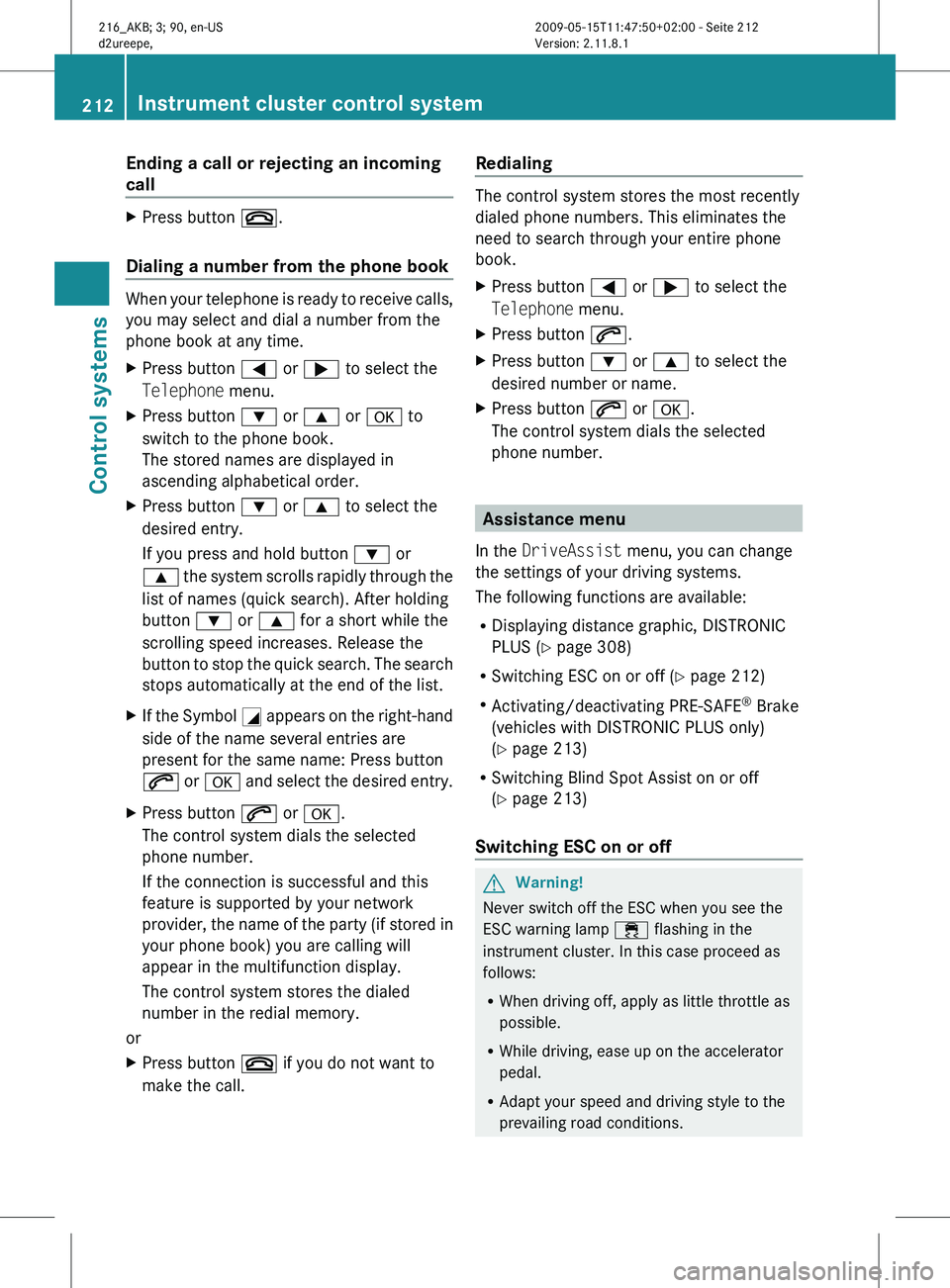
Ending a call or rejecting an incoming
call
X
Press button ~.
Dialing a number from the phone book When your telephone is ready to receive calls,
you may select and dial a number from the
phone book at any time.
X
Press button = or ; to select the
Telephone menu.
X Press button : or 9 or a to
switch to the phone book.
The stored names are displayed in
ascending alphabetical order.
X Press button : or 9 to select the
desired entry.
If you press and hold button : or
9 the
system scrolls rapidly through the
list of names (quick search). After holding
button : or 9 for a short while the
scrolling speed increases. Release the
button to stop the quick search. The search
stops automatically at the end of the list.
X If the Symbol G appears
on the right-hand
side of the name several entries are
present for the same name: Press button
6 or a and select the desired entry.
X Press button 6 or a.
The control system dials the selected
phone number.
If the connection is successful and this
feature is supported by your network
provider, the
name of the party (if stored in
your phone book) you are calling will
appear in the multifunction display.
The control system stores the dialed
number in the redial memory.
or
X Press button ~ if you do not want to
make the call. Redialing The control system stores the most recently
dialed phone numbers. This eliminates the
need to search through your entire phone
book.
X
Press button = or ; to select the
Telephone menu.
X Press button 6.
X Press button : or 9 to select the
desired number or name.
X Press button 6 or a.
The control system dials the selected
phone number. Assistance menu
In the DriveAssist menu, you can change
the settings of your driving systems.
The following functions are available:
R Displaying distance graphic, DISTRONIC
PLUS (Y page 308)
R Switching ESC on or off (
Y page 212)
R Activating/deactivating PRE-SAFE ®
Brake
(vehicles with DISTRONIC PLUS only)
(Y page 213)
R Switching Blind Spot Assist on or off
(Y page 213)
Switching ESC on or off G
Warning!
Never switch off the ESC when you see the
ESC warning lamp ÷ flashing in the
instrument cluster. In this case proceed as
follows:
R When driving off, apply as little throttle as
possible.
R While driving, ease up on the accelerator
pedal.
R Adapt your speed and driving style to the
prevailing road conditions. 212
Instrument cluster control system
Control systems
216_AKB; 3; 90, en-US
d2ureepe,
Version: 2.11.8.1 2009-05-15T11:47:50+02:00 - Seite 212
Page 219 of 500
Voice Control System introduction
Safety notes
G
Warning!
Only use the Voice Control System when road
and traffic conditions permit you to do so.
Otherwise you could be involved in an
accident in which you or others could be
injured. G
Warning!
Please devote your attention first and
foremost to the traffic situation you are in.
While the system permits hands-free phone
operation, attention
to traffic may be diverted
not only by physical operation of a phone, but
also by the distraction of a phone
conversation while driving. As such, for safety
reasons, we encourage the driver to stop the
vehicle in a safe place before answering or
placing a phone call.
For safety reasons, you should only select a
destination when the vehicle is stationary.
While the navigation system provides
directional assistance, the driver must remain
focused on safe driving behavior, especially
attention to traffic and street signs, and
should utilize the system’s audio cues while
driving.
The navigation system does not supply any
information on stop signs, yield signs, traffic
regulations or traffic safety rules. Their
observance always remains in the driver’s
personal responsibility. Maps do not cover all
areas nor all routes within an area.
Traffic regulations always have priority over
any route recommendations given.
Bear in mind that at a speed of just 30 mph
(approximately 50 km/h), your vehicle is
covering a distance of 44 feet (approximately
14 m) every second. G
Warning!
Navigation announcements are intended to
direct you
while driving without diverting your
attention from the road and driving.
Please always use navigation announcements
instead of consulting the map display for
directions. Consulting the symbols or map
display for directions may cause you to divert
your attention from driving and increase your
risk of an accident. G
Warning!
Please do not use the Voice Control System
in an emergency, as the tone of your voice
may change
in a stressful situation. This could
cause a delay in completing your phone call
in a timely manner. This could distract you in
an emergency situation and cause you to be
involved in an accident. General information
Depending on vehicle equipment, you can
operate the following systems via the Voice
Control System:
R Telephone ( Y page 225)
R Navigation ( Y page 219)
R Address book (Y page 229)
R Audio ( Y page 231) (AM/FM radio,
Satellite radio, CD/DVD changer, MP3
mode (SD
card, USB, Music Register, Media
Interface), AUX)
R Video
You control these systems using spoken
commands. Moreover, controls such as the
buttons on the multifunction steering wheel
(Y page 218) allow you to keep your hands
on the steering wheel.
The Voice Control System recognizes
commands and number sequences,
irrespective of the speaker. To optimize
speech recognition for your voice follow the
individualization process ( Y page 250). Voice Control System introduction
217
Control systems
216_AKB; 3; 90, en-US
d2ureepe, Version: 2.11.8.1 2009-05-15T11:47:50+02:00 - Seite 217 Z
Page 221 of 500
This does not apply when entering voice
names or during the individualization
process.
or
X Press any COMAND button.
Setting volume level X
Activate the Voice Control System.
X Speak a command, for example “Help”.
X Press button W or X. The volume is
increased or decreased during voice
output.
or
X Set volume for voice output using the
COMAND volume thumbwheel on the lower
part of the front center console
(Y page 76).
i You can also set the text reader speed
(Y page 79).
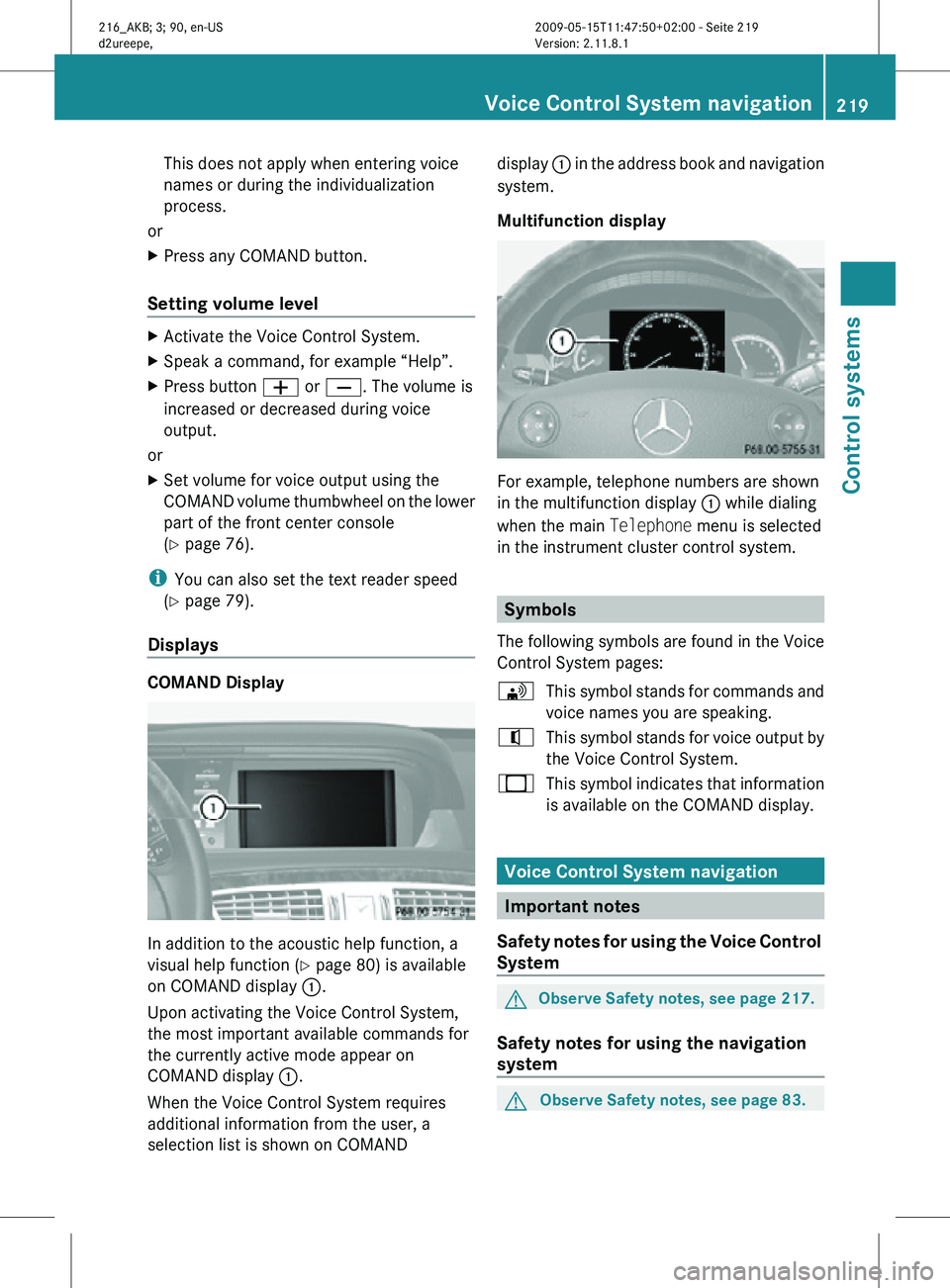
Displays COMAND Display
In addition to the acoustic help function, a
visual help function (Y page 80) is available
on COMAND display
:.
Upon activating the Voice Control System,
the most important available commands for
the currently active mode appear on
COMAND display :.
When the Voice Control System requires
additional information from the user, a
selection list is shown on COMAND display
: in the address book and navigation
system.
Multifunction display For example, telephone numbers are shown
in the multifunction display
: while dialing
when the main Telephone menu is selected
in the instrument cluster control system. Symbols
The following symbols are found in the Voice
Control System pages:
\ This symbol stands for commands and
voice names you are speaking.
^ This symbol stands for voice output by
the Voice Control System.
_ This symbol indicates that information
is available on the COMAND display. Voice Control System navigation
Important notes
Safety notes for using the Voice Control
System G
Observe Safety notes, see page 217.
Safety notes for using the navigation
system G
Observe Safety notes, see page 83. Voice Control System navigation
219Control systems
216_AKB; 3; 90, en-US
d2ureepe, Version: 2.11.8.1 2009-05-15T11:47:50+02:00 - Seite 219 Z