wheel MERCEDES-BENZ CL CLASS 2010 Workshop Manual
[x] Cancel search | Manufacturer: MERCEDES-BENZ, Model Year: 2010, Model line: CL CLASS, Model: MERCEDES-BENZ CL CLASS 2010Pages: 500, PDF Size: 9.32 MB
Page 221 of 500
This does not apply when entering voice
names or during the individualization
process.
or
X Press any COMAND button.
Setting volume level X
Activate the Voice Control System.
X Speak a command, for example “Help”.
X Press button W or X. The volume is
increased or decreased during voice
output.
or
X Set volume for voice output using the
COMAND volume thumbwheel on the lower
part of the front center console
(Y page 76).
i You can also set the text reader speed
(Y page 79).
Displays COMAND Display
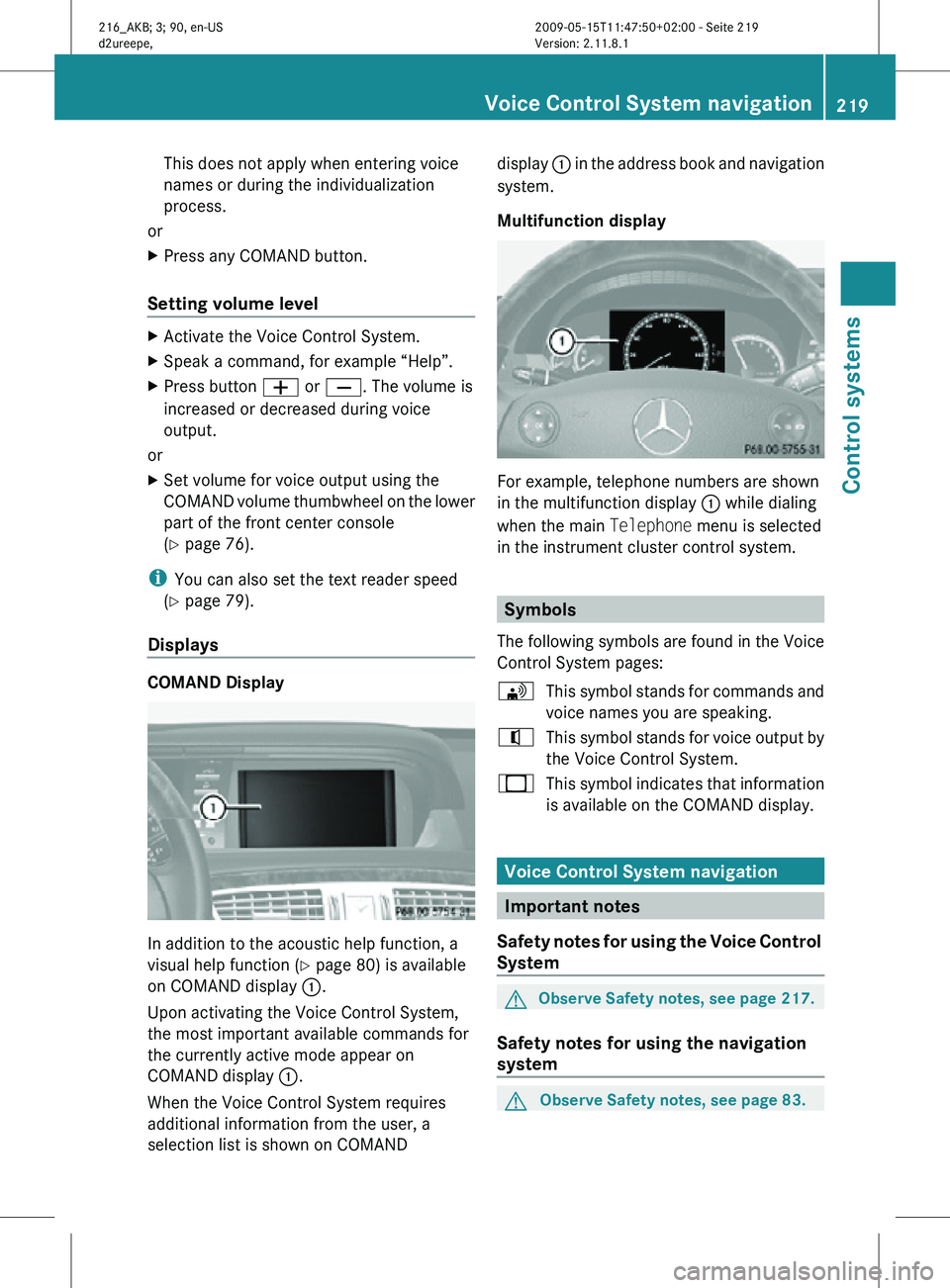
In addition to the acoustic help function, a
visual help function (Y page 80) is available
on COMAND display
:.
Upon activating the Voice Control System,
the most important available commands for
the currently active mode appear on
COMAND display :.
When the Voice Control System requires
additional information from the user, a
selection list is shown on COMAND display
: in the address book and navigation
system.
Multifunction display For example, telephone numbers are shown
in the multifunction display
: while dialing
when the main Telephone menu is selected
in the instrument cluster control system. Symbols
The following symbols are found in the Voice
Control System pages:
\ This symbol stands for commands and
voice names you are speaking.
^ This symbol stands for voice output by
the Voice Control System.
_ This symbol indicates that information
is available on the COMAND display. Voice Control System navigation
Important notes
Safety notes for using the Voice Control
System G
Observe Safety notes, see page 217.
Safety notes for using the navigation
system G
Observe Safety notes, see page 83. Voice Control System navigation
219Control systems
216_AKB; 3; 90, en-US
d2ureepe, Version: 2.11.8.1 2009-05-15T11:47:50+02:00 - Seite 219 Z
Page 226 of 500
system asks with which entry it is to
start.
^ Say the name from which the list
should start to read.
\ John Smith.
Starting with this name, the system
reads all address book entries that
include an address.
X Press button ? on the multifunction
steering wheel briefly when the desired
entry is
read. When more than one address
for the entry exists, the Voice Control
System will inquire.
^ Navigate to: home or work?
\ Home.
The system reads the selected voice
name and starts route guidance. Commands for entering parts of an
address
“Enter town” You can use the “Enter town” command to
enter
any
town in the state or province that is
currently selected.
i You can scroll through the list by using the
“Continue” or “Back” command. Say
“Correction” to enter the town or city again.
Sample dialog:
\ Enter town.
^ Please say the name of the town.
\ Albany.
^ Loading town list.
_ The system shows a numbered list of
possible town
names on the display. If
there is only one entry on the list, the
Voice Control System asks if it is
correct.
^ Please select a line number.
\ Number one.
^ Number one accepted. The city selected is adopted for route
guidance.
“Enter district”, “Enter center” You can use the “Enter district” or “Enter
center” command to enter an area in a city
which you have selected previously.
Sample dialog:
\
Enter district.
^ Please say the name of the district.
\ Manhattan.
_ The system displays a list of available
districts if more than one name
matches the name of a district for the
given city.
^ Please select a line number.
\ Number one.
^ Number one accepted.
The district selected is adopted for route
guidance.
“Enter street” You can use the “Enter Street” command to
enter the name of any street in the selected
city.
i
If only a few streets are stored for a
selected town, they will be displayed for
selection immediately after you give the
“Enter Street” command.
Sample dialog:
\ Enter Street.
^ Please say the name of the street.
\ Mabel’s Street.
_ The system displays a numbered list of
available street names.
^ Please select a line number.
\ Number one.
^ Number one accepted.
The street name selected is adopted for route
guidance. 224
Voice Control System navigation
Control systems
216_AKB; 3; 90, en-US
d2ureepe,
Version: 2.11.8.1 2009-05-15T11:47:50+02:00 - Seite 224
Page 228 of 500
“Telephone”
Use the command “Telephone” to activate
the
telephone
main menu. Use this command
if you want the digits you are entering to
appear on the COMAND display.
“Help telephone” The Voice Control System features a
comprehensive help function.
Use the command “Help telephone” and the
Voice Control System will read out an option
list
of
available functions and commands that
can be used in conjunction with the telephone
(Y page 80).
“Dial number” You can dial a phone number using the
command “Dial number”.
The digits 0 to 9 and the word “Plus” are
permitted. “Plus” replaces the international
dialing code “00”.
Speak the telephone number
R
as a continuous string
or, with longer phone numbers,
R in digit blocks (three to five digits in each
block).
After each digit block (separate the digit
blocks by
using an approximately 0.5 second
pause), the Voice Control System repeats the
recognized digits and waits until you continue
speaking.
Sample dialog:
\ Dial number.
^ Please say the number.
\ One two three four five six seven.
^ One two three four five six seven.
\ Ok.
^ Dialing.
i You can also dial the specified number if
you press
button 6 on the multifunction
steering wheel instead of the concluding
command “Ok”. “Repeat” Using the command “Repeat” will repeat all
digits
spoken
up to that point. Upon repeating
the digits, the system will prompt you to
continue your input.
Sample dialog:
\ Dial number.
^ Please say the number.
\ One two three.
^ One two three.
\ Repeat.
^ One two three, please continue.
\ Four five six seven.
^ Four five six seven.
\ Ok.
^ Dialing.
“Correction” Using the command “Correction” will correct
the last entered digit block. After speaking
the command, the last digit block is deleted
and
all
previously entered digits are repeated.
The system then prompts you to continue
your input.
Sample dialog:
\ Dial number.
^ Please say the number.
\ One two three.
^ One two three.
\ Four five six seven.
^ Five five six seven.
\ Correction.
^ One two three, please continue.
\ Four five six seven.
^ Four five six seven
\ Ok.
^ Dialing. 226
Voice Control System telephone
Control systems
216_AKB; 3; 90, en-US
d2ureepe,
Version: 2.11.8.1 2009-05-15T11:47:50+02:00 - Seite 226
Page 232 of 500
R
have the system read the destination
memory to you ( Y page 223)
R delete the address book
R open the address book
R open an entry in the address book
R have the system read the phone book to
you (
Y page 228)
X Press button ? on the multifunction
steering wheel.
X Speak the command “Address book”.
X Press button ? on the multifunction
steering wheel.
X Speak one of the following address book
commands. Adressbook commands
For a list of commands, see ( Y page 237).
“Help address book” Use the command “Help address book” to
have the system read the most important
commands for the address book to you.
“Save name”
For information on “Save name”, see
(Y page 227).
“Call name”
For information on “Call name”, see
(Y page 227).
“Call
For information on “Call
(Y page 228).
“Find address”
For information on “Find address”, see
(Y page 222). “Delete name” The command “Delete name” deletes a voice
name
for
an address book entry. The address
data are not deleted.
Sample dialog:
\ Delete name.
^ Please say the name.
\ Smith.
^ Do you want to delete Smith?
\ Yes.
^ The voice name has been deleted.
“Navigate (to)
Y page 222).
“Read out address book”, “Read out
phone book” Use the command “Read out address book”
or
“Read
out phone book” to have the system
read all name entries and voice names in the
address book to you. While the system is
reading, you can select an entry by pressing
button ? on the multifunction steering
wheel.
When the name field is empty, the phone
number or the address is read. You can
complete the missing data later.
Sample dialog:
\ Read out address book.
The system reads all address book
entries. When a large number of
entries is
stored, the system asks with
which entry it is to start.
^ Please say the name from the starting
point the list should be read.
\ Smith.
Starting with this name, the system
reads all address book entries.
X Selecting address book entry: Press
button ? on the multifunction steering
wheel when
the desired entry is read. When230
Voice Control System address book
Control systems
216_AKB; 3; 90, en-US
d2ureepe,
Version: 2.11.8.1 2009-05-15T11:47:50+02:00 - Seite 230
Page 234 of 500
The names of all received and stored stations
are available for voice recognition. To
improve voice recognition, you can store a
voice name for a specific speaker.
X
To select the radio or satellite radio
application: Press button ? button on
the multifunction steering wheel.
X Say the command “Radio” or “Satellite
Radio”.
X Press button ?.
X Say one of the radio or satellite radio
commands explained below. Radio commands
For a list of commands, see ( Y page 237).
You can always give the commands for the
radio when
you are listening to the radio, even
if a different application is shown on the
display.
“Help Radio” Using the “Help Radio” command, the Voice
Control System asks “For which radio
functions do you want help?”. It then reads
out a list of topics.
“Help Satellite Radio”
Using the “Help Satellite Radio” command,
the Voice Control System asks “For which
radio functions do you want help?”. It then
reads out a list of topics.
“Help HD Radio”
Using the “Help HD Radio” command, you can
have all the commands for the HD Radio™
read out. Selecting a wave band You can set the wave band with the following
commands:
R
“FM”
R “AM”
R “Weatherband”
“Next station”, “Previous station” The following commands are used to start the
station
search
and to tune in the next station:
R “Next station”
R “Previous station”
“Next Category”, “Previous Category” You can use the following commands to
change the category on satellite radio:
R
“Next Category”
R “Previous Category”
Selecting frequency (FM range) You can select frequencies within the FM
range
(87.9
to 107.9 MHz) directly. The Voice
Control System also recognizes the words
“Frequency”, “Point” and “Megahertz”.
Sample dialog:
\ Ninety five point five megahertz.
The Voice Control System tunes the
radio to frequency FM 95.5.
Selecting frequency (AM range) You can select frequencies within the AM
range (530 to 1710 kHz) directly. Voice
control also recognizes the words
“Frequency” and “Kilohertz”.
Sample dialog:
\
Five hundred and thirty kilohertz.
The Voice Control System tunes the
radio to frequency AM 530. 232
Voice Control System radio
Control systems
216_AKB; 3; 90, en-US
d2ureepe,
Version: 2.11.8.1 2009-05-15T11:47:50+02:00 - Seite 232
Page 237 of 500
Operation
You can use the Voice Control System to
R select a CD/DVD or another medium
R select a track
R select a folder in MP3 mode
R change the category when in media
interface mode
R select a group in audio DVD mode
R select a chapter or scene when in video
DVD mode
i Upon the
command “Next/Previous CD/
DVD”, the DVD changer switches from one
CD/DVD to the next. It will skip empty
slots. When you select an empty slot using
the commands “CD/DVD 1” through “CD/
DVD 6”, the current slot remains selected.
i The following commands “DVD audio”,
“DVD video”, “Next/Previous CD/DVD”
and “CD/DVD 1” to “CD/DVD 6”, cause
the DVD changer to switch from one slot to
another, regardless of the type of medium
found in the selected slot. In your
command, you can therefore replace the
term “CD/DVD” with “Medium”.
Selecting CD/DVD mode X
Press button ? on the multifunction
steering wheel.
X Speak one of the following commands:
R
“CD player”
R “CD changer”
R “DVD audio”
R “DVD video”
R “Hard disk”
R “Memory card”
R “Media interface”
R “USB”
R “Music Register” X
Press button ? on the multifunction
steering wheel.
X Speak one of the following commands. Commands
For a list of commands, see ( Y page 237).
Help commands Use the following commands and the Voice
Control
System
will read out a list of available
commands for the audio/video functions:
R “Help CD”
R “Help DVD audio”
R “Help DVD video”
R “Help MP3”
R “Help hard disk”
R “Help memory card”
R “Help media interface”
R “Help USB”
R “Help music register”
“Next CD/DVD/Medium” Use the command “Next CD”, “Next DVD” or
“Next Medium” to select the next available
medium in the CD/DVD changer.
“Previous CD/DVD/Medium”
Use the command “Previous CD”, “Previous
DVD” or “Previous Medium” to select the
previous medium in the CD/DVD change.
“CD/DVD/Medium 1” to “CD/DVD/
Medium 6”
Use commands “CD/DVD/Medium 1” to
“CD/DVD/Medium 6” to select one of up to
six mediums in your CD/DVD changer.Voice Control System CD/DVD changer/MP3
235
Control systems
216_AKB; 3; 90, en-US
d2ureepe,Version: 2.11.8.1 2009-05-15T11:47:50+02:00 - Seite 235 Z
Page 238 of 500
“Track 1” to “Track 99”
Use the commands “Track 1” to “Track 99”
to select a title number from a loaded
medium.
“Next track”
Use the command “Next track” to select the
next track.
“Previous track”, “Repeat track”
Use the command “Previous track” or
“Repeat
track”
to play again the track you are
listening to. When you speak the command
during the first seconds of the track, the
previous track is played back.
“Group 1” to “Group 9” The “Group 1” to “Group 9” commands are
used
to
select a group on the inserted audio-
DVD.
“Next group”, “Previous group” Use the command “Next group” or “Previous
group” to select a group on the inserted
audio-DVD.
“DVD audio”
Use the command “DVD audio” to start an
audio DVD in the COMAND.
“DVD video”
Use the command “DVD video” to start a
video DVD in the COMAND.
“Select scene”, “Select chapter”
Use the command “Select scene” or “Select
chapter” to select a scene or chapter on the
current video DVD. “Hard disk”, “Music Register” Use the command “Hard disk” or “Music
Register” to switch to the internal hard disk
(Music Register) of the COMAND.
“Memory card”
The “Memory card” command is used to
switch from the DVD drive to the SD card.
Voice Control System external
devices
Operation
You can use the Voice Control System to
R switch to audio AUX mode
R switch to media interface mode
R switch to the USB interface
X Selecting application: Press
button ? on the multifunction steering
wheel.
X Speak one of the following commands. Commands
For a list of commands, see ( Y page 237).
Help commands Use the following commands to hear all
commands for external devices:
R
“Help Media Interface”
R “Help USB-Interface”
“Audio AUX” Use the command “Audio AUX” to switch to
audio AUX mode.
“Video AUX”
Use the command “Video AUX” to switch to
video AUX mode.236
Voice Control System external devices
Control systems
216_AKB; 3; 90, en-US
d2ureepe,
Version: 2.11.8.1 2009-05-15T11:47:50+02:00 - Seite 236
Page 249 of 500
Media interface
R
media interface (on)
R UCI (on) USB interface
R
USB
R USB interface Aux
R
audio auxiliary/aux (input)
R auxiliary/aux audio (input)
R video auxiliary/aux (input)
R auxiliary/aux video (input) Voice Control System
troubleshooting
Help function
To support
the user, the Voice Control System
contains an extensive help function.
The help function gives you
R general hints on how to best use the Voice
Control System
R a listing of all available commands Help commands
“Help voice control” Using the command “Help voice control” will
give you information on how to best use the
Voice Control System.
“Help”
X
Press button ? on the multifunction
steering wheel and speak the command
“Help”.
You will receive help for the currently
selected application. When you speak the command “Help” during
a dialog such as after the command “Dial
number”, you will receive help for the next
dialog steps.
You can also call up the help function
specifically for a particular system, for
example using the command “Help
telephone”.
Help window
You can use the help window to view a
selection of
valid commands on the COMAND
display.
The help functions can be switched on or off
via COMAND in the System menu
(Y page 80). Entering digits and spelling
Entering digits R
Digits from “Zero” to “Nine” may be used.
R Speaking phone
numbers in digit blocks of
3 to 5 digits has proven a very reliable
method for the input of phone numbers.
Spelling R
The letters of the English alphabet and the
digits 0 - 9 may be used.
R Speak the letters in blocks of 5 - 7 letters
at a time.
R Speak each individual letter clearly. Voice Control System troubleshooting
247
Control systems
216_AKB; 3; 90, en-US
d2ureepe, Version: 2.11.8.1 2009-05-15T11:47:50+02:00 - Seite 247 Z
Page 250 of 500
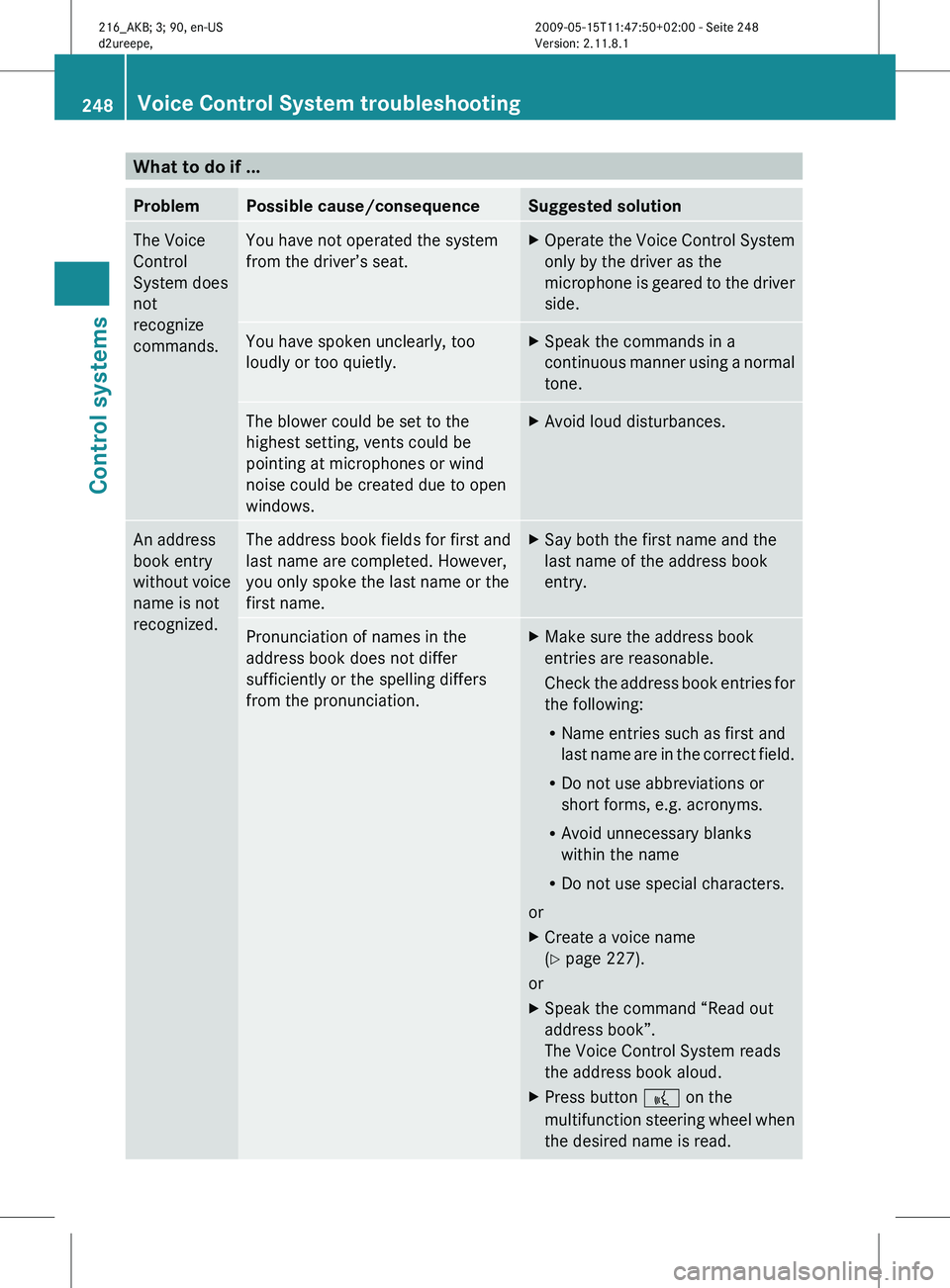
What to do if ...
Problem Possible cause/consequence Suggested solution
The Voice
Control
System does
not
recognize
commands. You have not operated the system
from the driver’s seat. X
Operate the Voice Control System
only by the driver as the
microphone is
geared to the driver
side. You have spoken unclearly, too
loudly or too quietly. X
Speak the commands in a
continuous manner
using a normal
tone. The blower could be set to the
highest setting, vents could be
pointing at microphones or wind
noise could be created due to open
windows. X
Avoid loud disturbances. An address
book entry
without
voice
name is not
recognized. The address book fields for first and
last name are completed. However,
you only spoke the last name or the
first name. X
Say both the first name and the
last name of the address book
entry. Pronunciation of names in the
address book does not differ
sufficiently or the spelling differs
from the pronunciation. X
Make sure the address book
entries are reasonable.
Check the
address book entries for
the following:
R Name entries such as first and
last name are in the correct field.
R Do not use abbreviations or
short forms, e.g. acronyms.
R Avoid unnecessary blanks
within the name
R Do not use special characters.
or
X Create a voice name
(Y page 227).
or
X Speak the command “Read out
address book”.
The Voice Control System reads
the address book aloud.
X Press button ? on the
multifunction steering
wheel when
the desired name is read. 248
Voice Control System troubleshooting
Control systems
216_AKB; 3; 90, en-US
d2ureepe,
Version: 2.11.8.1 2009-05-15T11:47:50+02:00 - Seite 248
Page 251 of 500
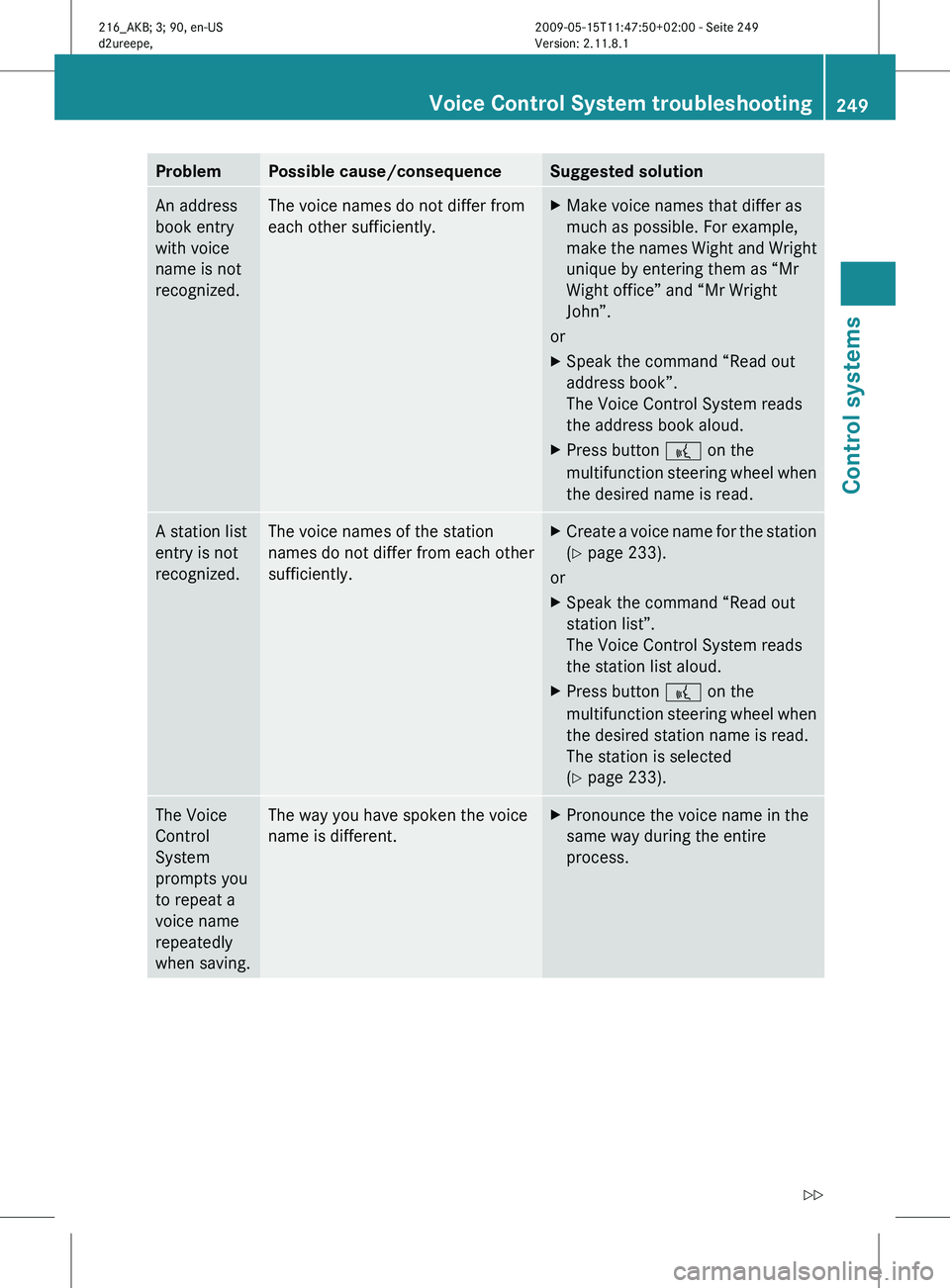
Problem Possible cause/consequence Suggested solution
An address
book entry
with voice
name is not
recognized. The voice names do not differ from
each other sufficiently. X
Make voice names that differ as
much as possible. For example,
make the
names Wight and Wright
unique by entering them as “Mr
Wight office” and “Mr Wright
John”.
or
X Speak the command “Read out
address book”.
The Voice Control System reads
the address book aloud.
X Press button ? on the
multifunction steering
wheel when
the desired name is read. A station list
entry is not
recognized. The voice names of the station
names do not differ from each other
sufficiently. X
Create a voice name for the station
(Y page 233).
or
X Speak the command “Read out
station list”.
The Voice Control System reads
the station list aloud.
X Press button ? on the
multifunction steering
wheel when
the desired station name is read.
The station is selected
(Y page 233). The Voice
Control
System
prompts you
to repeat a
voice name
repeatedly
when saving. The way you have spoken the voice
name is different. X
Pronounce the voice name in the
same way during the entire
process. Voice Control System troubleshooting
249
Control systems
216_AKB; 3; 90, en-US
d2ureepe, Version: 2.11.8.1 2009-05-15T11:47:50+02:00 - Seite 249 Z