display MERCEDES-BENZ CL-Class 2012 C216 Owner's Guide
[x] Cancel search | Manufacturer: MERCEDES-BENZ, Model Year: 2012, Model line: CL-Class, Model: MERCEDES-BENZ CL-Class 2012 C216Pages: 488, PDF Size: 21.88 MB
Page 69 of 488

At speeds up to approximately 40 mph
(70 km/h), PRE-SAFE ®
Brake can also react
to stationary obstacles, for example stopped
or parked vehicles.
If you approach an obstacle and PRE-SAFE ®
Brake detects a risk of collision, the system
will initially alert you both visually and
acoustically. If you do not brake or take
evasive action, the system will warn you by
automatically braking the vehicle gently. If
there is an increased risk of collision,
preventative passenger protection measures
(PRE-SAFE ®
) are activated (Y page 51). If the
risk of collision remains at speeds of over
20 mph (30 km/h) and you do not brake, take
evasive action or accelerate significantly, the
vehicle may perform automatic braking up to
emergency braking. Automatic emergency
braking is not performed until immediately
prior to an accident that can no longer be
avoided.GWARNING
Even if PRE-SAFE ®
Brake slows the vehicle
before an imminent rear-end collision, the
system cannot avert a collision without the
intervention of the driver. There is a risk of an
accident. Brake according to the situation or
take evasive action. Delayed intervention by
the driver can lead to an accident.
GWARNING
PRE-SAFE ®
Brake cannot always detect
complex traffic situations properly.
In these cases, PRE-SAFE(R) Brake may:
R give an unnecessary warning and then
brake the vehicle
R neither give a warning nor intervene
There is a risk of an accident. Always pay
particular attention to the traffic situation and
be ready to brake, especially if PRE-SAFE(R)
Brake warns you. Terminate the intervention
in a non-critical driving situation.
In particular, the detection of obstacles can
be impaired if there is:
R dirt on the sensors or anything else
covering the sensors
R snow or heavy rain
R interference by other radar sources
R the possibility of strong radar reflections,
for example in parking garages
R a narrow vehicle traveling in front, e.g. a
motorbike
R a vehicle traveling in front on a different lineGWARNING
PRE-SAFE ®
Brake does not react:
R to people or animals
R to oncoming vehicles
R to crossing traffic
R in curves
As a result, PRE-SAFE ®
Brake cannot
intervene in critical situations. There is a risk
of an accident. Always pay careful attention
to the traffic situation and be ready to brake.
In order to maintain the appropriate distance
to the vehicle in front and thus prevent a
collision, you must apply the brakes yourself.
XTo activate/deactivate: activate or
deactivate PRE-SAFE ®
Brake in the on-
board computer ( Y page 342).
After activation, the Ä symbol is
displayed on the left in the instrument
cluster.
For PRE-SAFE ®
Brake to assist you when
driving, the radar sensor system must be
switched on ( Y page 344) and operational.
Following damage to the front end of the
vehicle, have the configuration and operation
of the radar sensors checked at a qualified
specialist workshop. This also applies to
collisions at low speeds where there is no
visible damage to the front of the vehicle.
Driving safety systems67SafetyZ
Page 76 of 488

This device complies with RSS-210 of
Industry Canada. Operation is subject to
the following two conditions:
1. This device may not cause harmful
interference, and
2. this device must accept any interference
received, including interference that may
cause undesired operation.
Any unauthorized modification to this
device could void the user’s authority to
operate the equipment.
The Product label with FCC ID and IC
certification number can be found in the
battery case of the SmartKey.
Important notes on the use of KEYLESS-
GO
R The KEYLESS-GO key can be used like a
conventional key.
R You can combine KEYLESS-GO functions
with those of a conventional key, e.g.
unlock with KEYLESS-GO and lock with the
& button.
R Always carry your KEYLESS-GO key on your
person.
R Do not keep the KEYLESS-GO key together
with:
- electronic devices, e.g. a mobile phone
or another key
- metallic objects, e.g. coins or metal foil.
This can affect the functionality of
KEYLESS-GO.
R When locking and unlocking using
KEYLESS-GO, the distance between the
SmartKey and the corresponding door
handle must not exceed 3 ft (1 m).
R If the vehicle is parked for more than
72 hours, the KEYLESS-GO function is
deactivated. Pull the outer door handle and
switch on the ignition to reactivate the
KEYLESS-GO function.
R If the KEYLESS-GO key is removed from the
vehicle, it is possible that the system may
not recognize the SmartKey. The vehicle
can then not be locked or started using
KEYLESS-GO.
R If the KEYLESS-GO key has been removed
from the vehicle, e.g. if a passenger leaves
the vehicle with a KEYLESS-GO key:
- if the start/stop button is pressed or if
an attempt is made to lock the vehicle
with the locking button on the outer door
handle, the Key Not Detected message
appears in the multifunction display
- when the engine is running, the red Key
Not Detected message appears in the
multifunction display as you pull away.
Find the KEYLESS-GO key and change its
position in the vehicle. Carry the
KEYLESS-GO key in your shirt pocket, for
example.
R If you have started the engine with the
Start/Stop button, you can switch it off
again by:
- pressing the Start/Stop button again
- inserting the KEYLESS-GO key into the
ignition lock if the vehicle is stationary
and the automatic transmission is in park
position P.
R You could unlock the vehicle by mistake if
the distance between the KEYLESS-GO key
and the vehicle is less than 3 ft (1 m) and:
- an exterior door handle is hit by a water
jet
or
- you clean an exterior door handle.
R Bear in mind that the engine can be started
by any of the vehicle occupants if there is
a KEYLESS-GO key in the vehicle.74SmartKeyOpening/closing
Page 94 of 488
Useful information
i This Operator's Manual describes all
models and all standard and optional
equipment of your vehicle available at the
time of publication of the Operator's
Manual. Country-specific differences are
possible. Please note that your vehicle may
not be equipped with all features
described. This also applies to safety-
related systems and functions.
i Please read the information on qualified
specialist workshops ( Y page 29).
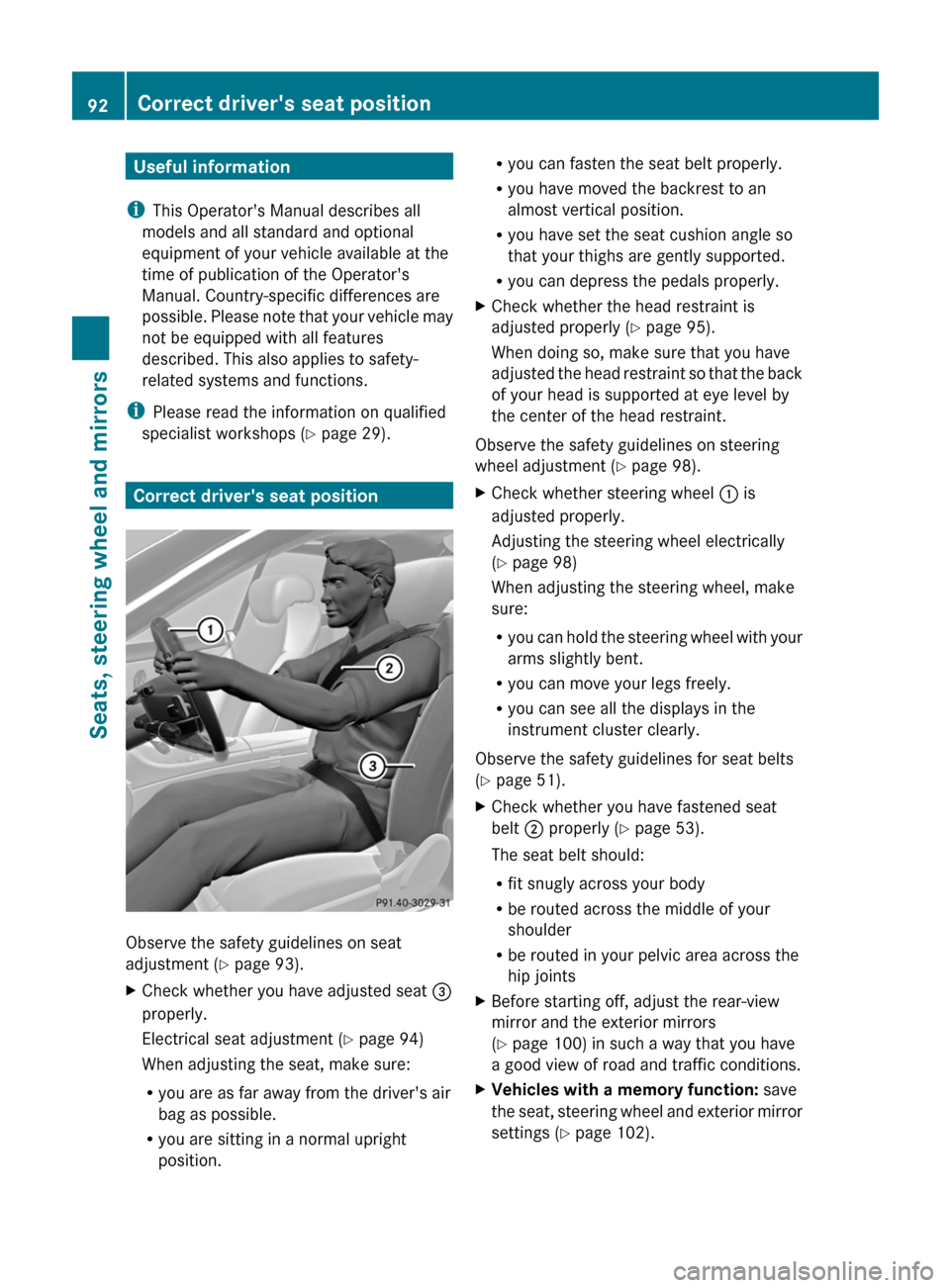
Correct driver's seat position
Observe the safety guidelines on seat
adjustment ( Y page 93).
XCheck whether you have adjusted seat =
properly.
Electrical seat adjustment ( Y page 94)
When adjusting the seat, make sure:
R you are as far away from the driver's air
bag as possible.
R you are sitting in a normal upright
position.R you can fasten the seat belt properly.
R you have moved the backrest to an
almost vertical position.
R you have set the seat cushion angle so
that your thighs are gently supported.
R you can depress the pedals properly.XCheck whether the head restraint is
adjusted properly ( Y page 95).
When doing so, make sure that you have
adjusted the head restraint so that the back
of your head is supported at eye level by
the center of the head restraint.
Observe the safety guidelines on steering
wheel adjustment ( Y page 98).
XCheck whether steering wheel : is
adjusted properly.
Adjusting the steering wheel electrically
( Y page 98)
When adjusting the steering wheel, make
sure:
R you can hold the steering wheel with your
arms slightly bent.
R you can move your legs freely.
R you can see all the displays in the
instrument cluster clearly.
Observe the safety guidelines for seat belts
( Y page 51).
XCheck whether you have fastened seat
belt ; properly ( Y page 53).
The seat belt should:
R fit snugly across your body
R be routed across the middle of your
shoulder
R be routed in your pelvic area across the
hip jointsXBefore starting off, adjust the rear-view
mirror and the exterior mirrors
( Y page 100) in such a way that you have
a good view of road and traffic conditions.XVehicles with a memory function: save
the seat, steering wheel and exterior mirror
settings ( Y page 102).92Correct driver's seat positionSeats, steering wheel and mirrors
Page 98 of 488
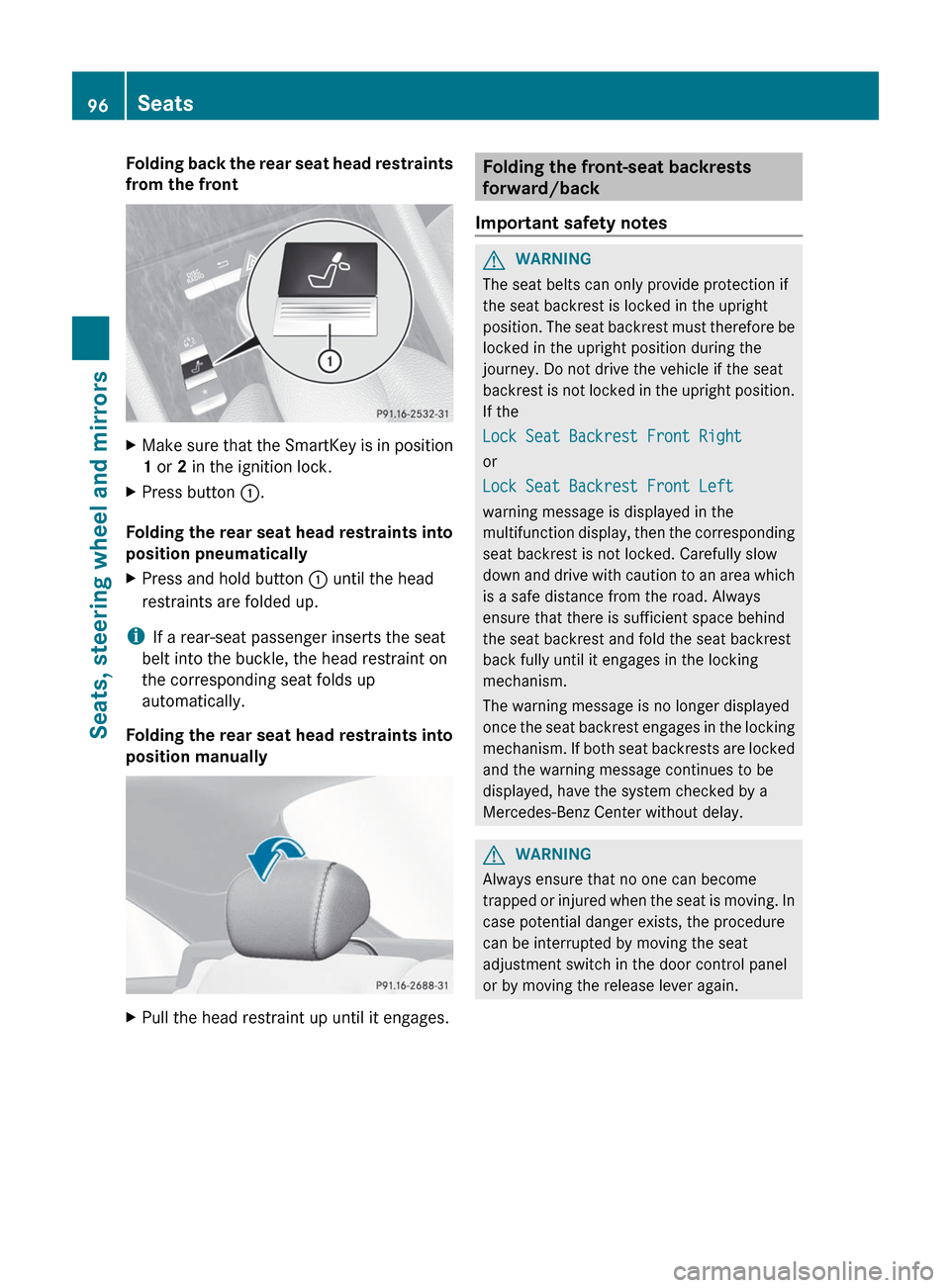
Folding back the rear seat head restraints
from the frontXMake sure that the SmartKey is in position
1 or 2 in the ignition lock.XPress button :.
Folding the rear seat head restraints into
position pneumatically
XPress and hold button : until the head
restraints are folded up.
i If a rear-seat passenger inserts the seat
belt into the buckle, the head restraint on
the corresponding seat folds up
automatically.
Folding the rear seat head restraints into
position manually
XPull the head restraint up until it engages.Folding the front-seat backrests
forward/back
Important safety notesGWARNING
The seat belts can only provide protection if
the seat backrest is locked in the upright
position. The seat backrest must therefore be
locked in the upright position during the
journey. Do not drive the vehicle if the seat
backrest is not locked in the upright position.
If the
Lock Seat Backrest Front Right
or
Lock Seat Backrest Front Left
warning message is displayed in the
multifunction display, then the corresponding
seat backrest is not locked. Carefully slow
down and drive with caution to an area which
is a safe distance from the road. Always
ensure that there is sufficient space behind
the seat backrest and fold the seat backrest
back fully until it engages in the locking
mechanism.
The warning message is no longer displayed
once the seat backrest engages in the locking
mechanism. If both seat backrests are locked
and the warning message continues to be
displayed, have the system checked by a
Mercedes-Benz Center without delay.
GWARNING
Always ensure that no one can become
trapped or injured when the seat is moving. In
case potential danger exists, the procedure
can be interrupted by moving the seat
adjustment switch in the door control panel
or by moving the release lever again.
96SeatsSeats, steering wheel and mirrors
Page 109 of 488

GWARNING
Change or modification not expressly
approved by the party responsible for
compliance could void the user's authority to
operate this equipment.
! Note: This equipment has been tested
and found to comply with the limits for a
Class A digital device, pursuant to Part 15
of the FCC Rules. These limits are designed
to provide reasonable protection against
harmful interference when the equipment
is operated in a commercial environment.
This equipment generates, uses and can
radiate radio frequency energy and, if not
installed and used in accordance with the
instruction manual, may cause harmful
interference to radio communications.
GWARNING
This equipment complies with FCC radiation
exposure limits set forth for uncontrolled
equipment and meets the FCC radio
frequency (RF) Exposure Guidelines in
Supplement C to OET65.
This equipment has very low levels of RF
energy that is deemed to comply without
maximum permissive exposure evaluation
(MPE). But it is desirable that it should be
installed and operated with at least 8 inches
(20 cm) and more between the radiator and a
person's body (excluding extremities: hands,
wrists, feet and legs.)
Correct use
Observe the following information when using
COMAND:
R the safety notes in this manual
R all road traffic regulations
i Work improperly carried out on electronic
components or systems (e.g. radio, DVD
changer) and associated software could
cause them to cease functioning. Even
systems that have not been modified could
be affected because the electronic
systems are connected. Electronic
malfunctions can seriously jeopardize the
operational safety of your vehicle.
i Only have repairs or changes to electronic
components carried out at a qualified
specialist workshop which has the
necessary specialist knowledge and tools
to carry out the work required. Daimler
recommends that you use an authorized
Mercedes-Benz Center for this purpose. In
particular, work relevant to safety or on
safety-related systems must be carried out
at a qualified specialist workshop.
i Protection against theft: this device is
equipped with technical provisions to
protect it against theft. Further information
on protection against theft can be obtained
from an authorized Mercedes-Benz Center.
Function restrictions
For safety reasons, some COMAND functions
are restricted or unavailable while the vehicle
is in motion. You will notice this, for example,
because you will either not be able to select
certain menu items or because COMAND will
display a message to this effect.
To protect the integrated hard drive against
damage, COMAND deactivates it at very high
temperatures. The following functions will be
temporarily unavailable:
R Navigation
R Voice Control System
R Address book
R MUSIC REGISTER
Introduction107COMANDZ
Page 110 of 488

At a glance
COMAND operating system
Overview
FunctionPage:COMAND display112;COMAND controller and
function buttons
108
=Telephone keypad110
Components of COMAND
COMAND consists of:
R the COMAND display/SPLITVIEW
R the DVD changer
R the COMAND controller
R the COMAND function buttons
R
the telephone keypad
R connections in the glove box (USB,
additional USB, jack plug and iPod ®
connection)
R a remote control for the front passenger
R cordless headphones for the front
passenger
You can use COMAND to operate the
following main functions:
R the navigation system
R the audio function with radio and satellite
radio modes, disk (audio CD/DVD and MP3
mode), memory card (MP3 mode), MUSIC
REGISTER, Media Interface and audio AUX
R the telephone and the address book
R the video function with video DVD and
video AUX modes
R the system settings
You can call up the main functions:
R using the corresponding function buttons
or
R using the main function bar in the COMAND
display
COMAND controller
You can use the COMAND controller to select
the menu items in the COMAND display.
You can call up menus or lists, scroll through
menus or lists and exit menus or lists.
108At a glanceCOMAND
Page 111 of 488
The COMAND controller can be:
R pressed briefly or pressed and held W
R turned clockwise or counter-clockwise
cVd
R slid left or right XVY
R slid forwards or back ZVÆ
R slid diagonally aVb
In the instructions, operating sequences are
described as follows:XPress the R button.
Audio mode is activated.XSelect Audio by sliding VÆ and turning
cVd the COMAND controller and press
W to confirm.
The audio menu appears.
Back button
:Back buttonXTo exit the menu: press back button :
briefly.
COMAND changes to the next higher menu
level in the current operating mode.
i You can also exit a menu by sliding XVY
or ZV Æ the COMAND controller.
XTo switch to the basic display: press and
hold back button :.
COMAND changes to the basic display of
the current operating mode.Function buttons
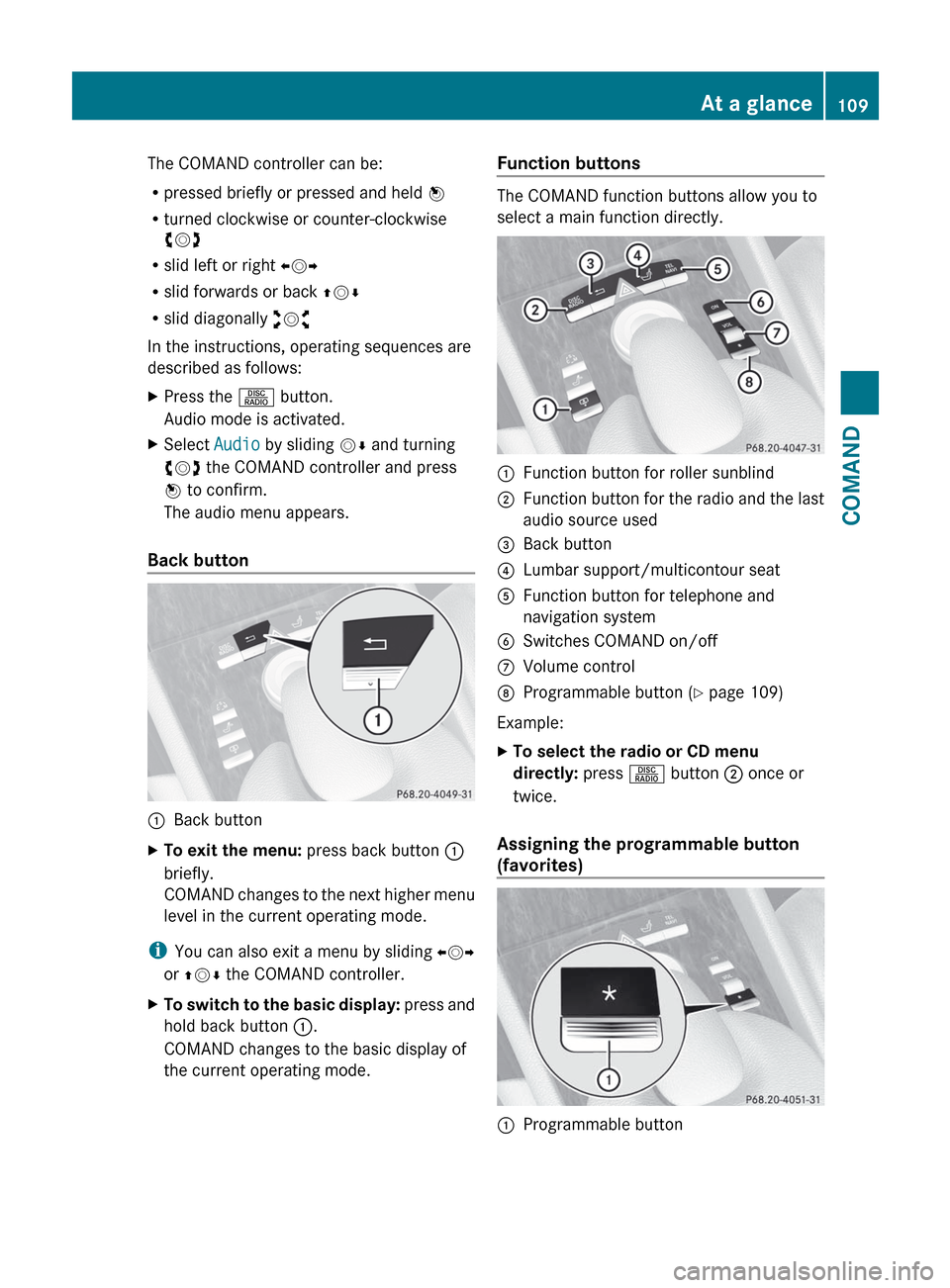
The COMAND function buttons allow you to
select a main function directly.
:Function button for roller sunblind;Function button for the radio and the last
audio source used=Back button?Lumbar support/multicontour seatAFunction button for telephone and
navigation systemBSwitches COMAND on/offCVolume controlDProgrammable button ( Y page 109)
Example:
XTo select the radio or CD menu
directly: press R button ; once or
twice.
Assigning the programmable button
(favorites)
:Programmable buttonAt a glance109COMANDZ
Page 112 of 488

You can assign the following predefined
functions to the h programmable button:
R ECO : you can activate or deactivate the ECO
start/stop function.
R Massage, Driver's Seat : you can switch
the massage function for the driver's seat
on and off.
R Massage, Front Passenger's Seat :
you can switch the massage function for
the front-passenger seat on and off.
R Massage, Driver's and Front
Passenger's Seat : you can switch the
massage function for the driver's and front-
passenger seats on and off.
R Display OFF : you can switch the
COMAND display off or on.
R Tow-away Alarm : you can arm or
deactivate the tow-away alarm.
R Interior Motion Sensor : you can arm or
deactivate the interior motion sensor.
R Tow-away Alarm and Interior Motion
Sensor : you can arm or deactivate the tow-
away alarm and the interior motion sensor.
R Repeat Navigation Command : you can
have the most recent recommendation by
the navigation system repeated.XTo assign the programmable button:
select Vehicle by sliding VÆ and turning
cVd the COMAND controller and press
W to confirm.XSelect System and press W to confirm.XSelect Favorites Button and press W to
confirm.
The list of predefined functions appears.
The # dot in front of the list entry indicates
the current setting.XTo change the setting: turn cVd the
COMAND controller and select the desired
function.XTo store the setting and exit the menu:
press W the COMAND controller.Telephone keypad:Telephone keypad;Folding cover110At a glanceCOMAND
Page 113 of 488
COMAND display
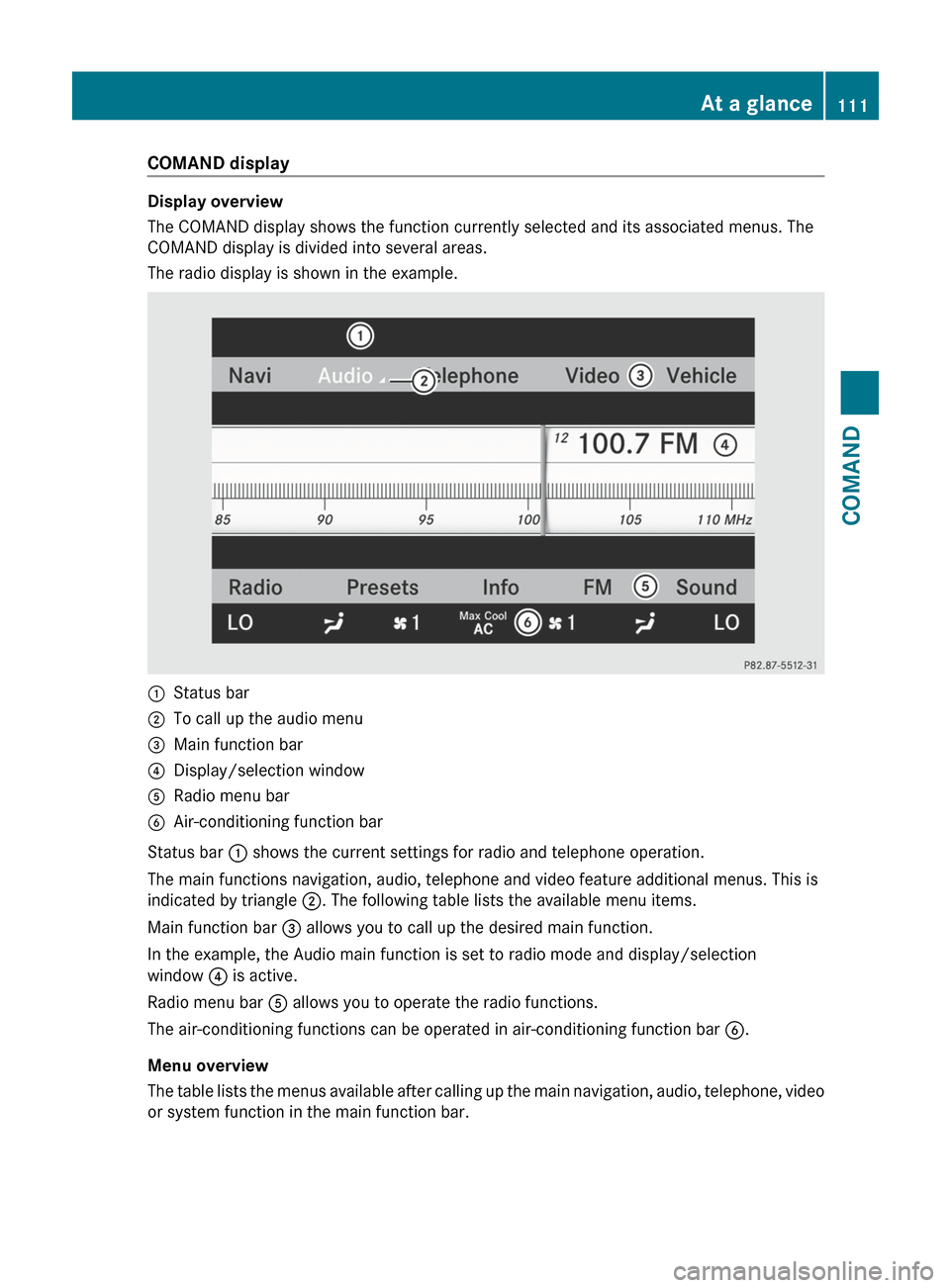
Display overview
The COMAND display shows the function currently selected and its associated menus. The
COMAND display is divided into several areas.
The radio display is shown in the example.
:Status bar;To call up the audio menu=Main function bar?Display/selection windowARadio menu barBAir-conditioning function bar
Status bar : shows the current settings for radio and telephone operation.
The main functions navigation, audio, telephone and video feature additional menus. This is
indicated by triangle ;. The following table lists the available menu items.
Main function bar = allows you to call up the desired main function.
In the example, the Audio main function is set to radio mode and display/selection
window ? is active.
Radio menu bar A allows you to operate the radio functions.
The air-conditioning functions can be operated in air-conditioning function bar B.
Menu overview
The table lists the menus available after calling up the main navigation, audio, telephone, video
or system function in the main function bar.
At a glance111COMANDZ
Page 114 of 488

NaviAudioTelephoneVideoVehicleModeFM/AM radioVideo DVDECOMap orientationSat radioAUXMulticontour
seat/lumbar
settingsPoint of interest
symbols on the mapDiscVideo offRear window
blindTraffic symbols on the
mapMemory cardEASY-ENTRY/
EXIT systemText information on
mapMUSIC
REGISTERExterior
lighting
delayed
switch-offO Topographical
mapMedia
InterfaceInterior
lighting
delayed
switch-offO City viewUSBAmbient
lightingO Freeway
informationAUXO Automatic
mirror fold-in
functionO Volume reductionAudio offO Locator
lightingSIRIUS serviceO Automatic
lockingMap versionO Interior
motion sensorO Tow-away
alarmO Trunk lid
opening height
restrictionSPLITVIEW
SPLITVIEW allows you to simultaneously use
different COMAND functions on the front-
passenger side and on the driver's side.
Depending on the viewing angle of the display
(from the driver's seat or from the front-
passenger seat), you will see two different
displays.112At a glanceCOMAND