turn signal MERCEDES-BENZ CL-Class 2012 C216 Owner's Manual
[x] Cancel search | Manufacturer: MERCEDES-BENZ, Model Year: 2012, Model line: CL-Class, Model: MERCEDES-BENZ CL-Class 2012 C216Pages: 488, PDF Size: 21.88 MB
Page 15 of 488
Homesee Home address
Home address
Entering and saving .......................141
Selecting from the destination
memory ......................................... 143
Hood
Closing ........................................... 409
Display message ............................ 375
Opening ......................................... 408
Hydroplaning ..................................... 289
I
Ignition lock see Key positions
Immobilizer .......................................... 68
Incident (traffic report) ..................... 158
Indicator lamps see Warning and indicator lamps
Indicators
see Turn signals
Instrument cluster
Overview .......................................... 33
Warning and indicator lamps ...........34
Instrument lighting
see Instrument cluster lighting
Interface (USB, iPod ®
)
see Media Interface
Interior lighting
Ambient light (COMAND) ...............233
Automatic control ..........................250
Interior lighting .............................. 233
Manual control ............................... 250
Overview ........................................ 249
Reading lamp ................................. 249
see Interior lighting
Intermediate stop
Deleting ......................................... 146
Entering ......................................... 145
iPod ®
Alphabetical track selection ..........221
Connecting to the Media
Interface ........................................ 218
Selecting a category/playlist .........220
Supported variants ........................217
J
Jack Storage location ............................ 424
Using ............................................. 426
Jump starting (engine) ...................... 433
K
Key see SmartKey
KEYLESS-GO
Convenience closing feature ............88
Locking ............................................ 73
Start/Stop button .......................... 267
Starting the engine ........................269
Unlocking ......................................... 73
Key positions
KEYLESS-GO .................................. 267
SmartKey ....................................... 267
Kickdown
Driving tips .................................... 276
Manual drive program ....................279
Knee bag .............................................. 44
L
Lamps see Warning and indicator lamps
Lane detection (automatic)
see Lane Keeping Assist
Lap time (RACETIMER) ...................... 338
LATCH-type (ISOFIX) child seat
anchors ................................................ 58
Letter bar see Character bar
License plate lamp (display
message) ............................................ 360
Lighting see Lights
Lights
Automatic headlamp mode ............245
Cornering light function .................248
Display message ............................ 359
Driving abroad ............................... 244
Fog lamps ...................................... 246
Hazard warning lamps ...................247
High beam flasher .......................... 247
High-beam headlamps ...................247
Index13
Page 16 of 488
Light switch ................................... 244
Low-beam headlamps ....................245
Parking lamps ................................ 244
Rear fog lamp ................................ 246
Switching Adaptive Highbeam
Assist on/off ................................. 344
Switching the daytime running
lamps on/off (on-board
computer) ...................................... 343
Switching the daytime running
lamps on/off (switch) ....................245
Turn signals ................................... 246
see Changing bulbs
see Interior lighting
Light sensor (display message) ....... 361
LIM indicator lamp Cruise control ................................ 291
DISTRONIC PLUS ........................... 295
Loading guidelines ............................ 388
Locator lighting setting (COMAND) . 234
Locking see Central locking
Locking (doors)
Automatic ........................................ 81
Emergency locking ........................... 82
From inside (central locking
button) ............................................. 80
Locking centrally
see Central locking
Locking verification signal (on-
board computer) ............................... 344
Logic 7 ®
(Harman Kardon ®
surround sound system) see 3D sound (Harman Kardon ®
surround sound system)
Low-beam headlamps
Display message ............................ 359
Setting for driving abroad
(symmetrical) ................................. 244
Switching on/off ........................... 245
Lubricant additives
see Additives
Lumbar support
Adjusting ......................................... 97
Lumbar support (COMAND) .............. 238M
M+S tires ............................................ 444
Maintenance see ASSYST PLUS service interval
display
Malfunction message
see Display messages
Malfunctions relevant to safety
Reporting ......................................... 29
Map (navigation)
Adjusting the scale ........................166
Arrival time/distance to the
destination ..................................... 169
City model ..................................... 170
Display ........................................... 168
Geo-coordinate display ..................170
Heading ......................................... 168
Information in the display ..............169
Map settings .................................. 166
Moving ........................................... 167
North orientation ........................... 168
Notes ............................................. 166
Point of interest symbols ...............168
Road display .................................. 169
Saving the crosshair position .........167
Setting to the vehicle destination ..167
Topographical map ........................170
Map display (also see navigation)
Traffic reports ................................ 158
Massage function (PULSE) ............... 241
Matte finish (cleaning
instructions) ...................................... 417
mbrace Automatic retrieval of vehicle data
(service due date) ..........................401
Call priority .................................... 399
Display message ............................ 354
Downloading destinations
(COMAND) ..................................... 399
Emergency call .............................. 396
Important safety notes ..................395
Locating a stolen vehicle ...............402
MB info call button ........................398
Remote vehicle locking ..................401
Roadside Assistance button ..........397
Search & Send ............................... 400
Self-test ......................................... 39614Index
Page 26 of 488
Locking separately ...........................85
Opening/closing (automatically
from inside) ...................................... 84
Opening/closing (automatically
from outside) ................................... 83
Trunk lid
Display message ............................ 375
Opening/closing .............................. 82
Power closing feature ......................81
Trunk lid opening height
restriction .......................................... 235
Turn signals Display message ............................ 359
Switching on/off ........................... 246
TV
Automatic picture shutoff ..............224
Picture settings .............................. 224
Type identification plate
see Vehicle identification plate
U
Unlocking Emergency unlocking .......................81
From inside the vehicle (central
unlocking button) ............................. 80
USB
see Media Interface
V
Vanity mirror (in sun visor) .............. 392
Vehicle Correct use ...................................... 29
Data acquisition ............................... 30
Display message ............................ 374
Equipment ....................................... 26
Individual settings ..........................343
Limited Warranty ............................. 30
Loading .......................................... 452
Locking (in an emergency) ...............82
Locking (SmartKey) .......................... 73
Lowering ........................................ 429
Maintenance .................................... 27
Parking for a long period ................ 285
Pulling away ................................... 269
Raising ........................................... 426
Reporting problems .........................29
Towing away .................................. 435
Transporting .................................. 437
Unlocking (in an emergency) ...........81
Unlocking (SmartKey) ......................73
Vehicle data ................................... 480
Vehicle battery
see Battery (vehicle)
Vehicle data ....................................... 480
see Technical data
Vehicle dimensions ........................... 480
Vehicle emergency locking ................ 82
Vehicle identification number see VIN
Vehicle identification plate .............. 473
Vehicle level Active Body Control (ABC) .............305
AIRMATIC ...................................... 303
Display message ............................ 368
Vehicle level (display message) ....... 367
Vehicle tool kit .................................. 424
Video see Video DVD
Video AUX
Setting the picture .........................224
Video DVD
Automatic picture shutoff ..............224
DVD menu ..................................... 228
Fast forward/rewind ...................... 226
Function restrictions ......................225
Interactive content ........................229
Notes on discs ............................... 224
Operation ....................................... 224
Operation using the on-board
computer ....................................... 337
Pause function ............................... 227
Playing conditions .......................... 225
Safety notes .................................. 224
Selecting ........................................ 226
Selecting a film/title ...................... 227
Selecting a scene/chapter ............227
Setting the audio format ................229
Setting the language ......................229
Setting the picture .........................224
Showing/hiding the control menu . 225
Showing/hiding the menu .............226
Stop function ................................. 227
Subtitles ........................................ 229
Switching to ................................... 22524Index
Page 36 of 488
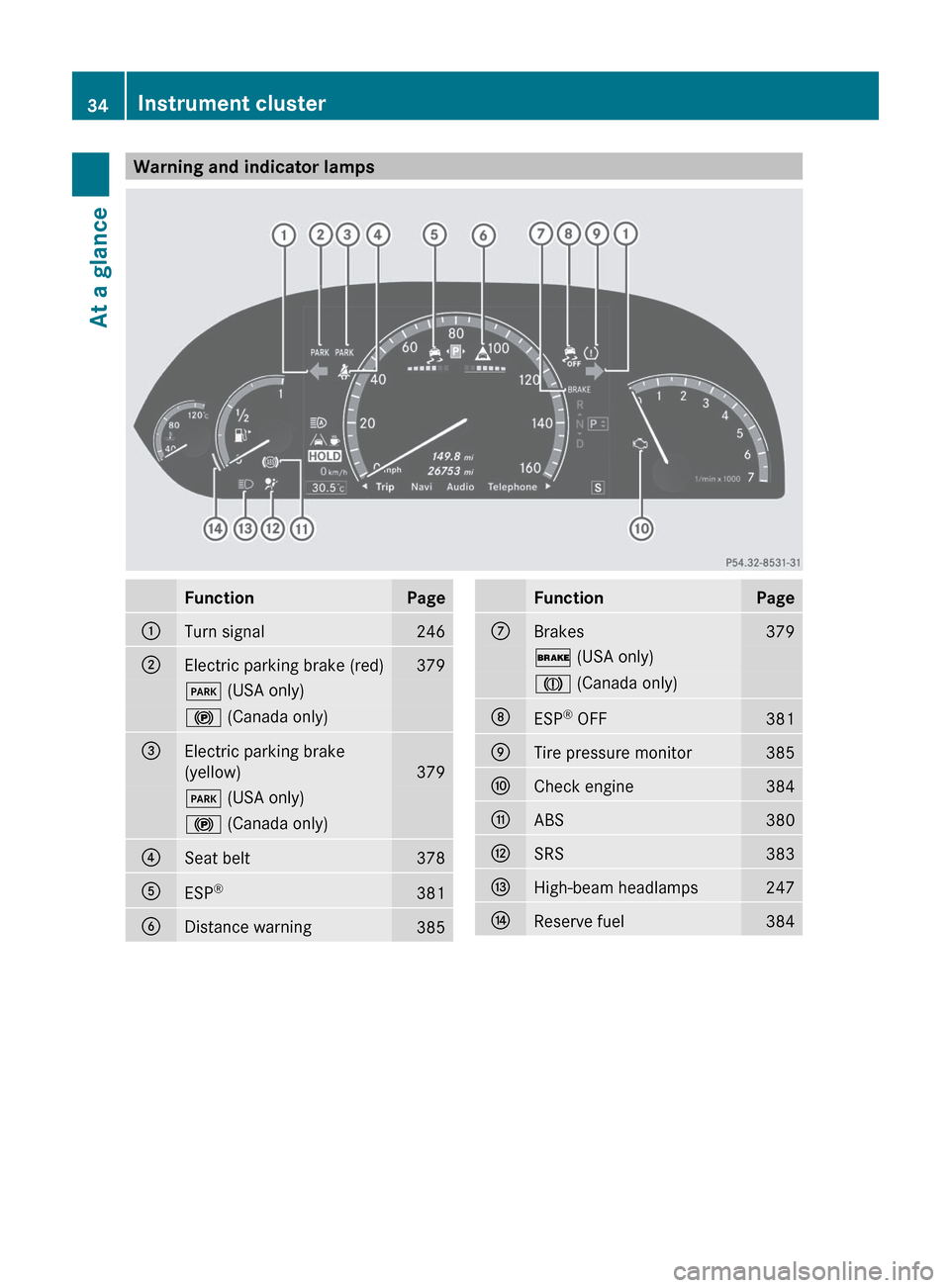
Warning and indicator lampsFunctionPage:Turn signal246;Electric parking brake (red)379F (USA only)! (Canada only)=Electric parking brake
(yellow)
379
F (USA only)! (Canada only)?Seat belt378AESP®381BDistance warning385FunctionPageCBrakes379$
(USA only)J (Canada only)DESP®
OFF381ETire pressure monitor385FCheck engine384GABS380HSRS383IHigh-beam headlamps247JReserve fuel38434Instrument clusterAt a glance
Page 75 of 488

Any unauthorized modification to this
device could void the user’s authority to
operate the equipment.
The Product label with FCC ID and IC
certification number can be found in the
battery case of the SmartKey.
i Canada only:
This device complies with RSS-210 of
Industry Canada. Operation is subject to
the following two conditions:
1. This device may not cause interference,
and
2. this device must accept any interference
received, including interference that may
cause undesired operation of the device.
Any unauthorized modification to this
device could void the user’s authority to
operate the equipment.
The Product label with FCC ID and IC
certification number can be found in the
battery case of the SmartKey.
Locking and unlocking centrally
The SmartKey centrally locks/unlocks:
R the doors
R the trunk lid
R the fuel filler flap
:& Locks the vehicle;F Unlocks the trunk lid=% Unlocks the vehicle
When unlocking, the turn signals flash once.
When locking, they flash three times.
When it is dark, the surround lighting also
comes on if it is activated in COMAND
( Y page 234).
If you activate the acoustic locking
confirmation function, you will hear the
following, depending on the date of
production of the vehicle:
R an acoustic signal when locking
or
R one acoustic signal when unlocking and
three when locking.
The audible signal can be activated and
deactivated using the on-board computer
( Y page 344).XTo unlock centrally: press the %
button.
If you do not open the vehicle within
approximately 40 seconds of unlocking:
R the vehicle is locked again.
R the theft deterrent locking system is armed
again.
XTo lock centrally: press the & button.
KEYLESS-GO
General notes
i USA only:
This device complies with Part 15 of the
FCC Rules. Operation is subject to the
following two conditions:
1. This device may not cause harmful
interference, and
2. this device must accept any interference
received, including interference that may
cause undesired operation.
Any unauthorized modification to this
device could void the user’s authority to
operate the equipment.
The Product label with FCC ID and IC
certification number can be found in the
battery case of the SmartKey.
i Canada only:
SmartKey73Opening/closingZ
Page 77 of 488

X To unlock the vehicle: pull the door
handle.XTo lock the vehicle: touch sensor
surface :.XConvenience closing feature: touch
recessed sensor surface ; for an
extended period ( Y page 88).
If you pull on the handle of the trunk lid, only
the trunk of the vehicle is unlocked.
Changing the settings of the locking
system
You can change the setting of the locking
system in such a way that only the driver's
door and the fuel filler flap are unlocked. This
is useful if you frequently travel on your own.
XTo change the setting: press and hold
down the % and & buttons
simultaneously for approximately six
seconds until the battery check lamp
( Y page 76) flashes twice.
i
If the setting of the locking system is
changed within the signal range of the
vehicle, pressing the & or % button
locks or unlocks the vehicle.
The SmartKey now functions as follows:
XTo unlock the driver's door: press the
% button once.XTo unlock centrally: press the %
button twice.XTo lock centrally: press the & button.
The KEYLESS-GO function is changed as
follows:
XTo unlock the driver's door : pull the door
handle on the driver's door.XTo unlock centrally: pull the front-
passenger door handle.XTo lock centrally: touch the outer sensor
surface on one of the door handles.Restoring the factory settingsXPress the % and & buttons
simultaneously for approximately six
seconds until the battery check lamp
flashes twice.
Mechanical key
General notes
If you use the mechanical key to unlock and
open the driver's door or the trunk lid, the
anti-theft alarm system will be triggered
( Y page 68).
There are several ways to turn off the alarm:
XTo turn the alarm off with the
SmartKey: press the % or & button
on the SmartKey.
or
XInsert the SmartKey into the ignition lock.
or
XTo deactivate the alarm with KEYLESS-
GO: press the Start/Stop button in the
ignition lock. The SmartKey must be in the
vehicle.
or
XLock or unlock the vehicle using KEYLESS-
GO. The SmartKey must be outside the
vehicle.
Removing the mechanical key
SmartKey75Opening/closingZ
Page 115 of 488
For example, the "Navi" function can be used
from the driver's side while the "Video"
function is used on the front-passenger side.
Use the remote control to operate COMAND
from the front-passenger side with
SPLITVIEW.
Please bear the following in mind
R Your vehicle may be equipped with
SPLITVIEW, depending on its date of
production. The use of SPLITVIEW is
currently not permitted in the following
states: AL, AZ, CO, IL, LA, MA, MD, NH, PA,
VA, VT, WA, WI, and WV or in the Canadian
provinces of Manitoba, Newfoundland,
New Brunswick, and Prince Edward Island.
It is the driver's responsibility to observe
ALL regional legally prescribed regulations.
If your vehicle is registered in a state or
province in which SPLITVIEW is not
approved, this function must be
deactivated. Please contact an authorized
specialist dealer to check whether
SPLITVIEW is approved in your state or
province.
R Volume adjustment for the cordless
headphones can be carried out on the
headphones. Before putting on the
headphones, make sure that the volume
has not been set too high.
R The remote control can be used for the
volume adjustment of corded headphones.
R You can only use media from the driver's
and front-passenger sides separately if the
media are from different sources. Example:
on the driver's side, an audio CD is being
played by the DVD changer. This means
that on the front-passenger side, the DVD
changer cannot be used to play a different
disc type, for instance a video DVD.
However, other media can be used at the
same time on the front-passenger side,
including radio, memory card, MUSIC
REGISTER, Media Interface, USB or AUX.
R If you use the same medium on both sides,
settings for this medium can be carried out
from either side.R There must be intervisibility between the
headphones and the display so that
COMAND can optimally transmit music and
speech via the infrared signal on the front-
passenger's headphones. For this reason,
please also observe that the headphones
have left and right sides, and use them
correctly.
R Only entertainment functions, i.e. audio
and video, can be used separately via
SPLITVIEW.
R The multifunction steering wheel can only
be used for functions which relate to the
driver's side.
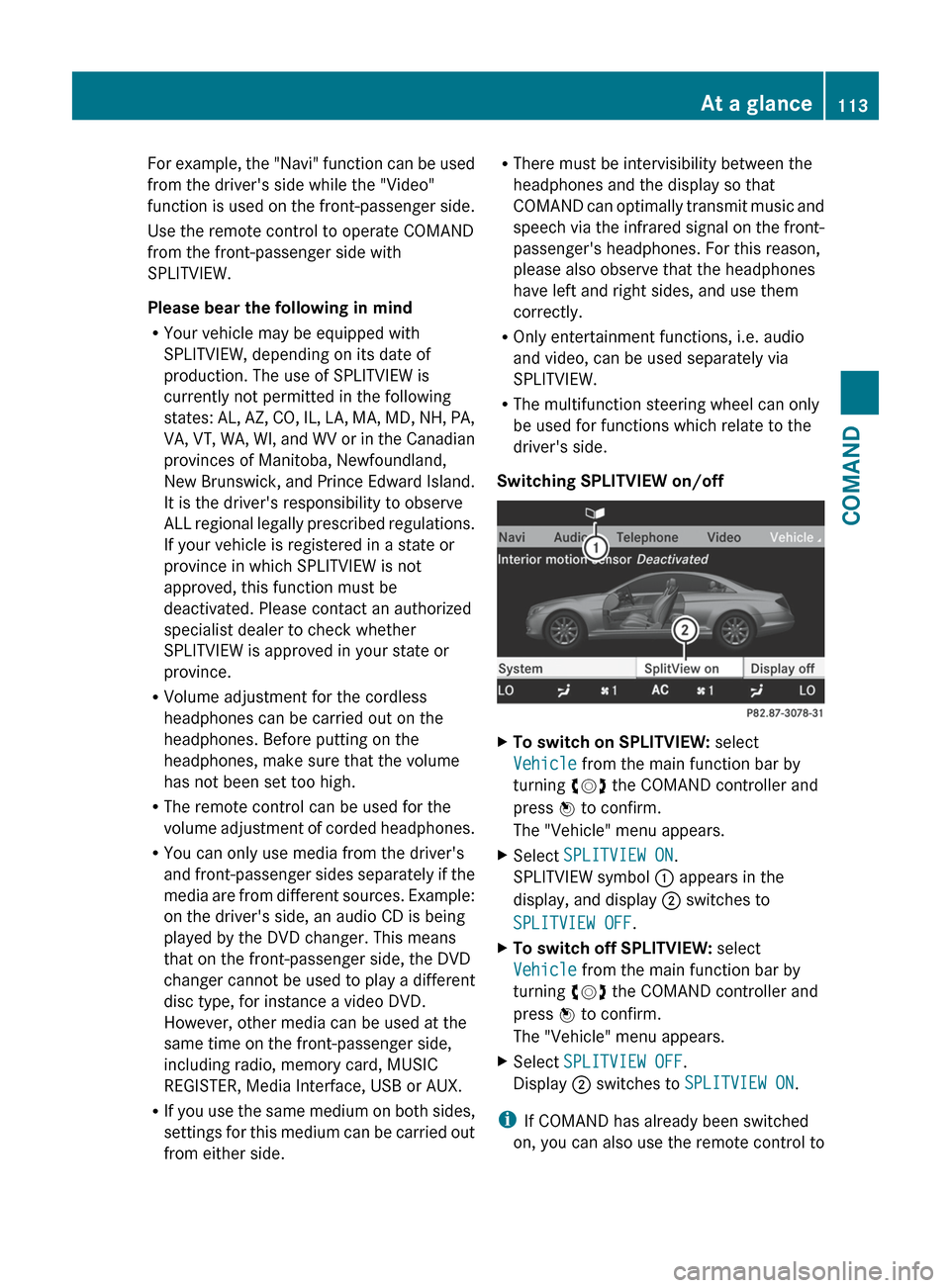
Switching SPLITVIEW on/offXTo switch on SPLITVIEW: select
Vehicle from the main function bar by
turning cVd the COMAND controller and
press W to confirm.
The "Vehicle" menu appears.XSelect SPLITVIEW ON .
SPLITVIEW symbol : appears in the
display, and display ; switches to
SPLITVIEW OFF .XTo switch off SPLITVIEW: select
Vehicle from the main function bar by
turning cVd the COMAND controller and
press W to confirm.
The "Vehicle" menu appears.XSelect SPLITVIEW OFF .
Display ; switches to SPLITVIEW ON .
i
If COMAND has already been switched
on, you can also use the remote control to
At a glance113COMANDZ
Page 129 of 488
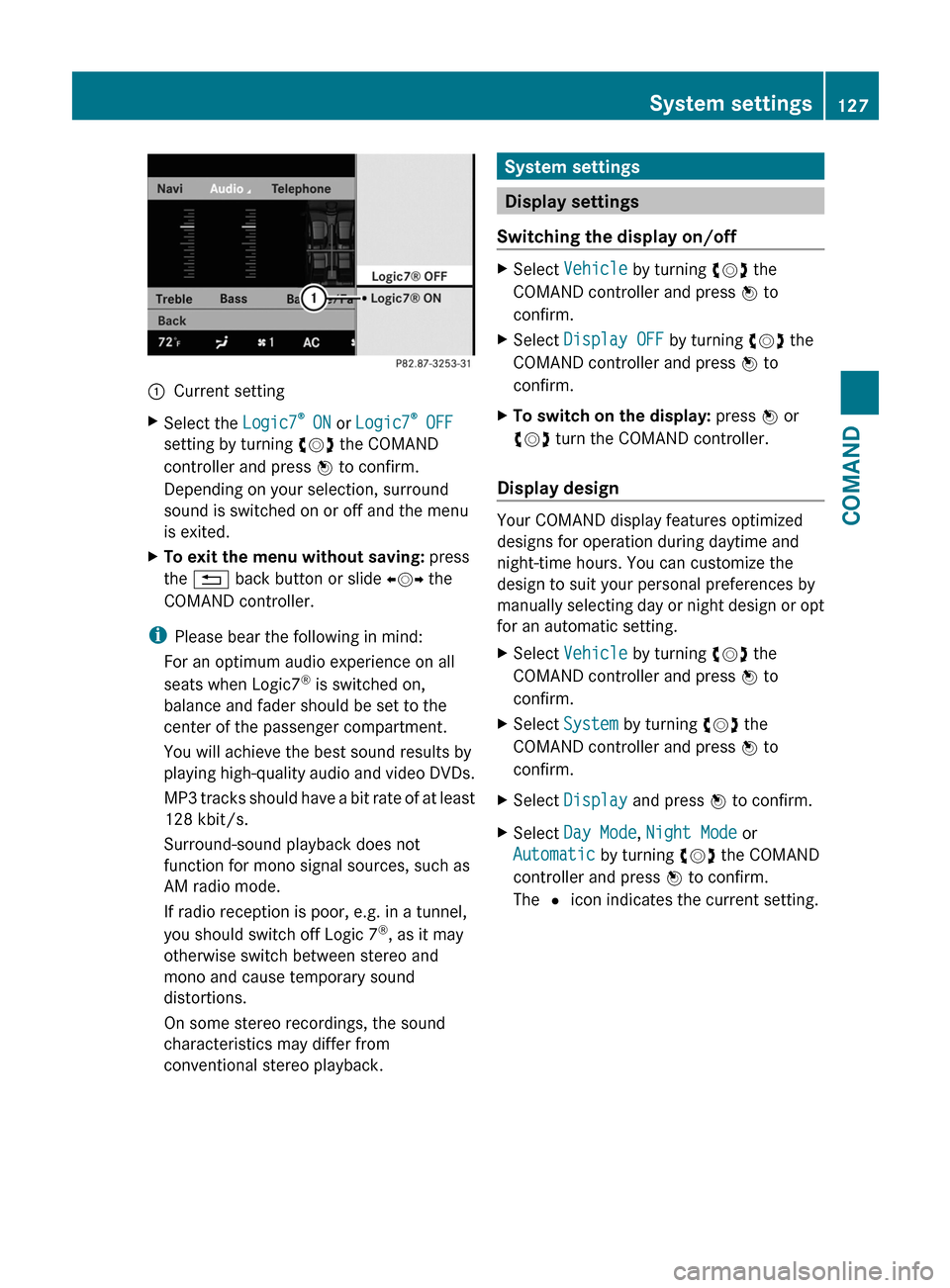
:Current settingXSelect the Logic7®
ON or Logic7 ®
OFF
setting by turning cVd the COMAND
controller and press W to confirm.
Depending on your selection, surround
sound is switched on or off and the menu
is exited.XTo exit the menu without saving: press
the % back button or slide XVY the
COMAND controller.
i Please bear the following in mind:
For an optimum audio experience on all
seats when Logic7 ®
is switched on,
balance and fader should be set to the
center of the passenger compartment.
You will achieve the best sound results by
playing high-quality audio and video DVDs.
MP3 tracks should have a bit rate of at least
128 kbit/s.
Surround-sound playback does not
function for mono signal sources, such as
AM radio mode.
If radio reception is poor, e.g. in a tunnel,
you should switch off Logic 7 ®
, as it may
otherwise switch between stereo and
mono and cause temporary sound
distortions.
On some stereo recordings, the sound
characteristics may differ from
conventional stereo playback.
System settings
Display settings
Switching the display on/off
XSelect Vehicle by turning cVd the
COMAND controller and press W to
confirm.XSelect Display OFF by turning cVd the
COMAND controller and press W to
confirm.XTo switch on the display: press W or
cVd turn the COMAND controller.
Display design
Your COMAND display features optimized
designs for operation during daytime and
night-time hours. You can customize the
design to suit your personal preferences by
manually selecting day or night design or opt
for an automatic setting.
XSelect Vehicle by turning cVd the
COMAND controller and press W to
confirm.XSelect System by turning cVd the
COMAND controller and press W to
confirm.XSelect Display and press W to confirm.XSelect Day Mode , Night Mode or
Automatic by turning cVd the COMAND
controller and press W to confirm.
The # icon indicates the current setting.System settings127COMANDZ
Page 147 of 488
switched on and the GPS signal is strong
enough.
Moving the map and selecting the
destinationXTo scroll the map: slide XVY, ZV Æ or
aVb the COMAND controller.XTo set the map scale: as soon as you turn
cVd the COMAND controller, the scale bar
appears.XTurn cVd until the desired scale is set.
Turning clockwise zooms out from the map;
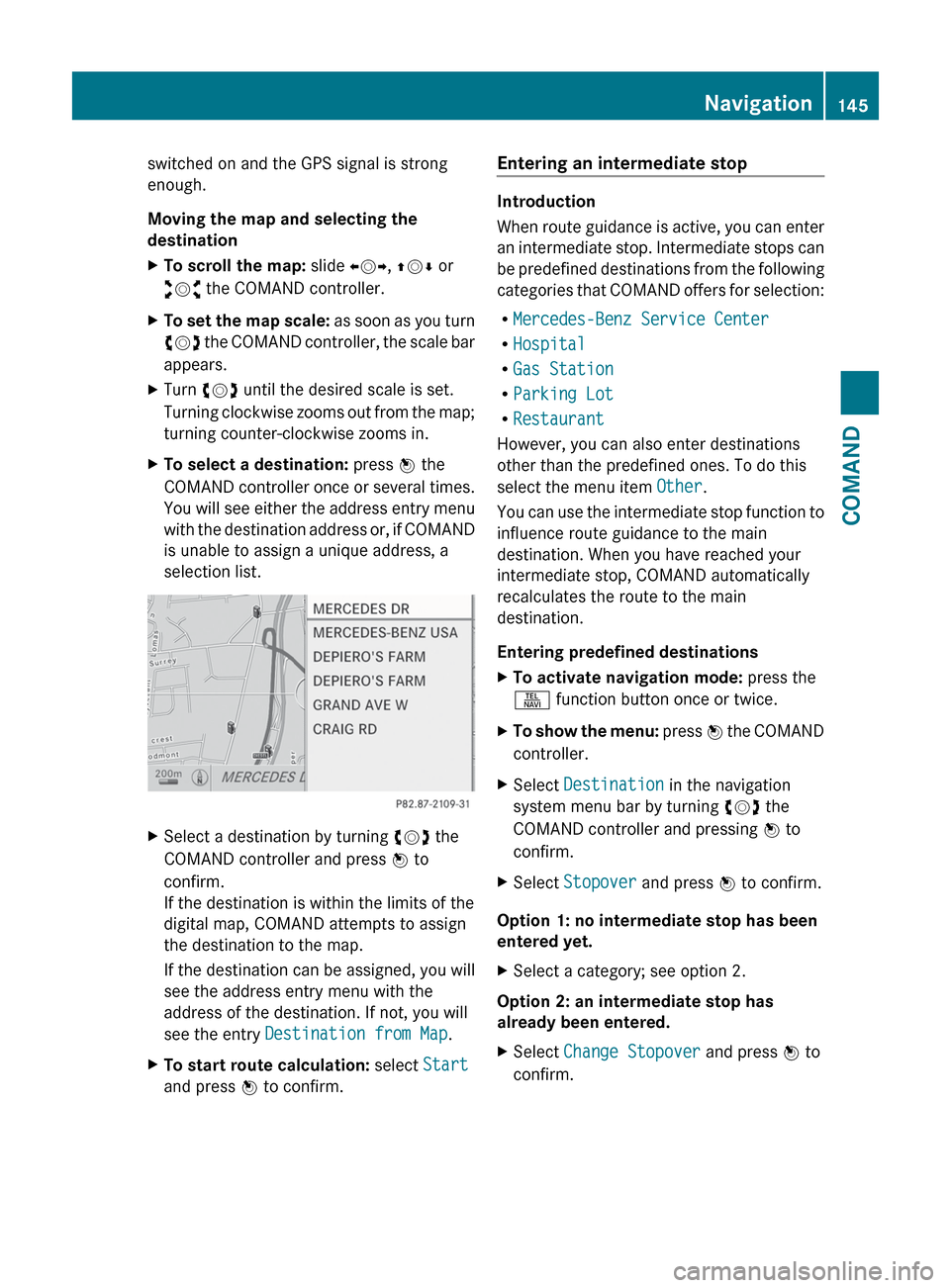
turning counter-clockwise zooms in.XTo select a destination: press W the
COMAND controller once or several times.
You will see either the address entry menu
with the destination address or, if COMAND
is unable to assign a unique address, a
selection list.XSelect a destination by turning cVd the
COMAND controller and press W to
confirm.
If the destination is within the limits of the
digital map, COMAND attempts to assign
the destination to the map.
If the destination can be assigned, you will
see the address entry menu with the
address of the destination. If not, you will
see the entry Destination from Map .XTo start route calculation: select Start
and press W to confirm.Entering an intermediate stop
Introduction
When route guidance is active, you can enter
an intermediate stop. Intermediate stops can
be predefined destinations from the following
categories that COMAND offers for selection:
R Mercedes-Benz Service Center
R Hospital
R Gas Station
R Parking Lot
R Restaurant
However, you can also enter destinations
other than the predefined ones. To do this
select the menu item Other.
You can use the intermediate stop function to
influence route guidance to the main
destination. When you have reached your
intermediate stop, COMAND automatically
recalculates the route to the main
destination.
Entering predefined destinations
XTo activate navigation mode: press the
S function button once or twice.XTo show the menu: press W the COMAND
controller.XSelect Destination in the navigation
system menu bar by turning cVd the
COMAND controller and pressing W to
confirm.XSelect Stopover and press W to confirm.
Option 1: no intermediate stop has been
entered yet.
XSelect a category; see option 2.
Option 2: an intermediate stop has
already been entered.
XSelect Change Stopover and press W to
confirm.Navigation145COMANDZ
Page 172 of 488
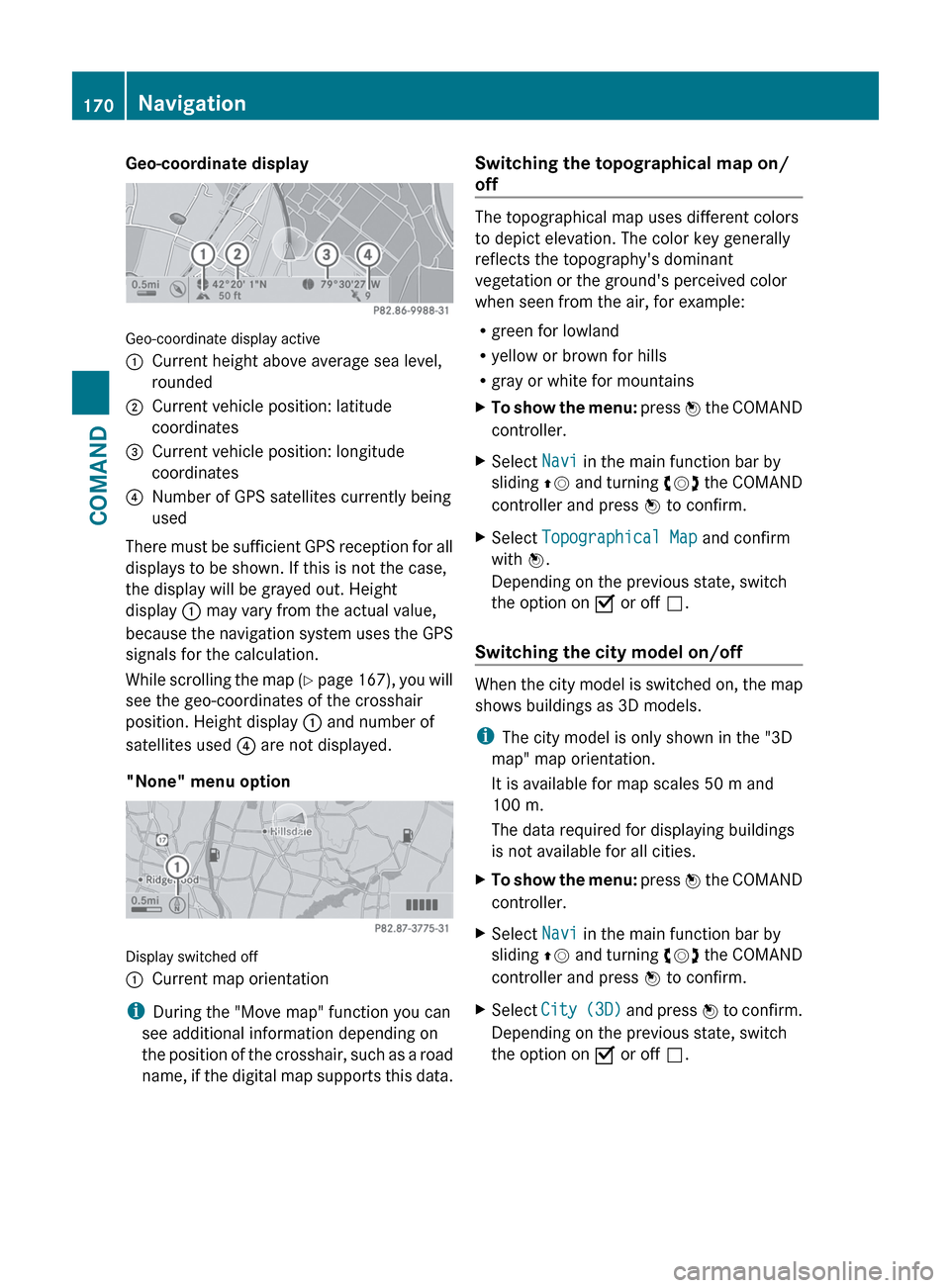
Geo-coordinate display
Geo-coordinate display active
:Current height above average sea level,
rounded;Current vehicle position: latitude
coordinates=Current vehicle position: longitude
coordinates?Number of GPS satellites currently being
used
There must be sufficient GPS reception for all
displays to be shown. If this is not the case,
the display will be grayed out. Height
display : may vary from the actual value,
because the navigation system uses the GPS
signals for the calculation.
While scrolling the map (Y page 167), you will
see the geo-coordinates of the crosshair
position. Height display : and number of
satellites used ? are not displayed.
"None" menu option
Display switched off
:Current map orientation
i During the "Move map" function you can
see additional information depending on
the position of the crosshair, such as a road
name, if the digital map supports this data.
Switching the topographical map on/
off
The topographical map uses different colors
to depict elevation. The color key generally
reflects the topography's dominant
vegetation or the ground's perceived color
when seen from the air, for example:
R green for lowland
R yellow or brown for hills
R gray or white for mountains
XTo show the menu: press W the COMAND
controller.XSelect Navi in the main function bar by
sliding ZV and turning cVd the COMAND
controller and press W to confirm.XSelect Topographical Map and confirm
with W.
Depending on the previous state, switch
the option on O or off ª.
Switching the city model on/off
When the city model is switched on, the map
shows buildings as 3D models.
i The city model is only shown in the "3D
map" map orientation.
It is available for map scales 50 m and
100 m.
The data required for displaying buildings
is not available for all cities.
XTo show the menu: press W the COMAND
controller.XSelect Navi in the main function bar by
sliding ZV and turning cVd the COMAND
controller and press W to confirm.XSelect City (3D) and press W to confirm.
Depending on the previous state, switch
the option on O or off ª.170NavigationCOMAND