wheel MERCEDES-BENZ CL-Class 2014 C217 Workshop Manual
[x] Cancel search | Manufacturer: MERCEDES-BENZ, Model Year: 2014, Model line: CL-Class, Model: MERCEDES-BENZ CL-Class 2014 C217Pages: 494, PDF Size: 13.55 MB
Page 190 of 494
X
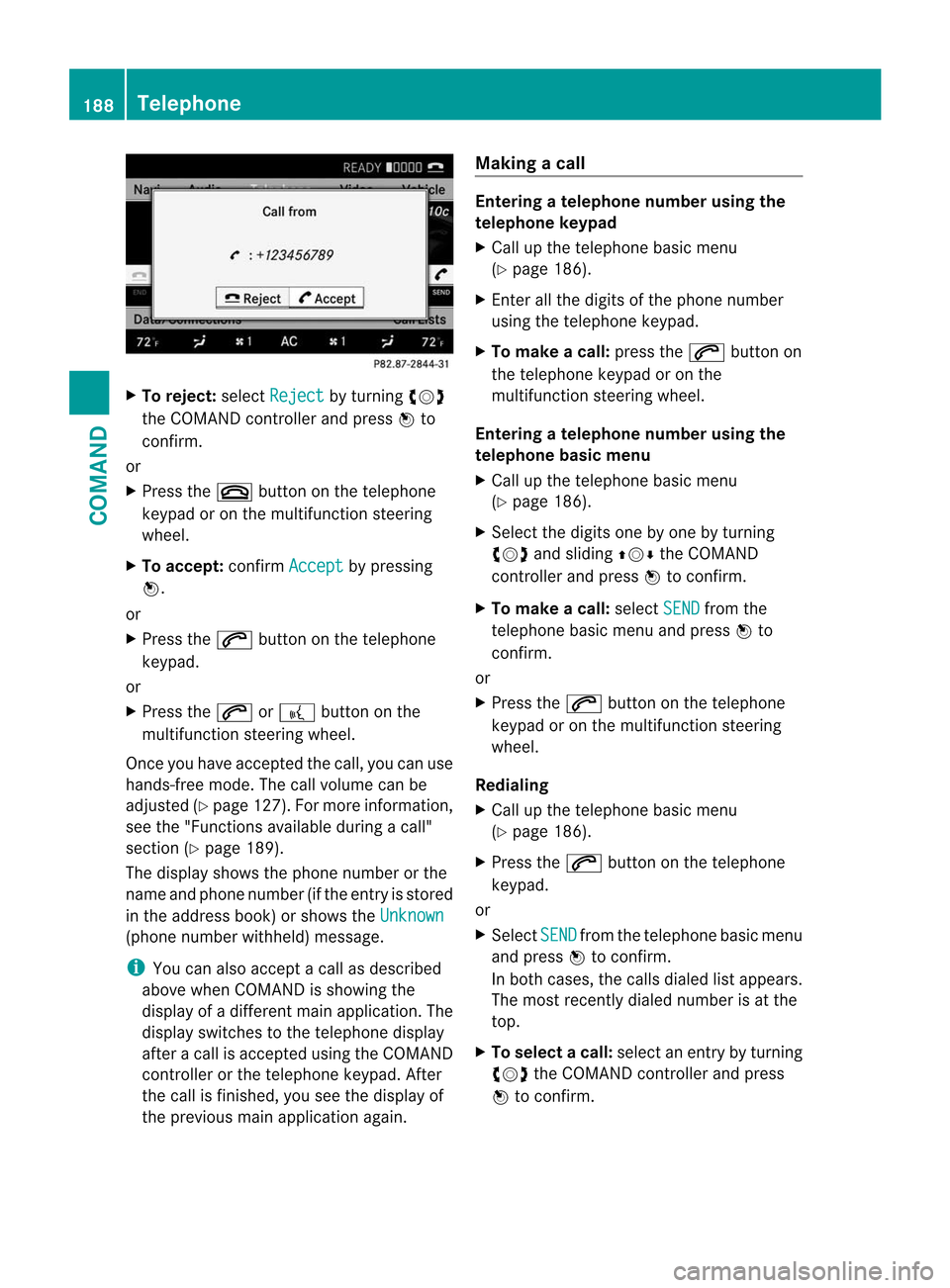
To reject: selectReject by turning
cVd
the COMAND controller and press Wto
confirm.
or
X Press the ~button on the telephone
keypad or on the multifunctio nsteering
wheel.
X To accept: confirmAccept by pressing
W.
or
X Press the 6button on the telephone
keypad.
or
X Press the 6or? button on the
multifunctio nsteering wheel.
Once you have accepted the call, you can use
hands-free mode. The call volume can be
adjusted (Y page 127).For more information,
see the "Functions available during a call"
section (Y page 189).
The display shows the phone number or the
name and phone number (if the entry is stored
in the address book) or shows the Unknown(phone number withheld) message.
i
You can also accept a call as described
above when COMAND is showing the
display of a different main application. The
display switches to the telephone display
after a call is accepted using the COMAND
controller or the telephone keypad. After
the call is finished, you see the display of
the previous main application again. Making a call Entering
atelephone number using the
telephone keypad
X Call up the telephone basic menu
(Y page 186).
X Enter all the digits of the phone number
using the telephone keypad.
X To make a call: press the6button on
the telephone keypad or on the
multifunction steering wheel.
Entering atelephone number using the
telephone basic menu
X Call up the telephone basic menu
(Y page 186).
X Select the digits one by one by turning
cVd and sliding ZVÆthe COMAND
controller and press Wto confirm.
X To make a call: selectSEND from the
telephone basic menu and press Wto
confirm.
or
X Press the 6button on the telephone
keypad or on the multifunction steering
wheel.
Redialing
X Call up the telephone basic menu
(Y page 186).
X Press the 6button on the telephone
keypad.
or
X Select SEND fro
mt he telephone basic menu
and press Wto confirm.
In both cases, the calls dialed list appears.
The most recently dialed number is at the
top.
X To selectac all:select an entry by turning
cVd the COMAND controller and press
W to confirm. 188
TelephoneCOMAND
Page 191 of 494
i
The redialing function is also available
using the on-board computer
(Y page 347).
Calling voicemail
This function is only available if it is supported
by the mobile phone network provider.
You can only call voicemail if the voicemail
number is stored as preset 1onthe SIM card.
X Press and hold the 4button on the
telephone keypad.
or
X Use the COMAND controller to select 1and
confirm until dialing commences.
Connecting acall to an entry in acall list
or in the COMAND phone book
X Open a call lis tand select an entry
(Y page 197).
or
X Call up the COMAND phone book and
select an entry (Y page 193).
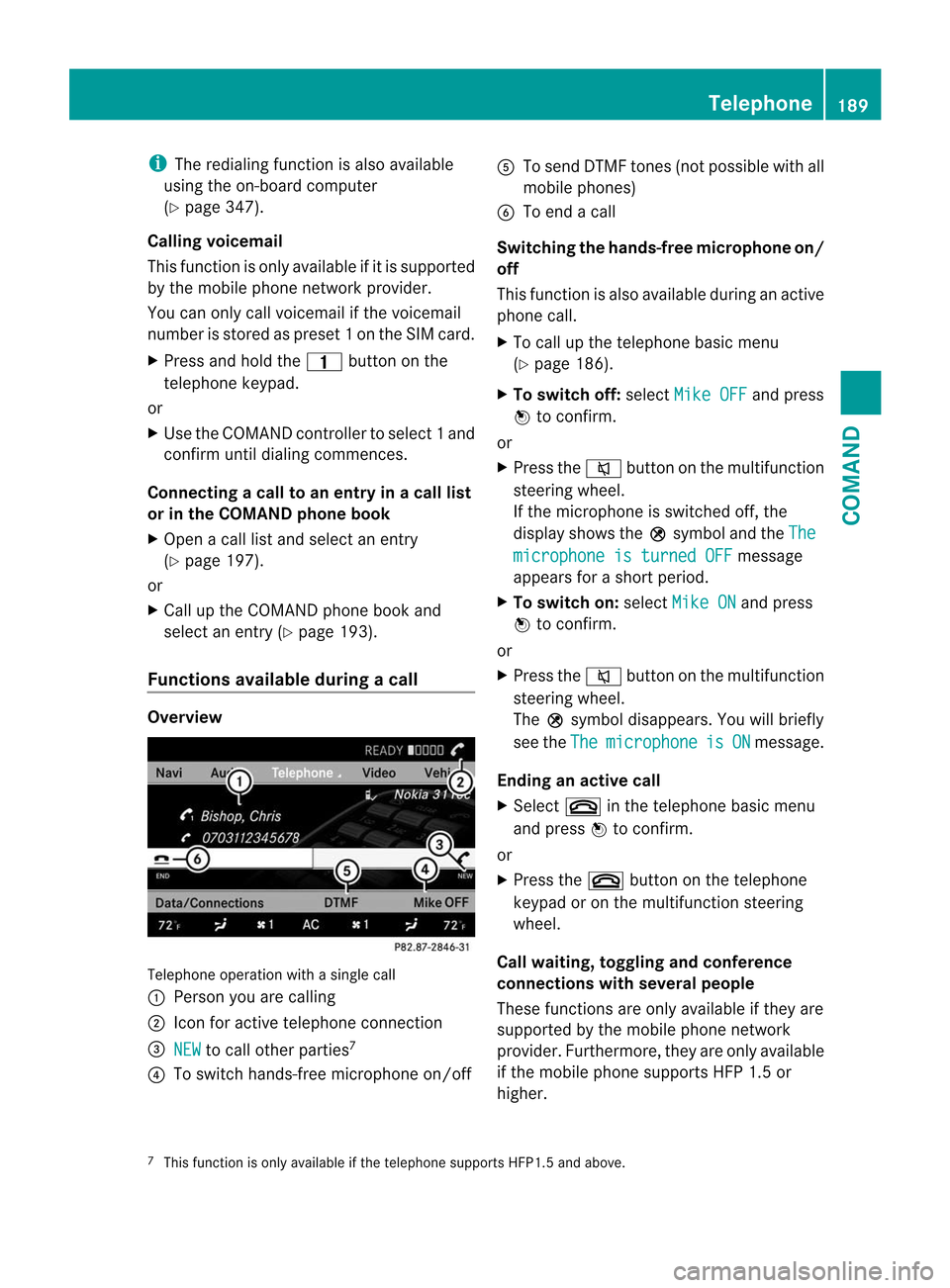
Functions available during acall Overview
Telephone operatio
nwith a single call
: Perso nyou are calling
; Icon for active telephone connection
= NEW to call other parties
7
? To switch hands-free microphone on/off A
To send DTMF tones (not possible with all
mobile phones)
B To end a call
Switching the hands-free microphone on/
off
This function is also available during an active
phone call.
X To call up the telephone basic menu
(Y page 186).
X To switch off: selectMike OFF and press
W to confirm.
or
X Press the 8button on the multifunction
steering wheel.
If the microphone is switched off, the
display shows the Qsymbol and the The microphone is turned OFF message
appears for a short period.
X To switch on: selectMike ON and press
W to confirm.
or
X Press the 8button on the multifunction
steering wheel.
The Qsymbol disappears. You will briefly
see the The microphone is ON message.
Ending an active call
X Select ~in the telephone basic menu
and press Wto confirm.
or
X Press the ~button on the telephone
keypad or on the multifunction steering
wheel.
Call waiting, toggling and conference
connections with several people
These functions are only available if they are
supported by the mobile phone network
provider. Furthermore, they are only available
if the mobile phone supports HFP 1.5 or
higher.
7 This function is only available if the telephone supports HFP1. 5and above. Telephone
189COMAND Z
Page 192 of 494
You can be called by more than one person
(call waiting) while you are making a
telephone call. In the same way, you can call
another party while already on the phone with
someone.
You can either toggle betwee nthese two
conversations or interconnect them to create
a conference call.
You can simultaneously switch back and forth
between two parties or conduct a conference
call with up to five others.
Call Waiting 8
If you are on the telephone and you receive
another call, the call waiting display will
appear. You also hear a tone.
X To reject: selectReject and press
Wto
confirm.
or
X Press the ~button on the telephone
keypad or on the multifunction steering
wheel.
X To accept: selectAccept and press
Wto
confirm.
or
X Press the 6button on the telephone
keypad or on the multifunction steering
wheel.
This will put the active call on hold. You now
have two calls. The accepted call is active
and the first call is on hold.
i If your mobile phone does not support
HFP 1.5 or above, then the call which was
active is canceled as soon as the second
call is accepted.
Calling additional parties
You can call a second person while on the
phone with someone else. This action puts
the previous call on hold. X
Select NEW from the telephone basic menu
and press Wto confirm.
or
X Select SENDon the telephone keypad.
X Enter the phone number manually
(Y page 188) or via the phone book
(Y page 196) or from the call lists
(Y page 197).
Switching between two parties (toggling)
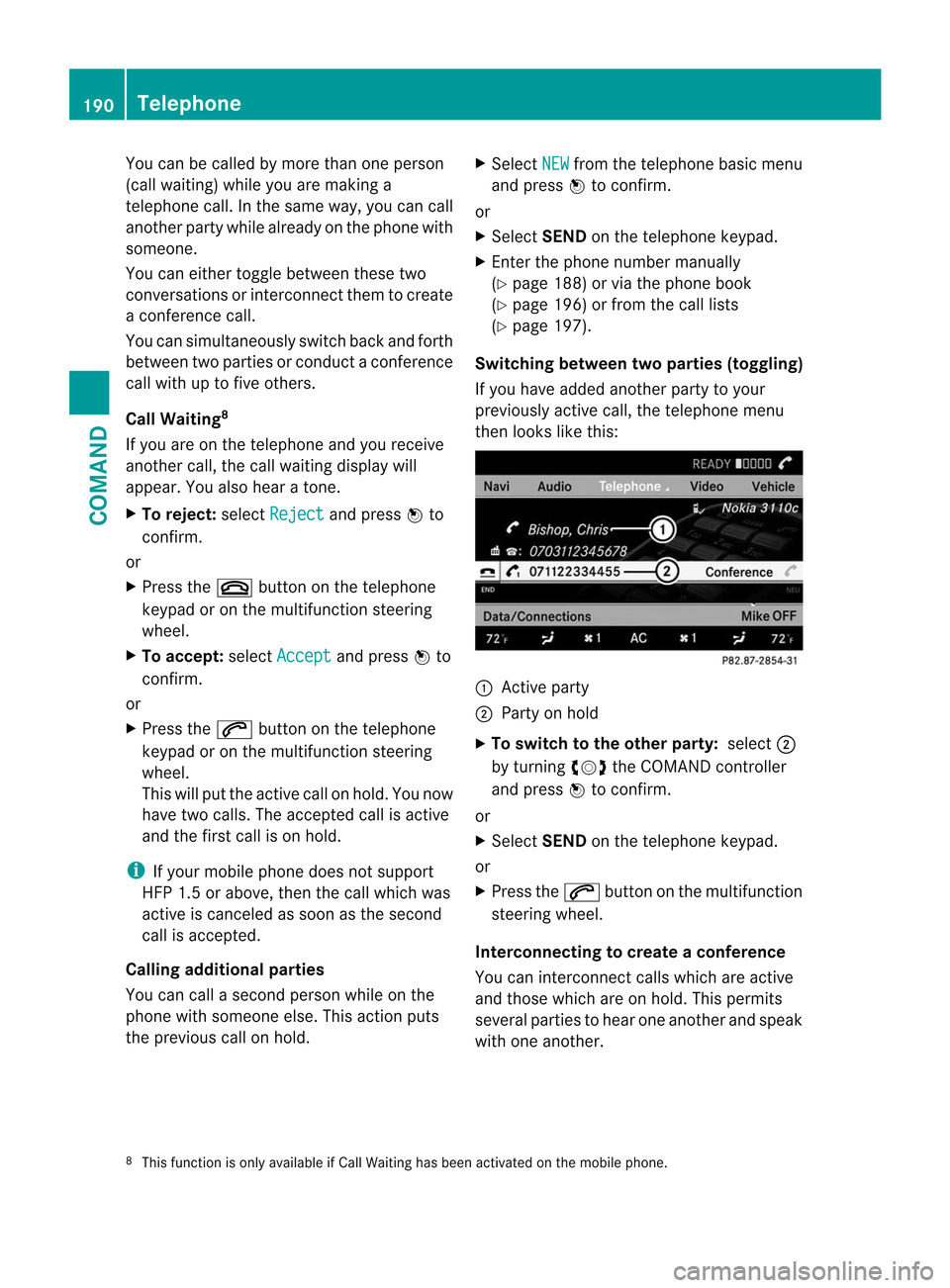
If you have added another party to your
previously active call, the telephone menu
then looks like this: :
Active party
; Party on hold
X To switch to the other party: select;
by turning cVdthe COMAND controller
and press Wto confirm.
or
X Select SENDon the telephone keypad.
or
X Press the 6button on the multifunction
steering wheel.
Interconnecting to create aconference
You can interconnect calls which are active
and those which are on hold. This permits
several parties to hear one another and speak
with one another.
8 This function is only available if Call Waiting has been activated on the mobile phone. 190
TelephoneCOMAND
Page 202 of 494
If another audio mode is switched on, you
can now switch to radio mode in the audio
menu.
X Select Audio by sliding
ZVthe COMAND
controller and pressing Wto confirm.
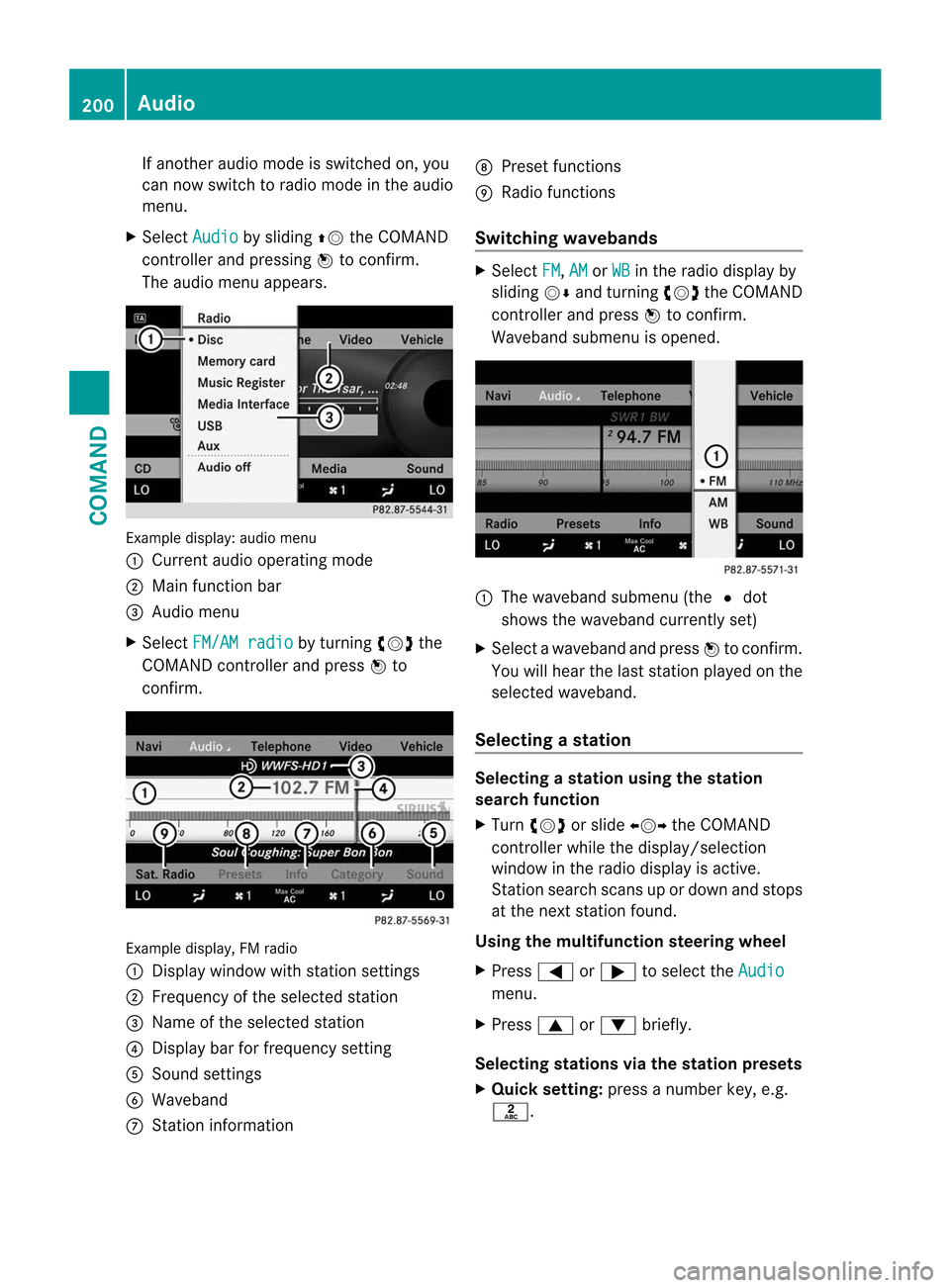
The audio menu appears. Example display: audio menu
:
Current audio operating mode
; Main function bar
= Audio menu
X Select FM/AM radio by turning
cVdthe
COMAND controller and press Wto
confirm. Example display, FM radio
:
Display window with station settings
; Frequency of the selected station
= Name of the selected station
? Display bar for frequency setting
A Sound settings
B Waveband
C Station information D
Preset functions
E Radio functions
Switching wavebands X
Select FM ,
AM or
WB in the radio display by
sliding VÆand turning cVdthe COMAND
controller and press Wto confirm.
Waveband submenu is opened. 1
The waveband submenu (the #dot
shows the waveband currently set)
X Select a waveband and press Wto confirm.
You will hear the last station played on the
selected waveband.
Selecting astation Selecting
astation using the station
search function
X Turn cVd or slide XVYthe COMAND
controller while the display/selection
window in the radio display is active.
Station search scans up or down and stops
at the next station found.
Using the multifunction steering wheel
X Press =or; to select the Audio menu.
X Press 9or: briefly.
Selecting stations vi athe station presets
X Quic ksetting: press a number key, e.g.
l. 200
AudioCOMAND
Page 203 of 494
X
Directly in the station presets: select
Presets by sliding
VÆand turning cVd
the COMAND controller and press Wto
confirm.
or
X Press Wthe COMAND controller when the
display/selection window is active.
The station preset memory appears .The
# dot indicates under which preset the
currently selected station is stored.
X Select a station by turning cVdand
pressing Wto confirm or press a number
key, e.g. l.
Using the multifunction steering wheel
X Press =or; to select the Audio menu.
X Press 9or: briefly.
Selecting stations by entering the
frequency manually
X Option 1: press theÄbutton.
X Option 2: selectRadio in the radio display
by sliding VÆand turning cVdthe
COMAND controller and press Wto
confirm.
X Select Enter Frequency and press
Wto
confirm.
Irrespective of the option chosen, an input
menu will appear.
X Enter a frequency using the number keys.
COMAND tunes in to the frequency
entered. Waveband Frequency
AM (MF) 530 – 1700 kHz
FM (VHF) 87.7 – 107.9 MHz
WB (Weather Band) Weather report
channels
i
You can only enter currently permitted
numbers. i
If you enter a frequency in the FM or AM
wavebands which is outside the frequency
range, COMAND tunes in to the next lower
frequency.
Storing stations Storing stations manually
There are twenty presets available for the FM
and AM wavebands.
X
Quick save: press and hold a number key,
e.g. l, until you hear a tone.
The station is stored.
X Directly in the station presets: pressW
the COMAND controller when the display/
selection window is active.
or
X Select Presets by sliding
VÆand turning
cVd the COMAND controller and press
W to confirm.
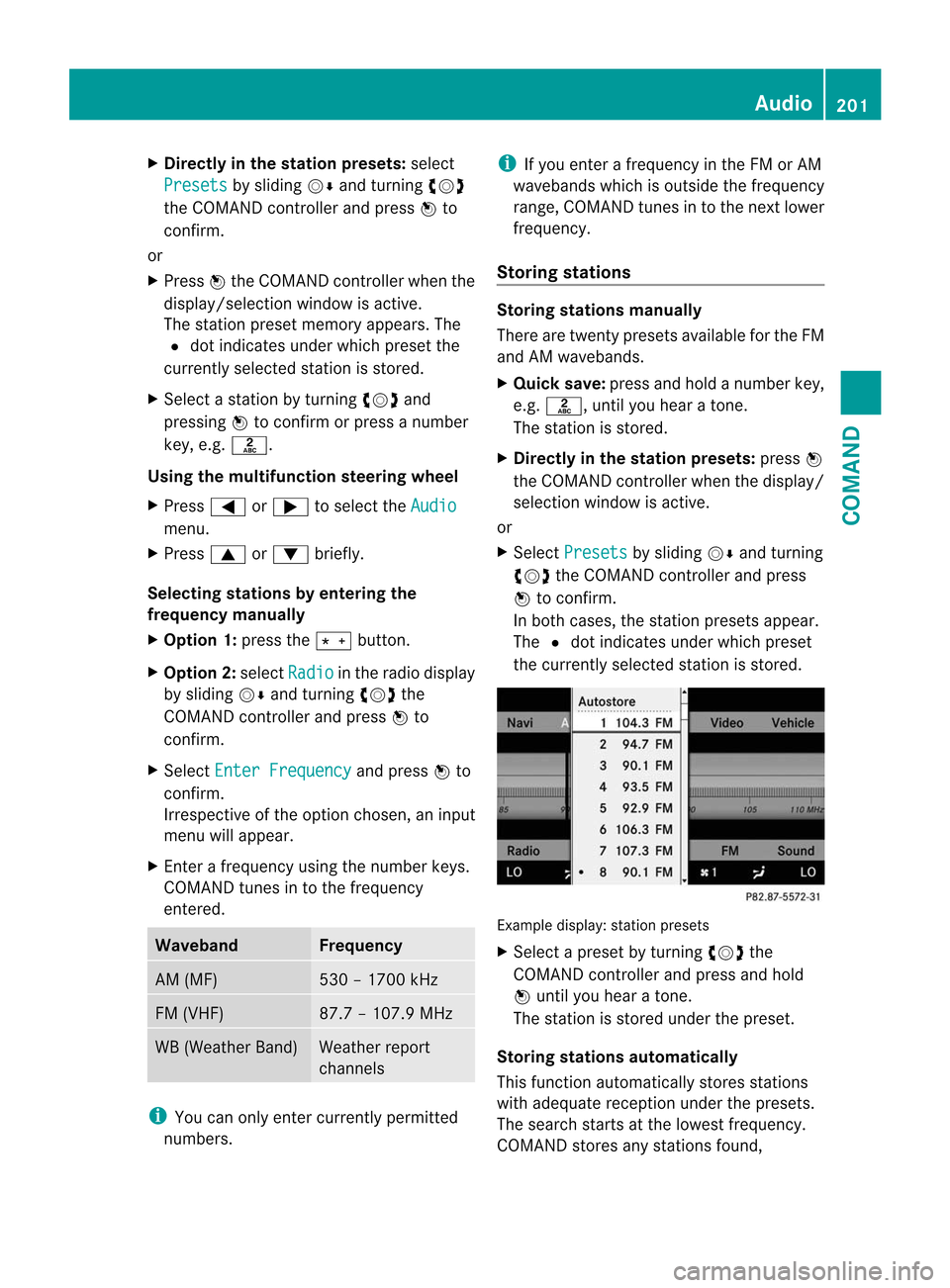
In both cases, the station presets appear.
The #dot indicates under which preset
the currently selected station is stored. Example display:s
tation presets
X Select a preset by turning cVdthe
COMAND controller and press and hold
W until you hear a tone.
The statio nis stored under the preset.
Storing stations automatically
This function automatically stores stations
with adequate reception under the presets.
The search starts at the lowest frequency.
COMAND stores any stations found, Audio
201COMAND Z
Page 204 of 494
beginning with preset 1. The storing process
ends once the highest frequency has been
reached or once ten stations have been
found. Any stations stored manually under
the presets will be lost. COMAND may not
occupy all memory slots when storing.
X
Option 1: pressWthe COMAND controller
when the display/selection window is
active.
The station preset memory appears.
X Option 2: selectPresets by sliding
VÆ
and turning cVdthe COMAND controller
and press Wto confirm.
The station preset memory appears.
X Irrespective of the option, select
Autostore and press
Wto confirm.
In both cases, COMAND searches for
stations that can be received. You will see
a message to this effect. The available
stations are automatically stored in the
preset positions.
X To cancel storing: selectCancel and
press Wto confirm.
Weather Band Switching on
X
Select the currently set waveband FM or
AM by sliding
VÆand turning cVdthe
COMAND controller and press Wto
confirm.
X Select WB from the menu and press
Wto
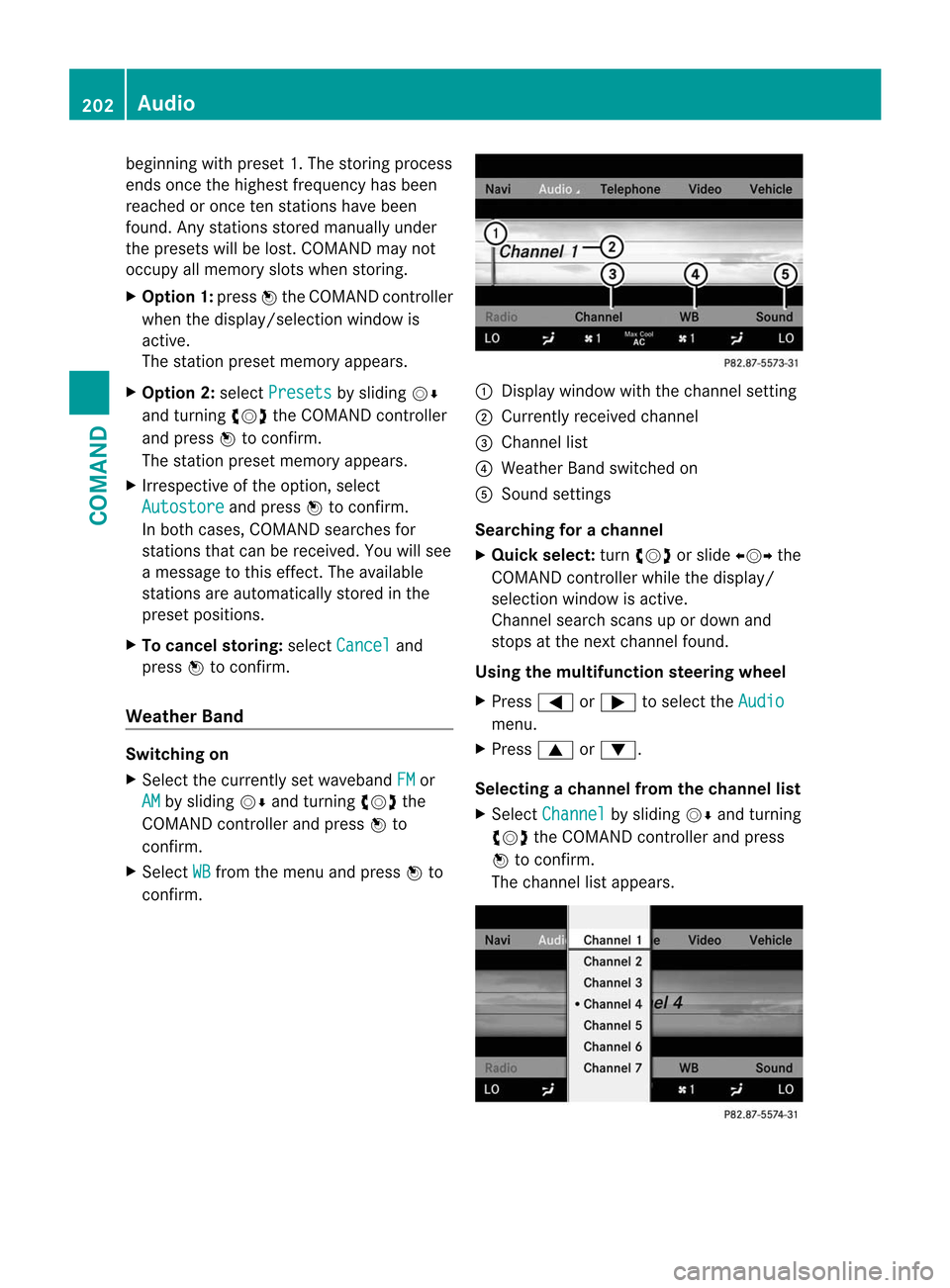
confirm. :
Display window with the channel setting
; Currently received channel
= Channel list
? Weather Band switched on
A Sound settings
Searching for achannel
X Quic kselect: turncVd or slide XVYthe
COMAND controller while th edisplay/
selection window is active.
Channel search scans up or down and
stops at the next channel found.
Using the multifunction steering wheel
X Press =or; to selec tthe Audio menu.
X Press 9or:.
Selecting achannel from the channel list
X Select Channel by sliding
VÆand turning
cVd the COMAND controller and press
W to confirm.
The channel lis tappears. 202
AudioCOMAND
Page 209 of 494
Selecting
acategory
X To call up the category list: select
Category by turning
cVdthe COMAND
controller and press Wto confirm.
The category lis tappears.
X To select acategory: select a category by
turning cVdthe COMAND controller and
pressing Wto confirm.
The category selected is show ninthe
display. You hear the station last selected
for this category.
The All Channels category is at the top
of the category list. This category is sorted
by channel number and allows you to
browse all available channels.
Selecting achannel
Channel search
X Turn cVd or slide XVYthe COMAND
controlle rwhile the display/selection
window in the SatRadio displayi s active.
COMAND searches in both directions
(ascending and descending) and stops at
the next channel found in the selected
category.
Using the multifunction steering wheel
X Press =or; to select the Audio menu.
X Press and hold 9or:.
SatRadio menu
X Select Sat. Radio in the submenu bar by
turning cVdthe COMAND controller and
press Wto confirm.
The SatRadio menu appears.
Entering channel numbers directly
Option 1
X Press the Äbutton.
An input menu appears. Option 2
X
Select Sat. Radio in the submenu bar by
turning cVdthe COMAND controller and
press Wto confirm.
X Select Enter Channel and press
Wto
confirm.
An input menu appears.
X To enter achannel: irrespective of the
option, press the corresponding number
keys on the control panel one after the
other.
COMAND sets the selected channel.
i You can only select currently permitted
digits.
Selecting a channel from the SatRadio
channel list
X Select Sat. Radio in the submenu bar by
turning cVdthe COMAND controller and
press Wto confirm.
X Select Channel List and press
Wto
confirm.
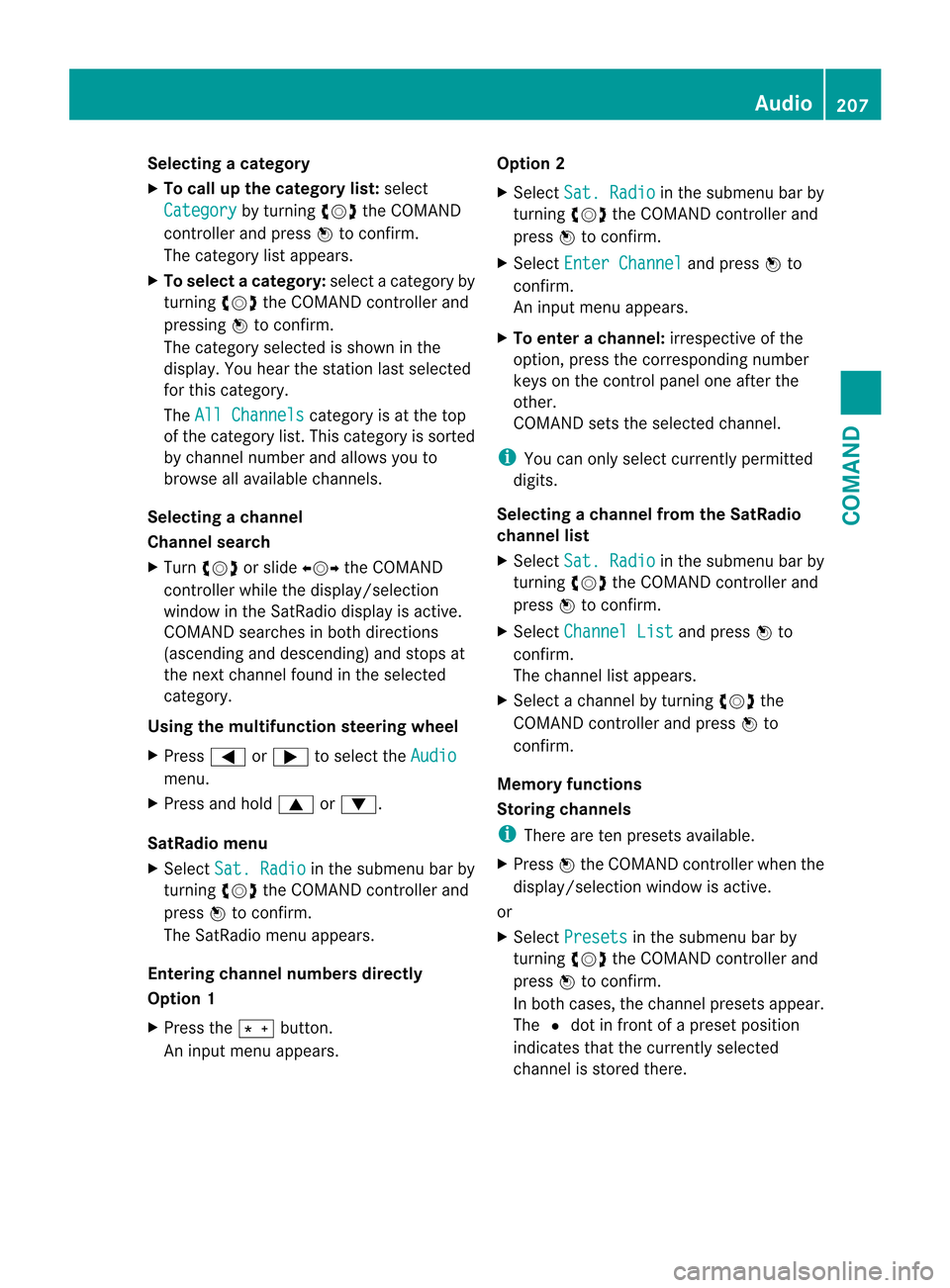
The channel lis tappears.
X Select a channel by turning cVdthe
COMAND controller and press Wto
confirm.
Memory functions
Storing channels
i There are ten presets available.
X Press Wthe COMAND controller when the
display/selection window is active.
or
X Select Presets in the submenu bar by
turning cVdthe COMAND controller and
press Wto confirm.
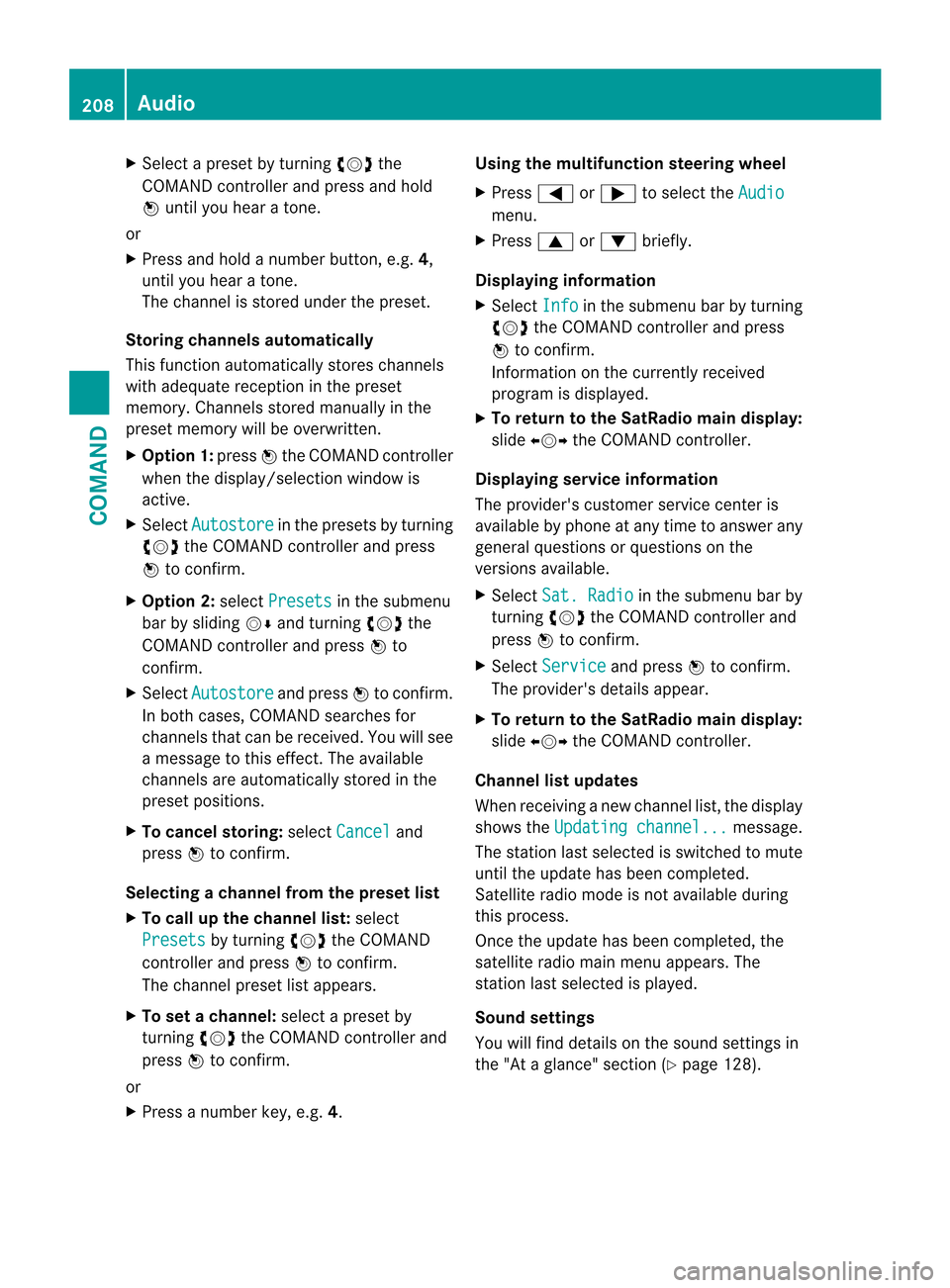
In both cases, the channel presets appear.
The Rdot in front of a preset position
indicates that the currently selected
channel is stored there. Audio
207COMAND Z
Page 210 of 494
X
Select a preset by turning cVdthe
COMAND controlle rand press and hold
W until you hea ratone.
or
X Press and hold a numbe rbutton, e.g. 4,
until you hear a tone.
The channel is stored under the preset.
Storing channels automatically
This function automatically stores channels
with adequate reception in the preset
memory. Channels stored manually in the
preset memory will be overwritten.
X Option 1: pressWthe COMAND controller
when the display/selection window is
active.
X Select Autostore in the presets by turning
cVd the COMAND controller and press
W to confirm.
X Option 2: selectPresets in the submenu
bar by sliding VÆand turning cVdthe
COMAND controller and press Wto
confirm.
X Select Autostore and press
Wto confirm.
In both cases, COMAND searches for
channels that can be received. You will see
a message to this effect. The available
channels are automatically stored in the
preset positions.
X To cancel storing: selectCancel and
press Wto confirm.
Selecting achannel from the preset list
X To call up the channel list: select
Presets by turning
cVdthe COMAND
controlle rand press Wto confirm.
The channel preset list appears.
X To se tachannel: select a prese tby
turning cVdthe COMAND controller and
press Wto confirm.
or
X Press a numbe rkey, e.g. 4. Using the multifunction steering wheel
X
Press =or; to select the Audio menu.
X Press 9or: briefly.
Displaying information
X Select Info in the submenu bar by turning
cVd the COMAND controller and press
W to confirm.
Information on the currently received
program is displayed.
X To return to the SatRadio main display:
slide XVY the COMAND controller.
Displaying service information
The provider's customer service center is
available by phone at any time to answer any
general questions or questions on the
versions available.
X Select Sat. Radio in the submenu bar by
turning cVdthe COMAND controller and
press Wto confirm.
X Select Service and press
Wto confirm.
The provider's details appear.
X To return to the SatRadio main display:
slide XVY the COMAND controller.
Channel list updates
When receiving a new channel list, the display
shows the Updating channel... message.
The station last selected is switched to mute
until the update has been completed.
Satellite radio mode is not available during
this process.
Once the update has been completed, the
satellite radio main menu appears. The
station last selected is played.
Sound settings
You will find details on the sound settings in
the "At a glance" section (Y page 128).208
AudioCOMAND
Page 213 of 494
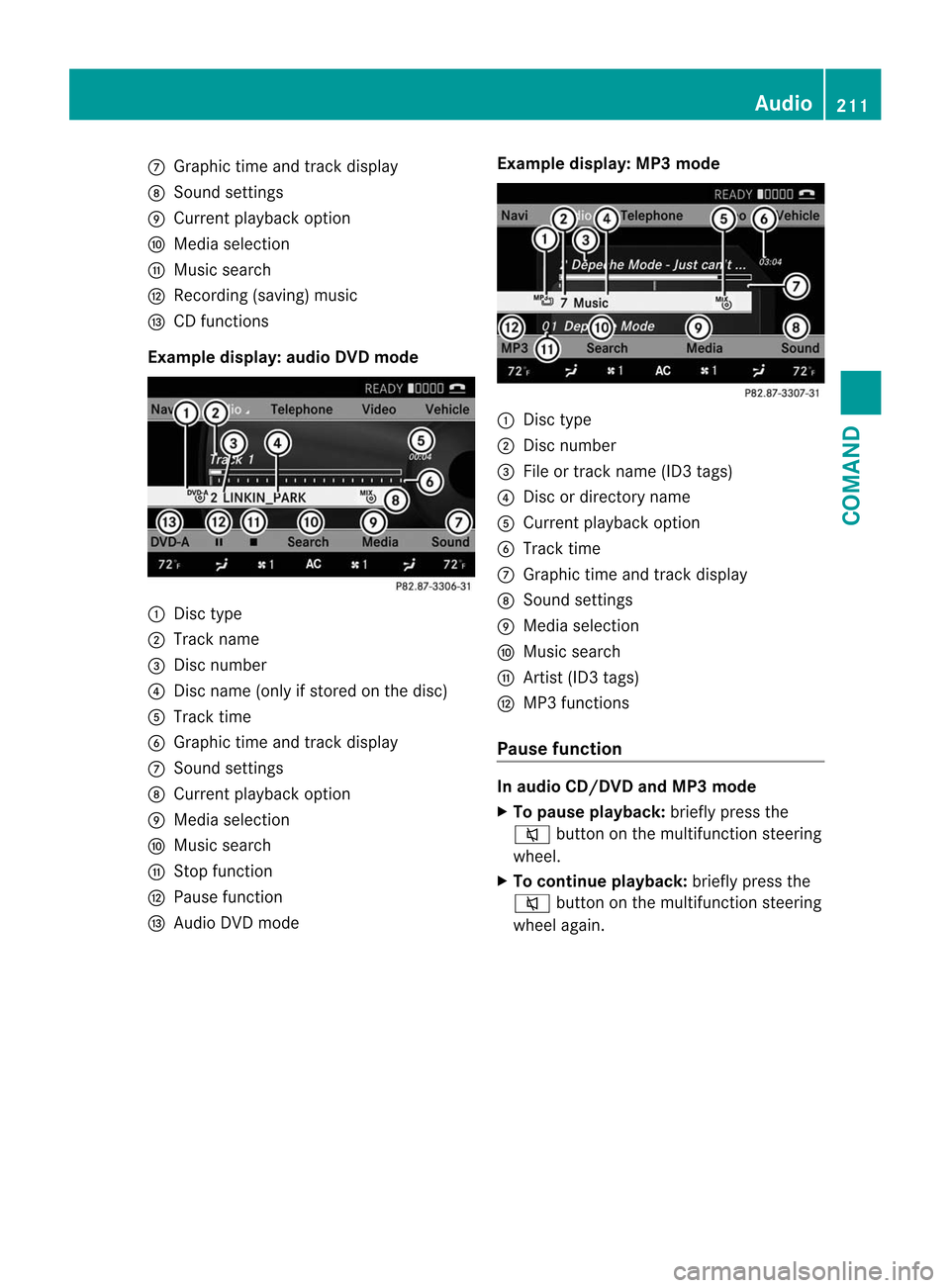
C
Graphic time and track display
D Sound settings
E Curren tplayback option
F Media selection
G Music search
H Recording (saving) music
I CD functions
Example display: audio DVD mode :
Disc type
; Track name
= Disc number
? Disc name (only if stored on the disc)
A Track time
B Graphic time and track display
C Sound settings
D Curren tplayback option
E Media selection
F Music search
G Stop function
H Pause function
I Audio DVD mode Example display: MP3 mode :
Disc type
; Disc number
= File or track name (ID3 tags)
? Disc or directory name
A Curren tplayback option
B Track time
C Graphic time and track display
D Sound settings
E Media selection
F Music search
G Artist (ID3 tags)
H MP3 functions
Pause function In audio CD/DVD and MP3 mode
X
To pause playback: briefly press the
8 button on the multifunction steering
wheel.
X To continue playback: briefly press the
8 button on the multifunction steering
wheel again. Audio
211COMAND Z
Page 215 of 494
MUSIC REGISTER, position 3
Media Interface, position 4
USB, position 5
X
Select the data medium by turning cVd
the COMAND controller and press Wto
confirm.
i If you select a video DVD, the system
switches to video DVD mode
(Y page 229).
Selecting atrac kusing the number
keypad
X Press a number button, e.g. n, when the
display/selection window is active.
The medium at the corresponding position
in the media list is loaded and then played.
Selects atrack Selecting by skipping to
atrack
X To skip forwards or back to a track: slide
XVY or turn cVdthe COMAND controller
when the display/selectio nwindow is
active.
The skip forward function skips to the next
track.
Skipping backwards restarts the current
track (if it has been playing for more than
8s econds) or starts the previous trac k(if
the current track has only been playing for
a shorter time).
If you activate the Medium Mix or
Track List Mix playback option (MP3 mode
only), the track order is random.
X On the multifunction steering wheel:
switch COMAND to audio CD, audio DV Dor
MP3 mode (Y page 210).
X Press =or; to select the Audio menu.
X Press the 9or: button on the
multifunction steering wheel. Selecting by track list
X
In audio mode, select Search by sliding
VÆ or turning cVdthe COMAND
controller and press Wto confirm.
X Select Current Track List .
or
X Press Wthe COMAND controller in audio
mode when the display/selection window
is active.
X Select Current Track List by turning
cVd the COMAND controller and press
W to confirm.
X Select the track by turning cVdand press
W to confirm.
i In MP3 mode, the list shows all the tracks
in alphabetical order.
X On the multifunction steering wheel:
switch COMAND to audio CD, audio DVD or
MP3 mode (Y page 210).
X Press =or; to select the Audio menu.
X Press and hold the 9or: button
until the desired track has been reached.
If you hold down 9or:, the system
runs through the list more quickly. Not all
audio drives or data carriers support this
function.
If track information is stored on the audio
drive or data storage device, the
multifunction display shows the number and
name of the track.
Selecting atrac kusing the number
keypad
X Press the Äbutton on the number
keypad.
An umerical entry field appears. The
number of positions offere dcorresponds to
the number of trackso n the CD/DVD. Only
numbers that correspond to a track
number on the CD/DVD can be entered.
X Enter the desired track number using the
numbe rkeys. Audio
213COMAND Z