audio MERCEDES-BENZ CLA-CLASS 2013 User Guide
[x] Cancel search | Manufacturer: MERCEDES-BENZ, Model Year: 2013, Model line: CLA-CLASS, Model: MERCEDES-BENZ CLA-CLASS 2013Pages: 352, PDF Size: 5.64 MB
Page 197 of 352
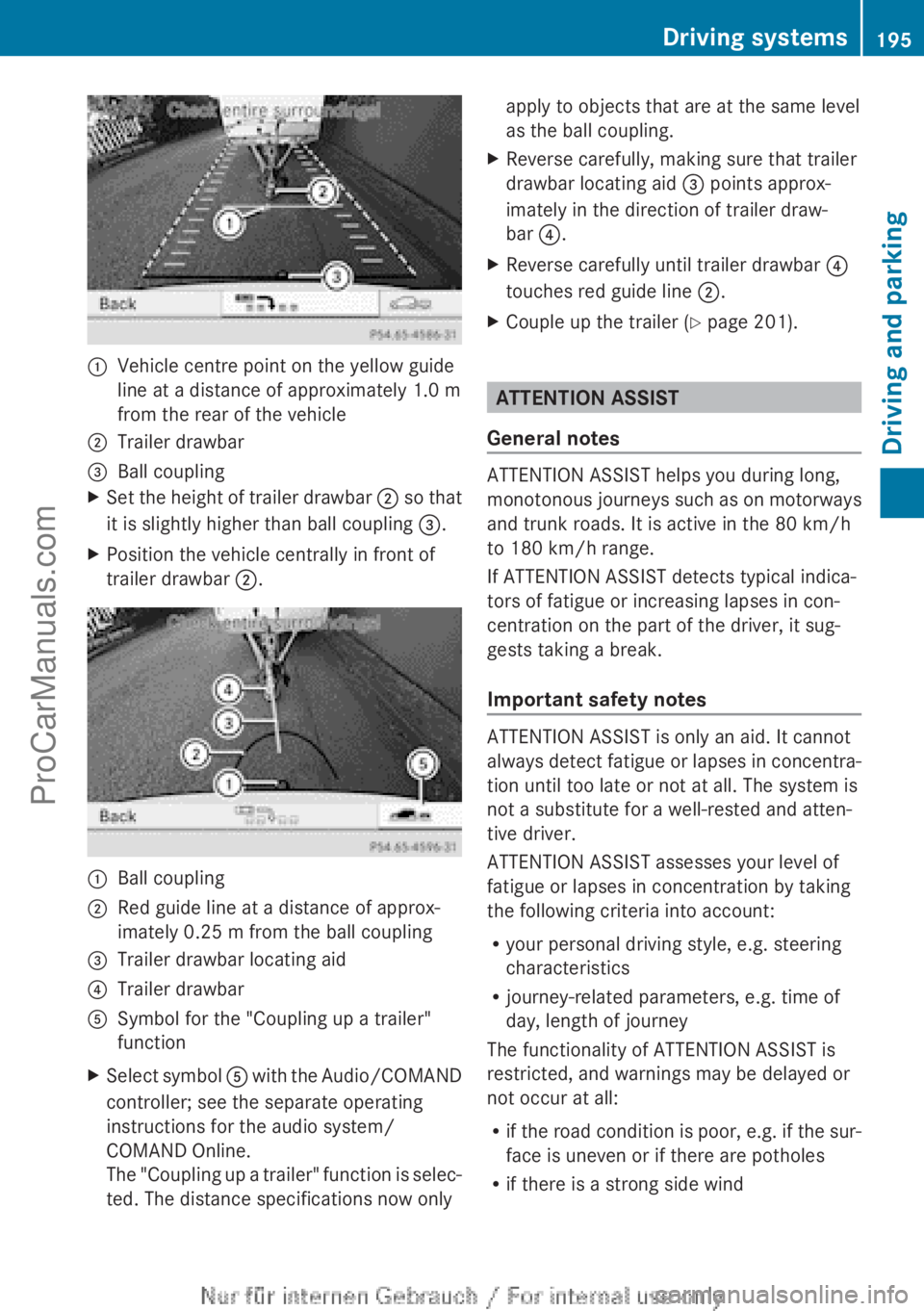
:Vehicle centre point on the yellow guide
line at a distance of approximately 1.0 m
from the rear of the vehicle;Trailer drawbar=Ball couplingXSet the height of trailer drawbar ; so that
it is slightly higher than ball coupling =.XPosition the vehicle centrally in front of
trailer drawbar ;.:Ball coupling;Red guide line at a distance of approx-
imately 0.25 m from the ball coupling=Trailer drawbar locating aid?Trailer drawbarASymbol for the "Coupling up a trailer"
functionXSelect symbol A with the Audio/COMAND
controller; see the separate operating
instructions for the audio system/
COMAND Online.
The "Coupling up a trailer" function is selec-
ted. The distance specifications now onlyapply to objects that are at the same level
as the ball coupling.XReverse carefully, making sure that trailer
drawbar locating aid = points approx-
imately in the direction of trailer draw-
bar ?.XReverse carefully until trailer drawbar ?
touches red guide line ;.XCouple up the trailer ( Y page 201).
ATTENTION ASSIST
General notes
ATTENTION ASSIST helps you during long,
monotonous journeys such as on motorways
and trunk roads. It is active in the 80 km/h
to 180 km/h range.
If ATTENTION ASSIST detects typical indica-
tors of fatigue or increasing lapses in con-
centration on the part of the driver, it sug-
gests taking a break.
Important safety notes
ATTENTION ASSIST is only an aid. It cannot
always detect fatigue or lapses in concentra-
tion until too late or not at all. The system is
not a substitute for a well-rested and atten-
tive driver.
ATTENTION ASSIST assesses your level of
fatigue or lapses in concentration by taking
the following criteria into account:
R your personal driving style, e.g. steering
characteristics
R journey-related parameters, e.g. time of
day, length of journey
The functionality of ATTENTION ASSIST is
restricted, and warnings may be delayed or
not occur at all:
R if the road condition is poor, e.g. if the sur-
face is uneven or if there are potholes
R if there is a strong side wind
Driving systems195Driving and parkingZProCarManuals.com
Page 212 of 352
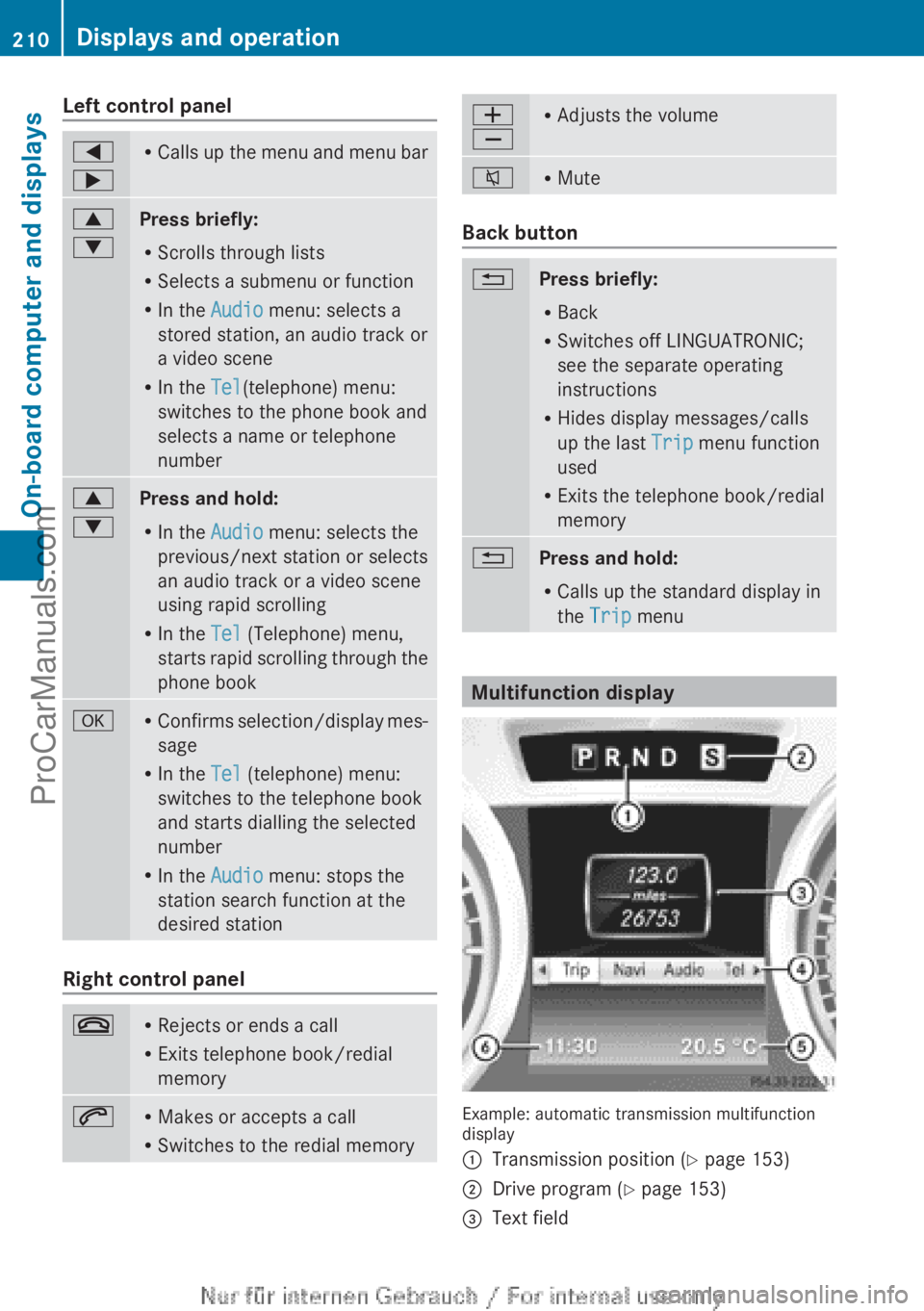
Left control panel=
;R Calls up the menu and menu bar9
:Press briefly:
R Scrolls through lists
R Selects a submenu or function
R In the Audio menu: selects a
stored station, an audio track or
a video scene
R In the Tel(telephone) menu:
switches to the phone book and
selects a name or telephone
number9
:Press and hold:
R In the Audio menu: selects the
previous/next station or selects
an audio track or a video scene
using rapid scrolling
R In the Tel (Telephone) menu,
starts rapid scrolling through the
phone bookaR Confirms selection/display mes-
sage
R In the Tel (telephone) menu:
switches to the telephone book
and starts dialling the selected
number
R In the Audio menu: stops the
station search function at the
desired station
Right control panel
~R Rejects or ends a call
R Exits telephone book/redial
memory6R Makes or accepts a call
R Switches to the redial memoryW
XR Adjusts the volume8RMute
Back button
%Press briefly:
R Back
R Switches off LINGUATRONIC;
see the separate operating
instructions
R Hides display messages/calls
up the last Trip menu function
used
R Exits the telephone book/redial
memory%Press and hold:
R Calls up the standard display in
the Trip menu
Multifunction display
Example: automatic transmission multifunction
display
:Transmission position ( Y page 153);Drive program ( Y page 153)=Text field210Displays and operationOn-board computer and displays
ProCarManuals.com
Page 213 of 352
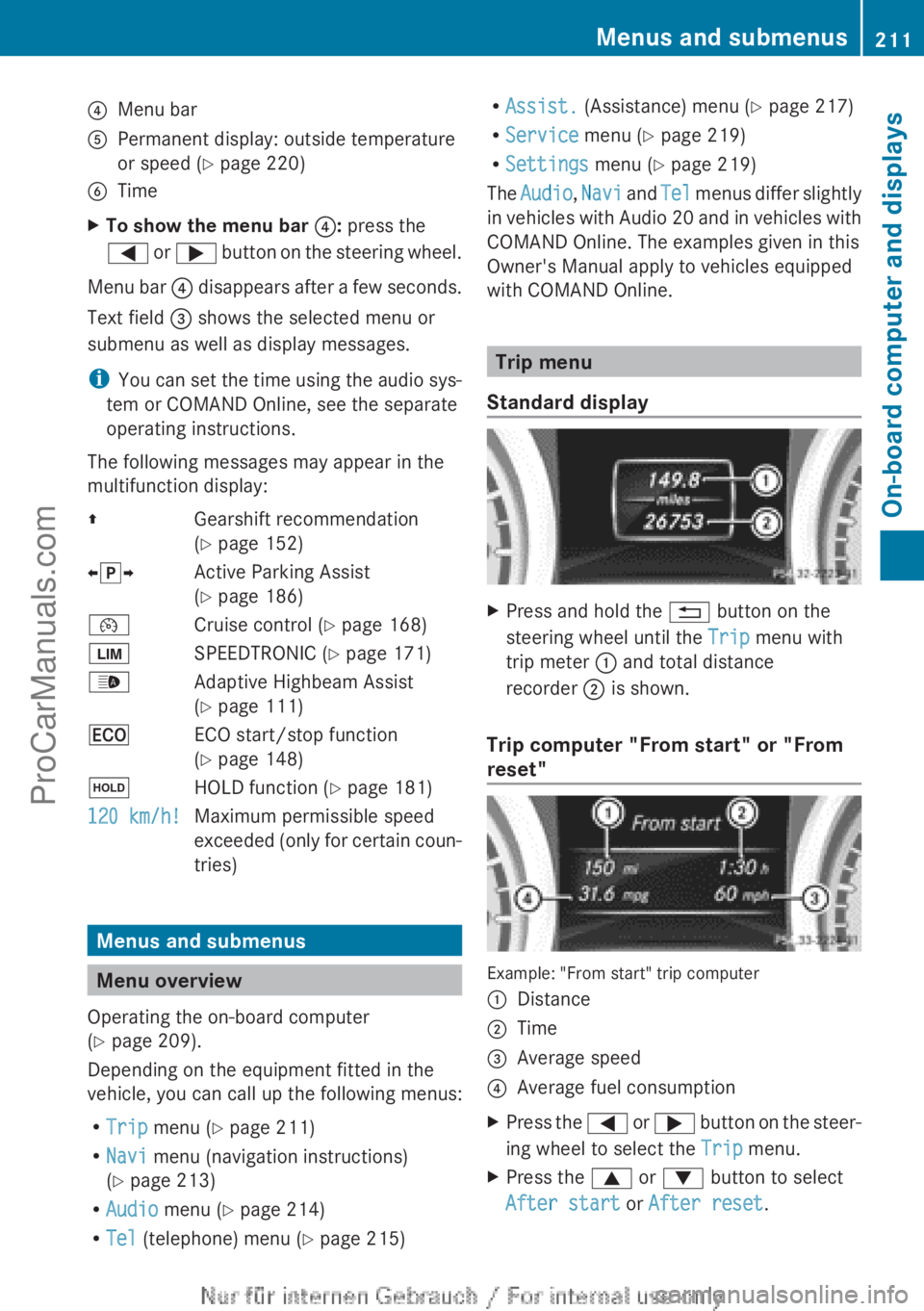
?Menu barAPermanent display: outside temperature
or speed ( Y page 220)BTimeXTo show the menu bar ?: press the
= or ; button on the steering wheel.
Menu bar ? disappears after a few seconds.
Text field = shows the selected menu or
submenu as well as display messages.
i You can set the time using the audio sys-
tem or COMAND Online, see the separate
operating instructions.
The following messages may appear in the
multifunction display:
ZGearshift recommendation
( Y page 152)Xj YActive Parking Assist
( Y page 186)¯Cruise control ( Y page 168)ÈSPEEDTRONIC ( Y page 171)_Adaptive Highbeam Assist
( Y page 111)¤ECO start/stop function
( Y page 148)ëHOLD function ( Y page 181)120 km/h!Maximum permissible speed
exceeded (only for certain coun-
tries)
Menus and submenus
Menu overview
Operating the on-board computer
( Y page 209).
Depending on the equipment fitted in the
vehicle, you can call up the following menus:
R Trip menu ( Y page 211)
R Navi menu (navigation instructions)
( Y page 213)
R Audio menu ( Y page 214)
R Tel (telephone) menu ( Y page 215)
R
Assist. (Assistance) menu ( Y page 217)
R Service menu (Y page 219)
R Settings menu (Y page 219)
The Audio , Navi and Tel menus differ slightly
in vehicles with Audio 20 and in vehicles with
COMAND Online. The examples given in this
Owner's Manual apply to vehicles equipped
with COMAND Online.
Trip menu
Standard display
XPress and hold the % button on the
steering wheel until the Trip menu with
trip meter : and total distance
recorder ; is shown.
Trip computer "From start" or "From
reset"
Example: "From start" trip computer
:Distance;Time=Average speed?Average fuel consumptionXPress the = or ; button on the steer-
ing wheel to select the Trip menu.XPress the 9 or : button to select
After start or After reset .Menus and submenus211On-board computer and displaysZProCarManuals.com
Page 215 of 352
XPress the = or ; button on the steer-
ing wheel to select the Trip menu.XPress the 9 or : button to select the
function that you wish to reset.XPress the a button.XPress the : button to select Yes and
press a to confirm.
i
If you reset the values in the ECO display,
the values in the "From start" trip computer
are also reset. If you reset the values in the
"From start" trip computer, the values in
the ECO display are also reset.
Navigation menu
Displaying navigation instructions
XSwitch on Audio 20 with Becker ®
MAP
PILOT or COMAND Online (see the sepa-
rate operating instructions).XPress the = or ; button on the steer-
ing wheel to select the Navi menu.
In the Navi menu, the multifunction display
shows navigation instructions. For more
information, see the separate operating
instructions.
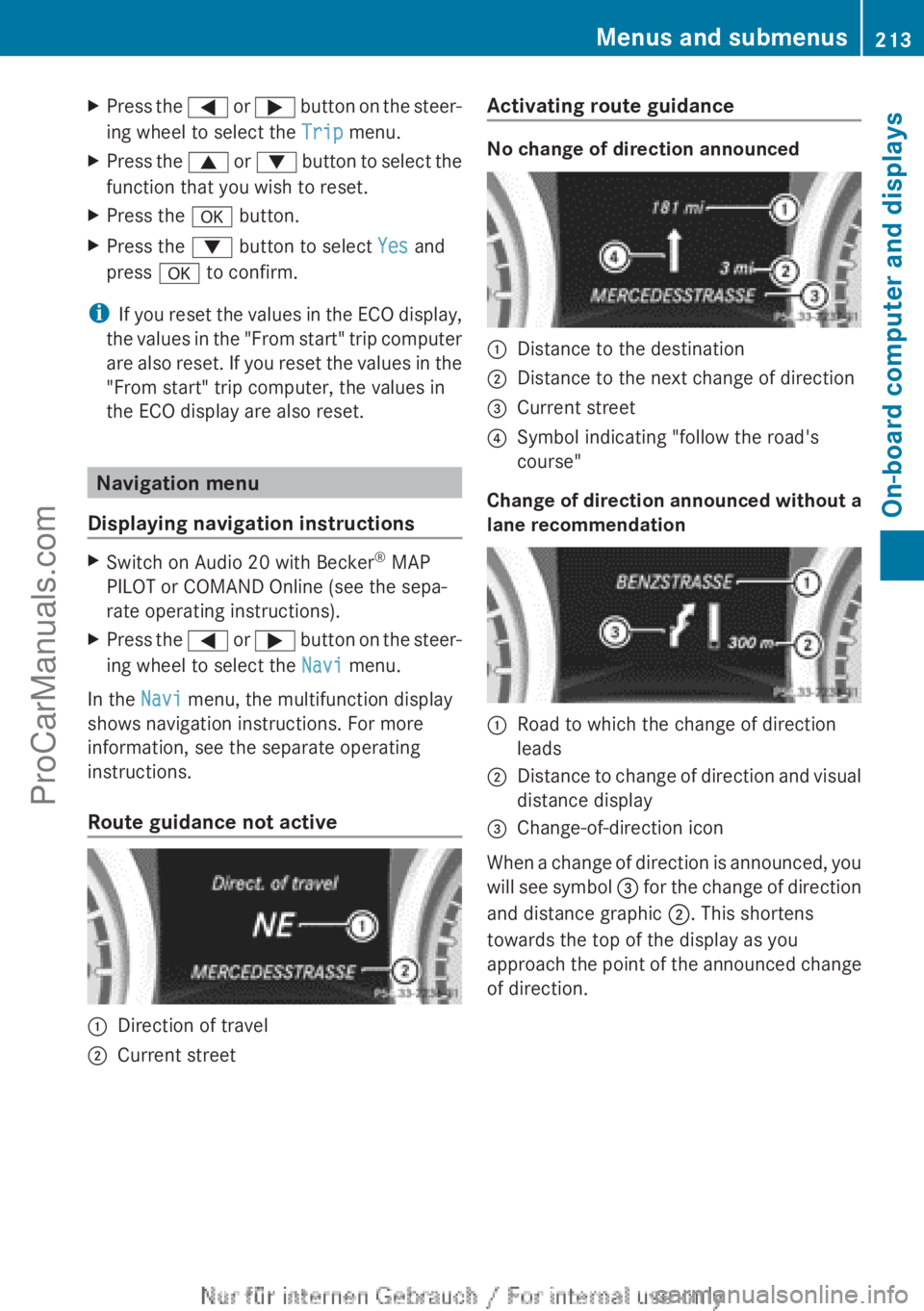
Route guidance not active
:Direction of travel;Current streetActivating route guidance
No change of direction announced
:Distance to the destination;Distance to the next change of direction=Current street?Symbol indicating "follow the road's
course"
Change of direction announced without a
lane recommendation
:Road to which the change of direction
leads;Distance to change of direction and visual
distance display=Change-of-direction icon
When a change of direction is announced, you
will see symbol = for the change of direction
and distance graphic ;. This shortens
towards the top of the display as you
approach the point of the announced change
of direction.
Menus and submenus213On-board computer and displaysZProCarManuals.com
Page 216 of 352
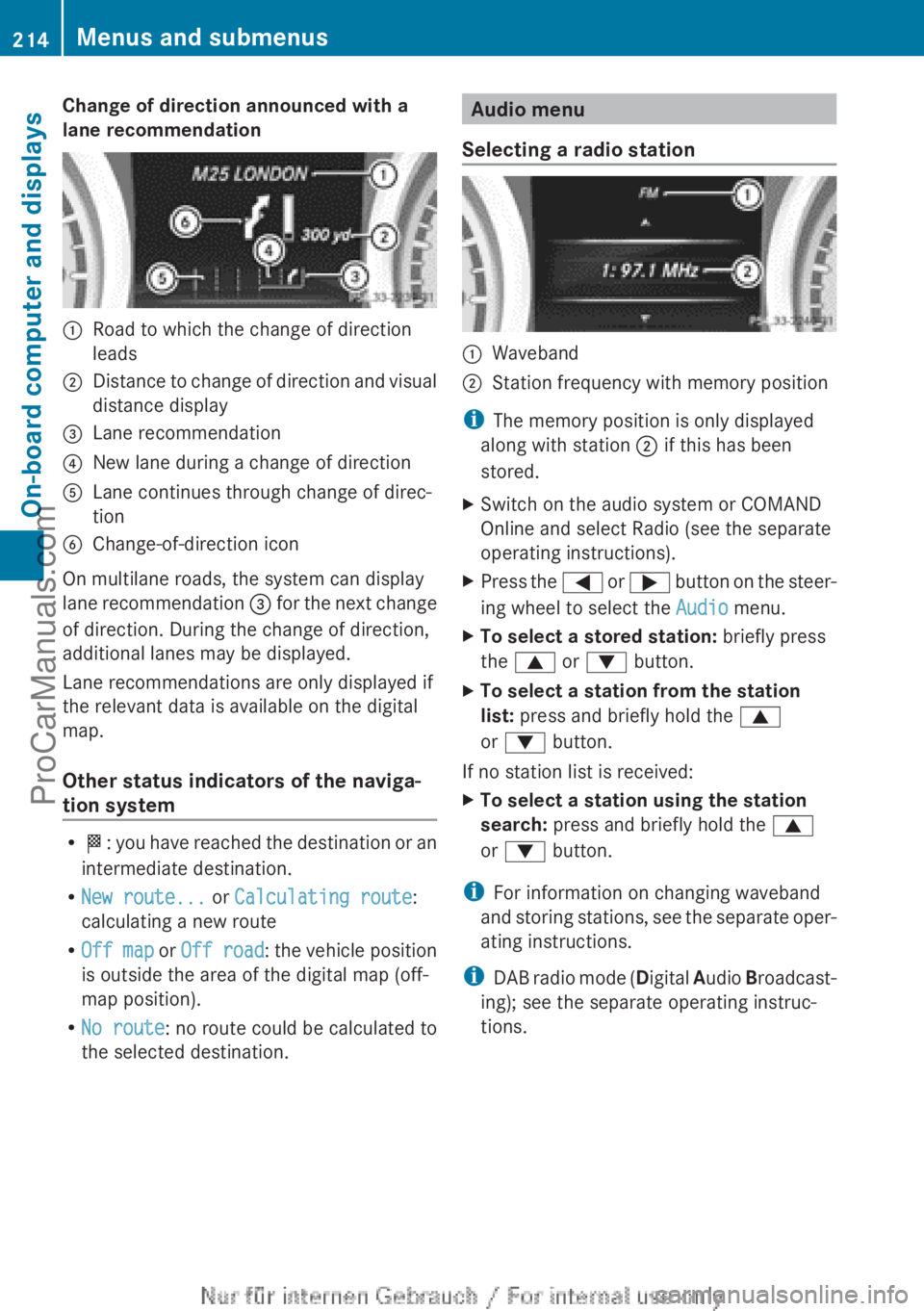
Change of direction announced with a
lane recommendation:Road to which the change of direction
leads;Distance to change of direction and visual
distance display=Lane recommendation?New lane during a change of directionALane continues through change of direc-
tionBChange-of-direction icon
On multilane roads, the system can display
lane recommendation = for the next change
of direction. During the change of direction,
additional lanes may be displayed.
Lane recommendations are only displayed if
the relevant data is available on the digital
map.
Other status indicators of the naviga-
tion system
R O : you have reached the destination or an
intermediate destination.
R New route... or Calculating route :
calculating a new route
R Off map or Off road : the vehicle position
is outside the area of the digital map (off-
map position).
R No route : no route could be calculated to
the selected destination.
Audio menu
Selecting a radio station:Waveband;Station frequency with memory position
i The memory position is only displayed
along with station ; if this has been
stored.
XSwitch on the audio system or COMAND
Online and select Radio (see the separate
operating instructions).XPress the = or ; button on the steer-
ing wheel to select the Audio menu.XTo select a stored station: briefly press
the 9 or : button.XTo select a station from the station
list: press and briefly hold the 9
or : button.
If no station list is received:
XTo select a station using the station
search: press and briefly hold the 9
or : button.
i
For information on changing waveband
and storing stations, see the separate oper-
ating instructions.
i DAB radio mode ( Digital Audio Broadcast-
ing); see the separate operating instruc-
tions.
214Menus and submenusOn-board computer and displays
ProCarManuals.com
Page 217 of 352
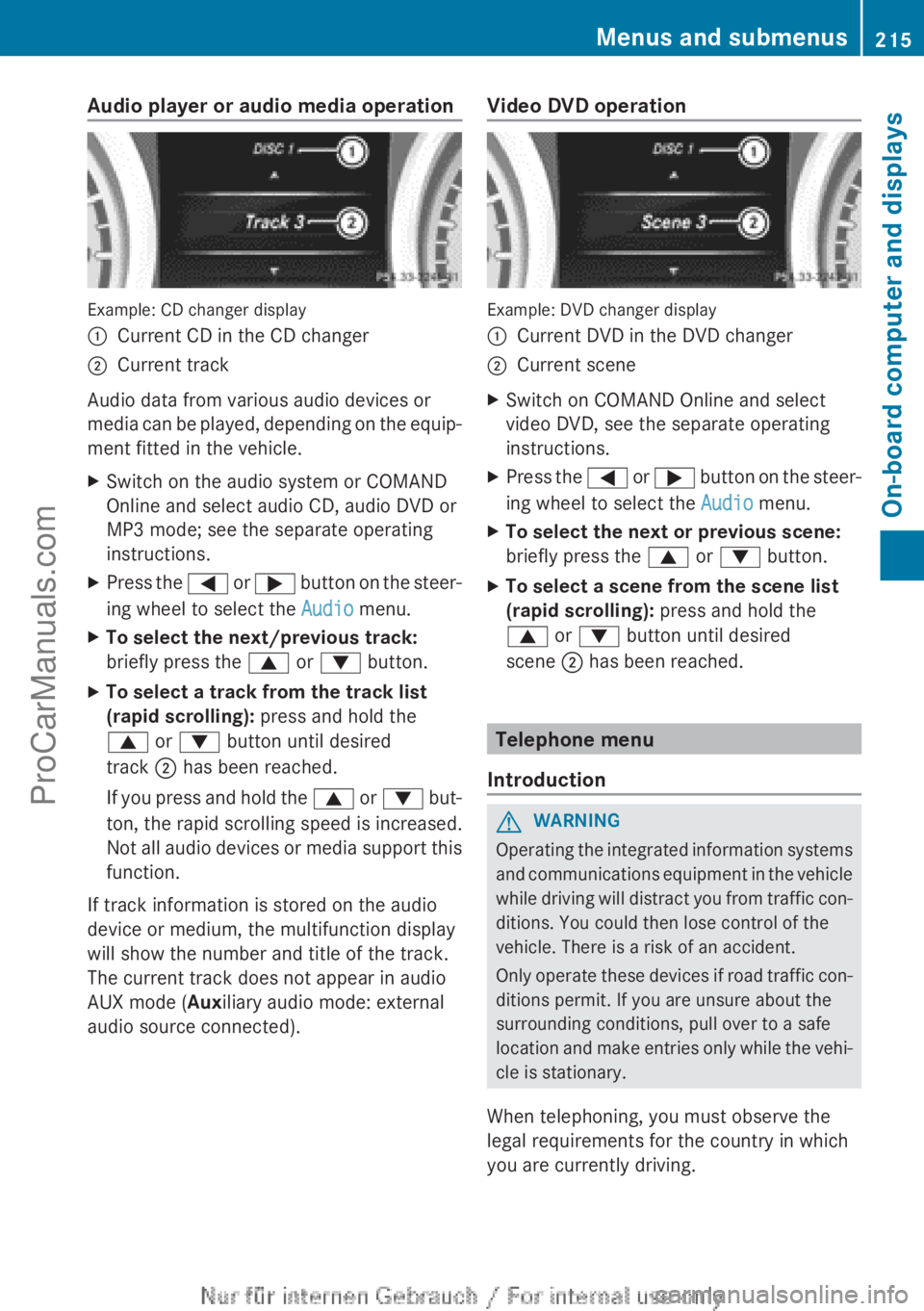
Audio player or audio media operation
Example: CD changer display
:Current CD in the CD changer;Current track
Audio data from various audio devices or
media can be played, depending on the equip-
ment fitted in the vehicle.
XSwitch on the audio system or COMAND
Online and select audio CD, audio DVD or
MP3 mode; see the separate operating
instructions.XPress the = or ; button on the steer-
ing wheel to select the Audio menu.XTo select the next/previous track:
briefly press the 9 or : button.XTo select a track from the track list
(rapid scrolling): press and hold the
9 or : button until desired
track ; has been reached.
If you press and hold the 9 or : but-
ton, the rapid scrolling speed is increased.
Not all audio devices or media support this
function.
If track information is stored on the audio
device or medium, the multifunction display
will show the number and title of the track.
The current track does not appear in audio
AUX mode ( Auxiliary audio mode: external
audio source connected).
Video DVD operation
Example: DVD changer display
:Current DVD in the DVD changer;Current sceneXSwitch on COMAND Online and select
video DVD, see the separate operating
instructions.XPress the = or ; button on the steer-
ing wheel to select the Audio menu.XTo select the next or previous scene:
briefly press the 9 or : button.XTo select a scene from the scene list
(rapid scrolling): press and hold the
9 or : button until desired
scene ; has been reached.
Telephone menu
Introduction
GWARNING
Operating the integrated information systems
and communications equipment in the vehicle
while driving will distract you from traffic con-
ditions. You could then lose control of the
vehicle. There is a risk of an accident.
Only operate these devices if road traffic con-
ditions permit. If you are unsure about the
surrounding conditions, pull over to a safe
location and make entries only while the vehi-
cle is stationary.
When telephoning, you must observe the
legal requirements for the country in which
you are currently driving.
Menus and submenus215On-board computer and displaysZProCarManuals.com
Page 218 of 352
XSwitch on your mobile phone and audio
system or COMAND Online, see the sepa-
rate operating instructions.XPlace a mobile phone in the mobile phone
bracket ( Y page 278), or establish a Blue-
tooth ®
connection with the audio system
or COMAND Online (see the separate oper-
ating instructions).XPress the = or ; button on the steer-
ing wheel to select the Tel menu.
You will see one of the following display mes-
sages in the multifunction display:
R Please enter PIN: the mobile phone has
been placed in the mobile phone bracket
and the PIN has not been entered.
When you enter your PIN via the mobile
phone, LINGUATRONIC, the audio system
or COMAND Online, the mobile phone
searches for a network.
R Telephone ready or the name of the net-
work provider: the mobile phone has found
a network and is ready to receive.
R Telephone No service : there is no net-
work available or the mobile phone is
searching for a network.
i You can obtain further information about
suitable mobile phones and connecting
mobile phones via Bluetooth ®
:
R from any Mercedes Benz Service Centre
R on the Internet at: http://
www.mercedes-benz.com/connect
Accepting a call
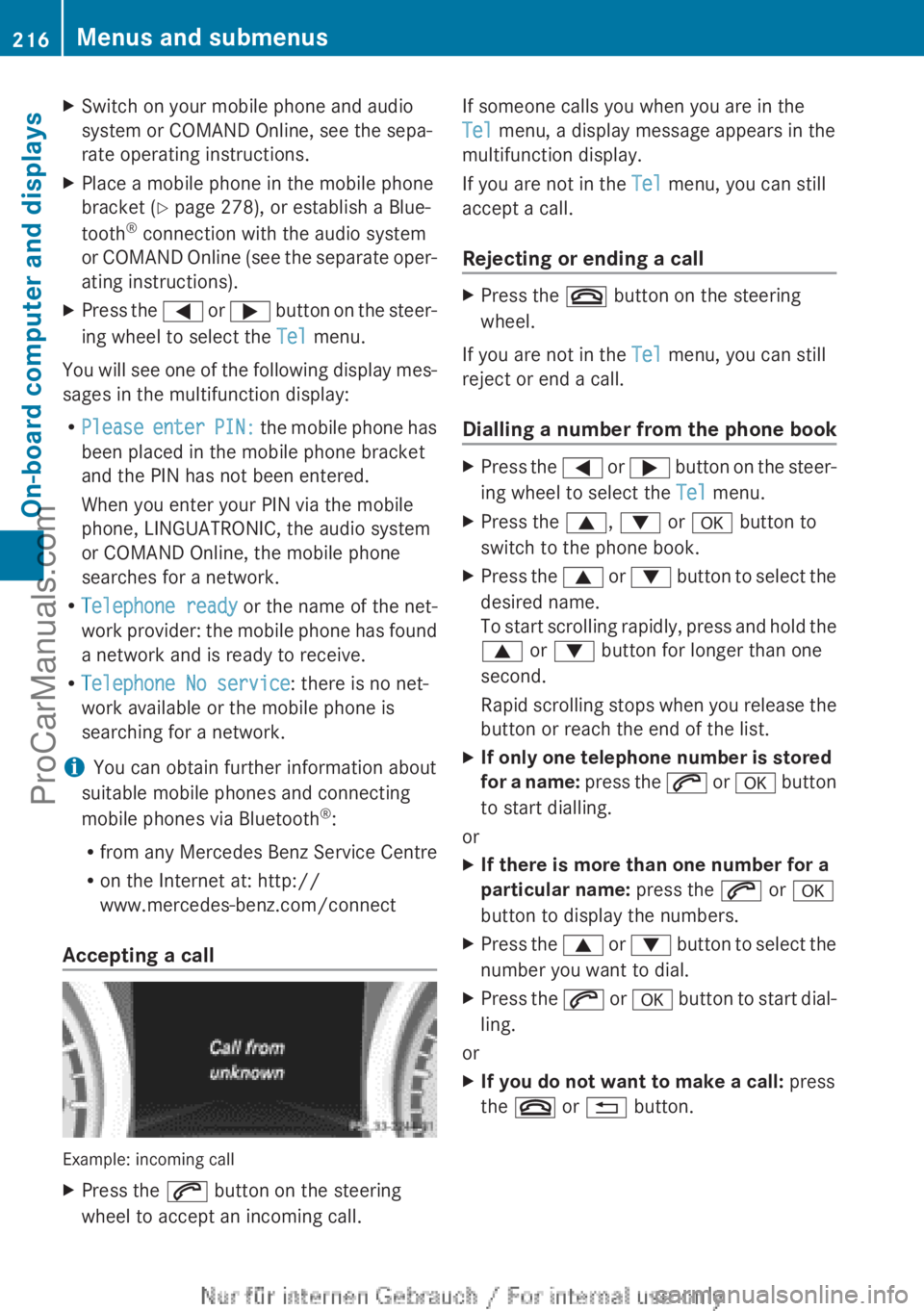
Example: incoming call
XPress the 6 button on the steering
wheel to accept an incoming call.If someone calls you when you are in the
Tel menu, a display message appears in the
multifunction display.
If you are not in the Tel menu, you can still
accept a call.
Rejecting or ending a callXPress the ~ button on the steering
wheel.
If you are not in the Tel menu, you can still
reject or end a call.
Dialling a number from the phone book
XPress the = or ; button on the steer-
ing wheel to select the Tel menu.XPress the 9, : or a button to
switch to the phone book.XPress the 9 or : button to select the
desired name.
To start scrolling rapidly, press and hold the
9 or : button for longer than one
second.
Rapid scrolling stops when you release the
button or reach the end of the list.XIf only one telephone number is stored
for a name: press the 6 or a button
to start dialling.
or
XIf there is more than one number for a
particular name: press the 6 or a
button to display the numbers.XPress the 9 or : button to select the
number you want to dial.XPress the 6 or a button to start dial-
ling.
or
XIf you do not want to make a call: press
the ~ or % button.216Menus and submenusOn-board computer and displays
ProCarManuals.com
Page 272 of 352
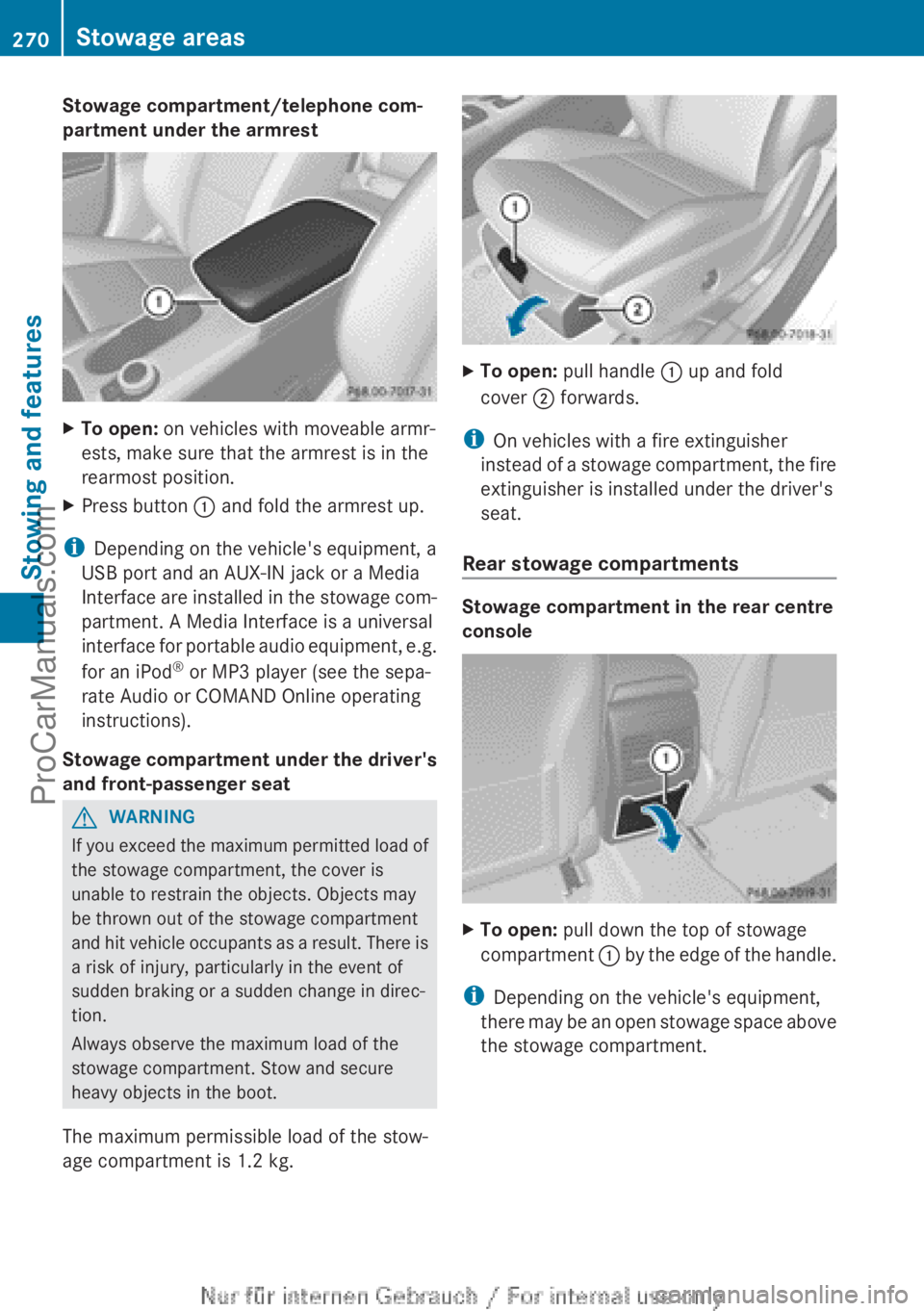
Stowage compartment/telephone com-
partment under the armrestXTo open: on vehicles with moveable armr-
ests, make sure that the armrest is in the
rearmost position.XPress button : and fold the armrest up.
i
Depending on the vehicle's equipment, a
USB port and an AUX-IN jack or a Media
Interface are installed in the stowage com-
partment. A Media Interface is a universal
interface for portable audio equipment, e.g.
for an iPod ®
or MP3 player (see the sepa-
rate Audio or COMAND Online operating
instructions).
Stowage compartment under the driver's
and front-passenger seat
GWARNING
If you exceed the maximum permitted load of
the stowage compartment, the cover is
unable to restrain the objects. Objects may
be thrown out of the stowage compartment
and hit vehicle occupants as a result. There is
a risk of injury, particularly in the event of
sudden braking or a sudden change in direc-
tion.
Always observe the maximum load of the
stowage compartment. Stow and secure
heavy objects in the boot.
The maximum permissible load of the stow-
age compartment is 1.2 kg.
XTo open: pull handle : up and fold
cover ; forwards.
i
On vehicles with a fire extinguisher
instead of a stowage compartment, the fire
extinguisher is installed under the driver's
seat.
Rear stowage compartments
Stowage compartment in the rear centre
console
XTo open: pull down the top of stowage
compartment : by the edge of the handle.
i
Depending on the vehicle's equipment,
there may be an open stowage space above
the stowage compartment.
270Stowage areasStowing and features
ProCarManuals.com
Page 280 of 352
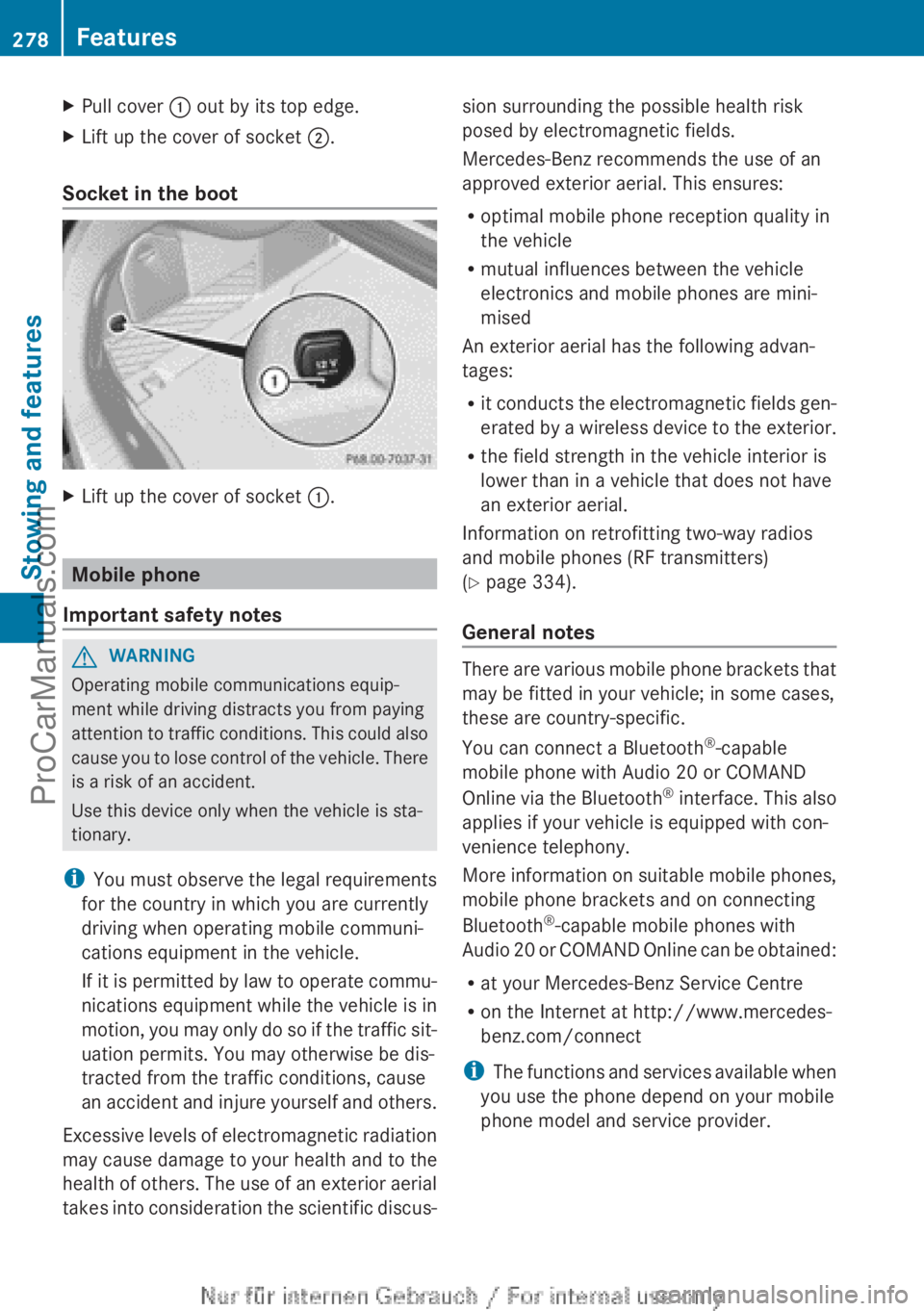
XPull cover : out by its top edge.XLift up the cover of socket ;.
Socket in the boot
XLift up the cover of socket :.
Mobile phone
Important safety notes
GWARNING
Operating mobile communications equip-
ment while driving distracts you from paying
attention to traffic conditions. This could also
cause you to lose control of the vehicle. There
is a risk of an accident.
Use this device only when the vehicle is sta-
tionary.
i You must observe the legal requirements
for the country in which you are currently
driving when operating mobile communi-
cations equipment in the vehicle.
If it is permitted by law to operate commu-
nications equipment while the vehicle is in
motion, you may only do so if the traffic sit-
uation permits. You may otherwise be dis-
tracted from the traffic conditions, cause
an accident and injure yourself and others.
Excessive levels of electromagnetic radiation
may cause damage to your health and to the
health of others. The use of an exterior aerial
takes into consideration the scientific discus-
sion surrounding the possible health risk
posed by electromagnetic fields.
Mercedes-Benz recommends the use of an
approved exterior aerial. This ensures:
R optimal mobile phone reception quality in
the vehicle
R mutual influences between the vehicle
electronics and mobile phones are mini-
mised
An exterior aerial has the following advan-
tages:
R it conducts the electromagnetic fields gen-
erated by a wireless device to the exterior.
R the field strength in the vehicle interior is
lower than in a vehicle that does not have
an exterior aerial.
Information on retrofitting two-way radios
and mobile phones (RF transmitters)
( Y page 334).
General notes
There are various mobile phone brackets that
may be fitted in your vehicle; in some cases,
these are country-specific.
You can connect a Bluetooth ®
-capable
mobile phone with Audio 20 or COMAND
Online via the Bluetooth ®
interface. This also
applies if your vehicle is equipped with con-
venience telephony.
More information on suitable mobile phones,
mobile phone brackets and on connecting
Bluetooth ®
-capable mobile phones with
Audio 20 or COMAND Online can be obtained:
R at your Mercedes-Benz Service Centre
R on the Internet at http://www.mercedes-
benz.com/connect
i The functions and services available when
you use the phone depend on your mobile
phone model and service provider.
278FeaturesStowing and features
ProCarManuals.com
Page 294 of 352
XMake sure that the vehicle is stationary and
that the key is in position 2 in the ignition
lock.XTo open the cover of the reversing cam-
era: with the audio system/COMAND
Online activated, press the W button.XSelect System by turning cVd the audio
system/COMAND controller and press W
to confirm.XSelect Rear view camera and press W to
confirm.XSelect Open camera cover and confirm
with W.
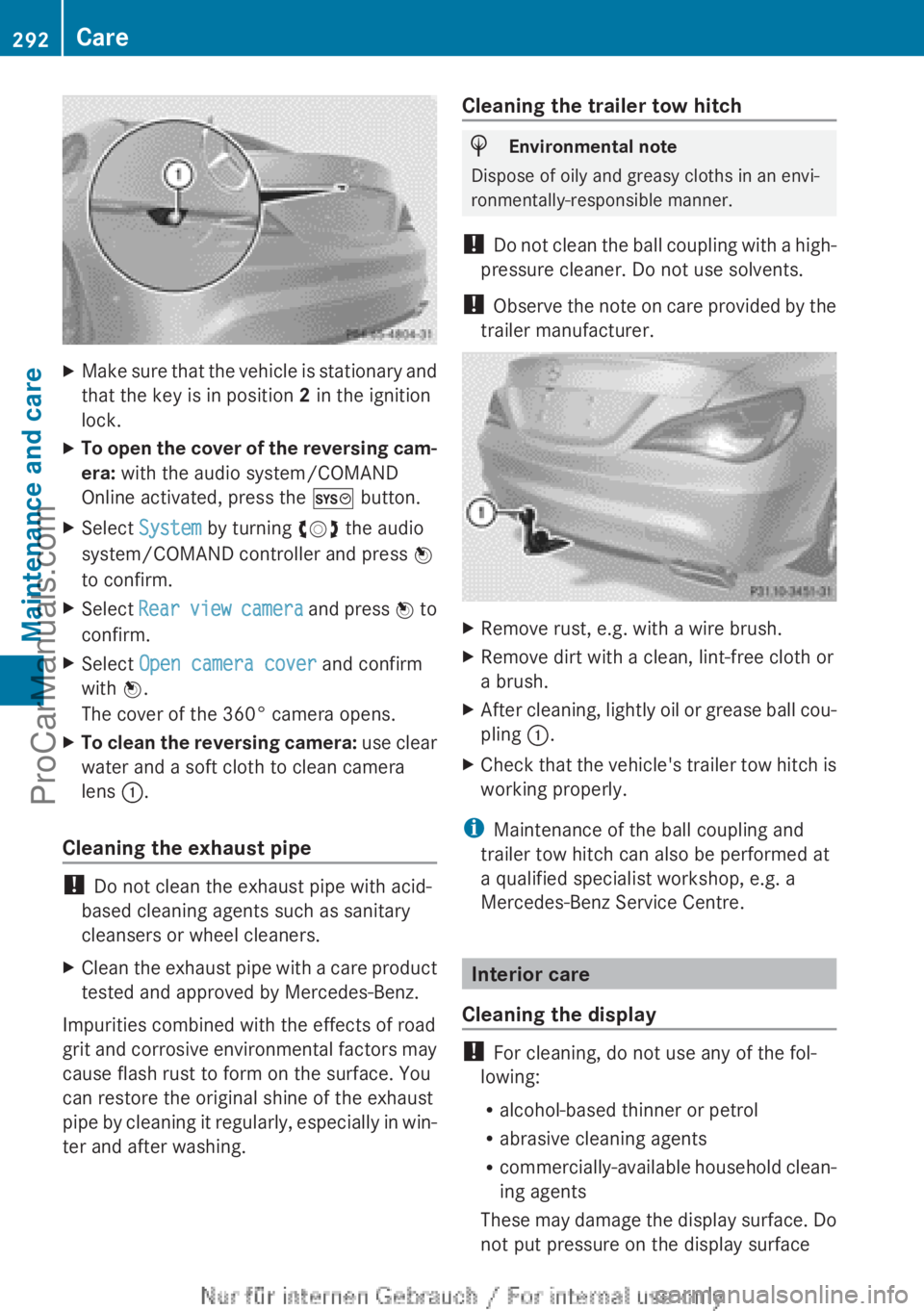
The cover of the 360° camera opens.XTo clean the reversing camera: use clear
water and a soft cloth to clean camera
lens :.
Cleaning the exhaust pipe
!
Do not clean the exhaust pipe with acid-
based cleaning agents such as sanitary
cleansers or wheel cleaners.
XClean the exhaust pipe with a care product
tested and approved by Mercedes-Benz.
Impurities combined with the effects of road
grit and corrosive environmental factors may
cause flash rust to form on the surface. You
can restore the original shine of the exhaust
pipe by cleaning it regularly, especially in win-
ter and after washing.
Cleaning the trailer tow hitchHEnvironmental note
Dispose of oily and greasy cloths in an envi-
ronmentally-responsible manner.
! Do not clean the ball coupling with a high-
pressure cleaner. Do not use solvents.
! Observe the note on care provided by the
trailer manufacturer.
XRemove rust, e.g. with a wire brush.XRemove dirt with a clean, lint-free cloth or
a brush.XAfter cleaning, lightly oil or grease ball cou-
pling :.XCheck that the vehicle's trailer tow hitch is
working properly.
i Maintenance of the ball coupling and
trailer tow hitch can also be performed at
a qualified specialist workshop, e.g. a
Mercedes-Benz Service Centre.
Interior care
Cleaning the display
! For cleaning, do not use any of the fol-
lowing:
R alcohol-based thinner or petrol
R abrasive cleaning agents
R commercially-available household clean-
ing agents
These may damage the display surface. Do
not put pressure on the display surface
292CareMaintenance and care
ProCarManuals.com