reset MERCEDES-BENZ CLA COUPE 2019 User Guide
[x] Cancel search | Manufacturer: MERCEDES-BENZ, Model Year: 2019, Model line: CLA COUPE, Model: MERCEDES-BENZ CLA COUPE 2019Pages: 645, PDF Size: 10.94 MB
Page 265 of 645
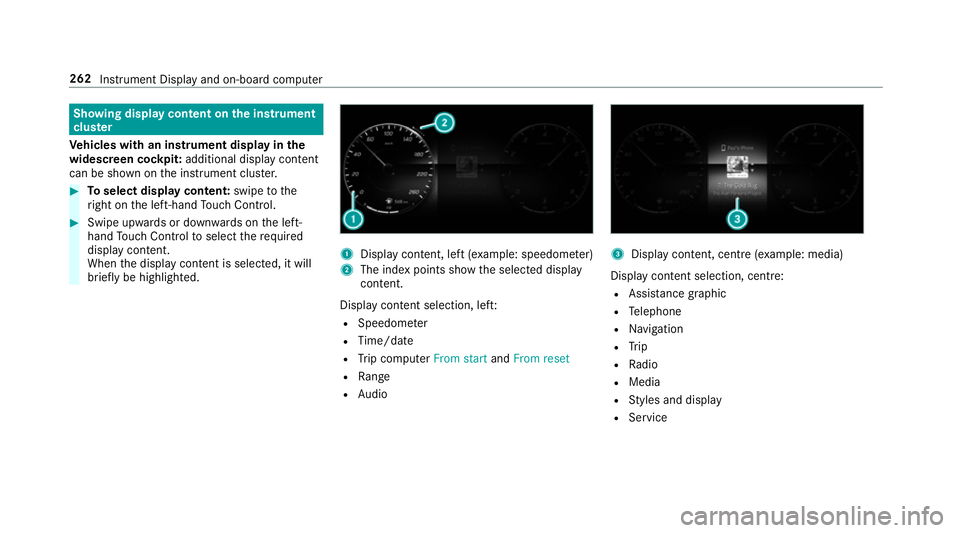
Showing display content on
the instrument
clus ter
Ve hicles with an instrument display in the
widescreen cockpit: additional display content
can be shown on the instrument clus ter. #
Toselect display content: swipetothe
ri ght on the left-hand Touch Control. #
Swipe upwards or down wards on the left-
hand Touch Control toselect there qu ired
display con tent.
When the display conte nt is selected, it will
brie fly be highligh ted. 1
Display con tent, le ft(exa mp le: speedom eter)
2 The index points show the selected display
conte nt.
Display content selection, le ft:
R Speedom eter
R Time/date
R Trip computer From startandFrom reset
R Range
R Audio 3
Display con tent, centre (e xamp le: media)
Display con tent selection, centre:
R Assi stance graphic
R Telephone
R Navigation
R Trip
R Radio
R Media
R Styles and display
R Service 262
Instrument Display and on-board computer
Page 268 of 645
R
Engine oil level: engine oil le vel
R Consumption info: fuel life cycle consump‐
tion Calling up
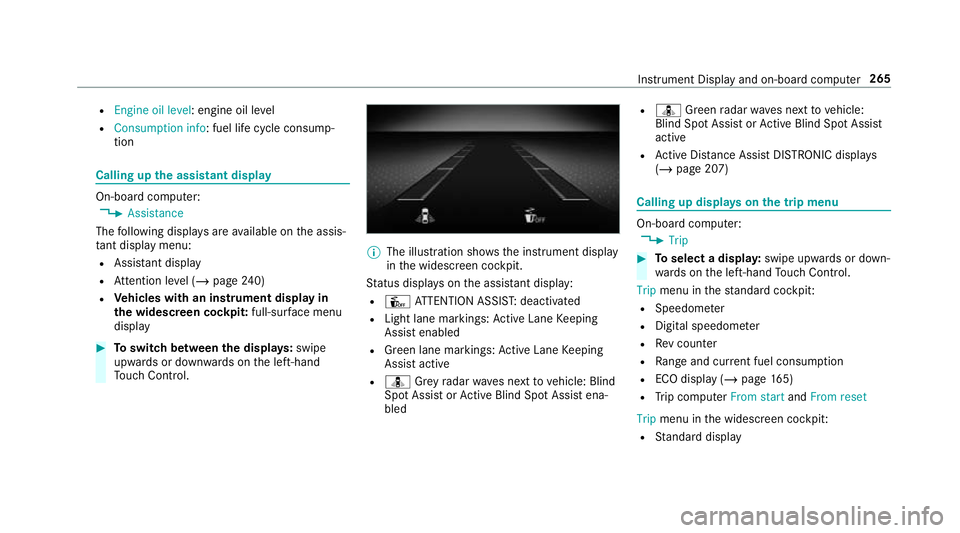
the assistant display On-board computer:
4 Assistance
The following displa ysare available on the assis‐
ta nt displ aymenu:
R Assis tant displ ay
R Attention le vel (/ page 240)
R Vehicles with an instrument display in
th e widescreen cockpit: full-surface menu
displ ay #
Toswitch between the displa ys:swipe
upwards or down wards on the left-hand
To uch Control. %
The illustration sho wsthe instrument display
in the widescreen cockpit.
St atus displa yson the assis tant displ ay:
R Û ATTENTION ASSIS T:deactivated
R Light lane markings: Active Lane Keeping
Assist enabled
R Green lane markings: Active Lane Keeping
Assist active
R ¸ Grey radar waves next tovehicle: Blind
Spot Assist or Active Blind Spot Assi stena‐
bled R
¸ Green radar waves next tovehicle:
Blind Spot Assist or Active Blind Spot Assi st
active
R Active Dis tance Assi stDISTRONIC displa ys
( / page 207) Calling up displa
yson the trip menu On-board computer:
4 Trip #
Toselect a displa y:swipe upwards or down‐
wa rds on the left-hand Touch Control.
Trip menu in thest andard cockpi t:
R Speedom eter
R Digital speedome ter
R Rev counter
R Range and cur rent fuel consu mption
R ECO display (/ page 165)
R Trip computer From startandFrom reset
Trip menu in the widescreen cockpit:
R Standard display In
stru ment Display and on-board computer 265
Page 269 of 645
R
Digital speedome ter
R Cur rent fuel consu mption
R ECO display (/ page 165)
R Trip computer From startandFrom reset
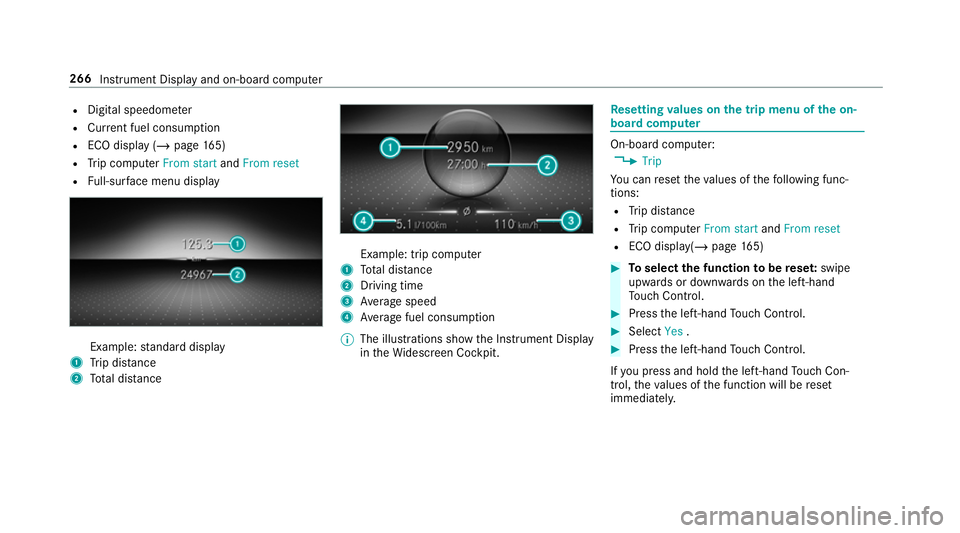
R Full-sur face menu displ ay Example:
standard display
1 Trip dis tance
2 Total dis tance Example: trip compu
ter
1 Total dis tance
2 Driving time
3 Average speed
4 Average fuel consum ption
% The illustrations show the Instrument Display
in theWi descreen Cockpit. Re
setting values on the trip menu of the on-
board compu ter On-board computer:
4 Trip
Yo u can reset theva lues of thefo llowing func‐
tions:
R Trip dis tance
R Trip computer From startandFrom reset
R ECO displa y(/ page 165) #
Toselect the function tobe rese t:swipe
upwards or down wards on the left-hand
To uch Control. #
Press the left-hand Touch Control. #
Select Yes. #
Press the left-hand Touch Control.
If yo u press and hold the left-hand Touch Con‐
trol, theva lues of the function will be reset
immediatel y. 266
Instrument Display and on-board computer
Page 271 of 645
Ve
hicles with the MBUX multimedia sy stem:
Yo u can also start navigation toone of the
re cent destinations on theNavigation menu: #
Press the left-hand Touch Control. #
Toselect a destination: swipe upwards or
down wards on the left-hand Touch Control. #
Press the left-hand Touch Control.
Ro ute guidance will start.
If ro ute guidance has already been activated,
a re qu est will appear asking whe ther you
wish toend the cur rent route guidance. #
Select Yes. #
Press the left-hand Touch Control.
Ro ute guidance will start. Selecting
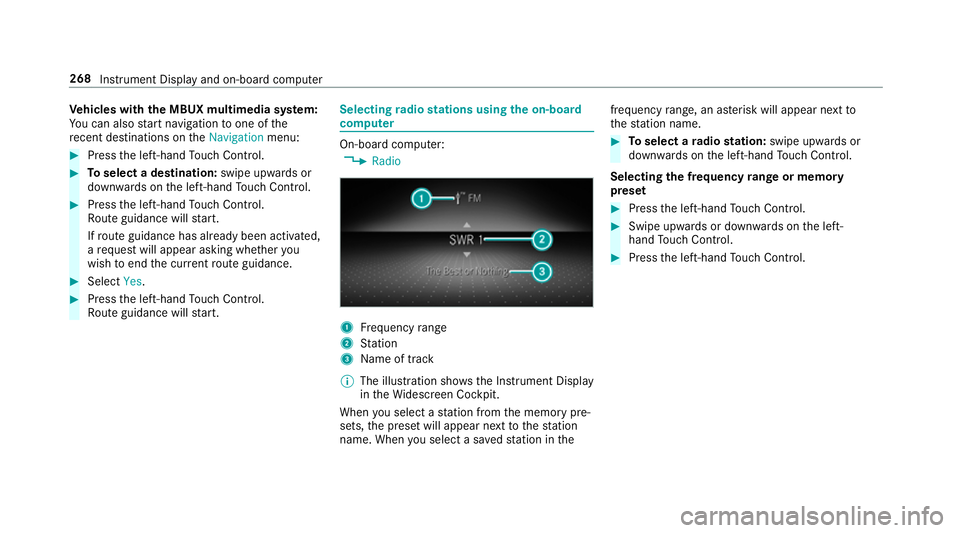
radio stations using the on-boa rd
compu ter On-board computer:
4 Radio 1
Frequency range
2 Station
3 Name of track
% The illustration sho wsthe Instrument Display
in theWi descreen Cockpit.
When you select a station from the memory pre‐
sets, the preset will appear next tothest ation
name. When you select a sa vedstation in the frequency
range, an as terisk will appear next to
th est ation name. #
Toselect a radio station: swipe upwards or
down wards on the left-hand Touch Control.
Selecting the frequency range or memory
preset #
Press the left-hand Touch Control. #
Swipe upwards or down wards on the left-
hand Touch Control. #
Press the left-hand Touch Control. 268
Instru ment Display and on-board computer
Page 308 of 645
R
You can take your profile and some of your
settings with you in new vehicles.
Requ irements for using Me rcedes me con‐
nect profiles:
Fo rth eve hicle owner:
R You ha vea Mercedes me user account.
R The vehicle has been connected with the
user account.
R The personalisation service is activated.
Fo r additional users of theve hicle:
R You ha vea Mercedes me user account.
R The vehicle owner has invited youto connect
yo ur user account on Mercedes me with that
of his vehicle.
R You ha veaccep tedth e invitation.
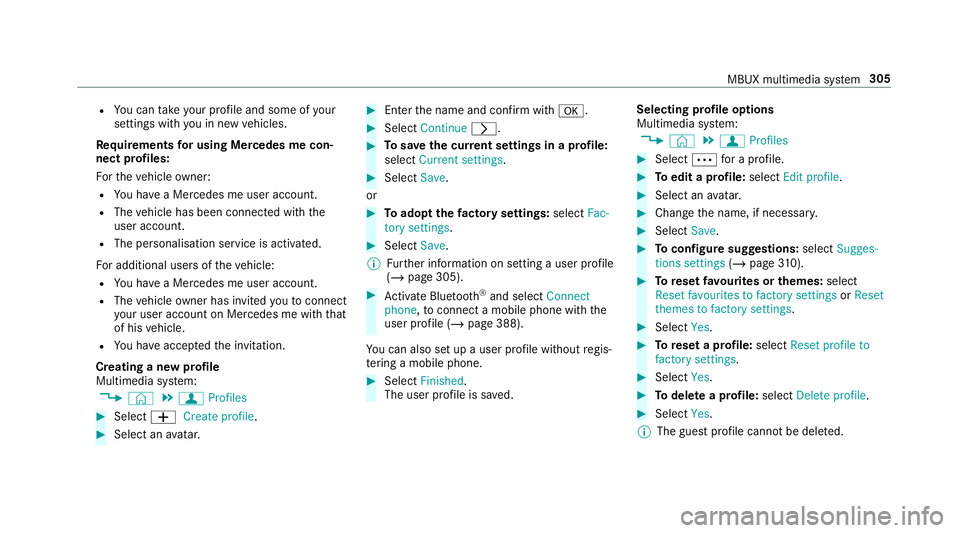
Creating a new profile
Multimedia sy stem:
4 © 5
f Profiles #
Select WCreate profile . #
Select an avatar. #
Enterth e name and confi rmwith a. #
Select Continue r. #
Tosave the cur rent settings in a profile:
select Current settings. #
Select Save.
or #
Toadopt thefa ctory settings: selectFac-
tory settings. #
Select Save.
% Further information on setting a user profile
(/ page 305). #
Activate Blu etoo th®
and select Connect
phone, toconnect a mobile phone wi th the
user profile (/ page 388).
Yo u can also set up a user profile without regis‐
te ring a mobile phone. #
Select Finished.
The user profile is sa ved. Selecting profile options
Multimedia sy
stem:
4 © 5
f Profiles #
Select Äfor a profile. #
Toedit a profile: selectEdit profile . #
Select an avatar. #
Chan gethe name, if necessar y. #
Select Save. #
Toconfigure suggestions: selectSugges-
tions settings (/page 310). #
Toreset favo urites or themes: select
Reset favourites to factory settings orReset
themes to factory settings. #
Select Yes. #
Toreset a profile: selectReset profile to
factory settings. #
Select Yes. #
Todel ete a profile: selectDelete profile . #
Select Yes.
% The guest profile cannot be dele ted. MBUX multimedia sy
stem 305
Page 313 of 645
R
From the beginning of usage, the multimedia
sy stem must analyse the user habits. When
suf ficient da tais collec tedth en the sugges‐
tions are available.
If th erequ irements mentioned are not fulfilled, a
pr ev iew with a desc ript ion of the function
appears in theSUGGESTIONS menu.
Yo u can configure data recording (/ page 310)
or dele tethe suggestions recorded
(/ page 311).
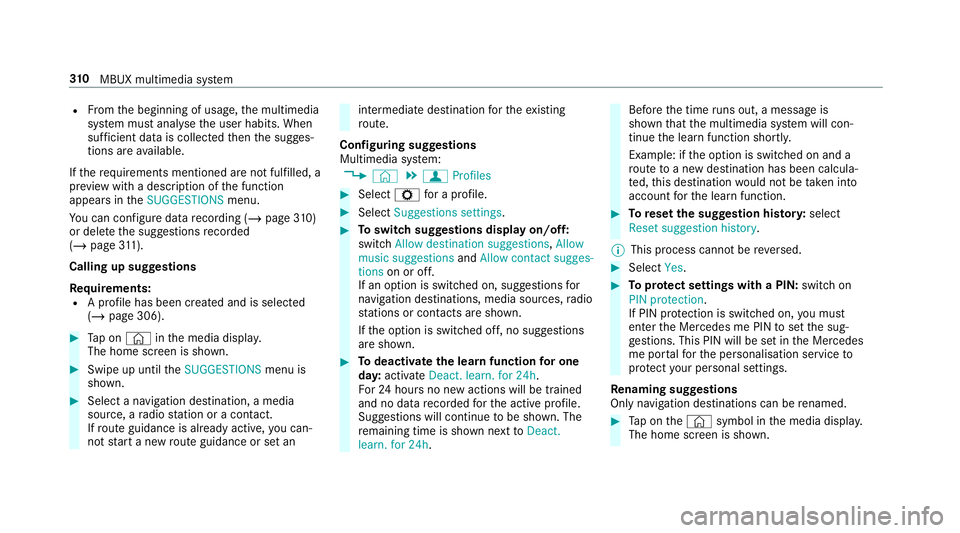
Calling up sugges tions
Re quirements:
R A profile has been created and is selected
(/ page 306). #
Tap on © inthe media displa y.
The home screen is shown. #
Swipe up until theSUGGESTIONS menu is
shown. #
Select a navigation destination, a media
source, a radio station or a con tact.
If ro ute guidance is already active, you can‐
not start a new route guidance or set an intermediate destination
forth eex isting
ro ute.
Configuring sug gestions
Multimedia sy stem:
4 © 5
f Profiles #
Select Zfor a profile. #
Select Suggestions settings . #
Toswitch suggestions display on/off:
switch Allow destination suggestions ,Allow
music suggestions andAllow contact sugges-
tions on or off.
If an option is switched on, suggestions for
navigation de stinations, media sources, radio
st ations or con tacts are shown.
If th e option is switched off, no suggestions
are shown. #
Todeactivate the learn function for one
da y:activate Deact. learn. for 24h .
Fo r24 hours no new actions will be trained
and no data recorded forth e active profile.
Suggestions will continue tobe shown. The
re maining time is shown next toDeact.
learn. for 24h . Before
the time runs out, a messa geis
shown that the multimedia sy stem will con‐
tinue the learn function shortl y.
Example: if the option is switched on and a
ro ute toa new destination has been calcula‐
te d, this destination would not be take n into
account forth e learn function. #
Toreset the suggestion his tory:select
Reset suggestion history.
% This process cannot be reve rsed. #
Select Yes. #
Toprotect settings with a PIN: switchon
PIN protection.
If PIN pr otection is switched on, you must
en terth e Mercedes me PIN toset the sug‐
ge stions. This PIN will be set in the Mercedes
me por talfo rth e personalisation service to
pr otect your personal settings.
Re naming suggestions
Only navigation destinations can be renamed. #
Tap on the© symbol in the media displa y.
The home screen is shown. 310
MBUX multimedia sy stem
Page 337 of 645
#
Set a new PIN.
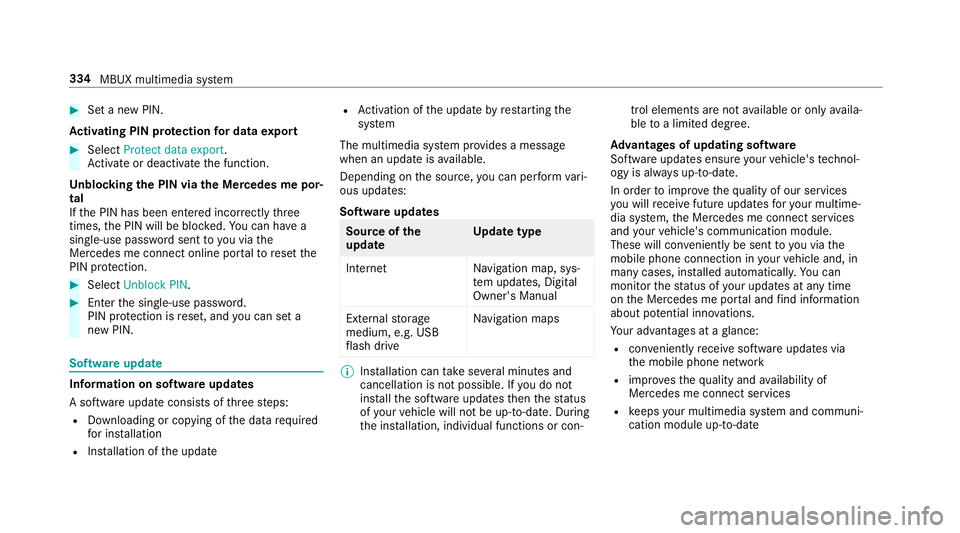
Ac tivating PIN pr otection for data export #
Select Protect data export .
Ac tivate or deacti vate the function.
Un blocking the PIN via the Mercedes me por‐
tal
If th e PIN has been entered incor rectly three
times, the PIN will be bloc ked. You can ha ve a
single-use password sent to you via the
Mercedes me connect online por talto reset the
PIN pr otection. #
Select Unblock PIN. #
Ente rth e single-use password.
PIN pr otection is reset, and you can set a
new PIN. Software upda
teInformation on software upda
tes
A software upda teconsi sts of thre esteps:
R Downloading or copying of the data requ ired
fo r ins tallation
R Installation of the update R
Activation of the update byrestarting the
sy stem
The multimedia sy stem pr ovides a message
when an update is available.
Depending on the source, you can per form vari‐
ous updates:
Software updates Source of
the
update Up
date type
Interne tN avigation map, sys‐
te m updates, Digital
Owner's Manual
External storage
medium, e.g. USB
fl ash drive Na
vigation maps %
Installation can take several minutes and
cancellation is not possible. If you do not
ins tallth e software updates then thest atus
of your vehicle will not be up-to-date. During
th e ins tallation, individual functions or con‐ trol elements are not
available or on lyavaila‐
ble toa limited deg ree.
Ad vantages of updating software
Software updates ensure your vehicle's tech nol‐
ogy is al ways up-to-date.
In order toimpr oveth equ ality of our services
yo u will recei vefuture updates foryo ur multime‐
dia sy stem, the Mercedes me connect services
and your vehicle's communication module.
These will con veniently be sent to you via the
mobile phone connection in your vehicle and, in
many cases, ins talled automaticall y.Yo u can
monitor thest atus of your updates at any time
on the Mercedes me por tal and find information
about po tential inno vations.
Yo ur advantages at a glance:
R con veniently recei vesoftware update s via
th e mobile phone network
R impr ovesth equ ality and availability of
Mercedes me connect services
R keeps your multimedia sy stem and communi‐
cation module up-to-date 334
MBUX multimedia sy stem
Page 339 of 645
If all
requ irements are met, the update will be
ins talled. The multimedia sy stem cann otbe
operated while the update is being ins talled and
ve hicle functions are restricted.
If er rors should occur during the ins tallation, the
multimedia sy stem automatically attem ptsto
re store the pr evious version. If restoration of the
pr ev ious version is not possible, a symbol
appears on the media displa y.Please consult a
qu alified specialist workshop toresolve the
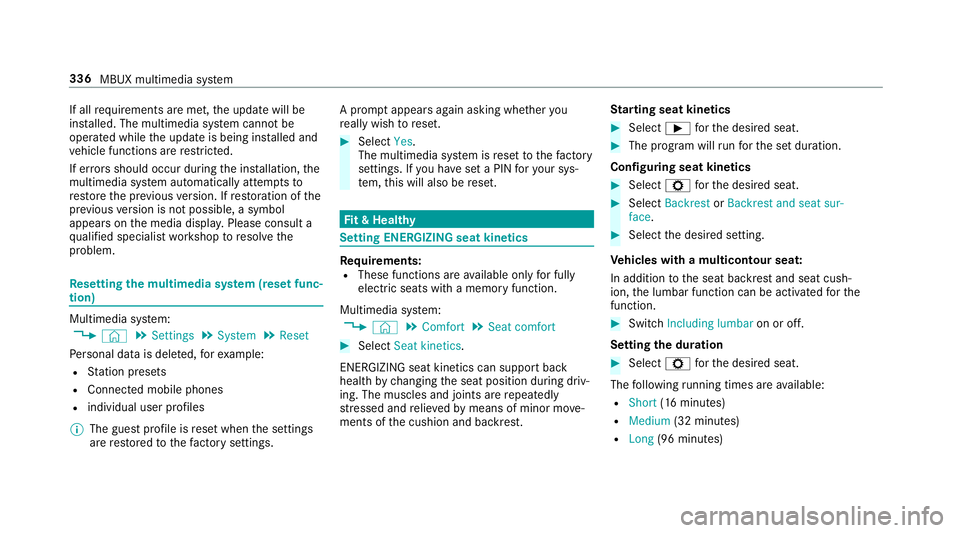
problem. Re
setting the multimedia sy stem (reset func‐
tion) Multimedia sy
stem:
4 © 5
Settings 5
System 5
Reset
Pe rsonal data is dele ted, forex ample:
R Station presets
R Connec ted mobile phones
R individual user profiles
% The guest profile is reset when the settings
are restored tothefa ctory settings. A prom
ptappears again asking whe ther you
re ally wish toreset. #
Select Yes.
The multimedia sy stem is reset tothefa ctory
settings. If you ha veset a PIN foryo ur sys‐
te m, this will also be reset. Fi
t & Healthy Setting ENE
RGIZING seat kinetics Re
quirements:
R These functions are available on lyfor fully
electric seats with a memory function.
Multimedia sy stem:
4 © 5
Comfort 5
Seat comfort #
Select Seat kinetics .
ENERG IZING seat kinetics can support back
health bychanging the seat position during driv‐
ing. The muscles and joints are repeatedly
st re ssed and relie vedby means of minor mo ve‐
ments of the cushion and backrest. St
arting seat kinetics #
Select Ìforth e desired seat. #
The program will runfo rth e set duration.
Configuring seat kinetics #
Select Zforth e desired seat. #
Select Backrest orBackrest and seat sur-
face. #
Select the desired setting.
Ve hicles with a multicontour seat:
In addition tothe seat backrest and seat cush‐
ion, the lumbar function can be activated forthe
function. #
Switch Including lumbar on or off.
Setting the du ration #
Select Zforth e desired seat.
The following running times are available:
R Short (16 minutes)
R Medium (32 minutes)
R Long (96 minutes) 336
MBUX multimedia sy stem
Page 378 of 645
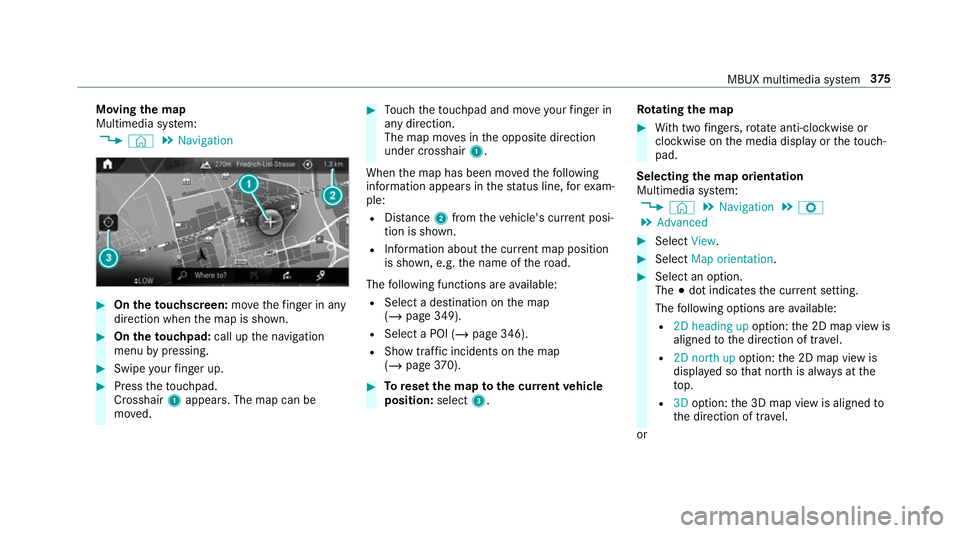
Moving
the map
Multimedia sy stem:
4 © 5
Navigation #
On theto uchscreen: movethefinger in any
di re ction when the map is shown. #
On theto uchpad: call upthe navigation
menu bypressing. #
Swipe your finger up. #
Press theto uchpad.
Crosshair 1appears. The map can be
mo ved. #
Touch theto uchpad and mo veyour finger in
any di rection.
The map mo ves in the opposite direction
under crosshair 1.
When the map has been mo vedth efo llowing
information appears in thest atus line, forex am‐
ple:
R Distance 2from theve hicle's cur rent posi‐
tion is shown.
R Information about the cur rent map position
is shown, e.g. the name of thero ad.
The following functions are available:
R Select a destination on the map
(/ page 349).
R Select a POI (/ page 346).
R Show tra ffic incidents on the map
(/ page 370). #
Toreset the map tothe cur rent vehicle
position: select3. Ro
tating the map #
With two fingers, rotate anti-clockwise or
clo ckwise on the media display or theto uch‐
pad.
Selecting the map orientation
Multimedia sy stem:
4 © 5
Navigation 5
Z
5 Advanced #
Select View. #
Select Map orientation. #
Select an option.
The #dot indicates the cur rent setting.
The following options are available:
R 2D heading up option:the 2D map view is
aligned tothe direction of tra vel.
R 2D north up option:the 2D map view is
displa yed so that no rth is alw ays at the
to p.
R 3Doption: the 3D map view is aligned to
th e direction of tra vel.
or MBUX multimedia sy
stem 375
Page 379 of 645
#
Using quick- access: repeatedly tap or press
on theÄ compass symbol on the map.
The view changes in the sequence 3D,2D
heading up to2D north up .
If th e map is mo ved, it can switch between
3D and 2D north up .
Selecting POI symbols for the map display
Multimedia sy stem:
4 © 5
Navigation 5
Z
POIs include filling stations and ho tels, forex am‐
ple. These can be displa yed as symbols on the
map. Not all POIs are available everywhere.
Pe rsonal POIs are destinations which you ha ve
sa ve d on a USB device, forex ample.
% The display of POI symbols on the map can
be activated or deactivated as a favo urite. #
Toswitch on/off using quick- access: if
av ailable, swit chPOI symbols on or off.
The POI symbols forth e selected categories
are shown on the map.
or #
Toswitch on/off in the menu: select
Advanced. #
Select View. #
Select Map elements. #
Select POI symbols r.
The POI SYMBOLS menu is shown. #
Swit chDisplay POIs on or off.
Selecting ca tegories #
Select rAll categories inthePOI SYM-
BOLS menu. #
Switch Show all on or off.
When the option is switched on, the POI sym‐
bols for all categories are shown on the map.
or #
Select the categories and sub-categories (if
av ailable) r. #
Activate or deacti vate the categories.
The POI symbols forth e selected categories
are shown on the map. Selecting personal POI categories #
Select rPersonal POIs inthePOI SYM-
BOLS menu. #
Select a category r. #
Switch Display on the map on or off.
When the display is switched on and the
ve hicle approaches a personal POI in this
categor y,a visual and audible notification
can be issued. #
Toset a notification when appro aching:
select a category or a personal POI V. #
Switch Visual warning andAcoustic notifica-
tion on or off.
Switching display of catego ries forqu ick-
access on/off #
Switch a category on or off in thePOI SYM-
BOLS menu.
Re setting the POI symbol display #
Select in thePOI SYMBOLSReset POIs
menu .
The settings are reset tothest andard set‐
tings. 376
MBUX multimedia sy stem