display MERCEDES-BENZ CLS COUPE 2012 Manual Online
[x] Cancel search | Manufacturer: MERCEDES-BENZ, Model Year: 2012, Model line: CLS COUPE, Model: MERCEDES-BENZ CLS COUPE 2012Pages: 373, PDF Size: 9.12 MB
Page 208 of 373
Warning vibratio
ninthe steering wheel
Aw arning may be given if afront wheel
passes over alane marking. It willw arny ou
by means of intermittent vibration in the
steering wheel for up to 1.5 seconds.
In order that you are warned only whenn ec-
essary and in good time if you cross the lane
marking, the system recognises certain con-
ditions and warns you accordingly.
The warning vibration occur searlier if:
R you approach the outer lane markin gona
bend.
R the road has very wide lanes, e.g. amotor-
way.
R the system recognises solid lane markings.
The warning vibration occur slater if:
R the road has narrow lanes.
R you cut the corner on abend.
Lane-correcting brak eapplication G
WARNING
Active Lane Keeping Assist does not keep
your vehicle in its lane. It is only an aid
designed to assist driving. It is not asubstitute
for attentive driving. Corrective braking may
not alway sbesufficien ttoreturn your vehicle
to its original lane. In such cases, you must
steer the vehicle yourself to ensure that it
does not leave the lane.
Active Lane Keeping Assist cannot detect the
current traffic situation or other road users.
Ensure at all times that there is sufficient lat-
eral distance between you and other road
users or obstacles. In rare cases, broken lines
or certain structures on the road surface may
be detected by the system as solid lane mark-
ings. You can, for example, countersteer gen-
tly at any time to cancel inappropriate braking
action, e.g. if you intentionally drive across a
solid lane marking.
Active Lane Keeping Assist cannot take
weather conditions into account.
You are responsible for the vehicle's speed,
correc tsteerin gand for braking in good time.
Alway sadapt your drivin gstyle to suit the prevailing road and weather conditions.
Always pay attention to traffic conditions and
your surroundings. Otherwise, you may fail to
recognise dangers in time, cause an accident
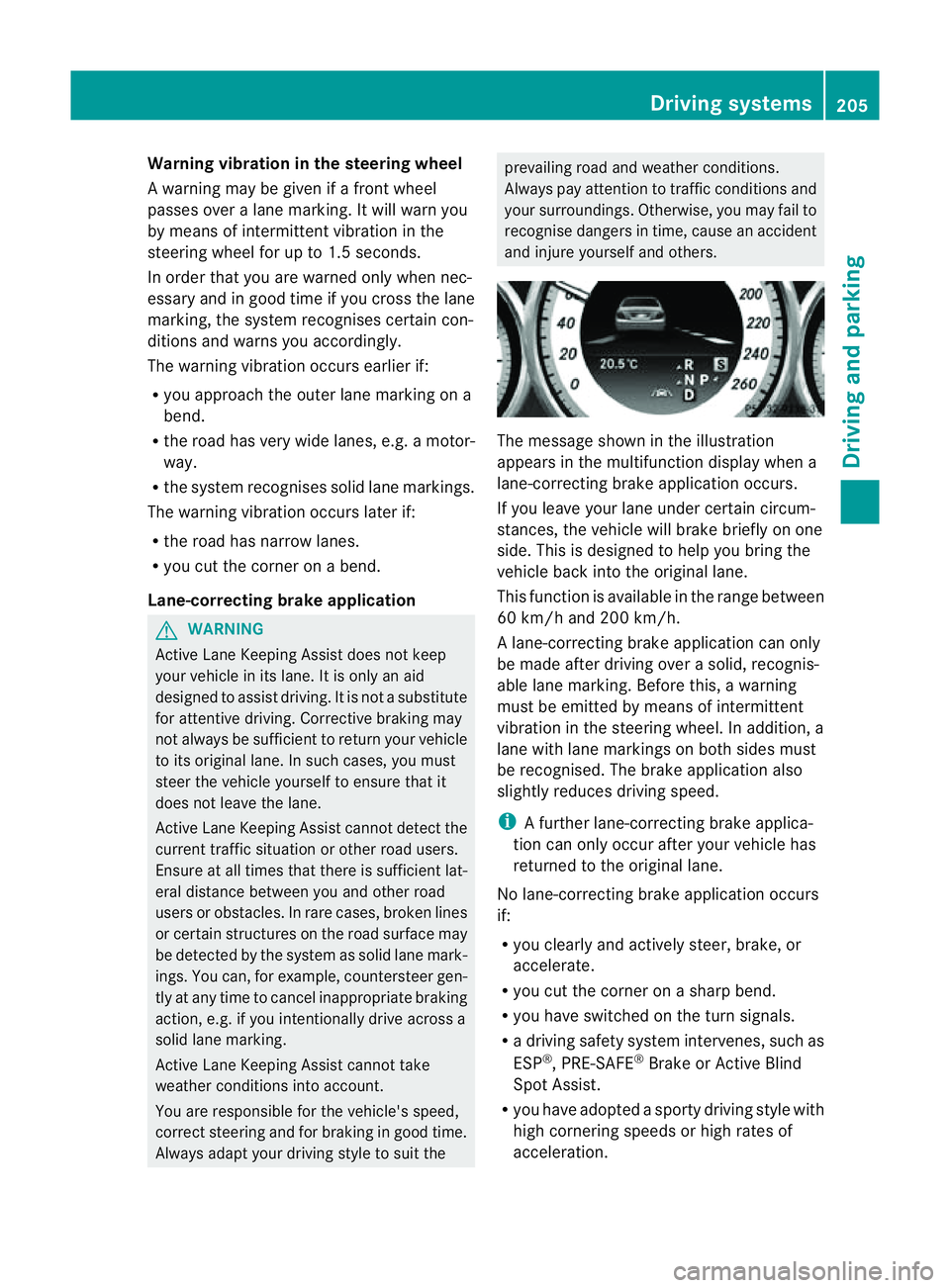
and injure yourself and others. The message shown in the illustration
appears in the multifunction display when a
lane-correcting brake application occurs.
If you leave your lane under certain circum-
stances, the vehicle will brake briefly on one
side. This is designed to help you bring the
vehicle back into the original lane.
This function is available in the range between
60 km/ha nd 200 km/h.
Al ane-correcting brake application can only
be made after driving over asolid, recognis-
able lane marking. Before this, awarning
must be emitted by means of intermittent
vibration in the steering wheel. In addition, a
lane with lane markings on both sides must
be recognised. The brake application also
slightly reduces driving speed.
i Afurther lane-correcting brake applica-
tion can only occur after your vehicle has
returned to the original lane.
No lane-correcting brake application occurs
if:
R you clearly and actively steer, brake, or
accelerate.
R you cut the corner on asharp bend.
R you have switched on the turn signals.
R ad riving safety system intervenes, such as
ESP ®
,P RE-SAFE ®
Brake or Active Blind
Spot Assist.
R you have adopted asporty driving style with
high cornering speeds or high rates of
acceleration. Driving systems
205Driving and parking Z
Page 209 of 373
R
ESP ®
is deactivated.
R the transmission is not in position D.
R al ossoft yrep ressure or adefective tyre
ha sb eend etecte dand displayed.
Activ eLaneK eeping Assist does not detect
roa dand traffi cconditions .Aninappropriate
brake applicatio nmay be interrupted at any
tim eif:
R you steer slightly in th eopposite direction.
R you use aturn signal.
R you clearly brake or accelerate.
Al ane-correcting brak eapplicatio nisinter-
rupted automaticallyi f:
R ad riving safety system intervenes, such as
ESP ®
,P RE-SAFE ®
Brake or Active Blind
Spot Assist.
R lane markings can no longer be recognised.
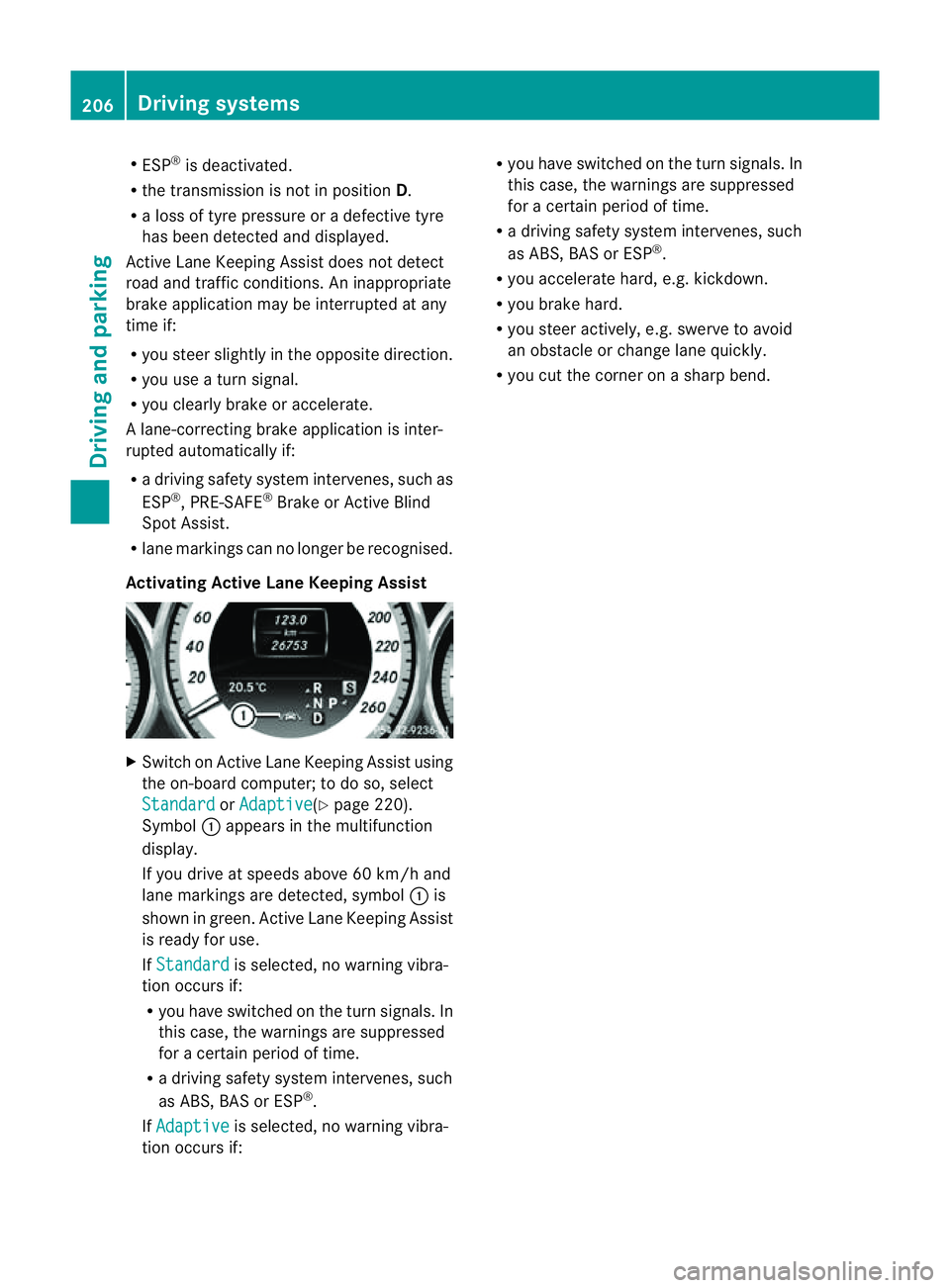
Activating Active Lane Keeping Assist X
Switch on Active Lane Keeping Assist using
the on-board computer; to do so, select
Standard or
Adaptive (Y
page 220).
Symbol :appears in the multifunction
display.
If you drive at speeds above 60 km/h and
lane markings are detected, symbol :is
shown in green. Active Lane Keeping Assist
is ready for use.
If Standard is selected, no warning vibra-
tion occurs if:
R you have switched on the turn signals. In
this case, the warnings are suppressed
for acertain period of time.
R ad riving safety system intervenes, such
as ABS,B AS or ESP ®
.
If Adaptive is selected, no warning vibra-
tion occurs if: R
you have switched on the turn signals. In
this case, the warnings are suppressed
for acertain period of time.
R ad riving safety system intervenes, such
as ABS,B AS or ESP ®
.
R you accelerate hard, e.g. kickdown.
R you brake hard.
R you steer actively, e.g. swerve to avoid
an obstacle or change lane quickly.
R you cut the corner on asharp bend. 206
Driving systemsDriving and parking
Page 210 of 373
Useful information
............................208
Importan tsafet ynotes .................... 208
Displays and operation ....................209
Menus and submenus ......................212
Display messages ............................. 231
Warning and indicator lamp sinthe
instrument cluster ............................258 207On-boar
dcomputer and displays
Page 211 of 373
Useful information
i This Owner's Manual describes all mod-
els, series and optional equipment for your
vehicle that were available at the time of
going to press. National variation sare pos-
sible. Not ethat your vehicle may not be
equipped with all of the function sdescri-
bed. This is also the case for system sand
function srelevan ttosafety.
i Read the information on qualified special-
ist workshops: (Y page 23). Important safet
ynotes G
WARNING
Only use the on-board computer when road
and traffic condition spermit .You would oth-
erwise be distracted and unable to concen-
trate properly on driving, and could cause an
accident. G
WARNING
No messages will be displayed if either the
instrument cluster or the multifunction dis-
play is inoperative.
As aresult, you will not be able to see infor-
mation about your driving conditions, such as
speed, outside temperature, warning and indi-
cator lamps, display messages or system fail-
ures. Drivin gcharacteristics may be impaired.
Adjust your driving style and vehicle speed
accordingly.
Contact aqualified specialist workshop
immediately. G
WARNING
The on-board computer only records and dis-
plays malfunctions and warnings from certain
systems. For this reason, you should always
make sure that your vehicle is safe to use. You
could otherwise cause an accident by driving
an unsafe vehicle. G
WARNING
The operating safety of your vehicle could be
impaired if maintenance work is carried out
incorrectly. This could cause you to lose con-
trol of your vehicle and cause an accident.
Moreover, the safety systems may no longer
be able to protect you or others as they are
designed to do.
Always have service work carried out at a
qualified specialist workshop.
For an illustration of the instrument cluster,
see (Y page 30). 208
Important safety notesOn-board computer and displays
Page 212 of 373
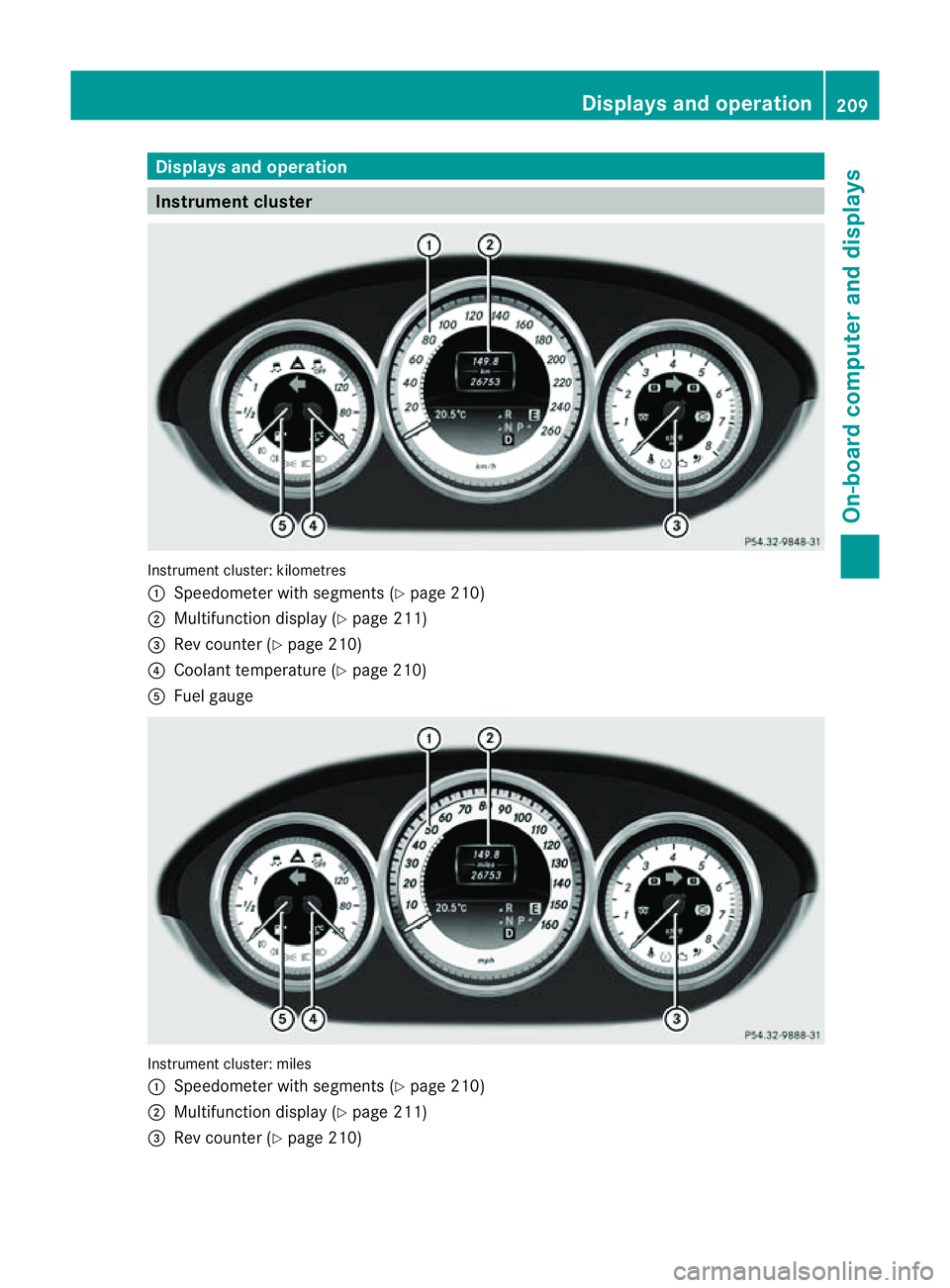
Display
sand operation Instrument cluster
Instrumen
tcluster: kilometres
: Speedometer wit hsegments (Y page 210)
; Multifunction display (Y page 211)
= Rev counter (Y page 210)
? Coolant temperature ( Ypage 210)
A Fue lgauge Instrumen
tcluster: miles
: Speedometer wit hsegments (Y page 210)
; Multifunction display (Y page 211)
= Rev counter (Y page 210) Display
sand ope ration
209On-boardcomputer and displays Z
Page 213 of 373
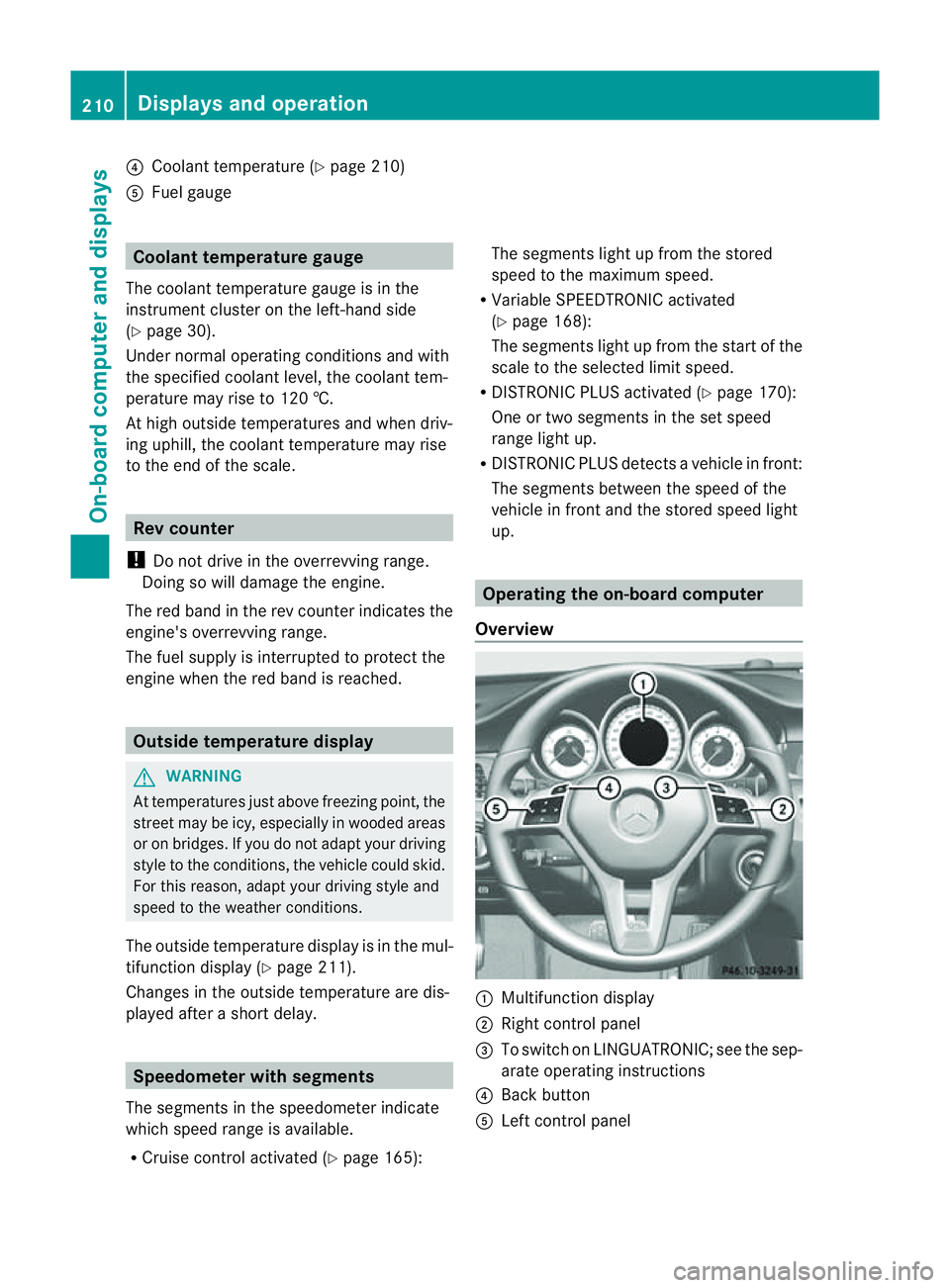
?
Coolan ttemperature (Y page 210)
A Fuel gauge Coolant temperature gauge
The coolant temperature gauge is in the
instrument cluster on the left-hand side
(Y page 30).
Under normal operatin gconditions and with
the specified coolant level, the coolant tem-
perature may rise to 120 †.
At high outside temperatures and when driv-
ing uphill, the coolant temperature may rise
to the end of the scale. Rev counter
! Do not drive in the overrevving range.
Doin gsow ill damage the engine.
The red band in the rev counter indicates the
engine's overrevving range.
The fuel supply is interrupted to protec tthe
engine when the red band is reached. Outside temperature display
G
WARNING
At temperatures just above freezing point, the
street may be icy, especially in wooded areas
or on bridges. If you do not adapt your driving
style to the conditions, the vehicle could skid.
For this reason, adapt your driving style and
speed to the weather conditions.
The outside temperature displayisint he mul-
tifunction display( Ypage 211).
Changes in the outside temperature are dis-
played after ashort delay. Speedometer with segments
The segments in the speedometer indicate
which speed range is available.
R Cruise control activated (Y page 165):The segments light up from the stored
speed to the maximum speed.
R VariableS PEEDTRONIC activated
(Y page 168):
The segments light up from the start of the
scale to the selected limit speed.
R DISTRONIC PLUS activated (Y page 170):
One or two segments in the set speed
range light up.
R DISTRONIC PLUS detects avehicle in front:
The segments between the speed of the
vehicle in fron tand the stored speed light
up. Operatin
gthe on-board computer
Overview :
Multifunctio ndisplay
; Right control panel
= To switc honLINGUATRONIC; see the sep-
arate operating instructions
? Bac kbutton
A Left control panel 210
Display
sand operationOn-board computer and displays
Page 214 of 373
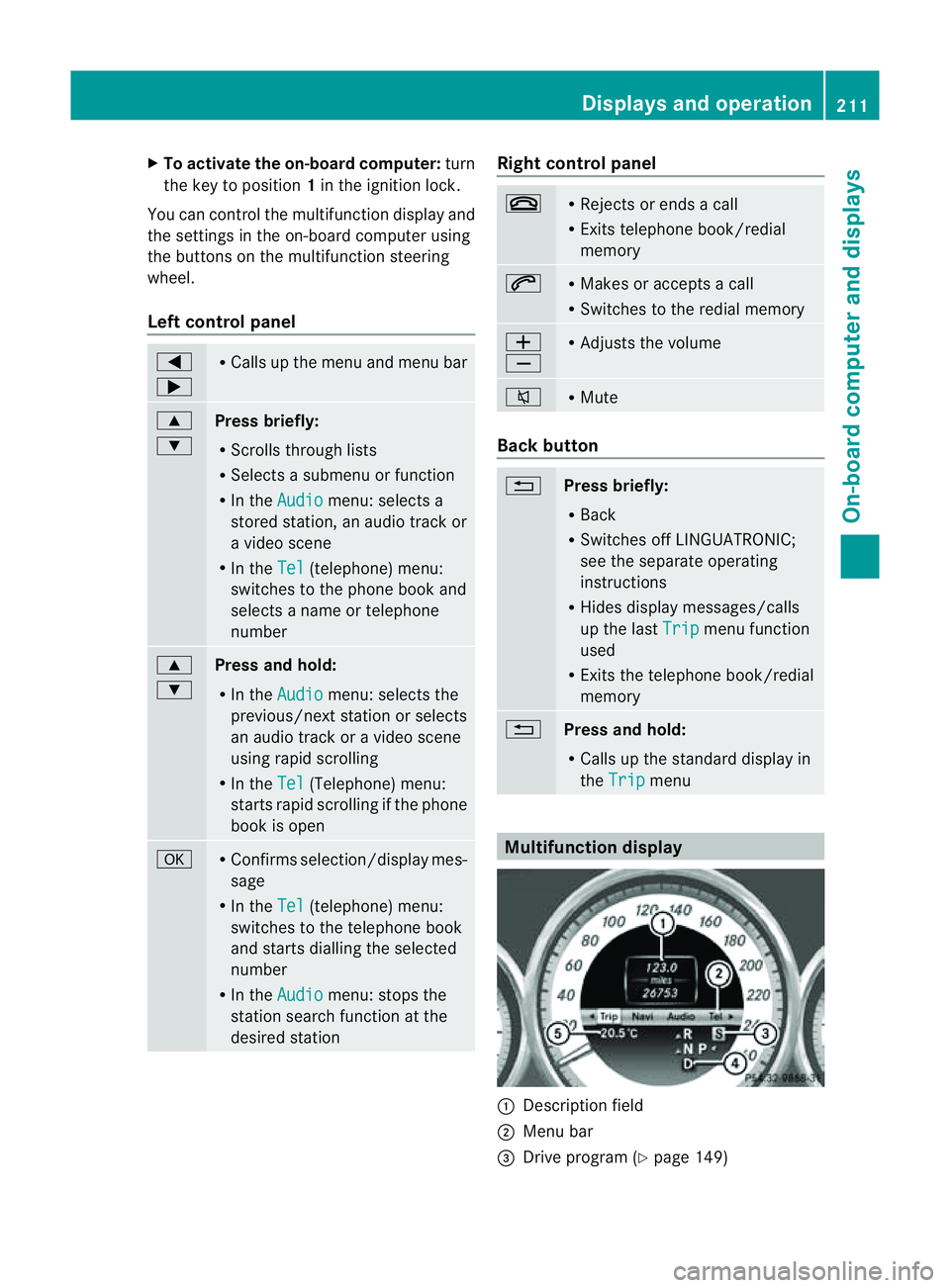
X
To activate the on-board computer: turn
the key to position 1in the ignition lock.
Yo uc an contro lthe multifunctio ndisplay and
the settings in the on-board computer using
the buttons on the multifunction steering
wheel.
Left control panel =
; R
Calls up the men uand men ubar 9
:
Pres
sbriefly:
R Scrolls through lists
R Selects asubmen uorfunction
R In the Audio menu: selects a
stored station ,anaudio track or
av ideo scene
R In the Tel (telephone) menu:
switches to the phon ebook and
selects aname or telephone
number 9
:
Pres
sand hold:
R In the Audio menu: selects the
previous/next station or selects
an audio track or avideo scene
using rapid scrolling
R In the Tel (Telephone) menu:
start srapid scrolling if the phone
book is open a R
Confirms selection/display mes-
sage
R In the Tel (telephone) menu:
switches to the telephon ebook
and start sdialling the selected
number
R In the Audio menu: stops the
station searc hfunction at the
desire dstation Righ
tcontrol panel ~ R
Reject sorendsac all
R Exits telephone book/redial
memory 6 R
Makes or accept sacall
R Switche stotheredial memory W
X R
Adjust sthe volume 8 R
Mute Back button
%
Press briefly:
R
Back
R Switche soff LINGUATRONIC;
see th eseparate operating
instructions
R Hide sdisplay messages/calls
up th elast Trip men
ufunction
used
R Exits th etelephone book/redial
memory %
Press and hold:
R
Calls up th estandar ddisplay in
the Trip menu
Multifunction display
:
Description field
; Men ubar
= Drive program (Y page 149) Displays and operation
211On-boardcomputer and displays Z
Page 215 of 373
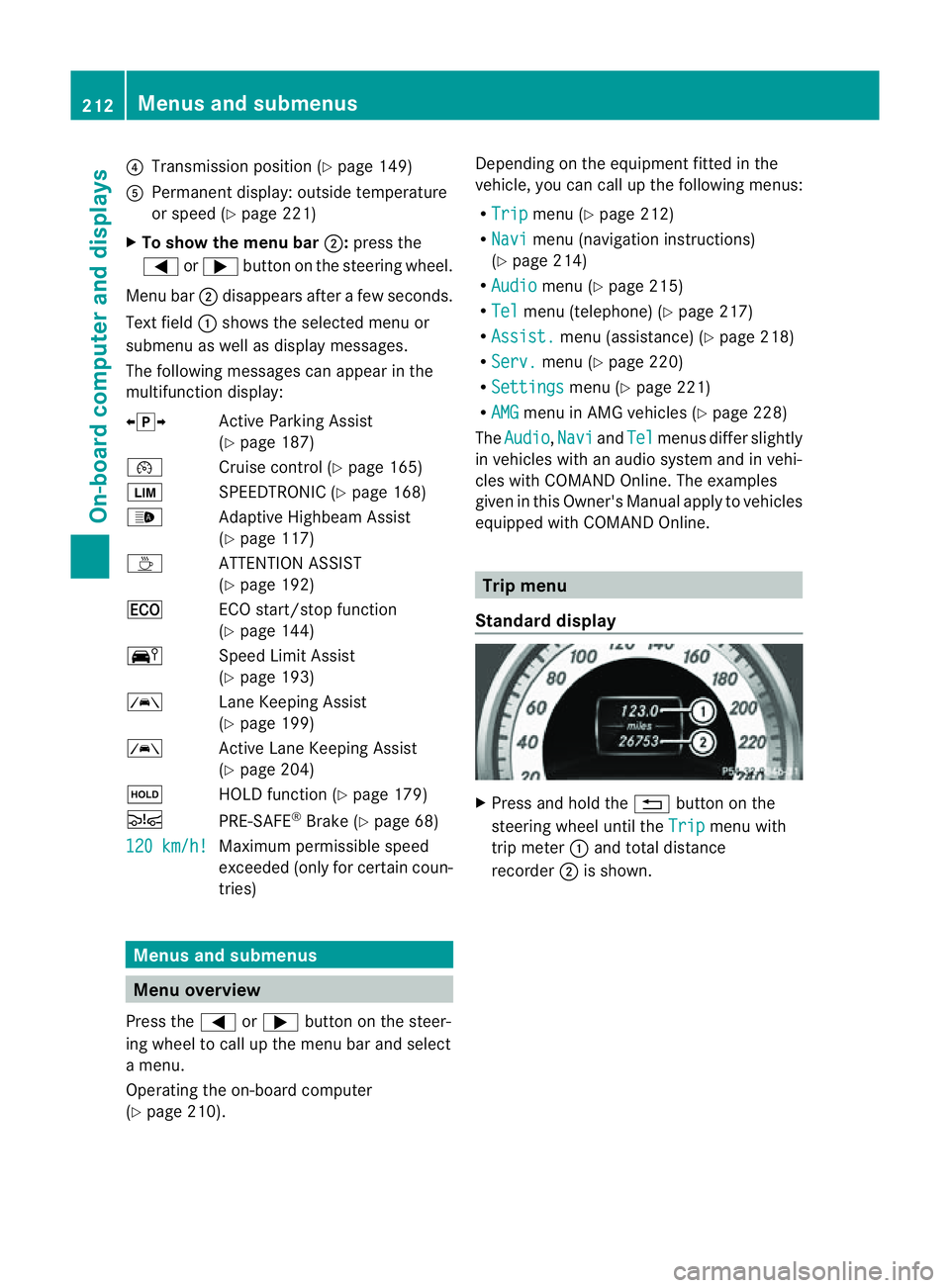
?
Transmission position (Y page 149)
A Permanen tdisplay: outside temperature
or speed (Y page 221)
X To show th emenu bar ;:press the
= or; button on the steerin gwheel.
Menu bar ;disappears after afew seconds.
Text field :shows the selected menu or
submenu as well as displaym essages.
The following messages can appearint he
multifunction display:
XjY Active Parking Assist
(Y page 187)
¯ Cruise control (Y page 165)
È SPEEDTRONIC (Y page 168)
_ Adaptive Highbeam Assist
(Ypage 117)
À ATTENTION ASSIST
(Ypage 192)
¤ ECO start/stop function
(Ypage 144)
Ä Speed Limit Assist
(Ypage 193)
à Lane Keeping Assist
(Ypage 199)
à Active Lane Keeping Assist
(Ypage 204)
ë HOLD function (Y page 179)
Ä PRE-SAFE®
Brake (Y page 68)
120 km/h! Maximum permissible speed
exceeded (only for certain coun-
tries)
Menus and submenus
Menu overview
Press the =or; button on the steer-
ing wheel to call up the menu bar and select
am enu.
Operating the on-board computer
(Y page 210). Depending on the equipment fitted in the
vehicle, you can call up the following menus:
R
Trip menu (Y
page 212)
R Navi menu (navigation instructions)
(Y page 214)
R Audio menu (Y
page 215)
R Tel menu (telephone) (Y
page 217)
R Assist. menu (assistance) (Y
page 218)
R Serv. menu (Y
page 220)
R Settings menu (Y
page 221)
R AMG menu in AMG vehicles (Y
page 228)
The Audio ,
Navi and
Tel menus differ slightly
in vehicles with an audios ystem and in vehi-
cles with COMAND Online. The examples
given in this Owner's Manual apply to vehicles
equipped with COMAND Online. Trip menu
Standard display X
Press and hold the %button on the
steering wheel until the Trip menu with
trip meter :and total distance
recorder ;is shown. 212
Menus and submenusOn-board computer and displays
Page 216 of 373
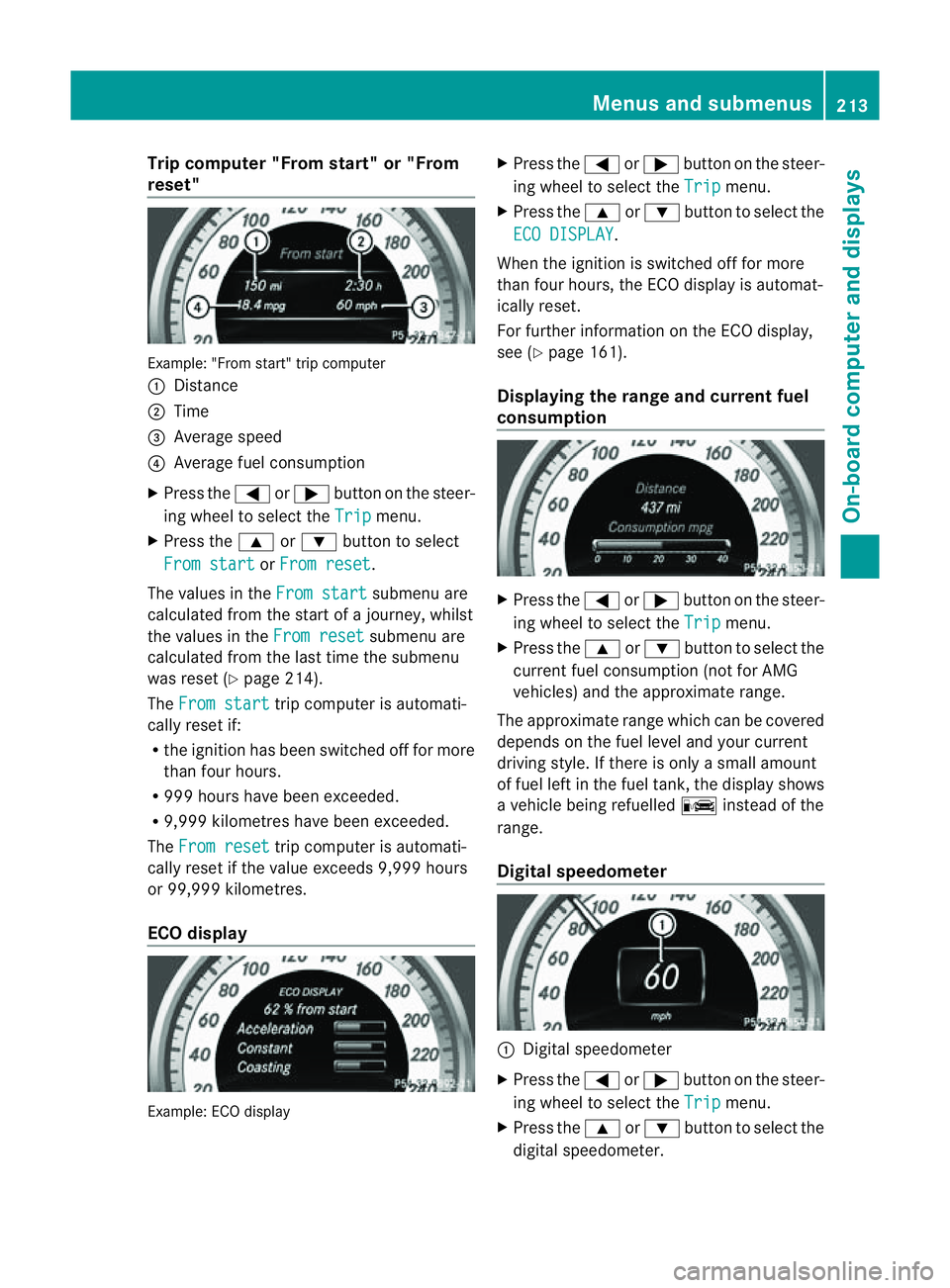
Trip compute
r"From start" or "From
reset" Example: "From start" trip computer
:
Distance
; Time
= Averag espeed
? Averag efuelconsumption
X Press the =or; button on the steer-
ing whee ltoselect the Trip menu.
X Press the 9or: button to select
Fro mstart or
Fro mreset .
The values in the Fromstart submenu are
calculate dfromt he start of ajourney, whilst
the values in the From reset submenu are
calculated from the last time the submenu
was reset (Y page 214).
The From start trip computer is automati-
cally reset if:
R the ignition has been switched off for more
than four hours.
R 999 hours have been exceeded.
R 9,999 kilometres have been exceeded.
The From reset trip computer is automati-
cally reset if the value exceeds 9,999 hours
or 99,999 kilometres.
ECO display Example: ECO display X
Press the =or; button on the steer-
ing wheel to select the Trip menu.
X Press the 9or: button to select the
ECO DISPLAY .
When the ignition is switched off for more
than four hours, the ECO displayisa utomat-
ically reset.
For further information on the ECO display,
see (Y page 161).
Displaying the range and current fuel
consumption X
Press the =or; button on the steer-
ing wheel to select the Trip menu.
X Press the 9or: button to select the
current fuel consumption (not for AMG
vehicles) and the approximate range.
The approximate range which can be covered
depends on the fuel level and your current
driving style. If there is only asmall amount
of fuel left in the fuel tank,t he displayshows
av ehicle being refuelled Cinstead of the
range.
Digital speedometer :
Digital speedometer
X Press the =or; button on the steer-
ing wheel to select the Trip menu.
X Press the 9or: button to select the
digital speedometer. Menus and submenus
213On-board computer and displays Z
Page 217 of 373
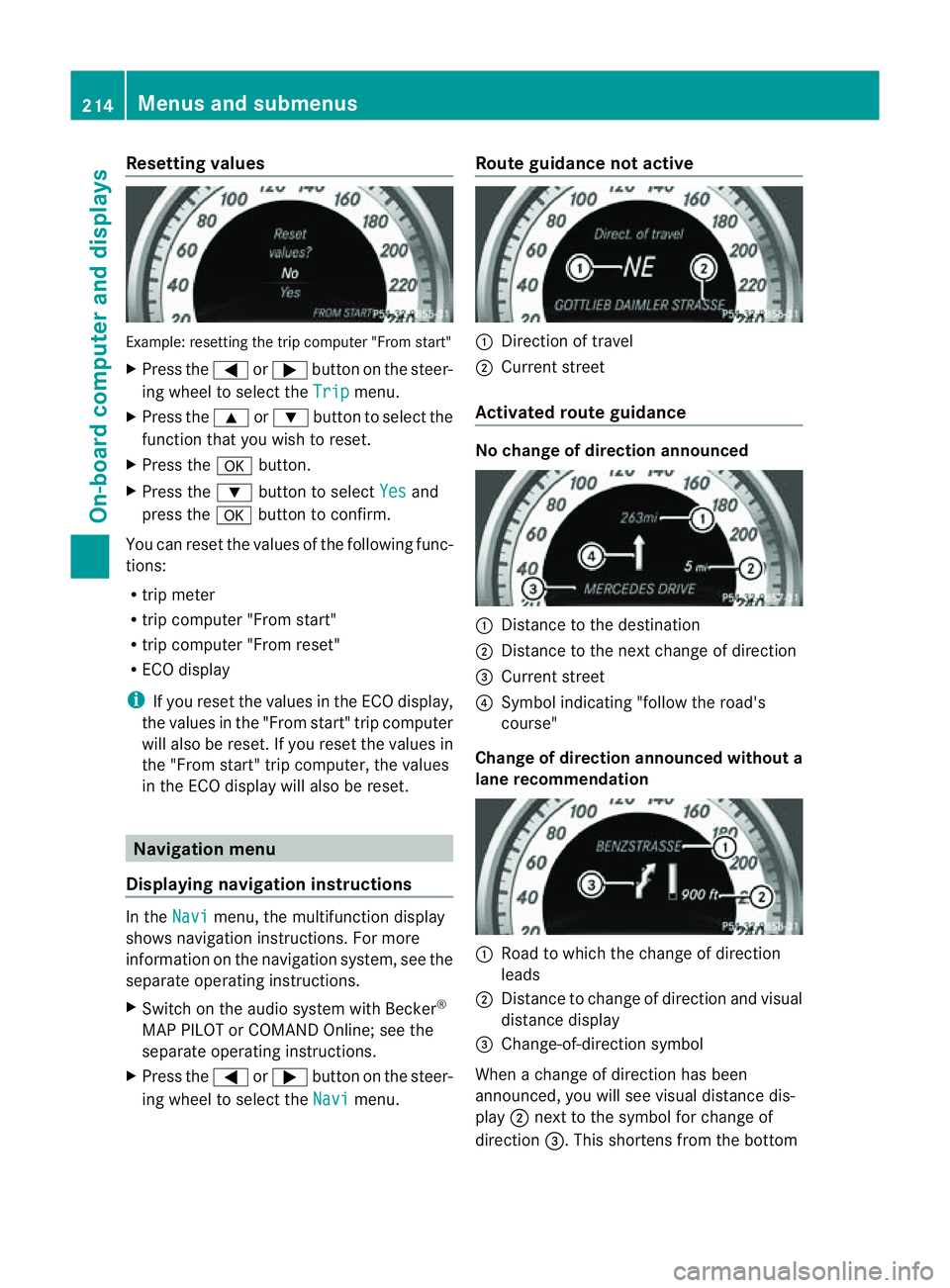
Resetting values
Example
:resetting the trip compute r"Fro ms tart"
X Press the =or; button on the steer-
ing wheel to select the Trip menu.
X Press the 9or: button to select the
function that yo uwishtor eset.
X Press the abutton.
X Press the :button to select Yes and
press the abutton to confirm.
Yo uc an reset the value softhe following func-
tions:
R trip meter
R trip compute r"Fro ms tart"
R trip compute r"Fro mr eset"
R ECO display
i If yo ureset the value sinthe ECO display,
the values in the "From start" trip computer
will also be reset. If you reset the values in
the "From start" trip computer, the values
in the ECO displayw ill also be reset.Navigation menu
Displaying navigation instructions In the
Navi menu, the multifunction display
shows navigation instructions. For more
information on the navigation system, see the
separate operating instructions.
X Switch on the audios ystem with Becker®
MAP PILOT or COMAND Online; see the
separate operating instructions.
X Press the =or; button on the steer-
ing wheel to select the Navi menu.Route guidance not active :
Direction of travel
; Current street
Activated route guidance No change of direction announced
:
Distancetot he destination
; Distancetot he next change of direction
= Current street
? Symbol indicating "follow the road's
course"
Change of direction announced without a
lane recommendation :
Road to which the change of direction
leads
; Distancetoc hange of direction and visual
distance display
= Change-of-direction symbol
When achange of direction has been
announced, you will see visual distance dis-
play ;next to the symbol for change of
direction =.This shortens from the bottom 214
Menus and submenusOn-board computer and displays