ECO mode MERCEDES-BENZ E-CLASS CABRIOLET 2017 User Guide
[x] Cancel search | Manufacturer: MERCEDES-BENZ, Model Year: 2017, Model line: E-CLASS CABRIOLET, Model: MERCEDES-BENZ E-CLASS CABRIOLET 2017Pages: 521, PDF Size: 10.64 MB
Page 173 of 521
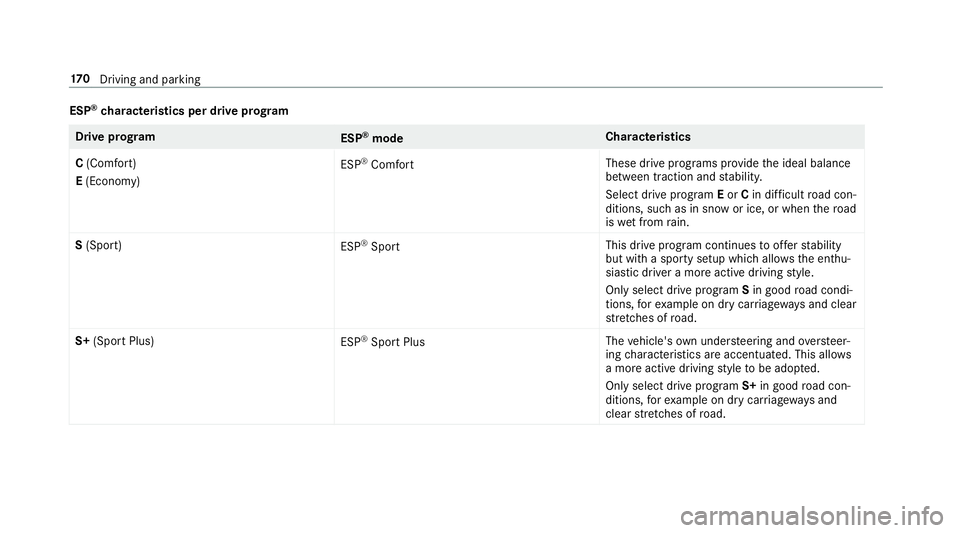
ESP
®
ch aracteristics per drive prog ramDrive prog
ram
ESP®
mode Cha
racteristics
C (Comfort)
E (Economy) ESP
®
Comfort These drive prog
rams pr ovide the ideal balance
between traction and stabilit y.
Select drive program Eor Cin di fficult road con‐
ditions, such as in sn owor ice, or when thero ad
is we t from rain.
S (Sport)
ESP®
Sport This drive program continues
toofferst ability
but with a sporty setup which allo wsthe enthu‐
siastic driver a more active driving style.
Only select drive prog ram Sin good road condi‐
tions, forex ample on dry car riag ewa ysand clear
st re tches of road.
S+ (Sport Plus)
ESP®
Spo rtPlus The
vehicle's own under steering and overste er‐
ing characteristics are accentuated. This allo ws
a more active driving style to be adop ted.
Only select drive prog ram S+ in good road con‐
ditions, forex ample on dry car riag ewa ysand
clear stre tches of road. 17 0
Driving and pa rking
Page 184 of 521
DISTRONIC is acti
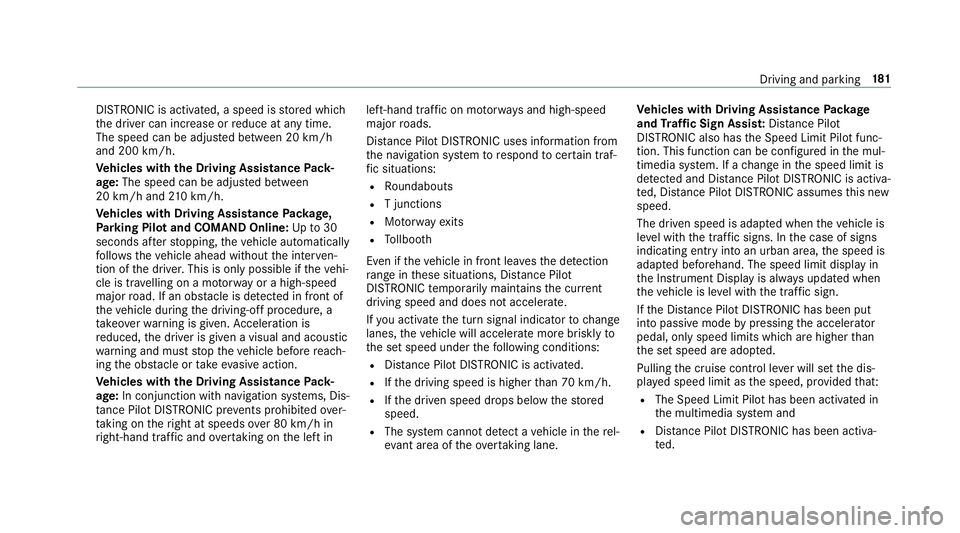
vated, a speed is stored which
th e driver can increase or reduce at any time.
The speed can be adjus ted between 20 km/h
and 200 km/h.
Ve hicles with the Driving Assistance Pack‐
age: The speed can be adju sted between
20 km/h and 210 km/h.
Ve hicles with Driving Assistance Package,
Pa rking Pilot and COMAND Online: Upto30
seconds af terst opping, theve hicle automatically
fo llo ws theve hicle ahead without the inter ven‐
tion of the driver. This is only possible if theve hi‐
cle is tr avelling on a mo torw ay or a high-speed
major road. If an obs tacle is de tected in front of
th eve hicle during the driving-off procedure, a
ta ke ove rwa rning is given. Acceleration is
re duced, the driver is given a visual and acoustic
wa rning and must stop theve hicle before reach‐
ing the obs tacle or take evasive action.
Ve hicles with the Driving Assistance Pack‐
age: In conjunction with navigation sy stems, Dis‐
ta nce Pilot DISTRONIC pr events prohibi tedove r‐
ta king on theright at speeds over 80 km/h in
ri ght-hand traf fic and overtaking on the left in left-hand tra
ffic on mo torw ays and high-speed
major roads.
Dis tance Pilot DISTRONIC uses information from
th e navigation sy stem torespond tocer tain traf‐
fi c situations:
R Roundabouts
R T junctions
R Motorw ay ex its
R Tollboo th
Even if theve hicle in front lea vesth e de tection
ra nge in these situations, Dis tance Pilot
DISTRONIC temp orarily maintains the cur rent
driving speed and does not accele rate.
If yo u activate the turn signal indicator tochange
lanes, theve hicle will accelerate more briskly to
th e set speed under thefo llowing conditions:
R Distance Pilot DISTRONIC is acti vated.
R Ifth e driving speed is higher than 70 km/h.
R Ifth e driven speed drops below thestored
speed.
R The sy stem cann otdetect a vehicle in there l‐
ev ant area of theov ertaking lane. Ve
hicles with Driving Assistance Package
and Traf fic Sign Assis t:Distance Pilot
DI STRO NIC also has the Speed Limit Pilot func‐
tion. This function can be confi gured inthe mul‐
timedia sy stem. If a change in the speed limit is
de tected and Dis tance Pilot DISTRONIC is acti va‐
te d, Dis tance Pilot DISTRONIC assumes this new
speed.
The driven speed is adap ted when theve hicle is
le ve l with the tra ffic signs. In the case of signs
indicating entry into an urban area, the speed is
adap ted beforehand. The speed limit display in
th e Instrument Display is alw ays update d when
th eve hicle is le vel with the tra ffic sign.
If th e Dis tance Pilot DISTRONIC has been put
into passi vemode bypressing the accelera tor
pedal, only speed limits which are higher than
th e set speed are adop ted.
Pulling the cruise control le ver will set the dis‐
pla yed speed limit as the speed, pr ovided that:
R The Speed Limit Pilot has been activated in
th e multimedia sy stem and
R Distance Pilot DISTRONIC has been acti va‐
te d. Driving and parking
181
Page 233 of 521
St
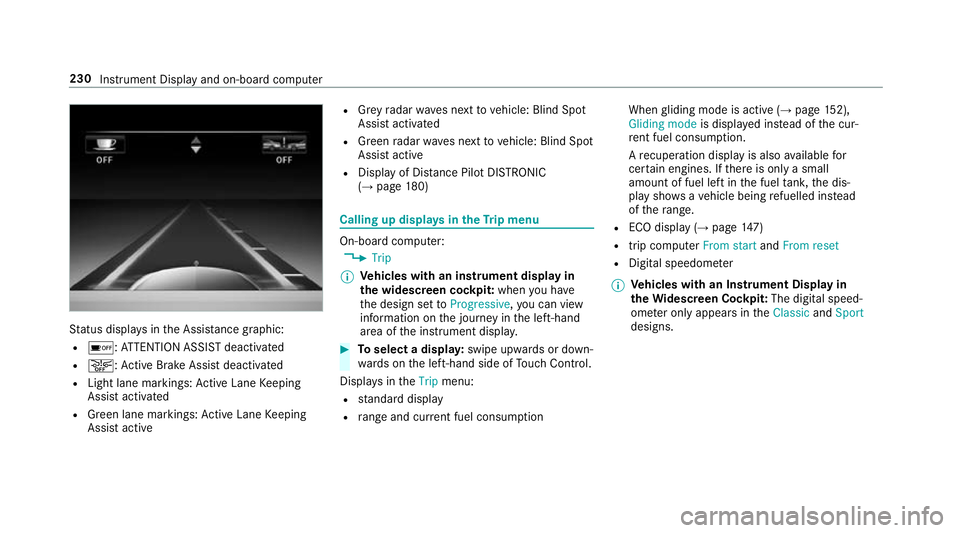
atus displa ysinthe Assis tance graphic:
R é: ATTENTION ASSIST deactivated
R æ: Active Brake Assi stdeactivated
R Light lane markings: Active Lane Keeping
Assist activated
R Green lane markings: Active Lane Keeping
Assist active R
Grey radar waves next tovehicle: Blind Spot
Assist activated
R Green radar waves next tovehicle: Blind Spot
Assist active
R Display of Dis tance Pilot DISTRONIC
(→ page 180) Calling up
displays in theTr ip menu On-board computer:
, Trip
% Ve
hicles with an instrument display in
th e widescreen cockpit: whenyou ha ve
th e design set toProgressive ,yo u can view
information on the journey in the left-hand
area of the instrument displa y. #
Toselect a displa y:swipe upwards or down‐
wa rds on the left-hand side of Touch Control.
Displa ysintheTrip menu:
R standard display
R range and cur rent fuel consu mption When
gliding mode is active (→ page152),
Gliding mode is displayed ins tead of the cur‐
re nt fuel consu mption.
A recuperation displ ayis also available for
cer tain engines. If there is only a small
amount of fuel left in the fuel tank, the dis‐
play sho wsave hicle being refuelled ins tead
of thera nge.
R ECO displ ay (→page 147)
R trip computer From startandFrom reset
R Digital speedome ter
% Ve
hicles with an Instrument Display in
th eWi descreen Co ckpit: The digital speed‐
ome ter only appears in theClassic andSport
designs. 230
Instrument Display and on-board computer
Page 256 of 521
Setting
the sensitivity
Multimedia sy stem:
, System .
w Input #
Select Touchpad sensitivity .#
Select Fast,Medium orSlow .
Handwriting recognition: swit ching there ad-
aloud function on/off
Multimedia sy stem:
, System .
õ Audio #
Switch Read out handwriting recognition on
O or off ª. Main functions
Calling up
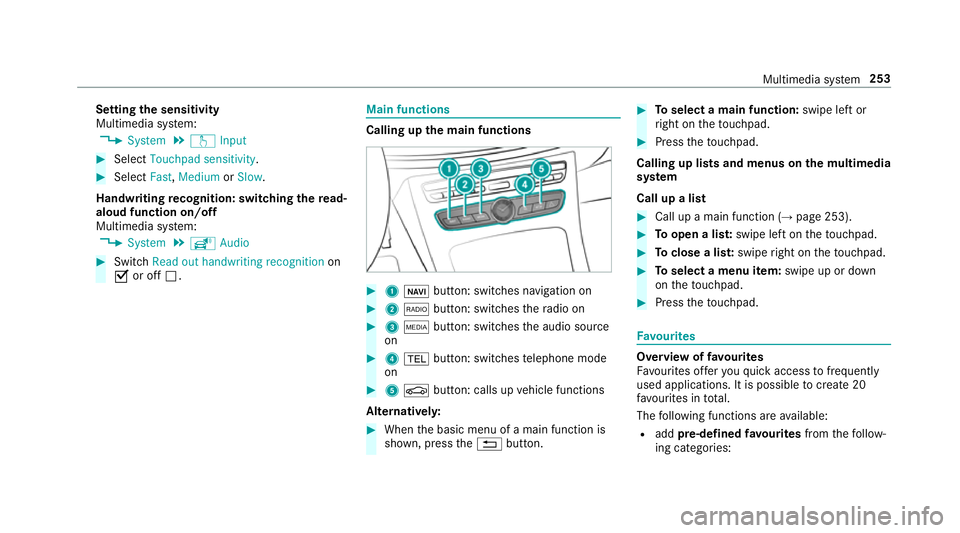
the main functions #
1 ß button: swit ches navigation on #
2 $ button: switches thera dio on #
3 Õ button: switches the audio source
on #
4 % button: switches telephone mode
on #
5 Ø button: calls up vehicle functions
Alternativel y: #
When the basic menu of a main function is
shown, press the% button. #
Toselect a main function: swipe left or
ri ght on theto uchpad. #
Press theto uchpad.
Calling up lists and menus on the multimedia
sy stem
Call up a list #
Call up a main function (→ page 253). #
Toopen a lis t:swipe left on theto uchpad. #
Toclose a lis t:swipe right on theto uchpad. #
Toselect a menu item: swipe up or down
on theto uchpad. #
Press theto uchpad. Favo
urites Overview of
favo urites
Fa vourites of feryo uqu ick access tofrequently
used applications. It is possible tocrea te20
fa vo urites in tota l.
The following functions are available:
R add pre-defined favo urites fromthefo llow‐
ing categories: Multimedia sy
stem 253
Page 273 of 521
#
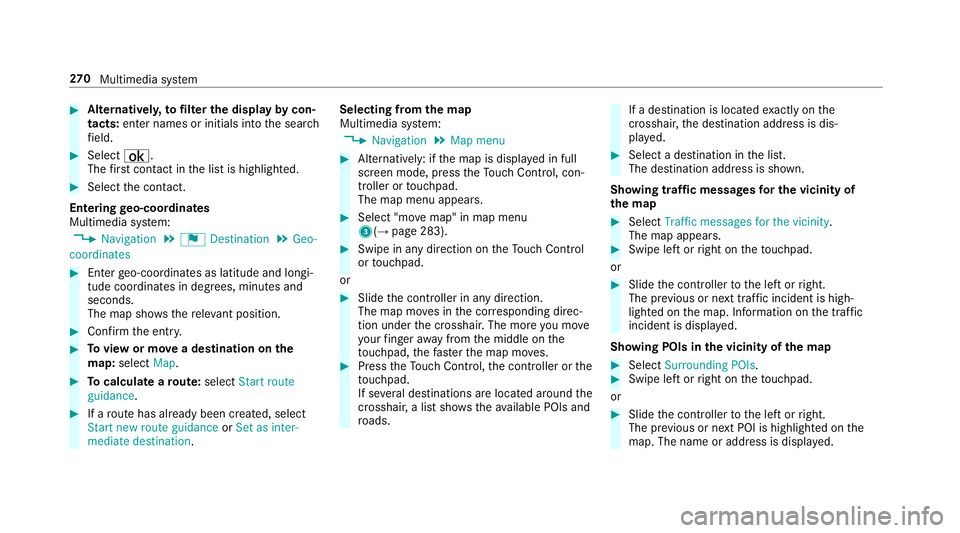
Alternativel y,to filter the display bycon‐
tacts: enter names or initials into the sear ch
fi eld. #
Select ¡.
The firs t contact in the list is highlighted. #
Select the conta ct.
En tering geo-coordina tes
Multimedia sy stem:
, Navigation .
¬ Destination .
Geo-
coordinates #
Ente rge o-coordinates as latitude and longi‐
tude coordinates in degrees, minutes and
seconds.
The map sho ws there leva nt position. #
Confirm the entry. #
Toview or mo vea destination on the
map: select Map. #
Tocalculate a route: select Start route
guidance. #
If a route has already been created, select
Start new route guidance orSet as inter-
mediate destination . Selecting from
the map
Multimedia sy stem:
, Navigation .
Map menu #
Alternatively: if the map is displa yed in full
screen mode, press theTo uch Control, con‐
troller or touchpad.
The map menu appears. #
Select "mo vemap" in map menu
3(→ page 283). #
Swipe in any direction on theTo uch Control
or touchpad.
or #
Slide the controller in any direction.
The map mo ves in the cor responding direc‐
tion under the crosshair. The more you mo ve
yo ur finger away from the middle on the
to uchpad, thefast erthe map mo ves. #
Press theTo uch Control, the controller or the
to uchpad.
If se veral destinations are located around the
crosshair, a li stsho wstheav ailable POIs and
ro ads. If a destination is located
exact ly on the
crosshair, the destination address is dis‐
pla yed. #
Select a destination in the list.
The destination address is shown.
Showing traf fic messages for the vicinity of
the map #
Select Traffic messages for the vicinity.
The map appears. #
Swipe le ftor right on theto uchpad.
or #
Slide the controller tothe left or right.
The pr evious or next traf fic incident is high‐
lighted on the map. Information on the tra ffic
incident is displa yed.
Showing POIs in the vicinity of the map #
Select Surrounding POIs . #
Swipe left or right on theto uchpad.
or #
Slide the controller tothe left or right.
The pr evious or next POI is highligh ted on the
map. The name or addre ss is displayed. 270
Multimedia sy stem
Page 278 of 521
Ro
ute guidance Note
s onroute guidance
Ro ute guidance begins once a route has been
calculated.
The road and traf fic ru les and regulations alw ays
ha ve priority over multimedia sy stem driving rec‐
ommendations.
Driving recommendations are:
R Navigation announcements
R Route guidance displ ays
R Lane recommendations
If yo u do not follow the navigation announce‐
ments or if you lea vethe calculated route, a new
ro ute is calculated automaticall y.
Driving recommendations may di ffer from the
actual road and traf fic conditions if:
R thero ute is diver ted
R the direction of a one- wayst re et has
ch anged
Fo rth is reason, you must alw ays obser veroad
and traf fic ru les and regulations during your
journe y. The
route may dif fer from the ideal route due to
th efo llowing:
R roadwor ks
R incomple tedigital map data
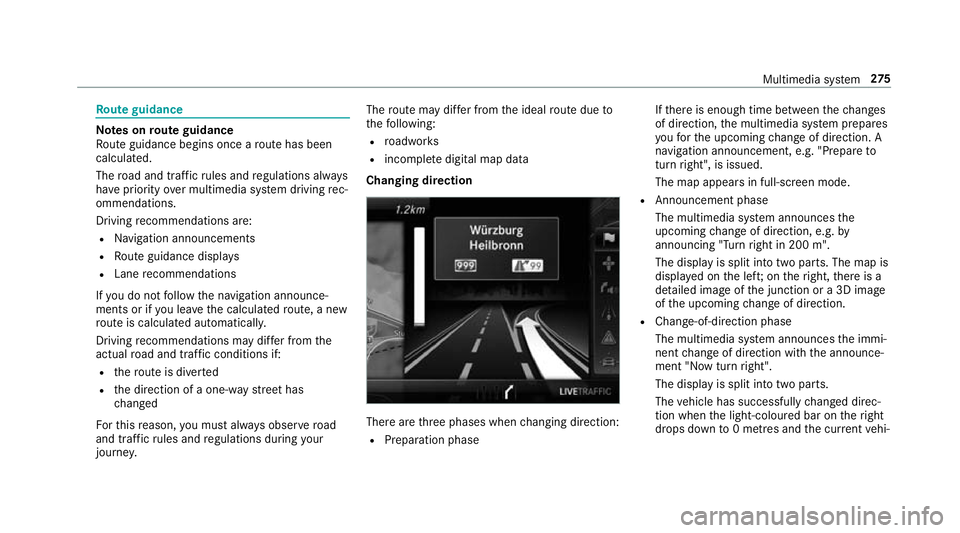
Changing direction There are
thre e phases when changing direction:
R Preparation phase If
th ere is enough time between thech anges
of direction, the multimedia sy stem prepares
yo ufo rth e upcoming change of direction. A
navigation announcement, e.g. "Prepare to
turn right", is issued.
The map appears in full-screen mode.
R Announcement phase
The multimedia sy stem announces the
upcoming change of direction, e.g. by
announcing "Turn right in 200 m".
The display is split into two parts. The map is
displa yed on the lef t;on theright, there is a
de tailed image of the junction or a 3D image
of the upcoming change of direction.
R Chan ge-of-direction phase
The multimedia sy stem announces the immi‐
nent change of direction with the announce‐
ment "Now turn right".
The display is split into two parts.
The vehicle has successfully changed direc‐
tion when the light-coloured bar on theright
drops down to0 metres and the cur rent vehi‐ Multimedia sy
stem 275
Page 279 of 521
cle position symbol has
reached the white
ch ange-of-direction point.
When thech ange of direction is comple te,
th e map appears in full-screen mode.
% Changes of direction are also shown in the
Instrument Displa y.
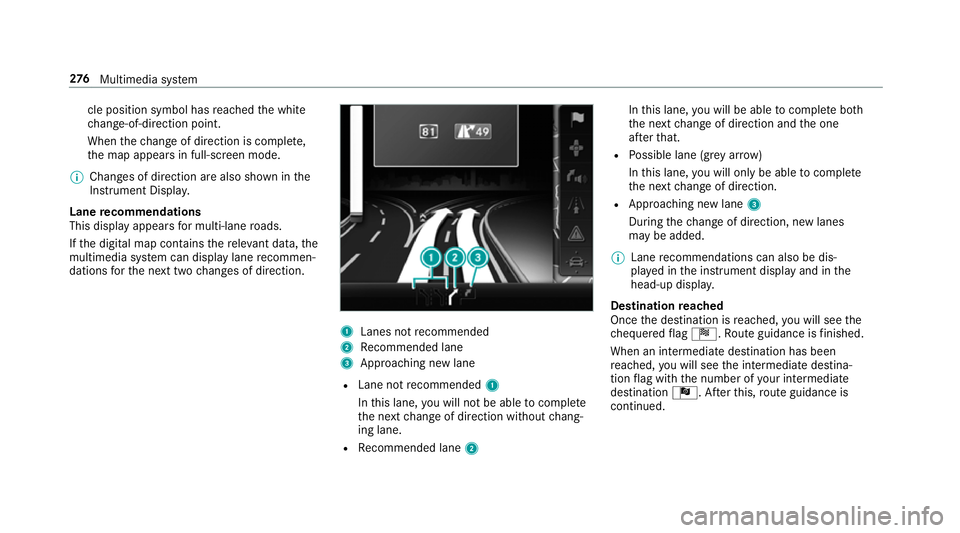
Lane recommendations
This display appears for multi-lane roads.
If th e digital map conta insthere leva nt da ta,the
multimedia sy stem can display lane recommen‐
dations forth e next two changes of direction. 1
Lanes not recommended
2 Recommended lane
3 Approa ching new lane
R Lane not recommended 1
In this lane, you will not be able tocompl ete
th e next change of direction without chang‐
ing lane.
R Recommended lane 2 In
this lane, you will be able tocompl ete bo th
th e next change of direction and the one
af te rth at.
R Possible lane (gr eyarro w)
In this lane, you will on ly beabletocompl ete
th e next change of direction.
R App roaching new lane 3
During thech ange of direction, new lanes
may be added.
% Lane recommendations can also be dis‐
pl ay ed in the instrument display and in the
head-up displa y.
Destination reached
Once the destination is reached, you will see the
ch equered flag Í. Route guidance is finished.
When an intermedia tedestination has been
re ached, you will see the intermediate destina‐
tion flag with the number of your intermediate
destination Î. Afterth is, route guidance is
continued. 276
Multimedia sy stem
Page 296 of 521
St
arting/ stopping mobile phone voice recog‐
nition
Re quirement:
R the mobile phone is connected tothe multi‐
media sy stem (→ page 290).
St arting mobile phone voice recognition #
Press and hold theó button on the multi‐
function steering wheel for more than one
second.
Yo u can use mobile phone voice recognition.
St opping mobile phone voice recognition #
Press the8 or~ button on the multi‐
function steering wheel. Calls
Te
lephone operation
Multimedia sy stem:
, Telephone .
ª Contacts
Making a call #
Ente r a number. #
Select Dial number.
The call is made.
Ac cepting a call #
Select Accept.
Re jecting a call #
Select Reject.
Ending a call #
Select =.
Ac tivating functions during a call #
Toshow all functions, navigate down.
The following functions are available during a
call:
R End call
R Make additional call
R Keyboard (showtosend DTMF tones)
R Microphone off orMicrophone on
R Private Mode (an activecall in hands-free
mode is transfer redov er tothete lephone) Conducting calls with se
veral participants
Re quirements:
R there is an active call (→ page 293)
R ano ther call is being made
Switching between calls #
Select call #.
The selected call is active. The other call is
on hold.
Ac tivating or ending a call on hold #
Select Continue call orEnd call.
Conducting a conference call #
Select Create conference call inthete le‐
phone menu.
The new participant is included in the confe r‐
ence call.
Ending an active call #
Select =.
% On some mobile phones, the call on hold is
activated as soon as the active call is ended. Multimedia sy
stem 293
Page 326 of 521
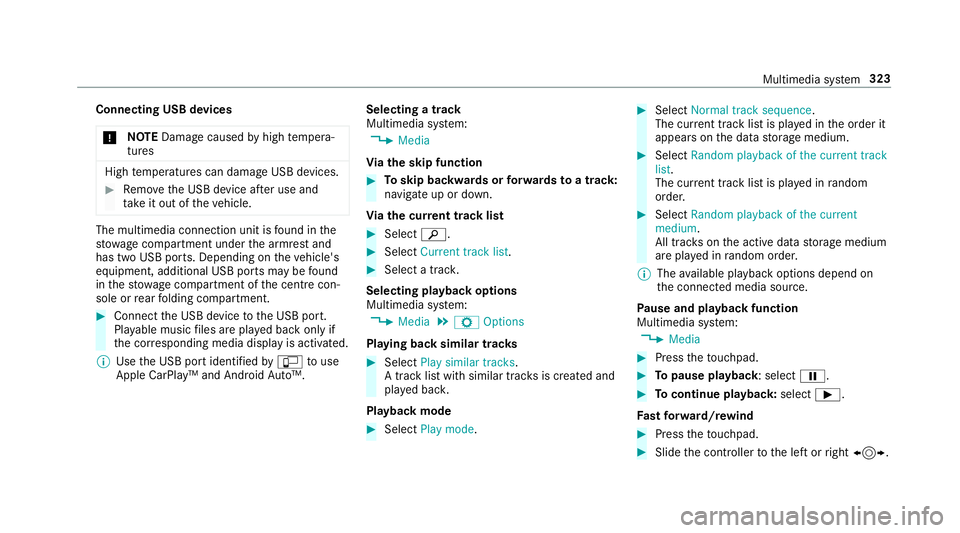
Connecting USB devices
* NO
TEDama gecaused byhigh temp era‐
tures High
temp eratures can damage USB devices. #
Remo vethe USB device af ter use and
ta ke it out of theve hicle. The multimedia connection unit is
found in the
stow age compartment under the armrest and
has two USB ports. Depending on theve hicle's
equipment, additional USB ports may be found
in thestow age compartment of the cent recon‐
sole or rear folding compartment. #
Connect the USB device tothe USB port.
Pla yable music files are pla yed back only if
th e cor responding media display is activated.
% Use the USB port identified byç touse
Apple CarPlay™ and Android Auto™. Selecting a track
Multimedia sy
stem:
, Media
Vi ath e skip function #
Toskip backwards or forw ards toa track:
navigate up or down.
Vi ath e cur rent track list #
Select è. #
Select Current track list. #
Select a tra ck.
Selecting playback options
Multimedia sy stem:
, Media .
Z Options
Playing back similar trac ks #
Select Play similar tracks.
A track li stwith similar trac ksis created and
pla yed bac k.
Playback mode #
Select Play mode. #
Select Normal track sequence.
The cur rent track li stis pla yed in the order it
appears on the data storage medium. #
Select Random playback of the current track
list.
The cur rent track li stis pla yed in random
orde r. #
Select Random playback of the current
medium.
All trac kson the active data storage medium
are pla yed in random orde r.
% The available playback options depend on
th e connected media source.
Pa use and playback function
Multimedia sy stem:
, Media #
Press theto uchpad. #
Topause playback: select Ë. #
Tocontinue playba ck:select Ì.
Fa st forw ard/r ewind #
Press theto uchpad. #
Slide the controller tothe left or right 1. Multimedia sy
stem 323
Page 341 of 521
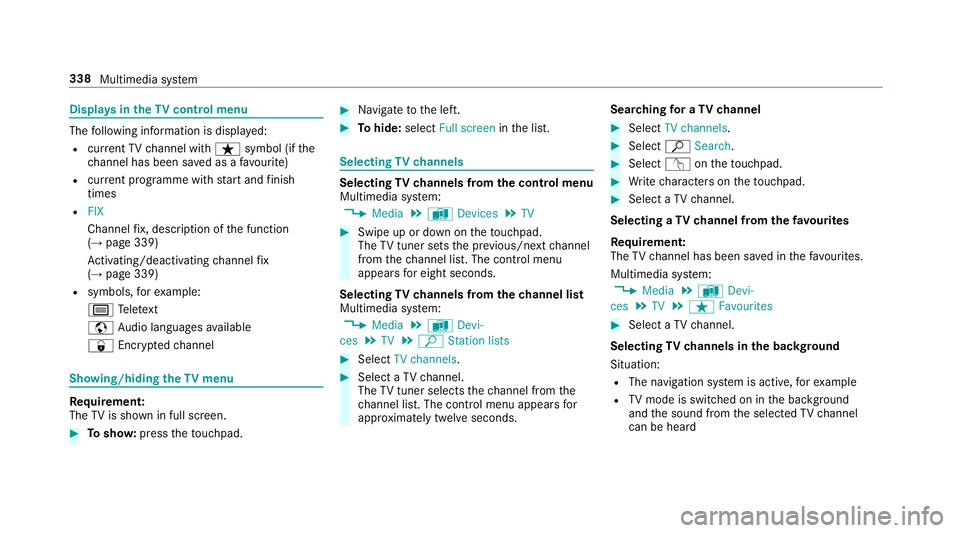
Displa
ysintheTV cont rol menu The
following information is displa yed:
R current TV channel with ßsymbol (if the
ch annel has been sa ved as a favo urite)
R current programme wi thstart and finish
times
R FIX
Channel fix, description of the function
(→ page 339)
Ac tivating/deactivating channel fix
( → page 339)
R symbols, forex ample:
p Telete xt
z Audio languages available
r Encryp tedch annel Showing/hiding
theTV menu Requ
irement:
The TVis shown in full screen. #
Tosho w:press theto uchpad. #
Navigate tothe left. #
Tohide: select Full screen inthe list. Selecting
TVchannels Selecting
TVchannels from the control menu
Multimedia sy stem:
, Media .
à Devices .
TV #
Swipe up or down on theto uchpad.
The TVtuner sets the pr evious/n extch annel
from thech annel list. The control menu
appears for eight seconds.
Selecting TVchannels from thech annel list
Multimedia sy stem:
, Media .
à Devi-
ces .
TV .
ª Station lists #
Select TV channels. #
Select a TVchannel.
The TVtuner selects thech annel from the
ch annel list. The control menu appears for
appr oximately twelve seconds. Sear
ching for a TVchannel #
Select TV channels . #
Select ªSearch . #
Select vontheto uchpad. #
Write characters on theto uchpad. #
Select a TVchannel.
Selecting a TVchannel from thefa vo urites
Re quirement:
The TVchannel has been sa ved in thefa vo urites.
Multimedia sy stem:
, Media .
à Devi-
ces .
TV .
ß Favourites #
Select a TVchannel.
Selecting TVchannels in the bac kground
Situation: R The navigation sy stem is active, forex ample
R TVmode is switched on in the bac kground
and the sound from the selected TVchannel
can be heard 338
Multimedia sy stem