display MERCEDES-BENZ E-CLASS CABRIOLET 2017 Repair Manual
[x] Cancel search | Manufacturer: MERCEDES-BENZ, Model Year: 2017, Model line: E-CLASS CABRIOLET, Model: MERCEDES-BENZ E-CLASS CABRIOLET 2017Pages: 521, PDF Size: 10.64 MB
Page 236 of 521
#
Press the left-hand side of Touch Control.
Ro ute guidance is star ted.
If ro ute guidance has already been activated,
a re qu est will appear asking whe ther you
wish toend the cur rent route guidance. #
Select Yes. #
Press the left-hand side of Touch Control.
Ro ute guidance is star ted. Selecting
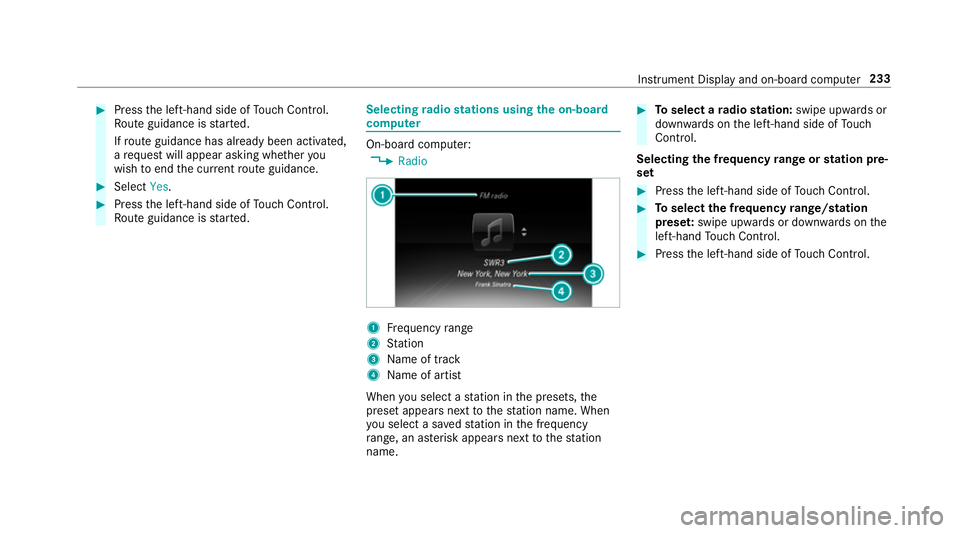
radio stations using the on-boa rd
compu ter On-board computer:
, Radio 1
Frequency range
2 Station
3 Name of track
4 Name of artist
When you select a station in the presets, the
preset appears next tothest ation name. When
yo u select a sa vedstation in the frequency
ra nge, an as terisk appears nexttothest ation
name. #
Toselect a radio station: swipe upwards or
down wards on the left-hand side of Touch
Control.
Selecting the frequency range or station pre‐
set #
Press the left-hand side of Touch Control. #
Toselect the frequency range/station
prese t:swipe upwards or down wards on the
left-hand Touch Control. #
Press the left-hand side of Touch Control. In
stru ment Display and on-board computer 233
Page 237 of 521
Playing back media using
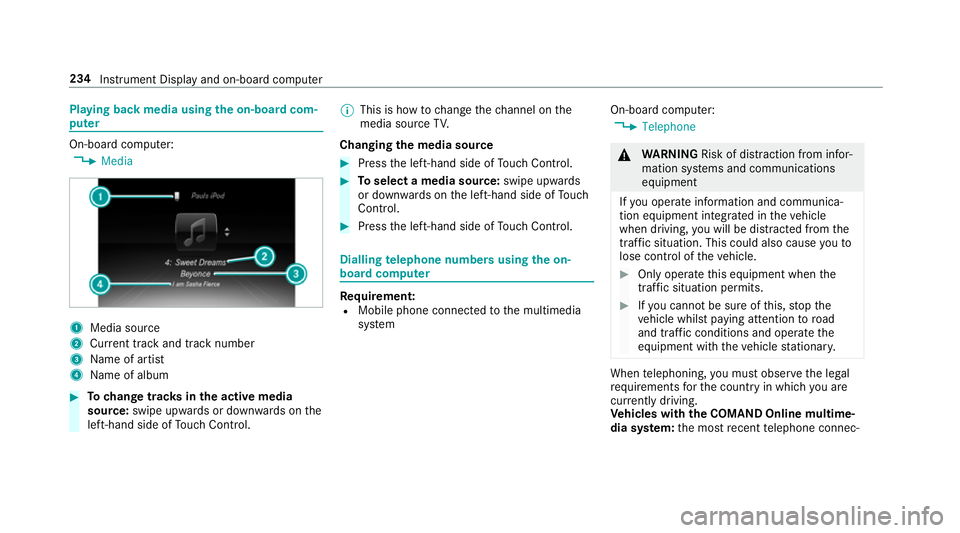
the on-boa rdcom‐
pu ter On-board computer:
, Media 1
Media source
2 Current track and track number
3 Name of artist
4 Name of album #
Tochange trac ksinthe active media
source: swipe upwards or down wards on the
left-hand side of Touch Control. %
This is how tochange thech annel on the
media source TV.
Changing the media source #
Press the left-hand side of Touch Control. #
Toselect a media source: swipe upwards
or down wards on the left-hand side of Touch
Control. #
Press the left-hand side of Touch Control. Dialling
telephone numbers using the on-
board compu ter Re
quirement:
R Mobile phone connec tedto the multimedia
sy stem On-board computer:
, Telephone &
WARNING Risk of di stra ction from infor‐
mation sy stems and communications
equipment
If yo u operate information and communica‐
tion equipment integrated in theve hicle
when driving, you will be distracted from the
traf fic situation. This could also cause youto
lose control of theve hicle. #
Only operate this equipment when the
traf fic situation permits. #
Ifyo u cannot be sure of this, stop the
ve hicle whilst paying attention toroad
and traf fic conditions and ope rate the
equipment with theve hicle stationar y. When
telephoning, you must obse rveth e legal
re qu irements forth e count ryin which you are
cur rently driving.
Ve hicles with the COMAND Online multime‐
dia sy stem: the most recent telephone connec‐ 234
Instrument Display and on-board computer
Page 238 of 521
tions (dialled,
recei ved and missed calls) are dis‐
pla yed in theTelephone menu. #
Toselect thete lephone number: swipe
upwards or down wards on the left-hand side
of Touch Control. #
Press the left-hand side of Touch Control.
If th ere is only one telephone number
sa ve dto an entr y:thete lephone number is
selec ted. #
Ifth ere are multiple telephone numbers
sa ve dto an entr y:swipe upwards or down‐
wa rds on the left-hand side of Touch Control
to select the desired telephone numbe r. #
Press the left-hand side of Touch Control.
The telephone number is dialled.
The following displa ysmay appear ins tead of the
te lephone numbers dialled:
R Please wait... :th e application is starting.
When a Blue tooth®
connection tothe mobile
phone is not es tablished, the menu for
authorising and connecting a mobile phone is
displa yed in the multimedia sy stem
(→ page 290). R
Updating data...: the call list is being upda‐
te d.
R Importing contacts... :th e conta cts from the
mobile phone or from a storage medium are
being impor ted.
Ac cepting/rejecting a call
When youre cei vea call, a message appears in
th e Head-up-Display Incoming call. #
Swipe upwards or down wards on the left-
hand side of Touch Control and select 6
(Accept) or ~(Reject). #
Press the left-hand side of Touch Control.
The call may be accep ted/rejec ted using the
6 or~ buttons on thesteering wheel. Setting display content
On-board computer:
, Content
The following display content can be selec‐
te d in the ClassicandSport designs:
R Revs: rev counter R
Power meter: po wer me ter
R Navigation
R ECO display
R Consumption #
Toselect display content: swipe upwards
or down wards on the left-hand side of Touch
Control. #
Press the left-hand side of Touch Control.
The selected displ aycontent appea rson the
ri ght-hand side of the Instrument Displa y.
% This function is only available forve hicles
with a Widescreen Cockpit.
The following display content can be selec‐
te d in the Progressive design:
R Right display : selects content forth eright-
hand display content
R Assist. graphic
R Power meter: po wer me ter
R Date
R Navigation
R ECO display Instrument Displ
ayand on-board computer 235
Page 239 of 521
R
Consumption #
Toselect display content: swipe upwards
or down wards on the left-hand side of Touch
Control. #
Press the left-hand side of Touch Control.
The selected displ aycontent appea rson the
left-hand side of the Instrument Displa y.#
Toselect theright-hand display content:
select Right display and pressthe left-hand
side of Touch Control. #
Swipe upwards or down wards on the left-
hand side of Touch Control toselect display
content. #
Press the left-hand side of Touch Control.
The selected displ aycontent appea rson the
ri ght-hand side of the Instrument Displa y.
% This function is only available forve hicles
with a Widescreen Cockpit. Ad
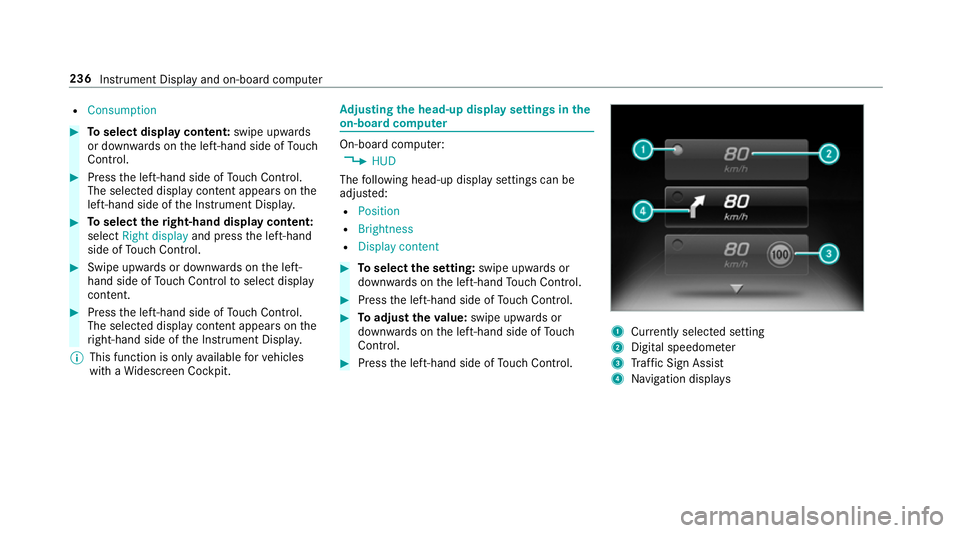
justing the head-up display settings in the
on-board co mputer On-board computer:
, HUD
The following head-up display settings can be
adjus ted:
R Position
R Brightness
R Display content #
Toselect the setting: swipe upwards or
down wards on the left-hand Touch Control. #
Press the left-hand side of Touch Control. #
Toadjust theva lue: swipe upwards or
down wards on the left-hand side of Touch
Control. #
Press the left-hand side of Touch Control. 1
Currently selected setting
2 Digital speedome ter
3 Traf fic Sign Assi st
4 Navigation displa ys236
Instrument Display and on-board computer
Page 240 of 521
Setting
the design On-board computer
, Design
% This function is only available forve hicles
with a widescreen cockpit.
The following designs can be selec ted:
R Sport
R Classic
R Progressive #
Toselect a design: swipe upwards or down‐
wa rds on the left-hand Touch Control. #
Press the left-hand Touch Control.
The instrument displ ayis shown in the selec‐
te d design. Head-up Display
Fu
nction of the head-up display The head-up display projects information from
th e navigation sy stem and the driver assis tance
sy stem abo vethe cockpit into the driver's field
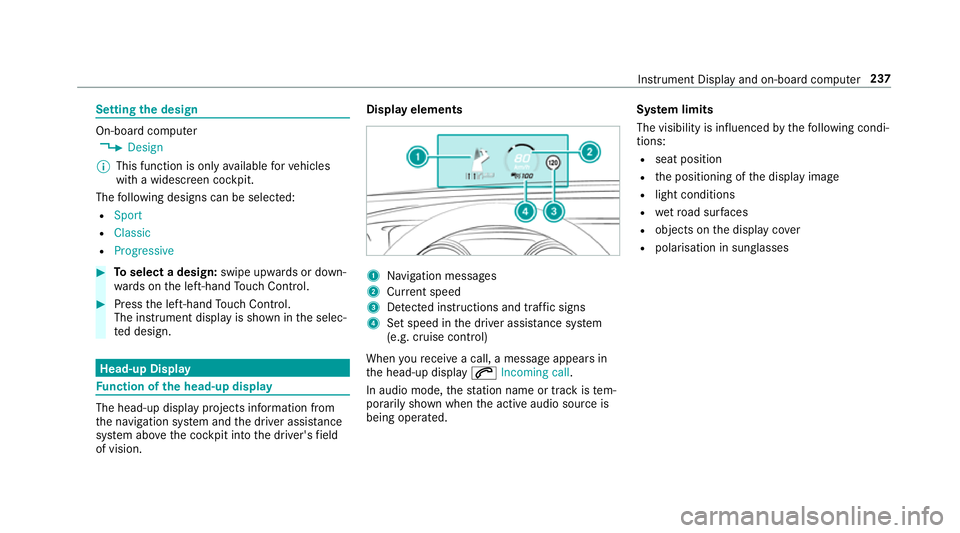
of vision. Display elements
1
Navigation messa ges
2 Current speed
3 Detected instructions and traf fic signs
4 Set speed in the driver assis tance sy stem
(e.g. cruise control)
When youre cei vea call, a message appears in
th e head-up display 6Incoming call.
In audio mode, thest ation name or track is tem‐
porarily shown when the active audio source is
being operated. Sy
stem limits
The visibility is influenced bythefo llowing condi‐
tions:
R seat position
R the positioning of the display image
R light conditions
R wetro ad sur faces
R objects on the display co ver
R polarisation in sunglasses Instrument Display and on-board computer
237
Page 241 of 521
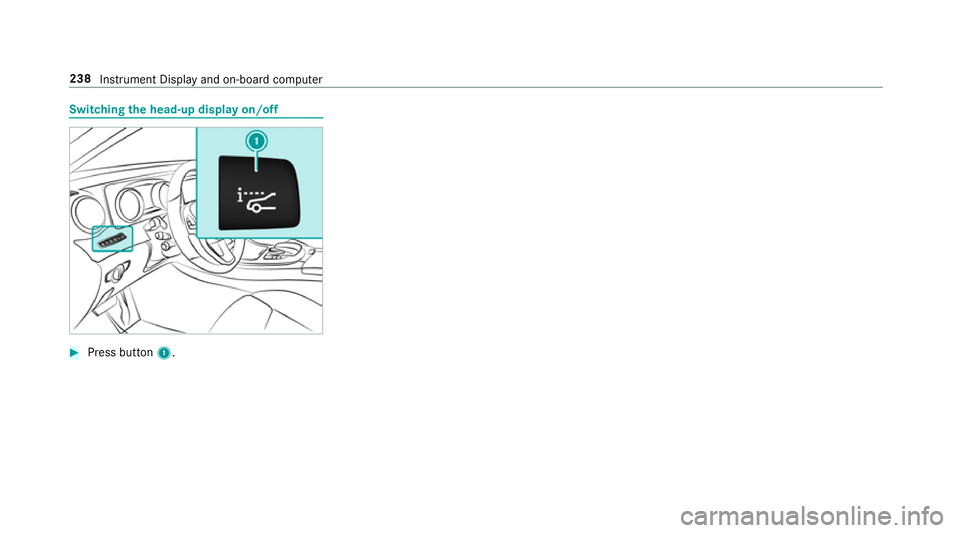
Switching
the head-up display on/off #
Press button 1. 238
Instru ment Display and on-board computer
Page 243 of 521
Vo
ice prom pting #
Tostart or continue a dialogue: pressthe
ó button on the multifunction steering
wheel.
Yo u can say a voice command af ter an
acou stic signal. #
Tocor rect an ent ry:say theCorrection
vo ice command. #
Toselect an entry from the selection lis t:
say the line number or the conte nts. #
Tobrows eth e selection lis t:say theCon-
tinue orBack voice command. #
Tointer rupt the dialogue: saythePause
vo ice command. #
Tocancel the dialogue: saytheCancel
vo ice command or press the8 button on
th e multifunction steering wheel. Operable functions
Yo
u can use the LINGU ATRO NIC voice control
sy stem tooperate thefo llowing equipment
re ga rdless of thefe atures: R
Telephone
R Text messa ges
R Navigation
R Address book
R Radio
R Audio (memory card, Media Inter face, USB
and Blu etoo th®
audio)
R TV
R Vehicle Ty
pes of voice commands A distinction is made between
thefo llowing
vo ice commands:
R Global voice commands can be said at any
time and rega rdless of the cur rent applica‐
tion, e.g. theNavigate to, CallorText mes-
sage to voice commands.
R Application-specific voice commands are
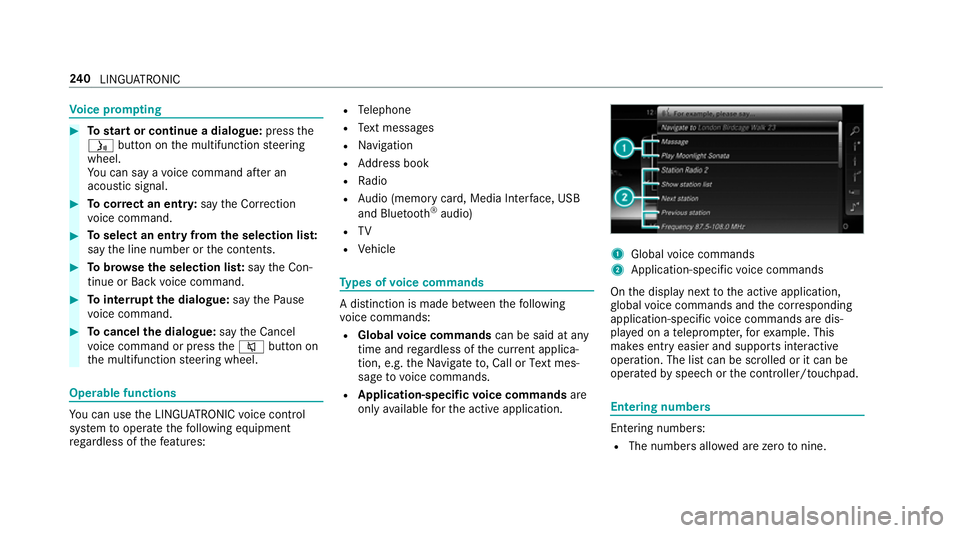
only available forth e active application. 1
Global voice commands
2 Application-specific voice commands
On the display next tothe active application,
gl obal voice commands and the cor responding
application-specific voice commands are dis‐
pla yed on a teleprom pter,fo rex ample. This
makes ent ryeasier and supports interactive
operation. The list can be scrolled or it can be
operated byspeech or the controller/touchpad. Entering numbers
Ente
ring numbe rs:
R The numbers allo wed are zerotonine . 240
LINGU ATRO NIC
Page 245 of 521
Vo
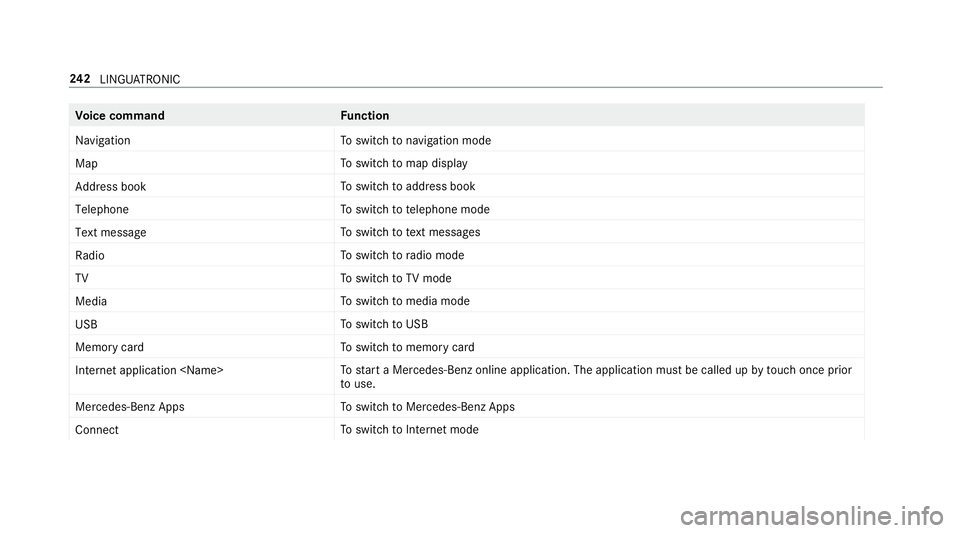
ice command Function
Navigation To
switch tonavigation mode
Map To
switch tomap display
Address book To
switch toaddress book
Telephone To
switch totelephone mode
Text message To
switch totext messa ges
Radio To
switch toradio mode
TV To
switch toTV mode
Media To
switch tomedia mode
USB To
switch toUSB
Memory card To
switch tomemory card
Internet application
start a Mercedes-Benz online application. The application must be called up bytouch once prior
to use.
Mercedes-Benz Apps To
switch toMercedes-Benz Apps
Connect To
switch toInternet mode 242
LINGU ATRO NIC
Page 248 of 521
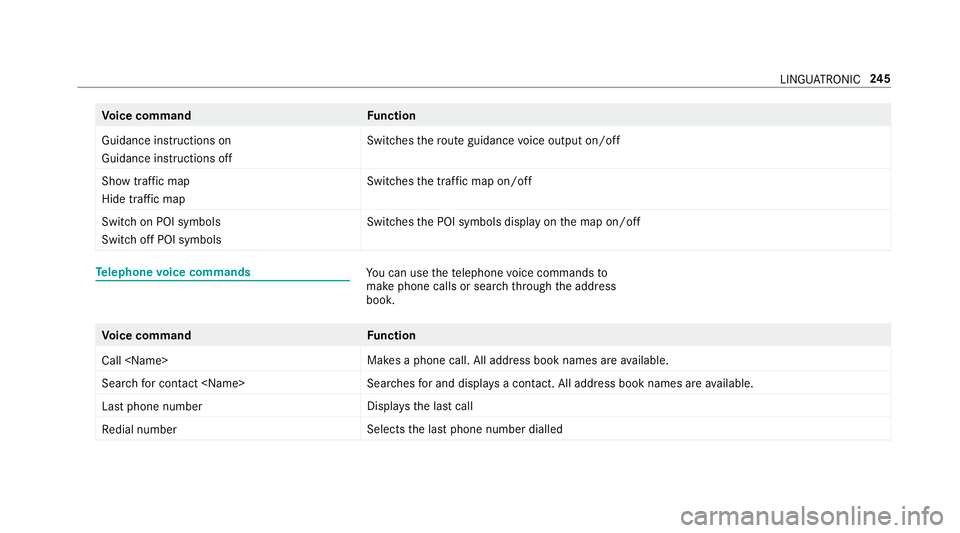
Vo
ice command Function
Guidance instructions on
Guidance instructions off Switches
thero ute guidance voice output on/off
Show traffic map
Hide traffic map Swit
ches the tra ffic map on/off
Switch on POI symbols
Switch off POI symbols Swit
ches the POI symbols display on the map on/off Te
lephone voice commands Yo
u can use thete lephone voice commands to
make phone calls or sear chthro ugh the address
book. Vo
ice command Function
Call
available.
Search for contact
ches for and displa ysa con tact. All address book names are available.
Last phone number Displa
ys the last call
Redial number Selects
the last phone number dialled LINGU
ATRO NIC 245
Page 249 of 521
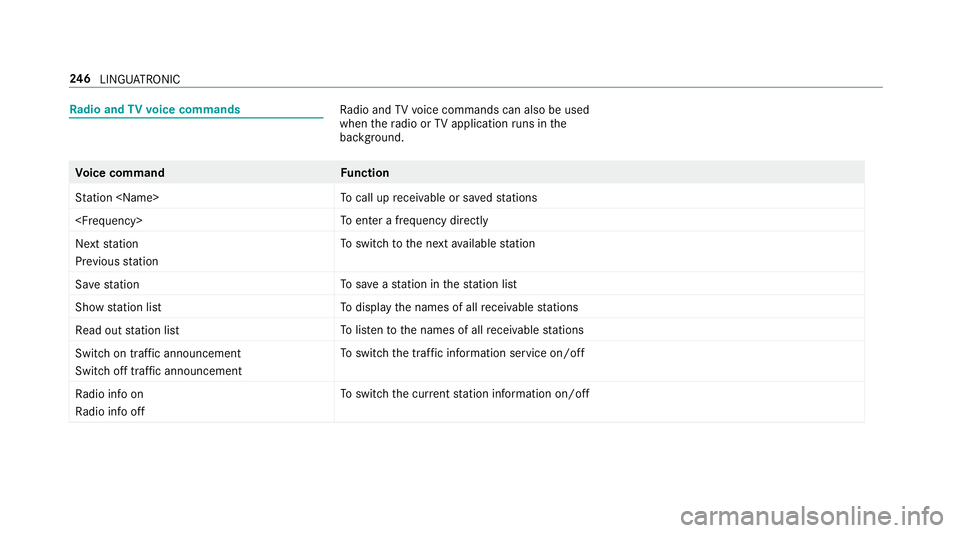
Ra
dio and TVvoice commands Ra
dio and TVvoice commands can also be used
when thera dio or TVapplication runs in the
bac kground. Vo
ice command Function
Station
call up recei vable or sa vedstations
enter a frequency directly
Next station
Previous station To
switch tothe next available station
Save station To
save ast ation in thest ation list
Show station list To
display the names of all recei vable stations
Read out station list To
listento the names of all recei vable stations
Switch on traffic announcement
Switch off traffic announcement To
switch the traf fic information service on/off
Radio info on
Radio info off To
switch the cur rent station information on/off 246
LINGU ATRO NIC