ad blue MERCEDES-BENZ E-CLASS CABRIOLET 2017 Owners Manual
[x] Cancel search | Manufacturer: MERCEDES-BENZ, Model Year: 2017, Model line: E-CLASS CABRIOLET, Model: MERCEDES-BENZ E-CLASS CABRIOLET 2017Pages: 521, PDF Size: 10.64 MB
Page 138 of 521
*
NO
TEBattery discharge caused bysta‐
tionary heater or stationary ventilation
operation Ope
rating thest ationary heater or stationary
ve ntilation drains the batter y. #
After heating or ventilating theve hicle
twice, drive for a longer period of time. Re
quirement:
R The fuel tank is filled toat least reser vefuel
le ve l. #
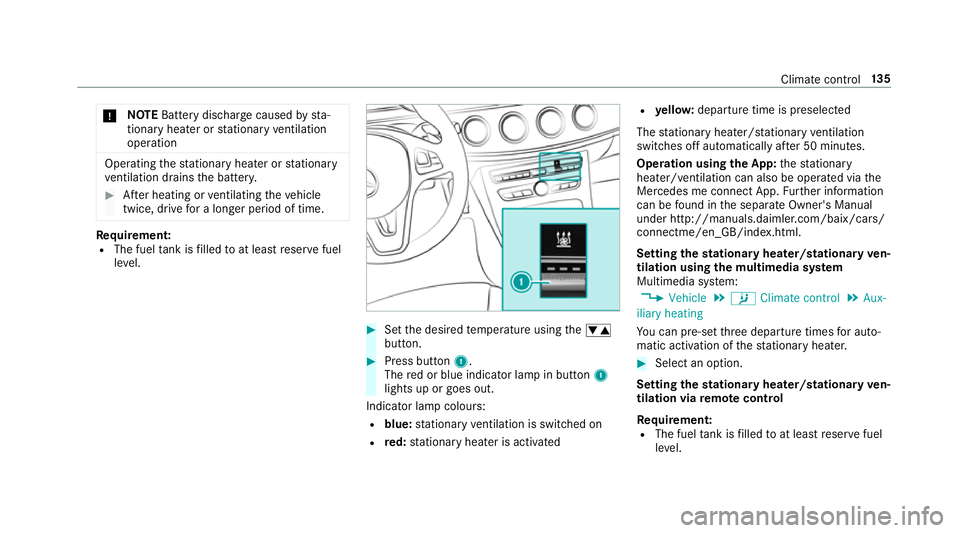
Set the desired temp erature using thew
button. #
Press button 1.
The red or blue indicator lamp in button 1
lights up or goes out.
Indicator lamp colours: R blue: stationary ventilation is switched on
R red: stationary heater is activated R
yello w: departure time is preselected
The stationary heater/ stationary ventilation
switches off au tomatically af ter 50 minutes.
Operation using the App: thest ationary
heater/ ventilation can also be operated via the
Mercedes me connect App. Further information
can be found in the separate Owner's Manual
under http://manuals.daimler.com/baix/cars/
connectme/en_GB/index.html.
Setting thest ationary heater/stationary ven‐
tilation using the multimedia sy stem
Multimedia sy stem:
, Vehicle .
b Climate control .
Aux-
iliary heating
Yo u can pre-set thre e departure times for auto‐
matic activation of thest ationary heater. #
Select an option.
Setting thest ationary heater/stationary ven‐
tilation via remo tecont rol
Re quirement:
R The fuel tank is filled toat least reser vefuel
le ve l. Climate control
13 5
Page 159 of 521
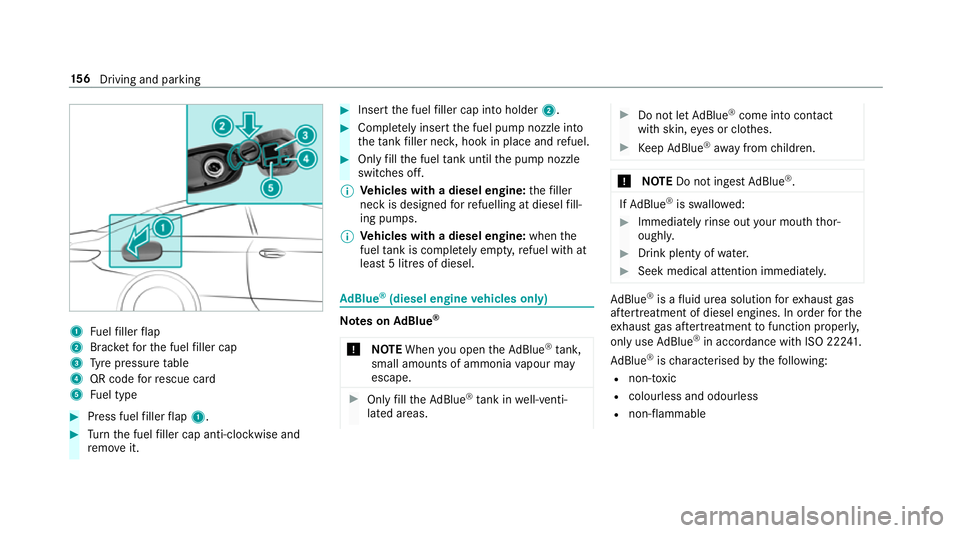
1
Fuelfiller flap
2 Brac ketfo rth e fuel filler cap
3 Tyre pressure table
4 QR code forre scue card
5 Fuel type #
Press fuel filler flap 1. #
Turn the fuel filler cap anti-clockwise and
re mo veit. #
Insert the fuel filler cap into holder 2. #
Comple tely inse rtthe fuel pump nozzle into
th eta nk filler nec k,hook in place and refuel. #
Only fill th e fuel tank until the pump nozzle
switches off.
% Vehicles with a diesel engine: thefiller
neck is designed forre fuelling at diesel fill‐
ing pumps.
% Vehicles with a diesel engine: whenthe
fuel tank is compl etely em pty, refuel with at
lea st5 litres of diesel. Ad
Blue ®
(diesel engine vehicles only) Note
s onAdBlue ®
* NOTEWhen you open theAd Blue ®
tank,
small amounts of ammonia vapour may
escape. #
Only fill th eAd Blue ®
tank in well-venti‐
lated areas. #
Do not let AdBlue ®
come into contact
wi th skin, eyes or clo thes. #
Keep AdBlue ®
aw ay from children. *
NOTEDo not ingest AdBlue ®
. If
Ad Blue ®
is swallo wed: #
Immediately rinse out your mouth thor‐
oughl y. #
Drink plenty of water. #
Seek medical attention immediately. Ad
Blue ®
is a fluid urea solution forex haust gas
af te rtre atment of diesel engines. In order forthe
ex haust gas af tertre atment tofunction properly,
only use AdBlue ®
in accordance wi thISO 222 41 .
Ad Blue ®
is ch aracterised bythefo llowing:
R non-t oxic
R colourless and odourless
R non-flammable 15 6
Driving and pa rking
Page 160 of 521
Ad
Blue ®
av ailability:
R AdBlue ®
may be topped up byfast service at
a qu alified specialist workshop, e.g. a
Mercedes-Benz Service Centre.
R AdBlue ®
is available at many filling stations
from AdBlue ®
filling pumps.
R Alternativel y,Ad Blue ®
is available at qualified
specialist workshops, e.g. Mercedes-Benz
Service Centres, and at many filling stations
in Ad Blue ®
re fill canis ters or AdBlue ®
re fill
bottles.
% Ensure the connection between there fill
con tainer and vehicle filler neck does not
drip.
To pping up AdBlue ®
* NOTEEngine dama gedue toAd Blue ®
in
th e fuel #
AdBlue ®
must not be used tofill the
fuel tank. #
Only use AdBlue ®
to fill th eAd Blue ®
ta nk. #
Do not overfill theAd Blue ®
tank. *
NO
TEContamination of theve hicle inte‐
ri or due toAd Blue ®
lea kage #
Afterto pping up, carefully close the
Ad Blue ®
re fill con tainer. #
Avoid car rying AdBlue ®
re fill con tainers
permanently in theve hicle. Re
quirements:
R The vehicle must be unloc ked.
The following announcements appear in order in
th e multifunction display when theAd Blue ®
tank
requ iresrefilling:
R Refill AdBlue See Owner's Manual . The
Ad Blue ®
re ser voir is down tothere ser ve
le ve l.
R Refill AdBlue No start in XXX km .Yo u can still
drive theve hicle overth e dis tance shown.
To p up AdBlue ®
as soon as possible. R
Refill AdBlue Start not possible. The vehicle
can no longer be star ted.
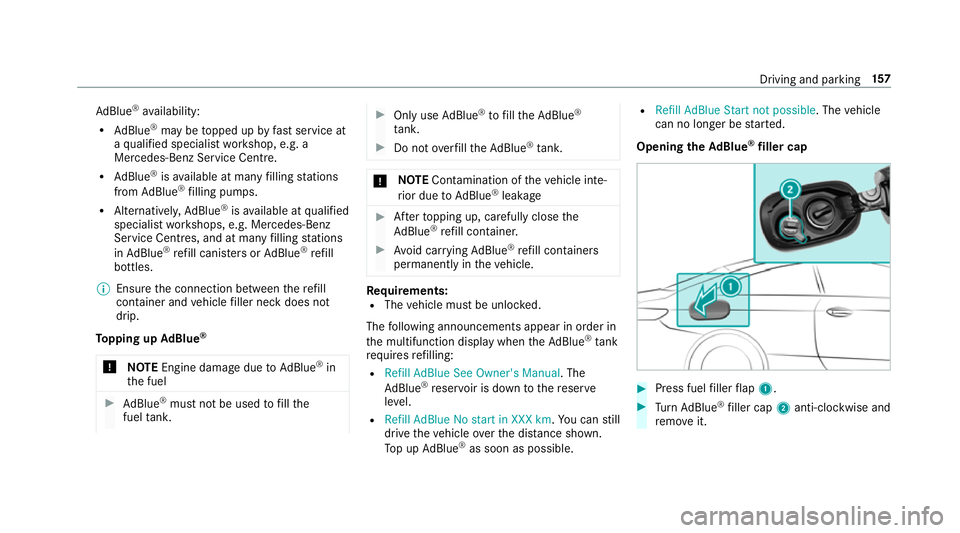
Opening theAd Blue ®
filler cap #
Press fuel filler flap 1. #
Turn AdBlue ®
filler cap 2anti-clockwise and
re mo veit. Driving and parking
157
Page 161 of 521
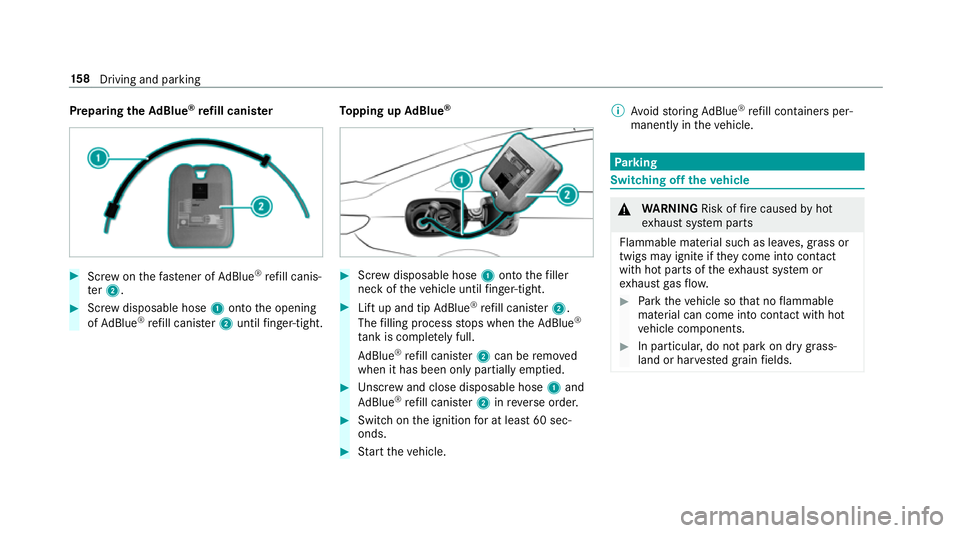
Preparing
theAd Blue ®
re fill canis ter #
Screw onthefast ener of AdBlue ®
re fill canis‐
te r2. #
Screw disposable hose 1onto the opening
of Ad Blue ®
re fill canis ter2 until finger-tight. To
pping up AdBlue ® #
Screw disposable hose 1onto thefiller
neck of theve hicle until finger-tight. #
Lift up and tip AdBlue ®
re fill canis ter2.
The filling process stops when theAd Blue ®
ta nk is compl etely full.
Ad Blue ®
re fill canis ter2 can be remo ved
when it has been only partially em ptied. #
Unscr ew and close disposable hose 1and
Ad Blue ®
re fill canis ter2 inreve rse order. #
Switch on the ignition for at least 60 sec‐
onds. #
Start theve hicle. %
Avoid storing AdBlue ®
re fill con tainers per‐
manently in theve hicle. Pa
rking Switching off
theve hicle &
WARNING Risk offire caused byhot
ex haust sy stem parts
Flammable material such as lea ves, grass or
twigs may ignite if they come into contact
wi th hot parts of theex haust sy stem or
ex haust gasflow. #
Park theve hicle so that no flammable
material can come into con tact wi thhot
ve hicle components. #
In particular, do not park on dry grass‐
land or har vested grain fields. 15 8
Driving and pa rking
Page 232 of 521
Ad
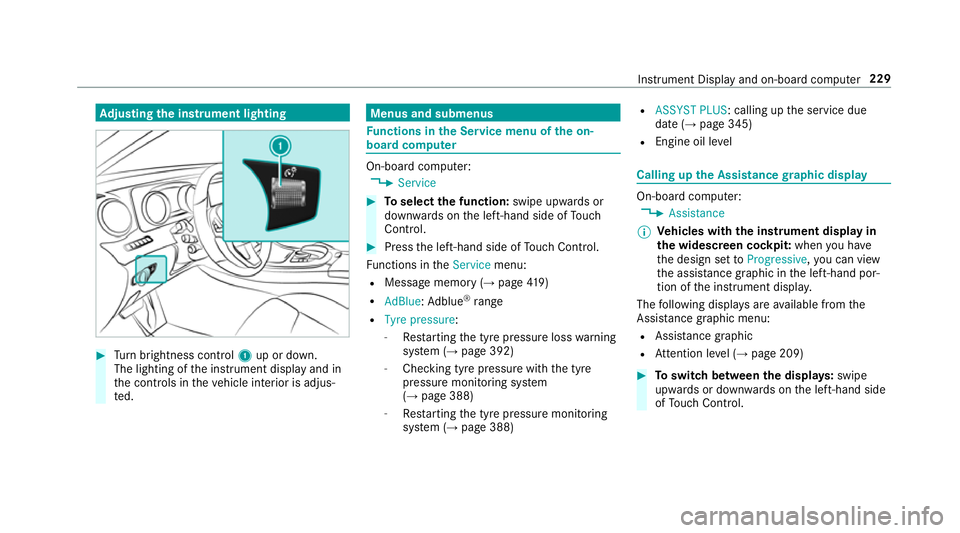
justing the in stru ment lighting #
Turn brightness control 1up or down.
The lighting of the instrument display and in
th e controls in theve hicle interior is adjus‐
te d. Menus and submenus
Fu
nctions in the Service menu of the on-
board compu ter On-board computer:
, Service #
Toselect the function: swipe upwards or
down wards on the left-hand side of Touch
Control. #
Press the left-hand side of Touch Control.
Fu nctions in theService menu:
R Message memory (→ page419)
R AdBlue: Adblue ®
ra nge
R Tyre pressure:
-Restarting the tyre pressure loss warning
sy stem (→ page 392)
- Checking tyre pressure with the tyre
pressure monitoring sy stem
(→ page 388)
- Restarting the tyre pressure monitoring
sy stem (→ page 388) R
ASSYST PLUS: calling up the service due
date (→ page 345)
R Engine oil le vel Calling up
the Assistance graphic display On-board computer:
, Assistance
% Ve
hicles with the instrument display in
th e widescreen cockpit: whenyou ha ve
th e design set toProgressive ,yo u can view
th e assis tance graphic in the left-hand por‐
tion of the instrument displa y.
The following displa ysare available from the
Assi stance graphic menu:
R Assis tance graphic
R Attention le vel (→ page 209) #
Toswitch between the displa ys:swipe
up wa rds or down wards on the left-hand side
of Touch Control. In
stru ment Display and on-board computer 229
Page 238 of 521
tions (dialled,
recei ved and missed calls) are dis‐
pla yed in theTelephone menu. #
Toselect thete lephone number: swipe
upwards or down wards on the left-hand side
of Touch Control. #
Press the left-hand side of Touch Control.
If th ere is only one telephone number
sa ve dto an entr y:thete lephone number is
selec ted. #
Ifth ere are multiple telephone numbers
sa ve dto an entr y:swipe upwards or down‐
wa rds on the left-hand side of Touch Control
to select the desired telephone numbe r. #
Press the left-hand side of Touch Control.
The telephone number is dialled.
The following displa ysmay appear ins tead of the
te lephone numbers dialled:
R Please wait... :th e application is starting.
When a Blue tooth®
connection tothe mobile
phone is not es tablished, the menu for
authorising and connecting a mobile phone is
displa yed in the multimedia sy stem
(→ page 290). R
Updating data...: the call list is being upda‐
te d.
R Importing contacts... :th e conta cts from the
mobile phone or from a storage medium are
being impor ted.
Ac cepting/rejecting a call
When youre cei vea call, a message appears in
th e Head-up-Display Incoming call. #
Swipe upwards or down wards on the left-
hand side of Touch Control and select 6
(Accept) or ~(Reject). #
Press the left-hand side of Touch Control.
The call may be accep ted/rejec ted using the
6 or~ buttons on thesteering wheel. Setting display content
On-board computer:
, Content
The following display content can be selec‐
te d in the ClassicandSport designs:
R Revs: rev counter R
Power meter: po wer me ter
R Navigation
R ECO display
R Consumption #
Toselect display content: swipe upwards
or down wards on the left-hand side of Touch
Control. #
Press the left-hand side of Touch Control.
The selected displ aycontent appea rson the
ri ght-hand side of the Instrument Displa y.
% This function is only available forve hicles
with a Widescreen Cockpit.
The following display content can be selec‐
te d in the Progressive design:
R Right display : selects content forth eright-
hand display content
R Assist. graphic
R Power meter: po wer me ter
R Date
R Navigation
R ECO display Instrument Displ
ayand on-board computer 235
Page 262 of 521
Setting summer time
The
Automatic Summer Time andSummer Time
options cannot be selected in all countries.
Multimedia sy stem:
, System .
Time and date
Au tomatically #
Switch Automatic Summer Time onO or off
ª.
Manual ly #
Deactivate ªAutomatic Summer Time .#
Select Summer Time. #
Select OnorOff.
Setting the time and date form at
Multimedia sy stem:
, System .
Time and date .
Set format #
Set the date and time form at#.
Setting the time manually
Re quirement:
The Automatic time setting function is deactiva‐
te d or is not suppor ted in a time zone. Multimedia sy
stem:
, System .
Time and date .
Time set-
ting #
Set the hours. #
Navigate totheright toset the minutes. #
Set the minutes. #
Confirm changes when exiting the menu.
The date is set automatically via GPS. Blue
tooth ® Blue
tooth ®
settings
Blue tooth ®
tech nology is a standard for short-
ra nge wi reless data transfer up toappr oximately
10 m.You can use Blue tooth®
to connect your
mobile phone tothe multimedia sy stem and use
th efo llowing functions, forex ample:
R hands-free sy stem with access tothefo llow‐
ing options:
- con tacts (→ page 294)
- call lists (→ page 296)
- text messa ges (→ page 296) R
Internet connection (→ page312)
R listening tomusic via Blue tooth®
audio
(→ page 328)
R transfer ring business cards (vCards) into the
ve hicle
Blue tooth ®
is a regis tere d trademark of Blue‐
toot h Special Interest Group (SIG) Inc.
% Internet connection via Blue tooth®
is not
av ailable in all countries.
Ac tivating/deactivating Blue tooth ®
Multimedia sy stem:
, System .
ö Connectivity #
Activate Oor deacti vate ª Bluetoo th®
. Wi
-Fi Wi
-Fi connection overview
Yo u can use Wi-Fi toestablish a connection with
a Wi -Fi network and toaccess the Internet or
ot her network devices.
The following connection options are available:
R Wi-Fi connection Multimedia sy
stem 259
Page 277 of 521
#
Select Payment in cash orElectronic billing
or Off.
The route take s into account roads that
re qu ire the payment of a usage fee (toll).
If Off is selected, tollro ads are not take n into
account.
These route options are not available in every
countr y.
The selected route options cannot alw ays be
implemented. Therefore, a route may include a
fe rry, for ins tance, eventh ough theFerries avoid
option is enabled. A message appears and you
will hear a cor responding message.
Selecting notifications
Multimedia sy stem:
, Naviga-
tion .
Z Options .
Announcements #
Switch announcements on Oor off ª.
R Announce traffic warnings
This function is not available in all coun‐
tries.
R Announce street names The multimedia sy
stem announces the
names of thero ads that will follow the
upcoming change of direction.
This function is not available in all coun‐
tries and languages.
Displ aying destination information
Re quirement:
A destination is entered. The route can also
include up tofour intermediate destinations.
Multimedia sy stem:
, Navigation .
¬ Destination #
Select Intermediate destinations.
The following information is displa yed:
R intermediate destinations and destination
R name, address
R remaining driving dis tance
R time of ar rival Selecting an alternative
route
Multimedia sy stem:
, Navigation .
À Route #
Select Alternative route.
The routes are displ ayed in accordance with
th e setting made in thero ute settings.
The cur rently selected route is shown with a
dark blue line. #
Select an alternative route.
Swit ching the automatic filling station
sear chon/off
Multimedia sy stem:
, Navigation .
Z Options #
Switch Reserve fuel level onO or off ª.
Switched on O: whenthe fuel reser velevel
is reached, a prom ptappears asking whe ther
yo uwa nttostart sear ching forfilling sta‐
tions. 274
Multimedia sy stem
Page 292 of 521
Te
lephone Te
lephony Te
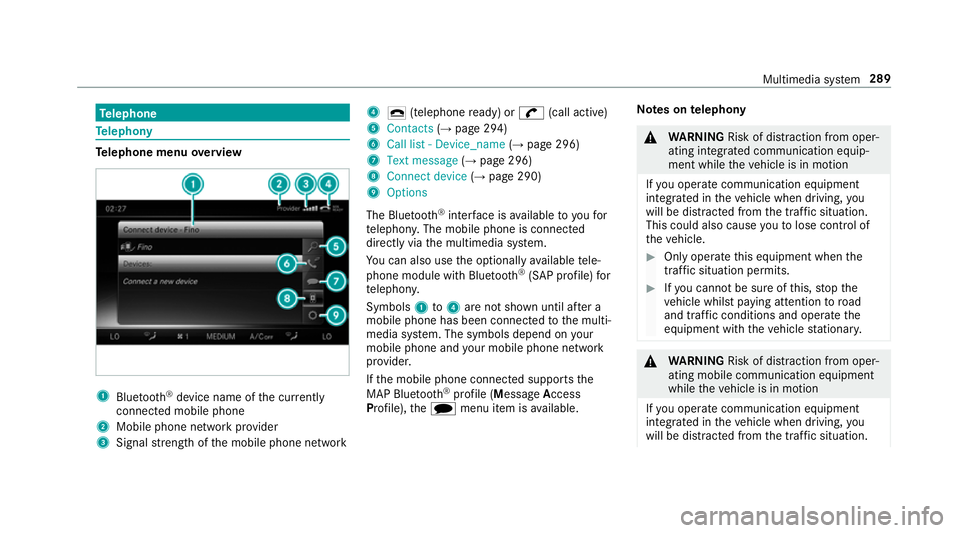
lephone menu overview 1
Blue tooth ®
device name of the cur rently
connected mobile phone
2 Mobile phone network pr ovider
3 Signal stre ngth of the mobile phone network 4
¢ (telephone ready) or w(call active)
5 Contacts (→page 294)
6 Call list - Device_name (→page 296)
7 Text message (→page 296)
8 Connect device (→page 290)
9 Options
The Blue tooth®
inter face is available toyoufor
te lephon y.The mobile phone is connected
directly via the multimedia sy stem.
Yo u can also use the optionally available tele‐
phone module with Blue tooth®
(SAP profile) for
te lephon y.
Symbols 1to4 are not shown until af ter a
mobile phone has been connected tothe multi‐
media sy stem. The symbols depend on your
mobile phone and your mobile phone network
pr ov ider.
If th e mobile phone connected supports the
MAP Blue tooth®
profile (M essageAccess
Pro file), thei menu item is available. Note
s ontelephony &
WARNING Risk of di stra ction from oper‐
ating integrated communication equip‐
ment while theve hicle is in motion
If yo u operate communication equipment
integ rated in theve hicle when driving, you
will be distracted from the tra ffic situation.
This could also cause youto lose control of
th eve hicle. #
Only operate this equipment when the
traf fic situation permits. #
Ifyo u cannot be sure of this, stop the
ve hicle whilst paying attention toroad
and traf fic conditions and ope rate the
equipment with theve hicle stationar y. &
WARNING Risk of di stra ction from oper‐
ating mobile communication equipment
while theve hicle is in motion
If yo u operate communication equipment
integrated in theve hicle when driving, you
will be distracted from the tra ffic situation. Multimedia sy
stem 289
Page 293 of 521
This could also cause
youto lose control of
th eve hicle.
Only operate this equipment when theve hi‐
cle is stationar y. Yo
u must obse rveth e legal requ irements forthe
country in whi chyou are cur rently driving when
operating mobile communication equipment in
th eve hicle.
Te lephony is possible via:
R the Blue tooth®
inter face
R thete lephone module with Blue tooth®
(SAP
profile) Blue
tooth ®
profile overview Blue
tooth ®
profile
of the mobile phone Fu
nction
PBAP (Phone Book
Access Profile) Contacts are auto‐
matically displa
yed in
th e multimedia sys‐
tem
MAP (Message
Access Profile) Message functions
can be used Fu
rther information can be obtained from a
Mercedes-Benz service centre or at: http://
www.mercedes-benz.com/connect.
HD Voice ®
R Toimpr ove vo icequalit y,the multimedia sys‐
te m supports telephone calls in HD Voice ®
.
R In order touse this function, the mobile
phones and the mobile phone network pro‐
vider of the person you are calling must sup‐
port HD Voice ®
.
Depending on thequ ality of the connection, the
vo ice quality may fluctuate. The
following situations can lead tothe call
being disconnected while theve hicle is in
motion:
R there is insuf ficient network co verage inthe
area
R you mo vefrom one GSM or UMTS transmit‐
te r/receiver area (cell) into ano ther and no
communication channels are free
R the SIM card used is not compatible with the
network available
R a mobile phone with "Twincard" is logged into
th e network with the second SIM card at the
same time
Connecting a mobile phone (authorising)
Re quirements:
Blue tooth ®
is activated on the mobile phone (see
th e manufacturer's operating instructions).
Blue tooth ®
is activated on the multimedia sys‐
te m (→ page 259). 290
Multimedia sy stem