ECO mode MERCEDES-BENZ E-CLASS COUPE 2017 User Guide
[x] Cancel search | Manufacturer: MERCEDES-BENZ, Model Year: 2017, Model line: E-CLASS COUPE, Model: MERCEDES-BENZ E-CLASS COUPE 2017Pages: 541, PDF Size: 10.71 MB
Page 195 of 541
th
at the neighbouring lane is free (shoulder
view).
% The availability of thefo llowing function is
countr y-dependent.
St eering Pilot remains active even if the turn sig‐
nal indicator is switched on. Steering Pilot then
assists the driver when changing lanes byapply‐
ing steering torques toinitiate the lane change.
Assis tance when changing lanes is pr ovided if all
th efo llowing conditions are me t:
R You are driving on a mo torw ay or high-speed
multi-lane major road with multiple lanes in
th e direction of tr avel.
R The neighbouring lane is free and separated
by a broken lane marking.
R The driven speed is between 80 km/h and
18 0 km/h.
R The turn signal indicator is switched on for
longer than two seconds.
If th e sy stem is impaired, Active Lane Change
Assi stmay be inter rupte d. If an inter ruption
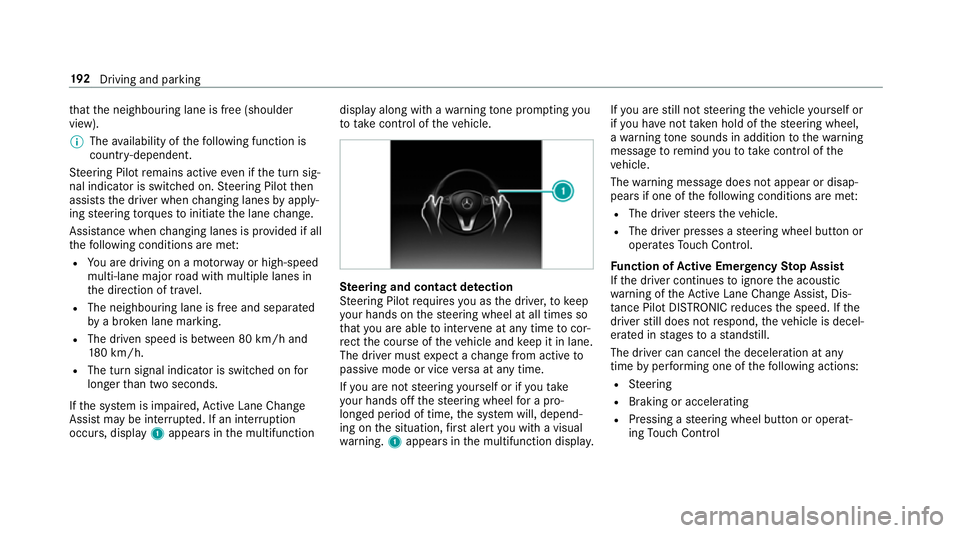
occurs, display 1appears in the multifunction display along with a
warning tone prom pting you
to take control of theve hicle. Ste
ering and contact de tection
St eering Pilot requ ires you as the driver, tokeep
yo ur hands on thesteering wheel at all times so
th at you are able tointer vene at any time tocor‐
re ct the course of theve hicle and keep it in lane.
The driver must expect a change from active to
passive mode or vice versa at any time.
If yo u are not steering yourself or if you take
yo ur hands off thesteering wheel for a pro‐
longed period of time, the sy stem will, depend‐
ing on the situation, firs t alert you with a visual
wa rning. 1appears in the multifunction displa y.If
yo u are still not steering theve hicle yourself or
if yo u ha venot take n hold of thesteering wheel,
a wa rning tone sounds in addition tothewa rning
message toremind youto take control of the
ve hicle.
The warning message does not appear or disap‐
pears if one of thefo llowing conditions are me t:
R The driver steers theve hicle.
R The driver presses a steering wheel button or
operates Touch Control.
Fu nction of Active Eme rgency Stop Assist
If th e driver continues toigno rethe acoustic
wa rning of theAc tive Lane Change Assi st, Dis‐
ta nce Pilot DISTRONIC reduces the speed. If the
driver still does not respond, theve hicle is decel‐
erated in stages toast andstill.
The driver can cancel the deceleration at any
time byper form ing one of thefo llowing actions:
R Steering
R Braking or accelerating
R Pressing a steering wheel button or operat‐
ing Touch Control 19 2
Driving and pa rking
Page 242 of 541
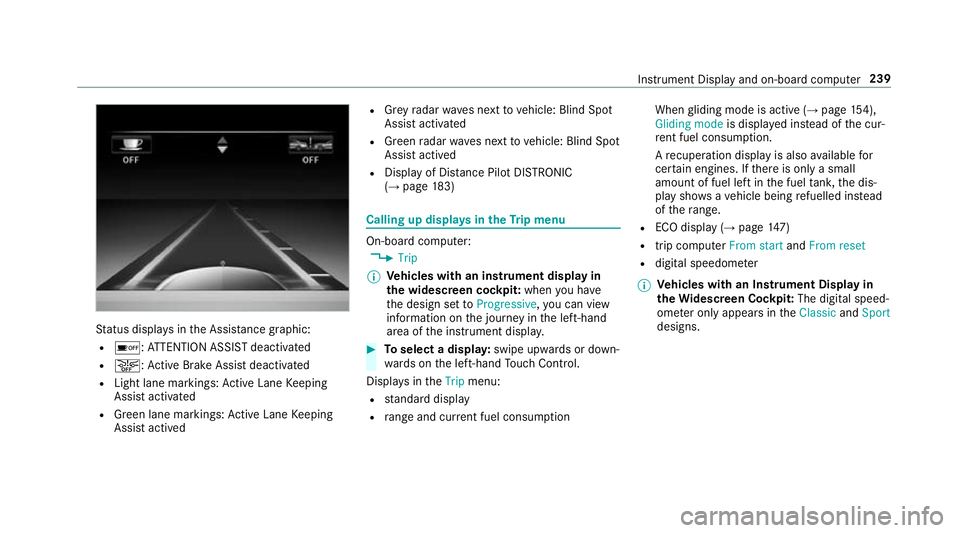
St
atus displa ysinthe Assis tance graphic:
R é: ATTENTION ASSIST deactivated
R æ: Active Brake Assi stdeactivated
R Light lane markings: Active Lane Keeping
Assist activated
R Green lane markings: Active Lane Keeping
Assist actived R
Grey radar waves next tovehicle: Blind Spot
Assist activated
R Green radar waves next tovehicle: Blind Spot
Assist actived
R Display of Dis tance Pilot DISTRONIC
(→ page 183) Calling up
displays in theTr ip menu On-board computer:
, Trip
% Ve
hicles with an instrument display in
th e widescreen cockpit: whenyou ha ve
th e design set toProgressive ,yo u can view
information on the journey in the left-hand
area of the instrument displa y. #
Toselect a displa y:swipe upwards or down‐
wa rds on the left-hand Touch Control.
Displa ysintheTrip menu:
R standard display
R range and cur rent fuel consu mption When
gliding mode is active (→ page154),
Gliding mode is displayed ins tead of the cur‐
re nt fuel consu mption.
A recuperation displ ayis also available for
cer tain engines. If there is only a small
amount of fuel left in the fuel tank, the dis‐
play sho wsave hicle being refuelled ins tead
of thera nge.
R ECO displ ay (→page 147)
R trip computer From startandFrom reset
R digital speedome ter
% Ve
hicles with an Instrument Display in
th eWi descreen Co ckpit: The digital speed‐
ome ter only appears in theClassic andSport
designs. Instrument Display and on-board computer
239
Page 264 of 541
Setting
the sensitivity
Multimedia sy stem:
, System .
w Input #
Select Touchpad sensitivity .#
Select Fast,Medium orSlow .
Handwriting recognition: swit ching there ad-
aloud function on/off
Multimedia sy stem:
, System .
õ Audio #
Switch Read out handwriting recognition on
O or off ª. Main functions
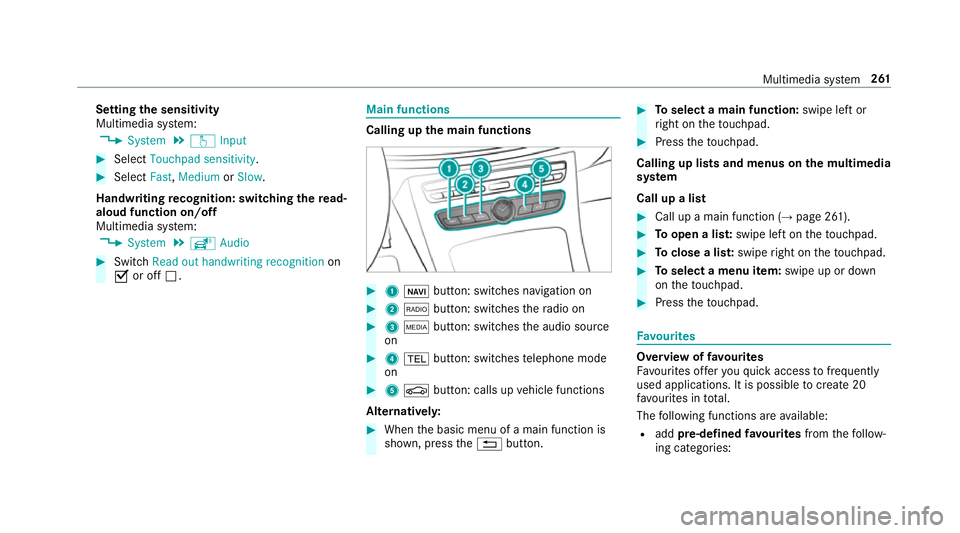
Calling up
the main functions #
1 ß button: swit ches navigation on #
2 $ button: switches thera dio on #
3 Õ button: switches the audio source
on #
4 % button: switches telephone mode
on #
5 Ø button: calls up vehicle functions
Alternativel y: #
When the basic menu of a main function is
shown, press the% button. #
Toselect a main function: swipe left or
ri ght on theto uchpad. #
Press theto uchpad.
Calling up lists and menus on the multimedia
sy stem
Call up a list #
Call up a main function (→ page 261). #
Toopen a lis t:swipe left on theto uchpad. #
Toclose a lis t:swipe right on theto uchpad. #
Toselect a menu item: swipe up or down
on theto uchpad. #
Press theto uchpad. Favo
urites Overview of
favo urites
Fa vourites of feryo uqu ick access tofrequently
used applications. It is possible tocrea te20
fa vo urites in tota l.
The following functions are available:
R add pre-defined favo urites fromthefo llow‐
ing categories: Multimedia sy
stem 261
Page 286 of 541
The
route may dif fer from the ideal route due to
th efo llowing:
R roadwor ks
R incomple tedigital map data
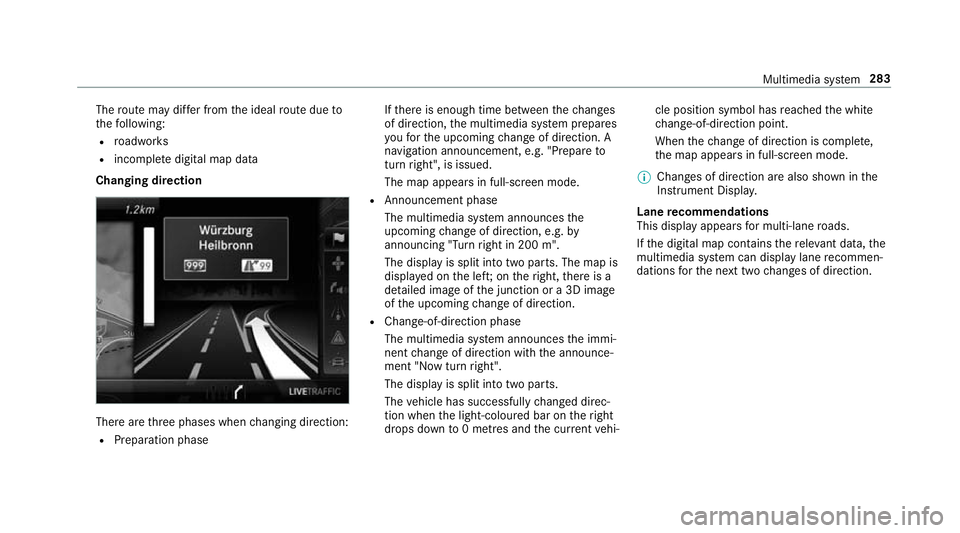
Changing direction There are
thre e phases when changing direction:
R Preparation phase If
th ere is enough time between thech anges
of direction, the multimedia sy stem prepares
yo ufo rth e upcoming change of direction. A
navigation announcement, e.g. "Prepare to
turn right", is issued.
The map appears in full-screen mode.
R Announcement phase
The multimedia sy stem announces the
upcoming change of direction, e.g. by
announcing "Turn right in 200 m".
The display is split into two parts. The map is
displa yed on the lef t;on theright, there is a
de tailed image of the junction or a 3D image
of the upcoming change of direction.
R Chan ge-of-direction phase
The multimedia sy stem announces the immi‐
nent change of direction with the announce‐
ment "Now turn right".
The display is split into two parts.
The vehicle has successfully changed direc‐
tion when the light-coloured bar on theright
drops down to0 metres and the cur rent vehi‐ cle position symbol has
reached the white
ch ange-of-direction point.
When thech ange of direction is comple te,
th e map appears in full-screen mode.
% Changes of direction are also shown in the
Instrument Displa y.
Lane recommendations
This display appears for multi-lane roads.
If th e digital map conta insthere leva nt da ta,the
multimedia sy stem can display lane recommen‐
dations forth e next two changes of direction. Multimedia sy
stem 283
Page 316 of 541
The mobile phone continues
tobe supplied
with elect ricity.
or #
Disconnect the connecting cable between
th e mobile phone and multimedia sy stem.
Mercedes-Benz recommends disconnecting
th e connecting cable only when theve hicle is
st ationar y. Tr
ansfer redve hicle data when using Apple
CarPlay™ and Android Auto Note
s on transfer redve hicle data
When using Android Autoor Apple CarPlay™,
cer tain vehicle data is transfer redto the mobile
phone. This enables youto getth e best out of
selected mobile phone services. Vehicle data is
not directly accessible.
Sy stem information:
R software release of the multimedia sy stem
R system ID (anonymised)
The transfer of this data is used tooptimise
communication between theve hicle and the
mobile phone. To
do this, and toassign se veralve hicles tothe
mobile phone, a vehicle ID is randomly gener‐
ated.
This has no connection totheve hicle identifica‐
tion number (VIN) and is dele ted when the multi‐
media sy stem is reset (→ page273).
Driving status data:
R transmission position engaged
R distinction between par ked, standstill, rolling
and driving
R day/night mode of the instrument clus ter
The transfer of this data is used toalter how
con tent is displ ayed tocor respond tothe driving
situation.
Po sition data:
R co-ordinates
R speed
R compass direction
R acceleration direction This data is only transfer
red while the navigation
sy stem is active, in order toimpr ove it (e.g. so it
can continue functioning when in a tunnel). Mercedes me connect
Note
s on Mercedes me connect
Mercedes me connect pr ovides thefo llowing
services:
R Breakdown management
R Appointment requests or similar
R Accident mana gement
R Mercedes-Benz emergency call sy stem
The Mercedes-Benz Cus tomer Centre and the
Mercedes-Benz emer gency call centre are availa‐
ble foryo u around the cloc k.
The Info call button, the breakdown assis tance
button and the emer gency call button can be
fo und on theove rhead control panel of theve hi‐
cle (→ page314).
Yo u can also use the multimedia sy stem tomake
th e call (→ page314). Multimedia sy
stem 313
Page 322 of 541
R
the time of the accident
R the language setting on the multimedia sys‐
tem
Fo r accident clarification purposes, thefo llowing
measures can be take n up toan hour af terthe
emer gency call has been initia ted:
R the cur rent vehicle position can be called up
R avo ice connection totheve hicle occupants
can be es tablished
% ForRu ssia: various functions, e.g. receiving
traf fic information, cannot be per form ed for
up totwo hou rsafte r sending an emer gency
call.
St arting/ending ERA-GLONASS test mode
(Russia)
Re quirements:
R The star ter battery has suf ficient charge.
R The ignition is switched on.
R The vehicle has been stationary for at least
one minute. #
Tostart thete st mode: press and hold the
~ button on the multifunction steering
wheel for at least five seconds.
The test mode is star ted and automatically
ends af terth e language test has been per‐
fo rm ed. #
Toend thete st mode manuall y:switch off
th e ignition.
The test mode is ended. Online and Internet functions
Internet connection
Internet connection
restrictions &
WARNING Risk of di stra ction from infor‐
mation sy stems and communications
equipment
If yo u operate information and communica‐
tion equipment integ rated in theve hicle
when driving, you will be distracted from the
traf fic situation. This could also cause youto
lose control of theve hicle. #
Only operate this equipment when the
traf fic situation permits. #
Ifyo u cannot be sure of this, stop the
ve hicle whilst paying attention toroad
and traf fic conditions and ope rate the
equipment with theve hicle stationar y. Yo
u must obse rveth e legal requirements forthe
country in whi chyou are cur rently driving when
operating the multimedia sy stem.
Depending on theve hicle's equipment, you can
es tablish an Internet connection in thefo llowing
wa ys:
R Vehicles with a communication module:
Internet use including Mercedes me connect
services and data roaming (→ page 320).
R Vehicles without a communication mod‐
ule:
- via Blue tooth®
with a data-enabled
mobile phone (→ page 320)
- viaWi-Fi wi tha data-enabled mobile
phone (→ page 320)
- viathete lephone module with SAP Multimedia sy
stem 319
Page 333 of 541
5
Search
6 Devices 7
Sound (tone settings)
8 Full screen (for video pl ayback) 9
Options
A Information on media (Owner's Manual)
Connecting USB devices * NO
TEDama gecaused byhigh temp era‐
tures High
temp eratures can damage USB devices. #
Remo vethe USB device af ter use and
ta ke it out of theve hicle. The multimedia connection unit is
found in the
stow age compartment under the armrest and
has two USB ports. Depending on theve hicle's
equipment, additional USB ports may be found
in thestow age compartment of the cent recon‐
sole or rear folding compartment. #
Connect the USB device tothe USB port.
Pla yable music files are pla yed back only if
th e cor responding media display is activated.
% Use the USB port identified byç touse
Apple CarPlay™ and Android Auto™. Selecting a track
Multimedia sy
stem:
, Media
Vi ath e skip function #
Toskip backwards or forw ards toa track:
navigate up or down.
Vi ath e cur rent track list #
Select è. #
Select Current track list. #
Select a tra ck.
Selecting playback options
Multimedia sy stem:
, Media .
Z Options
Playing back similar trac ks #
Select Play similar tracks.
A track li stwith similar trac ksis created and
pla yed bac k. Playback mode #
Select Play mode. #
Select Normal track sequence.
The cur rent track li stis pla yed in the order it
appears on the data storage medium. #
Select Random playback of the current track
list.
The cur rent track li stis pla yed in random
orde r. #
Select Random playback of the current
medium.
All trac kson the active data storage medium
are pla yed in random orde r.
% The available playback options depend on
th e connected media source.
Pa use and playback function
Multimedia sy stem:
, Media #
Press theto uchpad. 330
Multimedia sy stem
Page 349 of 541
Channel list
overview The
TVtuner sho wsthe cur rent programme on
th e digital TVchannels or radio stations with
adequate reception in its ownch annel list.
The order of thech annel lists is alphabetical or
countr y-specific.
The TVtuner requ ires a short amount of time to
update the information.
The channel lists show thefo llowing information:
R recei vable channel names
R program title
The information is shown under thefo llowing
conditions:
R it is broadcast bythe digital channel
R there ception conditions are adequate Favo
urites Overview of
favo urites
Yo u can create a total of 40 digital TVchannel
fa vo urites. Qui
ck-saving a TVchannel
Multimedia sy stem:
, Media .
à Devices .
TV #
In full-screen mode, press theto uchpad for
longer than thre e seconds.
The cur rent TV channel is stored in the
fa vo urites in the next available position.
St oring TVchannels
Multimedia sy stem:
, Media .
à Devi-
ces .
TV .
ß Favourites #
Select Save current station .
The cur rent channel is stored in thefa vo ur‐
ites in the next available position. #
Alternatively: highlight thech annel in the
ch annel list and store as a favo urite.
Moving channels in thefa vo urites #
Highlight a channel in thefa vo urites. #
Select ¥Move highlighted station. #
Highlight the new position. #
Confirm the position. Deleting
stations #
Highlight a channel in thefa vo urites. #
Select ¥Delete highlighted station. #
Select Yes.
Using a voice tag
Multimedia sy stem:
, Media .
à Devi-
ces .
TV .
ß Favourites #
Highlight a TVchannel in thefa vo urites. #
Select ¥Voice tag . #
Alternatively: use a voice tag inthech annel
list.
Creating a voice tag #
Select Add. #
Say a voice tag.
A message appears when thevo ice tag has
been created.
Lis tening toavo ice tag #
Select Listen. 346
Multimedia sy stem
Page 373 of 541
#
After driving in emergency mode ha ve
th erims checkedby aqu alified special‐
ist workshop with rega rd totheir fur ther
use. #
The defective tyre must be replaced in
eve rycase. Wi
th MOExtended tyres (run-flat tyres), you can
continue todrive your vehicle even if there is a
tot al loss of pressure in one or more tyres. How‐
eve r,th e tyre af fected must not show any clearly
visible damage.
Yo u can recognise MOExtended tyres bythe
MOExtended marking which appears on the side
wa ll of the tyre.
Ve hicles with tyre pressure loss warning sys‐
te m: MOExtended tyres may only be used in
conjunction wi than activated tyre pressure loss
wa rning sy stem.
Ve hicles with tyre pressure monitoring sys‐
te m: MOExtended tyres may only be used in
conjunction wi than activated tyre pressure mon‐
itoring sy stem. If a pressure loss
warning message appears in
th e multifunction display:
R Check the tyre for dama ge.
R If driving on, obser vethefo llowing no tes.
Driving distance possible in limp-home mode
af te r the pressure loss warning: Load condition Driving distance pos‐
sible in limp-homemode
Pa rtially laden 80 km
Fu lly laden 30 km R
The driving dis tance possible in li mp-home
mode may vary depending on the driving
st yle.
R Maximum permissible speed 80 km/h.
If a tyre has gone flat and cannot be replaced
with an MOEx tended tyre, you can use a stand‐
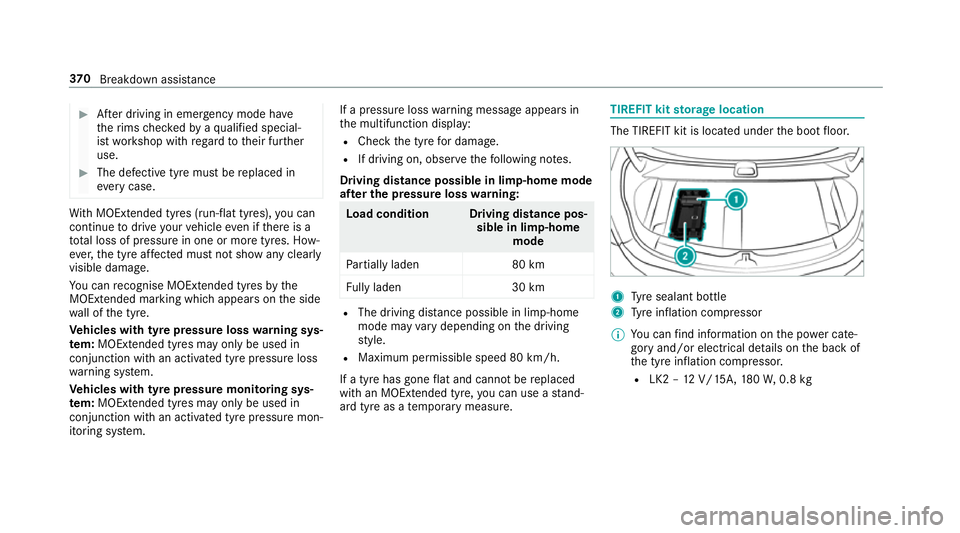
ard tyre as a temp orary measure. TIREFIT kit
storage location The TIREFIT kit is located under
the boot floor. 1
Tyre sealant bottle
2 Tyre inflation compressor
% You can find information on the po wer cate‐
gory and/or electrical de tails on the back of
th e tyre inflation compressor.
R LK2 – 12V/15A, 180W, 0.8 kg 37 0
Breakdown assis tance
Page 400 of 541
&
WARNING Risk of accident due toincor‐
re ct dimensions of wheels and tyres
If wheels and tyres of the wrong size are
used, the wheel brakes or wheel suspension
components may become damaged. #
Alw aysre place wheels and tyres with
th ose that fulfil the specifications of the
original part.
When replacing wheels, make sure tofit the
cor rect:
R Designation
R Type
When replacing tyres, make sure tofit the
cor rect:
R Designation
R Manufactu rer
R Type &
WARNING Risk of inju rythro ugh exceed‐
ing the specified tyre load-bearing capa‐
city or the permissible speed rating
Exceeding the specified tyre load-bearing
capacity or the permissible speed rating may
lead totyre dama geand tothe tyres bur st‐
ing. #
Therefore, only use tyre types and sizes
appr ovedfo ryo ur vehicle model. #
Obser vethe tyre load-bearing capacity
ra ting and speed rating requ iredfor
yo ur vehicle. *
NO
TEDama getovehicle and tyres due
to non-app rove d tyre types and sizes Fo
r saf etyre asons, on lyuse wheels, tyres
and accessories which ha vebeen appr oved
fo ryo ur vehicle byMercedes-Benz. These tyres ha
vebeen specially adap tedfor
use with the control sy stems, e.g. ABS or
ESP ®
, and are mar ked as follo ws:
R MO = Mercedes-Benz Original
R MOE = Mercedes-Benz Original Extended
(run-flat tyres only for cer tain wheels)
R MO1 = Mercedes-Benz Original (only cer‐
tain AMG tyres)
Cer tain characteristics, e.g. handling, vehicle
noise emissions or fuel consum ption, may
ot herwise be adversely af fected. In addition,
when driving wi tha load, tyre dimension var‐
iations could cause the tyres tocome into
contact wi th the body and axle components.
This could result in damage tothe tyres or
th eve hicle.
Only use tyres, wheels or accessories tested
and appr oved byMercedes-Benz. Wheels and tyres
397