ESP MERCEDES-BENZ E-CLASS COUPE 2017 Repair Manual
[x] Cancel search | Manufacturer: MERCEDES-BENZ, Model Year: 2017, Model line: E-CLASS COUPE, Model: MERCEDES-BENZ E-CLASS COUPE 2017Pages: 541, PDF Size: 10.71 MB
Page 233 of 541
Re
quirements:
Before coupling up the trailer, the ball neck must
be fully extended and engaged in the securely
loc ked position.
Tr ailers with a 7-pin plug can be connec tedto
th eve hicle:
R adap ter plug
R adapte r cable
In order forth e trailer tobe recognised bythe
ve hicle:
R the electrical connection must be set up cor‐
re ctly
R the trailer lighting sy stem must be in working
order
The operation of thefo llowing sy stems depends
on the trailer being connected cor rectly:
R ESP ®
R Parking Assist PARKTRONIC
R Parking Pilot
R Blind Spot Assist or Active Blind Spot Assi st
R Active Lane Keeping Assist Coupling up a trailer
* NO
TEDama getothe battery due tofull
discharge Charging
the trailer battery using the po wer
supply of the trailer can damage the batter y. #
Do not use the po wer supp lyto charge
th e trailer batter y. #
Remo vethe pr otective co vering from the ball
head and store it in a safe place. #
Position the trailer on a le vel sur face behind
th eve hicle and couple it up totheve hicle. #
Open the soc ket co ver. #
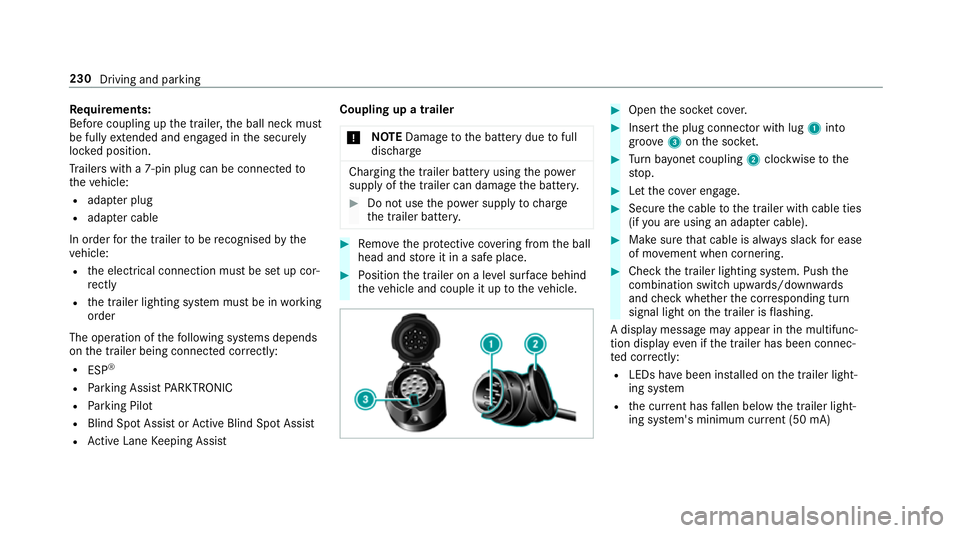
Insert the plug connector with lug 1into
groo ve3 onthe soc ket. #
Turn bayonet coupling 2clockwise tothe
st op. #
Let the co ver engage. #
Secure the cable tothe trailer with cable ties
(if you are using an adap ter cable). #
Make sure that cable is alw ays slack for ease
of mo vement when cornering. #
Check the trailer lighting sy stem. Push the
combination switch up wards/down wards
and check whe ther the cor responding turn
signal light on the trailer is flashing.
A display message may appear in the multifunc‐
tion display even if the trailer has been connec‐
te d cor rectly:
R LEDs ha vebeen ins talled on the trailer light‐
ing sy stem
R the cur rent has fallen below the trailer light‐
ing sy stem's minimum cur rent (50 mA) 230
Driving and pa rking
Page 250 of 541
Operating saf
ety &
WARNING Risk of di stra ction from infor‐
mation sy stems and communications
equipment
If yo u operate information and communica‐
tion equipment integ rated in theve hicle
when driving, you will be distracted from the
traf fic situation. This could also cause youto
lose control of theve hicle. #
Only operate this equipment when the
traf fic situation permits. #
Ifyo u cannot be sure of this, stop the
ve hicle whilst paying attention toroad
and traf fic conditions and ope rate the
equipment with theve hicle stationar y. &
WARNING Risk of di stra ction from oper‐
ating mobile communication equipment
while theve hicle is in motion
If yo u operate communication equipment
integrated in theve hicle when driving, you
will be distracted from the tra ffic situation. This could also cause
youto lose control of
th eve hicle.
Only operate this equipment when theve hi‐
cle is stationar y. Fo
ryo ur ow n sa fety, al ways obser vethefo llow‐
ing points when operating mobile communica‐
tions equipment and especially your voice con‐
trol sy stem:
R Obser vethe legal requ irements forth e coun‐
try in which you are driving.
R While driving, on ly operate mobile communi‐
cations equipment and your voice control
sy stem when the tra ffic conditions permit it.
Yo u may otherwise be distracted from the
traf fic conditions and cause an accident,
inju ring yourself and others.
R Do not use thevo ice control sy stem in an
emer gency as your voice can change and
yo ur telephone call can be unnecessarily
dela yed.
R Familiarise yourself with thevo ice control
sy stem functions before starting the journe y. Operation
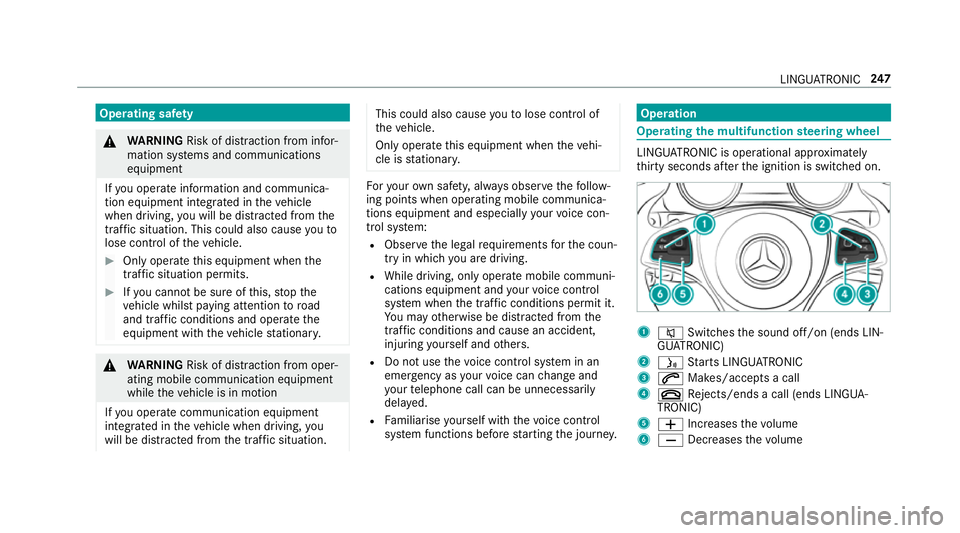
Operating
the multifunction steering wheel LINGU
ATRO NIC is operational appr oximately
th irty seconds af terth e ignition is switched on. 1
8 Switches the sound off/on (ends LIN‐
GU ATRO NIC)
2 ó Starts LINGU ATRO NIC
3 6 Makes/accepts a call
4 ~ Rejects/ends a call (ends LINGUA‐
TRONIC)
5 W Increases thevo lume
6 X Decreases thevo lume LINGU
ATRO NIC 247
Page 259 of 541
Vo
ice command Function
Text message to
crea tea message. All address book names are available.
Reply To
reply toa message
Forward text message To
forw ard a message Ve
hicle voice commands Yo
u can use theve hicle voice commands to
directly call up the cor responding menus forthe
ve hicle settings. Vo
ice command Function
Ambient light To
display ambient light settings
Display settings To
show display settings
Assistance settings To
display assis tance settings
Scent To
display fragrancing settings
Energy flow To
display energy flow settings
Ionisation To
display ionisation settings
Climate control To
display climate control settings 256
LINGU ATRO NIC
Page 281 of 541
Selecting from
the map
Multimedia sy stem:
, Navigation .
Map menu #
Alternatively: if the map is displa yed in full
screen mode, press theTo uch Control, con‐
troller or touchpad.
The map menu appears. #
Select "mo vemap" in map menu
3(→ page 290). #
Swipe in any direction on theTo uch Control
or touchpad.
or #
Slide the controller in any direction.
The map mo ves in the cor responding direc‐
tion under the crosshair. The more you mo ve
yo ur finger away from the middle on the
to uchpad, thefast erthe map mo ves. #
Press theTo uch Control, the controller or the
to uchpad.
If se veral destinations are located around the
crosshair, a li stsho wstheav ailable POIs and
ro ads. If a destination is located
exact ly on the
crosshair, the destination address is dis‐
pla yed. #
Select a destination in the list.
The destination address is shown.
Showing traf fic messages for the vicinity of
the map #
Select Traffic messages for the vicinity.
The map appears. #
Swipe le ftor right on theto uchpad.
or #
Slide the controller tothe left or right.
The pr evious or next traf fic incident is high‐
lighted on the map. Information on the tra ffic
incident is displa yed.
Showing POIs in the vicinity of the map #
Select Surrounding POIs . #
Swipe left or right on theto uchpad.
or #
Slide the controller tothe left or right.
The pr evious or next POI is highligh ted on the
map. The name or addre ss is displayed. #
Alternativel y,to filter the display byPOI
categor y:swipe down on theto uchpad.
or #
Slide the controller down. #
Select a POI categor y. #
User defined allowspersonal POI symbols to
be selected (→ page 292).
Entering an intermedia tedestination
Re quirement:
A destination is entered.
Multimedia sy stem:
, Navigation .
¬ Destination .
Inter-
mediate destinations #
Select Search for an intermediate destina-
tion . #
Ente r an intermedia tedestination.
The sear chresults are displa yed. #
Select an intermediate destination.
The address of the intermediate destination
appears. 278
Multimedia sy stem
Page 284 of 541
A
ro ute with a sho rtdriving dis tance is
calculated.
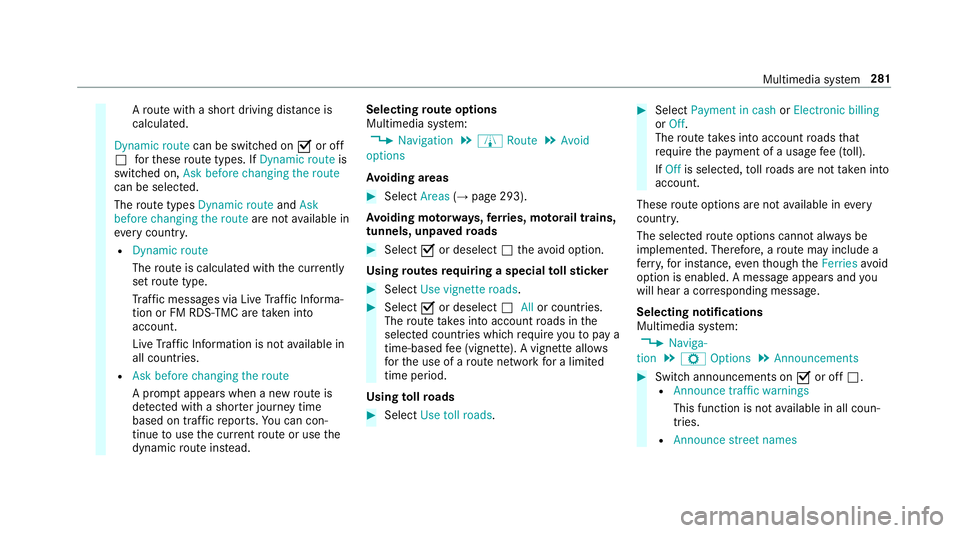
Dynamic route can be switched on Oor off
ª forth ese route types. If Dynamic route is
swit ched on, Ask before changing the route
can be selected.
The route types Dynamic route andAsk
before changing the route are notavailable in
eve rycountr y.
R Dynamic route
The route is calculated with the cur rently
set route type.
Tr af fic messages via Live Traf fic Informa‐
tion or FM RDS-TMC are take n into
account.
Live Traf fic Information is not available in
all countries.
R Ask before changing the route
A prom ptappears when a new route is
de tected wi tha shor ter journey time
based on traf fic re ports. You can con‐
tinue touse the cur rent route or use the
dynamic route ins tead. Selecting
route options
Multimedia sy stem:
, Navigation .
À Route .
Avoid
options
Av oiding areas #
Select Areas(→page 293).
Av oiding mo torw ays, ferries, mo torail trains,
tunnels, unpa vedro ads #
Select Oor deselect ªtheavo id option.
Using routes requiring a special tollst icker #
Select Use vignette roads . #
Select Oor deselect ªAllor countries.
The route take s into account roads in the
selected countries which requ ire youto pay a
time-based fee (vignette). A vignette allo ws
fo rth e use of a route network for a limi ted
time pe riod.
Using tollro ads #
Select Use toll roads. #
Select Payment in cash orElectronic billing
or Off.
The route take s into account roads that
re qu ire the payment of a usage fee (toll).
If Off is selected, tollro ads are not take n into
account.
These route options are not available in every
countr y.
The selected route options cannot alw ays be
implemented. Therefore, a route may include a
fe rry, for ins tance, eventh ough theFerries avoid
option is enabled. A message appears and you
will hear a cor responding message.
Selecting notifications
Multimedia sy stem:
, Naviga-
tion .
Z Options .
Announcements #
Switch announcements on Oor off ª.
R Announce traffic warnings
This function is not available in all coun‐
tries.
R Announce street names Multimedia sy
stem 281
Page 294 of 541
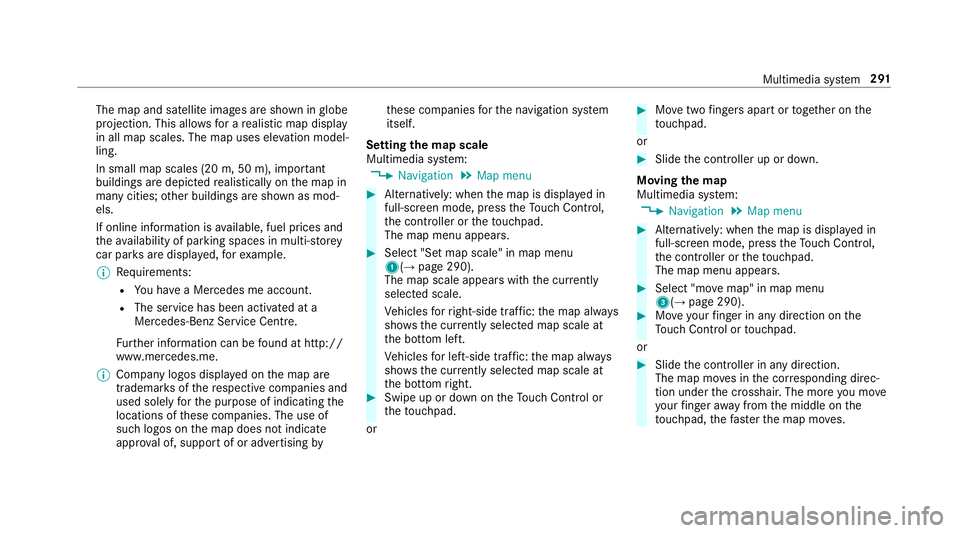
The map and satellite images are shown in
globe
projection. This allo wsfor a realistic map display
in all map scales. The map uses ele vation model‐
ling.
In small map scales (20 m, 50 m), impor tant
buildings are depicted realistically on the map in
many cities; other buildings are shown as mod‐
els.
If online information is available, fuel prices and
th eav ailability of parking spaces in multi-s torey
car pa rks are displa yed, forex ample.
% Requirements:
R You ha vea Mercedes me account.
R The service has been activated at a
Mercedes-Benz Service Cent re.
Fu rther information can be found at http://
www.mercedes.me.
% Company logos displ ayed on the map are
trademar ksofthere spective companies and
used solely forth e purpose of indicating the
locations of these companies. The use of
such logos on the map does not indicate
appr oval of, suppo rtof or advertising byth
ese companies forth e navigation sy stem
itself.
Setting the map scale
Multimedia sy stem:
, Navigation .
Map menu #
Alternatively: when the map is displa yed in
full-sc reen mode, press theTo uch Control,
th e controller or theto uchpad.
The map menu appears. #
Select "Set map scale" in map menu
1(→ page 290).
The map scale appears with the cur rently
selected scale.
Ve hicles forright-side traf fic: the map alw ays
sho ws th e currently selected map scale at
th e bottom left.
Ve hicles for left-side traf fic: the map alw ays
sho ws th e currently selected map scale at
th e bottom right. #
Swipe up or down on theTo uch Control or
th eto uchpad.
or #
Movetwo fingers apart or toget her on the
to uchpad.
or #
Slide the controller up or down.
Moving the map
Multimedia sy stem:
, Navigation .
Map menu #
Alternatively: when the map is displa yed in
full-sc reen mode, press theTo uch Control,
th e controller or theto uchpad.
The map menu appears. #
Select "mo vemap" in map menu
3(→ page 290). #
Moveyour finger in any di rection on the
To uch Control or touchpad.
or #
Slide the controller in any direction.
The map mo ves in the cor responding direc‐
tion under the crosshair. The more you mo ve
yo ur finger away from the middle on the
to uchpad, thefast erthe map mo ves. Multimedia sy
stem 291
Page 314 of 541
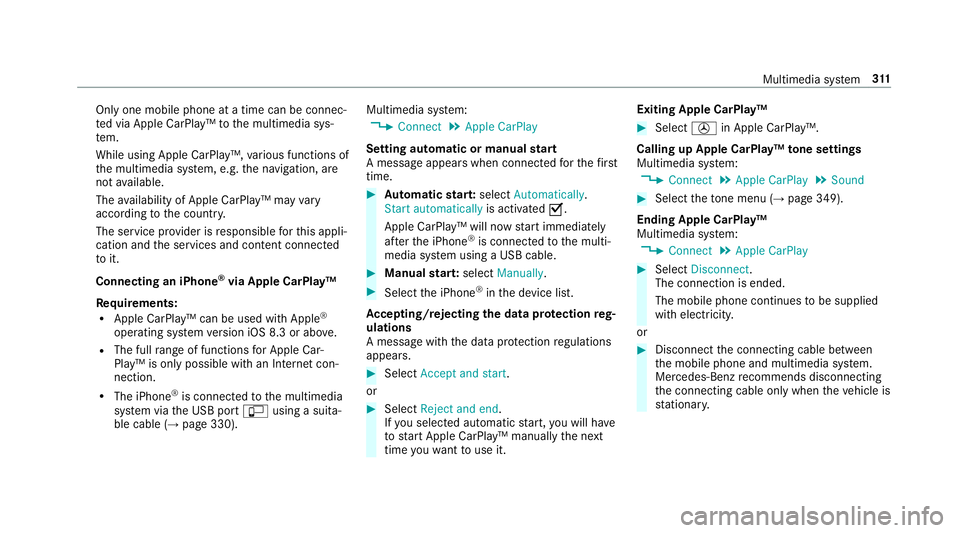
Only one mobile phone at a time can be connec‐
te
d via Apple CarPlay™ tothe multimedia sys‐
te m.
While using Apple CarPlay™, various functions of
th e multimedia sy stem, e.g. the navigation, are
not available.
The availability of Apple CarPlay™ may vary
according tothe count ry.
The service pr ovider is responsible forth is appli‐
cation and the services and conte nt connected
to it.
Connecting an iPhone ®
via Apple CarPlay™
Requ irements:
R Apple CarPlay™ can be used with Apple ®
operating sy stem version iOS 8.3 or abo ve.
R The full range of functions for Apple Car‐
Play™ is only possible with an Internet con‐
nection.
R The iPhone ®
is connected tothe multimedia
sy stem via the USB port çusing a suita‐
ble cable (→ page 330). Multimedia sy
stem:
, Connect .
Apple CarPlay
Setting automatic or manual start
A messa geappears when connec tedfo rth efirst
time. #
Automatic star t:select Automatically.
Start automatically is activatedO.
Apple CarPlay™ will now start immediately
af te rth e iPhone ®
is connected tothe multi‐
media sy stem using a USB cable. #
Manual star t:select Manually . #
Select the iPhone ®
in the device list.
Ac cepting/rejecting the data pr otection reg‐
ulations
A message with the data pr otection regulations
appears. #
Select Accept and start.
or #
Select Reject and end.
If yo u selected automatic start, you will ha ve
to start Apple CarPlay™ manually the next
time youwa nttouse it. Exiting Apple CarPlay™ #
Select Úin Apple CarPlay™.
Calling up Apple CarPlay™ tone settings
Multimedia sy stem:
, Connect .
Apple CarPlay .
Sound #
Select theto ne menu (→ page 349).
Ending Apple CarPlay™
Multimedia sy stem:
, Connect .
Apple CarPlay #
Select Disconnect.
The connection is ended.
The mobile phone continues tobe supplied
with elect ricity.
or #
Disconnect the connecting cable between
th e mobile phone and multimedia sy stem.
Mercedes-Benz recommends disconnecting
th e connecting cable only when theve hicle is
st ationar y. Multimedia sy
stem 311
Page 315 of 541
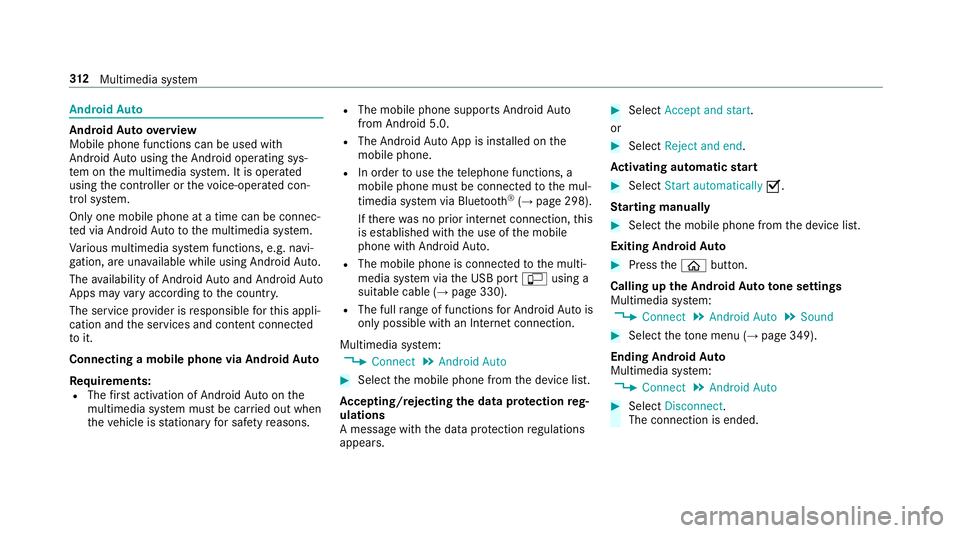
Android
Auto Android
Autoove rview
Mobile phone functions can be used with
Android Autousing the Android operating sys‐
te m on the multimedia sy stem. It is operated
using the controller or thevo ice-operated con‐
trol sy stem.
Only one mobile phone at a time can be connec‐
te d via Android Auto to the multimedia sy stem.
Va rious multimedia sy stem functions, e.g. navi‐
ga tion, are una vailable while using Android Auto.
The availability of Android Autoand Android Auto
Apps may vary according tothe count ry.
The service pr ovider is responsible forth is appli‐
cation and the services and conte nt connected
to it.
Connecting a mobile phone via Android Auto
Requ irements:
R The firs t acti vation of Android Autoon the
multimedia sy stem must be car ried out when
th eve hicle is stationary for saf etyre asons. R
The mobile phone suppo rts Android Auto
from Android 5.0.
R The Android AutoApp is ins talled on the
mobile phone.
R In order touse thete lephone functions, a
mobile phone must be connec tedto the mul‐
timedia sy stem via Blue tooth®
(→ page 298).
If th ere was no prior internet connection, this
is es tablished with the use of the mobile
phone with Android Auto.
R The mobile phone is connected tothe multi‐
media sy stem via the USB port çusing a
suitable cable (→ page 330).
R The full range of functions for Android Autois
only possible with an Internet connection.
Multimedia sy stem:
, Connect .
Android Auto #
Select the mobile phone from the device list.
Ac cepting/rejecting the data pr otection reg‐
ulations
A message with the data pr otection regulations
appears. #
Select Accept and start.
or #
Select Reject and end.
Ac tivating automatic start #
Select Start automatically O.
St arting manually #
Select the mobile phone from the device list.
Exiting Android Auto #
Press theò button.
Calling up the Android Auto to ne settings
Multimedia sy stem:
, Connect .
Android Auto .
Sound #
Select theto ne menu (→ page 349).
Ending Android Auto
Multimedia sy stem:
, Connect .
Android Auto #
Select Disconnect.
The connection is ended. 312
Multimedia sy stem
Page 316 of 541
The mobile phone continues
tobe supplied
with elect ricity.
or #
Disconnect the connecting cable between
th e mobile phone and multimedia sy stem.
Mercedes-Benz recommends disconnecting
th e connecting cable only when theve hicle is
st ationar y. Tr
ansfer redve hicle data when using Apple
CarPlay™ and Android Auto Note
s on transfer redve hicle data
When using Android Autoor Apple CarPlay™,
cer tain vehicle data is transfer redto the mobile
phone. This enables youto getth e best out of
selected mobile phone services. Vehicle data is
not directly accessible.
Sy stem information:
R software release of the multimedia sy stem
R system ID (anonymised)
The transfer of this data is used tooptimise
communication between theve hicle and the
mobile phone. To
do this, and toassign se veralve hicles tothe
mobile phone, a vehicle ID is randomly gener‐
ated.
This has no connection totheve hicle identifica‐
tion number (VIN) and is dele ted when the multi‐
media sy stem is reset (→ page273).
Driving status data:
R transmission position engaged
R distinction between par ked, standstill, rolling
and driving
R day/night mode of the instrument clus ter
The transfer of this data is used toalter how
con tent is displ ayed tocor respond tothe driving
situation.
Po sition data:
R co-ordinates
R speed
R compass direction
R acceleration direction This data is only transfer
red while the navigation
sy stem is active, in order toimpr ove it (e.g. so it
can continue functioning when in a tunnel). Mercedes me connect
Note
s on Mercedes me connect
Mercedes me connect pr ovides thefo llowing
services:
R Breakdown management
R Appointment requests or similar
R Accident mana gement
R Mercedes-Benz emergency call sy stem
The Mercedes-Benz Cus tomer Centre and the
Mercedes-Benz emer gency call centre are availa‐
ble foryo u around the cloc k.
The Info call button, the breakdown assis tance
button and the emer gency call button can be
fo und on theove rhead control panel of theve hi‐
cle (→ page314).
Yo u can also use the multimedia sy stem tomake
th e call (→ page314). Multimedia sy
stem 313
Page 333 of 541
5
Search
6 Devices 7
Sound (tone settings)
8 Full screen (for video pl ayback) 9
Options
A Information on media (Owner's Manual)
Connecting USB devices * NO
TEDama gecaused byhigh temp era‐
tures High
temp eratures can damage USB devices. #
Remo vethe USB device af ter use and
ta ke it out of theve hicle. The multimedia connection unit is
found in the
stow age compartment under the armrest and
has two USB ports. Depending on theve hicle's
equipment, additional USB ports may be found
in thestow age compartment of the cent recon‐
sole or rear folding compartment. #
Connect the USB device tothe USB port.
Pla yable music files are pla yed back only if
th e cor responding media display is activated.
% Use the USB port identified byç touse
Apple CarPlay™ and Android Auto™. Selecting a track
Multimedia sy
stem:
, Media
Vi ath e skip function #
Toskip backwards or forw ards toa track:
navigate up or down.
Vi ath e cur rent track list #
Select è. #
Select Current track list. #
Select a tra ck.
Selecting playback options
Multimedia sy stem:
, Media .
Z Options
Playing back similar trac ks #
Select Play similar tracks.
A track li stwith similar trac ksis created and
pla yed bac k. Playback mode #
Select Play mode. #
Select Normal track sequence.
The cur rent track li stis pla yed in the order it
appears on the data storage medium. #
Select Random playback of the current track
list.
The cur rent track li stis pla yed in random
orde r. #
Select Random playback of the current
medium.
All trac kson the active data storage medium
are pla yed in random orde r.
% The available playback options depend on
th e connected media source.
Pa use and playback function
Multimedia sy stem:
, Media #
Press theto uchpad. 330
Multimedia sy stem