use MERCEDES-BENZ E-Class SEDAN 2010 W212 Comand Manual
[x] Cancel search | Manufacturer: MERCEDES-BENZ, Model Year: 2010, Model line: E-Class SEDAN, Model: MERCEDES-BENZ E-Class SEDAN 2010 W212Pages: 224, PDF Size: 7.4 MB
Page 143 of 224
Only in DVD Audio modeXTo pause playback: Switch to DVD Audio
mode.XSelect «.
The display « changes to X.XTo resume playback: Switch to DVD
Audio mode.
Playback continues from the point where it
was paused.XSelect X.
The display X changes to «.
Selecting CD/DVD Audio/MP3 Media
XIn CD Audio, DVD Audio and MP3
mode: Select Media.
or
XIn CD Audio and DVD Audio mode only:
Press n when the main area is highlighted.
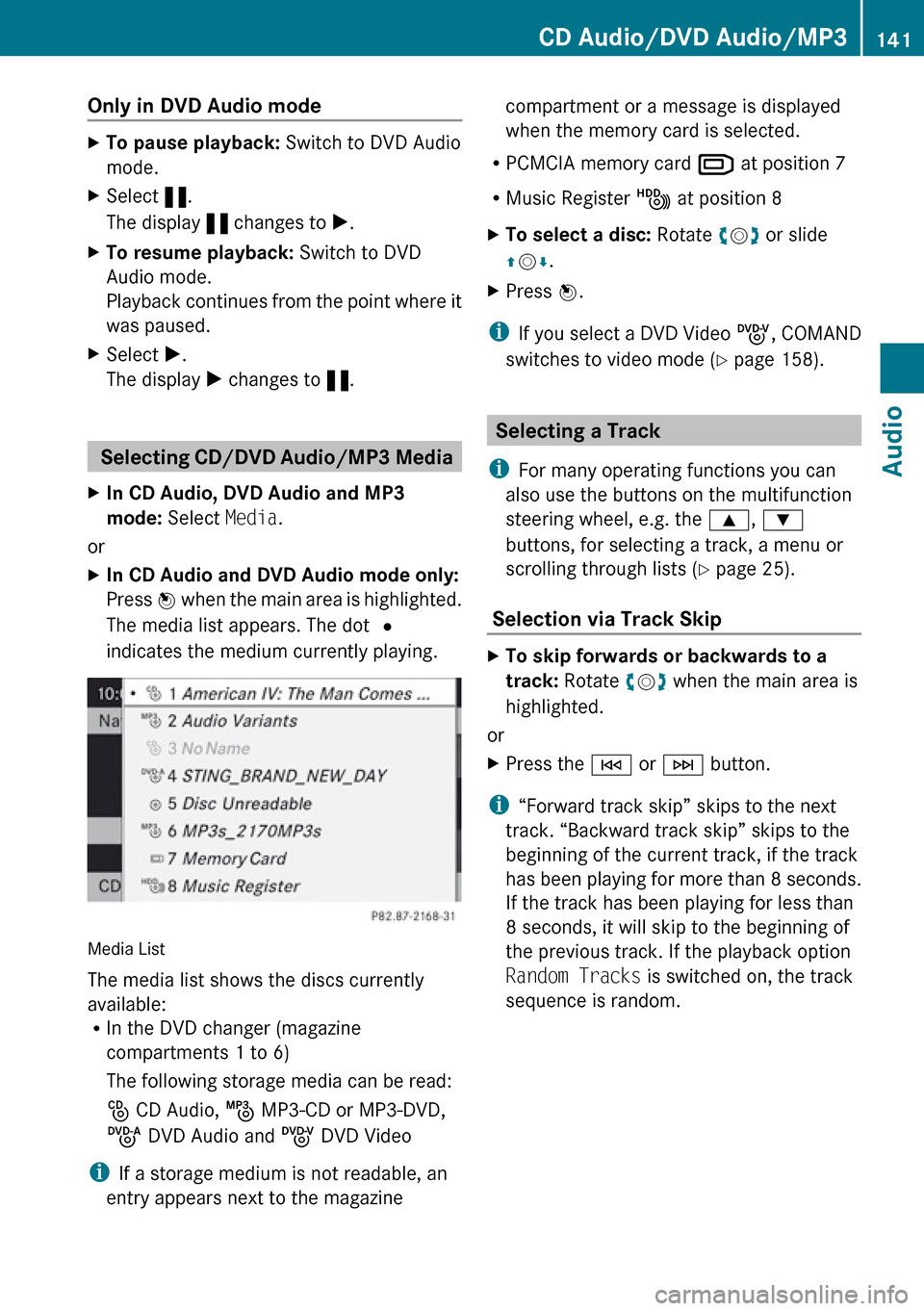
The media list appears. The dot R
indicates the medium currently playing.
Media List
The media list shows the discs currently
available:
R In the DVD changer (magazine
compartments 1 to 6)
The following storage media can be read:
_ CD Audio, þ MP3-CD or MP3-DVD,
ü DVD Audio and ý DVD Video
i If a storage medium is not readable, an
entry appears next to the magazine
compartment or a message is displayed
when the memory card is selected.
R PCMCIA memory card º at position 7
R Music Register Ñ at position 8XTo select a disc: Rotate ym z or slide
q m r.XPress n.
i
If you select a DVD Video ý, COMAND
switches to video mode ( Y page 158).
Selecting a Track
i For many operating functions you can
also use the buttons on the multifunction
steering wheel, e.g. the 9, :
buttons, for selecting a track, a menu or
scrolling through lists ( Y page 25).
Selection via Track Skip
XTo skip forwards or backwards to a
track: Rotate ym z when the main area is
highlighted.
or
XPress the E or F button.
i
“Forward track skip” skips to the next
track. “Backward track skip” skips to the
beginning of the current track, if the track
has been playing for more than 8 seconds.
If the track has been playing for less than
8 seconds, it will skip to the beginning of
the previous track. If the playback option
Random Tracks is switched on, the track
sequence is random.
CD Audio/DVD Audio/MP3141AudioZ
Page 145 of 224
Gracenote®
Media Database
i This function is only available in CD Audio
mode.
CD information including album title, artist
name and track name is obtained from the
Gracenote ®
Media Database. A version of the
Gracenote ®
Media Database is stored on the
COMAND’s hard drive. Access to this
database is indicated by the Gracenote logo
being displayed in the lower right of some
audio displays.
Many audio CDs contain CD text. COMAND
uses the information contained in this text for
displaying the name of the artist, album and
track.
If the audio CD does not contain any CD text,
COMAND can recognize unknown audio
tracks in CD Audio mode with the aid of the
Gracenote Media Database. For this to
happen, the corresponding information must
be stored in the Gracenote Media Database
and the “Read CD Database” function must
be switched on.
If this is the case, COMAND provides the
corresponding data, such as name of artist,
album and track, in the corresponding
displays and lists.
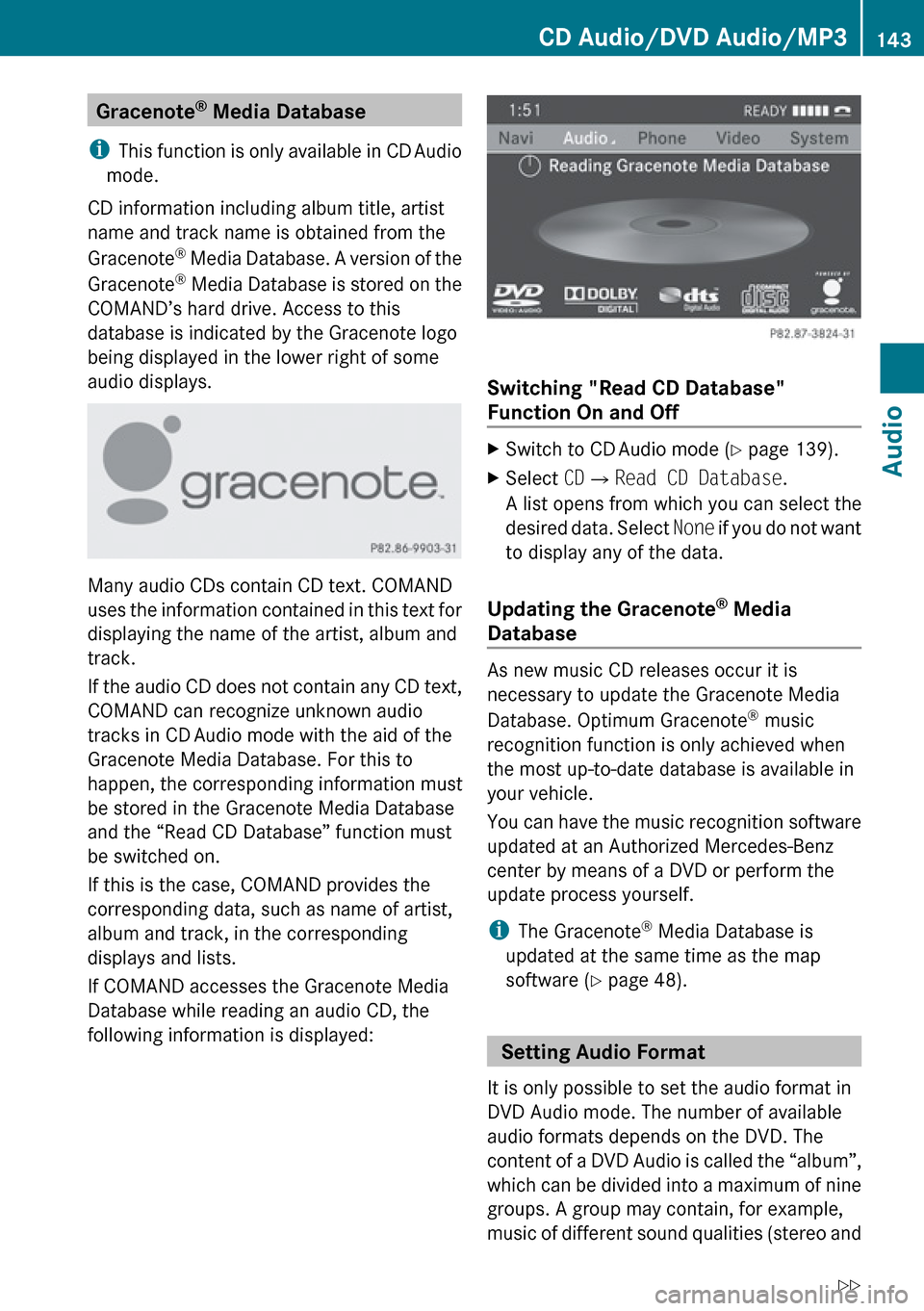
If COMAND accesses the Gracenote Media
Database while reading an audio CD, the
following information is displayed:
Switching "Read CD Database"
Function On and Off
XSwitch to CD Audio mode ( Y page 139).XSelect CD£ Read CD Database .
A list opens from which you can select the
desired data. Select None if you do not want
to display any of the data.
Updating the Gracenote ®
Media
Database
As new music CD releases occur it is
necessary to update the Gracenote Media
Database. Optimum Gracenote ®
music
recognition function is only achieved when
the most up-to-date database is available in
your vehicle.
You can have the music recognition software
updated at an Authorized Mercedes-Benz
center by means of a DVD or perform the
update process yourself.
i The Gracenote ®
Media Database is
updated at the same time as the map
software ( Y page 48).
Setting Audio Format
It is only possible to set the audio format in
DVD Audio mode. The number of available
audio formats depends on the DVD. The
content of a DVD Audio is called the “album”,
which can be divided into a maximum of nine
groups. A group may contain, for example,
music of different sound qualities (stereo and
CD Audio/DVD Audio/MP3143AudioZ
Page 146 of 224
multi-channel formats) or bonus tracks. Each
group can include up to 99 tracks. If a DVD
Audio only comprises one audio format, the
“Group” menu item(s) cannot be selected.XSwitch to DVD Audio mode ( Y page 139).XSelect DVD-A£Group .
The list of available audio formats appears.
The dot R indicates the format currently
selected.XTo change setting: Rotate ym z or slide
q m r.XPress n.
Playback Options
The following options are available:
R Normal Track Sequence
You will hear the tracks in the normal order
(e.g. track 1, 2, 3, etc.).
R Random Tracks
You will hear the tracks in random order
(e.g. track 3, 8, 5, etc.).
R Random Folder (MP3 mode only)
You hear the tracks in the currently active
folder and any subfolders in random order.
XTo select an option: Switch to CD Audio,
DVD Audio or MP3 mode ( Y page 139).XSelect CD or DVD-A or MP3 .
The option list appears. A dot R indicates
the option selected.XSelect an option.
The option is activated. For all options
except Normal Track Sequence , you will
see a corresponding display in the main
area.
i The Normal Track Sequence option is
automatically selected when you change
the medium you are currently listening to
or when you select a different medium. If
an option is selected, it remains selected
after COMAND is switched on or off.
Music Register
You can record tracks from Audio CDs and
store them in the Music Register. The
memory capacity is 6 GB.
! Keep your original music files in a safe
place. A fault with the COMAND may cause
the music files stored in the Music Register
to be lost. Mercedes-Benz USA, LLC is not
liable for any loss of data.
Switching to the Music Register
From Another Main Function
XSelect Audio£Audio £Music
Register in the Audio menu display.
i
If Music Register was the last mode,
you only need to select Audio.
Within the Audio Function
XSelect Audio£Music Register .
Music Register is loaded. The Music
Register display appears.
No music files available:
A message will be displayed.
XFirst record music files from an Audio CD
( Y page 145).
Music files available:
You will hear the first track of the first folder
found or playback will start from the point
listened to last.
144Music RegisterAudio
Page 150 of 224
Supported Data Formats (USB devices)
The following data types are supported:
R MP3: CBR, VBR (up to 320 kbit/s)
R WMA: CBR, VBR (up to 320 kbit/s)
In order to display the metadata during
playback, ID3 tags (version 1.x, 2.3, 2.4) and
WMA tags in ASCII and UTF16 coding are
supported.
Notes on USB Devices
R In order to keep the initialisation time short,
do not store data other than music files on
the USB device.
R Up to eight directory levels with up to 1,000
tracks are supported.
R Do not use a USB extension cable or
adapter. These may impair functionality.
R Playlists are searched for in the
background on the USB device and, if
available, are offered beside folders in a
separate category.
R You can only use USB devices formatted
with the file system format FAT (File
Allocation Table).
i Files protected with DRM (Digital Rights
Management) are not supported by the
Media Interface.
Connecting External Devices
You will find the connection sockets in the
glove compartment.
Never connect more than one device at a
time. Please consult a Mercedes-Benz
Service Center for further information.
i Do not leave external devices in the
vehicle, as functionality cannot be
guaranteed above certain temperatures
(such as inside a vehicle in direct sunlight).
Mercedes-Benz does not take
responsibility for any damage to external
devices.
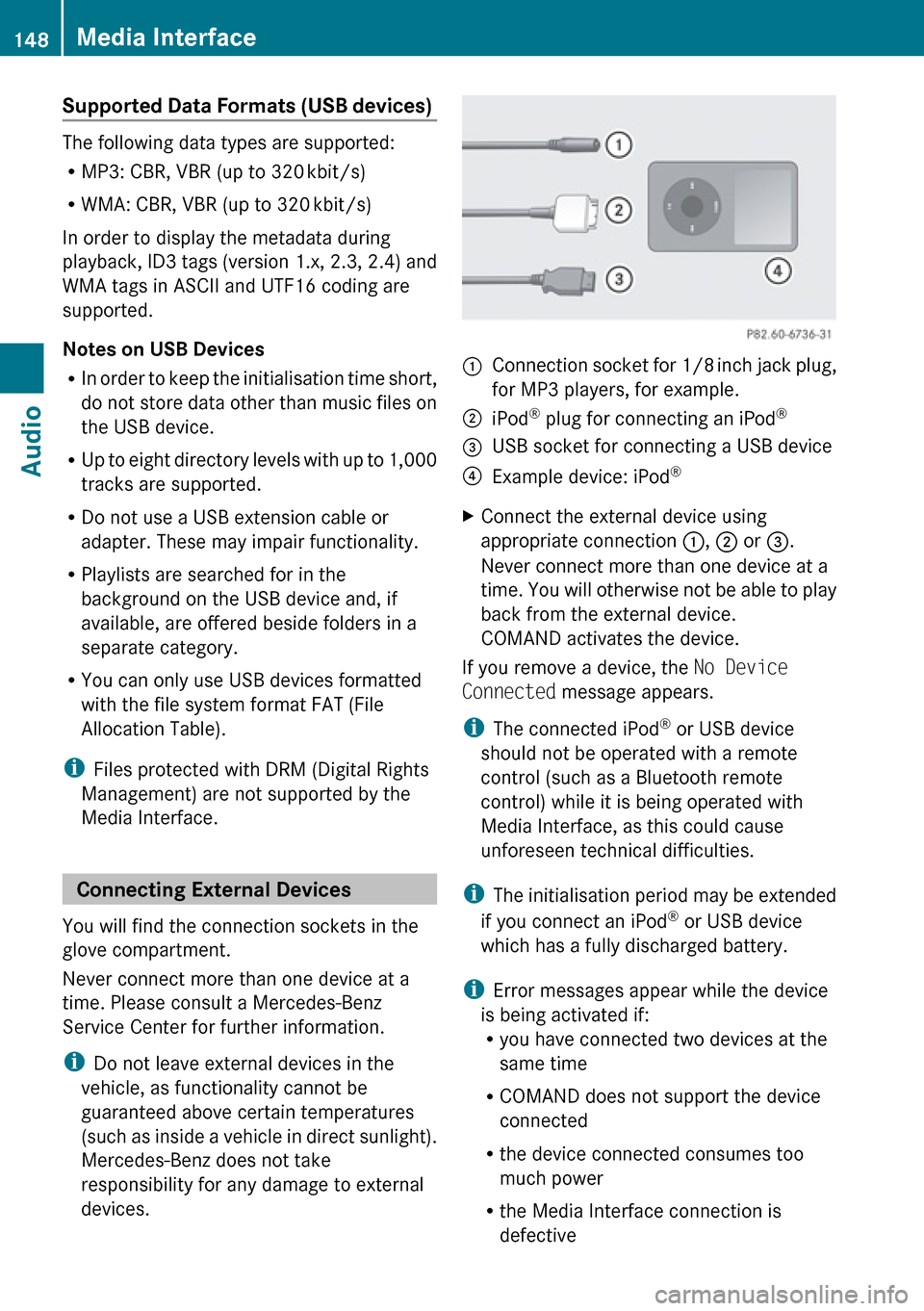
1Connection socket for 1/8 inch jack plug,
for MP3 players, for example.2iPod ®
plug for connecting an iPod ®3USB socket for connecting a USB device4Example device: iPod®XConnect the external device using
appropriate connection 1, 2 or 3.
Never connect more than one device at a
time. You will otherwise not be able to play
back from the external device.
COMAND activates the device.
If you remove a device, the No Device
Connected message appears.
i The connected iPod ®
or USB device
should not be operated with a remote
control (such as a Bluetooth remote
control) while it is being operated with
Media Interface, as this could cause
unforeseen technical difficulties.
i The initialisation period may be extended
if you connect an iPod ®
or USB device
which has a fully discharged battery.
i Error messages appear while the device
is being activated if:
R you have connected two devices at the
same time
R COMAND does not support the device
connected
R the device connected consumes too
much power
R the Media Interface connection is
defective
148Media InterfaceAudio
Page 152 of 224
Selecting Music Files
i COMAND displays the data stored on the
iPod ®
, MP3 player or USB mass storage
device in the storage structure used in the
medium in question.
Selecting by Skipping to a TrackXTo skip forwards or backwards to a
track: Slide om p.
or
XPress the F or E button.
i
Skipping forwards skips to the next track.
Skipping backwards skips to the beginning
of the current track if the track has been
playing for more than 8 seconds. If the
track has been playing for less than 8
seconds, it skips to the start of the previous
track. If you have selected a playback
option other than Normal Track
Sequence , the track sequence is random.
Selecting by Manual Track Number
Entry
XTo make an entry: Press the l button.
An input menu appears. The number of
possible input places depends on the
number of tracks stored.XTo enter a track number: Press a number
key, such as s.
The number is entered in the first position
in the input line.
i If an invalid number is entered, COMAND
will ignore it and it will not be displayed.
XEnter more numbers if desired.XTo confirm your entry: Press the n
button.
The selected track is played.Fast forward/rewindXWhen the main area is highlighted, slide
and hold om p until the desired position has
been reached.
or
XPress and hold the F or E button
until the desired position has been
reached.
Selecting a Category/Playlist/Folder
iPods and MP3 Players
You can select tracks by category for iPods
and by folder for MP3 players.
Depending on the connected device, the
categories may include:
R Current track list
R Playlists (e.g. All, My top 25 or Music
videos )
R Artists
R Albums
R Podcasts
R Audiobooks
R Genres
R Composers
i Some playback categories contain the
All entry. Further entries of this type can
follow depending on the hierarchy level.
After selecting a title at the track level, the
entire content of the category selected will
be played.
USB Devices
For USB mass storage devices, you can select
folders and also playlists (if available).
COMAND can also display the album name
and artist (“metadata”) during playback, if
this information has previously been entered.
Playlists are shown in the display with a
particular icon. When you open the playlist,
150Media InterfaceAudio
Page 158 of 224
General Information
Safety Notes
GWarning
COMAND is classified as a Class 1 laser
product. You must not open the casing. There
is a risk of exposure to invisible laser radiation
if you open the casing, or if the casing is faulty
or damaged.
COMAND does not contain any parts that you
are able to maintain yourself. For safety
reasons, all maintenance work must be
exclusively carried out by qualified
technicians.
GWarning
Only carry out the following when the vehicle
is stationary:
R Inserting a disc
R Ejecting a disc
There is a risk of accident by being distracted
from road and traffic conditions if you load a
CD/DVD while the vehicle is in motion.
Vehicle Equipment
i This Operator’s Manual describes all
features, standard or optional, potentially
available for your vehicle at the time of
purchase. Please be aware that your
vehicle might not be equipped with all
features described in this manual.
Automatic Picture Switch-off
The video picture is only displayed if the
gearshift lever is in “P” position.
When the gearshift lever is moved out of the
“P” position, the following message is
displayed: In order not to distract
you from the traffic situation, the
picture is faded out while the
vehicle is in motion.
When the gearshift lever is moved back into
the “P” position, the picture switches back
on.
Notes on Storage Media
i When playing copied discs, problems may
occur with the playback. A wide variety of
disc-writing software and writers are
available. Due to this variety we cannot
guarantee that the system will be able to
play discs that you have written/copied
yourself.
! Do not affix stickers or labels to the discs,
as they could peel off and damage
COMAND. Stickers can cause the disc to
bend, which can result in read errors and
disc recognition problems.
! COMAND is designed to hold discs which
comply with the EN 60908 standard. You
can therefore only use discs with a
maximum thickness of 1.3 mm.
If you insert thicker discs, e.g. those that
contain data on both sides (DVD on one
side and audio data on the other), they
cannot be ejected and can damage
COMAND.
Do not use discs with a diameter of 8 cm,
even with an adapter. Only use round discs
with a diameter of 12 cm.
Notes on the Care of Discs
R Only hold discs by the edge.
R Handle discs with care in order to prevent
malfunctions during playback.
R Avoid scratching, leaving fingerprints and
dust on the discs.
R Clean the discs occasionally with a
commercially available cleaning cloth.
Always wipe in a straight line from the
inside outwards, never in a circular motion.
156General InformationVideo
Page 159 of 224
RThe discs must only be labelled using pens
specially designed for this purpose.
R After use, replace the discs into the sleeve.
R Protect the discs from heat and direct
sunlight.
DVD Playback Conditions
Some DVDs may not comply with the NTSC
or PAL TV playback standards. Sound, picture
and other playback problems may occur
when you play such DVDs.
As standard, COMAND can play video DVDs
which meet the following criteria:
R Region code 1 or region code 0 (all regions)
i With a video DVD having another region
code, a corresponding message will be
displayed.
R PAL or NTSC TV standard
Information on this can usually be found
either on the DVD itself or on the DVD sleeve.
i The factory setting for COMAND is region
code 1. An authorized Mercedes-Benz
Center can change this setting up to five
times. This will enable you to play video
DVDs with other region codes, provided
that they have been made to the PAL or
NTSC TV standard.
Functional Restrictions
It may be the case that some functions or
actions may not be possible at certain times,
or may not be possible in general, depending
on the DVD.
When you activate such functions or actions,
this is indicated by the 7 in the display.
Loading a DVD
XProceed as described in the “Loading CDs
and DVDs” section ( Y page 134).
Ejecting a DVD
XProceed as described in the “Ejecting CDs
and DVDs” section ( Y page 136).
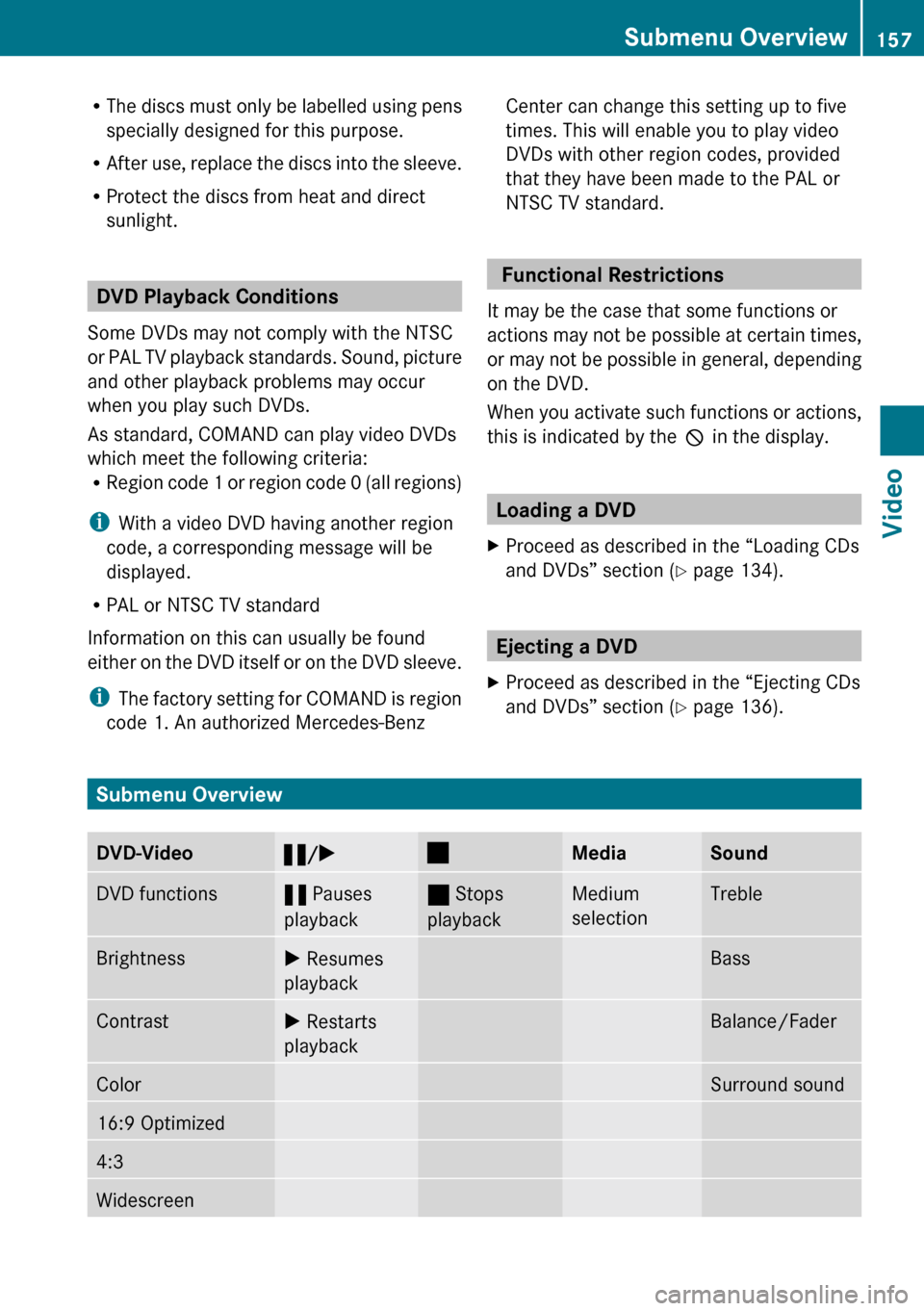
Submenu Overview
DVD-Video« /X±MediaSoundDVD functions« Pauses
playback± Stops
playbackMedium
selectionTrebleBrightnessX Resumes
playbackBassContrastX Restarts
playbackBalance/FaderColorSurround sound16:9 Optimized4:3WidescreenSubmenu Overview157VideoZ
Page 161 of 224
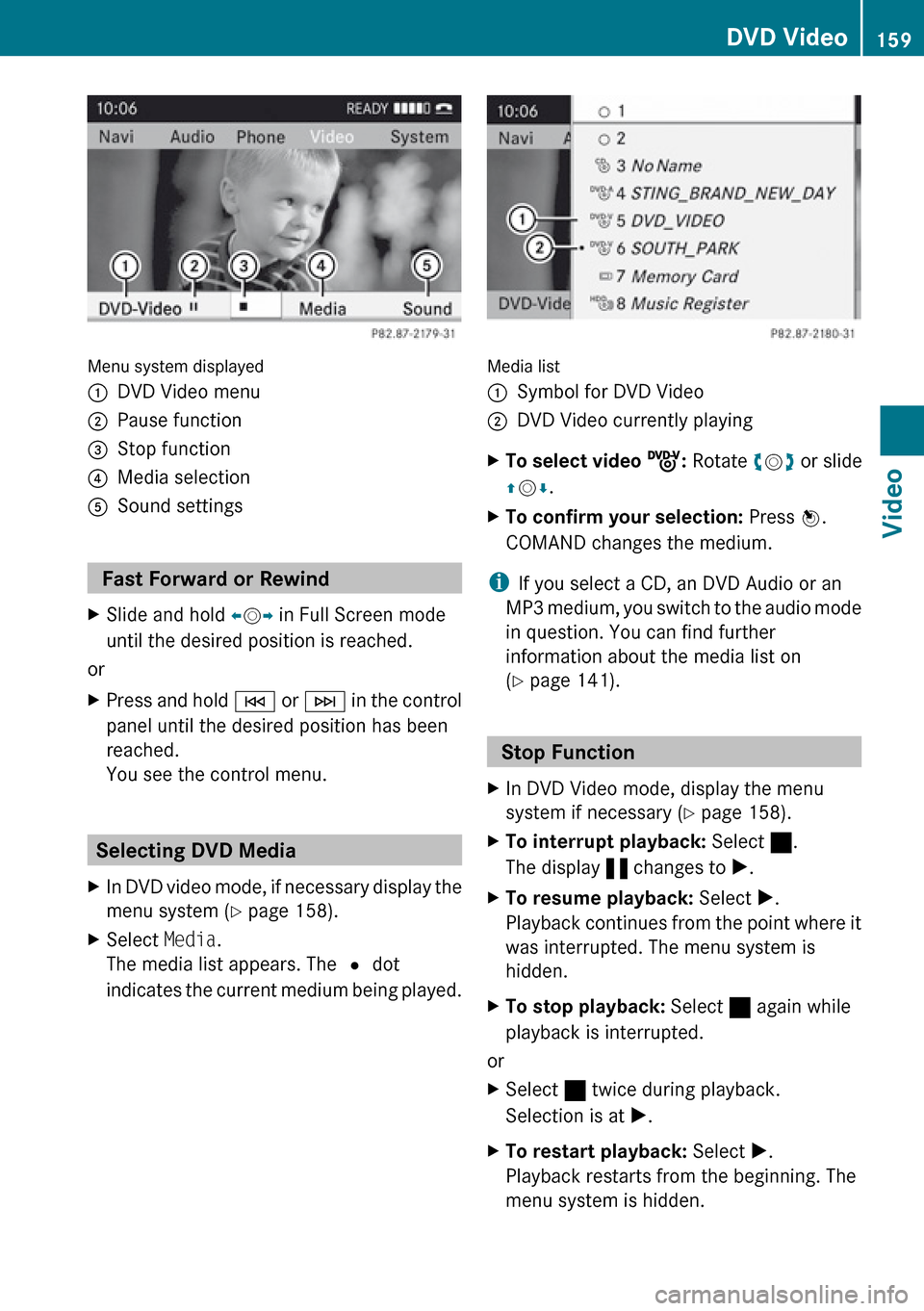
Menu system displayed
1DVD Video menu2Pause function3Stop function4Media selection5Sound settings
Fast Forward or Rewind
XSlide and hold om p in Full Screen mode
until the desired position is reached.
or
XPress and hold E or F in the control
panel until the desired position has been
reached.
You see the control menu.
Selecting DVD Media
XIn DVD video mode, if necessary display the
menu system ( Y page 158).XSelect Media.
The media list appears. The R dot
indicates the current medium being played.
Media list
1Symbol for DVD Video2DVD Video currently playingXTo select video ý: Rotate ym z or slide
q m r.XTo confirm your selection: Press n.
COMAND changes the medium.
i If you select a CD, an DVD Audio or an
MP3 medium, you switch to the audio mode
in question. You can find further
information about the media list on
( Y page 141).
Stop Function
XIn DVD Video mode, display the menu
system if necessary ( Y page 158).XTo interrupt playback: Select ±.
The display « changes to X.XTo resume playback: Select X.
Playback continues from the point where it
was interrupted. The menu system is
hidden.XTo stop playback: Select ± again while
playback is interrupted.
or
XSelect ± twice during playback.
Selection is at X.XTo restart playback: Select X.
Playback restarts from the beginning. The
menu system is hidden.DVD Video159VideoZ
Page 162 of 224
Pause Function XIn DVD Video mode, display the menu
system if necessary ( Y page 158).XTo pause playback: Select «.
The display « changes to X.XTo resume playback: Select X.
Playback continues from the point where it
was paused. The menu system is hidden.
Selecting a Scene/Chapter
XTo skip forwards or backwards: Rotate
y m z or slide om p in Full Screen mode.
orXPress the E or F button on the
control panel.
The control menu (Y page 158) appears for
approximately 8 seconds.
Selecting a Film/Track
i This function is only available if the DVD
is divided into several films/tracks.
XDisplay the menu system if necessary
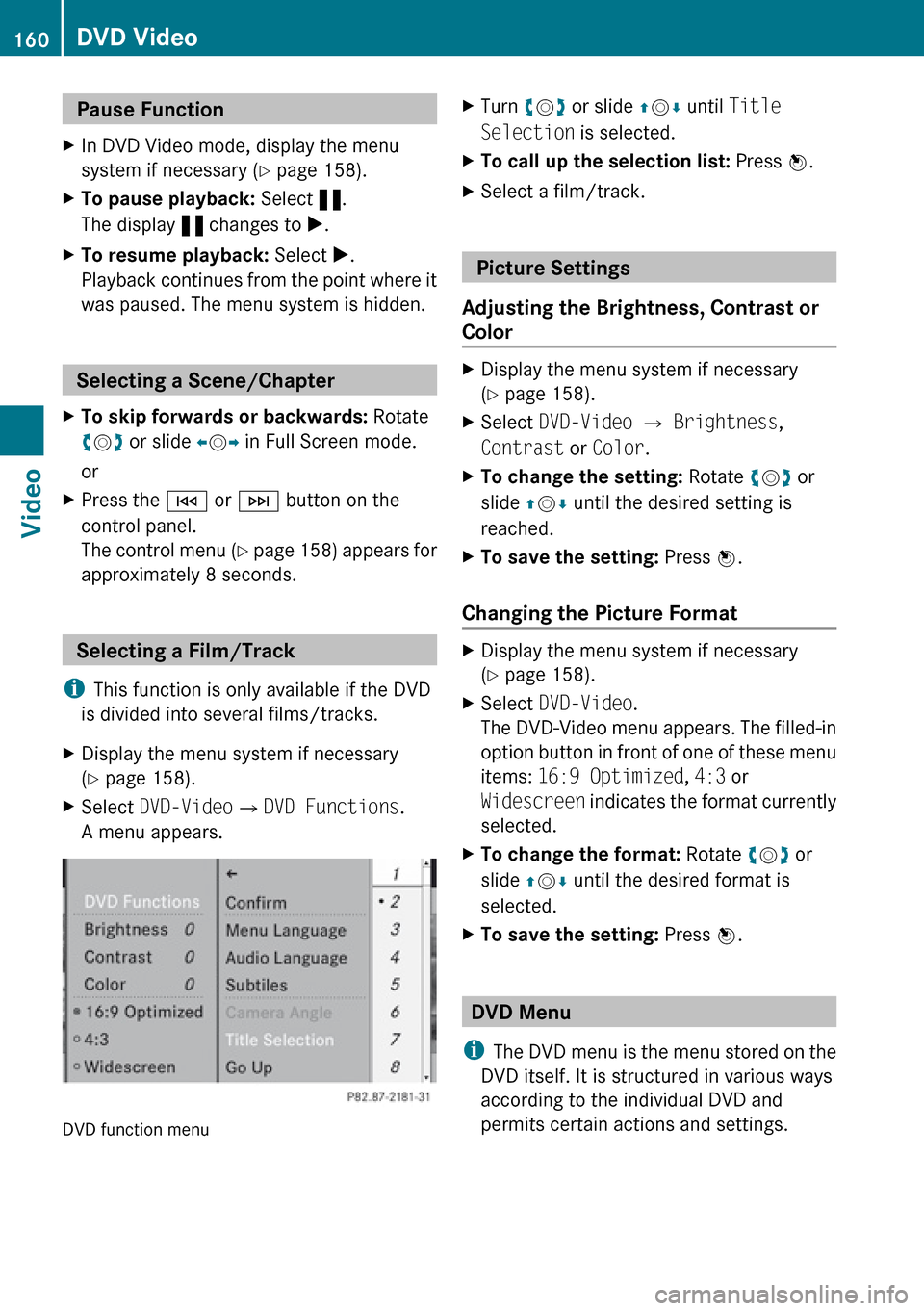
( Y page 158).XSelect DVD-Video £DVD Functions .
A menu appears.
DVD function menu
XTurn ym z or slide qm r until Title
Selection is selected.XTo call up the selection list: Press n.XSelect a film/track.
Picture Settings
Adjusting the Brightness, Contrast or
Color
XDisplay the menu system if necessary
( Y page 158).XSelect DVD-Video £ Brightness ,
Contrast or Color .XTo change the setting: Rotate ym z or
slide qm r until the desired setting is
reached.XTo save the setting: Press n.
Changing the Picture Format
XDisplay the menu system if necessary
( Y page 158).XSelect DVD-Video .
The DVD-Video menu appears. The filled-in
option button in front of one of these menu
items: 16:9 Optimized , 4:3 or
Widescreen indicates the format currently
selected.XTo change the format: Rotate ym z or
slide qm r until the desired format is
selected.XTo save the setting: Press n.
DVD Menu
i The DVD menu is the menu stored on the
DVD itself. It is structured in various ways
according to the individual DVD and
permits certain actions and settings.
160DVD VideoVideo
Page 165 of 224
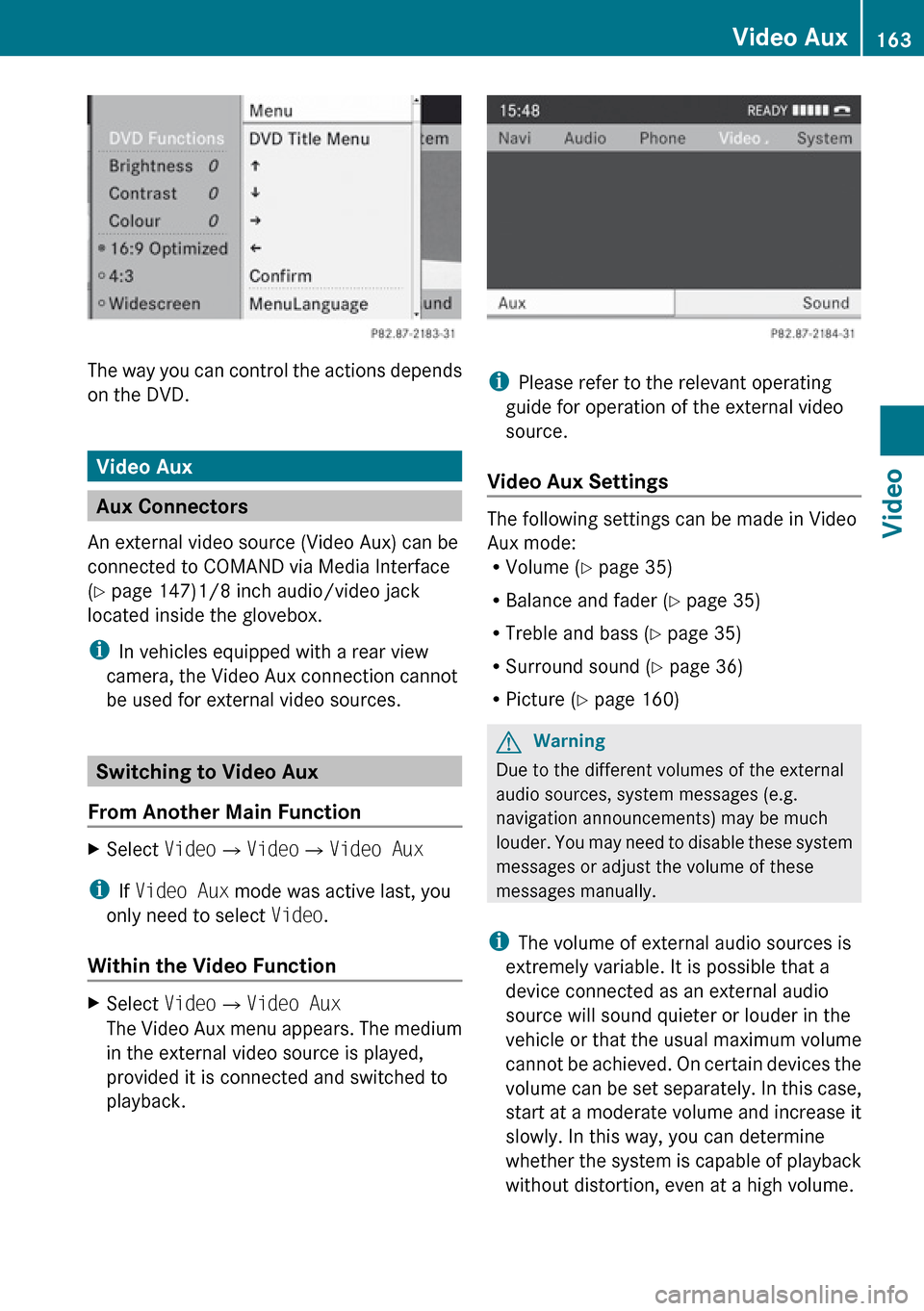
The way you can control the actions depends
on the DVD.
Video Aux
Aux Connectors
An external video source (Video Aux) can be
connected to COMAND via Media Interface
( Y page 147)1/8 inch audio/video jack
located inside the glovebox.
i In vehicles equipped with a rear view
camera, the Video Aux connection cannot
be used for external video sources.
Switching to Video Aux
From Another Main Function
XSelect Video£Video £Video Aux
i
If Video Aux mode was active last, you
only need to select Video.
Within the Video Function
XSelect Video£Video Aux
The Video Aux menu appears. The medium
in the external video source is played,
provided it is connected and switched to
playback.
i Please refer to the relevant operating
guide for operation of the external video
source.
Video Aux Settings
The following settings can be made in Video
Aux mode:
R Volume ( Y page 35)
R Balance and fader ( Y page 35)
R Treble and bass ( Y page 35)
R Surround sound ( Y page 36)
R Picture ( Y page 160)
GWarning
Due to the different volumes of the external
audio sources, system messages (e.g.
navigation announcements) may be much
louder. You may need to disable these system
messages or adjust the volume of these
messages manually.
i The volume of external audio sources is
extremely variable. It is possible that a
device connected as an external audio
source will sound quieter or louder in the
vehicle or that the usual maximum volume
cannot be achieved. On certain devices the
volume can be set separately. In this case,
start at a moderate volume and increase it
slowly. In this way, you can determine
whether the system is capable of playback
without distortion, even at a high volume.
Video Aux163VideoZ