AUX MERCEDES-BENZ GLA SUV 2018 COMAND Manual
[x] Cancel search | Manufacturer: MERCEDES-BENZ, Model Year: 2018, Model line: GLA SUV, Model: MERCEDES-BENZ GLA SUV 2018Pages: 190, PDF Size: 4.48 MB
Page 5 of 190
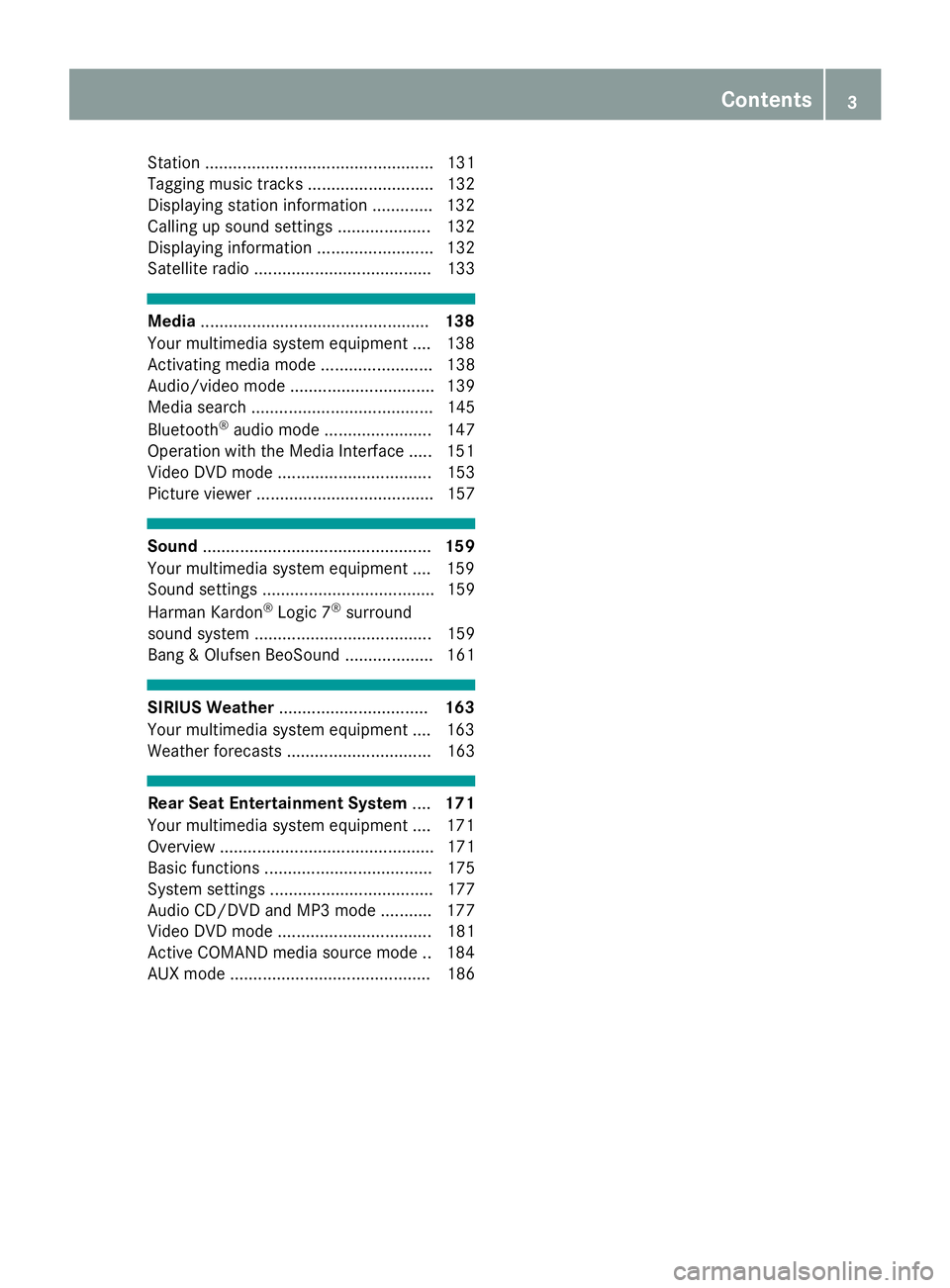
Station ................................................. 131
Tagging music tracks ........................... 132
Displaying station information ............. 132
Calling up sound settings .................... 132
Displaying information ......................... 132
Satellite radio ...................................... 133
Media................................................. 138
Your multimedia system equipment .... 138
Activating media mode ........................ 138
Audio/video mode ............................... 139
Media search ....................................... 145
Bluetooth
®audio mode ....................... 147
Operation with the Media Interface ..... 151
Video DVD mode ................................. 153
Picture viewer ...................................... 157
Sound ................................................. 159
Your multimedia system equipment .... 159
Sound settings ..................................... 159
Harman Kardon
®Logic 7®surround
sound system ...................................... 159
Bang & Olufsen BeoSound ................... 161
SIRIUS Weather ................................ 163
Your multimedia system equipment .... 163
Weather forecasts ............................... 163
Rear Seat Entertainment System ....171
Your multimedia system equipment .... 171
Overview .............................................. 171
Basic functions .................................... 175
System settings ................................... 177
Audio CD/DVD and MP3 mode ........... 177
Video DVD mode ................................. 181
Active COMAND media source mode .. 184
AUX mode ........................................... 186
Contents3
Page 6 of 190
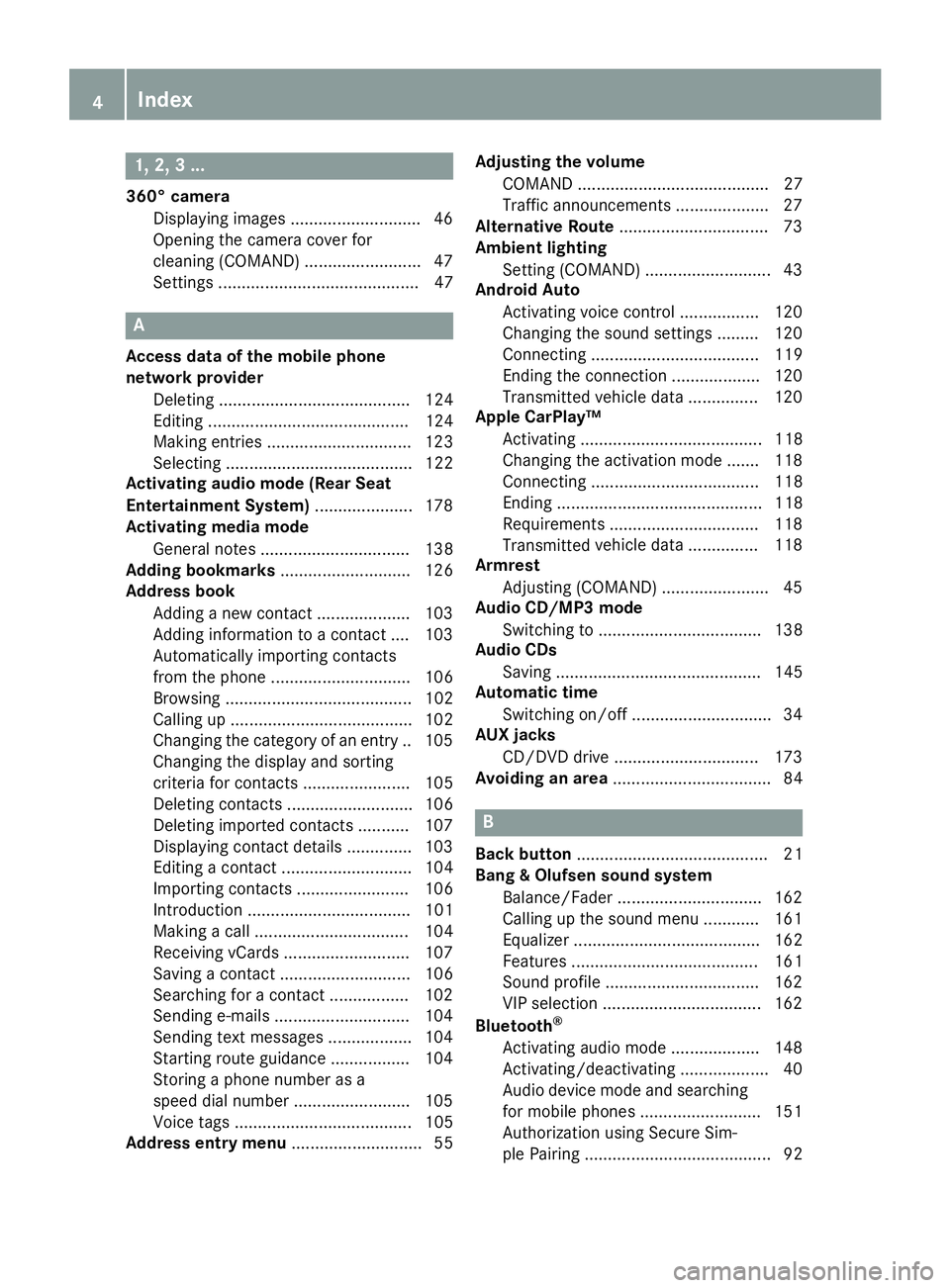
1, 2, 3 ...
360° cameraDisplaying images ............................ 46
Opening the camera cover for
cleaning (COMAND) .........................4 7
Settings ........................................... 47
A
Access data of the mobile phone
network provider
Deleting ......................................... 124
Editing ........................................... 124
Making entries ............................... 123
Selecting ........................................ 122
Activating audio mode (Rear Seat
Entertainment System) ..................... 178
Activating media mode
General notes ................................ 138
Adding bookmarks ............................ 126
Address book
Adding a new contact .................... 103
Adding information to a contact .... 103
Automatically importing contacts
from the phone .............................. 106
Browsing ........................................ 102
Calling up ....................................... 102
Changing the category of an entry .. 105
Changing the display and sorting
criteria for contacts ....................... 105
Deleting contacts ........................... 106
Deleting imported contacts ........... 107
Displaying contact details .............. 103
Editing a contact ............................ 104
Importing contacts ........................ 106
Introduction ................................... 101
Making a call ................................. 104
Receiving vCards ........................... 107
Saving a contact ............................ 106
Searching for a contact ................. 102
Sending e-mails ............................. 104
Sending text messages .................. 104
Starting route guidance ................. 104
Storing a phone number as a
speed dial number ......................... 105
Voice tags ...................................... 105
Address entry menu ............................ 55 Adjusting the volume
COMAND ......................................... 27
Traffic announcements .................... 27
Alternative Route ................................ 73
Ambient lighting
Setting (COMAND) ........................... 43
Android Auto
Activating voice control ................. 120
Changing the sound settings ......... 120
Connecting .................................... 119
Ending the connection ................... 120
Transmitted vehicle data ............... 120
Apple CarPlay™
Activating ....................................... 118
Changing the activation mode ....... 118
Connecting .................................... 118
Ending ............................................ 118
Requirements ................................ 118
Transmitted vehi
cle data ............... 118
Armrest
Adjusting (COMAND) ....................... 45
Audio CD/MP3 mode
Switching to ................................... 138
Audio CDs
Saving ............................................ 145
Automatic time
Switching on/off .............................. 34
AUX jacks
CD/DVD drive ............................... 173
Avoiding an area .................................. 84
B
Back button......................................... 21
Bang & Olufsen sound system
Balance/Fader ............................... 162
Calling up the sound menu ............ 161
Equalizer ........................................ 162
Features ........................................ 161
Sound profile ................................. 162
VIP selection .................................. 162
Bluetooth
®
Activating audio mode ................... 148
Activating/deactivating ................... 40
Audio device mode and searching
for mobile phones .......................... 151
Authorization using Secure Sim-
ple Pairing ........................................ 92
4Index
Page 11 of 190
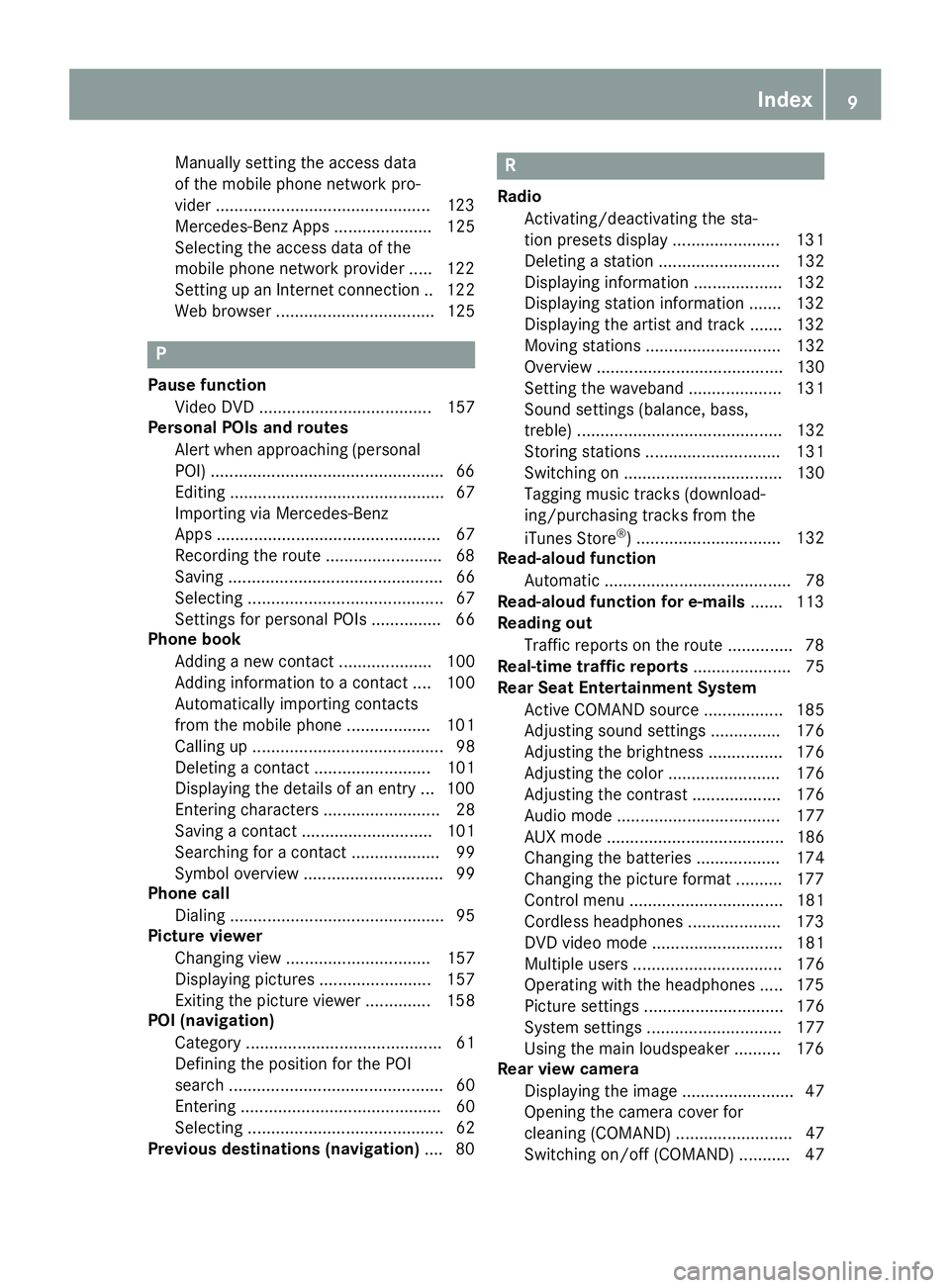
Manually setting the access data
of the mobile phone network pro-
vider ..............................................123
Mercedes-Benz Apps ..................... 125
Selecting the access data of the
mobile phone network provider ..... 122
Setting up an Internet connection .. 122
Web browser .................................. 125
P
Pause function
Video DVD ..................................... 157
Personal POIs and routes
Alert when approaching (personal
POI) ..................................................6 6
Editing .............................................. 67
Importing via Mercedes-Benz
Apps ................................................ 67
Recording the route .........................6 8
Saving .............................................. 66
Selecting .......................................... 67
Settings for personal POIs ............... 66
Phone book
Adding a new contact .................... 100
Adding information to a contact .... 100
Automatically importing contacts
from the mobile phone .................. 101
Calling up ......................................... 98
Deleting a contact ......................... 101
Displaying the details of an entry ... 100
Entering characters ......................... 28
Saving a contact ............................ 101
Searching for a contact ................... 99
Symbol overview .............................. 99
Phone call
Dialing .............................................. 95
Picture viewer
Changing view ............................... 157
Displaying pictures ........................ 157
Exiting the picture viewer .............. 158
POI (navigation)
Category .......................................... 61
Defining the position for the POI
search .............................................. 60
Entering ........................................... 60
Selecting .......................................... 62
Previous destinations (navigation) .... 80
R
Radio
Activating/deactivating the sta-
tion presets display ....................... 131
Deleting a station .......................... 132
Displaying information ................... 132
Displaying station information ....... 132
Displaying the artist and track ....... 132
Moving stations ............................. 132
Overview ........................................ 130
Setting the waveband .................... 131
Sound settings (balance, bass,
treble) ............................................ 132
Storing stations ............................. 131
Switching on .................................. 130
Tagging music tracks (download-
ing/purchasing tracks from the
iTunes Store
®) ............................... 132
Read-aloud function
Automatic ........................................ 78
Read-aloud function for e-mails ....... 113
Reading out
Traffic reports on the route .............. 78
Real-time traffic reports ..................... 75
Rear Seat Entertainment System
Active COMAND source ................. 185
Adjusting sound settings ............... 176
Adjusting the brightness ................ 176
Adjusting the color ........................ 176
Adjusting the contrast ................... 176
Audio mode ................................... 177
AUX mode ...................................... 186
Changing the batteries .................. 174
Changing the picture format .......... 177
Control menu ................................. 181
Cordless headphones .................... 173
DVD video mode ............................ 181
Multiple users ................................ 176
Operating with the headphones ..... 175
Picture settings .............................. 176
System settings ............................. 177
Using the main loudspeaker .......... 176
Rear view camera
Displaying the image ........................ 47
Opening the camera cover for
cleaning (COMAND) ......................... 47
Switching on/off (COMAND) ........... 47
Index9
Page 173 of 190

Your multimediasyste mequipment
These operatin ginstruction sdescribe all th e
standar dan doptional equipment of your multi-
media system, as available at th etime of going
to press. Country-specifi cdifference sare pos -
sible. Bear in min dthat your vehicle may no t
feature all function sdescribed here. Thi salso
applies to safety-relevan tsystems an dfunc-
tions.
Read th einformation on qualifie dspecialis t
workshop sin th evehicle Operator's Manual.
Overview
Important safet ynotes
GWARNING
The CD/DVD drive is aclass 1lase rproduct.
If you ope nth ehousin gof th eCD/DVD drive,
there is aris kof exposure to invisible lase r
radiation .Thi slase rradiation could damage
your retina. There is aris kof injury.
Never ope nth ehousing. Always hav emain -
tenanc ean drepair wor kcarrie dout at aquali -
fie dspecialis tworkshop .
GWARNING
If objects suc has headphones/headset sor
external audio/video sources are no tsecure d
in th epassenger compartment, they can be
flun garound an dhit vehicle occupants .There
is aris kof injury, fo rexample in th eevent of
sudden braking or asudden change in direc -
tion .
Always stow these items or similar objects
carefully so that they canno tbe flung around ,
fo rexample in alockable vehicle stowag e
compartment.
Equipment
Observ ethat arange of Rear Seat Entertain -
men tSystems are available fo rMercedes-Ben z
vehicles .In this Operator's Manual, th eRear
Seat Entertainmen tSyste mCode 86 4is used
fo rillustration purposes. If you hav e adifferen t
Rear Seat Entertainmen tSyste min your vehicle,
please refer to th emanufacturer's operatin g
instructions.
Component s
The Rear Seat Entertainmen tSyste mincludes :
Rtwoscreens fo rth erea rbehin dth efront-seat
head restraints
Rtw oremot econtrols
Rasingle drive (rear-compartmen tdrive)
RAU Xjack son bot hrea rscreens (AUX display)
RAU Xjack son th erea rdrive (AUX drive)
Rheadphone sfo reac hrea rscree n
Rtwoset sof cordless headphone s
Rear-compartment screens
:AUXjack s(AUX display)
;Display
Overview171
Rear Seat Entertainment System
Z
Page 174 of 190
The same AUX jacks (AUX drive) can be found in the rear-compartment drive (Ypage 173).
Remote control
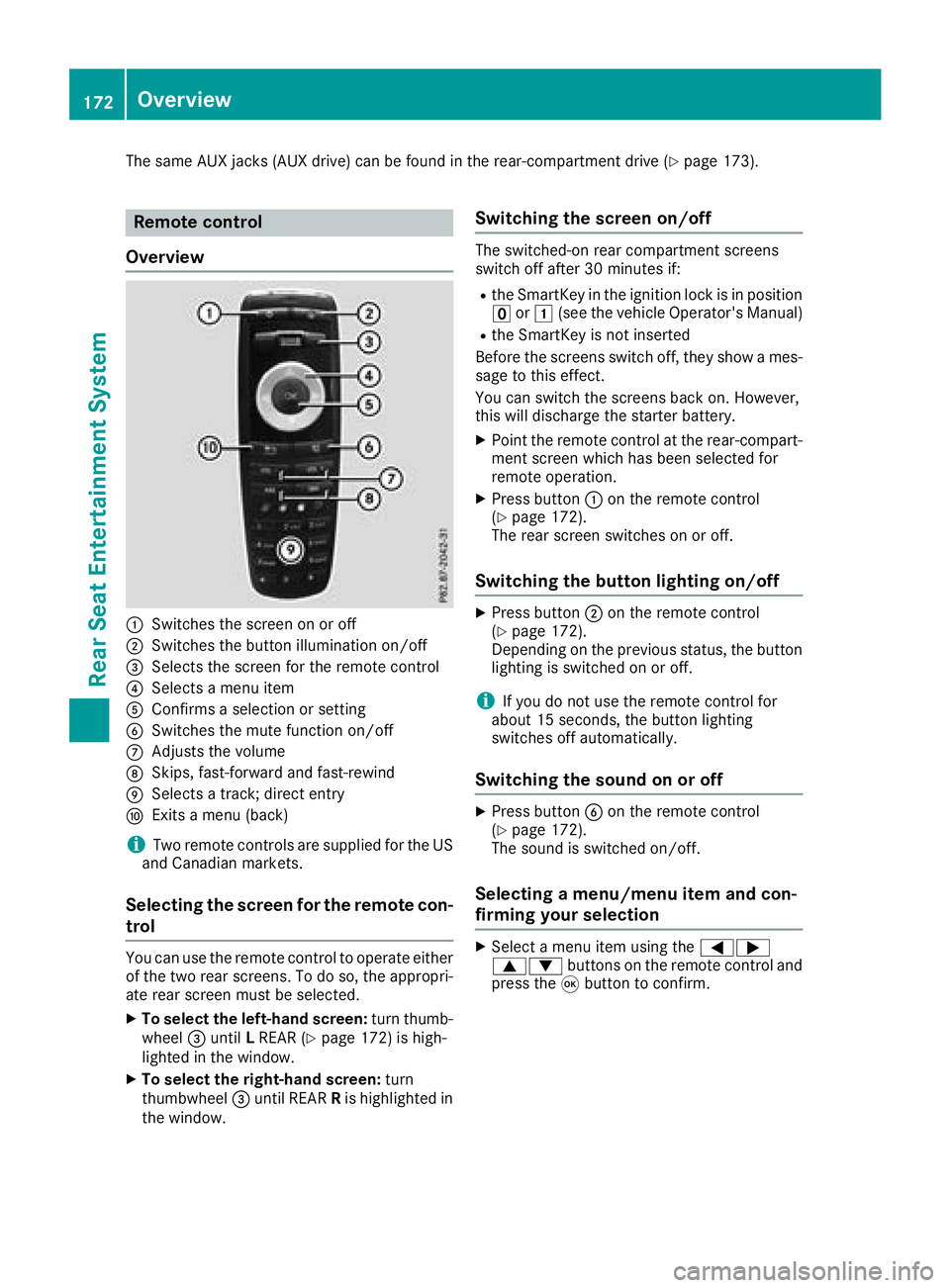
Overview
:Switches the screen on or off
;Switches the button illumination on/off
=Selects the screen for the remote control
?Selects a menu item
AConfirms a selection or setting
BSwitches the mute function on/off
CAdjusts the volume
DSkips, fast-forward and fast-rewind
ESelects a track; direct entry
FExits a menu (back)
iTwo remote controls are supplied for the US
and Canadian markets.
Selecting the screen for the remote con-
trol
You can use the remote control to operate either
of the two rear screens. To do so, the appropri-
ate rear screen must be selected.
XTo select the left-hand screen: turn thumb-
wheel =until LREAR (Ypage 172) is high-
lighted in the window.
XTo select the right-hand screen: turn
thumbwheel =until REAR Ris highlighted in
the window.
Switching the screen on/off
The switched-on rear compartment screens
switch off after 30 minutes if:
Rthe SmartKey in the ignition lock is in position u or1 (see the vehicle Operator's Manual)
Rthe SmartKey is not inserted
Before the screens switch off, they show a mes-
sage to this effect.
You can switch the screens back on. However,
this will discharge the starter battery.
XPoint the remote control at the rear-compart-
ment screen which has been selected for
remote operation.
XPress button :on the remote control
(Ypage 172).
The rear screen switches on or off.
Switching the button lighting on/off
XPress button ;on the remote control
(Ypage 172).
Depending on the previous status, the button
lighting is switched on or off.
iIf you do not use the remote control for
about 15 seconds, the button lighting
switches off automatically.
Switching the sound on or off
XPress button Bon the remote control
(Ypage 172).
The sound is switched on/off.
Selecting a menu/menu item and con-
firming your selection
XSelect a menu item using the =;
9: buttons on the remote control and
press the 9button to confirm.
172Overview
Rear Seat Entertainment System
Page 175 of 190
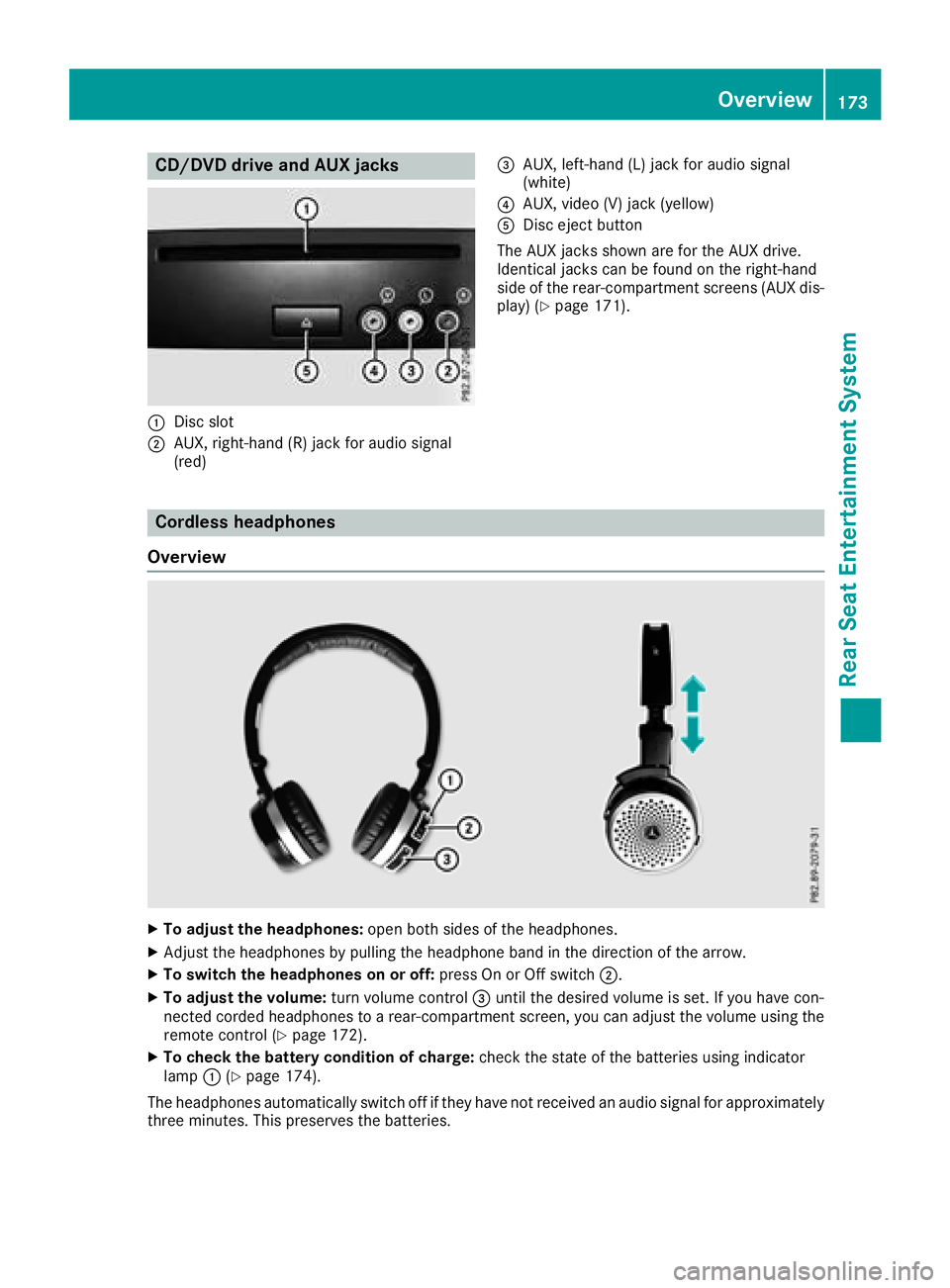
CD/DVD drive and AUX jacks
:Disc slot
;AUX, right-hand (R) jack for audio signal
(red)
=AUX, left-hand (L) jack for audio signal
(white)
?AUX, video (V) jack (yellow)
ADisc eject button
The AUX jacks shown are for the AUX drive.
Identical jacks can be found on the right-hand
side of the rear-compartment screens (AUX dis-
play) (
Ypage 171).
Cordless headphones
Overview
XTo adjust the headphones: open both sides of the headphones.
XAdjust the headphones by pulling the headphone band in the direction of the arrow.
XTo switch the headphones on or off: press On or Off switch;.
XTo adjust the volume: turn volume control=until the desired volume is set. If you have con-
nected corded headphones to a rear-compartment screen, you can adjust the volume using the
remote control (
Ypage 172).
XTo check the battery condition of charge: check the state of the batteries using indicator
lamp :(Ypage 174).
The headphones automatically switch off if they have not received an audio signal for approximately
three minutes. This preserves the batteries.
Overview173
Rear Seat Entertainment System
Z
Page 178 of 190

Using the main loudspeakers
This function is available in conjunction with the
multimedia system.
You can use the vehicle loudspeakers to listen to
a disc inserted in the rear-compartment drive.
To do so, disc mode (audio CD/audio DVD/
MP3) must be activated on at least one rear
screen.
The volume setting of the headphones does not
affect the main loudspeakers.
XTo set on the multimedia system:press the
$ button, for example, to switch on an
audio mode.
XTo select Information6slide and press
the controller.
A menu appears.
XTurn the controller until Rear Seat Enter‐tainment System: Audiois brought to the
front.
XPress the controller
Selecting sound settings
You can select sound settings in the following
operating modes:
RAudio CD/MP3
RVideo DVD
RRadio (active media source in COMAND)
RAUX
XActivate audio mode (Ypage 178).
XSelect TrebleorBassusing
the :=; buttons on the remote
control and press the 9button to confirm.
An adjustment scale appears.
XSelect a setting using the 9:buttons
and press the 9button to confirm.
Multiple users
Simultaneous use of the rear-compart-
ment disc drive
The two rear-compartment screens can be oper- ated almost entirely independently from one
another. However, a conflict may occur in some
menus if the two screens are used simultane-
ously. The following functions affect both screens:
Rchanging playback options
Rselecting a track (from a track list or folder)
Rusing the play, pause and stop functions
Rfast forward and rewind or scrolling
Rcalling up the DVD menu and navigating
within it
Rsetting the language, subtitles and camera
angle
Rcalling up interactive DVD content
The following functions affect only one screen:
Rfunctions in audio and video mode
Rchanging picture settings
Rswitching between full screen and the menu
Switching between operating modes
When you exit an operating mode (e.g. CD
mode), the current setting is saved. If you call up
this operating mode again later, there are two
possibilities:
Rthe operating mode has been changed on the
other screen.
Rthe operating mode has not been changed.
In the first case, the operating mode appears as it is on the other screen.
In the second case, the setting appears on the
screen as it was when you last exited the oper-
ating mode.
Picture settings
Overview
You can select the picture settings in video DVD and AUX mode (Ypage 186).
Adjusting the brightness, contrast and
color
XSwitch to video DVD mode (Ypage 181).
XTo show the menu: press the9button on
the remote control.
176Basic functions
Rear Seat Entertainment System
Page 188 of 190
Additional setting option:
XAdjust the sound settings (Ypage 176).
MP3 mode functions
XTo select a track by skipping to a track:
press the=or; button on the remote
control.
or
XPress the EorF button.
The skip forward function skips to the next
track.
If the elapsed track time has exceeded 8 sec-
onds, the function skips back to the beginning
of the track.
If the elapsed track time is less than 8 sec-
onds, the function skips back to the beginning of the previous track.
Additional setting option:
XAdjust the sound settings (Ypage 176).
DVD video mode functions
Hiding the menu:
XPress the 9or: button on the remote
control.
or
XWait about eight seconds.
The menu is hidden.
Additional setting options:
XAdjust the brightness, contrast and color
(Ypage 176).
XChange the picture format (Ypage 177).
XAdjust the sound settings (Ypage 176).
AUX mode
Introduction
You can connect external video sources with a
sound and video signal to the Rear Seat Enter-
tainment System:
Rone external video source to each of the rear screens (AUX display)
Rone external video source to the rear-com-
partment disc drive (AUX drive) Operating the external video source; see the
manufacturer's operating instructions.
For further details about external video sources,
please consult an authorized Mercedes-Benz
Center.
Connecting AUX equipment
AUX drive jacks
The AUX drive jacks are located on the rear-
compartment drive to the right of the þ
(
Ypage 173) button.
AUX display jacks
The AUX display jacks are on the side of the two
rear screens (Ypage 171).
Connecting audio and video cables
XInsert the audio plugs for the left and right
signals into the corresponding Land Rjacks.
XInsert the video plug into the Vjack.
Activating AUX mode
AUX drive
Requirements: the external video source is con-
nected to the rear-compartment drive and play-
back is selected.
XSelect Auxin the menu using the
9=; buttons on the remote con-
trol and press the 9button to confirm.
The AUX menu appears.
XSelect Sourcefrom the AUX menu and press
the 9button to confirm.
XSelect Disc drive Auxand press the 9
button to confirm.
Playback starts. If an external video source
does not provide a video picture, an audio
menu appears.
Displaying AUX
Requirements: the external video source is con-
nected to the rear-compartment screen and
playback is selected.
XSelect a screen using the thumbwheel on the
remote control (Ypage 172) until " LREAR"
186AUX mode
Rear Seat Entertainment System
Page 189 of 190
(left-hand screen) or "RREAR" (right-hand
screen) is highlighted in the window.
XSelect Auxin the menu using the
9=; buttons on the remote con-
trol and press the 9button to confirm.
XSelect Sourcefrom the AUX menu and press
the 9button to confirm.
XSelect DisplayAuxand press the 9button
to confirm.
Playback starts. If an external video source
does not provide a video picture, an audio
menu appears.
Adjusting treble and bass
XSelect TrebleorBassin the AUX menu and
press the 9button on the remote control to
confirm.
A scale appears.
XSelect a setting using the 9or: but-
ton and press the 9button to confirm.
Adjusting the brightness, contrast or
color
XSelect Display AuxorDisc drive Auxin
the AUX menu and press the 9button to
confirm.
XSelect Brightness,Contrastor Colorand
press the 9button to confirm.
A scale appears.
XSelect a setting using the 9or: but-
ton and press the 9button to confirm.
Changing the picture format
XSelect Display AuxorDisc drive Auxin
the AUX menu and press the 9button to
confirm.
XSelect Automatic,16:9 optimize, 4:3or
Zoomusing the 9: buttons and press
the 9button to confirm.
The dot in front of the menu item indicates the
currently selected picture format.
AUX mode187
Rear Seat Entertainment System
Z