light MERCEDES-BENZ GLB SUV 2019 Owners Manual
[x] Cancel search | Manufacturer: MERCEDES-BENZ, Model Year: 2019, Model line: GLB SUV, Model: MERCEDES-BENZ GLB SUV 2019Pages: 689, PDF Size: 11.39 MB
Page 310 of 689
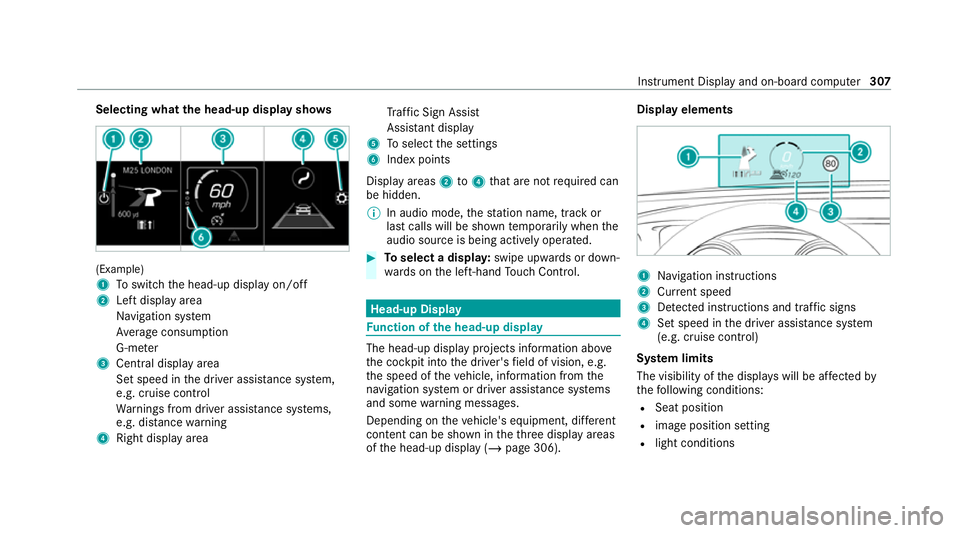
Selecting what
the head-up display sho ws(Example)
1
Toswitch the head-up display on/off
2 Left display area
Navigation sy stem
Av erage consum ption
G-me ter
3 Central displ ayarea
Set speed in the driver assis tance sy stem,
e.g. cruise control
Wa rnings from driver assis tance sy stems,
e.g. dis tance warning
4 Right display area Tr
af fic Sign Assi st
Assi stant display
5 Toselect the settings
6 Index points
Display areas 2to4 that are not requ ired can
be hidden.
% In audio mode, thest ation name, track or
last calls will be shown temp orarily when the
audio source is being actively operated. #
Toselect a displa y:swipe upwards or down‐
wa rds on the left-hand Touch Control. Head-up Display
Fu
nction of the head-up display The head-up display projects information abo
ve
th e cockpit into the driver's field of vision, e.g.
th e speed of theve hicle, information from the
navigation sy stem or driver assis tance sy stems
and some warning messages.
Depending on theve hicle's equipment, dif fere nt
content can be shown in theth re e display areas
of the head-up display (/ page 306). Display elements
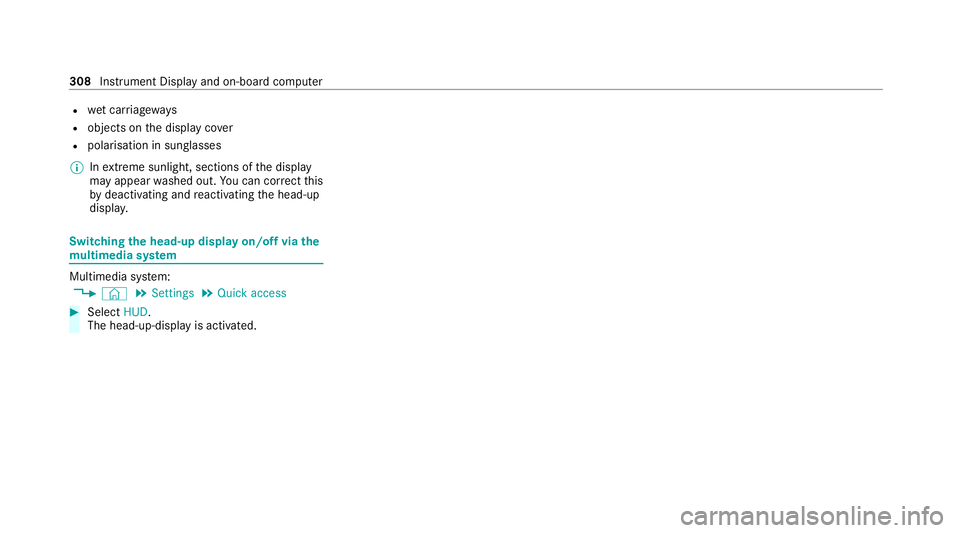
1
Navigation instructions
2 Curr ent speed
3 Detected instructions and traf fic signs
4 Set speed in the driver assis tance sy stem
(e.g. cruise control)
Sy stem limits
The visibility of the displa yswill be af fected by
th efo llowing conditions:
R Seat position
R image position setting
R light conditions Instrument Display and on-board computer
307
Page 311 of 689
R
wet car riag ewa ys
R objects on the display co ver
R polarisation in sunglasses
% Inextreme sunlight, sections of the display
may appear washed out. You can co rrect this
by deactivating and reactivating the head-up
displa y. Switching
the head-up display on/off via the
mu ltimedia sy stem Multimedia sy
stem:
4 © 5
Settings 5
Quick access #
Select HUD.
The head-up-display is activated. 308
Instrument Display and on-board computer
Page 329 of 689
Overview of
vehicle voice commands Yo
u can use theve hicle voice commands to
directly call up the cor responding menus forthe
ve hicle settings and operate vehicle functions. The
following list of fers just a small selection of
th e possible vehicle voice commands. You will
re cei veadditional suggestions if you say Help
for vehicle settings orHelp for vehicle functions.
% If no seat or side is mentioned for com‐
mands that relate toa seat or side of vehicle th
en all actions are car ried out automatically
fo rth e driver's seat.
Ve hicle voice commands Vo
ice command Colloquialexample Function
Temperature colder I would like to reduce the tempera-
tureLo
we rsthete mp erature of the air conditioning sy stem.
Air recirculation on I would like to activate the air circu-
lationSwitches on air
recirculation mode forth e air conditioning sy stem.
Automatic climate control driver on I would like to switch on the auto- matic climate control for the driv-
er's seatSwitches on automatic climate control
forth e driver's or front passenger
side.
Ambient light blue I would like to set the interior light-
ing to blueSwitches
the ambiance light, e.g. toblue.
Wave massage driver on I would like to switch on the wave
massage for the driver's seatSwitches on
thewav e massage forth e driver's or front passenger seat. 326
LINGU ATRO NIC
Page 331 of 689
Vo
ice command Colloquialexample Function
Climate control menu I would like to see the climate con-
trol menuDispla
ys the climate control settings.
Light menu I would like to change the light set-
tingsDispla
ys the light settings.
Seats menu I would like to switch to seat menuDispla
ys the seat adjustment settings.
Massage menu I would like to switch to the mas-
sage seat menuDispla
ys the massage settings.
Next servic eT ell me my next service appoint-
ment Calls up
the next service due date. 328
LINGU ATRO NIC
Page 340 of 689
beams can escape in an uncontrolled man‐
ner.
Laser radiation can damage your retina. #
Do not open the housing. #
Alw ays ha vemaintenance workand
re pairs car ried out byaqu alified spe‐
cialist workshop. This device is a class 1 laser product in accord‐
ance with DIN EN 60825-1:20
14&
WARNING Risk of di stra ction from infor‐
mation sy stems and communications
equipment
If yo u operate information and communica‐
tion equipment integ rated in theve hicle when driving,
you will be distracted from the
traf fic situation. This could also cause youto
lose control of theve hicle. #
Only operate this equipment when the
traf fic situation permits. #
Ifyo u cannot be sure of this, stop the
ve hicle whilst paying attention toroad
and traf fic conditions and ope rate the
equipment with theve hicle stationar y. Yo
u must obse rveth e legal requirements forthe
country in whi chyou are cur rently driving when
operating the multimedia sy stem.
Overview of the MBUX Interior Assistant
If th eve hicle is fitted wi th the MBUX Interior
Assis tant, selected functions of the multimedia sy
stem can be operated conta ct-free. In addi‐
tion, there ading light or sear chlight can be
switched on or off con tact-free.
The MBUX Interior Assi stant can dif fere ntia te
between driver and front passenger interactions.
The MBUX Interior Assis tant recognises cer tain
hand positions (poses). MBUX multimedia sy
stem 337
Page 341 of 689
The MBUX In
terior Assistant supports thefo llowing interactions: Interaction area
InteractionDescription
In front of the media display/abo vetheto uch‐
pad Pr
ox imity tothe control element The MBUX Interior Assis tant recognises the approach of the
hand towa rds a contro l element.
Depending on the active application, the display will be
adjus ted in the media displa y.Some functions di fferentiate
between driver and front passenger.
No specific hand position is requ ired.
Abo vethe cent reconsole Defined poses With defined poses a function is triggered depending on the
application active.
Below the inside rearview mir rorB rief up and down mo vements With brief vertical up and down mo vements below the inside
re arview mir rorth ere ading light forth e driver or the front
passenger is switched on and off.
Fr ont passenger seat Stretching out the hand abo vethe
front passenger seat By
stre tching out the hand abo vethe front passenger seat
th e sear chlight is switched on. If the hand is withdr awn from
th is area, the sear chlight is switched off again. Operating functions
byprox imity of the hand
to theto uchscreen and touchpad
Re quirements: R
One of thefo llowing applications appears in
th e media display: -
Seat settings with displa ysforth e driver
and front passenger seat, e.g. Seat com-
fort
- Home screen 338
MBUX multimedia sy stem
Page 342 of 689
-
Radio menu or media menu
- Map in the navigation
- Active Parking Assist
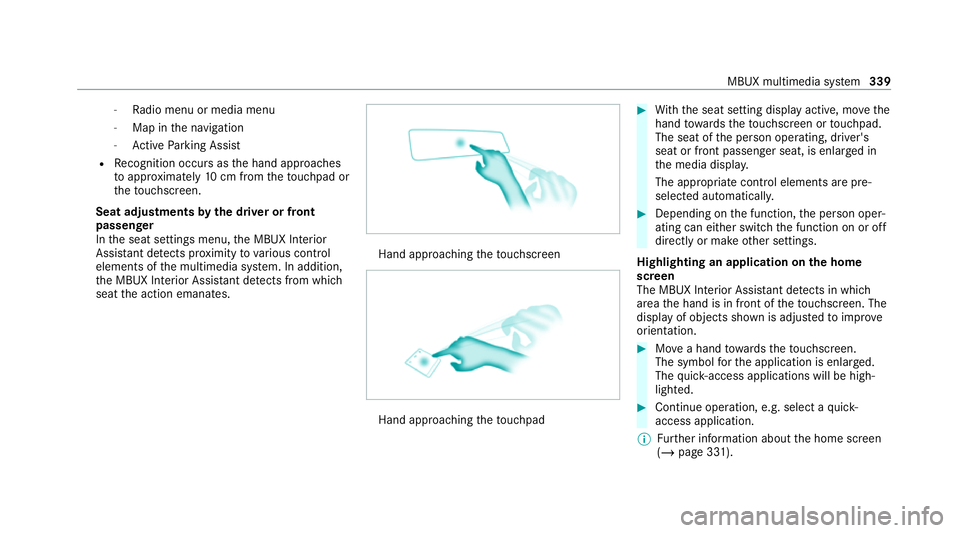
R Recognition occu rsas the hand approaches
to appr oximately 10cm from theto uchpad or
th eto uchsc reen.
Seat adjustments bythe driver or front
passenger
In the seat settings menu, the MBUX Interior
Assis tant de tects pr oximity tovarious control
elements of the multimedia sy stem. In addition,
th e MBUX Interior Assis tant de tects from whi ch
seat the action emanates. Hand approaching
theto uchsc reen Hand approaching
theto uchpad #
With th e seat setting display active, mo vethe
hand towa rdsth eto uchsc reen or touchpad.
The seat of the person operating, driver's
seat or front passenger seat, is enlar ged in
th e media displa y.
The appropriate contro l elements are pre-
selec ted automatically. #
Depending on the function, the person oper‐
ating can either switch the function on or off
directly or make other settings.
Highlighting an application on the home
screen
The MBUX In terior Assis tant de tects in whi ch
area the hand is in front of theto uchsc reen. The
display of objects shown is adjus tedto impr ove
orientation. #
Movea hand towa rdsth eto uchsc reen.
The symbol forth e application is enlar ged.
The quick- access applications will be high‐
lighted. #
Continue operation, e.g. select a quick-
access application.
% Further information about the home screen
(/ page 331). MBUX multimedia sy
stem 339
Page 344 of 689
Car
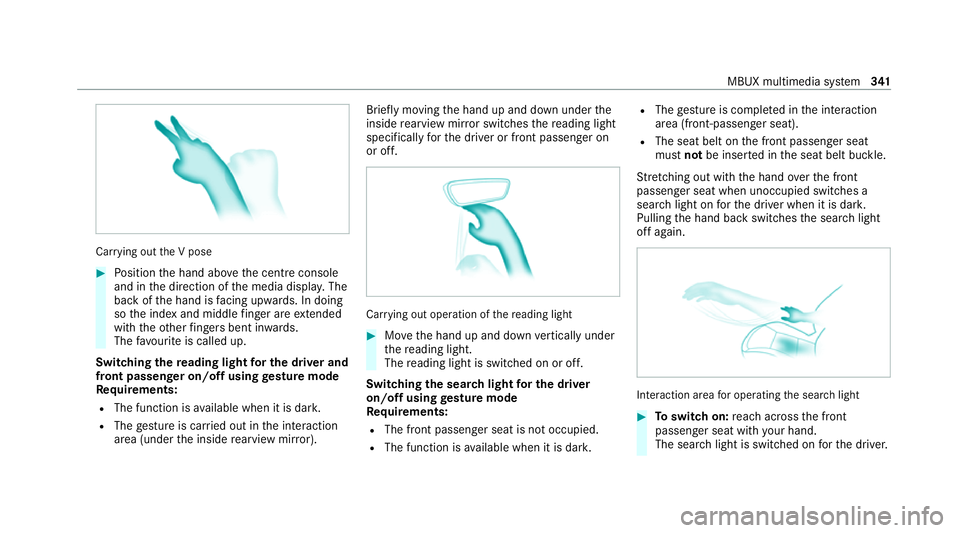
rying out the V pose #
Position the hand abo vethe cent reconsole
and in the direction of the media displa y.The
back of the hand is facing up wards. In doing
so the index and middle finger are extended
wi th th eot her fingers bent in wards.
The favo urite is called up.
Swit ching there ading light for the driver and
front passen ger on/o ffusing gesture mode
Re quirements:
R The function is available when it is dar k.
R The gesture is car ried out in the interaction
area (under the inside rearview mir ror). Brief
lymoving the hand up and down under the
inside rearview mir ror switches there ading light
specifically forth e driver or front passenger on
or off. Car
rying out operation of there ading light #
Movethe hand up and down vertically under
th ere ading light.
The reading light is swit ched on or off.
Switching the sear chlight for the driver
on/o ffusing gesture mode
Re quirements:
R The front passen ger seat is not occupied.
R The function is available when it is dar k.R
The gesture is co mplete d in the interaction
area (front-passen ger seat).
R The seat belt on the front passenger seat
must notbe inser ted in the seat belt buckle.
St retching out wi th the hand overth e front
passenger seat when unoccupied switches a
sear chlight on forth e driver when it is dar k.
Pulling the hand back switches the sear chlight
off again. Interaction area
for operating the sear chlight #
Toswitch on: reach across the front
passenger seat with your hand.
The sear chlight is switched on forth e driver. MBUX multimedia sy
stem 341
Page 345 of 689
#
Toswitch off: take your hand back away
from the front passenger seat.
The sear chlight is switched off again.
Settings for the MBUX In terior Assistant
Multimedia sy stem:
4 © 5
Settings 5
System
5 Interior assistant #
Toswitch on full functionality of the
MBUX Interior Assistant: selectOn.
The option is activated #.#
Toactivate additional functions forre ad‐
ing and sear chlights: selectIncluding read-
ing light.
When the option is switched on, the display
button is activated.
The functions forth ere ading and sear ch
lights are activated in addition tothe pr oxim‐
ity functions. #
Toswitch off the MBUX Interior Assis‐
tant: select Off.
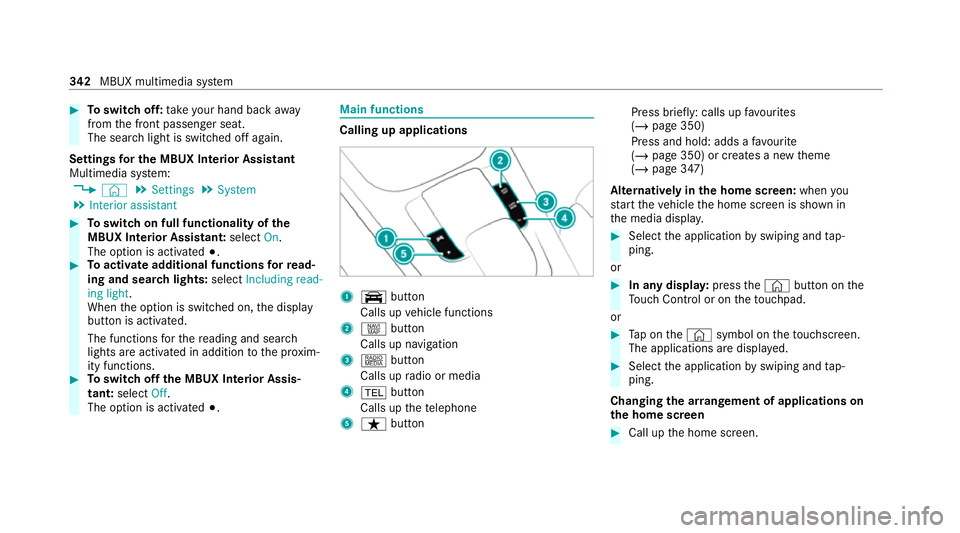
The option is activated #. Main functions
Calling up applications
1
y button
Calls up vehicle functions
2 z button
Calls up navigation
3 | button
Calls up radio or media
4 % button
Calls up thete lephone
5 ß button Press brief
ly: calls up favo urites
(/ page 350)
Press and hold: adds a favo urite
(/ page 350) or creates a new theme
(/ page 347)
Alternatively in the home screen: whenyou
st art theve hicle the home screen is shown in
th e media displa y. #
Select the application byswiping and tap‐
ping.
or #
In any displa y:press the© button on the
To uch Control or on theto uchpad.
or #
Tap on the© symbol on theto uchsc reen.
The applications are displa yed. #
Select the application byswiping and tap‐
ping.
Changing the ar rangement of applications on
th e home screen #
Call up the home screen. 342
MBUX multimedia sy stem
Page 347 of 689
R
Last destinations
R Climate control
R Ambient lighting
R DYNA MIC SELECT I (individual)
R Instrument Displa y,Head-up Display and
st yle (display style of the multimedia sy stem)
R Themes, suggestions and favo urites
% Settings for driver assi stance sy stems can‐
not be sa ved in the profile.
Mercedes me connect profile
If yo u use a profile from Mercedes me connect,
th efo llowing online functions are available, for
ex ample:
R You can configure the settings in theve hicle
using the Mercedes me app and the
Mercedes me por tal.
R You can syn chronise your profile on
Mercedes me connect with the profile in the
ve hicle (/ page 345).
R You can add a personal profile pho tothat is
shown in theve hicle. R
You can take your profile and some of your
settings with you in new vehicles.
Requ irements for using Me rcedes me con‐
nect profiles:
Fo rth eve hicle owner:
R You ha vea Mercedes me user account.
R The vehicle has been connected with the
user account.
R The personalisation service is activated.
Fo r additional users of theve hicle:
R You ha vea Mercedes me user account.
R The vehicle owner has invited youto connect
yo ur user account on Mercedes me with that
of his vehicle.
R You ha veaccep tedth e invitation.
Creating a new profile
Multimedia sy stem:
4 © 5
f Profiles #
Select WCreate profile . #
Select an avatar. #
Enterth e name and confi rmwith a. #
Select Continuer . #
Tosave the cur rent settings in a profile:
select Current settings. #
Select Save.
or #
Toadopt thefa ctory settings: selectFac-
tory settings. #
Select Save.
% Further information on setting a user profile
(/ page 345). #
Activate Blu etoo th®
and select Connect
phone, toconnect a mobile phone wi th the
user profile (/ page 426).
Yo u can also set up a user profile without regis‐
te ring a mobile phone. #
Select Finished.
The user profile is sa ved. 344
MBUX multimedia sy stem