phone MERCEDES-BENZ GLB SUV 2019 Owner's Manual
[x] Cancel search | Manufacturer: MERCEDES-BENZ, Model Year: 2019, Model line: GLB SUV, Model: MERCEDES-BENZ GLB SUV 2019Pages: 689, PDF Size: 11.39 MB
Page 299 of 689
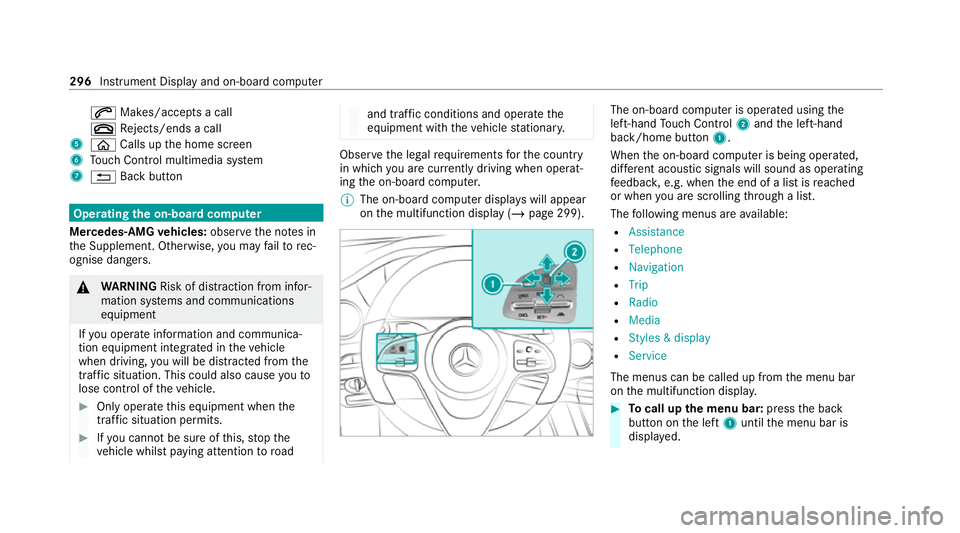
6
Makes/accepts a call
~ Rejects/ends a call
5 ò Calls up the home screen
6 Touch Control multimedia sy stem
7 % Back button Operating
the on-boa rdcompu ter
Mercedes-AMG vehicles: observeth e no tes in
th e Supplement. Otherwise, you may failto rec‐
ognise dangers. &
WARNING Risk of di stra ction from infor‐
mation sy stems and communications
equipment
If yo u operate information and communica‐
tion equipment integ rated in theve hicle
when driving, you will be distracted from the
traf fic situation. This could also cause youto
lose control of theve hicle. #
Only operate this equipment when the
traf fic situation permits. #
Ifyo u cannot be sure of this, stop the
ve hicle whilst paying attention toroad and traf
fic conditions and ope rate the
equipment with theve hicle stationar y. Obser
vethe legal requ irements forth e count ry
in which you are cur rently driving when operat‐
ing the on-board computer.
% The on-board computer displa yswill appear
on the multifunction display (/ page 299). The on-board computer is operated using
the
left-hand Touch Control 2and the left-hand
back/home button 1.
When the on-board computer is being operated,
dif fere nt acoustic signals will sound as operating
fe edbac k,e.g. when the end of a list is reached
or when you are sc rolling thro ugh a list.
The following menus are available:
R Assistance
R Telephone
R Navigation
R Trip
R Radio
R Media
R Styles & display
R Service
The menus can be called up from the menu bar
on the multifunction displa y. #
Tocall up the menu bar: pressthe back
button on the left 1until the menu bar is
displa yed. 296
Instrument Display and on-board computer
Page 301 of 689
R
Sport
R Progressive
R Understated
R Standard displays Showing display content on the in
stru ment
clus ter
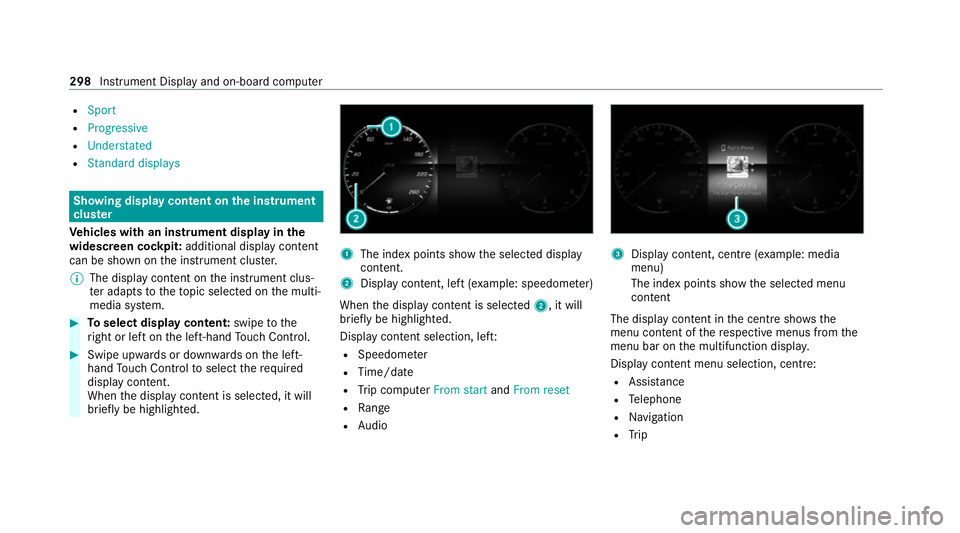
Ve hicles with an instrument display in the
widescreen cockpit: additional display content
can be shown on the instrument clus ter.
% The display content on the instrument clus‐
te r adapt sto theto pic selected on the multi‐
media sy stem. #
Toselect display content: swipetothe
ri ght or left on the left-hand Touch Control. #
Swipe upwards or down wards on the left-
hand Touch Control toselect there qu ired
display con tent.
When the display conte nt is selected, it will
brie fly be highligh ted. 1
The index points show the selected display
conte nt.
2 Display content, le ft(exa mp le: speedom eter)
When the display conte nt is selected2, it will
brie fly be highligh ted.
Display con tent selection, le ft:
R Speedom eter
R Time/date
R Trip computer From startandFrom reset
R Range
R Audio 3
Display con tent, centre (e xamp le: media
menu)
The index points show the selected menu
conte nt
The displ aycontent in the cent resho wsthe
menu content of there spective menus from the
menu bar on the multifunction displa y.
Displ aycontent menu selection, centre:
R Assi stance
R Telephone
R Navigation
R Trip 298
Instrument Display and on-board computer
Page 308 of 689
Operating media playback using
the on-
board compu ter On-board computer:
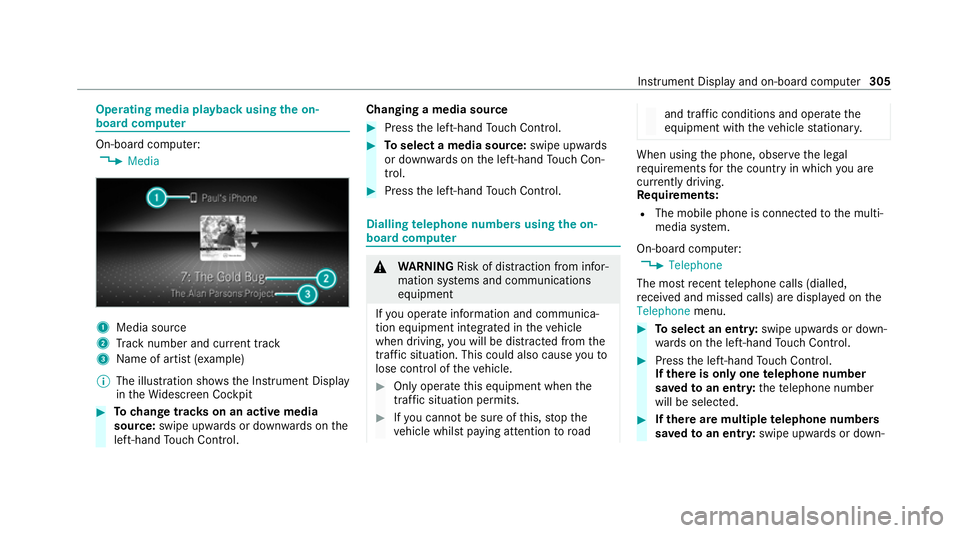
4 Media 1
Media source
2 Track number and cur rent track
3 Name of artist (e xamp le)
% The illustration sho wsthe Instrument Display
in theWi descreen Cockpit #
Tochange trac kson an active media
source: swipe upwards or down wards on the
left-hand Touch Control. Changing a media source #
Press the left-hand Touch Control. #
Toselect a media source: swipe upwards
or down wards on the left-hand Touch Con‐
trol. #
Press the left-hand Touch Control. Dialling
telephone numbers using the on-
board compu ter &
WARNING Risk of di stra ction from infor‐
mation sy stems and communications
equipment
If yo u operate information and communica‐
tion equipment integ rated in theve hicle
when driving, you will be distracted from the
traf fic situation. This could also cause youto
lose control of theve hicle. #
Only operate this equipment when the
traf fic situation permits. #
Ifyo u cannot be sure of this, stop the
ve hicle whilst paying attention toroad and traf
fic conditions and ope rate the
equipment with theve hicle stationar y. When using
the phone, obser vethe legal
re qu irements forth e count ryin which you are
cur rently driving.
Re quirements:
R The mobile phone is connec tedto the multi‐
media sy stem.
On-board computer: 4 Telephone
The most recent telephone calls (dialled,
re cei ved and missed calls) are displa yed on the
Telephone menu. #
Toselect an entr y:swipe upwards or down‐
wa rds on the left-hand Touch Control. #
Press the left-hand Touch Control.
If th ere is only one telephone number
sa ve dto an entr y:thete lephone number
will be selec ted. #
Ifth ere are multiple telephone numbers
sa ve dto an entr y:swipe upwards or down‐ Instrument Display and on-board computer
305
Page 309 of 689
wa
rds on the left-hand Touch Control to
select the desired telephone number. #
Press the left-hand Touch Control.
The telephone number will be dialled.
The following displa ysmay appear ins tead of the
te lephone numbers dialled:
R Please wait :th e application is starting. If a
Blue tooth ®
connection tothe mobile phone
is not es tablished, the menu for auth orising
and connecting a mobile phone will be dis‐
pla yed on the multimedia sy stem
(/ page 426).
R Updating data: the call list is being updated.
R Importing contacts : contacts are being
impor ted from the mobile phone or a storage
medium.
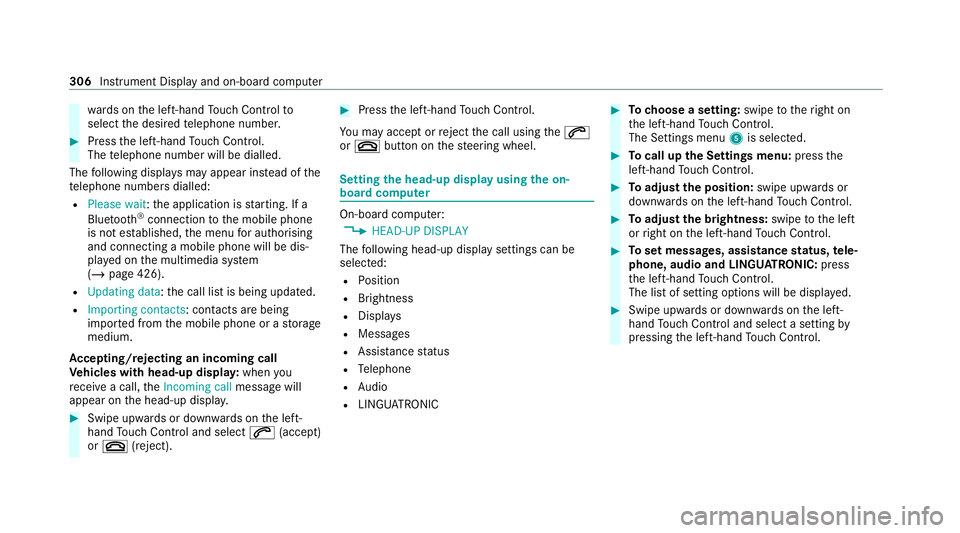
Ac cepting/rejecting an incoming call
Ve hicles with head-up displa y:when you
re cei vea call, theIncoming call message will
appear on the head-up displa y.#
Swipe up wards or down wards on the left-
hand Touch Control and select 6(accept)
or ~ (reject). #
Press the left-hand Touch Control.
Yo u may accept or reject the call using the6
or ~ button on thesteering wheel. Setting
the head-up display using the on-
board compu ter On-board computer:
4 HEAD-UP DISPLAY
The following head-up display settings can be
selec ted:
R Position
R Brightness
R Displa ys
R Messages
R Assis tance status
R Telephone
R Audio
R LINGU ATRO NIC #
Tochoose a setting: swipetotheright on
th e left-hand Touch Control.
The Settings menu 5is selected. #
Tocall up the Settings menu: pressthe
left-hand Touch Control. #
Toadjust the position: swipe upwards or
down wards on the left-hand Touch Control. #
Toadjust the brightness: swipetothe left
or right on the left-hand Touch Control. #
Toset messages, assistance status, tele‐
phone, audio and LINGU ATRO NIC: press
th e left-hand Touch Control.
The list of setting options will be displ ayed. #
Swipe upwards or down wards on the left-
hand Touch Control and select a setting by
pressing the left-hand Touch Control. 306
Instru ment Display and on-board computer
Page 312 of 689
Note
s on operating saf ety &
WARNING Risk of di stra ction from infor‐
mation sy stems and communications
equipment
If yo u operate information and communica‐
tion equipment integ rated in theve hicle
when driving, you will be distracted from the
traf fic situation. This could also cause youto
lose control of theve hicle. #
Only operate this equipment when the
traf fic situation permits. #
Ifyo u cannot be sure of this, stop the
ve hicle whilst paying attention toroad
and traf fic conditions and ope rate the
equipment with theve hicle stationar y. &
WARNING Risk of an accident from
ope rating mobile communication equip‐
ment while theve hicle is in motion
Mobile communications devices distract the
driver from the traf fic situation. This could also cause
the driver tolose control of the
ve hicle. #
Asthe driver, only operate mobile com‐
munications devices when theve hicle is
st ationar y. #
As a vehicle occupant, only use mobile
communications devices in the areas
intended forth is purpose, e.g. in the
re ar passenger compartment. &
WARNING Risk of inju rydue toobjects
being stowed incor rectly
If objects in theve hicle interior are stowed
incor rectly, they can slide or be thrown
around and hit vehicle occupants. In addi‐
tion, cup holders, open stowage spaces and
mobile phone recep tacles cannot al ways
re tain all objects they contain.
The reis a risk of injur y,particularly in the
ev ent of sudden braking or a sudden change
in direction. #
Alw aysstow objects so that they can‐
not be throw n around in su chsitua‐
tions. #
Alw ays make sure that objects do not
pr otru de from stowage spaces, luggage
nets or stowage nets. #
Close the loc kable stow age spaces
before starting a journe y. #
Alw aysstow and secure heavy, hard,
poin ted, sharp-edged, fragile or bulky
objects in the boot/load compartment. Fo
ryo ur ow n sa fety, al ways obser vethefo llow‐
ing points when operating mobile communica‐
tions equipment and especially your voice con‐
trol sy stem:
R Obser vethe legal requ irements forth e coun‐
try in which you are driving.
R While driving, on ly operate mobile communi‐
cations equipment and your voice control
sy stem when the tra ffic conditions permit it.
Yo u may otherwise be distracted from the
traf fic conditions and cause an accident,
inju ring yourself and others. LINGU
ATRO NIC 309
Page 313 of 689
R
Ifyo u use thevo ice control sy stem in an
emer gency your voice can change and your
te lephone call, e.g. an emer gency call, can
th ereby be unnecessarily dela yed.
R Familiarise yourself with thevo ice control
sy stem functions before starting the journe y.
R Comply with the loading guidelines
(/ page 126). Operation
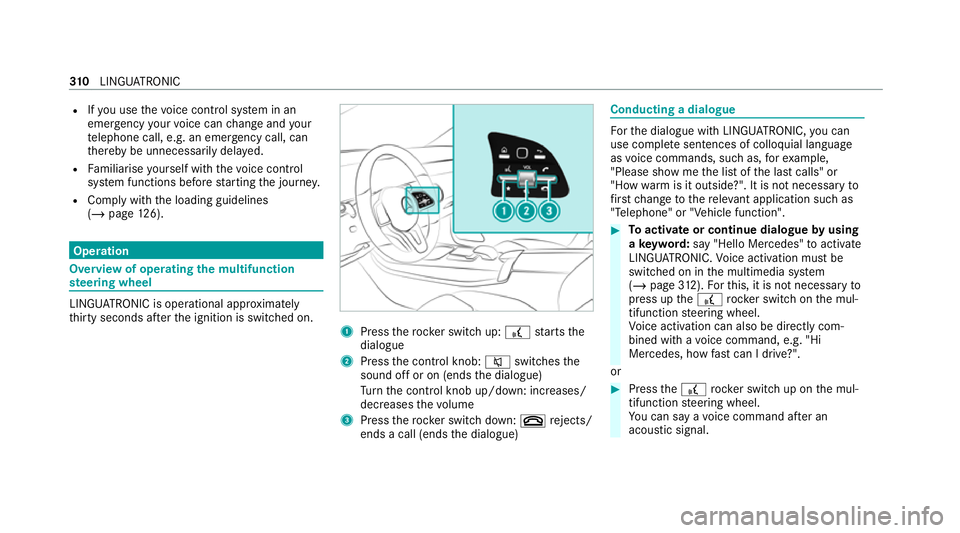
Overview of operating
the multifunction
st eering wheel LINGU
ATRO NIC is operational appr oximately
th irty seconds af terth e ignition is switched on. 1
Press therock er switch up: £starts the
dialogue
2 Press the control knob: 8switches the
sound off or on (ends the dialogue)
Tu rn the control knob up/down: increases/
decreases thevo lume
3 Press therock er switch down: ~rejects/
ends a call (ends the dialogue) Conducting a dialogue
Fo
rth e dialogue with LINGU ATRO NIC, you can
use co mplete sentences of colloquial language
as voice commands, such as, forex ample,
"Please show me the list of the last calls" or
"How warm is it outside?". It is not necessary to
fi rs tch ange tothere leva nt application su chas
"Telephone" or "Vehicle function". #
Toactivate or continue dialogue byusing
a ke yword: say "Hello Mercedes" toactivate
LINGU ATRO NIC. Voice activation must be
switched on in the multimedia sy stem
(/ page 312).Fo rth is, it is not necessary to
press up the£ rock er switch on the mul‐
tifunction steering wheel.
Vo ice activation can also be directly com‐
bined with a voice command, e.g. "Hi
Mercedes, how fastcan I drive?".
or #
Press the£ rocker switch up on the mul‐
tifunction steering wheel.
Yo u can say a voice command af ter an
acou stic signal. 310
LINGU ATRO NIC
Page 314 of 689
#
Tocor rect an ent ry:say theCorrection
vo ice command. #
Toselect an entry from the selection lis t:
say the line number or the conte nts. #
Tobrows eth e selection lis t:say theNext
or Back voice command. #
Tointer rupt the dialogue: saythePause
vo ice command.
The dialogue can be continued with the
"Hello Mercedes" voice command or by
pressing up the£ rock er switch on the
multifunction steering wheel. #
Tojump tothe preceding dialogue: saythe
Back voice command. #
Tojump back totheto p dialogue le vel:
say theHome voice command. #
Tocancel the dialogue: saytheClose voice
command or press the8 or~ button
on the multifunction steering wheel. #
Tointer rupt avo ice output: speak inthe
middle of a voice dialogue when the sy stem
is still answering.
The voice output is shor tened and the con‐
clusion is reached more quickl y.
% The Voice barge-in option must be switched
on in the multimedia sy stem forth is
(/ page 312). Overvi
ewof operable functions in LINGUA‐
TRONIC Yo
u can use the LINGU ATRO NIC voice control
sy stem tooperate thefo llowing functions
depending on theve hicle equipment:
R Telephone
R Text messa geand e-mail
R Navigation
R Address book
R Radio
R Media
R Vehicle functions
R Weather Fu
ll functionality is only available foryo u with
activation of online voice control (/ page312). Note
s onthe language setting Yo
u can change the language of LINGU ATRO NIC
via the sy stem language settings. If the set sys‐
te m language is not suppor tedby LINGUA‐
TRONIC, English will be selected.
LINGU ATRO NIC is available in thefo llowing lan‐
guages:
R German
R English
R French
R Italian
R Dutch
R Polish
R Portuguese
R Russian
R Swedish
R Spanish
R Czech LINGU
ATRO NIC 311
Page 316 of 689
re
cei vesuggestions and information about
operation of LINGU ATRO NIC forth e cur rent
application.
R Continued dialogue: saytheHelp voice
command during a voice dialogue. Foreve ry
st ep of the dialogue youre cei vematching
information.
R Speci fic function: saythevo ice command
fo rth e desired function, e.g. with "Hello
Mercedes, I need help with thera dio" or af ter
pressing the£ rocker switch on the multi‐
function steering wheel up, say theHelp for
the telephone voice command, forex ample. Note
s on optimal use of LINGU ATRO NIC No
tes on how toimpr overecognition:
R Activate online voice control (/ page312).
R Onlyoperate LINGU ATRO NIC from the driv‐
er's seat.
R Say thevo ice commands cohe rently and
clear ly, but do not exaggerate thewo rds.
R Avoid loud noises that cause inter fere nce
while making a voice command ent ry, e.g. th
e enter tainment in there ar-passen ger
compa rtment.
R Forte lephone or add ress book entries:
- Only create sensible address book entri es
in the sy stem/mobile phone, e.g. enter
surname and firs t name in the cor rect
fi eld.
- Do not use any abbr eviations, unneces‐
sary spaces or special characters.
R Forra dio prog ramme names: saytheRead
out station list voice command and say the
desired station name in thewa yth evo ice
output reads aloud to you.
% Toimpr overecognition, depending on the
outside temp erature, either the blo wersfor
ve ntilation or heating are reduced when LIN‐
GU ATRO NIC is star ted. Note
s on online voice control Online
voice control impr oves recognition and
makes additional results available as a result of
ex tern al information, e.g. information about POIs and about
thewe ather. Wetherefore recom‐
mend that you activate online voice control.
Yo u will need a Mercedes me user account for
th is. If you do not yet ha vea user account you
ha ve tocrea teone and connect it with your vehi‐
cle (/ page 451).
Then call up your Mercedes me user account.
The Mercedes me services are shown and can
be activated (/ page 451).
In addition, online voice control must be activa‐
te d (/ page312). Essential
voice commands Note
s onthevo ice commands Aside from
theex act voice commands (see the
"Voice command" column in thefo llowing tables)
to call up specific functions, in most cases LIN‐
GU ATRO NIC also under stands a great ma nypar‐
aphrases from daily usage. Examples of these
are lis ted in the "Colloquial examples" column.
Fo r some languages ho weverth ese examples
are on lyavailable toa limited extent. LING
UATRONIC 313
Page 317 of 689
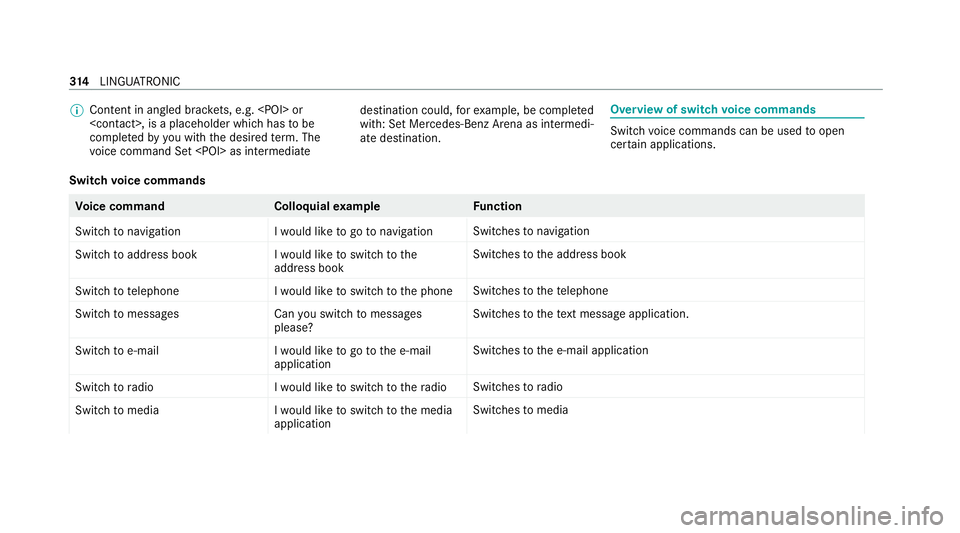
%
Con tent in angled brac kets, e.g.
comple tedby yo u with the desired term . The
vo ice command Set
could,forex ample, be comple ted
with: Set Mercedes-Benz Arena as intermedi-
ate destination. Overview of switch
voice commands Swit
chvoice commands can be used toopen
cer tain applications.
Switch voice commands Vo
ice command Colloquialexample Function
Switch to navigation I would like to go to navigationSwitches
tonavigation
Switch to address book I would like to switch to the
address bookSwitches
tothe address book
Switch to telephon eI would like to switch to the phone Swit
ches tothete lephone
Switch to messages Can you switch to messages
please?Swit
ches tothete xt messa geapplication.
Switch to e-mail I would like to go to the e-mail
applicationSwit
ches tothe e-mail application
Switch to radio I would like to switch to the radioSwitches
toradio
Switch to media I would like to switch to the media
applicationSwitches
tomedia 314
LINGU ATRO NIC
Page 322 of 689
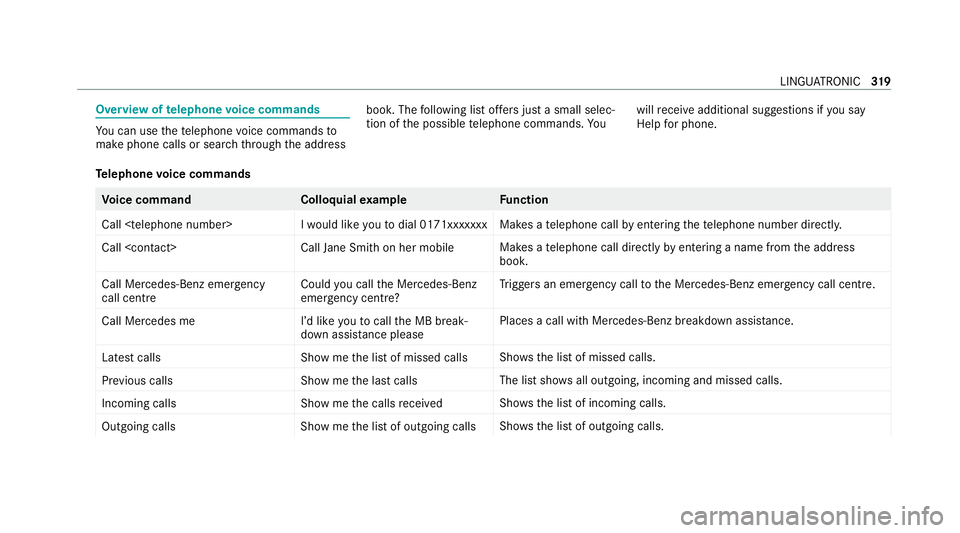
Overview of
telephone voice commands Yo
u can use thete lephone voice commands to
make phone calls or sear chthro ugh the address book. The
following list of fers just a small selec‐
tion of the possible telephone commands. Yo uwill
recei veadditional suggestions if you say
Help for phone.
Te lephone voice commands Vo
ice command Colloquialexample Function
Call
telephone call byentering thete lephone number direct ly.
Call
telephone call direct lyby entering a name from the address
book.
Call Mercedes-Benz emergency
call centre Could you call the Mercedes-Benz
emergency centre? Tr
iggers an emer gency call tothe Mercedes-Benz emer gency call centre.
Call Mercedes me I’d like you to call the MB break-
down assistance pleasePlaces a call wi
thMercedes-Benz breakdown assis tance.
Latest calls Show me the list of missed callsSho
ws th e list of missed calls.
Previous calls Show me the last callsThe list sho
wsall outgoing, incoming and missed calls.
Incoming calls Show me the calls receivedSh
ows the list of incoming calls.
Outgoing calls Show me the list of outgoing callsSho
ws th e list of outgoing calls. LINGU
ATRO NIC 319