fog light MERCEDES-BENZ GLC 2019 User Guide
[x] Cancel search | Manufacturer: MERCEDES-BENZ, Model Year: 2019, Model line: GLC, Model: MERCEDES-BENZ GLC 2019Pages: 370, PDF Size: 19.55 MB
Page 189 of 370
Object detection only works in wide-angle view.
To ensure that you can use the function, it mustbe switched on in the multimedia system (seethe Digital Operator's Manual).
360° Camera
General notes
The 360° camera is a system consisting of fourcameras.
The system processes images from the follow-ing cameras:
RRear view camera
RFront camera
RTwo side cameras in the exterior mirrors
The cameras cover the immediate surroundingsof the vehicle. The system supports you, forexample when parking or if vision is restricted atan exit.
You can show images from the 360° camera infull-screen mode or in seven different split-screen views on the multimedia system. A split-screen view also includes a top view of the vehi-cle. This view is calculated from the data sup-plied by the installed cameras (virtual camera).
The seven split-screen views are:
RTop view and picture from the rear view cam-era (130° viewing angle)
RTop view and image from the front camera(130° viewing angle without displaying themaximum steering wheel angle)
RTop view and enlarged rear view
RTop view and enlarged front view
RTop view and trailer view (vehicles with trailertow hitch)
RTop view and images from the rear-facing sidecameras (rear wheel view)
RTop view and images from the forward-facingside cameras (front wheel view)
When the function is active and you shift thetransmission from[or^to\\, the guidelines on the multimedia system are hidden.
When you shift between transmission positions[and^, you see the previously selected frontor rear view.
Distances measured by Parking AssistPARKTRONIC will also be optically displayed:
Rin split screen view as red or yellow bracketsaround the vehicle icon in the top view, or
Rat the bottom right as red or yellow bracketsaround the vehicle symbol in full-screen mode
The line thickness and color of the bracketsshow how far the vehicle is from an object.
Ryellow brackets with thin lines: Parking AssistPARKTRONIC is active
Ryellow brackets with normal lines: an object ispresent in close range of the vehicle
Rred line: an object is present in the immediateclose range of the vehicle
Important safety notes
The 360°camera is only an aid and may show adistorted view of obstacles, show them incor-rectly or not at all. The 360°camera is not asubstitute for attentive driving.
You are always responsible for safe maneuver-ing and parking. Make sure that there are nopersons, animals or objects in the maneuveringarea while maneuvering and parking in parkingspaces.
You are always responsible for safety, and mustalways pay attention to your surroundings whenparking and maneuvering. This applies to theareas behind, in front of and beside the vehicle.You could otherwise endanger yourself and oth-ers.
The 360° camera will not function or will func-tion in a limited manner:
Rif the doors are open
Rif the exterior mirrors are folded in
Rif the tailgate is open
Rin heavy rain, snow or fog
Rat night or in very dark places
Rif the cameras are exposed to very bright light
Rif the area is lit by fluorescent bulbs or LEDlighting (the display may flicker)
Rif the camera lenses fog up, e.g. when drivinginto a heated garage in winter, causing a rapidchange in temperature
Rif the camera lenses are dirty or covered
Rif the vehicle components in which the cam-eras are installed are damaged. In this case,have the camera position and setting checkedat a qualified specialist workshop
Driving systems187
Driving and parking
Z
Page 196 of 370
sors. A warning lamp lights up in the exteriormirrors and draws your attention to vehiclesdetected in the monitored area. If you thenswitch on the corresponding turn signal tochange lanes, you will also receive a visual warn-ing and a warning tone.
Blind Spot Assist supports you from a speed ofapproximately 20 mph (30 km/h).
Important safety notes
GWARNING
Blind Spot Assist does not react to:
Rvehicles overtaken too closely on the side,
placing them in the blind spot area
Rvehicles which approach with a large speed
differential and overtake your vehicle
As a result, Blind Spot Assist may not give
warnings in such situations. There is a risk of
an accident.
Always observe the traffic conditions care-
fully, and maintain a safe lateral distance.
Blind Spot Assist is only an aid. It may fail todetect some vehicles and is no substitute forattentive driving. Always ensure that there issufficient distance to the side for other roadusers and obstacles.
iUSA only:
This device has been approved by the FCC asa "Vehicular Radar System". The radar sensoris intended for use in an automotive radarsystem only. Removing, tampering with, oraltering the device will void any warranties,and is not permitted by the FCC. Do not tam-per with, alter, or use in any non-approvedway.
Any unauthorized modification to this devicecould void the user's authority to operate theequipment.
Radar sensors
The radar sensors for Blind Spot Assist are inte-grated into the rear bumper. Make sure that thebumpers are free from dirt, ice or slush. Thesensors must not be covered, for example bycycle racks or overhanging loads. Following asevere impact or in the event of damage to thebumpers, have the function of the radar sensorschecked at a qualified specialist workshop.Blind Spot Assist may no longer work properly.
Monitoring area
In particular, the detection of obstacles can beimpaired if:
RThere is dirt on the sensors or anything elsecovering the sensors
Rthere is poor visibility, e.g. due to fog, heavyrain, snow or spray
Rthere are narrow vehicles, e.g. motorcycles orbicycles
Rthe road has very wide lanes
Rthe road has narrow lanes
Ryou are not driving in the middle of the lane
Rthere are barriers or other road boundaries
Vehicles in the monitoring range are then notindicated.
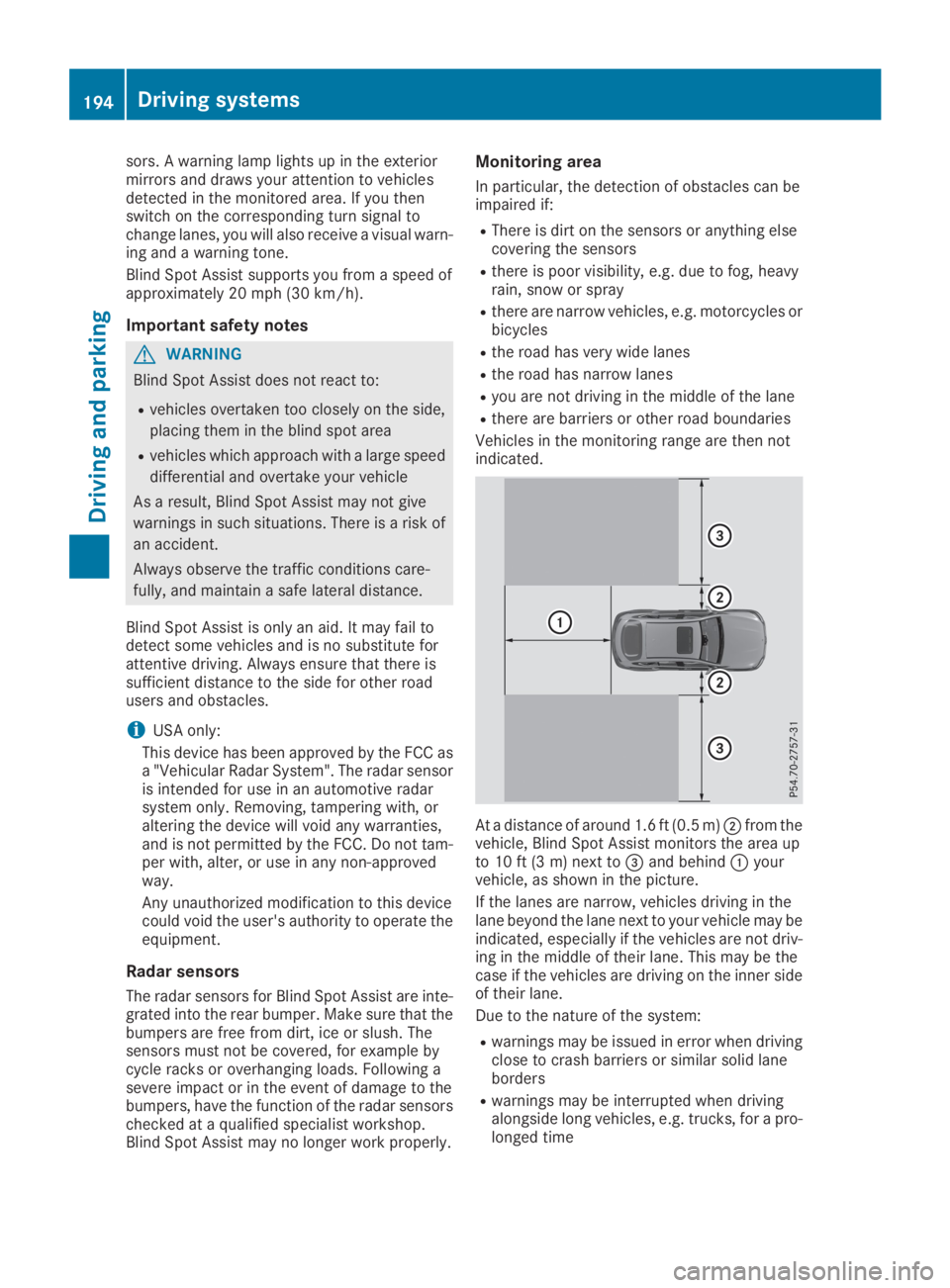
At a distance of around 1.6 ft (0.5 m)Dfrom thevehicle, Blind Spot Assist monitors the area upto 10 ft (3 m) next to
Page 198 of 370
This function is available in the range between40 mph and 120 mph (60 km/hand 200 km/h).
A warning may be given if a front wheel passesover a lane marking. It will warn you by means ofintermittent vibration in the steering wheel forup to 1.5 seconds.
Important safety notes
GWARNING
Lane Keeping Assist cannot always clearly
detect lane markings.
In such cases, Lane Keeping Assist can:
Rgive an unnecessary warning
Rnot give a warning
There is a risk of an accident.
Always pay particular attention to the traffic
situation and keep within the lane, especially
if Lane Keeping Assist alerts you.
GWARNING
The Lane Keeping Assist warning does not
return the vehicle to the original lane. There is
a risk of an accident.
You should always steer, brake or accelerate
yourself, in particular if warned by Lane Keep-
ing Assist.
Lane Keeping Assist can neither reduce the riskof an accident if you fail to adapt your drivingstyle nor override the laws of physics. LaneKeeping Assist cannot take into account theroad, traffic and weather conditions. Lane Keep-ing Assist is merely an aid. You are responsiblefor the distance to the vehicle in front, for vehi-cle speed, for braking in good time and for stay-ing in your lane.
The Lane Keeping Assist does not keep the vehi-cle in the lane.
The system may be impaired or may not functionif:
Rthere is poor visibility, e.g. due to insufficientillumination of the road, or due to snow, rain,fog or heavy spray
Rthere is glare, e.g. from oncoming traffic, thesun or reflection from other vehicles (e.g. ifthe road surface is wet)
Rthe windshield is dirty, fogged up, damaged orcovered, for instance by a sticker, in the vicin-ity of the camera
Rthere are no or several unclear lane markingsfor one lane, e.g. roadworks
Rthe lane markings are worn away, dark or cov-ered up, e.g. by dirt or snow
Rthe distance to the vehicle in front is too shortand thus the lane markings cannot be detec-ted
Rthe lane markings change quickly, e.g. lanesbranch off, cross one another or merge
Rthe road is narrow and winding
Rthere are highly variable shade conditions onthe roadway
Activating/deactivating Lane Keeping
Assist
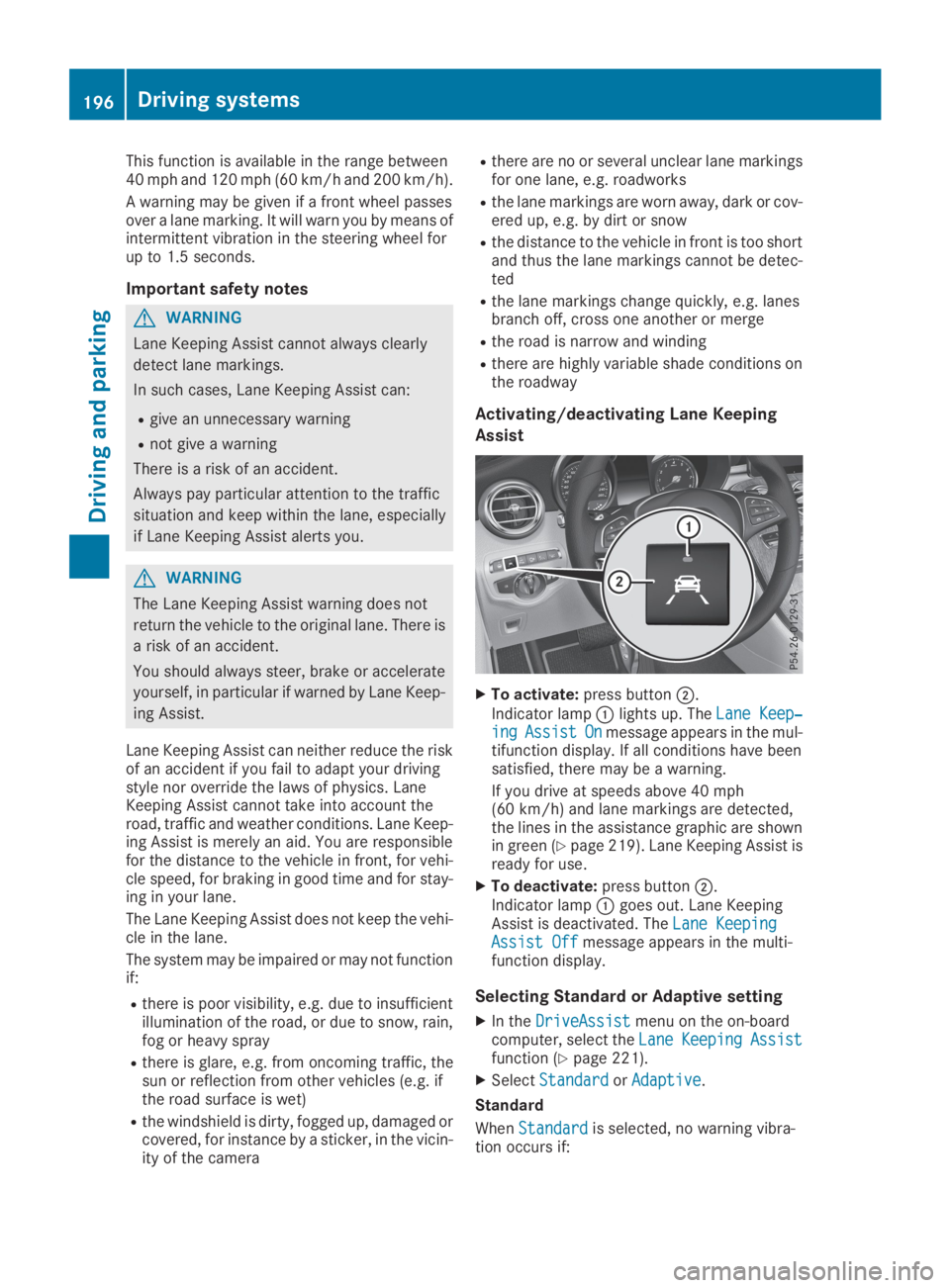
XTo activate:press buttonD.
Indicator lampClights up. TheLane Keep‐Lane Keep‐ingingAssistAssistOnOnmessage appears in the mul-tifunction display. If all conditions have beensatisfied, there may be a warning.
If you drive at speeds above 40 mph(60 km/h) and lane markings are detected,the lines in the assistance graphic are shownin green (Ypage 219). Lane Keeping Assist isready for use.
XTo deactivate:press buttonD.Indicator lampCgoes out. Lane KeepingAssist is deactivated. TheLane KeepingLane KeepingAssist OffAssist Offmessage appears in the multi-function display.
Selecting Standard or Adaptive setting
XIn theDriveAssistDriveAssistmenu on the on-boardcomputer, select theLaneLaneKeepingKeepingAssistAssistfunction (Ypage 221).
XSelectStandardStandardorAdaptiveAdaptive.
Standard
WhenStandardStandardis selected, no warning vibra-tion occurs if:
196Driving systems
Driving an d parking