lane assist MERCEDES-BENZ GLC-Class 2016 X253 Owner's Guide
[x] Cancel search | Manufacturer: MERCEDES-BENZ, Model Year: 2016, Model line: GLC-Class, Model: MERCEDES-BENZ GLC-Class 2016 X253Pages: 418, PDF Size: 9.23 MB
Page 224 of 418
DrivingAssistance PLUS package
General notes
The Driving Assistanc ePLU Spackage con-
sists of DISTRONIC PLU S (
Ypage 183), Active
Blin dSpot Assis t (
Ypage 222) and Active
Lan eKeepin gAssis t (
Ypage 225).
Active Blind Spot Assist
General notes
Active Blin dSpot Assis tuses aradar sensor
system, pointe dtoward th erea rof th evehi-
cle, to monito rth eare ato th esides of th e
vehicle whic hth edriver is unable to see . A
warnin gdisplay in th eexterio rmirrors draws
your attention to vehicles detecte din th e
monitored area. If you then switch on th ecor-
respondin gturn signal to chang elane, you
will also receiv ean optical and audible warn -
ing. If aris kof latera lcollision is detected,
corrective braking may hel pyou avoid acol-
lision .Before acourse-correcting brake appli -
cation ,Active Blin dSpot Assis tevaluates th e
spac ein th edirection of trave land at th e
sides of th evehicle. Fo rthis, Active Blin dSpot
Assis tuses th eforward-facin gradar sensors.
Active Blin dSpot Assis tsupports you from a
speed of approximately 20 mph (30 km/h).
Important safet ynotes
Active Blin dSpot Assis tis only an aid and is
no t a substitute fo rattentive driving.
GWARNING
Active Blin dSpot Assis tdoe sno treact to :
Rvehicles overtaken to oclosely on th eside,
placin gthem in th eblin dspo tare a
Rvehicles whic happroac hwit h a larg espeed
differential and overtak eyour vehicle
As aresult ,Active Blin dSpot Assis tmay nei-
ther giv ewarnings no rinterven ein suc hsit -
uations. There is aris kof an accident.
Always observ eth etraffic condition scare-
fully, and maintain asaf elatera ldistance.
iUS Aonly: Thi sdevic ehas been approved
by th eFCC as a"Vehicular Radar System".
The radar sensor is intended fo ruse in an
automotive radar system only. Removal,
tampering, or altering of th edevic ewill void
any warranties ,and is no tpermitte dby th e
FCC. Do no ttampe rwith, alter, or use in
any non-approved way.
An yunauthorized modification to this
devic ecould void th euser's authorit yto
operat eth eequipment.
iCanada only: Thi sdevic ecomplies wit h
RSS-210 of Industry Canada. Operation is
subjec tto th efollowing tw oconditions:
1. Thi sdevic emay no tcaus eharmful inter-
ference ,and
2. Thi sdevic emus taccept any interfere
nce
re
ceived, includin ginterferenc ethat may
caus eundesired operation of th edevice.
Removal, tampering, or altering of th e
devic ewill void any warranties ,and is no t
permitted. Do no ttampe rwith, alter, or use
in any non-approved way.
An yunauthorized modification to this
devic ecould void th euser's authorit yto
operat eth eequipment.
Rada rsensor s
The Active Blin dSpot Assis tradar sensor sare
integrated into th efron tand rea rbumper s
and behin d acover in th eradiator trim. Mak e
sur ethat th ebumper sand th ecover in th e
radiator grill are free of dirt, ic eor slush. The
rea rsensor smus tno tbe covered, e.g. by
bicycl eracks or overhangin gloads. Following
a severe impact or in th eevent of damage to
th ebumpers, hav eth efunction of th eradar
sensor schecke dat aqualified specialist
workshop .Active Blin dSpot Assis tmay oth-
erwise no longer wor kproperly.
Monitoring area
GWARNING
Active Blind Spot Assis tdoe sno tdetec tall
traffic situation sand road users. There is a
ris kof an accident.
222Driving systems
Driving an d parking
Page 225 of 418
Always make sure that there is sufficient dis-
tance on the side for other traffic or obstacles.
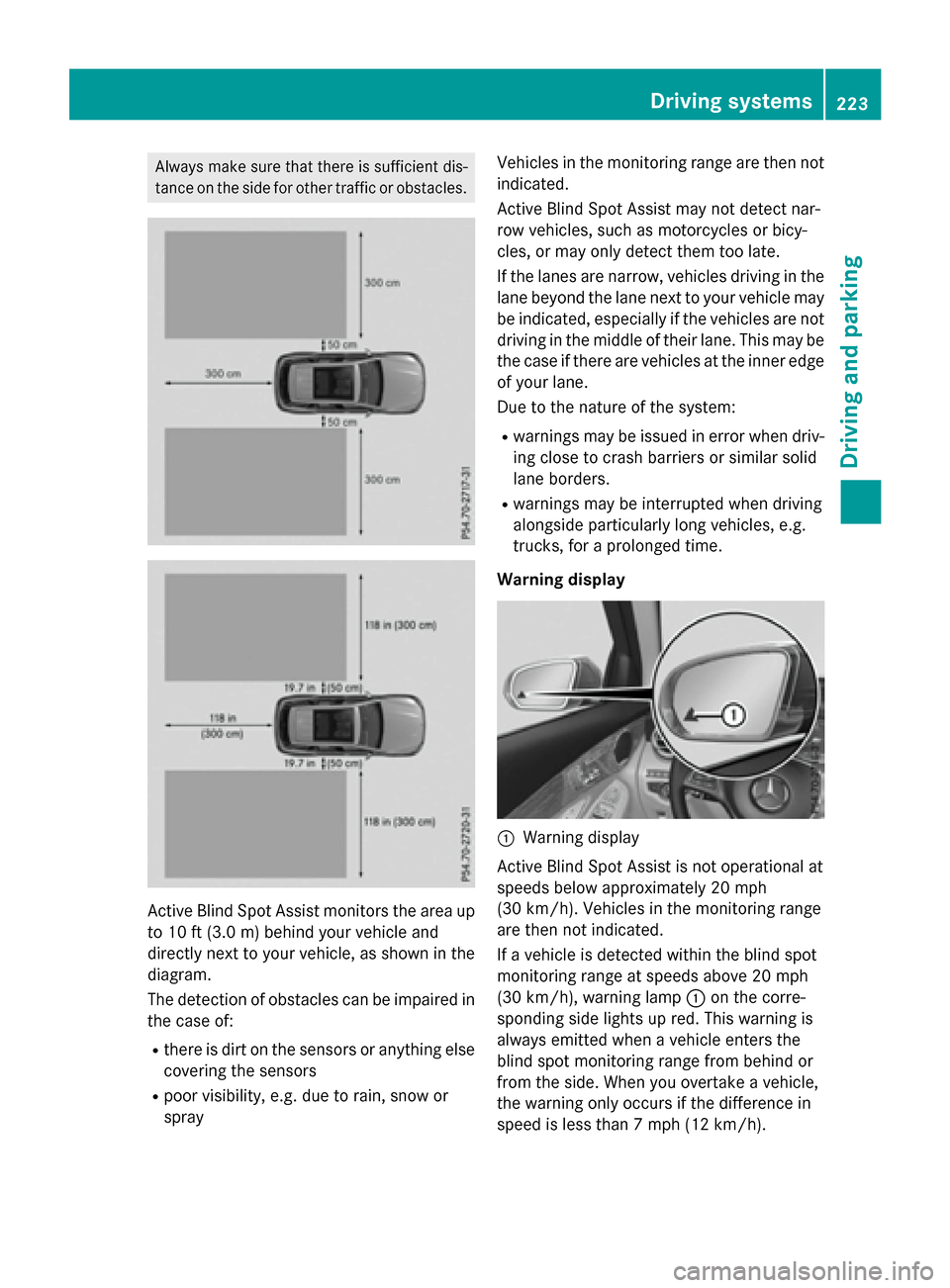
Active Blind Spot Assist monitors the area up
to 10 ft (3.0m) behind your vehicle and
directly next to your vehicle, as shown in the
diagram.
The detection of obstacles can be impaired in the case of:
Rthere is dirt on the sensors or anything else
covering the sensors
Rpoor visibility, e.g. due to rain, snow or
spray Vehicles in the monitoring range are then not
indicated.
Active Blind Spot Assist may not detect nar-
row vehicles, such as motorcycles or bicy-
cles, or may only detect them too late.
If the lanes are narrow, vehicles driving in the
lane beyond the lane next to your vehicle may
be indicated, especially if the vehicles are not
driving in the middle of their lane. This may be
the case if there are vehicles at the inner edge of your lane.
Due to the nature of the system:
Rwarnings may be issued in error when driv-
ing close to crash barriers or similar solid
lane borders.
Rwarnings may be interrupted when driving
alongside particularly long vehicles, e.g.
trucks, for a prolonged time.
Warning display
:Warning display
Active Blind Spot Assist is not operational at
speeds below approximately 20 mph
(30 km/h). Vehicles in the monitoring range
are then not indicated.
If a vehicle is detected within the blind spot
monitoring range at speeds above 20 mph
(30 km/h), warning lamp :on the corre-
sponding side lights up red. This warning is
always emitted when a vehicle enters the
blind spot monitoring range from behind or
from the side. When you overtake a vehicle,
the warning only occurs if the difference in
speed is less than 7 mph (12 km/h).
Driving systems223
Driving an d parking
Z
Page 226 of 418
If you select the reverse gear, Active Blind
Spot Assist is not operational.
The brightness of the warning lamps is auto-
matically adapted to the brightness of the
surroundings.
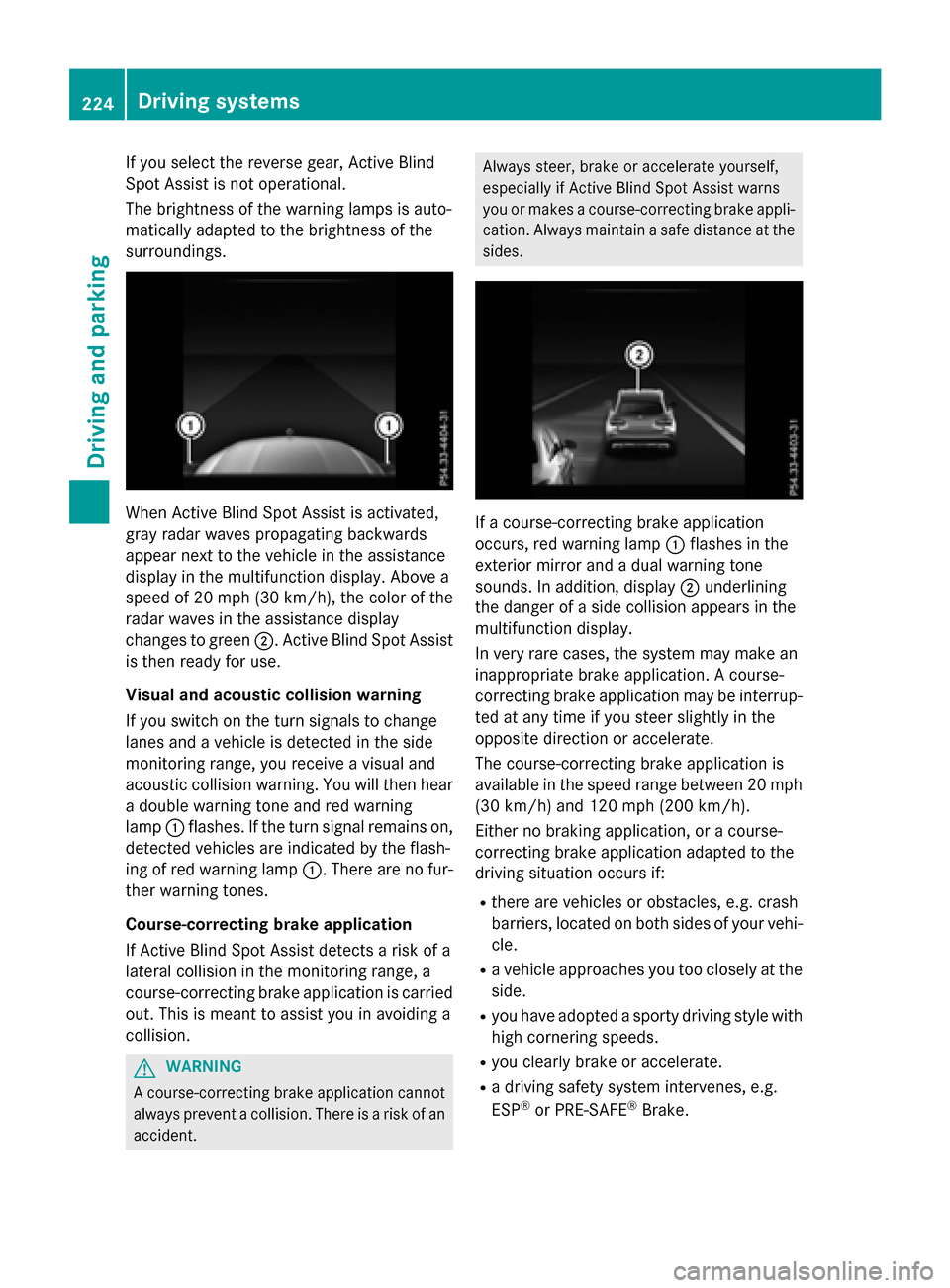
When Active Blind Spot Assist is activated,
gray radar waves propagating backwards
appear next to the vehicle in the assistance
display in the multifunction display. Above a
speed of 20 mph (30 km/h), the color of the
radar waves in the assistance display
changes to green;. Active Blind Spot Assist
is then ready for use.
Visual and acoustic collision warning
If you switch on the turn signals to change
lanes and a vehicle is detected in the side
monitoring range, you receive a visual and
acoustic collision warning. You will then hear
a double warning tone and red warning
lamp :flashes. If the turn signal remains on,
detected vehicles are indicated by the flash-
ing of red warning lamp :. There are no fur-
ther warning tones.
Course-correcting brake application
If Active Blind Spot Assist detects a risk of a
lateral collision in the monitoring range, a
course-correcting brake application is carried
out. This is meant to assist you in avoiding a
collision.
GWARNING
A course-correcting brake application cannot always prevent a collision. There is a risk of an
accident.
Always steer, brake or accelerate yourself,
especially if Active Blind Spot Assist warns
you or makes a course-correcting brake appli- cation. Always maintain a safe distance at the
sides.
If a course-correcting brake application
occurs, red warning lamp :flashes in the
exterior mirror and a dual warning tone
sounds. In addition, display ;underlining
the danger of a side collision appears in the
multifunction display.
In very rare cases, the system may make an
inappropriate brake application. A course-
correcting brake application may be interrup-
ted at any time if you steer slightly in the
opposite direction or accelerate.
The course-correcting brake application is
available in the speed range between 20 mph (30 km/h) and 120 mph (200 km/h).
Either no braking application, or a course-
correcting brake application adapted to the
driving situation occurs if:
Rthere are vehicles or obstacles, e.g. crash
barriers, located on both sides of your vehi-
cle.
Ra vehicle approaches you too closely at the
side.
Ryou have adopted a sporty driving style with
high cornering speeds.
Ryou clearly brake or accelerate.
Ra driving safety system intervenes, e.g.
ESP®or PRE-SAFE®Brake.
224Driving systems
Driving and parking
Page 227 of 418
RESP®is switched off.
Ra loss of tire pressure or a defective tire is
detected.
Switching on Active Blind Spot Assist
XMake sure that Active Blind Spot Assist is
activated in the on-board computer
(
Ypage 253).
XTurn the SmartKey to position 2in the igni-
tion lock.
Warning lamps :in the exterior mirrors
light up red for approximately 1.5 second s.
Gray radar waves propagating backwards
appear next to the vehicle in the assistance
display in the multifunction display.
Active Lane Keeping Assist
General notes
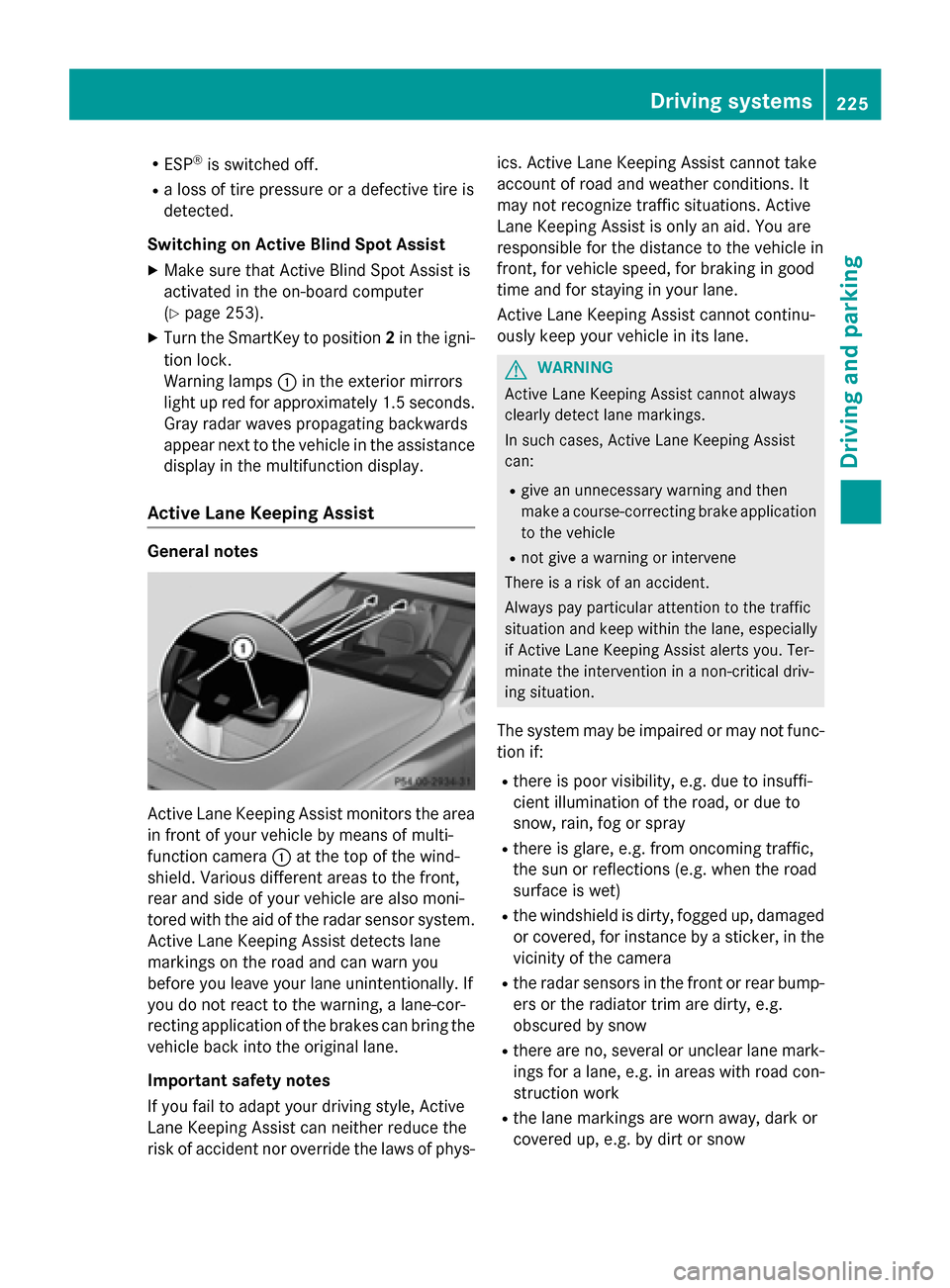
Active Lane Keeping Assist monitors the area
in front of your vehicle by means of multi-
function camera :at the top of the wind-
shield. Various different areas to the front,
rear and side of your vehicle are also moni-
tored with the aid of the radar sensor system.
Active Lane Keeping Assist detects lane
markings on the road and can warn you
before you leave your lane unintentionally. If
you do not react to the warning, a lane-cor-
recting application of the brakes can bring the
vehicle back into the original lane.
Important safety notes
If you fail to adapt your driving style, Active
Lane Keeping Assist can neither reduce the
risk of accident nor override the laws of phys- ics. Active Lane Keeping Assist cannot take
account of road and weather conditions. It
may not recognize traffic situations. Active
Lane Keeping Assist is only an aid. You are
responsible for the distance to the vehicle in
front, for vehicle speed, for braking in good
time and for staying in your lane.
Active Lane Keeping Assist cannot continu-
ously keep your vehicle in its lane.
GWARNING
Active Lane Keeping Assist cannot always
clearly detect lane markings.
In such cases, Active Lane Keeping Assist
can:
Rgive an unnecessary warning and then
make a course-correcting brake application
to the vehicle
Rnot give a warning or intervene
There isa risk of an accident.
Always pay particular attention to the traffic
situation and keep within the lane, especially
if Active Lane Keeping Assist alerts you. Ter-
minate the intervention ina non-critical driv-
ing situation.
The system may be impaired or may not func-
tion if:
Rthere is poor visibility, e.g. due to insuffi-
cient illumination of the road, or due to
snow, rain, fog or spray
Rthere is glare, e.g. from oncoming traffic,
the sun or reflections (e.g. when the road
surface is wet)
Rthe windshield is dirty, fogged up, damaged or covered, for instance by a sticker, in the
vicinity of the camera
Rthe radar sensors in the front or rear bump-
ers or the radiator trim are dirty, e.g.
obscured by snow
Rthere are no, several or unclear lane mark- ings for a lane, e.g. in areas with road con-
struction work
Rthe lane markings are worn away, dark or
covered up, e.g. by dirt or snow
Driving systems225
Driving and parking
Z
Page 228 of 418
Rthe distance to the vehicle in front is too
small and the lane markings thus cannot be
detected
Rthe lane markings change quickly, e.g.
lanes branch off, cross one another or
merge
Rthe road is narrow and winding
Rthere are strong shadows cast on the road
If no vehicle is detected in the adjacent lane
and broken lane markings are detected, no
lane-correcting brake application is made.
Warning vibration in the steering wheel
A warning may be given if a front wheel
passes over a lane marking. It will warn you by
means of intermittent vibration in the steer-
ing wheel for up to 1.5 second s.
Lane -correcting brake application
If you leave your lane, under certain circum-
stances the vehicle will brake briefly on one
side. This is meant to assist you in bringing
the vehicle back to the original lane.
GWARNING
A lane-correcting brake application cannot
always bring the vehicle back into the original lane. There is a risk of an accident.
Always steer, brake or accelerate yourself,
especially if Active Lane Keeping Assist warns
you or makes a lane-correcting brake appli-
cation.
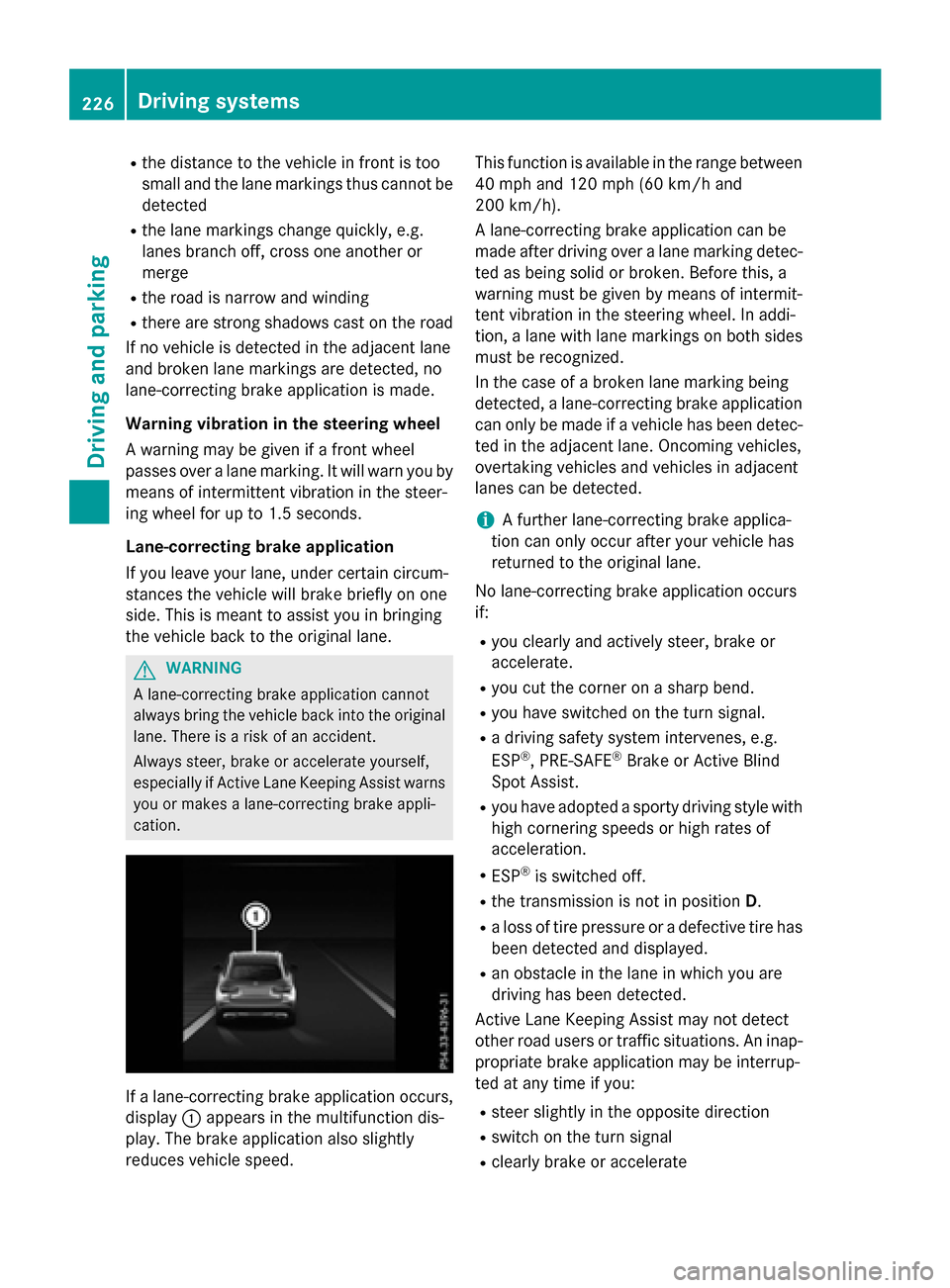
If a lane-correcting brake application occurs,
display :appears in the multifunction dis-
play. The brake application also slightly
reduces vehicle speed. This function is available in the range between
40 mph and 120 mph (60 km/h and
200 km/h).
A lane-correcting brake application can be
made after driving over a lane marking detec-
ted as being solid or broken. Before this, a
warning must be given by means of intermit-
tent vibration in the steering wheel. In addi-
tion, a lane with lane markings on both sides
must be recognized.
In the case of a broken lane marking being
detected, a lane-correcting brake application
can only be made if a vehicle has been detec-
ted in the adjacent lane. Oncoming vehicles,
overtaking vehicles and vehicles in adjacent
lanes can be detected.
iA further lane-correcting brake applica-
tion can only occur after your vehicle has
returned to the original lane.
No lane-correcting brake application occurs
if:
Ryou clearly and actively steer, brake or
accelerate.
Ryou cut the corner on a sharp bend.
Ryou have switched on the turn signal.
Ra driving safety system intervenes, e.g.
ESP®, PRE-SAFE®Brake or Active Blind
Spot Assist.
Ryou have adopted a sporty driving style with
high cornering speeds or high rates of
acceleration.
RESP®is switched off.
Rthe transmission is not in position D.
Ra loss of tire pressure or a defective tire has
been detected and displayed.
Ran obstacle in the lane in which you are
driving has been detected .
Acti
ve Lane Keeping Assist may not detect
other road users or traffic situations. An inap-
propriate brake application may be interrup-
ted at any time if you:
Rsteer slightly in the opposite direction
Rswitch on the turn signal
Rclearly brake or accelerate
226Driving systems
Driving and parking
Page 229 of 418
A lane-correcting brake application is inter-
rupted automatically if:
Ra driving safety system intervenes, e.g.
ESP®, PRE-SAFE®Brake or Active Blind
Spot Assist.
Rlane markings can no longer be recognized.
Activating/deactivating Active Lane
Keeping Assist
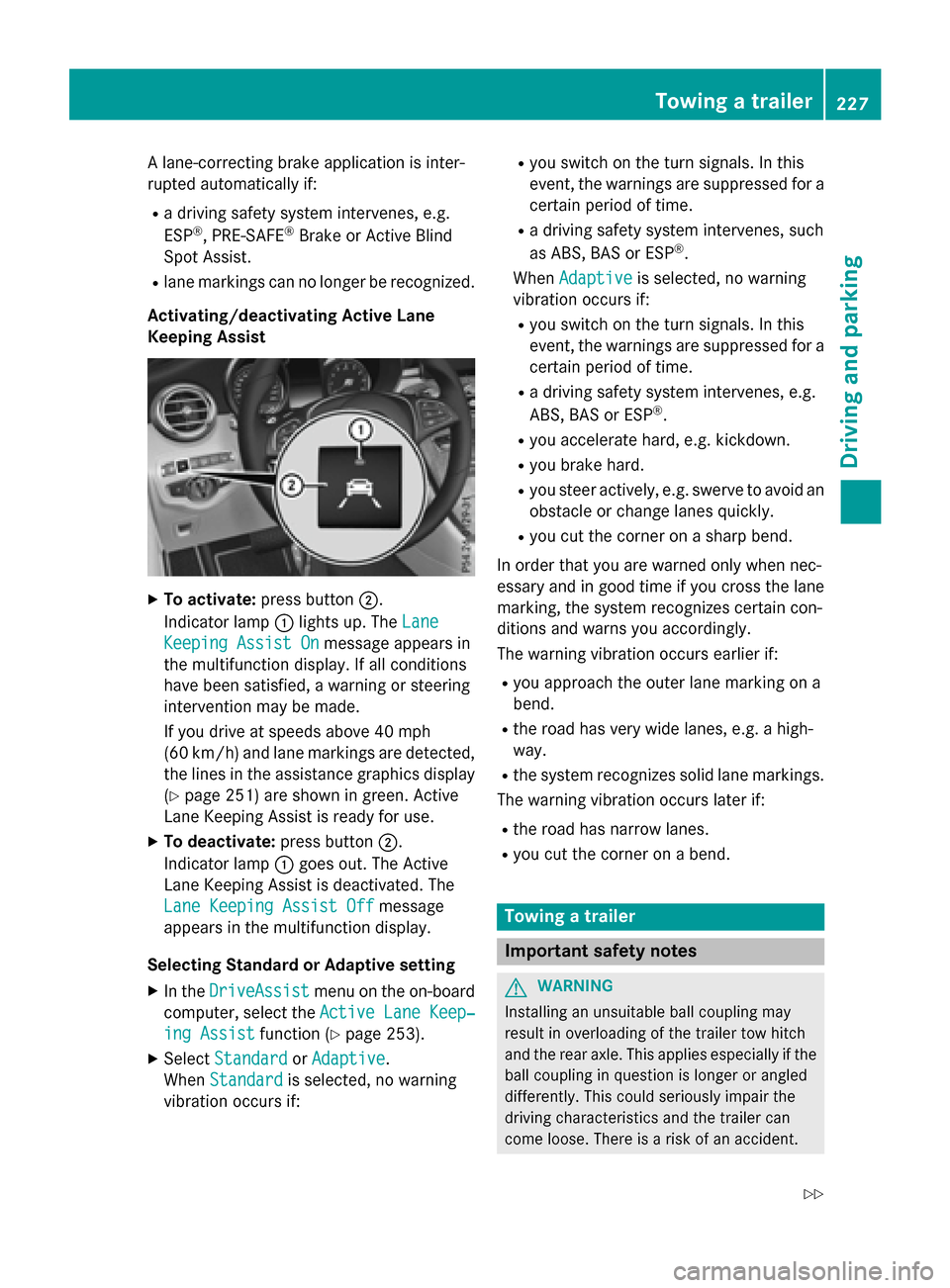
XTo activate: press button ;.
Indicator lamp :lights up. The Lane
Keeping Assist Onmessage appears in
the multifunction display. If all conditions
have been satisfied, a warning or steering
intervention may be made.
If you drive at speeds above 40 mph
(60 km/h) and lane markings are detected, the lines in the assistance graphics display
(
Ypage 251) are shown in green. Active
Lane Keeping Assist is ready for use.
XTo deactivate: press button;.
Indicator lamp :goes out. The Active
Lane Keeping Assist is deactivated. The
Lane Keeping Assist Off
message
appears in the multifunction display.
Selecting Standard or Adaptive setting
XIn the DriveAssistmenu on the on-board
computer, select the Active Lane Keep‐
ing Assistfunction (Ypage 253).
XSelectStandardorAdaptive.
When Standard
is selected, no warning
vibration occurs if:
Ryou switch on the turn signals. In this
event, the warnings are suppressed for a
certain period of time.
Ra driving safety system intervenes, such
as ABS, BAS or ESP®.
When Adaptive
is selected, no warning
vibration occurs if:
Ryou switch on the turn signals. In this
event, the warnings are suppressed for a
certain period of time.
Ra driving safety system intervenes, e.g.
ABS, BAS or ESP®.
Ryou accelerate hard, e.g. kickdown.
Ryou brake hard.
Ryou steer actively, e.g. swerve to avoid an
obstacle or change lanes quickly.
Ryou cut the corner on a sharp bend.
In order that you are warned only when nec-
essary and in good time if you cross the lane
marking, the system recognizes certain con-
ditions and warns you accordingly.
The warning vibration occurs earlier if:
Ryou approach the outer lane marking on a
bend.
Rthe road has very wide lanes, e.g. a high-
way.
Rthe system recognizes solid lane markings.
The warning vibration occurs later if:
Rthe road has narrow lanes.
Ryou cut the corner on a bend.
Towing a trailer
Important safety notes
GWARNING
Installing an unsuitable ball coupling may
result in overloading of the trailer tow hitch
and the rear axle. This applies especially if the ball coupling in question is longer or angled
differently. This could seriously impair the
driving characteristics and the trailer can
come loose. There is a risk of an accident.
Towing a trailer227
Driving an d parking
Z
Page 234 of 418
cleaned, remove the ball coupling. The trailer
tow hitch must then not be used to tow a
trailer, as safe operation cannot be guaran-
teed.
Have the entire trailer tow hitch checked at a
qualified specialist workshop.
Coupling up a trailer
!
Do not connect the trailer's brake system
(if featured) to the hydraulic brake system
of the towing vehicle, as the latter is equip-
ped with an anti-lock brake system. Doing
so will result in a loss of function of the
brake systems of both the vehicle and the
trailer.
XShift the transmission to position P.
XApply the vehicle's electric parking brake.
XStart the engine.
XVehicles with AIR BODY CONTROL:
selectComfort driving program or Trailer
off-road program.
XSwitch off the engine.
XClose the doors and tailgate.
XCouple up the trailer.
XEstablish the electrical connection
between the vehicle and the trailer.
XCheck that the trailer lighting system is
working.
XPush the combination switch upwards/
downwards and check whether the corre-
sponding turn signal on the trailer flashes.
A trailer that is connected is recognized only
when the electrical connection is established
correctly and when the lighting system is
working properly. The function of other sys-
tems also depends on this, for example:
RESP®
RPARKTRONIC
RActive Parking Assist
RActive Blind Spot Assist
RActive Lane Keeping Assist
iVehicles with AIR BODY CONTROL: if you
couple up a trailer, the vehicle always
remains at highway level. When coupling up
a trailer, please observe the following:
RUnless highway level has been set man-
ually, the vehicle is automatically low-
ered to highway level. This is the case if a
speed of 5 mph (8 km/h) is reached.
These restrictions apply to all accessories
powered through a connection to the trailer
power socket of your vehicle, e.g. a bicycle
carrier.
Observe the maximum permissible trailer
dimensions (width and length).
Most U.S. states and all Canadian provinces
require by law:
RSafety chains between the towing vehicle
and the trailer. The chains should be cross-
wound under the trailer drawbar. They must
be fastened to the vehicle's trailer cou-
pling, not to the bumper or the axle.
Leave enough play in the chains to make
tight cornering possible.
RA separate brake system for certain types
of trailer.
RSafety switch for braked trailers. Check the specific legal requirements applicable to
your state.
If the trailer becomes detached from the
towing vehicle, the safety switch applies
the trailer brakes.
Towing a trailer
There are numerous legal requirements con-
cerning the towing of a trailer, e.g. speed
restrictions. Make sure that your car/trailer
combination complies with the local regula-
tions:
Rin your place of residence
Rin the location to which you are driving
The police and local authorities can provide
reliable information.
232Towing a trailer
Driving and parking
Page 254 of 418
The assistance graphic displays the status
of and information from the following driv-
ing systems or driving safety systems:
RDISTRONIC PLUS (Ypage 183)
RTraffic Sign Assist (Ypage 216)
RDistance warning and the autonomous
braking function COLLISION PREVEN-
TION ASSIST PLUS (
Ypage 70)
RPRE-SAFE®Brake (Ypage 75)
RBlind Spot Assist (Ypage 217) or Active
Blind Spot Assist (
Ypage 222)
RATTENTION ASSIST (Ypage 214)
RLane Keeping Assist (Ypage 220) or
Active Lane Keeping Assist
(
Ypage 225)
RRear window wiper (Ypage 135)
XPress :to display the ATTEN-
TION ASSIST assessment.
Service menu
Introduction
Depending on the equipment installed in the
vehicle, you have the following options in the
Service
menu:
RCalling up display messages in message
memory (
Ypage 257)
RChecking the tire pressure electronically
(
Ypage 383)
RCalling up the service due date
(
Ypage 343)
Settings menu
Introduction
Depending on the equipment installed in the
vehicle, you have the following options in the
Settings
menu:
RChanging assistance settings
(
Ypage 252)
RChanging head-up display settings
(
Ypage 254)
RChanging the light settings (Ypage 255)
RChanging the instrument cluster settings
(
Ypage 255)
RRestoring the factory settings
(
Ypage 256)
Assistance submenu
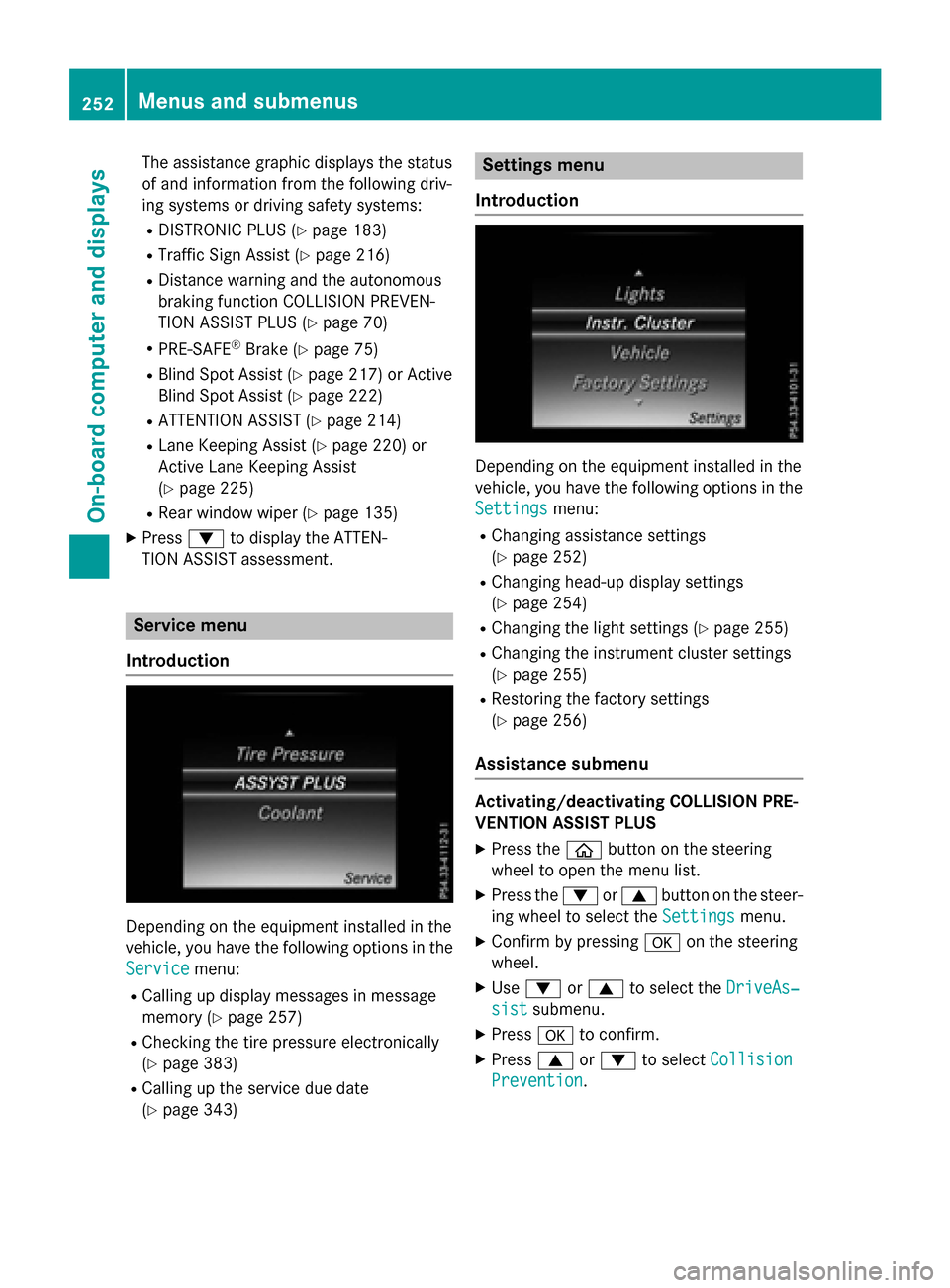
Activating/deactivating COLLISION PRE-
VENTION ASSIST PLUS
XPress the òbutton on the steering
wheel to open the menu list.
XPress the :or9 button on the steer-
ing wheel to select the Settings
menu.
XConfirm by pressingaon the steering
wheel.
XUse : or9 to select the DriveAs‐
sistsubmenu.
XPressato confirm.
XPress 9or: to select Collision
Prevention.
252Menus and submenus
On-board computer and displays
Page 255 of 418
XPressato confirm.
The current selection appears.
XTo activate/deactivate: press thea
button again.
When COLLISION PREVENTION ASSIST
PLUS is deactivated, the æsymbol
appears in the multifunction display in the
Assistance Graphic
menu.
For further information about COLLISION
PREVENTION ASSIST PLUS, see (
Ypage 70).
Activating/deactivating PRE-SAFE
®
Brake
PRE ‑SAFE
®Brake is only available for vehi-
cles with the Driving Assistance package.
XPress the òbutton on the steering
wheel to open the menu list.
XPress the :or9 button on the steer-
ing wheel to select the Settings
menu.
XConfirm by pressingaon the steering
wheel.
XUse : or9 to select the DriveAs‐
sistsubmenu.
XPressato confirm.
XPress :or9 to select PRE-SAFE
Brake.
XPressato confirm.
The current selection appears.
XTo activate/deactivate: press thea
button again.
When PRE-SAFE
®Brake is deactivated, the
æ symbol appears in the multifunction
display in the Assistance
Graphicmenu.
For more information on PRE ‑SAFE
®Brake,
see (
Ypage 75).
Activating/deactivating Blind Spot Assist
XPress the òbutton on the steering
wheel to open the menu list.
XPress the :or9 button on the steer-
ing wheel to select the Settings
menu.
XConfirm by pressingaon the steering
wheel.
XUse : or9 to select the DriveAs‐
sistsubmenu.
XPressato confirm.
XPress :or9 to select BlindSpot
Assist.
XPressato confirm.
The current selection appears.
XTo activate/deactivate: press thea
button again.
For further information about Blind Spot
Assist, see (
Ypage 217).
For further information about Active Blind
Spot Assist, see (
Ypage 222).
Setting ATTENTION ASSIST
XPress the òbutton on the steering
wheel to open the menu list.
XPress the :or9 button on the steer-
ing wheel to select the Settings
menu.
XConfirm by pressingaon the steering
wheel.
XUse : or9 to select the DriveAs‐
sistsubmenu.
XPressato confirm.
XPress :or9 to select ATTENTION
ASSIST.
XPressato confirm.
XPress :or9 to select Off,Stand‐
ardor Sensitive.
XPress the abutton to confirm the selec-
tion.
When ATTENTION ASSIST is deactivated,
the é symbol appears in the Assis‐
tance Graphicmenu in the multifunction
display.
For further information about ATTENTION
ASSIST, see (
Ypage 214).
Setting Lane Keeping Assist
XPress the òbutton on the steering
wheel to open the menu list.
XPress the :or9 button on the steer-
ing wheel to select the Settings
menu.
Menus and submenus253
On-board computer and displays
Z
Page 256 of 418
XConfirmbypressing aon the steering
wheel.
XUse : or9 to select the DriveAs‐
sistsubmenu.
XPressato confirm.
XPress :or9 to select Lane Keep‐
ing Assist.
XPressato confirm.
The current selection, Standard
orAdap‐
tive, appears.
XTo change the setting: pressaagain.
For further information about Lane Keeping
Assist, see (
Ypage 220).
For further information about Active Lane
Keepin g Assist, see (
Ypage 225).
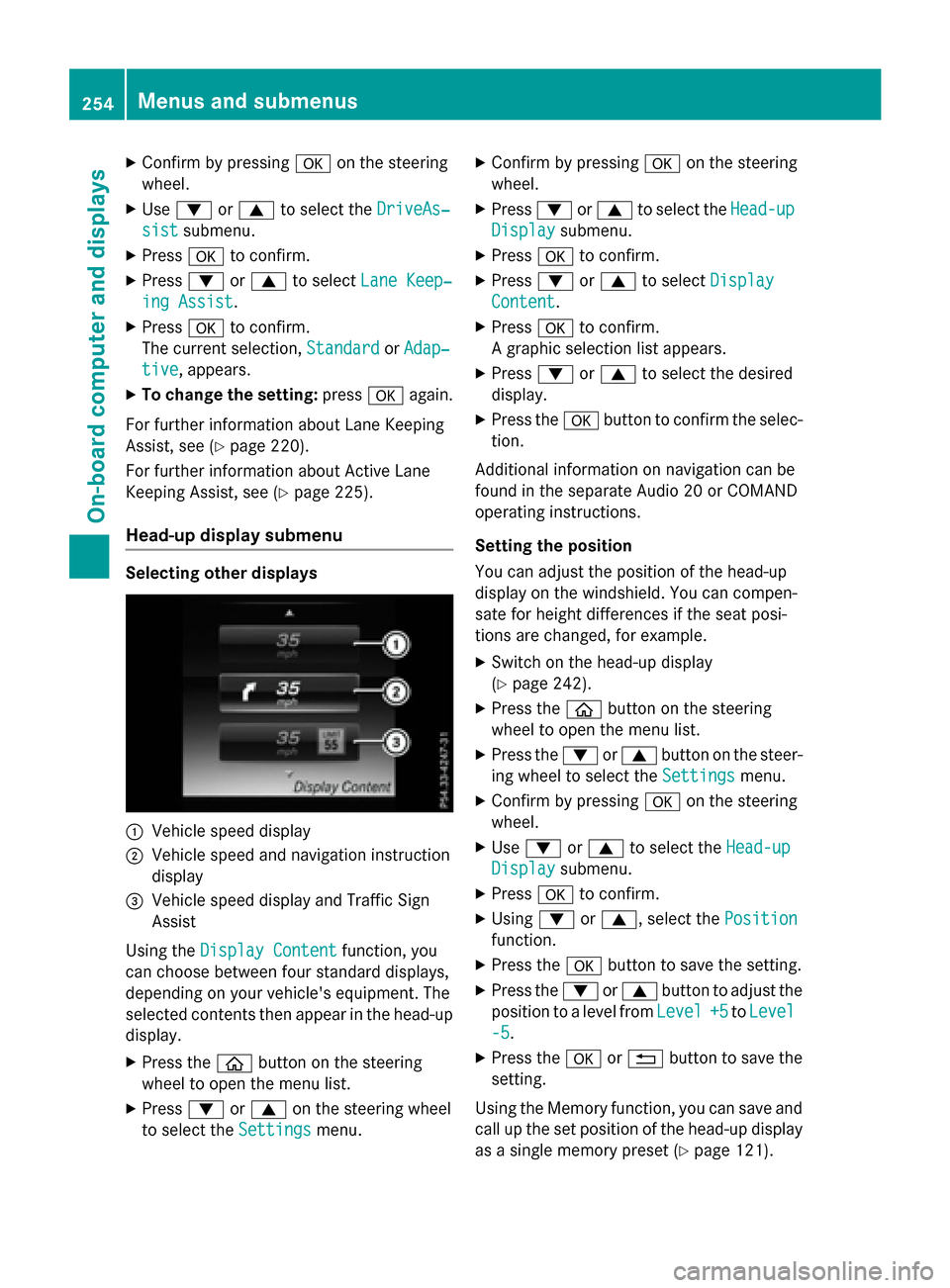
Head-up display submenu
Selecting other displays
:Vehicle speed display
;Vehiclespeed and navigation instruction
disp lay
=Vehicle speed display and Traffic Sign
Assist
Using the Display Content
function, you
can choose between four standard displays,
depe nding on your vehicle's equipment. The
selected contents then appear inthe head-up
disp lay.
XPress the òbutton on the steering
wheel to open the menu list.
XPress :or9 on the steering wheel
to select the Settings
menu.
XConfirmbypressing aon the steering
wheel.
XPress :or9 to select the Head-up
Displaysubmenu.
XPressato confirm.
XPress :or9 to select Display
Content.
XPressato confirm.
A graphic selection listappears.
XPress :or9 to select the desired
display.
XPress the abutton to confirm the selec-
tion.
Ad ditional information on navigation can be
found inthe separate Aud io20 or COMAND
operating instructions.
Setting the positi on
You can adjust the position of the head-up
display on the windshield. You can compen-
sate for height differences ifthe seat posi-
tions are changed, for example.
XSwit ch on the head-up display
(
Ypage 242).
XPress the òbutton on the steering
wheel to open the menu list.
XPress the :or9 button on the steer-
ing wheel to select the Settings
menu.
XConfirmbypressing aon the steering
wheel.
XUse : or9 to select the Head-up
Displaysubmenu.
XPressato confirm.
XUsing :or9, select the Position
function.
XPress theabutton to save the setting.
XPress the :or9 button to adjust the
position to a level from Level
+5toLevel
-5.
XPress the aor% button to save the
setting.
Using the Memory function, you can save and
call up the set position of the head-up display
as a single memory preset (
Ypage 121).
254Menus and submenus
On-board computer and displays