display MERCEDES-BENZ GLS SUV 2019 Owners Manual
[x] Cancel search | Manufacturer: MERCEDES-BENZ, Model Year: 2019, Model line: GLS SUV, Model: MERCEDES-BENZ GLS SUV 2019Pages: 729, PDF Size: 12.03 MB
Page 379 of 729
#
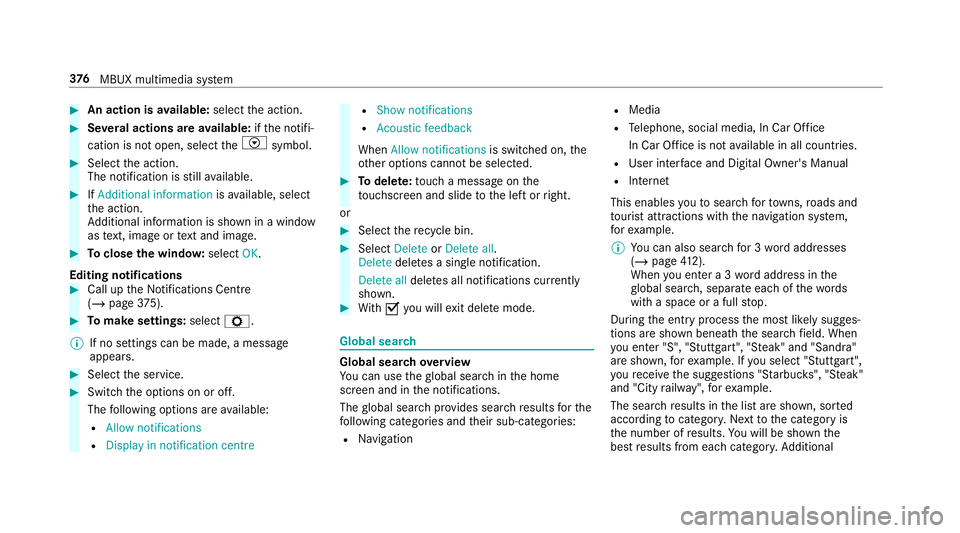
An action is available: selectthe action. #
Several actions are available: ifth e notifi‐
cation is not open, select theV symbol. #
Select the action.
The notification is still available. #
IfAdditional information isavailable, select
th e action.
Ad ditional information is shown in a window
as text, ima geortext and ima ge. #
Toclose the windo w:select OK.
Editing notifications #
Call up the Notifications Centre
(/ page 375). #
Tomake settings: selectZ.
% If no settings can be made, a messa ge
appears. #
Select the service. #
Switch the options on or off.
The following options are available:
R Allow notifications
R Display in notification centre R
Show notifications
R Acoustic feedback
When Allow notifications is switched on, the
ot her options cannot be selected. #
Todel ete: touch a message on the
to uchsc reen and slide tothe left or right.
or #
Select there cycle bin. #
Select Delete orDelete all.
Delete deletes a single notification.
Delete all deletes all notifications cur rently
shown. #
With O you will exit dele temode. Global sear
ch Global sear
chove rview
Yo u can use theglobal sear chinthe home
screen and in the notifications.
The global sear chprov ides sear chresults forthe
fo llowing categories and their sub-categories:
R Navigation R
Media
R Telephone, social media, In Car Of fice
In Car Of fice is not available in all countries.
R User inter face and Digi tal Owner's Manual
R Internet
This enables youto sear chforto wns, roads and
to urist att ractions wi th the navigation sy stem,
fo rex ample.
% You can also sear chfor 3 wordaddresses
(/ page 412).
When you en ter a 3 wordaddress in the
gl obal sear ch, separate each of thewo rds
with a space or a full stop.
During the entry process the most likely sugges‐
tions are shown beneath the sear chfield. When
yo u en ter "S", "Stuttgart", "S teak" and "Sandra"
are shown, forex ample. If you select "Stuttgart",
yo ure cei vethe suggestions "S tarbuc ks", "S teak"
and "City railw ay",forex ample.
The sear chresults in the list are shown, sor ted
according tocatego ry. Next tothe category is
th e number of results. You will be shown the
best results from each categor y.Ad ditional 376
MBUX multimedia sy stem
Page 382 of 729
On
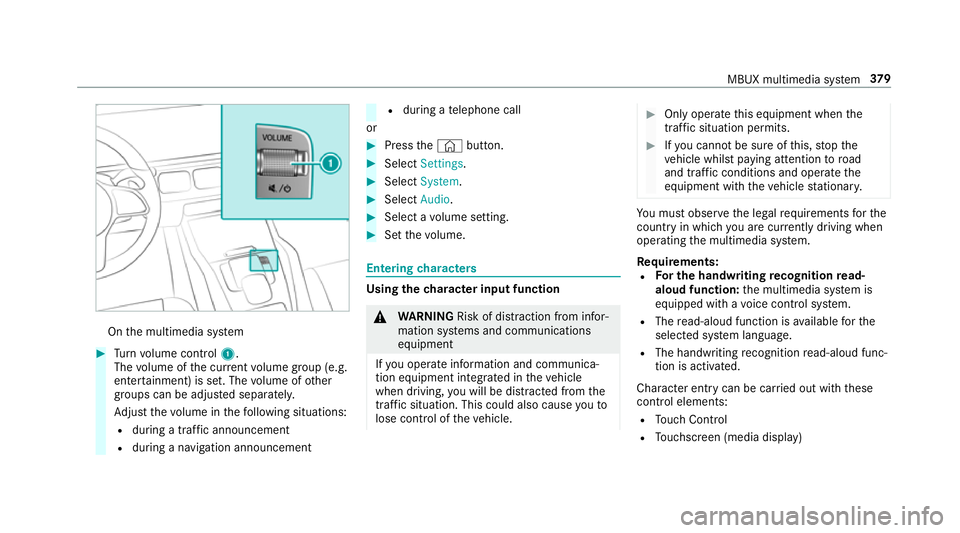
the multimedia sy stem #
Turn volume control 1.
The volume of the cur rent volume group (e.g.
enter tainment) is set. The volume of other
groups can be adjus ted separatel y.
Ad just thevo lume in thefo llowing situations:
R during a traf fic announcement
R during a navigation announcement R
during a telephone call
or #
Press the© button. #
Select Settings . #
Select System. #
Select Audio. #
Select a volume setting. #
Set thevo lume. Entering
characters Using
thech aracter input function &
WARNING Risk of di stra ction from infor‐
mation sy stems and communications
equipment
If yo u operate information and communica‐
tion equipment integ rated in theve hicle
when driving, you will be distracted from the
traf fic situation. This could also cause youto
lose control of theve hicle. #
Only operate this equipment when the
traf fic situation permits. #
Ifyo u cannot be sure of this, stop the
ve hicle whilst paying attention toroad
and traf fic conditions and ope rate the
equipment with theve hicle stationar y. Yo
u must obse rveth e legal requirements forthe
country in whi chyou are cur rently driving when
operating the multimedia sy stem.
Re quirements:
R For the handwriting recognition read-
aloud function: the multimedia sy stem is
equipped with a voice control sy stem.
R The read-aloud function is available forthe
selected sy stem language.
R The handwriting recognition read-aloud func‐
tion is activated.
Character ent rycan be car ried out with these
control elements:
R Touch Control
R Touchsc reen (media display) MBUX multimedia sy
stem 37 9
Page 385 of 729
If
av ailable, thep symbol allo wsyouto
ch ange tovoice input.
% When Touchpad tap is switched on D,
ta pping is suf ficient toselect a character or
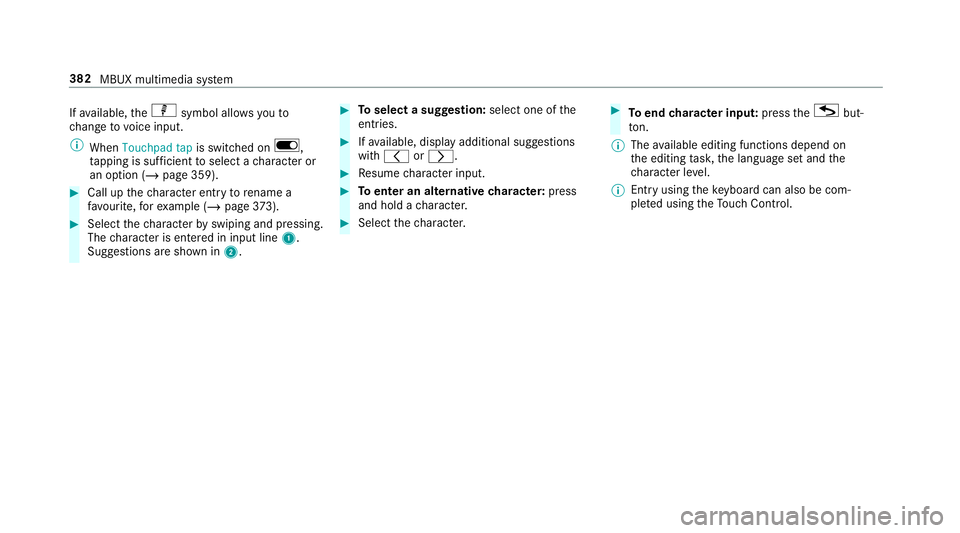
an option (/ page 359).#
Call up thech aracter ent ryto rename a
fa vo urite, forex ample (/ page373). #
Select thech aracter byswiping and pressing.
The character is entered in input line 1.
Suggestions are shown in 2. #
Toselect a suggestion: select one ofthe
entri es. #
Ifav ailable, display additional suggestions
with q orr. #
Resume character input. #
Toenter an alternative character: press
and hold a character. #
Select thech aracter. #
Toend character input: presstheG but‐
to n.
% The available editing functions depend on
th e editing task, the language set and the
ch aracter le vel.
% Entry using theke yboard can also be com‐
ple ted using theTo uch Control. 382
MBUX multimedia sy stem
Page 387 of 729
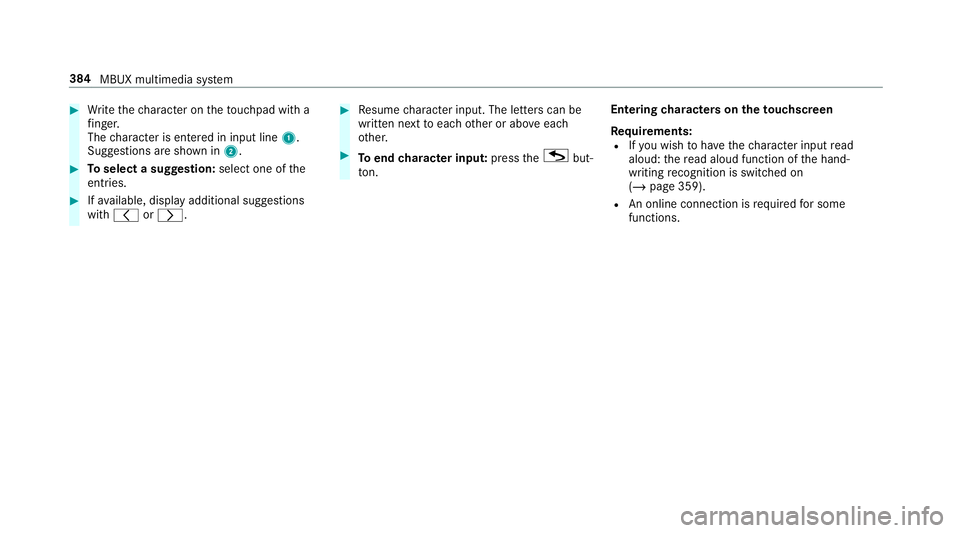
#
Write thech aracter on theto uchpad with a
fi nger.
The character is entered in input line 1.
Suggestions are shown in 2.#
Toselect a suggestion: select one ofthe
entri es. #
Ifav ailable, display additional suggestions
with q orr. #
Resume character input. The letters can be
written next toeach other or abo veeach
ot her. #
Toend character input: presstheG but‐
to n. En
tering characters on theto uchscreen
Re quirements:
R Ifyo u wish tohave thech aracter input read
aloud: there ad aloud function of the hand‐
writing recognition is switched on
(/ page 359).
R An online connection is requ ired for some
functions. 384
MBUX multimedia sy stem
Page 389 of 729
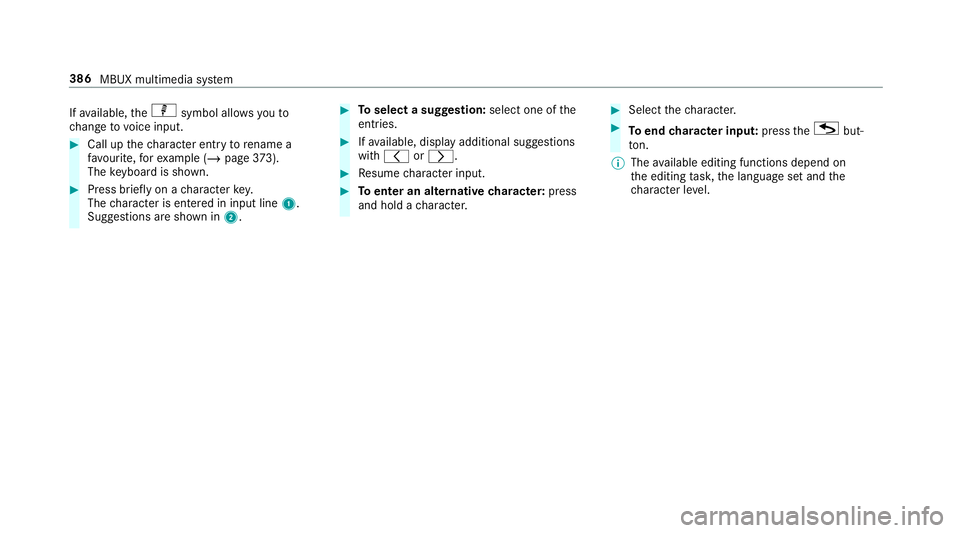
If
av ailable, thep symbol allo wsyouto
ch ange tovoice input. #
Call up thech aracter ent ryto rename a
fa vo urite, forex ample (/ page373).
The keyboard is shown. #
Press brief lyon a character key.
The character is entered in input line 1.
Suggestions are shown in 2. #
Toselect a suggestion: select one ofthe
entri es. #
Ifav ailable, display additional suggestions
with q orr. #
Resume character input. #
Toenter an alternative character: press
and hold a character. #
Select thech aracter. #
Toend character input: presstheG but‐
to n.
% The available editing functions depend on
th e editing task, the language set and the
ch aracter le vel. 386
MBUX multimedia sy stem
Page 391 of 729
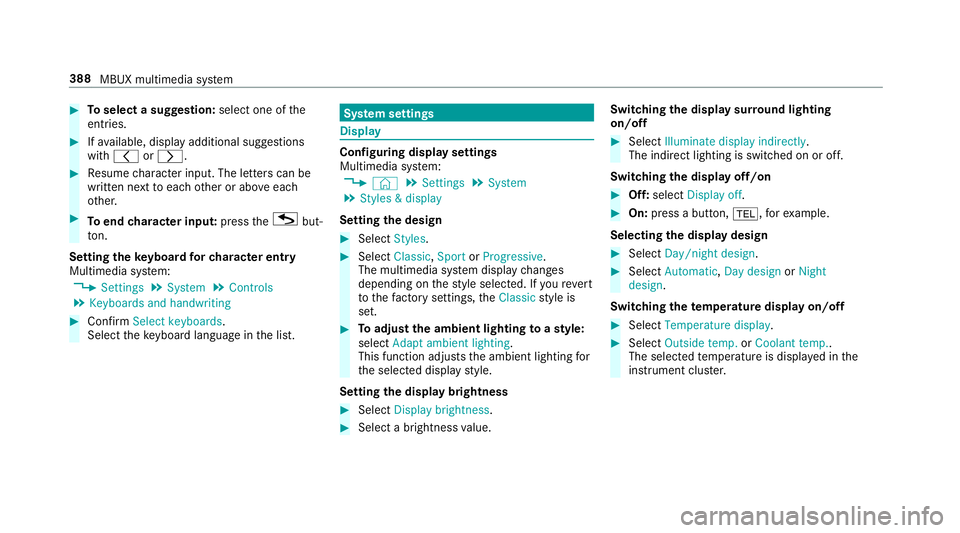
#
Toselect a suggestion: select one ofthe
entri es. #
Ifav ailable, display additional suggestions
with q orr. #
Resume character input. The letters can be
written next toeach other or abo veeach
ot her. #
Toend character input: presstheG but‐
to n.
Setting the keyboard forch aracter entry
Multimedia sy stem:
4 Settings 5
System 5
Controls
5 Keyboards and handwriting #
Confirm Select keyboards.
Select theke yboard language in the list. Sy
stem settings Display
Configuring display settings
Multimedia sy
stem:
4 © 5
Settings 5
System
5 Styles & display
Setting the design #
Select Styles. #
Select Classic ,Sport orProgressive .
The multimedia sy stem display changes
depending on thest yle selected. If youre ve rt
to thefa ctory settings, theClassic style is
set. #
Toadjust the ambient lighting toastyl e:
select Adapt ambient lighting.
This function adjusts the ambient lighting for
th e selected display style.
Setting the display brightness #
Select Display brightness . #
Select a brightness value. Switching
the display sur round lighting
on/off #
Select Illuminate display indirectly .
The indirect lighting is switched on or off.
Switching the display off/on #
Off: select Display off . #
On: press a button, %,forex ample.
Selecting the display design #
Select Day/night design . #
Select Automatic, Day design orNight
design .
Switching thetemp erature display on/off #
Select Temperature display . #
Select Outside temp. orCoolant temp..
The selec tedte mp erature is displa yed in the
instrument clus ter. 388
MBUX multimedia sy stem
Page 396 of 729
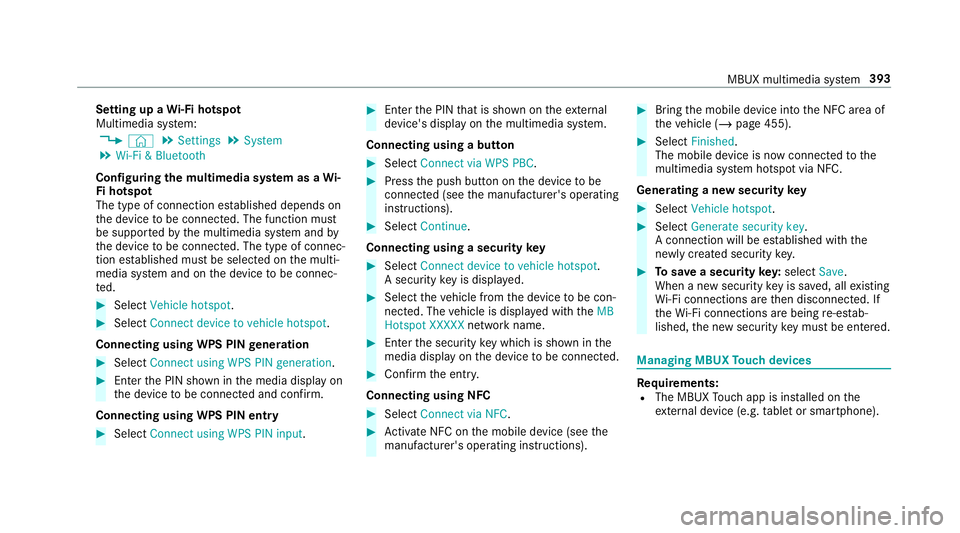
Setting up a
Wi-Fi hotspot
Multimedia sy stem:
4 © 5
Settings 5
System
5 Wi-Fi & Bluetooth
Configuring the multimedia sy stem as a Wi-
Fi hotspot
The type of connection es tablished depends on
th e device tobe connec ted. The function must
be suppor tedby the multimedia sy stem and by
th e device tobe connec ted. The type of connec‐
tion es tablished must be selected on the multi‐
media sy stem and on the device tobe connec‐
te d. #
Select Vehicle hotspot. #
Select Connect device to vehicle hotspot .
Connecting using WPS PIN generation #
Select Connect using WPS PIN generation. #
Ente rth e PIN shown in the media display on
th e device tobe connec ted and con firm.
Connecting using WPS PIN entry #
Select Connect using WPS PIN input. #
Enterth e PIN that is shown on theex tern al
device's display on the multimedia sy stem.
Connecting using a button #
Select Connect via WPS PBC. #
Press the push button on the device tobe
connec ted (see the manufacturer's operating
instructions). #
Select Continue.
Connecting using a security key #
Select Connect device to vehicle hotspot .
A secu rity key is displa yed. #
Select theve hicle from the device tobe con‐
nec ted. The vehicle is displa yed with theMB
Hotspot XXXXX network name. #
Ente rth e security key which is shown in the
media display on the device tobe connec ted. #
Confirm the entry.
Connecting using NFC #
Select Connect via NFC. #
Activate NFC on the mobile device (see the
manufacturer's operating instructions). #
Bring the mobile device into the NFC area of
th eve hicle (/ page 455). #
Select Finished.
The mobile device is now connected tothe
multimedia sy stem hotspot via NFC.
Generating a new security key #
Select Vehicle hotspot. #
Select Generate security key .
A connection will be es tablished with the
newly crea ted security key. #
Tosave a security key:select Save.
When a new security key is sa ved, all existing
Wi -Fi connections are then disconnected. If
th eWi -Fi connections are being re-es tab‐
lished, the new security key must be en tere d. Managing MBUX
Touch devices Re
quirements:
R The MBUX Touch app is ins talled on the
ex tern al device (e.g. tablet or smartphone). MBUX multimedia sy
stem 393
Page 397 of 729
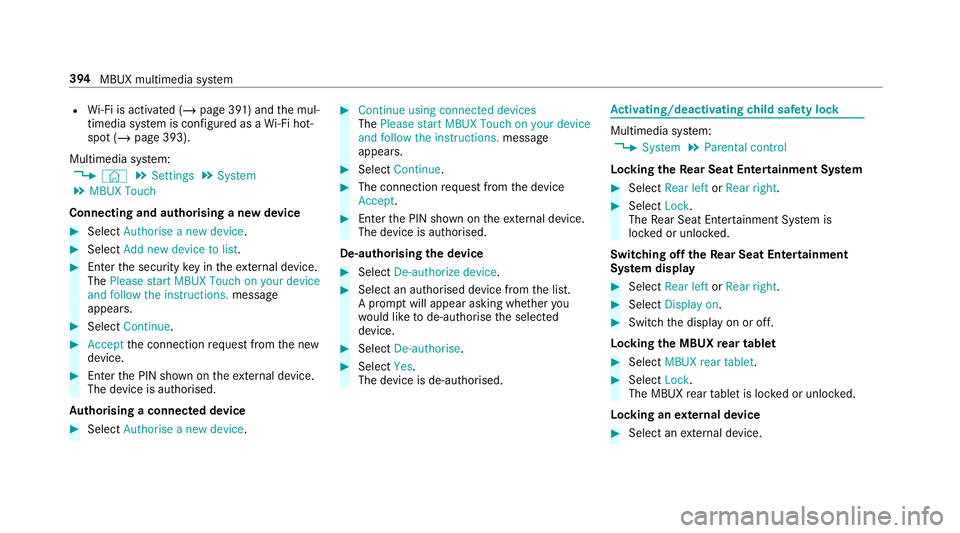
R
Wi-Fi is acti vated (/ page 391) and the mul‐
timedia sy stem is confi gured as a Wi-Fi hot‐
spot (/ page 393).
Multimedia sy stem:
4 © 5
Settings 5
System
5 MBUX Touch
Connecting and authorising a new device #
Select Authorise a new device. #
Select Add new device to list. #
Ente rth e security key in theex tern al device.
The Please start MBUX Touch on your device
and follow the instructions. message
appears. #
Select Continue. #
Accept the connection requ est from the new
device. #
Ente rth e PIN shown on theex tern al device.
The device is authorised.
Au thorising a connected device #
Select Authorise a new device. #
Continue using connected devices
The Please start MBUX Touch on your device
and follow the instructions. message
appears. #
Select Continue. #
The connection requ est from the device
Accept. #
Ente rth e PIN shown on theex tern al device.
The device is authorised.
De-authorising the device #
Select De-authorize device. #
Select an authorised device from the list.
A prom ptwill appear asking whe ther you
wo uld like tode-authorise the selected
device. #
Select De-authorise. #
Select Yes.
The device is de-authorised. Ac
tivating/deactivating child saf ety lock Multimedia sy
stem:
4 System 5
Parental control
Locking theRe ar Seat Entertainment Sy stem #
Select Rear left orRear right . #
Select Lock.
The Rear Seat En tertainment Sy stem is
loc ked or unloc ked.
Switching off theRe ar Seat Entertainment
Sy stem display #
Select Rear left orRear right . #
Select Display on. #
Swit chthe display on or off.
Locking the MBUX rear tablet #
Select MBUX rear tablet. #
Select Lock.
The MBUX rear tablet is loc ked or unloc ked.
Locking an extern al device #
Select an extern al device. 394
MBUX multimedia sy stem
Page 407 of 729
R
Pelvis #
Select the desired area of the body Ì.
Playback of the tip forth is area of the body
st arts. #
Select Étostop playback of the tip.
% Youre cei vea tip for each option. Tolistento
th e next tip, again select a desired categor y.ENERGIZING CO
ACHFu
nction of the ENERGIZING CO ACH
Re quirements:
R The ENERGIZING COACH (ENERGIZING
CO ACH) service is activated in the Mercedes
me por tal or the Mercedes me app .
Wi th ENERGIZING CO ACHyo u can evaluate the
driving and driver situation. Depending on the
situation, it of fers recommendations forth est art
of an appropriate ENERGIZING com fort prog ram.
The following programs could be sugges ted:
R Vitality As an activating prog
ram in mono tonous driv‐
ing situations or for long journey times, for
ex ample.
In fo rm ation on the vitality program see
(/ page 400).
R Joy
As a balancing prog ram in demanding driving
situations.
Information on the pleasure prog ram see
(/ page 400).
By connecting a GARMIN fitness trac ker,for
ex ample the GARMIN Vívosmart ®
3, additional
information can be entered into theeva luation
fo rth ere commendation of an ENERGIZING com‐
fo rt prog ram. The additional information
includes thest re ss le vel,th at is calculated by
th efitness trac ker.The stre ss le vel is based pri‐
marily on the pulse.
Re quirements forth e integration of additional
information via a GARMIN fitness trac ker:
R Your fitness trac ker is connected with your
GARMIN account. R
Your GARMIN account is connected with your
Mercedes me account.
If yo uwe aryour GARMIN fitness trac ker at night
also, the sleep data is included in theev aluation
of the ENERG IZINGCOACH.
Re quirement forth e integration of the sleep
data:
R The GARMIN fitness trac ker is synchronised
with the GARMIN account before the begin‐
ning of the journe y.
% Only
vehicles with ATTENTION ASSI ST:
If AT TENTION ASSIST de term ines an exces‐
sive lack of attention, ENERG IZINGCOACH
makes no fur ther suggestions. Further infor‐
mation about ATTENTION ASSIST
(/ page 301).
Calling up the ENERGIZING CO ACH display
Multimedia sy stem:
4 © 5
Comfort #
Select ENERGIZING COACH.
Yo ur cur rent pulse as well as an evaluation of
yo ur pulse forth e last 30 minutes driving
time are shown. 404
MBUX multimedia sy stem
Page 413 of 729
Using online sear
ch
% Requirements: the media display sho wsan
In te rn et connection wi tha double-ar row
symbol in thest atus line.
Online sear chis not available in all countries.
De stination ent ryuses online map services. If
th e on-board sear chfinds no suitable de stina‐
tions or if youch ange countries, the online
sear chisavailable.
Fo rth e destination you can en ter an addre ss, a
POI or a 3 wordaddress.
% Enter a 3 wordaddress (/ page412). #
Select country indica tor1. #
Select the pr ovider forth e online service
from the count ries list.
or #
Ifth e on-board sear chdelivers no results,
enter the destination in the input line. The
entry order is not releva nt, e.g. stre et and
to wn. Use the functions described forth e on-
board sear ch.
The sear chresults are displa yed. #
Select the destination in the list.
The de tailed view forth ero ute is displ ayed.
Selecting pr evious destinations
Re quirements:
R Prev ious destinations are stored.
R For destination sug gestions: you ha vecre‐
ated a profile (/ page 366).
R The Allow destination suggestions option is
switched on (/ page371).
R The multimedia sy stem has already gathered
suf ficient da tain order toshow destination
suggestions.
Multimedia sy stem:
4 © 5
Navigation 5
ª Where to?
5 PREV. DESTINATIONS
The following ent ries can be selected in the pre‐
vious destinations:
R Destination suggestions (/ page 430)
R Destinations
R Routes #
Select the destination or route.
The destination address is shown. The route
can be calculated.
% You can sa vea pr evious destination or a des‐
tination suggestion as a favo urite
(/ page 430).
Using thefa vo urites, you ha vequick access
to the destinations (/ page414).
Selec ting a POI
Requ irements:
R For use of personal POIs: a USB device is
connected wi th the multimedia sy stem.
R Personal POIs with the GPS Ex change form at
(.gpx) ha vebeen sa ved in the "PersonalPOI"
fo lder on the USB device.
Multimedia sy stem:
4 © 5
Navigation 5
ª Where to?
5 POIS
Sear ching using categories (no route guid‐
ance) #
Select the categor y,forex ample Filling sta-
tion. 41 0
MBUX multimedia sy stem