display MERCEDES-BENZ GLS SUV 2019 Owners Manual
[x] Cancel search | Manufacturer: MERCEDES-BENZ, Model Year: 2019, Model line: GLS SUV, Model: MERCEDES-BENZ GLS SUV 2019Pages: 729, PDF Size: 12.03 MB
Page 451 of 729
#
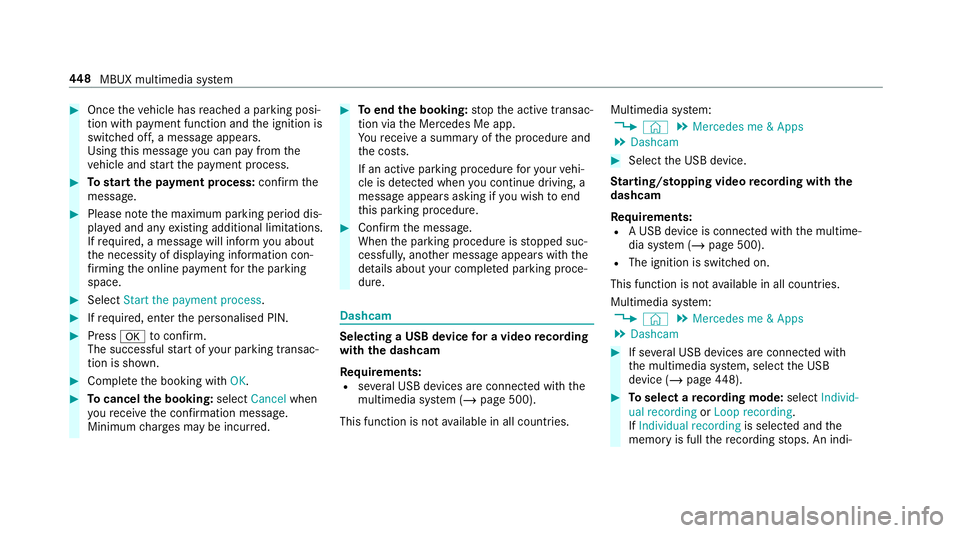
Once theve hicle has reached a parking posi‐
tion with payment function and the ignition is
switched off, a message appears.
Using this message you can pay from the
ve hicle and start the payment process. #
Tostart the payment process: confirm the
messa ge. #
Please no tethe maximum parking period dis‐
pla yed and any existing additional limitations.
If re qu ired, a message will inform you about
th e necessity of displaying information con‐
fi rm ing the online payment forth e parking
space. #
Select Start the payment process. #
Ifre qu ired, enter the personalised PIN. #
Press atoconfirm.
The successful start of your parking transac‐
tion is shown. #
Comple tethe booking with OK.#
Tocancel the booking: selectCancel when
yo ure cei vethe confi rmation message.
Minimum charge s may be incur red. #
Toend the booking: stop the active transac‐
tion via the Mercedes Me app.
Yo ure cei vea summary of the procedure and
th e costs.
If an active parking procedure foryo ur vehi‐
cle is de tected when you continue driving, a
message appears asking if you wish toend
th is parking procedure. #
Confirm the message.
When the parking procedure is stopped suc‐
cessfull y,ano ther message appears with the
de tails about your co mplete d parking proce‐
dure. Dashcam
Selecting a USB device
for a video recording
with the dashcam
Re quirements:
R several USB devices are connec ted with the
multimedia sy stem (/ page 500).
This function is not available in all countries. Multimedia sy
stem:
4 © 5
Mercedes me & Apps
5 Dashcam #
Select the USB device.
St arting/ stopping video recording with the
da shcam
Re quirements:
R A USB device is connec ted with the multime‐
dia sy stem (/ page 500).
R The ignition is switched on.
This function is not available in all countries.
Multimedia sy stem:
4 © 5
Mercedes me & Apps
5 Dashcam #
If se veral USB devices are connec ted with
th e multimedia sy stem, select the USB
device (/ page448). #
Toselect a recording mode: selectIndivid-
ual recording orLoop recording .
If Individual recording is selected and the
memory is full there cording stops. An indi‐ 448
MBUX multimedia sy stem
Page 452 of 729
vidual
recording is au tomatical lyprotected
against being overwritten.
If Loop recording has been selected, se veral
short video files are recorded. When the
memory limit is reached, the oldest video file
is deleated and recording is continued au to‐
matical ly. #
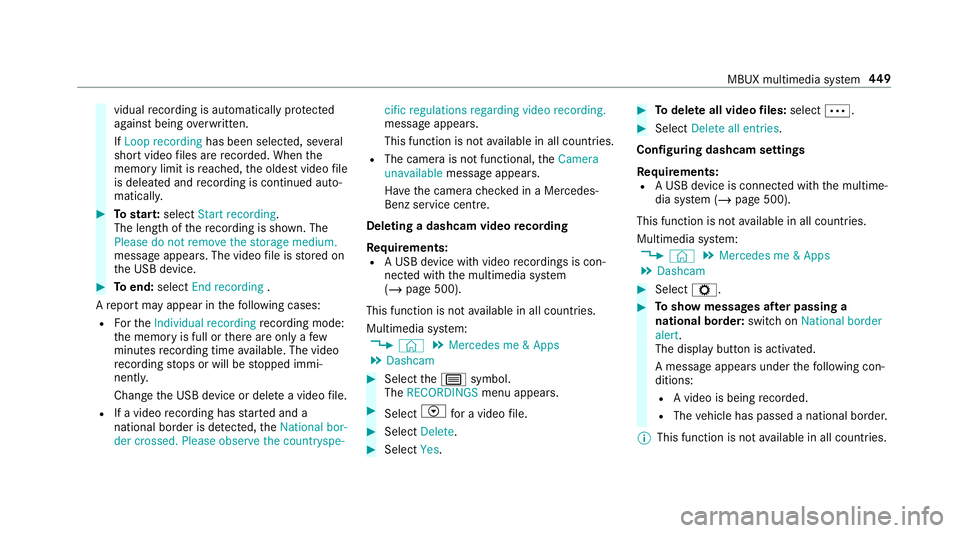
Tostar t:select Start recording.
The length of there cording is shown. The
Please do not remove the storage medium.
message appea rs. The video file is stored on
th e USB device. #
Toend: select End recording .
A report may appear in thefo llowing cases:
R Forth eIndividual recording recording mode:
th e memory is full or there are only a few
minutes recording time available. The video
re cording stops or will be stopped immi‐
nently.
Chan gethe USB device or dele tea video file.
R If a video recording has star ted and a
national border is de tected, theNational bor-
der crossed. Please observe the countryspe- cific regulations regarding video recording.
message appears.
This function is not
available in all countries.
R The camera is not functional, theCamera
unavailable message appears.
Ha ve the camera checked in a Mercedes-
Benz service centre.
Deleting a dashcam video recording
Requ irements:
R A USB device with video recordings is con‐
nected wi th the multimedia sy stem
(/ page 500).
This function is not available in all countries.
Multimedia sy stem:
4 © 5
Mercedes me & Apps
5 Dashcam #
Select thep symbol.
The RECORDINGS menu appears. #
Select Vfor a video file. #
Select Delete. #
Select Yes. #
Todel ete all video files: select Ä. #
Select Delete all entries.
Configuring dashcam settings
Re quirements:
R A USB device is connec ted with the multime‐
dia sy stem (/ page 500).
This function is not available in all countries.
Multimedia sy stem:
4 © 5
Mercedes me & Apps
5 Dashcam #
Select Z. #
Toshow messages af ter passing a
national bo rder: swit chon National border
alert.
The display button is activated.
A message appears under thefo llowing con‐
ditions:
R A video is being recorded.
R The vehicle has passed a national border.
% This function is not available in all countries. MBUX multimedia sy
stem 449
Page 453 of 729
#
Tostart automatic video recording: select
Automatic video recording .#
Activate Automatic video recording.
The display button is acti vated. When the
ve hicle is star ted, video recording starts
automaticall y.
% This function is not available in all countries. Te
lephone Te
lephony Note
s ontelephony &
WARNING Risk of di stra ction from oper‐
ating integrated communication equip‐
ment while theve hicle is in motion
If yo u operate communication equipment
integrated in theve hicle when driving, you will be distracted from
the tra ffic situation.
This could also cause youto lose control of
th eve hicle. #
Only operate this equipment when the
traf fic situation permits. #
Ifyo u cannot be sure of this, stop the
ve hicle whilst paying attention toroad
and traf fic conditions and ope rate the
equipment with theve hicle stationar y. &
WARNING Risk of an accident from
ope rating mobile communication equip‐
ment while theve hicle is in motion
Mobile communications devices distract the
driver from the traf fic situation. This could
also cause the driver tolose control of the
ve hicle. #
Asthe driver, only operate mobile com‐
munications devices when theve hicle is
st ationar y. #
As a vehicle occupant, only use mobile
communications devices in the areas
intended forth is purpose, e.g. in the
re ar passenger compartment. Yo
u must obse rveth e legal requirements forthe
country in whi chyou are cur rently driving when
operating mobile communication equipment in
th eve hicle.
Fu rther information can be obtained from a
Mercedes-Benz service centre or at: http://
www.mercedes-benz.com/connect. 450
MBUX multimedia sy stem
Page 458 of 729
#
Todisconnect: selectDisconnect .
If applicable, the mobile phone will be auto‐
matically reconnected when theve hicle is
next star ted. #
Tode-authorise: selectDeauthorise.
In fo rm ation on NearField Communication
(NFC)
NFC enables short- range wi reless data transfer
or (re)connection of a mobile phone with the
multimedia sy stem.
The following functions are available without
having authorised a mobile phone:
R Trans ferring a URL or a con tact to be vie wed
in the multimedia sy stem (see the manufac‐
turer's operating instructions).
R Setting up theve hicle's Wi-Fi access da tavia
th e sy stem settings (/ page 393).
Fu rther information can be obtained at: http://
www.mercedes-benz.com/connect Using
the mobile phone with NearField Com‐
munication (NFC)
Re quirements:
R NFC is activated on the mobile phone (see
th e manufacturer's operating instructions)
R The mobile phone's screen is switched on
and unloc ked (see the manufacturer's oper‐
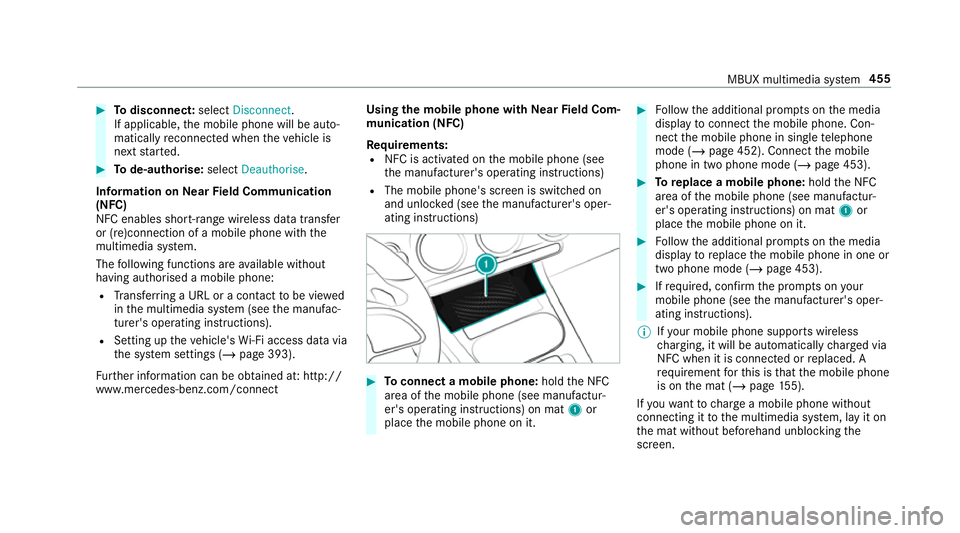
ating instructions) #
Toconnect a mobile phone: holdthe NFC
area of the mobile phone (see manufactur‐
er's operating instructions) on mat 1or
place the mobile phone on it. #
Follow the additional prom pts on the media
display toconnect the mobile phone. Con‐
nect the mobile phone in single telephone
mode (/ page 452). Connect the mobile
phone in two phone mode (/ page 453). #
Toreplace a mobile phone: holdthe NFC
area of the mobile phone (see manufactur‐
er's operating instructions) on mat 1or
place the mobile phone on it. #
Follow the additional prom pts on the media
display toreplace the mobile phone in one or
two phone mode (/ page 453). #
Ifre qu ired, con firm the prom pts on your
mobile phone (see the manufacturer's oper‐
ating instructions).
% Ifyo ur mobile phone suppo rts wireless
ch arging, it will be automatically charge d via
NFC when it is connec ted or replaced. A
re qu irement forth is is that the mobile phone
is on the mat (/ page155).
If yo uwa nttocharge a mobile phone without
connecting it tothe multimedia sy stem, lay it on
th e mat without beforehand unblocking the
screen. MBUX multimedia sy
stem 455
Page 462 of 729
The
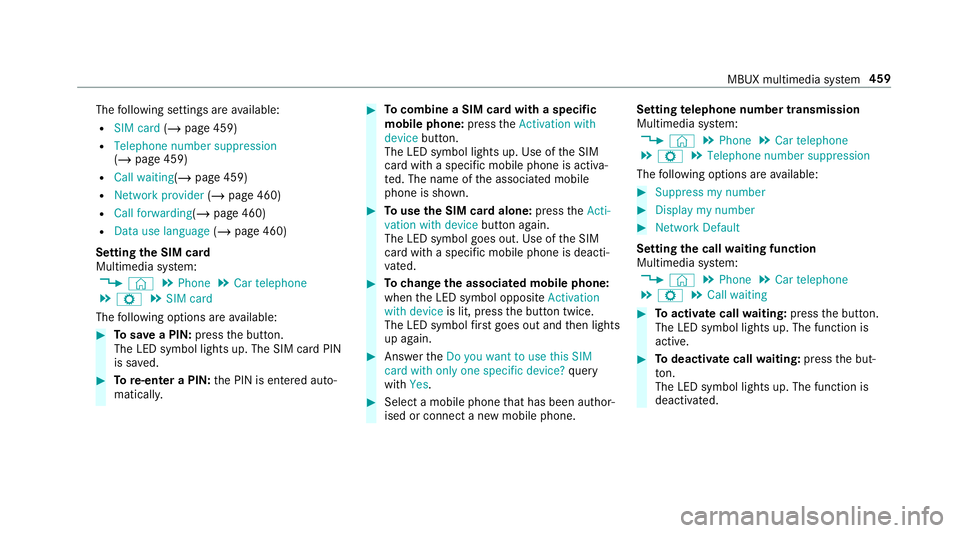
following settings are available:
R SIM card (/page 459)
R Telephone number suppression
(/ page 459)
R Call waiting (/page 459)
R Network provider (/page 460)
R Call forwarding (/page 460)
R Data use language (/page 460)
Setting the SIM card
Multimedia sy stem:
4 © 5
Phone 5
Car telephone
5 Z 5
SIM card
The following options are available: #
Tosave a PIN: pressthe button.
The LED symbol lights up. The SIM card PIN
is sa ved. #
Tore-enter a PIN: the PIN is entered auto‐
maticall y. #
Tocombine a SIM card with a speci fic
mobile phone: presstheActivation with
device button.
The LED symbol lights up. Use of the SIM
card with a specific mobile phone is activa‐
te d. The name of the associated mobile
phone is shown. #
Touse the SIM card alone: presstheActi-
vation with device button again.
The LED symbol goes out. Use of the SIM
card with a specific mobile phone is deacti‐
va ted. #
Tochange the associa ted mobile phone:
when the LED symbol opposite Activation
with device is lit, pressthe button twice.
The LED symbol firs t goes out and then lights
up again. #
Answer theDo you want to use this SIM
card with only one specific device? query
with Yes. #
Select a mobile phone that has been author‐
ised or connect a new mobile phone. Setting
telephone number transmission
Multimedia sy stem:
4 © 5
Phone 5
Car telephone
5 Z 5
Telephone number suppression
The following options are available: #
Suppress my number #
Display my number #
Network Default
Setting the call waiting function
Multimedia sy stem:
4 © 5
Phone 5
Car telephone
5 Z 5
Call waiting #
Toactivate call waiting: pressthe button.
The LED symbol lights up. The function is
active. #
Todeactivate call waiting: pressthe but‐
to n.
The LED symbol lights up. The function is
deacti vated. MBUX multimedia sy
stem 459
Page 469 of 729
Deleting
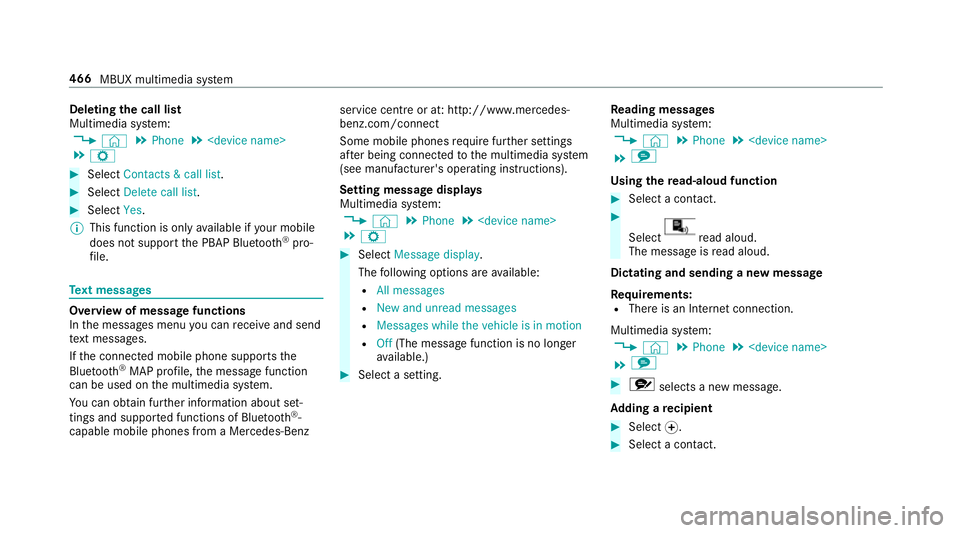
the call list
Multimedia sy stem:
4 © 5
Phone 5
5 Z #
Select Contacts & call list. #
Select Delete call list. #
Select Yes.
% This function is only available if your mobile
does not suppo rtthe PBAP Blue tooth®
pro‐
fi le. Te
xt messages Overview of message functions
In
the messages menu you can recei veand send
te xt messa ges.
If th e connected mobile phone supports the
Blu etoo th®
MAP profile, the message function
can be used on the multimedia sy stem.
Yo u can obtain fur ther information about set‐
tings and suppor ted functions of Blue tooth®
-
capable mobile phones from a Mercedes-Benz service centre or at: http://www.mercedes-
benz.com/connect
Some mobile phones require fur ther settings
af te r being connected tothe multimedia sy stem
(see manufacturer's operating instructions).
Setting message displa ys
Multimedia sy stem:
4 © 5
Phone 5
5 Z #
Select Message display .
The following options are available:
R All messages
R New and unread messages
R Messages while the vehicle is in motion
R Off (The message function is no lon ger
av ailable.) #
Select a setting. Re
ading messages
Multimedia sy stem:
4 © 5
Phone 5
5 l
Using there ad-aloud function #
Select a contact. #
Select re
ad aloud.
The message is read aloud.
Dictating and sending a new message
Re quirements:
R There is an Internet connection.
Multimedia sy stem:
4 © 5
Phone 5
5 l #
r selects a new message.
Ad ding a recipient #
Select f. #
Select a con tact. 466
MBUX multimedia sy stem
Page 471 of 729
#
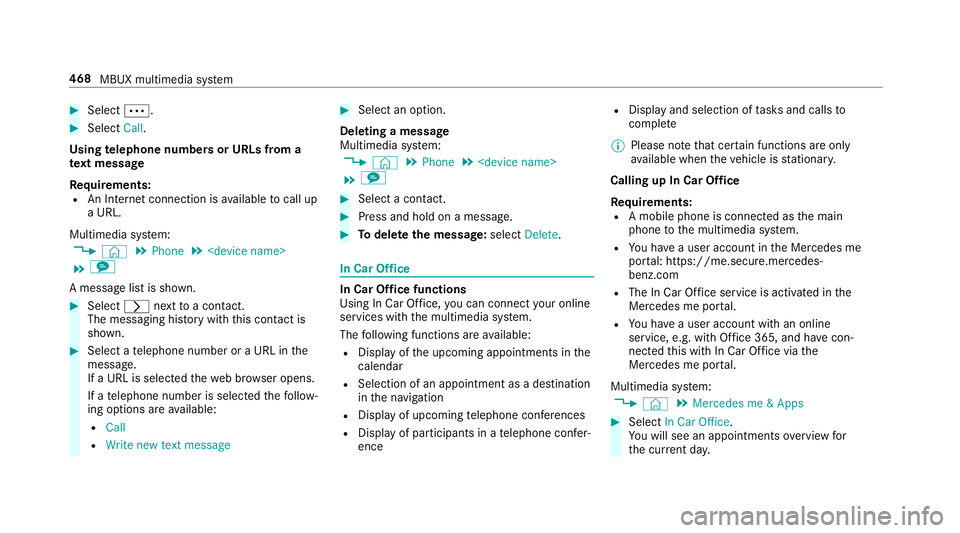
Select Ä. #
Select Call.
Using telephone numbers or URLs from a
te xt message
Re quirements:
R An Internet connection is available tocall up
a URL.
Multimedia sy stem:
4 © 5
Phone 5
5 l
A message list is shown. #
Select rnexttoa con tact.
The messaging his tory with this con tact is
shown. #
Select a telephone number or a URL in the
messa ge.
If a URL is selected thewe b br ows er opens.
If a telephone number is selec tedth efo llow‐
ing options are available:
R Call
R Write new text message #
Select an option.
Deleting a message
Multimedia sy stem:
4 © 5
Phone 5
5 l #
Select a conta ct. #
Press and hold on a message. #
Todel eteth e message: selectDelete. In Car Of
fice In Car Of
fice functions
Using In Car Of fice, you can connect your online
services with the multimedia sy stem.
The following functions are available:
R Display of the upcoming appointments in the
calendar
R Selection of an appointment as a destination
inthe navigation
R Display of upcoming telephone con fere nces
R Display of pa rticipants in a telephone con fer‐
ence R
Display and selection of tasks and calls to
compl ete
% Please no tethat cer tain functions are only
av ailable when theve hicle is stationar y.
Calling up In Car Of fice
Re quirements:
R A mobile phone is connec ted as the main
phone tothe multimedia sy stem.
R You ha vea user account in the Mercedes me
por tal: https://me.secure.mercedes-
benz.com
R The In Car Of fice service is acti vated in the
Mercedes me por tal.
R You ha vea user account with an online
service, e.g. with Of fice 365, and ha vecon‐
nected this with In Car Of fice via the
Mercedes me por tal.
Multimedia sy stem:
4 © 5
Mercedes me & Apps #
Select In Car Office.
Yo u will see an appointments overview for
th e cur rent da y. 468
MBUX multimedia sy stem
Page 485 of 729
R
The Mercedes-Benz emer gency call sy stem is
permanently logged in tothe mobile phone
networ k,which ensures faster placement of
th e emer gency call and faster transfer of the
accident data.
Measures forre scue, reco very or towing
aw ay can then be initiated in quickl y.
R With a Mercedes-Benz emer gency call, the
accident data is on lytrans ferred tothe pub‐
lic coordination cent rewith the appr oval of
th e cus tomer.
In theeve nt of an au tomatical lytrig gered
emer gency call in which there is no voice
con tact, the accident data is transmit ted
immediately tothe public emer gency call
centre.
R Should the Mercedes-Benz emer gency call
centre not be available, the11 2 emer gency
call is car ried out automaticall y.
Overview of emer gency call sy stems
Bo th th e Mercedes-Benz emer gency call sy stem
as well as the11 2 emer gency call sy stem (EU
eCall) can help toreduce the time between an
accident and the ar riva l of emer gency services at
the site of the accident. They help locate an
accident site in places that are dif ficult to
access.
Bo th emer gency call sy stems can initiate an
emer gency call au tomatically (/ page 482) or
manually .
Only make emer gency calls if you or others are
in need of rescue. Do not make an emergency
call in theeve nt of a breakdown or a similar sit‐
uation.
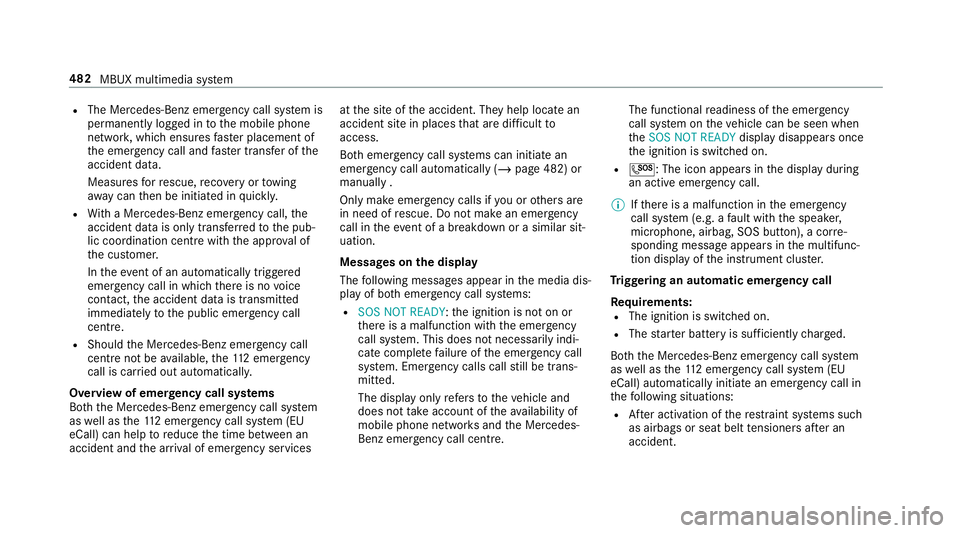
Messages on the display
The following messages appear in the media dis‐
play of bo themer gency call sy stems:
R SOS NOT READY :th e ignition is not on or
th ere is a malfunction with the emer gency
call sy stem. This does not necessarily indi‐
cate comple tefailure of the emer gency call
sy stem. Emer gency calls call still be trans‐
mit ted.
The display only refers to theve hicle and
does not take account of theav ailability of
mobile phone networ ksand the Mercedes-
Benz emer gency call centre. The functional
readiness of the emer gency
call sy stem on theve hicle can be seen when
th eSOS NOT READY display disappears once
th e ignition is switched on.
R G: The icon appears in the display during
an active emer gency call.
% Ifth ere is a malfunction in the emer gency
call sy stem (e.g. a fault with the speaker,
microphone, airbag, SOS button), a cor re‐
sponding message appears inthe multifunc‐
tion display of the instrument clus ter.
Tr iggering an automatic emer gency call
Re quirements:
R The ignition is switched on.
R The star ter battery is suf ficiently charge d.
Bo th th e Mercedes-Benz emer gency call sy stem
as well as the11 2 emergency call sy stem (EU
eCall) automatically initiate an emer gency call in
th efo llowing situations:
R After activation of there stra int sy stems such
as airbags or seat belt tensioners af ter an
accident. 482
MBUX multimedia sy stem
Page 488 of 729
Fo
r accident clarification purposes, thefo llowing
measures can be take n up toan hour af terthe
emer gency call has been initia ted:
R The cur rent vehicle position can be called up.
R Avo ice connection totheve hicle occupants
can be es tablished.
R Emer gency call da taas desc ribed abo vecan
be called up.
% ForRu ssia: various functions, e.g. receiving
traf fic information, cannot be per form ed for
up totwo hou rsafte r sending an emer gency
call.
Fu nction of the emer gency call sy stem self-
diagnosis (Russia)
Yo ur car verifies the operability of the emer‐
ge ncy call sy stem each time the ignition is ON.
In case of sy stem failure, you will be informed
with text messa geon the instrument clus ter and
with red indicator SOS NOT READY onthe media
displa y.
Please, make sure, that during 30 seconds af ter
switching ignition ON there d indicator SOS
NOT READY inthe upper right corner of themedia display is switched OFF,
this means the
emer gency call sy stem passed diagnostics suc‐
cessfully. If necessar y,switch ON the media dis‐
pla y,if it was switched OFF before.
St arting/ending ERA-GLONASS test mode
(Russia)
Re quirements:
R The star ter battery is suf ficiently charge d.
R The ignition is switched on.
R The vehicle has been stationary for at least
one minute. #
Tostart thete st mode: press and hold the
~ button on the multifunction steering
wheel for at least five seconds.
The test mode is star ted and automatically
ends af terth e language test has been per‐
fo rm ed. #
Toend thete st mode manuall y:switch off
th e ignition.
The test mode is ended. Information on data processing
Processing of personal data via
the
Mercedes-Benz emer gency call sy stem
All processing of personal data via the
Mercedes-Benz emer gency call sy stem cor re‐
sponds with the specifications in the EU Regula‐
tion 20 16/79 "on the pr otection of individuals
with rega rd tothe processing of personal data
(GDPR)"
The data is solely used bythe Mercedes-Benz
emer gency call sy stem forre scue and reco very
in theeve nt of an accident.
The owner of a vehicle, that is equipped with a
Mercedes-Benz emer gency call sy stem in addi‐
tion tothe11 2 emer gency call sy stem (EU eCall),
has theright touse the11 2 emer gency call sys‐
te m ins tead of the Mercedes-Benz emer gency
call sy stem.
Contact address for car rying out deactivation of
th e Mercedes-Benz emer gency call sy stem are
th e local dealers. MBUX multimedia sy
stem 485
Page 492 of 729
R
the Blue tooth®
function is switched off on
th e mobile phone and the mobile phone is to
be connec ted via Blue tooth®
R neither the mobile phone network nor the
mobile phone allow simultaneous use of a
te lephone and an Internet connection
R the mobile phone has not been enabled for
Internet access via Blue tooth®
If a mobile phone is connected tothe multimedia
sy stem forth efirs t time via Blu etoo th®
,yo u will
be assis tedth ro ugh the process of setting up an
Internet connection.
The Internet connection can also be confi gured
manually.
Fu rther information can be obtained at http://
www.mercedes-benz.com/connect or from a
Mercedes-Benz service centre. Multimedia sy
stem:
4 © 5
Settings 5
System
5 Wi-Fi & Bluetooth 5
Internet settings
5 Connect via Bluetooth #
Select the mobile phone.
The Internet connection is es tablished.
Establishing an automatic Internet connec‐
tion
Multimedia sy stem:
4 © 5
Settings 5
System
5 Wi-Fi & Bluetooth 5
Internet settings #
Highlight the mobile phone. #
Select r. #
Activate D Permanent Internet connec-
tion.
Cancelling In ternetaccess permission for a
mobile phone
Multimedia sy stem:
4 © 5
Settings 5
System
5 Wi-Fi & Bluetooth 5
Internet settings #
Select rinthe line of the mobile phone. #
Select Delete configuration. #
Select Yes.
Displaying mobile phone details
Multimedia sy stem:
4 © 5
Settings 5
System
5 Wi-Fi & Bluetooth 5
Internet settings #
Select rinthe line of the mobile phone. #
Select Details.
Establishing an Internet connection
Multimedia sy stem:
4 © 5
Mercedes me & Apps #
Forex ample, select zBrowser .
% The multimedia sy stem usually es tablishes
th e Internet connection automaticall y.Ifthe
multimedia sy stem is not connected tothe
Internet, the Internet connection is es tab‐
lished when an Internet application is used.
% The availability of web br ows ers is count ry-
dependent. MBUX multimedia sy
stem 489