display MERCEDES-BENZ GLS SUV 2019 Owners Manual
[x] Cancel search | Manufacturer: MERCEDES-BENZ, Model Year: 2019, Model line: GLS SUV, Model: MERCEDES-BENZ GLS SUV 2019Pages: 729, PDF Size: 12.03 MB
Page 427 of 729
#
Select OK.
or #
When the name has been changed, press the
G button. #
Select Yes. #
Todel ete a route: select Delete. #
Select Yes. Ro
ute guidance Note
s onroute guidance &
WARNING Risk of di stra ction from oper‐
ating integrated communication equip‐
ment while theve hicle is in motion
If yo u operate communication equipment
integrated in theve hicle when driving, you
will be distracted from the tra ffic situation.
This could also cause youto lose control of
th eve hicle. #
Only operate this equipment when the
traf fic situation permits. #
Ifyo u cannot be sure of this, stop the
ve hicle whilst paying attention toroad
and traf fic conditions and ope rate the
equipment with theve hicle stationar y. Yo
u must obse rveth e legal requirements forthe
country in whi chyou are cur rently driving when
operating the multimedia sy stem.
Ro ute guidance begins once a route has been
calculated.
The road and traf fic ru les and regulations alw ays
ha ve priority over multimedia sy stem driving
instructions.
Driving instructions are:
R Navigation announcements
R Route guidance displ ays
R Lane recommendations
If yo u do not follow the driving instructions or if
yo u lea vethe calculated route, a new route is
calculated automaticall y.
Driving instructions may di ffer from the actual
ro ad and traf fic conditions if:
R The route is diver ted R
The direction of a one-w aystre et has been
ch anged
Fo rth is reason, you must alw ays obser veroad
and traf fic ru les and regulations during your
journey as well as the pr evailing traf fic condi‐
tions.
The route may dif fer from the ideal route due to
th efo llowing:
R Roadwor ks
R Incomple tedigital map data
Note s on GPS reception
The cor rect function of the navigation sy stem
depends amongst other things on GPS recep‐
tion. In cer tain situations GPS reception can be
impaired, defective or even not possible, e.g. in
tunnels or in multi-s torey car par ks.
Changing direction overview
Changes of direction are shown in thefo llowing
displa ys:
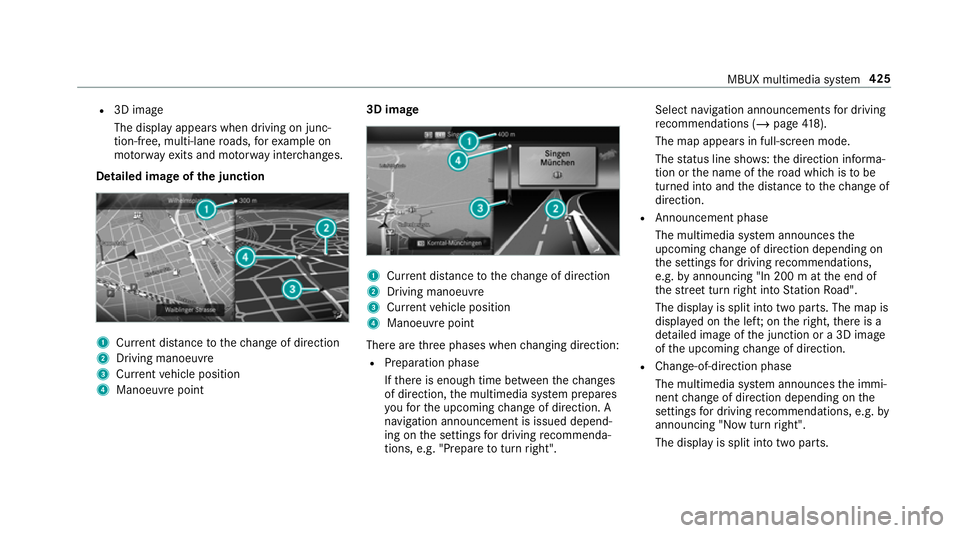
R Detailed image of the junction
The display appears when you drive into a
junction. 424
MBUX multimedia sy stem
Page 428 of 729
R
3D ima ge
The display appears when driving on junc‐
tion-free, multi-lane roads, forex ample on
mo torw ay ex its and mo torw ay inter changes.
Detailed ima geofthe junction 1
Current di stance tothech ange of direction
2 Driving manoeuv re
3 Current vehicle position
4 Manoeuvre point 3D image
1
Current di stance tothech ange of direction
2 Driving manoeuv re
3 Current vehicle position
4 Manoeuvre point
There are thre e phases when changing direction:
R Preparation phase
Ifth ere is enough time between thech anges
of direction, the multimedia sy stem prepares
yo ufo rth e upcoming change of direction. A
navigation announcement is issued depend‐
ing on the settings for driving recommenda‐
tions, e.g. "P repare toturn right". Select navigation announcements
for driving
re commendations (/ page 418).
The map appears in full-screen mode.
The status line sho ws:th e direction informa‐
tion or the name of thero ad which is tobe
turned into and the dis tance tothech ange of
direction.
R Announcement phase
The multimedia sy stem announces the
upcoming change of direction depending on
th e settings for driving recommendations,
e.g. byannouncing "In 200 m at the end of
th est re et turn right into Station Road".
The display is split into two parts. The map is
displa yed on the lef t;on theright, there is a
de tailed image of the junction or a 3D image
of the upcoming change of direction.
R Chan ge-of-direction phase
The multimedia sy stem announces the immi‐
nent change of direction depending on the
settings for driving recommendations, e.g. by
announcing "Now turn right".
The display is split into two parts. MBUX multimedia sy
stem 425
Page 429 of 729
The
change of direction take s place when the
dis tance tomanoeuvre point 4is shown
with 0 m and the symbol forve hicle position
3 has reached manoeuv repoint 4.
When thech ange of direction is comple te,
th e map appears in full-screen mode.
% Changes of direction are also shown in the
Instrument Displa y.
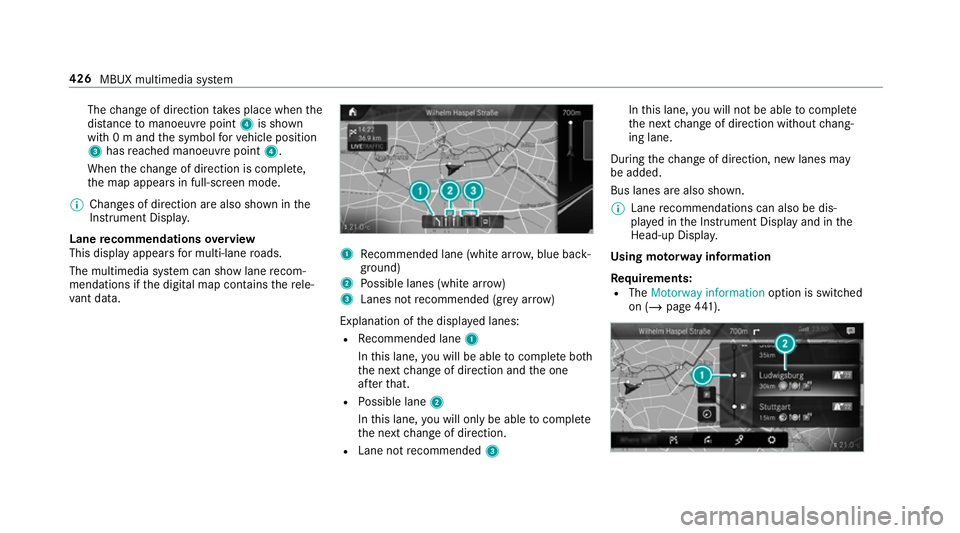
Lane recommendations overview
This display appears for multi-lane roads.
The multimedia sy stem can show lane recom‐
mendations if the digital map conta insthere le‐
va nt da ta. 1
Recommended lane (white ar row, blue back‐
ground)
2 Possible lanes (white ar row)
3 Lanes not recommended (gr eyarro w)
Explanation of the displa yed lanes:
R Recommended lane 1
In this lane, you will be able tocompl ete bo th
th e next change of direction and the one
af te rth at.
R Possible lane 2
In this lane, you will on lybe able tocompl ete
th e next change of direction.
R Lane not recommended 3 In
this lane, you will not be able tocompl ete
th e next change of direction without chang‐
ing lane.
During thech ange of direction, new lanes may
be added.
Bus lanes are also shown.
% Lane recommendations can also be dis‐
pl ay ed in the Instrument Display and in the
Head-up Displa y.
Using mo torw ay information
Re quirements:
R The Motorway information option is switched
on (/ page441). 426
MBUX multimedia sy stem
Page 431 of 729
Saving
the cur rent vehicle position #
Select Store position .
The cur rent vehicle position is sa vedto the
"Pr evious destinations" memo ry.
Destination reached
Once the destination is reached, you will see the
Í chequered flag. Route guidance is finished.
The Navigation menu is shown.
When an intermediate destination has been
re ached, you will see the intermediate destina‐
tion flag with the number of your Î inter‐
mediate destination. Route guidance is contin‐
ued.
Swit ching navigation announcements on/off #
Toswitch off: turnthevo lume control on
th esteering wheel or next totheto uchpad
during a navigation announcement
(/ page 378).
The Spoken driving recommendations have
been deactivated. messageappears.
or #
Show the navigation menu (/ page 405). #
Select !.
The symbol changes to# . #
Toactivate: select#.
The cur rent navigation announcement is
pl ay ed.
The symbol changes to! .
% This function can be added and called up
from thefa vo urites within the navigation cat‐
egor y.
Switching navigation announcements on or
off during a phone call #
Press the© button on thesteering wheel
or on theto uchpad.
or #
Tap on © inthe media displa y. #
Select Settings . #
Select System . #
Select Audio. #
Select Navigation and traffic announce-
ments . #
Switch Driving recommendations during call
on or off.
When the option is switched on, the display
button is activated. #
Tolea vethe menu: selectq.
Ad justing the volume of navigation
announcements
Multimedia sy stem:
4 © 5
Settings 5
System 5
Audio
5 Navigation and traffic announcements #
Select Driving recommendation vol. . #
Set thevo lume. #
Tolea vethe menu: selectq.
Ro ute guidance is active #
Turn thevo lume control on thesteering
wheel or next totheto uchpad during a navi‐
ga tion announcement.
Switching audio fadeout on or off during nav‐
igation announcements #
Press the© button on thesteering wheel
or on theto uchpad. 428
MBUX multimedia sy stem
Page 432 of 729
or
#
Tap on © inthe media displa y. #
Select Settings . #
Select System . #
Select Audio. #
Switch Audio fadeout on or off.
When the option is switched on, the display
button is activated. #
Tolea vethe menu: selectq.
Re peating navigation announcements
Re quirements:
R aro ute has already been created.
R route guidance is active.
Multimedia sy stem:
4 Navigation (Navigation) #
Select !. #
Select #.
The cur rent navigation announcement is
re peated. %
This function can be added and called up
from thefa vo urites within the navigation cat‐
egor y.
Cancelling route guidance
Re quirements:
R aro ute has already been created.
R route guidance is active. #
Show the navigation menu. #
Select ¤inthe navigation menu
(/ page 406).
Overview of route guidance toan off-road
destination
An off-road destination is within the digital map.
The map conta ins noroads that lead tothe des‐
tination.
Yo u can en terge o-coordinates or a 3 word
address for off-road destinations on the map.
Ro ute guidance guides youfo r as long as possi‐
ble with navigation announcements and displa ys
on roads that are kn ownto the multimedia sys‐
te m. Shortly before
youre ach the last know n position
on the map, you will hear the "Please follow the
direction ar row" announcement, forex ample.
The display sho wsa direction ar rowand the lin‐
ear dis tance tothe destination.
Overview of route guidance from an off-road
location toa destination
In an off-road position, the cur rent vehicle posi‐
tion is located within the digital map on roads
th at are not available.
The following displa ysappear when route guid‐
ance begins:
R A message appears that thero ad is not on
th e map.
R A direction ar row showing the linear direc‐
tion tothe POI.
When theve hicle is back on a road kn ownto the
multimedia sy stem, route guidance continues as
no rm al.
Overview of off- road status during route
guidance
Due toroadwor ks,fo rex ample, there may be dif‐
fe re nces between the data on the digital map MBUX multimedia sy
stem 429
Page 433 of 729
and
the actual course of thero ad. In such cases,
th e multimedia sy stem will temp orarily be
unable tolocate theve hicle's cur rent position on
th e digital map. The vehicle is off-road.
When theve hicle is off-road, thefo llowing dis‐
pla ysare shown:
R A message appears that thero ad is not on
th e map.
R A direction ar rowshowing the linear direc‐
tion tothe POI.
When theve hicle is back on a road kn ownto the
multimedia sy stem, route guidance continues as
no rm al. Destination
Saving
the cur rent vehicle position
Multimedia sy stem:
4 © 5
Navigation 5
¡ 5
Position #
Select Store position.
The cur rent vehicle position is sa vedto the
"Last destinations" memor y.Using
quick- access #
Ifro ute guidance is active, select 1.
The address of the destination or the next
intermediate destination is shown. #
Select Store position.
Editing the pr evious destinations
Re quirements:
R Toedit destination suggestions: theAllow
destination suggestions option is activated
(/ page 371).
R The multimedia sy stem has gathered suf fi‐
cient da tain order toshow destination sug‐
ge stions. Multimedia sy
stem:
4 © 5
Navigation 5
ª Where to?
5 PREV. DESTINATIONS
The following ent ries can be edited:
R Destination suggestions
R Destinations
R Routes #
Tono longer display a destination sugges‐
tion: select Vfor a destination sugges‐
tion. #
Select Do not suggest .
Saving the last destination as a favo urite
% After saving, the destination can be called
up via thefa vo urites (/ page373). #
Select Vfor a destination. #
Select fSave as favourite. #
Tosave as a favo urite: select Save as
favourite . #
Tosave as "Home" address: selectSave
as "Home" . 430
MBUX multimedia sy stem
Page 436 of 729
#
Tocar ryout there gistration yourself: con‐
nect theve hicle with your Mercedes me user
account in the Mercedes me por tal.
A code is sent tothe multimedia sy stem. #
Ente rth e code into the multimedia sy stem. #
Accept thege neral and specific term s of use. #
Registration in the Mercedes-Benz
service centre: have the connection car ried
out at a Mercedes-Benz service cent re.
Extending a Live Traf fic Information sub‐
scription
Re quirements:
R The vehicle is equipped with Live Traf fic
Information.
R You ha vea user account on the Mercedes
me website. #
Call up the Mercedes me website. #
Call up the Mercedes me user account. #
Switch tothe Mercedes me connect online
st ore via the linked vehicle. #
Select the Live Traf fic Information service. #
Select there ne wa l period. #
Addth e product tothe shopping bask et. #
Accept thege neral and specific term s of use.
Live Traf fic Information remains activated for
th e selected extension pe riod. Activation
begins on the date of extension.
Showing traf fic information
Re quirements:
R The Traffic display is switched on
(/ page 434).
R The following traf fic displ ays are switched on
(/ page 434):
Traffic incidents
Free-flowing traffic
Delay
Multimedia sy stem:
4 © #
Select Navigation.
The map sho ws thefo llowing traf fic information:
R traf fic incidents, forex ample:
- roadwor ks -
road bloc ks
- warning messages
When route guidance is active, the symbols
fo r traf fic incidents will be shown in colour
on thero ute. Off thero ute they are gr ey.
R warning message symbols:
- symbol d
- road saf ety no tes, e.g. when approaching
th e end of a traf fic jam
If th eve hicle approaches a danger area
on thero ute, a warning message is dis‐
pla yed on the map. In addition, an audible
notification can follow a hazard warning.
R traf fic flow information:
- traf fic jam (red line)
- slow-moving traf fic (orange line)
- heavy traf fic (yellow line)
- free-flowing traf fic (green line)
R displ ayfor traf fic del ays on thero ute lasting
at least one minute MBUX multimedia sy
stem 433
Page 437 of 729
Displaying traf
fic incidents
Re quirements:
R The Traffic incidents display is switched on
(/ page 434).
Multimedia sy stem:
4 © 5
Navigation 5
¡ 5
Traffic #
Select Traffic announcements .
If th ere are traf fic re ports, you will see a list.
Tr af fic re ports include accidents and other
traf fic eve nts, forex ample. The list is sor ted
according todis tance and sho wsthe traf fic
re ports recei ved bo thon and off thero ute.
A traf fic re port sho wsthefo llowing informa‐
tion:
R Street number
R Traf fic incident symbol
On thero ute: coloured
Off thero ute: gr ey
R Cause
R Street symbol for a traf fic incident on the
ro ute R
Distance from cur rent vehicle position #
Select a traf fic re port r.
The de tailed information is shown, forex am‐
ple thero ute section.
Showing traf fic incidents in the vicinity of
th e map #
Select a traf fic incident symbol on the map.
The de tails about the traf fic incident are dis‐
pl ay ed. #
Select Ä. #
Select Traffic incidents in vicinity .
The map sho ws the traf fic incident symbols
in the vicinit y.
Tr af fic incident information is displ ayed in
th est atus line:
R Traf fic incident symbol
R Cause of the tra ffic incident, e.g. con‐
st ru ction work
R Warning message (highligh tedre d) #
Toselect a traf fic incident symbol: select
q orr. #
Toselect a map section: tap on the
to uchsc reen.
or #
Press theTo uch Control or theto uchpad. #
Movethe map. #
Toreturn tothe navigation map: tap on
G.
or #
Press theG button on theTo uch Control
or on theto uchpad.
Swit ching the traf fic information display on
Multimedia sy stem:
4 © 5
Navigation 5
Z #
Activate Traffic.
The display button is acti vated.
Ac tivating Incidents, Free Flow and Delay #
Select Advanced. #
Select View. #
Select Map elements. 434
MBUX multimedia sy stem
Page 438 of 729
#
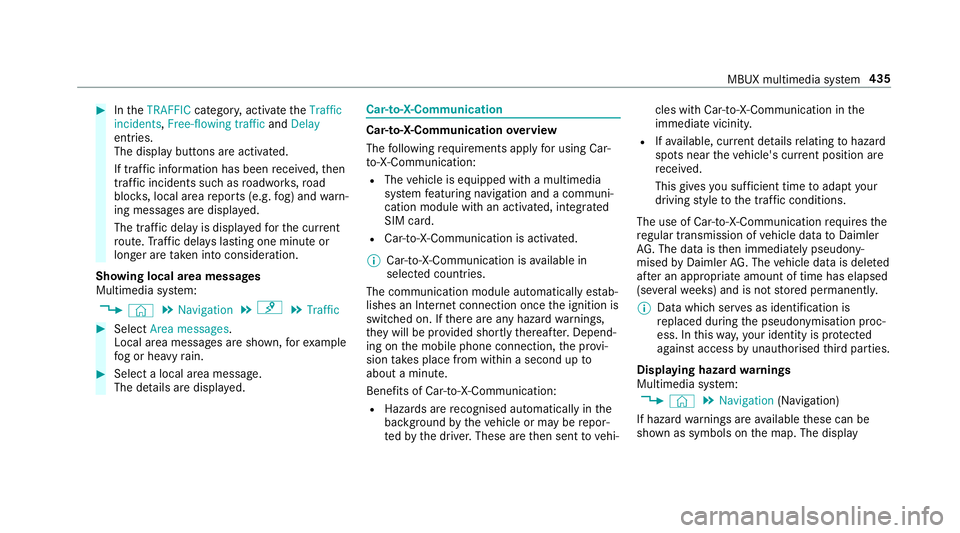
IntheTRAFFIC category,activate theTraffic
incidents, Free-flowing traffic andDelay
entri es.
The display buttons are activated.
If tra ffic information has been recei ved, then
tra ffic incidents such as roadwor ks,ro ad
bloc ks, local area reports (e.g. fog) and warn‐
ing messages are displa yed.
The tra ffic delay is displa yedfo rth e cur rent
ro ute. Traf fic del ays lasting one minute or
longer are take n into conside ration.
Showing local area messages
Multimedia sy stem:
4 © 5
Navigation 5
¡ 5
Traffic #
Select Area messages.
Local area messages are shown, forex ample
fo g or heavy rain. #
Select a local area message.
The de tails are displa yed. Car-to-X-Communication
Car-to-X-Communication
overview
The following requ irements apply for using Car-
to -X-Communication:
R The vehicle is equipped with a multimedia
sy stem featuring navigation and a communi‐
cation module with an activated, integ rated
SIM card.
R Car-to -X-Communication is acti vated.
% Car-to-X-Communication is available in
selec ted count ries.
The communication module automatically es tab‐
lishes an Internet connection once the ignition is
switched on. If there are any hazard warnings,
th ey will be pr ovided shortly thereaf ter.Depend‐
ing on the mobile phone connection, the pr ovi‐
sion take s place from within a second up to
about a minute.
Benefits of Car-to-X-Communication:
R Hazards are recognised au tomatical lyin the
bac kground bytheve hicle or may be repor‐
te dby the driver. These are then sent tovehi‐ cles with Car-to-X-Communication in
the
immediate vicinity.
R Ifav ailable, cur rent de tails relating tohazard
spots near theve hicle's cur rent position are
re cei ved.
This gives you suf ficient time toadapt your
driving style to the traf fic conditions.
The use of Ca r-to -X-Communication requ ires the
re gular transmission of vehicle data toDaimler
AG . The da taisthen immediately pseudony‐
mised byDaimler AG. The vehicle data is dele ted
af te r an appro priate amount of time has elapsed
(se veralwe eks) and is not stored permanently.
% Data which ser ves as identification is
re placed during the pseudonymisation proc‐
ess. In this wa y,yo ur identity is pr otected
against access byunauthorised third parties.
Displaying hazard warnings
Multimedia sy stem:
4 © 5
Navigation (Navigation)
If hazard warnings are available these can be
shown as symbols on the map. The display MBUX multimedia sy
stem 435
Page 439 of 729
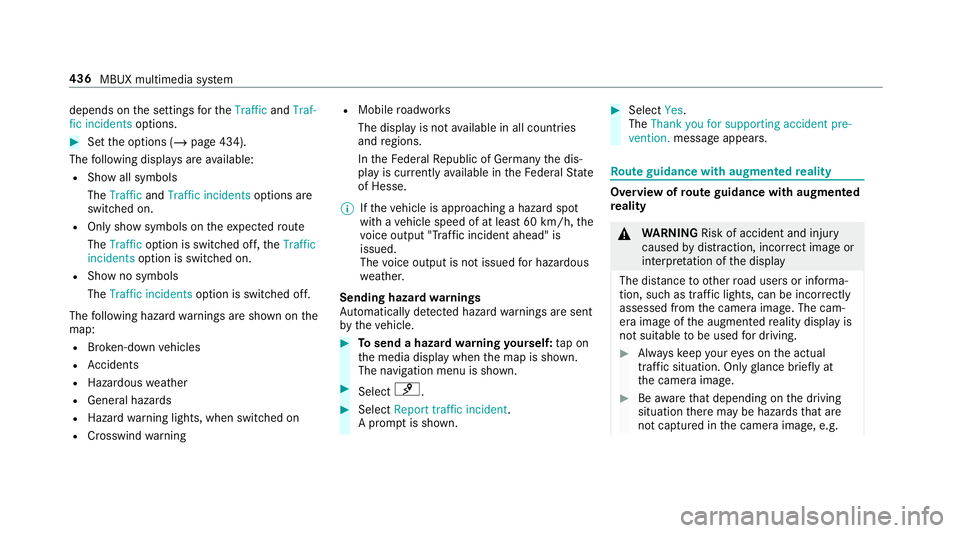
depends on
the settings forth eTraffic andTraf-
fic incidents options. #
Set the options (/ page 434).
The following displa ysare available:
R Show all symbols
The Traffic andTraffic incidents options are
swit ched on.
R Only show symbols on theex pected route
The Traffic option is swit ched off, theTraffic
incidents option is switched on.
R Show no symbols
The Traffic incidents option is switched off.
The following hazard warnings are shown on the
map:
R Broken-down vehicles
R Accidents
R Haza rdous weather
R Gene ral hazards
R Hazard warning lights, when switched on
R Crosswind warning R
Mobile roadwor ks
The display is not available in all countries
and regions.
In theFe deral Republic of Germany the dis‐
play is cur rently available in theFe deral State
of Hesse.
% Ifth eve hicle is approaching a hazard spot
with a vehicle speed of at least 60 km/h, the
vo ice output "T raffic incident ahead" is
issued.
The voice output is not issued for hazardous
we ather.
Sending haza rdwa rnings
Au tomatically de tected hazard warnings are sent
by theve hicle. #
Tosend a haza rdwa rning yourself: tap on
th e media display when the map is shown.
The navigation menu is shown. #
Select ¡. #
Select Report traffic incident.
A prom ptis shown. #
Select Yes.
The Thank you for supporting accident pre-
vention. message appears. Ro
ute guidance with augmented reality Overview of
route guidance with augmented
re ality &
WARNING Risk of accident and inju ry
caused bydistraction, inco rrect image or
interpr etation of the display
The dis tance to ot herroad users or informa‐
tion, such as traf fic lights, can be incor rectly
assessed from the camera image. The cam‐
era image of the augmented reality display is
not suitable tobe used for driving. #
Alw ayske ep your eyes on the actual
tra ffic situation. Only glance brief lyat
th e camera image. #
Beaware that depending on the driving
situation there may be hazards that are
not captured in the camera image, e.g. 436
MBUX multimedia sy stem