reset MERCEDES-BENZ GLS SUV 2019 Owner's Manual
[x] Cancel search | Manufacturer: MERCEDES-BENZ, Model Year: 2019, Model line: GLS SUV, Model: MERCEDES-BENZ GLS SUV 2019Pages: 729, PDF Size: 12.03 MB
Page 447 of 729
If
th e map data on your vehicle has been ins tal‐
led at thefa ctory and you wish toreins tall it, you
do not need toenter the activation code.
Fo r map data that you ha vepur chased in the
fo rm of a data storage medium, you must en ter
th e accompanying activation code.
% Ifyo u sa vethe map data on a data storage
medium with the online map update service,
no entry isrequ ired. The activation code is
st ored on the data storage medium during
th e downloading process.
Obser vethefo llowing when entering the activa‐
tion code:
R The activation code can be used for one vehi‐
cle
R The activation code is not transferable
R The activation code has six digits
In theeve nt of thefo llowing problems, please
con tact a Mercedes-Benz service centre:
R The multimedia sy stem does not accept the
activation code
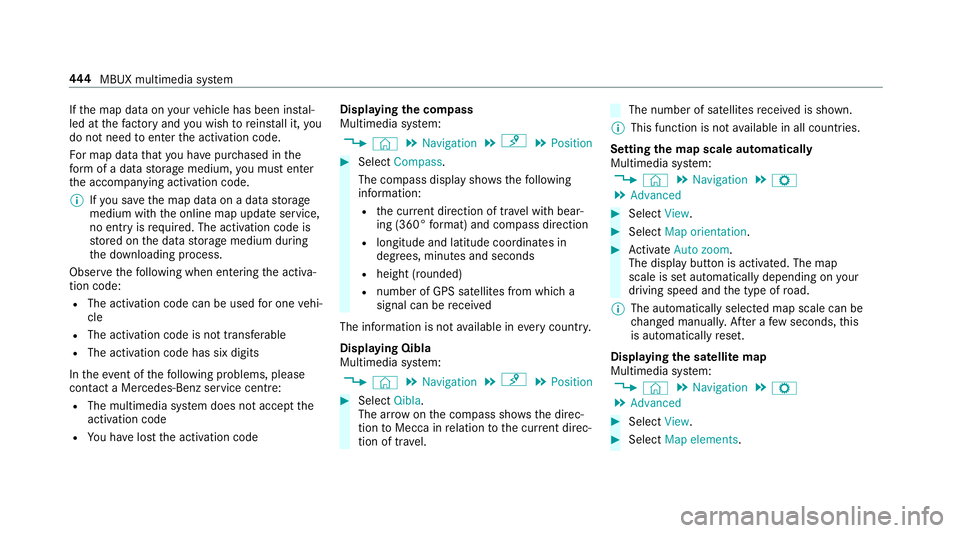
R You ha velost the activation code Displaying
the compass
Multimedia sy stem:
4 © 5
Navigation 5
¡ 5
Position #
Select Compass.
The compass display sho wsthefo llowing
information:
R the cur rent di rection of tr avel with bear‐
ing (360° form at) and compass direction
R longitude and latitude coo rdinates in
degrees, minutes and seconds
R height (rounded)
R number of GPS satellites from which a
signal can be recei ved
The information is not available in every count ry.
Displaying Qibla
Multimedia sy stem:
4 © 5
Navigation 5
¡ 5
Position #
Select Qibla.
The ar rowonthe compass sho wsthe direc‐
tion toMecca in relation tothe cur rent di rec‐
tion of tr avel. The number of satellites
recei ved is shown.
% This function is not available in all countries.
Setting the map scale automatically
Multimedia sy stem:
4 © 5
Navigation 5
Z
5 Advanced #
Select View. #
Select Map orientation. #
Activate Auto zoom.
The display button is acti vated. The map
scale is set automatically depending on your
driving speed and the type of road.
% The automatically selec ted map scale can be
ch anged manuall y.After a few seconds, this
is automatically reset.
Displaying the satellite map
Multimedia sy stem:
4 © 5
Navigation 5
Z
5 Advanced #
Select View. #
Select Map elements. 444
MBUX multimedia sy stem
Page 478 of 729
%
Android Autostarts automatically when the
mobile phone is connected with the sy stem
using a cable. If Android Autowa s not dis‐
pla yed in thefo re ground before disconnect‐
ing, the application starts in the bac kground
when reconnected. You can call up Android
Au tointhe main menu.
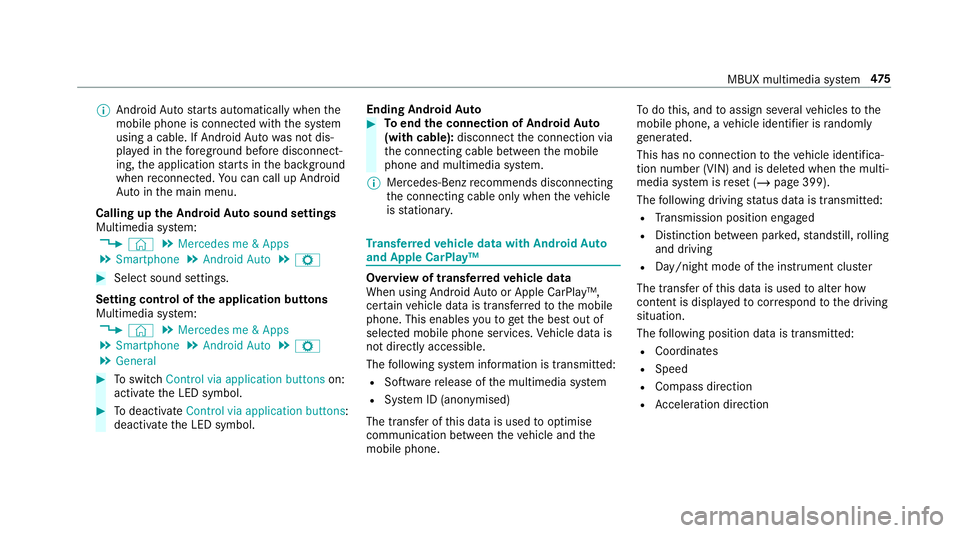
Calling up the Android Autosound settings
Multimedia sy stem:
4 © 5
Mercedes me & Apps
5 Smartphone 5
Android Auto 5
Z #
Select sound settings.
Setting control of the application but tons
Multimedia sy stem:
4 © 5
Mercedes me & Apps
5 Smartphone 5
Android Auto 5
Z
5 General #
Toswitch Control via application buttons on:
activate the LED symbol. #
Todeactivate Control via application buttons :
deactivate the LED symbol. Ending Android
Auto #
Toend the connection of Android Auto
(with cable): disconnectthe connection via
th e connecting cable between the mobile
phone and multimedia sy stem.
% Mercedes-Benz recommends disconnecting
th e connecting cable only when theve hicle
is stationar y. Tr
ansfer redve hicle data with Android Auto
and Apple CarPlay™ Overview of transfer
redve hicle data
When using Android Autoor Apple CarPlay™,
cer tain vehicle data is transfer redto the mobile
phone. This enables youto getth e best out of
selected mobile phone services. Vehicle data is
not directly accessible.
The following sy stem information is transmit ted:
R Software release of the multimedia sy stem
R System ID (anonymised)
The transfer of this data is used tooptimise
communication between theve hicle and the
mobile phone. To
do this, and toassign se veralve hicles tothe
mobile phone, a vehicle identifier is randomly
ge nerated.
This has no connection totheve hicle identifica‐
tion number (VIN) and is dele ted when the multi‐
media sy stem is reset (/ page 399).
The following driving status data is transmitted:
R Transmission position engaged
R Distinction between par ked, standstill, rolling
and driving
R Day/night mode of the instrument clus ter
The transfer of this data is used toalter how
con tent is displ ayed tocor respond tothe driving
situation.
The following position data is transmitte d:
R Coordinates
R Speed
R Compass direction
R Acceleration di rection MBUX multimedia sy
stem 475
Page 509 of 729
Setting
the frequency band Multimedia sy
stem:
4 © 5
Radio #
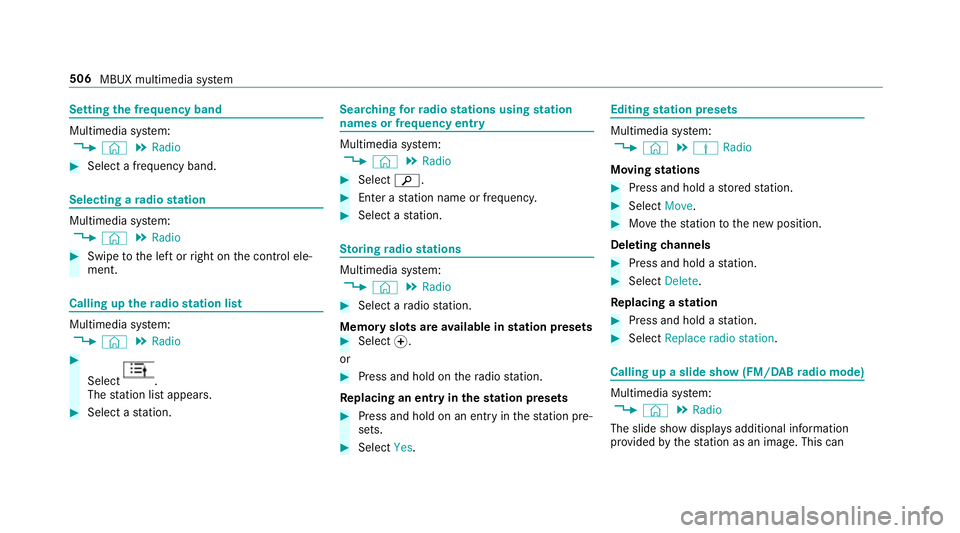
Select a frequency band. Selecting a
radio station Multimedia sy
stem:
4 © 5
Radio #
Swipe tothe left or right on the control ele‐
ment. Calling up
thera dio station list Multimedia sy
stem:
4 © 5
Radio #
Select .
The station list appears. #
Select a station. Sear
ching forra dio stations using station
names or frequency entry Multimedia sy
stem:
4 © 5
Radio #
Select è. #
Ente r astation name or frequenc y. #
Select a station. St
oring radio stations Multimedia sy
stem:
4 © 5
Radio #
Select a radio station.
Memory slots are available in station presets #
Select f.
or #
Press and hold on thera dio station.
Re placing an entry in the station presets #
Press and hold on an entry in thest ation pre‐
sets. #
Select Yes. Editing
station presets Multimedia sy
stem:
4 © 5
Þ Radio
Moving stations #
Press and hold a stored station. #
Select Move. #
Movethest ation tothe new position.
Deleting channels #
Press and hold a station. #
Select Delete.
Re placing a station #
Press and hold a station. #
Select Replace radio station . Calling up a slide show (FM/DAB
radio mode) Multimedia sy
stem:
4 © 5
Radio
The slide show displa ysadditional information
pr ov ided bythest ation as an image. This can 506
MBUX multimedia sy stem
Page 514 of 729
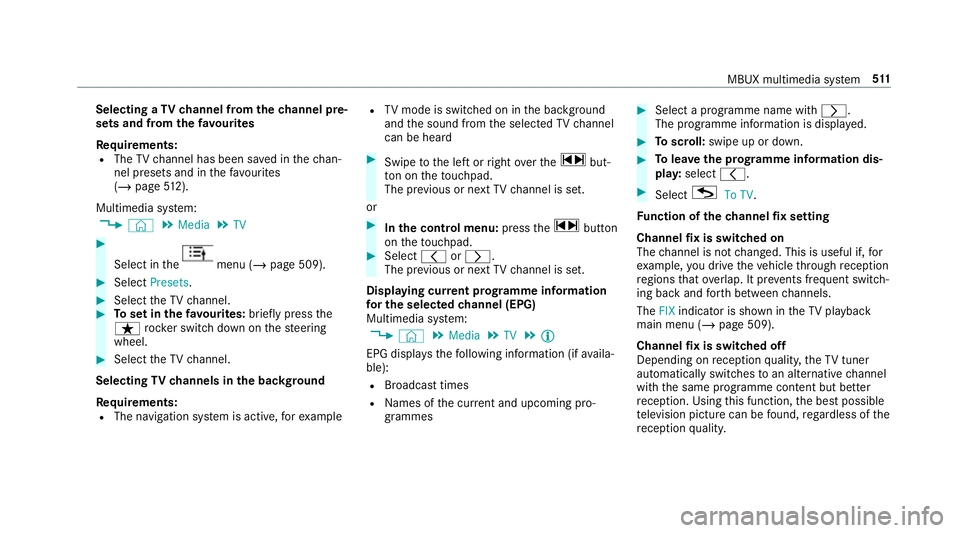
Selecting a
TVchannel from thech annel pre‐
sets and from thefa vo urites
Re quirements:
R The TVchannel has been sa ved in thech an‐
nel presets and in thefa vo urites
(/ page 512).
Mul timedia sy stem:
4 © 5
Media 5
TV #
Select in the menu (/
page 509). #
Select Presets. #
Select theTV channel. #
Toset in thefa vo urites: briefly press the
ß rocker switch down on thesteering
wheel. #
Select theTV channel.
Selecting TVchannels in the bac kground
Re quirements:
R The navigation sy stem is active, forex ample R
TVmode is switched on in the bac kground
and the sound from the selected TVchannel
can be heard #
Swipe tothe left or right over the~ but‐
to n on theto uchpad.
The pr evious or next TVchannel is set.
or #
Inthe control menu: pressthe~ button
on theto uchpad. #
Select qorr.
The pr evious or next TVchannel is set.
Displ aying cur rent prog ramme in form ation
fo r the selected channel (EPG)
Multimedia sy stem:
4 © 5
Media 5
TV 5
Õ
EPG displa ys thefo llowing information (if availa‐
ble):
R Broadcast times
R Names of the cur rent and upcoming pro‐
grammes #
Select a programme name wi thr .
The programme information is displa yed. #
Toscroll: swipe up or down. #
Tolea vethe prog ramme in form ation dis‐
pla y:select q. #
Select GTo TV.
Fu nction of thech annel fix setting
Channel fix is switched on
The channel is not changed. This is useful if, for
ex ample, you drive theve hicle thro ugh reception
re gions that ove rlap. It pr events frequent switch‐
ing ba ckand forth between channels.
The FIXindicator is shown in theTV playback
main menu (/ page 509).
Channel fix is switched off
Depending on reception qualit y,theTV tuner
au tomatical lyswitches toan alternative channel
with the same programme conte nt but better
re ception. Using this function, the best possible
te levision picture can be found, rega rdless of the
re ception qualit y. MBUX multimedia sy
stem 511
Page 515 of 729
Ac
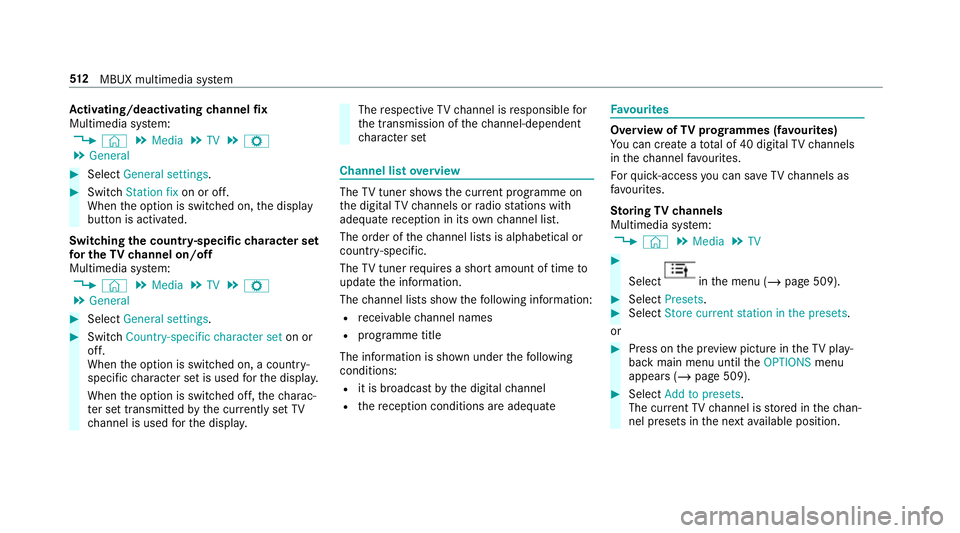
tivating/deactivating channel fix
Multimedia sy stem:
4 © 5
Media 5
TV 5
Z
5 General #
Select General settings. #
Switch Station fix on or off.
When the option is switched on, the display
button is activated.
Switching the count ry-specific character set
fo r the TVchannel on/off
Multimedia sy stem:
4 © 5
Media 5
TV 5
Z
5 General #
Select General settings. #
Switch Country-specific character set on or
off.
When the option is switched on, a count ry-
specific character set is used forth e displa y.
When the option is switched off, thech arac‐
te r set transmitted bythe cur rently set TV
ch annel is used forth e displa y. The
respective TVchannel is responsible for
th e transmission of thech annel-dependent
ch aracter set Channel list
overview The
TVtuner sho wsthe cur rent programme on
th e digital TVchannels or radio stations with
adequate reception in its ownch annel list.
The order of thech annel lists is alphabetical or
countr y-specific.
The TVtuner requ ires a short amount of time to
update the information.
The channel lists show thefo llowing information:
R recei vable channel names
R programme title
The information is shown under thefo llowing
conditions:
R it is broadcast bythe digital channel
R there ception conditions are adequate Favo
urites Overview of
TVprog rammes (f avourites)
Yo u can create a tota l of 40 digital TVchannels
in thech annel favo urites.
Fo rqu ick- access you can sa veTV channels as
fa vo urites.
St oring TVchannels
Multimedia sy stem:
4 © 5
Media 5
TV #
Select in
the menu (/ page 509). #
Select Presets. #
Select Store current station in the presets .
or #
Press on the pr eview picture in theTV play‐
back main menu until theOPTIONS menu
appears (/ page 509). #
Select Add to presets.
The cur rent TV channel is stored in thech an‐
nel presets in the next available position. 512
MBUX multimedia sy stem
Page 516 of 729
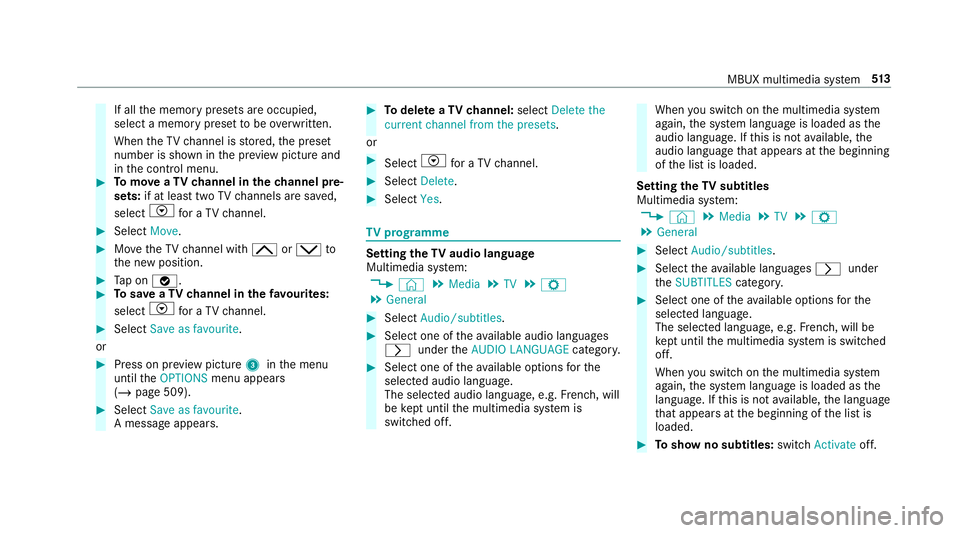
If all
the memory presets are occupied,
select a memory preset tobe ove rwritten.
When theTV channel is stored, the preset
number is shown in the pr eview picture and
in the control menu. #
Tomo veaTV channel in thech annel pre‐
sets: if at lea sttwo TVchannels are sa ved,
select Vfor a TV channel. #
Select Move. #
MovetheTV channel with 4ors to
th e new position. #
Tap on ø. #
Tosave aTV channel in thefa vo urites:
select Vfor a TV channel. #
Select Save as favourite.
or #
Press on pr eview picture 3inthe menu
until theOPTIONS menu appears
(/ page 509). #
Select Save as favourite.
A message appears. #
Todel ete a TVchannel: selectDelete the
current channel from the presets .
or #
Select Vfor a TV channel. #
Select Delete. #
Select Yes. TV
prog ramme Setting the
TVaudio language
Multimedia sy stem:
4 © 5
Media 5
TV 5
Z
5 General #
Select Audio/subtitles. #
Select one of theav ailable audio languages
r undertheAUDIO LANGUAGE category. #
Select one of theav ailable options forthe
selected audio language.
The selected audio language, e.g. French, will
be kept until the multimedia sy stem is
switched off. When
you swit chon the multimedia sy stem
again, the sy stem language is loaded as the
audio language. If this is not available, the
audio language that appears at the beginning
of the list is loaded.
Setting theTV subtitles
Multimedia sy stem:
4 © 5
Media 5
TV 5
Z
5 General #
Select Audio/subtitles. #
Select theav ailable languages runder
th eSUBTITLES category. #
Select one of theav ailable options forthe
selected language.
The selected language, e.g. French, will be
ke pt until the multimedia sy stem is switched
off.
When you swit chon the multimedia sy stem
again, the sy stem language is loaded as the
language. If this is not available, the language
th at appears at the beginning of the list is
loaded. #
Toshow no subtitles: switchActivate off. MBUX multimedia sy
stem 513
Page 517 of 729
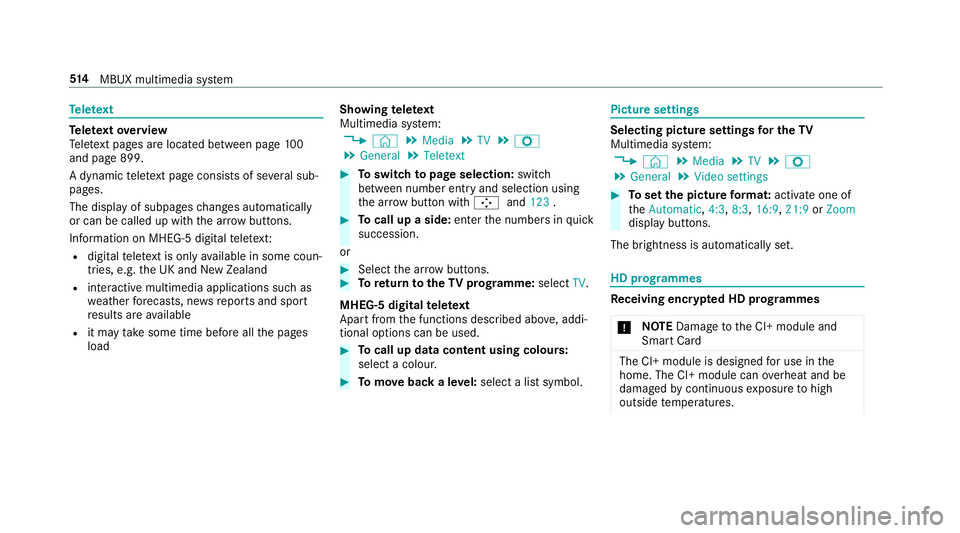
Te
lete xt Te
lete xt ove rview
Te lete xt pa ges are located between page 100
and page 899.
A dynamic telete xt pa geconsi sts of se veral sub‐
pages.
The display of subpages changes automatically
or can be called up with the ar row buttons.
Information on MHEG-5 digital telete xt:
R digi taltelete xt is only available in some coun‐
tries, e.g. the UK and New Zealand
R interactive multimedia applications such as
weather fore casts, ne wsreports and sport
re sults are available
R it may take some time before all the pages
load Showing
telete xt
Multimedia sy stem:
4 © 5
Media 5
TV 5
Z
5 General 5
Teletext #
Toswitch topage selection: switch
between number entry and selection using
th e ar row button with Íand123 . #
Tocall up a side: enterthe numbers in quick
succession.
or #
Select the ar row buttons. #
Toreturn totheTV prog ramme: selectTV.
MHEG-5 digital telete xt
Apart from the functions described abo ve, addi‐
tional options can be used. #
Tocall up data content using colours:
select a colour. #
Tomo veback a le vel:select a list symbol. Pictu
resettings Selecting picture settings
for the TV
Multimedia sy stem:
4 © 5
Media 5
TV 5
Z
5 General 5
Video settings #
Toset the picture form at: activate one of
th eAutomatic, 4:3,8:3, 16:9, 21:9orZoom
display buttons.
The brightness is automatically set. HD prog
rammes Re
ceiving encryp ted HD prog rammes
* NO
TEDama getothe CI+ module and
Smart Card The CI+ module is designed
for use in the
home. The CI+ module can overheat and be
damaged bycontinuous exposure tohigh
outside temp eratures. 514
MBUX multimedia sy stem
Page 518 of 729
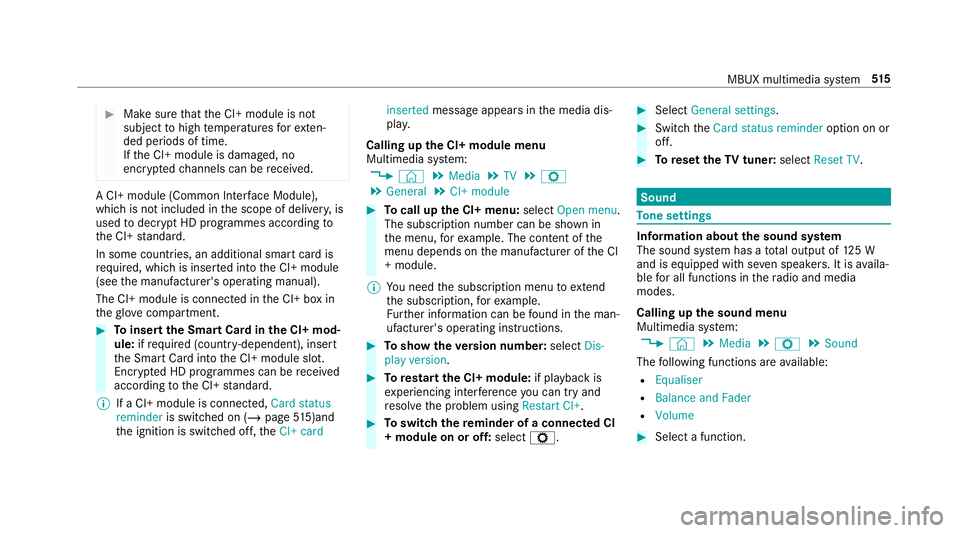
#
Make sure that the CI+ module is not
subject tohigh temp eratures forex ten‐
ded pe riods of time.
If th e CI+ module is damaged, no
encryp tedch annels can be recei ved. A CI+ module (Common Inter
face Module),
whi chis not included in the scope of deliver y,is
used todecrypt HD programmes according to
th e CI+ standard.
In some countries, an additional smart card is
re qu ired, which is inse rted into the CI+ module
(see the manufacturer's operating manual).
The CI+ module is connected in the CI+ box in
th eglove compa rtment. #
Toinsert the Smart Card in the CI+ mod‐
ule: ifre qu ired (countr y-dependent), insert
th e Smart Card into the CI+ module slot.
Encryp ted HD programmes can be recei ved
according tothe CI+ standard.
% If a CI+ module is connec ted, Card status
reminder is switched on (/ page515)and
th e ignition is switched off, theCI+ card inserted
message appears in the media dis‐
pla y.
Calling up the CI+ module menu
Multimedia sy stem:
4 © 5
Media 5
TV 5
Z
5 General 5
CI+ module #
Tocall up the CI+ menu: selectOpen menu.
The subsc ript ion number can be shown in
th e menu, forex ample. The con tent of the
menu depends on the manufacturer of the CI
+ module.
% You need the subscription menu toextend
th e subscription, forex ample.
Fu rther information can be found in the man‐
ufacturer's operating instructions. #
Toshow theve rsion number: selectDis-
play version . #
Torestart the CI+ module: if playback is
ex periencing inter fere nce you can try and
re solve the problem using Restart CI+. #
Toswitch there minder of a connec ted CI
+ module on or off: selectZ. #
Select General settings. #
Switch theCard status reminder option on or
off. #
Toreset theTV tuner: selectReset TV. Sound
To
ne settings Information about
the sound sy stem
The sound sy stem has a total output of 125 W
and is equipped with se ven speakers. It is availa‐
ble for all functions in thera dio and media
modes.
Calling up the sound menu
Multimedia sy stem:
4 © 5
Media 5
Z 5
Sound
The following functions are available:
R Equaliser
R Balance and Fader
R Volume #
Select a function. MBUX multimedia sy
stem 515
Page 527 of 729
Re
ar seats Ad
justing the rear seats on theRe ar Seat
Entertainment Sy stem
Re ar Seat En tertainment Sy stem:
4 © 5
Comfort 5
Seat comfort
Setting seat climate control #
Select Seat Climate. #
Toset seat heating: tap on the bar until the
desired heating le vel is set or the seat heat‐
ing is switched off.
Depending on the heating le vel, up tothree
indicator lamps will light up.
% The indicator lamps are also lit in the seat
button in the side door. #
Toswitch the panel heating on/off: switch
Panel heating on or off.
When panel heating is switched on, the armr‐
ests, the cent repanels on the doors and the
centre console are hea ted. #
Toadjust distribution of seat heating/
seat ventilation: slidethe control knob.
Settings can be made for dif fere nt areas of
th e seat, forex ample:
R Sitting sur face
R Sitting su rface and backrest
R Backrest #
Toset seat ventilation: tap on the bar until
th e desired ventilation le vel is set or the seat
ve ntilation is switched off.
Depending on theve ntilation le vel, up to
th re e indicator lamps will light up.
% The indicator lamps are also lit in the seat
button in the side door.
Ad justing the seat contour in the lumbar
re gion of the seat backrest (lumbar) #
Select Lumbar . #
Select the seat. #
Select the seat again and set the air cushion.
Ad justing the backrest side bols ters #
Select Side bolsters . #
Select the seat. #
Adjust the air cushions.
Selecting the massage prog ramme for the
re ar seats
Re ar Seat En tertainment Sy stem:
4 © 5
Comfort 5
Massage #
Select the seat. #
Select a massage programme.
% For an overview of the massage and workout
programmes (/ page124). #
Tostart a massage prog ramme: select
Ì. #
Toset the massage intensit y:switch the
HIGH display button on or off.
Massage intensity is increased when the dis‐
play button is switched on.
Re setting rear seat settings
Re ar Seat En tertainment Sy stem:
4 © 5
Comfort 5
Seat comfort #
Select Reset. 524
MBUX multimedia sy stem
Page 528 of 729
#
Select ßforth ere qu ired seat.
The settings forth e selected seat are reset. Setting climate control
for the rear
passenger comp artment (Rear Seat Enter‐
tainment Sy stem) Setting
the airflow #
Select thete mp erature display at the lo wer
edge of there ar displa y. #
Select Second row of seats orThird row of
seats. #
Set the air flow.
Setting thetemp erature #
Select thete mp erature display at the lo wer
edge of there ar displa y. #
Select Second row of seats orThird row of
seats. #
Set thete mp erature.
Setting the air distribution
The air distribution can be set forth e seats in
th e second row. #
Select thete mp erature display at the lo wer
edge of there ar displa y. #
Select Second row of seats . #
Select PorO forth e left or right seat.
P The air is routed thro ugh the cent re
and side air vents.
O The air is routed thro ugh thefo ot we ll
and side air vents.
Controlling the rear climate control automat‐
ical ly #
Select REAR AUTO .
Re ar climate control is controlled automati‐
call y.
Deactivating rear climate control #
Select REAR OFF.
Re ar climate control is deactivated. Setting
the ambience light in there ar
passenger comp artment Re
ar Seat En tertainment Sy stem:
4 © 5
Comfort 5
Ambient lighting
Setting the colour #
Select the colour of the light from thech ro‐
matic circle.
Ac tivating multi-coloured lighting #
Select Multi-colour. #
Select a colour programme.
Ac tivating multi-coloured animation #
Activate Multi-colour animat..
The chosen colour programme will change at
predefined inter vals.
Ad justing the brightness #
Select Brightness . #
Toactivate brightness for zones: switch
Brightness zones on or off.
If Brightness zones is switched on,the zones
can be set individually. MBUX multimedia sy
stem 525