buttons MERCEDES-BENZ METRIS 2016 MY16 Operator’s Manual
[x] Cancel search | Manufacturer: MERCEDES-BENZ, Model Year: 2016, Model line: METRIS, Model: MERCEDES-BENZ METRIS 2016Pages: 310, PDF Size: 7.28 MB
Page 178 of 310
%Press briefly:
RBack
RIn theAudiomenu: exits the track
or station list
RHides display messages
RExitst he telephone book/redial
memory
RVehicles with anavigation system:
switches off voice-operated con-
trol of the navigation system; see
the separate operating instruc-
tions
%Press and hold:
RCallsupt he standard display in the
Tripmenu
Right control panel on the steering wheel
6RMakes or accepts acall
RSwitches to the redial memory
~RRejects or ends acall
RExitst he telephone book/redial
memory
W
XRAdjusts the volume
óRVehicles with anavigation system:
switches on voice-operated con-
trol of the navigation system; see
the separate operating instruc-
tions
8RMute
iThe audio devices, telephone and voice-
operated control using the steering wheel
buttons in the right control panel only func-
tion with aMercedes-Benza udio or naviga-
tion system. If you are using an audio or nav-
igation system from another manufacturer,
the described functions may be restricted or
not available at all.
Display
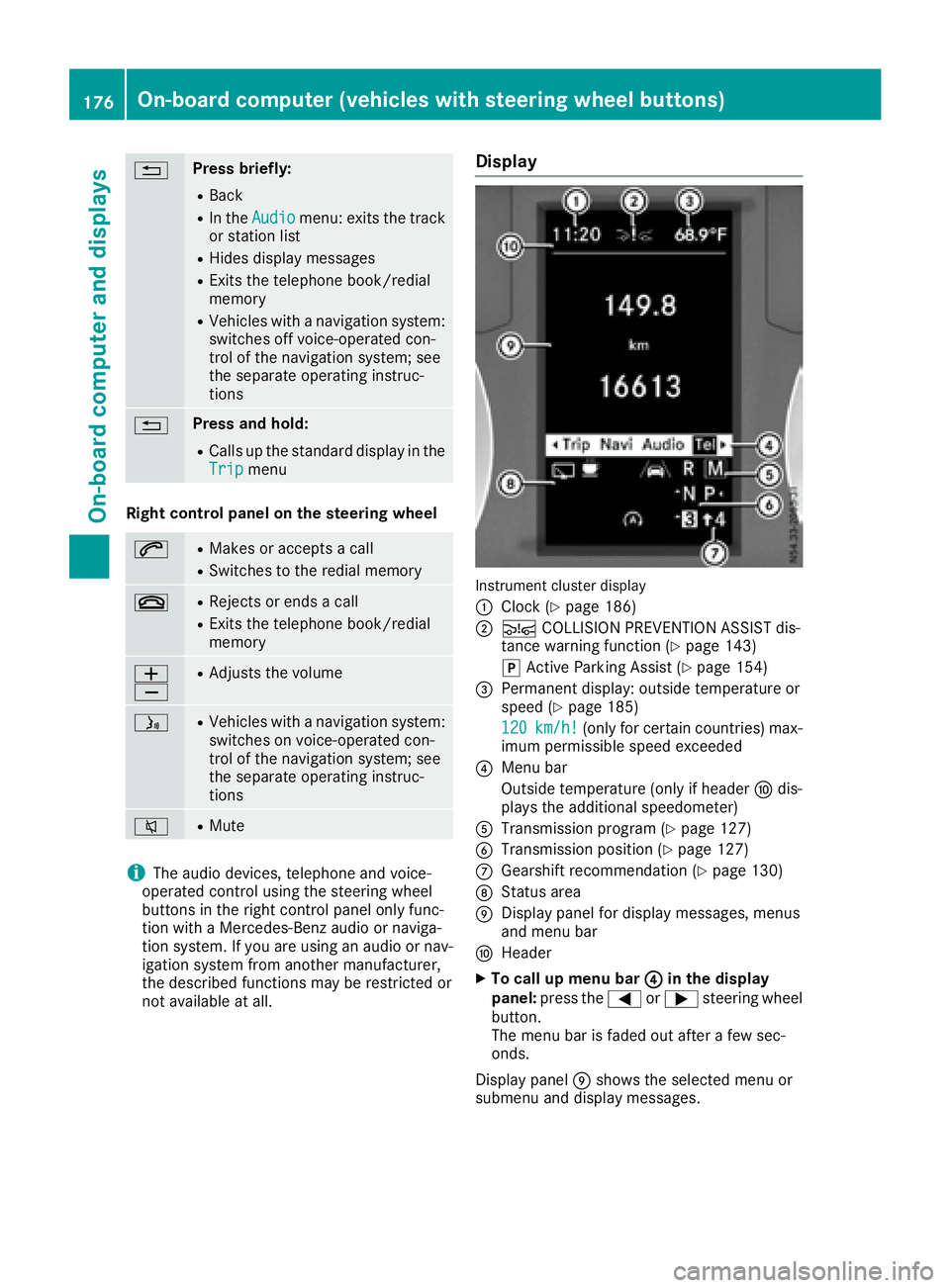
Instrument cluster display
:
Clock (Ypage 186)
;Ä COLLISION PREVENTION ASSIST dis-
tance warning function (Ypage 143)
j Active Parking Assist (
Ypage 154)
=Permanent display:o utside temperature or
speed (Ypage 185)
120
km/h!(only for certain countries) max-
imum permissible speed exceeded
?Menu bar
Outside temperature (only if header Fdis-
playst he additional speedometer)
ATransmission program (Ypage 127)
BTransmission position (Ypage 127)
CGearshift recommendation (Ypage 130)
DStatus area
EDisplay panel for display messages, menus
and menu bar
FHeader
XTo call up menu bar ?in the display
panel: press the =or; steering wheel
button.
The menu bar is faded out after afew sec-
onds.
Display panel Eshows the selected menu or
submenu and display messages.
176On-board computer (vehicles with steering wheelb uttons)
On-board computer and displays
Page 179 of 310
In status areaD,the display can show the sta-
tus of the following driving systems:
À ATTENTION ASSIST(
Ypage 149)
à Lane Keeping Assist (
Ypage 147)
V Cruise control (
Ypage 140)
è Rearwindow wiper (
Ypage 102)
è ECO start/stop function (
Ypage 122)
Menu overview
You can think of the order of the menus as a
circle. Use the =or; steering wheel
buttons to show the menu bar and scroll through
the menus. Use the :or9 steering
wheel buttons to scroll through their submenus and functions.
Operatio ninformation can be found under
"Operating the on-board computer"
(
Ypage 175).
Depending on the vehicle equipment, you can
call up the following menus:
RTripmenu (Ypage 177)
RNavimenu (navigation instructions)
(Ypage 179)
RAudiomenu (Ypage 180)
RTel(telephone) menu (Ypage 181)
RAssist.(assistance) menu (Ypage 182)
RServicemenu (Ypage 184)
RSettingsmenu (Ypage 185)
Trip menu
Standard display
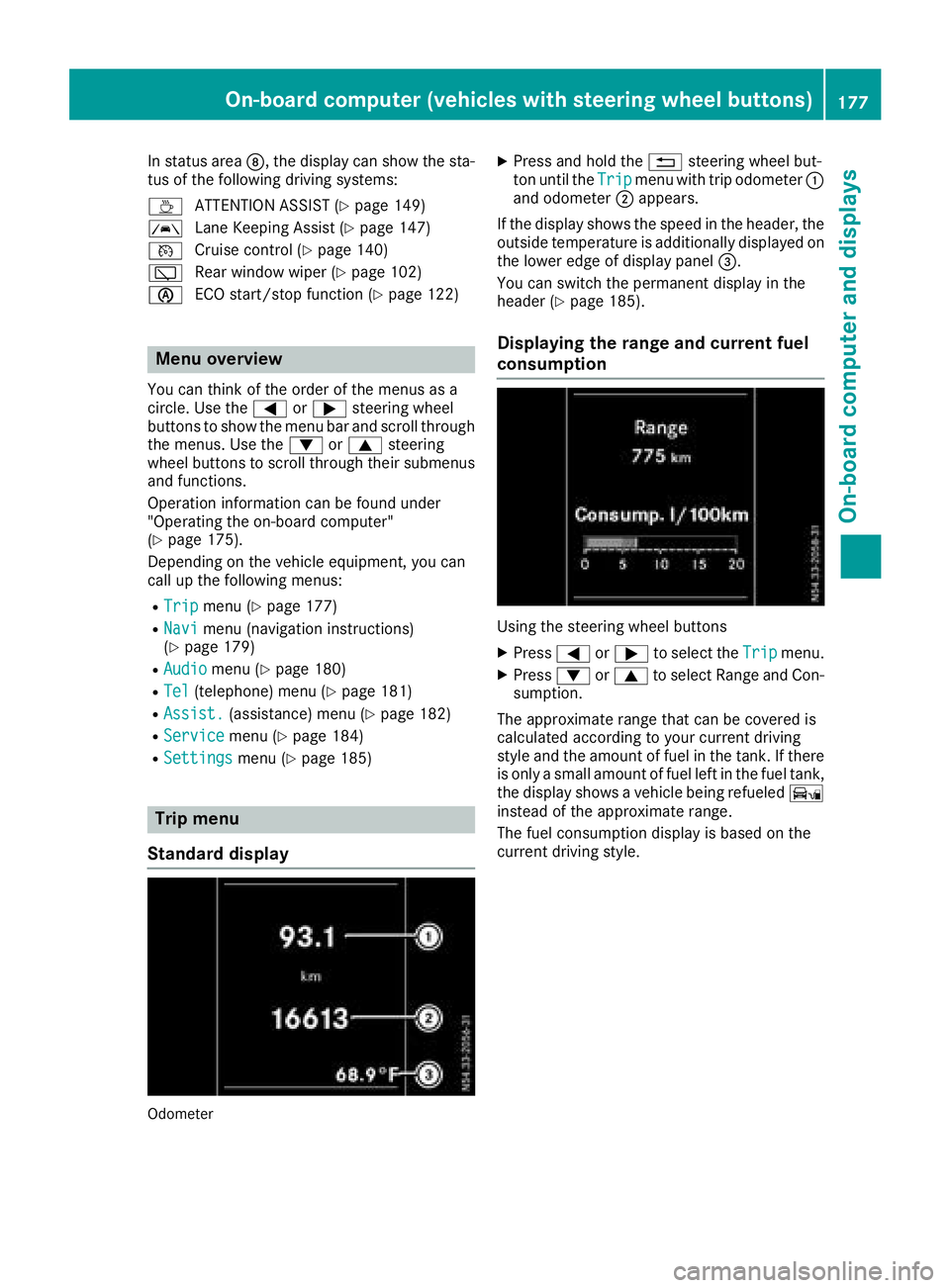
Odometer
XPress and hold the %steering wheel but-
ton until the Tripmenu with trip odometer :
and odometer ;appears.
If the display shows the speed in the header, the
outsid etemperature is additionall ydisplaye don
the lowere dge of display panel =.
You can switch the permanent display in the
header (
Ypage 185).
Displaying the range and current fuel
consumption
Using the steering wheel buttons
XPress =or; to select the Tripmenu.
XPress:or9 to select Range and Con-
sumption.
The approximate range that can be covered is
calculated according to you rcurrent driving
style and the amount of fuel in the tank. If there
is only asmall amount of fuel left in the fuel tank,
the display shows avehicle being refueled Ï
instead of the approximate range.
The fuel consumption display is base donthe
current driving style.
On-board computer (vehicles with steeringw heel buttons)177
On-board computer and displays
Z
Page 180 of 310
Trip computer"Afters tart" or "After
reset"
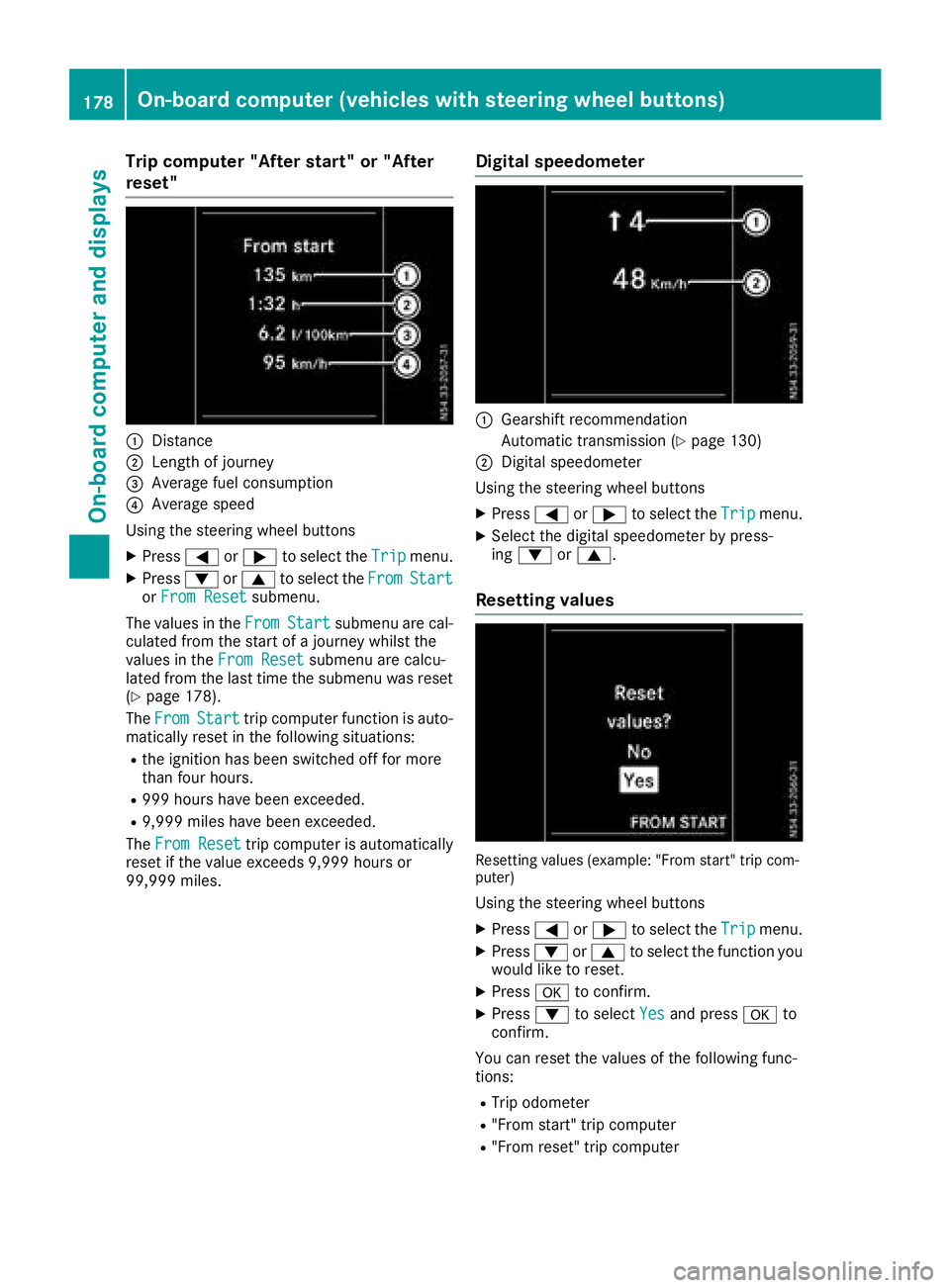
:Distance
;Length of journey
=Averag efuelconsumption
?Averag espeed
Using the steerin gwheel buttons
XPress =or; to select the Tripmenu.
XPress:or9 to select the FromStartorFro mResetsubmenu.
The values in the From
Startsubmenu arecal-
culate dfromt he start of ajourney whilst the
values in the FromReset
submenu ar ecalcu-
lated fromt he last time the submenu wa sreset
(
Ypage 178).
The From
Starttrip compute rfun ctio nisa uto-
maticall yreset in the following situations:
Rthe ignition hasb eens witched off for more
thanf ourh ours.
R999 hours have been exceeded.
R9,999 miles have been exceeded.
The FromReset
trip compute risautomatically
reset if the valu eexceed s9,999 hours or
99,999 miles.
Digital speedometer
:Gearshift recommendation
Automatic transmission (
Ypage 130)
;Digita lspeedom eter
Using the steerin gwheel buttons
XPress =or; to select the Tripmenu.
XSelect the digital speedomete rbyp ress-
ing : or9.
Resetting values
Resetting values (example: "From start" trip com-
puter)
Using the steerin gwheel buttons
XPress =or; to select the Tripmenu.
XPress:or9 to select the functio nyou
woul dliketor eset.
XPress ato confirm.
XPress :to select Yesand press ato
confirm.
Yo uc an reset the values of the following func-
tions:
RTri po dometer
R"From start" trip computer
R"From reset" trip computer
178On-board computer (vehicle swiths teering whee lbuttons)
On-board computera nd displays
Page 181 of 310
Navigation menu
Displaying navigatio ninstructions
In the Navimenu, the displa yshows the navi-
gatio ninstructions fromt he audiosystema nd or
the navigation system. Furthe rinformation on
the audi oand/or navigation systemc an be
found in the separate operating instructions.
Using the steering whee lbuttons
XActivate the audi oand/or navigation system
(see separate operating instructions).
XPress =or; to select the Navimenu.
XPressato confirm.
Route guidanc enotactive
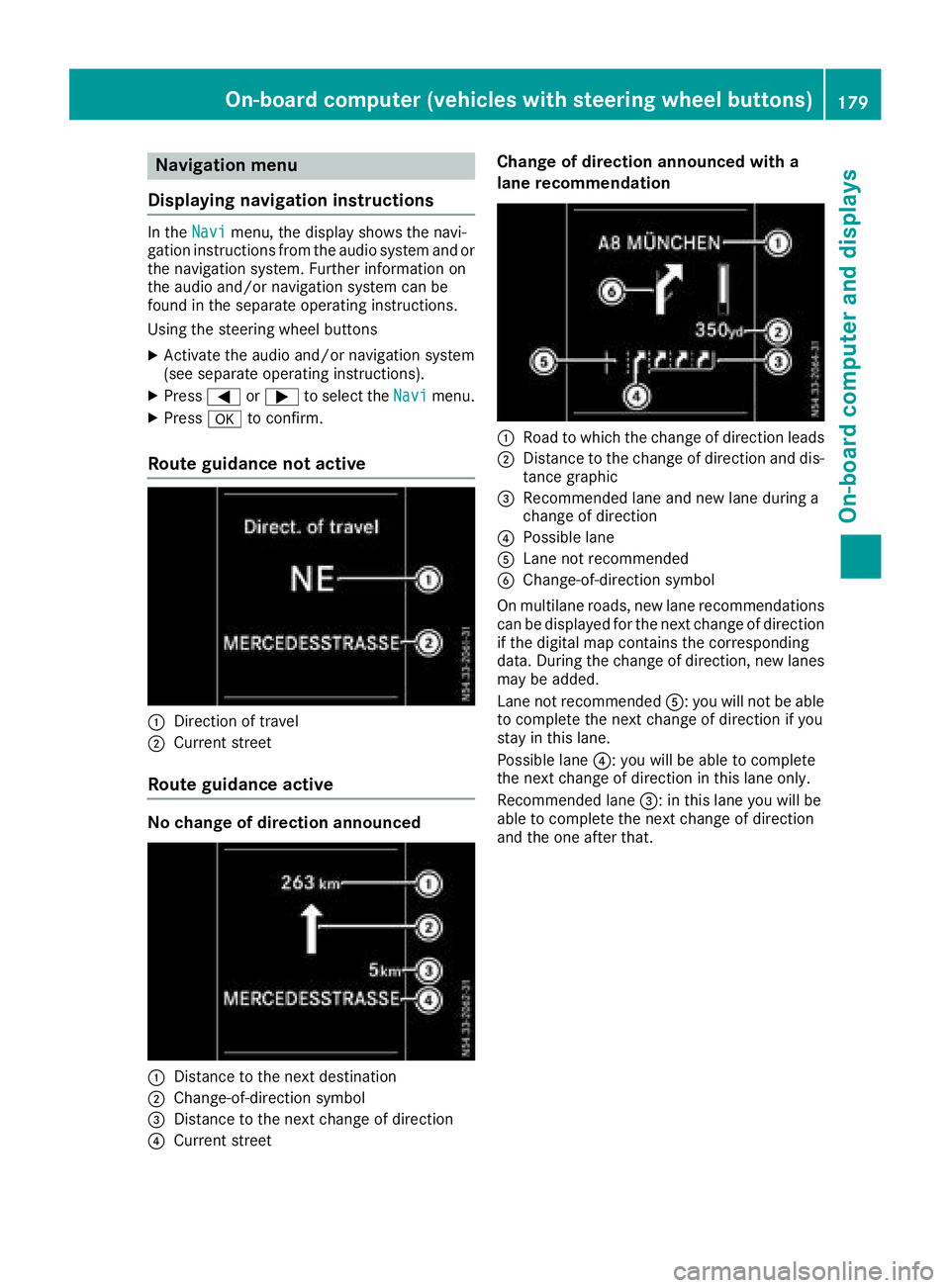
:Direction of travel
;Current street
Route guidanc eactive
No chang eofdirection announced
:Distanc etothe next destination
;Change-of-directio nsym bol
=Distanc etothe next change of direction
?Current street
Chang eofdirection announced with a
lan erecommendation
:Road to which the change of directio nleads
;Distanc etothe change of directio nand dis-
tanc egraphic
=Recommende dlan ea nd new lane during a
change of direction
?Possibl elan e
ALane not recommended
BChange-of-directio nsym bol
On multilane roads ,new lane recommendations
can be displaye dfor the next change of direction
if the digital mapc ontains the corresponding
data. During the change of direction, new lanes
maybea dded.
Lane not recommended A:you will not be able
to complete the next change of directio nifyou
stayint hisl an e.
Possibl elan e? :you will be able to complete
the next change of directio ninthisl an eo nly.
Recommende dlan e= :int hisl an ey ou will be
able to complete the next change of direction
and the one after that.
On-board computer (vehicle swiths teering whee lbuttons)17 9
On-board computera nd displays
Z
Page 182 of 310
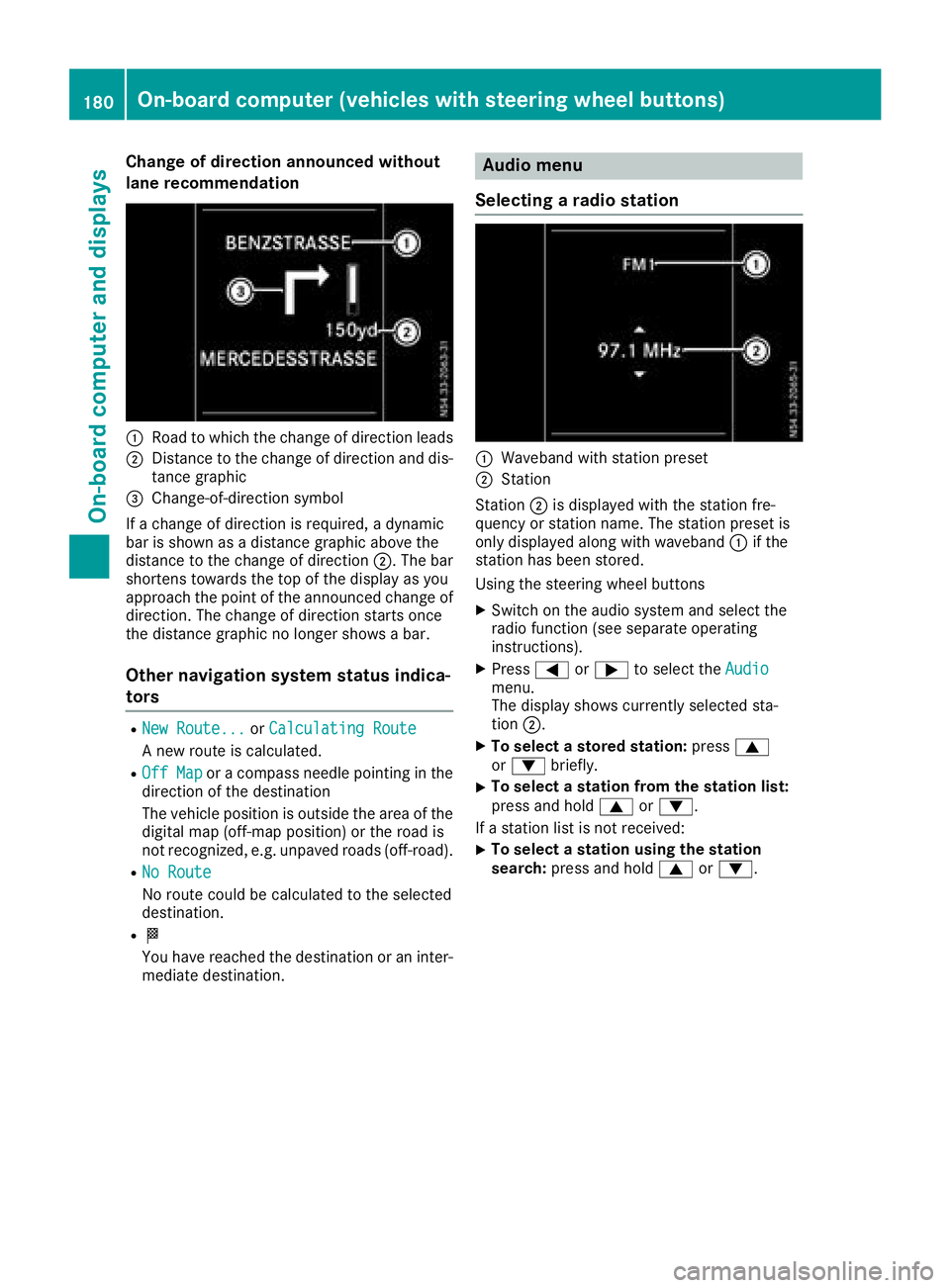
Change of direction announced without
lane recommendation
:Road to whichthechange of direction leads
;Distance to th echange of direction and dis-
tance graphic
=Change-of-direction symbol
If ac hange of direction is required, adynamic
bar is shownasadistanc egraphic above the
distanc etothechange of direction ;.The bar
shortens towards th etop of th edisplay as you
approach th epointoft heannounced change of
direction.T he change of direction start sonce
th ed istanc egraphic no longer showsab ar.
Other navigation system status indica-
tors
RNew Route...orCalculating Route
An ew rout eiscalculated.
ROff Maporac ompass needle pointin ginthe
direction of th edestination
The vehicle position is outside th earea of the
digital map (off-map position)ort heroad is
no trecognized, e.g .unpaved roads (off-road).
RNo Route
No rout ecoul dbec alculate dtotheselected
destination.
RO
You have reached th edestination or an inter-
mediate destination.
Audio menu
Selecting aradio station
:Waveband with statio npreset
;Station
Station ;is displayedw ith thestatio nfre-
quency or statio nname. The statio npreset is
only displayeda longwith waveband :if the
statio nhas been stored.
Usingt hesteering wheel buttons
XSwitch on th eaudio system and selectt he
radio function (see separate operating
instructions).
XPress =or; to selectt heAudiomenu.
The display showsc urrently selectedsta-
tion ;.
XTo select astored stati on:press 9
or : briefly.
XTo select astatio nfromt hestation list:
pres sand hold 9or:.
If as tatio nlist is no treceived:
XTo select astatio nusingthe station
search: pressand hold 9or:.
180On-boardc omputer (vehicles with steerin gwheel buttons)
On-boardc omputer and displays
Page 183 of 310
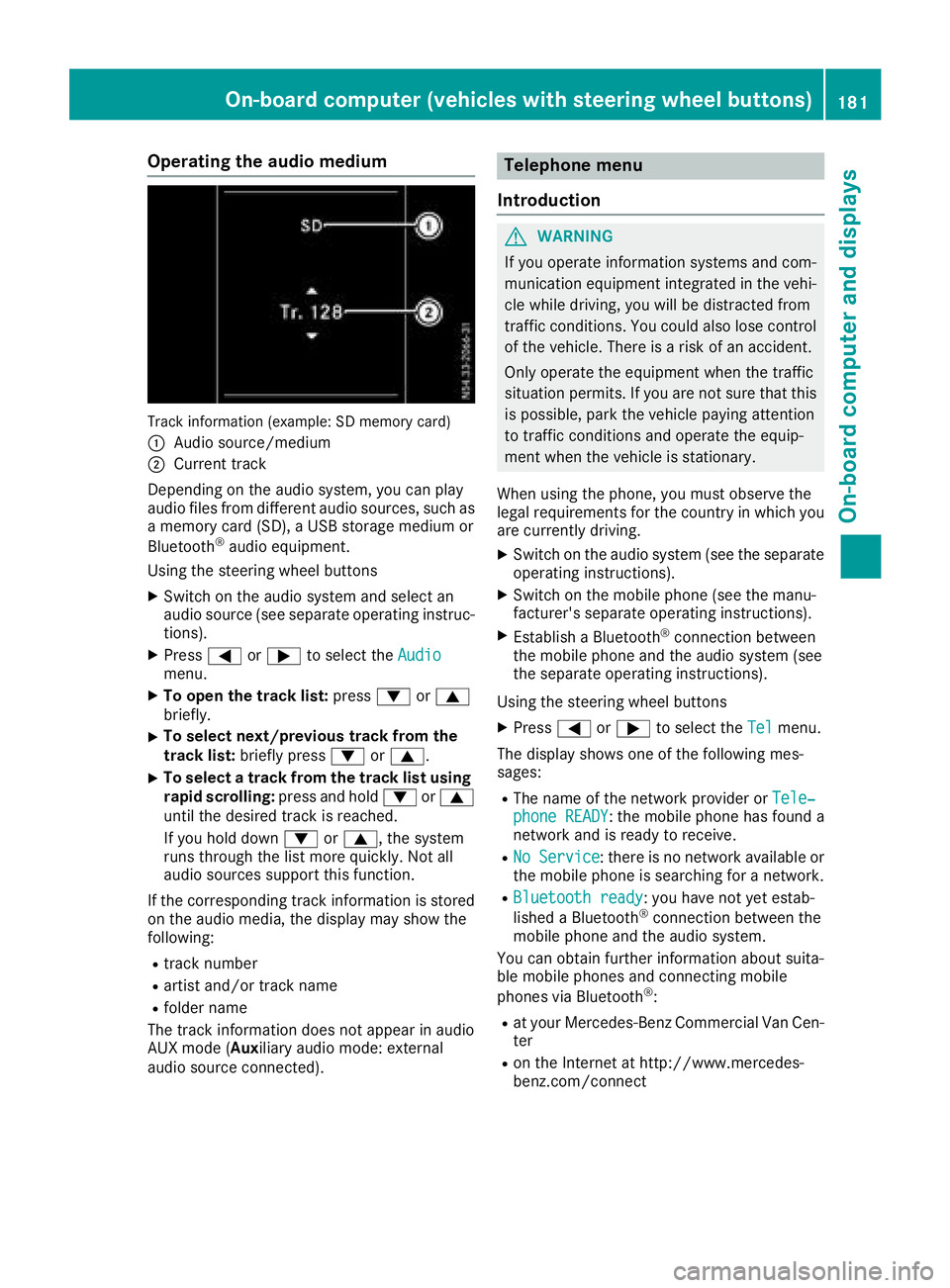
Operating the audio medium
Track information (example: SD memory card)
:
Audio source/medium
;Current track
Depending on the audio system, you can play
audio files from differenta udio sources, such as
am emory card (SD), aUSB storage medium or
Bluetooth
®audio equipment.
Using the steering wheel buttons
XSwitc hont he audio system and select an
audio source (see separate operatin ginstruc-
tions).
XPress =or; to select the Audiomenu.
XTo open the track list: press:or9
briefly.
XTo select next/previous track from the
track list: briefly press :or9.
XTo select atrack from the track list using
rapid scrolling: press and hold:or9
until the desired trac kisreached.
If you hold down :or9,t he system
runs through the list more quickly. Not all
audio sources support this function.
If the correspondin gtrac kinformation is stored
on the audio media, the display may show the
following:
Rtrac knumber
Rartist and/or trac kname
Rfolder name
The trac kinformation does not appear in audio
AUX mode (Aux iliary audio mode: external
audio source connected).
Telephone menu
Introduction
GWARNING
If you operate information systems and com-
munication equipment integrated in the vehi-
cle while driving, you will be distracted from
traffic conditions .You could also lose control
of the vehicle. There is arisk of an accident.
Only operate the equipment when the traffic
situation permits. If you are not sure that this
is possible, park the vehicle paying attention
to traffic conditions and operate the equip-
ment when the vehicle is stationary.
When using the phone, you must observe the
legal requirements for the country in which you
are currently driving.
XSwitc hont he audio system (see the separate
operatin ginstructions).
XSwitc hont he mobile phone (see the manu-
facturer's separate operatin ginstructions).
XEstablish aBluetooth®connection between
the mobile phone and the audio system (see
the separate operatin ginstructions).
Using the steering wheel buttons
XPress =or; to select the Telmenu.
The display shows one of the following mes-
sages:
RThe name of the network provider or Tele‐phone READY:the mobile phone has found a
network and is ready to receive.
RNo Service:t here is no network available or
the mobile phone is searchingf oran etwork.
RBluetooth ready:you have not yet estab-
lished aBluetooth®connection between the
mobile phone and the audio system.
You can obtain further information about suita-
ble mobile phones and connecting mobile
phones via Bluetooth
®:
Rat your Mercedes-Benz Commercial Van Cen-
ter
Ron the Internet at http://www.mercedes-
benz.com/connect
On-boardc omputer (vehicles with steering wheel buttons)181
On-boardcomputer and displays
Z
Page 184 of 310
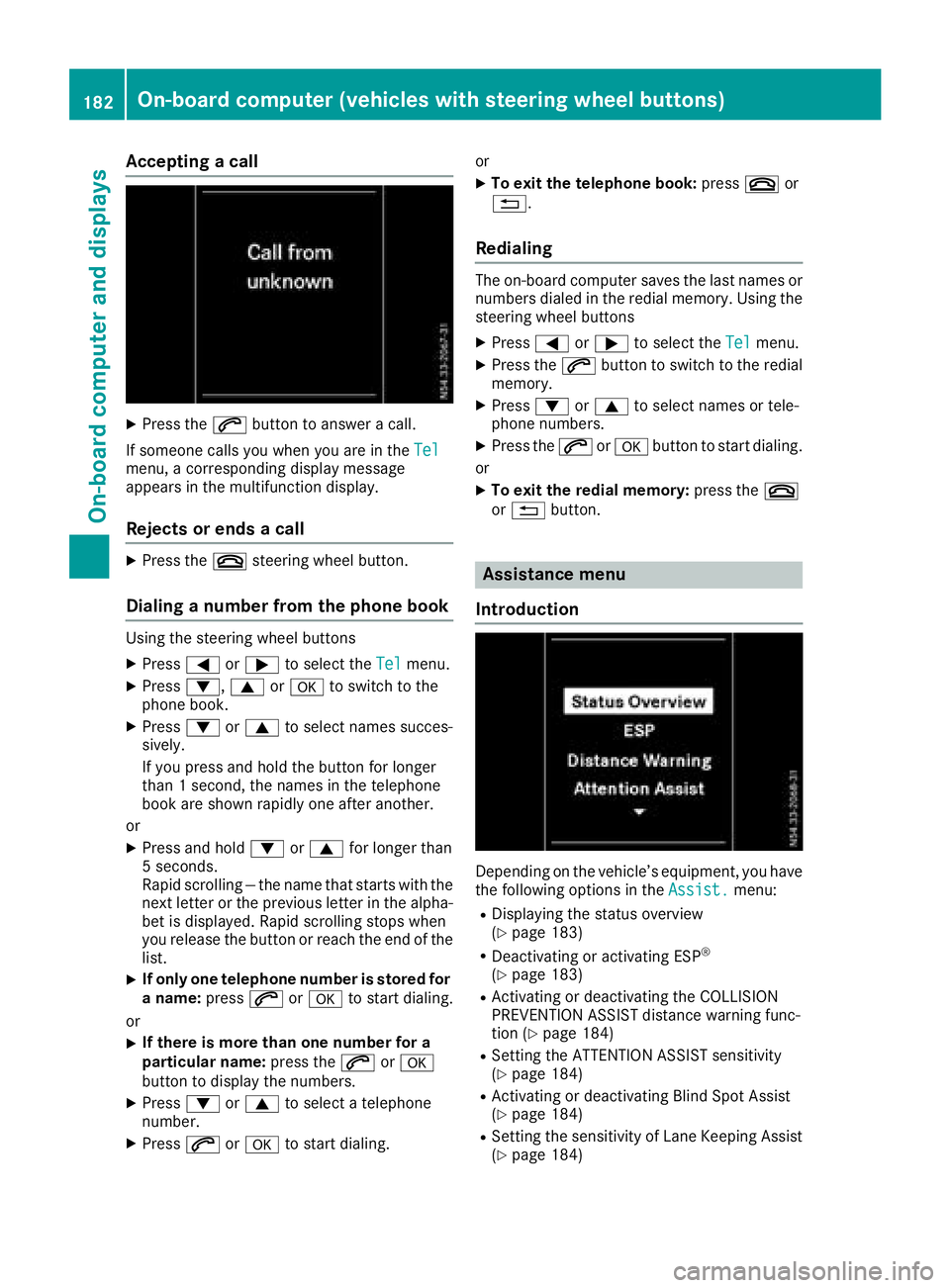
Acceptingacall
XPress th e6 buttontoa nswer acall.
If someon ecallsy ou when you are in th eTel
menu, acorre sponding display message
appear sinthemultifunction display.
Rejects orendsac all
XPress the~ steering whee lbutton.
Dialing anumber fr omthep hone book
Using th esteering whee lbuttons
XPress =or; to select th eTelmenu.
XPress :, 9ora to switch to th e
phone book .
XPress:or9 to select names succes-
sively.
If you press and hold th ebutto nfor longer
than 1second, th enames in th etelephon e
book are shown rapidly on eafter another.
or
XPress and hold :or9 for longer than
5s econds.
Rapid scrollin g—thenam etha tstartsw itht he
next lette rortheprevious lette rinthealpha-
bet is displayed. Rapid scrollin gstops when
you release th ebutto norr eachthe endoft he
list .
XIf only one telephone number is store dfor
an ame: press 6ora to start dialing.
or
XIf there is mor ethano ne number for a
particular name: press the6 ora
butto ntod isplay th enumbers.
XPress :or9 to select atelephon e
number .
XPress6ora to start dialing. or
XTo exit th
etelephone book :press ~or
%.
Redialing
The on-board computer saves th elast names or
number sdialed in th eredial memory. Using th e
steering whee lbuttons
XPress =or; to select th eTelmenu.
XPress th e6 buttontos witch to th eredial
memory.
XPress :or9 to select names or tele-
phone numbers.
XPress th e6 ora buttontostart dialing.
or
XTo exit th eredial memory :press th e~
or % button.
Assistance menu
Introd uction
Dependin gonthevehicle’s equipment, you hav e
th ef ollowin goption sintheAssist .menu:
RDisplaying th estatus overview
(Ypage 183)
RDeactivating or activating ES P®
(Ypage 183)
RActivating or deactivating theCOLLISION
PREVENTION ASSIST distanc ewarning func-
tion (
Ypage 184)
RSetting th eATTEN TION ASSIST sensitivit y
(Ypage 184)
RActivating or deactivating Blind Spot Assis t
(Ypage 184)
RSetting th esensitivit yofLaneK eepin gAssist
(Ypage 184)
182On-boar dcomputer (vehicles with steering wheel buttons)
On-boar dcomputer and displays
Page 185 of 310
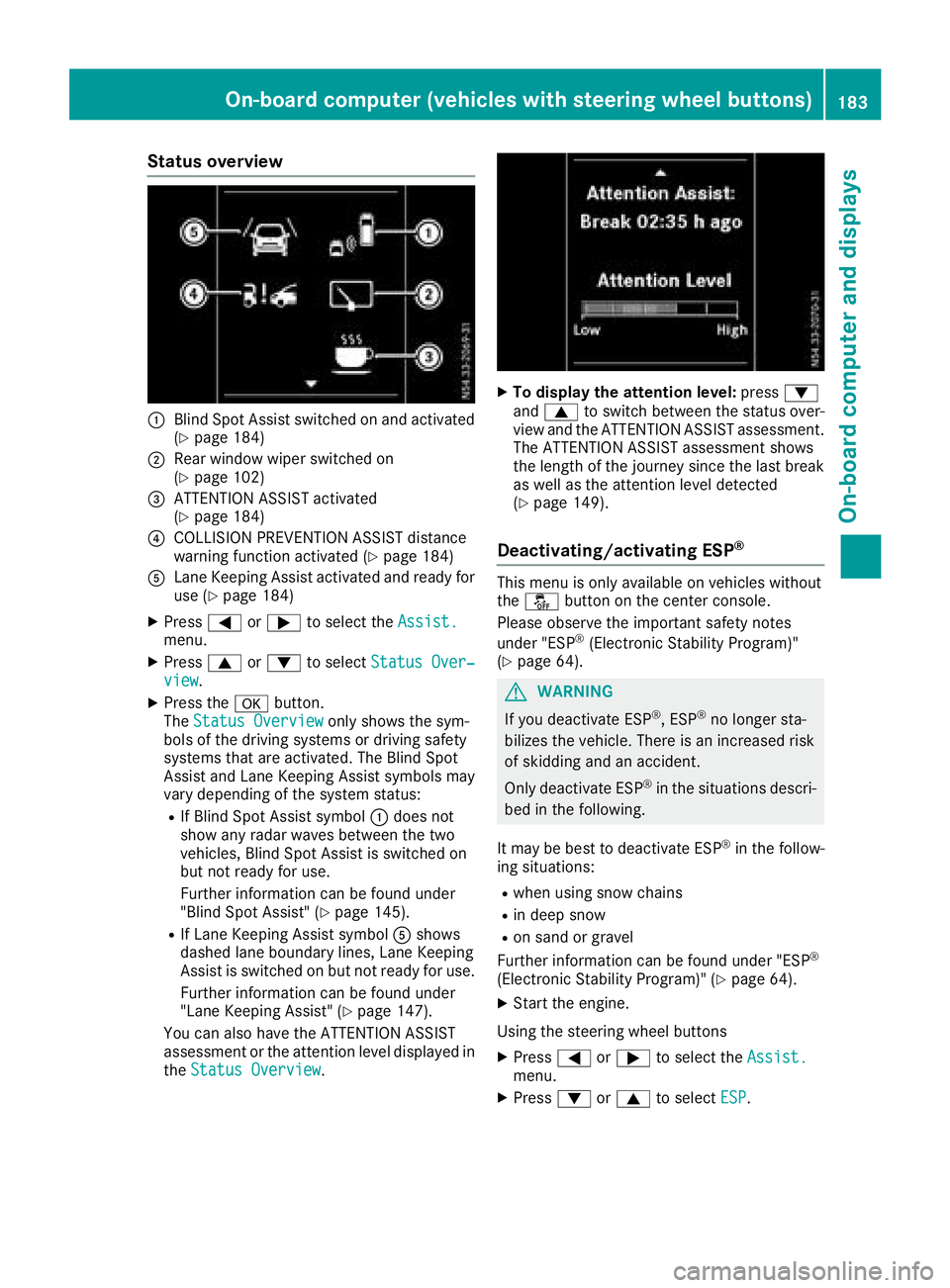
Status overview
:Blind Spot Assist switched on and activated
(Ypage 184)
;Rear window wiper switched on
(Ypage 102)
=ATTENTION ASSIST activated
(Ypage 184)
?COLLISION PREVENTION ASSIST distance
warning function activated (Ypage 184)
ALane Keeping Assist activated and ready for
use (Ypage 184)
XPress=or; to select the Assist.menu.
XPress9or: to select Status Over‐view.
XPress the abutton.
The Status Overviewonly shows the sym-
bols of the driving systems or driving safety
systems that are activated. The Blind Spot
Assist and Lane Keeping Assist symbols may
vary depending of the system status:
RIf Blind Spot Assist symbol :does not
show any radar waves between the two
vehicles, Blind Spot Assist is switched on
but not ready for use.
Further information can be found under
"Blind Spot Assist" (
Ypage 145).
RIf Lane Keeping Assist symbol Ashows
dashed lane boundary lines, Lane Keeping
Assist is switched on but not ready for use.
Further information can be found under
"Lane Keeping Assist" (
Ypage 147).
You can also have the ATTENTION ASSIST
assessment or the attention level displayed in the Status Overview
.
XTo display the attention level: press:
and 9 to switch between the status over-
view and the ATTENTION ASSIST assessment.
The ATTENTION ASSIST assessment shows
the length of the journey since the last break
as well as the attention level detected
(
Ypage 149).
Deactivating/activating ESP®
This menu is only available on vehicles without
the å button on the center console.
Please observe the important safety notes
under "ESP
®(Electronic Stability Program)"
(Ypage 64).
GWARNING
If you deactivate ESP
®,E SP®no longer sta-
bilizes the vehicle. There is an increased risk
of skidding and an accident.
Only deactivate ESP
®in the situations descri-
bed in the following.
It may be best to deactivate ESP
®in the follow-
ing situations:
Rwhen using snow chains
Rin deep snow
Ron sand or gravel
Further information can be found under "ESP®
(Electronic Stability Program)" (Ypage 64).
XStart the engine.
Using the steering wheel buttons
XPress =or; to select the Assist.menu.
XPress:or9 to select ESP.
On-board computer (vehicles with steering wheel buttons)183
On-board computer and displays
Z
Page 186 of 310
XPressato confirm.
The currents tatus is shown.
XTo activate/deactivate: pressaagain.
If the å warning lamp in the instrument
cluster lights up when the vehicle is ready to
drive, ESP
®is deactivated.
If the ÷ warning lamp lights up continuously,
ESP
®is not availabled ue toamalfunction.
Observe the information on warning lamps
(
Ypage 221) and display messages
(Ypage 207).
Activating/deactivating the distance
warning function
Using the steerin gwheel buttons
XPress =or; to select the Assist.menu.
XPress9or: to select DistanceWarning.
XPressato confirm.
The currents tatus is shown.
XTo activate/deactivate: press theabut-
ton again.
If the distanc ewarning function of COLLISION
PREVENTION ASSIST is activated, the display
shows the Äsymbol in the header.
At speeds up to approx 20 mph (30 km/h),
the display in vehicles with Active Parking
Assist first shows the ístatus indicator.
Only from aspeed of about 20 mph (30 km/ h)
does the display show the Äsymbol
instead of the ístatus indicator.
Further information can be found under "COL-
LISION PREVENTION ASSIST" (
Ypage 143).
Setting ATTENTION ASSIST
Using the steering wheel buttons
XPress =or; to select the Assist.menu.
XPress:or9 to select AttentionAssist.
XPressato confirm.
The currents etting is displayed.
XTo change the setting: pressaagain.
XPress :or9 to set Deactivated,
Standardor Sensitive.
XPress ato confirm the choice.
If ATTENTION ASSISTisa ctivated, theÀ
symbol is shown in the status area of the dis- play. The selection
Standard
orSensitivesets the sensitivity with which the system
determines the attention level.
Further information can be found under "ATTEN-
TION ASSIST" (
Ypage 149).
Activating/deactivating Blind Spot
Assist
Using the steering wheel buttons
XPress =or; to select the Assist.menu.
XPress:or9 to select Blind SpotAssist.
XPressato confirm.
The currents tatus is shown.
XTo activate/deactivate: press theabut-
ton again.
Further information can be found under "Blind
Spot Assist "(
Ypage 145).
Setting Lane Keeping Assist
Using the steering wheel buttons
XPress=or; to select the Assist.menu.
XPress:or9 to select LaneKeepingAssist.
XPressato confirm.
The currents electionStandardorAdaptiveis displayed.
XTo change the setting: pressaagain.
Further information can be found under "Lane
Keeping Assist "(
Ypage 147).
Service menu
184On-boardcomputer (vehicles with steering wheel buttons)
On-boardcomputer and displays
Page 187 of 310
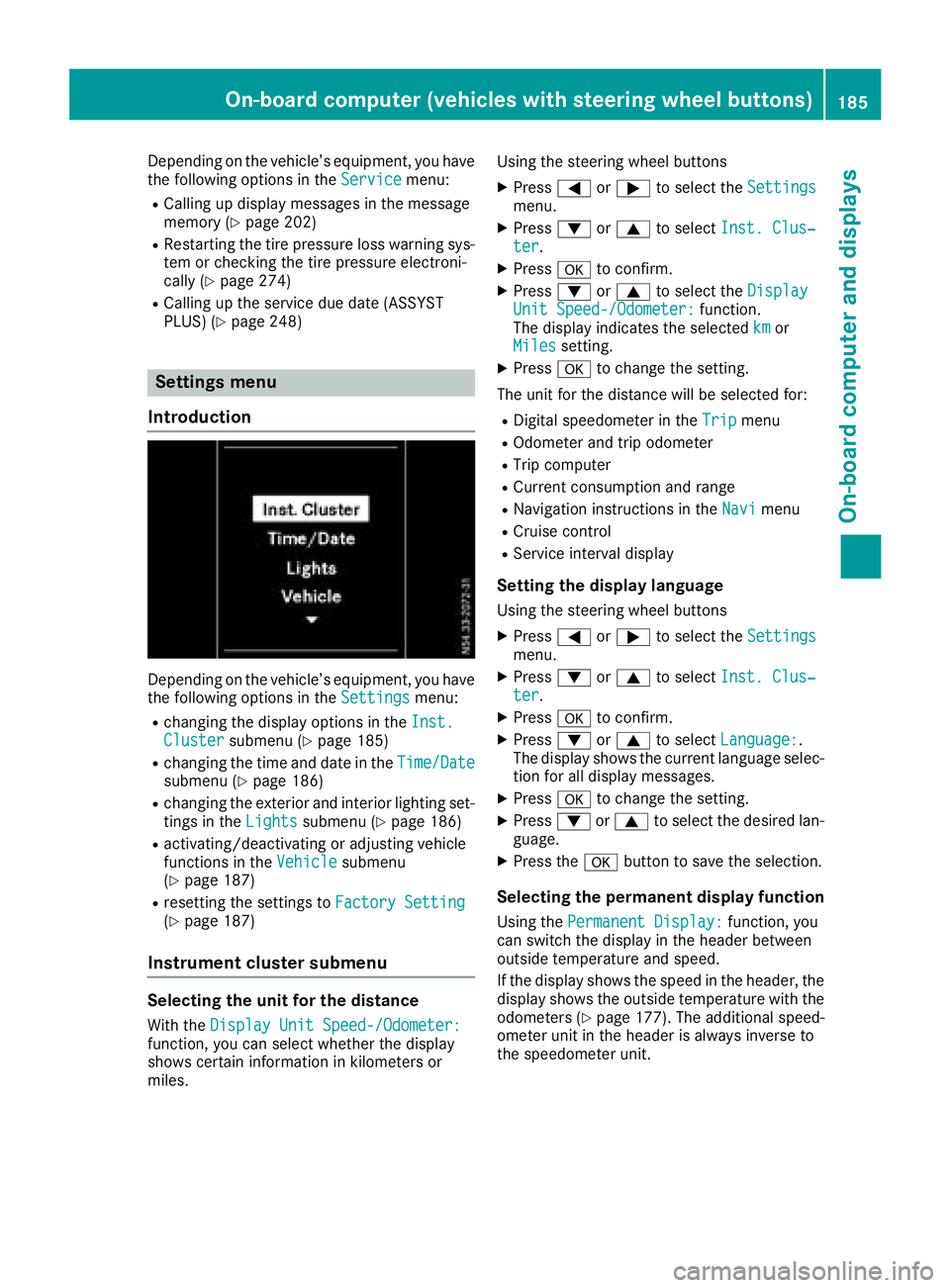
Depending on the vehicle’sequipment ,you have
the following options in the Servicemenu:
RCalling up displaymessage sinthe message
memory (Ypage 202)
RRestartin gthe tire pressure loss warning sys-
tem or checking the tire pressure electroni-
cally (
Ypage 274)
RCalling up the servic eduedate (ASSYST
PLUS) (Ypage 248)
Settings menu
Introduction
Depending on the vehicle’ sequipment ,you have
the following options in the Settingsmenu:
Rchanging the displayoptions in the Inst.Clustersubmenu (Ypage 185)
Rchanging the time and date in the Time/Datesubmenu (Ypage 186)
Rchanging the exteriorand interio rlighting set-
ting sint heLightssubmenu (Ypage 186)
Ractivating/deactivating or adjusting vehicle
functions in the Vehiclesubmenu
(Ypage 187)
Rresetting the settings to FactorySetting(Ypage 187)
Instrument cluste rsubmenu
Selecting the uni tfor the distance
With the DisplayUnitS peed-/Odometer:function, yo ucan select whether the display
shows certain informatio ninkilometers or
miles. Using the steerin
gwheel buttons
XPress =or; to select the Settingsmenu.
XPress:or9 to select Inst. Clus‐ter.
XPressato confirm.
XPress :or9 to select the DisplayUnitSpeed-/Odometer:function.
The displa yindicates the selected kmor
Milessetting.
XPress ato change the setting.
The uni tfor the distance will be selecte dfor:
RDigita lspeedom eterint heTripmenu
ROdometer and trip odometer
RTripc omputer
RCurrent consumption and range
RNavigation instructions in the Navimenu
RCruise control
RService intervaldisplay
Settingthe display language
Using the steerin gwheel buttons
XPress =or; to select the Settingsmenu.
XPress:or9 to select Inst. Clus‐ter.
XPressato confirm.
XPress :or9 to select Language:.
The displa yshows the current languag eselec-
tio nfor al ldisplay messages.
XPressato change the setting.
XPress :or9 to select the desired lan-
guage.
XPress the abutton to save the selection.
Selecting the permanent display function
Using the Permanent Display:function, you
can switch the displa yinthe header between
outside temperatur eand speed.
If the displa yshows the spee dinthe header, the
displa yshows the outside temperatur ewitht he
odometers (
Ypage 177). The additional speed-
ometer uni tinthe header is always invers eto
the speedomete runit.
On-board computer (vehicle swiths teering whee lbuttons)18 5
On-board computera nd displays
Z