key MERCEDES-BENZ METRIS 2017 MY17 Operator’s Manual
[x] Cancel search | Manufacturer: MERCEDES-BENZ, Model Year: 2017, Model line: METRIS, Model: MERCEDES-BENZ METRIS 2017Pages: 318, PDF Size: 5.01 MB
Page 137 of 318
Switching off the engine
Important safety notes
GWARNING
The automatic transmission switches to neu-
tral position Nwhen you switch off the engine.
The vehicle may roll away. There is a risk of an
accident.
After switching off the engine, always switch
to parking position P. Prevent the parked vehi-
cle from rolling away by applying the parking
brake.
!If the coolant temperature is very high, e.g.
after driving on hilly roads, leave the engine
running at idle speed for about two minutes
before turning it off.
This allows the coolant temperature to return
to normal.
Vehicles with automatic transmission
XStop the vehicle.
XShift the transmission to position P.
XApply the parking brake.
XTurn the key to position0in the ignition lock
and remove it.
The immobilizer is activated.
If you switch the engine off with the trans-
mission in position Ror D, the automatic
transmission shifts to Nautomatically.
If you then open one of the front doors or
remove the key from the ignition, the auto-
matic transmission automatically shifts to P.
If you shift the automatic transmission to N
before switching off the engine, the automatic
transmission remains in Neven if a front door
is opened.
XSecure the vehicle to prevent it from rolling
away (Ypage 133).
Parking the vehicle for a long period
If you leave the vehicle parked for longer than
four weeks, the battery may be damaged by
exhaustive discharging.
XDisconnect the battery (Ypage 259).
or
XConnect the battery to a trickle charger.
Be sure to observe the notes on charging the batteries (
Ypage 262).
You can obtain information about trickle
chargers from a qualified specialist work-
shop.
If you leave the vehicle parked for longer than 6
weeks, the vehicle may suffer damage as a
result of lack of use.
XVisit a qualified specialist workshop and seek
advice.
Driving tips
General notes
Important safety notes
GWARNING
If you switch off the ignition while driving,
safety-relevant functions are only available
with limitations, or not at all. This could affect, for example, the power steering and the brake
boosting effect. You will require considerably
more effort to steer and brake. There is a risk
of an accident.
Do not switch off the ignition while driving.
GWARNING
If you operate mobile communication equip-
ment while driving, you will be distracted from traffic conditions. You could also lose control
of the vehicle. There is a risk of an accident.
Only operate this equipment when the vehicle
is stationary.
Observe the legal requirements of the country in
which you are driving. Some jurisdictions pro-
hibit the driver from using a mobile phone while driving a vehicle.
Driving tips135
Driving and parking
Z
Page 150 of 318
Warning display
Blind Spot Assist is not active at speeds below
approximately 20 mph (30 km/h). Vehicles in
the monitoring range are then not indicated.
If a vehicle is detected within the monitoring
range of Blind Spot Assist at speeds above
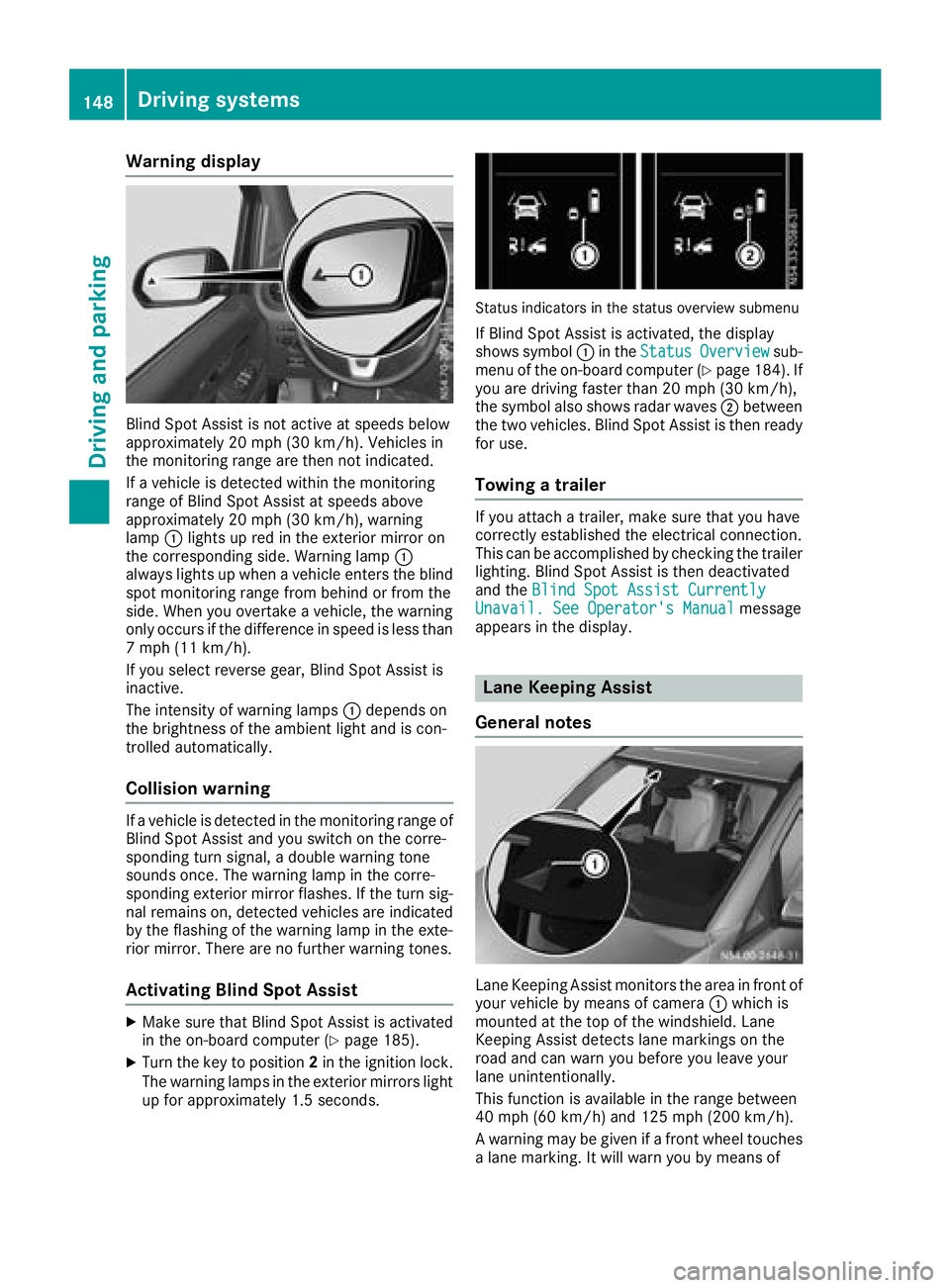
approximately 20 mph (30 km/h), warning
lamp:lights up red in the exterior mirror on
the corresponding side. Warning lamp :
always lights up when a vehicle enters the blind
spot monitoring range from behind or from the
side. When you overtake a vehicle, the warning
only occurs if the difference in speed is less than
7 mph (11 km/h).
If you select reverse gear, Blind Spot Assist is
inactive.
The intensity of warning lamps :depends on
the brightness of the ambient light and is con-
trolled automatically.
Collision warning
If a vehicle is detected in the monitoring range of
Blind Spot Assist and you switch on the corre-
sponding turn signal, a double warning tone
sounds once. The warning lamp in the corre-
sponding exterior mirror flashes. If the turn sig-
nal remains on, detected vehicles are indicated
by the flashing of the warning lamp in the exte-
rior mirror. There are no further warning tones.
Activating Blind Spot Assist
XMake sure that Blind Spot Assist is activated
in the on-board computer (Ypage 185).
XTurn the key to position 2in the ignition lock.
The warning lamps in the exterior mirrors light
up for approximately 1.5 seconds.
Status indicators in the status overview submenu
If Blind Spot Assist is activated, the display
shows symbol :in the StatusOverviewsub-
menu of the on-board computer (Ypage 184). If
you are driving faster than 20 mph (30 km/h),
the symbol also shows radar waves ;between
the two vehicles. Blind Spot Assist is then ready
for use.
Towing a trailer
If you attach a trailer, make sure that you have
correctly established the electrical connection.
This can be accomplished by checking the trailer
lighting. Blind Spot Assist is then deactivated
and the Blind Spot Assist Currently
Unavail. See Operator's Manualmessage
appears in the display.
Lane Keeping Assist
General notes
Lane Keeping Assist monitors the area in front of
your vehicle by means of camera :which is
mounted at the top of the windshield. Lane
Keeping Assist detects lane markings on the
road and can warn you before you leave your
lane unintentionally.
This function is available in the range between
40 mph (60 km/h) and 125 mph (200 km/h).
A warning may be given if a front wheel touches a lane marking. It will warn you by means of
148Driving systems
Driving and parking
Page 153 of 318
XSelectStatus Overviewin theAssist.menu and display the attention level
(Ypage 184).
The following information is displayed:
Rthe length of the journey since the last break.
Rthe attention level determined by ATTENTION
ASSIST, displayed in a bar display in five levels
from low to high.
Rif ATTENTION ASSIST is unable to calculate
the attention level and cannot output a warn-
ing, the System
Passivemessage appears in
the display. The bar display is then dimmed.
This is the case, for example, if you are pre-
dominantly driving at a speed below 40 mph
(60 km/h) or above 125 mph (200 km/h).
Activating ATTENTION ASSIST
XActivating ATTENTION ASSIST with the on-
board computer:
Ron vehicles without steering wheel buttons
(Ypage 175)
Ron vehicles with steering wheel buttons
(Ypage 185)
For vehicles with steering wheel buttons, the
system determines the attention level of the
driver depending on the setting selected:
Standard: the sensitivity with which the sys-
tem determines the attention level is set to
normal.
Sensitive: the sensitivity is set higher. The
driver is warned earlier.
When ATTENTION ASSIST is switched on and
the vehicle engine is running:
Ron vehicles without steering wheel buttons,
the À indicator lamp in the instrument
cluster lights up
Ron vehicles with steering-wheel buttons, the
display shows the Àsymbol:
-in the status area
-in the Status Overviewof the Assist.menu (Ypage 184)
For vehicles with steering wheel buttons, if you
deactivate ATTENTION ASSIST, the system is
automatically re-activated when you start the
engine. The system sensitivity then corresponds
to the last selection activated – standard or sen-
sitive.
If you switch off ATTENTION ASSIST in a vehicle without steering wheel buttons, the system
remains switched off even after you start the engine. The status of the system after switching
on the engine always corresponds to the status
last selected.
Warning in the display
If the system detects tiredness or increasing
lapses in concentration, the warning
Atten‐
tion Assist: Take a Break!orAttent.Asst: Take Break!is shown in the display.
An additional warning tone sounds.
XIf necessary, take a break.
XConfirm the message by pressing the a
button on the steering wheel.
On long journeys, take regular breaks in good
time to allow yourself to rest. If you do not take
a break and ATTENTION ASSIST continues to
detect increasing lapses in concentration, you
will be warned again after 15 minutes at the
earliest. This will only happen if ATTEN-
TION ASSIST still detects typical indicators of
fatigue or increasing lapses in concentration.
PARKTRONIC
General notes
PARKTRONIC is an electronic parking aid. The
system is equipped with ultrasonic sensors in
the front and rear bumpers to monitor the area
around your vehicle. PARKTRONIC indicates vis-
ually and audibly the distance between your
vehicle and an object.
Your vehicle features two separate sound emit- ters with different frequencies for the warning
tones. The warning ranges in front of and behind
the vehicle are indicated by different warning
tones.
PARKTRONIC is activated automatically when
you:
Rturn the key to position 2in the ignition lock
Rrelease the parking brake and
Rmove the selector lever to position D,N or R
PARKTRONIC is deactivated at speeds above
11 mph (18 km/h). PARKTRONIC is reactivated
at speeds below 10 mph (16 km/h).
Important safety notes
PARKTRONIC is only an aid. It cannot replace
your own awareness of the immediate surround-
ings. You are responsible for safe maneuvering,
Driving systems151
Driving and parking
Z
Page 156 of 318
Towing a trailer
PARKTRONIC detects a coupled trailer if your
vehicle is equipped with the corresponding elec-
trical installations for trailer towing.
PARKTRONIC is deactivated for the rear area
when you establish an electrical connectionbetween your vehicle and a trailer. If you use an
adapter for the socket, remove it from the
socket after detaching the trailer. Otherwise,
PARKTRONIC remains deactivated for the rear
area.
Problems with PARKTRONIC
ProblemPossible causes/consequences and
MSolutions
Only the red segments in
the PARKTRONIC warn-
ing displays are lit.
In addition, a warning
tone sounds for approx.
two seconds
PARKTRONIC is then
deactivated.
The indicator lamp of the
f button lights up
and the red segments in
the PARKTRONIC warn-
ing display go out.PARKTRONIC has malfunctioned and has switched itself off.
XIf problems persist, have PARKTRONIC checked at a qualified spe- cialist workshop.
The PARKTRONIC warn-
ing displays implausible
distances.
For example, all the seg-
ments may be lit even
though there is no obsta-
cle present.The PARKTRONIC sensors are dirty or iced up.
XClean the PARKTRONIC sensors (Ypage 266).
XTurn the key to position 2in the ignition lock.
The license plate or other parts attached near the sensors may not be
secured correctly.
XCheck the license plate and attachment parts near the sensors for
correct seating.
An external radio or ultrasonic source may be causing interference.
XCheck PARKTRONIC functions in a different location.
Active Parking Assist
General notes
Active Parking Assist is an electronic parking
aid. The system uses ultrasound sensors to
measure the road on both sides of the vehicle
and indicates suitable parking spaces. It can
then actively steer and brake the vehicle to help
you to park and exit the parking space.
Active Parking Assist includes the PARKTRONIC
parking aid which indicates visually and audibly the distance between your vehicle and an
object. To do this, PARKTRONIC uses the ultra- sonic sensors of the Active Parking Assist
(
Ypage 151).
Important safety notes
Active Parking Assist is only an aid. It is not a
substitute for your attention to the immediate
surroundings. You are responsible for safe
maneuvering, parking and pulling away. Make
sure that no persons, animals or objects are in
the maneuvering range.
When you deactivate PARKTRONIC, Active Park-
ing Assist will also be deactivated.
154Driving system
s
Driving an d parking
Page 161 of 318
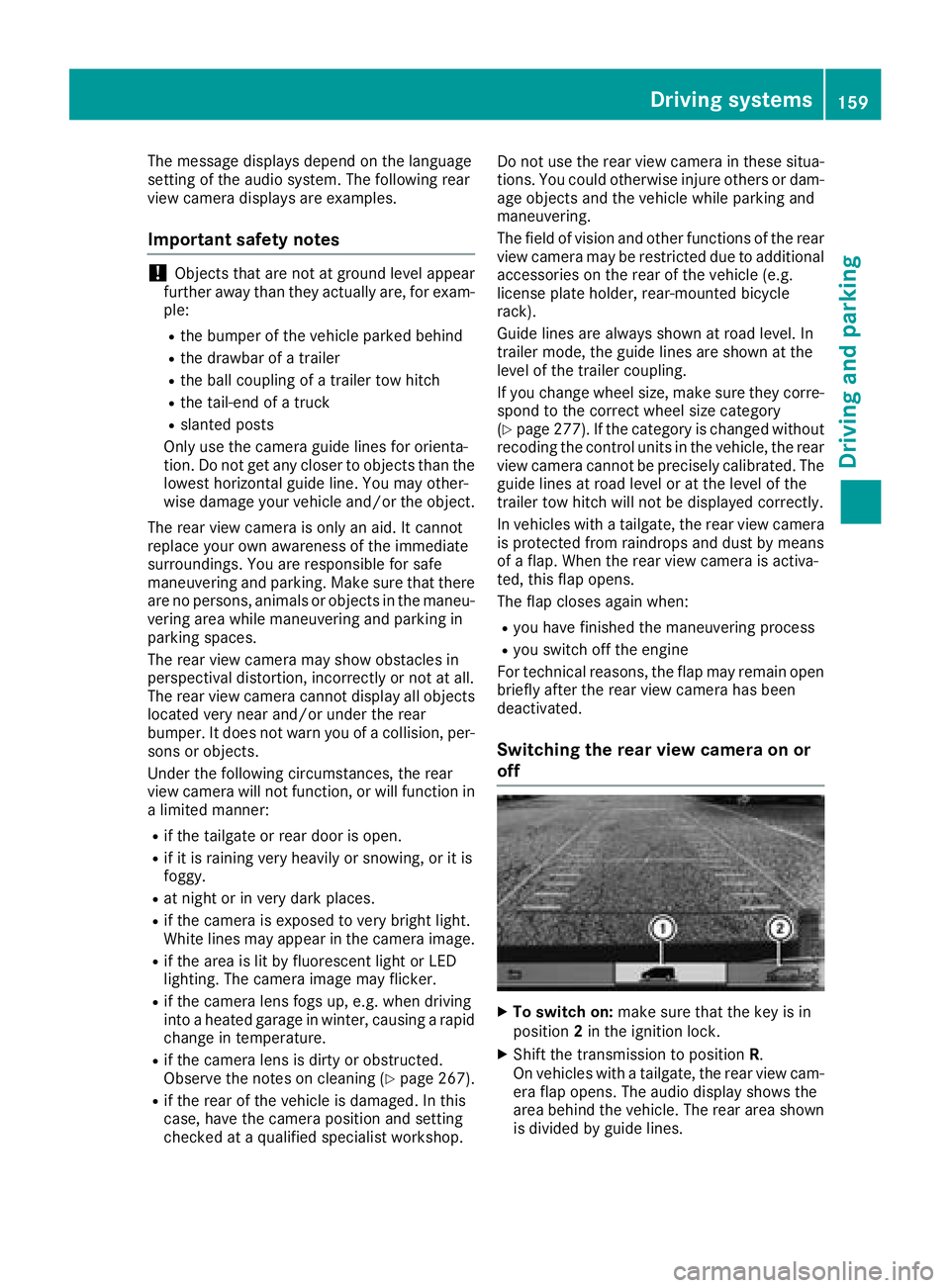
The message displays depend on the language
setting of the audio system. The following rear
view camera displays are examples.
Important safety notes
!Objects that are not at ground level appear
further away than they actually are, for exam-
ple:
Rthe bumper of the vehicle parked behind
Rthe drawbar of a trailer
Rthe ball coupling of a trailer tow hitch
Rthe tail-end of a truck
Rslanted posts
Only use the camera guide lines for orienta-
tion. Do not get any closer to objects than the
lowest horizontal guide line. You may other-
wise damage your vehicle and/or the object.
The rear view camera is only an aid. It cannot
replace your own awareness of the immediate
surroundings. You are responsible for safe
maneuvering and parking. Make sure that there
are no persons, animals or objects in the maneu- vering area while maneuvering and parking in
parking spaces.
The rear view camera may show obstacles in
perspectival distortion, incorrectly or not at all.
The rear view camera cannot display all objects
located very near and/or under the rear
bumper. It does not warn you of a collision, per-
sons or objects.
Under the following circumstances, the rear
view camera will not function, or will function in
a limited manner:
Rif the tailgate or rear door is open.
Rif it is raining very heavily or snowing, or it is
foggy.
Rat night or in very dark places.
Rif the camera is exposed to very bright light.
White lines may appear in the camera image.
Rif the area is lit by fluorescent light or LED
lighting. The camera image may flicker.
Rif the camera lens fogs up, e.g. when driving
into a heated garage in winter, causing a rapid
change in temperature.
Rif the camera lens is dirty or obstructed.
Observe the notes on cleaning (Ypage 267).
Rif the rear of the vehicle is damaged. In this
case, have the camera position and setting
checked at a qualified specialist workshop. Do not use the rear view camera in these situa-
tions. You could otherwise injure others or dam-
age objects and the vehicle while parking and
maneuvering.
The field of vision and other functions of the rear view camera may be restricted due to additional
accessories on the rear of the vehicle (e.g.
license plate holder, rear-mount
ed bicycle
rack).
Guide lines are always shown at road level. In
trailer mode, the guide lines are shown at the
level of the trailer coupling.
If you change wheel size, make sure they corre- spond to the correct wheel size category
(
Ypage 277). If the category is changed without
recoding the control units in the vehicle, the rear
view camera cannot be precisely calibrated. The
guide lines at road level or at the level of the
trailer tow hitch will not be displayed correctly.
In vehicles with a tailgate, the rear view camera
is protected from raindrops and dust by means
of a flap. When the rear view camera is activa-
ted, this flap opens.
The flap closes again when:
Ryou have finished the maneuvering process
Ryou switch off the engine
For technical reasons, the flap may remain open
briefly after the rear view camera has been
deactivated.
Switching the rear view camera on or
off
XTo switch on: make sure that the key is in
position 2in the ignition lock.
XShift the transmission to position R.
On vehicles with a tailgate, the rear view cam-
era flap opens. The audio display shows the
area behind the vehicle. The rear area shown
is divided by guide lines.
Driving systems159
Driving and parking
Z
Page 173 of 318
On-board computer (vehicles without
steering wheel buttons)
Operating the on-board computer
Overview
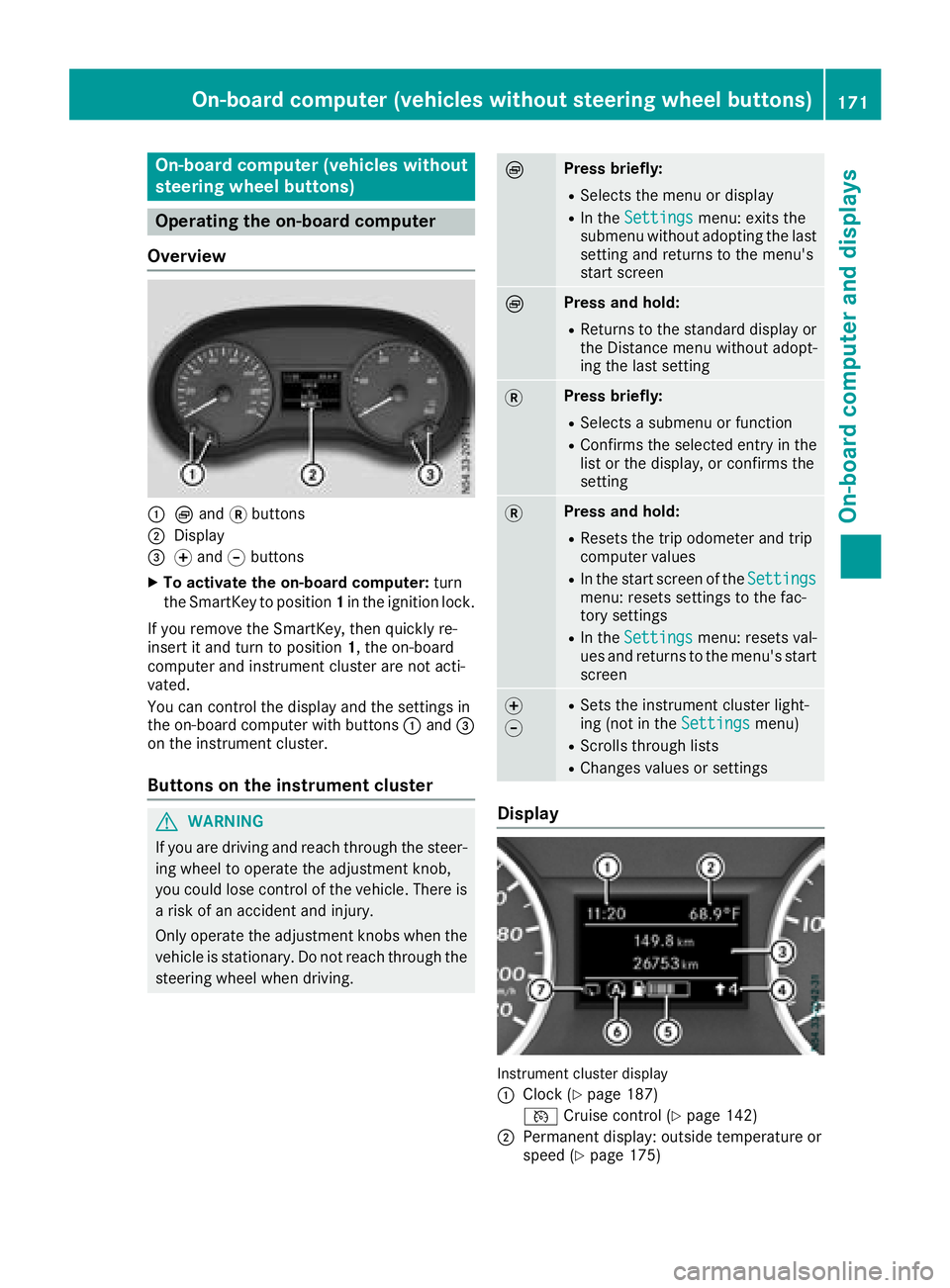
:È and 3buttons
;Display
=f and gbuttons
XTo activate the on-board computer: turn
the SmartKey to position 1in the ignition lock.
If you remove the SmartKey, then quickly re-
insert it and turn to position 1, the on-board
computer and instrument cluster are not acti-
vated.
You can control the display and the settings in
the on-board computer with buttons :and =
on the instrument cluster.
Buttons on the instrument cluster
GWARNING
If you are driving and reach through the steer- ing wheel to operate the adjustment knob,
you could lose control of the vehicle. There is
a risk of an accident and injury.
Only operate the adjustment knobs when thevehicle is stationary. Do not reach through the
steering wheel when driving.
ÈPress briefly:
RSelects the menu or display
RIn the Settingsmenu: exits the
submenu without adopting the last
setting and returns to the menu's
start screen
ÈPress and hold:
RReturns to the standard display or the Distance menu without adopt-
ing the last setting
3Press briefly:
RSelects a submenu or function
RConfirms the selected entry in the
list or the display, or confirms the
setting
3Press and hold:
RResets the trip odometer and trip
computer values
RIn the start screen of the Settingsmenu: resets settings to the fac-
tory settings
RIn theSettingsmenu: resets val-
ues and returns to the menu's start
screen
f
gRSets the instrument cluster light-
ing (not in the Settingsmenu)
RScrolls through lists
RChanges values or settings
Display
Instrument cluster display
:
Clock (Ypage 187)
V Cruise control (
Ypage 142)
;Permanent display: outside temperature or
speed (Ypage 175)
On-board computer (vehicles without steering wheel buttons)171
On-board computer and displays
Z
Page 176 of 318
Settings menu
Introduction
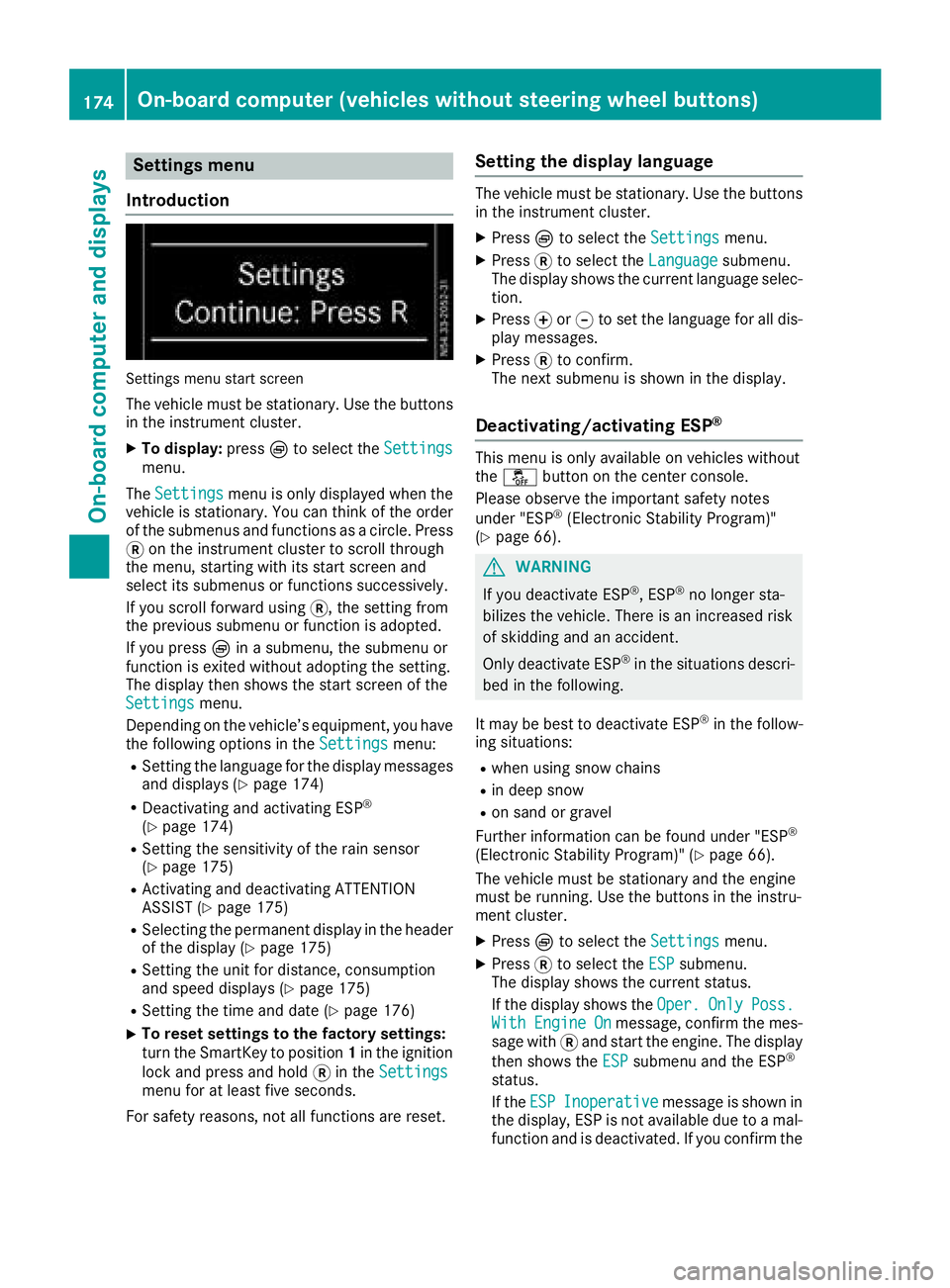
Settings menu start screen
The vehicle must be stationary. Use the buttons
in the instrument cluster.
XTo display: pressÈto select the Settingsmenu.
The Settings
menu is only displayed when the
vehicle is stationary. You can think of the order
of the submenus and functions as a circle. Press
3 on the instrument cluster to scroll through
the menu, starting with its start screen and
select its submenus or functions successively.
If you scroll forward using 3, the setting from
the previous submenu or function is adopted.
If you press Èin a submenu, the submenu or
function is exited without adopting the setting.
The display then shows the start screen of the
Settings
menu.
Depending on the vehicle’s equipment, you have the following options in the Settings
menu:
RSetting the language for the display messages
and displays (Ypage 174)
RDeactivating and activating ESP®
(Ypage 174)
RSetting the sensitivity of the rain sensor
(Ypage 175)
RActivating and deactivating ATTENTION
ASSIST (Ypage 175)
RSelecting the permanent display in the header
of the display (Ypage 175)
RSetting the unit for distance, consumption
and speed displays (Ypage 175)
RSetting the time and date (Ypage 176)
XTo reset settings to the factory settings:
turn the SmartKey to position 1in the ignition
lock and press and hold 3in the Settings
menu for at least five seconds.
For safety reasons, not all functions are reset.
Setting the display language
The vehicle must be stationary. Use the buttons
in the instrument cluster.
XPress Èto select the Settingsmenu.
XPress3to select the Languagesubmenu.
The display shows the current language selec- tion.
XPress forg to set the language for all dis-
play messages.
XPress 3to confirm.
The next submenu is shown in the display.
Deactivating/activating ESP®
This menu is only available on vehicles without
the å button on the center console.
Please observe the important safety notes
under "ESP
®(Electronic Stability Program)"
(Ypage 66).
GWARNING
If you deactivate ESP
®, ESP®no longer sta-
bilizes the vehicle. There is an increased risk
of skidding and an accident.
Only deactivate ESP
®in the situations descri-
bed in the following.
It may be best to deactivate ESP
®in the follow-
ing situations:
Rwhen using snow chains
Rin deep snow
Ron sand or gravel
Further information can be found under "ESP®
(Electronic Stability Program)" (Ypage 66).
The vehicle must be stationary and the engine
must be running. Use the buttons in the instru-
ment cluster.
XPress Èto select the Settingsmenu.
XPress3to select the ESPsubmenu.
The display shows the current status.
If the display shows the Oper.
OnlyPoss.WithEngineOnmessage, confirm the mes-
sage with 3and start the engine. The display
then shows the ESP
submenu and the ESP®
status.
If theESP
Inoperativemessage is shown in
the display, ESP is not available due to a mal-
function and is deactivated. If you confirm the
174On-board computer (vehicles without steering wheel buttons)
On-board computer and displays
Page 178 of 318
Setting the time and date
The vehicle must be stationary. Use the buttonsin the instrument cluster.
XPress Èto select the Settingsmenu.
XPress3to select the time and date display.
XPress forg to set the hours and press 3
to confirm.
XPress forg to set the minutes and press
3 to confirm.
XPress forg to set the day and press 3to
confirm.
XPress forg to set the month and press 3
to confirm.
XPress forg to set the year and press 3to
confirm.
The display shows the Settings
menu again.
On-board computer (vehicles with
steering wheel buttons)
Operating the on-board computer
Overview
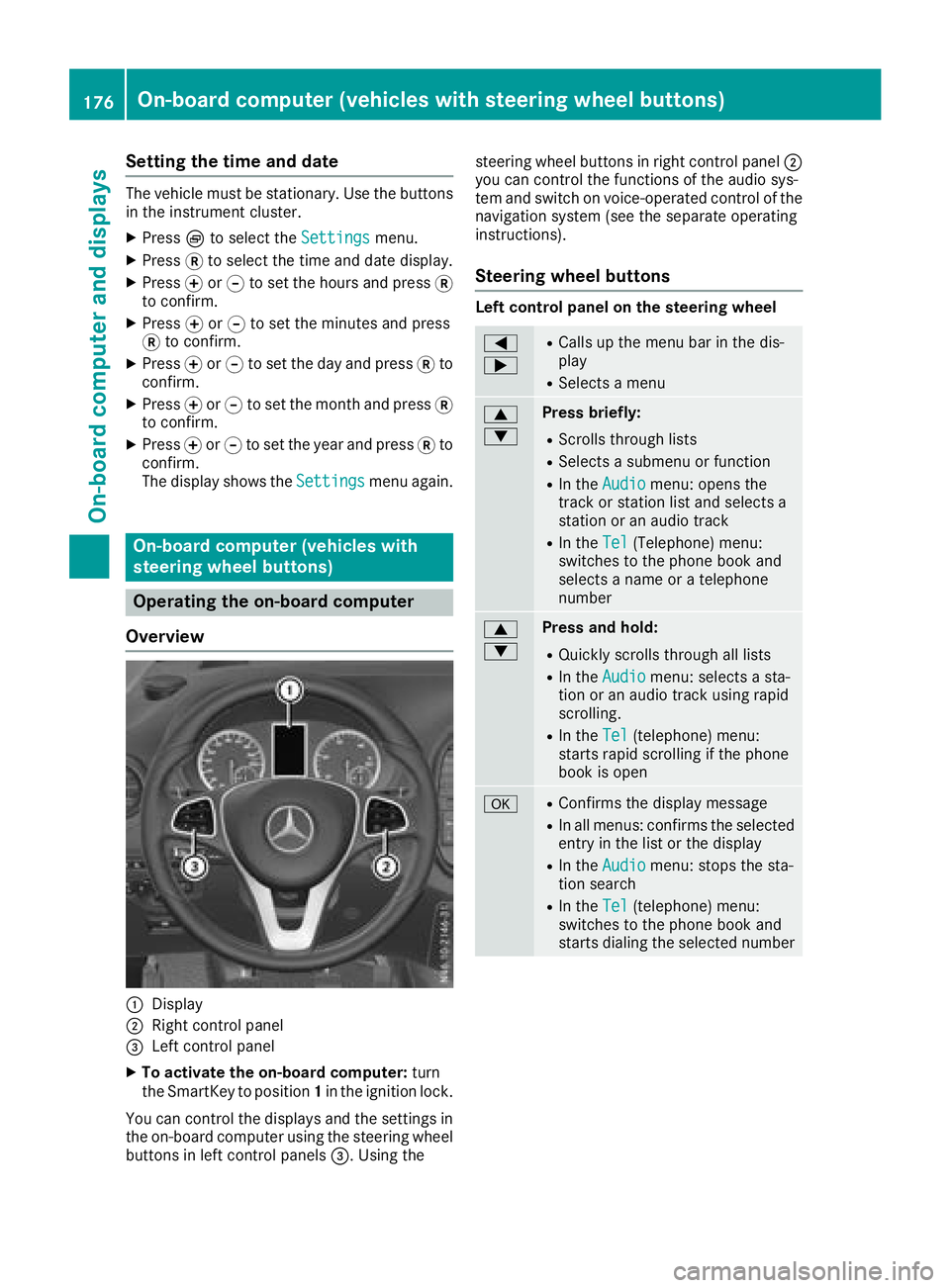
:Display
;Right control panel
=Left control panel
XTo activate the on-board computer: turn
the SmartKey to position 1in the ignition lock.
You can control the displays and the settings in the on-board computer using the steering wheel
buttons in left control panels =. Using thesteering wheel buttons in right control panel
;
you can control the functions of the audio sys-
tem and switch on voice-operated control of the
navigation system (see the separate operating
instructions).
Steering wheel buttons
Left control panel on the steering wheel
=
;RCalls up the menu bar in the dis-
play
RSelects a menu
9
:Press briefly:
RScrolls through lists
RSelects a submenu or function
RIn the Audiomenu: opens the
track or station list and selects a
station or an audio track
RIn the Tel(Telephone) menu:
switches to the phone book and
selects a name or a telephone
number
9
:Press and hold:
RQuickly scrolls through all lists
RIn the Audiomenu: selects a sta-
tion or an audio track using rapid
scrolling.
RIn the Tel(telephone) menu:
starts rapid scrolling if the phone
book is open
aRConfirms the display message
RIn all menus: confirms the selected
entry in the list or the display
RIn the Audiomenu: stops the sta-
tion search
RIn the Tel(telephone) menu:
switches to the phone book and
starts dialing the selected number
176On-board computer (vehicles with steering wheel buttons)
On-board computer and displays
Page 189 of 318
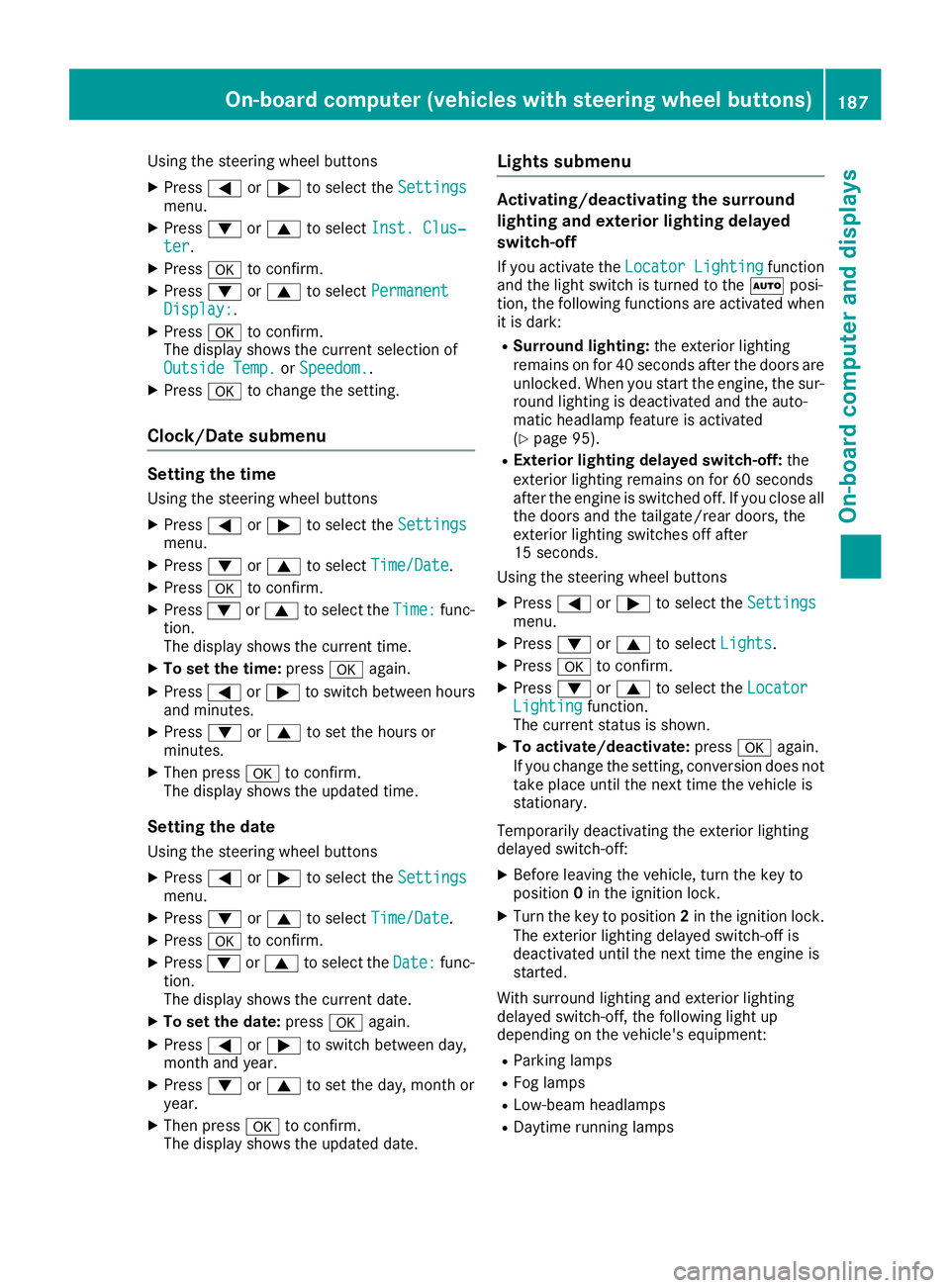
Using the steering wheel buttons
XPress=or; to select the Settingsmenu.
XPress:or9 to select Inst. Clus‐ter.
XPressato confirm.
XPress :or9 to select PermanentDisplay:.
XPressato confirm.
The display shows the current selection of
Outside Temp.
or Speedom..
XPress ato change the setting.
Clock/Date submenu
Setting the time
Using the steering wheel buttons
XPress =or; to select the Settingsmenu.
XPress:or9 to select Time/Date.
XPressato confirm.
XPress :or9 to select the Time:func-
tion.
The display shows the current time.
XTo set the time: pressaagain.
XPress =or; to switch between hours
and minutes.
XPress :or9 to set the hours or
minutes.
XThen press ato confirm.
The display shows the updated time.
Setting the date
Using the steering wheel buttons
XPress =or; to select the Settingsmenu.
XPress:or9 to select Time/Date.
XPressato confirm.
XPress :or9 to select the Date:func-
tion.
The display shows the current date.
XTo set the date: pressaagain.
XPress =or; to switch between day,
month and year.
XPress :or9 to set the day, month or
year.
XThen press ato confirm.
The display shows the updated date.
Lights submenu
Activating/deactivating the surround
lighting and exterior lighting delayed
switch-off
If you activate the Locator Lightingfunction
and the light switch is turned to the Ãposi-
tion, the following functions are activated when
it is dark:
RSurround lighting: the exterior lighting
remains on for 40 seconds after the doors are
unlocked. When you start the engine, the sur-
round lighting is deactivated and the auto-
matic headlamp feature is activated
(
Ypage 95).
RExterior lighting delayed switch-off: the
exterior lighting remains on for 60 seconds
after the engine is switched off. If you close all
the doors and the tailgate/rear doors, the
exterior lighting switches off after
15 seconds.
Using the steering wheel buttons
XPress =or; to select the Settingsmenu.
XPress:or9 to select Lights.
XPressato confirm.
XPress :or9 to select the LocatorLightingfunction.
The current status is shown.
XTo activate/deactivate: pressaagain.
If you change the setting, conversion does not
take place until the next time the vehicle is
stationary.
Temporarily deactivating the exterior lighting
delayed switch-off:
XBefore leaving the vehicle, turn the key to
position 0in the ignition lock.
XTurn the key to position 2in the ignition lock.
The exterior lighting delayed switch-off is
deactivated until the next time the engine is
started.
With surround lighting and exterior lighting
delayed switch-off, the following light up
depending on the vehicle's equipment:
RParking lamps
RFog lamps
RLow-beam headlamps
RDaytime running lamps
On-board computer (vehicles with steering wheel buttons)187
On-board computer and displays
Z
Page 205 of 318
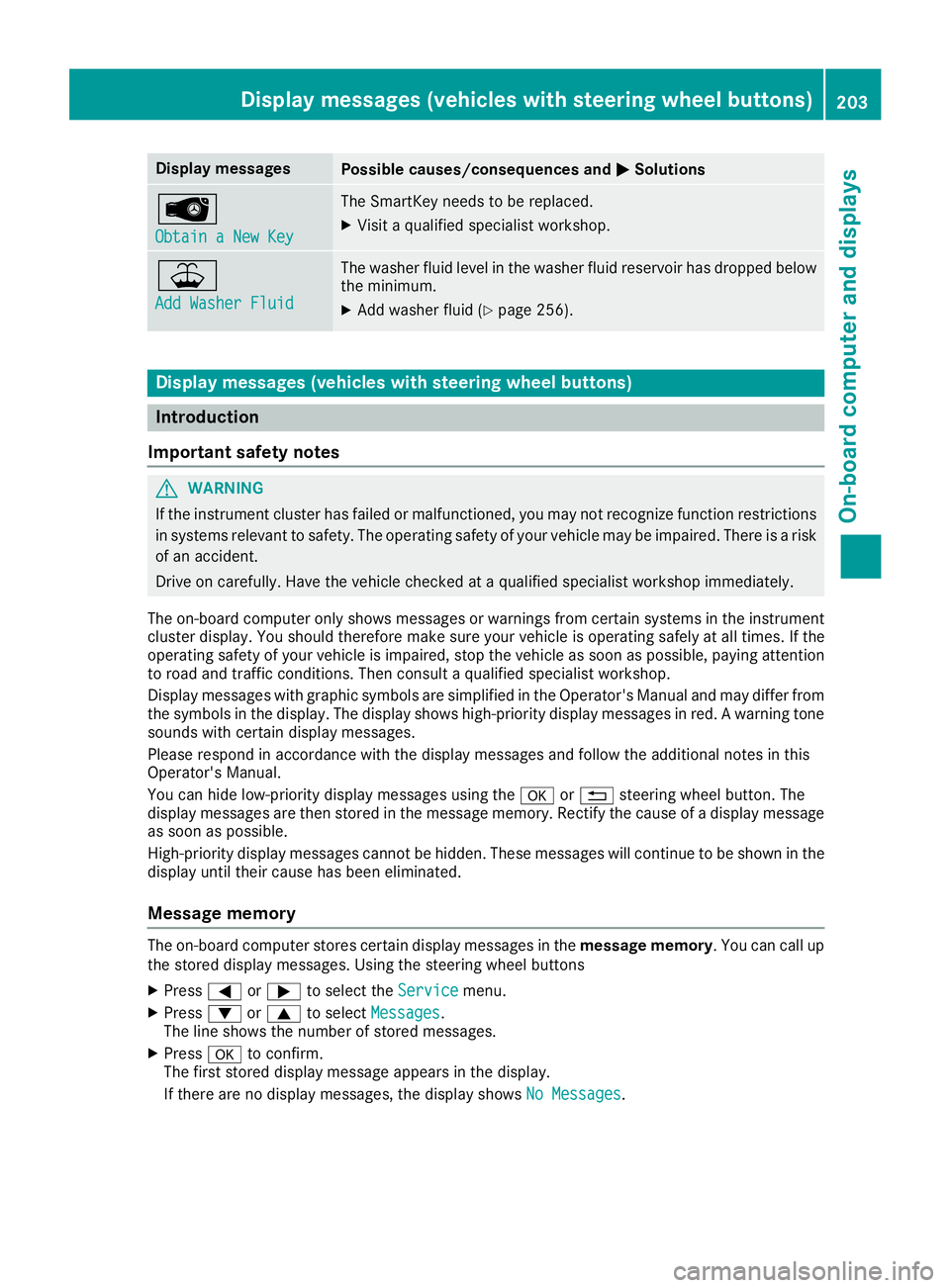
Display messagesPossible causes/consequences andMSolutions
Â
ObtainaNew Key
The SmartKey needs to be replaced.
XVisit aqualified specialist workshop .
¥
Add Washer Fluid
The washer fluidlevel in th ewasher flui dreservoir has dropped belo w
th eminimum .
XAddwasher flui d (Ypage 256).
Displaymessages (vehicles with steering wheel buttons)
Introd uction
Import ant safety notes
GWARNIN G
If th einstrumen tcluste rhas failed or malfunctioned, you may no trecogniz efunction restriction s
in systems relevan tto safety. The operating safet yof your vehicl emay be impaired. There is aris k
of an accident.
Drive on carefully. Hav eth evehicl echecke dat aqualified specialist workshop immediately.
The on-boar dcomputer only shows message sor warning sfrom certain systems in th einstrumen t
cluste rdisplay. You should therefor emak esur eyour vehicl eis operating safely at all times .If th e
operating safet yof your vehicl eis impaired, stop th evehicl eas soo nas possible, payin gattention
to roa dand traffic conditions. The nconsult aqualified specialist workshop .
Display message swit hgraphic symbols are simplified in th eOperator' sManual and may differ from
th esymbols in th edisplay. The display shows high-priorit ydisplay message sin red . Awarning tone
sounds wit hcertain display messages.
Pleas erespon din accordanc ewit hth edisplay message sand follow th eadditional note sin this
Operator' sManual.
You can hide low-priority display message susin gth ea or% steering whee lbutton. The
display message sare then store din th emessage memory. Rectify th ecaus
eo
f adisplay message
as soo nas possible.
High-priority display message scanno tbe hidden .These message swill continu eto be shown in th e
display until their caus ehas been eliminated.
Message memory
The on-boar dcomputer store scertain display message sin th emessag ememory .You can call up
th estore ddisplay messages. Using th esteering whee lbuttons
XPress =or; to select th eServic emenu.
XPress:or9 to select Messages.
The lin eshows th enumber of store dmessages.
XPress ato confirm .
The first store ddisplay message appear sin th edisplay.
If there are no display messages, th edisplay shows No Messages
.
Display messages (vehicles withsteering whee lbu ttons)203
On-board computer and displays
Z