change time MERCEDES-BENZ METRIS 2020 MY20 Operator’s Manual
[x] Cancel search | Manufacturer: MERCEDES-BENZ, Model Year: 2020, Model line: METRIS, Model: MERCEDES-BENZ METRIS 2020Pages: 320, PDF Size: 26.38 MB
Page 157 of 320
Assist is ready for use, the lane markings in
the symbol are shown as solid lines
;.
Setting the sensitivity of Lane Keeping
Assist X
In the Assist. menu on the on-board com-
puter, select the Lane Keeping Assist:
function
(Y page 191).
X Select Standard or Adaptive.
In the Standard setting, no warning vibration
occurs if:
R you operate the turn signal in the corre-
sponding direction. In this event, the warn-
ings are suppressed for a certain period of
time.
R a driving safety system, such as ABS, BAS or
ESP ®
, intervenes or performs a control
action.
When Adaptive is selected, there is also no
warning vibration when: R you accelerate hard, e.g. kickdown.
R brake sharply.
R you steer actively, e.g. swerve to avoid an
obstacle or change lanes quickly.
R you cut the corner on a sharp bend.
In order that you are warned only when neces-
sary and in good time if you cross the lane
marking, the system differentiates between
various conditions and warns you accordingly.
The warning vibration occurs earlier if:
R you approach the outer lane marking on a
bend.
R the road has very wide lanes, such as a
highway.
R the system detects solid lane markings.
The warning vibration occurs later if:
R the road has narrow lanes.
R you cut the corner on a bend. Alertness Assistant ATTENTION
ASSIST
General notes ATTENTION ASSIST helps you during long,
monotonous journeys such as on freeways and
interstate highways. It is active in the 40 mph
(
60 km/h) to 125 mph (200 km/h) range. If
ATTENTION ASSIST detects typical indicators of fatigue or increasing lapses in concentration
on the part of the driver, it suggests taking a
break.
Important safety notes ATTENTION ASSIST is only an aid. The system
may not always detect fatigue or lapses in
concentration until too late, or may not detect
them at all. ATTENTION ASSIST is not a substi-
tute for a well-rested and attentive driver.
The functionality of ATTENTION ASSIST is
restricted, and warnings may be delayed or
not occur at all:
R if the length of the journey is less than
approximately
30 minutes
R if the road condition is poor, e.g. if the sur-
face is uneven or if there are potholes
R if there is a strong side wind
R if you have adopted a sporty driving style
with high cornering speeds or high rates of
acceleration
R if you are predominantly driving at a speed
below 40 mph (60 km/h) or above 125 mph
(200 km/h)
R if the time has been set incorrectly
R in active driving situations, such as when
you change lanes or change your speed
ATTENTION ASSIST is reset and starts assess-
ing your attention again when you continue
your journey if:
R you switch off the engine
R you take off your seat belt and open the
driver's door, e.g. for a change of drivers or
to take a break
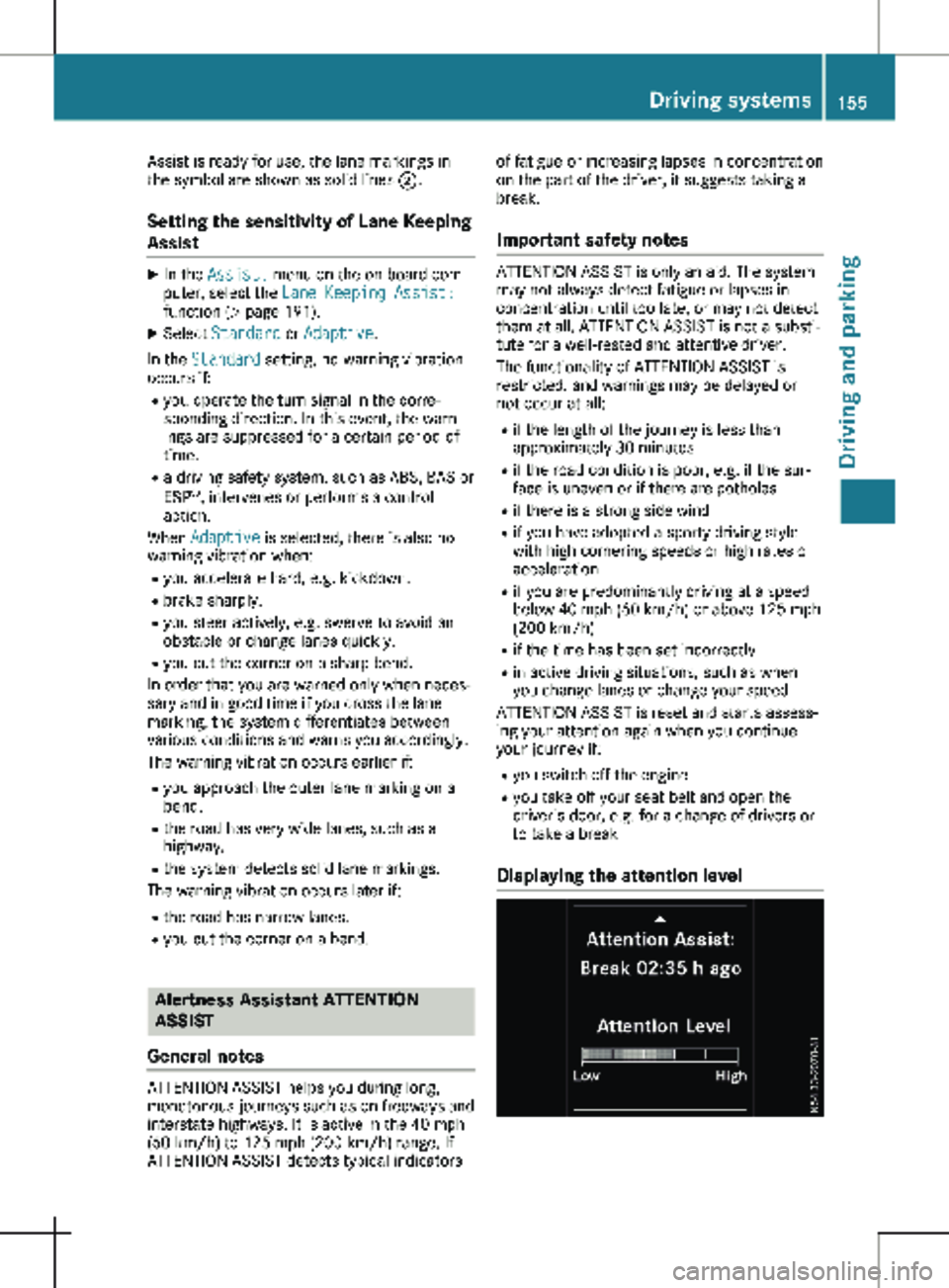
Displaying the attention level Driving systems
155
Driving and parking Z
Page 164 of 320
X
Bring the vehicle safely to a stop when the
parking symbol shows the desired parking
space in the instrument cluster.
X Shift the transmission to position k.
The display shows the Start Park
Assist? Yes: OK No: % message and
the location of the parking space.
X To cancel the process: press the % but-
ton on the steering wheel or drive off.
or X To park using active parking assistance:
press the a button on the steering
wheel.
The display shows the
Park Assist
Active: Accelerate and Brake Obs.
Surroundings message.
X Let go of the steering wheel.
X Reverse the vehicle, being ready to brake at
all times. Exit the parking space slowly and
do not drive faster than
6 mph (10 km/h).
Otherwise parking assistance is canceled
and Active Parking Assist is stopped.
Active Parking Assist brakes the vehicle to a
standstill when the vehicle approaches the
rear border of the parking space.
Maneuvering may be required in tight parking
spaces. The display shows the Park Assist
Active: Select D Obs. Surroundings
message.
X While the vehicle is stationary, shift the
transmission to position h.
Active Parking Assist immediately steers in
the other direction. The display shows the
Park Assist Active: Accelerate and
Brake Obs. Surroundings message.
i You will achieve the best results by waiting
for the steering procedure to complete
before pulling away.
X Drive forwards and be ready to brake at all
times.
Active Parking Assist brakes the vehicle to a
standstill.
The display shows the Park Assist
Active: Select R Obs. Surroundings
message.
As soon as the parking procedure is complete,
the Park Assist Finished message appears
in the display and a tone sounds. The parking
assistance function of Active Parking Assist is
stopped. The vehicle is parked and kept sta-
tionary without the driver having to depress the brake pedal. The braking effect is canceled
when you depress the accelerator pedal.
Active Parking Assist no longer supports you
with steering interventions and brake applica-
tions. Once active parking assistance has been
stopped, you must steer and brake again your-
self. PARKTRONIC is still available.
Parking tips:
R The way your vehicle is positioned in the
parking space after parking is dependent on
various factors. These include the position
and shape of the vehicles parked in front
and behind it and the conditions of the loca-
tion. It may be the case that Active Parking
Assist guides you too far into a parking
space, or not far enough into it. In some
cases, it may also lead you across or onto
the curb. In this case, cancel the active
parking assistance.
R You can also engage transmission position
h prematurely. The vehicle redirects and
does not drive as far into the parking space.
If you change direction too early, parking
assistance is canceled and Active Parking
Assist is stopped. It is then not possible to
achieve a sensible parking position from the
current position.
Exiting a parking space In order that Active Parking Assist can assist
you when exiting the parking space, the follow-
ing conditions must be fulfilled:
R the border of the parking space must be
high enough at the front and the rear, a
curb, for instance, is not sufficient.
R the border of the parking space must not be
too wide. Your vehicle can be maneuvered
into a position at a maximum of 45° to the
starting position in the parking space.
R a maneuvering distance of at least
3.3 ft
(1.0 m) must be available.
Active Parking Assist can only assist you with
exiting a parking space if you have parked the
vehicle parallel to the direction of travel using
Active Parking Assist.
If PARKTRONIC detects obstacles, Active Park-
ing Assist brakes automatically when exiting
from the parking space. You are responsible
for braking in good time. 162
Driving systems
Driving and parking
Page 167 of 320
Switching the rear view camera on or
off
X
To activate: make sure that the key is in
position 2 in the ignition lock.
X Shift the transmission to position k.
On vehicles with a tailgate, the rear view
camera flap opens. The audio display shows
the area behind the vehicle. The rear area
shown is divided by guide lines.
In vehicles with a trailer coupling installed, the
function mode of the rear view camera can be
switched over when the trailer is reached. The
rear view camera then changes the viewing
angle and shows a locating aid for the ball cou-
pling of the trailer tow hitch to help reach the
drawbar.
X To switch function mode: select and con-
firm "Reverse parking" function : or "Cou-
pling up a trailer“ function ; using the
audio system control knob.
Information on the audio system control
knob can be found in the separate operating
instructions.
The symbol of the selected function is high-
lighted.
X To switch off: shift the transmission to
position i or h.
The dynamic guide lines are hidden and
after about 15 seconds the rear view cam-
era switches itself off.
or X Drive forwards more than about 30 ft
(10 m).
or X Drive forwards faster than 6 mph
(10 km/h
).
or X Shift the automatic transmission to position
j. In vehicles with Active Parking Assist, the rear
view camera remains switched on after the ini-
tial shift to reverse gear for the whole duration
of active parking assistance. You can find
information on active parking assistance under
"Active Parking Assist“
(Y page 159).
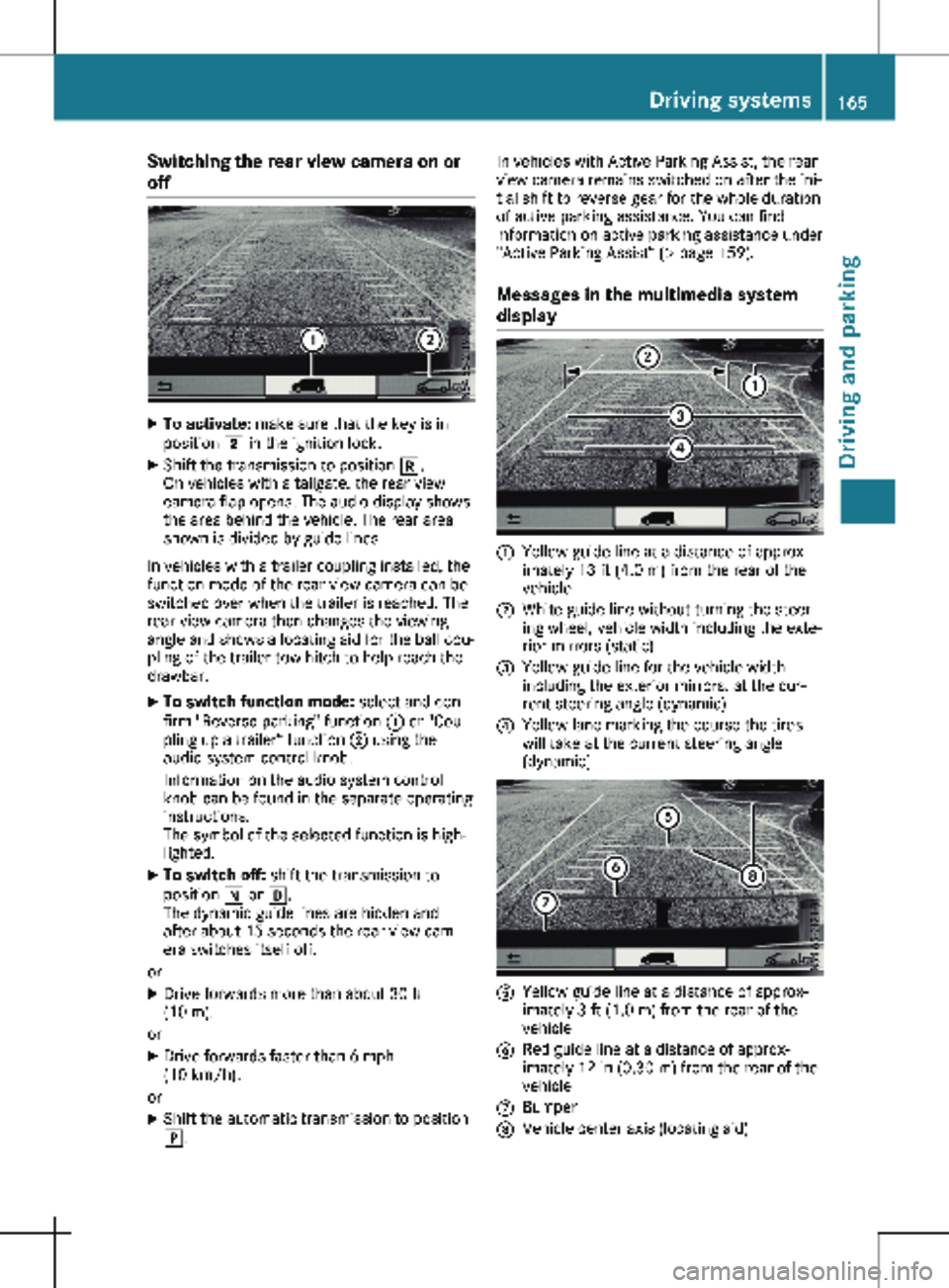
Messages in the multimedia system
display :
Yellow guide line at a distance of approx-
imately
13 ft (4.0 m) from the rear of the
vehicle
; White guide line without turning the steer-
ing wheel, vehicle width including the exte-
rior mirrors (static)
= Yellow guide line for the vehicle width
including the exterior mirrors, at the cur-
rent steering angle (dynamic)
? Yellow lane marking the course the tires
will take at the current steering angle
(dynamic) A
Yellow guide line at a distance of approx-
imately
3 ft (1.0 m) from the rear of the
vehicle
B Red guide line at a distance of approx-
imately
12 in (0.30 m) from the rear of the
vehicle
C Bumper
D Vehicle center axis (locating aid) Driving systems
165
Driving and parking Z
Page 176 of 320
Useful information
This Operator's Manual describes all models
as well as standard and optional equipment of
your vehicle that were available at the time of
going to print. Country-specific variations are
possible. Note that your vehicle may not be
equipped with all of the described functions.
This also applies to systems and functions rel-
evant to safety.
Read the information on qualified specialist
workshops (Y page
32).Important safety notes
G
WARNING
If you operate information systems and com-
munication equipment integrated in the
vehicle when driving, you may be distracted
from the traffic situation. You could also
lose control of the vehicle. There is a risk of
an accident.
Only operate this equipment when the traffic
situation permits. If you are not sure that
this is possible, park the vehicle paying
attention to traffic conditions and operate
the equipment when the vehicle is station-
ary. G
WARNING
If you are driving and reach through the
steering wheel to operate the adjustment
knob, you could lose control of the vehicle.
There is a risk of an accident and injury.
Only operate the adjustment knobs when
the vehicle is stationary. Do not reach
through the steering wheel when driving.
You must observe the legal requirements for
the country in which you are currently driving
when operating the on-board computer. G
WARNING
If the instrument cluster has failed or mal-
functioned, you may not recognize function
restrictions in systems relevant to safety. The operating safety of your vehicle may be
impaired. There is a risk of an accident.
Drive on carefully. Have the vehicle checked
at a qualified specialist workshop immedi-
ately.
The on-board computer display only shows
messages and warnings from certain systems.
You should therefore make sure your vehicle is
operating safely at all times. If the operating
safety of your vehicle is impaired, stop the
vehicle as soon as possible, paying attention
to road and traffic conditions. Then consult a
qualified specialist workshop.
The accuracy of the speedometer and odome-
ter displays is legally prescribed. Determining
the speed is dependent on the wheel size or
the rolling circumference of the wheels. If you
change the wheel size on your vehicle, make
sure it is assigned to the correct wheel size
category ( Y page
278). If you change wheel
size category without recoding the control
unit, the speedometer indication will be inac-
curate. Driving safety and driving systems may
be impaired or detect a malfunction and shut
down.
An overview of the instrument cluster can be
found under "Instrument cluster":
R for vehicles without steering wheel buttons
(Y page 38)
R for vehicles with steering wheel buttons
(Y page 40) Display and operation
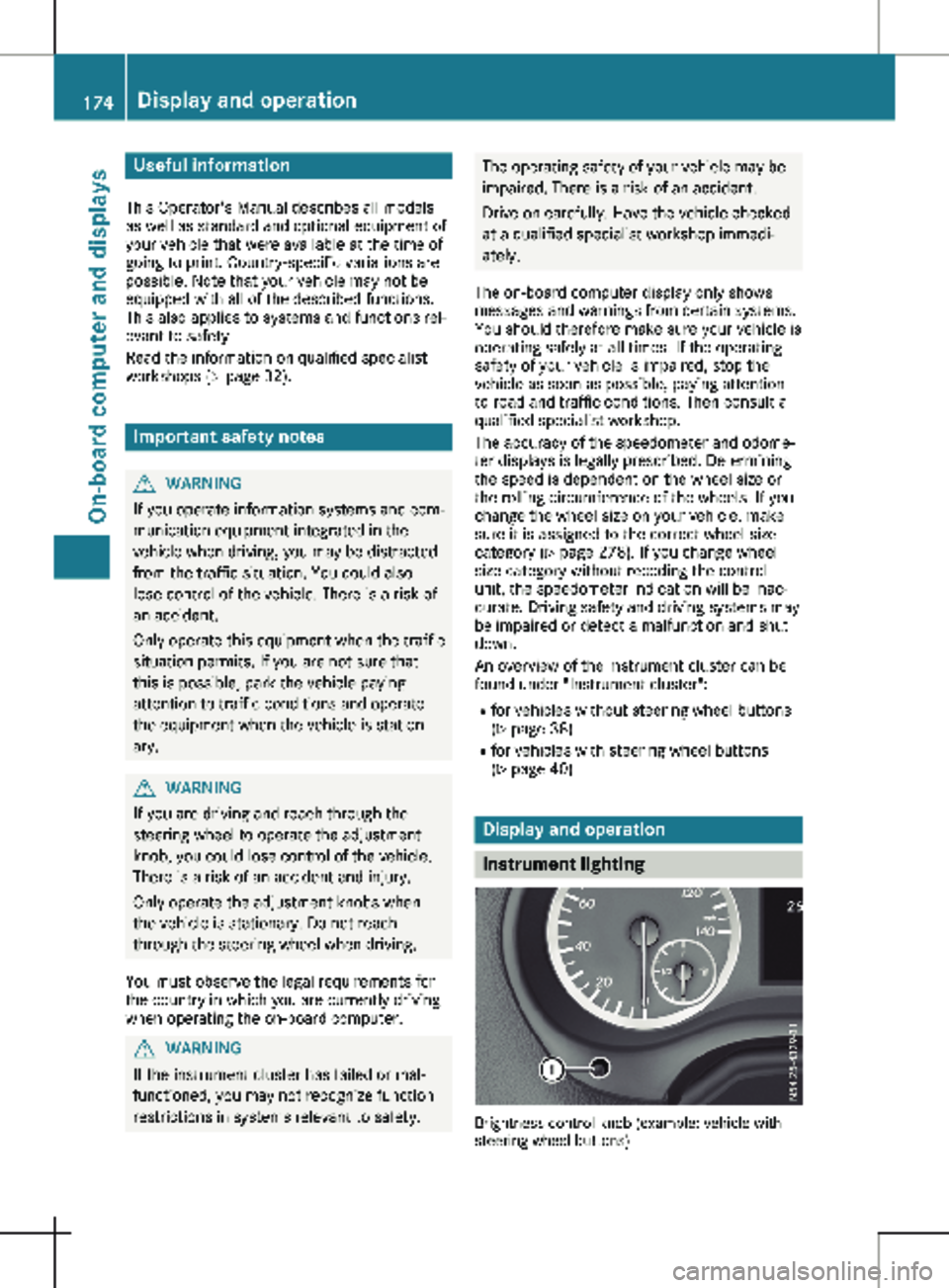
Instrument lighting
Brightness control knob (example: vehicle with
steering wheel buttons)174
Display and operation
On-board computer and displays
Page 183 of 320
The vehicle must be stationary. Use the but-
tons in the instrument cluster.
X Press È to select the Settings menu.
X Press 3 to select the Distance Unit:
submenu.
The display indicates the selected setting of
km or Miles.
X Change the setting by pressing f or g.
X Press 3 to confirm.
The display shows the next submenu or the
Settings menu again.
The selected distance units are used for the
displays:
R Digital speedometer
R Odometer and trip odometer
R Trip computer
R Range
R Current consumption
R Cruise control
R Service intervals
Setting the time and date The vehicle must be stationary. Use the but-
tons in the instrument cluster.
X Press È to select the Settings menu.
X Press 3 to select the time and date display.
X Press f or g to set the hours and press
3 to confirm.
X Press f or g to set the minutes and press
3 to confirm.
X Press f or g to set the day and press 3
to confirm.
X Press f or g to set the month and press
3 to confirm.
X Press f or g to set the year and press 3
to confirm.
The display shows the Settings menu
again. On-board computer (vehicles with
steering wheel buttons)
Operating the on-board computer
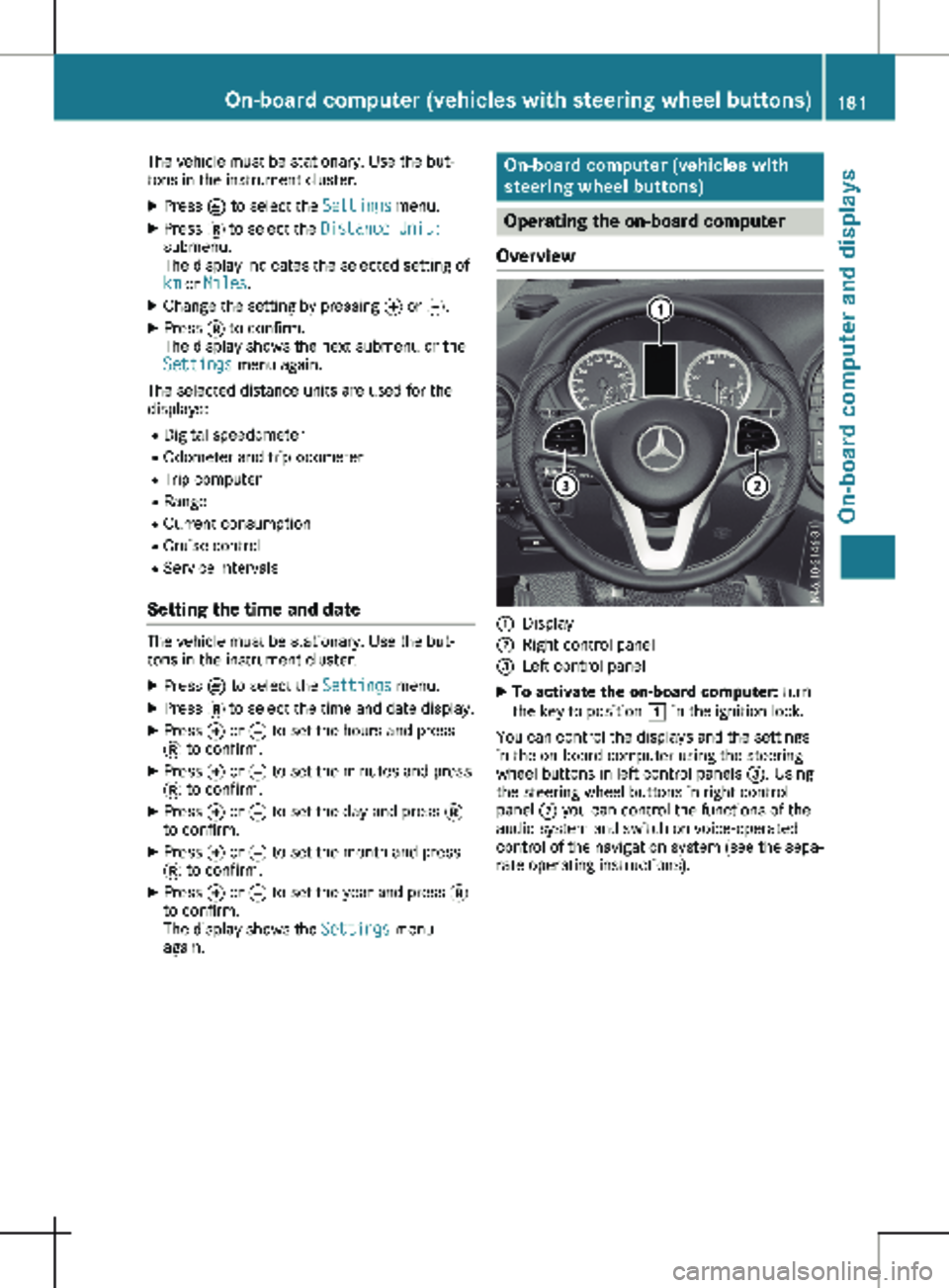
Overview :
Display
; Right control panel
= Left control panel
X To activate the on-board computer: turn
the key to position 1 in the ignition lock.
You can control the displays and the settings
in the on-board computer using the steering
wheel buttons in left control panels =. Using
the steering wheel buttons in right control
panel ; you can control the functions of the
audio system and switch on voice-operated
control of the navigation system (see the sepa-
rate operating instructions). On-board computer (vehicles with steering wheel buttons)
181On-board computer and displays Z
Page 193 of 320
X
Press a to confirm.
The current setting is displayed.
X To change the setting: press a again.
X Press : or 9 to set Deactivated,
Standard or Sensitive.
X Press a to confirm the choice.
If ATTENTION ASSIST is activated, the À
symbol is shown in the status area of the
display. The selection Standard
or Sensi‐
tive sets the sensitivity with which the sys-
tem determines the attention level.
Further information can be found under
"ATTENTION ASSIST"
(Y page 155).
Activating/deactivating Blind Spot
Assist Using the steering wheel buttons
X Press = or ; to select the Assist.
menu.
X Press : or 9 to select Blind Spot
Assist.
X Press a to confirm.
The current status is shown.
X To activate/deactivate: press the a
button again.
Further information can be found under "Blind
Spot Assist"
(Y page 151).
Setting Lane Keeping Assist Using the steering wheel buttons
X Press = or ; to select the Assist.
menu.
X Press : or 9 to select Lane Keep‐
ing Assist.
X Press a to confirm.
The current selection Standard or Adap‐
tive is displayed.
X To change the setting: press a again.
Further information can be found under "Lane
Keeping Assist" (Y page
153). Service menu
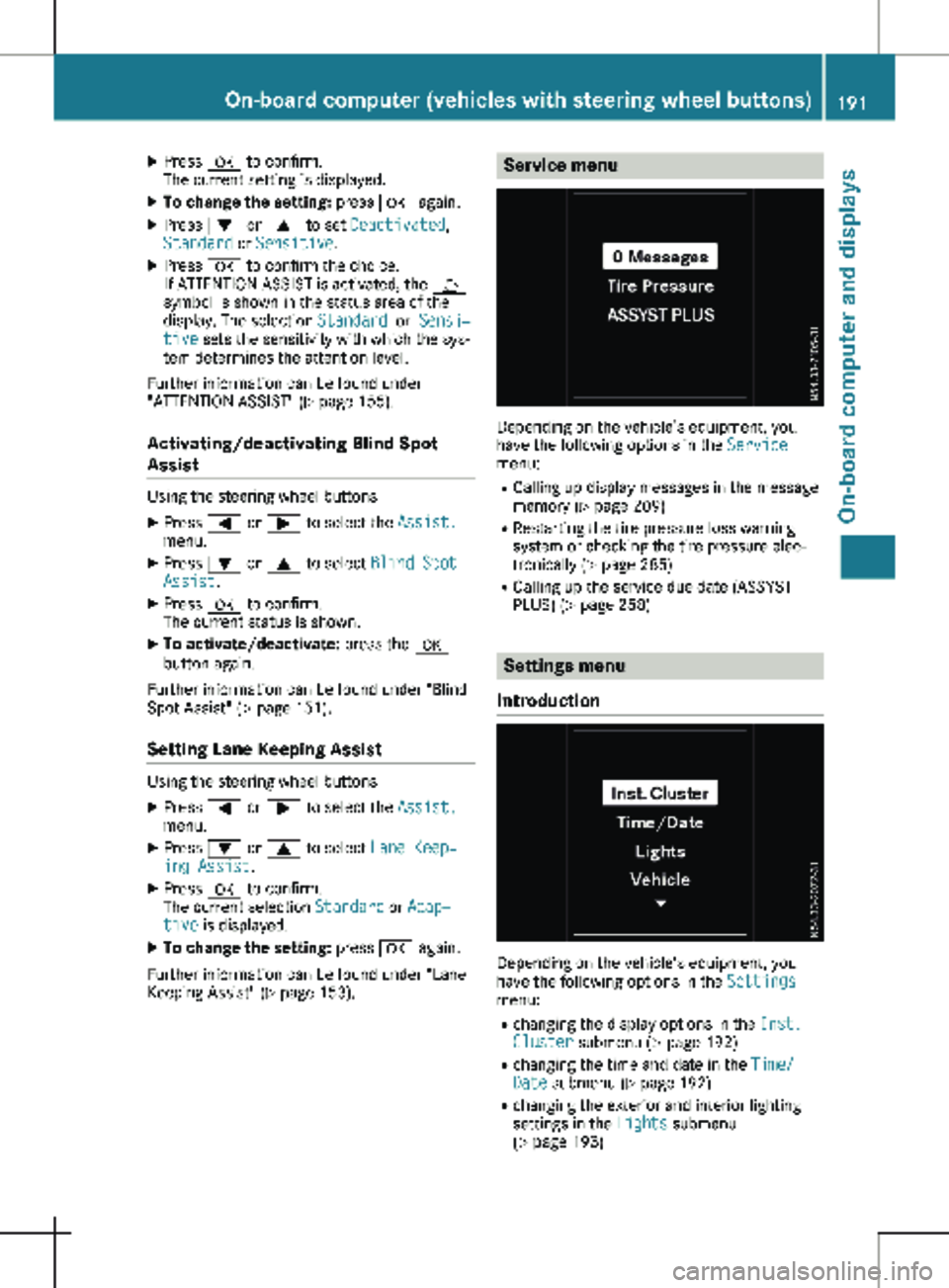
Depending on the vehicle’s equipment, you
have the following options in the
Service
menu:
R Calling up display messages in the message
memory ( Y page
209)
R Restarting the tire pressure loss warning
system or checking the tire pressure elec-
tronically ( Y page 285)
R Calling up the service due date (ASSYST
PLUS) (Y page 258) Settings menu
Introduction Depending on the vehicle’s equipment, you
have the following options in the
Settings
menu:
R changing the display options in the Inst.
Cluster submenu
(Y page 192)
R changing the time and date in the Time/
Date submenu (Y page 192)
R changing the exterior and interior lighting
settings in the Lights submenu
(Y page 193) On-board computer (vehicles with steering wheel buttons)
191
On-board computer and displays Z
Page 194 of 320
R
activating/deactivating or adjusting vehicle
functions in the Vehicle submenu
(Y page
193)
R resetting the settings to Factory Setting
( Y page 194)
Instrument cluster submenu Selecting the unit for the distance
With the Display Unit Speed-/Odometer:
function, you can select whether the display
shows certain information in kilometers or
miles.
Using the steering wheel buttons
X Press = or ; to select the Settings
menu.
X Press : or 9 to select Inst. Clus‐
ter.
X Press a to confirm.
X Press : or 9 to select the Display
Unit Speed-/Odometer: function.
The display indicates the selected km or
Miles setting.
X Press a to change the setting.
The unit for the distance will be selected for:
R Digital speedometer in the Trip menu
R Odometer and trip odometer
R Trip computer
R Current consumption and range
R Navigation instructions in the Navi menu
R Cruise control
R Service interval display
Setting the display language Using the steering wheel buttons
X Press = or ; to select the Settings
menu.
X Press : or 9 to select Inst. Clus‐
ter.
X Press a to confirm.
X Press : or 9 to select Language:.
The display shows the current language
selection for all display messages.
X Press a to change the setting.
X Press : or 9 to select the desired
language.
X Press the a button to save the selection. Selecting the permanent display func-
tion
Using the Permanent Display: function, you
can switch the display in the header between
outside temperature and speed.
If the display shows the speed in the header,
the display shows the outside temperature
with the odometers (Y page
183). The addi-
tional speedometer unit in the header is
always inverse to the speedometer unit.
Using the steering wheel buttons
X Press = or ; to select the Settings
menu.
X Press : or 9 to select Inst. Clus‐
ter.
X Press a to confirm.
X Press : or 9 to select Permanent
Display:.
X Press a to confirm.
The display shows the current selection of
Outside Temp. or Speedom..
X Press a to change the setting.
Clock/Date submenu Setting the time
Using the steering wheel buttons
X Press = or ; to select the Settings
menu.
X Press : or 9 to select Time/Date.
X Press a to confirm.
X Press : or 9 to select the Time:
function.
The display shows the current time.
X To set the time: press a again.
X Press = or ; to switch between
hours and minutes.
X Press : or 9 to set the hours or
minutes.
X Then press a to confirm.
The display shows the updated time.
Setting the date Using the steering wheel buttons
X Press = or ; to select the Settings
menu.
X Press : or 9 to select Time/Date.
X Press a to confirm.192
On-board computer (vehicles with steering wheel buttons)
On-board computer and displays
Page 195 of 320

X
Press : or 9 to select the Date:
function.
The display shows the current date.
X To set the date: press a again.
X Press = or ; to switch between day,
month and year.
X Press : or 9 to set the day, month or
year.
X Then press a to confirm.
The display shows the updated date.
Lights submenu Activating/deactivating the surround
lighting and exterior lighting delayed
switch-off
If you activate the Locator Lighting func-
tion and the light switch is turned to the Ã
position, the following functions are activated
when it is dark:
R surround lighting: the exterior lighting
remains on for
40 seconds after the doors
are unlocked. When you start the engine,
the surround lighting is deactivated and the
automatic headlamp feature is activated
(Y page 100).
R exterior lighting delayed switch-off: the
exterior lighting remains lit for 60 seconds
after the engine is switched off. When you
close all the doors and the tailgate/rear
doors, the exterior lighting switches off after
15 seconds.
Using the steering wheel buttons
X Use the = or ; button to select the
Settings. menu.
X Use : or 9 to select Lights.
X Press a to confirm.
X Use : or 9 to select the Locator
Lighting function.
The current status appears.
X To switch on/off: press a again.
If you change the setting, conversion does
not take place until the next time the vehicle
is stationary. Deactivating exterior lighting delayed switch-
off temporarily:
X Before leaving the vehicle, turn the key to
position g in the ignition lock.
X Turn the key to position 2 in the ignition
lock.
The exterior lighting delayed switch-off is
deactivated until the next time the engine is
started.
With surround lighting and exterior lighting
delayed switch-off, the following light up
depending on the vehicle's equipment:
R Parking lamps
R Fog lamps
R Low-beam headlamps
R Daytime running lamps
Activating/deactivating interior lighting
delayed switch-off If you activate the Interior Lighting
Delay: function, the interior lighting remains
lit for a further 20 seconds.
Using the steering wheel buttons
X Use the = or ; button to select the
Settings. menu.
X Use : or 9 to select Lights.
X Press a to confirm.
X Use : or 9 to select the Interior
Lighting Delay function.
The current status appears.
X To switch on/off: press a again.
Vehicle submenu Setting the sensitivity of the rain sensor
Using the steering wheel buttons
X Press = or ; to select the Settings
menu.
X Press : or 9 to select Vehicle.
X Press a to confirm.
X Press : or 9 to select the Rain
Sensor Sensitivity function.
The display shows the current setting.
X Press a to change the setting.
X Press : or 9 to select the High,
Standard or Low setting. This setting con-
trols the rain sensor's sensitivity to precipi-
tation. The windshield wiper then wipes On-board computer (vehicles with steering wheel buttons)
193
On-board computer and displays Z
Page 205 of 320
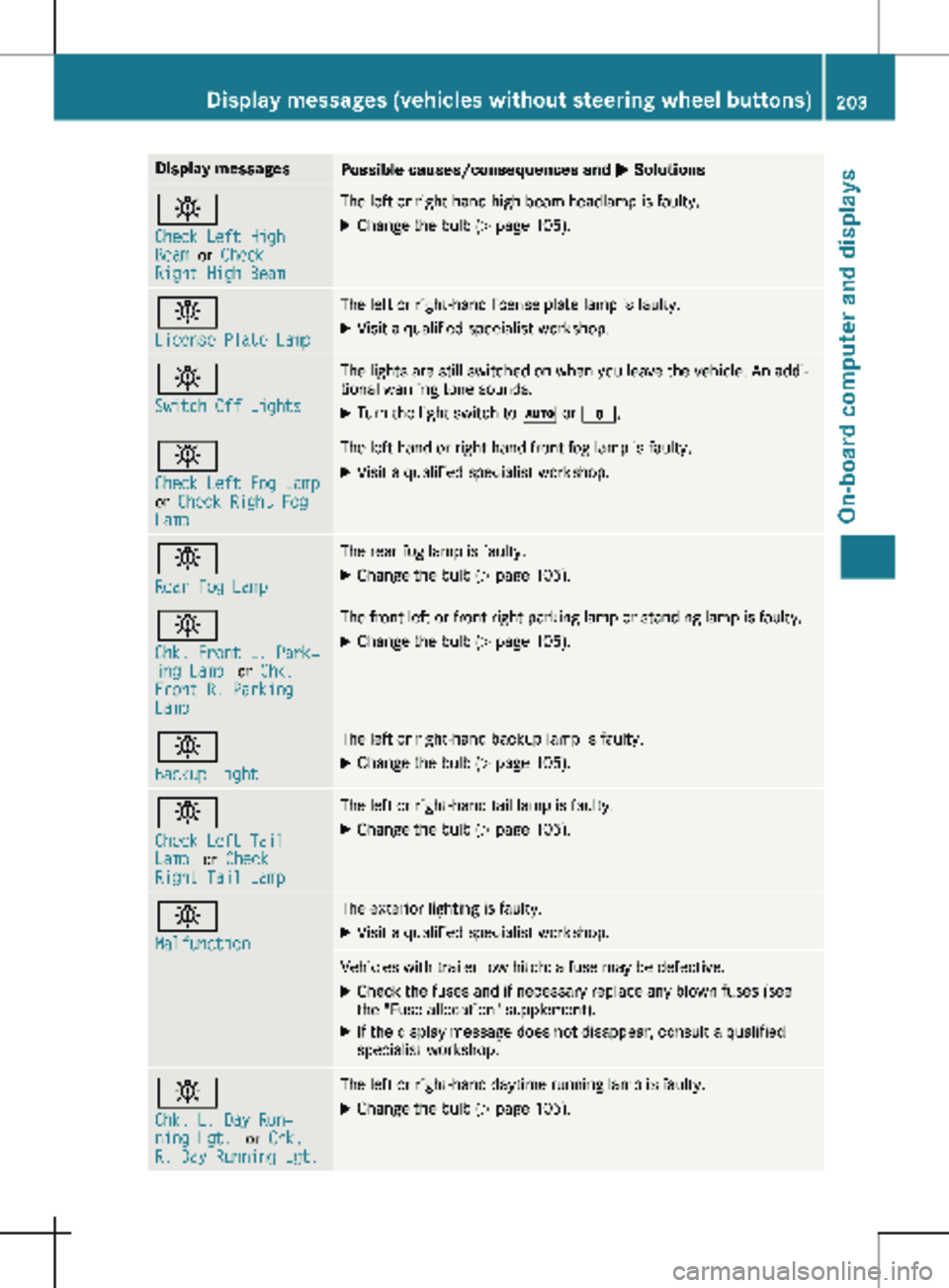
Display messages
Possible causes/consequences and
M Solutionsb
Check Left High
Beam
or Check
Right High Beam The left or right-hand high-beam headlamp is faulty.
X
Change the bulb ( Y page 105).b
License Plate Lamp The left or right-hand license plate lamp is faulty.
X Visit a qualified specialist workshop. b
Switch Off Lights The lights are still switched on when you leave the vehicle. An addi-
tional warning tone sounds.
X Turn the light switch to à or $.b
Check Left Fog Lamp
or
Check Right Fog
Lamp The left-hand or right-hand front fog lamp is faulty.
X Visit a qualified specialist workshop. b
Rear Fog Lamp The rear fog lamp is faulty.
X Change the bulb (Y page
105).b
Chk. Front L. Park‐
ing Lamp
or Chk.
Front R. Parking
Lamp The front left or front right parking lamp or standing lamp is faulty.
X Change the bulb ( Y page 105).b
Backup Light The left or right-hand backup lamp is faulty.
X Change the bulb (Y page
105).b
Check Left Tail
Lamp
or Check
Right Tail Lamp The left or right-hand tail lamp is faulty.
X Change the bulb (Y page 105).b
Malfunction The exterior lighting is faulty.
X Visit a qualified specialist workshop. Vehicles with trailer tow hitch: a fuse may be defective.
X Check the fuses and if necessary replace any blown fuses (see
the "Fuse allocation" supplement).
X If the display message does not disappear, consult a qualified
specialist workshop. b
Chk. L. Day Run‐
ning Lgt.
or Chk.
R. Day Running Lgt. The left or right-hand daytime running lamp is faulty.
X Change the bulb (Y page 105).Display messages (vehicles without steering wheel buttons)
203
On-board computer and displays Z
Page 220 of 320
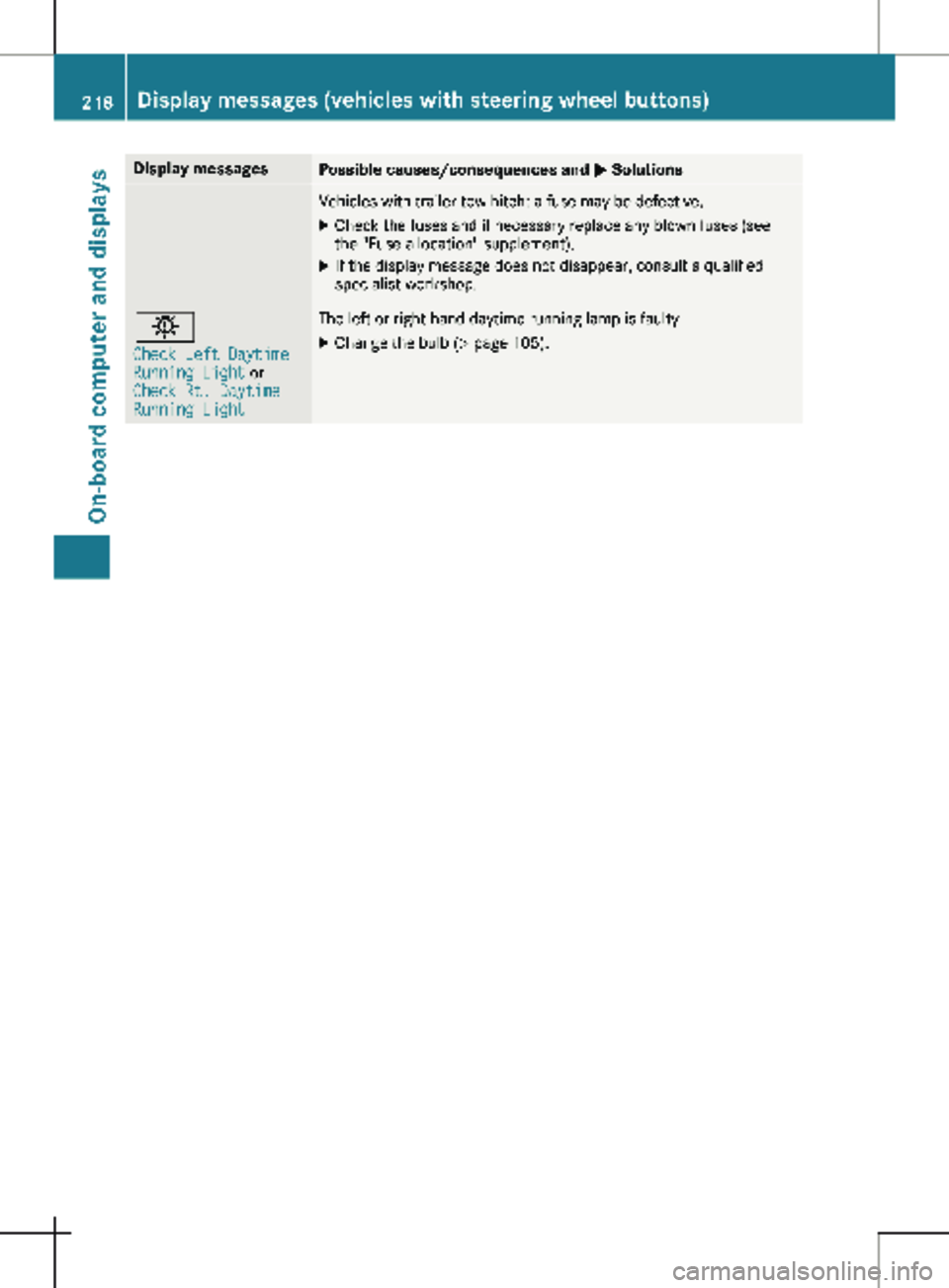
Display messages
Possible causes/consequences and
M SolutionsVehicles with trailer tow hitch: a fuse may be defective.
X Check the fuses and if necessary replace any blown fuses (see
the "Fuse allocation" supplement).
X If the display message does not disappear, consult a qualified
specialist workshop. b
Check Left Daytime
Running Light or
Check Rt. Daytime
Running Light The left or right-hand daytime running lamp is faulty.
X Change the bulb (Y page 105).218
Display messages (vehicles with steering wheel buttons)
On-board computer and displays