ESP MERCEDES-BENZ S CLASS 2010 Owner's Manual
[x] Cancel search | Manufacturer: MERCEDES-BENZ, Model Year: 2010, Model line: S CLASS, Model: MERCEDES-BENZ S CLASS 2010Pages: 548, PDF Size: 11.45 MB
Page 90 of 548
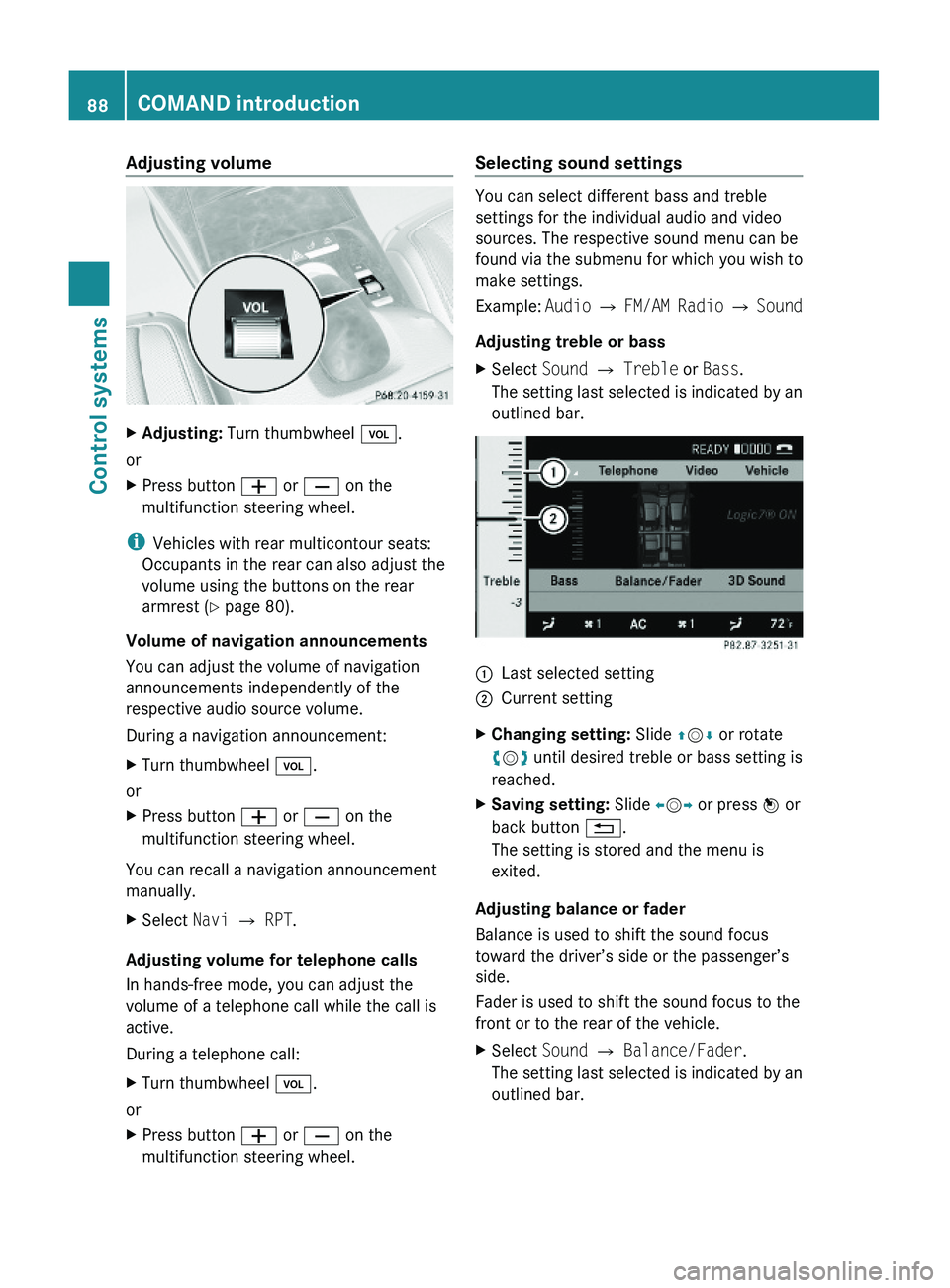
Adjusting volumeXAdjusting: Turn thumbwheel \000M.
or
XPress button \000Z or \000[ on the
multifunction steering wheel.
iVehicles with rear multicontour seats:
Occupants in the rear can also adjust the
volume using the buttons on the rear
armrest (Y page 80).
Volume of navigation announcements
You can adjust the volume of navigation
announcements independently of the
respective audio source volume.
During a navigation announcement:
XTurn thumbwheel \000M.
or
XPress button \000Z or \000[ on the
multifunction steering wheel.
You can recall a navigation announcement
manually.
XSelect Navi \000T RPT.
Adjusting volume for telephone calls
In hands-free mode, you can adjust the
volume of a telephone call while the call is
active.
During a telephone call:
XTurn thumbwheel \000M.
or
XPress button \000Z or \000[ on the
multifunction steering wheel.
Selecting sound settings
You can select different bass and treble
settings for the individual audio and video
sources. The respective sound menu can be
found via the submenu for which you wish to
make settings.
Example: Audio \000T FM/AM Radio \000T Sound
Adjusting treble or bass
XSelect Sound \000T Treble or Bass.
The setting last selected is indicated by an
outlined bar.
\000FLast selected setting\000GCurrent settingXChanging setting: Slide \000
Page 92 of 548
R3-D sound does not work for mono-signal
sources, such as on analog AM radio or
in Weather Band.
R In the event of poor radio reception
quality, e.g. inside a tunnel, you should
switch off Logic 7 ®
, as a dynamic switch
from Stereo to Mono could occur,
resulting in temporary sound distortion.
R With some stereo recordings, the
resulting sound may deviate from
conventional stereo playback.
Switching the audio/video source off/
on
i When you load a CD or DVD, the audio or
video source is activated automatically.
Active audio source
XSwitching off: Select Audio 0054 Audio
OFF .
Playback is paused and the audio source is
switched off; Audio OFF appears in the
COMAND display.XSwitching on: Select Audio, then the
desired audio source.
or
XLoad a CD/DVD ( Y page 179) or an SD
card ( Y page 180).
or
XConnect a USB storage device
( Y page 80) or media interface device
( Y page 200) to COMAND.
Active video source
XSwitching off: Select Video 0054 Video
OFF .
The audio source is switched off; Video
OFF appears in the COMAND display.XSwitching on: Select Video, then the
desired video source.
or
XLoad a DVD ( Y page 179).SPLITVIEW
SPLITVIEW enables the driver and front
passenger to use separate COMAND
functions at the same time. Two different
displays appear in the COMAND screen. For
example, a Navigation display is only viewable
form the driver’s seat while a DVD Video
display is only viewable from the front
passenger’s seat.
COMAND is operated via SPLITVIEW from the
front passenger seat using the SPLITVIEW
remote control and the special wireless,
infrared headphone. You may also use a wired
headphone via the 3.5 mm socket in the front
passenger footwell.
For information about using the remote
control, see ( Y page 81).
For information about using the headphone,
see ( Y page 82).
Depending on the production date of your
vehicle, it may be equipped with SPLITVIEW.
At the time of this printing, the use of
SPLITVIEW is NOT allowed in the following US
states (AL, AZ, CO, IL, LA, MA, MD, NH, PA,
VA, VT, WA, WI, and WV) or Canadian
provinces (Manitoba, Newfoundland, New
Brunswick, and Prince Edward Island).
SPLITVIEW must NOT be operated in these
states or provinces. The driver is responsible
for observing ALL local statutory provisions.
If your vehicle is registered in a non-approved
state or province, then the feature will need
to be deactivated. Contact your authorized
Mercedes-Benz dealer to verify if SPLITVIEW
is allowed in your state or province.
Notes
R The audio volume of the wireless
headphone for the front passenger side
must be adjusted on the headphone
directly. The audio volume of a wired
headphone can be adjusted via the remote
90COMAND introductionControl systems
221_AKB; 6; 20, en-USd2ugruen,Version: 2.11.8.12009-09-24T13:28:17+02:00 - Seite 90
Page 98 of 548
COMAND may give incorrect navigation
commands if the data in the digital map does
not correspond with the actual road or traffic
situation. Maps do not cover all areas nor all
routes within an area. For example, if the
traffic routing has been changed or the
direction of a one-way road has been
reversed.
For this reason, you must always observe
applicable road and traffic rules and
regulations during your journey. Road and
traffic rules and regulations always have
priority over the navigation commands
generated by the system.GWarning!
Navigation announcements are intended to
direct you while driving without diverting your
attention from the road and driving.
Please always use navigation announcements
instead of consulting the map display for
directions. Consulting the symbols or map
display for directions may cause you to divert
your attention from driving and increase your
risk of an accident.
Map software
The digital maps generated by the map
software become outdated in the same way
as conventional road maps. Optimum route
guidance can only be provided by the
navigation system in conjunction with the
latest map software. Information about new
map software versions can be obtained from
an authorized Mercedes-Benz Center.
Displaying installed map version
XNavi 0054 Map Version
The installed map version is displayed.
For information on installing new map
software see ( Y page 96).
Installing the map software
Your vehicle is factory-equipped with map
software for the USA (including Alaska and
Hawaii), Canada, the U.S. Virgin Islands, and
Puerto Rico.
You can install new map software from one or
more DVDs, depending on the size of the map
software.
Copy protection of map software
COMAND map software is subject to charges.
The map software requires an activation
code. The map software can be used for one
individual vehicle only and is
non-transferrable. The six-digit activation
code is available at any authorized Mercedes-
Benz Center. Contact an authorized
Mercedes-Benz Center in case you have lost
your activation code or when the COMAND
system does not accept the activation code
you have received.
When reinstalling a map software that has
been installed in that vehicle already, an
activation code is not required.
Installation process
i The installation process can take
between 10 and 120 minutes, depending
on the size of the map software. If the radio
is switched on when you start the
installation process, you can still adjust the
volume. During the installation process,
some COMAND functions are suspended.
Still available are the COMAND functions
for automatic air conditioning operation
and canceling the installation process.
If possible, carry out the installation when
the vehicle is stationary. When the vehicle
is stationary, the reading rate of the DVD
drive is higher than in a moving vehicle and
the installation process requires less time.
GObserve Safety notes, see page 76.
i COMAND may switch off during the
installation process automatically in order
96COMAND navigation (introduction)Control systems
221_AKB; 6; 20, en-USd2ugruen,Version: 2.11.8.12009-09-24T13:28:17+02:00 - Seite 96
Page 99 of 548
to protect the battery. This may happen
when the engine is switched off and the
vehicle battery has insufficient power. If
this occurs, restart the installation with the
engine running. Similarly, if the SmartKey
position is unintentionally switched to 0,
restart the installation.GWarning!
Inhalation of exhaust gas is hazardous to your
health. All exhaust gas contains carbon
monoxide (CO), and inhaling it can cause
unconsciousness and lead to death. Do not
run the engine in confined areas (such as a
garage) which are not properly ventilated.
Installing
Notes about handling DVDs ( Y page 179).
XLoad the map software DVD into the DVD
changer ( Y page 179).
The COMAND system verifies the DVD and
a respective message appears in the
COMAND display.
Map software incompatible with
navigation system
A message indicates that installation of the
map software is not possible.
XConfirming message: Press 00A1.
The DVD is ejected.XRemove the DVD from the slot.XInsert a DVD that is compatible with the
navigation system of the vehicle.
Map software incompatible with the
current system software
A message indicates that the system
software and the map software are
incompatible.
XConfirming message: Press 00A1.
The DVD is ejected.XRemove the DVD from the slot.XHave the system software updated at an
authorized Mercedes-Benz Center.
The system software must be updated before
you can install the map software.
Map software compatible with
navigation software and current
system software
The COMAND system verifies whether the
map data on the DVD have been installed
already.
Map data installed already
A message that indicates that the map data
have been installed already appears. Also,
you are being asked if you would like to install
the map software anyhow.
XSelect Yes or No.
When you select Yes, the current map data
will be overwritten.
When you select No, the DVD will be ejected
automatically and the installation process
is cancelled.XRemove the DVD from the slot.
Map data not installed yet
The versions of the map software on the DVD
and of the installed map software appear in
the COMAND display. You are then asked if
you want to install the map software.
XSelect Yes or No.
When you select Yes, the map data will be
installed.
When you select No, the DVD will be ejected
automatically and the installation process
is cancelled.XRemove the DVD from the slot.
When an activation code is required, you will
be prompted to enter it.
COMAND navigation (introduction)97Control systems221_AKB; 6; 20, en-USd2ugruen,Version: 2.11.8.12009-09-24T13:28:17+02:00 - Seite 97Z
Page 100 of 548
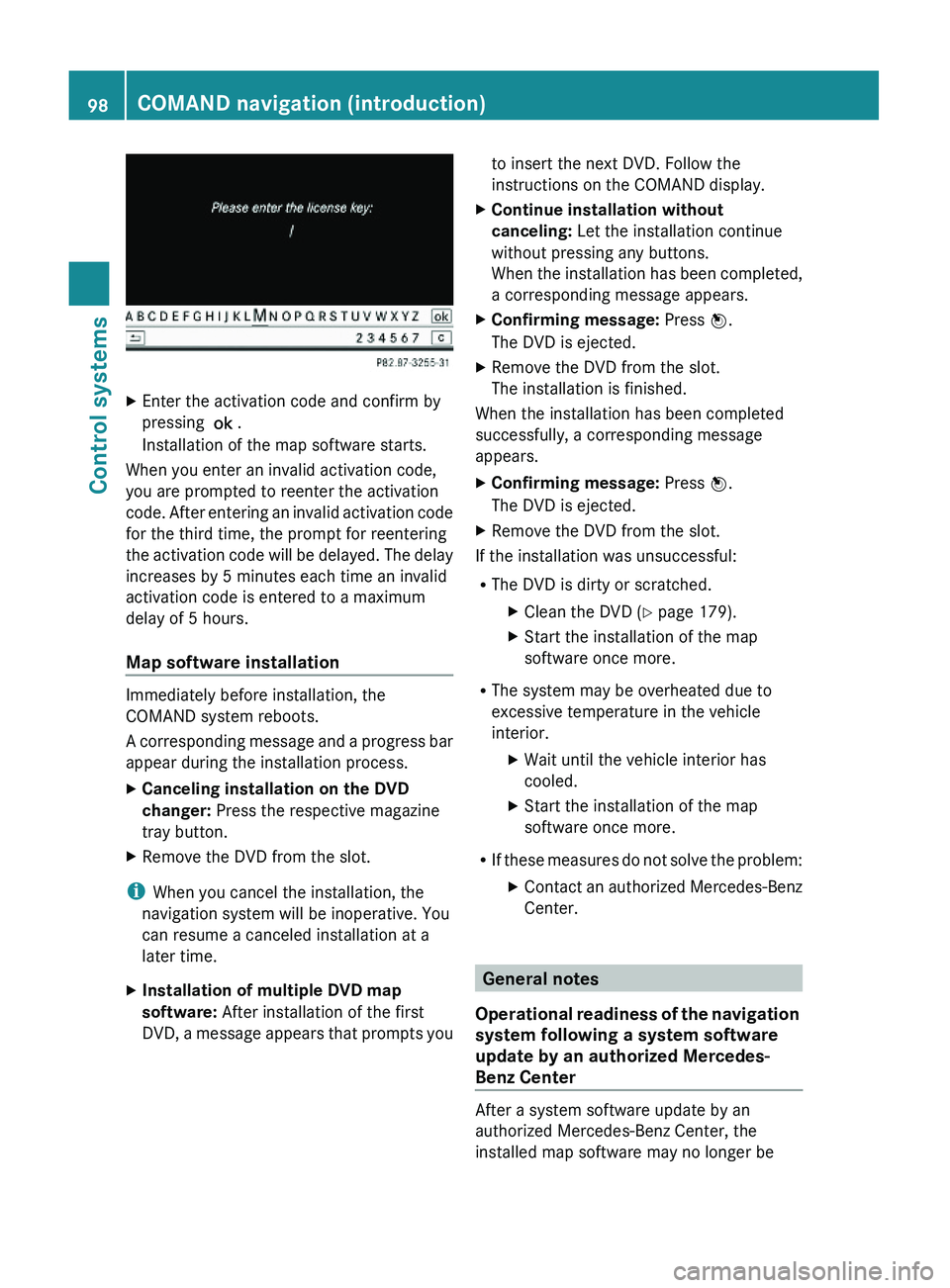
XEnter the activation code and confirm by
pressing \000>.
Installation of the map software starts.
When you enter an invalid activation code,
you are prompted to reenter the activation
code. After entering an invalid activation code
for the third time, the prompt for reentering
the activation code will be delayed. The delay
increases by 5 minutes each time an invalid
activation code is entered to a maximum
delay of 5 hours.
Map software installation
Immediately before installation, the
COMAND system reboots.
A corresponding message and a progress bar
appear during the installation process.
XCanceling installation on the DVD
changer: Press the respective magazine
tray button.
XRemove the DVD from the slot.
iWhen you cancel the installation, the
navigation system will be inoperative. You
can resume a canceled installation at a
later time.
XInstallation of multiple DVD map
software: After installation of the first
DVD, a message appears that prompts you
to insert the next DVD. Follow the
instructions on the COMAND display.
XContinue installation without
canceling: Let the installation continue
without pressing any buttons.
When the installation has been completed,
a corresponding message appears.
XConfirming message: Press \000
Page 106 of 548
RBird’s-eye View: Map display 0046 is oriented
in the direction into which you are heading;
the orange tip of the symbol points to the
North.
R 3-D Map: Certain buildings in selected
cities are displayed in detail as a 3-D (three-
dimensional) model. The map displays
mountains and valleys three-
dimensionally. The 3-D map is country-
specific and is connected with the function
City (3D) ( Y page 105).XSelecting map orientation: Select Navi
0054 Map Orientation .
The list of available map orientations
appears. The dot 003F indicates the currently
selected map orientation.XSelect North Up , Heading Up , Bird's-
eye View , or 3-D Map and press 00A1.XExiting menu: Slide 009E005B 009F.
Setting POI symbols
You can set which points of interest (POIs)
should be displayed as symbols in the map.
POIs are parking facilities, hotels, restaurants
or movie theaters, for example.
i Depending on the map scale, POI symbols
may not be visible although their display is
activated. In addition, POI symbols may be
covered by other POIs or names displayed
on the map.
The following settings are possible:
R Standard symbols (factory setting)
R Personal symbols (you can select the
desired POIs)
R No symbols
XAdjusting: Select Navi 0054 POI Symbols
on Map .
The map display list appears. A dot 003F
indicates the current setting.XSelect Standard symbols , Personal
symbols or No symbols .
If you select Personal symbols , the list of
POIs appears.XSwitching POI symbol display on or
off: Select the desired POI.
The corresponding symbol displays are
switched on or off, depending on the
previous status. A checkmark indicates
which status is active. You can switch on
the symbol displays for more than one POI.
i The list shows all symbols that are
contained in the digital map across all
states (USA) and provinces (Canada). Not
all POIs in all states (USA) or in all provinces
(Canada) are available, however. Certain
POI symbols may not be displayed on the
map, even if the symbol display is switched
on. You can use this list as a map legend.
The map legend also contains, in addition
to the POI symbols, the names of the POI
categories.
XExiting menu: Slide 009E005B 009F or press back
button 0041 in the center console
( Y page 87).
Selecting traffic symbols on the map
You can select what kind of traffic information
is displayed on the map ( Y page 139).
Selecting text information on the map
COMAND can display various text
information below the map:
R Time of arrival and distance to destination
R Current street
R Geo coordinates
R None
104COMAND navigation (introduction)Control systems
221_AKB; 6; 20, en-USd2ugruen,Version: 2.11.8.12009-09-24T13:28:17+02:00 - Seite 104
Page 133 of 548
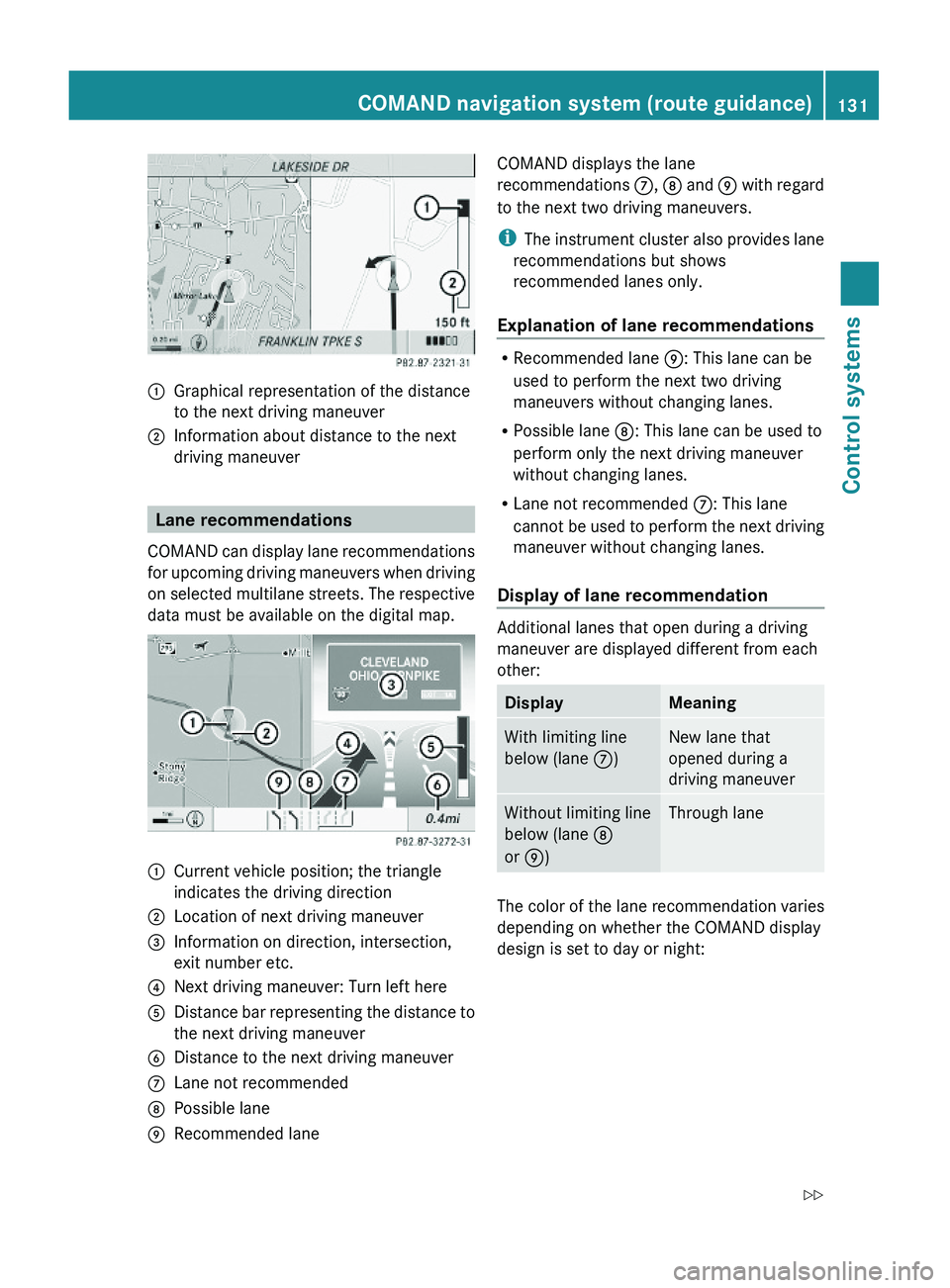
\000FGraphical representation of the distance
to the next driving maneuver
\000GInformation about distance to the next
driving maneuver
Lane recommendations
COMAND can display lane recommendations
for upcoming driving maneuvers when driving
on selected multilane streets. The respective
data must be available on the digital map.
\000FCurrent vehicle position; the triangle
indicates the driving direction
\000GLocation of next driving maneuver\000
Page 136 of 548
Off-road and off-map
Route guidance to an off-road
destination
GWarning!
The COMAND navigation system may direct
you to off-road routes that your vehicle may
not be capable of traversing through without
damaging your tires, wheels or vehicle. It is
the driver’s sole responsibility to determine
the suitability of the route. Off-road routes
may be of varying conditions and their
appropriateness for use may be affected by
various factors such as time of day, time of
year and immediate weather conditions that
cannot be judged or taken into consideration
by the COMAND system.
COMAND can guide you to destinations
within the area covered by the digital map,
even if a destination is not located at a road
known to the system.
These destinations are shown as off-road
destinations, which you can enter using the
map, for example. In these cases, COMAND
guides you for as long as possible with
navigation announcements and displays on
roads known to the system.
Shortly before you reach the last known the
point to leave the digitized road network, you
will hear the announcement The
destination is nearby. Follow the
arrow on the display.
You will then see an arrow that indicates the
direction to the off-road destination. When
the off-road destination is close to the road,
Area of dest. reached appears in addition
below the arrow.
The section of the route from the last known
point on the map to the off-road destination
is indicated with a dashed line after a certain
length. It simply shows the direction to the
off-road destination without taking account of
any type of obstacles in the way.
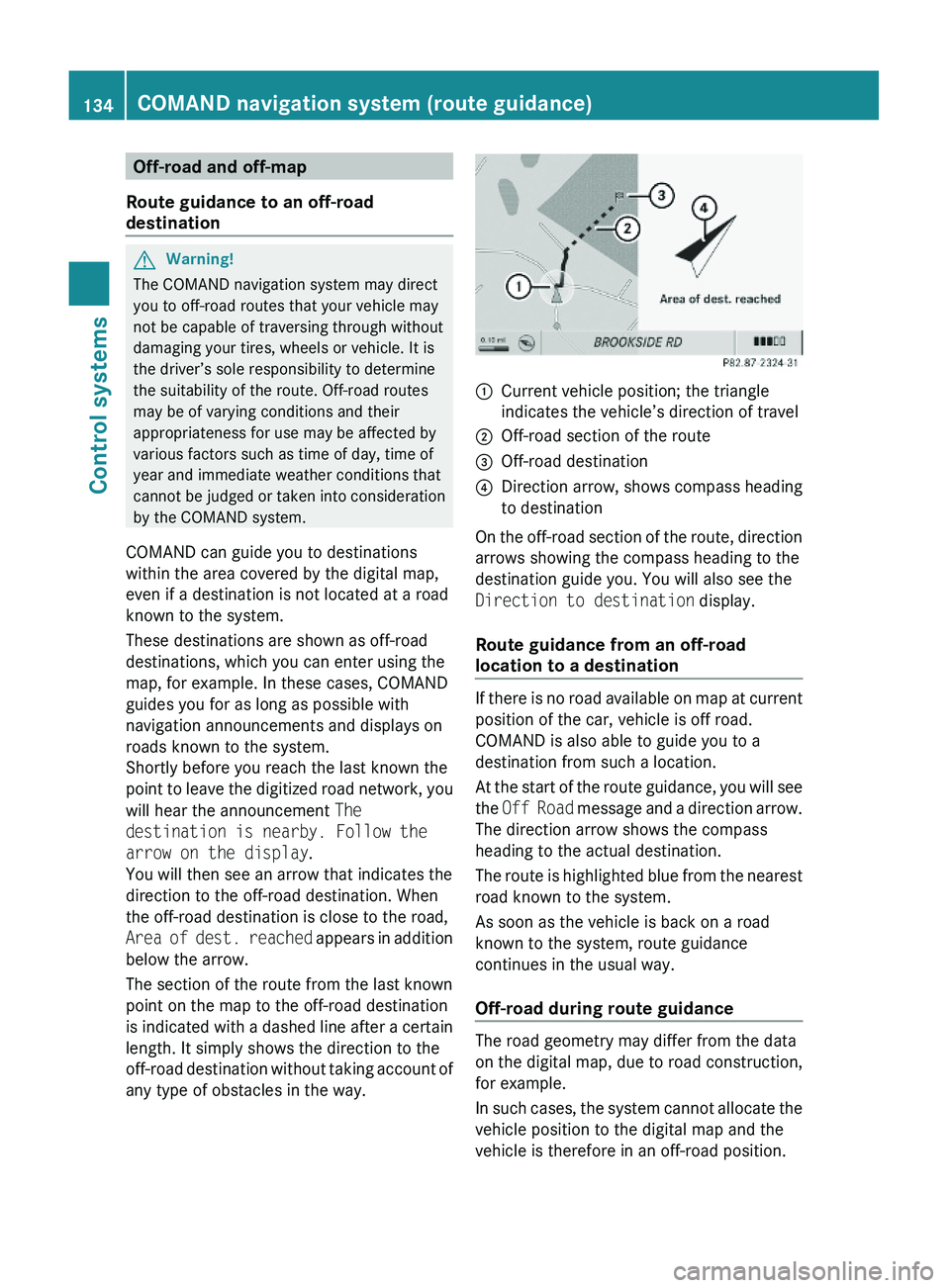
\000FCurrent vehicle position; the triangle
indicates the vehicle’s direction of travel
\000GOff-road section of the route\000
Page 149 of 548
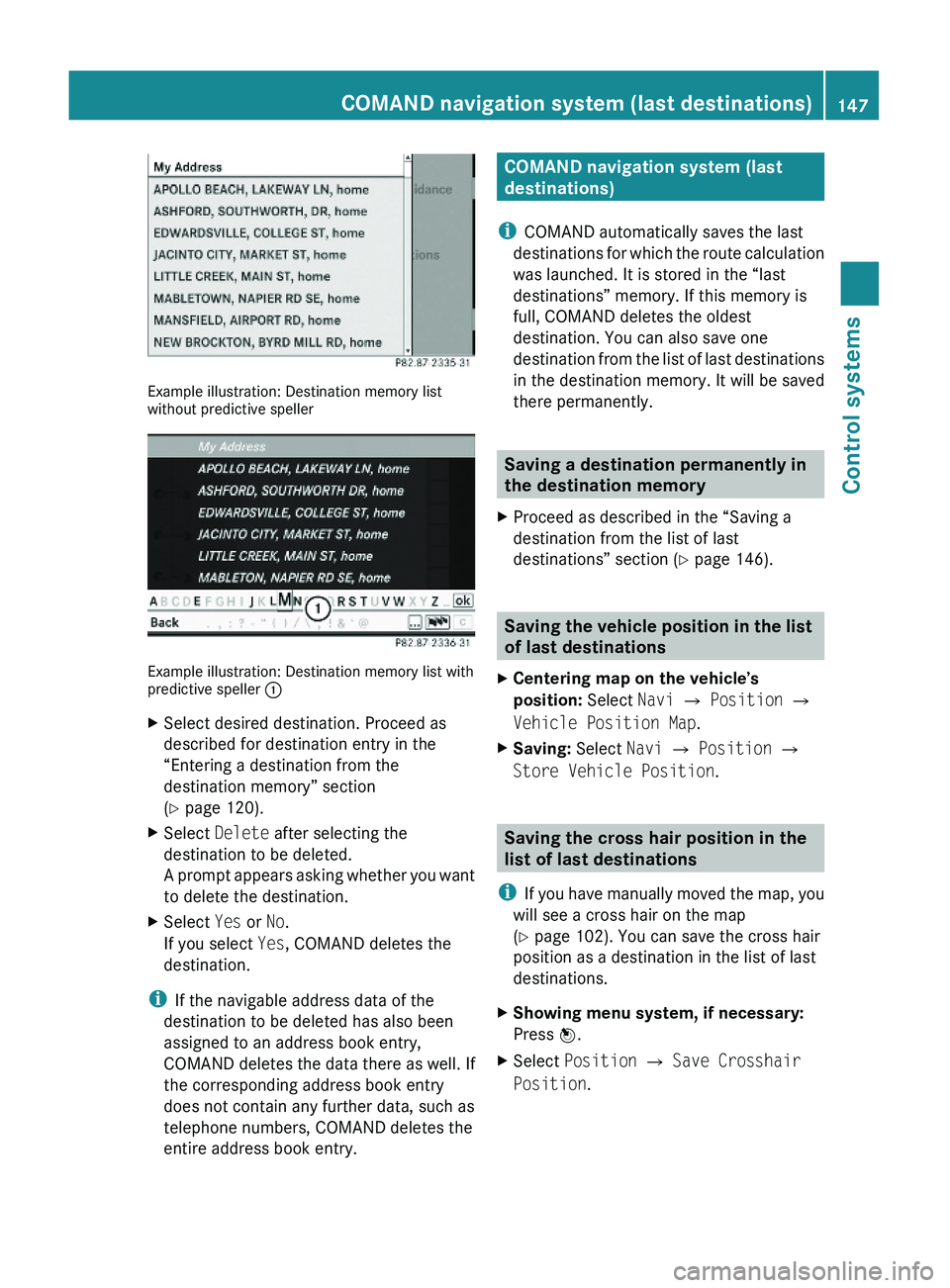
Example illustration: Destination memory listwithout predictive speller
Example illustration: Destination memory list withpredictive speller \000F
XSelect desired destination. Proceed as
described for destination entry in the
“Entering a destination from the
destination memory” section
(Y page 120).
XSelect Delete after selecting the
destination to be deleted.
A prompt appears asking whether you want
to delete the destination.
XSelect Yes or No.
If you select Yes, COMAND deletes the
destination.
iIf the navigable address data of the
destination to be deleted has also been
assigned to an address book entry,
COMAND deletes the data there as well. If
the corresponding address book entry
does not contain any further data, such as
telephone numbers, COMAND deletes the
entire address book entry.
COMAND navigation system (last
destinations)
iCOMAND automatically saves the last
destinations for which the route calculation
was launched. It is stored in the “last
destinations” memory. If this memory is
full, COMAND deletes the oldest
destination. You can also save one
destination from the list of last destinations
in the destination memory. It will be saved
there permanently.
Saving a destination permanently in
the destination memory
XProceed as described in the “Saving a
destination from the list of last
destinations” section (Y page 146).
Saving the vehicle position in the list
of last destinations
XCentering map on the vehicle’s
position: Select Navi \000T Position \000T
Vehicle Position Map.
XSaving: Select Navi \000T Position \000T
Store Vehicle Position.
Saving the cross hair position in the
list of last destinations
iIf you have manually moved the map, you
will see a cross hair on the map
(Y page 102). You can save the cross hair
position as a destination in the list of last
destinations.
XShowing menu system, if necessary:
Press \000
Page 153 of 548
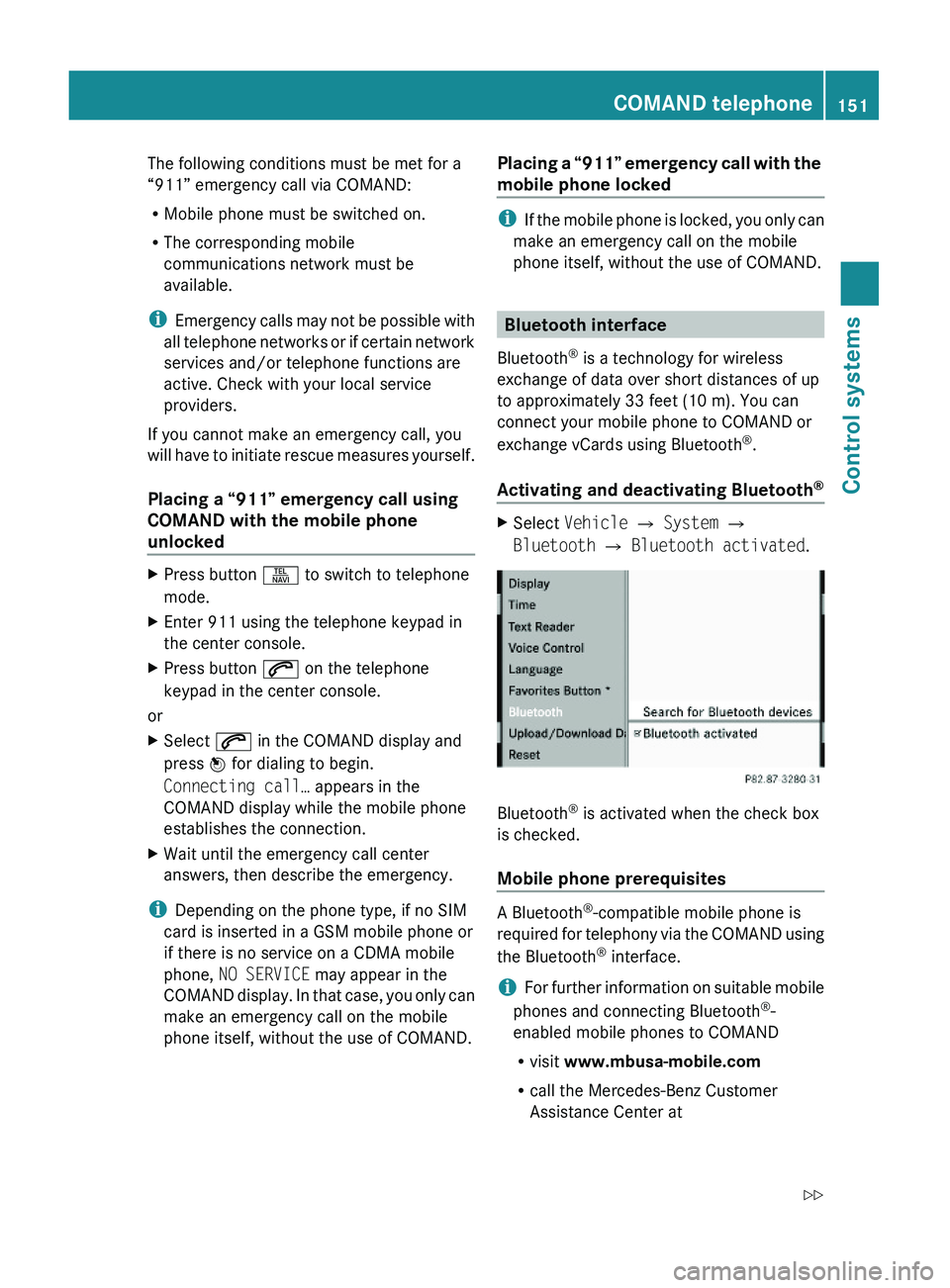
The following conditions must be met for a
“911” emergency call via COMAND:
RMobile phone must be switched on.
RThe corresponding mobile
communications network must be
available.
iEmergency calls may not be possible with
all telephone networks or if certain network
services and/or telephone functions are
active. Check with your local service
providers.
If you cannot make an emergency call, you
will have to initiate rescue measures yourself.
Placing a “911” emergency call using
COMAND with the mobile phone
unlocked
XPress button \000X to switch to telephone
mode.
XEnter 911 using the telephone keypad in
the center console.
XPress button \000j on the telephone
keypad in the center console.
or
XSelect \000j in the COMAND display and
press \000