navigation system MERCEDES-BENZ S CLASS 2010 Owners Manual
[x] Cancel search | Manufacturer: MERCEDES-BENZ, Model Year: 2010, Model line: S CLASS, Model: MERCEDES-BENZ S CLASS 2010Pages: 548, PDF Size: 11.45 MB
Page 8 of 548
Break-in period .................................. 402
Bulbs see Replacing bulbs
C
CAC (Customer Assistance Center) ... 24
California retail buyers and
lessees, important notice for ............. 22
Calls (phone) .............................. 148, 230
Can holders see Cup holders
Capacities and recommended
fuel/lubricants .................................. 537
Carpets, cleaning .............................. 446
CD player ............................................ 176
Central locking
Automatic ...................................... 278
KEYLESS-GO .................................. 275
Locking/unlocking from inside ......279
SmartKey ....................................... 274
Central locking/unlocking switch ... 279
Certification label .............................. 524
Children in the vehicle
Air bags ........................................... 41
Child safety locks (rear doors) .........61
Child seat anchors – LATCH-type
(ISOFIX) ........................................... 60
Indicator lamp, front passenger
front air bag off ................................ 46
Infant and child restraint systems .... 57
ISOFIX (Child seat anchors –
LATCH-type) ..................................... 60
OCS (Occupant Classification
System) ........................................... 46
Override switch ................................ 61
Safety notes ..................................... 56
Tether anchorage points ..................59
Top tether ........................................ 59
Child safety
see Children in the vehicle
Child seat anchors – LATCH-type
(ISOFIX) see Children in the vehicle
Chrome-plated exhaust tip,
cleaning .............................................. 447
Cigarette lighters .............................. 387
Climate control system .................... 363
Air conditioning ............................. 366
Air conditioning refrigerant ............540
Air distribution ............................... 370
Air recirculation mode ...................371
Air volume ..................................... 370
Automatic mode ............................ 366
Deactivating system ......................366
Front defroster .............................. 370
Maximum cooling MAX COOL ........371
Residual heat and ventilation .........372
Temperature .................................. 367
Coat hooks ......................................... 380
Cockpit ................................................. 30
Cold tire inflation pressure .............. 430
Collapsible wheel chock ................... 450
COMAND .............................................. 76
Address book ................................. 159
Audio playback .............................. 176
AUX sockets .................................. 186
Components .................................... 77
Controller ......................................... 79
FM/AM Radio ................................ 165
Gracenote ®
Media Database .........185
HD Radio™ .................................... 167
Headphone ...................................... 82
Inserting/ejecting CDs and DVDs . 179
Introduction ..................................... 76
iPod ®
............................................. 200
Media interface .............................. 200
Music Register ............................... 196
Navigation ........................................ 95
Operating ......................................... 84
Phone book .................................... 159
Rear Seat Entertainment System ...189
Remote control (Rear Seat
Entertainment System) ....................81
Remote control (SPLITVIEW) ............81
Reset to factory settings ..................95
Satellite radio ................................ 170
SD card .......................................... 180
Shortcut buttons .............................. 77
SPLITVIEW ....................................... 90
Switching on or off ........................... 77
System settings ............................... 91
Telephone ...................................... 148
Telephone keypad ............................ 796Index221_AKB; 6; 20, en-USd2ugruen,Version: 2.11.8.12009-09-24T13:28:17+02:00 - Seite 6
Page 21 of 548
Transmission positions .................... 320
Traveling abroad ............................... 438
Tread (tires) ....................................... 432
Tread depth (tires) .................... 423, 432
Treadwear .......................................... 424
Treadwear indicators (tires) .... 423, 432
Trip menu ........................................... 223
Trunk
Closing ........................................... 280
Messages in the multifunction
display ........................................... 478
Opening ......................................... 279
Opening/closing system ...............281
Opening-height restriction .............210
Tie-down hooks .............................. 381
Trunk lid emergency release ..........282
Unlocking manually .......................500
Valet locking .................................. 283
Turning off the engine ...................... 316
Turn signals ....................................... 301
Cleaning lenses ............................. 443
Indicator lamps ................................ 32
Messages in the multifunction
display ........................................... 488
U
Uniform Tire Quality Grading
Standards .................................. 424, 432
Units
Selecting speedometer display
mode ............................................. 235
Unleaded gasoline, premium ........... 541
Unlocking the vehicle
KEYLESS-GO .................................. 275
Manually ........................................ 499
SmartKey ....................................... 274
Upholstery, cleaning ......................... 446
USB devices (media interface) ......... 200
USB socket ........................................... 80
Useful features .................................. 384
V
Valet locking ...................................... 283
Vehicle
Battery ........................................... 512
Care ............................................... 440
Control system .............................. 220
Identification Number (VIN) ...........524
Individual settings ..........................234
Locking/unlocking ........................274
Lowering (wheel change) ...............512
Modifications and alterations,
Operating safety .............................. 23
Towing ........................................... 516
Unlocking/locking manually ..........499
Vehicle dimensions
see Vehicle specification
Vehicle Identification Number
(VIN) ................................................... 524
Vehicle jack see Jack
Vehicle level control
see AIRMATIC
Vehicle lighting .................................. 298
Vehicle loading
Instructions .................................... 379
Load limit ....................................... 419
Roof rack ....................................... 380
Terminology ................................... 430
Vehicle maximum load on the tire ... 432
Vehicle specification
S 450 4MATIC ............................... 527
S 550 ............................................. 527
S 550 4MATIC ............................... 528
S 600 ............................................. 529
S 63 AMG ...................................... 530
S 65 AMG ...................................... 531
Vehicle status message memory .... 233
Vehicle tool kit .................................. 450
Vehicle washing see Vehicle care
Vehicle weights
see Vehicle specification
Video .................................................. 191
Video Aux ........................................... 186
Voice Control System
Address book ................................. 249
CD/DVD changer/MP3 .................255
Command list ................................ 257
External devices ............................. 257
Individualization ............................. 271
Introduction ................................... 237
Navigation ..................................... 240Index19221_AKB; 6; 20, en-USd2ugruen,Version: 2.11.8.12009-09-24T13:28:17+02:00 - Seite 19
Page 37 of 548
FunctionPagePress button 005A or 005B :to set the volumeto operate the RACETIMER 30086Press button
0062:to activate Voice Control
System
239
to accept a call1560087Instrument cluster
illumination
326
006ESwiveling COMAND display78006FCOMAND display
illumination
78
0070COMAND display780071Clock920072CD/DVD changer1790073SD card slot1800074Rear window sunshade
switch
386
0075Head restraint release
switch
291
0076Program mode selector
switch for automatic
transmission
322
0077Shortcut button for:CD/DVD/SD card181Radio1660078Back button870079Hazard warning flasher
switch
302
007ASeat menu button216007BShortcut button for:Telephone150Navigation101FunctionPage007CCOMAND on/off button77007DVolume control88007EFavorite button94007FTelephone keypad1500080COMAND controller793 AMG vehicles onlyControl systems35At a glance221_AKB; 6; 20, en-USd2ugruen,Version: 2.11.8.12009-09-24T13:28:17+02:00 - Seite 35Z
Page 77 of 548
Vehicle equipment ..............................76
COMAND introduction ........................76
COMAND system settings .................91
COMAND navigation (introduction) ...95
COMAND navigation system
(entering a destination) ....................106
COMAND navigation system (Point
of interest entry) ...............................124
COMAND navigation system (route
guidance) ...........................................129
COMAND navigation system (dur-
ing route guidance) ...........................135
COMAND navigation system (real-
time traffic) .......................................138
COMAND navigation system (des-
tination memory) ..............................143
COMAND navigation system (last
destinations) .....................................147
COMAND telephone ..........................148
COMAND FM/AM radio ....................165
COMAND satellite radio ...................170
COMAND audio CD/audio DVD/
MP3 ....................................................176
Audio AUX and video AUX ................186
Rear Seat Entertainment System ....189
COMAND video DVD .........................191
Music Register ..................................196
Media Interface .................................200
COMAND vehicle menu ....................206
COMAND automatic climate control 211
COMAND seats ..................................216
Instrument cluster control system .220
Voice Control System introduction .237
Voice Control System navigation ....240
Voice Control System telephone .....245
Voice Control System address book 249
Voice Control System radio .............252
Voice Control System CD/DVD
changer/MP3 ....................................255
Voice Control System external
devices ...............................................257
Voice Control System command list 257
Voice Control System trouble-
shooting .............................................267
Voice Control System individuali-
zation .................................................271
75Control systems221_AKB; 6; 20, en-USd2ugruen,Version: 2.11.8.12009-09-24T13:28:17+02:00 - Seite 75
Page 78 of 548
Vehicle equipment
i This Operator’s Manual describes all
features, standard or optional, potentially
available for your vehicle at the time of
purchase. Please be aware that your
vehicle might not be equipped with all
features described in this manual.
COMAND introduction
COMAND operating safety
COMAND (
Cockpit Management and Data
System) is an information and operating
center for vehicle sound and communications
systems. It includes the radio and navigation
system, as well as other optional equipment
(satellite radio, telephone, etc.).
GWarning!
Any alteration of electronic components or
software can cause malfunctions.
Radio, satellite radio, amplifier, CD/DVD
changer, navigation module, telephone and
Voice Control Systems are interconnected.
Therefore, if one of the components is not
operational, or has not been removed/
replaced properly, the function of other
components could be impaired.
Such conditions might seriously impair the
operating safety of your vehicle.
We recommend to have any service work on
electronic components carried out by an
authorized Mercedes-Benz Center.
GWarning!
In order to avoid distraction which could lead
to an accident, the driver should enter system
settings while the vehicle is at a standstill, and
operate the system only when permitted by
road, weather and traffic conditions.
Bear in mind that at a speed of just 30 mph
(approximately 50 km/h), your vehicle is
covering a distance of 44 feet (approximately
14 m) every second.
COMAND supplies you with information to
help you select your route more easily and
guide you conveniently and safely to your
destination. For safety reasons, we
encourage the driver to stop the vehicle in a
safe place before answering or placing a call,
or consulting the COMAND screen to read
navigational maps, instructions, or
downloaded information.GWarning!
While the navigation system provides
directional assistance, the driver must remain
focused on safe driving behavior, especially
attention to traffic and street signs, and
should utilize the system’s audio cues while
driving.
The navigation system does not supply any
information on stop signs, yield signs, traffic
regulations or traffic safety rules. Their
observance always remains in the driver’s
personal responsibility. Maps do not cover all
areas nor all routes within an area.
GWarning!
HYBRID vehicles: It is imperative that you read
the HYBRID Supplemental Operating
Instructions included in your vehicle literature
portfolio. You may otherwise not receive all
necessary safety information and warning for
the operation of your vehicle.
Availability of functions while the
vehicle is in motion
For safety reasons, certain COMAND
functions are not available while the vehicle
is in motion or they are only available to a
limited extent. You will notice this, for
example, by the fact that certain menu items
cannot be selected or that the COMAND
display shows a corresponding message.
76COMAND introductionControl systems
221_AKB; 6; 20, en-USd2ugruen,Version: 2.11.8.12009-09-24T13:28:17+02:00 - Seite 76
Page 92 of 548
R3-D sound does not work for mono-signal
sources, such as on analog AM radio or
in Weather Band.
R In the event of poor radio reception
quality, e.g. inside a tunnel, you should
switch off Logic 7 ®
, as a dynamic switch
from Stereo to Mono could occur,
resulting in temporary sound distortion.
R With some stereo recordings, the
resulting sound may deviate from
conventional stereo playback.
Switching the audio/video source off/
on
i When you load a CD or DVD, the audio or
video source is activated automatically.
Active audio source
XSwitching off: Select Audio 0054 Audio
OFF .
Playback is paused and the audio source is
switched off; Audio OFF appears in the
COMAND display.XSwitching on: Select Audio, then the
desired audio source.
or
XLoad a CD/DVD ( Y page 179) or an SD
card ( Y page 180).
or
XConnect a USB storage device
( Y page 80) or media interface device
( Y page 200) to COMAND.
Active video source
XSwitching off: Select Video 0054 Video
OFF .
The audio source is switched off; Video
OFF appears in the COMAND display.XSwitching on: Select Video, then the
desired video source.
or
XLoad a DVD ( Y page 179).SPLITVIEW
SPLITVIEW enables the driver and front
passenger to use separate COMAND
functions at the same time. Two different
displays appear in the COMAND screen. For
example, a Navigation display is only viewable
form the driver’s seat while a DVD Video
display is only viewable from the front
passenger’s seat.
COMAND is operated via SPLITVIEW from the
front passenger seat using the SPLITVIEW
remote control and the special wireless,
infrared headphone. You may also use a wired
headphone via the 3.5 mm socket in the front
passenger footwell.
For information about using the remote
control, see ( Y page 81).
For information about using the headphone,
see ( Y page 82).
Depending on the production date of your
vehicle, it may be equipped with SPLITVIEW.
At the time of this printing, the use of
SPLITVIEW is NOT allowed in the following US
states (AL, AZ, CO, IL, LA, MA, MD, NH, PA,
VA, VT, WA, WI, and WV) or Canadian
provinces (Manitoba, Newfoundland, New
Brunswick, and Prince Edward Island).
SPLITVIEW must NOT be operated in these
states or provinces. The driver is responsible
for observing ALL local statutory provisions.
If your vehicle is registered in a non-approved
state or province, then the feature will need
to be deactivated. Contact your authorized
Mercedes-Benz dealer to verify if SPLITVIEW
is allowed in your state or province.
Notes
R The audio volume of the wireless
headphone for the front passenger side
must be adjusted on the headphone
directly. The audio volume of a wired
headphone can be adjusted via the remote
90COMAND introductionControl systems
221_AKB; 6; 20, en-USd2ugruen,Version: 2.11.8.12009-09-24T13:28:17+02:00 - Seite 90
Page 96 of 548
If you select Yes, the second part begins.
Individualization is completed at the end of
the second part. You will see a message to
this effect. The data from the second part is
saved automatically.
Canceling during the first or second part
of individualization
XSelect Cancel.
A prompt appears asking whether you
really do want to cancel.
XSelect Yes or No.
If you select Yes, individualization will be
canceled. The data from the part at which
you exited is not saved.
If you select No, the part at which you
stopped begins again.
Deleting existing individualization data
XSelect Vehicle \000T System \000T Voice
Control \000T Delete
Individualization.
A prompt appears asking whether you
really do want to delete.
XSelect Yes or No.
The individualization data will either be
deleted or not, depending on your
selection.
Setting the system language
XSelect Vehicle \000T System \000T
Language.
The language list appears. A dot \000?
indicates the current setting.
XChanging setting: Select the desired
language.
The language is set.
iFor some system languages, the
navigation announcements are made in
English (Y page 135).
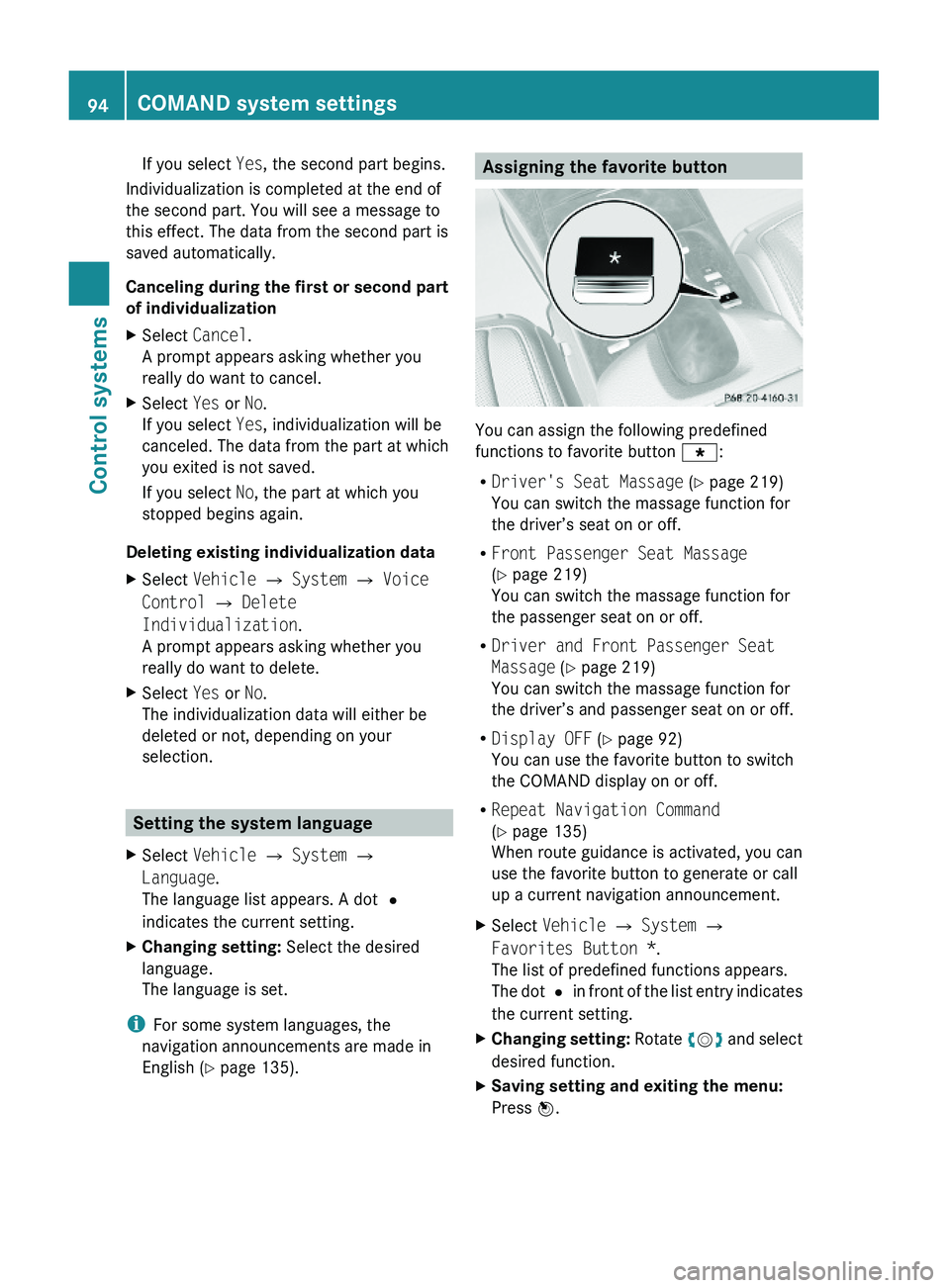
Assigning the favorite button
You can assign the following predefined
functions to favorite button \000
Page 97 of 548
Upload/Download of Data
This function lets you transfer COMAND data
to a memory card or a USB storage device and
vice versa.
The following COMAND data can be
transferred:
R Navigation destination memory and last
destination
R Address book entries
R Audio/Video presets memory
R System settings
i You can use this function, for example, to
save your COMAND data and transfer them
to another vehicle.XInsert an SD card into the SD card slot
( Y page 180) or connect a USB storage
device to the built-in USB socket in the
glove box (Y page 80). The USB jack of the
optional media interface is not intended for
this purpose.XSelect Vehicle 0054 System 0054 Upload/
Download Data .XDownload: Select Copy Data to
Storage Medium 0054 On the Memory
Card or On USB .XSelect Start Copying .XUpload: Select Import Data from
Storage Medium 0054 From Memory Card
or From USB .XSelect Start Data Import .XExiting menu without data transfer:
Select Back.
Reset
i You can reset COMAND back to its
factory settings.
Among other things, all personal data are
deleted, for example
R the address book entries
R the entries in the destination memory
R the list of last destinations of the
navigation systemXSelect Vehicle 0054 System 0054 Reset .
A prompt appears asking whether you
really want to reset.XSelect Yes or No.
If you select Yes another prompt will
appear asking whether you really want to
reset.XSelect Yes or No.
If you select Yes, COMAND will be reset
and restarted.
COMAND navigation (introduction)
Safety notes
GWarning!
For safety reasons, only enter a destination
when the vehicle is stationary. When the
vehicle is in motion, a passenger should enter
the destination. Study manual and select
route before driving.
Bear in mind that at a speed of just 30 mph
(approximately 50 km/h), your vehicle is
covering a distance of 44 feet (approximately
14 m) every second.
COMAND calculates the route to the
destination without taking account of the
following, for example:
R Traffic lights
R Stop and right-of-way signs
R Parking or stopping in prohibited areas
R Lane merging
R Other road and traffic rules and regulations
R Narrow bridges
COMAND navigation (introduction)95Control systems221_AKB; 6; 20, en-USd2ugruen,Version: 2.11.8.12009-09-24T13:28:17+02:00 - Seite 95Z
Page 98 of 548
COMAND may give incorrect navigation
commands if the data in the digital map does
not correspond with the actual road or traffic
situation. Maps do not cover all areas nor all
routes within an area. For example, if the
traffic routing has been changed or the
direction of a one-way road has been
reversed.
For this reason, you must always observe
applicable road and traffic rules and
regulations during your journey. Road and
traffic rules and regulations always have
priority over the navigation commands
generated by the system.GWarning!
Navigation announcements are intended to
direct you while driving without diverting your
attention from the road and driving.
Please always use navigation announcements
instead of consulting the map display for
directions. Consulting the symbols or map
display for directions may cause you to divert
your attention from driving and increase your
risk of an accident.
Map software
The digital maps generated by the map
software become outdated in the same way
as conventional road maps. Optimum route
guidance can only be provided by the
navigation system in conjunction with the
latest map software. Information about new
map software versions can be obtained from
an authorized Mercedes-Benz Center.
Displaying installed map version
XNavi 0054 Map Version
The installed map version is displayed.
For information on installing new map
software see ( Y page 96).
Installing the map software
Your vehicle is factory-equipped with map
software for the USA (including Alaska and
Hawaii), Canada, the U.S. Virgin Islands, and
Puerto Rico.
You can install new map software from one or
more DVDs, depending on the size of the map
software.
Copy protection of map software
COMAND map software is subject to charges.
The map software requires an activation
code. The map software can be used for one
individual vehicle only and is
non-transferrable. The six-digit activation
code is available at any authorized Mercedes-
Benz Center. Contact an authorized
Mercedes-Benz Center in case you have lost
your activation code or when the COMAND
system does not accept the activation code
you have received.
When reinstalling a map software that has
been installed in that vehicle already, an
activation code is not required.
Installation process
i The installation process can take
between 10 and 120 minutes, depending
on the size of the map software. If the radio
is switched on when you start the
installation process, you can still adjust the
volume. During the installation process,
some COMAND functions are suspended.
Still available are the COMAND functions
for automatic air conditioning operation
and canceling the installation process.
If possible, carry out the installation when
the vehicle is stationary. When the vehicle
is stationary, the reading rate of the DVD
drive is higher than in a moving vehicle and
the installation process requires less time.
GObserve Safety notes, see page 76.
i COMAND may switch off during the
installation process automatically in order
96COMAND navigation (introduction)Control systems
221_AKB; 6; 20, en-USd2ugruen,Version: 2.11.8.12009-09-24T13:28:17+02:00 - Seite 96
Page 99 of 548
to protect the battery. This may happen
when the engine is switched off and the
vehicle battery has insufficient power. If
this occurs, restart the installation with the
engine running. Similarly, if the SmartKey
position is unintentionally switched to 0,
restart the installation.GWarning!
Inhalation of exhaust gas is hazardous to your
health. All exhaust gas contains carbon
monoxide (CO), and inhaling it can cause
unconsciousness and lead to death. Do not
run the engine in confined areas (such as a
garage) which are not properly ventilated.
Installing
Notes about handling DVDs ( Y page 179).
XLoad the map software DVD into the DVD
changer ( Y page 179).
The COMAND system verifies the DVD and
a respective message appears in the
COMAND display.
Map software incompatible with
navigation system
A message indicates that installation of the
map software is not possible.
XConfirming message: Press 00A1.
The DVD is ejected.XRemove the DVD from the slot.XInsert a DVD that is compatible with the
navigation system of the vehicle.
Map software incompatible with the
current system software
A message indicates that the system
software and the map software are
incompatible.
XConfirming message: Press 00A1.
The DVD is ejected.XRemove the DVD from the slot.XHave the system software updated at an
authorized Mercedes-Benz Center.
The system software must be updated before
you can install the map software.
Map software compatible with
navigation software and current
system software
The COMAND system verifies whether the
map data on the DVD have been installed
already.
Map data installed already
A message that indicates that the map data
have been installed already appears. Also,
you are being asked if you would like to install
the map software anyhow.
XSelect Yes or No.
When you select Yes, the current map data
will be overwritten.
When you select No, the DVD will be ejected
automatically and the installation process
is cancelled.XRemove the DVD from the slot.
Map data not installed yet
The versions of the map software on the DVD
and of the installed map software appear in
the COMAND display. You are then asked if
you want to install the map software.
XSelect Yes or No.
When you select Yes, the map data will be
installed.
When you select No, the DVD will be ejected
automatically and the installation process
is cancelled.XRemove the DVD from the slot.
When an activation code is required, you will
be prompted to enter it.
COMAND navigation (introduction)97Control systems221_AKB; 6; 20, en-USd2ugruen,Version: 2.11.8.12009-09-24T13:28:17+02:00 - Seite 97Z