display MERCEDES-BENZ S-Class 2013 W221 Workshop Manual
[x] Cancel search | Manufacturer: MERCEDES-BENZ, Model Year: 2013, Model line: S-Class, Model: MERCEDES-BENZ S-Class 2013 W221Pages: 542, PDF Size: 7.97 MB
Page 140 of 542
Switching the sound on or off
Switching audio and video sources on/off
X
Press the 0029button on the multifunction
steering wheel.
The sound from the respective audio or
video source is switched on or off.
i When the sound is off, the system
displays the 002Fsymbol in the status line.
When you change the audio or video
source, or adjust the volume, sound
automatically switches on again.
i Even if the sound is switched off, you will
still hear traffic and navigation system
announcements.
Switching off traffic and navigation
announcements completely
X Traffic announcements: press the0029
button until the 000Dmessage disappears
from the status bar of the display.
A confirmation tone sounds.
X Navigation announcements: during an
announcement, press the 0029button on
the multifunction steering wheel.
Switching traffic and navigation
announcements on again
X Traffic announcements: press and hold
down the 0029button until the 000Ddisplay
appears in the status bar.
A confirmation tone sounds.
X Navigation announcements: select the
0039 symbol in the navigation menu bar
and press 0021to confirm.
i The navigation announcements are
activated again if you switch COMAND off
and on again or start a new route guidance. Adjusting the volume Adjusting the volume for the audio or
video source
X
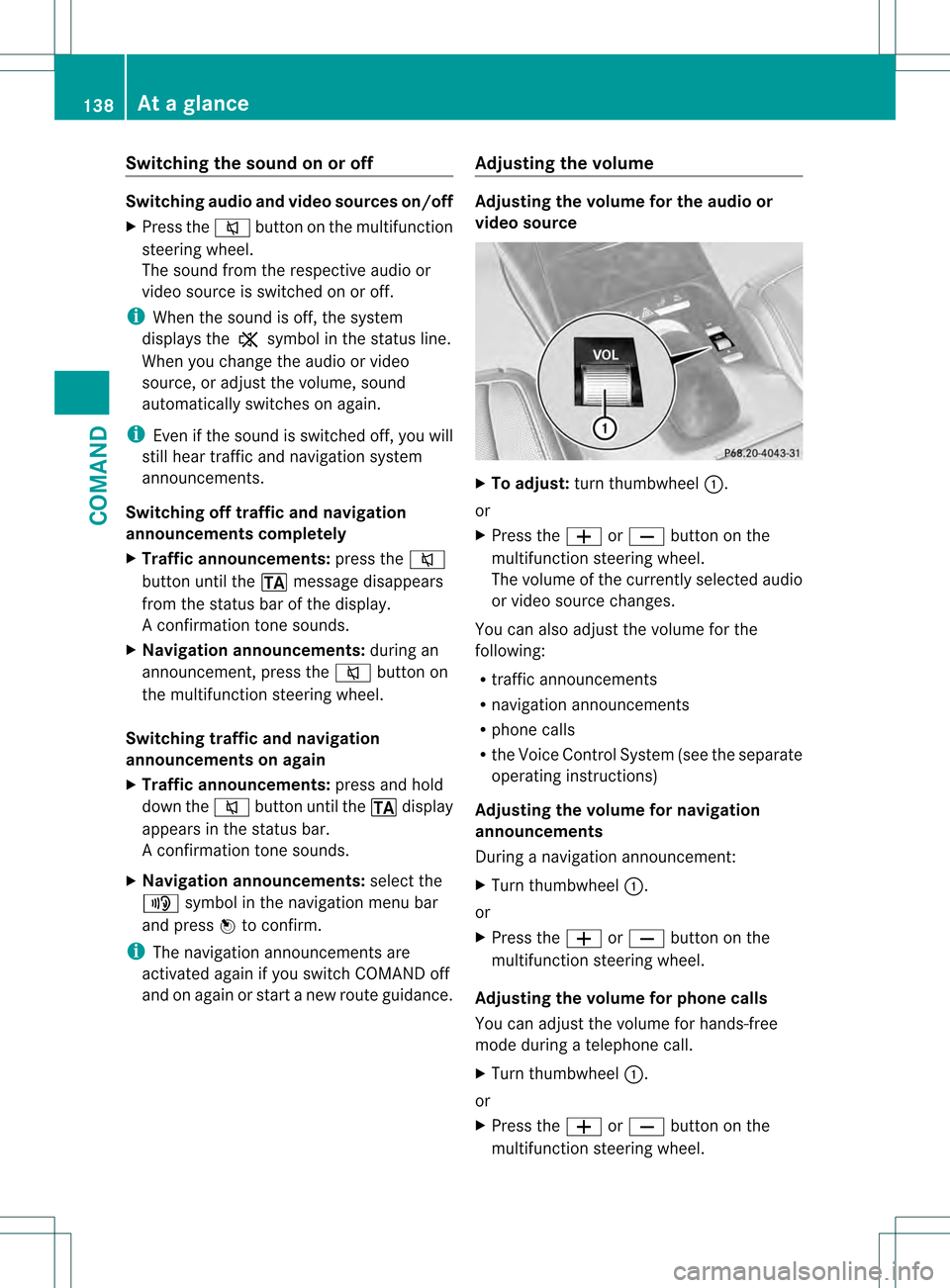
To adjust: turn thumbwheel 0002.
or
X Press the 000For0010 button on the
multifunction steering wheel.
The volume of the currently selected audio
or video source changes.
You can also adjust the volume for the
following:
R traffic announcements
R navigation announcements
R phone calls
R the Voice Control System (see the separate
operating instructions)
Adjusting the volume for navigation
announcements
During a navigation announcement:
X Turn thumbwheel 0002.
or
X Press the 000For0010 button on the
multifunction steering wheel.
Adjusting the volume for phone calls
You can adjust the volume for hands-free
mode during a telephone call.
X Turn thumbwheel 0002.
or
X Press the 000For0010 button on the
multifunction steering wheel. 138
At
ag lanceCOMAND
Page 141 of 542
Adjusting the soun
dsettings Calling up the sound menu
You can make various sound settings for the
differen taudio and video sources. This means
that it is possible to set more bass for radio
mode than for audio CD mode, for example.
You can call up the respective sound menu
from the menu of the desired mode.
The example describes how to call up the
sound menu in radio mode.
X Press the 0010function button.
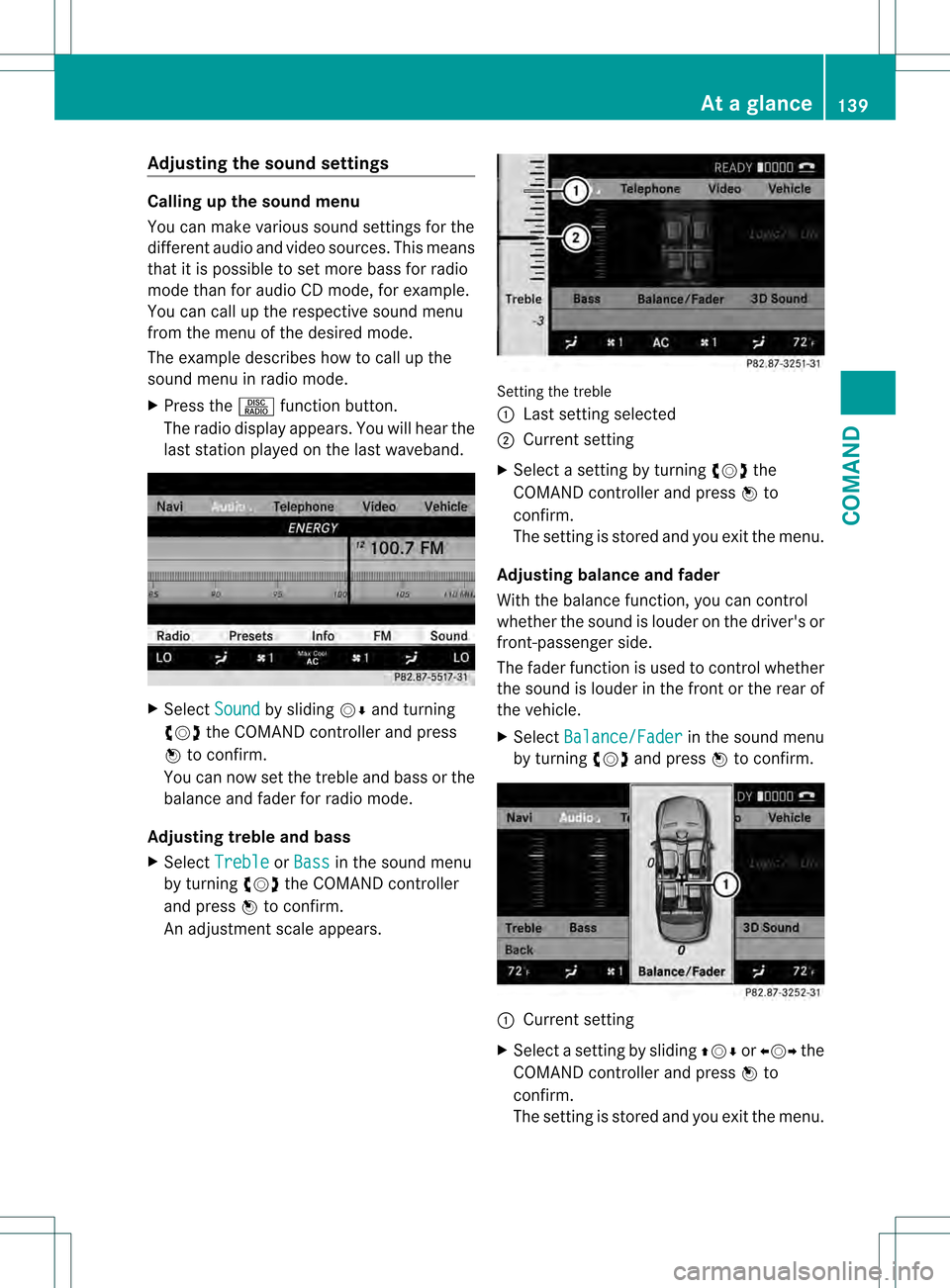
The radio display appears. You will hear the
last station played on the last waveband. X
Select Sound by sliding
001C0006and turning
0031001C0032 the COMAND controller and press
0021 to confirm.
You can now set the treble and bass or the
balance and fade rfor radio mode.
Adjusting treble and bass
X Select Treble or
Bass in the sound menu
by turning 0031001C0032the COMAND controller
and press 0021to confirm.
An adjustmen tscale appears. Setting the treble
0002
Lastsetting selected
0003 Current setting
X Select a setting by turning 0031001C0032the
COMAND controller and press 0021to
confirm.
The setting is stored and you exit the menu.
Adjusting balance and fader
With the balance function, you can control
whether the sound is louder on the driver's or
front-passenger side.
The fader function is used to control whether
the sound is louder in the fron torthe rear of
the vehicle.
X Select Balance/Fader in the sound menu
by turning 0031001C0032and press 0021to confirm. 0002
Current setting
X Select a setting by sliding 002A001C0006or003C001C003D the
COMAND controller and press 0021to
confirm.
The setting is stored and you exit the menu. At
ag lance
139COMAND Z
Page 142 of 542
Surround sound
General information
If your vehicle is equipped with the harman/
kardon ®
Logic 7 ®
surround sound system,
you can provide the optimum sound
experience for every passenger.
The harman/kardon ®
Logic7 ®
surround
sound system is available for the following
operating modes:
R radio (FM only)
R satellite radio
R audio CD
R audio DVD (MLP™, dts™, PCM and
Dolby ®
Digital audio formats)
R MP3
R Media Interface
R video DVD (PCM, dts™ and Dolby ®
Digital
audio formats)
R AUX
Because some DVDs contain both stereo and
multichannel audio formats, it may be
necessary to set the audio format
(Y page 232).
i The Logic7 ®
ON function enables
playback of stereo recordings, for instance,
with a surround sound experience for every
passenger. It enables optimum playback of
music and films on CDs, audio DVDs or
video DVDs with multichannel audio
formats, such as MLP™, dts™ or Dolby ®
Digital. This results in sound
characteristics like those intended by the
sound engineer when the original was
recorded.
i If you select Logic7 ®
OFF , the sound
system plays all playable formats as stored
on the medium. Due to the design of the
passenger compartment, an optimum
audio experience cannot be guaranteed for
all passengers.
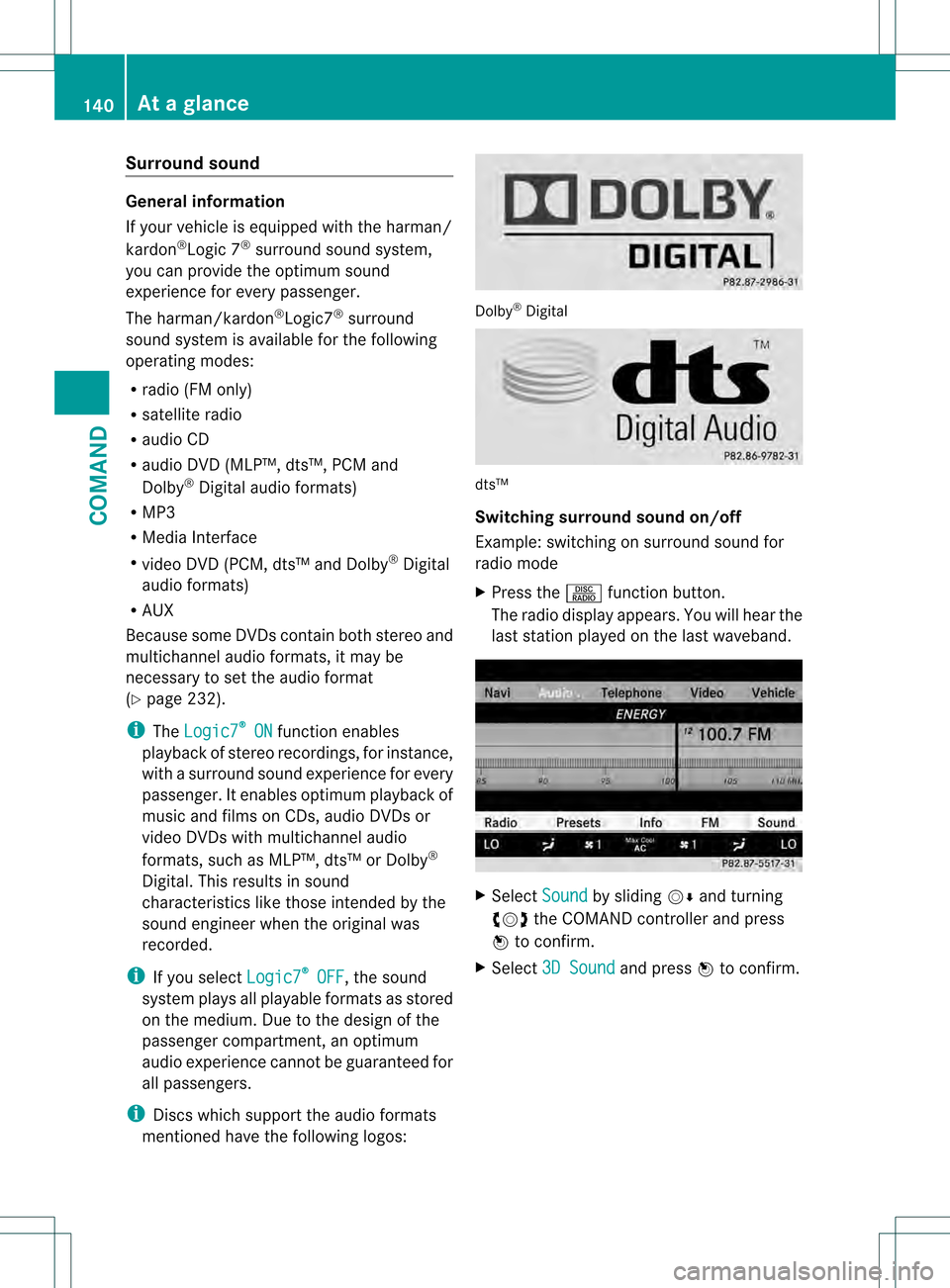
i Discs which support the audio formats
mentioned have the following logos: Dolby
®
Digital dts™
Switching surround sound on/off
Example: switching on surround sound for
radio mode
X
Press the 0010function button.
The radio display appears. You will hear the
last station played on the last waveband. X
Select Sound by sliding
001C0006and turning
0031001C0032 the COMAND controller and press
0021 to confirm.
X Select 3D Sound and press
0021to confirm. 140
At
ag lanceCOMAND
Page 145 of 542
Rear Seat Entertainment System
Components Overview
The Rear Seat Entertainment System
comprises:
R
two screens for the rear behind the front-
sea thead restraints
R two remote controls
R a CD/DVD drive
R AUX jacks on both screens (display AUX)
and on the CD/DVD drive (drive AUX)
R two sets of cordless headphones At
ag lance
143COMAND Z
Page 147 of 542
Switching the screen on/off
If the SmartKey in the ignition lock is in
position
0or 1or if the SmartKey is not in the
ignition lock, the rear screens will switch off
after 30 minutes. Before the screens switch
off, they show a message to this effect.
You can switch the screens back on.
However, this will discharge the starter
battery.
X Point the remote control at the rear-
compartmen tscree nwhich has been
selected for remote operation.
X Press button 0002on the remote control.
The respective rear screen switches on or
off.
i You can only switch the screens on using
the remote control if the ignition is
switched on.
Switching the button lighting on/off
X Press button 0003on the remote control.
Depending on the previous status, the
button lighting is switched on or off.
i If you do not use the remote control for
about 15 seconds, the button lighting
switches off automatically.
Switching the sound on/off (corded
headphones only)
X Press button 0024on the remote control.
The sound is switched on/off.
Selecting amenu/menu item and
confirming your selection
X Press the 0009000C000A buttons to
selec tthe menu/menu item and press the
000C button to confirm.
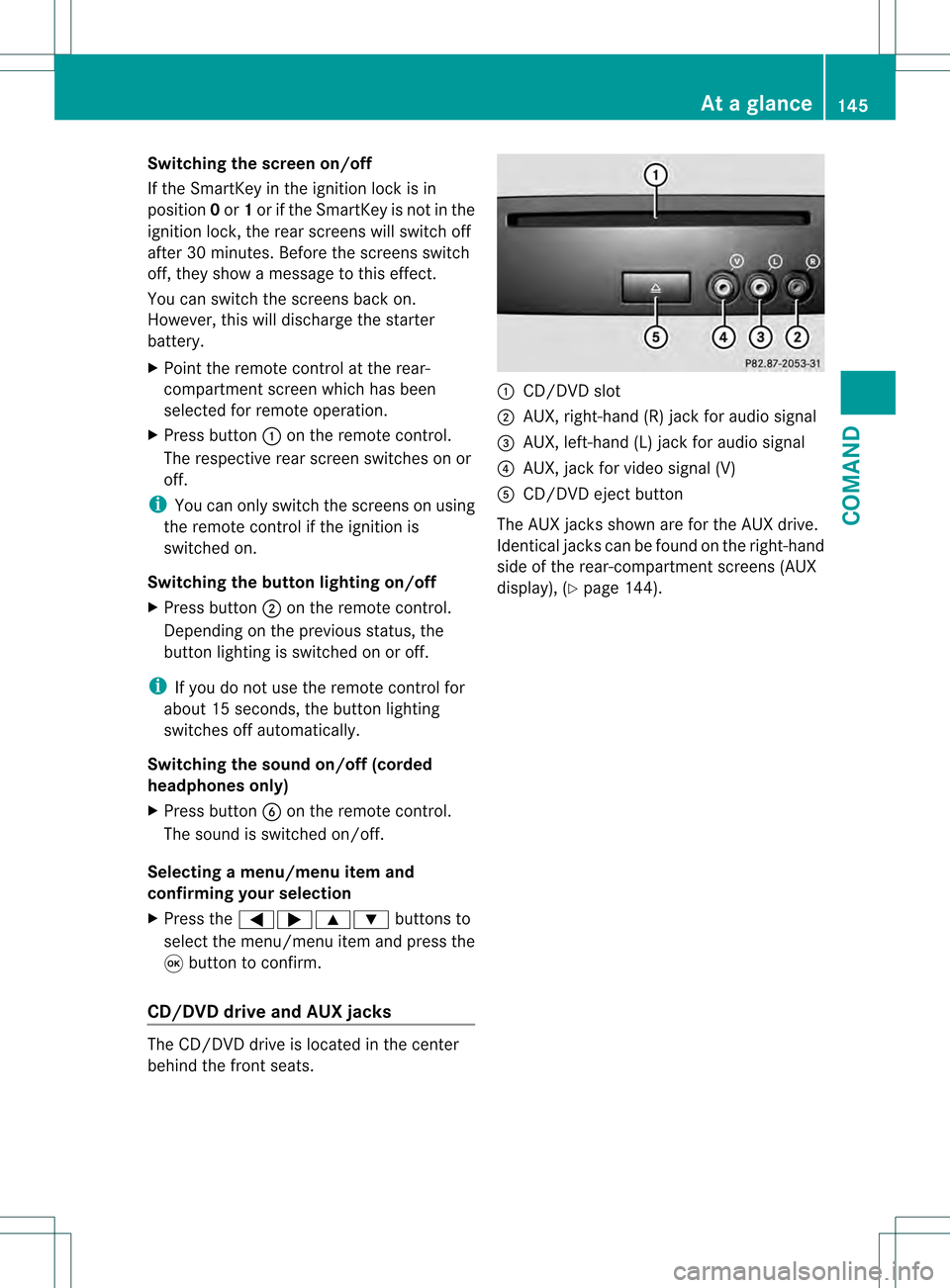
CD/DVD drive and AUX jacks The CD/DVD drive is located in the center
behind the front seats. 0002
CD/DVD slot
0003 AUX, right-hand (R) jack for audio signal
0026 AUX, left-hand (L) jack for audio signal
0025 AUX, jack for video signal (V)
0023 CD/DVD eject button
The AUX jacks shown are for the AUX drive.
Identical jacks can be found on the right-hand
side of the rear-compartment screens (AUX
display), (Y page 144). At
ag lance
145COMAND Z
Page 148 of 542

Cordless headphones
Overview
The cordless headphones for the rear compartmen
tcan be recognized by the "DIGITA LAUDIO"
inscription on the battery compartment cover and by the fact that there is no SPLITVIEW
symbol (Y page 126)(Y page 126). 0002
Volume control
0003 To select a screen for the headphones
0026 Battery compartment cover
0025 To switch the cordless headphones on/off
0023 Indicator lamp with various displays (Y page 147)
X Gently pull both sides of the headphones out and adjust the fit of the headphones by pulling
the headband in the direction of the arrow.
Switching the cordless headphones on/
off
X Press button 0025.
Depending on the previous status, the
headphones are switched on or off. To save
the battery, the headphones are switched
off automatically if they do not receive a
signal within three minutes.
Adjusting the volume of the headphones
X Turn volume control 0002until you have
reached the desired volume.
i If you have connected corded
headphones to a rear-compartment
screen, you can adjust the volume by pressing buttons
0014on the remote control
(Y page 129).
Selecting ascreen for the headphones
X Move push slider 0003toL(left-hand screen)
or R(right-hand screen). 146
At
ag lanceCOMAND
Page 149 of 542
Indicator lamp displays
The indicator lamp displays the following
possible stati for the batteries and
headphones: Display Status
Green The batteries are fine.
Red The batteries are almost
discharged. Continuou
sly lit
either
green or
red The headphones are switched
on and connected to
ascreen. Flashes
either
green or
red The headphones are
searching for the connection
to a screen.
No display
(dark) The headphones are switched
off or the batteries are
discharged. Connecting additional headphones
You can connect an additional set of corded
headphones to each rear-compartment
screen (Y page 144).
Changing batteries Batteries are required for the remote control
and for the two sets of cordless headphones.
Changing batteries (Y
page 251)System settings
Display settings
Switching the display on/off X
Select Vehicle by turning
0031001C0032the
COMAND controlle rand press 0021to
confirm.
X Select Display OFF by turning
0031001C0032the
COMAND controller and press 0021to
confirm. X
To switch on the display: press0021or
0031001C0032 turn the COMAND controller.
Display design Your COMAND display features optimized
designs for operatio
nduring daytime and
night-time hours. You can customize the
design to suit your personal preferences by
manually selecting day or night design or opt
for an automatic setting.
X Select Vehicle by turning
0031001C0032the
COMAND controller and press 0021to
confirm.
X Select System by turning
0031001C0032the
COMAND controller and press 0021to
confirm.
X Select Display and press
0021to confirm.
X Select Day Mode ,
Night Mode or
Automatic by turning
0031001C0032the COMAND
controller and press 0021to confirm.
The 002Cicon indicates the current setting. Design Explanation
Day Mode The display is set
permanently to day
design.
Night Mode The display is set
permanently to night
design.
Automatic The display design
changes depending on
the brightness around
the vehicle.
i
In the Automatic setting, COMAND
evaluates the readings from the automatic
vehicle light sensor and switches between
the display designs automatically. System settings
147COMAND Z
Page 152 of 542
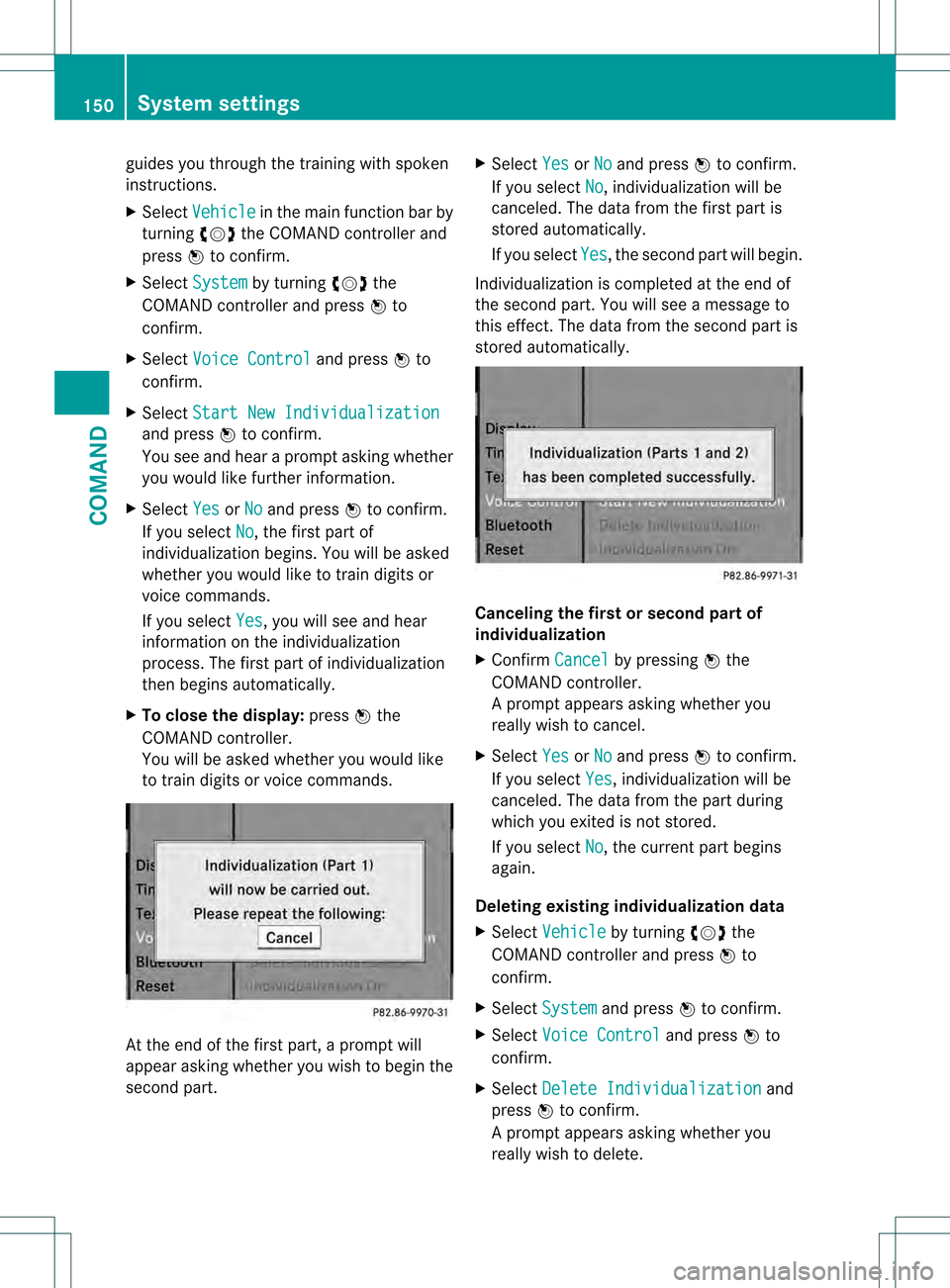
guides you through the training with spoken
instructions.
X
Select Vehicle in the main function bar by
turning 0031001C0032the COMAND controller and
press 0021to confirm.
X Select System by turning
0031001C0032the
COMAND controller and press 0021to
confirm.
X Select Voice Control and press
0021to
confirm.
X Select Start New Individualization and press
0021to confirm.
You see and hear a prompt asking whether
you would like further information.
X Select Yes or
No and press
0021to confirm.
If you select No , the first part of
individualization begins. You will be asked
whether you would like to train digits or
voice commands.
If you select Yes , you will see and hear
information on the individualization
process. The first part of individualization
then begins automatically.
X To close the display: press0021the
COMAND controller.
You will be asked whether you would like
to train digits or voice commands. At the end of the first part, a prompt will
appear asking whether you wish to begin the
second part. X
Select Yes or
No and press
0021to confirm.
If you select No , individualization will be
canceled. The data from the first part is
stored automatically.
If you select Yes , the second part will begin.
Individualization is completed at the end of
the second part. You will see a message to
this effect. The data from the second part is
stored automatically. Canceling the first or second partof
individualization
X
Confirm Cancel by pressing
0021the
COMAND controller.
Ap rompt appears asking whethe ryou
really wish to cancel.
X Select Yes or
No and press
0021to confirm.
If you select Yes , individualization will be
canceled. The data from the part during
which you exited is not stored.
If you select No , the current part begins
again.
Deleting existing individualization data
X Select Vehicle by turning
0031001C0032the
COMAND controller and press 0021to
confirm.
X Select System and press
0021to confirm.
X Select Voice Control and press
0021to
confirm.
X Select Delete Individualization and
press 0021to confirm.
Ap rompt appears asking whethe ryou
really wish to delete. 150
System settingsCOMAND
Page 153 of 542
X
Select Yes or
No and press
0021to confirm.
If you select No , the process will be aborted.
If you select Yes , the individualization is
deleted. You will see a message to this
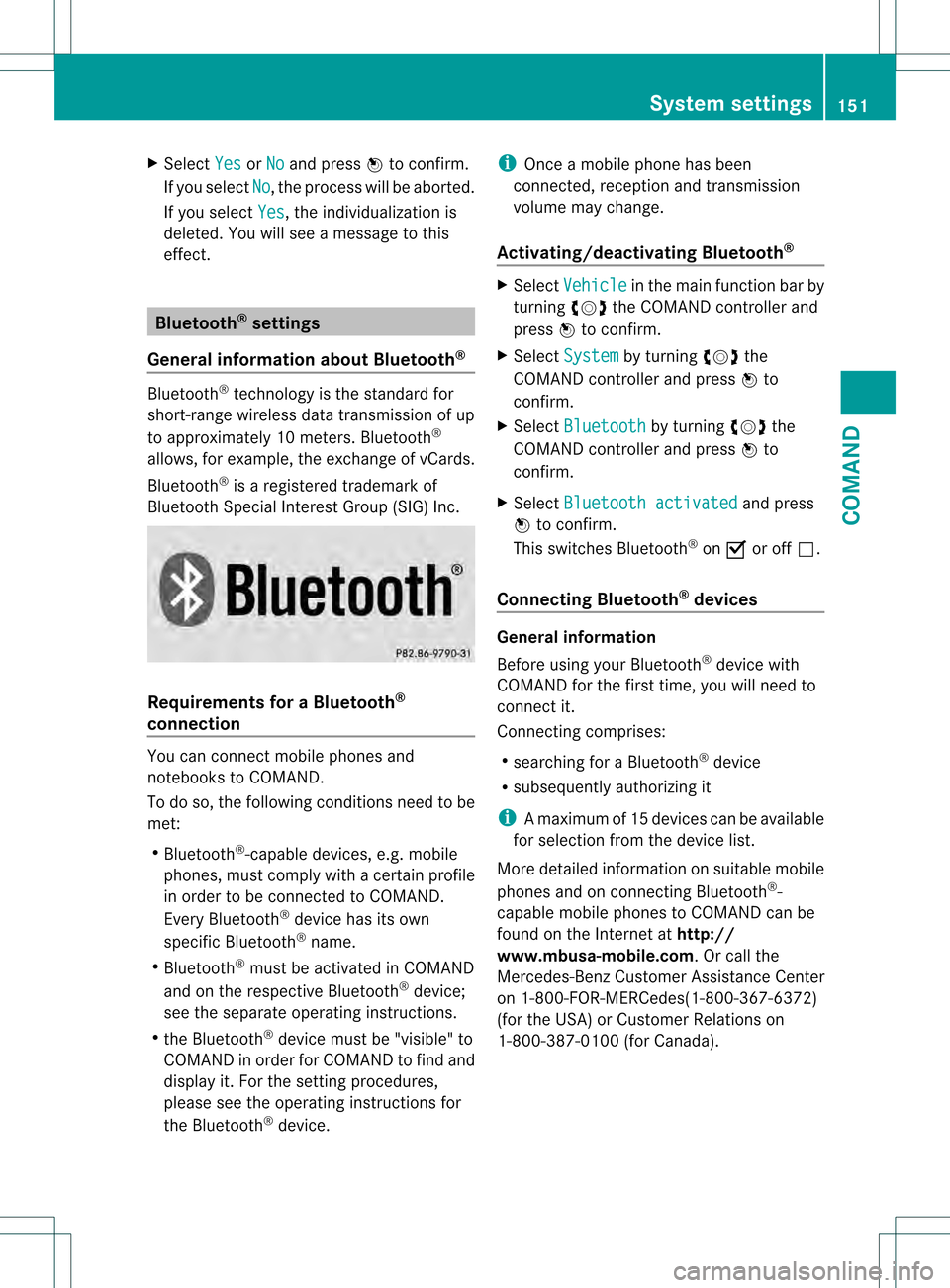
effect. Bluetooth
®
settings
General information about Bluetooth ®Bluetooth
®
technology is the standard for
short-range wireless data transmissio nofup
to approximately 10 meters. Bluetooth ®
allows, for example, the exchange of vCards.
Bluetooth ®
is a registered trademark of
Bluetooth Special Interes tGroup (SIG) Inc. Requirements for a Bluetooth
®
connection You can connect mobile phones and
notebooks to COMAND.
To do so, the following conditions need to be
met:
R Bluetooth ®
-capable devices, e.g. mobile
phones, must comply with a certain profile
in order to be connected to COMAND.
Every Bluetooth ®
device has its own
specific Bluetooth ®
name.
R Bluetooth ®
must be activated in COMAND
and on the respective Bluetooth ®
device;
see the separate operating instructions.
R the Bluetooth ®
device must be "visible" to
COMAND in order for COMAND to find and
display it. For the setting procedures,
please see the operating instructions for
the Bluetooth ®
device. i
Once a mobile phone has been
connected, receptio nand transmission
volume may change.
Activating/deactivating Bluetooth ® X
Select Vehicle in the main functio
nbar by
turning 0031001C0032the COMAND controller and
press 0021to confirm.
X Select System by turning
0031001C0032the
COMAND controller and press 0021to
confirm.
X Select Bluetooth by turning
0031001C0032the
COMAND controller and press 0021to
confirm.
X Select Bluetooth activated and press
0021 to confirm.
This switches Bluetooth ®
on 000A or off 0002.
Connecting Bluetooth ®
devices General information
Before using your Bluetooth
®
device with
COMAND for the first time, you will need to
connect it.
Connecting comprises:
R searching for a Bluetooth ®
device
R subsequently authorizing it
i Amaximum of 15 devices can be available
for selectio nfrom the device list.
More detailed information on suitable mobile
phones and on connecting Bluetooth ®
-
capable mobile phones to COMAND can be
found on the Internet at http://
www.mbusa-mobile.com. Or call the
Mercedes-Benz Customer Assistance Center
on 1-800-FOR-MERCedes(1-800-367-6372)
(for the USA) or Customer Relations on
1-800-387-0100 (for Canada). System settings
151COMAND Z
Page 154 of 542
Searching for Bluetooth
®
devices
X Activate Bluetooth ®
(Y page 151).
X Select Vehicle in the main function bar by
turning 0031001C0032the COMAND controller and
press 0021to confirm.
X Select System by turning
0031001C0032the
COMAND controller and press 0021to
confirm.
X Select Bluetooth by turning
0031001C0032the
COMAND controller and press 0021to
confirm.
X Select Search for Bluetooth Devices and press
0021to confirm.
X Select Update and press
0021to confirm.
COMAND searches for Bluetooth ®
devices
within range. After a short while, the
Bluetooth ®
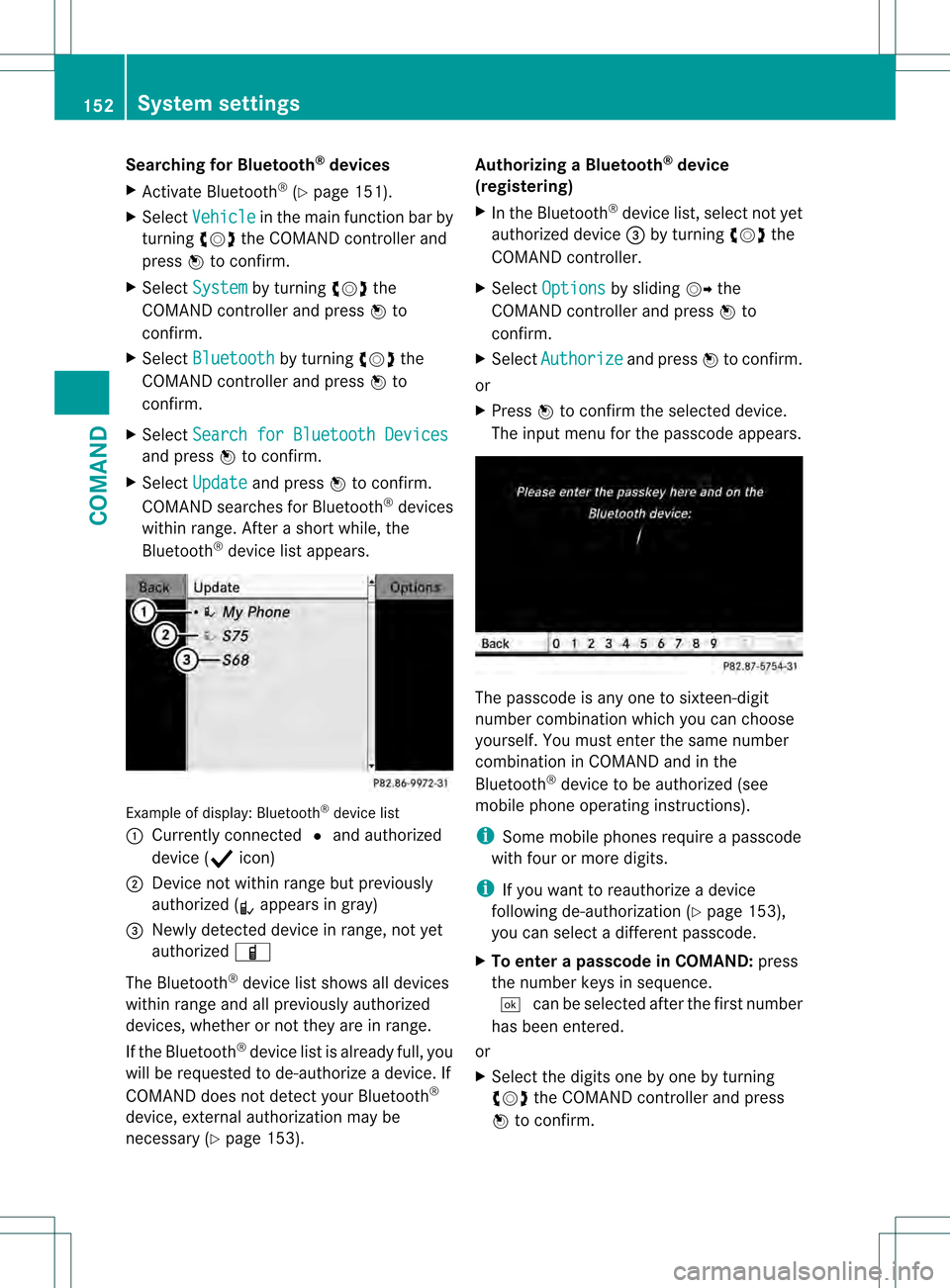
device list appears. Example of display:B
luetooth®
device list
0002 Currently connected 002Cand authorized
device (0007 icon)
0003 Device not within range but previously
authorized (0009 appears in gray)
0026 Newly detected device in range, not yet
authorized 000D
The Bluetooth ®
device list shows all devices
within range and all previously authorized
devices, whether or not they are in range.
If the Bluetooth ®
device list is already full, you
will be requested to de-authorize a device. If
COMAN Ddoes not detect your Bluetooth ®
device, external authorization may be
necessary (Y page 153). Authorizing a Bluetooth
®
device
(registering)
X In the Bluetooth ®
device list, select not yet
authorized device 0026by turning 0031001C0032the
COMAND controller.
X Select Options by sliding
001C003Dthe
COMAND controller and press 0021to
confirm.
X Select Authorize and press
0021to confirm.
or
X Press 0021to confirm the selected device.
The input menu for the passcode appears. The passcode is any one to sixteen-digit
number combination which you can choose
yourself. You must enter the same number
combination in COMAND and in the
Bluetooth
®
device to be authorized (see
mobile phone operating instructions).
i Some mobile phones require a passcode
with four or more digits.
i If you want to reauthorize a device
following de-authorization ( Ypage 153),
you can select a different passcode.
X To enter apasscode in COMAND: press
the numbe rkeys in sequence.
0003 can be selected after the first number
has been entered.
or
X Select the digits one by one by turning
0031001C0032 the COMAND controller and press
0021 to confirm. 152
System settingsCOMAND