display MERCEDES-BENZ S-Class 2013 W221 Repair Manual
[x] Cancel search | Manufacturer: MERCEDES-BENZ, Model Year: 2013, Model line: S-Class, Model: MERCEDES-BENZ S-Class 2013 W221Pages: 542, PDF Size: 7.97 MB
Page 155 of 542
X
To confirm an entry in COMAND: select
0003 using the COMAND controller and
press 0021to confirm.
or
X Select SENDon the telephone keypad.
X Enter the same passcode into the
Bluetooth ®
device (see the operating
instructions for the respective device).
The device is authorized.
External authorization If COMAND does not detect your
Bluetooth
®
device, this may be du eto
particular security settings on your
Bluetooth ®
device. In this case, you can test
if your Bluetooth ®
device can find COMAND.
The Bluetooth ®
device name of COMAND is
"MB Bluetooth".
X Select Update .
X Select Options by sliding
001C003Dthe
COMAND controller and press 0021to
confirm.
X Select External Authorization and
press 0021to confirm.
X Start the Bluetooth ®
scan process on the
Bluetooth ®
device (see separate operating
instructions of the respective device).
X Select COMAND ("MB Bluetooth").
i The order in which the passkey is entered
depends on the mobile phone.
X Enter the passkey on the Bluetooth ®
device
when prompted.
X Confirm the Do you want to authorize
XX? question in COMAND with
Yes .
X Enter the passkey in COMAND.
Displaying the details of a Bluetooth ®
device X
In the Bluetooth ®
device list, select the
desired device by turning 0031001C0032the
COMAND controller. X
Select Options by sliding
001C003Dthe
COMAND controller and press 0021to
confirm.
X Select Details and press
0021to confirm.
The detailed display for this device
appears.
X To close the detailed view: turn0031001C0032 or
slide 003C001C003D the COMAND controller.
De-authorizing (de-registering) a
Bluetooth ®
device Mercedes-Benz USA, LLC recommends de-
authorization in both COMAND and the
Bluetooth
®
device, e.g. the mobile phone.
Subsequent authorization may otherwise fail.
X In the Bluetooth ®
device list, select the
authorized device by turning 0031001C0032the
COMAND controller.
X Select Options by sliding
001C003Dthe
COMAND controller and press 0021to
confirm.
X Select De-authorize and press
0021to
confirm.
Ap rompt appears asking whethe ryou
really wish to de-authorize this device.
X Select Yes or
No and press
0021to confirm.
If you select Yes , the authorization for the
device will be revoked.
If you select No , the process will be aborted.
i If a Bluetooth ®
device has been de-
authorized and is out of range, when a new
search is carried out it will not appear in the
Bluetooth ®
device list. System language settings
This function allows you to determine the
language for the menu display sand the
navigation messages. The selected language
affects the characters available for entry.
Whe nyou set the system language, the
language of the Voice Control System will System settings
153COMAND Z
Page 157 of 542
G
WARNING
Navigation announcements are intended to
direct you while driving without diverting your
attention from the road and driving.
Please always use this feature instead of
consulting the map display for directions.
Looking at the icons or map display can
distract you from traffic conditions and
driving, and increase the risk of an accident.
General information Operational readiness of the navigation
system
The navigation system must determine the
position of the vehicle before first use or
whenever operational status is restored.
Therefore, you may have to drive for a while
before precise route guidance is possible.
GPS reception
Correct functioning of the navigation system
depends, amongst other things, on GPS
reception. In certain situations, GPS
receptio nmay be impaired, there may be
interference or there may be no reception at
all, e.g .intunnels or parking garages.
Entry restriction
On vehicles for certai ncountries, there is a
restriction on entering data.
The restriction is active from a vehicle speed
of over approximately 3 mph (5 km/h). As
soon as speed falls below approximately
2 mph (3 km/h), the restriction becomes
inactive.
When the restriction is active, certain entries
cannot be made. This will be indicated by the
fact that certain menu items are grayed out
and cannot be selected.
The following functions, for example, may
therefore not be available while the vehicle is
in motion:
R entering the destination city and street
R entering a destination via the map R
entering points of interes tinthe vicinity of
a city or via a name search
R editing entries
R using the number keypad for direct entry
Switching to navigation mode X
Press the 0011function button once or
twice.
or
X Select Navi in the main function bar by
sliding 002A001Cand turning 0031001C0032the COMAND
controller and press 0021to confirm.
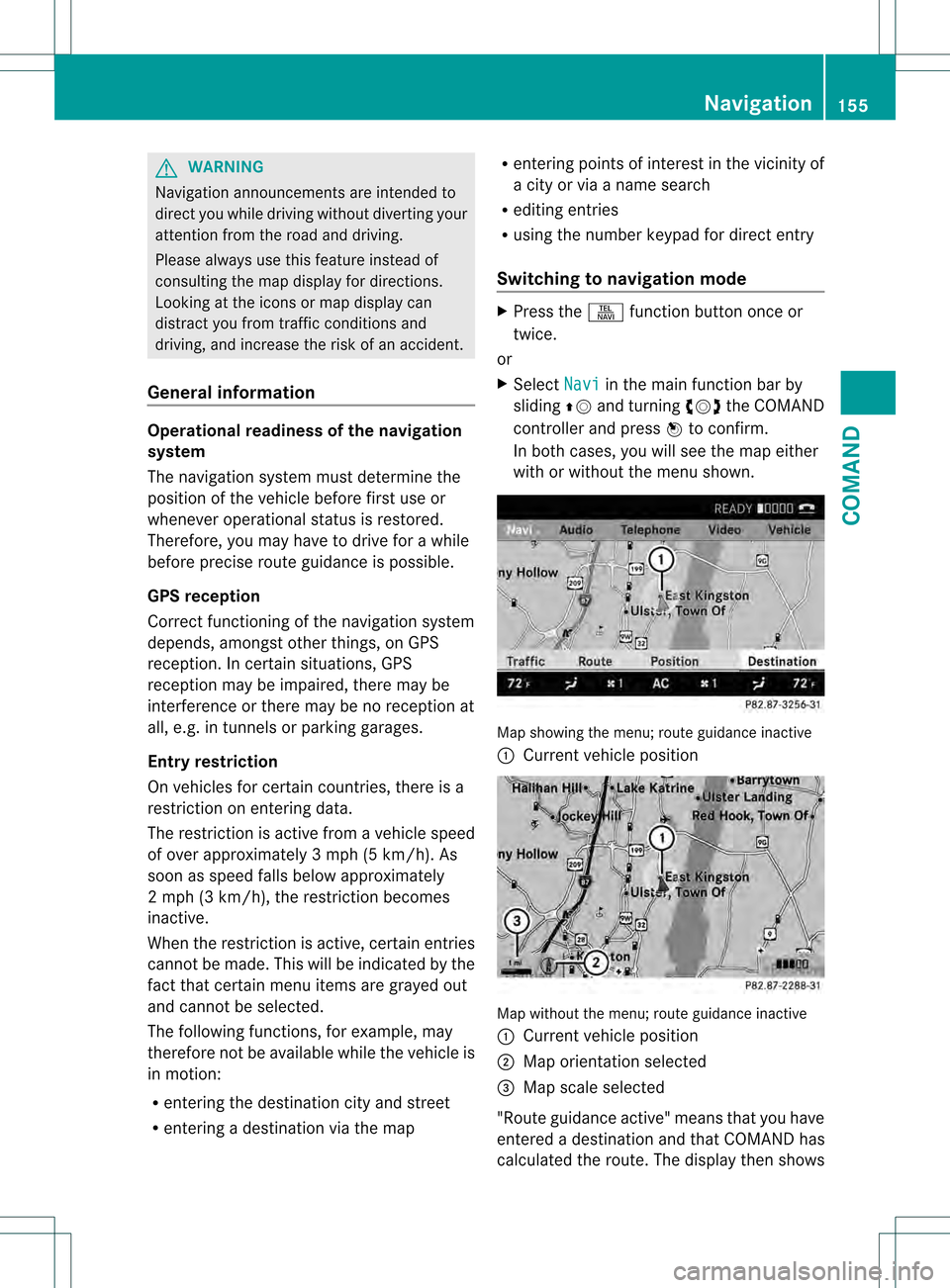
In both cases, you will see the map either
with or without the menu shown. Map showing the menu; route guidance inactive
0002
Current vehicle position Map without the menu; route guidance inactive
0002
Current vehicle position
0003 Map orientation selected
0026 Map scale selected
"Route guidance active" means that you have
entered a destination and that COMAND has
calculated the route. The display then shows Navigation
155COMAND Z
Page 158 of 542

the route, changes of directio
nand lane
recommendations. Navigation
announcements guide you to your
destination.
"Route guidance inactive" means tha tno
destination has been entered and that no
route has been calculated.
Showing/hiding the menu X
To hide the menu: slide002A001Cthe COMAND
controller over the map.
The Full Screen menu item is shown.
X Confirm the Full Screen menu item
shown by pressing 0021.
The map can be seen in the full-screen
display.
X To show the menu: press0021the COMAND
controller when the map is shown in full-
screen. Basic settings
Route mode Setting route type and route options
You can select the following route types:
R Fast Route :C
OMAND calculates the
route with the shortest (minimized) journey
time.
R Dynamic Route :s
ame route type as Fast Route . In addition, COMAND takes traffic
reports into account during route
guidance 6
.T hus, the navigation system is
able to guide you around ablocked section,
for example. If a faster route is determined
due to a received RDS-TM Ctraffic
announcement, the navigation system
changes the route. If possible, it will bypass
blocked roads. R
Eco Route :t
he ECO route is an economical
route that takes traffic announcements
into account (see dynamic route).
R Short Route :C
OMAND calculates the
route with the shortest possible
(minimized) route distance.
In addition to route types, route options can
also be set.
You can select the following route options:
R Use Carpool Lanes R
Minimize highways R
Minimize Toll Roads R
Minimize Tunnels R
Minimize Ferries R
Minimize Motorail Trains If you select route options with a tick, the
corresponding types of roads will be avoided
in the route guidance where possible.
X To activate navigation mode: press the
0011 function button once or twice.
X To show the menu: press0021the COMAND
controller.
X Select Navi in the main function bar by
sliding 002A001Cand turning 0031001C0032the COMAND
controller and press 0021to confirm.
X Select Mode and press
0021to confirm. 0002
To select the route type
0003 To set route options
X Select a route type and press 0021to confirm.
The äicon indicates the current setting.
6 Traffic reports are not available in all countries. 156
NavigationCOMAND
Page 159 of 542
X
Select the route option(s )and press 0021to
confirm.
The route options are switched on 000Aor off
0002, depending on the previous status.
i If you change the route type and/or the
route options while route guidance is active
(the route has been calculated), COMAND
will calculate a new route.
If you change the route type and/or the
route options while route guidance is
inactive (no destination has been entered
yet), COMAND uses the new setting for the
next route guidance.
i The route calculated may, for example,
include ferry connections, even if the
Minimize Ferries route optio
nis
switched on.
In some cases, e.g. when calculating
particularly long routes, COMAND may not
be able to take all the selected route
options into account. A note then appears
in the COMAND display.
X To exit the menu: slide003C001C003D the COMAND
controller. Destination input
Introduction to destination entry G
WARNING
For safety reasons, only enter a new
destination when the vehicle is stationary.
You could otherwise be distracted from the
traffic conditions, cause an accident and
injure yourselfa nd others.
The following destinatio nentry options are
available:
R entering a destination by address
R entering a destination from the destination
memory
R entering a destination from the list of last
destinations
R entering a destination using the map R
entering an intermediate stop
R entering a point of interest
Entering adestination by address Introduction
When entering an address as the destination,
you have the following options:
R
entering the state/province, city/ZIP code
and street
R entering the state/province, city/zip code
and center
R entering the state/province, city/zip code,
street and house number
R entering the state/province, city/zip code,
street and intersection
R entering the state/province, street, city
and house number
R entering the state/province, street, house
number and city
R entering the state/province, street,
intersection and city
i You can only enter those cities, streets,
zip codes etc. that are stored in the digital
map. This means that for some countries,
you canno tenter zip codes, for example.
Example: entering an address
The following is a step-by-step example of
how to ente ranaddress. The destination
address is as follows:
New York (state)
New York City
40 Broadway
You can of course enter any country, city,
street and house number desired and enter,
for example, your home address (My
address).
Calling up the address entry menu
X To activate navigation mode: press the
0011 function button once or twice.
X To show the menu: press0021the COMAND
controller. Navigation
157COMAND Z
Page 160 of 542
X
Select Destination by turning
0031001C0032the
COMAND controlle rand pressing 0021to
confirm.
X Select Address Entry and press
0021to
confirm.
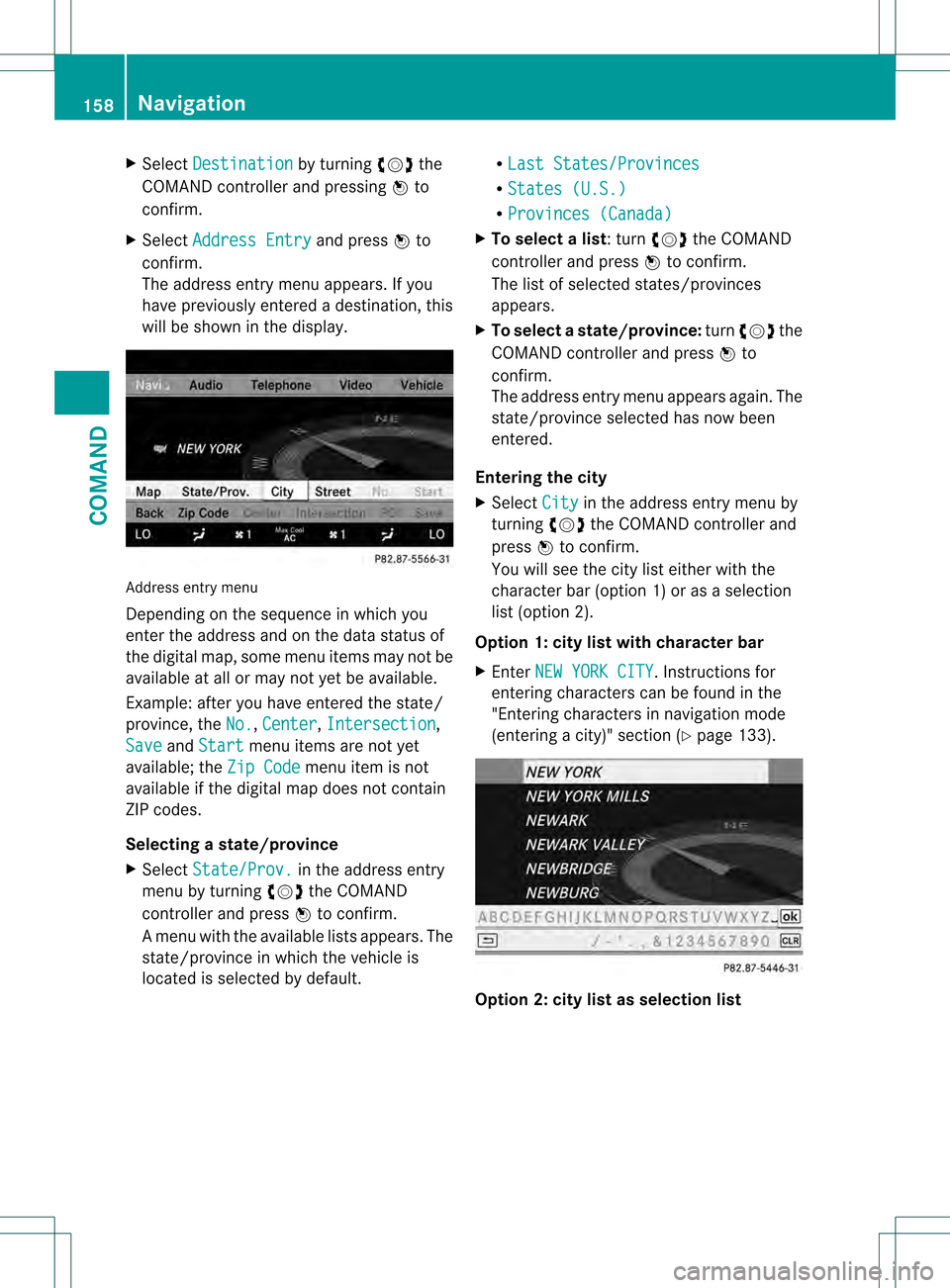
The address entry menu appears. If you
have previously entered a destination, this
will be shown in the display. Address entry menu
Depending on the sequence in which you
ente
rthe address and on the data status of
the digital map, some menu items may not be
available at all or may not yet be available.
Example: after you have entered the state/
province, the No. ,
Center ,
Intersection ,
Save and
Start menu items are not yet
available; the Zip Code menu item is not
available if the digital map does not contain
ZIP codes.
Selecting astate/province
X Select State/Prov. in the address entry
menu by turning 0031001C0032the COMAND
controller and press 0021to confirm.
Am enu with the available lists appears. The
state/province in which the vehicle is
located is selected by default. R
Last States/Provinces R
States (U.S.) R
Provinces (Canada) X
To select alist : turn 0031001C0032the COMAND
controller and press 0021to confirm.
The list of selected states/provinces
appears.
X To select astate/province: turn0031001C0032 the
COMAND controller and press 0021to
confirm.
The address entry menu appears again. The
state/province selected has now been
entered.
Entering the city
X Select City in the address entry menu by
turning 0031001C0032the COMAND controller and
press 0021to confirm.
You will see the city list either with the
character ba r(option 1) or as a selection
list (option 2).
Option 1: city list with character bar
X Enter NEW YORK CITY . Instructions for
entering characters can be found in the
"Entering characters in navigation mode
(entering a city)" section (Y page 133). Option 2: city list as selection list158
NavigationCOMAND
Page 162 of 542
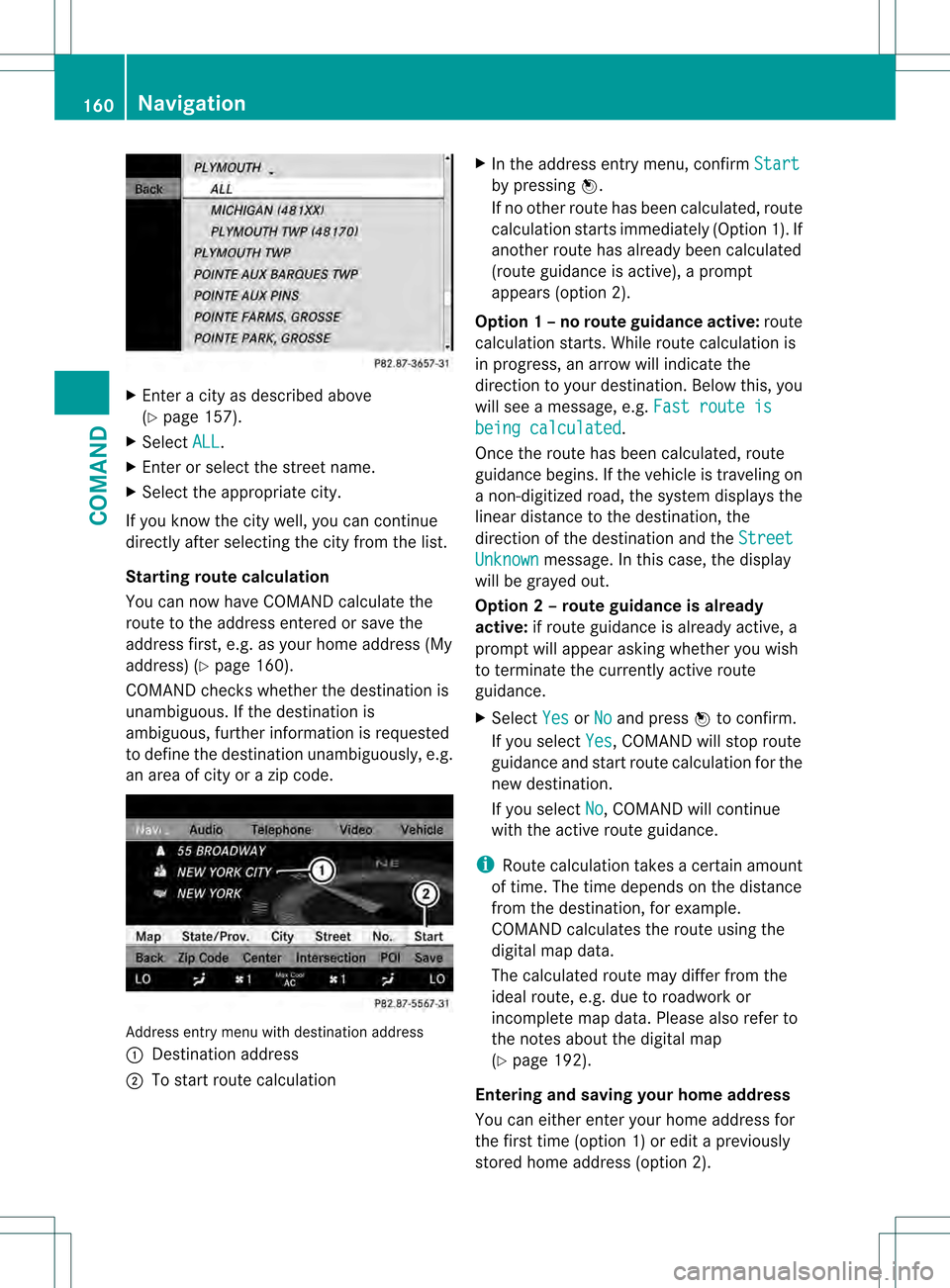
X
Enter a city as described above
(Y page 157).
X Select ALL .
X Enter or select the street name.
X Select the appropriate city.
If you know the city well, you can continue
directly after selecting the city from the list.
Starting route calculation
You can now have COMAND calculate the
route to the address entered or save the
address first, e.g .as your home address (My
address) (Y page 160).
COMAND checks whether the destination is
unambiguous. If the destination is
ambiguous, further information is requested
to define the destination unambiguously, e.g.
an area of city or a zip code. Address entry menu with destination address
0002
Destination address
0003 To start route calculation X
In the address entry menu, confirm Start by pressing
0021.
If no other route has been calculated, route
calculation starts immediately (Option 1). If
another route has already been calculated
(route guidance is active), a prompt
appears (option 2).
Option 1 –no route guidance active: route
calculatio nstarts. While route calculatio nis
in progress, an arrow will indicate the
direction to your destination. Below this, you
will see a message, e.g. Fast route is being calculated .
Once the route has been calculated, route
guidance begins. If the vehicle is traveling on
a non-digitized road, the system displays the
linear distance to the destination, the
direction of the destination and the Street Unknown message. In this case, the display
will be grayed out.
Option 2 – route guidance is already
active: if route guidance is already active, a
prompt will appear asking whether you wish
to terminate the currently active route
guidance.
X Select Yes or
No and press
0021to confirm.
If you select Yes , COMAND will stop route
guidance and start route calculation for the
new destination.
If you select No , COMAND will continue
with the active route guidance.
i Route calculation takes a certain amount
of time. The time depends on the distance
fro mt he destination, for example.
COMAND calculates the route using the
digital map data.
The calculated route may differ from the
ideal route, e.g. due to roadwork or
incomplete map data. Please also refer to
the notes about the digital map
(Y page 192).
Entering and saving your home address
You can either enter your home address for
the first time (option 1) or edit a previously
stored home address (option 2). 160
NavigationCOMAND
Page 166 of 542
on the same street:
call up an address
destination fro mthe last destinations.
X Select Change by turning
0031001C0032and sliding
002A001C0006 the COMAND controller and press
0021 to confirm.
All destination entry functions are
available.
X Edit/enter the destination as described for
destination entry (Y page 157).
Entering adestination usin gthe map Calling up the map
X
To activate navigation mode: press the
0011 function button once or twice.
X To show the menu: press0021the COMAND
controller.
X Select Destination in the navigation
system menu bar by turning 0031001C0032the
COMAND controlle rand pressing 0021to
confirm.
X Select Via Map and press
0021to confirm.
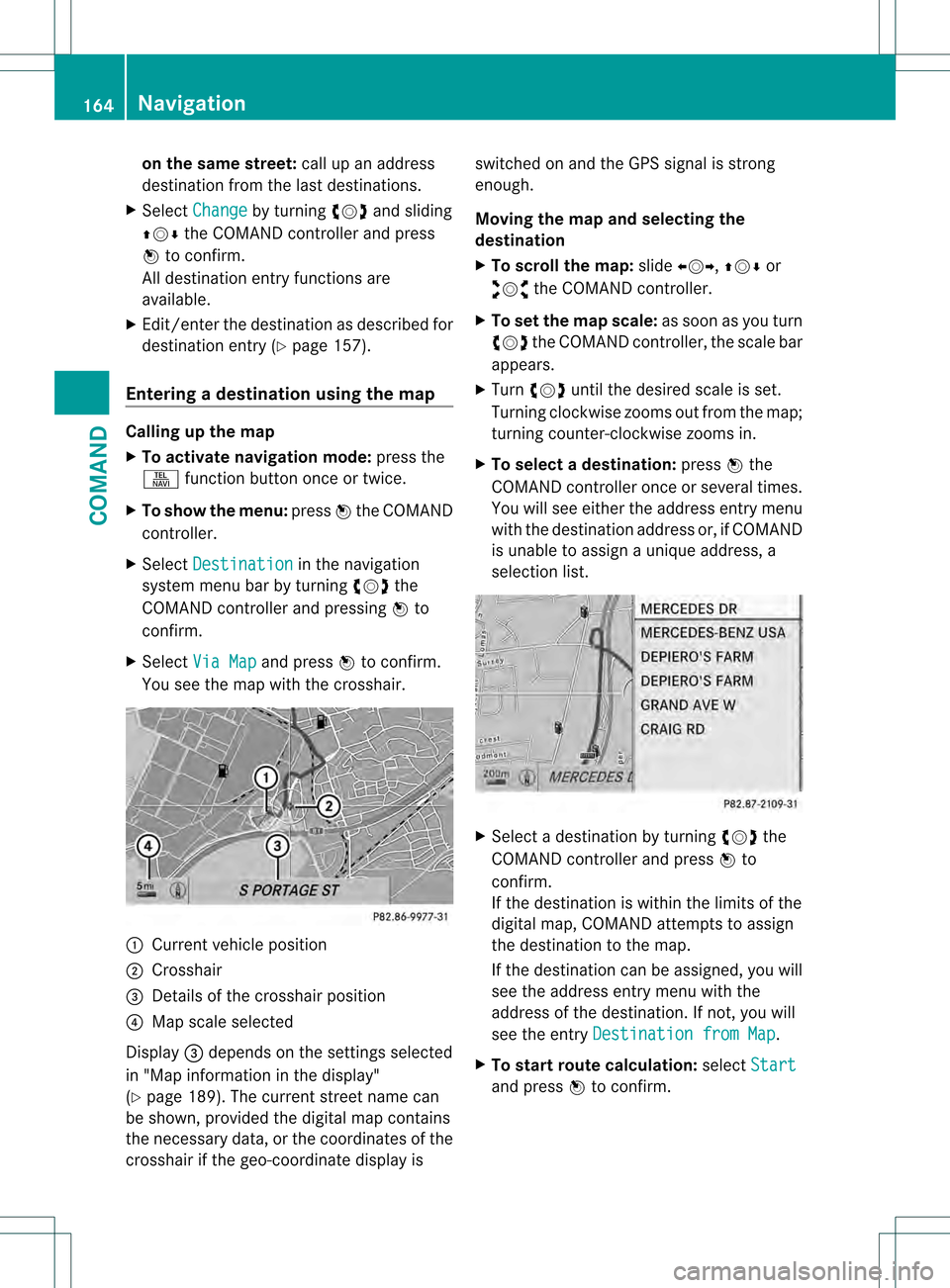
You see the map with the crosshair. 0002
Current vehicle position
0003 Crosshair
0026 Details of the crosshair position
0025 Map scale selected
Display 0026depends on the settings selected
in "Map informatio ninthe display"
(Y page 189). The current street name can
be shown, provided the digital map contains
the necessary data, or the coordinates of the
crosshair if the geo-coordinate display is switched on and the GPS signal is strong
enough.
Moving the map and selecting the
destination
X
To scroll the map: slide003C001C003D, 002A001C0006or
003A001C0030 the COMAND controller.
X To set the map scale: as soon as you turn
0031001C0032 the COMAND controller, the scale bar
appears.
X Turn 0031001C0032 until the desired scale is set.
Turning clockwise zooms out from the map;
turning counter-clockwise zooms in.
X To selectad estination:press0021the
COMAND controller once or several times.
You will see either the address entry menu
with the destination address or, if COMAND
is unable to assign a unique address, a
selectio nlist. X
Selec tadestination by turning 0031001C0032the
COMAND controller and press 0021to
confirm.
If the destination is within the limits of the
digital map, COMAND attempts to assign
the destination to the map.
If the destination can be assigned, you will
see the address entry menu with the
address of the destination. If not, you will
see the entry Destination from Map .
X To start route calculation: selectStart and press
0021to confirm. 164
NavigationCOMAND
Page 167 of 542
Entering an intermediate stop
Introduction
When route guidance is active, you can enter
an intermediate stop. Intermediate stops can
be predefined destinations from the following
categories that COMAND offers for selection:
R Mercedes-Benz Service Center R
Hospital R
Gas Station R
Parking Lot R
Restaurant However, you can also ente
rdestinations
other than the predefined ones. To do this
select the menu item Other .
You can use the intermediate stop function to
influence route guidance to the main
destination. When you have reached your
intermediate stop, COMAND automatically
recalculates the route to the main
destination.
Entering predefined destinations
X To activate navigation mode: press the
0011 function button once or twice.
X To show the menu: press0021the COMAND
controller.
X Select Destination in the navigation
system menu bar by turning 0031001C0032the
COMAND controller and pressing 0021to
confirm.
X Select Stopover and press
0021to confirm.
Option 1: no intermediate stop has been
entered yet.
X Select a category; see option 2.
Option 2: an intermediate stop has
already been entered.
X Select Change Stopover and press
0021to
confirm. X
To select acategory: select a category by
turning 0031001C0032the COMAND controller and
pressing 0021to confirm.
COMAND first searches in the selected
category for destinations along the route.
If there are no destinations available there,
COMAND searches for destinations within
a radius of up to 100 km of the vehicle
position.
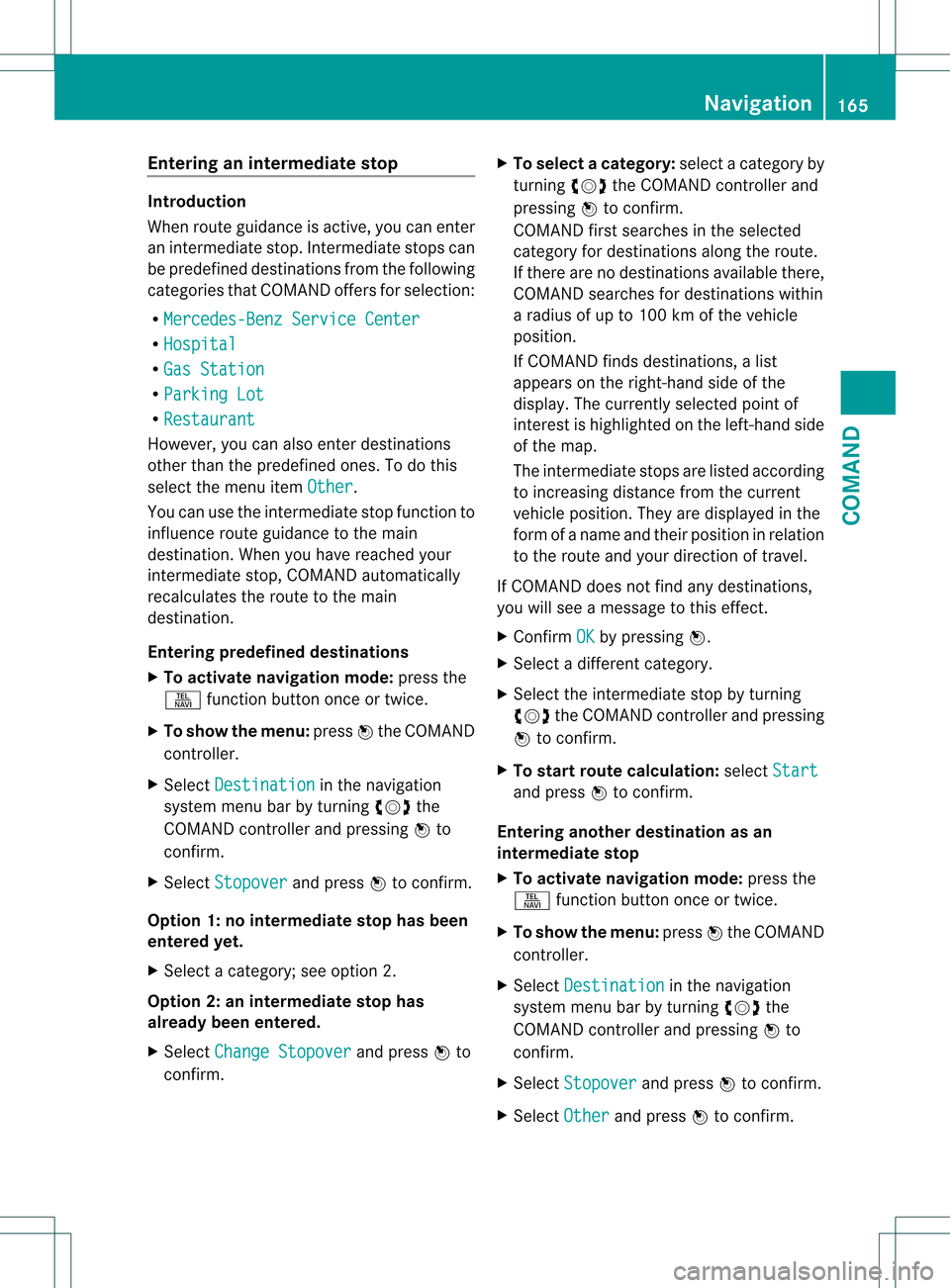
If COMAND finds destinations, a list
appears on the right-hand side of the
display. The currently selected point of
interes tis highlighted on the left-hand side
of the map.
The intermediate stops are listed according
to increasing distance from the current
vehicle position. They are displayed in the
form of a name and their position in relation
to the route and your direction of travel.
If COMAND does not find any destinations,
you will see a message to this effect.
X Confirm OK by pressing
0021.
X Select a different category.
X Select the intermediate stop by turning
0031001C0032 the COMAND controller and pressing
0021 to confirm.
X To start route calculation: selectStart and press
0021to confirm.
Entering another destination as an
intermediate stop
X To activate navigation mode: press the
0011 function button once or twice.
X To show the menu: press0021the COMAND
controller.
X Select Destination in the navigation
system menu bar by turning 0031001C0032the
COMAND controller and pressing 0021to
confirm.
X Select Stopover and press
0021to confirm.
X Select Other and press
0021to confirm. Navigation
165COMAND Z
Page 170 of 542
X
Confirm the entry with 0021.
If the selected main category does not
contain any sub-categories, the poin tof
interest list appears.
If the selected main category contains
subcategories, a list of the subcategories
appears with the input speller.
X Selec tacategory by turning 0031001C0032the
COMAND controller.
X Confirm the entry with 0021.
The point of interest list appears. It
contains the points of interest available in
the sub-category that are within the search
radius.
i Search radius means: COMAND searches
within a radius of 100 km.
If COMAND does not find any points of
interest within this radius, it extends its
search range to approximately 200 km. If
COMAND finds one point of interest within
this radius, it finishes the search.
i If you select the ALL list item, the point of
interest list contains all points of interest
for all subcategories in the Restaurantmai
ncategory which lie within the search
radius.
Point of interes tlist Introduction
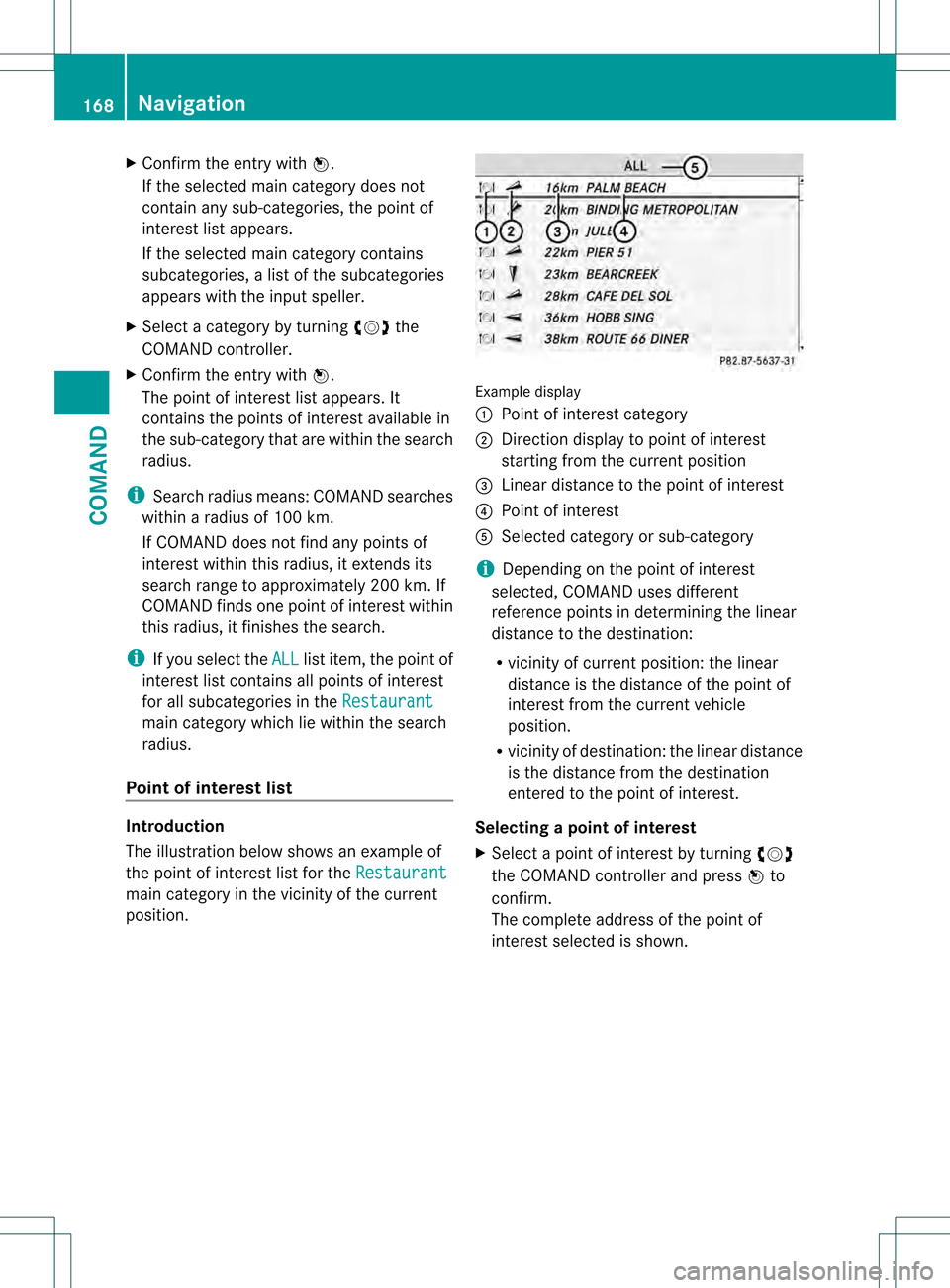
The illustration below shows an example of
the point of interest list for the
Restaurantmain category in the vicinity of the current
position. Example display
0002
Point of interest category
0003 Direction display to point of interest
starting from the current position
0026 Linear distance to the point of interest
0025 Point of interest
0023 Selected category or sub-category
i Depending on the point of interest
selected, COMAN Duses different
reference points in determining the linear
distance to the destination:
R vicinity of current position: the linear
distance is the distance of the point of
interest from the current vehicle
position.
R vicinity of destination: the linear distance
is the distance from the destination
entered to the point of interest.
Selecting apoint of interest
X Select a point of interest by turning 0031001C0032
the COMAND controller and press 0021to
confirm.
The complete address of the poin tof
interest selected is shown. 168
NavigationCOMAND
Page 171 of 542
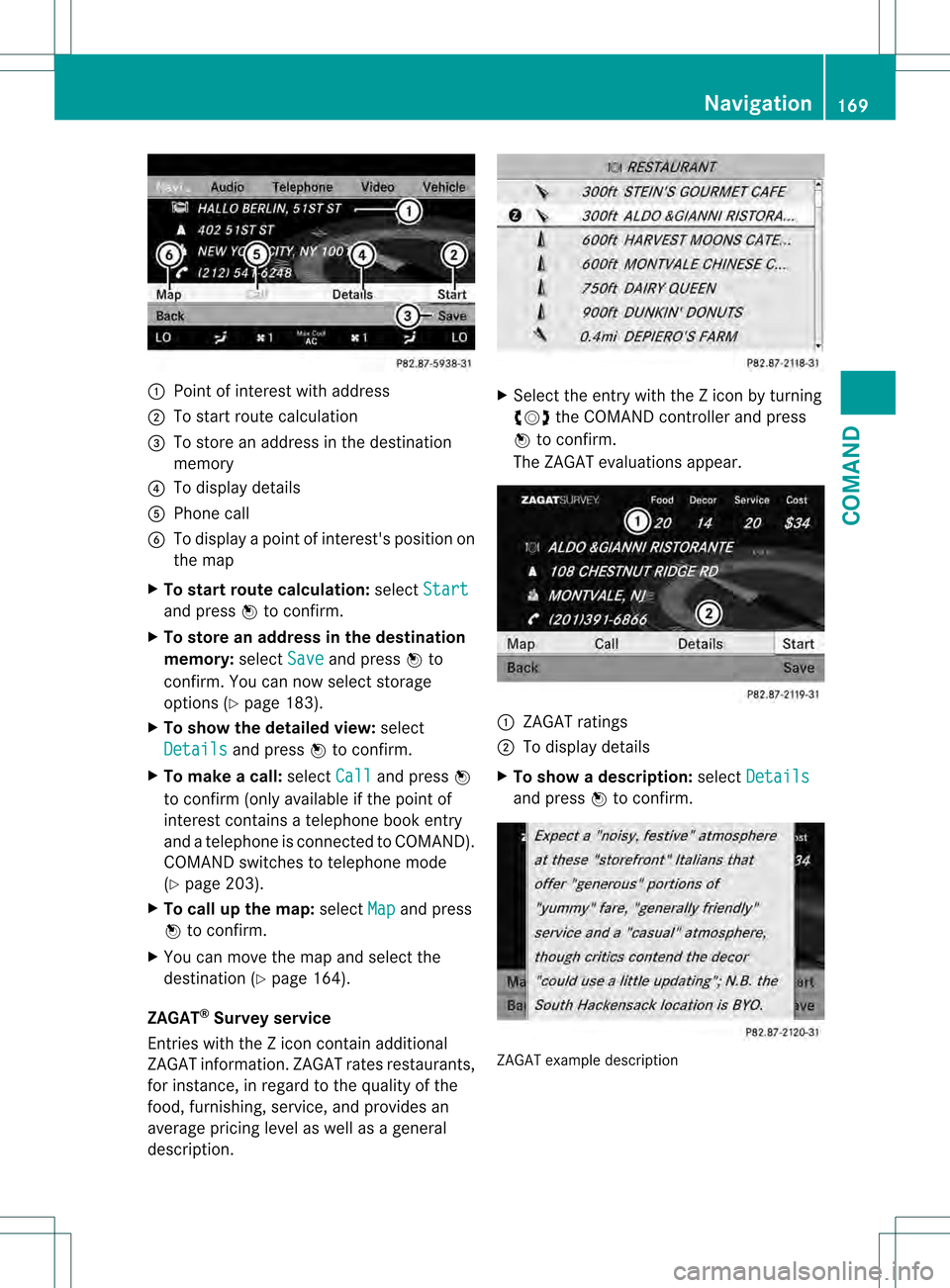
0002
Point of interest with address
0003 To start route calculation
0026 To store an address in the destination
memory
0025 To display details
0023 Phone call
0024 To display a point of interest's position on
the map
X To start route calculation: selectStart and press
0021to confirm.
X To store an address in the destination
memory: selectSave and press
0021to
confirm. You can now select storage
options (Y page 183).
X To show the detailed view: select
Details and press
0021to confirm.
X To make a call: selectCall and press
0021
to confirm (only availabl eifthe point of
interest contains a telephone book entry
and a telephone is connected to COMAND).
COMAND switches to telephone mode
(Y page 203).
X To call up the map: selectMap and press
0021 to confirm.
X You can move the map and select the
destination (Y page 164).
ZAGAT ®
Survey service
Entries with the Z icon contain additional
ZAGAT information .ZAGAT rates restaurants,
for instance, in regard to the quality of the
food, furnishing, service, and provides an
average pricing level as well as a general
description. X
Select the entry with the Z icon by turning
0031001C0032 the COMAND controller and press
0021 to confirm.
The ZAGAT evaluations appear. 1
ZAGAT ratings
2 To display details
X To show adescription: selectDetails and press
0021to confirm. ZAGAT example description Navigation
169COMAND Z