display MERCEDES-BENZ S-Class 2013 W221 Manual Online
[x] Cancel search | Manufacturer: MERCEDES-BENZ, Model Year: 2013, Model line: S-Class, Model: MERCEDES-BENZ S-Class 2013 W221Pages: 542, PDF Size: 7.97 MB
Page 182 of 542
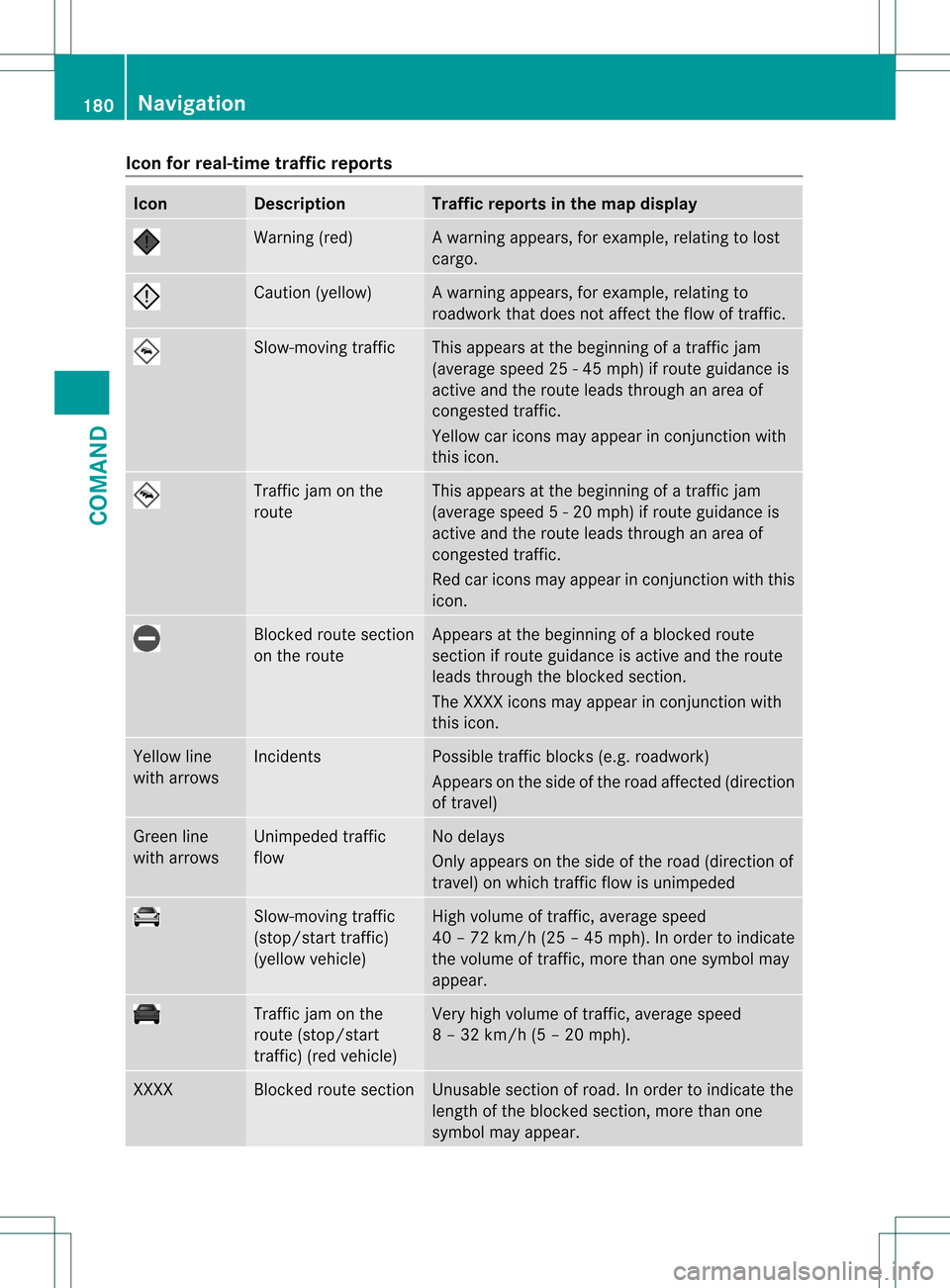
Icon for real-time traffic reports
Icon Description Traffic reports in the map display
Warning (red) Aw
arning appears, for example, relating to lost
cargo. Cautio
n(yellow) Aw
arning appears, for example, relating to
roadwork that does not affect the flow of traffic. Slow-moving traffic This appears at the beginning of a traffic jam
(average speed 25
-45mph) if route guidance is
active and the route leads through an area of
congested traffic.
Yellow car icons may appear in conjunction with
this icon. Traffic jam on the
route This appears at the beginning of a traffic jam
(average speed
5-20mph) if route guidance is
active and the route leads through an area of
congested traffic.
Red car icons may appear in conjunction with this
icon. Blocked route section
on the route Appears at the beginning of a blocked route
section if route guidance is active and the route
leads through the blocked section.
The XXXX icons may appear in conjunction with
this icon. Yellow line
with arrows Incidents Possible traffic blocks (e.g. roadwork)
Appears on the side of the road affected (direction
of travel) Green line
with arrows Unimpeded traffic
flow No delays
Only appears on the side of the road (direction of
travel) on which traffic flow is unimpeded Slow-moving traffic
(stop/start traffic)
(yellow vehicle) High volume of traffic, average speed
40 – 72 km/
h(25 – 45 mph). In order to indicate
the volume of traffic, more than one symbol may
appear. Traffic jam on the
route (stop/start
traffic) (red vehicle) Very high volume of traffic, average speed
8 – 32 km/h (5 – 20 mph). XXXX Blocked route section Unusable section of road. In order to indicate the
length of the blocked section, more than one
symbol may appear.180
NavigationCOMAND
Page 183 of 542
Displaying real-time traffic reports
X
If necessary, switch to navigation mode
and show the menu (Y page 156).
X Select Traffic in the navigation system
menu bar by turning 0031001C0032the COMAND
controller and press 0021to confirm.
If you see the No traffic messages. message:
This means that:
R
no traffic reports have been received yet.
R no traffic reports are available.
X To cancel the search: selectCancel .
X To close the message window: select
OK .
If there are any traffic reports, a list is shown.
The conten tofthe list varies depending on
whether route guidance is active or not.
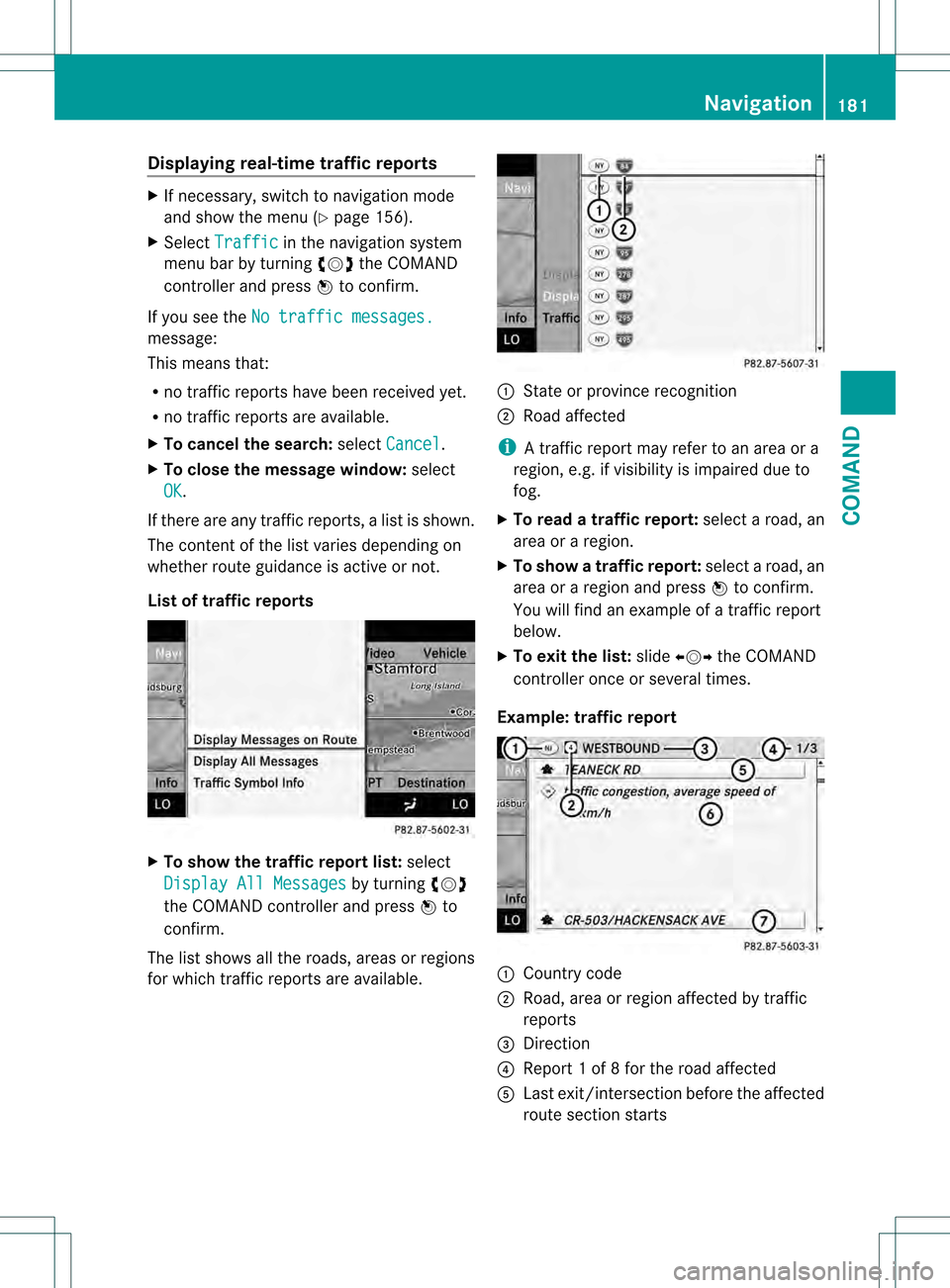
List of traffic reports X
To show the traffic report list: select
Display All Messages by turning
0031001C0032
the COMAND controller and press 0021to
confirm.
The list shows all the roads, areas or regions
for which traffic reports are available. 1
State or province recognition
2 Road affected
i A traffic report may refer to an area or a
region, e.g. if visibility is impaired due to
fog.
X To read a traffic report: select a road, an
area or a region.
X To show a traffic report: select a road, an
area or a region and press 0021to confirm.
You will find an example of a traffic report
below.
X To exit the list: slide003C001C003D the COMAND
controller once or several times.
Example: traffic report 1
Country code
2 Road, area or region affected by traffic
reports
3 Direction
4 Report 1 of 8 for the road affected
5 Last exit/intersection before the affected
route section starts Navigation
181COMAND Z
Page 184 of 542
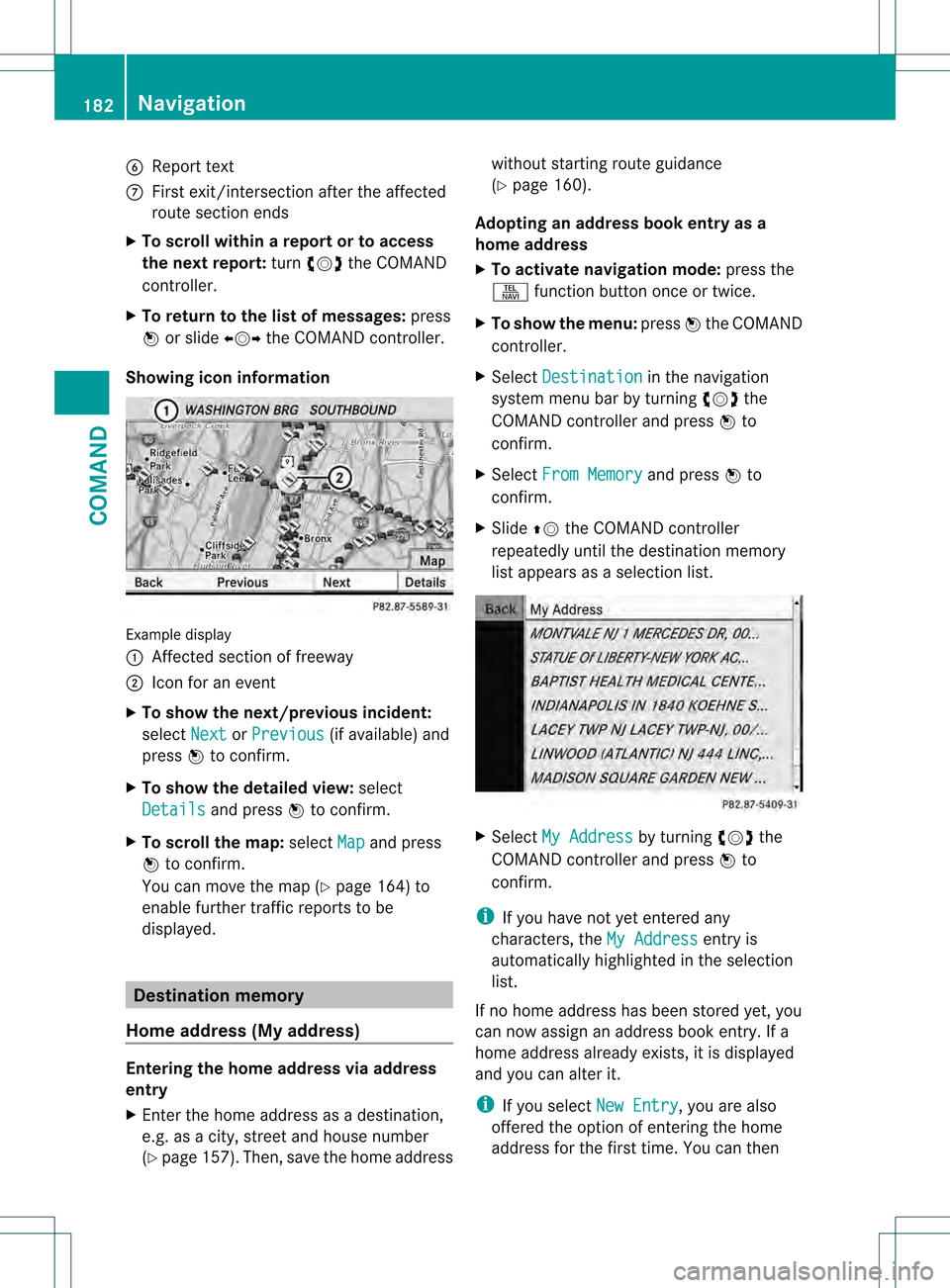
6
Repor ttext
0014 First exit/intersection after the affected
route section ends
X To scroll within arepor tort o access
the next report: turn0031001C0032 the COMAND
controller.
X To return to the list of messages: press
0021 or slide 003C001C003Dthe COMAND controller.
Showing icon information Example display
0002
Affected section of freeway
0003 Icon for an event
X To show the next/previous incident:
select Next or
Previous (if available) and
press 0021to confirm.
X To show the detailed view: select
Details and press
0021to confirm.
X To scroll the map: selectMap and press
0021 to confirm.
You can move the map (Y page 164) to
enable further traffic reports to be
displayed. Destination memory
Home address (My address) Entering the home address via address
entry
X Enter the home address as a destination,
e.g .as a city, street and house number
(Y page 157). Then, save the home address without starting route guidance
(Y
page 160).
Adopting an address book entry as a
home address
X To activate navigation mode: press the
0011 function button once or twice.
X To show the menu: press0021the COMAND
controller.
X Select Destination in the navigation
system menu bar by turning 0031001C0032the
COMAND controller and press 0021to
confirm.
X Select From Memory and press
0021to
confirm.
X Slide 002A001Cthe COMAND controller
repeatedly until the destination memory
list appears as a selection list. X
Select My Address by turning
0031001C0032the
COMAND controller and press 0021to
confirm.
i If you have not yet entered any
characters, the My Address entry is
automatically highlighted in the selection
list.
If no home address has been stored yet, you
can now assign an address book entry. If a
home address already exists, it is displayed
and you can alter it.
i If you select New Entry , you are also
offered the option of entering the home
address for the first time. You can then 182
NavigationCOMAND
Page 186 of 542
X
Select a destination by turning 0031001C0032the
COMAND controlle rand press 0021to
confirm.
The destination address is shown.
X Select Save and press
0021to confirm.
You can now select storage options.
Selecting storing options
X To save the destination without a
name: selectSave without Name and
press 0021to confirm.
COMAND stores the destination in the
destination memory and uses the address
as the destination name.
X To save the destination as My address:
select Save as "My Address" and press
0021 to confirm.
COMAND stores the destination in the
destination memory as My Address . If the
entry already contains navigable data
(symbol 0009), a prompt appears asking you
whethe rthe entry should be overwritten.
X Select Yes or
No and press
0021to confirm.
If you select Yes , the entry is overwritten.
If you select No , the process will be aborted.
X To save the destination with a name:
select Save with Name and press
0021to
confirm.
X Select a category, e.g. Home , and press
0021
to confirm.
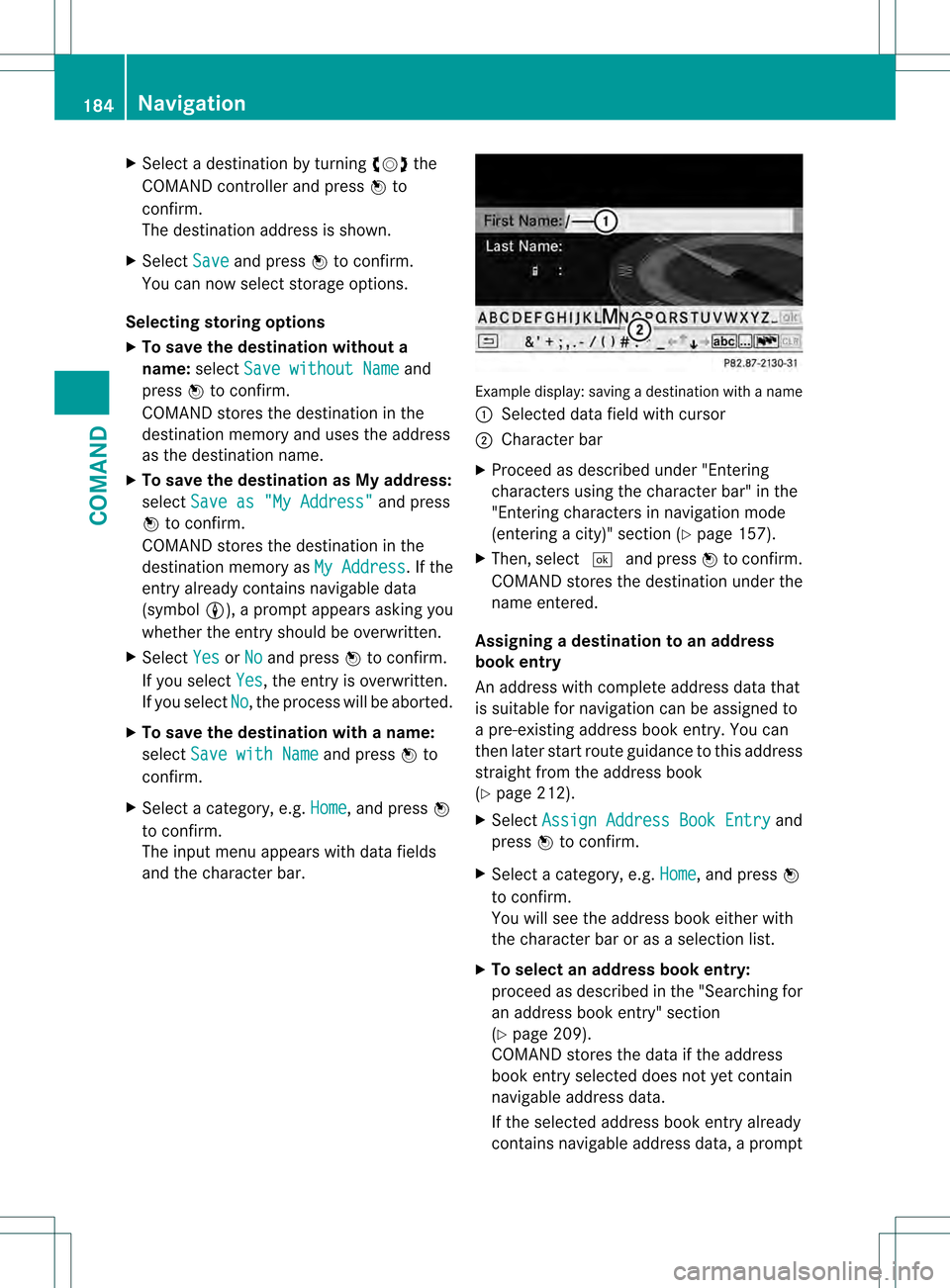
The input menu appears with data fields
and the character bar. Example display:s
avingadestination with a name
0002 Selected data field with cursor
0003 Character bar
X Proceed as described under "Entering
characters using the character bar" in the
"Entering characters in navigation mode
(entering a city)" section (Y page 157).
X Then, select 0003and press 0021to confirm.
COMAND stores the destination under the
name entered.
Assigning adestination to an address
book entry
An address with complete address data that
is suitable for navigation can be assigned to
a pre-existing address book entry. You can
then later start route guidance to this address
straigh tfrom the address book
(Y page 212).
X Select Assign Address Book Entry and
press 0021to confirm.
X Select a category, e.g. Home , and press
0021
to confirm.
You will see the address book either with
the character bar or as a selection list.
X To select an address book entry:
proceed as described in the "Searching for
an address book entry" section
(Y page 209).
COMAND stores the data if the address
book entry selected does not yet contain
navigable address data.
If the selected address book entry already
contains navigable address data, a prompt 184
NavigationCOMAND
Page 188 of 542
Storing the crosshair position in the list
of previous destinations Route guidance not active
Ac
rosshair appears on the map if you have
moved the map manually.Y ou can store the
crosshair position as a destination in the list
of previous destinations.
X To show the menu: press0021the COMAND
controller.
X Select Position in the navigation system
menu bar by turning 0031001C0032the COMAND
controller and press 0021to confirm.
X Select Save Crosshair Position and
press 0021to confirm.
Route guidance is active
X Select Destination in the navigation
system menu bar by turning 0031001C0032the
COMAND controller and press 0021to
confirm.
X Select Save Destination and press
0021to
confirm.
Deleting one of the previous
destinations X
To activate navigation mode: press the
0011 function button once or twice.
X To show the menu: press0021the COMAND
controller.
X Select Destination in the navigation
system menu bar by turning 0031001C0032the
COMAND controller and press 0021to
confirm.
X Select From Last Destinations and
press 0021to confirm.
The list of last destinations appears.
X Select the desired destination and press
0021 to confirm.
The destination address appears. X
Select Delete and press
0021to confirm.
Ap rompt appears asking whethe rthe entry
should be deleted.
X Select Yes or
No and press
0021to confirm.
If you select Yes , the entry is deleted.
If you select No , the process is aborted.
Map operation and settings
Note Company logos displayed on the map are
trademarks of the respective companies and
used solely for the purpose of indicating the
location of these companies. The use of such
logos on the map does not indicate approval
of, support of or advertising by these
companies for the navigation system itself.
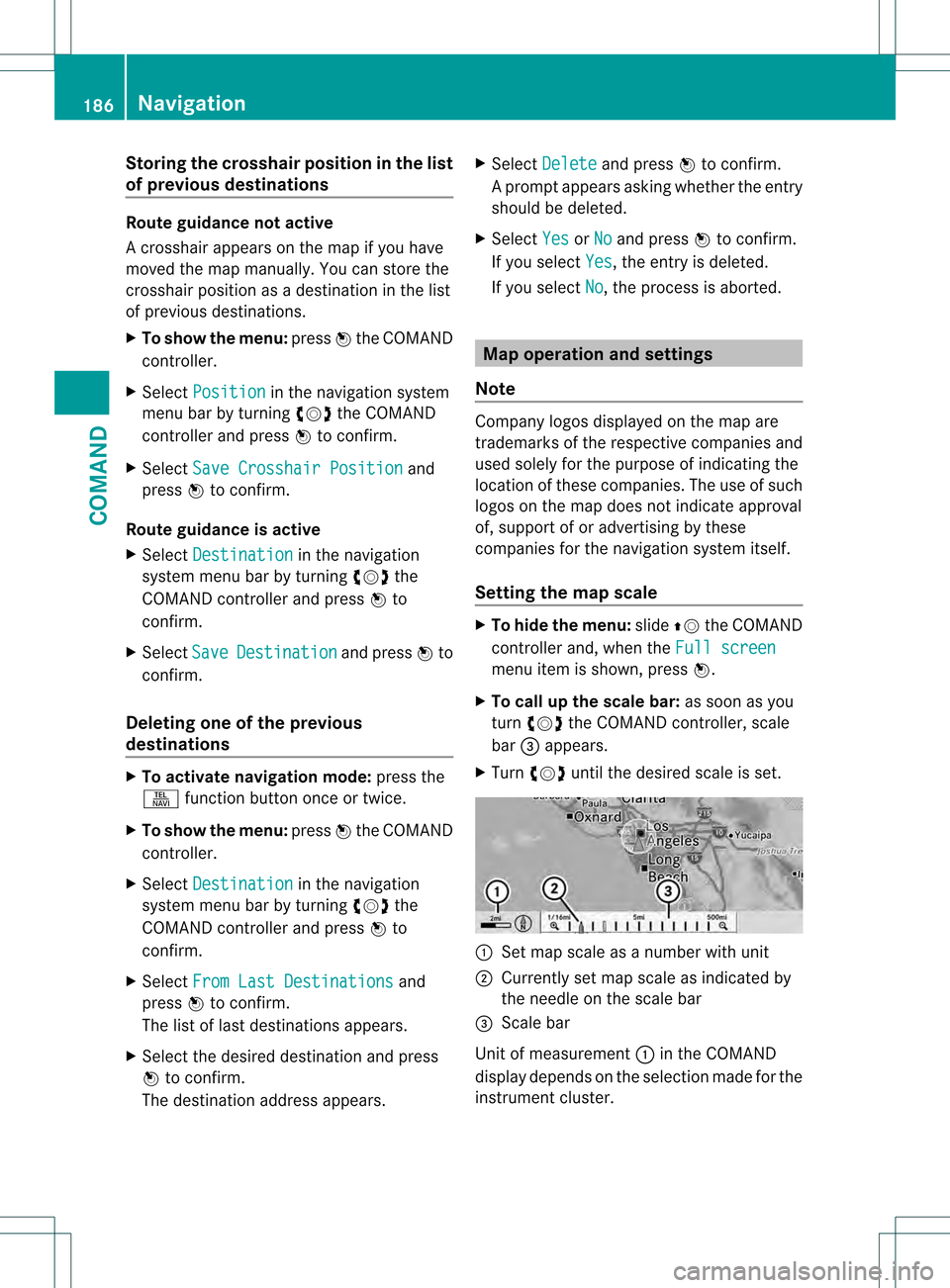
Setting the map scale
X
To hide the menu: slide002A001Cthe COMAND
controller and, when the Full screen menu item is shown, press
0021.
X To call up the scale bar: as soon as you
turn 0031001C0032 the COMAND controller, scale
bar 0026appears.
X Turn 0031001C0032 until the desired scale is set. 0002
Set map scale as a number with unit
0003 Currently set map scale as indicated by
the needle on the scale bar
0026 Scale bar
Unit of measurement 0002in the COMAND
display depends on the selection made for the
instrument cluster. 186
NavigationCOMAND
Page 189 of 542
Moving the map
Showing the crosshair
X
To hide the menu: slide002A001Cthe COMAND
controller and, when the Full screenmenu item is shown, press
0021.
X To move the map: slide003C001C003D, 002A001C0006or
003A001C0030 the COMAND controller.
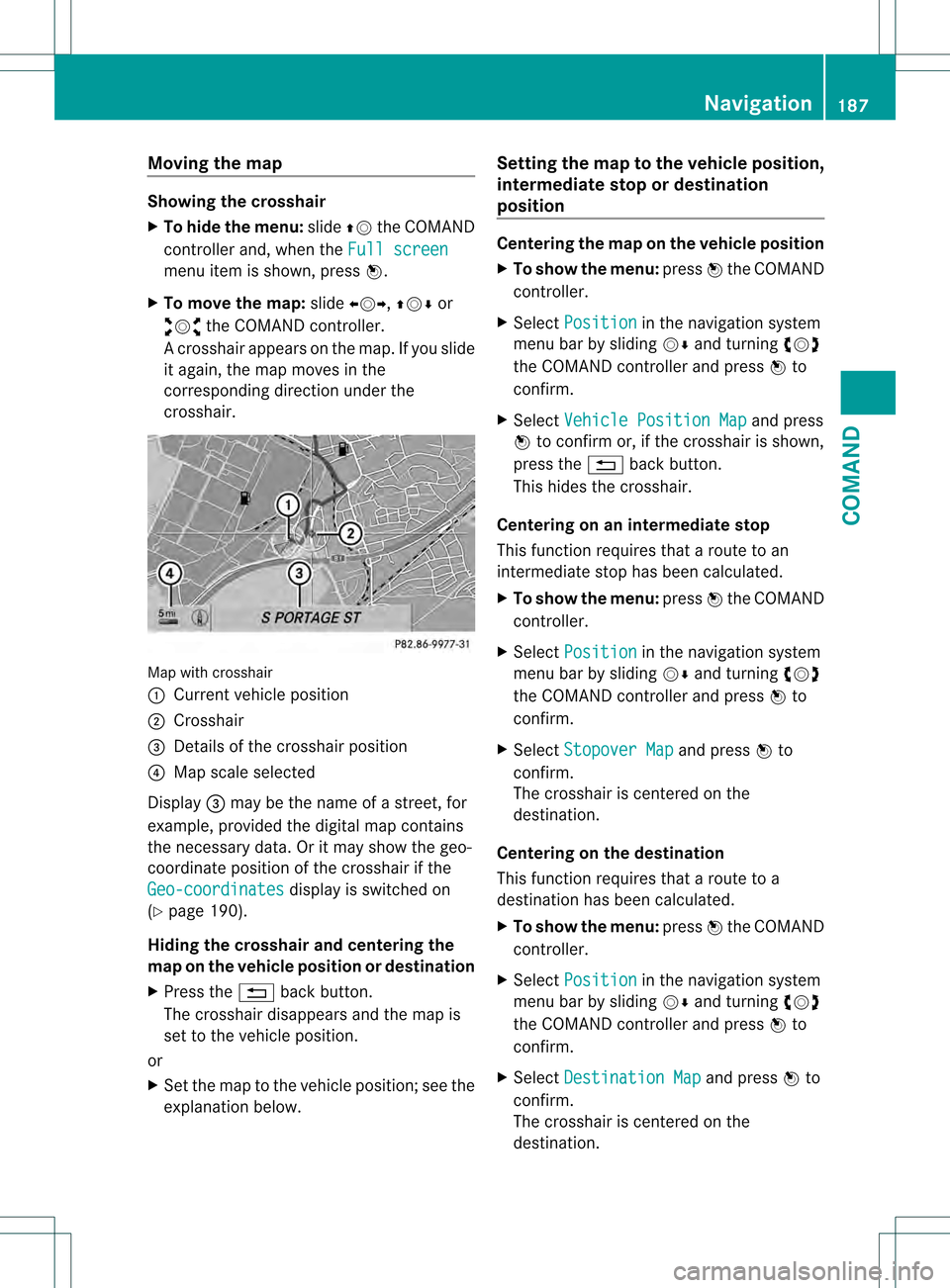
Ac rosshair appears on the map. If you slide
it again, the map moves in the
corresponding direction under the
crosshair. Map with crosshair
0002
Current vehicle position
0003 Crosshair
0026 Details of the crosshair position
0025 Map scale selected
Display 0026may be the name of a street, for
example, provided the digital map contains
the necessary data .Oritmay show the geo-
coordinate positio nofthe crosshair if the
Geo-coordinates display is switched on
(Y page 190).
Hiding the crosshair and centering the
map on the vehicle position or destination
X Press the 0001back button.
The crosshair disappears and the map is
set to the vehicle position.
or
X Set the map to the vehicle position; see the
explanation below. Setting the map to the vehicle position,
intermediate stop or destination
position Centering the map on the vehicle position
X
To show the menu: press0021the COMAND
controller.
X Select Position in the navigation system
menu bar by sliding 001C0006and turning 0031001C0032
the COMAND controller and press 0021to
confirm.
X Select Vehicle Position Map and press
0021 to confirm or, if the crosshair is shown,
press the 0001back button.
This hides the crosshair.
Centering on an intermediat estop
This functio nrequires that a route to an
intermediate stop has been calculated.
X To show the menu: press0021the COMAND
controller.
X Select Position in the navigation system
menu bar by sliding 001C0006and turning 0031001C0032
the COMAND controller and press 0021to
confirm.
X Select Stopover Map and press
0021to
confirm.
The crosshair is centered on the
destination.
Centering on the destination
This function requires that a route to a
destination has been calculated.
X To show the menu: press0021the COMAND
controller.
X Select Position in the navigation system
menu bar by sliding 001C0006and turning 0031001C0032
the COMAND controller and press 0021to
confirm.
X Select Destination Map and press
0021to
confirm.
The crosshair is centered on the
destination. Navigation
187COMAND Z
Page 190 of 542
Map display
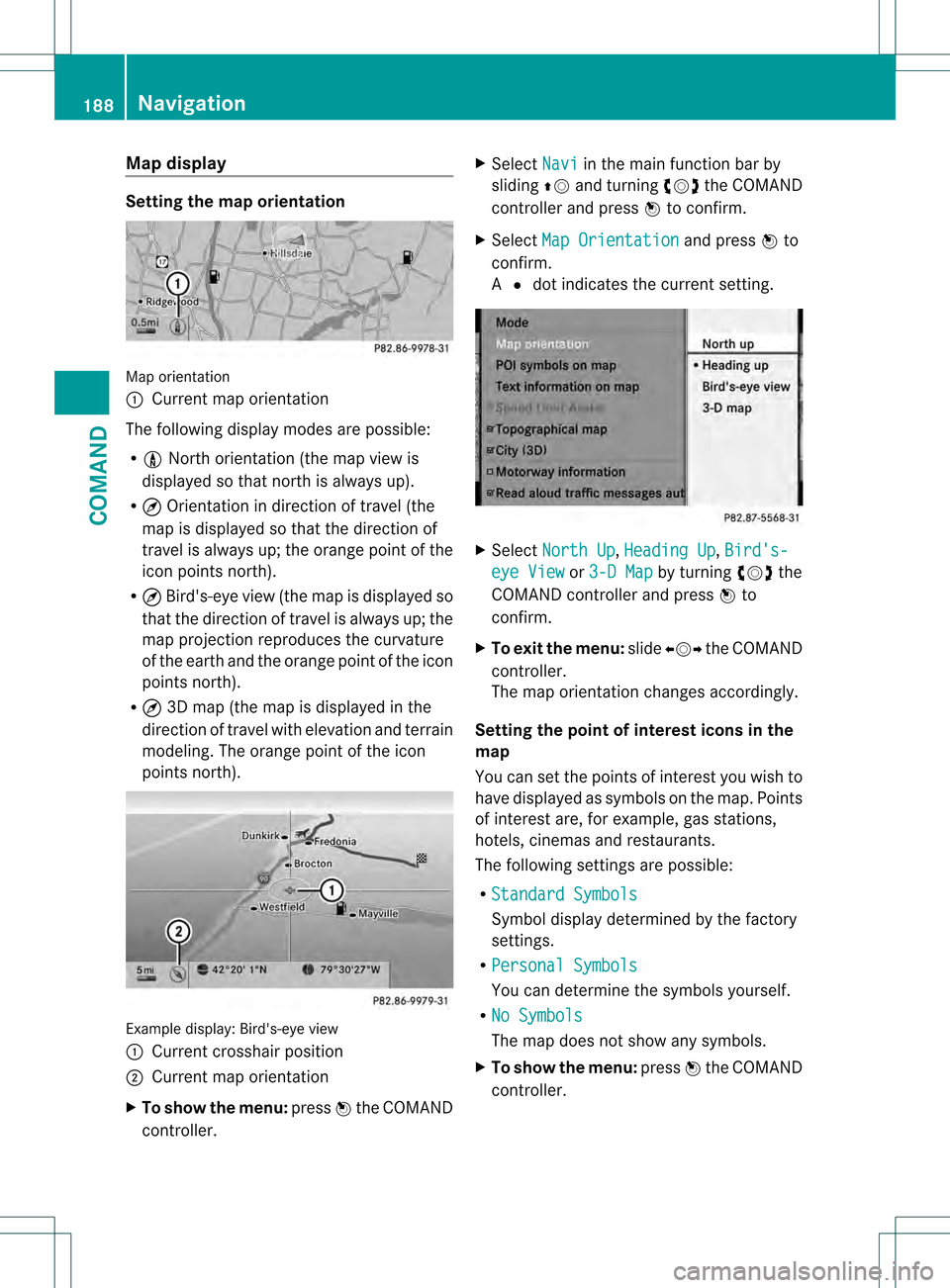
Setting the map orientation
Map orientation
0002
Current map orientation
The following display modes are possible:
R 0020 North orientation (the map view is
displayed so that north is always up).
R ¤ Orientation in direction of travel (the
map is displayed so that the direction of
travel is always up; the orange point of the
icon points north).
R ¤ Bird's-eye view (the map is displayed so
that the direction of travel is always up; the
map projection reproduces the curvature
of the earth and the orange point of the icon
points north).
R ¤ 3D map (the map is displayed in the
direction of travel with elevation and terrain
modeling. The orange point of the icon
points north). Example display
:Bird's-eye view
0002 Curren tcrosshair position
0003 Current map orientation
X To show the menu: press0021the COMAND
controller. X
Select Navi in the main function bar by
sliding 002A001Cand turning 0031001C0032the COMAND
controller and press 0021to confirm.
X Select Map Orientation and press
0021to
confirm.
A 002C dot indicates the current setting. X
Select North Up ,
Heading Up ,
Bird's- eye View or
3-D Map by turning
0031001C0032the
COMAND controller and press 0021to
confirm.
X To exitt he menu: slide003C001C003D the COMAND
controller.
The map orientation changes accordingly.
Setting the poin tofinterest icons in the
map
You can set the points of interest you wish to
have displayed as symbols on the map. Points
of interest are, for example, gas stations,
hotels, cinemas and restaurants.
The following settings are possible:
R Standard Symbols Symbol display determined by the factory
settings.
R Personal Symbols You can determine the symbols yourself.
R No Symbols The map does not show any symbols.
X To show the menu: press0021the COMAND
controller. 188
NavigationCOMAND
Page 191 of 542
X
Select Navi in the main function bar by
sliding 002A001Cand turning 0031001C0032the COMAND
controlle rand press 0021to confirm.
X Select POI Symbols on Map and press
0021 to confirm.
X Select Standard Symbols ,
Personal Symbols or
No Symbols .
If you select Personal Symbols , the list of
points of interes tappears.
X To switch the icon displa yon/off: select
a point of interest by turning 0031001C0032the
COMAND controller and press 0021to
confirm.
Depending on the previous state of the
symbols, they will either be shown 000Aor
hidden 0002.You can switch on the symbol
displays for more than one point of interest.
i The list shows all symbols that are
contained on the digital map across all
countries. However, not all points of
interest are available in all countries. As a
result, certain point of interest symbols
may not be displayed on the map, even if
the symbol display is switched on.
X To exit the menu: press the0001back
button.
Map information in the display Showing text information
During route guidance, you can have map
information displayed at the bottom edge of
the display.
X To show the menu: press0021the COMAND
controller.
X Select Navi in the main function bar by
sliding 002A001Cand turning 0031001C0032the COMAND
controller and press 0021to confirm.
The main area is active.
X Select Navi again and press
0021to confirm.
The navigation menu opens. X
Select Text Information on Map and
press 0021to confirm.
A 002C dot indicates the current setting.
X Select Arrival Time/Distance ,
Current Street ,
Geo-Coordinates or
None and press
0021to confirm.
X To exit the menu: slide003C001C003D the COMAND
controller.
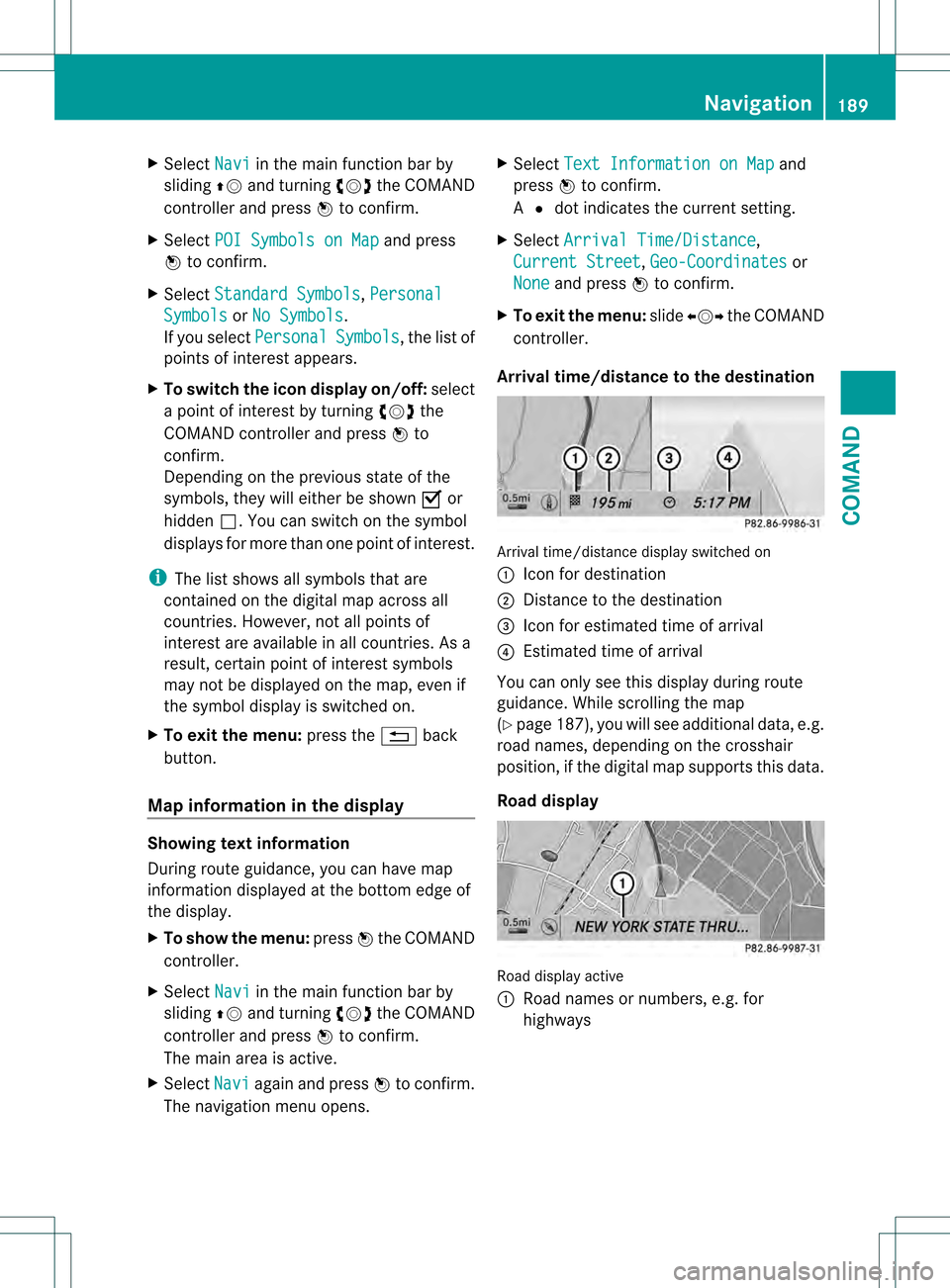
Arrival time/distance to the destination Arrival time/distance display switched on
0002
Icon for destination
0003 Distance to the destination
0026 Icon for estimated time of arrival
0025 Estimated time of arrival
You can only see this display during route
guidance. While scrolling the map
(Y page 187), you will see additional data, e.g.
road names, depending on the crosshair
position, if the digital map supports this data.
Road display Road display active
0002
Road names or numbers, e.g. for
highways Navigation
189COMAND Z
Page 192 of 542
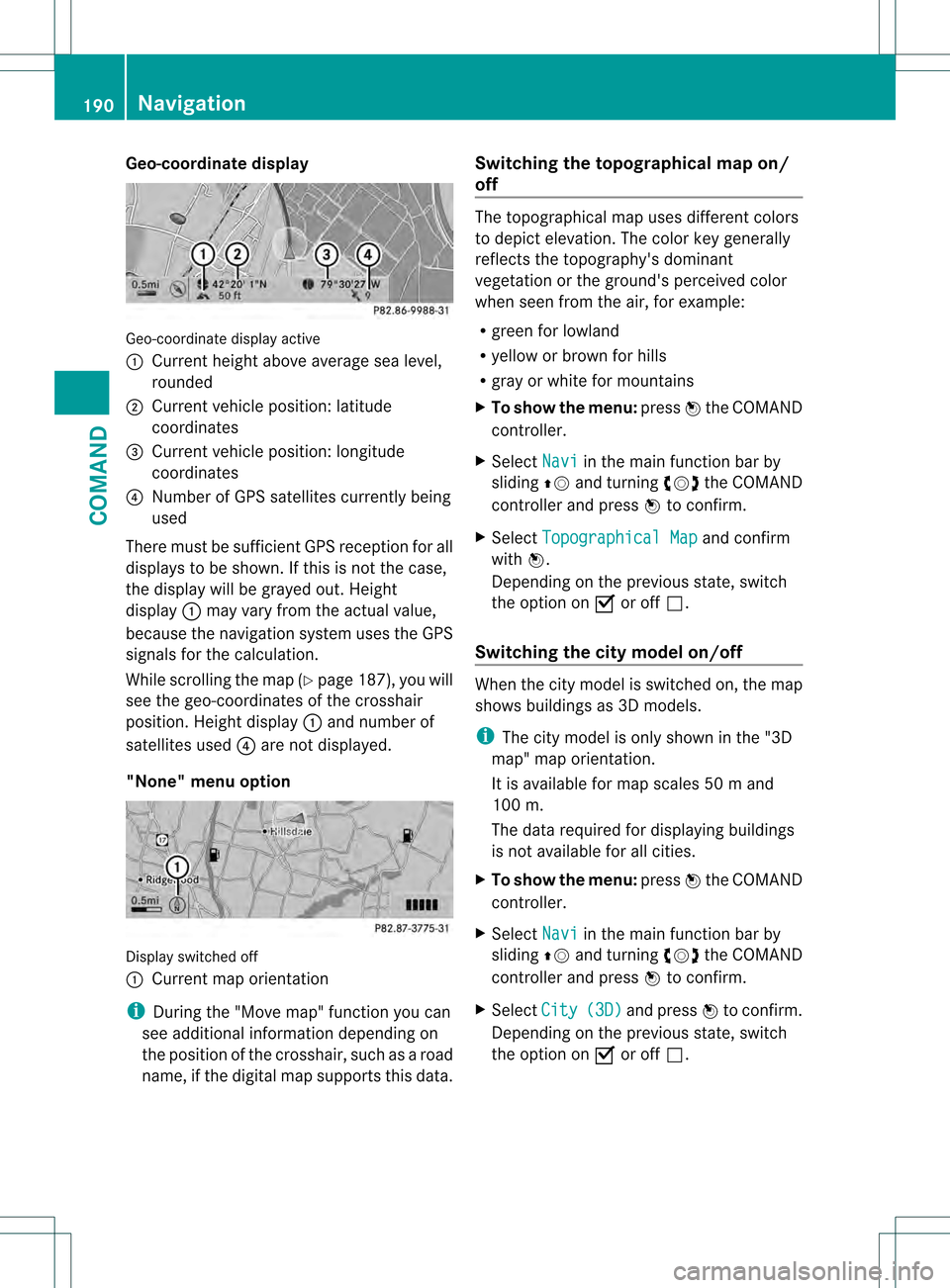
Geo-coordinate display
Geo-coordinate display active
0002
Current heigh tabove average sea level,
rounded
0003 Current vehicle position :latitude
coordinates
0026 Curren tvehicle position :longitude
coordinates
0025 Number of GPS satellites currently being
used
There must be sufficient GPS reception for all
displays to be shown. If this is not the case,
the display will be grayed out. Height
display 0002may vary from the actual value,
because the navigation system uses the GPS
signals for the calculation.
While scrolling the map (Y page 187), you will
see the geo-coordinates of the crosshair
position. Height display 0002and number of
satellites used 0025are not displayed.
"None" menu option Display switched off
0002
Current map orientation
i During the "Move map" function you can
see additional information depending on
the position of the crosshair, such as a road
name, if the digital map supports this data. Switching the topographical map on/
off The topographical map uses different colors
to depict elevation. The color key generally
reflects the topography's dominant
vegetation or the ground's perceived color
when seen from the air, for example:
R green for lowland
R yellow or brown for hills
R gray or white for mountains
X To show the menu: press0021the COMAND
controller.
X Select Navi in the main function bar by
sliding 002A001Cand turning 0031001C0032the COMAND
controller and press 0021to confirm.
X Select Topographical Map and confirm
with 0021.
Depending on the previous state, switch
the option on 000Aor off 0002.
Switching the city model on/off When the city model is switched on, the map
shows buildings as 3D models.
i
The city model is only shown in the "3D
map" map orientation.
It is available for map scales 50 mand
100 m.
The data required for displaying buildings
is not available for all cities.
X To show the menu: press0021the COMAND
controller.
X Select Navi in the main function bar by
sliding 002A001Cand turning 0031001C0032the COMAND
controller and press 0021to confirm.
X Select City (3D) and press
0021to confirm.
Depending on the previous state, switch
the optio non000Aor off0002. 190
NavigationCOMAND
Page 193 of 542
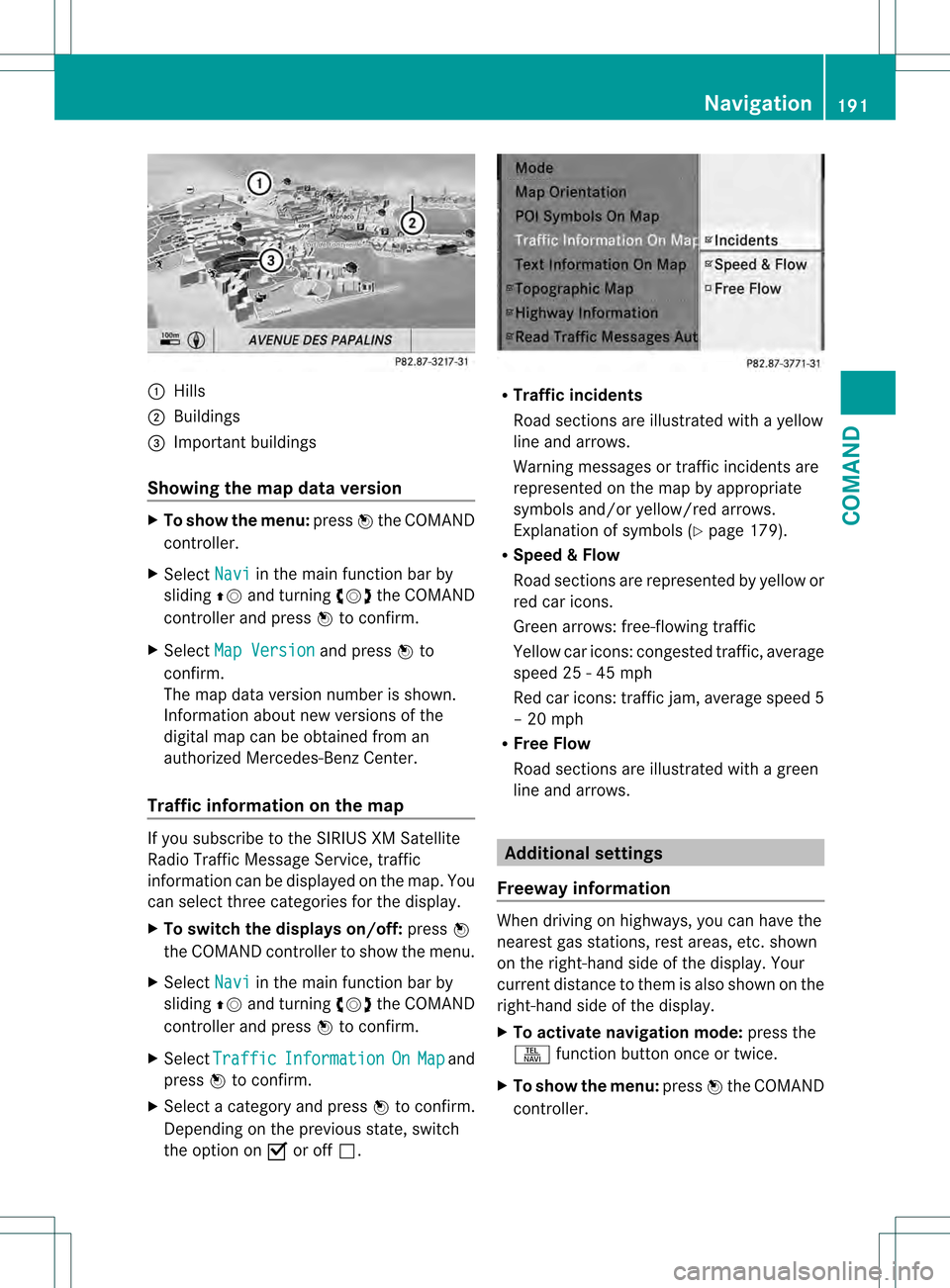
0002
Hills
0003 Buildings
0026 Important buildings
Showing the map data version X
To show the menu: press0021the COMAND
controller.
X Select Navi in the main function bar by
sliding 002A001Cand turning 0031001C0032the COMAND
controller and press 0021to confirm.
X Select Map Version and press
0021to
confirm.
The map data version number is shown.
Information about new versions of the
digital map can be obtained from an
authorized Mercedes-Benz Center.
Traffic information on the map If you subscribe to the SIRIU
SXM Satellite
Radio Traffic Message Service, traffic
information can be displayed on the map. You
can select three categories for the display.
X To switch the displays on/off: press0021
the COMAND controller to show the menu.
X Select Navi in the main function bar by
sliding 002A001Cand turning 0031001C0032the COMAND
controller and press 0021to confirm.
X Select Traffic Information On Map and
press 0021to confirm.
X Select a category and press 0021to confirm.
Depending on the previous state, switch
the option on 000Aor off 0002. R
Traffic incidents
Road sections are illustrated with a yellow
line and arrows.
Warning messages or traffic incidents are
represented on the map by appropriate
symbols and/or yellow/red arrows.
Explanation of symbols (Y page 179).
R Speed &Flow
Road sections are represented by yellow or
red car icons.
Green arrows: free-flowing traffic
Yellow car icons: congested traffic, average
speed 25 - 45 mph
Red car icons: traffic jam, average speed 5
– 20 mph
R Free Flow
Road sections are illustrated with a green
line and arrows. Additional settings
Freeway information When driving on highways, you can have the
nearest gas stations, rest areas, etc
.shown
on the right-hand side of the display. Your
current distance to them is also shown on the
right-hand side of the display.
X To activate navigation mode: press the
0011 function button once or twice.
X To show the menu: press0021the COMAND
controller. Navigation
191COMAND Z