phone MERCEDES-BENZ S-Class 2014 W222 Comand Manual
[x] Cancel search | Manufacturer: MERCEDES-BENZ, Model Year: 2014, Model line: S-Class, Model: MERCEDES-BENZ S-Class 2014 W222Pages: 278, PDF Size: 6.65 MB
Page 35 of 278
Character entry (navigation)
Entering characters using the
character bar
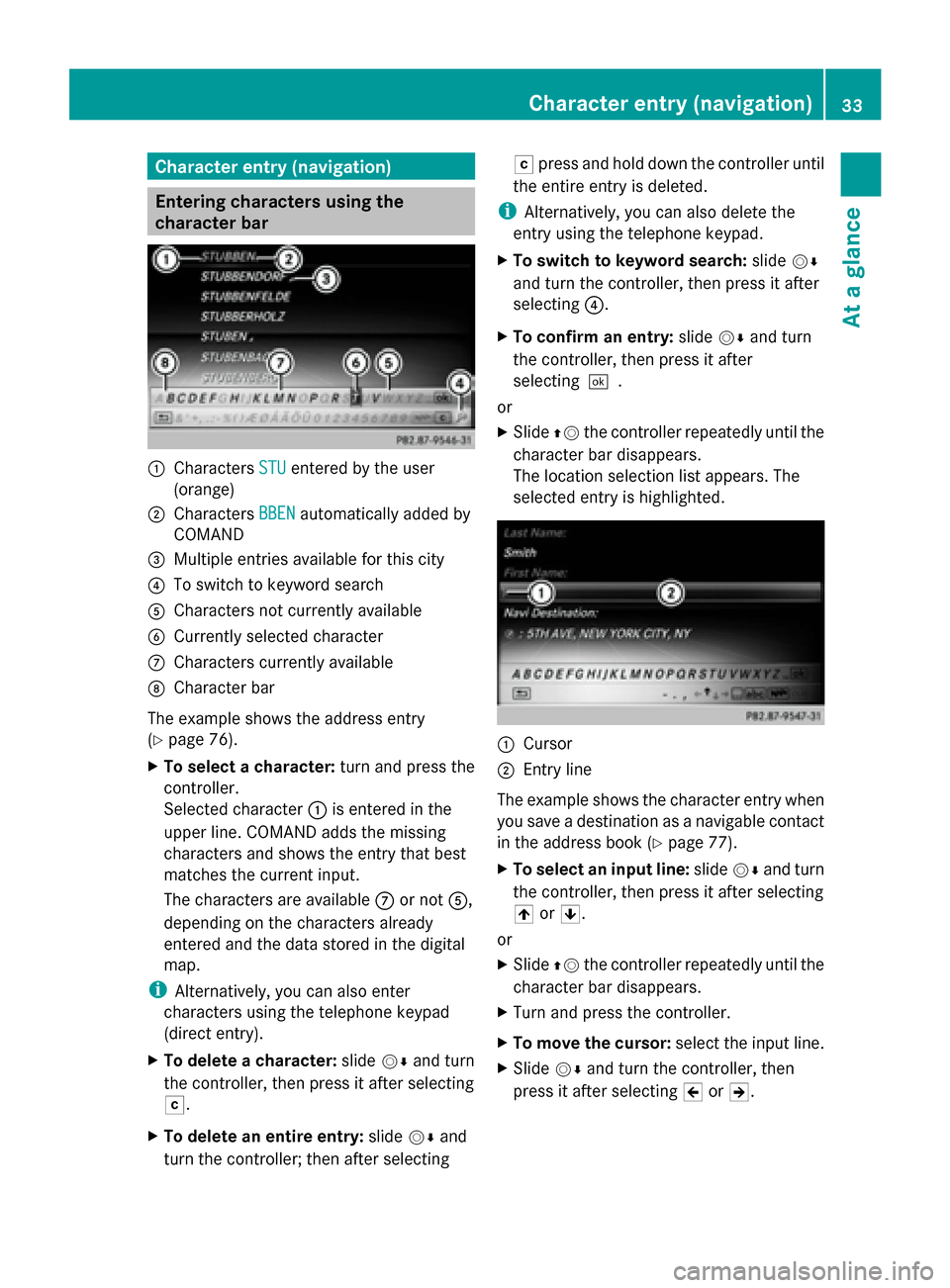
0043
Characters STU STUentered by the user
(orange)
0044 Characters BBEN
BBENautomatically added by
COMAND
0087 Multiple entries available for this city
0085 To switch to keyword search
0083 Characters not currently available
0084 Currently selected character
006B Characters currently available
006C Character bar
The example shows the address entry
(Y page 76).
X To select a character: turn and press the
controller.
Selected character 0043is entered in the
upper line. COMAND adds the missing
characters and shows the entry that best
matches the current input.
The characters are available 006Bor not 0083,
depending on the characters already
entered and the data stored in the digital
map.
i Alternatively, you can also enter
characters using the telephone keypad
(direct entry).
X To delete a character: slide00520064and turn
the controller, then press it after selecting
0042.
X To delete an entire entry: slide00520064and
turn the controller; then after selecting 0042
press and hold down the controller until
the entire entry is deleted.
i Alternatively, you can also delete the
entry using the telephone keypad.
X To switch to keyword search: slide00520064
and turn the controller, then press it after
selecting 0085.
X To confirm an entry: slide00520064and turn
the controller, then press it after
selecting0054.
or
X Slide 00970052the controller repeatedly until the
character bar disappears.
The location selection list appears. The
selected entry is highlighted. 0043
Cursor
0044 Entry line
The example shows the character entry when
you save a destination as a navigable contact
in the address book (Y page 77).
X To select an input line: slide00520064and turn
the controller, then press it after selecting
005F or0060.
or
X Slide 00970052the controller repeatedly until the
character bar disappears.
X Turn and press the controller.
X To move the cursor: select the input line.
X Slide 00520064and turn the controller, then
press it after selecting 005Dor005E. Character entry (navigation)
33At a glance
Page 37 of 278
Entering characters using the telephone keypad
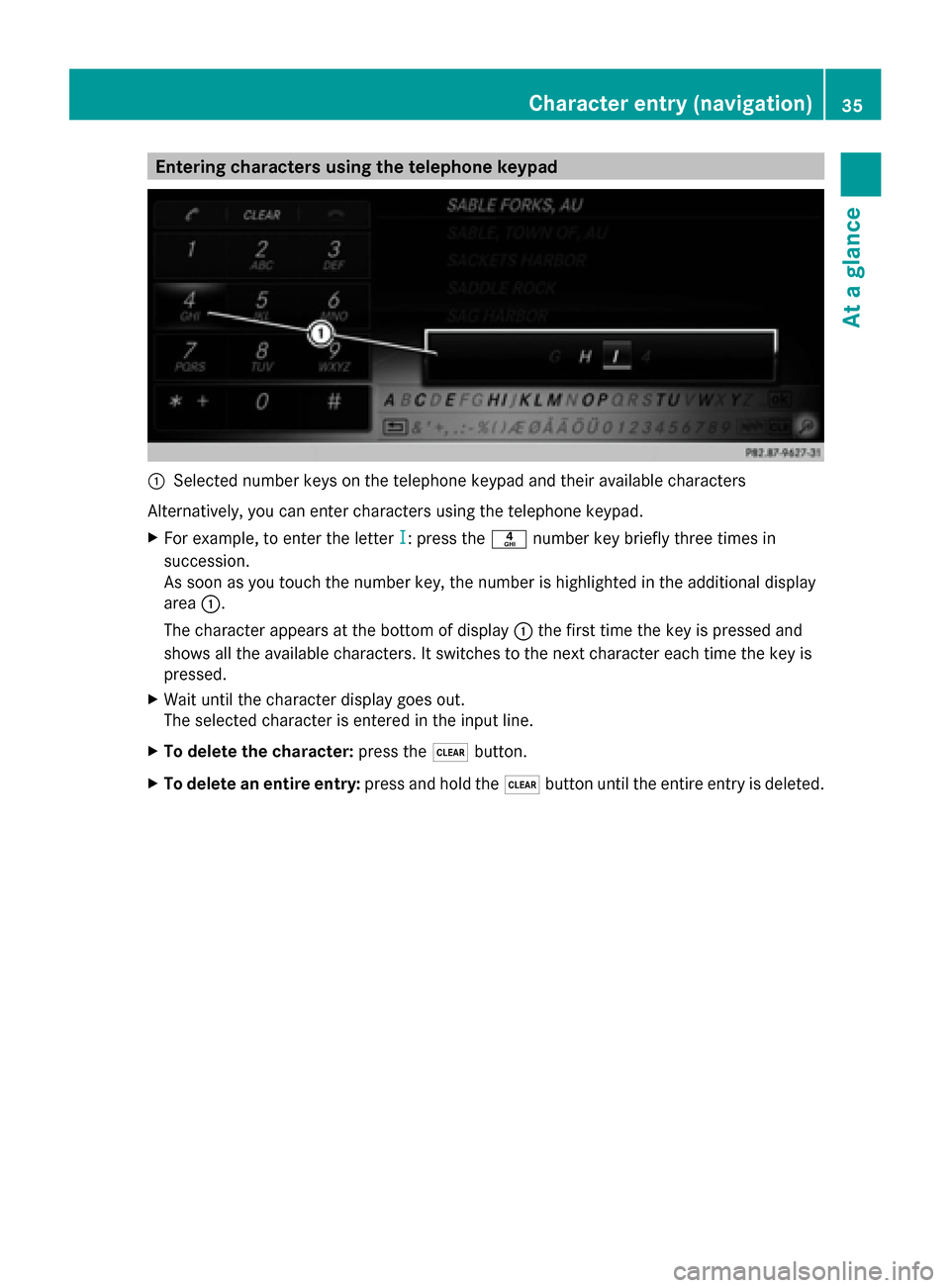
0043
Selected number keys on the telephone keypad and their available characters
Alternatively, you can enter characters using the telephone keypad.
X For example, to enter the letter I
I: press the 0084number key briefly three times in
succession.
As soon as you touch the number key, the number is highlighted in the additional display
area 0043.
The character appears at the bottom of display 0043the first time the key is pressed and
shows all the available characters. It switches to the next character each time the key is
pressed.
X Wait until the character display goes out.
The selected character is entered in the input line.
X To delete the character: press the0037button.
X To delete an entire entry: press and hold the0037button until the entire entry is deleted. Character entry (navigation)
35At a glance
Page 44 of 278
X
Select Help Window
Help Window .
You have switched the help window on
0073 or off 0053.
More information on the Voice Control
System is available in the separate operating
instructions. Individualization
Using individualization, you can fine-tune the
Voice Control System to your own voice. This
will help improve voice recognition (see the
separate operating instructions). WLAN
Overview
Conditions:
To establish a WLAN connection between
COMAND Online and a WLAN-enabled
device, such as a tablet computer or
smartphone:
R WLAN must be activated at COMAND
Online and at the device to be connected.
If COMAND Online is to be used as a WLAN
hotspot:
R COMAND Online must be connected to an
Internet-enabled mobile phone via
Bluetooth ®
or USB.
R The Internet access data for the mobile
phone network provider must be selected
or set for COMAND Online.
R There must be an Internet connection to
COMAND Online. Activating WLAN
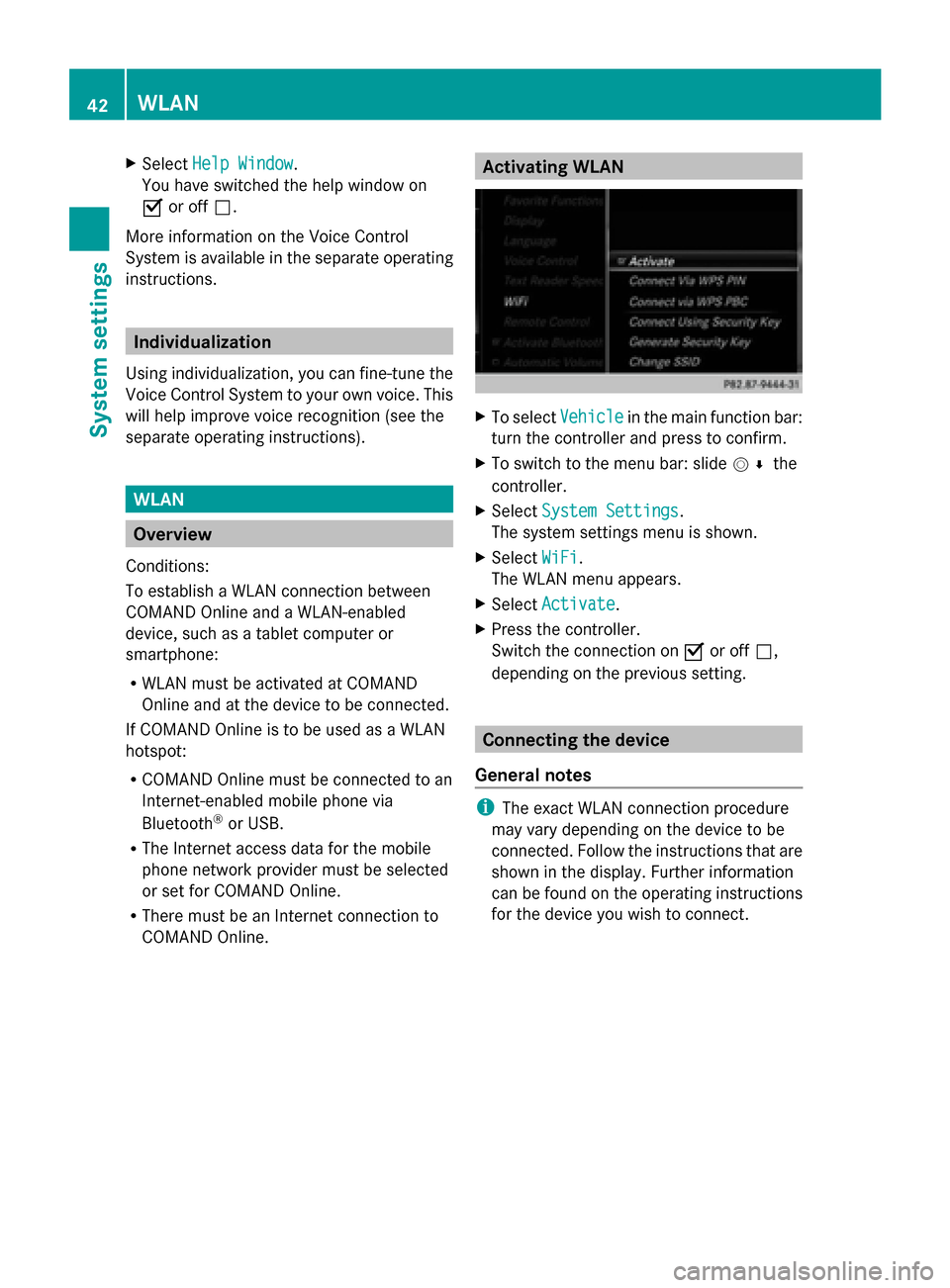
X
To select Vehicle Vehiclein the main function bar:
turn the controller and press to confirm.
X To switch to the menu bar: slide 005200C5the
controller.
X Select System Settings
System Settings.
The system settings menu is shown.
X Select WiFi
WiFi.
The WLAN menu appears.
X Select Activate
Activate.
X Press the controller.
Switch the connection on 0073or off 0053,
depending on the previous setting. Connecting the device
General notes i
The exact WLAN connection procedure
may vary depending on the device to be
connected. Follow the instructions that are
shown in the display. Further information
can be found on the operating instructions
for the device you wish to connect. 42
WLANSystem settings
Page 46 of 278
X
Enter the security key that appears on the
COMAND display for the device to be
connected.
X Confirm the entry. Generating a new security key
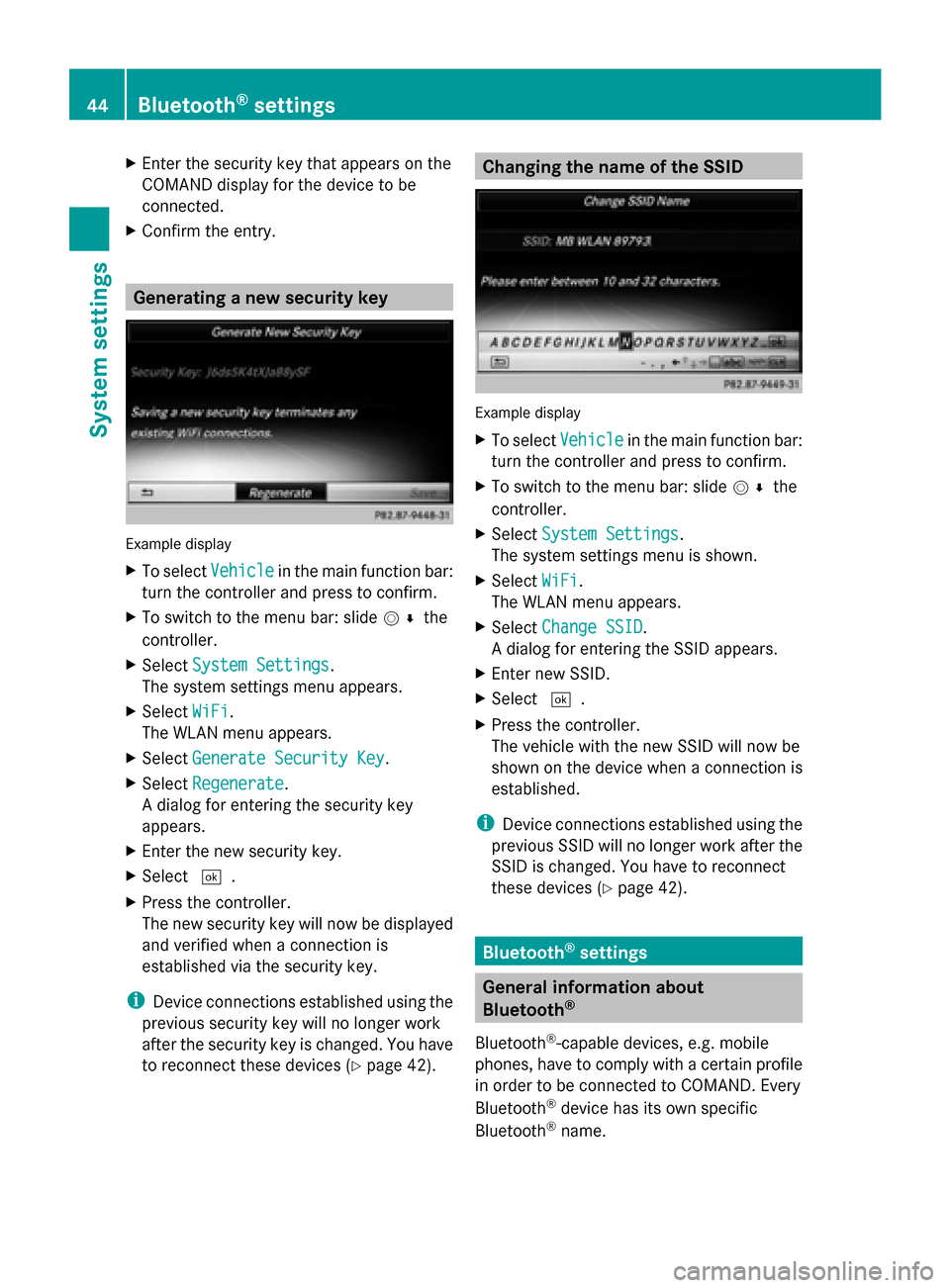
Example display
X
To select Vehicle Vehiclein the main function bar:
turn the controller and press to confirm.
X To switch to the menu bar: slide 005200C5the
controller.
X Select System Settings
System Settings.
The system settings menu appears.
X Select WiFi
WiFi.
The WLAN menu appears.
X Select Generate Security Key
Generate Security Key .
X Select Regenerate
Regenerate.
A dialog for entering the security key
appears.
X Enter the new security key.
X Select 0054.
X Press the controller.
The new security key will now be displayed
and verified when a connection is
established via the security key.
i Device connections established using the
previous security key will no longer work
after the security key is changed. You have
to reconnect these devices ( Ypage 42). Changing the name of the SSID
Example display
X
To select Vehicle Vehiclein the main function bar:
turn the controller and press to confirm.
X To switch to the menu bar: slide 005200C5the
controller.
X Select System Settings
System Settings.
The system settings menu is shown.
X Select WiFi
WiFi.
The WLAN menu appears.
X Select Change SSID
Change SSID.
A dialog for entering the SSID appears.
X Enter new SSID.
X Select 0054.
X Press the controller.
The vehicle with the new SSID will now be
shown on the device when a connection is
established.
i Device connections established using the
previous SSID will no longer work after the
SSID is changed. You have to reconnect
these devices (Y page 42). Bluetooth
®
settings General information about
Bluetooth
®
Bluetooth ®
-capable devices, e.g. mobile
phones, have to comply with a certain profile
in order to be connected to COMAND. Every
Bluetooth ®
device has its own specific
Bluetooth ®
name. 44
Bluetooth ®
settingsSystem settings
Page 47 of 278
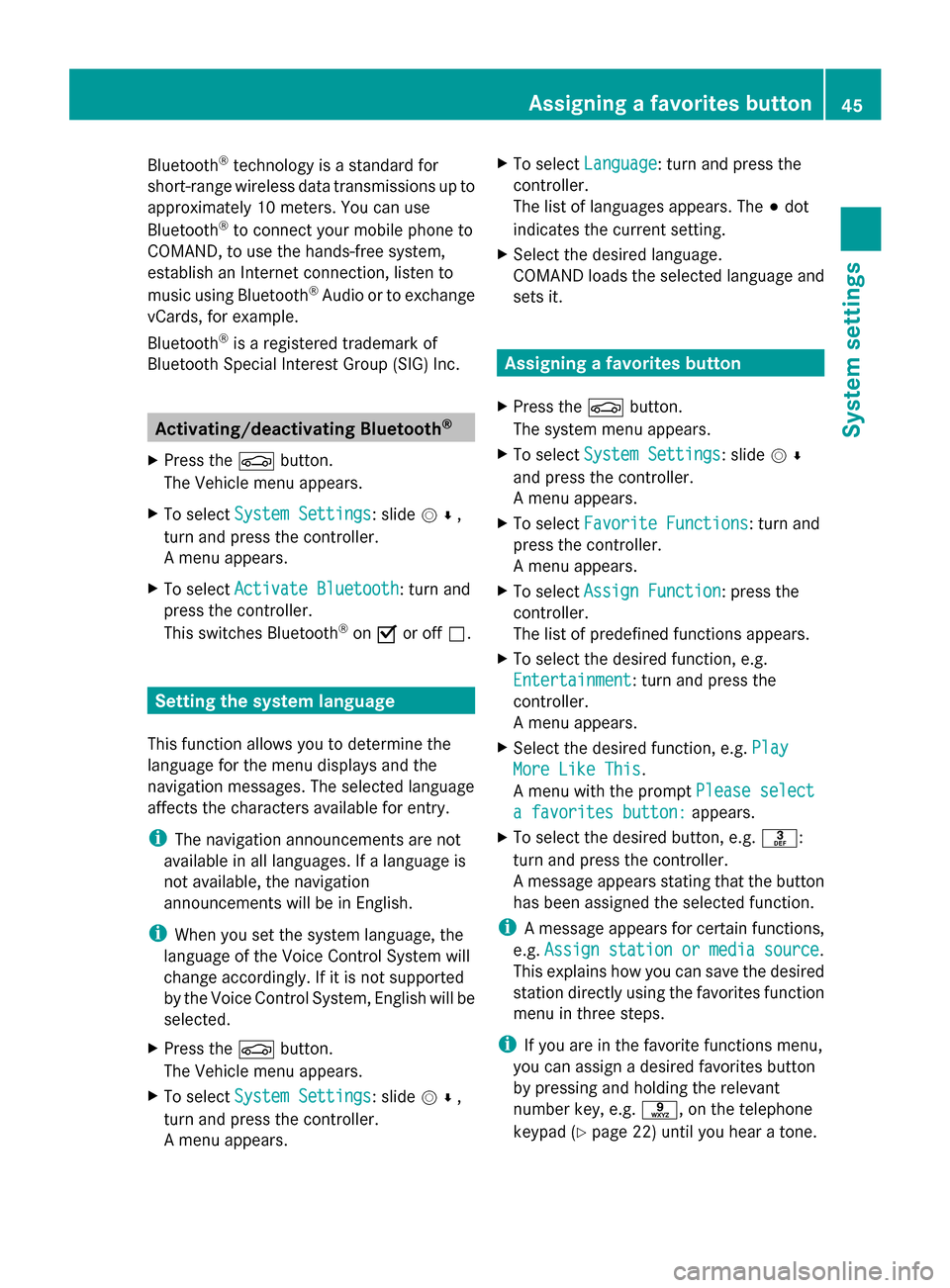
Bluetooth
®
technology is a standard for
short-range wireless data transmissions up to
approximately 10 meters. You can use
Bluetooth ®
to connect your mobile phone to
COMAND, to use the hands-free system,
establish an Internet connection, listen to
music using Bluetooth ®
Audio or to exchange
vCards, for example.
Bluetooth ®
is a registered trademark of
Bluetooth Special Interest Group (SIG) Inc. Activating/deactivating Bluetooth
®
X Press the 00D4button.
The Vehicle menu appears.
X To select System Settings
System Settings : slide005200C5,
turn and press the controller.
A menu appears.
X To select Activate Bluetooth
Activate Bluetooth: turn and
press the controller.
This switches Bluetooth ®
on 0073 or off 0053. Setting the system language
This function allows you to determine the
language for the menu displays and the
navigation messages. The selected language
affects the characters available for entry.
i The navigation announcements are not
available in all languages. If a language is
not available, the navigation
announcements will be in English.
i When you set the system language, the
language of the Voice Control System will
change accordingly. If it is not supported
by the Voice Control System, English will be
selected.
X Press the 00D4button.
The Vehicle menu appears.
X To select System Settings
System Settings : slide005200C5,
turn and press the controller.
A menu appears. X
To select Language Language : turn and press the
controller.
The list of languages appears. The 003Bdot
indicates the current setting.
X Select the desired language.
COMAND loads the selected language and
sets it. Assigning a favorites button
X Press the 00D4button.
The system menu appears.
X To select System Settings System Settings : slide005200C5
and press the controller.
A menu appears.
X To select Favorite Functions
Favorite Functions: turn and
press the controller.
A menu appears.
X To select Assign Function Assign Function : press the
controller.
The list of predefined functions appears.
X To select the desired function, e.g.
Entertainment Entertainment: turn and press the
controller.
A menu appears.
X Select the desired function, e.g. Play Play
More Like This
More Like This .
A menu with the prompt Please select
Please select
a favorites button:
a favorites button: appears.
X To select the desired button, e.g. 0083:
turn and press the controller.
A message appears stating that the button
has been assigned the selected function.
i A message appears for certain functions,
e.g. Assign station or media source Assign station or media source.
This explains how you can save the desired
station directly using the favorites function
menu in three steps.
i If you are in the favorite functions menu,
you can assign a desired favorites button
by pressing and holding the relevant
number key, e.g. 0089, on the telephone
keypad (Y page 22) until you hear a tone. Assigning a favorites button
45System settings
Page 70 of 278
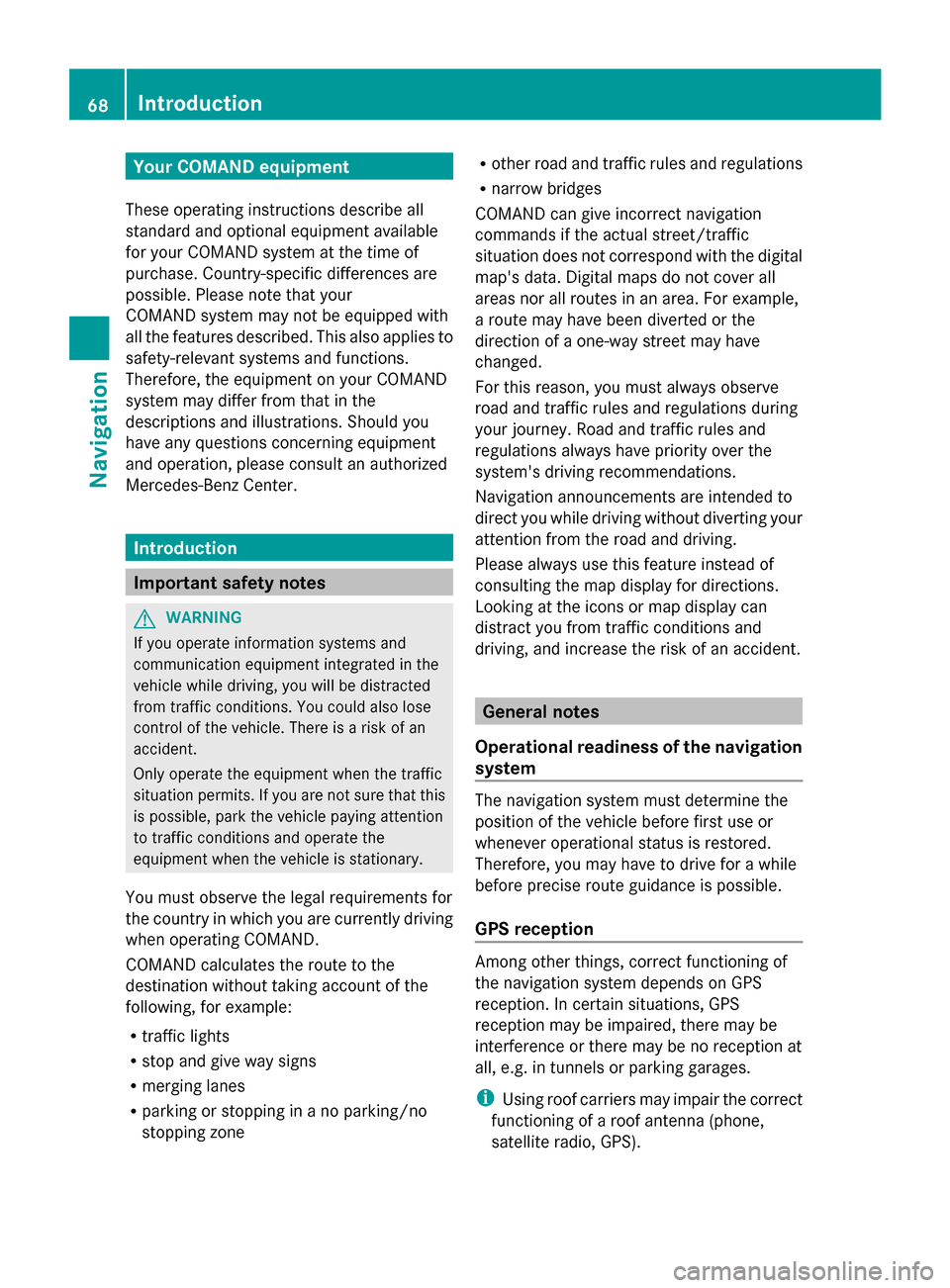
Your COMAND equipment
These operating instructions describe all
standard and optional equipment available
for your COMAND system at the time of
purchase. Country-specific differences are
possible. Please note that your
COMAND system may not be equipped with
all the features described. This also applies to
safety-relevant systems and functions.
Therefore, the equipment on your COMAND
system may differ from that in the
descriptions and illustrations. Should you
have any questions concerning equipment
and operation, please consult an authorized
Mercedes-Benz Center. Introduction
Important safety notes
G
WARNING
If you operate information systems and
communication equipment integrated in the
vehicle while driving, you will be distracted
from traffic conditions. You could also lose
control of the vehicle. There is a risk of an
accident.
Only operate the equipment when the traffic
situation permits. If you are not sure that this
is possible, park the vehicle paying attention
to traffic conditions and operate the
equipment when the vehicle is stationary.
You must observe the legal requirements for
the country in which you are currently driving
when operating COMAND.
COMAND calculates the route to the
destination without taking account of the
following, for example:
R traffic lights
R stop and give way signs
R merging lanes
R parking or stopping in a no parking/no
stopping zone R
other road and traffic rules and regulations
R narrow bridges
COMAND can give incorrect navigation
commands if the actual street/traffic
situation does not correspond with the digital
map's data. Digital maps do not cover all
areas nor all routes in an area. For example,
a route may have been diverted or the
direction of a one-way street may have
changed.
For this reason, you must always observe
road and traffic rules and regulations during
your journey. Road and traffic rules and
regulations always have priority over the
system's driving recommendations.
Navigation announcements are intended to
direct you while driving without diverting your
attention from the road and driving.
Please always use this feature instead of
consulting the map display for directions.
Looking at the icons or map display can
distract you from traffic conditions and
driving, and increase the risk of an accident. General notes
Operational readiness of the navigation
system The navigation system must determine the
position of the vehicle before first use or
whenever operational status is restored.
Therefore, you may have to drive for a while
before precise route guidance is possible.
GPS reception Among other things, correct functioning of
the navigation system depends on GPS
reception. In certain situations, GPS
reception may be impaired, there may be
interference or there may be no reception at
all, e.g. in tunnels or parking garages.
i Using roof carriers may impair the correct
functioning of a roof antenna (phone,
satellite radio, GPS). 68
Int
roductionNavigation
Page 82 of 278

Using online search
X
To select Automatic Online Search Automatic Online Search :
turn and press the controller.
The search switches to the online
functions.
i Prerequisite:
mbrace must be activated for Internet
access (Y page 158).
Selecting search options X
To switch to navigation mode: press the
00BE button.
X To show the menu: press the controller.
X To select Destination
Destination: turn and press the
controller.
X Select Keyword Search
Keyword Search .
X To select Search Options Search Options : slide00970052, turn
and press the controller.
X Select Fuzzy Search
Fuzzy Search ,POI Search
POI Search or
Automatic Online Search
Automatic Online Search .
Switch the setting on 0073or off 0053.
Fuzzy search: useful if parts of the address
are incomplete or the spelling is unclear.
POI search: points of interest are taken into
account in the search.
Online search: the search is performed via
the online functions.
Selecting the country X
To switch to navigation mode: press the
00BE button.
X To show the menu: press the controller.
X To select Destination
Destination: turn and press the
controller.
X Select Keyword Search
Keyword Search .
X To select Country Country: slide 00970052, turn and
press the controller.
The alphabetical list of countries is
displayed.
X Select a country: turn and press the
controller. Searching via COMAND Requirement: a mobile phone with a data
package is connected to COMAND
(Y page 124).
X To switch to navigation mode: press the
00BE button.
X To show the menu: press the controller.
X To select Destination Destination: turn and press the
controller.
X Select Keyword Search Keyword Search .
X To select Online Search
Online Search : slide00970052, turn
and press the controller.
The search switches to the online
functions. Selecting a destination from the list of
last destinations
COMAND automatically stores the last 100
destinations.
X To switch to navigation mode: press the
00BE button.
X To show the menu: press the controller.
X To select Destination Destination: turn and press the
controller.
X Select From Previous Destinations
From Previous Destinations .
X Select the destination.
The address entry menu appears, showing
the destination address.
X To start route calculation: selectStart Start. 80
Destination inputNavigation
Page 85 of 278
Selection Instructions
Search By Name
Search By Name
Search for all POIs on the
digital map or around
one of the three
previously specified
positions X
Call up the POI menu (Y page 81).
X To select Search By Name Search By Name: turn and press the controller.
X Select All POIs
All POIs or one of the three previously selected
positions.
The point of interest list with character bar appears.
X Enter a name.
or
X To select Mercedes-Benz Service Mercedes-Benz Service: turn and press the
controller. Search By Phone
Search By Phone
Number Number
This function gives you
access to all points of
interest that have a
phone number. X
Call up the POI menu (Y page 81).
X To select Search By Phone Number Search By Phone Number: turn and press the
controller.
You will see a list of phone numbers.
X Enter the telephone number.
i The telephone number consists of:
R the country code (international dialing code)
R the area code
When entering the area code, omit the leading "0".
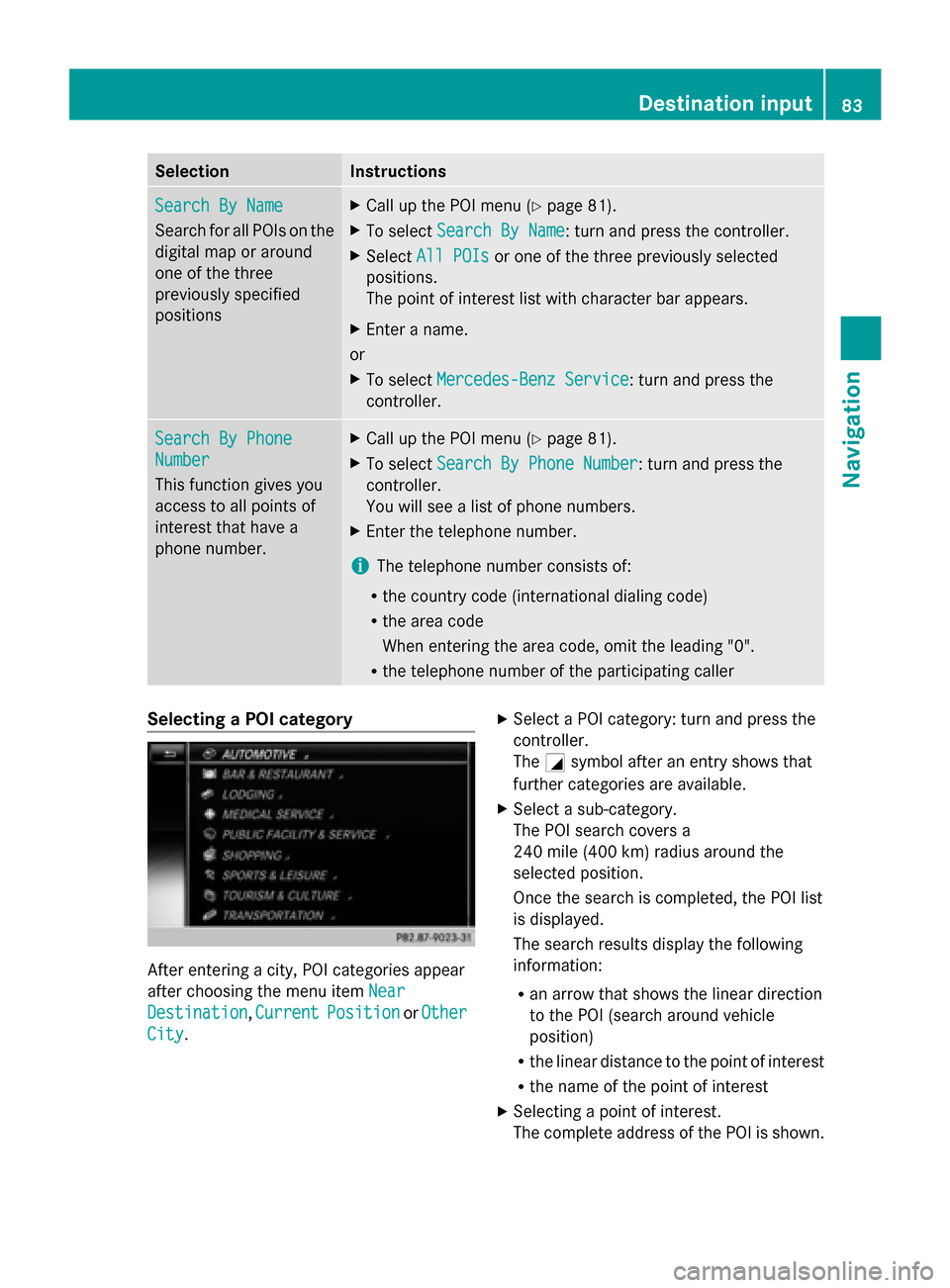
R the telephone number of the participating caller Selecting a POI category
After entering a city, POI categories appear
after choosing the menu item Near Near
Destination
Destination, Current
CurrentPosition
Position orOther
Other
City
City. X
Select a POI category: turn and press the
controller.
The 0043symbol after an entry shows that
further categories are available.
X Select a sub-category.
The POI search covers a
240 mile (400 km) radius around the
selected position.
Once the search is completed, the POI list
is displayed.
The search results display the following
information:
R
an arrow that shows the linear direction
to the POI (search around vehicle
position)
R the linear distance to the point of interest
R the name of the point of interest
X Selecting a point of interest.
The complete address of the POI is shown. Destination input
83Navigation Z
Page 86 of 278
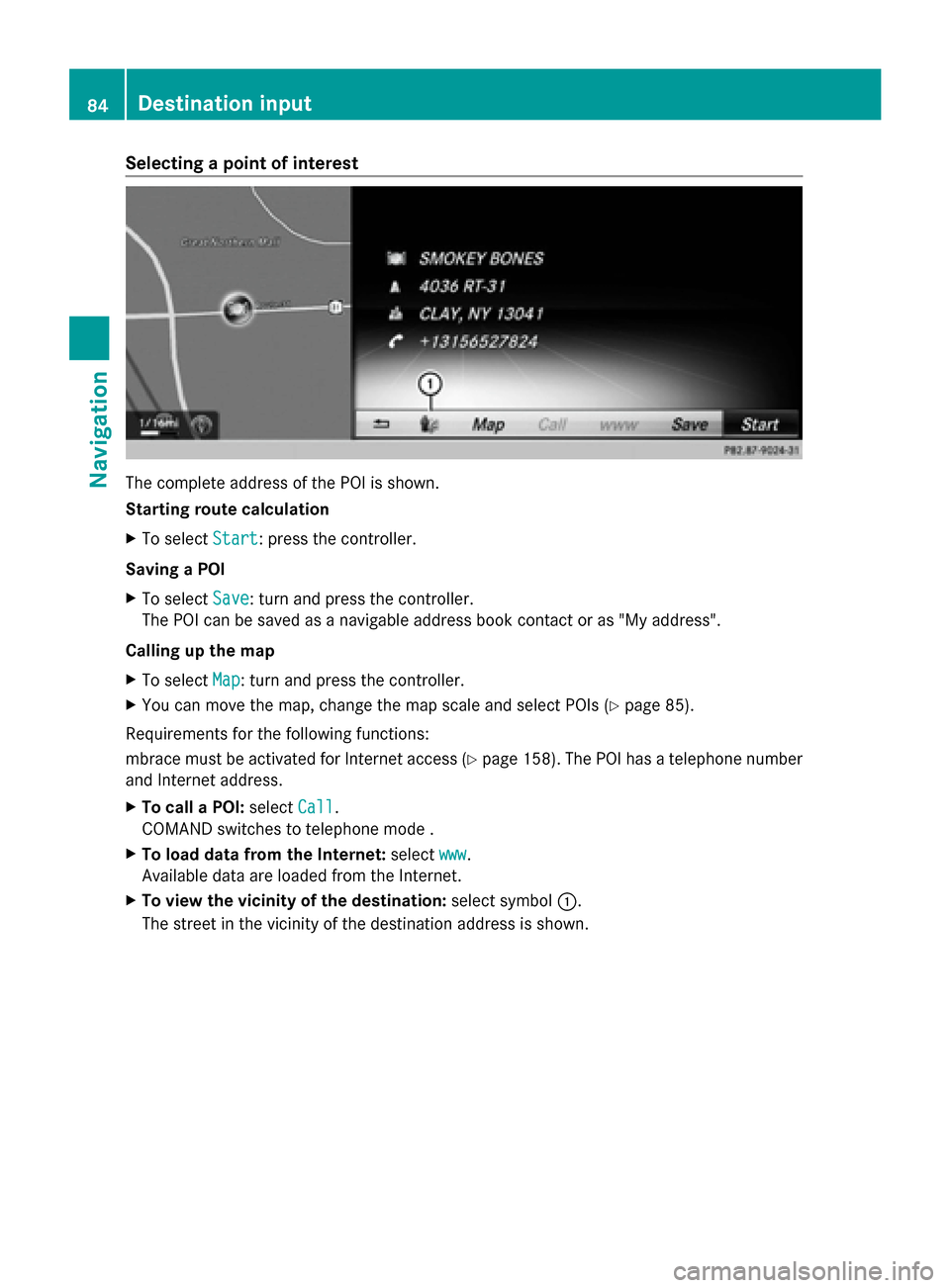
Selecting a point of interest
The complete address of the POI is shown.
Starting route calculation
X To select Start
Start: press the controller.
Saving a POI
X To select Save Save: turn and press the controller.
The POI can be saved as a navigable address book contact or as "My address".
Calling up the map
X To select Map
Map: turn and press the controller.
X You can move the map, change the map scale and select POIs (Y page 85).
Requirements for the following functions:
mbrace must be activated for Internet access (Y page 158). The POI has a telephone number
and Internet address.
X To call a POI: selectCall
Call.
COMAND switches to telephone mode .
X To load data from the Internet: selectwww
www.
Available data are loaded from the Internet.
X To view the vicinity of the destination: select symbol0043.
The street in the vicinity of the destination address is shown. 84
Destination inputNavigation
Page 89 of 278
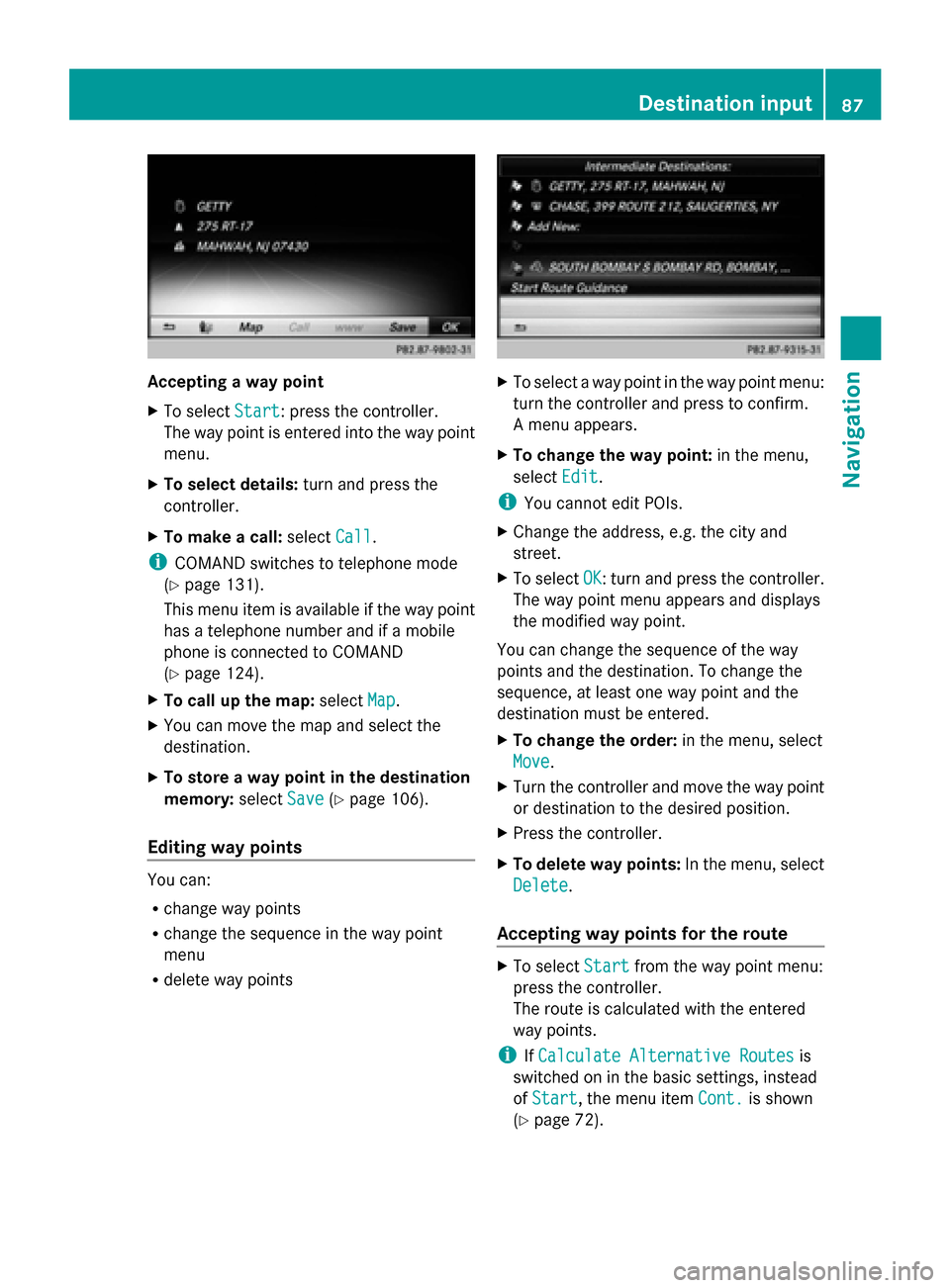
Accepting a way point
X
To select Start Start: press the controller.
The way point is entered into the way point
menu.
X To select details: turn and press the
controller.
X To make a call: selectCall
Call.
i COMAND switches to telephone mode
(Y page 131).
This menu item is available if the way point
has a telephone number and if a mobile
phone is connected to COMAND
(Y page 124).
X To call up the map: selectMap
Map .
X You can move the map and select the
destination.
X To store a way point in the destination
memory: selectSave
Save (Ypage 106).
Editing way points You can:
R
change way points
R change the sequence in the way point
menu
R delete way points X
To select a way point in the way point menu:
turn the controller and press to confirm.
A menu appears.
X To change the way point: in the menu,
select Edit Edit.
i You cannot edit POIs.
X Change the address, e.g. the city and
street.
X To select OK OK: turn and press the controller.
The way point menu appears and displays
the modified way point.
You can change the sequence of the way
points and the destination. To change the
sequence, at least one way point and the
destination must be entered.
X To change the order: in the menu, select
Move
Move.
X Turn the controller and move the way point
or destination to the desired position.
X Press the controller.
X To delete way points: In the menu, select
Delete Delete .
Accepting way points for the route X
To select Start
Startfrom the way point menu:
press the controller.
The route is calculated with the entered
way points.
i IfCalculate Alternative Routes Calculate Alternative Routes is
switched on in the basic settings, instead
of Start Start, the menu item Cont.
Cont.is shown
(Y page 72). Destination input
87Navigation Z