phone MERCEDES-BENZ S-CLASS CABRIOLET 2017 Owner's Manual
[x] Cancel search | Manufacturer: MERCEDES-BENZ, Model Year: 2017, Model line: S-CLASS CABRIOLET, Model: MERCEDES-BENZ S-CLASS CABRIOLET 2017Pages: 521, PDF Size: 10.48 MB
Page 162 of 521
Count
ryRadio equipment appr oval
number
South
Africa TA
-20 15/1386
Tu rkey notrequired
Uni ted
Arab Emi‐
ra tes ER4
1849/15
Dealer No: DA35176/14
United
St ates FCC ID
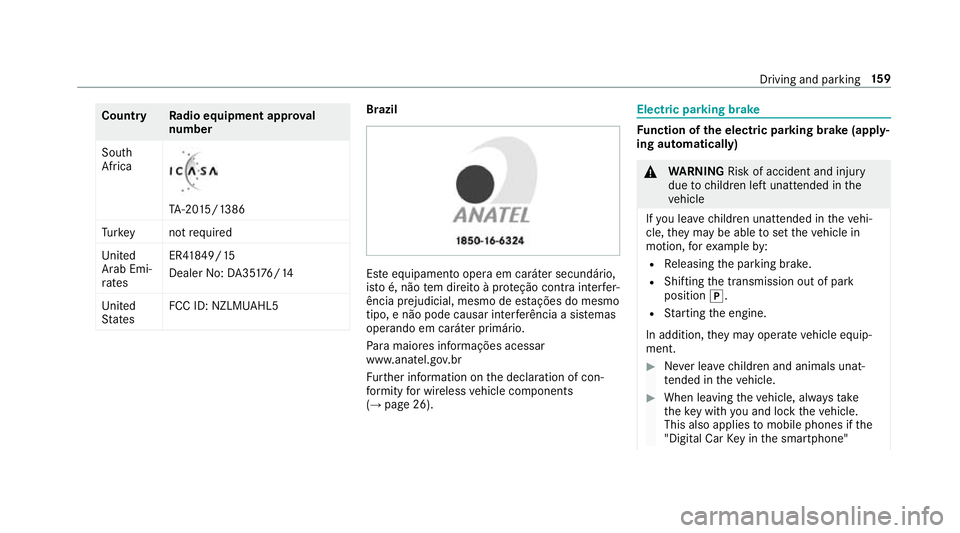
:NZLM UAHL5 Brazil
Es
te equipament ooper aemc aráter secundário,
is to é, não temd ireit oàp roteção contr ainter fer‐
ência prejudicial ,mesmo de es tações do mesmo
tipo ,en ão pod ecausar inter ferê ncia asiste mas
operando em caráter primário.
Pa ra maio resi nformações acessar
www.anatel.go v.br
Fu rther information on thed eclaration of con‐
fo rm ity forw ireles svehicle components
(→ pag e26). Electric parking brake
Fu
nction of thee lectric pa rking brak e(app ly‐
ing automatically) &
WARNING Risk of accident and inju ry
due tochildren lef tunat tende dint he
ve hicle
If yo ul eave children unat tende dint hevehi‐
cle, they ma ybea bletos etthev ehicle in
motion, fore xamp leby:
R Releasing thep arking brake.
R Shifting thet ransmission out of park
position j.
R Startin gthe engine.
In addition, they ma yoperat evehicle equip‐
ment. #
Neverlea ve children and animals unat‐
te nde dint hevehicle. #
When leaving thev ehicle, alw ayst ake
th ek eywit hyou and loc kthe vehicle.
This also applies tomobil ephones if the
"Digital Car Keyint he smartphone" Driving and parking
15 9
Page 228 of 521
%
This is ho wtochangethe channel on the
media sourc eTV.
Changing them edia source #
Press thel eft-hand Touc hC ontrol. #
Toselect amedia source: swipe upwards
or down wardsont he left-hand Touc hC on‐
trol. #
Press thel eft-hand Touc hC ontrol. Dialling
telephone number susing theo n-
boar dcompu ter Re
quirement:
R The mobile phon eisconnec tedtot he multi‐
media sy stem. On-boar
dcomputer:
, Telephone &
WARNING Risk of di stra ction from infor‐
mation sy stems and communications
equipment
If yo uo perat einformation and communica‐
tio ne quipment integrated in thev ehicle
when driving, youw ill be distracted from the
traf fics ituation. Thi scould also cause youto
lose control of thev ehicle. #
Onlyoperat ethis equipment when the
traf fics ituation permits. #
Ifyo uc anno tbes ureoft his,stop the
ve hicle whils tpaying attention toroad
and traf ficc onditions and ope rate the
equipment wit hthe vehicle stationar y. When
telephoning, youm usto bse rvet he legal
re qu irements fort he countr yinwhichyou are
cur rentl yd riving.
The mos trecen ttelephone connection s(dialled,
re cei veda nd missed calls) ar edispla yedint he
Telephone menu. #
Toselect thet elephone number: swipe
upwards or down wardsont he left-hand
To uc hC ontrol. #
Press thel eft-hand Touc hC ontrol.
If th ereiso nlyo ne telephone number
sa ve dtoane ntry:thet elephone number is
selected. #
Ifth erea remultiple telephone numbers
sa ve dtoane ntry:swipe upwards or down‐
wa rdsont he left-hand Touc hC ontrol to
select thed esired telephon enumber. #
Press thel eft-hand Touc hC ontrol.
The telephon enumber is dialled.
The following displa ysma yappear ins tead of the
te lephon enumber sdialled:
R Please wait... :the applicationiss tarting.
When aBluetooth ®
connection tothem obile
phone is no testablished, them enu for
authorisin gand connectin gamobile phon eis
displa yedint he multimedia sy stem
(→ pag e292).
R Importing contacts... :the contacts from the
mobil ephone or from astorage medium are
being impor ted. Instrument Displa
yand on-boar dcomputer 225
Page 232 of 521
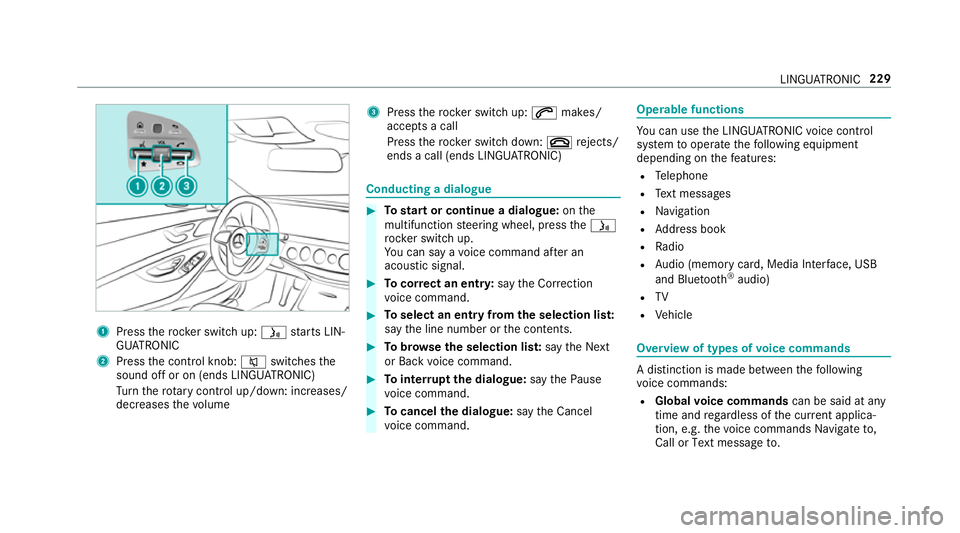
1
Press ther ockers witc hup:ó starts LIN‐
GU ATRO NIC
2 Press thec ontrol knob: 8switches the
sound of foron(ends LINGU ATRO NIC)
Tu rn ther otar yc ontrol up/down: increases/
decreases thev olume 3
Press ther ockers witc hup:6 makes/
accepts acall
Press ther ockers witc hdown:~ rejects/
end sac all( en ds LINGU ATRO NIC) Conducting
adialogue #
Tostar torc ontinue adialogue: onthe
multifunction steering wheel, press theó
rock er switc hup.
Yo uc an sa yavoice command af teran
acou stic signal. #
Tocor rect an ent ry:sayt he Correction
vo ice command. #
Toselect an entr yfromt he selection lis t:
sa yt he line number or thec ontents. #
Tobrows ethe selection lis t:sa yt he Next
or Back voice command. #
Tointer rupt thed ialogue: sayt he Pause
vo ice command. #
Tocancel thed ialogue: sayt he Cancel
vo ice command. Operable functions
Yo
uc an use theL INGU ATRO NIC voice control
sy stem tooperat ethe following equipment
depending on thef eatures:
R Telephone
R Text messa ges
R Navigation
R Address book
R Radio
R Audio (memor ycard, Media Inter face, USB
and Blu etoo th®
audio)
R TV
R Vehicle Overvie
woftypes of voice commands Ad
istinction is made between thef ollowing
vo ice commands:
R Global voice commands can be said at any
time and rega rdless of thec urrent applica‐
tion, e.g .the voice commands Navigateto,
Call orText message to. LINGU
ATRO NIC 229
Page 233 of 521
R
Application-specific voice commands are
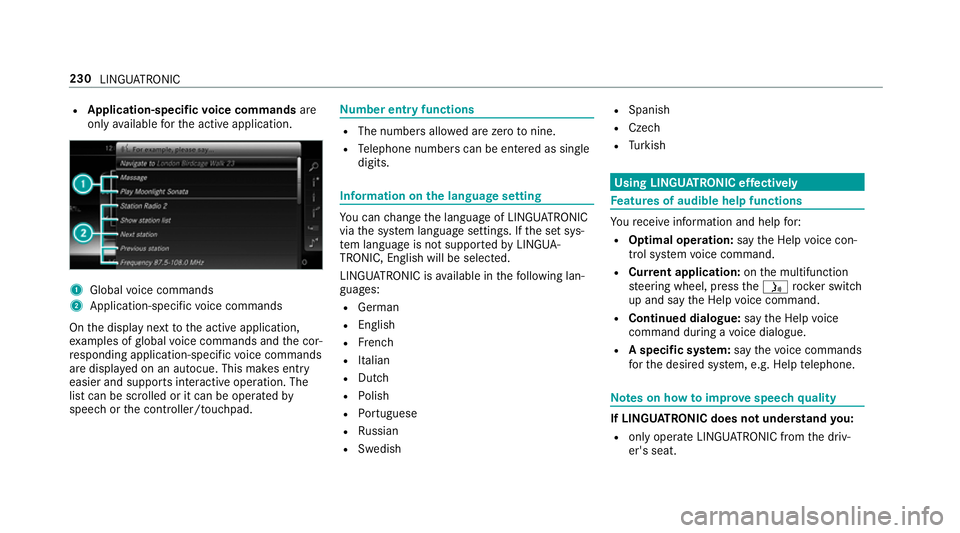
onl yavailable fort he activ eapplication. 1
Global voice commands
2 Application-specific voice commands
On thed ispla ynexttot he activ eapplication,
ex amples of global voice command sand thec or‐
re sponding application-specific voice commands
ar ed ispla yedonana utocue. This makes ent ry
easier and supports interactiv eoperation. The
lis tc an be scrolled or it can be operated by
speec horthe controller/touchpad. Nu
mbe rentry functions R
The numbe rsallo weda rezero tonine .
R Telephon enumber scan be entered as single
digits. Information on
thel anguag esetting Yo
uc an chang ethe languag eofLINGUATRO NIC
via thes ysteml anguag esettings. If thes etsys‐
te ml anguag eisnotsuppor tedbyL INGUA‐
TRONIC, English willbes elected.
LINGU ATRO NIC is available in thef ollowing lan‐
guages:
R German
R English
R French
R Italian
R Dutch
R Polish
R Portuguese
R Russian
R Swedish R
Spanish
R Czech
R Turkish Using LINGU
ATRO NIC ef fectively Fe
atures of audibl ehelp functions Yo
ur eceiv einformatio nand help for:
R Optima loperation: sayt he Help voice con-
trol system voice command.
R Cur rent application: onthem ultifunction
st eering wheel, press theó rocker switch
up and sa ythe Help voice command.
R Continued dialogue: sayt he Help voice
command during avoice dialogue.
R Aspecific sy stem: sayt he voice commands
fo rt he desired sy stem, e.g. Help telephone. Note
sonh owtoimpr ovespeec hquality If LING
UATRONI Cdoesn otunde rstan dyou:
R onlyoperat eLINGU ATRO NIC from thed riv‐
er's seat. 230
LINGU ATRO NIC
Page 234 of 521
R
sayt he voice command scohe rentl ya nd
clearly ,but do no texaggerat ethe words.
R avoid loud noises, e.g. theb lowe r,th at cause
inter fere nce whil emaking avoice command
entr y.
R sayt he voice tagw itht he same intonation
when creating voice tags.
If an addre ss book entr yvoice tag is no trec‐
ognised: R
onlycreates ensible address book entries in
th es ystem/mobile phone, e.g. enter sur‐
name and firs tn am eint he cor rect field.
R do no tuse an yabbr eviations, unnecessary
spaces or special characters.
If as tatio nliste ntr yisn otrecognised:
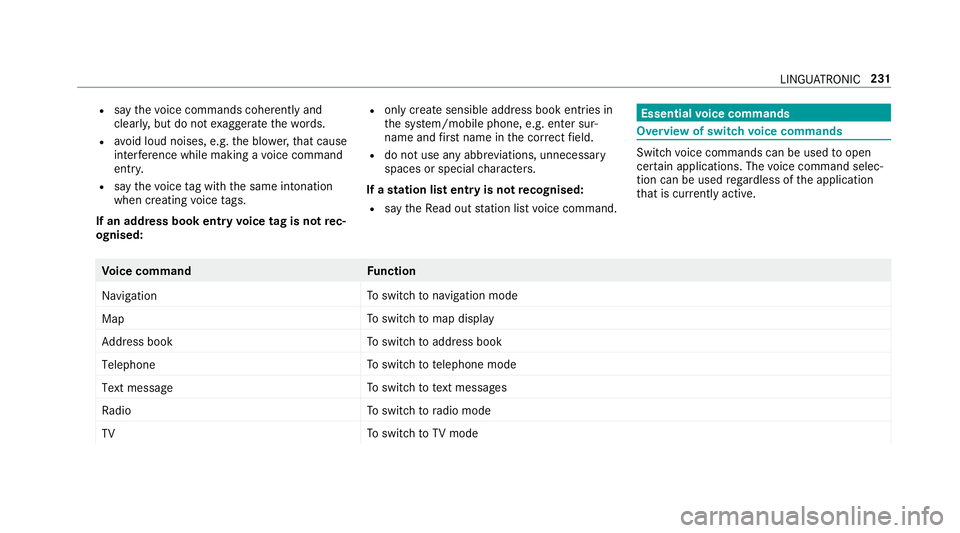
R sayt he Read out station list voice command. Essentia
lvoice commands Overvie
wofswitchvoice commands Swit
chvoice command scan be used toopen
cer tain applications .The voice command selec‐
tion can be used rega rdless of thea pplication
th at is cur rently acti ve. Vo
ice command Function
Navigation To
switc hton avigation mode
Map To
switc htom ap display
Address book To
switc htoa ddress book
Telephone To
switc htot elephone mode
Text message To
switc htot extm essa ges
Radio To
switc htor adio mode
TV To
switc htoTVm ode LINGU
ATRO NIC 231
Page 238 of 521
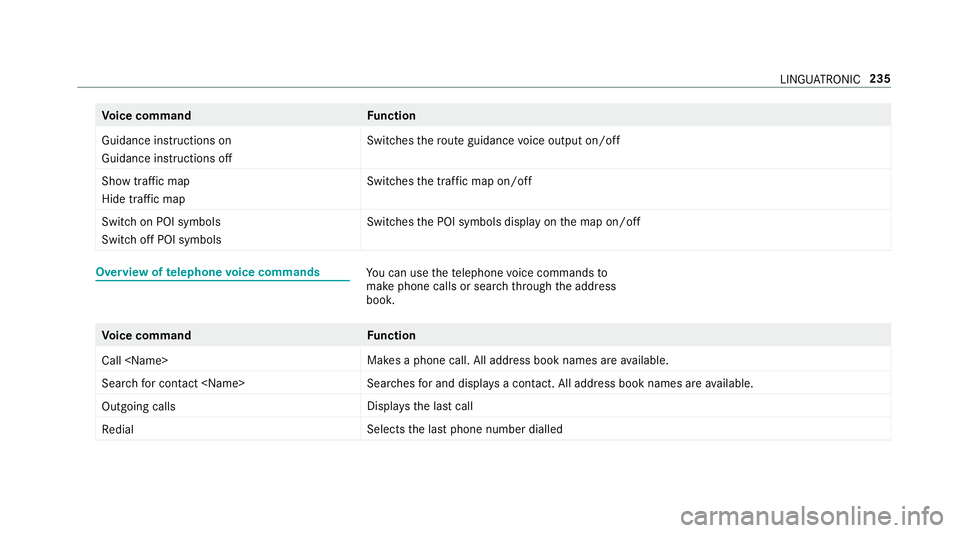
Vo
ice command Function
Guidance instruction son
Guidance instruction soff Switches
ther out eguidance voice output on/off
Sho wtraffic map
Hide traffic map Swit
ches thet raffic map on/off
Switch on POI symbols
Switch off POI symbols Swit
ches theP OI symbols displa yonthe map on/off Overvie
woftelephone voice commands Yo
uc an use thet elephone voice command sto
mak ephone call sorsearchthro ugh thea ddress
book. Vo
ice command Function
Call
aphone call. All address book names ar eavailable.
Search for contac t
ches fora nd displa ysac ontact. All address boo kname sareavailable.
Outgoin gcalls Displa
ys thelastc all
Redial Select
sthe las tphone number dialled LINGU
ATRO NIC 235
Page 248 of 521
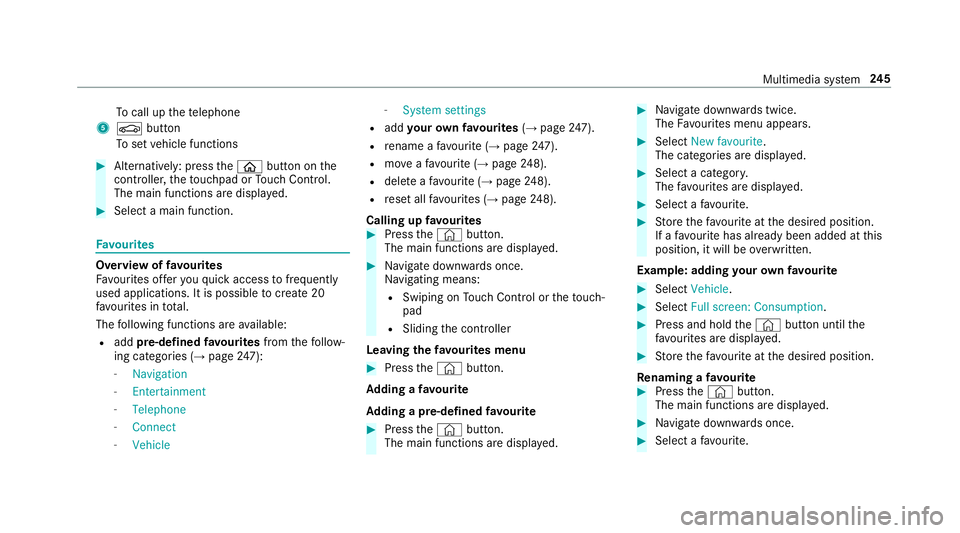
To
cal lupt hetelephone
5 Ø button
To setv ehicle functions #
Alternatively: press theò button on the
controller ,the touchpad or Touc hC ontrol.
The main function saredispl ayed. #
Select amain function. Favo
urites Overvie
woffavourites
Fa vourites of fery ou quicka ccess tofrequently
use dapplications. It is possible tocrea te20
fa vo urites in tota l.
The following function sareavailable:
R add pre-defined favo urites fromthef ollow‐
ing categories (→ page247):
- Navigation
- Entertainment
- Telephone
- Connect
- Vehicle -
System settings
R add your ow nfavourites (→pag e247).
R renam eafavourite(→pag e247).
R moveafavo urite(→pag e248).
R deleteaf avourit e(→pag e248).
R rese ta llfa vo urites (→ page248).
Callin gupf avourites #
Press the© button.
The main function saredispla yed. #
Navigat edownwards once.
Na vigating means:
R Swiping on Touc hC ontrol or thet ouch‐
pad
R Sliding thec ontroller
Leaving thef avourites menu #
Press the© button.
Ad ding afavourite
Ad ding apre-de fined favo urite #
Press the© button.
The main function saredispla yed. #
Navigat edownwards twice.
The Favourites men uappears. #
Select New favourite.
The categories ar edispl ayed. #
Select acategor y.
The favo urites ar edispl ayed. #
Select afavo urite. #
Storet he favo urit eatt he desired position.
If af avo uritehas already been added at this
position, it will be overwritten.
Example :adding your ow nfavo urite #
Select Vehicle. #
Select Full screen: Consumption . #
Press and hold the© button until the
fa vo urites ar edispl ayed. #
Storet he favo urit eatt he desired position.
Re naming afavourite #
Press the© button.
The main function saredispla yed. #
Navigat edownwards once. #
Select afavo urite. Multimedia sy
stem 245
Page 251 of 521
The
volume of then avigation announce‐
ment changes in accordanc ewitht he vol‐
ume of thec urrent media sou rce.
R during atelephone call
R when entering or exitin gap arkin gspace
while using ActiveP arking Assist
or #
Select System. #
Select Audio. #
Selec tavolume setting. #
Setthe volume. Entering
characters Using
thec haracter input function
Use thec haracter input function in thef ollowing
situations, fore xamp le:
R Torenam eafavourite
R Toenter aPOI or address
R Tomak eap hone call The
following function sareavailable:
R Selecting acharacter in thec haracter bar
R Writin gac haracter on thet ouchpad
Character input can be star tedw ithac ontrol
element and resumed wit hanother. #
On theT ouc hControl and controller:
select acharacter in thec haracter bar.
Depending on thet arge te ntry ,the following
ch aracter sareavailable:
R The full se tofcharacter sisshown
R Onlythose character swhicha reuseful
fo rt he cur rent inpu tstring are shown
Other character saregrey ed out. #
On thet ouchpad: selectacharacter in the
ch aracter bar.
or #
Writet he character sonthetouch-sensitive
sur face of thet ouchpad.
Handwriting recognition suppo rtsy ou by
means of character suggestions and aread-
aloud function. Examples of
character ent ry:
R Renam eafavourite
R EnteraP OI or an addre ss using free or step-
by -ste ps ear ch
R Enter aweb address
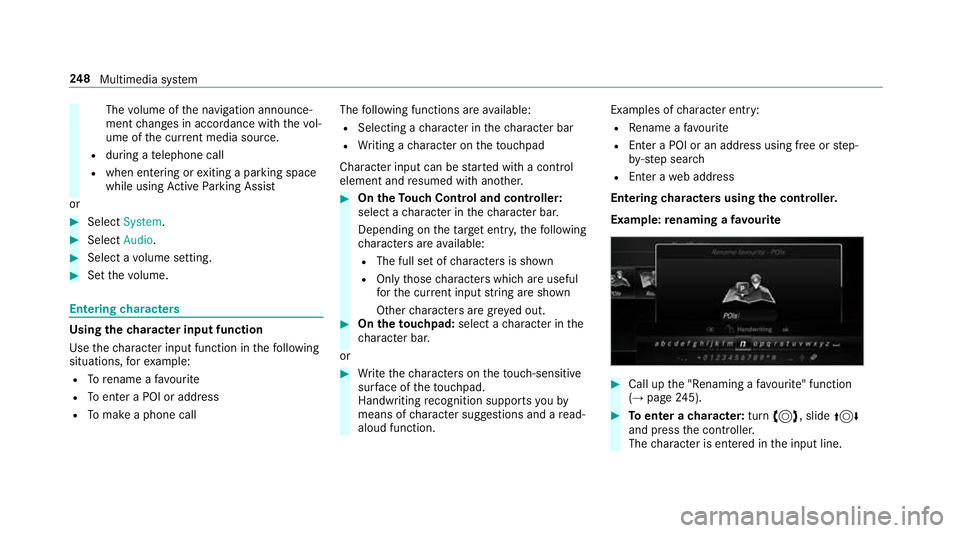
Entering character susin gthe controller.
Example :renaming afavourite #
Call up the" Renaming afavo urite" function
(→ pag e245). #
Toenter acharacter: turn3,s lide4
and press thec ontroller.
The character is entered in thei np ut line. 248
Multimedia sy stem
Page 254 of 521
#
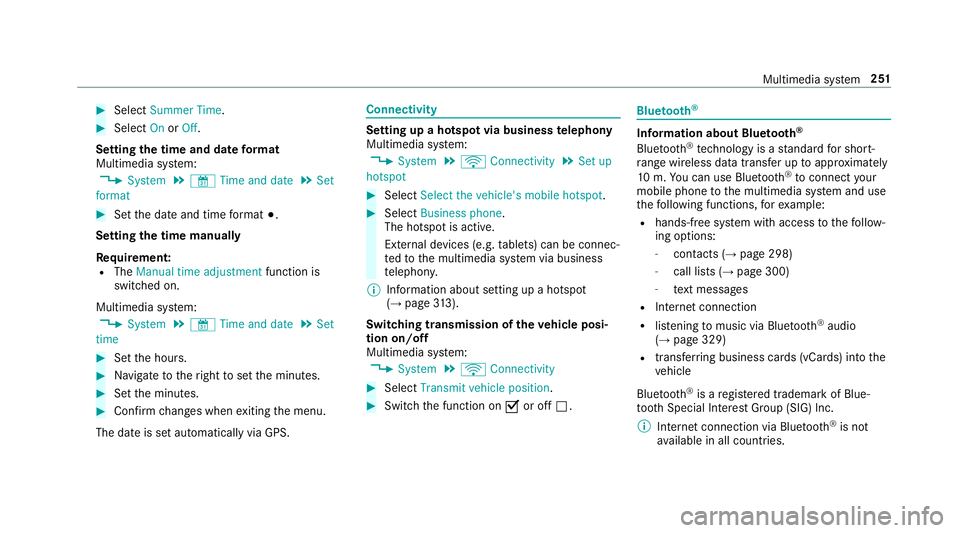
Select Summer Time. #
Select OnorOff.
Setting the time and dat eformat
Multimedia sy stem:
, System .
& Time and date .
Set
format #
Setthe dat eand time form at#.
Setting thet imem anually
Re quirement:
R The Manual time adjustment function is
switched on.
Multimedia sy stem:
, System .
& Time and date .
Set
time #
Setthe hours. #
Navigat etot heright tosetthe minutes. #
Setthe minutes. #
Confir mchanges when exitin gthe menu.
The dat eissetautomaticall yvia GPS. Connectivity
Setting up
ahotspo tvia business telephony
Multimedia sy stem:
, System .
ö Connectivity .
Set up
hotspot #
Select Select the vehicle's mobile hotspot . #
Select Business phone.
The hotspo tisactive.
Exte rnal devices (e.g. tablets) can be connec‐
te dtot he multimedia sy stem via business
te lephon y.
% Information abouts etting up ahotspot
(→ pag e313).
Swi tchin gtransmission of the vehicl eposi‐
tion on/off
Multimedi asystem:
, System .
ö Connectivity #
Select Transmit vehicle position . #
Switc hthe function on Oor off ª. Blue
tooth ® Information abou
tBluet oo th®
Bl ue tooth ®
tech nology is astandar dfor short-
ra ng ew ireles sdatat ransfer up toappr oximately
10 m.Youc an use Blue tooth®
to connect your
mobile phon etothe multimedia sy stem and use
th ef ollowing functions, fore xamp le:
R hands-free sy stem wit haccess tothef ollow‐
ing options:
- contacts (→ page298)
- call lists (→ page300)
- text messa ges
R Interne tconnection
R listening tomusi cvia Blue tooth®
audio
(→ pag e329)
R trans ferring business cards (vCards) int othe
ve hicle
Blue tooth ®
is ar egis tere dt rademar kofBlue‐
toot hSpecial Interes tGroup (SIG) Inc.
% Interne tconnection via Blue tooth®
is not
av ailable in all countries. Multimedia sy
stem 251
Page 255 of 521
Ac
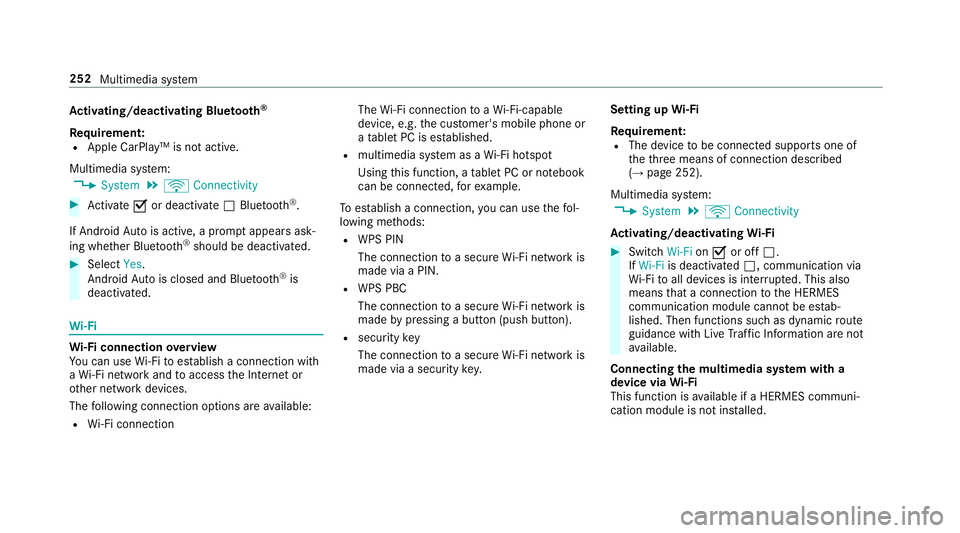
tivating/deactivatin gBluetooth ®
Requ irement:
R Apple CarPlay™ is no tactive.
Multimedia sy stem:
, System .
ö Connectivity #
Activate Oor deacti vate ª Bluetoo th®
.
If Android Autois active, apromp tappear sask‐
ing whe ther Blue tooth®
should be deactivated. #
Select Yes.
Android Autois closed and Blue tooth®
is
deactivated. Wi
-Fi Wi
-Fic on nectio noverview
Yo uc an use Wi-Fi toestablish aconnection with
aW i-Finetwo rkand toaccess theI nterne tor
ot her networ kdevices.
The following connection option sareavailable:
R Wi-Fi connection The
Wi-Fi connectio ntoaWi-Fi-capable
device ,e.g.t he cus tomer's mobil ephone or
at able tPCise stablished.
R multimedia sy stem as aWi-Fihotspot
Using this function ,atable tPCorn otebook
can be connected, fore xamp le.
To establish aconnection ,you can use thef ol‐
lowing me thods:
R WPS PIN
The connection toas ecur eWi-Finetwo rkis
mad eviaaP IN.
R WPS PBC
The connectio ntoasecureWi-Finetwo rkis
mad ebyp ressing abutton (push button).
R security key
The connection toas ecur eWi-Finetwo rkis
mad eviaas ecu rity key. Setting up
Wi-Fi
Requ irement:
R The device tobe connec teds upports one of
th et hree means of connection described
(→ pag e252).
Multimedia sy stem:
, System .
ö Connectivity
Ac tivating/deactivatin gWi-Fi #
Switch Wi-FionO or off ª.
If Wi-Fi is deacti vatedª,communicatio nvia
Wi -Fi toall devices is inter rupte d. This also
means that ac onnectio ntothe HERMES
communication module canno tbeestab‐
lished. Then function ssuchasd ynamic route
guidance wit hLiveT raffic In form ation ar enot
av ailable.
Connecting them ultimedia sy stem wit ha
device via Wi-Fi
Thi sfunction is available if aHERME Scommuni‐
cation modul eisnotins talled. 252
Multimedia sy stem