key MERCEDES-BENZ S-Class MAYBACH 2017 W222 Comand Manual
[x] Cancel search | Manufacturer: MERCEDES-BENZ, Model Year: 2017, Model line: S-Class MAYBACH, Model: MERCEDES-BENZ S-Class MAYBACH 2017 W222Pages: 230, PDF Size: 8.27 MB
Page 181 of 230
=Sound settings
?To connect the device
ATo stopËor start Ìplayback
BName of the connected Bluetooth®audio
device (example)
COptions menu
Switching to Bluetooth®audio
XIn media mode: press the Õbutton.
The menu appears with the available media
sources.
XTo select Bluetooth Audio: turn and press
the controller.
The multimedia system activates the Blue-
tooth
®audio device. The basic display then
appears. Playback starts.
If you see the No Bluetooth Audio Device
Connectedmessage, you will need to authorize
the Bluetooth®audio device first (Ypage 179).
iIf the connected Bluetooth®audio device
supports metadata and if the corresponding
data is available, then the artist, track and
album name can be displayed.
Searching for and authorizing a Blue-
tooth®audio device
Searching for a Bluetooth®audio device
XSwitch on Bluetooth®audio mode
(Ypage 179).
XSlide 6the controller.
The media menu bar is shown.
XTo select Connect Device: turn and press
the controller.
XTo select Search for Audio Devices:
press the controller.
A message appears.
XSelect Start Search.
The multimedia system searches for Blue-
tooth
®audio devices within range and adds
them to the Bluetooth®device list.
The duration of the search depends on the
number of Bluetooth
®audio devices within
range and their characteristics.
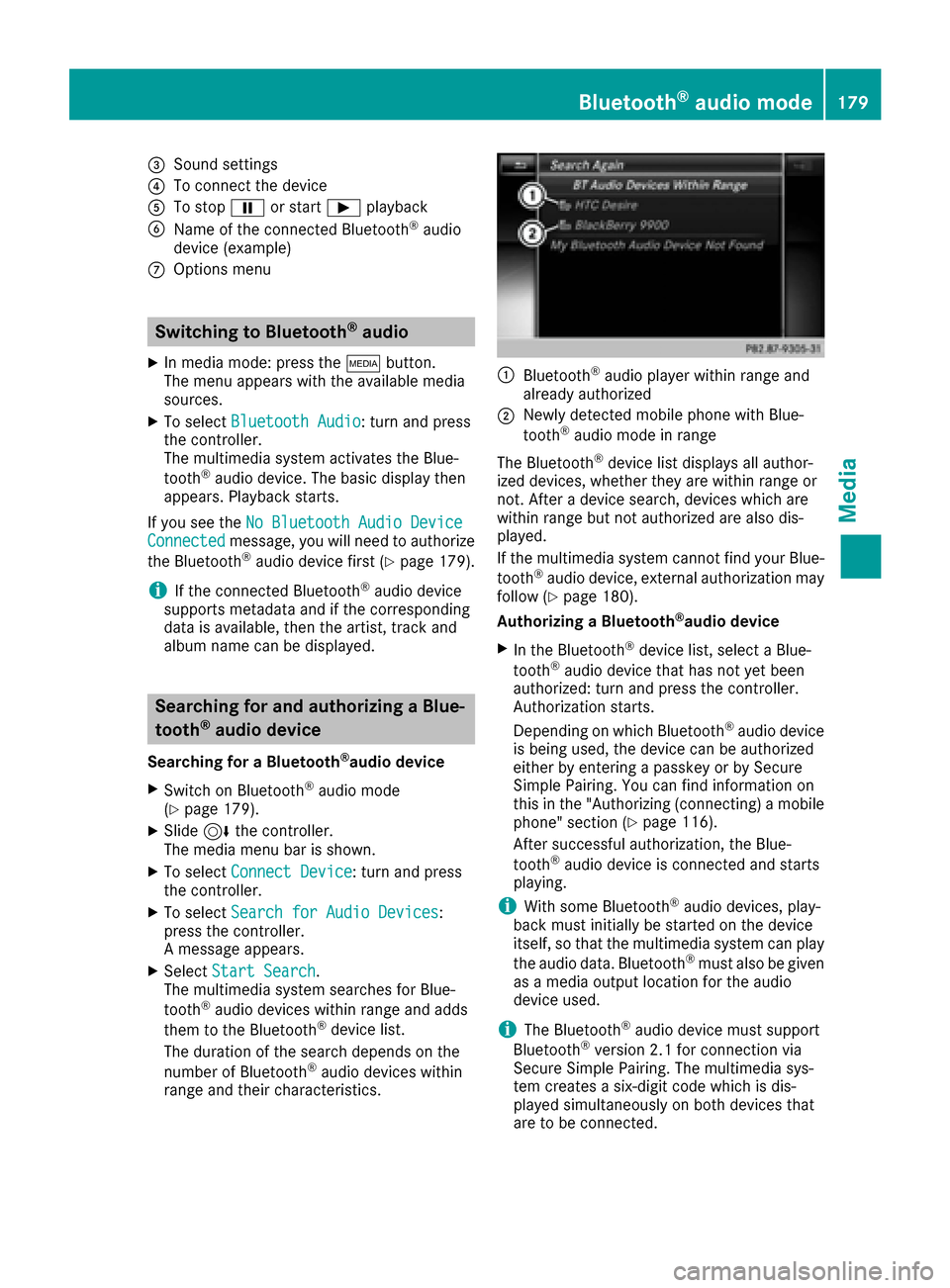
:Bluetooth®audio player within range and
already authorized
;Newly detected mobile phone with Blue-
tooth®audio mode in range
The Bluetooth
®device list displays all author-
ized devices, whether they are within range or
not. After a device search, devices which are
within range but not authorized are also dis-
played.
If the multimedia system cannot find your Blue-
tooth
®audio device, external authorization may
follow (Ypage 180).
Authorizing a Bluetooth
®audio device
XIn the Bluetooth®device list, select a Blue-
tooth®audio device that has not yet been
authorized: turn and press the controller.
Authorization starts.
Depending on which Bluetooth
®audio device
is being used, the device can be authorized
either by entering a passkey or by Secure
Simple Pairing. You can find information on
this in the "Authorizing (connecting) a mobile
phone" section (
Ypage 116).
After successful authorization, the Blue-
tooth
®audio device is connected and starts
playing.
iWith some Bluetooth®audio devices, play-
back must initially be started on the device
itself, so that the multimedia system can play
the audio data. Bluetooth
®must also be given
as a media output location for the audio
device used.
iThe Bluetooth®audio devi ce must support
Bluetooth®version 2.1 for connection via
Secure Simple Pairing. The multimedia sys-
tem creates a six-digit code which is dis-
played simultaneously on both devices that
are to be connected.
Bluetooth®audio mode179
Media
Z
Page 186 of 230
iVideo files from Apple®devices cannot be
played using the USB port.
Selecting a music file
Selecting with the controller
XTo display the current track list: press the
controller in the basic display.
XSelect Current Tracklist.
The track list for the active data medium
appears.
XTo select a track: turn the controller and press
to confirm.
XTo skip forward or back to a track: turn the
controller in the basic display.
The selected track is played.
Selecting with fast forward/rewind
XWith the media source active in the basic dis- play, slide 1the controller and hold it
until the desired position has been reached.
Searching for a track
Selecting Search using media menu bar
XTo switch to the menu bar: slide 6the con-
troller.
XTo select Search: turn and press the control-
ler.
The category list appears.
Overview
The following categories are listed:
RCurrent Tracklist
RFolder
RSelect By Cover
RKeyword Search
RPlaylists
RArtists
RAlbums
RTrack
RGenres
RYear
RComposers
RVideos
RPhotos
RPodcasts
RAudiobooks
iThe functions are available as soon as the
entire media content has been read and ana-
lyzed.
If the same device is reconnected with
unchanged media content, these functions
are available more quickly.
The audio books and podcasts categories are
only available for Apple
®devices.
When connecting Apple®devices, the cate-
gories “Folder”, “Year” and “Photos” are not
available.
XTo select a category, e.g. Current Track‐list: turn and press the controller.
The selection list appears.
XSelect the required track.
Searching for tracks via keywords
XTo select Keyword Searchin the category
list: turn and press the controller.
XEnter and confirm the characters of the
desired search using the controller
(
Ypage 174).
Search results are sorted according to the
available categories, displayed and can then
be selected.
Selecting the playback option
XIn media mode, slide 6the controller.
The media menu bar is shown.
XTo select Options: turn and press the con-
troller.
XTo select the desired playback option: turn
and press the controller.
Additional information on playback options
(
Ypage 170).
Selecting video settings
If playable video files are found, they will be
played by the multimedia system.
XTo switch on full-screen mode: press the con-
troller in the basic display.
XTo show the video menu: slide 6the con-
troller in full-screen mode.
The Media Interface menu bar appears.
184Operation with the Media Interface
Media
Page 190 of 230
Control menu and
functionOperation
RVideo menu
Selection of scene,
fast forward or
rewindIn full-screen mode,
slide6the control-
ler
RDVD functions
Selection of title,
scene, language,
subtitles ...In full-screen mode,
press the controller
Function restrictions
Depending on the DVD, certain functions or
actions may not function at all. The symbol K
appears in the display.
Switching on video DVD mode
RInsert and eject a disc from the single drive
(Ypage 168)
RInsert a disc into the DVD changer
(Ypage 169)
REject a disc from the DVD changer
(Ypage 169)
Further options for switching on:
RUsing the number keypad (Ypage 165)
RUsing the main function bar (Ypage 165)
RUsing the device list (Ypage 165)
RUsing the Õbutton (Ypage 164)
DVD overview
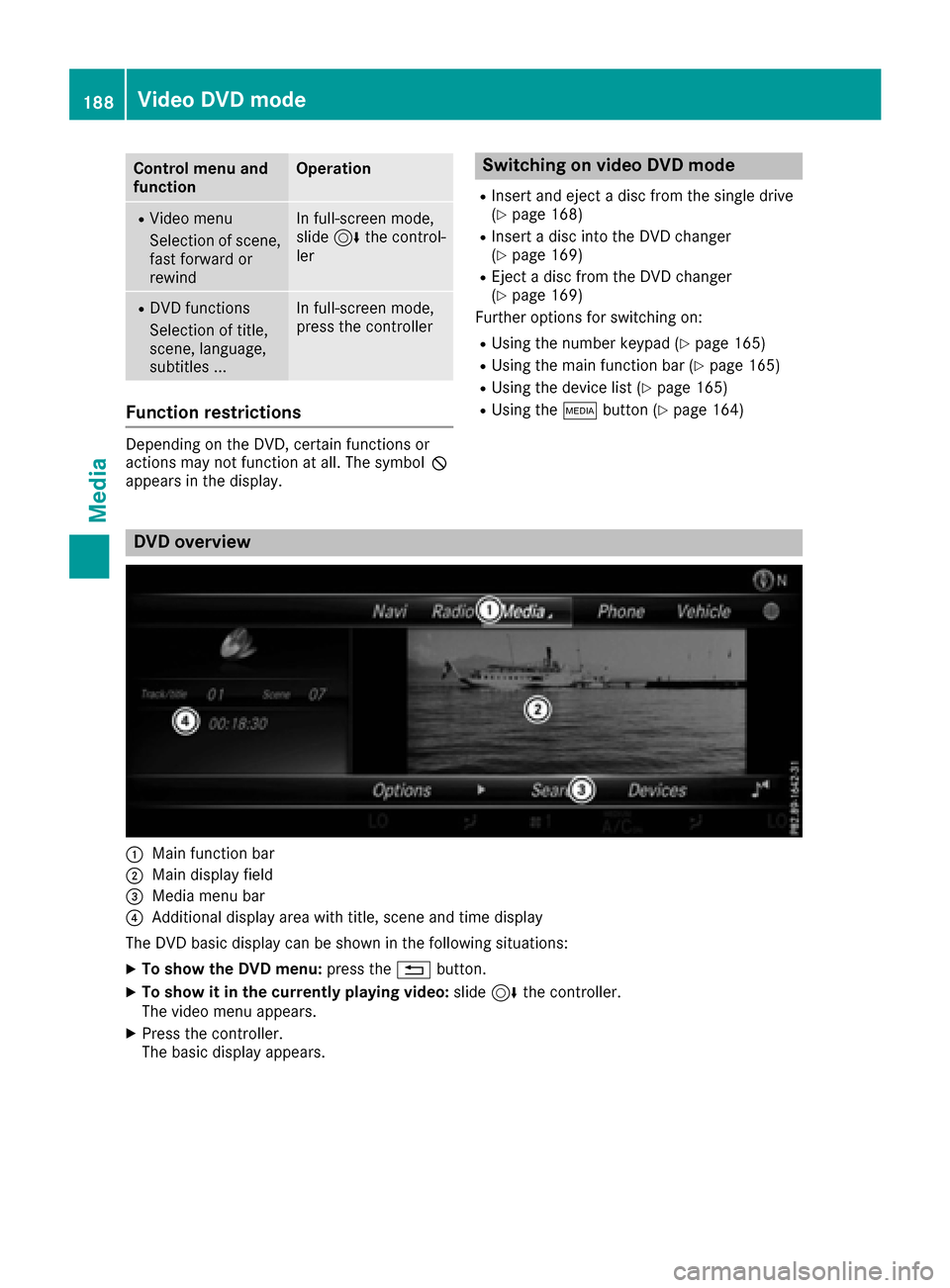
:Main function bar
;Main display field
=Media menu bar
?Additional display area with title, scene and time display
The DVD basic display can be shown in the following situations:
XTo show the DVD menu: press the%button.
XTo show it in the currently playing video: slide6the controller.
The video menu appears.
XPress the controller.
The basic display appears.
188Video DVD mode
Media
Page 191 of 230
Switching on DVD full-screen mode
It is possible to switch from the DVD basic dis-
play to full screen mode as follows:
XSlide5the controller.
The main function bar and menu bar are hid-
den. A full-screen symbol will be shown.
XPress the controller.
The full-screen mode appears.
Selecting menu options
XTo select Options: slide6the controller
when in full-screen mode
The video menu appears.
XPress the controller.
The DVD basic display appears.
XTo switch to the menu bar: slide 6the con-
troller.
XTo select Options: turn and press the con-
troller.
A menu appears.
Skip to time
XTo select Skip to Time: turn and press the
controller.
A menu appears.
XTo set the time: turn the controller.
or
Set the desired time using the number key-
pad.
XTo hide the menu: press the %button.
Displaying the DVD functions
XTo select DVDFunctions: turn and press the
controller.
A menu appears (
Ypage 190).
Starting an application at a different seat
XTo select Start Application at OtherSeat: turn and press the controller.
The menu appears: (Ypage 166).
iActivating the parental control screen:
(Ypage 63).
Selecting video settings
XSelect Video Settings.
A menu appears.
Video settings
Dynamic image enhancement
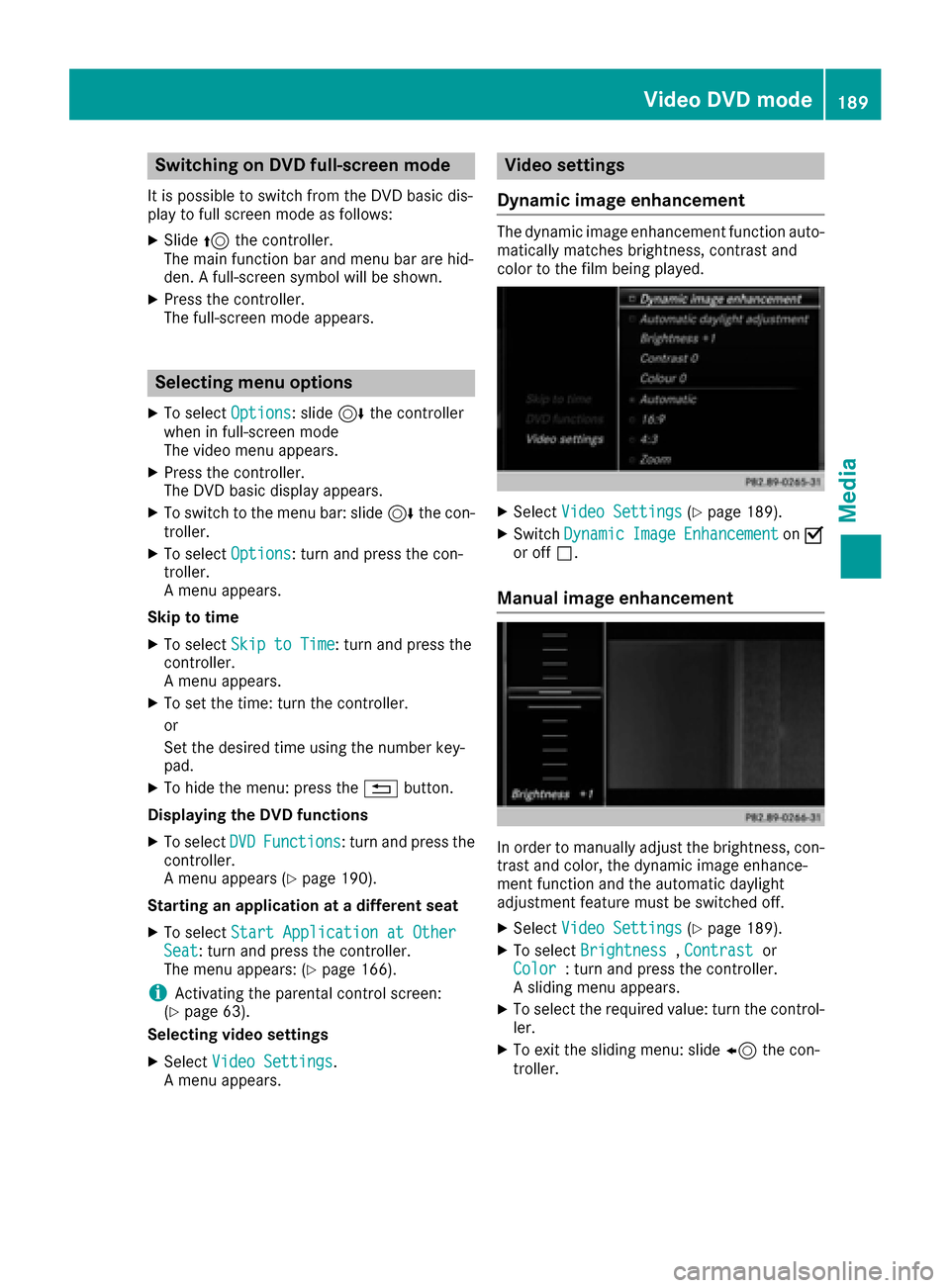
The dynamic image enhancement function auto-
matically matches brightness, contrast and
color to the film being played.
XSelect Video Settings(Ypage 189).
XSwitch DynamicImageEnhancementonO
or off ª.
Manual image enhancement
In order to manually adjust the brightness, con-
trast and color, the dynamic image enhance-
ment function and the automatic daylight
adjustment feature must be switched off.
XSelect Video Settings(Ypage 189).
XTo select Brightness,Contrastor
Color: turn and press the controller.
A sliding menu appears.
XTo select the required value: turn the control-
ler.
XTo exit the sliding menu: slide 8the con-
troller.
Video DVD mode189
Media
Z
Page 204 of 230
Option 2: selecting the area in the
weather map
XCall up the weather map (Ypage 202).
XMove the weather map so that the crosshair isover the desired area (Ypage 202).
XPress the controller.
The information chart shows the weather
forecast for the selected area. The data is
supplied by the nearest weather station.
Memory functions
Storing the area in the weather memory
You can save locations that are called up fre-
quently in ten preset positions (0, 1-9) in the
weather memory.
XIn the weather memory: select the area for
the weather forecast (Ypage 200).
The selected location appears at the top in the status bar.
XTo select Positionin the information chart:
turn and press the controller.
XSelect Presets.
XSelect a preset using the controller.
XPress and hold the controller until you hear a
tone.
The area is entered on the selected preset.
Equipment with telephone keypad
XTo store rapidly: in the daily forecast
(Ypage 199) press and hold a number key,
e.g. l, until the preset position number is
shown in the status bar in front of the area
name.
iYou can also use this function in the five-day
forecast (Ypage 199), and in the detailed
information view (Ypage 200).
Selecting an area from the weather
memory
XDirectly from the weather memory: select
Position
from the information chart: turn
and press the controller.
XSelect Presets.
XSelect the memory position which contains
the location you require.
The weather data for the selected area is dis-
played. Equipment with telephone keypad
XQuick select:
if a location is stored in the
weather memory, for example when the cur-
rent forecast display is active, briefly press a
number key, e.g. l.
The weather data for the selected area is dis-
played.
Weather map
Calling up the weather map
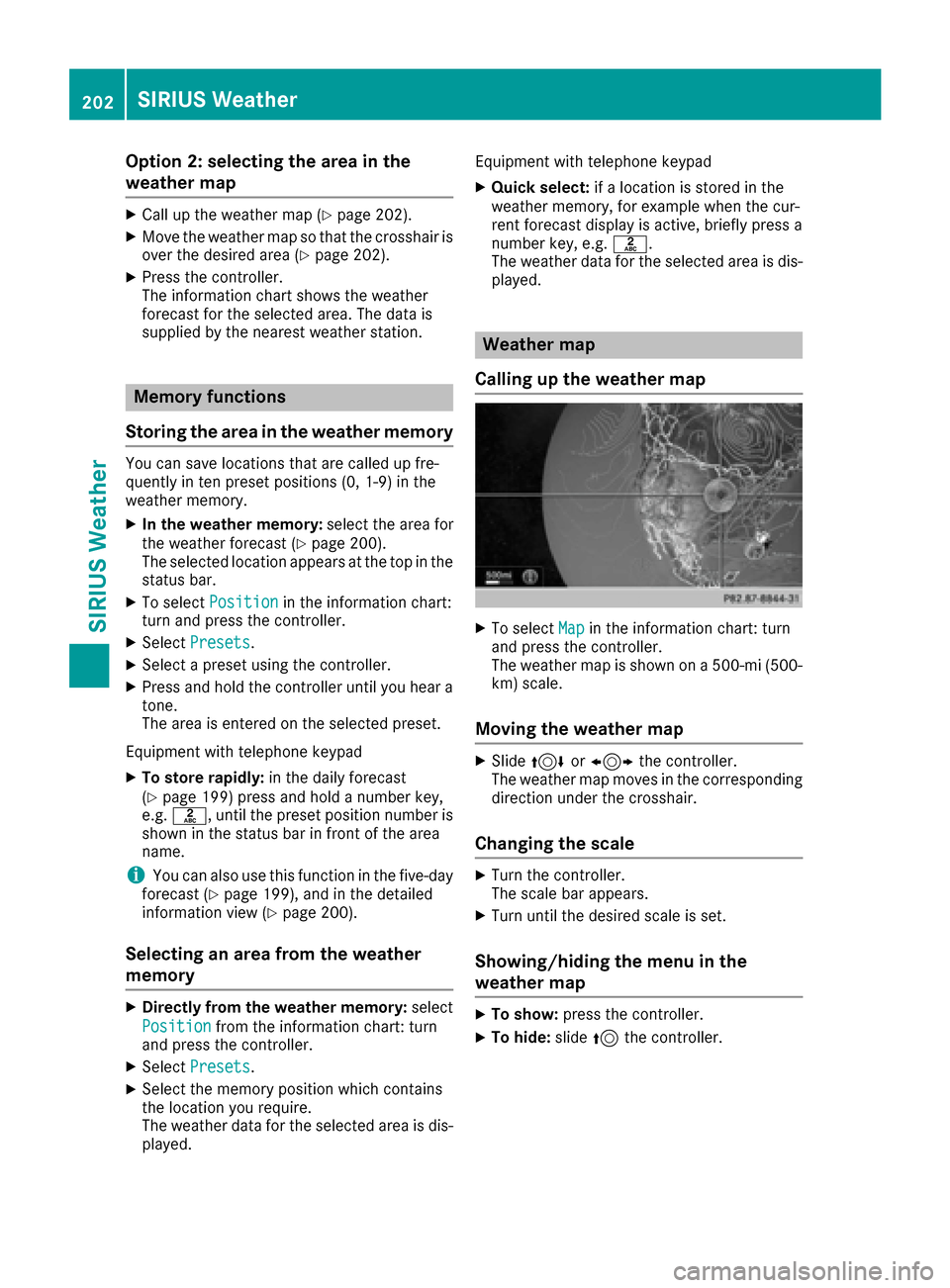
XTo select Mapin the information chart: turn
and press the controller.
The weather map is shown on a 500-mi (500-
km) scale.
Moving the weather map
XSlide 4 or1 the controller.
The weather map moves in the corresponding
direction under the crosshair.
Changing the scale
XTurn the controller.
The scale bar appears.
XTurn until the desired scale is set.
Showing/hiding the menu in the
weather map
XTo show: press the controller.
XTo hide:slide5the controller.
202SIRIUS Weather
SIRIUS Weather
Page 212 of 230
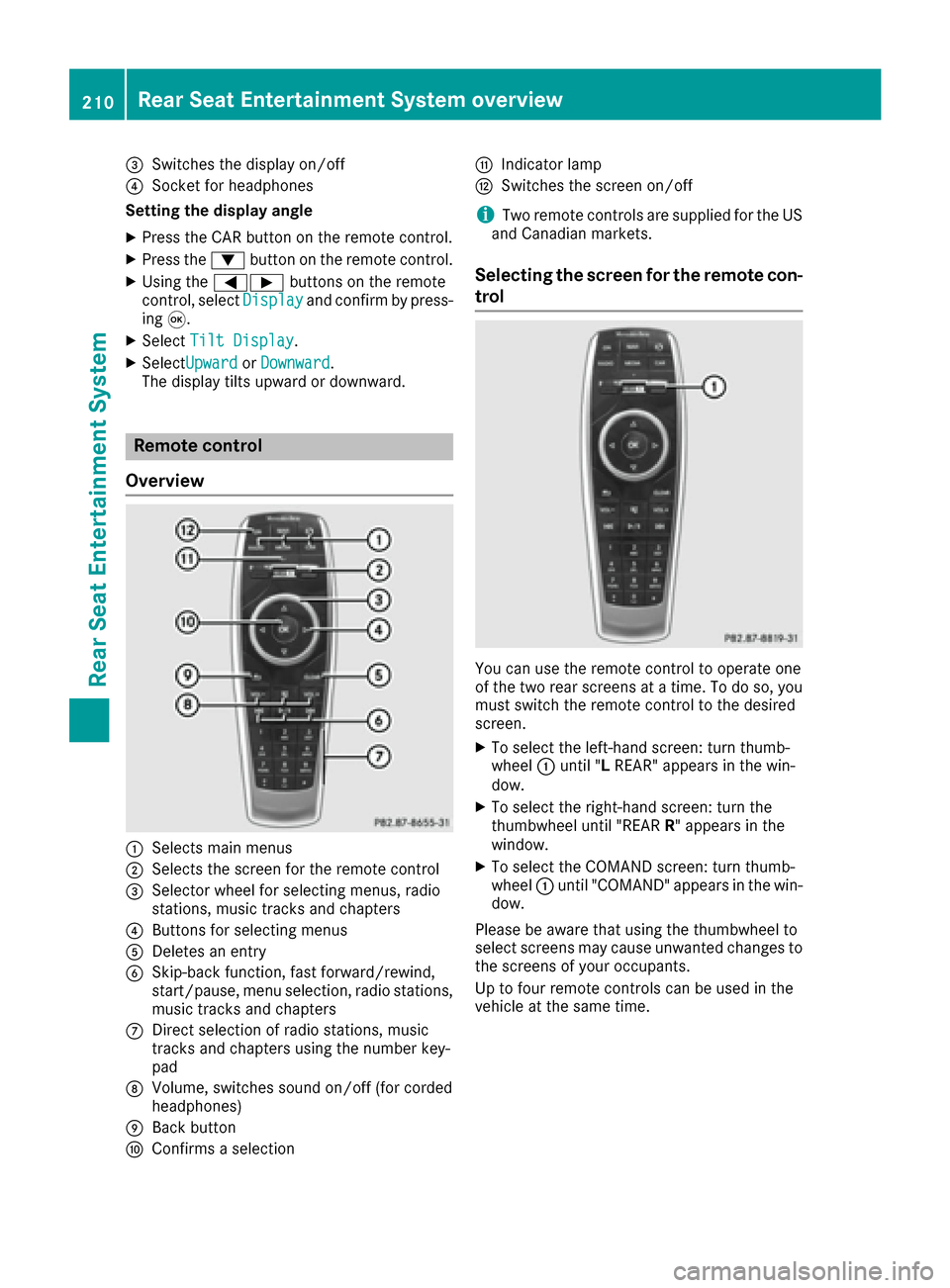
=Switches the display on/off
?Socket for headphones
Setting the display angle
XPress the CAR button on the remote control.
XPress the :button on the remote control.
XUsing the =Ì buttons on the remote
control, select Displayand confirm by press-
ing 9.
XSelect Tilt Display.
XSelectUpwardorDownward.
The display tilts upward or downward.
Remote control
Overview
:Selects main menus
;Selects the screen for the remote control
=Selector wheel for selecting menus, radio
stations, music tracks and chapters
?Buttons for selecting menus
ADeletes an entry
BSkip-back function, fast forward/rewind,
start/pause, menu selection, radio stations,
music tracks and chapters
CDirect selection of radio stations, music
tracks and chapters using the number key-
pad
DVolume, switches sound on/off (for corded
headphones)
EBack button
FConfirms a selection
GIndicator lamp
HSwitches the screen on/off
iTwo remote controls are supplied for the US
and Canadian markets.
Selecting the screen for the remote con-
trol
You can use the remote control to operate one
of the two rear screens at a time. To do so, you
must switch the remote control to the desired
screen.
XTo select the left-hand screen: turn thumb-
wheel :until " LREAR" appears in the win-
dow.
XTo select the right-hand screen: turn the
thumbwheel until "REAR R" appears in the
window.
XTo select the COMAND screen: turn thumb-
wheel :until "COMAND" appears in the win-
dow.
Please be aware that using the thumbwheel to
select screens may cause unwanted changes to
the screens of your occupants.
Up to four remote controls can be used in the
vehicle at the same time.
210Rear Seat Entertainment System overview
Rear Seat Entertainment System
Page 213 of 230
Switching the screen on/off
The switched-on rear compartment screens
switch off after 30 minutes if:
Rthe SmartKey is in position0or 1in the igni-
tion lock
Rthe SmartKey is not inserted
Before the screens switch off, they show a mes-
sage to this effect.
You can switch the screens back on. Please note
that this may cause the starter battery to dis-
charge.
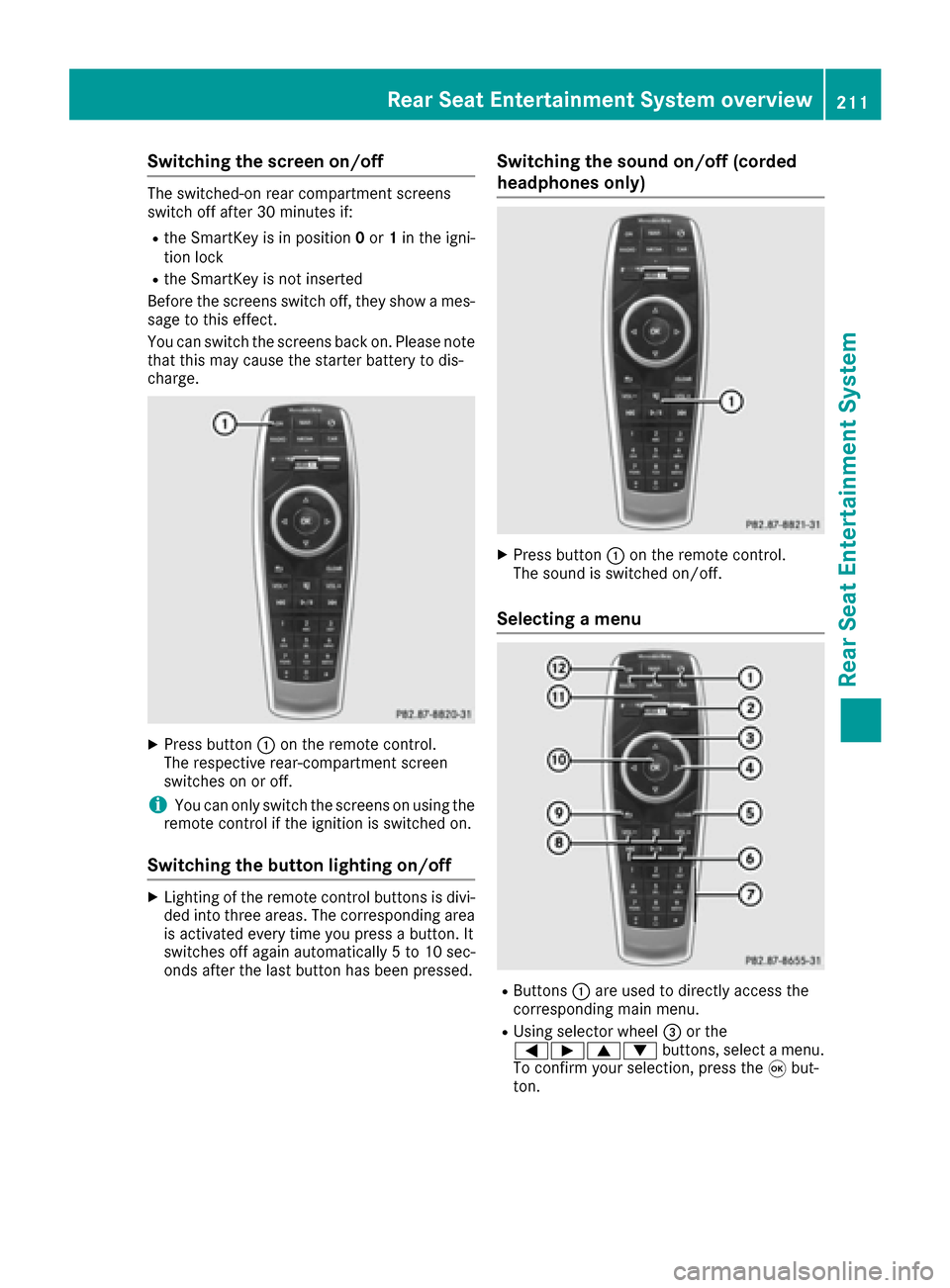
XPress button :on the remote control.
The respective rear-compartment screen
switches on or off.
iYou can only switch the screens on using the
remote control if the ignition is switched on.
Switching the button lighting on/off
XLighting of the remote control buttons is divi-
ded into three areas. The corresponding area
is activated every time you press a button. It
switches off again automatically 5 to 10 sec-
onds after the last button has been pressed.
Switching the sound on/off (corded
headphones only)
XPress button :on the remote control.
The sound is switched on/off.
Selecting a menu
RButtons :are used to directly access the
corresponding main menu.
RUsing selector wheel =or the
=Ì9: buttons, select a menu.
To confirm your selection, press the 9but-
ton.
Rear Seat Entertainment System overview211
Rear Seat Entertainment System
Z
Page 214 of 230
Indicator lamp on the remote control
The color of the indicator lamp shows whether
or notthe entry has been correctly transmitted
every time you press a button. It also shows the
condition of the inserted batteries.
LED dis-
playStatus
Green
(flashes
once)Entr y being transmitted.
The batteries are fine.
Red
(flashes
once)Entr y being transmitted.
The batteries are almost dis-
charged.
Orang e
(flashes
three
times )Entryno tcorrectl ytransmitted.
UnlitThe batteries are discharged.
iThe function of the remote control may be
impaired by other radio-based electronic
devices such as mobile phones or laptops.
Operation via smartphone
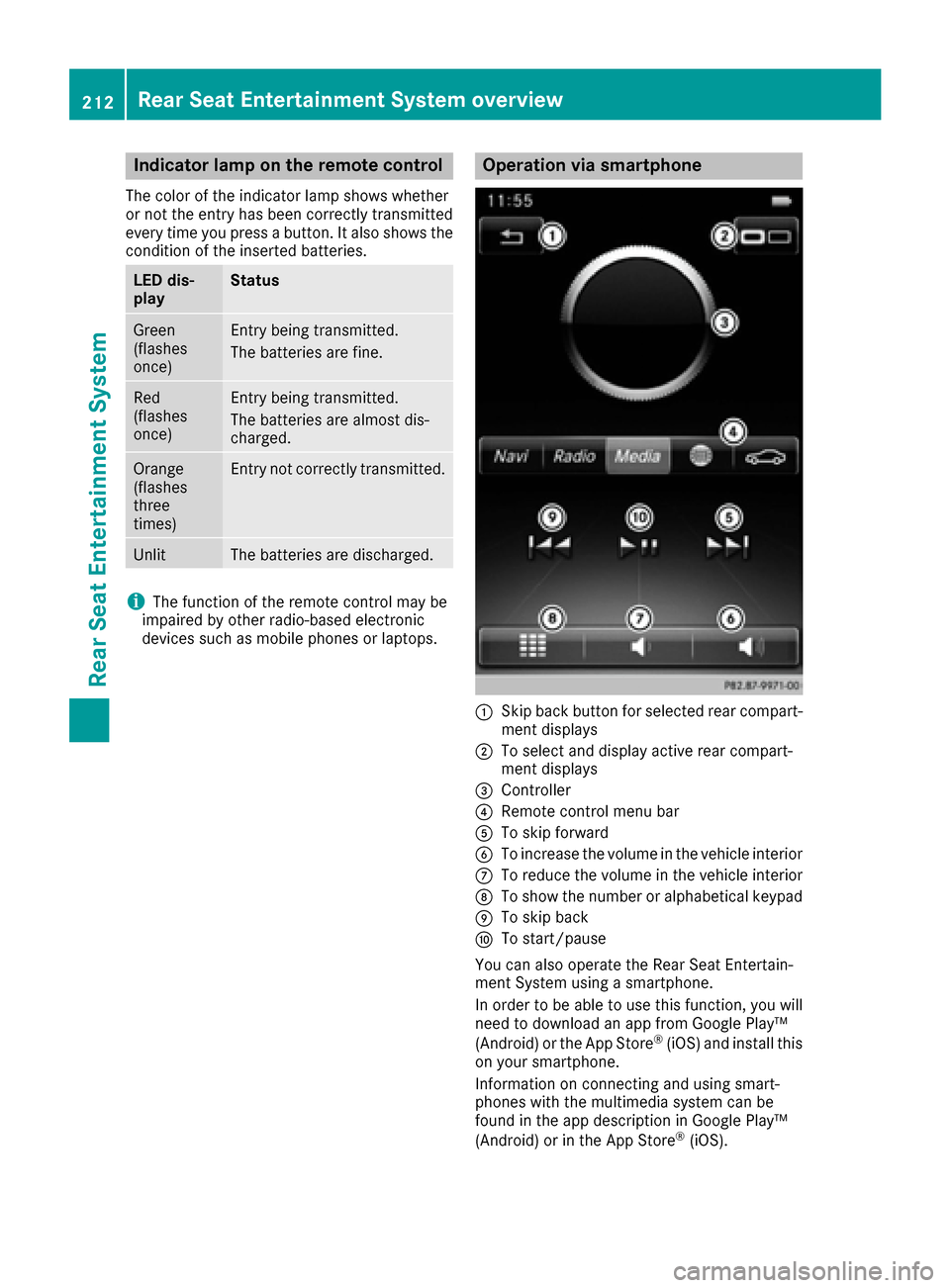
:Skip back button for selected rear compart- ment displays
;To select and display active rear compart-
ment displays
=Controller
?Remote control men u bar
ATo skip forward
BTo increasethe volume in the vehicle interior
CTo reduce the volume in the vehicle interior
DTo show the number or alphabetical keypad
ETo skip back
FTo start/pause
You can also operate the Rear Seat Entertain-
ment System usingasmartphone.
In order to be able to use this function, you will
need to download an app from Google Play™
(Android) or the AppStore
®(iOS) and install this
on your smartphone.
Information on connecting and using smart-
phones with the multimedia system can be
found in the app description in Google Play™
(Android) or in the AppStore
®(iOS).
212Rear Seat Entertainment System overview
Rear Seat Entertainment System
Page 220 of 230
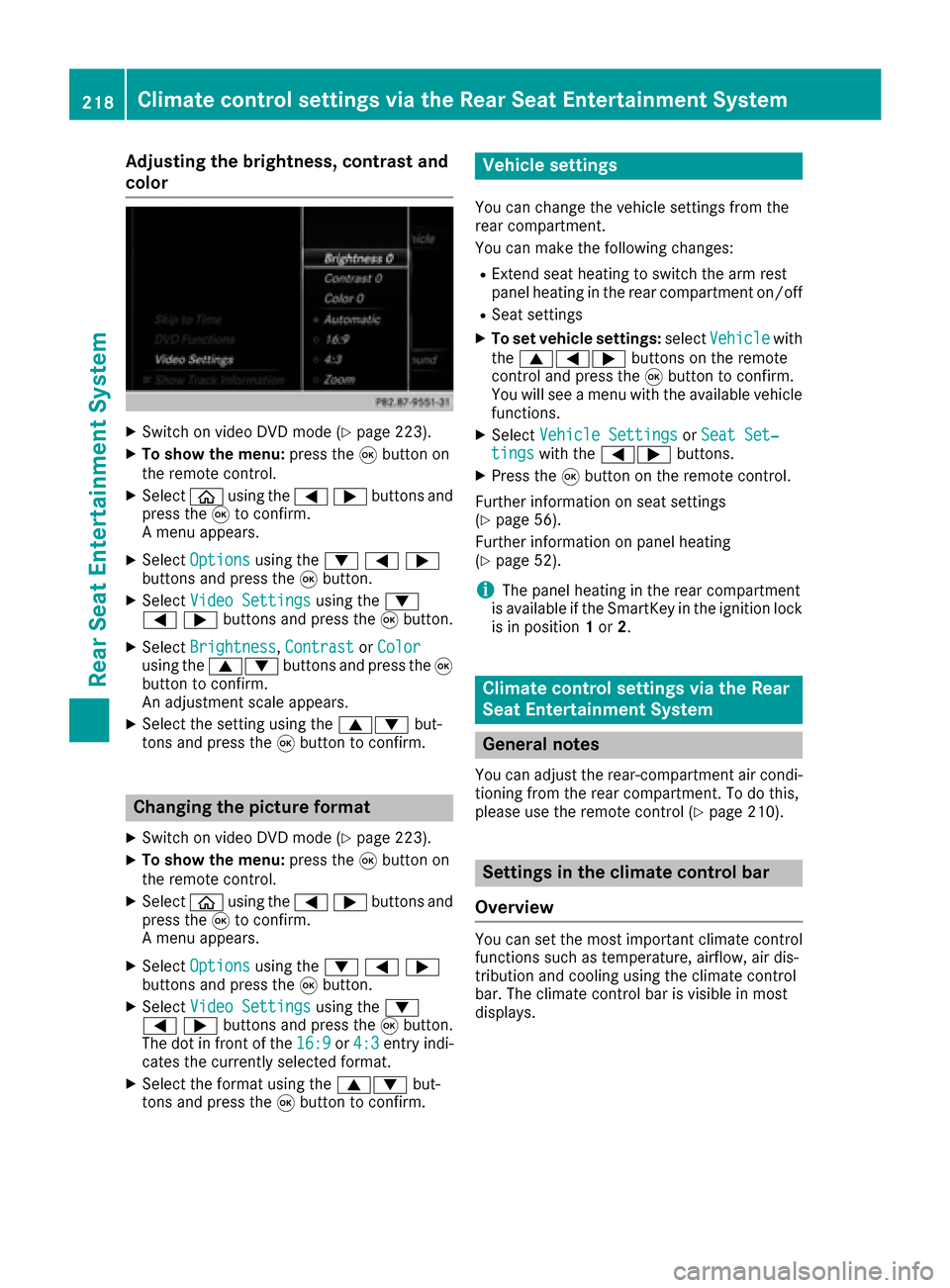
Adjusting the brightness, contrast and
color
XSwitc h on video DVD mod e(Ypage 223).
XTo showthemenu: press th e9 button on
th e remote control.
XSelectòusing the=;buttons and
press the 9to confirm.
A menu appears.
XSelect Optionsusing the :=;
buttons and press the 9button.
XSelect Video Settingsusing the :
=;buttons and press the 9button.
XSelect Brightness,Contrastor Colorusing the 9: buttons and press the 9
button to confirm.
An adjustment scale appears.
XSelect the setting using the 9:but-
tons and press the 9button to confirm.
Changing the picture format
XSwitch on video DVD mode (Ypage 223).
XTo show the menu: press the9button on
the remote control.
XSelect òusing the =;buttons and
press the 9to confirm.
A menu appears.
XSelect Optionsusing the :=;
buttons and press the 9button.
XSelect Video Settingsusing the :
=;buttons and press the 9button.
The dot in front of the 16:9
or4:3entry indi-
cates the currently selected format.
XSelect the format using the 9:but-
tons and press the 9button to confirm.
Vehicle settings
You can change the vehicle settings from the
rear compartment.
You can make the following changes:
RExtend seat heating to switch the arm rest
panel heating in the rear compartment on/off
RSeat settings
XTo set vehicle settings: selectVehiclewith
the 9=; buttons on the remote
control and press the 9button to confirm.
You will see a menu with the available vehicle
functions.
XSelect Vehicle SettingsorSeat Set‐tingswith the =; buttons.
XPress the9button on the remote control.
Further information on seat settings
(
Ypage 56).
Further information on panel heating
(
Ypage 52).
iThe panel heating in the rear compartment
is available if the SmartKey in the ignition lock
is in position 1or 2.
Climate control settings via the Rear
Seat Entertainment System
General notes
You can adjust the rear-compartment air condi-
tioning from the rear compartment. To do this,
please use the remote control (
Ypage 210).
Settings in the climate control bar
Overview
You can set the most important climate control
functions such as temperature, airflow, air dis-
tribution and cooling using the climate control
bar. The climate control bar is visible in most
displays.
218Climate control settings via the Rear Seat Entertainment System
Rear Seat Entertainment System
Page 224 of 230
XSelectDiscusing the =; buttons and
press the 9button.
The system plays the disc.
XTo switch on other media: connect the
device with the corresponding port.
The system searches for files on the device
that can be played back, and then plays them.
Selecting a track
Selecting a track by skipping to a track
XTo skip forward or back to a track: press the
= or; button on the remote control.
or
XPress the EorF button.
The skip forward function skips to the next
track.
If the elapsed track time has passed eight
seconds, the function skips back to the begin- ning of the track. If the elapsed time is
shorter, it will skip to the start of the previous
track.
If playback option Random Track List
or
Random Mediumhas been selected, the
tracks will be played in a random order.
Selecting a track via the track list
In CD mode, the track list contains all tracks on
the disc currently playing.
In MP3 mode, the track list shows all tracks in
the currently active folder as well as the folder
structure, allowing you to select any track on the
MP3 CD.
XSelect Searchusing the :=; but-
tons on the remote control and press the 9
button to confirm.
XSelect Current Tracklistusing the
9: buttons and press the 9button.
The track list appears. The #dot indicates
the current track.
XSelect the track using the 9:buttons
and press the 9button to confirm.
Selecting a track via the track number
This function is only available in Media mode.
XPress the hbutton on the remote control.
The track entry display appears.
XExample: track 2 Press number button
2.
XExample: track 12
Press the corresponding number keys in rapid
succession.
XWait for approximately three seconds after
making the entry.
You will hear the track which has been
entered. The corresponding basic menu then
reappears.
iIt is not possible to enter numbers that
exceed the number of tracks on the CD or in
the currently active folder.
Fast forwarding/rewinding
XWith the display/selection window active,
press the =or; button on the remote
control repeatedly until you reach the desired
position.
or
XPress and hold the EorF button until
the desired position is reached.
Selecting a folder
This function is only available in MP3 mode.
XSelect Searchusing the :=; but-
tons on the remote control and press the 9
button to confirm.
XSelect Folderusing the :=;
buttons and press the 9button.
The folder content appears.
XTo switch to the next folder up: press the
= button on the remote control.
The display shows the next folder up.
XSelect the folder with the 9:buttons
and press the 9button to confirm.
You will see the tracks in the folder.
XSelect the track using the 9:buttons
and press the 9button to confirm.
The track is played and the corresponding
folder is now the active folder.
222Audio/video mode
Rear Seat Entertainment System