navigation system MERCEDES-BENZ S-Class MAYBACH 2017 W222 Comand Manual
[x] Cancel search | Manufacturer: MERCEDES-BENZ, Model Year: 2017, Model line: S-Class MAYBACH, Model: MERCEDES-BENZ S-Class MAYBACH 2017 W222Pages: 230, PDF Size: 8.27 MB
Page 170 of 230
Playback problems may occur when playing
copied discs.
There may be playback problems if you play CDs
that you have copied yourself with a storage
capacity of more than 700 MB.
iThe multimedia system is able to play back
audio CDs in multichannel audio format.
Inserting and removing a disc from
the single CD/DVD drive
Before inserting a CD or DVD, ensure that the
cup holder is empty and the protective flap is
open. Before removing a disc, be aware that the
CD or DVD can become hot.
Inserting
XPress the þbutton on the single drive.
If there is a disc already inserted, it will be
ejected.
XInsert a disc into the disc slot with the printed
side facing up.
The drive closes and the disc is played.
If the CD or DVD is started in Media mode, the
corresponding basic menu will be shown. If
the CD or DVD is started from another appli-
cation (e.g. navigation), the display will not
change.
iThe drive may not be able to play discs with
copy protection.
Removing
XPress the þbutton.
The drive ejects the disc.
XRemove the ejected disc from the slot.
If you do not take the disc out of the slot, it is
drawn in again automatically after a short
while.
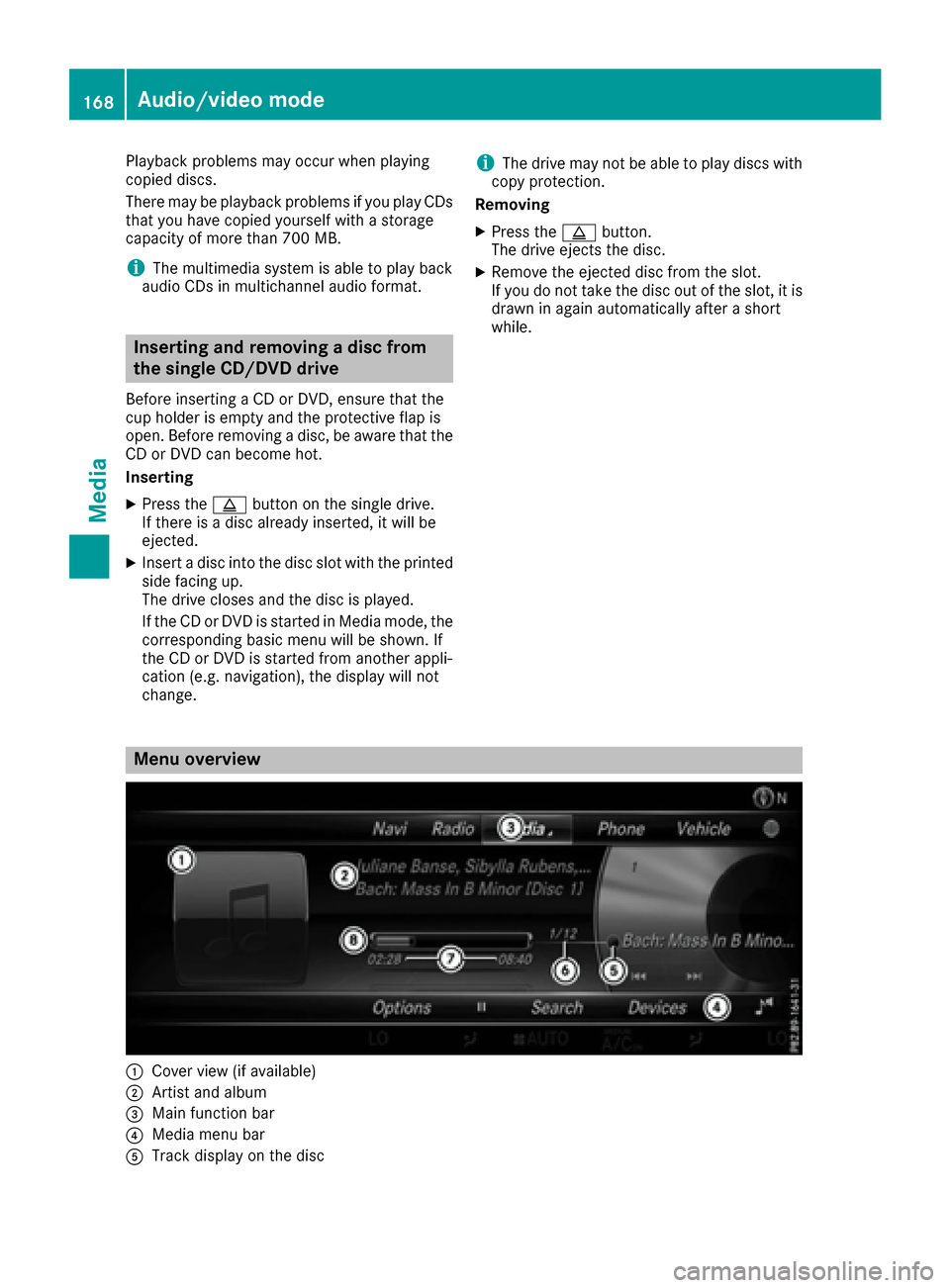
Menu overview
:Cover view (if available)
;Artist and album
=Main function bar
?Media menu bar
ATrack display on the disc
168Audio/video mode
Media
Page 187 of 230
XTo selectOptions: turn and press the con-
troller.
XSelect Video Settings.
XChange the settings (Ypage 189).
Audio AUX mode
Notes on audio AUX mode
External audio sources may have different vol-
umes, which can mean that system messages
such as traffic announcements and navigation
system announcements are much louder. If nec-
essary, deactivate the system messages or
adjust their volume manually.
AUX also provides the option of connecting a
Media Player to the multimedia system.
To connect an external audio source to the audio
AUX, you will require an audio AUX cable.
iYou will find further information online at
http://www.mercedes-benz.com/connec t.
Or call the Mercedes-Benz Customer Assis-
tance Center at 1-800-FOR-MERCedes
(1-800-367-6372) (for the USA) or Customer
Relations at 1-800-387-0100 (for Canada).
Switching to audio AUX mode
XConnect an external audio source.
The AUX port is located in the stowage com-
partment in the center console.
The audio AUX is not selected automatically.
XPress the Õbutton.
The menu for the last accessed media source
appears.
XTo select Media: slide5and press the con-
troller.
The menu appears with the available media
sources.
XTo select Aux: turn and press the controller.
The medium is played if the audio source is
switched on and playback is activated.
iPlease see the manufacturer's operating
instructions for how to operate the external
audio source.
Setting the audio AUX options
XTo show the menu bar: slide 6the control-
ler.
XTo select Options: turn and press the con-
troller.
A menu appears. You can set Mono/Stereo
or
Volume.
Selecting Mono or Stereo
XTo select Mono/Stereo: turn and press the
controller.
A menu appears.
XSelect MonoorStereo.
The #dot indicates the current setting.
Selecting volume settings
XTo select Volume: turn and press the control-
ler.
XSelect StandardorBoost.
Standard: the volume of the external audio
source is adjusted to a standard value.
Boost
: the volume of the external audio
source is raised by approximately 10 dB.
The #dot indicates the current setting.
iA device which is connected as an external
audio source may seem quieter or louder in
the vehicle, or the usual maximum volume
cannot be achieved. On some devices, it is
possible to adjust the volume separately. In
this case, start at a medium volume and
increase it gradually. This enables you to
determine whether the system is able to play
the music at high volume without distorting it.
Video AUX mode
Notes on video AUX mode
External video sources may have different vol-
umes, which can mean that system messages
such as traffic announcements and navigation
system announcements are much louder. If nec-
essary, deactivate the system messages or
adjust their volume manually.
Video AUX is another option for playing videos
via the multimedia system.
To connect an external video source to the video
AUX, you will require a video AUX cable.
iIf you only use an audio AUX cable, you will
only be able to hear the sound from the video being played.
Video AUX mode185
Media
Z
Page 221 of 230
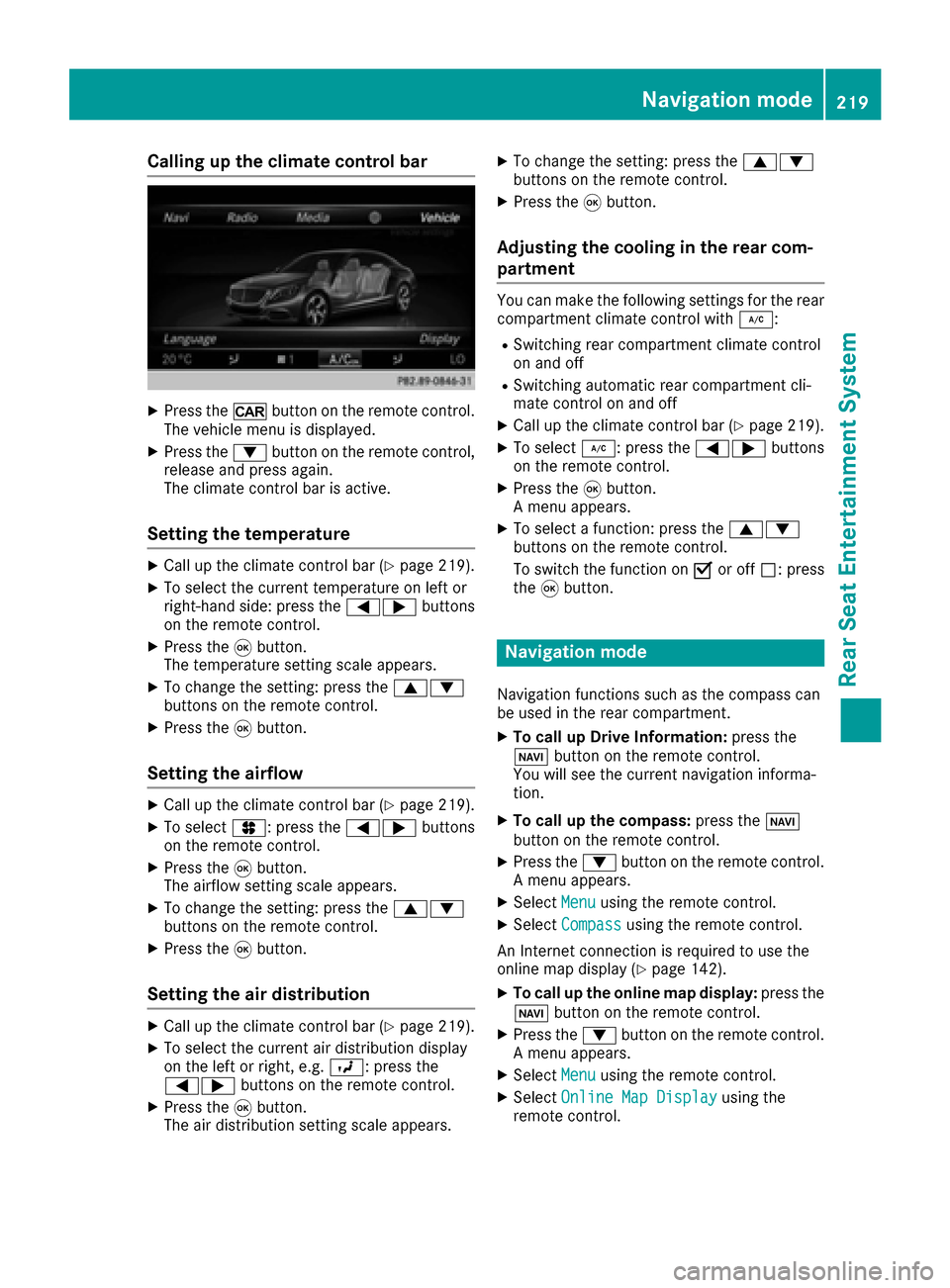
Calling up the climate control bar
XPress the/button on the remote control.
The vehicle menu is displayed.
XPress the :button on the remote control,
release and press again.
The climate control bar is active.
Setting the temperature
XCall up the climate control bar (Ypage 219).
XTo select the current temperature on left or
right-hand side: press the =;buttons
on the remote control.
XPress the 9button.
The temperature setting scale appears.
XTo change the setting: press the 9:
buttons on the remote control.
XPress the 9button.
Setting the airflow
XCall up the climate control bar (Ypage 219).
XTo select J: press the =;buttons
on the remote control.
XPress the 9button.
The airflow setting scale appears.
XTo change the setting: press the 9:
buttons on the remote control.
XPress the 9button.
Setting the air distribution
XCall up the climate control bar (Ypage 219).
XTo select the current air distribution display
on the left or right, e.g. O: press the
=; buttons on the remote control.
XPress the9button.
The air distribution setting scale appears.
XTo change the setting: press the 9:
buttons on the remote control.
XPress the 9button.
Adjusting the cooling in the rear com-
partment
You can make the following settings for the rear
compartment climate control with ¿:
RSwitching rear compartment climate control
on and off
RSwitching automatic rear compartment cli-
mate control on and off
XCall up the climate control bar (Ypage 219).
XTo select¿: press the =;buttons
on the remote control.
XPress the 9button.
A menu appears.
XTo select a function: press the 9:
buttons on the remote control.
To switch the function on Oor off ª: press
the 9button.
Navigation mode
Navigation functions such as the compass can
be used in the rear compartment.
XTo call up Drive Information: press the
Ø button on the remote control.
You will see the current navigation informa-
tion.
XTo call up the compass: press theØ
button on the remote control.
XPress the :button on the remote control.
A menu appears.
XSelect Menuusing the remote control.
XSelectCompassusing the remote control.
An Internet connection is required to use the
online map display (
Ypage 142).
XTo call up the online map display: press the
Ø button on the remote control.
XPress the :button on the remote control.
A menu appears.
XSelect Menuusing the remote control.
XSelectOnline Map Displayusing the
remote control.
Navigation mode219
Rear Seat Entertainment System
Z