Diff MERCEDES-BENZ S600 2010 W221 User Guide
[x] Cancel search | Manufacturer: MERCEDES-BENZ, Model Year: 2010, Model line: S600, Model: MERCEDES-BENZ S600 2010 W221Pages: 548, PDF Size: 12.48 MB
Page 93 of 548
control. Make sure the volume is not set
too high before putting on a headphone.
RThe DVD changer can playback only one
media source at a time. Example: if the
driver is playing an audio CD, the front
passenger can not play a different medium
(e.g. DVD video) from the DVD changer.
However, it is possible for the front
passenger to play media from radio,
memory card, MUSIC REGISTER, media
interface, USB, AUX or Rear Seat
Entertainment System.
RWhen driver and front passenger are using
the same medium, each can select
individual settings for that medium.
RCOMAND transmits music and voice to the
wireless headphone for the front passenger
side via infrared signal. The headphone and
the display must have visual contact. This
provides best possible transmission of the
infrared signal to the headphone. Please
note that the headphone has a left and right
side and must be used accordingly.
RWhen SPLITVIEW is on, the front passenger
can operate audio or video functions only.
RThe multifunction steering wheel lets you
operate functions for the driver’s side only.
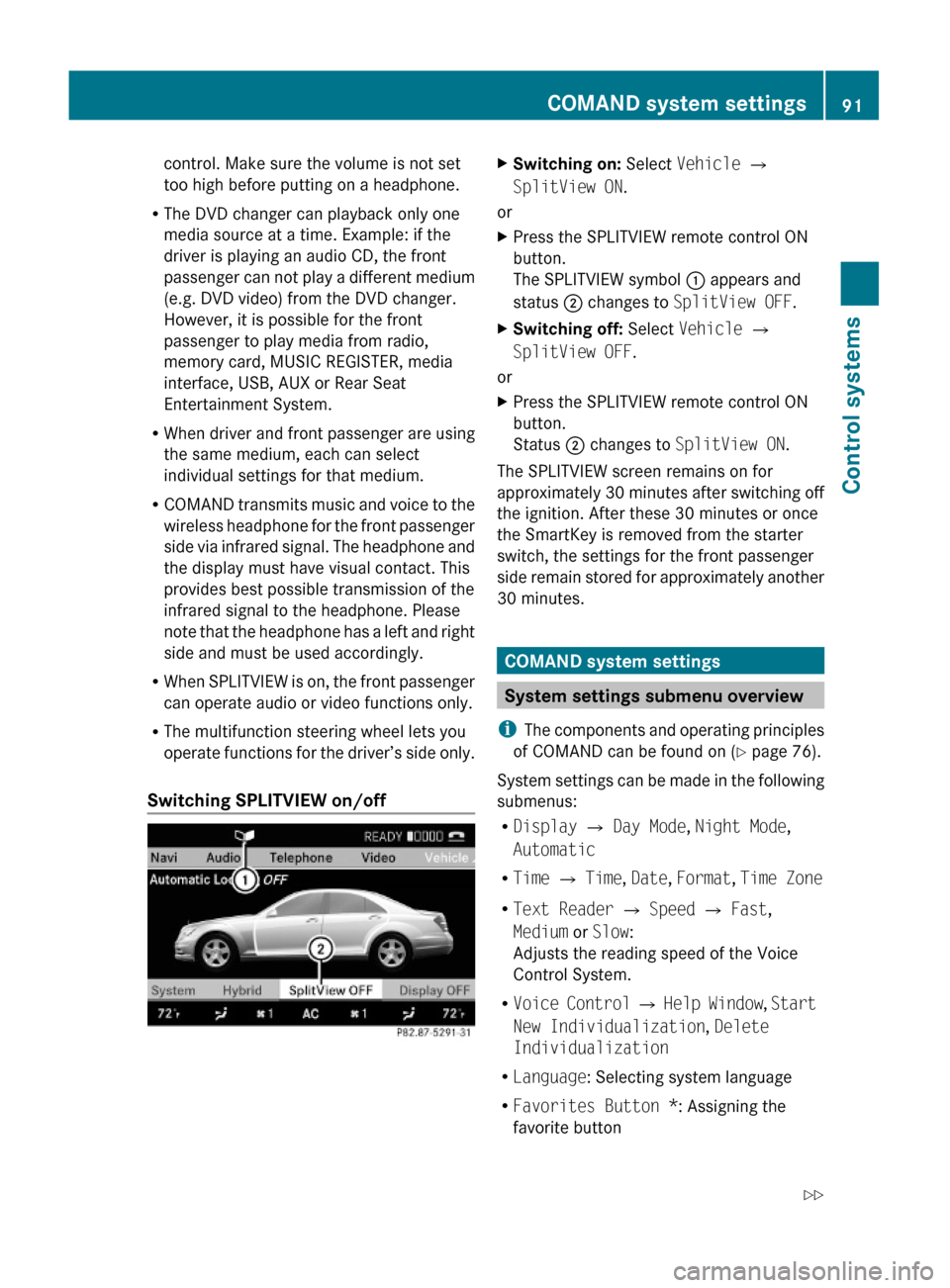
Switching SPLITVIEW on/off
XSwitching on: Select Vehicle Q
SplitView ON.
or
XPress the SPLITVIEW remote control ON
button.
The SPLITVIEW symbol : appears and
status ; changes to SplitView OFF.
XSwitching off: Select Vehicle Q
SplitView OFF.
or
XPress the SPLITVIEW remote control ON
button.
Status ; changes to SplitView ON.
The SPLITVIEW screen remains on for
approximately 30 minutes after switching off
the ignition. After these 30 minutes or once
the SmartKey is removed from the starter
switch, the settings for the front passenger
side remain stored for approximately another
30 minutes.
COMAND system settings
System settings submenu overview
iThe components and operating principles
of COMAND can be found on (Y page 76).
System settings can be made in the following
submenus:
RDisplay Q Day Mode, Night Mode,
Automatic
RTime Q Time, Date, Format, Time Zone
RText Reader Q Speed Q Fast,
Medium or Slow:
Adjusts the reading speed of the Voice
Control System.
RVoice Control Q Help Window, Start
New Individualization, Delete
Individualization
RLanguage: Selecting system language
RFavorites Button *: Assigning the
favorite button
COMAND system settings 91Control systems221_AKB; 6; 20, en-USd2ugruen,Version: 2.11.8.12009-09-24T13:28:17+02:00 - Seite 91Z
Page 94 of 548
RBluetooth Q Search for Bluetooth
Devices, Bluetooth activated. For
information on the Bluetooth® interface
see (Y page 151).
RUpload/Download Data Q Copy Data
to Storage Medium, Import Data from
Storage Medium (Y page 95)
RReset: Resetting the COMAND system to
factory settings
Display settings
Switching the display on or off
XSwitching off: Select Vehicle Q
Display OFF.
XSwitching back on: Rotate cVd or slide
ZVÆ, XVY or press W.
or
XPress button u.
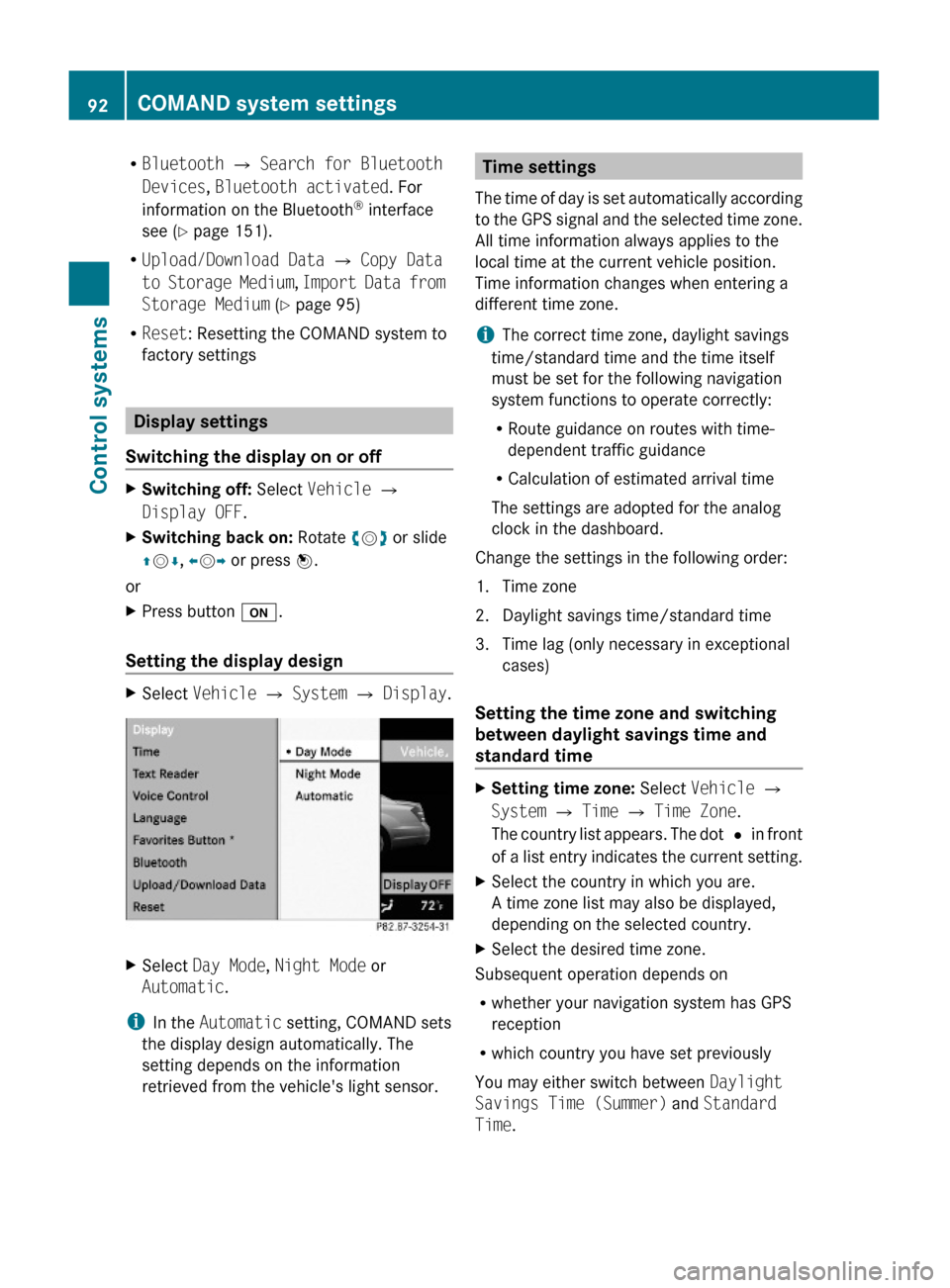
Setting the display design
XSelect Vehicle Q System Q Display.XSelect Day Mode, Night Mode or
Automatic.
iIn the Automatic setting, COMAND sets
the display design automatically. The
setting depends on the information
retrieved from the vehicle's light sensor.
Time settings
The time of day is set automatically according
to the GPS signal and the selected time zone.
All time information always applies to the
local time at the current vehicle position.
Time information changes when entering a
different time zone.
iThe correct time zone, daylight savings
time/standard time and the time itself
must be set for the following navigation
system functions to operate correctly:
RRoute guidance on routes with time-
dependent traffic guidance
RCalculation of estimated arrival time
The settings are adopted for the analog
clock in the dashboard.
Change the settings in the following order:
1. Time zone
2. Daylight savings time/standard time
3. Time lag (only necessary in exceptional
cases)
Setting the time zone and switching
between daylight savings time and
standard time
XSetting time zone: Select Vehicle Q
System Q Time Q Time Zone.
The country list appears. The dot # in front
of a list entry indicates the current setting.
XSelect the country in which you are.
A time zone list may also be displayed,
depending on the selected country.
XSelect the desired time zone.
Subsequent operation depends on
Rwhether your navigation system has GPS
reception
Rwhich country you have set previously
You may either switch between Daylight
Savings Time (Summer) and Standard
Time.
92COMAND system settings Control systems
221_AKB; 6; 20, en-USd2ugruen,Version: 2.11.8.12009-09-24T13:28:17+02:00 - Seite 92
Page 107 of 548
XCalling up menu: Select Navi Q Text
Information on Map.
The list of available text information
appears. The dot # indicates the currently
selected setting.
XExiting menu: Slide XVY.
Time of arrival and distance
XSelect Arrival Time/Distance.
The time of arrival and the distance for the
main destination are displayed by setting
the dot to Arrival Time/Distance.
Current street
XSelect Current Street.
The street you are currently on is displayed
by setting the dot to Current Street.
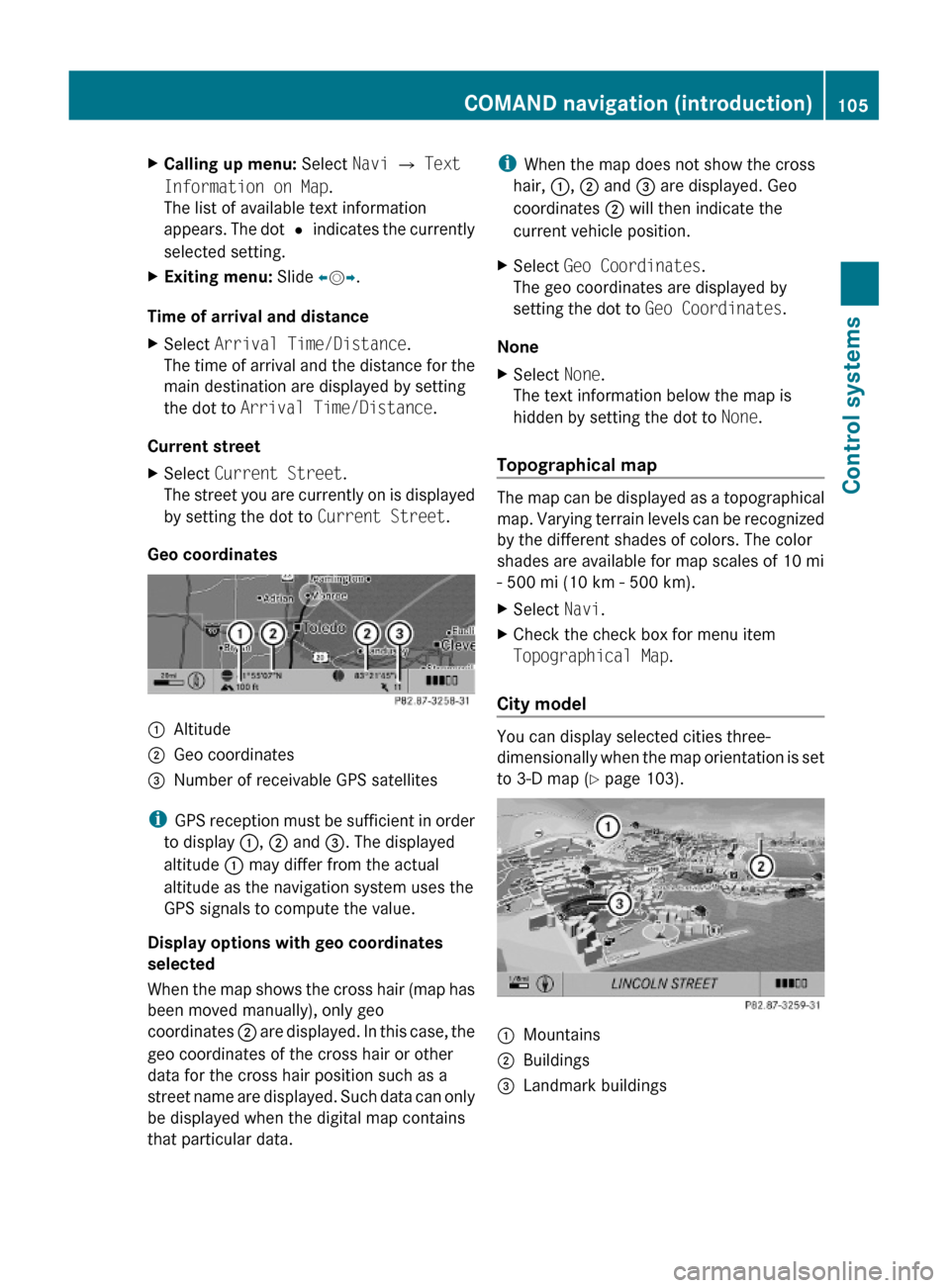
Geo coordinates
:Altitude;Geo coordinates=Number of receivable GPS satellites
iGPS reception must be sufficient in order
to display :, ; and =. The displayed
altitude : may differ from the actual
altitude as the navigation system uses the
GPS signals to compute the value.
Display options with geo coordinates
selected
When the map shows the cross hair (map has
been moved manually), only geo
coordinates ; are displayed. In this case, the
geo coordinates of the cross hair or other
data for the cross hair position such as a
street name are displayed. Such data can only
be displayed when the digital map contains
that particular data.
iWhen the map does not show the cross
hair, :, ; and = are displayed. Geo
coordinates ; will then indicate the
current vehicle position.
XSelect Geo Coordinates.
The geo coordinates are displayed by
setting the dot to Geo Coordinates.
None
XSelect None.
The text information below the map is
hidden by setting the dot to None.
Topographical map
The map can be displayed as a topographical
map. Varying terrain levels can be recognized
by the different shades of colors. The color
shades are available for map scales of 10 mi
- 500 mi (10 km - 500 km).
XSelect Navi.XCheck the check box for menu item
Topographical Map.
City model
You can display selected cities three-
dimensionally when the map orientation is set
to 3-D map (Y page 103).
:Mountains;Buildings=Landmark buildingsCOMAND navigation (introduction)105Control systems221_AKB; 6; 20, en-USd2ugruen,Version: 2.11.8.12009-09-24T13:28:17+02:00 - Seite 105Z
Page 122 of 548
RMap: Using the map to enter a destination
(Y page 122)
iIn this case, using the map for destination
entry is based on the city seen in the
address input menu.
RPOI: Entering a point of interest
(Y page 124)
iIn this case, entering a POI is based on the
city seen in the address input menu.
RSave: Saving a destination in the
destination memory (Y page 145)
RStart: Starting the route calculation
(Y page 120)
XContinuing or completing destination
entry: Select one of the menu items
mentioned above.
Starting the route calculation
iYou cannot start the route calculation
until all the necessary address data has
been entered.
XAfter entering the destination, select
Start.
The route calculation will start if route
guidance has not already been activated.
If route guidance has already been
activated, a prompt will appear asking
whether you want to end the current route
guidance.
XSelect Yes or No.
If you select Yes, COMAND will stop the
route guidance and start the route
calculation for the new destination.
If you select No, COMAND will continue
with the active route guidance.
The new destination is discarded.
During the route calculation, an arrow will
indicate the direction to the destination.
Below this, you will see the message The
route is being calculated....
Once the route has been calculated, route
guidance begins (Y page 129).
iRoute calculation requires time. The time
depends on factors such as the distance
from the destination.
COMAND calculates the route using the
digital map data. The calculated route may
differ from the actual road situation, e.g.
due to road construction or incomplete
map data. Please make sure that you
observe the notes about the digital map
(Y page 96).
iRoutes to destinations that do not have
road or ferry access to the current position.
This applies, for example, to routes from
the mainland to Hawaii.
Entering a destination from the
destination memory
XSelect Navi Q Destination Q From
Memory.
The destination memory list appears either
with or without the predictive speller
(Y page 121). Whether the predictive
speller appears depends on the number of
entries in the destination memory.
iThe destination memory always contains
an entry called My Address. You can save
your home address, for example, under this
entry (Y page 143).
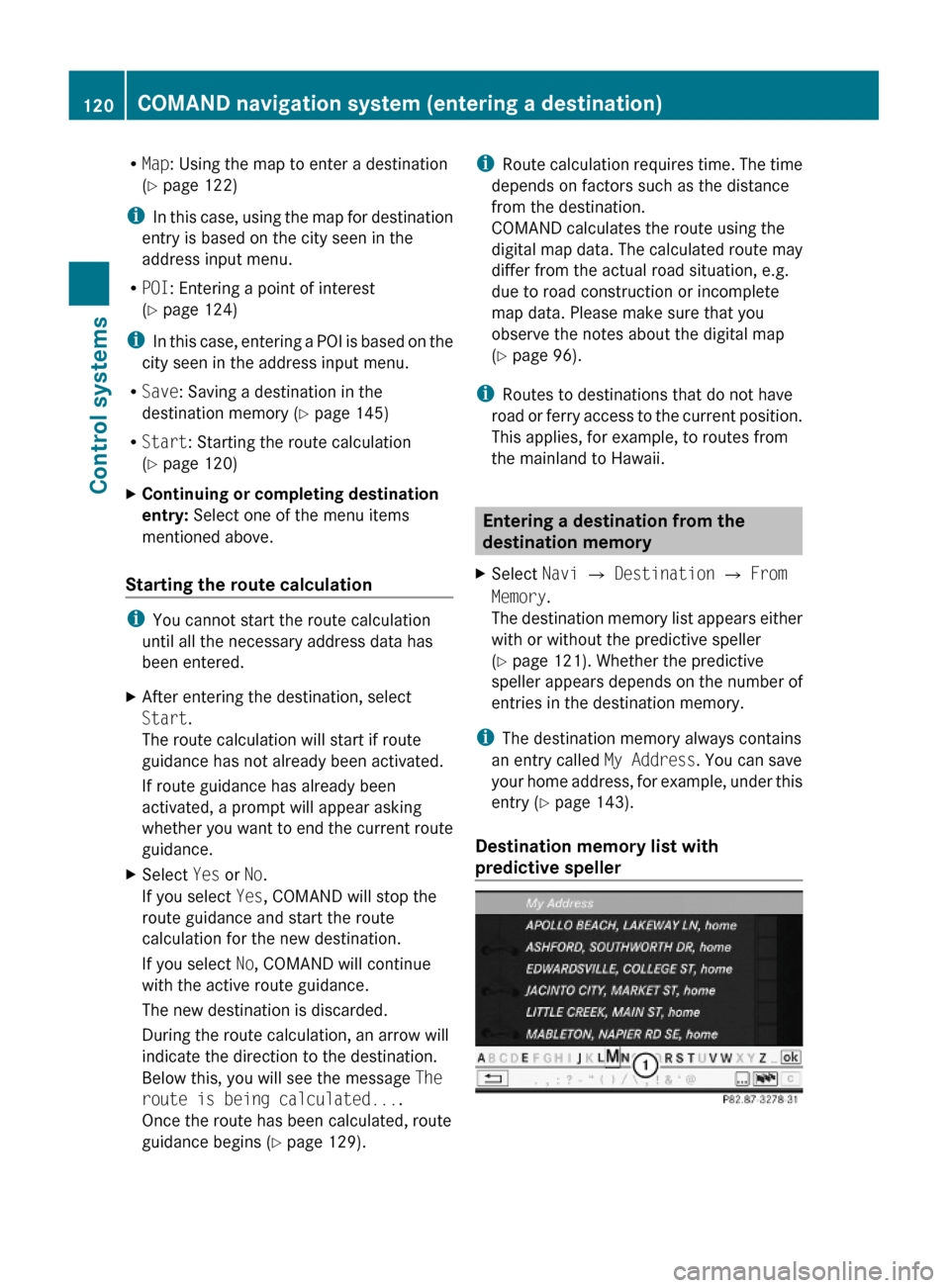
Destination memory list with
predictive speller
120COMAND navigation system (entering a destination)Control systems
221_AKB; 6; 20, en-USd2ugruen,Version: 2.11.8.12009-09-24T13:28:17+02:00 - Seite 120
Page 125 of 548
RRestaurant
R Other
With the option Other you can enter stopover
destinations from the destination memory,
last selected destinations, POIs, or via the
address ( Y page 123).
You can enter stopover destinations on the
route or in the vicinity of the route.
You can use the stopover function to
influence the route guidance calculation to
the main destination. When you have reached
your stopover, COMAND automatically
calculates the route to the main destination.
Entering predefined destinationsXSelect Navi Q Destination Q
Stopover .
If a stopover has already been entered, you
can change it.
Changing: Select Change Stopover .
You can now select a category.XSelecting a category: Select category,
e.g. Gas station .
COMAND first looks for destinations along
the vehicle’s route and within the immediate
vicinity of the vehicle. If there are no
destinations available there, COMAND
searches for destinations in an area around
the vehicle position.
If COMAND does not find any destinations,
you will see a message to this effect.
XSelect OK.
You can now select a different category.
If COMAND finds destinations, you will see a
list of the destinations and details of how far
away they are in the right-hand side of the
display. The information about how far away
the destinations are can take a few seconds
to be displayed.
The left-hand part of the display shows the
destinations on the map. The destination
marked in the list is highlighted in the map.
XSelecting a destination: Select the
desired destination from list.
The address of the destination appears.XStarting route calculation: Select Start,
see also ( Y page 120).
Entering another destination as a
stopover
XSelect Navi Q Destination Q
Stopover .XEntering: Select Other.
You can select between the following menu
items:
R Address Entry
R From Memory
R From Last Destinations
R From POIsXSelect a menu item.
Subsequent destination entries may differ,
depending on your selection:
R Address Entry selection:
XEnter a destination by address
( Y page 107).
R
From Memory selection:
XEnter a destination from the
destination memory ( Y page 120).
R
From Last Destinations selection:
XEnter a destination from the list of last
destinations ( Y page 122).
R
From POIs selection:
XEnter a point of interest (POI)
( Y page 124).XStarting route calculation: After entering
a destination, select Start (Y page 120).
Changing a stopover
If a stopover has already been entered, you
can change it.
COMAND navigation system (entering a destination)123Control systems221_AKB; 6; 20, en-USd2ugruen,Version: 2.11.8.12009-09-24T13:28:17+02:00 - Seite 123Z
Page 126 of 548
XSelect Navi Q Destination Q
Stopover Q Change Stopover.
XEnter another destination as a stopover.
Deleting the stopover
If a stopover has already been entered, you
can delete it.
XSelect Navi Q Destination Q
Stopover Q Delete Stopover.
COMAND deletes the stopover and
calculates the route to the main
destination.
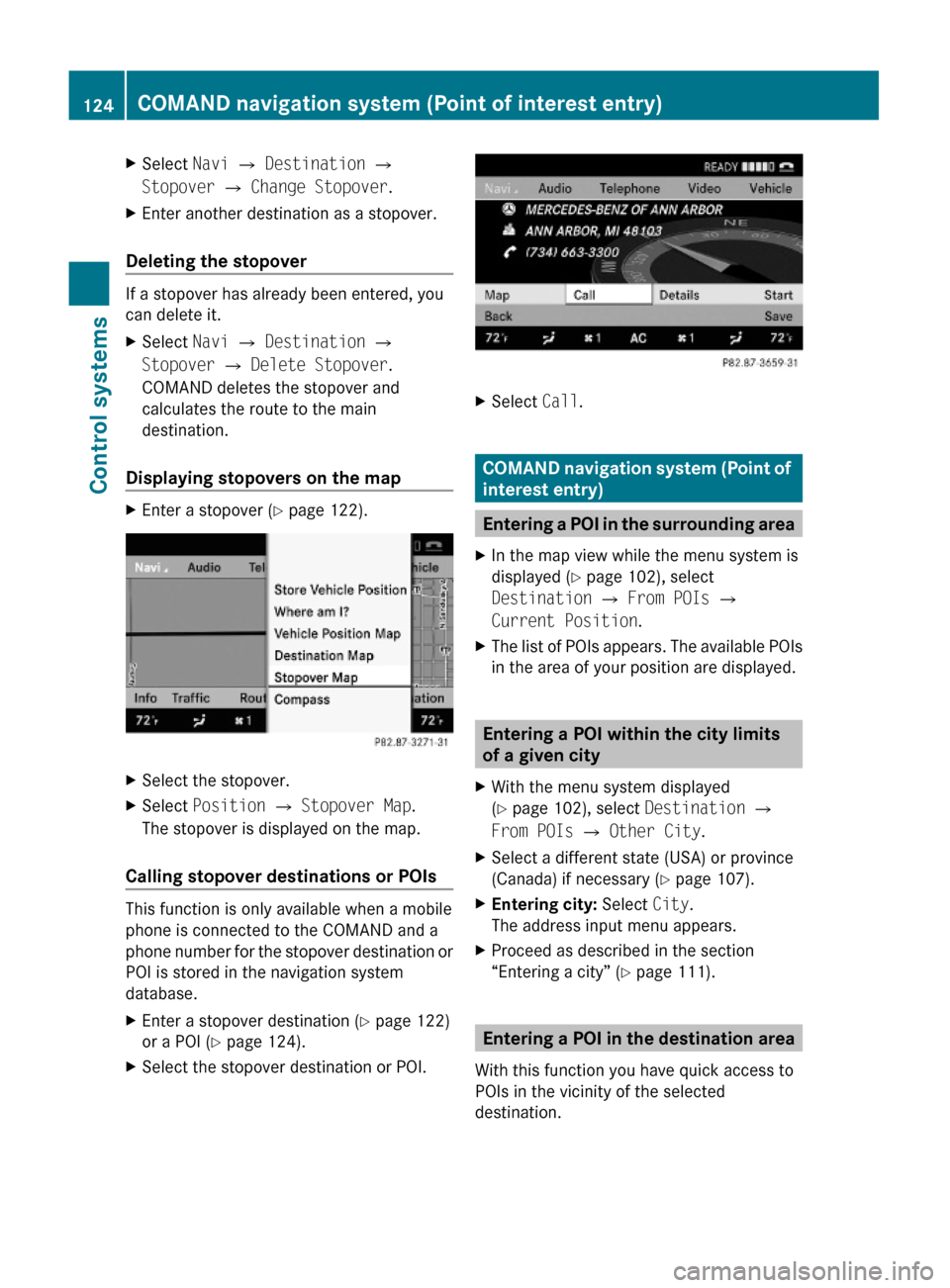
Displaying stopovers on the map
XEnter a stopover (Y page 122).XSelect the stopover.XSelect Position Q Stopover Map.
The stopover is displayed on the map.
Calling stopover destinations or POIs
This function is only available when a mobile
phone is connected to the COMAND and a
phone number for the stopover destination or
POI is stored in the navigation system
database.
XEnter a stopover destination (Y page 122)
or a POI (Y page 124).
XSelect the stopover destination or POI.XSelect Call.
COMAND navigation system (Point of
interest entry)
Entering a POI in the surrounding area
XIn the map view while the menu system is
displayed (Y page 102), select
Destination Q From POIs Q
Current Position.
XThe list of POIs appears. The available POIs
in the area of your position are displayed.
Entering a POI within the city limits
of a given city
XWith the menu system displayed
(Y page 102), select Destination Q
From POIs Q Other City.
XSelect a different state (USA) or province
(Canada) if necessary (Y page 107).
XEntering city: Select City.
The address input menu appears.
XProceed as described in the section
“Entering a city” (Y page 111).
Entering a POI in the destination area
With this function you have quick access to
POIs in the vicinity of the selected
destination.
124COMAND navigation system (Point of interest entry)Control systems
221_AKB; 6; 20, en-USd2ugruen,Version: 2.11.8.12009-09-24T13:28:17+02:00 - Seite 124
Page 130 of 548
XSwitching manually to the POI list
without predictive speller: Slide ZV.
or
XSelect ¬ in the second line from the
bottom and press W.
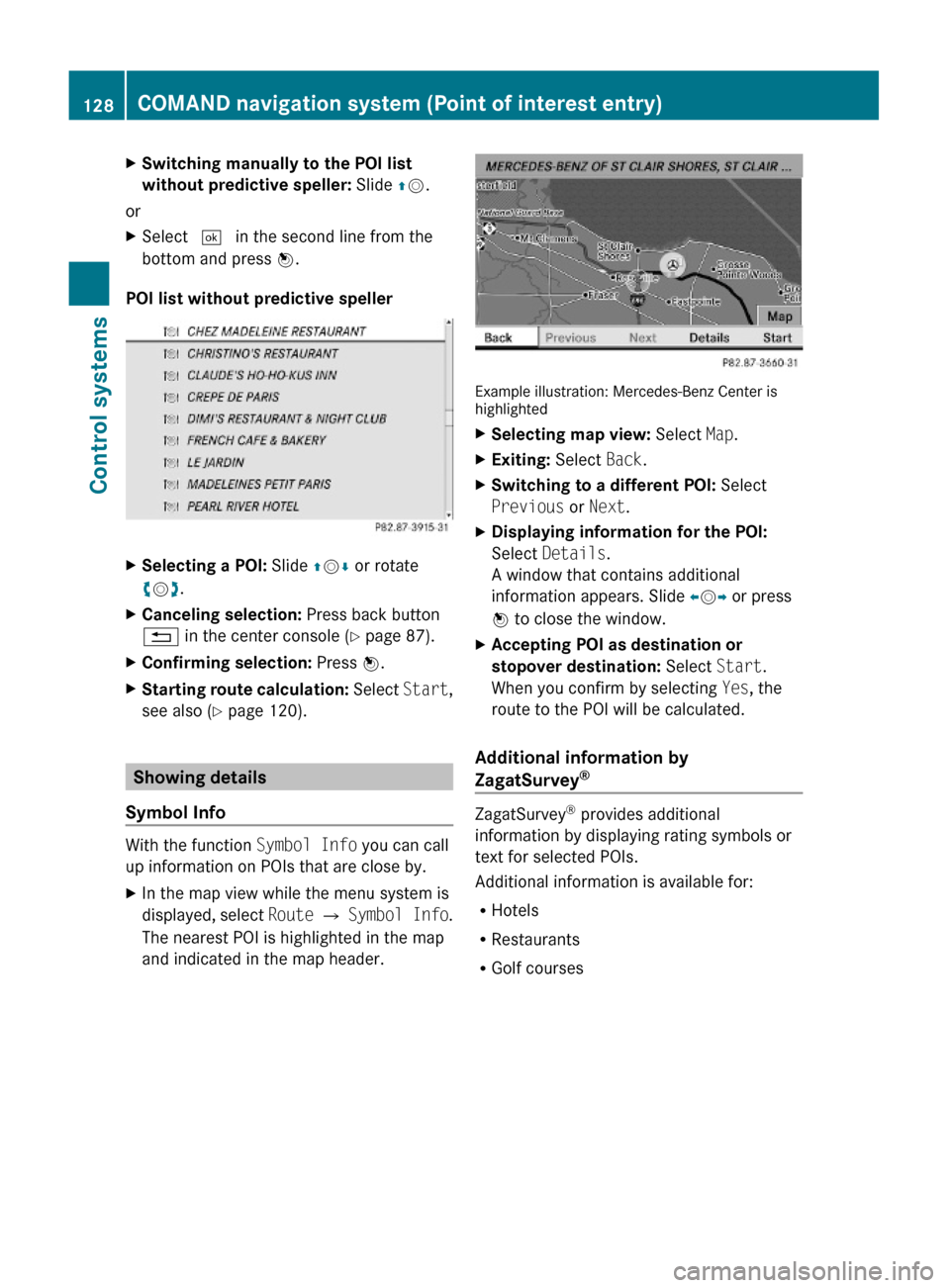
POI list without predictive speller
XSelecting a POI: Slide ZVÆ or rotate
cVd.
XCanceling selection: Press back button
% in the center console (Y page 87).
XConfirming selection: Press W.XStarting route calculation: Select Start,
see also (Y page 120).
Showing details
Symbol Info
With the function Symbol Info you can call
up information on POIs that are close by.
XIn the map view while the menu system is
displayed, select Route Q Symbol Info.
The nearest POI is highlighted in the map
and indicated in the map header.
Example illustration: Mercedes-Benz Center ishighlighted
XSelecting map view: Select Map.XExiting: Select Back.XSwitching to a different POI: Select
Previous or Next.
XDisplaying information for the POI:
Select Details.
A window that contains additional
information appears. Slide omp or press
n to close the window.
XAccepting POI as destination or
stopover destination: Select Start.
When you confirm by selecting Yes, the
route to the POI will be calculated.
Additional information by
ZagatSurvey®
ZagatSurvey® provides additional
information by displaying rating symbols or
text for selected POIs.
Additional information is available for:
RHotels
RRestaurants
RGolf courses
128COMAND navigation system (Point of interest entry)Control systems
221_AKB; 6; 20, en-USd2ugruen,Version: 2.11.8.12009-09-24T13:28:17+02:00 - Seite 128
Page 131 of 548
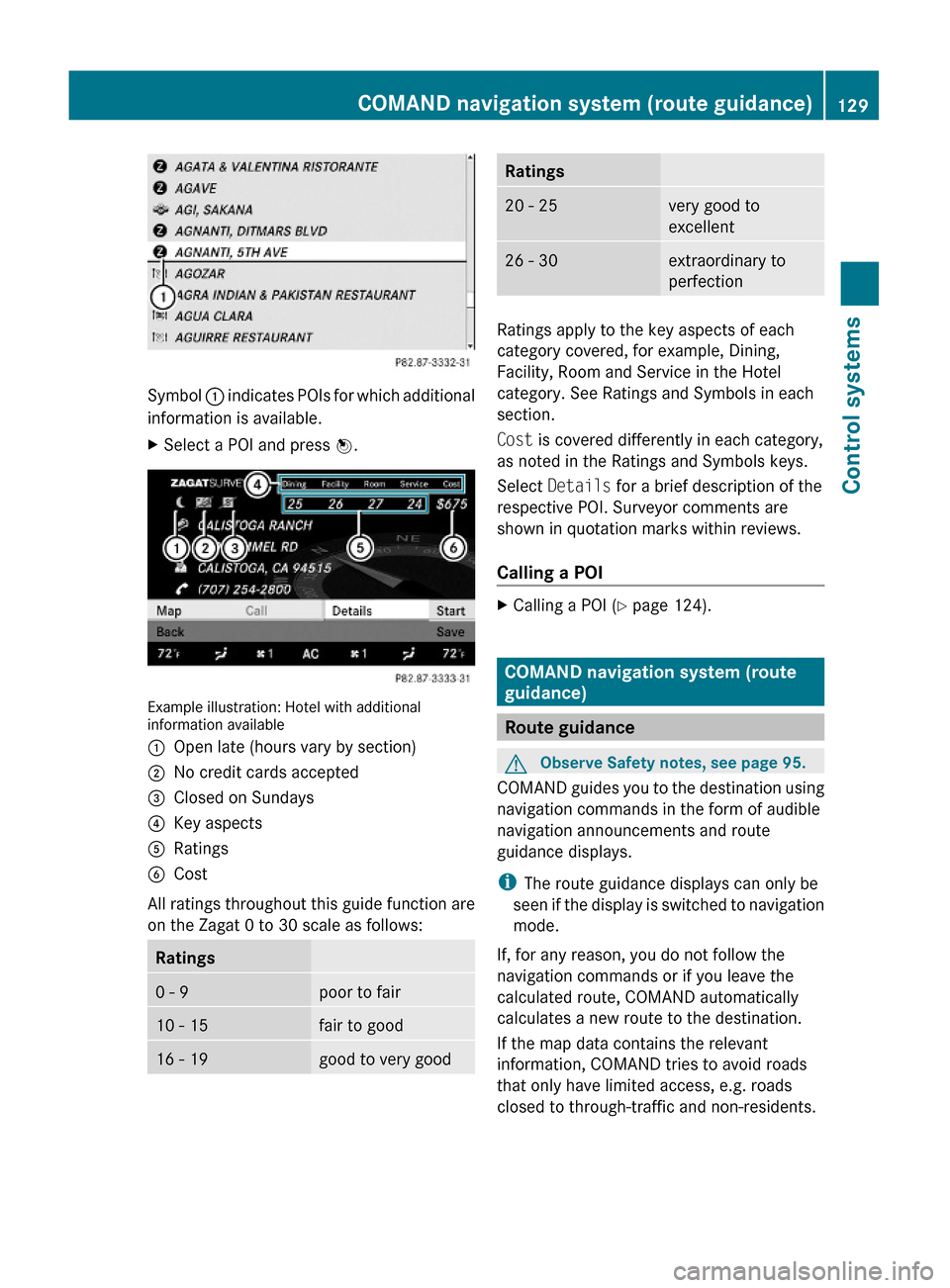
Symbol : indicates POIs for which additional
information is available.
XSelect a POI and press W.
Example illustration: Hotel with additionalinformation available
:Open late (hours vary by section);No credit cards accepted=Closed on Sundays?Key aspectsARatingsBCost
All ratings throughout this guide function are
on the Zagat 0 to 30 scale as follows:
Ratings0 - 9poor to fair10 - 15fair to good16 - 19good to very goodRatings20 - 25very good to
excellent
26 - 30extraordinary to
perfection
Ratings apply to the key aspects of each
category covered, for example, Dining,
Facility, Room and Service in the Hotel
category. See Ratings and Symbols in each
section.
Cost is covered differently in each category,
as noted in the Ratings and Symbols keys.
Select Details for a brief description of the
respective POI. Surveyor comments are
shown in quotation marks within reviews.
Calling a POI
XCalling a POI (Y page 124).
COMAND navigation system (route
guidance)
Route guidance
GObserve Safety notes, see page 95.
COMAND guides you to the destination using
navigation commands in the form of audible
navigation announcements and route
guidance displays.
iThe route guidance displays can only be
seen if the display is switched to navigation
mode.
If, for any reason, you do not follow the
navigation commands or if you leave the
calculated route, COMAND automatically
calculates a new route to the destination.
If the map data contains the relevant
information, COMAND tries to avoid roads
that only have limited access, e.g. roads
closed to through-traffic and non-residents.
COMAND navigation system (route guidance)129Control systems221_AKB; 6; 20, en-USd2ugruen,Version: 2.11.8.12009-09-24T13:28:17+02:00 - Seite 129Z
Page 133 of 548
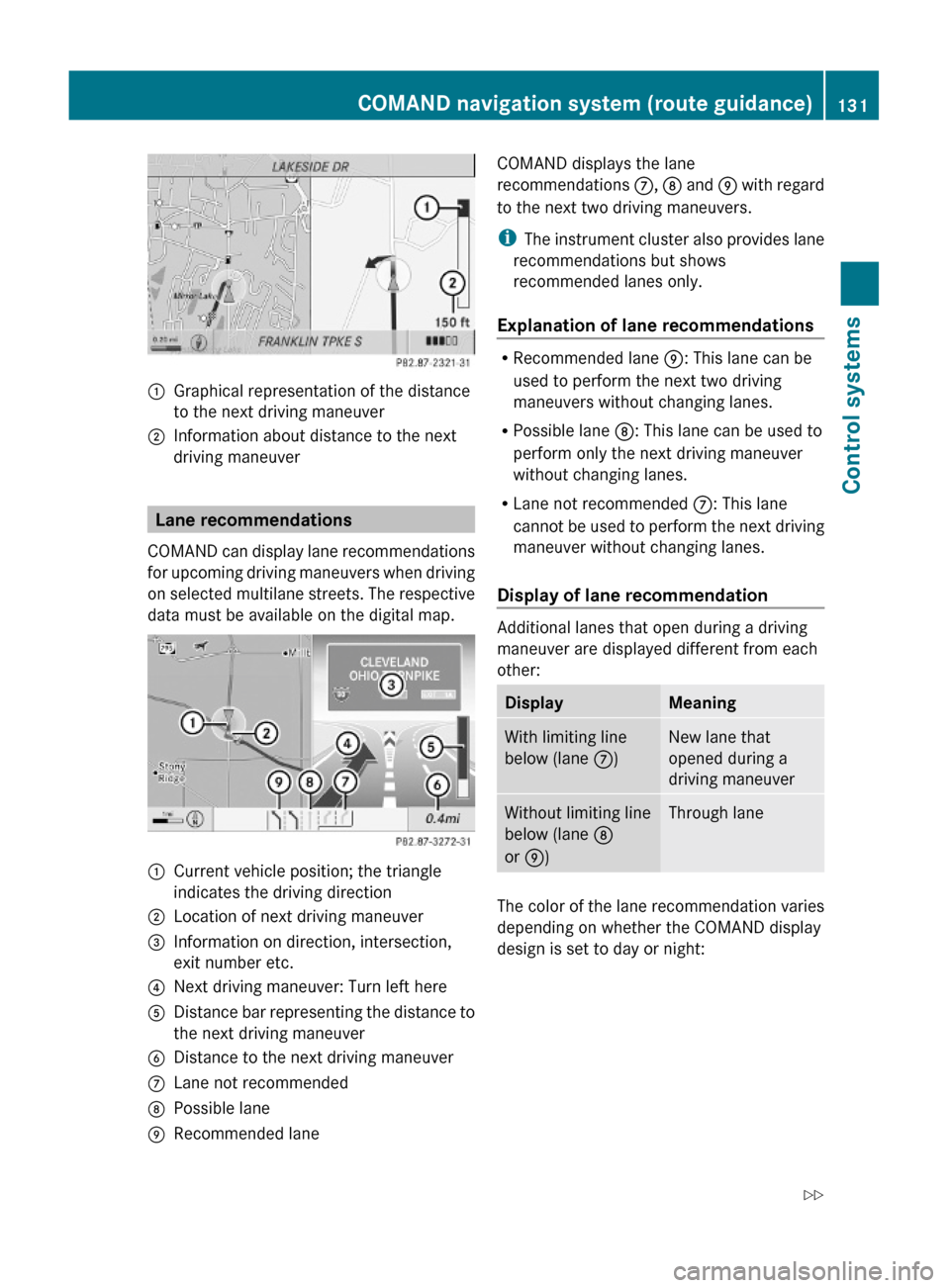
:Graphical representation of the distance
to the next driving maneuver
;Information about distance to the next
driving maneuver
Lane recommendations
COMAND can display lane recommendations
for upcoming driving maneuvers when driving
on selected multilane streets. The respective
data must be available on the digital map.
:Current vehicle position; the triangle
indicates the driving direction
;Location of next driving maneuver=Information on direction, intersection,
exit number etc.
?Next driving maneuver: Turn left hereADistance bar representing the distance to
the next driving maneuver
BDistance to the next driving maneuverCLane not recommendedDPossible laneERecommended laneCOMAND displays the lane
recommendations C, D and E with regard
to the next two driving maneuvers.
iThe instrument cluster also provides lane
recommendations but shows
recommended lanes only.
Explanation of lane recommendations
RRecommended lane E: This lane can be
used to perform the next two driving
maneuvers without changing lanes.
RPossible lane D: This lane can be used to
perform only the next driving maneuver
without changing lanes.
RLane not recommended C: This lane
cannot be used to perform the next driving
maneuver without changing lanes.
Display of lane recommendation
Additional lanes that open during a driving
maneuver are displayed different from each
other:
DisplayMeaningWith limiting line
below (lane C)
New lane that
opened during a
driving maneuver
Without limiting line
below (lane D
or E)
Through lane
The color of the lane recommendation varies
depending on whether the COMAND display
design is set to day or night:
COMAND navigation system (route guidance)131Control systems221_AKB; 6; 20, en-USd2ugruen,Version: 2.11.8.12009-09-24T13:28:17+02:00 - Seite 131Z
Page 134 of 548
Day modeNight modeRecommended
lane E = deep blue
Recommended
lane E = light blue
Possible lane D =
light blue
Possible lane D =
deep blue
Lane not
recommended C: =
grey
Lane not
recommended C: =
grey
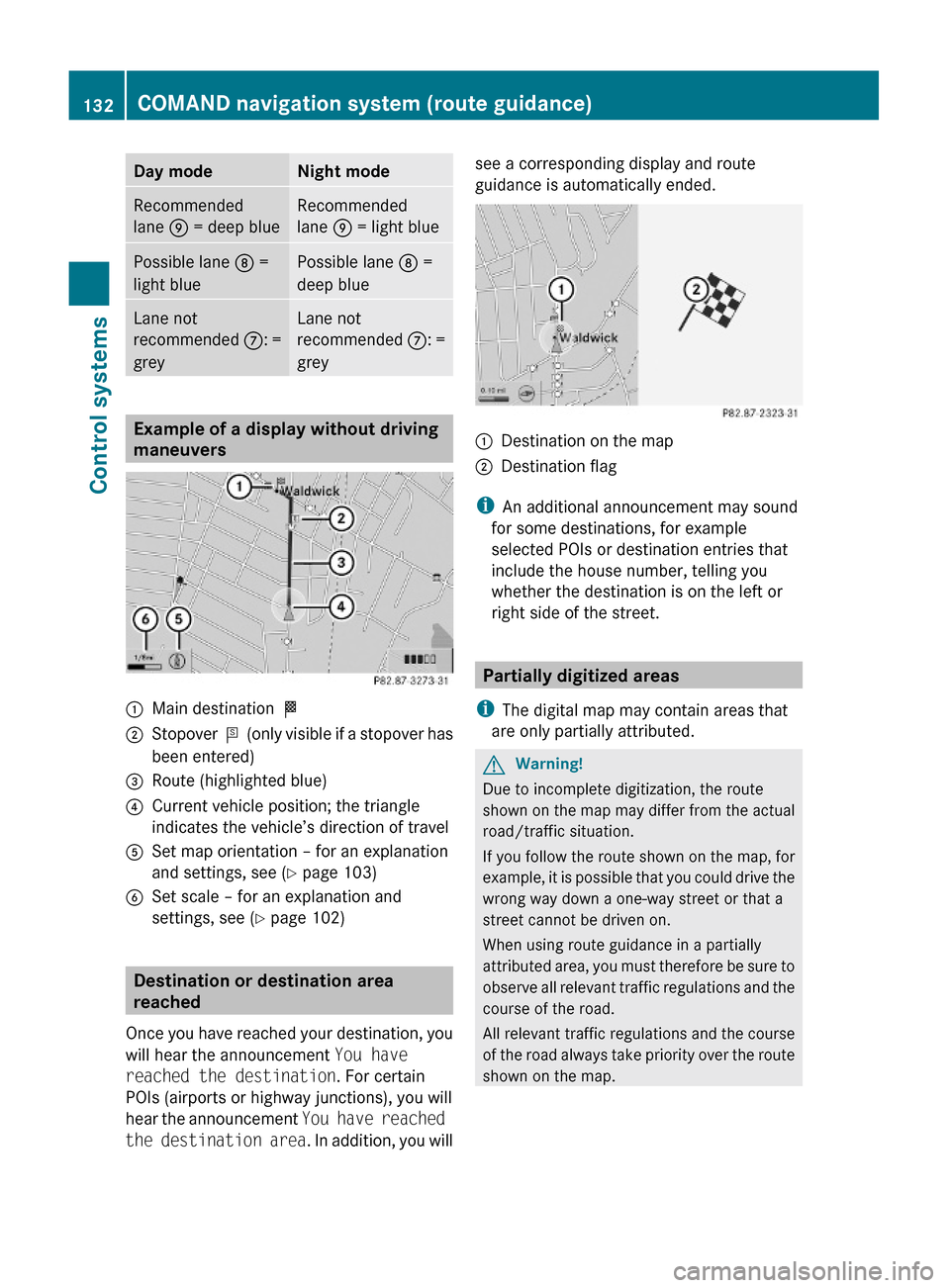
Example of a display without driving
maneuvers
:Main destination O;Stopover P (only visible if a stopover has
been entered)
=Route (highlighted blue)?Current vehicle position; the triangle
indicates the vehicle’s direction of travel
ASet map orientation – for an explanation
and settings, see (Y page 103)
BSet scale – for an explanation and
settings, see (Y page 102)
Destination or destination area
reached
Once you have reached your destination, you
will hear the announcement You have
reached the destination. For certain
POIs (airports or highway junctions), you will
hear the announcement You have reached
the destination area. In addition, you will
see a corresponding display and route
guidance is automatically ended.:Destination on the map;Destination flag
iAn additional announcement may sound
for some destinations, for example
selected POIs or destination entries that
include the house number, telling you
whether the destination is on the left or
right side of the street.
Partially digitized areas
iThe digital map may contain areas that
are only partially attributed.
GWarning!
Due to incomplete digitization, the route
shown on the map may differ from the actual
road/traffic situation.
If you follow the route shown on the map, for
example, it is possible that you could drive the
wrong way down a one-way street or that a
street cannot be driven on.
When using route guidance in a partially
attributed area, you must therefore be sure to
observe all relevant traffic regulations and the
course of the road.
All relevant traffic regulations and the course
of the road always take priority over the route
shown on the map.
132COMAND navigation system (route guidance)Control systems
221_AKB; 6; 20, en-USd2ugruen,Version: 2.11.8.12009-09-24T13:28:17+02:00 - Seite 132