Diff MERCEDES-BENZ S600 2010 W221 Service Manual
[x] Cancel search | Manufacturer: MERCEDES-BENZ, Model Year: 2010, Model line: S600, Model: MERCEDES-BENZ S600 2010 W221Pages: 548, PDF Size: 12.48 MB
Page 255 of 548
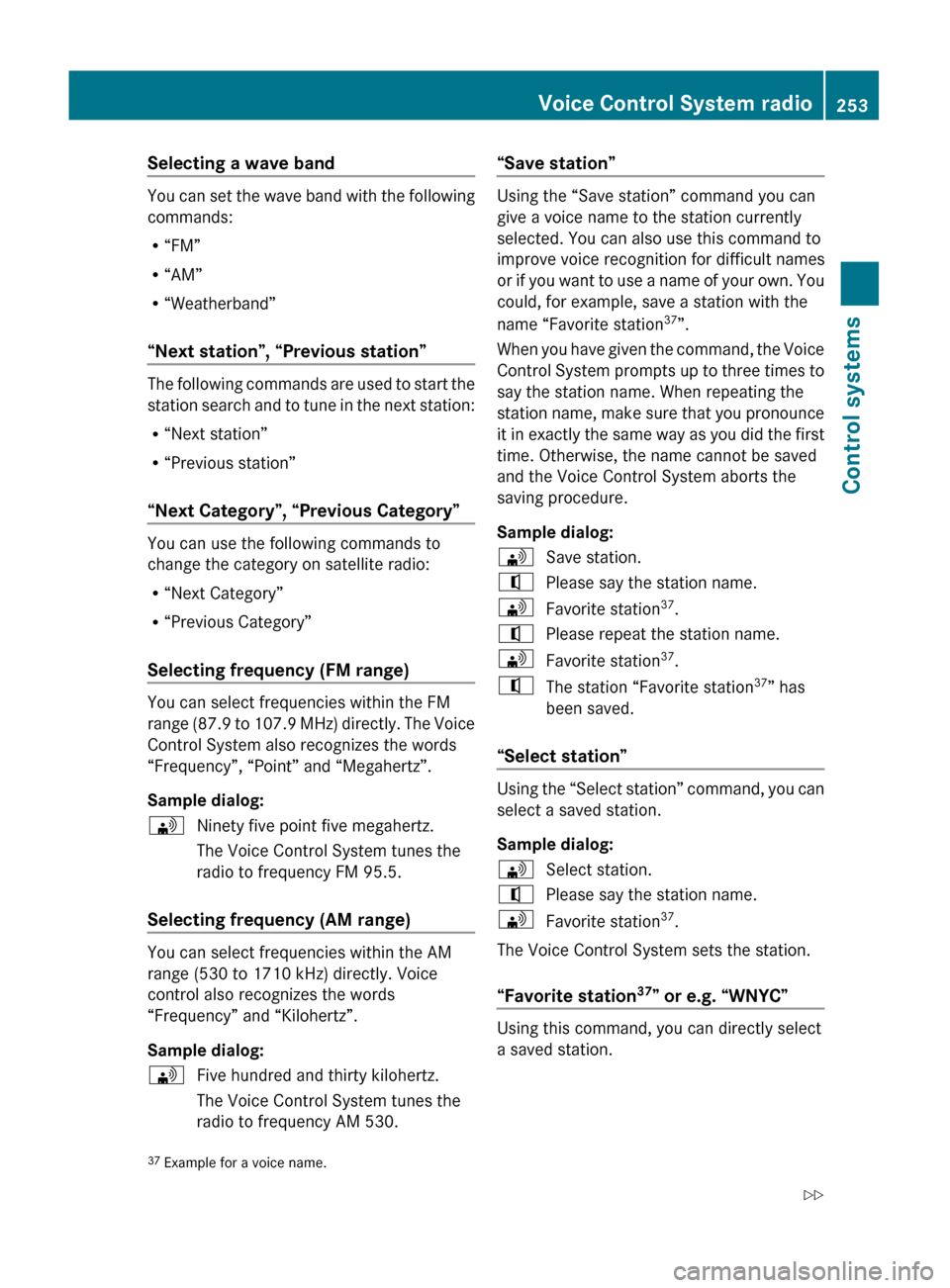
Selecting a wave band
You can set the wave band with the following
commands:
R “FM”
R “AM”
R “Weatherband”
“Next station”, “Previous station”
The following commands are used to start the
station search and to tune in the next station:
R “Next station”
R “Previous station”
“Next Category”, “Previous Category”
You can use the following commands to
change the category on satellite radio:
R “Next Category”
R “Previous Category”
Selecting frequency (FM range)
You can select frequencies within the FM
range (87.9 to 107.9 MHz) directly. The Voice
Control System also recognizes the words
“Frequency”, “Point” and “Megahertz”.
Sample dialog:
\Ninety five point five megahertz.
The Voice Control System tunes the
radio to frequency FM 95.5.
Selecting frequency (AM range)
You can select frequencies within the AM
range (530 to 1710 kHz) directly. Voice
control also recognizes the words
“Frequency” and “Kilohertz”.
Sample dialog:
\Five hundred and thirty kilohertz.
The Voice Control System tunes the
radio to frequency AM 530.“Save station”
Using the “Save station” command you can
give a voice name to the station currently
selected. You can also use this command to
improve voice recognition for difficult names
or if you want to use a name of your own. You
could, for example, save a station with the
name “Favorite station 37
”.
When you have given the command, the Voice
Control System prompts up to three times to
say the station name. When repeating the
station name, make sure that you pronounce
it in exactly the same way as you did the first
time. Otherwise, the name cannot be saved
and the Voice Control System aborts the
saving procedure.
Sample dialog:
\Save station.^Please say the station name.\Favorite station 37
.^Please repeat the station name.\Favorite station 37
.^The station “Favorite station 37
” has
been saved.
“Select station”
Using the “Select station” command, you can
select a saved station.
Sample dialog:
\Select station.^Please say the station name.\Favorite station 37
.
The Voice Control System sets the station.
“Favorite station 37
” or e.g. “WNYC”
Using this command, you can directly select
a saved station.
37 Example for a voice name.Voice Control System radio253Control systems221_AKB; 6; 20, en-USd2ugruen,Version: 2.11.8.12009-09-24T13:28:17+02:00 - Seite 253Z
Page 259 of 548
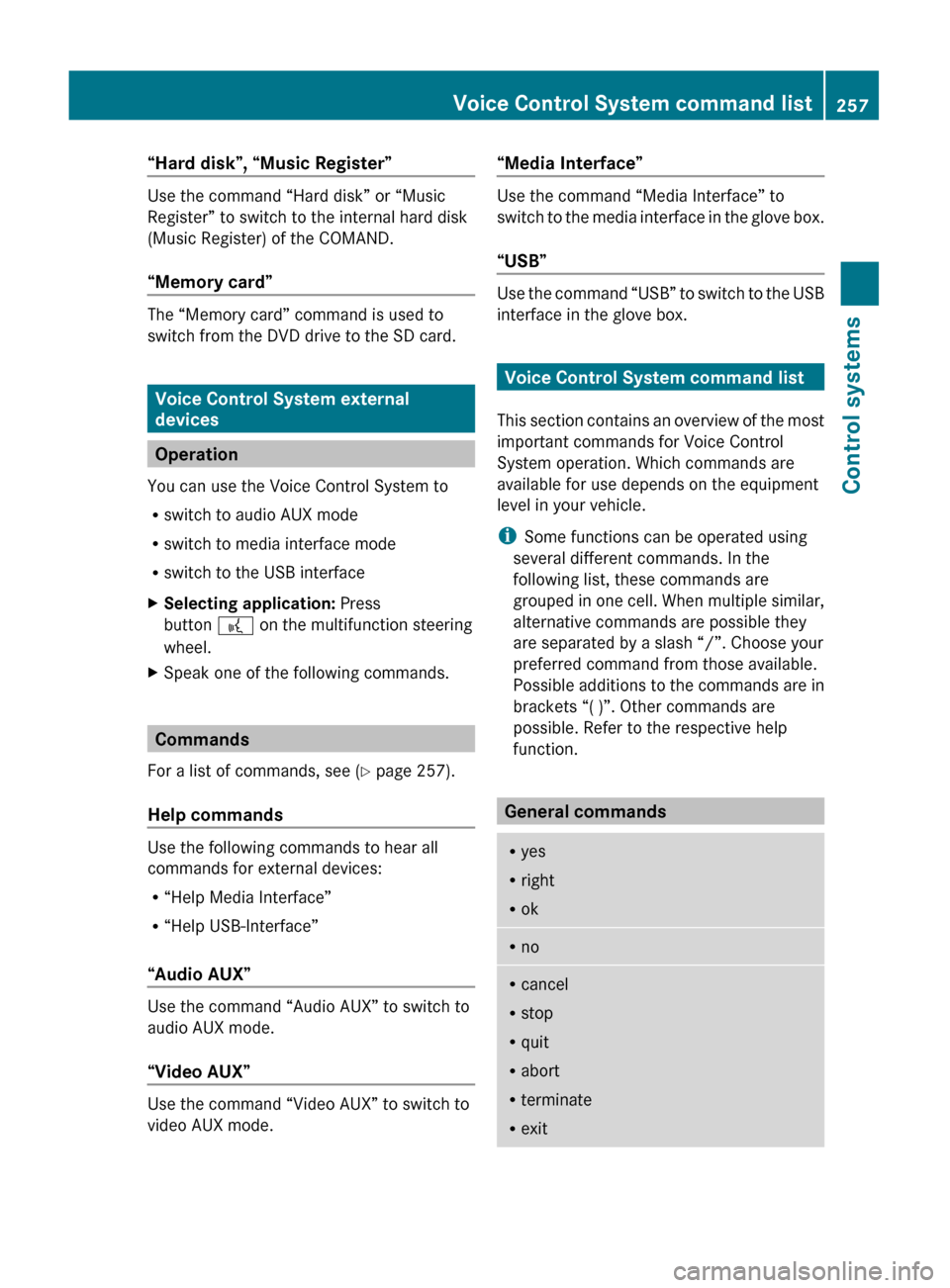
“Hard disk”, “Music Register”
Use the command “Hard disk” or “Music
Register” to switch to the internal hard disk
(Music Register) of the COMAND.
“Memory card”
The “Memory card” command is used to
switch from the DVD drive to the SD card.
Voice Control System external
devices
Operation
You can use the Voice Control System to
R switch to audio AUX mode
R switch to media interface mode
R switch to the USB interface
XSelecting application: Press
button ? on the multifunction steering
wheel.XSpeak one of the following commands.
Commands
For a list of commands, see ( Y page 257).
Help commands
Use the following commands to hear all
commands for external devices:
R “Help Media Interface”
R “Help USB-Interface”
“Audio AUX”
Use the command “Audio AUX” to switch to
audio AUX mode.
“Video AUX”
Use the command “Video AUX” to switch to
video AUX mode.
“Media Interface”
Use the command “Media Interface” to
switch to the media interface in the glove box.
“USB”
Use the command “USB” to switch to the USB
interface in the glove box.
Voice Control System command list
This section contains an overview of the most
important commands for Voice Control
System operation. Which commands are
available for use depends on the equipment
level in your vehicle.
i Some functions can be operated using
several different commands. In the
following list, these commands are
grouped in one cell. When multiple similar,
alternative commands are possible they
are separated by a slash “/”. Choose your
preferred command from those available.
Possible additions to the commands are in
brackets “( )”. Other commands are
possible. Refer to the respective help
function.
General commands
R yes
R right
R okRnoRcancel
R stop
R quit
R abort
R terminate
R exitVoice Control System command list257Control systems221_AKB; 6; 20, en-USd2ugruen,Version: 2.11.8.12009-09-24T13:28:17+02:00 - Seite 257Z
Page 271 of 548
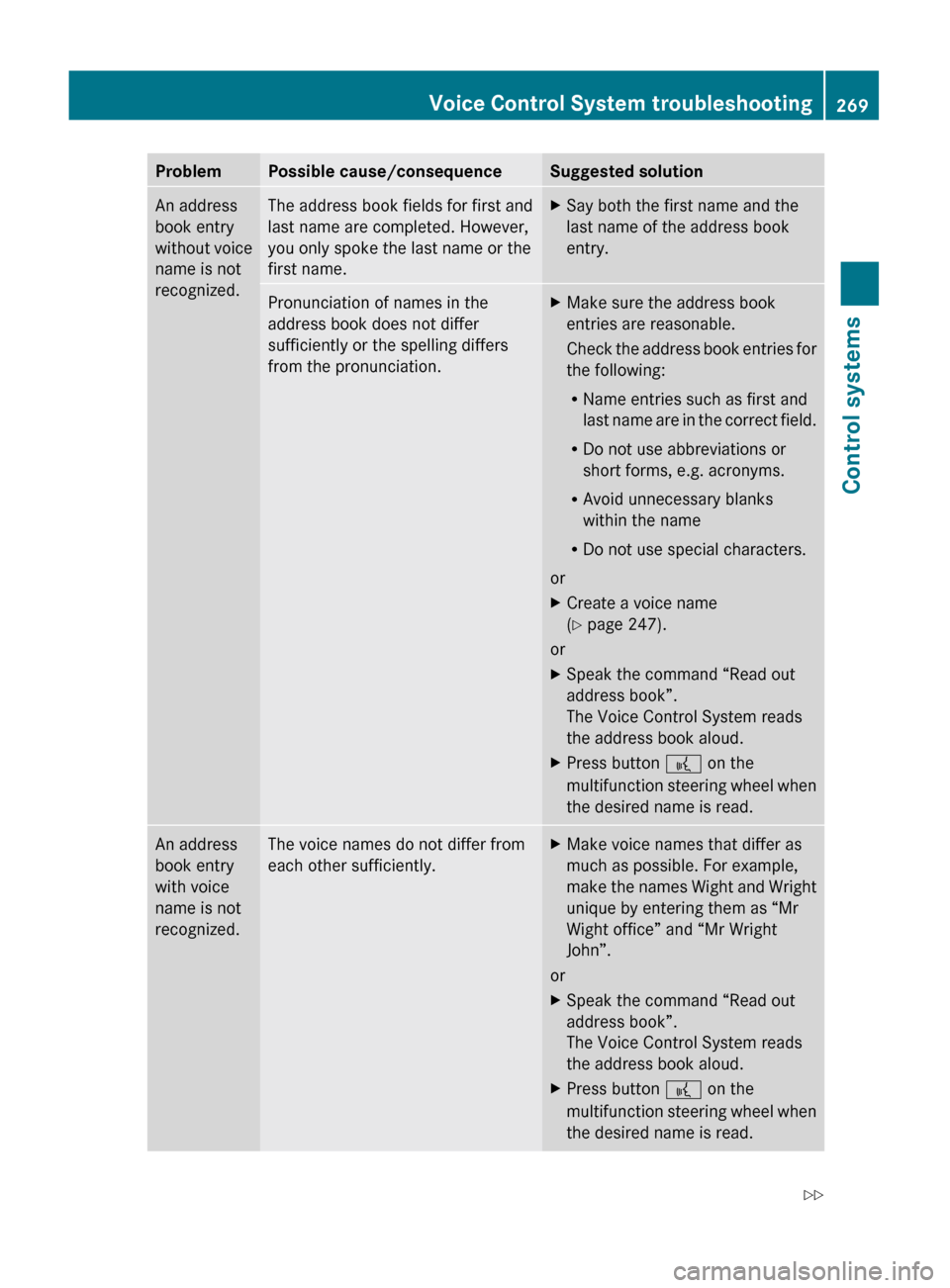
ProblemPossible cause/consequenceSuggested solutionAn address
book entry
without voice
name is not
recognized.The address book fields for first and
last name are completed. However,
you only spoke the last name or the
first name.XSay both the first name and the
last name of the address book
entry.Pronunciation of names in the
address book does not differ
sufficiently or the spelling differs
from the pronunciation.XMake sure the address book
entries are reasonable.
Check the address book entries for
the following:
R Name entries such as first and
last name are in the correct field.
R Do not use abbreviations or
short forms, e.g. acronyms.
R Avoid unnecessary blanks
within the name
R Do not use special characters.
or
XCreate a voice name
( Y page 247).
or
XSpeak the command “Read out
address book”.
The Voice Control System reads
the address book aloud.XPress button ? on the
multifunction steering wheel when
the desired name is read.An address
book entry
with voice
name is not
recognized.The voice names do not differ from
each other sufficiently.XMake voice names that differ as
much as possible. For example,
make the names Wight and Wright
unique by entering them as “Mr
Wight office” and “Mr Wright
John”.
or
XSpeak the command “Read out
address book”.
The Voice Control System reads
the address book aloud.XPress button ? on the
multifunction steering wheel when
the desired name is read.Voice Control System troubleshooting269Control systems221_AKB; 6; 20, en-USd2ugruen,Version: 2.11.8.12009-09-24T13:28:17+02:00 - Seite 269Z
Page 272 of 548
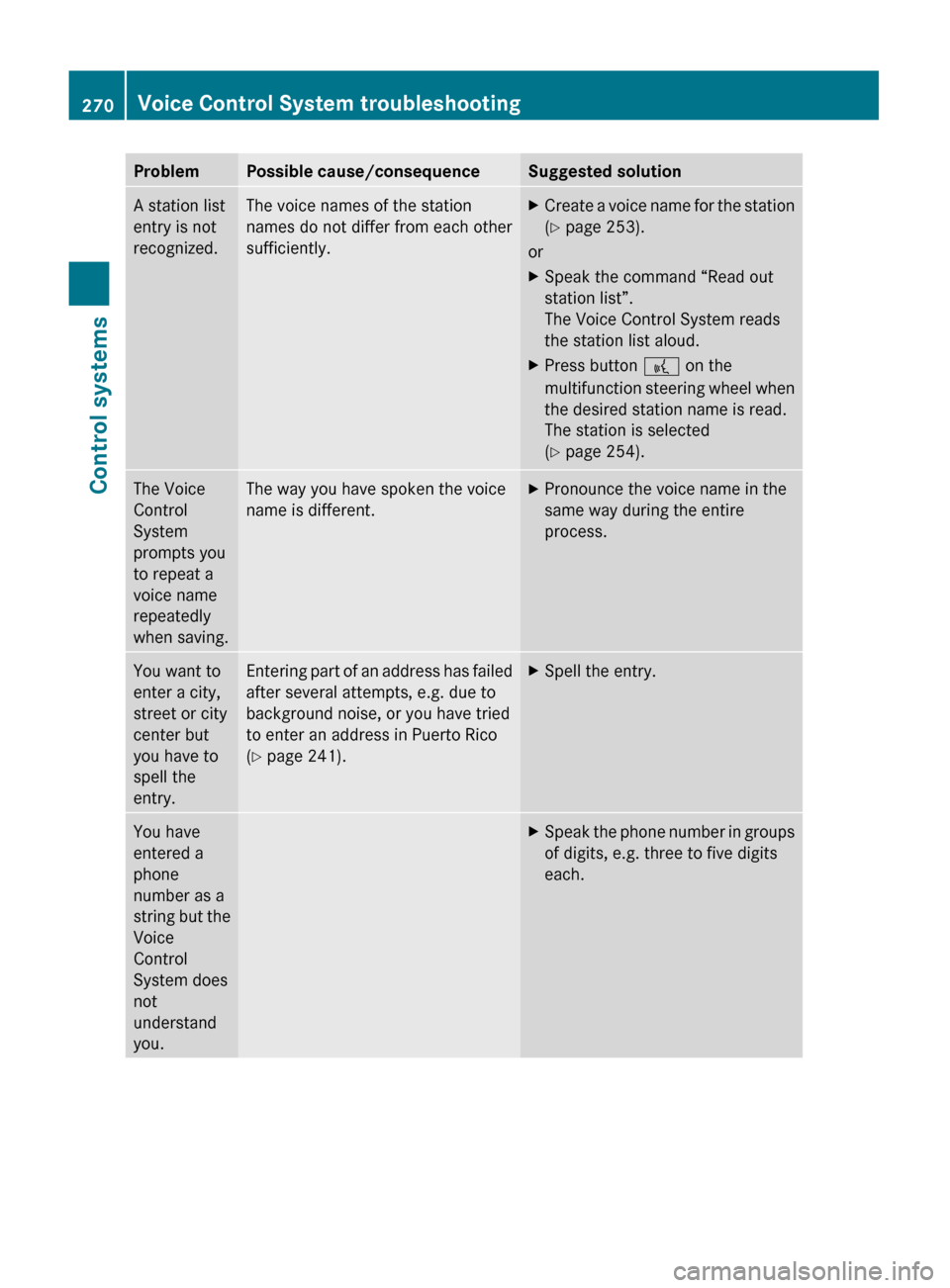
ProblemPossible cause/consequenceSuggested solutionA station list
entry is not
recognized.The voice names of the station
names do not differ from each other
sufficiently.XCreate a voice name for the station
( Y page 253).
or
XSpeak the command “Read out
station list”.
The Voice Control System reads
the station list aloud.XPress button ? on the
multifunction steering wheel when
the desired station name is read.
The station is selected
( Y page 254).The Voice
Control
System
prompts you
to repeat a
voice name
repeatedly
when saving.The way you have spoken the voice
name is different.XPronounce the voice name in the
same way during the entire
process.You want to
enter a city,
street or city
center but
you have to
spell the
entry.Entering part of an address has failed
after several attempts, e.g. due to
background noise, or you have tried
to enter an address in Puerto Rico
( Y page 241).XSpell the entry.You have
entered a
phone
number as a
string but the
Voice
Control
System does
not
understand
you.XSpeak the phone number in groups
of digits, e.g. three to five digits
each.270Voice Control System troubleshootingControl systems
221_AKB; 6; 20, en-USd2ugruen,Version: 2.11.8.12009-09-24T13:28:17+02:00 - Seite 270
Page 299 of 548
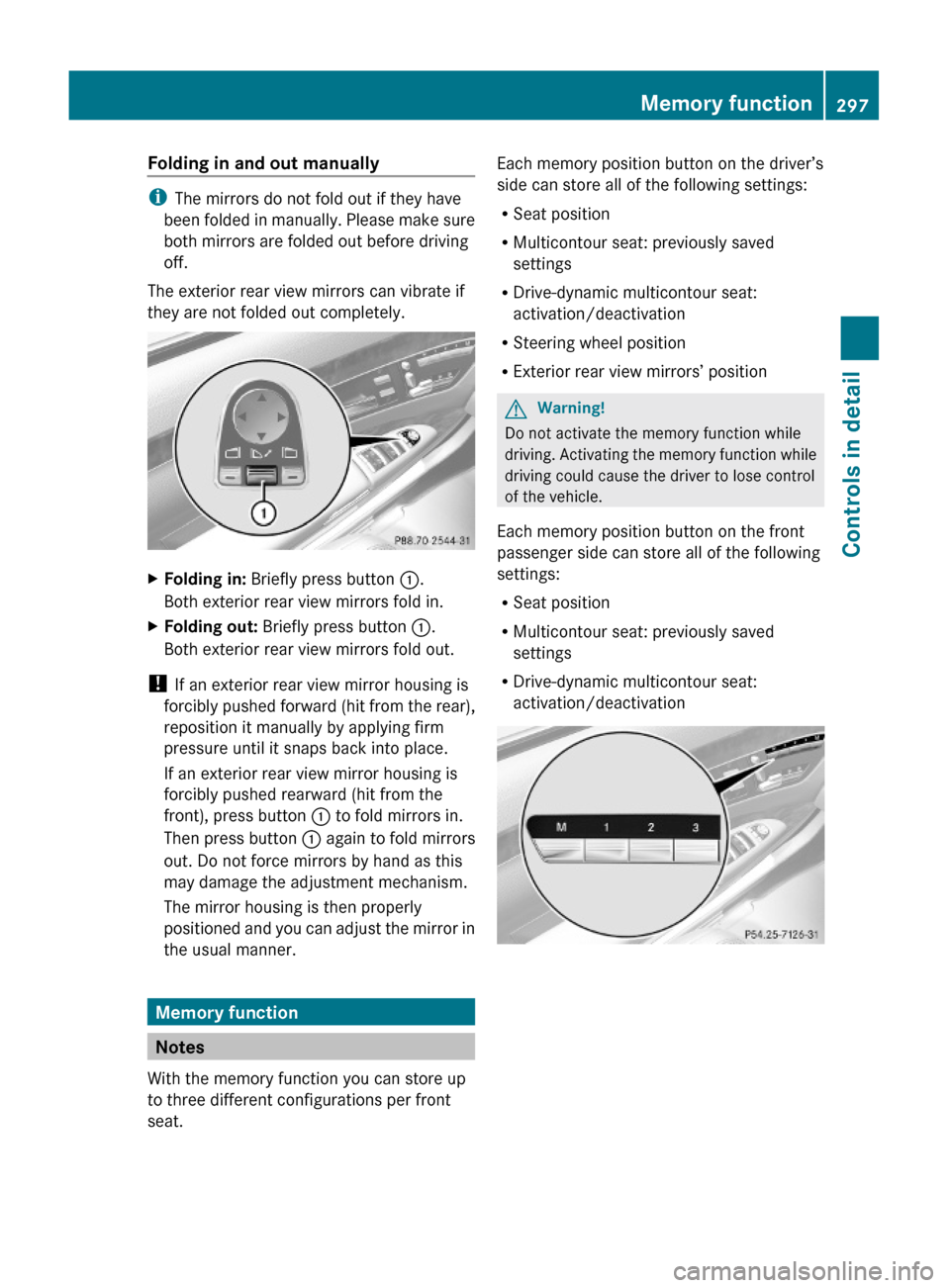
Folding in and out manually
iThe mirrors do not fold out if they have
been folded in manually. Please make sure
both mirrors are folded out before driving
off.
The exterior rear view mirrors can vibrate if
they are not folded out completely.
XFolding in: Briefly press button :.
Both exterior rear view mirrors fold in.
XFolding out: Briefly press button :.
Both exterior rear view mirrors fold out.
! If an exterior rear view mirror housing is
forcibly pushed forward (hit from the rear),
reposition it manually by applying firm
pressure until it snaps back into place.
If an exterior rear view mirror housing is
forcibly pushed rearward (hit from the
front), press button : to fold mirrors in.
Then press button : again to fold mirrors
out. Do not force mirrors by hand as this
may damage the adjustment mechanism.
The mirror housing is then properly
positioned and you can adjust the mirror in
the usual manner.
Memory function
Notes
With the memory function you can store up
to three different configurations per front
seat.
Each memory position button on the driver’s
side can store all of the following settings:
RSeat position
RMulticontour seat: previously saved
settings
RDrive-dynamic multicontour seat:
activation/deactivation
RSteering wheel position
RExterior rear view mirrors’ position
GWarning!
Do not activate the memory function while
driving. Activating the memory function while
driving could cause the driver to lose control
of the vehicle.
Each memory position button on the front
passenger side can store all of the following
settings:
RSeat position
RMulticontour seat: previously saved
settings
RDrive-dynamic multicontour seat:
activation/deactivation
Memory function297Controls in detail221_AKB; 6; 20, en-USd2ugruen,Version: 2.11.8.12009-09-24T13:28:17+02:00 - Seite 297Z
Page 309 of 548
RRemove blockage.
RTurn the windshield wipers on again.
If the windshield wipers fail to function at
all with the combination switch in position
Ä or Å,
Rset the combination switch to the next
higher wiper speed
Rhave the windshield wipers checked at
the nearest authorized Mercedes-Benz
Center
Power windows
Opening and closing
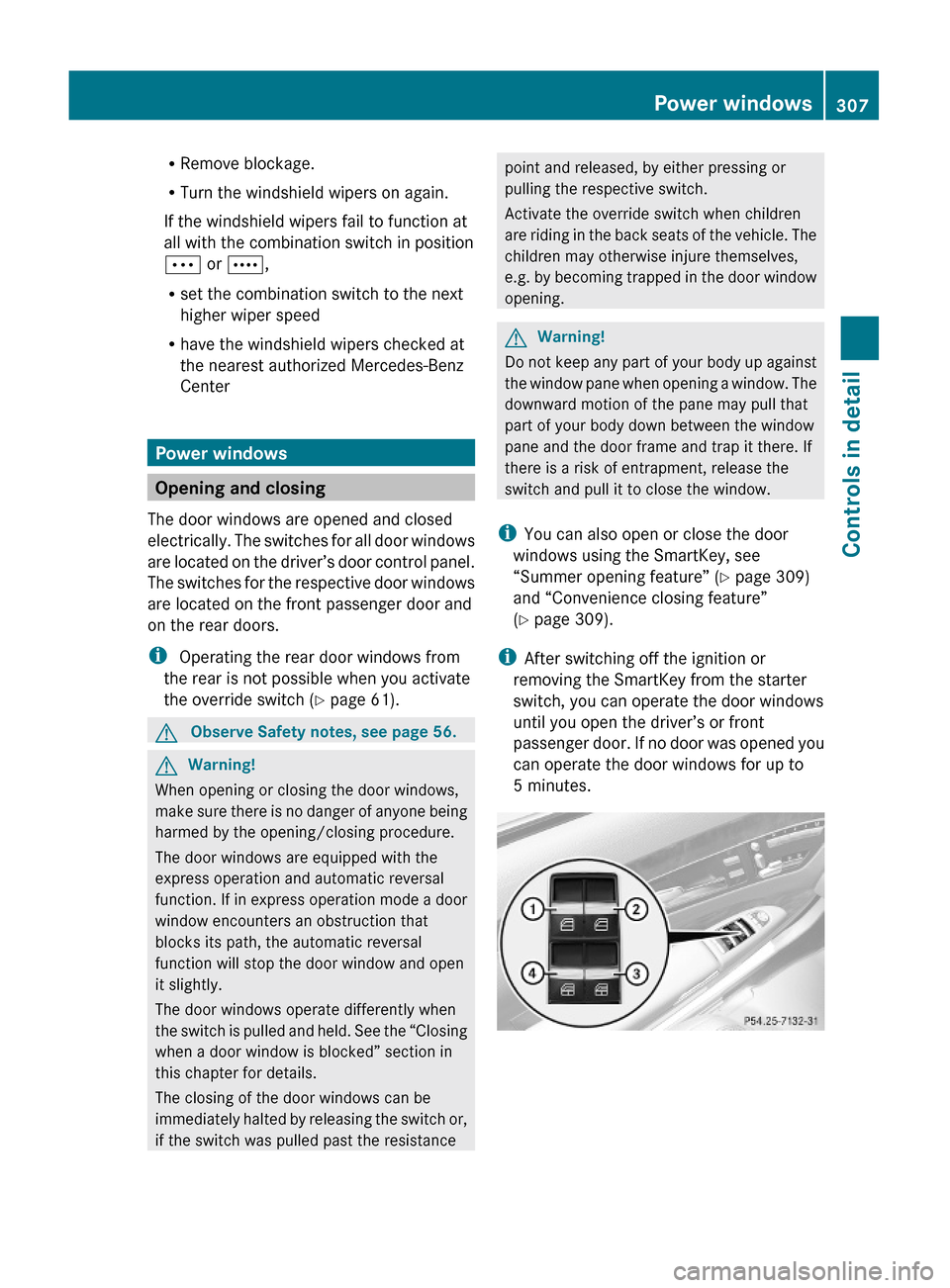
The door windows are opened and closed
electrically. The switches for all door windows
are located on the driver’s door control panel.
The switches for the respective door windows
are located on the front passenger door and
on the rear doors.
i Operating the rear door windows from
the rear is not possible when you activate
the override switch (Y page 61).
GObserve Safety notes, see page 56.GWarning!
When opening or closing the door windows,
make sure there is no danger of anyone being
harmed by the opening/closing procedure.
The door windows are equipped with the
express operation and automatic reversal
function. If in express operation mode a door
window encounters an obstruction that
blocks its path, the automatic reversal
function will stop the door window and open
it slightly.
The door windows operate differently when
the switch is pulled and held. See the “Closing
when a door window is blocked” section in
this chapter for details.
The closing of the door windows can be
immediately halted by releasing the switch or,
if the switch was pulled past the resistance
point and released, by either pressing or
pulling the respective switch.
Activate the override switch when children
are riding in the back seats of the vehicle. The
children may otherwise injure themselves,
e.g. by becoming trapped in the door window
opening.
GWarning!
Do not keep any part of your body up against
the window pane when opening a window. The
downward motion of the pane may pull that
part of your body down between the window
pane and the door frame and trap it there. If
there is a risk of entrapment, release the
switch and pull it to close the window.
iYou can also open or close the door
windows using the SmartKey, see
“Summer opening feature” (Y page 309)
and “Convenience closing feature”
(Y page 309).
iAfter switching off the ignition or
removing the SmartKey from the starter
switch, you can operate the door windows
until you open the driver’s or front
passenger door. If no door was opened you
can operate the door windows for up to
5 minutes.
Power windows307Controls in detail221_AKB; 6; 20, en-USd2ugruen,Version: 2.11.8.12009-09-24T13:28:17+02:00 - Seite 307Z
Page 314 of 548
children unattended in the vehicle, as they
could otherwise accidentally start the engine.
When leaving the vehicle, always take the
SmartKey with you and lock the vehicle. Do
not leave children unattended in the vehicle,
or with access to an unlocked vehicle. A
child’s unsupervised access to a vehicle could
result in an accident and/or serious personal
injury.
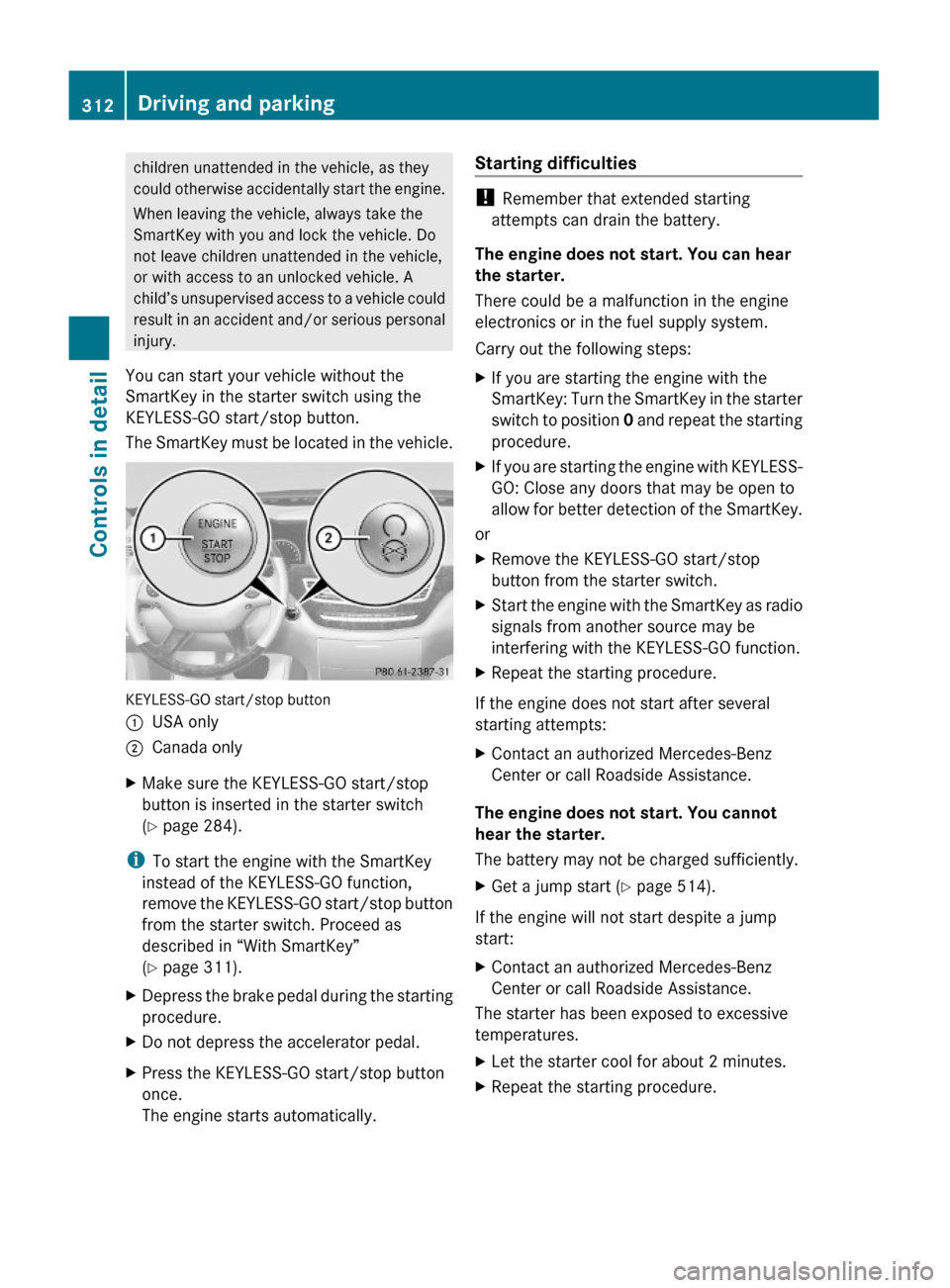
You can start your vehicle without the
SmartKey in the starter switch using the
KEYLESS-GO start/stop button.
The SmartKey must be located in the vehicle.
KEYLESS-GO start/stop button
:USA only;Canada onlyXMake sure the KEYLESS-GO start/stop
button is inserted in the starter switch
(Y page 284).
iTo start the engine with the SmartKey
instead of the KEYLESS-GO function,
remove the KEYLESS-GO start/stop button
from the starter switch. Proceed as
described in “With SmartKey”
(Y page 311).
XDepress the brake pedal during the starting
procedure.
XDo not depress the accelerator pedal.XPress the KEYLESS-GO start/stop button
once.
The engine starts automatically.
Starting difficulties
! Remember that extended starting
attempts can drain the battery.
The engine does not start. You can hear
the starter.
There could be a malfunction in the engine
electronics or in the fuel supply system.
Carry out the following steps:
XIf you are starting the engine with the
SmartKey: Turn the SmartKey in the starter
switch to position 0 and repeat the starting
procedure.
XIf you are starting the engine with KEYLESS-
GO: Close any doors that may be open to
allow for better detection of the SmartKey.
or
XRemove the KEYLESS-GO start/stop
button from the starter switch.
XStart the engine with the SmartKey as radio
signals from another source may be
interfering with the KEYLESS-GO function.
XRepeat the starting procedure.
If the engine does not start after several
starting attempts:
XContact an authorized Mercedes-Benz
Center or call Roadside Assistance.
The engine does not start. You cannot
hear the starter.
The battery may not be charged sufficiently.
XGet a jump start (Y page 514).
If the engine will not start despite a jump
start:
XContact an authorized Mercedes-Benz
Center or call Roadside Assistance.
The starter has been exposed to excessive
temperatures.
XLet the starter cool for about 2 minutes.XRepeat the starting procedure.312Driving and parkingControls in detail
221_AKB; 6; 20, en-USd2ugruen,Version: 2.11.8.12009-09-24T13:28:17+02:00 - Seite 312
Page 326 of 548
Shifting into optimal gear range XPull and hold left gearshift control :.
The automatic transmission will select the
gear range suited for optimal acceleration
and deceleration automatically. This will
involve shifting down one or more gears.
Manual shift program
The manual shift program is available on AMG
vehicles only.
Manual program mode M differs with regard
to spontaneity, response time, and shifting
smoothness from automatic program mode
S.
In manual program mode M, system-
controlled automatic gearshifting is switched
off. You need to change the gears by manually
upshifting or downshifting using the steering
wheel gearshift control.
Program mode selector switch on AMG vehicles
C ComfortFor standard drivingS SportFor sporty drivingM ManualFor manual gearshifting
The current program mode appears in the
multifunction display (Y page 322).
For information on automatic program mode
(C or S), see “Automatic shift program”
(Y page 322) and “One-touch gearshifting”
(Y page 323).
Activating manual shift programXPress the program mode selector switch
repeatedly until M appears in the
multifunction display.
The automatic transmission switches to
manual program mode M. Automatic
shifting is switched off. The gear range is
not limited.
You can change the gears manually with drive
position D selected. You can upshift or
downshift through the gears in succession.
iManual program mode M will not be
stored. When the engine is turned off with
manual program mode M selected, the
automatic transmission will go to
automatic program mode (C or S) when the
engine is restarted.
Upshifting
! In manual program mode M, the
automatic transmission will not upshift,
even if the engine has reached its
overrevving range. Shift up into the next
gear before the engine has reached its
overrevving range. Make absolutely certain
that the engine speed does not reach the
red marking on the tachometer. Otherwise
the engine could be damaged which is not
covered by the Mercedes-Benz Limited
Warranty.
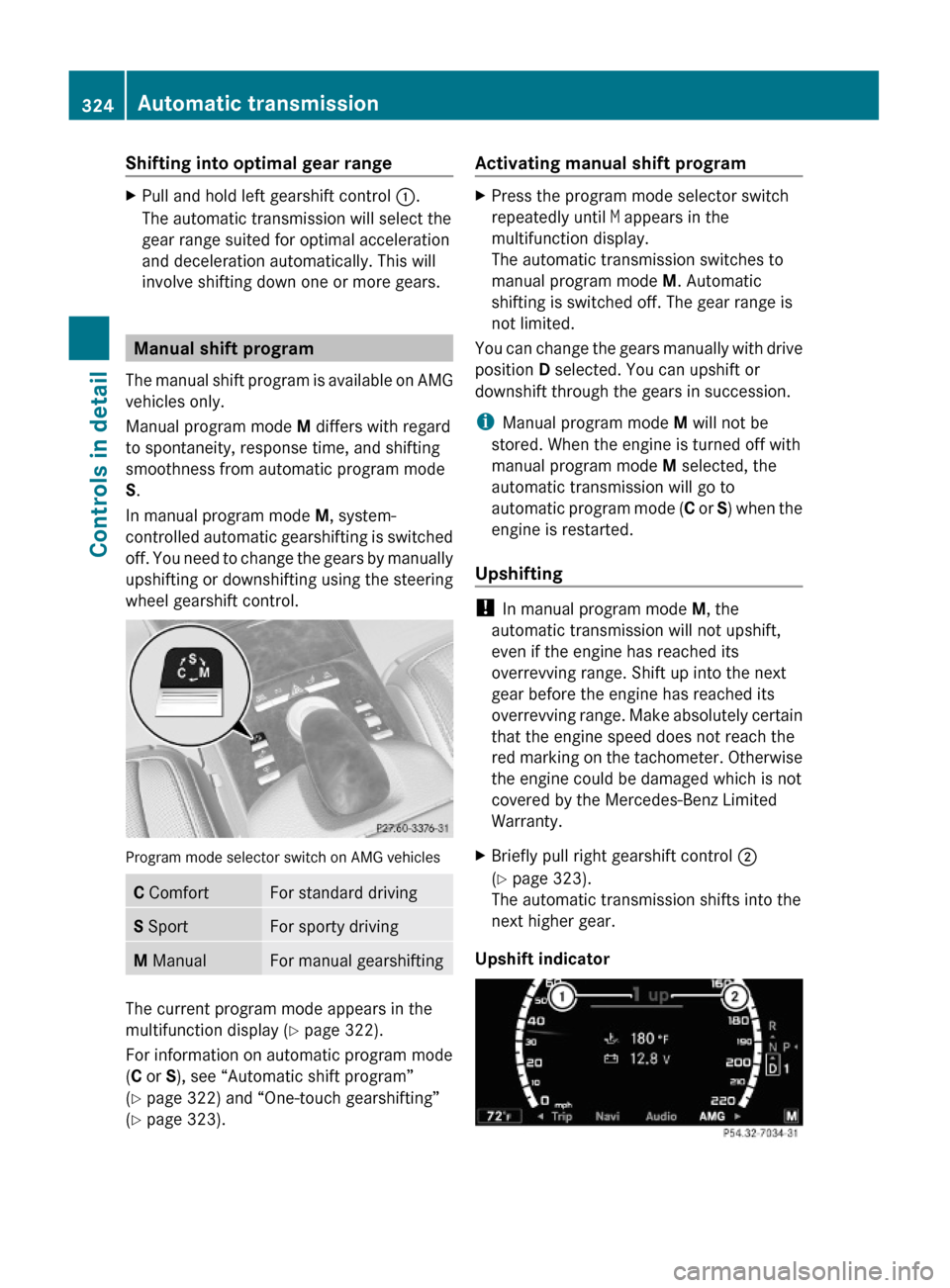
XBriefly pull right gearshift control ;
(Y page 323).
The automatic transmission shifts into the
next higher gear.
Upshift indicator
324Automatic transmissionControls in detail
221_AKB; 6; 20, en-USd2ugruen,Version: 2.11.8.12009-09-24T13:28:17+02:00 - Seite 324
Page 332 of 548
Adjustment in 1 mph (Canada:
1 km/h) increments
i The set speed value is increased or
decreased in 1 mph (Canada: 1 km/h)
increments each time you lift or press the
cruise control lever up or down to the
resistance point.XIncreasing: Briefly lift the cruise control
lever up to the resistance point in direction
of arrow :.XDecreasing: Briefly press the cruise
control lever down to the resistance point
in direction of arrow ;.XRelease the cruise control lever.
The new speed is set and the vehicle will
accelerate or decelerate.
Adjustment in 5 mph (Canada:
10 km/h) increments
i The set speed value is increased or
decreased in 5 mph (Canada: 10 km/h)
increments each time you lift or press the
cruise control lever up or down past the
resistance point.
XIncreasing: Briefly lift the cruise control
lever up past the resistance point in
direction of arrow :.XDecreasing: Briefly press the cruise
control lever down past the resistance
point in direction of arrow ;.XRelease the cruise control lever.
The new speed is set and the vehicle will
accelerate or decelerate. Keep in mind that
it may take a brief moment until the vehicle
has reached the set speed.
Setting stored speed (Resume
function)
GWarning!
The set speed stored in memory should only
be set again if prevailing road conditions and
legal speed limits permit. Possible
acceleration or deceleration differences
arising from returning to the preset speed
could cause an accident and/or serious injury
to you and others.XBriefly pull the cruise control lever in
direction of arrow ?.
If no speed is stored, the current speed is
set and stored.XRemove your foot from the accelerator
pedal.
The last stored speed is deleted from memory
when the engine is turned off.
DISTRONIC PLUS
Safety notes
When activated, the DISTRONIC PLUS
adaptive cruise control system increases the
driving convenience afforded by the cruise
control while traveling on expressways and
other major roadways.
R If the DISTRONIC PLUS distance sensor
detects a slower moving vehicle directly
ahead, your vehicle speed will be reduced
so that you follow that vehicle at your
preset following distance.
R If there is no vehicle directly ahead of you,
the DISTRONIC PLUS will function in the
same way as standard cruise control
( Y page 328).
GWarning!
The DISTRONIC PLUS requires familiarity with
its operational characteristics. We strongly
recommend that you review the following
information carefully before operating the
system.
GWarning!
HYBRID vehicles: It is imperative that you read
the HYBRID Supplemental Operating
Instructions included in your vehicle literature
portfolio. You may otherwise not receive all
necessary safety information and warning for
the operation of your vehicle.
330Driving systemsControls in detail
221_AKB; 6; 20, en-USd2ugruen,Version: 2.11.8.12009-09-24T13:28:17+02:00 - Seite 330
Page 340 of 548
You can increase or decrease the set speed
in 1 mph (Canada: 1 km/h) increments or in
5 mph (Canada: 10 km/h) increments.
When you use the DISTRONIC PLUS lever to
decelerate, the brake system will brake the
vehicle automatically if the engine’s braking
power does not brake the vehicle sufficiently.
Adjustment in 1 mph (Canada:
1 km/h) increments
i The set speed value is increased or
decreased in 1 mph (Canada: 1 km/h)
increments each time you lift or press the
DISTRONIC PLUS lever up or down to the
resistance point.XIncreasing: Briefly lift the DISTRONIC
PLUS lever up to the resistance point in
direction of arrow :.XDecreasing: Briefly press the DISTRONIC
PLUS lever down to the resistance point in
direction of arrow ;.XRelease the DISTRONIC PLUS lever.
The new speed is set and the vehicle will
accelerate or decelerate.
Adjustment in 5 mph (Canada:
10 km/h) increments
i The set speed value is increased or
decreased in 5 mph (Canada: 10 km/h)
increments each time you lift or press the
DISTRONIC PLUS lever up or down past the
resistance point.
XIncreasing: Briefly lift the DISTRONIC
PLUS lever up past the resistance point in
direction of arrow :.XDecreasing: Briefly press the DISTRONIC
PLUS lever down past the resistance point
in direction of arrow ;.XRelease the DISTRONIC PLUS lever.
The new speed is set and the vehicle will
accelerate or decelerate. Keep in mind that
it may take a brief moment until the vehicle
has reached the set speed.Setting stored speed (Resume function)GWarning!
The set speed stored in memory should only
be set again if prevailing road conditions and
legal speed limits permit. Possible
acceleration or deceleration differences
arising from returning to the preset speed
could cause an accident and/or serious injury
to you and others.
XBriefly pull the DISTRONIC PLUS lever in
direction of arrow ? (Y page 335).
The DISTRONIC PLUS is activated and
resumes to the last set speed or, if no
speed is stored, it will set and store the
current speed.XRemove your foot from the accelerator
pedal.
Deactivating DISTRONIC PLUS
XDepress the brake pedal (only possible if
the vehicle is in motion).
or
XBriefly push the DISTRONIC PLUS lever in
direction of arrow = (Y page 335).
The last set speed is stored for later use.
The last stored speed is deleted from memory
when the engine is turned off.
The DISTRONIC PLUS switches off
automatically when
R the vehicle is secured with the electronic
parking brake
R the vehicle speed falls below 15 mph
(25 km/h) and no preceding vehicle is
detected
R the ESC is in operation, or switched off via
the control system (Y page 232), or the ESC
has switched off due to a malfunction
R you shift the automatic transmission into
park position P, reverse gear R, or neutral
position N while driving
338Driving systemsControls in detail
221_AKB; 6; 20, en-USd2ugruen,Version: 2.11.8.12009-09-24T13:28:17+02:00 - Seite 338