Diff MERCEDES-BENZ S600 2010 W221 Owner's Guide
[x] Cancel search | Manufacturer: MERCEDES-BENZ, Model Year: 2010, Model line: S600, Model: MERCEDES-BENZ S600 2010 W221Pages: 548, PDF Size: 12.48 MB
Page 135 of 548
If the destination is within a partially
digitized area
COMAND guides you through fully digitized
areas for as long as possible. Route guidance
is conducted in the usual manner, e.g. with
navigation announcements and route
guidance displays.
Before the vehicle reaches a partially digitized
area, COMAND notifies you of this with the
following announcements:
RBe prepared to enter an area where
turn by turn guidance cannot be
provided.
RIn 700 feet you will enter an area
where turn by turn guidance cannot
be provided.
iThe indicated distance can be seen here
by way of example. In reality, it may be
different.
RYou are about to enter an area
where turn by turn guidance cannot
be provided.
iWhen you call up the route info to this
type of destination, (Y page 136) the
following data shown there may differ from
the actual situation:
RDistance to the destination
REstimated driving time to the destination
REstimated arrival time
Route guidance within a partially
digitized area
If you start route guidance in this type of area,
you will hear the following announcement:
You are currently in an area where
turn by turn guidance cannot be
provided.
Route guidance is provided by means of a
direction arrow showing the compass
heading to the destination. COMAND will not
generate automatic navigation
announcements.
If you try to call up an announcement
manually, (Y page 135) you will hear the
announcement You are currently in an
area where turn by turn guidance
cannot be provided.
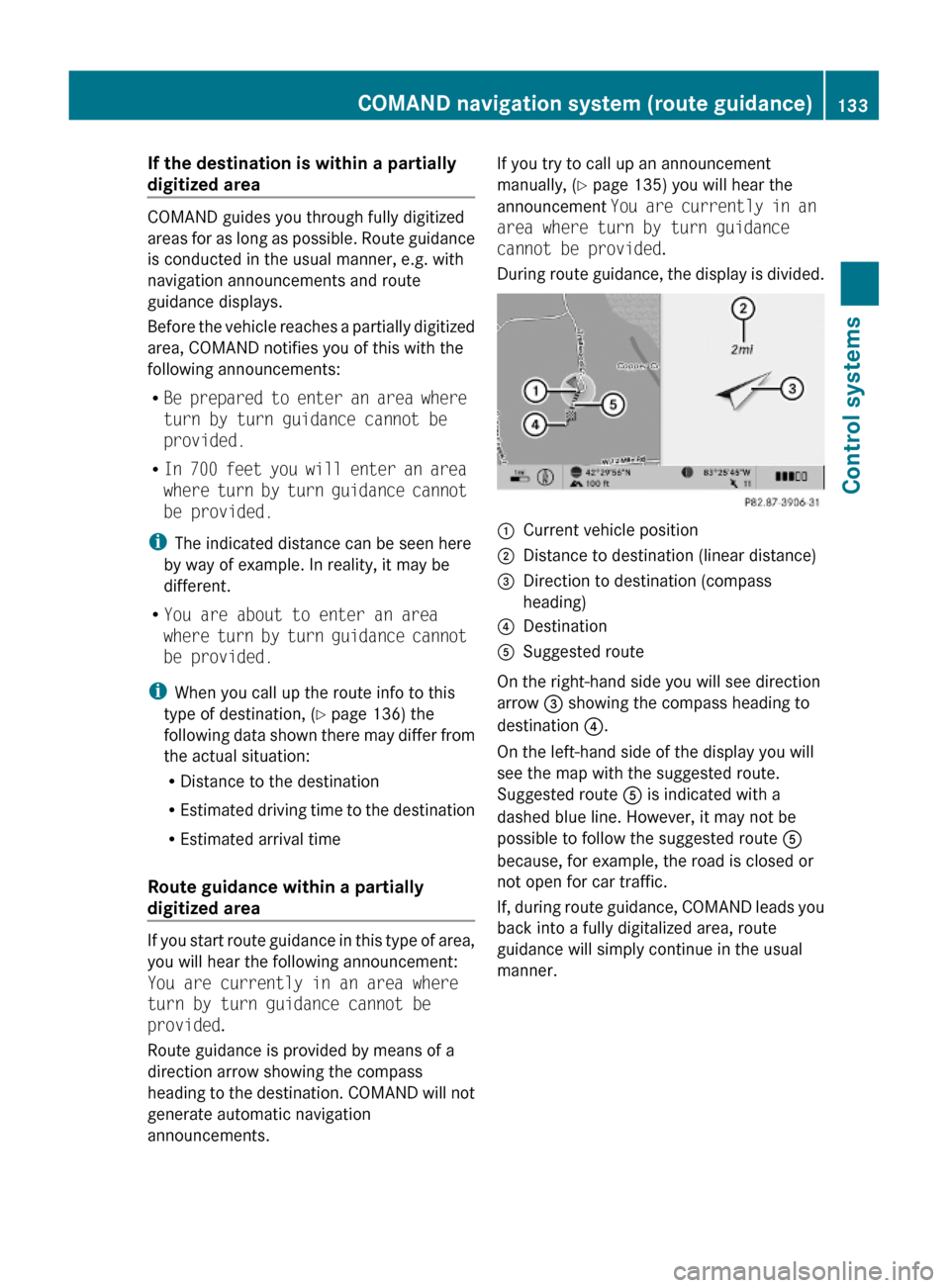
During route guidance, the display is divided.
:Current vehicle position;Distance to destination (linear distance)=Direction to destination (compass
heading)
?DestinationASuggested route
On the right-hand side you will see direction
arrow = showing the compass heading to
destination ?.
On the left-hand side of the display you will
see the map with the suggested route.
Suggested route A is indicated with a
dashed blue line. However, it may not be
possible to follow the suggested route A
because, for example, the road is closed or
not open for car traffic.
If, during route guidance, COMAND leads you
back into a fully digitalized area, route
guidance will simply continue in the usual
manner.
COMAND navigation system (route guidance)133Control systems221_AKB; 6; 20, en-USd2ugruen,Version: 2.11.8.12009-09-24T13:28:17+02:00 - Seite 133Z
Page 136 of 548
Off-road and off-map
Route guidance to an off-road
destination
GWarning!
The COMAND navigation system may direct
you to off-road routes that your vehicle may
not be capable of traversing through without
damaging your tires, wheels or vehicle. It is
the driver’s sole responsibility to determine
the suitability of the route. Off-road routes
may be of varying conditions and their
appropriateness for use may be affected by
various factors such as time of day, time of
year and immediate weather conditions that
cannot be judged or taken into consideration
by the COMAND system.
COMAND can guide you to destinations
within the area covered by the digital map,
even if a destination is not located at a road
known to the system.
These destinations are shown as off-road
destinations, which you can enter using the
map, for example. In these cases, COMAND
guides you for as long as possible with
navigation announcements and displays on
roads known to the system.
Shortly before you reach the last known the
point to leave the digitized road network, you
will hear the announcement The
destination is nearby. Follow the
arrow on the display.
You will then see an arrow that indicates the
direction to the off-road destination. When
the off-road destination is close to the road,
Area of dest. reached appears in addition
below the arrow.
The section of the route from the last known
point on the map to the off-road destination
is indicated with a dashed line after a certain
length. It simply shows the direction to the
off-road destination without taking account of
any type of obstacles in the way.
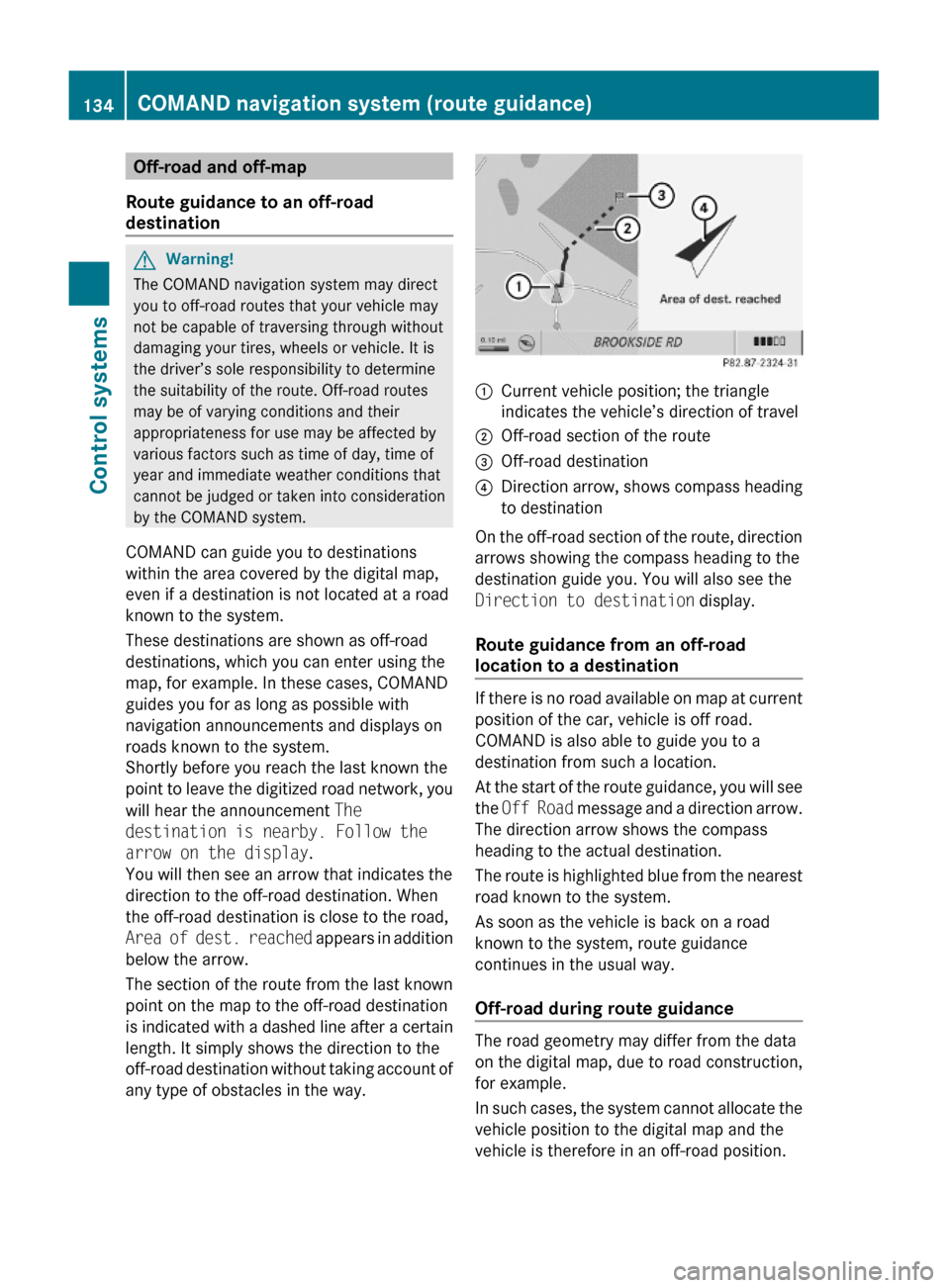
:Current vehicle position; the triangle
indicates the vehicle’s direction of travel
;Off-road section of the route=Off-road destination?Direction arrow, shows compass heading
to destination
On the off-road section of the route, direction
arrows showing the compass heading to the
destination guide you. You will also see the
Direction to destination display.
Route guidance from an off-road
location to a destination
If there is no road available on map at current
position of the car, vehicle is off road.
COMAND is also able to guide you to a
destination from such a location.
At the start of the route guidance, you will see
the Off Road message and a direction arrow.
The direction arrow shows the compass
heading to the actual destination.
The route is highlighted blue from the nearest
road known to the system.
As soon as the vehicle is back on a road
known to the system, route guidance
continues in the usual way.
Off-road during route guidance
The road geometry may differ from the data
on the digital map, due to road construction,
for example.
In such cases, the system cannot allocate the
vehicle position to the digital map and the
vehicle is therefore in an off-road position.
134COMAND navigation system (route guidance)Control systems
221_AKB; 6; 20, en-USd2ugruen,Version: 2.11.8.12009-09-24T13:28:17+02:00 - Seite 134
Page 138 of 548
Displaying infoXSelect Info in map view with the menu
system displayed (Y page 102).
The route information appears.
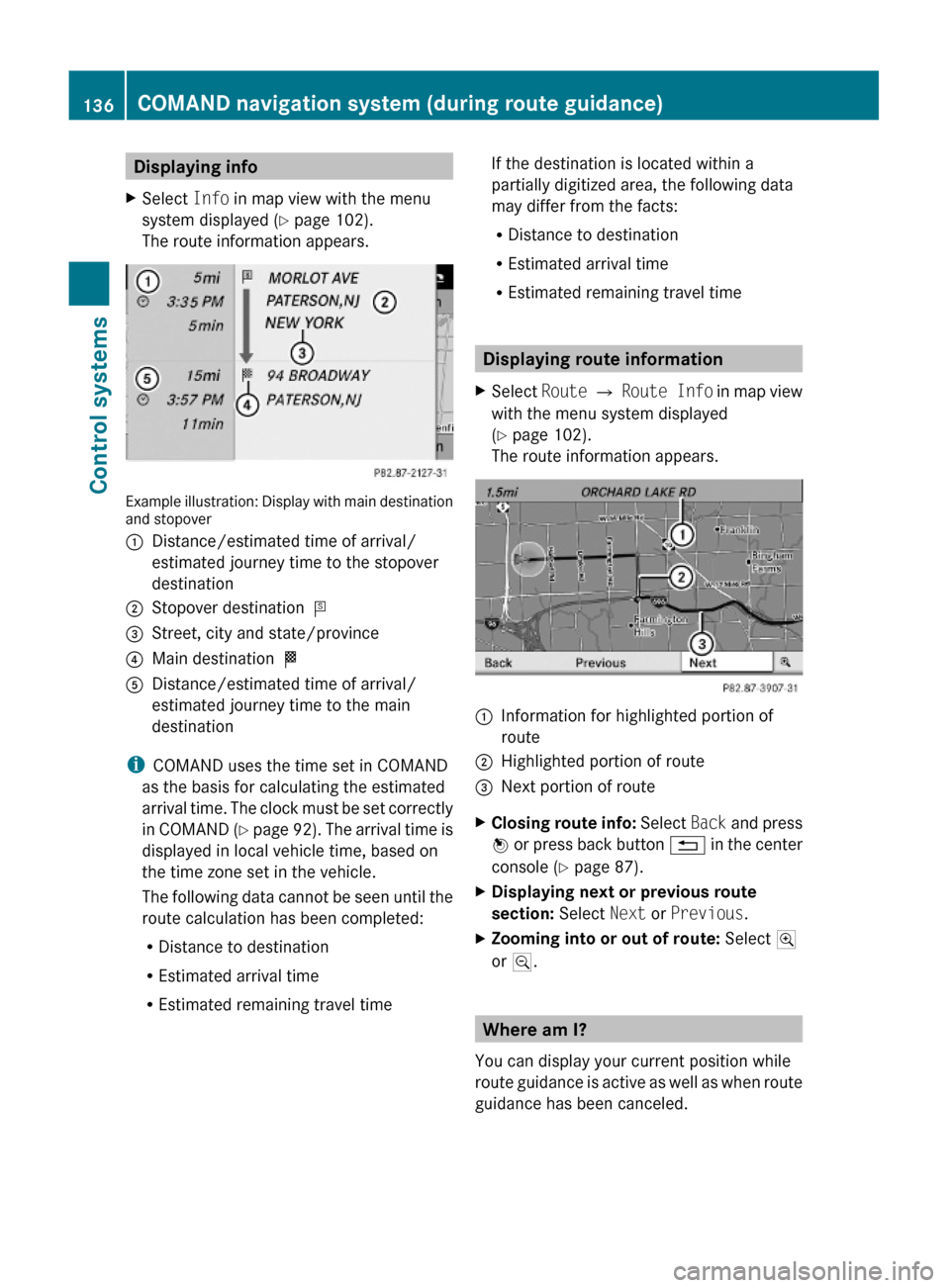
Example illustration: Display with main destinationand stopover
:Distance/estimated time of arrival/
estimated journey time to the stopover
destination
;Stopover destination P=Street, city and state/province?Main destination OADistance/estimated time of arrival/
estimated journey time to the main
destination
iCOMAND uses the time set in COMAND
as the basis for calculating the estimated
arrival time. The clock must be set correctly
in COMAND (Y page 92). The arrival time is
displayed in local vehicle time, based on
the time zone set in the vehicle.
The following data cannot be seen until the
route calculation has been completed:
RDistance to destination
REstimated arrival time
REstimated remaining travel time
If the destination is located within a
partially digitized area, the following data
may differ from the facts:
RDistance to destination
REstimated arrival time
REstimated remaining travel time
Displaying route information
XSelect Route Q Route Info in map view
with the menu system displayed
(Y page 102).
The route information appears.
:Information for highlighted portion of
route
;Highlighted portion of route=Next portion of routeXClosing route info: Select Back and press
W or press back button % in the center
console (Y page 87).
XDisplaying next or previous route
section: Select Next or Previous.
XZooming into or out of route: Select N
or M.
Where am I?
You can display your current position while
route guidance is active as well as when route
guidance has been canceled.
136COMAND navigation system (during route guidance)Control systems
221_AKB; 6; 20, en-USd2ugruen,Version: 2.11.8.12009-09-24T13:28:17+02:00 - Seite 136
Page 158 of 548
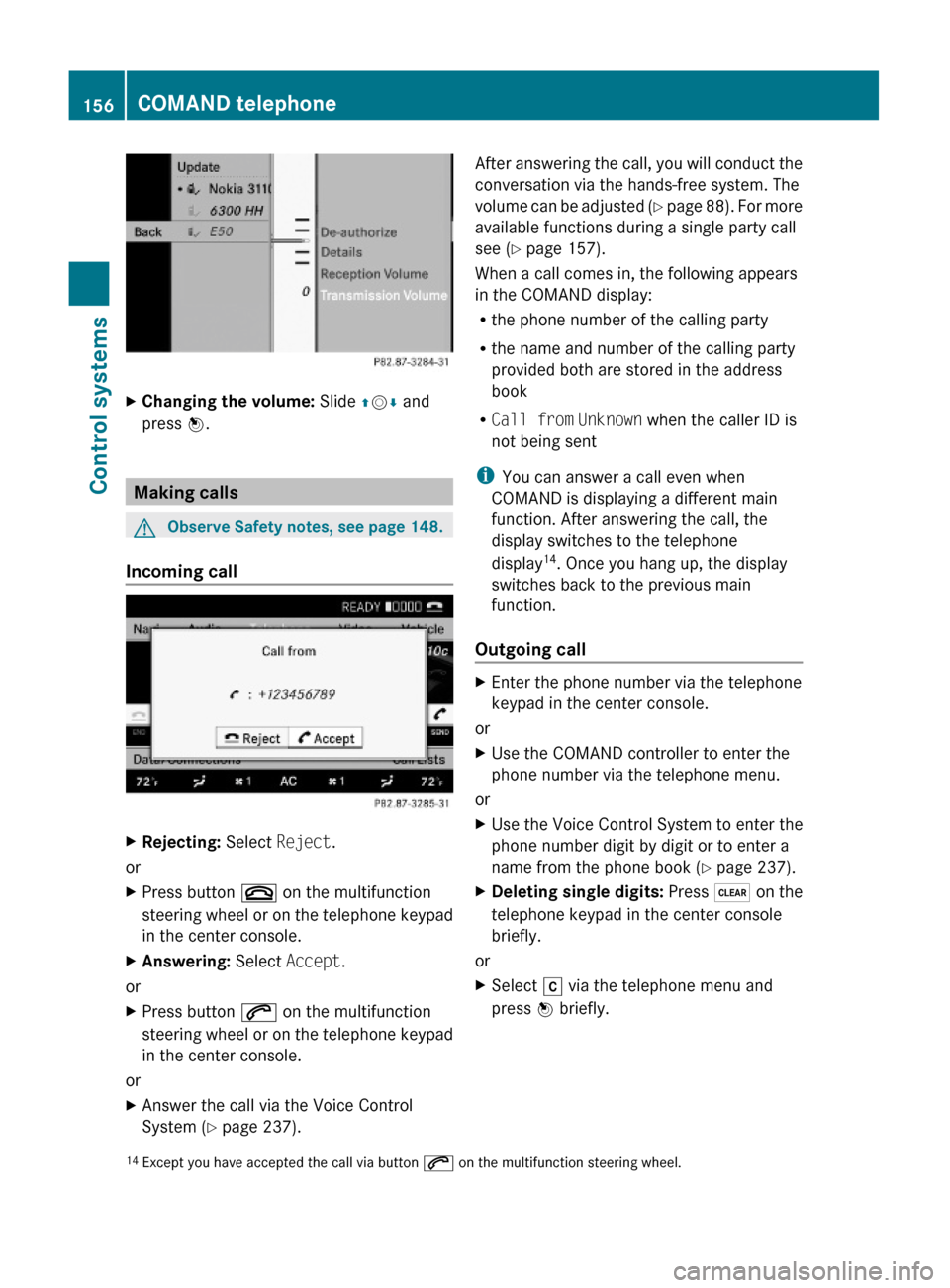
XChanging the volume: Slide ZVÆ and
press W.
Making calls
GObserve Safety notes, see page 148.
Incoming call
XRejecting: Select Reject.
or
XPress button ~ on the multifunction
steering wheel or on the telephone keypad
in the center console.
XAnswering: Select Accept.
or
XPress button 6 on the multifunction
steering wheel or on the telephone keypad
in the center console.
or
XAnswer the call via the Voice Control
System (Y page 237).
After answering the call, you will conduct the
conversation via the hands-free system. The
volume can be adjusted (Y page 88). For more
available functions during a single party call
see (Y page 157).
When a call comes in, the following appears
in the COMAND display:
Rthe phone number of the calling party
Rthe name and number of the calling party
provided both are stored in the address
book
RCall from Unknown when the caller ID is
not being sent
iYou can answer a call even when
COMAND is displaying a different main
function. After answering the call, the
display switches to the telephone
display14. Once you hang up, the display
switches back to the previous main
function.
Outgoing call
XEnter the phone number via the telephone
keypad in the center console.
or
XUse the COMAND controller to enter the
phone number via the telephone menu.
or
XUse the Voice Control System to enter the
phone number digit by digit or to enter a
name from the phone book (Y page 237).
XDeleting single digits: Press $ on the
telephone keypad in the center console
briefly.
or
XSelect r via the telephone menu and
press W briefly.14Except you have accepted the call via button 6 on the multifunction steering wheel.156COMAND telephoneControl systems
221_AKB; 6; 20, en-USd2ugruen,Version: 2.11.8.12009-09-24T13:28:17+02:00 - Seite 156
Page 163 of 548
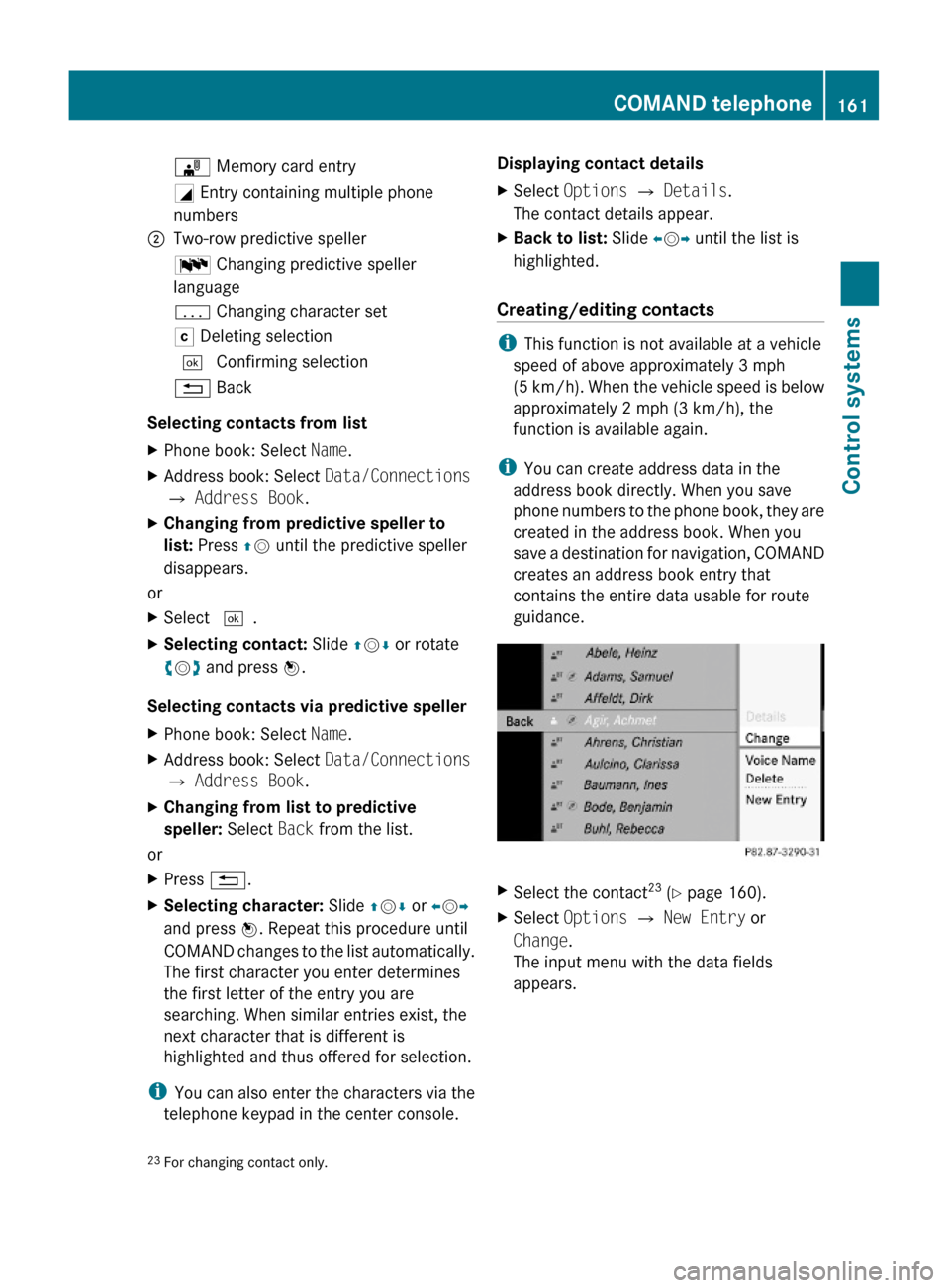
¯ Memory card entryG Entry containing multiple phone
numbers
;Two-row predictive spellerB Changing predictive speller
language
p Changing character setF Deleting selection¬ Confirming selection% Back
Selecting contacts from list
XPhone book: Select Name.XAddress book: Select Data/Connections
Q Address Book.
XChanging from predictive speller to
list: Press ZV until the predictive speller
disappears.
or
XSelect ¬.XSelecting contact: Slide ZVÆ or rotate
cVd and press W.
Selecting contacts via predictive speller
XPhone book: Select Name.XAddress book: Select Data/Connections
Q Address Book.
XChanging from list to predictive
speller: Select Back from the list.
or
XPress %.XSelecting character: Slide ZVÆ or XVY
and press W. Repeat this procedure until
COMAND changes to the list automatically.
The first character you enter determines
the first letter of the entry you are
searching. When similar entries exist, the
next character that is different is
highlighted and thus offered for selection.
iYou can also enter the characters via the
telephone keypad in the center console.
Displaying contact detailsXSelect Options Q Details.
The contact details appear.
XBack to list: Slide XVY until the list is
highlighted.
Creating/editing contacts
iThis function is not available at a vehicle
speed of above approximately 3 mph
(5 km/h). When the vehicle speed is below
approximately 2 mph (3 km/h), the
function is available again.
iYou can create address data in the
address book directly. When you save
phone numbers to the phone book, they are
created in the address book. When you
save a destination for navigation, COMAND
creates an address book entry that
contains the entire data usable for route
guidance.
XSelect the contact23 (Y page 160).XSelect Options Q New Entry or
Change.
The input menu with the data fields
appears.
23For changing contact only.COMAND telephone161Control systems221_AKB; 6; 20, en-USd2ugruen,Version: 2.11.8.12009-09-24T13:28:17+02:00 - Seite 161Z
Page 169 of 548
CAdditional information provided by radio
station or HD Radio™ program
information
DArtist and song title (when provided by the
radio station)
EPreset optionsFRadio options
iStation name display ? is available for
the AM/FM wave band and can only be
seen when it is switched on (Y page 170)
and if the station transmits a name.
HD Radio™
Important Notes
iHD Radio™ features include
Rdigital broadcasts in the same wave band
as analog AM/FM; the analog AM/FM
stations remain at their current place on
the dial
Rthe ability to broadcast multiple program
streams over a single FM/AM frequency
(e.g. HD1, HD2, etc.)
Rstatic-free, clear reception
RFM stations offer CD quality sound, AM
stations sound like analog FM stations
Ra variety of data services, including text-
based information – artist name, song
title, etc. – shown on the display
More information on HD Radio™ you will
find at www.hdradio.com.
iNote that subprograms and program info
shown in illustrations are dependent on
program content delivered by the radio
stations. Program content is subject to
change. Therefore, subprograms and
program info shown in illustrations and
descriptions contained in this manual may
differ from the subprograms and program
info delivered by the radio station.
Switching to HD Radio™
iSince HD Radio™ stations are embedded
in the AM/FM wave band, HD Radio™
operation is very similar to analog AM/FM
radio operation.
You will only hear HD Radio™ programs if the
HD Radio™ function is activated in the radio
submenu.
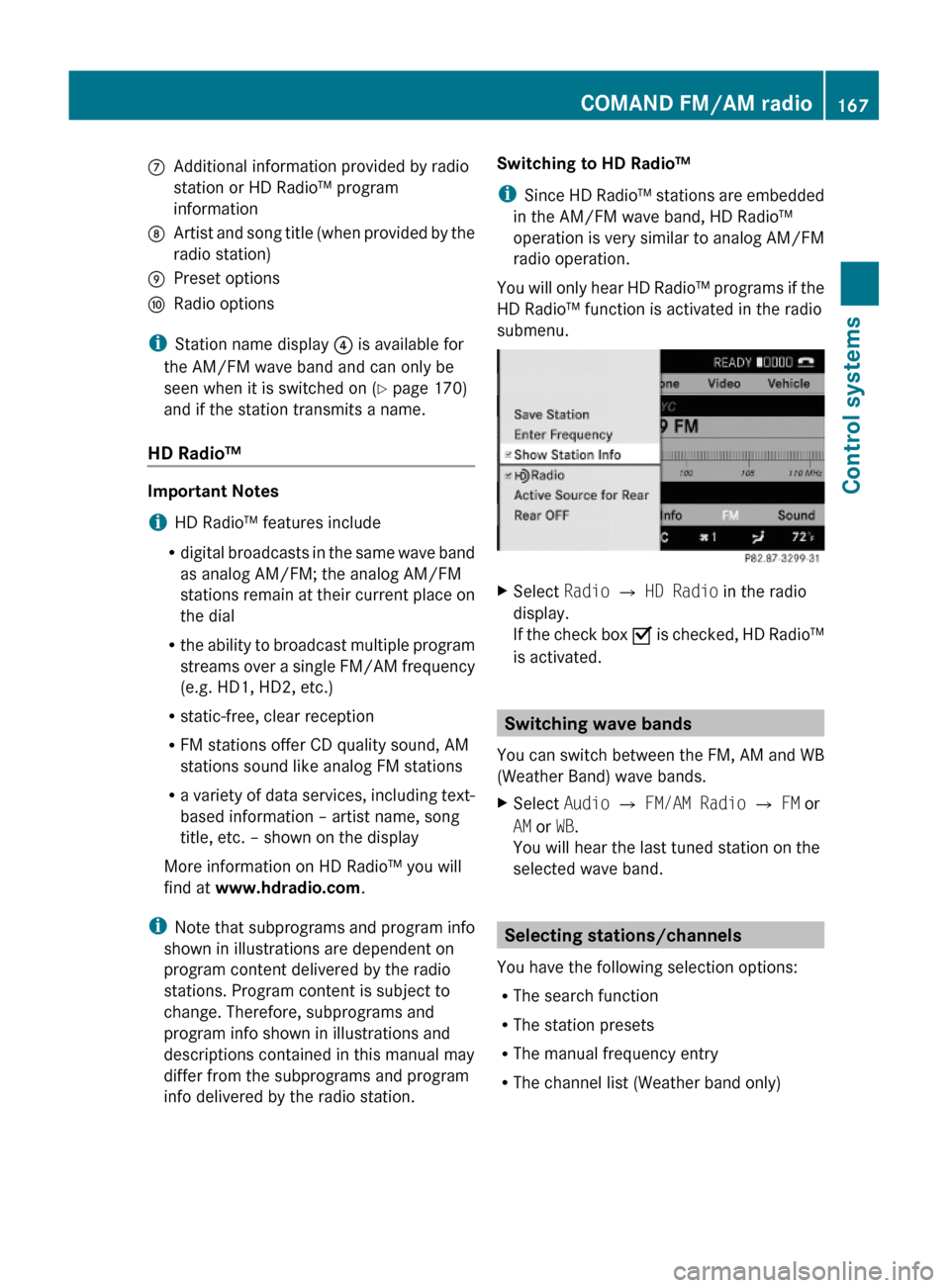
XSelect Radio £ HD Radio in the radio
display.
If the check box Ç is checked, HD Radio™
is activated.
Switching wave bands
You can switch between the FM, AM and WB
(Weather Band) wave bands.
XSelect Audio Q FM/AM Radio Q FM or
AM or WB.
You will hear the last tuned station on the
selected wave band.
Selecting stations/channels
You have the following selection options:
RThe search function
RThe station presets
RThe manual frequency entry
RThe channel list (Weather band only)
COMAND FM/AM radio167Control systems221_AKB; 6; 20, en-USd2ugruen,Version: 2.11.8.12009-09-24T13:28:17+02:00 - Seite 167Z
Page 175 of 548
service provider. Programming content is
subject to change.
Therefore, channel and categories shown
in illustrations and descriptions contained
in this manual may differ from the channels
and categories delivered by the service
provider.
Selecting program category
iThe channels are categorized. Categories
allow you to tune to stations broadcasting
a certain type of program.
Satellite radio channels are split up into
categories such as News, Sports, Rock, or
Country, if available.
XSelect Audio Q Sat. Radio Q
Category.
The category list appears.
XSelect category by rotating cVd or sliding
ZVÆ and press W.
When selecting a channel using the
channel search function or the channel list,
you have access to the channels you
subscribe to and which are included in the
selected category.
iWhen you select the category All
Channels, you have access to all the
channels you subscribe to, regardless of
category, when you are tuning in a channel
using the channel search function or the
channel list.
Tuning in channels
You have the following selection options:
Rthe channel search function
Rthe channel presets
Rthe manual channel number entry
Rthe channel list
Tuning in channels using channel
search function
iIf you try to tune in a channel when the
satellite radio service is not activated, you
will see the screen described in the section
“Satellite radio service is not activated”
(Y page 171).
XSlide XVY or rotate cVd when the main
area is selected.
Depending on the direction in which the
controller is being pressed or rotated, the
system searches upward or downward and
stops at the next receivable channel.
iWhich channels are found by the channel
search function depends on which
channels you have subscribed to and the
program category you have selected
(Y page 173).
Tuning in channels using channel
presets
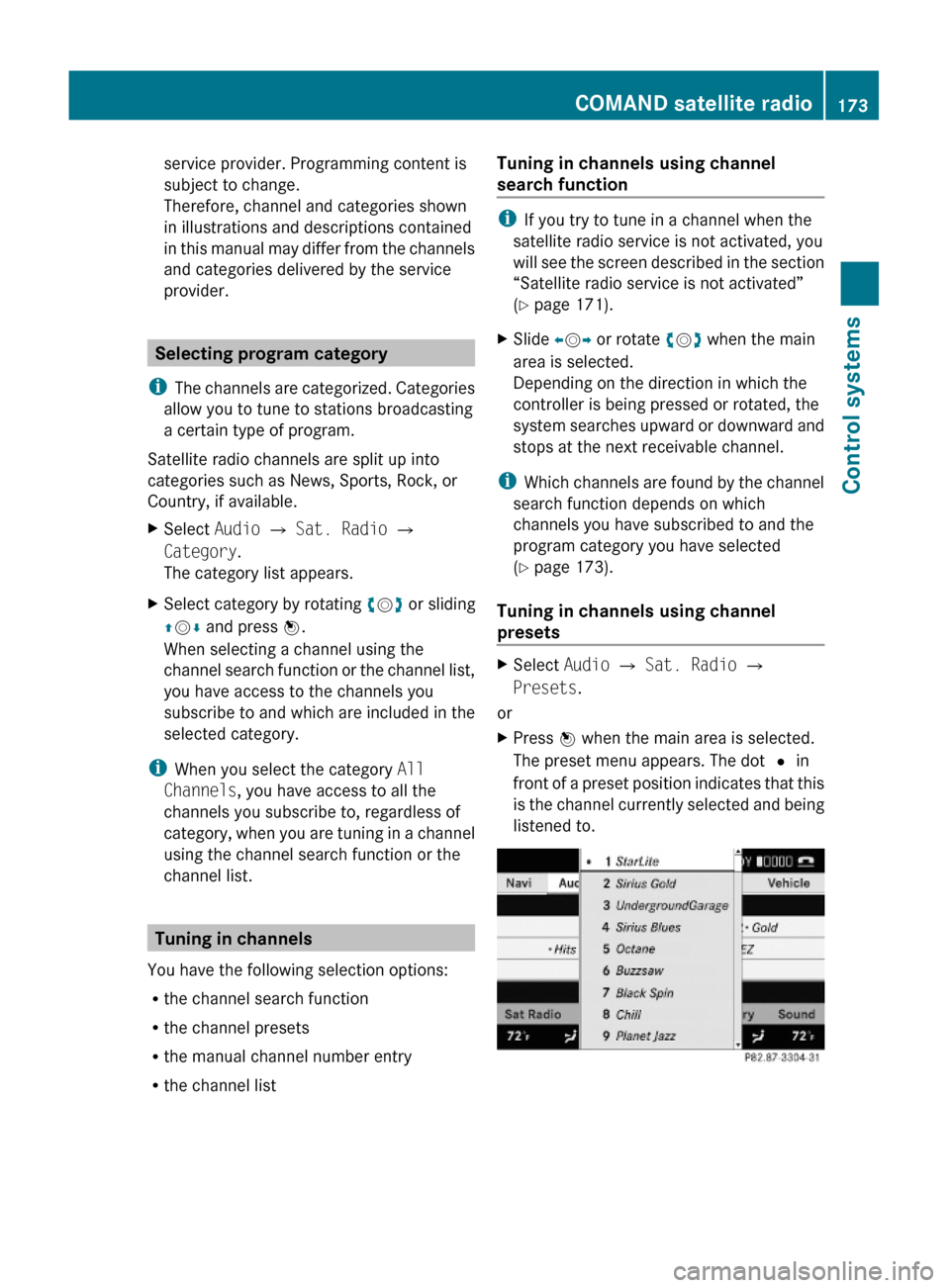
XSelect Audio Q Sat. Radio Q
Presets.
or
XPress W when the main area is selected.
The preset menu appears. The dot # in
front of a preset position indicates that this
is the channel currently selected and being
listened to.
COMAND satellite radio173Control systems221_AKB; 6; 20, en-USd2ugruen,Version: 2.11.8.12009-09-24T13:28:17+02:00 - Seite 173Z
Page 180 of 548
loss of sound quality. This applies in
particular when you have switched on 3-D
sound.
Notes on copyright
The music tracks that you create and play
back in the MP3 or WMA format are generally
subject to copyright protection in accordance
with the applicable international and national
regulations.
In many countries, reproductions are not
permitted without the prior consent of the
copyright holder, not even for private use.
Make sure that you know the applicable
copyright regulations and that you comply
with these.
If you own these rights yourself, e.g. for your
own compositions and recordings, or the
copyright holder has granted you permission,
these restrictions do not apply.
Notes about audio DVD operation
COMAND can playback commercially
available, prerecorded audio DVDs that bear
the following label. You will usually find the
label on the DVD booklet, the inlay, or the
DVD itself.
iAudio DVDs differ from recordable DVD-
R and DVD-RW discs.
Data on audio DVDs are stored either in
uncompressed format or in lossless
compressed format. The sound quality on
audio DVDs is therefore better than on
recordable DVDs that contain MP3 data
because the MP3 format uses a lossy type of
compression.
You cannot delete data from or record
additional data to commercially available,
prerecorded audio DVDs.
Please note the following information about
CDs/DVDs and pay special attention to the
notes on copied and/or self-written CDs/
DVDs.
iThe last track on many audio DVDs does
not contain audio data. COMAND will then
change to the next medium. This behavior
is system-induced and does not indicate a
system malfunction.
Notes about CDs/DVDs
iAudio CDs with copy protection are not
compatible with the CD audio standard and
therefore may not be able to be played by
COMAND.
There may be playback problems when
playing copied discs.
There is a large variety of discs, disc-writing
software and writers available. This variety
means that there is no guarantee that the
system will be able to play discs that you
have written/copied yourself.
There may be playback problems if you use
CD-R or CD-RW type discs you have copied
yourself with a storage capacity of more
than 700 MB. These CDs are not
compatible with currently applicable
standards.
! Do not affix stickers or labels to the discs.
These could peel away and damage
COMAND. COMAND is designed to hold
discs which comply with the IEC 60908
standard. You can therefore only use discs
with a maximum thickness of 1.3 mm.
If you insert thicker discs, e.g. those that
contain data on both sides (DVD on one
side and audio data on the other), they
cannot be ejected and can damage
COMAND.
Do not use CDs with a diameter of 8 cm.
Attempting to play discs with a diameter of
8 cm or playing such discs with an adapter
may cause damage COMAND.
178COMAND audio CD/audio DVD/MP3Control systems
221_AKB; 6; 20, en-USd2ugruen,Version: 2.11.8.12009-09-24T13:28:17+02:00 - Seite 178
Page 188 of 548
iThe Group menu item cannot be selected
if only one audio format is saved on the
DVD.
The list of available audio formats appears. A
dot # indicates the format currently
selected.XChanging setting: Slide ZV Æ or rotate
c V d.XExiting menu: Slide XV Y.
Playback options
The following options are available:
R Normal Track Sequence : Tracks are
played back in the order in which they are
stored on the disc, e.g. track 1, 2, 3, etc.
R Medium Mix : Tracks are played back in
random order, e.g. track 3, 8, 5, etc.
R Track List Mix (MP3 mode only): Tracks
of the current folder and its subfolders are
played back in random order.
XSelecting an option: Select Audio.XSelect CD, DVD-A or MP3 .
The option list appears. A dot # indicates
which option is switched on.XSelect an option and press W.
The option is switched on. For all options
except Normal Track Sequence , you will
see a corresponding indicator in the main
area.
i The Normal Track Sequence option is
automatically activated when you select a
different medium. If an option is activated,
it remains activated after COMAND is
switched on/off.
Audio AUX and video AUX
You can play back external audio or video
sources via the systems installed in your
vehicle.
The sockets for external audio and video
sources (AUX) are located
R in the glove box (COMAND)
R on the CD/DVD drive in the rear passenger
compartment
R on the head restraints
i For operation of the external audio and
video sources, refer to the operating
instructions of the respective device. You
may have to adjust the proper video
standard on the external audio and video
source to ensure proper replay.
Do not leave external devices in the vehicle.
Proper function of the device could be
impaired due to excessive temperatures,
for example when exposing to direct
sunlight or when the outside temperature
is extremely low. Mercedes-Benz does not
assume liability for damage to external
devices.GWarning!
Operating an external audio source while the
vehicle is in motion will distract you. You may
not notice changing road and/or traffic
conditions which may cause an accident.
Bear in mind that at a speed of just 30 mph
(approximately 50 km/h), your vehicle is
covering a distance of 44 feet (approximately
14 m) every second.
For your safety and the safety of others, pull
over to a safe location and stop before
operating an external audio source.
GWarning!
Due to the different volumes of the external
audio sources, system messages of the
vehicle may be much louder. You may need to
disable these system messages or adjust the
volume of these messages manually.
i The volume of external audio sources is
extremely variable. It is possible that a
device connected as an external audio
source will sound quieter or louder in the
186Audio AUX and video AUXControl systems
221_AKB; 6; 20, en-USd2ugruen,Version: 2.11.8.12009-09-24T13:28:17+02:00 - Seite 186
Page 193 of 548
XSelect Active Source for Rear in the
COMAND.
XSwitch to the main function COMAND in the
Rear Seat Entertainment System.
COMAND video DVD
Safety notes
GObserve Safety notes, see page 176.
Automatic picture fade-out
If a video DVD is playing when the vehicle is
shifted from park position P into neutral
position N or drive position D the picture is
faded out automatically and the following
message appears in the display: In order
not to distract driver, picture is
faded out while the vehicle is in
motion.
When the vehicle is shifted back into park
position P, the picture comes on again.
When the vehicle is shifted into reverse gear
R, the rear view camera appears in the display
during video DVD playback.
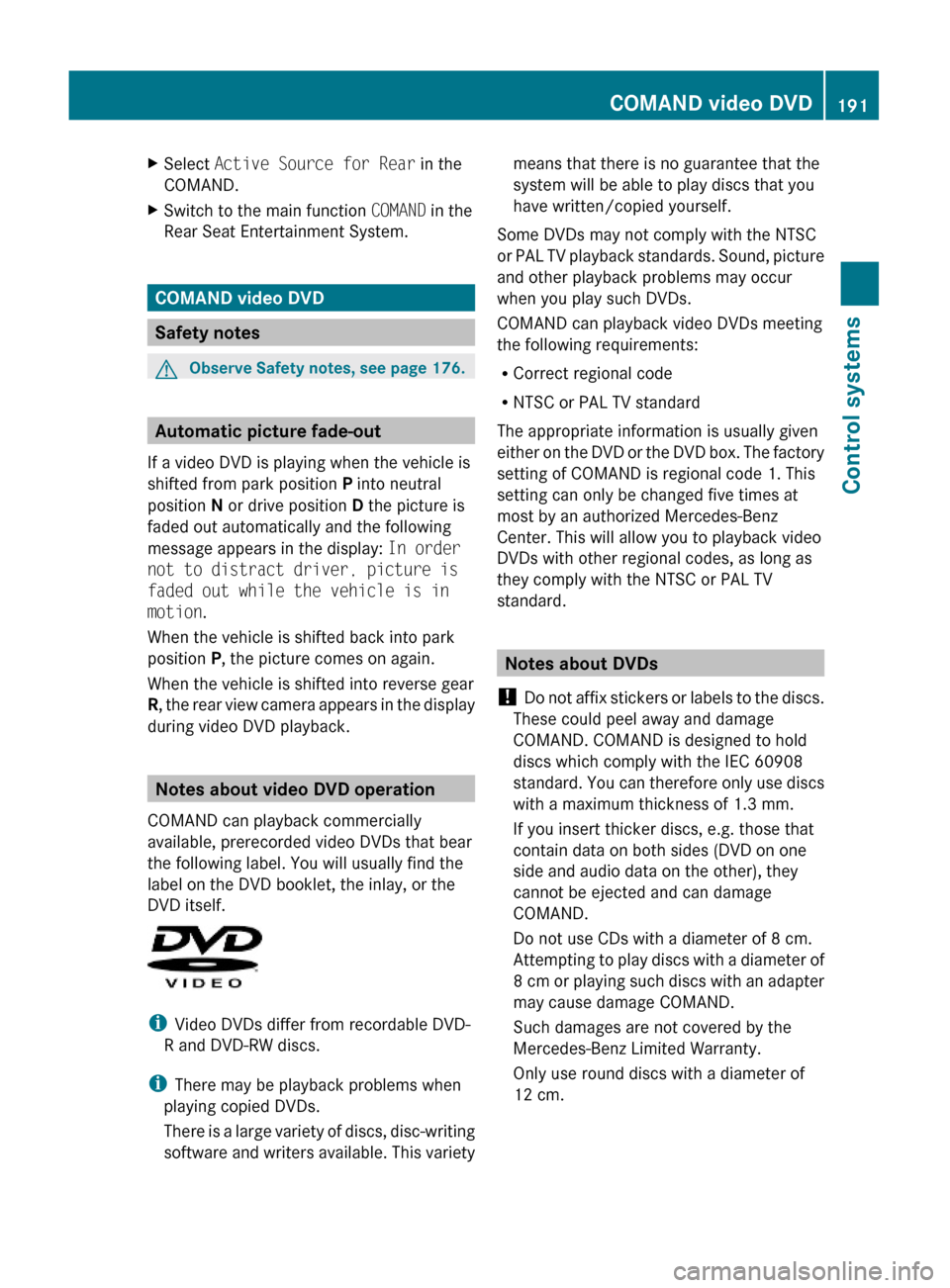
Notes about video DVD operation
COMAND can playback commercially
available, prerecorded video DVDs that bear
the following label. You will usually find the
label on the DVD booklet, the inlay, or the
DVD itself.
iVideo DVDs differ from recordable DVD-
R and DVD-RW discs.
iThere may be playback problems when
playing copied DVDs.
There is a large variety of discs, disc-writing
software and writers available. This variety
means that there is no guarantee that the
system will be able to play discs that you
have written/copied yourself.
Some DVDs may not comply with the NTSC
or PAL TV playback standards. Sound, picture
and other playback problems may occur
when you play such DVDs.
COMAND can playback video DVDs meeting
the following requirements:
RCorrect regional code
RNTSC or PAL TV standard
The appropriate information is usually given
either on the DVD or the DVD box. The factory
setting of COMAND is regional code 1. This
setting can only be changed five times at
most by an authorized Mercedes-Benz
Center. This will allow you to playback video
DVDs with other regional codes, as long as
they comply with the NTSC or PAL TV
standard.
Notes about DVDs
! Do not affix stickers or labels to the discs.
These could peel away and damage
COMAND. COMAND is designed to hold
discs which comply with the IEC 60908
standard. You can therefore only use discs
with a maximum thickness of 1.3 mm.
If you insert thicker discs, e.g. those that
contain data on both sides (DVD on one
side and audio data on the other), they
cannot be ejected and can damage
COMAND.
Do not use CDs with a diameter of 8 cm.
Attempting to play discs with a diameter of
8 cm or playing such discs with an adapter
may cause damage COMAND.
Such damages are not covered by the
Mercedes-Benz Limited Warranty.
Only use round discs with a diameter of
12 cm.
COMAND video DVD191Control systems221_AKB; 6; 20, en-USd2ugruen,Version: 2.11.8.12009-09-24T13:28:17+02:00 - Seite 191Z