Diff MERCEDES-BENZ S600 2010 W221 Owner's Guide
[x] Cancel search | Manufacturer: MERCEDES-BENZ, Model Year: 2010, Model line: S600, Model: MERCEDES-BENZ S600 2010 W221Pages: 548, PDF Size: 12.48 MB
Page 204 of 548
iDo not leave external devices in the
vehicle. Proper function of the device could
be impaired due to excessive
temperatures, for example when exposing
to direct sunlight or when the outside
temperature is extremely low. Mercedes-
Benz does not assume liability for damage
to external devices.
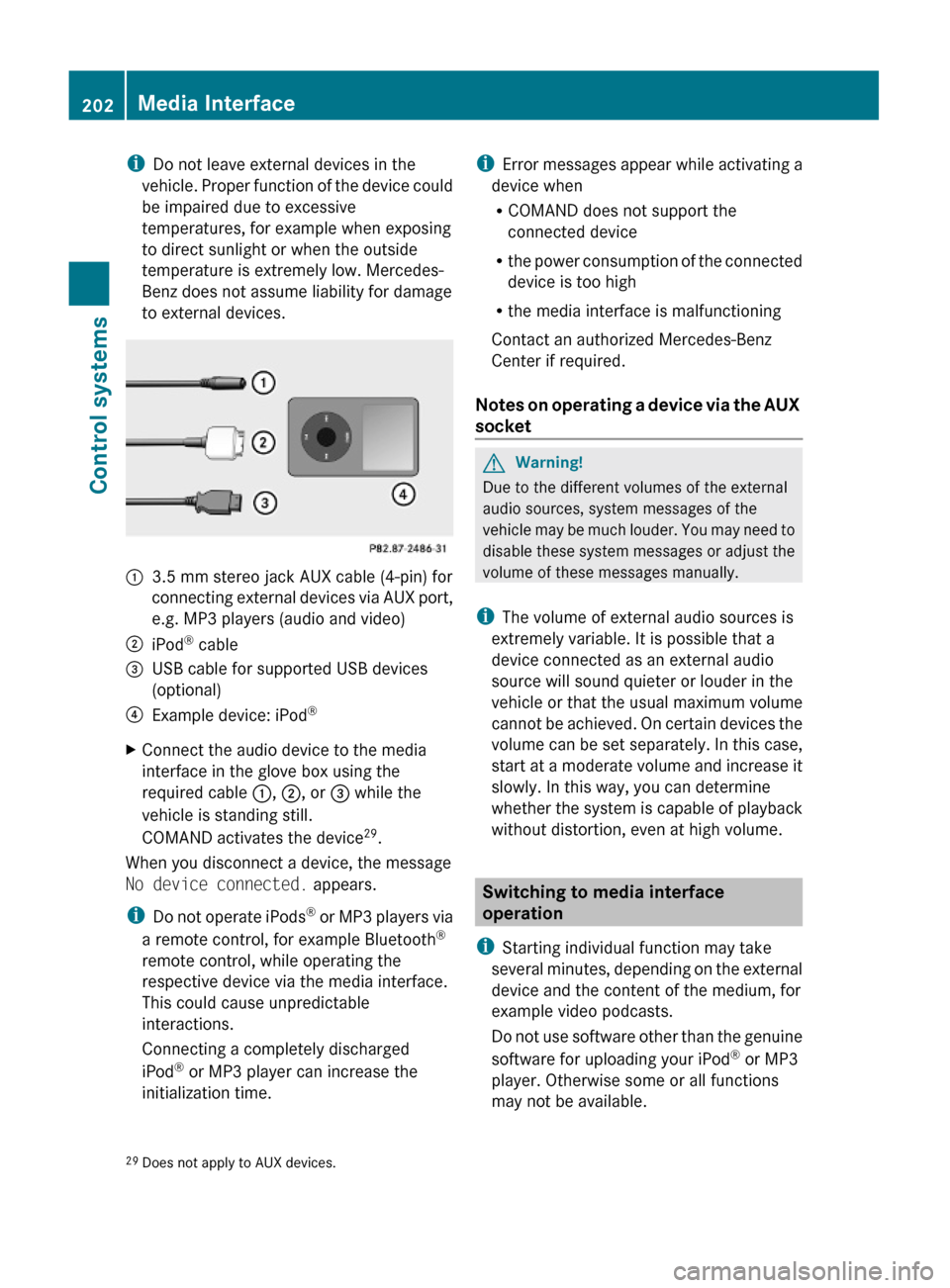
:3.5 mm stereo jack AUX cable (4-pin) for
connecting external devices via AUX port,
e.g. MP3 players (audio and video)
;iPod® cable=USB cable for supported USB devices
(optional)
?Example device: iPod®XConnect the audio device to the media
interface in the glove box using the
required cable :, ;, or = while the
vehicle is standing still.
COMAND activates the device29.
When you disconnect a device, the message
No device connected. appears.
iDo not operate iPods® or MP3 players via
a remote control, for example Bluetooth®
remote control, while operating the
respective device via the media interface.
This could cause unpredictable
interactions.
Connecting a completely discharged
iPod® or MP3 player can increase the
initialization time.
iError messages appear while activating a
device when
RCOMAND does not support the
connected device
Rthe power consumption of the connected
device is too high
Rthe media interface is malfunctioning
Contact an authorized Mercedes-Benz
Center if required.
Notes on operating a device via the AUX
socket
GWarning!
Due to the different volumes of the external
audio sources, system messages of the
vehicle may be much louder. You may need to
disable these system messages or adjust the
volume of these messages manually.
iThe volume of external audio sources is
extremely variable. It is possible that a
device connected as an external audio
source will sound quieter or louder in the
vehicle or that the usual maximum volume
cannot be achieved. On certain devices the
volume can be set separately. In this case,
start at a moderate volume and increase it
slowly. In this way, you can determine
whether the system is capable of playback
without distortion, even at high volume.
Switching to media interface
operation
iStarting individual function may take
several minutes, depending on the external
device and the content of the medium, for
example video podcasts.
Do not use software other than the genuine
software for uploading your iPod® or MP3
player. Otherwise some or all functions
may not be available.
29Does not apply to AUX devices.202Media InterfaceControl systems
221_AKB; 6; 20, en-USd2ugruen,Version: 2.11.8.12009-09-24T13:28:17+02:00 - Seite 202
Page 216 of 548
! If the air conditioning cannot be activated
again, this indicates that the air
conditioning is losing refrigerant. The
compressor has turned off.
Have the air conditioning checked at the
nearest authorized Mercedes-Benz Center.
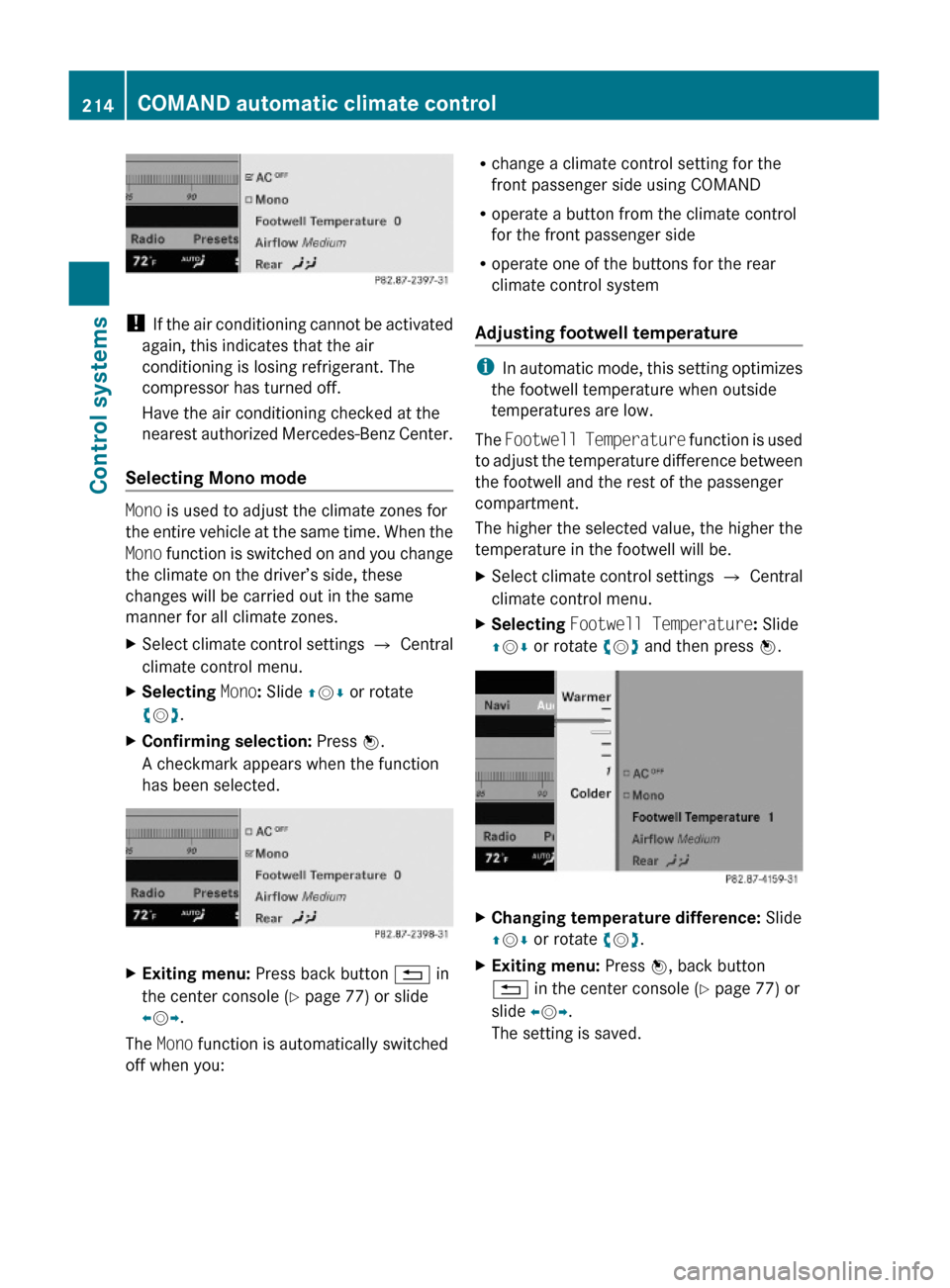
Selecting Mono mode
Mono is used to adjust the climate zones for
the entire vehicle at the same time. When the
Mono function is switched on and you change
the climate on the driver’s side, these
changes will be carried out in the same
manner for all climate zones.
XSelect climate control settings Q Central
climate control menu.
XSelecting Mono: Slide ZVÆ or rotate
cVd.
XConfirming selection: Press W.
A checkmark appears when the function
has been selected.
XExiting menu: Press back button % in
the center console (Y page 77) or slide
XVY.
The Mono function is automatically switched
off when you:
Rchange a climate control setting for the
front passenger side using COMAND
Roperate a button from the climate control
for the front passenger side
Roperate one of the buttons for the rear
climate control system
Adjusting footwell temperature
iIn automatic mode, this setting optimizes
the footwell temperature when outside
temperatures are low.
The Footwell Temperature function is used
to adjust the temperature difference between
the footwell and the rest of the passenger
compartment.
The higher the selected value, the higher the
temperature in the footwell will be.
XSelect climate control settings Q Central
climate control menu.
XSelecting Footwell Temperature: Slide
ZVÆ or rotate cVd and then press W.
XChanging temperature difference: Slide
ZVÆ or rotate cVd.
XExiting menu: Press W, back button
% in the center console (Y page 77) or
slide XVY.
The setting is saved.
214COMAND automatic climate controlControl systems
221_AKB; 6; 20, en-USd2ugruen,Version: 2.11.8.12009-09-24T13:28:17+02:00 - Seite 214
Page 217 of 548
Adjusting air flow from air vents
iIn automatic mode, this setting optimizes
the air flow when outside temperatures are
high.
The Airflow setting defines air distribution
and air volume in automatic mode:
RFocused (default setting, increased air
flow)
RMedium (reduced air flow)
RDiffuse (minimal air flow)
iWhen the interior ambient temperature of
the vehicle is very hot and the climate
control is cooling the interior, the setting
for air flow is temporarily overridden.
XSelect climate control settings Q Central
climate control menu Q Airflow.
A selection list appears.
The current setting is indicated by a
dot #.
XChanging air flow: Slide ZVÆ or rotate
cVd.
XConfirming selection: Press W.
Operating rear climate control from the
front
The RearY function is used to operate the
rear climate control via COMAND and the
rocker switches on the control panel from the
front (Y page 363).
Switching on rear climate control
operation from the front
XSelect climate control settings Q Central
climate control menu.
XSelecting RearY: Slide ZVÆ or rotate
cVd.
XConfirming selection: Press W.
In the climate control setting, Rear appears
in the central menu. The rear climate
control can be operated from the front.
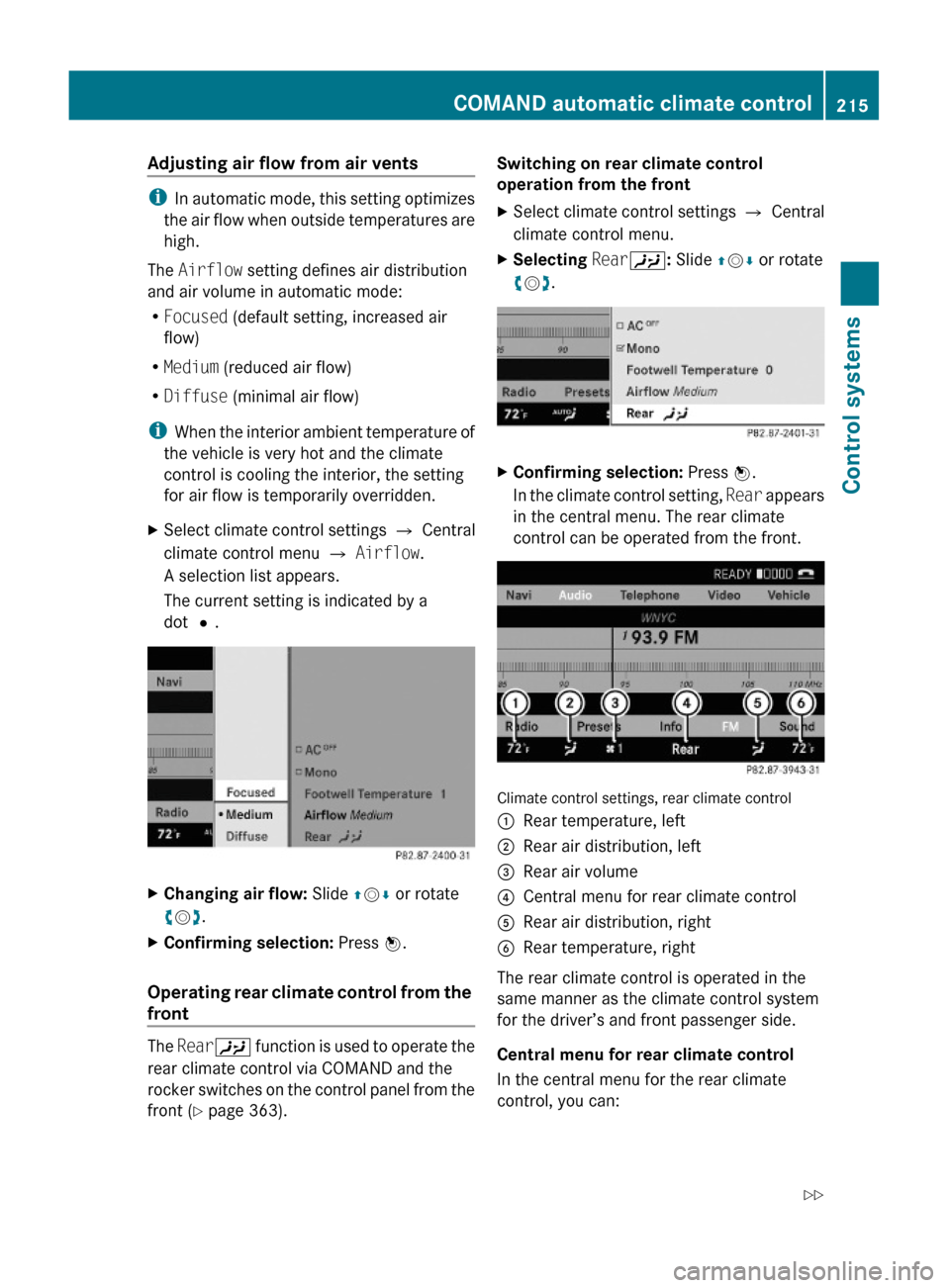
Climate control settings, rear climate control
:Rear temperature, left;Rear air distribution, left=Rear air volume?Central menu for rear climate controlARear air distribution, rightBRear temperature, right
The rear climate control is operated in the
same manner as the climate control system
for the driver’s and front passenger side.
Central menu for rear climate control
In the central menu for the rear climate
control, you can:
COMAND automatic climate control215Control systems221_AKB; 6; 20, en-USd2ugruen,Version: 2.11.8.12009-09-24T13:28:17+02:00 - Seite 215Z
Page 222 of 548
You can choose between:
R0: off
R1: level 1 (Less lateral support and slow
air pressure build-up in the air chambers
of the seat backrest side bolsters.)
R2: level 2 (Strong lateral support and fast
air pressure build-up in the air chambers
of the seat backrest side bolsters.)
XSlide ZVÆ or rotate cVd until desired
setting is reached.
XSaving setting: Press W.
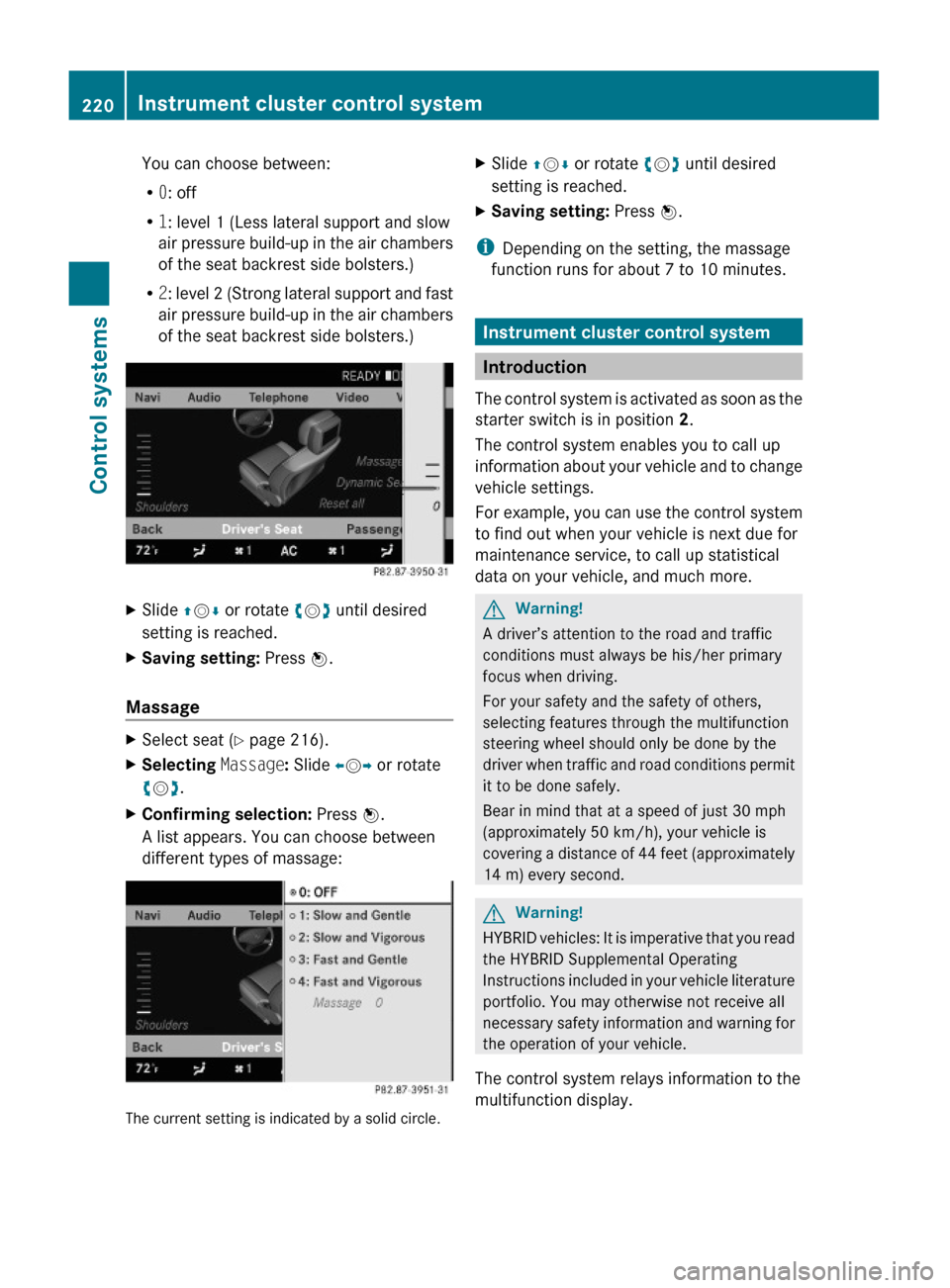
Massage
XSelect seat (Y page 216).XSelecting Massage: Slide XVY or rotate
cVd.
XConfirming selection: Press W.
A list appears. You can choose between
different types of massage:
The current setting is indicated by a solid circle.
XSlide ZVÆ or rotate cVd until desired
setting is reached.
XSaving setting: Press W.
iDepending on the setting, the massage
function runs for about 7 to 10 minutes.
Instrument cluster control system
Introduction
The control system is activated as soon as the
starter switch is in position 2.
The control system enables you to call up
information about your vehicle and to change
vehicle settings.
For example, you can use the control system
to find out when your vehicle is next due for
maintenance service, to call up statistical
data on your vehicle, and much more.
GWarning!
A driver’s attention to the road and traffic
conditions must always be his/her primary
focus when driving.
For your safety and the safety of others,
selecting features through the multifunction
steering wheel should only be done by the
driver when traffic and road conditions permit
it to be done safely.
Bear in mind that at a speed of just 30 mph
(approximately 50 km/h), your vehicle is
covering a distance of 44 feet (approximately
14 m) every second.
GWarning!
HYBRID vehicles: It is imperative that you read
the HYBRID Supplemental Operating
Instructions included in your vehicle literature
portfolio. You may otherwise not receive all
necessary safety information and warning for
the operation of your vehicle.
The control system relays information to the
multifunction display.
220Instrument cluster control systemControl systems
221_AKB; 6; 20, en-USd2ugruen,Version: 2.11.8.12009-09-24T13:28:17+02:00 - Seite 220
Page 243 of 548
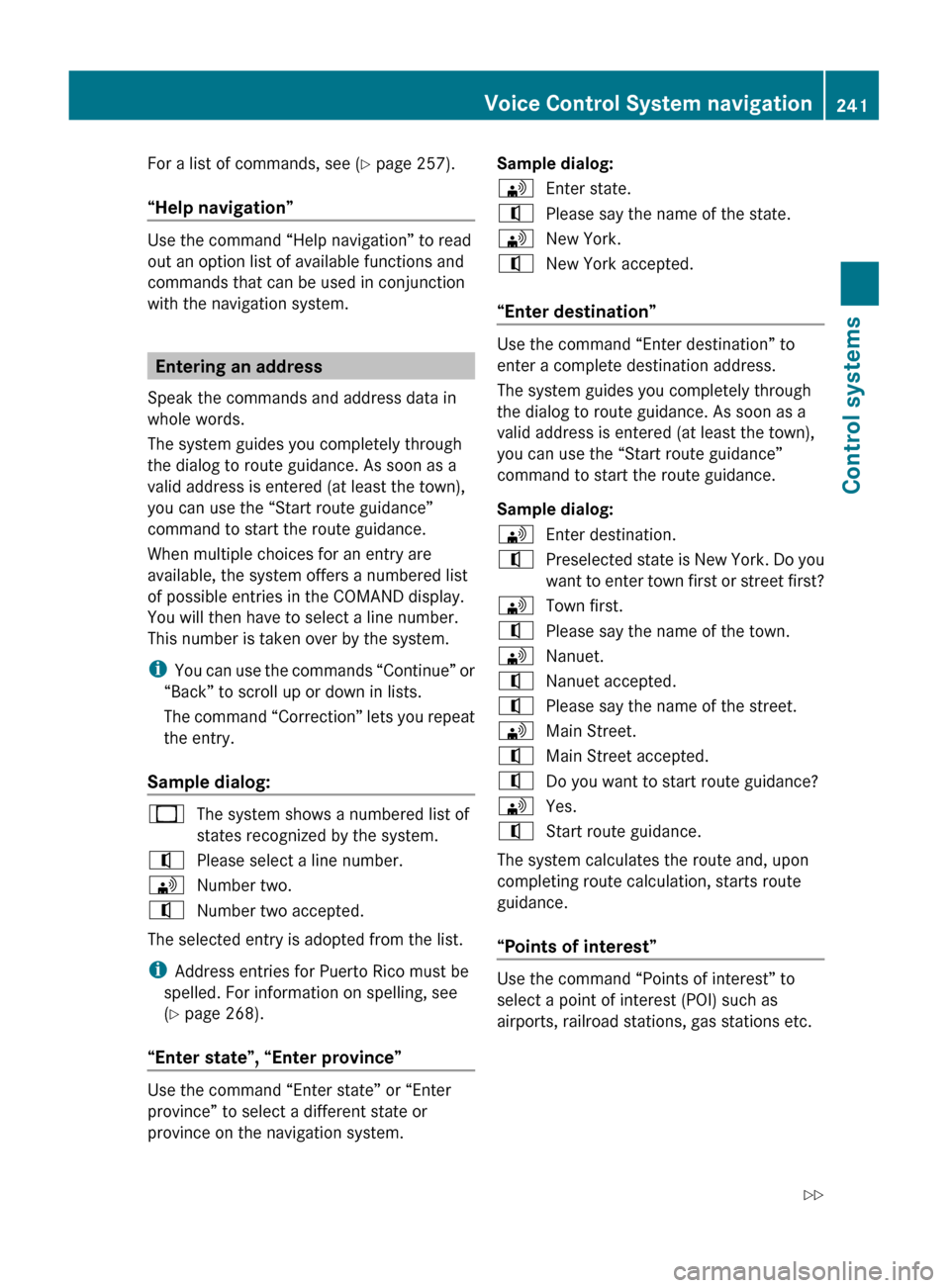
For a list of commands, see (Y page 257).
“Help navigation”
Use the command “Help navigation” to read
out an option list of available functions and
commands that can be used in conjunction
with the navigation system.
Entering an address
Speak the commands and address data in
whole words.
The system guides you completely through
the dialog to route guidance. As soon as a
valid address is entered (at least the town),
you can use the “Start route guidance”
command to start the route guidance.
When multiple choices for an entry are
available, the system offers a numbered list
of possible entries in the COMAND display.
You will then have to select a line number.
This number is taken over by the system.
i You can use the commands “Continue” or
“Back” to scroll up or down in lists.
The command “Correction” lets you repeat
the entry.
Sample dialog:
_The system shows a numbered list of
states recognized by the system.^Please select a line number.\Number two.^Number two accepted.
The selected entry is adopted from the list.
i Address entries for Puerto Rico must be
spelled. For information on spelling, see
( Y page 268).
“Enter state”, “Enter province”
Use the command “Enter state” or “Enter
province” to select a different state or
province on the navigation system.
Sample dialog:\Enter state.^Please say the name of the state.\New York.^New York accepted.
“Enter destination”
Use the command “Enter destination” to
enter a complete destination address.
The system guides you completely through
the dialog to route guidance. As soon as a
valid address is entered (at least the town),
you can use the “Start route guidance”
command to start the route guidance.
Sample dialog:
\Enter destination.^Preselected state is New York. Do you
want to enter town first or street first?\Town first.^Please say the name of the town.\Nanuet.^Nanuet accepted.^Please say the name of the street.\Main Street.^Main Street accepted.^Do you want to start route guidance?\Yes.^Start route guidance.
The system calculates the route and, upon
completing route calculation, starts route
guidance.
“Points of interest”
Use the command “Points of interest” to
select a point of interest (POI) such as
airports, railroad stations, gas stations etc.
Voice Control System navigation241Control systems221_AKB; 6; 20, en-USd2ugruen,Version: 2.11.8.12009-09-24T13:28:17+02:00 - Seite 241Z
Page 245 of 548
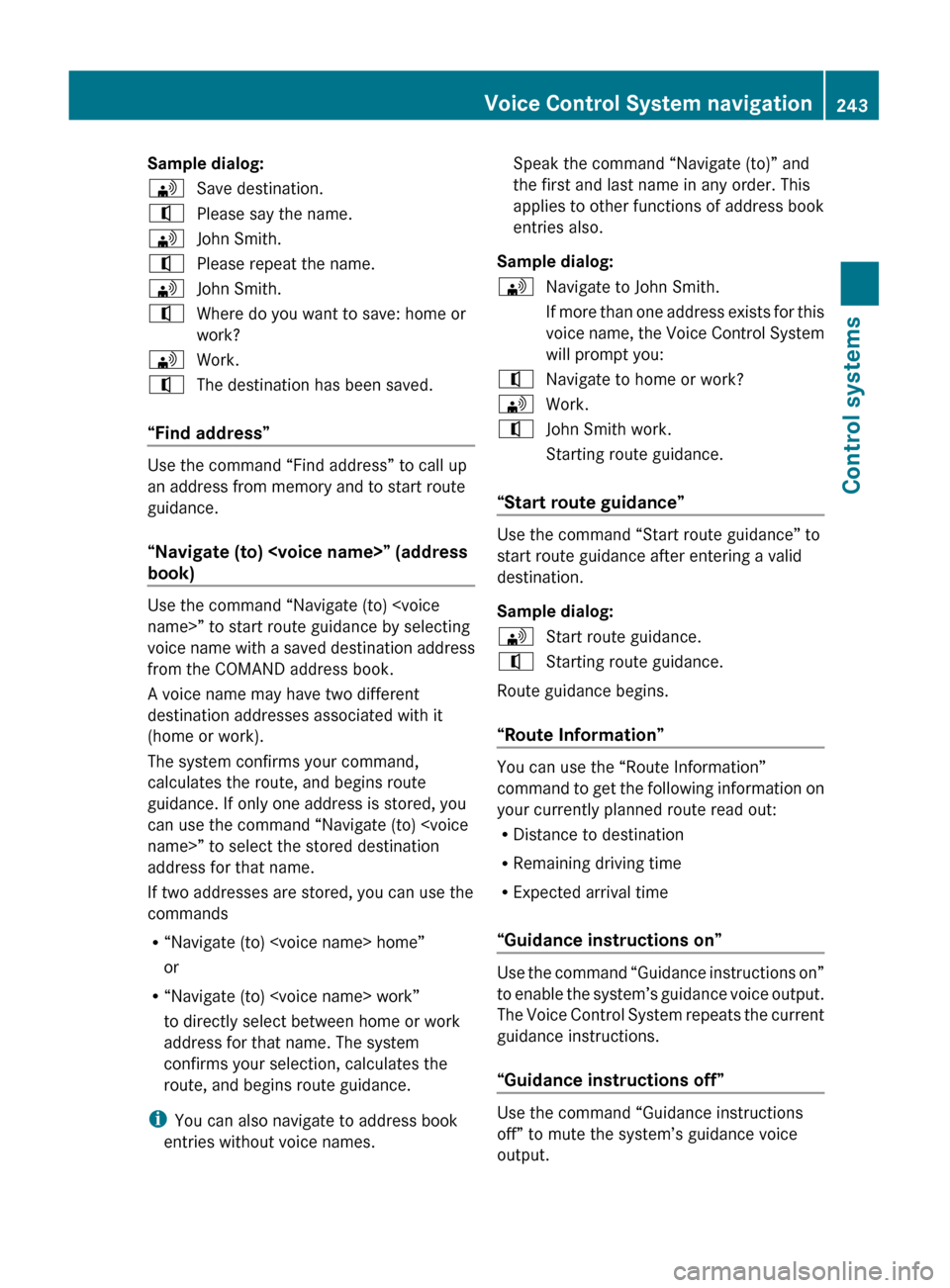
Sample dialog:\Save destination.^Please say the name.\John Smith.^Please repeat the name.\John Smith.^Where do you want to save: home or
work?\Work.^The destination has been saved.
“Find address”
Use the command “Find address” to call up
an address from memory and to start route
guidance.
“Navigate (to)
book)
Use the command “Navigate (to)
voice name with a saved destination address
from the COMAND address book.
A voice name may have two different
destination addresses associated with it
(home or work).
The system confirms your command,
calculates the route, and begins route
guidance. If only one address is stored, you
can use the command “Navigate (to)
address for that name.
If two addresses are stored, you can use the
commands
R “Navigate (to)
or
R “Navigate (to)
to directly select between home or work
address for that name. The system
confirms your selection, calculates the
route, and begins route guidance.
i You can also navigate to address book
entries without voice names.
Speak the command “Navigate (to)” and
the first and last name in any order. This
applies to other functions of address book
entries also.
Sample dialog:\Navigate to John Smith.
If more than one address exists for this
voice name, the Voice Control System
will prompt you:^Navigate to home or work?\Work.^John Smith work.
Starting route guidance.
“Start route guidance”
Use the command “Start route guidance” to
start route guidance after entering a valid
destination.
Sample dialog:
\Start route guidance.^Starting route guidance.
Route guidance begins.
“Route Information”
You can use the “Route Information”
command to get the following information on
your currently planned route read out:
R Distance to destination
R Remaining driving time
R Expected arrival time
“Guidance instructions on”
Use the command “Guidance instructions on”
to enable the system’s guidance voice output.
The Voice Control System repeats the current
guidance instructions.
“Guidance instructions off”
Use the command “Guidance instructions
off” to mute the system’s guidance voice
output.
Voice Control System navigation243Control systems221_AKB; 6; 20, en-USd2ugruen,Version: 2.11.8.12009-09-24T13:28:17+02:00 - Seite 243Z
Page 249 of 548
steering wheel instead of the concluding
command “Ok”.
“Repeat”
Using the command “Repeat” will repeat all
digits spoken up to that point. Upon repeating
the digits, the system will prompt you to
continue your input.
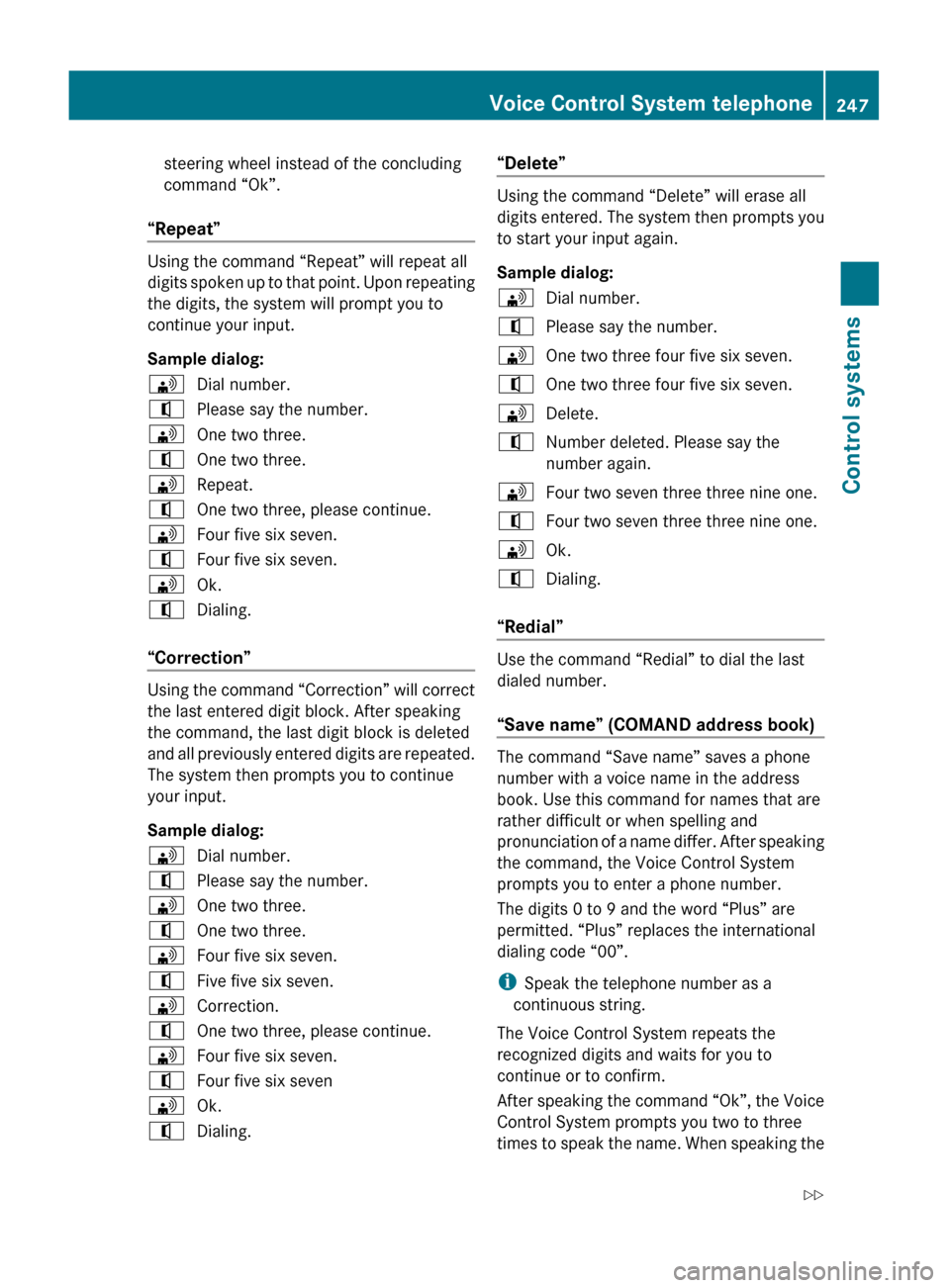
Sample dialog:
\Dial number.^Please say the number.\One two three.^One two three.\Repeat.^One two three, please continue.\Four five six seven.^Four five six seven.\Ok.^Dialing.
“Correction”
Using the command “Correction” will correct
the last entered digit block. After speaking
the command, the last digit block is deleted
and all previously entered digits are repeated.
The system then prompts you to continue
your input.
Sample dialog:
\Dial number.^Please say the number.\One two three.^One two three.\Four five six seven.^Five five six seven.\Correction.^One two three, please continue.\Four five six seven.^Four five six seven\Ok.^Dialing.“Delete”
Using the command “Delete” will erase all
digits entered. The system then prompts you
to start your input again.
Sample dialog:
\Dial number.^Please say the number.\One two three four five six seven.^One two three four five six seven.\Delete.^Number deleted. Please say the
number again.\Four two seven three three nine one.^Four two seven three three nine one.\Ok.^Dialing.
“Redial”
Use the command “Redial” to dial the last
dialed number.
“Save name” (COMAND address book)
The command “Save name” saves a phone
number with a voice name in the address
book. Use this command for names that are
rather difficult or when spelling and
pronunciation of a name differ. After speaking
the command, the Voice Control System
prompts you to enter a phone number.
The digits 0 to 9 and the word “Plus” are
permitted. “Plus” replaces the international
dialing code “00”.
i Speak the telephone number as a
continuous string.
The Voice Control System repeats the
recognized digits and waits for you to
continue or to confirm.
After speaking the command “Ok”, the Voice
Control System prompts you two to three
times to speak the name. When speaking the
Voice Control System telephone247Control systems221_AKB; 6; 20, en-USd2ugruen,Version: 2.11.8.12009-09-24T13:28:17+02:00 - Seite 247Z
Page 250 of 548
name for the second time, make sure to
pronounce it the same as the first time.
Otherwise the name cannot be saved and the
Voice Control System aborts saving.
After the command “Ok”, you will be
prompted up to two times to input the name.
When repeating the name, make sure that you
pronounce it in the same manner as during
the first input. Otherwise the name cannot be
saved and the Voice Control System cancels
the save procedure.
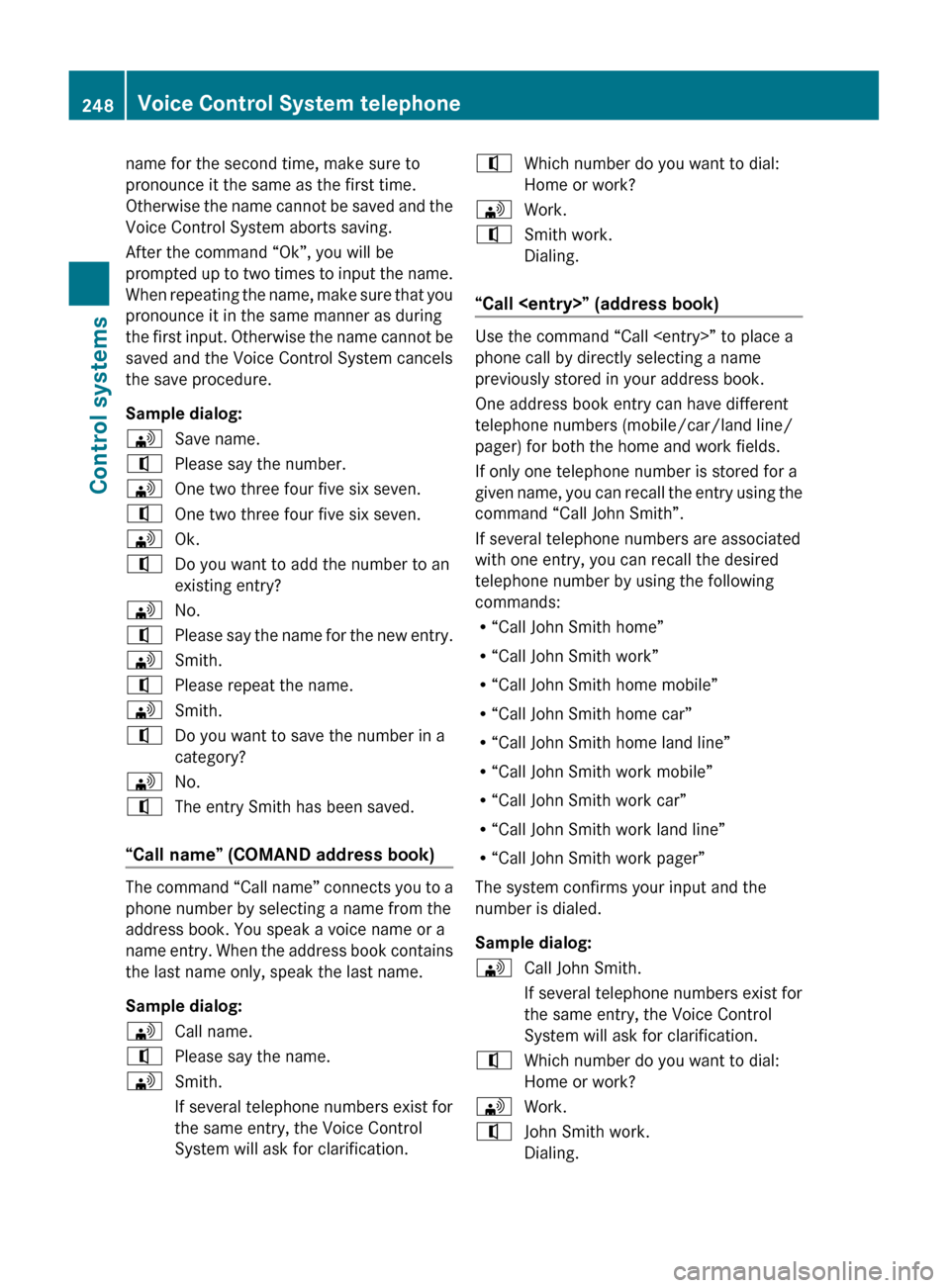
Sample dialog:\Save name.^Please say the number.\One two three four five six seven.^One two three four five six seven.\Ok.^Do you want to add the number to an
existing entry?\No.^Please say the name for the new entry.\Smith.^Please repeat the name.\Smith.^Do you want to save the number in a
category?\No.^The entry Smith has been saved.
“Call name” (COMAND address book)
The command “Call name” connects you to a
phone number by selecting a name from the
address book. You speak a voice name or a
name entry. When the address book contains
the last name only, speak the last name.
Sample dialog:
\Call name.^Please say the name.\Smith.
If several telephone numbers exist for
the same entry, the Voice Control
System will ask for clarification.^Which number do you want to dial:
Home or work?\Work.^Smith work.
Dialing.
“Call
Use the command “Call
phone call by directly selecting a name
previously stored in your address book.
One address book entry can have different
telephone numbers (mobile/car/land line/
pager) for both the home and work fields.
If only one telephone number is stored for a
given name, you can recall the entry using the
command “Call John Smith”.
If several telephone numbers are associated
with one entry, you can recall the desired
telephone number by using the following
commands:
R “Call John Smith home”
R “Call John Smith work”
R “Call John Smith home mobile”
R “Call John Smith home car”
R “Call John Smith home land line”
R “Call John Smith work mobile”
R “Call John Smith work car”
R “Call John Smith work land line”
R “Call John Smith work pager”
The system confirms your input and the
number is dialed.
Sample dialog:
\Call John Smith.
If several telephone numbers exist for
the same entry, the Voice Control
System will ask for clarification.^Which number do you want to dial:
Home or work?\Work.^John Smith work.
Dialing.248Voice Control System telephoneControl systems
221_AKB; 6; 20, en-USd2ugruen,Version: 2.11.8.12009-09-24T13:28:17+02:00 - Seite 248
Page 252 of 548
accident in which you or others could be
injured.
COMAND address book overview
The address book lets you store voice names
in address book entries.
You can dial a phone number from the
address book or start route guidance to a
stored address via the Voice Control System.
In addition to the voice names, the Voice
Control System can also recognize all entries
in the name fields of the address book.
Check address book entries for the following:
R Name entries such as first and last name
are in the correct field.
R Do not use abbreviations or short forms,
e.g. acronyms.
R Avoid unnecessary blanks within the name
R Do not use special characters.
You can improve the voice recognition by
adding a voice name to an address book
entry.
Use a voice name
R with names that are difficult to pronounce
R to differentiate names that sound similar
R with names that are pronounced
significantly different from the way they are
spelled
You can store voice names for up to 50
address book entries.
Adressbook operation
You can use the Voice Control System to
R store a name
R select a name
R delete a name
R have the system read the address book to
you
R have the system read the destination
memory to you ( Y page 244)
R delete the address book
R open the address book
R open an entry in the address book
R have the system read the phone book to
you ( Y page 249)XPress button ? on the multifunction
steering wheel.XSpeak the command “Address book”.XPress button ? on the multifunction
steering wheel.XSpeak one of the following address book
commands.
Adressbook commands
For a list of commands, see ( Y page 257).
“Help address book”
Use the command “Help address book” to
have the system read the most important
commands for the address book to you.
“Save name”
For information on “Save name”, see
( Y page 247).
“Call name”
For information on “Call name”, see
( Y page 248).
“Call
For information on “Call
( Y page 248).
“Find address”
For information on “Find address”, see
( Y page 243).
250Voice Control System address bookControl systems
221_AKB; 6; 20, en-USd2ugruen,Version: 2.11.8.12009-09-24T13:28:17+02:00 - Seite 250
Page 254 of 548
iThe list is displayed only when the
address book contains a very small number
of entries. When the address book contains
several entries, the Voice Control System
prompts you to speak a name.
You can also use the commands “Open
John Smith”, “Open Smith John”, or “Open
entry directly.
Voice Control System radio
Safety notes
GWarning!
Please devote your attention first and
foremost to the traffic situation you are in.
Before your journey, please familiarize
yourself with the radio functions.
Only use the Voice Control System when road
and traffic conditions permit you to do so.
Otherwise you could be involved in an
accident in which you or others could be
injured.
Radio operation
You can use the Voice Control System to
R select a station
R find a station
R select a frequency (FM, AM)
R select a category (satellite radio)
R select the wave band (FM, AM or weather
band)
R reading out the Presets
R switch to satellite radio
R switch to HD Radio™
R save a voice name for a station
R delete a station list (voice names only)
R delete a station (voice name only)
R select a channel number (satellite radio)
The names of all received and stored stations
are available for voice recognition. To
improve voice recognition, you can store a
voice name for a specific speaker.XTo select the radio or satellite radio
application: Press button ? button on
the multifunction steering wheel.XSay the command “Radio” or “Satellite
Radio”.XPress button ?.XSay one of the radio or satellite radio
commands explained below.
Radio commands
For a list of commands, see ( Y page 257).
You can always give the commands for the
radio when you are listening to the radio, even
if a different application is shown on the
display.
“Help Radio”
Using the “Help Radio” command, the Voice
Control System asks “For which radio
functions do you want help?”. It then reads
out a list of topics.
“Help Satellite Radio”
Using the “Help Satellite Radio” command,
the Voice Control System asks “For which
radio functions do you want help?”. It then
reads out a list of topics.
“Help HD Radio”
Using the “Help HD Radio” command, you can
have all the commands for the HD Radio™
read out.
252Voice Control System radioControl systems
221_AKB; 6; 20, en-USd2ugruen,Version: 2.11.8.12009-09-24T13:28:17+02:00 - Seite 252