audio MERCEDES-BENZ SL-Class 2015 R131 Owner's Guide
[x] Cancel search | Manufacturer: MERCEDES-BENZ, Model Year: 2015, Model line: SL-Class, Model: MERCEDES-BENZ SL-Class 2015 R131Pages: 610, PDF Size: 12.21 MB
Page 293 of 610
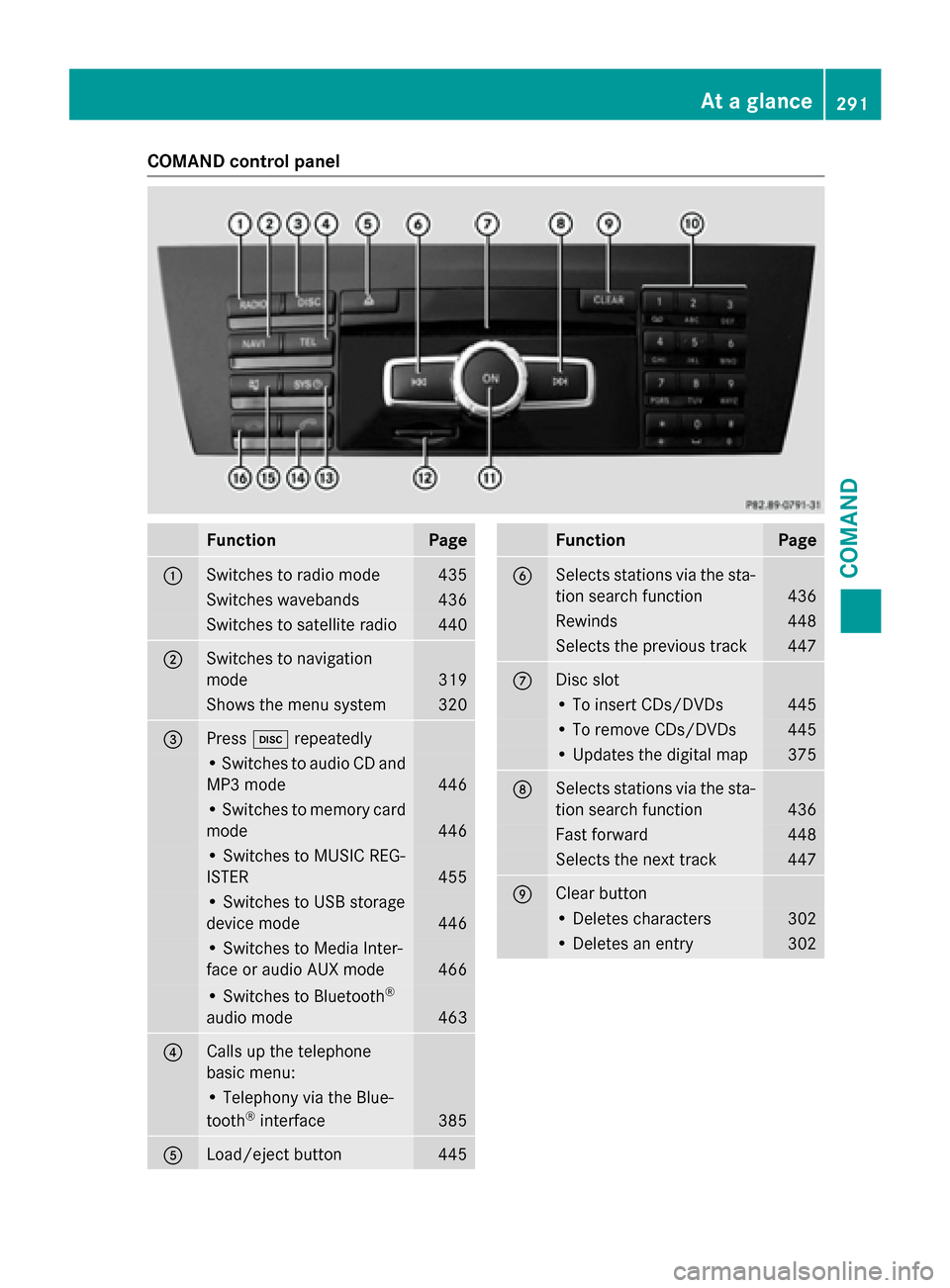
COMAND control panel
Function Page
0043
Switches to radio mode 435
Switches wavebands 436
Switches to satellite radio 440
0044
Switches to navigation
mode 319
Shows the menu system 320
0087
Press
003Arepeatedly • Switches to audio CD and
MP3 mode 446
• Switches to memory card
mode 446
• Switches to MUSIC REG-
ISTER
455
• Switches to USB storage
device mode
446
• Switches to Media Inter-
face or audio AUX mode
466
• Switches to Bluetooth
®
audio mode 463
0085
Calls up the telephone
basic menu: • Telephony via the Blue-
tooth ®
interface 385
0083
Load/eject button 445 Function Page
0084
Selects stations via the sta-
tion search function 436
Rewinds 448
Selects the previous track 447
006B
Disc slot
• To insert CDs/DVDs 445
• To remove CDs/DVDs 445
• Updates the digital map 375
006C
Selects stations via the sta-
tion search function 436
Fast forward 448
Selects the next track 447
006D
Clear button
• Deletes characters 302
• Deletes an entry 302At a glance
291COMAND Z
Page 296 of 610
Using COMAND
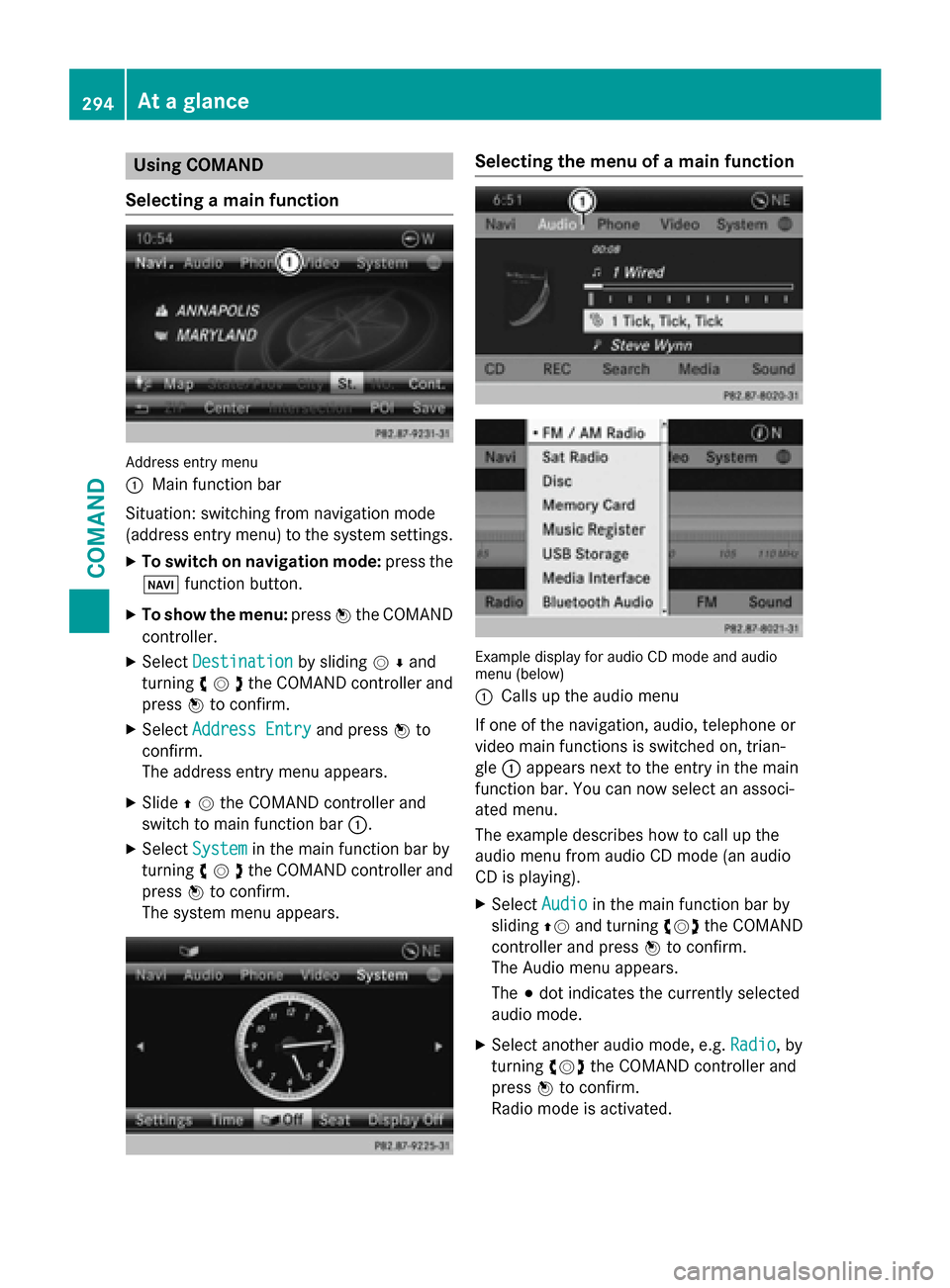
Selecting a main function Address entry menu
0043 Main function bar
Situation: switching from navigation mode
(address entry menu) to the system settings.
X To switch on navigation mode: press the
00BE function button.
X To show the menu: press0098the COMAND
controller.
X Select Destination Destination by sliding00520064and
turning 00790052007Athe COMAND controller and
press 0098to confirm.
X Select Address Entry
Address Entry and press0098to
confirm.
The address entry menu appears.
X Slide 00970052the COMAND controller and
switch to main function bar 0043.
X Select System
System in the main function bar by
turning 00790052007Athe COMAND controller and
press 0098to confirm.
The system menu appears. Selecting the menu of a main function
Example display for audio CD mode and audio
menu (below)
0043
Calls up the audio menu
If one of the navigation, audio, telephone or
video main functions is switched on, trian-
gle 0043appears next to the entry in the main
function bar. You can now select an associ-
ated menu.
The example describes how to call up the
audio menu from audio CD mode (an audio
CD is playing).
X Select Audio Audioin the main function bar by
sliding 00970052and turning 00790052007Athe COMAND
controller and press 0098to confirm.
The Audio menu appears.
The 003Bdot indicates the currently selected
audio mode.
X Select another audio mode, e.g. Radio Radio, by
turning 00790052007Athe COMAND controller and
press 0098to confirm.
Radio mode is activated. 294
At a glanceCOMAND
Page 297 of 610
Selecting a menu item
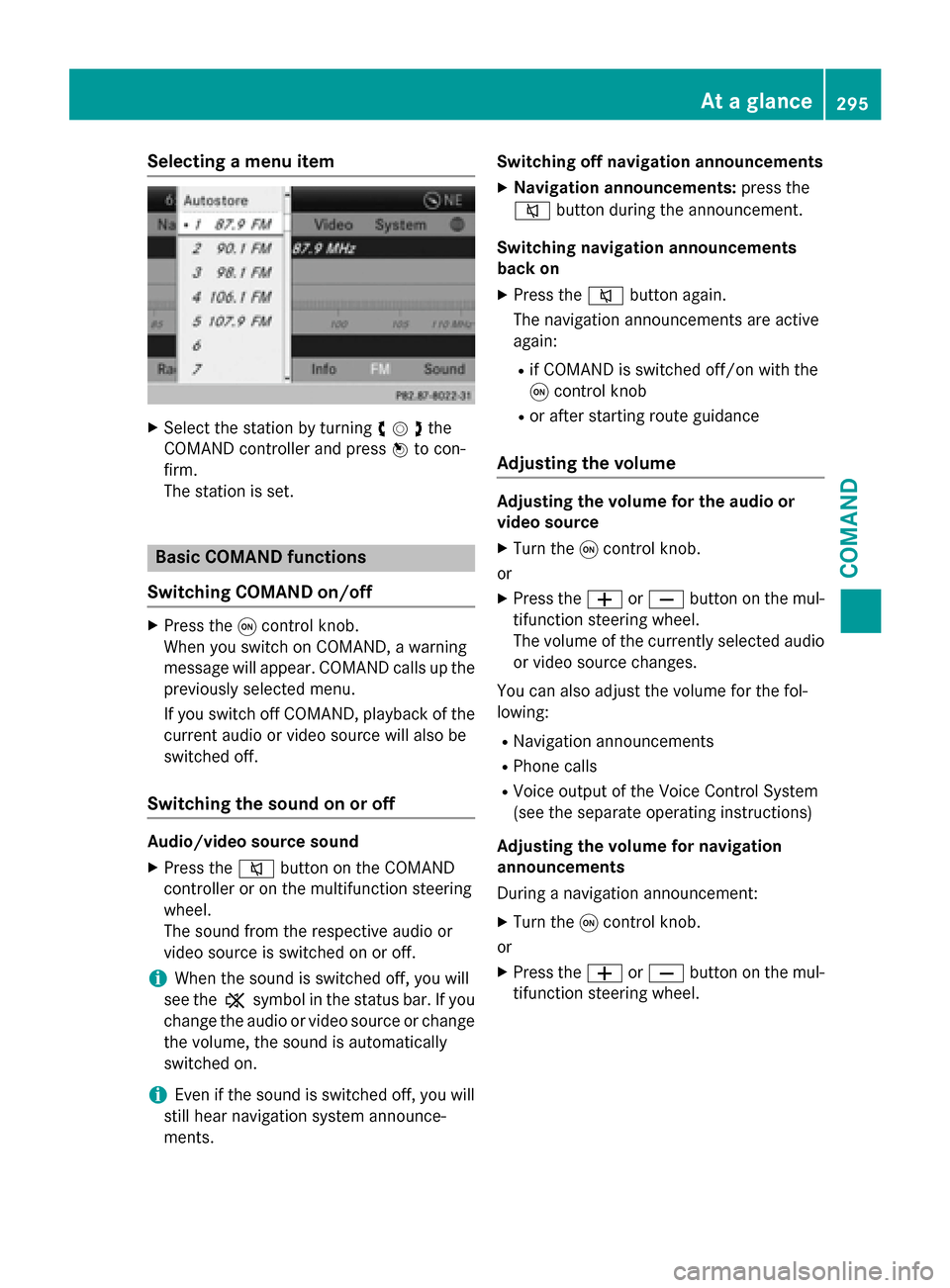
X
Select the station by turning 00790052007Athe
COMAND controller and press 0098to con-
firm.
The station is set. Basic COMAND functions
Switching COMAND on/off X
Press the 0043control knob.
When you switch on COMAND, a warning
message will appear. COMAND calls up the
previously selected menu.
If you switch off COMAND, playback of the current audio or video source will also be
switched off.
Switching the sound on or off Audio/video source sound
X Press the 0063button on the COMAND
controller or on the multifunction steering
wheel.
The sound from the respective audio or
video source is switched on or off.
i When the sound is switched off, you will
see the 006Bsymbol in the status bar. If you
change the audio or video source or change
the volume, the sound is automatically
switched on.
i Even if the sound is switched off, you will
still hear navigation system announce-
ments. Switching off navigation announcements
X Navigation announcements: press the
0063 button during the announcement.
Switching navigation announcements
back on
X Press the 0063button again.
The navigation announcements are active
again:
R if COMAND is switched off/on with the
0043 control knob
R or after starting route guidance
Adjusting the volume Adjusting the volume for the audio or
video source
X Turn the 0043control knob.
or X Press the 0081or0082 button on the mul-
tifunction steering wheel.
The volume of the currently selected audio
or video source changes.
You can also adjust the volume for the fol-
lowing: R Navigation announcements
R Phone calls
R Voice output of the Voice Control System
(see the separate operating instructions)
Adjusting the volume for navigation
announcements
During a navigation announcement:
X Turn the 0043control knob.
or
X Press the 0081or0082 button on the mul-
tifunction steering wheel. At a glance
295COMAND Z
Page 298 of 610
Adjusting the volume for phone calls
You can adjust the volume for hands-free
mode during a telephone call.
X Turn the 0043control knob.
or X Press the 0081or0082 button on the mul-
tifunction steering wheel.
Adjusting the sound settings Calling up the sound menu
You can make various sound settings for the
different audio and video sources. This means
that it is possible to set more bass for radio
mode than for audio CD mode, for example.
You can call up the respective sound menu
from the menu of the desired mode.
The example describes how to call up the
sound menu in radio mode.
X Press the 002Abutton.
The radio display appears. You will hear the
last station played on the last waveband.
X Select Sound
Sound by sliding 00520064and turning
00790052007A the COMAND controller and press 0098
to confirm.
You can now set the treble, bass and bal-
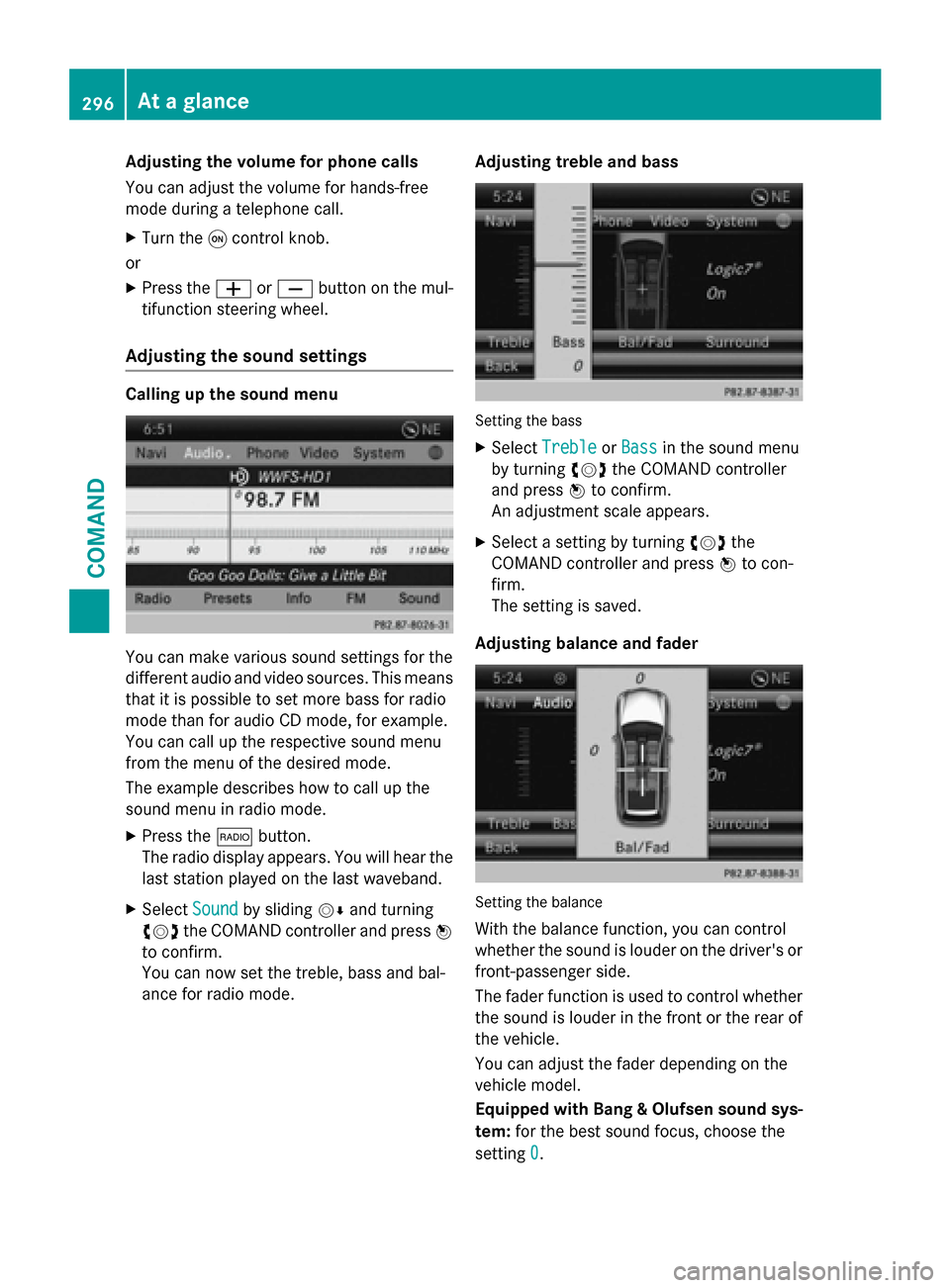
ance for radio mode. Adjusting treble and bass Setting the bass
X Select Treble Treble orBass
Bass in the sound menu
by turning 00790052007Athe COMAND controller
and press 0098to confirm.
An adjustment scale appears.
X Select a setting by turning 00790052007Athe
COMAND controller and press 0098to con-
firm.
The setting is saved.
Adjusting balance and fader Setting the balance
With the balance function, you can control
whether the sound is louder on the driver's or front-passenger side.
The fader function is used to control whether
the sound is louder in the front or the rear of the vehicle.
You can adjust the fader depending on the
vehicle model.
Equipped with Bang & Olufsen sound sys-
tem: for the best sound focus, choose the
setting 0 0. 296
At a glanceCOMAND
Page 299 of 610
X
Select Bal/Fad
Bal/Fad (balance/fader) in the
sound menu by turning 00790052007Athe COMAND
controller and press 0098to confirm.
X Select a balance setting by sliding 009500520096the
COMAND controller and press 0098to con-
firm.
Surround General notes
If your vehicle is equipped with surround
sound, you can use one of two sound sys-
tems:
R harman/kardon ®
Logic 7 ®
Surround
Sound system
The harman/kardon ®
Logic 7 ®
Surround
Sound system allows you to set the opti-
mum surround sound in the vehicle interior
(Y page 297).
R Bang & Olufsen sound system
(Y page 298)
Both sound systems are available for the fol-
lowing operating modes:
R radio (FM only)
R Satellite radio
R audio CD
R MP3 (including SD memory card and USB
storage device)
R Media Interface
R Bluetooth ®
audio mode
R video DVD (PCM, dts and Dolby Digital
audio formats)
R AUX
Because some DVDs contain both stereo and multichannel audio formats, it may be neces-
sary to set the audio format (Y page 477).
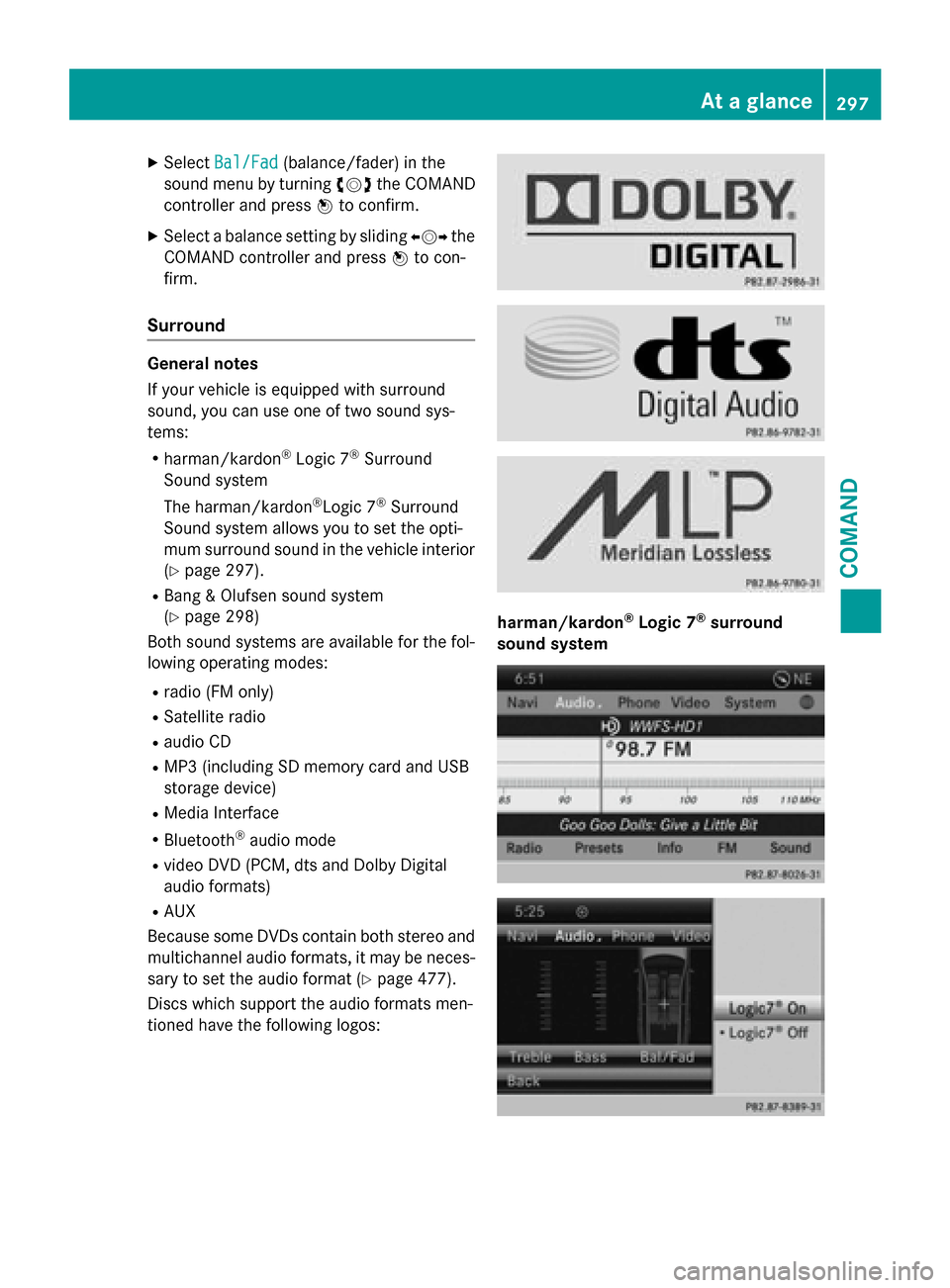
Discs which support the audio formats men-
tioned have the following logos: harman/kardon
®
Logic 7 ®
surround
sound system At a glance
297COMAND Z
Page 300 of 610
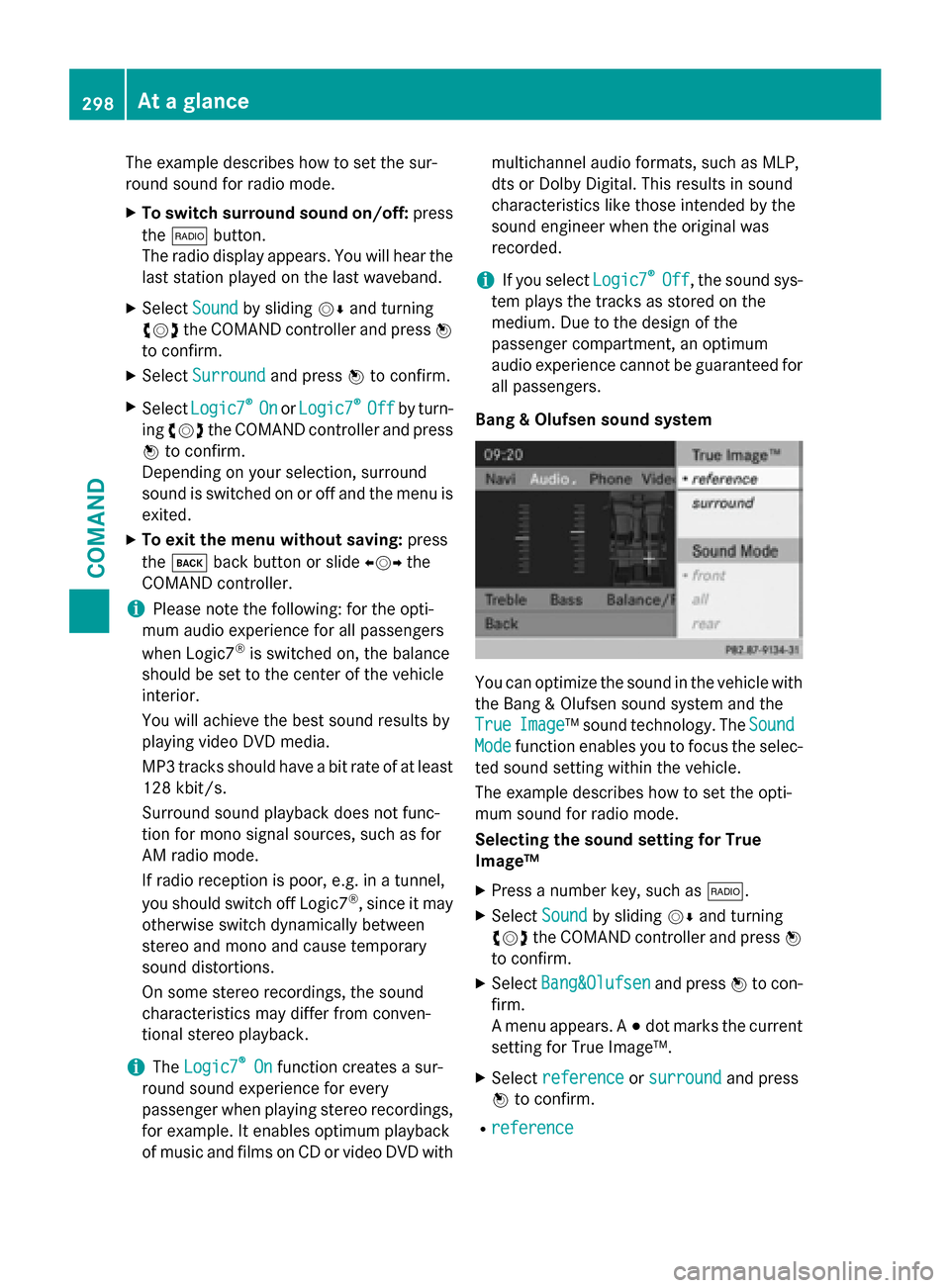
The example describes how to set the sur-
round sound for radio mode.
X To switch surround sound on/off: press
the 002A button.
The radio display appears. You will hear the
last station played on the last waveband.
X Select Sound
Soundby sliding 00520064and turning
00790052007A the COMAND controller and press 0098
to confirm.
X Select Surround
Surround and press0098to confirm.
X Select Logic7
Logic7 ®
®
On
On orLogic7
Logic7 ®
®
Off
Off by turn-
ing 00790052007A the COMAND controller and press
0098 to confirm.
Depending on your selection, surround
sound is switched on or off and the menu is
exited.
X To exit the menu without saving: press
the 003D back button or slide 009500520096the
COMAND controller.
i Please note the following: for the opti-
mum audio experience for all passengers
when Logic7 ®
is switched on, the balance
should be set to the center of the vehicle
interior.
You will achieve the best sound results by
playing video DVD media.
MP3 tracks should have a bit rate of at least
128 kbit/ s.
Surround sound playback does not func-
tion for mono signal sources, such as for
AM radio mode.
If radio reception is poor, e.g. in a tunnel,
you should switch off Logic7 ®
, since it may
otherwise switch dynamically between
stereo and mono and cause temporary
sound distortions.
On some stereo recordings, the sound
characteristics may differ from conven-
tional stereo playback.
i The
Logic7 Logic7 ®
®
On
On function creates a sur-
round sound experience for every
passenger when playing stereo recordings, for example. It enables optimum playback
of music and films on CD or video DVD with multichannel audio formats, such as MLP,
dts or Dolby Digital. This results in sound
characteristics like those intended by the
sound engineer when the original was
recorded.
i If you select
Logic7 Logic7®
®
Off
Off , the sound sys-
tem plays the tracks as stored on the
medium. Due to the design of the
passenger compartment, an optimum
audio experience cannot be guaranteed for
all passengers.
Bang & Olufsen sound system You can optimize the sound in the vehicle with
the Bang & Olufsen sound system and the
True True Image
Image™ sound technology. The Sound
Sound
Mode
Mode function enables you to focus the selec-
ted sound setting within the vehicle.
The example describes how to set the opti-
mum sound for radio mode.
Selecting the sound setting for True
Image™
X Press a number key, such as 002A.
X Select Sound Soundby sliding 00520064and turning
00790052007A the COMAND controller and press 0098
to confirm.
X Select Bang&Olufsen
Bang&Olufsen and press0098to con-
firm.
A menu appears. A 003Bdot marks the current
setting for True Image™.
X Select reference reference orsurround
surround and press
0098 to confirm.
R reference
reference 298
At a glanceCOMAND
Page 306 of 610

You can connect your own headphones to a
special headphones jack. You can use the
remote control to operate them.
Points to remember R
You can only adjust the volume for the
headphones supplied, directly on the head-
phones.
R Only entertainment functions, i.e. audio,
TV, video and Internet, for example, may be used with SPLITVIEW.
R Different media can be used on the driver
and front-passenger sides as long as they
use different media sources. Example: if a
medium from the single DVD drive is being
played on the driver's side, then another
medium that is also played from the single
DVD drive cannot be played separately on
the front-passenger side. However, other
media can be used at the same time on the
front-passenger side, including radio,
memory card, MUSIC REGISTER, Media
Interface, USB or AUX.
R If you use the same medium on both sides,
you can both carry out the respective set-
tings.
R Internet use is only available at any one
time to the driver or the front passenger.
A corresponding message appears on the
display.
R Internet can only be used, if it is set and
connected via a telephone on the driver's
side.
R The multifunction steering wheel can only
be used for functions which relate to the
driver's side. Switching SPLITVIEW on/off Switching on SPLITVIEW
X Select System System in the main function bar by
turning 00790052007Athe COMAND controller and
press 0098to confirm.
X Select 0044in the menu bar and confirm.
SPLITVIEW symbol 0043appears in the dis-
play and display 0044switches to Off
Off .
The front passenger sees the display of the
function last activated. If the switch-on
time was longer than 30 minutes previ-
ously, the display from the driver's side is
shown.
The front passenger can now call up the
COMAND functions with the remote con-
trol.
Switching off SPLITVIEW X Select 0044in the menu bar by turning 00790052007A
the COMAND controller and press 0098to
confirm.
SPLITVIEW symbol 0043disappears from the
display. Display 0044switches to On
On.
i If COMAND has already been switched
on, you can also use the remote control to
switch SPLITVIEW on and off. Make sure
that the SPLITVIEW symbol is set on the
remote control thumbwheel (Y page 482).
The SPLITVIEW display remains on for approx-
imately 30 minutes after the SmartKey has
been turned to position 0in the ignition lock.
After this time or after the SmartKey has been
removed, the settings on the front-passenger side are saved for approximately 30 minutes 304
At a glanceCOMAND
Page 350 of 610

X
To show the menu: press0098the COMAND
controller.
X Select RPT
RPTin the navigation system menu
bar by turning 00790052007Athe COMAND control-
ler and press 0098to confirm.
Switching navigation announcements
on/off
X To switch off: press the0063button dur-
ing an announcement.
You will briefly see the message: The
The
guidance instructions have been guidance instructions have been
muted. muted.
X To switch on: press0098the COMAND con-
troller.
X Select RPT
RPT in the navigation system menu
bar by turning 00790052007Athe COMAND control-
ler and press 0098to confirm.
i COMAND automatically switches the nav-
igation announcements back on when:
R you have a new route calculated.
R you switch COMAND on again or start the
engine.
Switching announcements and audio
fadeout on/off X Select Navi
Navi in the main function bar by
sliding 00970052and turning 00790052007Athe COMAND
controller and press 0098to confirm.
X Select Announcements
Announcements and press0098to
confirm.
A menu appears.
You can activate/deactivate the following
functions:
R Announce Street Names
Announce Street Names
Street names are announced during
route guidance.
R Audible Info During Phone Call Audible Info During Phone Call
During a phone call, navigation
announcements and traffic reports are
audible in the background.
R Audio Fadeout
Audio Fadeout The volume of an active audio or video
source is automatically reduced during a
navigation announcement.
R Gas on Reserve Gas on Reserve
Once you have reached reserve fuel
level, you will see a prompt asking
whether you wish to start the search for a
gas station (Y page 334).
X Select the function and press 0098to confirm.
Switch the function on 0073or off 0053.
Setting the volume manually X Adjust the volume using the 0043control
knob during a navigation announcement.
or X Select RPT
RPT in the map view with the menu
shown and adjust the volume using the 0043
control knob.
Announce Street Names
If the function is switched on, the name of the street which you are turning into is
announced.
Announcements are not made in the chosen
language in all countries. They are made when
relevant street names for the selected lan-
guage are available in the database.
X To switch to navigation mode: press the
00BE button.
X To show the menu: press0098the COMAND
controller.
X Select Navi Naviin the main function bar by
sliding 00970052the COMAND controller and
press 0098to confirm.
X Select Announce
Announce Street
StreetNames
Namesand press
0098 to confirm.
The function is switched on 0073or off 0053,
depending on the previous status. 348
NavigationCOMAND
Page 386 of 610
Option 2: use Secure Simple Pairing
The mobile phone (or the Bluetooth
®
audio
device) must support the Bluetooth ®
version
2.1 for connection via Secure Simple Pairing. COMAND creates a six-digit code, which is
displayed on both devices that are to be con-
nected.
X If the code is the same on both devices,
confirm Yes Yesby pressing 0098.
If you select Yes
Yes, authorization is continued
and the mobile phone is connected.
If you select No
No, the process will be can-
celed.
X Confirm the message on the mobile phone.
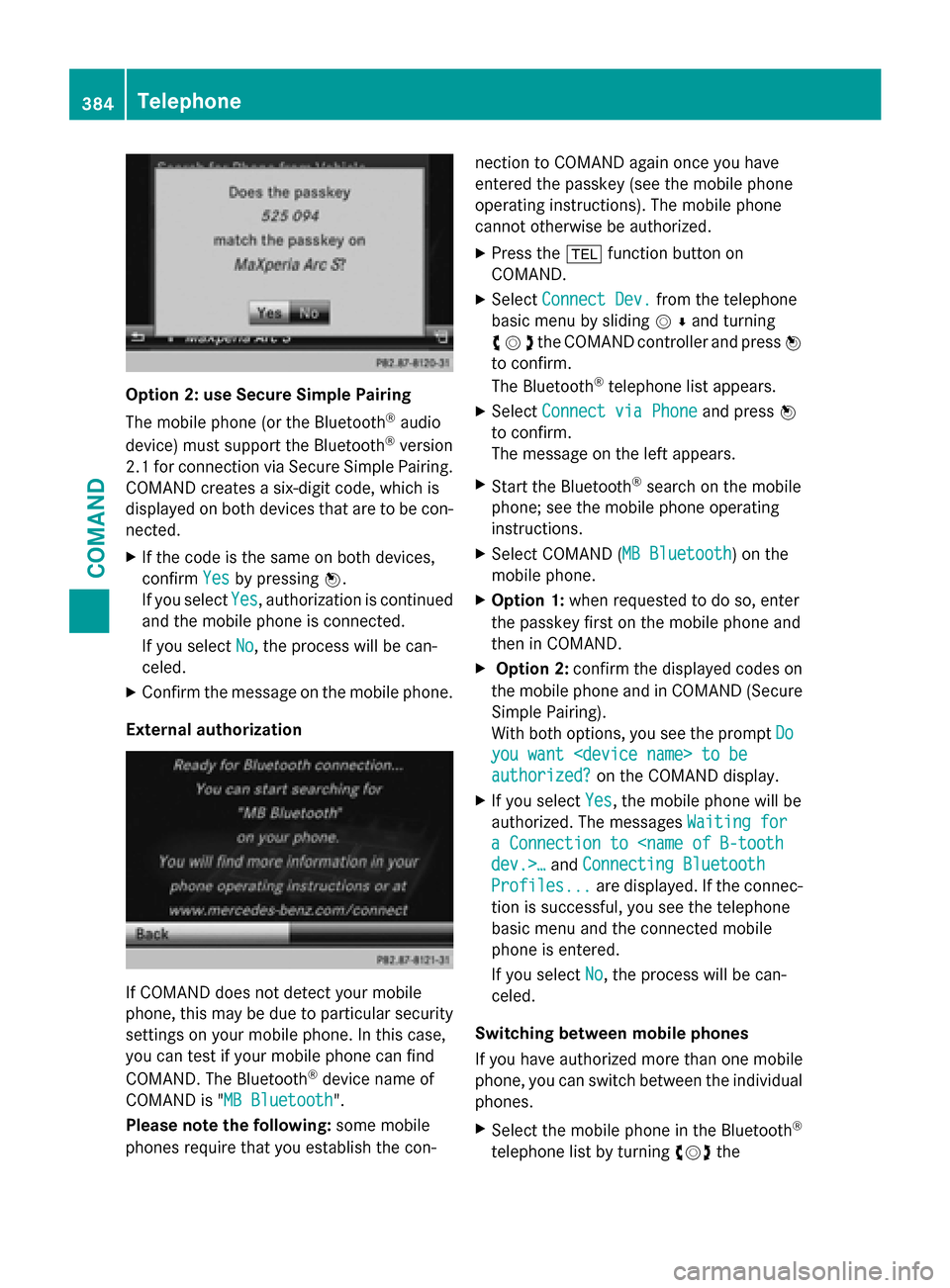
External authorization If COMAND does not detect your mobile
phone, this may be due to particular security settings on your mobile phone. In this case,
you can test if your mobile phone can find
COMAND. The Bluetooth ®
device name of
COMAND is "MB Bluetooth MB Bluetooth".
Please note the following: some mobile
phones require that you establish the con- nection to COMAND again once you have
entered the passkey (see the mobile phone
operating instructions). The mobile phone
cannot otherwise be authorized.
X Press the 002Bfunction button on
COMAND.
X Select Connect Dev. Connect Dev. from the telephone
basic menu by sliding 00520064and turning
00790052007Athe COMAND controller and press 0098
to confirm.
The Bluetooth ®
telephone list appears.
X Select Connect via Phone
Connect via Phone and press0098
to confirm.
The message on the left appears.
X Start the Bluetooth ®
search on the mobile
phone; see the mobile phone operating
instructions.
X Select COMAND ( MB Bluetooth MB Bluetooth) on the
mobile phone.
X Option 1: when requested to do so, enter
the passkey first on the mobile phone and
then in COMAND.
X Option 2: confirm the displayed codes on
the mobile phone and in COMAND (Secure Simple Pairing).
With both options, you see the prompt Do Do
you want
you want
authorized? authorized? on the COMAND display.
X If you select Yes
Yes, the mobile phone will be
authorized. The messages Waiting for
Waiting for
a Connection to
Connecting Bluetooth
Profiles...
Profiles... are displayed. If the connec-
tion is successful, you see the telephone
basic menu and the connected mobile
phone is entered.
If you select No No, the process will be can-
celed.
Switching between mobile phones
If you have authorized more than one mobile
phone, you can switch between the individual
phones.
X Select the mobile phone in the Bluetooth ®
telephone list by turning 00790052007Athe 384
TelephoneCOMAND
Page 428 of 610
Internet radio
General notes A good Internet connection is required to
transmit audio data efficiently. To ensure the
best-possible reception, your mobile phone
should be connected to the vehicle's exterior antenna via the phone bracket (optional).
Bear in mind that a relatively large volume of
data can be transmitted when using the Inter- net radio. An average 12 8kbit per second
data transfer rate can transfer 56 MB of data
in one hour.
The data transfer rate of a station is displayed while receiving data.
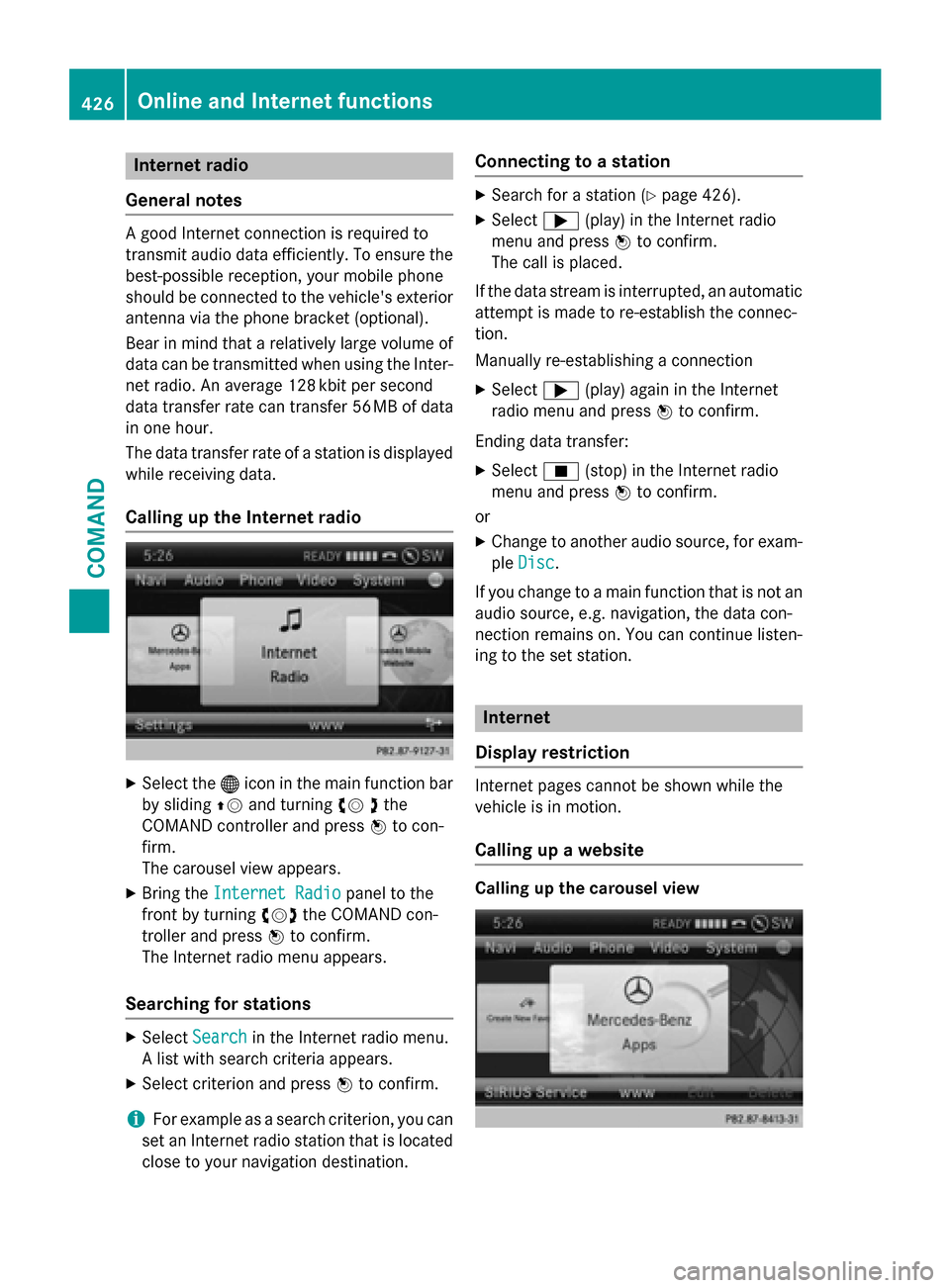
Calling up the Internet radio X
Select the 00A7icon in the main function bar
by sliding 00970052and turning 00790052the
COMAND controller and press 0098to con-
firm.
The carousel view appears.
X Bring the Internet Radio Internet Radio panel to the
front by turning 00790052007Athe COMAND con-
troller and press 0098to confirm.
The Internet radio menu appears.
Searching for stations X
Select Search
Search in the Internet radio menu.
A list with search criteria appears.
X Select criterion and press 0098to confirm.
i For example as a search criterion, you can
set an Internet radio station that is located
close to your navigation destination. Connecting to a station X
Search for a station (Y page 426).
X Select 0065(play) in the Internet radio
menu and press 0098to confirm.
The call is placed.
If the data stream is interrupted, an automatic attempt is made to re-establish the connec-
tion.
Manually re-establishing a connection
X Select 0065(play) again in the Internet
radio menu and press 0098to confirm.
Ending data transfer: X Select 00DB(stop) in the Internet radio
menu and press 0098to confirm.
or X Change to another audio source, for exam-
ple Disc
Disc.
If you change to a main function that is not an
audio source, e.g. navigation, the data con-
nection remains on. You can continue listen-
ing to the set station. Internet
Display restriction Internet pages cannot be shown while the
vehicle is in motion.
Calling up a website Calling up the carousel view426
Online and Internet functionsCOMAND