bluetooth MERCEDES-BENZ SL-CLASS ROADSTER 2013 User Guide
[x] Cancel search | Manufacturer: MERCEDES-BENZ, Model Year: 2013, Model line: SL-CLASS ROADSTER, Model: MERCEDES-BENZ SL-CLASS ROADSTER 2013Pages: 572, PDF Size: 9.23 MB
Page 294 of 572
X
Press W.
X Select Settings by turning cVd the
COMAND controller and press W to
confirm.
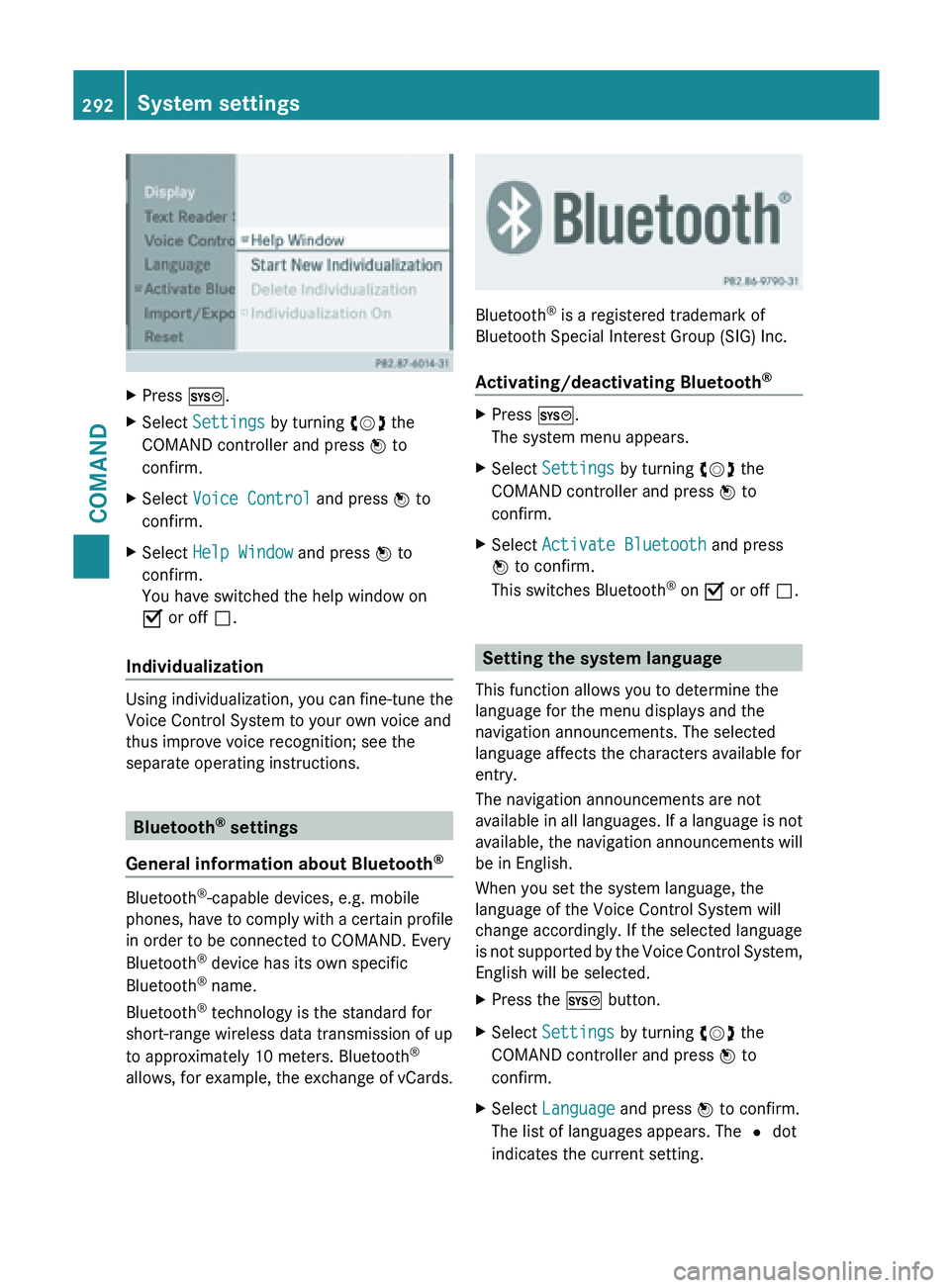
X Select Voice Control and press W to
confirm.
X Select Help Window and press W to
confirm.
You have switched the help window on
O or off ª.
Individualization Using individualization, you can fine-tune the
Voice Control System to your own voice and
thus improve voice recognition; see the
separate operating instructions.
Bluetooth
®
settings
General information about Bluetooth ®Bluetooth
®
-capable devices, e.g. mobile
phones, have
to comply with a certain profile
in order to be connected to COMAND. Every
Bluetooth ®
device has its own specific
Bluetooth ®
name.
Bluetooth ®
technology is the standard for
short-range wireless data transmission of up
to approximately 10 meters. Bluetooth ®
allows, for example, the exchange of vCards. Bluetooth
®
is a registered trademark of
Bluetooth Special Interest Group (SIG) Inc.
Activating/deactivating Bluetooth ® X
Press W.
The system menu appears.
X Select Settings by turning cVd the
COMAND controller and press W to
confirm.
X Select Activate Bluetooth and press
W to confirm.
This switches Bluetooth ®
on O or off ª. Setting the system language
This function allows you to determine the
language for the menu displays and the
navigation announcements. The selected
language affects the characters available for
entry.
The navigation announcements are not
available in
all languages. If a language is not
available, the navigation announcements will
be in English.
When you set the system language, the
language of the Voice Control System will
change accordingly. If the selected language
is not supported by the Voice Control System,
English will be selected.
X Press the W button.
X Select Settings by turning cVd the
COMAND controller and press W to
confirm.
X Select Language and press W to confirm.
The list of languages appears. The # dot
indicates the current setting. 292
System settings
COMAND
Page 359 of 572
Problem Possible causes/consequences and
M SolutionsCOMAND asks for an
activation code during
the map update. The digital map is secured with an activation code.
X
Consult an authorized Mercedes-Benz Center. Telephone
General notes
Introduction COMAND provides telephony via the
Bluetooth
®
interface.
When connecting
Bluetooth®
-capable mobile
phones with PBAP (Phone Book Access
Profile), the contacts are automatically
downloaded to COMAND.
With a suitable mobile phone, you can use the
hands-free system and receive vCards via the
Bluetooth ®
interface.
You can use the text message function
(receiving and reading) if the mobile phone
supports the MAP (Message Access Profile)
Bluetooth ®
profile.
Further information on suitable mobile
phones and on connecting Bluetooth ®
-
capable mobile phones to COMAND can be
found on the Internet at
http://www.mbusa-mobile.com. Or call
the Mercedes-Benz Customer Assistance
Center on
1-800-FOR-MERCedes(1-800-367-6372) for
the USA or on 1-800-387-0100 for Canada.
Safety notes G
WARNING
The driver must always concentrate on the
road. For
your safety and the safety of others,
we recommend that you pull over to a safe
location and stop before placing or taking a
telephone call. If you choose to use the mobile
phone while driving, please use the hands-
free device and only use the mobile phone when weather, road and traffic conditions
permit.
Some jurisdictions prohibit the driver from
using a mobile phone while driving a vehicle.
Bear in mind that at a speed of only 30 mph
(approximately
50 km/h
), the vehicle covers
a distance of 44 feet (approximately 14 m) per
second. G
WARNING
Excessive electromagnetic radiation may
constitute a health hazard to yourself and
others.
There is
scientific discussion surrounding the
possible health risks posed by
electromagnetic fields. You can reduce this
risk by using an exterior aerial.
Therefore, only use mobile communication
equipment if it is connected to the exterior
aerial of the vehicle.
Call disconnection while the vehicle is
in motion A call may be disconnected if:
R
there is insufficient network coverage in
certain areas.
R you move from one transmitter/receiver
area (cell)
into another and no channels are
free.
R you use a SIM card which is not compatible
with the network available.
Operating options You can operate the telephone by:
R
using the COMAND controller:
Turn cVd Telephone
357
COMAND Z
Page 360 of 572
Slide
XVY or ZVÆ
Press W
R using the 6 or ~ button and using
the telephone keypad on COMAND
R using the 6 or ~ button on the
multifunction steering wheel
R using the Voice Control System (see the
separate Voice Control System operating
instructions)
Unless stated
otherwise, the descriptions and
illustrations in this section refer to COMAND.
Function restrictions The telephone is not ready for use in the
following situations:
R
the telephone automatically tries to log on
to a
network. If no network is available, you
may not be able to make a " 911"
emergency call. If you attempt to make an
outgoing call, the No Service message will
appear for a short while.
911 emergency call G
WARNING
The 911 emergency call system is a public
service. Using it without due cause is a
criminal offense.
The following requirements must be fulfilled
for a 911 emergency call:
R the mobile phone must be switched on.
R a network must be available.
R a valid and operational SIM card must be
inserted in the mobile phone.
R the mobile
phone is connected to COMAND
via Bluetooth ®
.
If you cannot make an emergency call, you
must arrange rescue measures yourself. X
Enter the number on COMAND
(Y page 365).
X Press 6.
The telephone makes the connection.
X Wait until the emergency call center
answers and describe the emergency
situation. Telephony via the Bluetooth
®
interface
Conditions For telephony via COMAND's Bluetooth
®
interface, a Bluetooth ®
-capable mobile
phone is required.
On COMAND
X Activate the Bluetooth ®
function in
COMAND (Y page 292).
On the mobile phone
X Switch on the mobile phone and enter the
PIN when prompted to do so (see the
mobile phone operating instructions).
X Activate Bluetooth ®
functions and, where
necessary, Bluetooth ®
visibility on the
mobile phone (see the mobile phone
operating instructions).
The battery of the mobile phone should
always be kept sufficiently charged in order
to prevent malfunctions.
In preparation for telephoning via the
Bluetooth ®
interface, you should check the
following items
on your mobile phone (see the
mobile phone operating instructions):
R Hands-Free Profile
The mobile phone must support Hands-
Free Profile 1.0 or above.
R Bluetooth ®
visibility
On certain mobile phones, the device itself
must be made "visible" to other devices, as
well as activating the Bluetooth ®
function
(see the mobile phone operating
instructions). 358
Telephone
COMAND
Page 361 of 572
This visibility is for restricted periods of
time on some mobile phones.
R Bluetooth ®
device name
Every Bluetooth ®
device has its own
Bluetooth ®
device
name. This device name
is freely definable, but can be identical for
all devices from the same manufacturer. It
is therefore recommended that you change
this name so that you can easily recognize
your mobile phone (see the mobile phone
operating instructions).
i Not all mobile phones available on the
market are equally suitable. You can obtain
more detailed information about suitable
mobile phones and about connecting
Bluetooth ®
-capable mobile phones to
COMAND on the Internet at
http://www.mbusa-mobile.com.
Alternatively, call the Mercedes-Benz
Customer Assistance Center at
1-800-FOR-MERCedes (1-800-367-6372)
(for USA) or Customer Relations at
1-800-387-0100 (for Canada).
i Some displays (e.g. the signal strength)
depend on the supported version of the
Hands-Free Profile.
Connecting a mobile phone General information
Before using your mobile phone with
COMAND for the first time, you will need to:
R
search for it (Y page 359) and then
R authorize (register) it ( Y page 360).
When you
authorize a new mobile phone, it is
connected automatically.
You can authorize up to 15 mobile phones. If the mobile phone supports PBAP (Phone
Book Access Profile) and MAP (Message
Access Profile), the following contacts and
messages are downloaded into COMAND
when connecting:
R
phone book
R call lists
R text messages
Further information on the conditions for
connecting (Y
page 358).
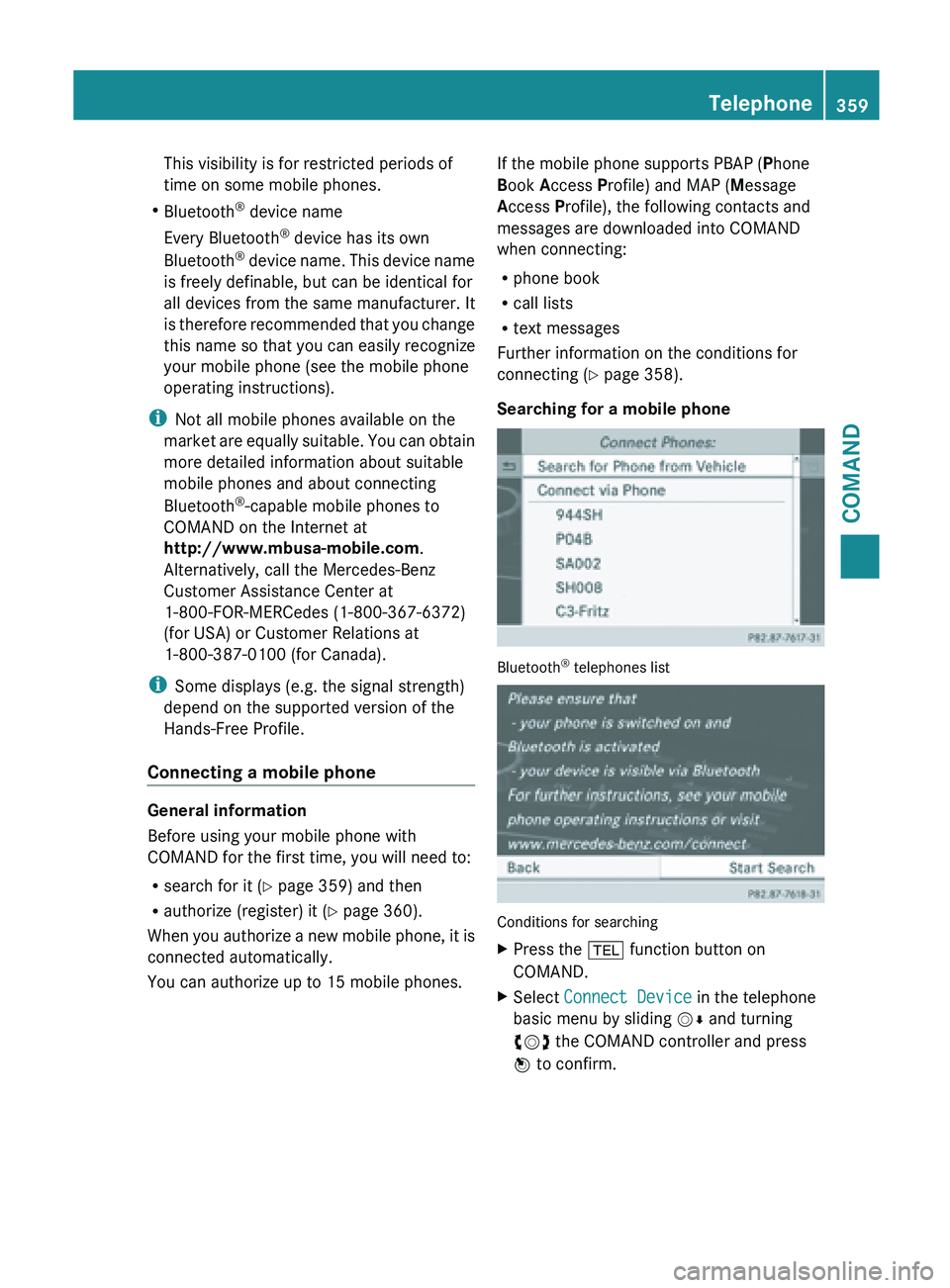
Searching for a mobile phone Bluetooth
®
telephones list Conditions for searching
X
Press the % function button on
COMAND.
X Select Connect Device in the telephone
basic menu by sliding VÆ and turning
cVd the COMAND controller and press
W to confirm. Telephone
359
COMAND Z
Page 362 of 572
X
Select Search for Phone from
Vehicle and press the W button to
confirm.
A message appears.
X Select Start Search and press the W
button to confirm.
The message Searching for
Bluetooth Phones... appears.
COMAND looks for Bluetooth ®
telephones
within range and adds them to the
Bluetooth ®
telephones list.
If a new phone is found, it appears in the
list with the Ï symbol.
The duration
of the search depends on the
number of Bluetooth ®
telephones within
range and their characteristics.
Symbols in the Bluetooth ®
phone list Symbo
l Explanation
Ï
New mobile phone in range, but
not yet authorized
Y
Authorized mobile phone
#
Currently connected mobile
phone
Ñ
Mobile phone in range and
authorized
Ñ
(gray)
Mobile phone not in range, but
already authorized
The Bluetooth
®
telephone list shows all
mobile phones
within range and all previously
authorized mobile phones, whether or not
they are in range.
i If the Bluetooth ®
telephones list is already
full, you will be requested to de-authorize a
mobile phone ( Y page 362). If COMAND
does not find your mobile phone, external
authorization may be necessary
(Y page 361).
i If you call up the telephone list again, the
unauthorized devices are removed from the list. In this case, start a new search to
update the Bluetooth
®
telephone list.
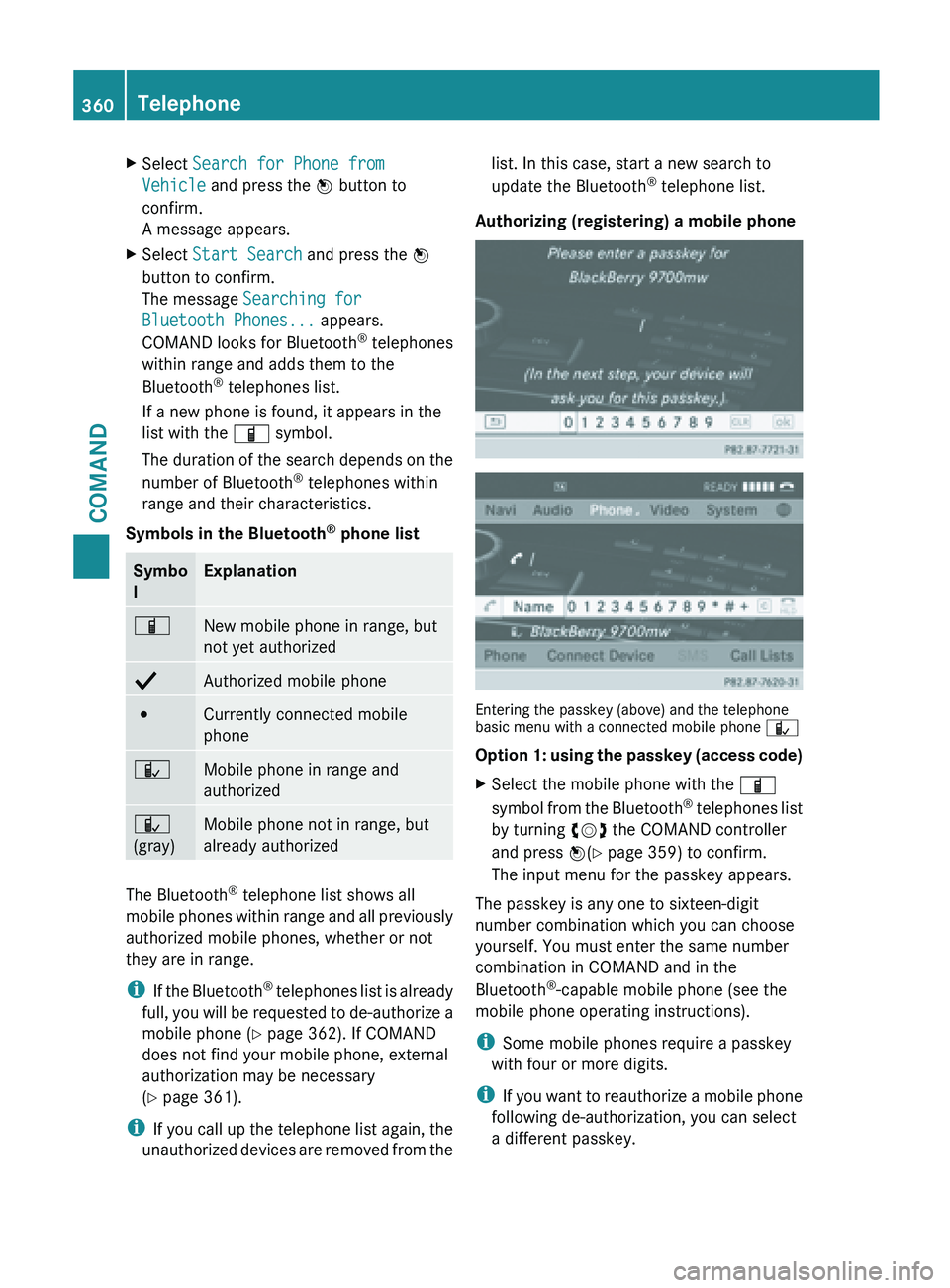
Authorizing (registering) a mobile phone Entering the passkey (above) and the telephone
basic menu with a connected mobile phone
Ñ
Option 1:
using the passkey (access code)
X Select the mobile phone with the Ï
symbol from
the Bluetooth ®
telephones list
by turning cVd the COMAND controller
and press W(Y page 359) to confirm.
The input menu for the passkey appears.
The passkey is any one to sixteen-digit
number combination which you can choose
yourself. You must enter the same number
combination in COMAND and in the
Bluetooth ®
-capable mobile phone (see the
mobile phone operating instructions).
i Some mobile phones require a passkey
with four or more digits.
i If you
want to reauthorize a mobile phone
following de-authorization, you can select
a different passkey. 360
Telephone
COMAND
Page 363 of 572
i
Mercedes-Benz recommends de-
authorization in COMAND and on the
mobile phone ( Y page 362). Subsequent
authorization may otherwise fail.
X To enter a passkey in COMAND: press
the number keys in turn.
or
X Select the digits in the digit bar one by one
by turning cVd the COMAND controller
and pressing W to confirm.
¬ is highlighted after the first number
has been entered.
X In both cases, select ¬ and press W to
confirm.
X To enter the passkey on the mobile
phone: if the Bluetooth ®
connection is
successful, you will be requested to enter
the passkey
(access code, passkey; see the
mobile phone operating instructions).
X Enter the same passkey in the mobile
phone as the one already entered in
COMAND.
The message Connecting Bluetooth
Profiles... appears.
The Authorization successful
message appears once authorization is
completed.
The mobile phone is authorized and
connected to COMAND. You can now make
phone calls using the COMAND hands-free
system.
i After entering the passkey, you may also
need to
enter a confirmation in your mobile
phone to connect calls. Please check your
mobile phone display. On some mobile
phones, this confirmation can be saved. In
this case, you do not need to enter it again.
If the COMAND display shows the
Authorization failed message, you
may have exceeded the prescribed time
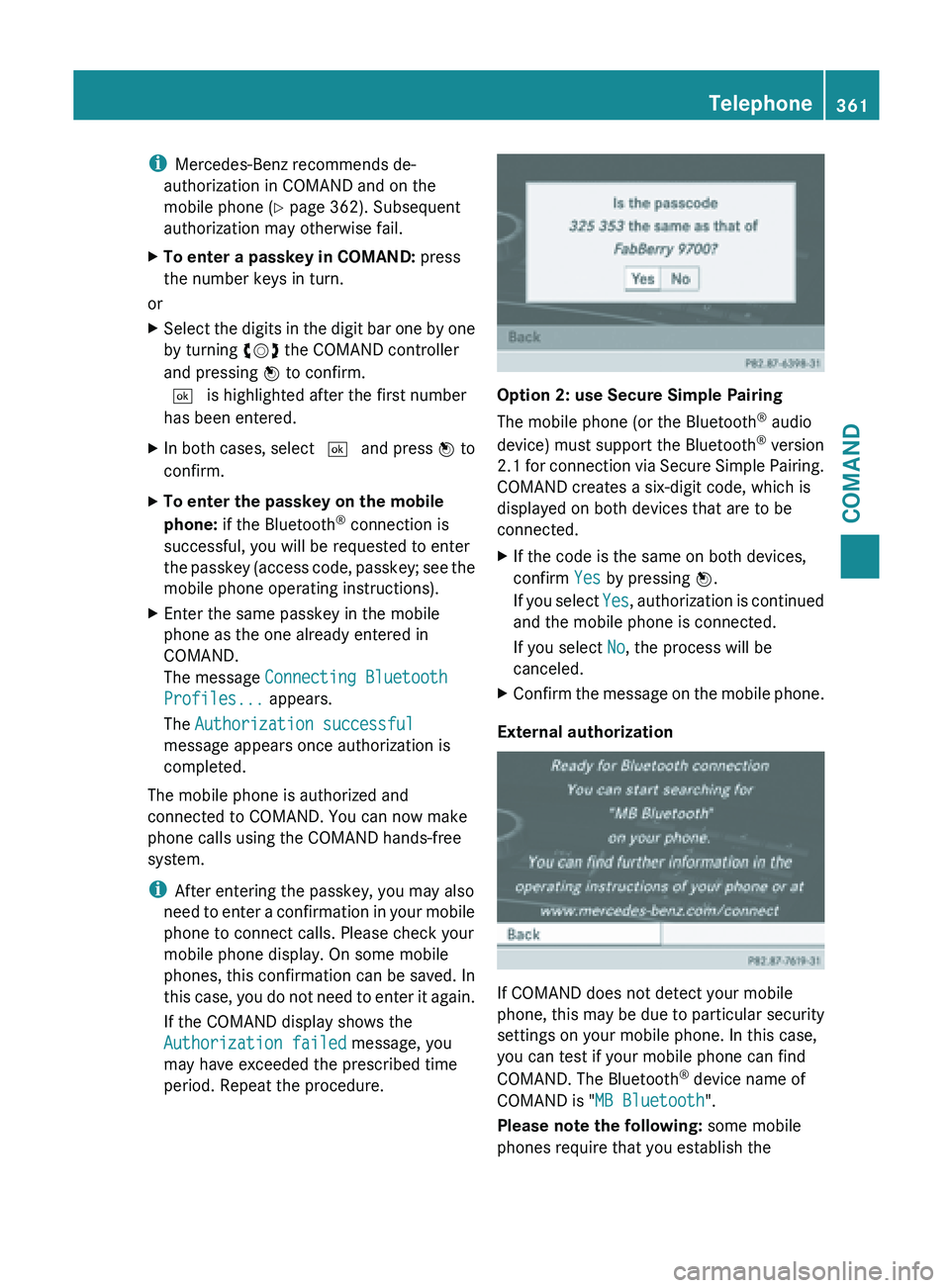
period. Repeat the procedure. Option 2: use Secure Simple Pairing
The mobile phone (or the Bluetooth
®
audio
device) must support the Bluetooth ®
version
2.1 for
connection via Secure Simple Pairing.
COMAND creates a six-digit code, which is
displayed on both devices that are to be
connected.
X If the code is the same on both devices,
confirm Yes by pressing W.
If you
select Yes, authorization is continued
and the mobile phone is connected.
If you select No, the process will be
canceled.
X Confirm the message on the mobile phone.
External authorization If COMAND does not detect your mobile
phone,
this
may be due to particular security
settings on your mobile phone. In this case,
you can test if your mobile phone can find
COMAND. The Bluetooth ®
device name of
COMAND is "MB Bluetooth".
Please note the following: some mobile
phones require that you establish the Telephone
361
COMAND Z
Page 364 of 572
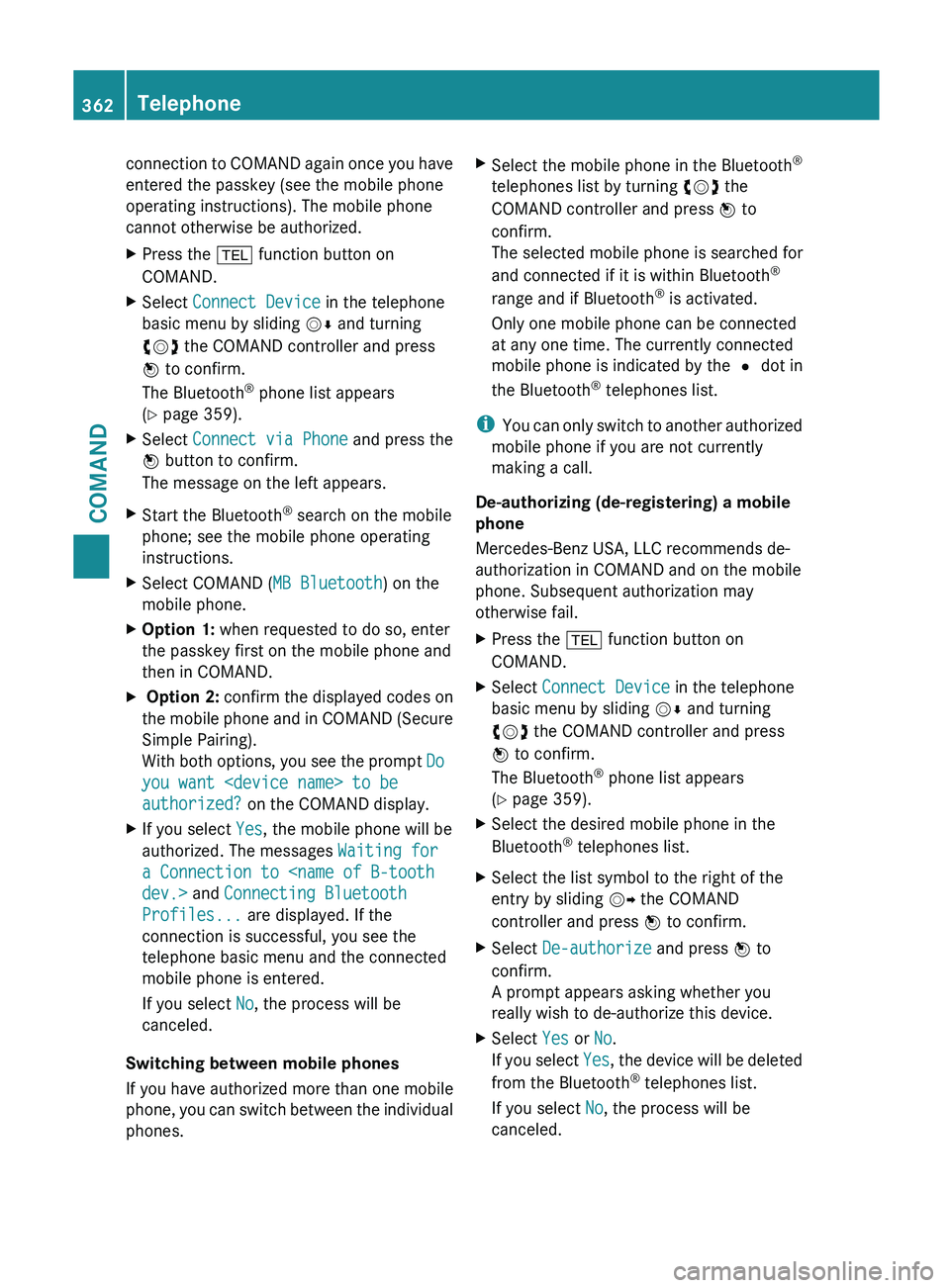
connection to COMAND again once you have
entered the passkey (see the mobile phone
operating instructions). The mobile phone
cannot otherwise be authorized.
X
Press the % function button on
COMAND.
X Select Connect Device in the telephone
basic menu by sliding VÆ and turning
cVd the COMAND controller and press
W to confirm.
The Bluetooth ®
phone list appears
(Y page 359).
X Select Connect via Phone and press the
W button to confirm.
The message on the left appears.
X Start the Bluetooth ®
search on the mobile
phone; see the mobile phone operating
instructions.
X Select COMAND ( MB Bluetooth) on the
mobile phone.
X Option 1: when requested to do so, enter
the passkey first on the mobile phone and
then in COMAND.
X Option 2: confirm the displayed codes on
the mobile phone and in COMAND (Secure
Simple Pairing).
With both options, you see the prompt Do
you want
authorized? on the COMAND display.
X If you select Yes, the mobile phone will be
authorized. The messages Waiting for
a Connection to
Profiles... are displayed. If the
connection is successful, you see the
telephone basic menu and the connected
mobile phone is entered.
If you select No, the process will be
canceled.
Switching between mobile phones
If you have authorized more than one mobile
phone, you
can switch between the individual
phones. X
Select the mobile phone in the Bluetooth ®
telephones list by turning cVd the
COMAND controller and press W to
confirm.
The selected mobile phone is searched for
and connected if it is within Bluetooth ®
range and if Bluetooth ®
is activated.
Only one mobile phone can be connected
at any one time. The currently connected
mobile phone is indicated by the # dot in
the Bluetooth ®
telephones list.
i You can
only switch to another authorized
mobile phone if you are not currently
making a call.
De-authorizing (de-registering) a mobile
phone
Mercedes-Benz USA, LLC recommends de-
authorization in COMAND and on the mobile
phone. Subsequent authorization may
otherwise fail.
X Press the % function button on
COMAND.
X Select Connect Device in the telephone
basic menu by sliding VÆ and turning
cVd the COMAND controller and press
W to confirm.
The Bluetooth ®
phone list appears
(Y page 359).
X Select the desired mobile phone in the
Bluetooth ®
telephones list.
X Select the list symbol to the right of the
entry by sliding VY the COMAND
controller and press W to confirm.
X Select De-authorize and press W to
confirm.
A prompt appears asking whether you
really wish to de-authorize this device.
X Select Yes or No.
If you
select Yes, the device will be deleted
from the Bluetooth ®
telephones list.
If you select No, the process will be
canceled. 362
Telephone
COMAND
Page 365 of 572
i
Before re-authorizing the mobile phone,
you should
also delete the device name MB
Bluetooth from your mobile phone's
Bluetooth ®
list.
Displaying connection details X
Press the % function button on
COMAND.
X Select Connect Device in the telephone
basic menu by sliding VÆ and turning
cVd the COMAND controller and press
W to confirm.
The Bluetooth ®
phone list appears
(Y page 359).
X Select the desired mobile phone in the
Bluetooth ®
telephones list.
X Select the list symbol to the right of the
entry by sliding VY the COMAND
controller and press W to confirm.
X Select Details and press W to confirm.
The following information concerning the
selected mobile phone is shown:
R Bluetooth ®
name
R Bluetooth ®
address
R availability status (shown after a new
search)
R authorization status
X To close the detailed view: turn cVd or
slide XVY the COMAND controller. Telephone basic menu (Bluetooth
®
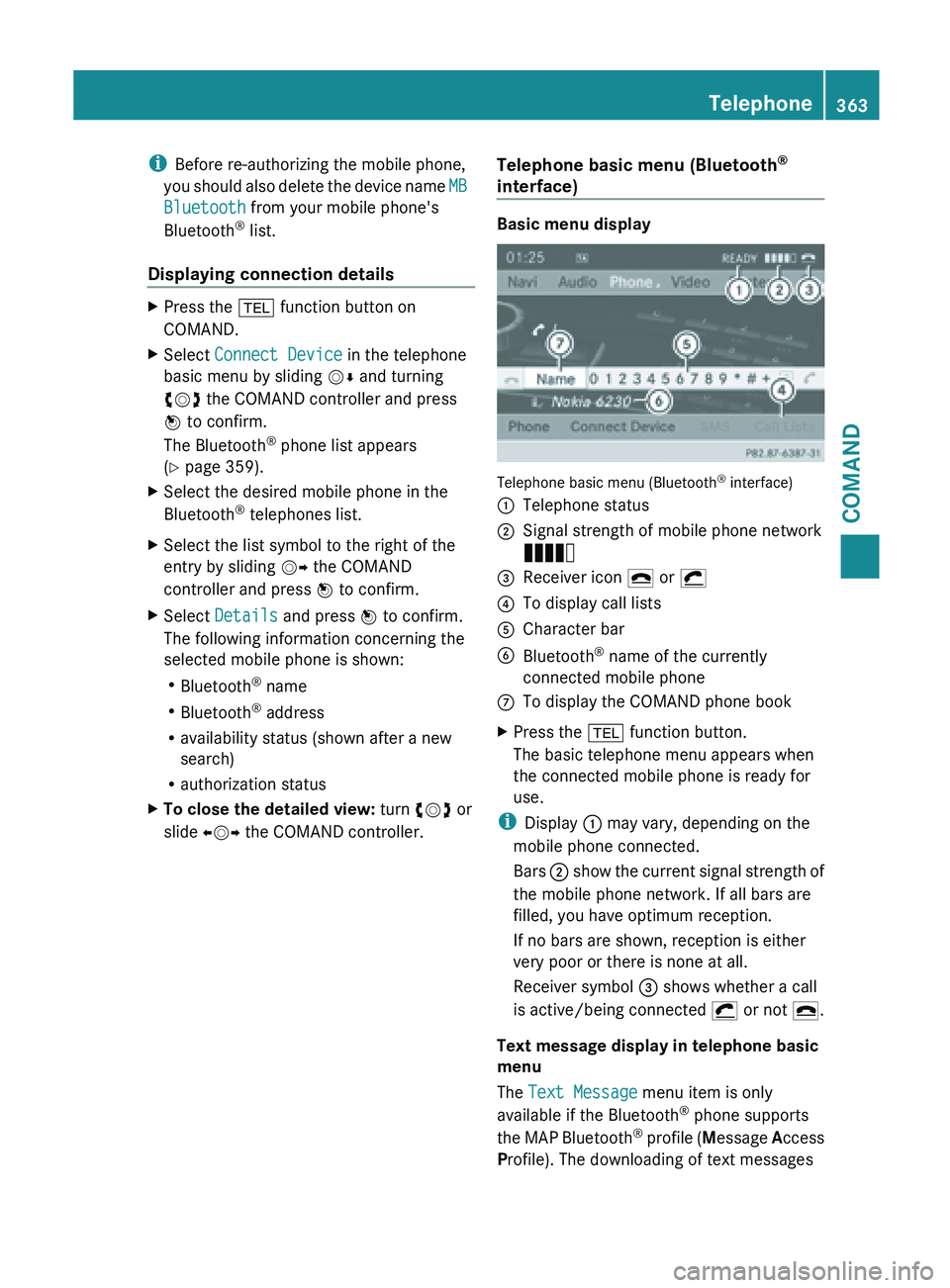
interface) Basic menu display
Telephone basic menu (Bluetooth
®
interface)
: Telephone status
; Signal strength of mobile phone network
Ä
= Receiver icon ¢ or ¡
? To display call lists
A Character bar
B Bluetooth ®
name of the currently
connected mobile phone
C To display the COMAND phone book
X Press the % function button.
The basic telephone menu appears when
the connected mobile phone is ready for
use.
i Display : may vary, depending on the
mobile phone connected.
Bars ; show
the current signal strength of
the mobile phone network. If all bars are
filled, you have optimum reception.
If no bars are shown, reception is either
very poor or there is none at all.
Receiver symbol = shows whether a call
is active/being connected ¡ or not ¢.
Text message display in telephone basic
menu
The Text Message menu item is only
available if the Bluetooth ®
phone supports
the MAP Bluetooth ®
profile ( Message Access
Profile). The downloading of text messages Telephone
363
COMAND Z
Page 366 of 572
from the Bluetooth
®
phone must have been
completed. The menu item is otherwise
grayed out. Further information on SMS
(Y page 375).
If you have an unread text message, the 1
mail symbol is displayed. The symbol
disappears once you have read the text
message. The ú mail symbol is displayed
as soon as the text message memory is full.
The symbol disappears once you delete at
least one text message. Reception and transmission volume
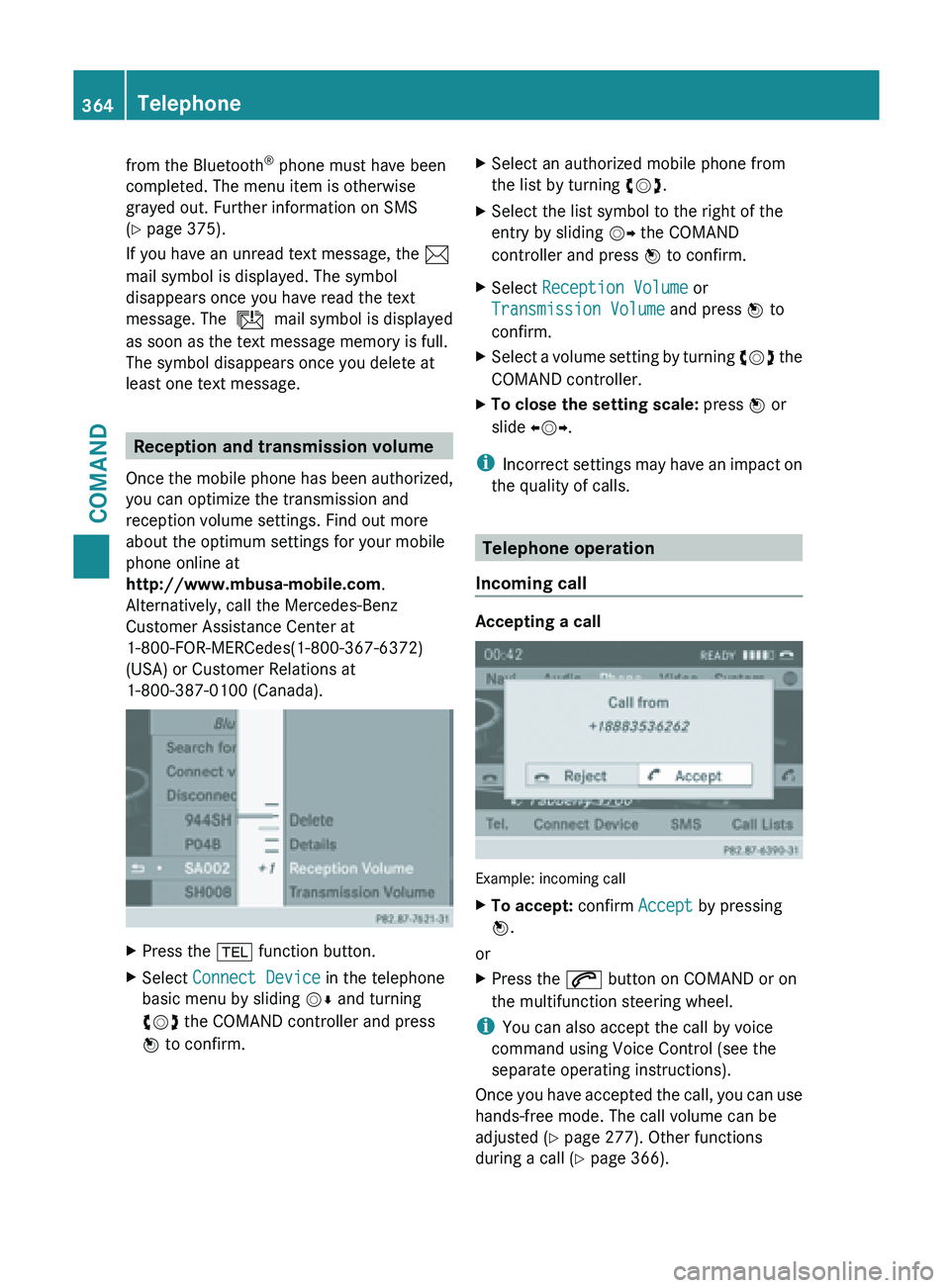
Once the
mobile phone has been authorized,
you can optimize the transmission and
reception volume settings. Find out more
about the optimum settings for your mobile
phone online at
http://www.mbusa-mobile.com.
Alternatively, call the Mercedes-Benz
Customer Assistance Center at
1-800-FOR-MERCedes(1-800-367-6372)
(USA) or Customer Relations at
1-800-387-0100 (Canada). X
Press the % function button.
X Select Connect Device in the telephone
basic menu by sliding VÆ and turning
cVd the COMAND controller and press
W to confirm. X
Select an authorized mobile phone from
the list by turning cVd.
X Select the list symbol to the right of the
entry by sliding VY the COMAND
controller and press W to confirm.
X Select Reception Volume or
Transmission Volume and press W to
confirm.
X Select a volume setting by turning cVd the
COMAND controller.
X To close the setting scale: press
W or
slide XVY.
i Incorrect settings
may have an impact on
the quality of calls. Telephone operation
Incoming call Accepting a call
Example: incoming call
X
To accept: confirm Accept by pressing
W.
or
X Press the 6 button on COMAND or on
the multifunction steering wheel.
i You can also accept the call by voice
command using Voice Control (see the
separate operating instructions).
Once you
have accepted the call, you can use
hands-free mode. The call volume can be
adjusted ( Y page 277). Other functions
during a call ( Y page 366).364
Telephone
COMAND
Page 368 of 572
Option 2:
X
Call up the telephone basic menu
(Y page 363).
X Select Call Lists by sliding VÆ and
turning cVd the COMAND controller and
press W to confirm.
A menu appears.
X Select Speed Dial Preset List by
turning cVd the COMAND controller and
press W to confirm.
The speed dial list appears.
X Select preset and press W to confirm.
The basic telephone menu displays the
selected entry. This initiates dialing.
Functions available during a call Overview
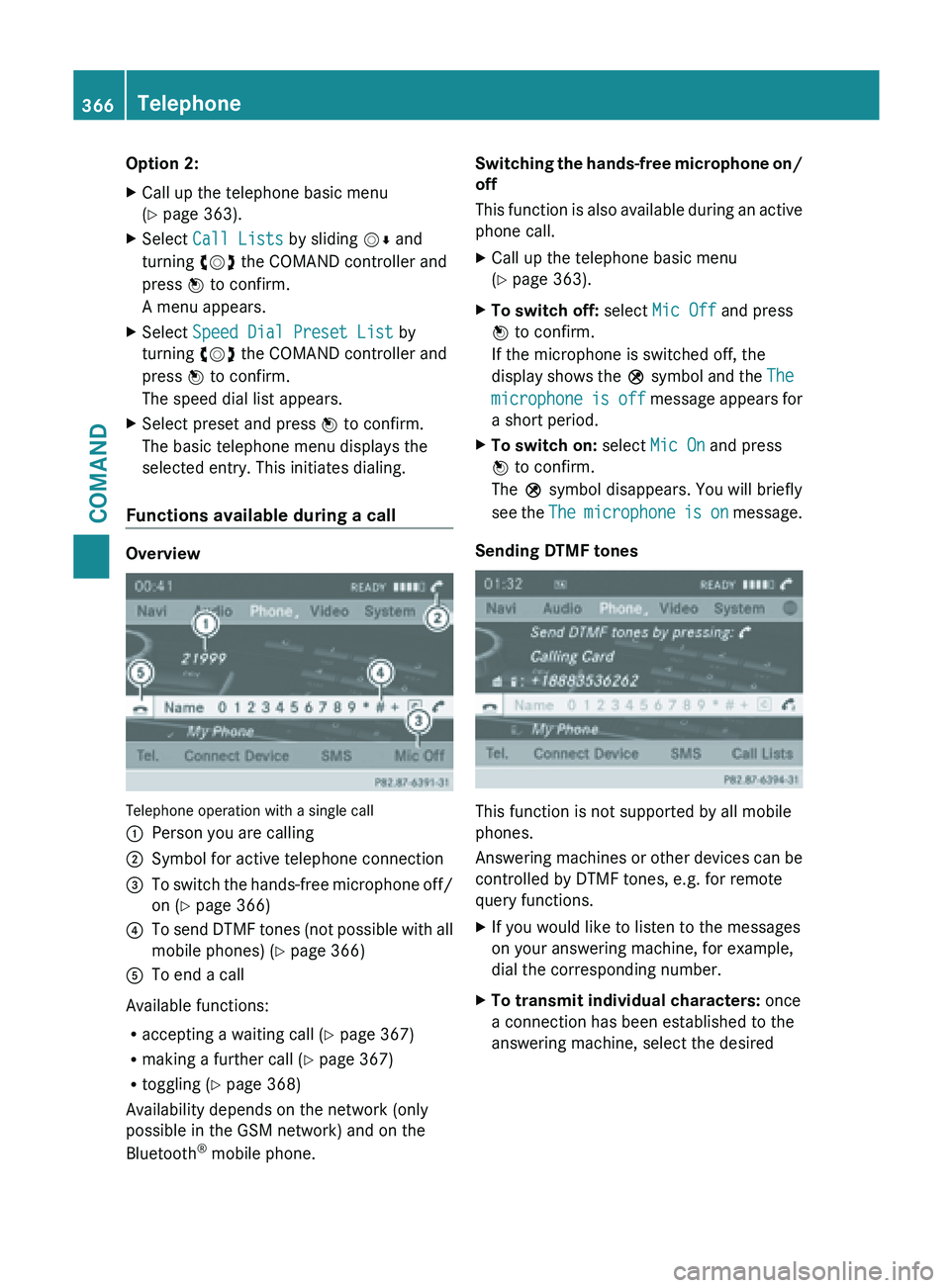
Telephone operation with a single call
:
Person you are calling
; Symbol for active telephone connection
= To switch the hands-free microphone off/
on (Y page 366)
? To send DTMF tones (not possible with all
mobile phones) (
Y
page 366)
A To end a call
Available functions:
R accepting a waiting call (Y
page 367)
R making a further call ( Y page 367)
R toggling (Y page 368)
Availability depends on the network (only
possible in the GSM network) and on the
Bluetooth ®
mobile phone. Switching the hands-free microphone on/
off
This
function
is also available during an active
phone call.
X Call up the telephone basic menu
(Y page 363).
X To switch off: select Mic Off and press
W to confirm.
If the microphone is switched off, the
display shows
the Q symbol and the The
microphone is off message appears for
a short period.
X To switch on: select Mic On and press
W to confirm.
The Q symbol disappears. You will briefly
see the
The
microphone is on message.
Sending DTMF tones This function is not supported by all mobile
phones.
Answering
machines
or other devices can be
controlled by DTMF tones, e.g. for remote
query functions.
X If you would like to listen to the messages
on your answering machine, for example,
dial the corresponding number.
X To transmit individual characters: once
a connection has been established to the
answering machine, select the desired 366
Telephone
COMAND