ad blue MERCEDES-BENZ SPRINTER 2019 MY19 with 7” screen
[x] Cancel search | Manufacturer: MERCEDES-BENZ, Model Year: 2019, Model line: SPRINTER, Model: MERCEDES-BENZ SPRINTER 2019Pages: 354, PDF Size: 6.15 MB
Page 51 of 354
Va
ns US A,LLC ("DVUSA") expressly disclaims
any and all liability arising from theex traction of
th is information byunauthorized Mercedes-Benz
personnel.
DV USA will not share EDR data with others with‐
out the consent of theve hicle owners or, if the
ve hicle is leased, without the consent of the les‐
see. Exceptions tothis representation include
re sponses tosubpoenas bylaw enforcement; by
fe deral, state or local go vernment; in connection
with or arising out of litigation in volvin gDV USA or
its subsidiaries and af filiates; or, as requ ired by
la w.
Wa rning: The EDR is a component of the
Re stra int Sy stem Module. Tamp ering with, alter‐
ing, modifying or removing the EDR component
may result in a malfunction of theRe stra int Sys‐
te m Module and other sy stems.
St ate la wsorregulations rega rding EDRs that
con flict with federal regulation are pre-em pted.
This means that in theev ent of such conflict, the
fe deral regulation go verns. As of December 20 16 ,
17 states ha veenacted la wsrelating toEDRs. Co
pyright Information on free and open-source software
Information on license
for free and open-sou rce
software used in your vehicle can be found on the
data storage medium in your vehicle document
wa llet and with updates on thefo llowing website:
http://www.mercedes-benz.com/opensource. Information on
regis tere d trademar ks R
Bluetoo th®
is a regis tere d trademark of Blue‐
toot h SIG Inc.
R DTS™ is a regis tere d trademark of DTS, Inc.
R Dolby ®
and MLP™ are regis tere d trademar ks
of DOLBY Laboratories.
R BabySmart™, ESP ®
and PRE-SAFE ®
are regis‐
te re d trademar ksof Daimler AG.
R HomeLink ®
is a regis tere d trademark of John‐
son Controls.
R iPod ®
and iTunes ®
are regis tere d trademar ks
of Apple Inc.
R Burmes ter®
is a regis tere d trademark of
Burmes terAu diosy steme GmbH.
R Microsoft ®
and Windo wsMedia ®
are regis‐
te re d trademar ksof Microsoft Corporation. R
SIRIUS ®
is a regis tere d trademark of Sirius
XM Radio Inc.
R HD Radio™ is a regis tere d trademark of iBiq‐
uity Digital Corporation.
R Graceno te®
is a regis tere d trademark of
Graceno te, Inc.
R ZAGA TSurvey ®
and related brands are regis‐
te re d trademar ksof ZagatSur vey, LLC. General no
tes27
Page 125 of 354
Switching auxiliary heating on and off
#
Toswitch on: pressthe003B button. #
Toswitch off: pressthe003B button.
Switching on the specified temperature #
Swit chon the ignition. #
Toswitch on: pressthe003B button. #
Toswitch off: pressthe003B button. #
Set thete mp erature using the0082 button. #
Press the 003B button.
The red or blue indicator lamp on the003B
button goes on or off.
Colors of the indicator lamp:
R Blue: auxiliary ventilation has been switched
on.
R Red:auxilia ryheating has been switched on.
R Yello w: departure time has been pre-selec‐
te d.
Au xilia ryheating or ventilation switches off af ter
a maximum of 50 minutes.
Swit ching heater boos ter mode on and off #
Toswitch on: start the engine. #
Press the 003B button. #
Toswitch off: pressthe003B button.
Heater boos ter mode will be switched on at
an outside temp erature of less than 32 °F
(0 °C) when necessar y.
% Heater boo
ster mode is available only for
ve hicles with hot-water auxiliary heatings.Ad
justing the hot-water auxiliary hea ter with
the on-board co mputer
Re quirements:
R The fuel tank is filled abo vethere ser vefuel
le ve l.
R The ignition is switched on.
On-board computer: 4 Settings 5
Heating
Setting the switch-on time #
Select Settings. #
Select the desired departure time.
Ac tivating the departure time #
Activate the departure time byticking the
box.
% Ensure
that A, B and C ea chcor respond to a
programmed departure time.
% The programmed time
remains set only until
th e next time the engine is star ted.
Selecting prog rammed time #
Set therequ ired programmed time A,B or C.
% The
requ ired prog rammed time A,B or C will
appear only if the box toactivate the depar‐
ture time is tic ked. #
Select there qu ired prog rammed time by
swiping left or right, e.g. A,B or C.
Problems with hot water auxiliary heating Problem
Possible causes/consequences and 0050 0050Solutions
FA IL00A3 Signal transmission between transmitter and
vehicle is malfunctioning. #
Change your position in relation totheve hicle, moving closer if nec‐
essar y.
FA IL Thestar ter battery is not suf ficiently charge d. #
Charge thest ar ter batter y.
The fuel tank is not filled up tothere ser veleve l. #
Refuel at the nearest gasst ation.
FA IL0099 Au
xilia ryheating is malfunctioning. #
Have the auxiliary heating checked at a qualified specialist work‐
shop. Climate
control 101
Page 193 of 354
Operating media playback with
the on-boa rd
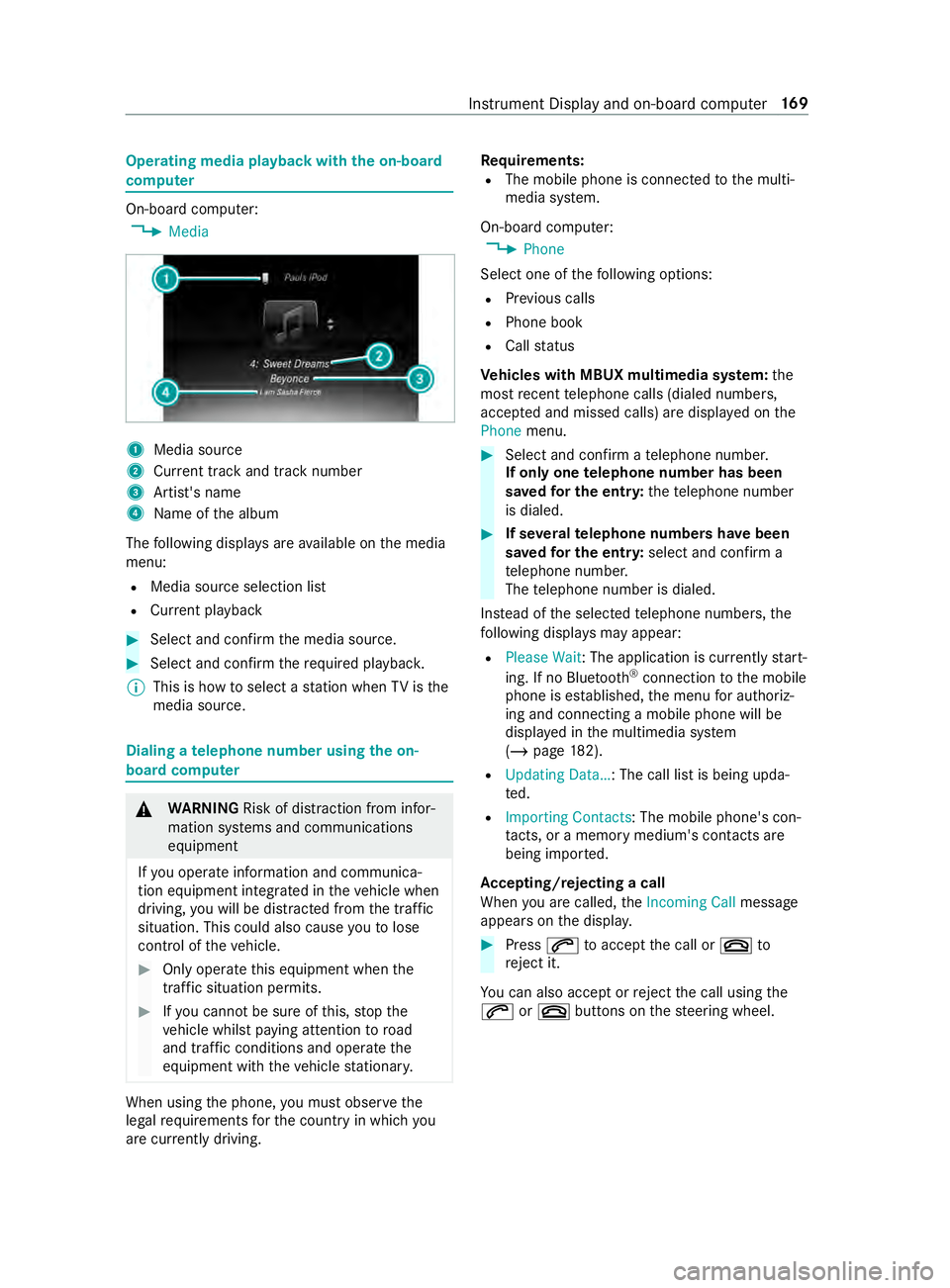
compu ter On-board computer:
4 Media 1
Media source
2 Current track and track number
3 Artist's name
4 Name of the album
The following displa ysare available on the media
menu:
R Media source selection list
R Current pl ayback #
Select and con firm the media source. #
Select and confirm there qu ired playbac k.
% This is how
toselect a station when TVisthe
media source. Dialing a
telephone number using the on-
board compu ter &
WARNING Risk of distraction from infor‐
mation sy stems and communications
equipment
If yo u operate information and communica‐
tion equipment integ rated in theve hicle when
driving, you will be distracted from the tra ffic
situation. This could also cause youto lose
control of theve hicle. #
Only operate this equipment when the
traf fic situation permits. #
Ifyo u cannot be sure of this, stop the
ve hicle whilst paying attention toroad
and traf fic conditions and ope rate the
equipment with theve hicle stationar y. When using
the phone, you must obse rvethe
legal requirements forth e count ryin which you
are cur rently driving. Re
quirements:
R The mobile phone is connec tedto the multi‐
media sy stem.
On-board computer: 4 Phone
Select one of thefo llowing options:
R Prev ious calls
R Phone book
R Call status
Ve hicles with MBUX multimedia sy stem: the
most recent telephone calls (dialed numbe rs,
accep ted and missed calls) are displa yed on the
Phone menu. #
Select and confirm a telephone numbe r.
If only one telephone number has been
sa ve dfo r the entr y:thete lephone number
is dialed. #
If se veralte lephone numbers ha vebeen
sa ve dfo r the entr y:select and confirm a
te lephone numbe r.
The telephone number is dialed.
Ins tead of the selected telephone numbe rs,the
fo llowing displa ysmay appear:
R Please Wait : The application is cur rently start‐
ing. If no Blue tooth®
connection tothe mobile
phone is es tablished, the menu for authoriz‐
ing and connecting a mobile phone will be
displa yed in the multimedia sy stem
(/ page 182).
R Updating Data…: The call list is being upda‐
ted.
R Importing Contacts: The mobile phone's con‐
ta cts, or a memo rymedium's contacts are
being impor ted.
Ac cepting/rejecting a call
When you are called, theIncoming Call message
appears on the displa y. #
Press 0061toaccept the call or 0076to
re ject it.
Yo u can also accept or reject the call using the
0061 or0076 buttons on thesteering wheel. Instrument Display and on-board computer
16 9
Page 204 of 354
%
The cor rect time is requ ired forth efo llowing
functions:
R Route guidance with time-dependent traf‐
fi c guidance.
R Calculation of expected time of ar riva l.
Setting the time zone
Multimedia sy stem:
4 © 5
Settings 5
System
5 Time and Date
Setting the time zone manually #
Select Time Zone: .
The list of countries is displa yed.
% If
th ere are se veral time zones available in a
countr y,these will be shown af terth e coun‐
try is selected. #
Select a count ryand, if requ ired, a time zone.
The time zone set is displa yed af terTime
Zone:.
Setting the time zone automatically #
Activate Automatic Time Zone.
Setting the time and date form at
Multimedia sy stem:
4 © 5
Settings 5
System
5 Time and Date 5
Set Format #
Set the date and time form at003B.
Setting the time and da temanually
Re quirements:
R The Manual Time Adjustment function is
switched on.
R For setting the date manuall y:no GPS is
ins talled in theve hicle.
Multimedia sy stem:
4 © 5
Settings 5
System
5 Time and Date
Setting the time (without time zone) #
Select Set Time. #
Set a time.
Setting the time (with time zone) #
Select Set Time.
If a time zone is set the time is set automatically
using the time zone. The time can be adjus tedby
a maximum of plus or minus 60 minutes. #
Adjust the time using the slide cont rol.
Setting the da te #
Select Set Date . #
Set a da te.
% In
vehicles with GPS, a date cannot be set
eve n wi thactive manual time adjustments.
The date is then set automatically thro ugh
th e selected time zone. Blue
tooth ® Information about Blu
etoo th®
Bl ue tooth ®
tech nology is a standard for short-
ra nge wi reless data transfer up toappr oximately
32.8 ft(10 m).
Yo u can use Blue tooth®
to connect your mobile
phone tothe multimedia sy stem and use thefo l‐
lowing functions, forex ample:
R Hands-free sy stem with access tothefo llow‐
ing options:
- Call lists (/ page185)
R Inte rn et connection
R Listening tomusic via Blue tooth®
audio
R Trans ferring business cards (vCards) into the
ve hicle
Blue tooth ®
is a regis tere d trademark of Blue tooth
Special Interest Group (SIG) Inc.
% Internet connection via Blu etoo th®
is not
av ailable in all countries.
Ac tivating/deactivating Blue tooth ®
Multimedia sy stem:
4 © 5
Settings 5
System
5 Wi-Fi & Bluetooth #
Toswitch on Blue tooth ®
:select Connect
via Bluetooth. #
Activate Bluetooth. #
Toswitch off Blue tooth ®
:select Settings . #
Deactivate Bluetooth. Wi
-Fi Wi
-Fi connection overview
The Wi-Fi network in your vehicle ser ves only for
th e use of Apple ®
CarPla y.Yo u can on lyconnect
wi th th e network using this application.
Fu rther information about Apple ®
CarPlay
(/ page 186). 18 0
MBUX multimedia sy stem
Page 205 of 354
Ac
tivating/deactivating Wi-Fi
Multimedia sy stem:
4 © 5
Settings 5
System
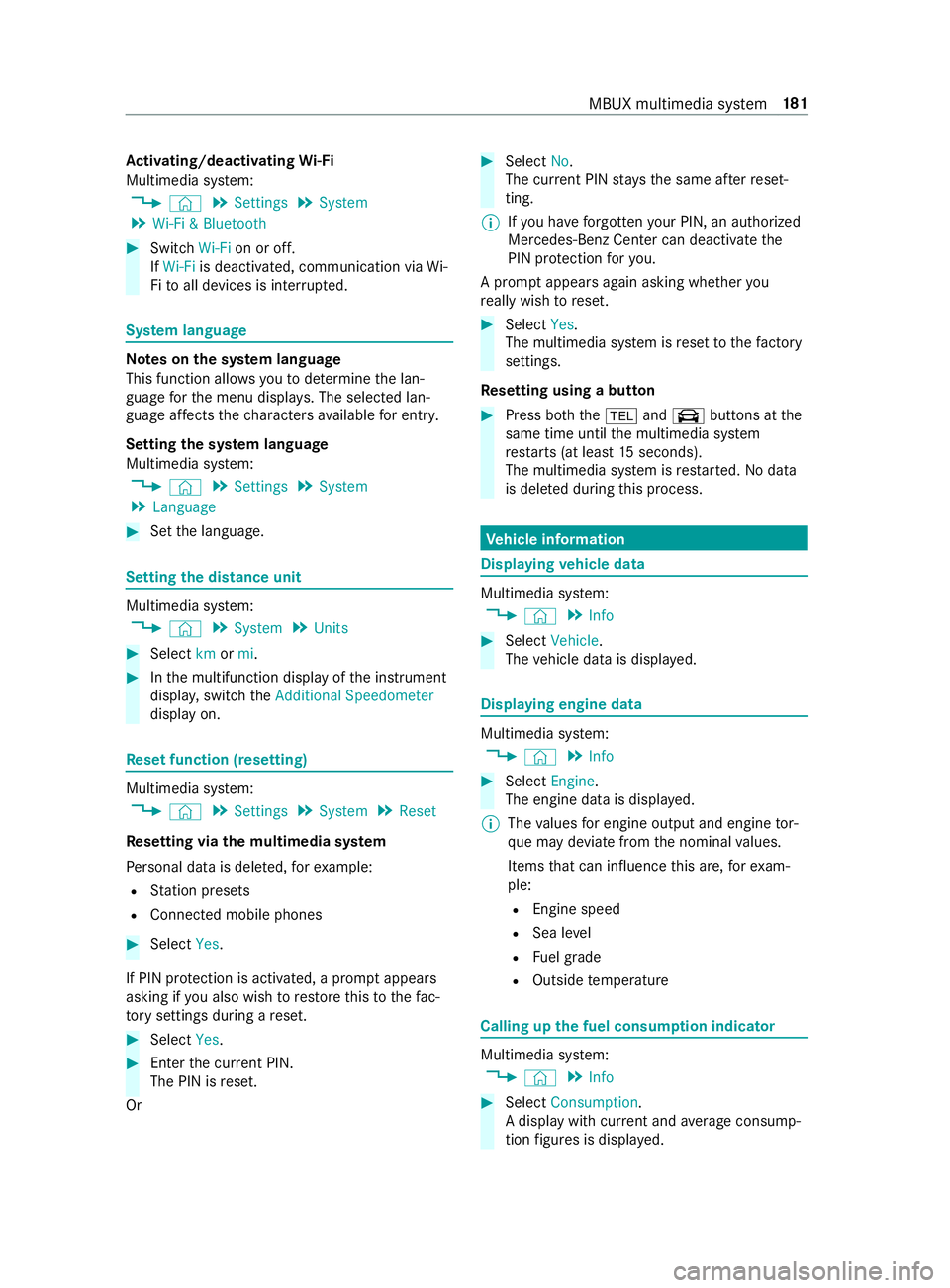
5 Wi-Fi & Bluetooth #
Switch Wi-Fion or off.
If Wi-Fi is deactivated, communication via Wi-
Fi to all devices is inter rupte d. Sy
stem language Note
s onthe sy stem language
This function allo wsyouto determ ine the lan‐
guage forth e menu displa ys. The selected lan‐
guage af fects thech aracters available for entr y.
Setting the sy stem language
Multimedia sy stem:
4 © 5
Settings 5
System
5 Language #
Set the language. Setting
the distance unit Multimedia sy
stem:
4 © 5
System 5
Units #
Select kmormi. #
Inthe multifunction display of the instrument
displa y,switch theAdditional Speedometer
display on. Re
set function (resetting) Multimedia sy
stem:
4 © 5
Settings 5
System 5
Reset
Re setting via the multimedia sy stem
Pe rsonal data is dele ted, forex ample:
R Station presets
R Connected mobile phones #
Select Yes.
If PIN pr otection is activated, a prom ptappears
asking if you also wish torestore this to thefa c‐
to ry settings during a reset. #
Select Yes. #
Enter the cur rent PIN.
The PIN is reset.
Or #
Select No.
The cur rent PIN stay sth e same af terre set‐
ting.
% If
yo u ha veforg ottenyo ur PIN, an authorized
Mercedes-Benz Center can deactivate the
PIN pr otection foryo u.
A prom ptappears again asking whe ther you
re ally wish toreset. #
Select Yes.
The multimedia sy stem is reset tothefa ctory
settings.
Re setting using a button #
Press bo th the002B and\ buttons at the
same time until the multimedia sy stem
re starts (at least 15seconds).
The multimedia sy stem is restar ted. No data
is dele ted during this process. Ve
hicle information Displaying
vehicle data Multimedia sy
stem:
4 © 5
Info #
Select Vehicle .
The vehicle data is displa yed. Displaying engine data
Multimedia sy
stem:
4 © 5
Info #
Select Engine.
The engine data is displa yed.
% The
values for engine output and engine tor‐
qu e may deviate from the nominal values.
Items that can influence this are, forex am‐
ple:
R Engine speed
R Sea le vel
R Fuel grade
R Outside temp erature Calling up
the fuel consum ption indicator Multimedia sy
stem:
4 © 5
Info #
Select Consumption .
A display with cur rent and average consu mp‐
tion figures is displa yed. MBUX multimedia sy
stem 181
Page 206 of 354
Te
lephone Te
lephony Te
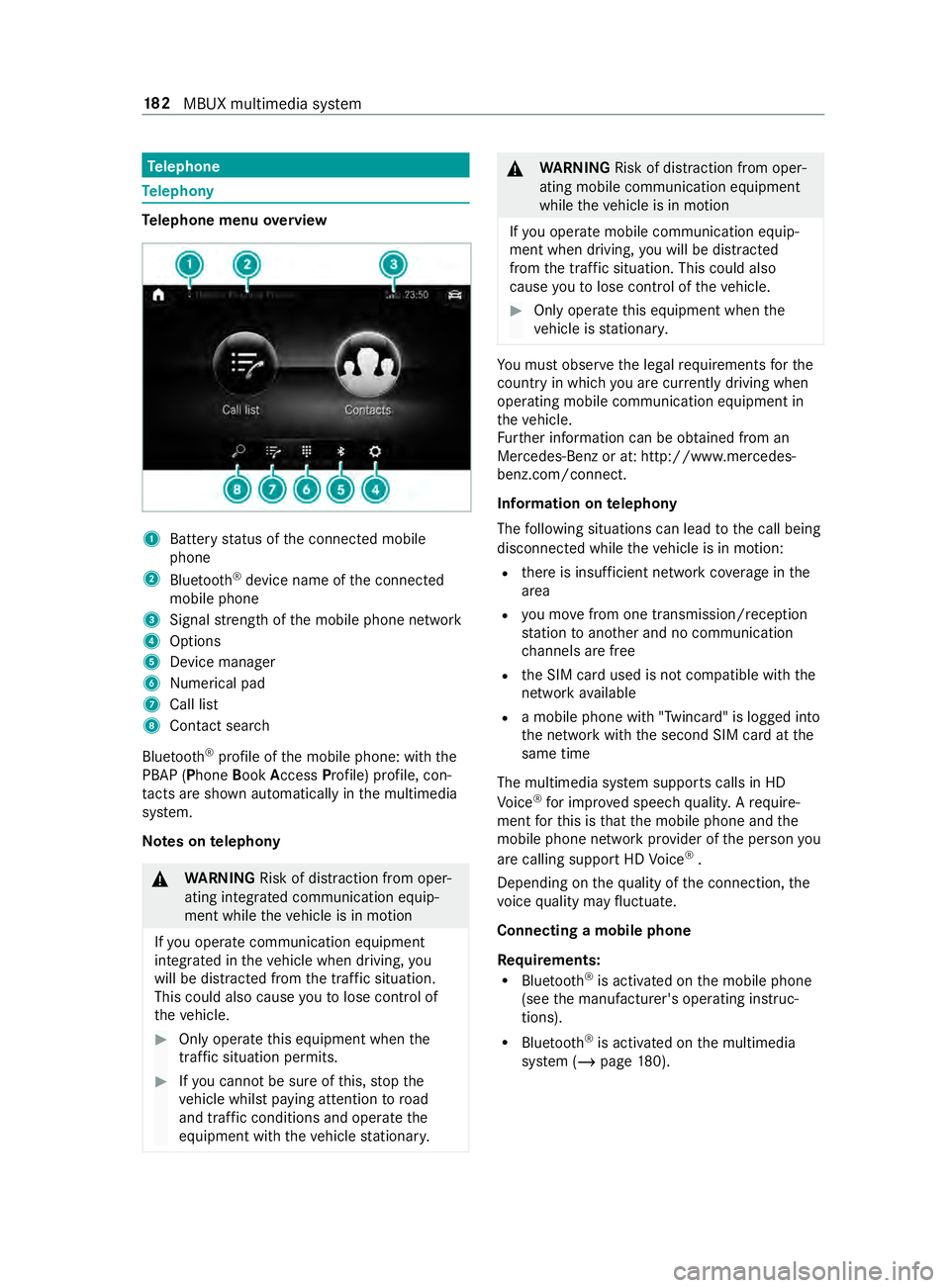
lephone menu overview 1
Battery status of the connected mobile
phone
2 Blue tooth ®
device name of the connected
mobile phone
3 Signal stre ngth of the mobile phone network
4 Options
5 Device manager
6 Nume rical pad
7 Call li st
8 Contact sea rch
Blu etoo th®
profile of the mobile phone: with the
PBAP (Phone BookAccess Profile) profile, con‐
ta cts are shown au tomatically in the multimedia
sy stem.
Note s ontelephony &
WARNING Risk of distraction from oper‐
ating integrated communication equip‐
ment while theve hicle is in motion
If yo u operate communication equipment
integ rated in theve hicle when driving, you
will be distracted from the tra ffic situation.
This could also cause youto lose control of
th eve hicle. #
Only operate this equipment when the
traf fic situation permits. #
Ifyo u cannot be sure of this, stop the
ve hicle whilst paying attention toroad
and traf fic conditions and ope rate the
equipment with theve hicle stationar y. &
WARNING Risk of distraction from oper‐
ating mobile communication equipment
while theve hicle is in motion
If yo u operate mobile communication equip‐
ment when driving, you will be distracted
from the traf fic situation. This could also
cause youto lose control of theve hicle. #
Only operate this equipment when the
ve hicle is stationar y. Yo
u must obse rveth e legal requirements forthe
country in whi chyou are cur rently driving when
ope rating mobile communication equipment in
th eve hicle.
Fu rther information can be obtained from an
Mercedes-Benz or at: http://www.mercedes-
benz.com/connect.
Information on telephony
The following situations can lead tothe call being
disconnected while theve hicle is in motion:
R there is insuf ficient network co verage inthe
area
R you mo vefrom one transmission/reception
st ation toano ther and no communication
ch annels are free
R the SIM card used is not compatible with the
network available
R a mobile phone with "Twincard" is logged into
the network with the second SIM card at the
same time
The multimedia sy stem supports calls in HD
Vo ice ®
for impr oved speech quality. A require‐
ment forth is is that the mobile phone and the
mobile phone network pr ovider of the person you
are calling support HD Voice ®
.
Depending on thequ ality of the connection, the
vo ice quality may fluctuate.
Connecting a mobile phone
Re quirements:
R Blue tooth ®
is activated on the mobile phone
(see the manufacturer's operating instruc‐
tions).
R Blue tooth ®
is activated on the multimedia
sy stem (/ page180). 18 2
MBUX multimedia sy stem
Page 207 of 354
Multimedia sy
stem:
4 © 5
Phone 5
00A5
Sear ching for a mobile phone #
Select Connect New Device.
Connecting a mobile phone (authorization
using Secure Si mplePa iring) #
Select a mobile phone. #
A code is displa yed in the multimedia sy stem
and on the mobile phone. #
Ifth e codes match: confirm the code on the
mobile phone.
% Fo
r older mobile phone models, enter a one
to sixteen-digit number code on the mobile
phone and on the multimedia sy stem for
authorization.
% Up
to15 mobile phones can be authorized on
th e multimedia sy stem.
Auth orized mobile phones are reconnected
au tomatical ly.
% The connected mobile phone can also be
used as Blue tooth®
audio equipment
(/ page 190).
Re placing a mobile phone
Multimedia sy stem:
4 Phone 5
00A5 #
Noauthorized mobile phone available:
select Connect New Device .#
Select a mobile phone. #
Newly authorized mobile phone: confirm
th e number code on the mobile phone.
Switching mobile phones #
Select an authorized mobile phone.
The selected mobile phone is connected to
th e multimedia sy stem.
% For iPhone ®
:yo u can swit chbetween the
Apple CarPl ay™ and Blu etoo th®
equipment
connection variants.
De-authorizing a mobile phone
Multimedia sy stem:
4 © 5
Phone 5
00A5 #
Select 0062inthe line of the mobile phone. #
Select Deauthorize . Information on
NearField Communication
(NFC)
NFC enables short- range wi reless data transfer
or (re)connection of a mobile phone with the mul‐
timedia sy stem.
Fu rther information can be obtained at: http://
www.mercedes-benz.com/connect
Using the mobile phone with NearField Com‐
munication (NFC)
Re quirements:
R NFC is activated on the mobile phone (see
th e manufacturer's operating instructions)
R The mobile phone's screen is switched on
and unloc ked (see the manufacturer's operat‐
ing instructions) #
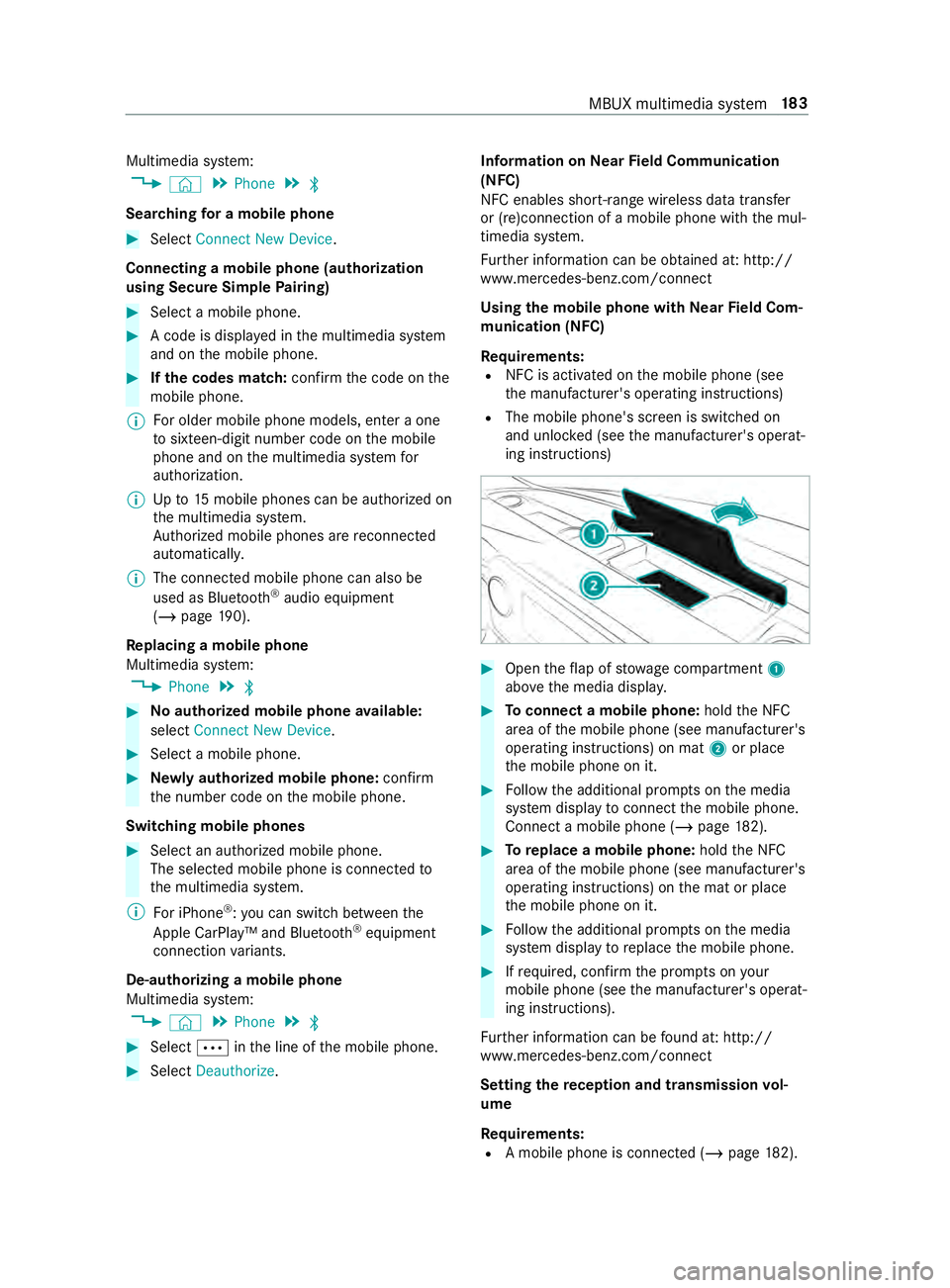
Open theflap of stowage compartment 1
abo vethe media displa y. #
Toconnect a mobile phone: holdthe NFC
area of the mobile phone (see manufacturer's
operating instructions) on mat 2or place
th e mobile phone on it. #
Follow the additional prom pts on the media
sy stem display toconnect the mobile phone.
Connect a mobile phone (/ page182). #
Toreplace a mobile phone: holdthe NFC
area of the mobile phone (see manufacturer's
operating instructions) on the mat or place
th e mobile phone on it. #
Follow the additional prom pts on the media
sy stem display toreplace the mobile phone. #
Ifre qu ired, con firm the prom pts on your
mobile phone (see the manufacturer's operat‐
ing instructions).
Fu rther information can be found at: http://
www.mercedes-benz.com/connect
Setting there ception and transmission vol‐
ume
Re quirements:
R A mobile phone is connec ted (/ page182). MBUX multimedia sy
stem 18 3
Page 209 of 354
%
This function and behavior depends on
your
mobile phone network pr ovider and the
mobile phone (see the manufacturer's oper‐
ating instructions). Contacts
Information about
the contacts menu
The con tacts menu contains all contacts from
ex isting data sources, e.g. mobile phone.
Yo u can store up to3000 contacts.
Fr om the contacts menu you can use telephone
functions such as call a con tact, forex ample
(/ page 185).
If a mobile phone is connected tothe multimedia
sy stem (/ page182) and automatic calli ng up
(/ page 185) is activated, the mobile phone's
contacts are displa yed in the address book.
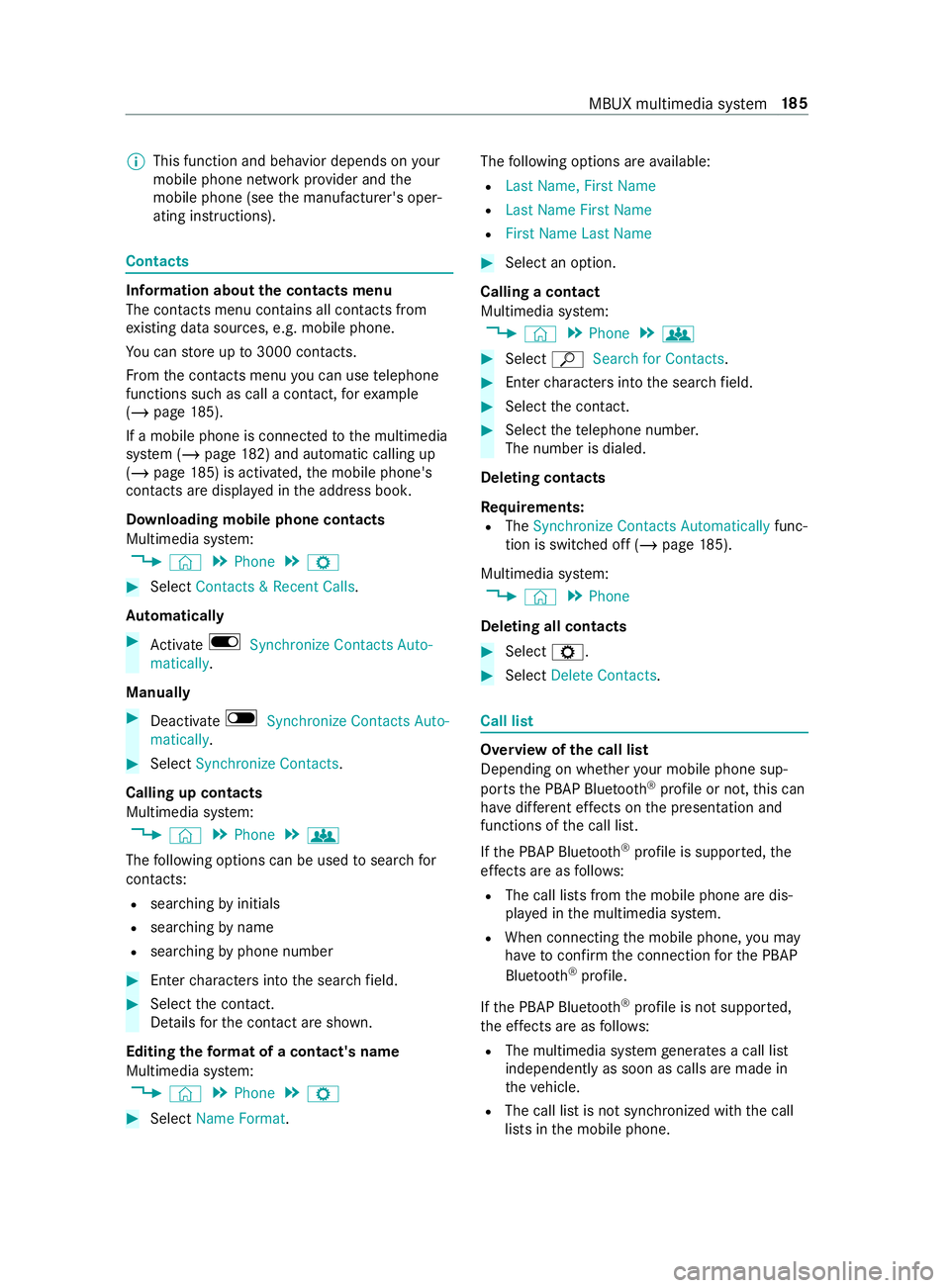
Downloading mobile phone contacts
Multimedia sy stem:
4 © 5
Phone 5
Z #
Select Contacts & Recent Calls.
Au tomatically #
Activate D Synchronize Contacts Auto-
matically.
Manual ly #
Deactivate ESynchronize Contacts Auto-
matically. #
Select Synchronize Contacts .
Calling up contacts
Multimedia sy stem:
4 © 5
Phone 5
g
The following options can be used tosear chfor
contacts:
R searching byinitials
R sear ching byname
R searching byphone number #
Ente rch aracters into the sear chfield. #
Select the contact.
De tails forth e contact are shown.
Editing thefo rm at of a contact's name
Multimedia sy stem:
4 © 5
Phone 5
Z #
Select Name Format . The
following options are available:
R Last Name, First Name
R Last Name First Name
R First Name Last Name #
Select an option.
Calling a contact
Multimedia sy stem:
4 © 5
Phone 5
g #
Select ªSearch for Contacts. #
Ente rch aracters into the sear chfield. #
Select the contact. #
Select thete lephone numbe r.
The number is dialed.
Deleting contacts
Re quirements:
R The Synchronize Contacts Automatically func‐
tion is switched off (/ page185).
Mul timedia sy stem:
4 © 5
Phone
Deleting all contacts #
Select Z. #
Select Delete Contacts. Call list
Overview of
the call list
Depending on whe ther your mobile phone sup‐
ports the PBAP Blue tooth®
profile or not, this can
ha ve differe nt ef fects on the presentation and
functions of the call list.
If th e PBAP Blue tooth ®
profile is suppor ted, the
ef fects are as follo ws:
R The call lists from the mobile phone are dis‐
pla yed in the multimedia sy stem.
R When connecting the mobile phone, you may
ha ve toconfirm the connection forth e PBAP
Blue tooth ®
profile.
If th e PBAP Blue tooth ®
profile is not suppor ted,
th e ef fects are as follo ws:
R The multimedia sy stem generates a call li st
independently as soon as calls are made in
th eve hicle.
R The call list is not synchronized with the call
lists in the mobile phone. MBUX multimedia sy
stem 18 5
Page 210 of 354
Making a call from
the call list
Multimedia sy stem:
4 © 5
Phone #
Select +Recent Calls. #
Select an entry.
The call is made.
Calling up additional options in the call list
Multimedia sy stem:
4 © 5
Phone #
Select +Recent Calls. #
For pr eviously stored contacts: select 0048in
th e line of an entry.
The sear chresults are displa yed. Apple CarPlay™
Overview of Apple CarPlay™
&
WARNING Risk of distraction from infor‐
mation sy stems and communications
equipment
If yo u operate information and communica‐
tion equipment integ rated in theve hicle when
driving, you will be distracted from the tra ffic
situation. This could also cause youto lose
control of theve hicle. #
Only operate this equipment when the
traf fic situation permits. #
Ifyo u cannot be sure of this, stop the
ve hicle whilst paying attention toroad
and traf fic conditions and ope rate the
equipment with theve hicle stationar y. Yo
u must obse rveth e legal requirements forthe
country in whi chyou are cur rently driving when
ope rating the multimedia sy stem.
iPhone ®
functions can be used via the multime‐
dia sy stem using Apple CarPlay™. They are oper‐
ated using theto uchsc reen, Touch Control or the
Siri ®
vo ice-operated control sy stem. You can acti‐
va te thevo ice-opera ted control sy stem bypress‐
ing and holding the£ button on the multifunc‐
tion steering wheel.
Only one mobile phone at a time can be connec‐
te d via Apple CarPlay™ tothe multimedia sy stem.
The availability of Apple CarPlay™ may vary
according tothe count ry.
The service pr ovider is responsible forth is appli‐
cation and the services and content connected to
it. Information on Apple CarPlay™
When Apple CarPlay™ is being used,
the iPod ®
media source is not available forth ere spective
iPhone ®
.
Connecting an iPhone ®
via Apple CarPlay™
(with cable)
Re quirements:
R The multimedia sy stem is equipped with the
function.
R The cur rent version of your device's operating
sy stem is being used (see the manufacturer's
operating instructions).
R The full range of functions for Apple CarPlay™
is only available with an In tern et connection. #
Connect the iPhone ®
to the00C2 USB port
on the multimedia sy stem using a suitable
cable (/ page190). #
Ifno other device is connected with the sys‐
te m via Blue tooth®
: confirm the data pr otec‐
tion pr ovisions. #
If ano ther device is connected via Blue tooth®
or Apple CarPlay™ (wireless) with the sy stem:
ta p on theTap here to start Apple CarPlay
for:
or #
Select the iPhone ®
in the device list
under the application.
The pr evious connection via Blue tooth®
or
Apple CarPlay™ (wireless) is disconnected.
The device newly connected via cable is
active.
Ac cepting/rejecting the data pr otection pro‐
visions
A message with the data pr otection pr ovisions
appears. #
Select Accept & Start.
Exiting Apple CarPlay™ #
Press 00E2button.
% If Apple CarPlay™
was not displa yed full-
screen before disconnecting, the application
st arts in the bac kground when reconnected.
Yo u can call up Apple CarPlay™ in the main
menu. 18 6
MBUX multimedia sy stem
Page 211 of 354
Connecting an iPhone
®
via Apple CarPlay™
(wireless)
Requ irements:
R The multimedia sy stem is equipped with the
function.
R The cur rent version of your device's operating
sy stem is being used (see the manufacturer's
operating instructions).
R Blue tooth ®
is activated on the device (see the
manufacturer's operating instructions).
R The device is "visible" forot her devices.
R There is an Internet connection forth e full
ra nge of functions for Apple CarPlay™.
Multimedia sy stem:
4 © 5
Phone 5
00A5
Sear ching for a mobile phone #
Select Connect New Device.
The available iPhone ®
is shown.
Connecting a mobile phone #
Select the iPhone ®
. #
Select Start Apple CarPlay.
% It is possible at any time
toswitch between
connection via Blue tooth®
or via Apple Car‐
Play™ (wireless) in the device list.
Ac cepting/rejecting the data pr otection pro‐
visions
A message with the data pr otection pr ovisions
appears. #
Select Accept & Start.
% When
the Apple CarPlay™ connection is
active, you can swit chStart Automatically on
or off.
Exiting Apple CarPlay™ #
Press the00E2 button.
% If Apple CarPlay™
was not displa yed in the
fo re ground before disconnecting, the applica‐
tion starts in the bac kground when reconnec‐
te d. You can call up Apple CarPlay™ in the
main menu.
Calling up Apple CarPlay™ sound settings
Multimedia sy stem:
4 © 5
Smartphone 5
Apple CarPlay
5 Z #
Select sound settings. Ending Apple CarPlay™ #
Toend the connection of Apple Carplay™
(cable): disconnect the connection via the
connecting cable between the iPhone ®
and
multimedia sy stem. #
Toend the connection of Apple Carplay™
(wireless): de-authorize the iPhone ®
in the device list under
the application.
% Re
gardless of whe ther the connection is via
cable or wireless, Mercedes-Benz recom‐
mends disconnection only when theve hicle
is stationar y. Android
Auto Android
Autoove rview &
WARNING Risk of distraction from infor‐
mation sy stems and communications
equipment
If yo u operate information and communica‐
tion equipment integ rated in theve hicle when
driving, you will be distracted from the tra ffic
situation. This could also cause youto lose
control of theve hicle. #
Only operate this equipment when the
traf fic situation permits. #
Ifyo u cannot be sure of this, stop the
ve hicle whilst paying attention toroad
and traf fic conditions and ope rate the
equipment with theve hicle stationar y. Yo
u must obse rveth e legal requirements forthe
country in whi chyou are cur rently driving when
ope rating the multimedia sy stem.
Mobile phone functions can be used with Android
Au tousing the Android operating sy stem on the
multimedia sy stem. It is operated using the
to uchsc reen or thevo ice-operated control sys‐
te m. You can activate thevo ice-opera ted control
sy stem bypressing and holding the£ button
on the multifunction steering wheel.
Only one mobile phone at a time can be connec‐
te d via Android Auto to the multimedia sy stem.
The availability of Android Autoand Android Auto
apps may vary according tothe count ry.
The service pr ovider is responsible forth is appli‐
cation and the services and content connected to
it. MBUX multimedia sy
stem 187