Navi settings MITSUBISHI OUTLANDER 2014 3.G MMCS Manual
[x] Cancel search | Manufacturer: MITSUBISHI, Model Year: 2014, Model line: OUTLANDER, Model: MITSUBISHI OUTLANDER 2014 3.GPages: 226, PDF Size: 31.21 MB
Page 49 of 226
Search for a Location 49
NAVIDestination Settings
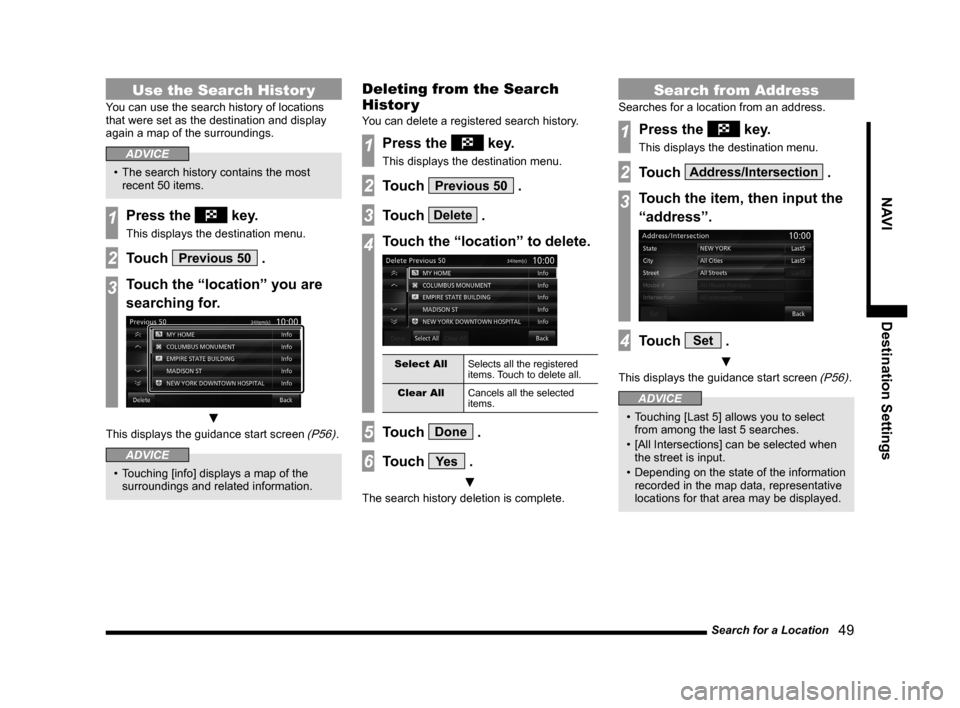
Use the Search Histor y
You can use the search history of locations
that were set as the destination and display
again a map of the surroundings.
ADVICE
• The search history contains the most
recent 50 items.
1Press the key.
This displays the destination menu.
2Touch Previous 50 .
3Touch the “location” you are
searching for.
▼
This displays the guidance start screen (P56).
ADVICE
• Touching [info] displays a map of the
surroundings and related information.
Deleting from the Search
Histor y
You can delete a registered search history.
1Press the key.
This displays the destination menu.
2Touch Previous 50 .
3Touch Delete .
4Touch the “location” to delete.
Select All Selects all the registered
items. Touch to delete all.
Clear All Cancels all the selected
items.
5Touch Done .
6Touch Ye s .
▼
The search history deletion is complete.
Search from Address
Searches for a location from an address.
1Press the key.
This displays the destination menu.
2Touch Address/Intersection .
3Touch the item, then input the
“address”.
4Touch Set .
▼
This displays the guidance start screen (P56).
ADVICE
• Touching [Last 5] allows you to select
from among the last 5 searches.
• [All Intersections] can be selected when
the street is input.
• Depending on the state of the information
recorded in the map data, representative
locations for that area may be displayed.
Page 51 of 226
![MITSUBISHI OUTLANDER 2014 3.G MMCS Manual Search for a Location 51
NAVIDestination Settings
ADVICE
• If the list has the “+” mark, touch [Sub
POI], select the detailed establishment
name.
A list is displayed and you can select t](/img/19/7529/w960_7529-50.png "MITSUBISHI OUTLANDER 2014 3.G MMCS Manual Search for a Location 51
NAVIDestination Settings
ADVICE
• If the list has the “+” mark, touch [Sub
POI], select the detailed establishment
name.
A list is displayed and you can select t")
Search for a Location 51
NAVIDestination Settings
ADVICE
• If the list has the “+” mark, touch [Sub
POI], select the detailed establishment
name.
A list is displayed and you can select the
detailed establishment.
8Touch Set .
▼
This displays the guidance start screen (P56).
Editing My Categories
Registers a frequently used establishment
category in “My Categories”.
Up to 6 entries can be registered in “My
Categories”.
1Press the key.
This displays the destination menu.
2Touch Point of Interest .
3Touch All Categories .
4Touch Edit .
5Touch the “category”
to register.
The registered category is displayed
inverted.
Default Restores the factory settings.
Clear All Cancels all the registered
categories.
Sort by
Alphabet or
Sort by Genre Sorts by genre or in
alphabetical order by name.
6Touch Back .
Returns to the previous screen.
ADVICE
•
You can also edit by touching [NAVI
MENU] key, [Personal], and [My
Categories] in “Edit”.
→“Personal”(P204)
Page 53 of 226
Search for a Location 53
NAVIDestination Settings
Searching for Establishments
near the Destination or a
Waypoint
1Press the key.
This displays the destination menu.
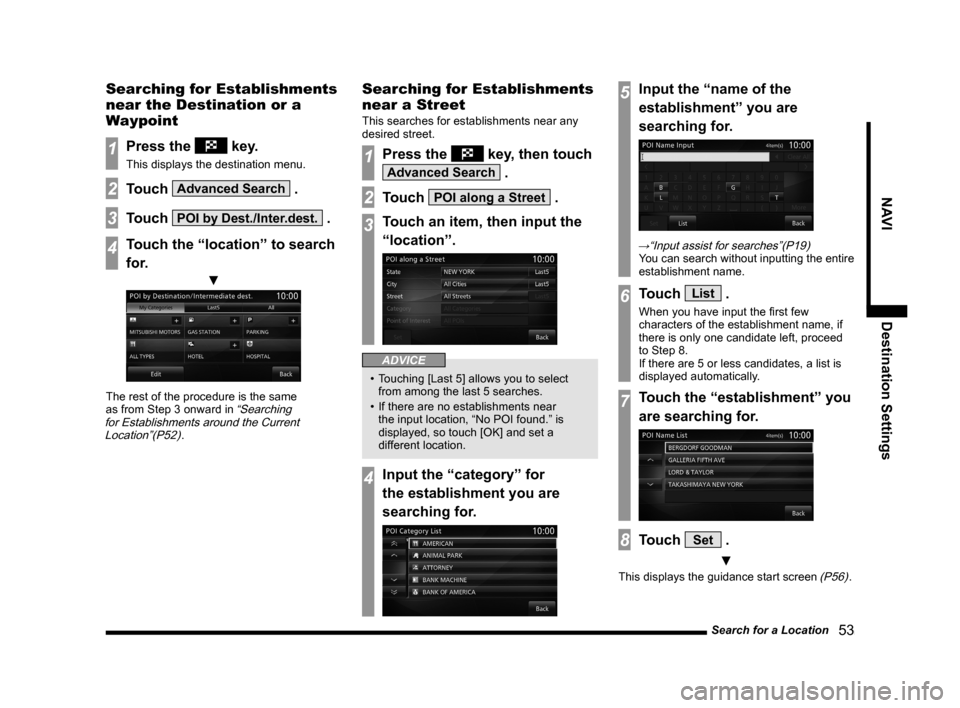
2Touch Advanced Search .
3Touch POI by Dest./Inter.dest. .
4Touch the “location” to search
for.
▼
The rest of the procedure is the same
as from Step 3 onward in “Searching
for Establishments around the Current Location”(P52)
.
Searching for Establishments
near a Street
This searches for establishments near any
desired street.
1Press the key, then touch
Advanced Search .
2Touch POI along a Street .
3Touch an item, then input the
“location”.
ADVICE
• Touching [Last 5] allows you to select
from among the last 5 searches.
• If there are no establishments near
the input location, “No POI found.” is
displayed, so touch [OK] and set a
different location.
4Input the “category” for
the establishment you are
searching for.
5Input the “name of the
establishment” you are
searching for.
→“Input assist for searches”(P19)
You can search without inputting the entire
establishment name.
6Touch List .
When you have input the first few
characters of the establishment name, if
there is only one candidate left, proceed
to Step 8.
If there are 5 or less candidates, a list is
displayed automatically.
7Touch the “establishment” you
are searching for.
8Touch Set .
▼
This displays the guidance start screen (P56).
Page 55 of 226
Search for a Location 55
NAVIDestination Settings
Search by Latitude and
Longitude
You can set the destination by specifying the
latitude and longitude.
1Press the key.
This displays the destination menu.
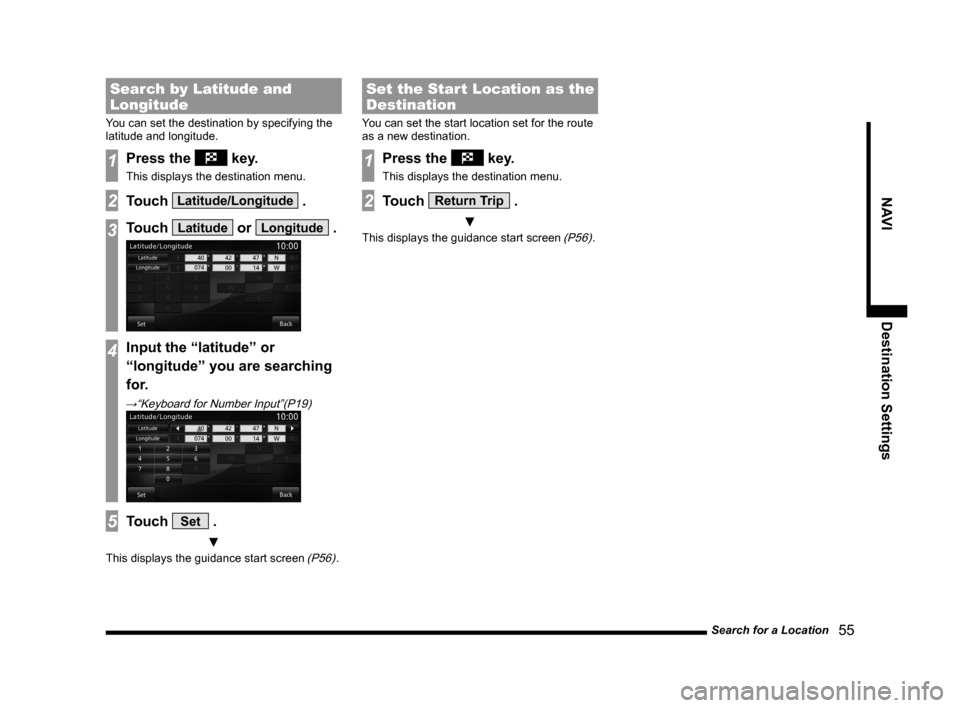
2Touch Latitude/Longitude .
3Touch Latitude or Longitude .
4Input the “latitude” or
“longitude” you are searching
for.
→“Keyboard for Number Input”(P19)
5Touch Set .
▼
This displays the guidance start screen (P56).
Set the Start Location as the
Destination
You can set the start location set for the route
as a new destination.
1Press the key.
This displays the destination menu.
2Touch Return Trip .
▼
This displays the guidance start screen (P56).
Page 63 of 226
Change the Route 63
NAVI Route Checking and Changing
Select from Four Routes
You can simultaneously search for routes with
four different conditions, then select one of
them.
ADVICE
• Depending on the road conditions, it
may not be possible to search for all four
routes.
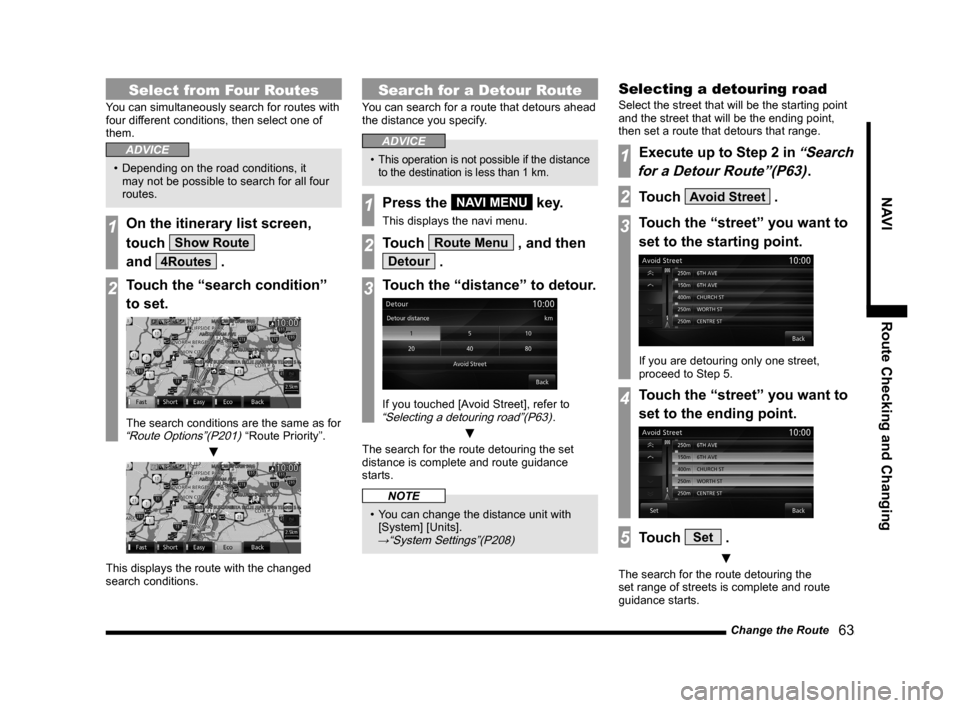
1On the itinerary list screen,
touch
Show Route
and
4Routes .
2Touch the “search condition”
to set.
The search conditions are the same as for “Route Options”(P201) “Route Priority”.
▼
This displays the route with the changed
search conditions.
Search for a Detour Route
You can search for a route that detours ahead
the distance you specify.
ADVICE
• This operation is not possible if the distance
to the destination is less than 1 km.
1Press the NAVI MENU key.
This displays the navi menu.
2Touch Route Menu , and then
Detour .
3Touch the “distance” to detour.
If you touched [Avoid Street], refer to “Selecting a detouring road”(P63).
▼
The search for the route detouring the set
distance is complete and route guidance
starts.
NOTE
• You can change the distance unit with
[System] [Units].
→“System Settings”(P208)
Selecting a detouring road
Select the street that will be the starting point
and the street that will be the ending point,
then set a route that detours that range.
1Execute up to Step 2 in “Search
for a Detour Route”(P63)
.
2Touch Avoid Street .
3Touch the “street” you want to
set to the starting point.
If you are detouring only one street,
proceed to Step 5.
4Touch the “street” you want to
set to the ending point.
5Touch Set .
▼
The search for the route detouring the
set range of streets is complete and route
guidance starts.
Page 65 of 226
Change the Route 65
NAVI Route Checking and Changing
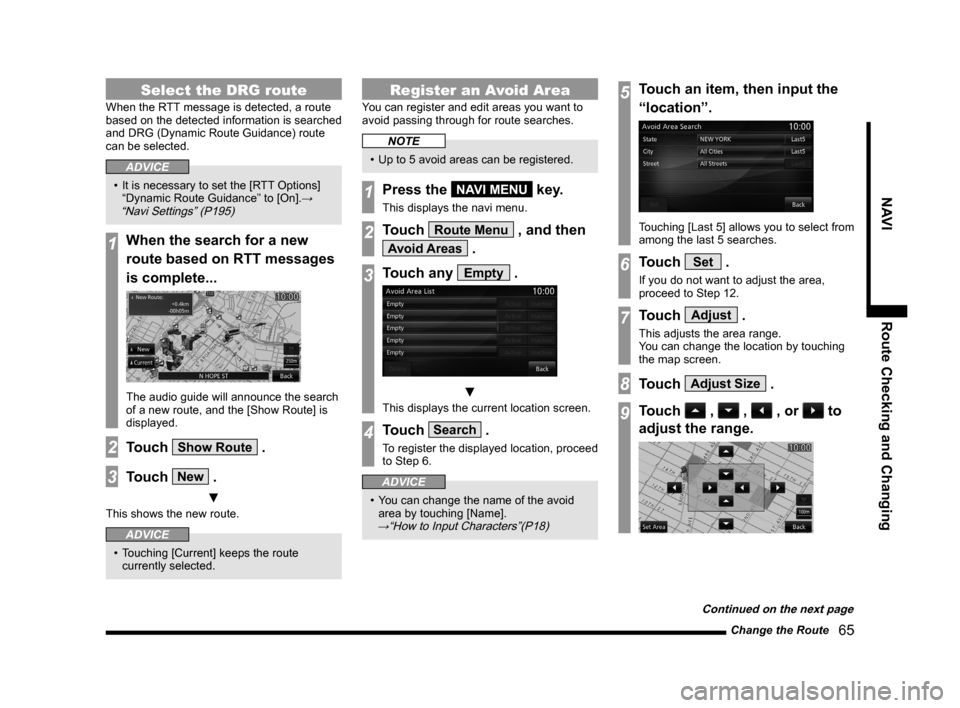
Select the DRG route
When the RTT message is detected, a route
based on the detected information is searched
and DRG (Dynamic Route Guidance) route
can be selected.
ADVICE
• It is necessary to set the [RTT Options]
“Dynamic Route Guidance” to [On].→
“Navi Settings” (P195)
1When the search for a new
route based on RTT messages
is complete...
The audio guide will announce the search
of a new route, and the [Show Route] is
displayed.
2Touch Show Route .
3Touch New .
▼
This shows the new route.
ADVICE
• Touching [Current] keeps the route
currently selected.
Register an Avoid Area
You can register and edit areas you want to
avoid passing through for route searches.
NOTE
• Up to 5 avoid areas can be registered.
1Press the NAVI MENU key.
This displays the navi menu.
2Touch Route Menu , and then
Avoid Areas .
3Touch any Empty .
▼
This displays the current location screen.
4Touch Search .
To register the displayed location, proceed
to Step 6.
ADVICE
• You can change the name of the avoid
area by touching [Name].
→“How to Input Characters”(P18)
5Touch an item, then input the
“location”.
Touching [Last 5] allows you to select from
among the last 5 searches.
6Touch Set .
If you do not want to adjust the area,
proceed to Step 12.
7Touch Adjust .
This adjusts the area range.
You can change the location by touching
the map screen.
8Touch Adjust Size .
9Touch , , , or to
adjust the range.
Continued on the next page
Page 74 of 226
74 Change Address Book Information
Name
You can change the name of the location mark
for the location in the address book displayed
on the map screen.
ADVICE
• You can select to display or not display
the name of the location in the address
book on the map with [Screen] “Address
Book Names”.
→“Navi Settings”(P195)
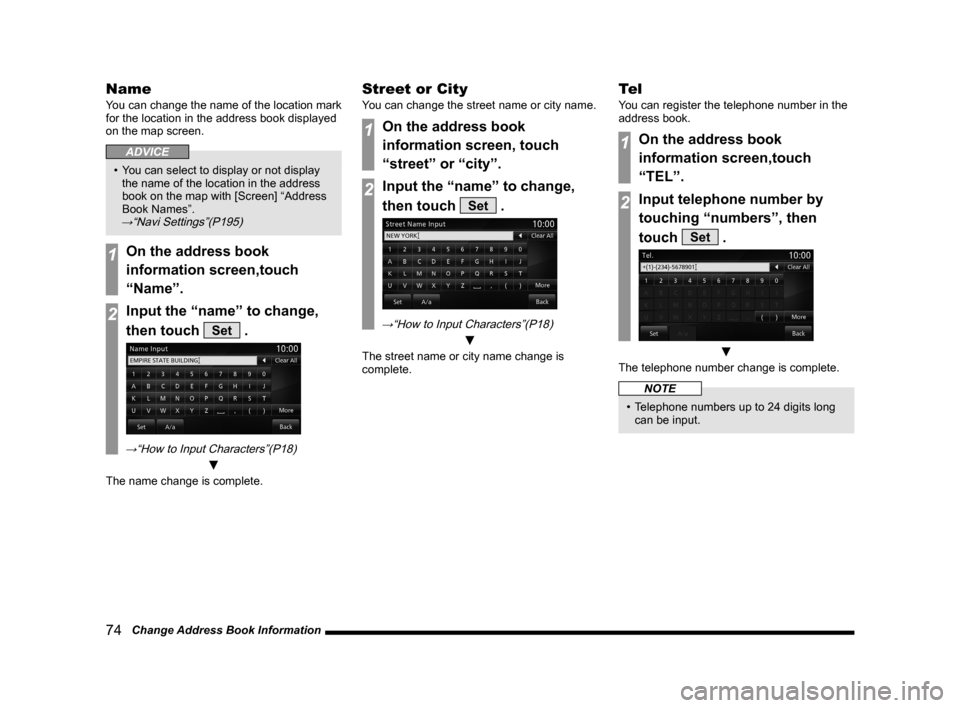
1On the address book
information screen,touch
“Name”.
2Input the “name” to change,
then touch
Set .
→“How to Input Characters”(P18)
▼
The name change is complete.
Street or City
You can change the street name or city name.
1On the address book
information screen, touch
“street” or “city”.
2Input the “name” to change,
then touch
Set .
→“How to Input Characters”(P18)
▼
The street name or city name change is
complete.
Te l
You can register the telephone number in the
address book.
1On the address book
information screen,touch
“TEL”.
2Input telephone number by
touching “numbers”, then
touch
Set .
▼
The telephone number change is complete.
NOTE
• Telephone numbers up to 24 digits long
can be input.
Page 75 of 226
RTT 75
NAVI RTT
RTT
RTT
You can use the real-time traffic message.
DRG (Dynamic Route
Guidance)
When the RTT messages or traffic rule
information is detected, the best route
is calculated automatically based on the
detected information and guidance is
provided.
→ “Select the DRG route” (P65)
ADVICE
• It is necessary to set the [RTT Options]
“Dynamic Route Guidance” to [On].→
“Navi Settings” (P195)
RTT Sur veillance Map
RTT is a service that provides traffic message
using FM HD Radio signal (FM Radio waves).
Areas can be registered to check the traffic
rules and traffic messages of the registered
area.
→ “Registering the RTT Surveillance Map” (P78)
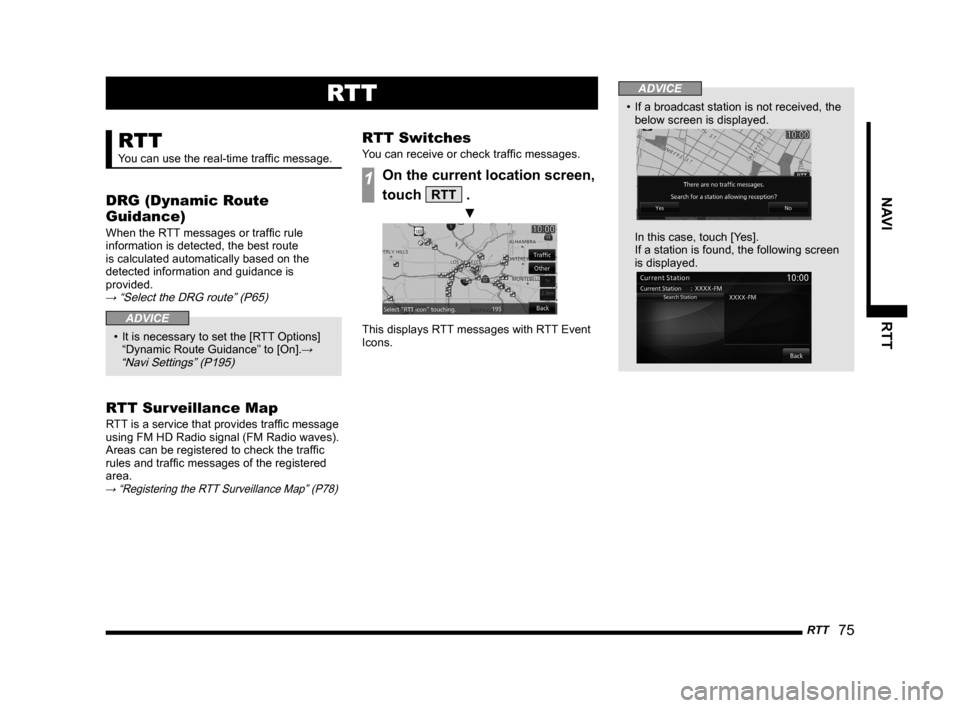
RTT Switches
You can receive or check traffic messages.
1On the current location screen,
touch
RTT .
▼
This displays RTT messages with RTT Event
Icons.
ADVICE
• If a broadcast station is not received, the
below screen is displayed.
In this case, touch [Yes].
If a station is found, the following screen
is displayed.
Page 147 of 226
Mobile Phone 147
INFO/SETTINGS INFO
Making a Call from a
Phonebook
1Display the vehicle phonebook
screen or the mobile
phonebook screen.
→“Display the Phonebook”(P143)
2Select and touch the “person
to call”.
ADVICE
• When there are many items in the
phonebook, you can find them using the
search function.
Touch
▲ and [Jump], then input the
first character in the person whose phone
number you are searching for.
3Touch the “telephone number
to call”.
4Touch Ye s .
▼
A call is started to the telephone number you
selected.
Call a Telephone
NumberRegistered on the Map
If there is a telephone number in the
information for an establishment registered
in the navigation function, you can call that
telephone number.
NOTE
• If there is no telephone number in
the information for the establishment
searched for, you cannot call it.
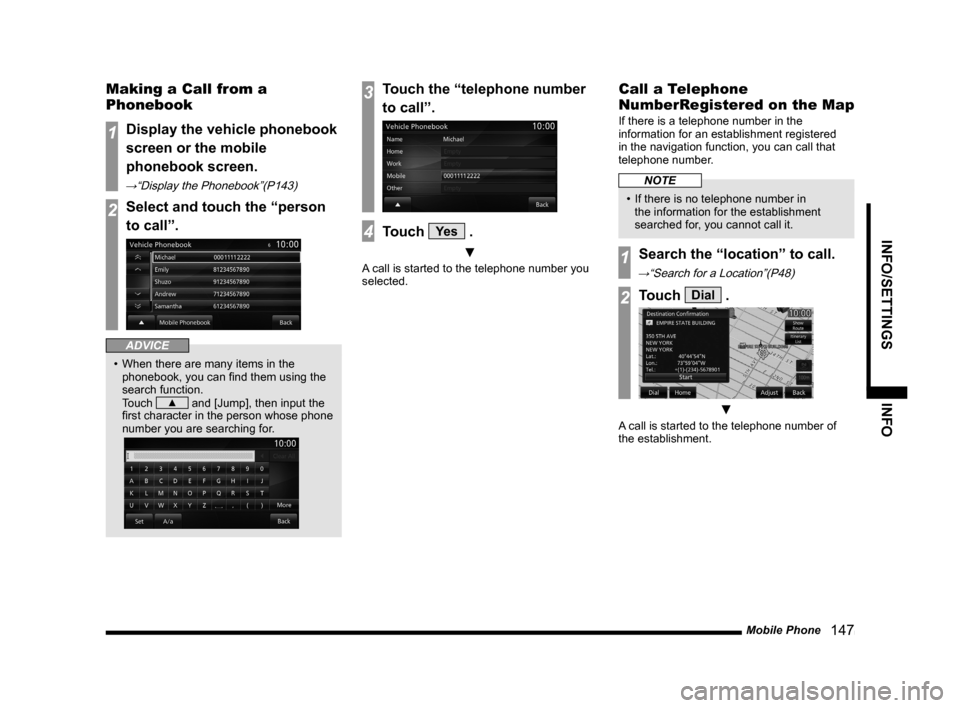
1Search the “location” to call.
→“Search for a Location”(P48)
2Touch Dial .
▼
A call is started to the telephone number of
the establishment.
Page 163 of 226
Version Info 163
INFO/SETTINGS INFO
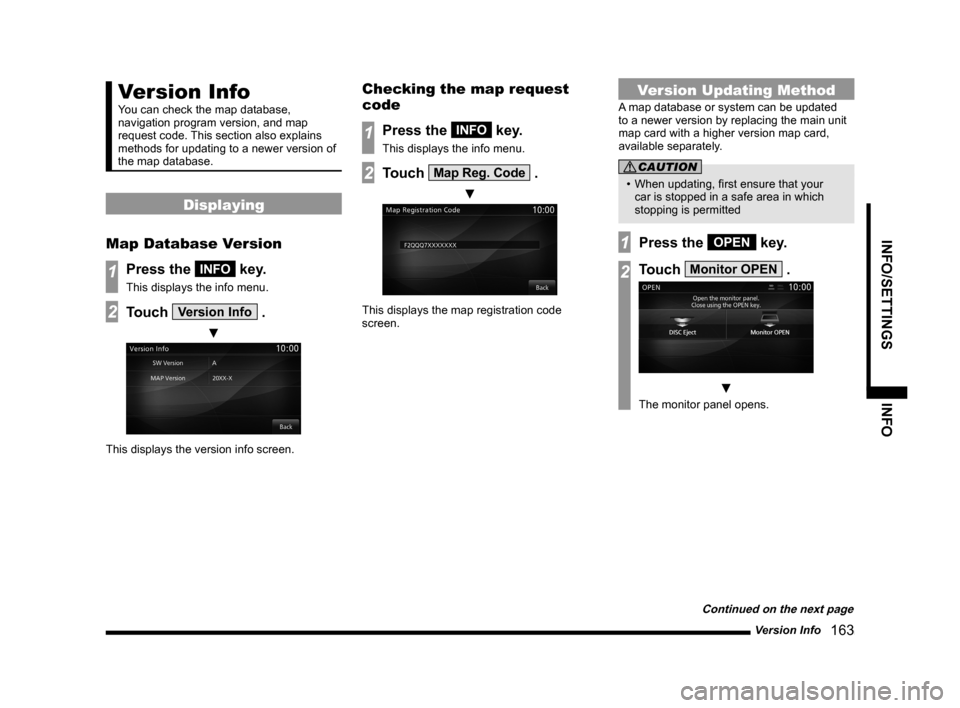
Version Info
You can check the map database,
navigation program version, and map
request code. This section also explains
methods for updating to a newer version of
the map database.
Displaying
Map Database Version
1Press the INFO key.
This displays the info menu.
2Touch Version Info .
▼
This displays the version info screen.
Checking the map request
code
1Press the INFO key.
This displays the info menu.
2Touch Map Reg. Code .
▼
This displays the map registration code
screen.
Version Updating Method
A map database or system can be updated
to a newer version by replacing the main unit
map card with a higher version map card,
available separately.
CAUTION
• When updating, first ensure that your
car is stopped in a safe area in which
stopping is permitted
1Press the OPEN key.
2Touch Monitor OPEN .
▼
The monitor panel opens.
Continued on the next page