Vehicle MITSUBISHI OUTLANDER 2014 3.G MMCS Manual
[x] Cancel search | Manufacturer: MITSUBISHI, Model Year: 2014, Model line: OUTLANDER, Model: MITSUBISHI OUTLANDER 2014 3.GPages: 226, PDF Size: 31.21 MB
Page 90 of 226
90 Audio Files(MP3/WMA/AAC/WAV)
What Is WAV?
WAV is an abbreviation of “RIFF wave
form Audio Format” and is mostly used
on Windows. This audio data format was
developed by Microsoft and IBM. Normally
WAV files are not compressed and that is the
only type of WAV file that this product can
handle.
CAUTION
• WAV files different from the standards
above may not be played back correctly
or file/folder names may not be displayed
correctly.
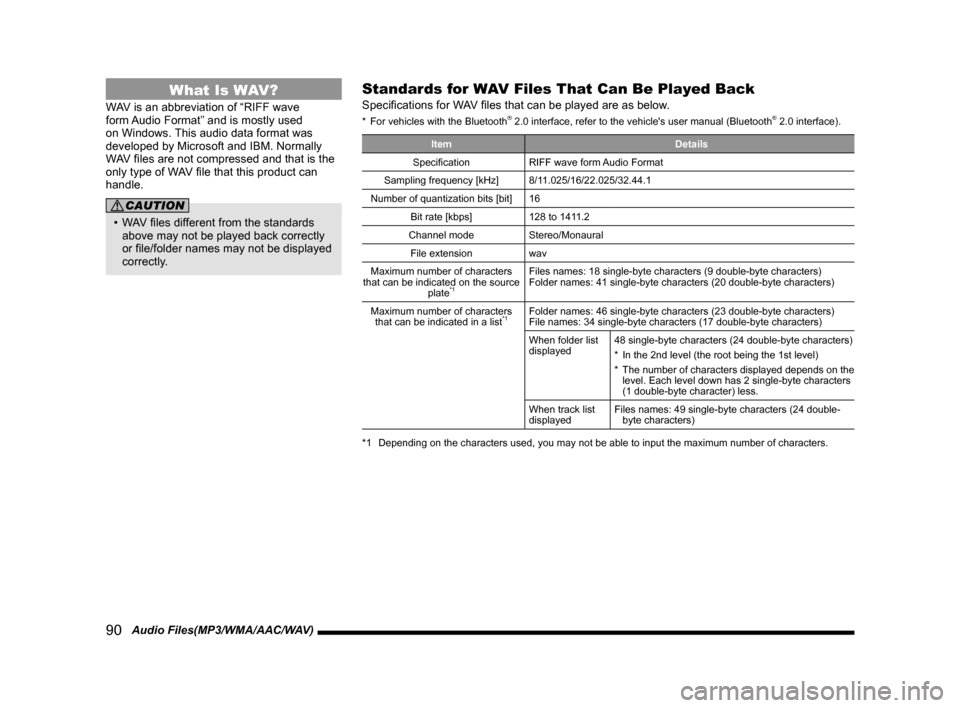
Standards for WAV Files That Can Be Played Back
Specifications for WAV files that can be played are as below.
* For vehicles with the Bluetooth® 2.0 interface, refer to the vehicle's user manual (Bluetooth® 2.0 interface).
Item Details
Specification RIFF wave form Audio Format
Sampling frequency [kHz] 8/11.025/16/22.025/32.44.1
Number of quantization bits [bit] 16
Bit rate [kbps] 128 to 1411.2
Channel mode Stereo/Monaural
File extension wav
Maximum number of characters
that can be indicated on the source plate
*1
Files names: 18 single-byte characters (9 double-byte characters)
Folder names: 41 single-byte characters (20 double-byte characters)
Maximum number of characters that can be indicated in a list
*1Folder names: 46 single-byte characters (23 double-byte characters)
File names: 34 single-byte characters (17 double-byte characters)
When folder list
displayed 48 single-byte characters (24 double-byte characters)
*
In the 2nd level (the root being the 1st level)
* The number of characters displayed depends on the
level. Each level down has 2 single-byte characters
(1 double-byte character) less.
When track list
displayed Files names: 49 single-byte characters (24 double-
byte characters)
*1 Depending on the characters used, you may not be able to input the maxim\
um number of characters.
Page 112 of 226
11 2 Play iPod
iPod/USB/SD
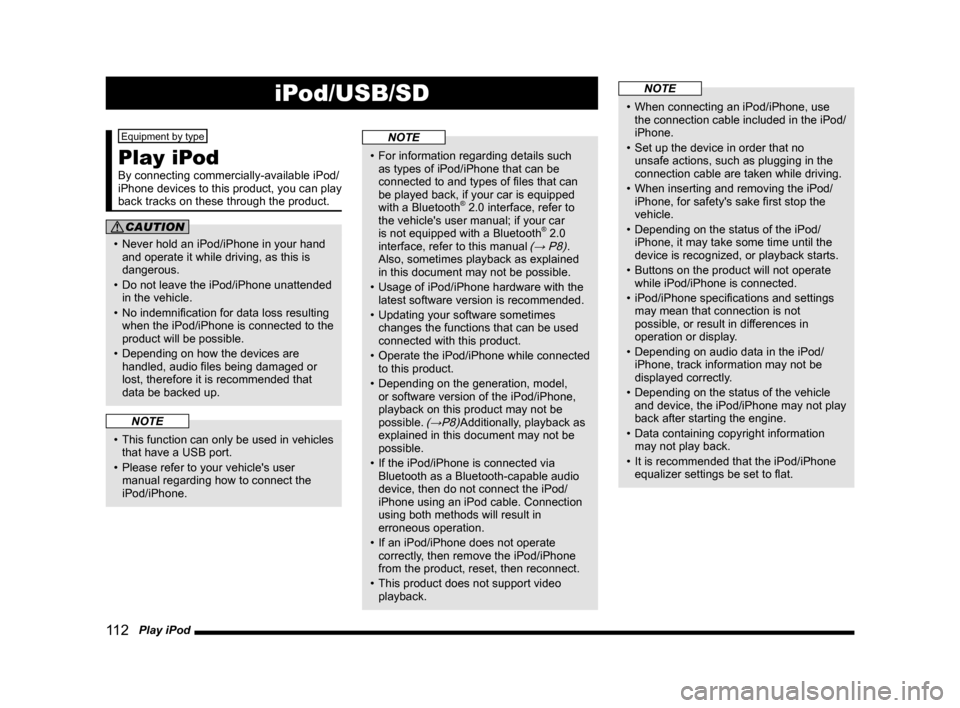
Equipment by type
Play iPod
By connecting commercially-available iPod/
iPhone devices to this product, you can play
back tracks on these through the product.
CAUTION
• Never hold an iPod/iPhone in your hand
and operate it while driving, as this is
dangerous.
• Do not leave the iPod/iPhone unattended
in the vehicle.
• No indemnification for data loss resulting
when the iPod/iPhone is connected to the
product will be possible.
• Depending on how the devices are
handled, audio files being damaged or
lost, therefore it is recommended that
data be backed up.
NOTE
• This function can only be used in vehicles
that have a USB port.
• Please refer to your vehicle's user
manual regarding how to connect the
iPod/iPhone.
NOTE
• For information regarding details such
as types of iPod/iPhone that can be
connected to and types of files that can
be played back, if your car is equipped
with a Bluetooth
® 2.0 interface, refer to
the vehicle's user manual; if your car
is not equipped with a Bluetooth
® 2.0
interface, refer to this manual (→ P8).
Also, sometimes playback as explained
in this document may not be possible.
• Usage of iPod/iPhone hardware with the
latest software version is recommended.
• Updating your software sometimes
changes the functions that can be used
connected with this product.
• Operate the iPod/iPhone while connected
to this product.
• Depending on the generation, model,
or software version of the iPod/iPhone,
playback on this product may not be
possible.
(→P8)Additionally, playback as
explained in this document may not be
possible.
• If the iPod/iPhone is connected via
Bluetooth as a Bluetooth-capable audio
device, then do not connect the iPod/
iPhone using an iPod cable. Connection
using both methods will result in
erroneous operation.
• If an iPod/iPhone does not operate
correctly, then remove the iPod/iPhone
from the product, reset, then reconnect.
• This product does not support video
playback.
NOTE
• When connecting an iPod/iPhone, use
the connection cable included in the iPod/
iPhone.
• Set up the device in order that no
unsafe actions, such as plugging in the
connection cable are taken while driving.
• When inserting and removing the iPod/
iPhone, for safety's sake first stop the
vehicle.
• Depending on the status of the iPod/
iPhone, it may take some time until the
device is recognized, or playback starts.
• Buttons on the product will not operate
while iPod/iPhone is connected.
• iPod/iPhone specifications and settings
may mean that connection is not
possible, or result in differences in
operation or display.
• Depending on audio data in the iPod/
iPhone, track information may not be
displayed correctly.
• Depending on the status of the vehicle
and device, the iPod/iPhone may not play
back after starting the engine.
• Data containing copyright information
may not play back.
• It is recommended that the iPod/iPhone
equalizer settings be set to flat.
Page 113 of 226
Play iPod 11 3
AV iPod/USB/SD
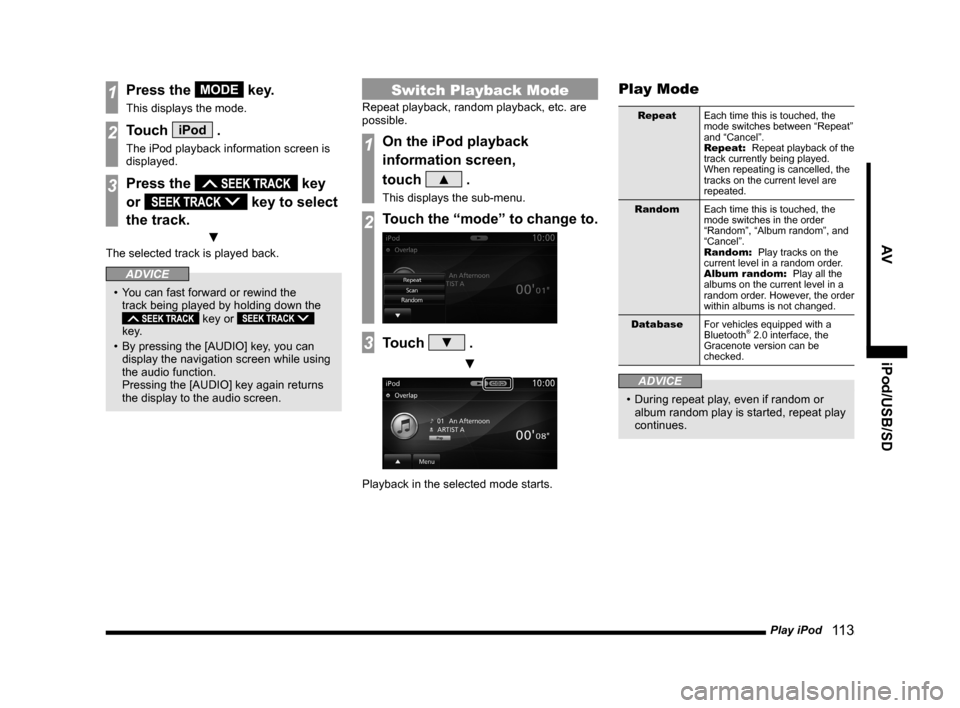
1Press the MODE key.
This displays the mode.
2Touch iPod .
The iPod playback information screen is
displayed.
3Press the key
or
key to select
the track.
▼
The selected track is played back.
ADVICE
• You can fast forward or rewind the
track being played by holding down the
key or
key.
• By pressing the [AUDIO] key, you can
display the navigation screen while using
the audio function.
Pressing the [AUDIO] key again returns
the display to the audio screen.
Switch Playback Mode
Repeat playback, random playback, etc. are
possible.
1On the iPod playback
information screen,
touch
▲ .
This displays the sub-menu.
2Touch the “mode” to change to.
3Touch ▼ .
▼
Playback in the selected mode starts.
Play Mode
Repeat Each time this is touched, the
mode switches between “Repeat”
and “Cancel”.
Repeat: Repeat playback of the
track currently being played.
When repeating is cancelled, the
tracks on the current level are
repeated.
Random Each time this is touched, the
mode switches in the order
“Random”, “Album random”, and
“Cancel”.
Random: Play tracks on the
current level in a random order.
Album random: Play all the
albums on the current level in a
random order. However, the order
within albums is not changed.
Database For vehicles equipped with a
Bluetooth
® 2.0 interface, the
Gracenote version can be
checked.
ADVICE
• During repeat play, even if random or
album random play is started, repeat play
continues.
Page 117 of 226
Listen to Audio Files on a USB Device/SD Card 11 7
AViPod/USB/SD
Equipment by type
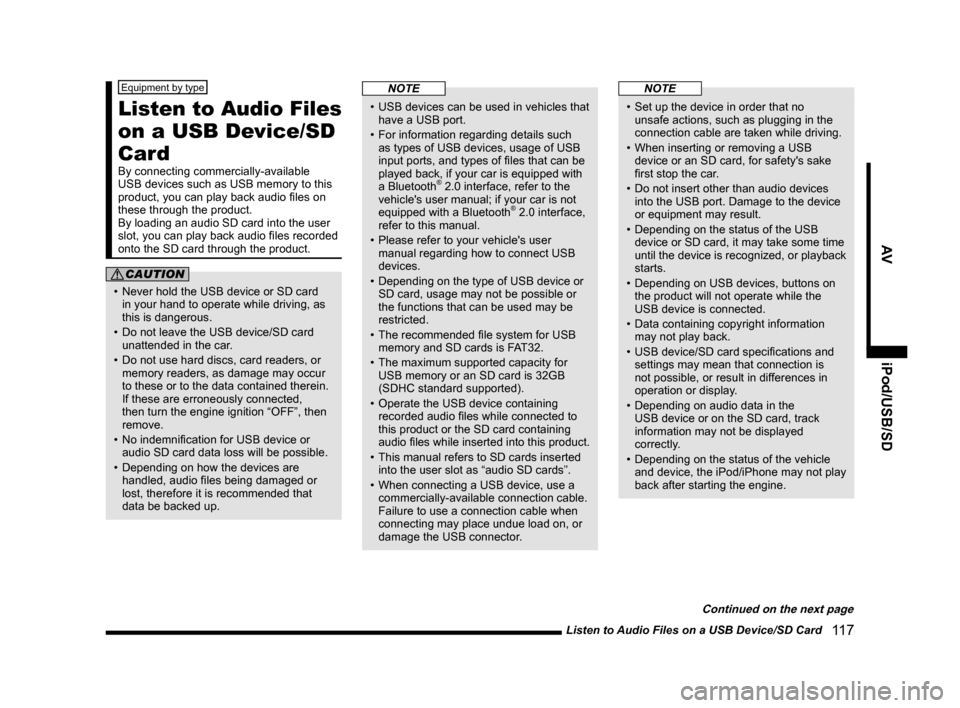
Listen to Audio Files
on a USB Device/SD
Card
By connecting commercially-available
USB devices such as USB memory to this
product, you can play back audio files on
these through the product.
By loading an audio SD card into the user
slot, you can play back audio files recorded
onto the SD card through the product.
CAUTION
• Never hold the USB device or SD card
in your hand to operate while driving, as
this is dangerous.
• Do not leave the USB device/SD card
unattended in the car.
• Do not use hard discs, card readers, or
memory readers, as damage may occur
to these or to the data contained therein.
If these are erroneously connected,
then turn the engine ignition “OFF”, then
remove.
• No indemnification for USB device or
audio SD card data loss will be possible.
• Depending on how the devices are
handled, audio files being damaged or
lost, therefore it is recommended that
data be backed up.
NOTE
• USB devices can be used in vehicles that
have a USB port.
• For information regarding details such
as types of USB devices, usage of USB
input ports, and types of files that can be
played back, if your car is equipped with
a Bluetooth
® 2.0 interface, refer to the
vehicle's user manual; if your car is not
equipped with a Bluetooth
® 2.0 interface,
refer to this manual.
• Please refer to your vehicle's user
manual regarding how to connect USB
devices.
• Depending on the type of USB device or
SD card, usage may not be possible or
the functions that can be used may be
restricted.
• The recommended file system for USB
memory and SD cards is FAT32.
• The maximum supported capacity for
USB memory or an SD card is 32GB
(SDHC standard supported).
• Operate the USB device containing
recorded audio files while connected to
this product or the SD card containing
audio files while inserted into this product.
• This manual refers to SD cards inserted
into the user slot as “audio SD cards”.
• When connecting a USB device, use a
commercially-available connection cable.
Failure to use a connection cable when
connecting may place undue load on, or
damage the USB connector.
NOTE
• Set up the device in order that no
unsafe actions, such as plugging in the
connection cable are taken while driving.
• When inserting or removing a USB
device or an SD card, for safety's sake
first stop the car.
• Do not insert other than audio devices
into the USB port. Damage to the device
or equipment may result.
• Depending on the status of the USB
device or SD card, it may take some time
until the device is recognized, or playback
starts.
• Depending on USB devices, buttons on
the product will not operate while the
USB device is connected.
• Data containing copyright information
may not play back.
• USB device/SD card specifications and
settings may mean that connection is
not possible, or result in differences in
operation or display.
• Depending on audio data in the
USB device or on the SD card, track
information may not be displayed
correctly.
• Depending on the status of the vehicle
and device, the iPod/iPhone may not play
back after starting the engine.
Continued on the next page
Page 118 of 226
11 8 Listen to Audio Files on a USB Device/SD Card
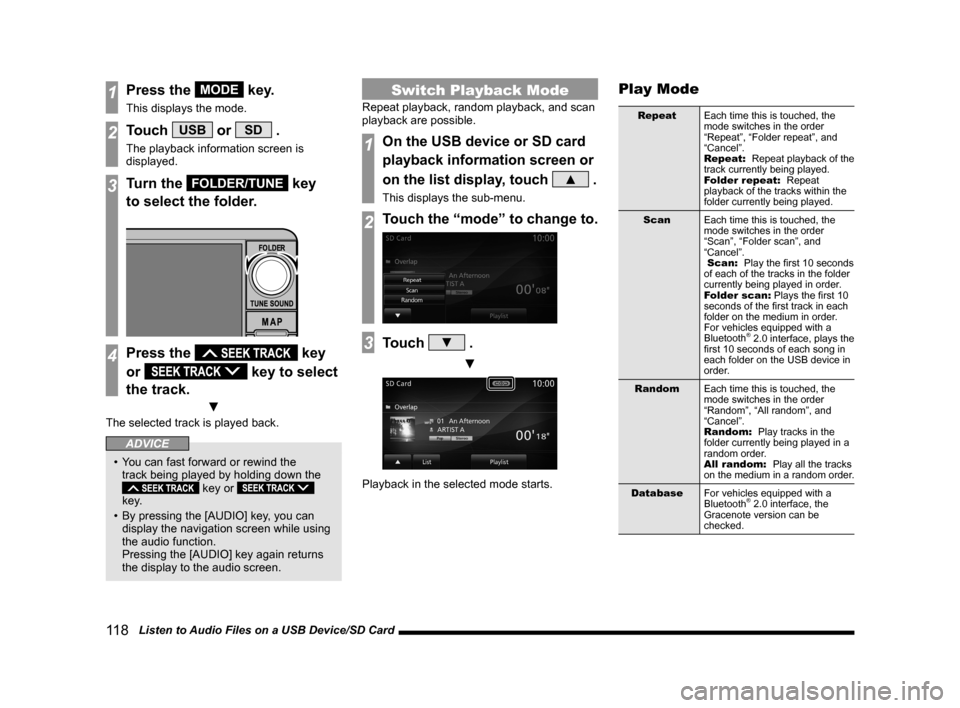
1Press the MODE key.
This displays the mode.
2Touch USB or SD .
The playback information screen is
displayed.
3Turn the FOLDER/TUNE key
to select the folder.
4Press the key
or
key to select
the track.
▼
The selected track is played back.
ADVICE
• You can fast forward or rewind the
track being played by holding down the
key or
key.
• By pressing the [AUDIO] key, you can
display the navigation screen while using
the audio function.
Pressing the [AUDIO] key again returns
the display to the audio screen.
Switch Playback Mode
Repeat playback, random playback, and scan
playback are possible.
1On the USB device or SD card
playback information screen or
on the list display, touch
▲ .
This displays the sub-menu.
2Touch the “mode” to change to.
3Touch ▼ .
▼
Playback in the selected mode starts.
Play Mode
Repeat Each time this is touched, the
mode switches in the order
“Repeat”, “Folder repeat”, and
“Cancel”.
Repeat: Repeat playback of the
track currently being played.
Folder repeat: Repeat
playback of the tracks within the
folder currently being played.
Scan Each time this is touched, the
mode switches in the order
“Scan”, “Folder scan”, and
“Cancel”.
Scan: Play the first 10 seconds
of each of the tracks in the folder
currently being played in order.
Folder scan: Plays the first 10
seconds of the first track in each
folder on the medium in order.
For vehicles equipped with a
Bluetooth
® 2.0 interface, plays the
first 10 seconds of each song in
each folder on the USB device in
order.
Random Each time this is touched, the
mode switches in the order
“Random”, “All random”, and
“Cancel”.
Random: Play tracks in the
folder currently being played in a
random order.
All random: Play all the tracks
on the medium in a random order.
Database For vehicles equipped with a
Bluetooth
® 2.0 interface, the
Gracenote version can be
checked.
Page 123 of 226
Use Bluetooth Audio 123
AVExternal Input Devices
External Input Devices
Equipment by type
(Vehicles with a Bluetooth® 2.0 interface).
Use Bluetooth Audio
This product can play back tracks on
commercially-available Bluetooth-capable
audio devices.
CAUTION
• Never hold a Bluetooth-capable audio
device in your hand to operate while
driving, as this is dangerous.
• Do not leave the Bluetooth audio device
unattended in the vehicle.
• No indemnification for Bluetooth audio
data loss will be possible.
• Depending on how the devices are
handled, audio files being damaged or
lost, therefore it is recommended that
data be backed up.
NOTE
• Depending on the type of Bluetooth-
capable audio devices, usage may not be
possible, or functions that can be used
may be restricted.
• Updating your software sometimes
changes the functions that can be used
connected with this product.
NOTE
• Confirm together with the user manuals
for the commercially-available Bluetooth-
capable audio devices.
• Depending on the type of Bluetooth-
capable audio devices, volume levels
may differ. There is the danger of
loud volumes, so prior to use, it is
recommended that you turn the volume
down.
→“Adjust Volume”(P79)
• Depending on the status of the Bluetooth
audio device, it may take some time until
the device is recognized, or playback
starts.
• Bluetooth audio device specifications
and settings may mean that connection
is not possible, or result in differences in
operation or display.
• Depending on audio data in the Bluetooth
audio device, track information may not
be displayed correctly.
• Depending on the status of the vehicle
and device, the iPod/iPhone may not play
back after starting the engine.
• Data containing copyright information
may not play back.
• It is recommended that the Bluetooth
audio device equalizer settings be set to
flat.
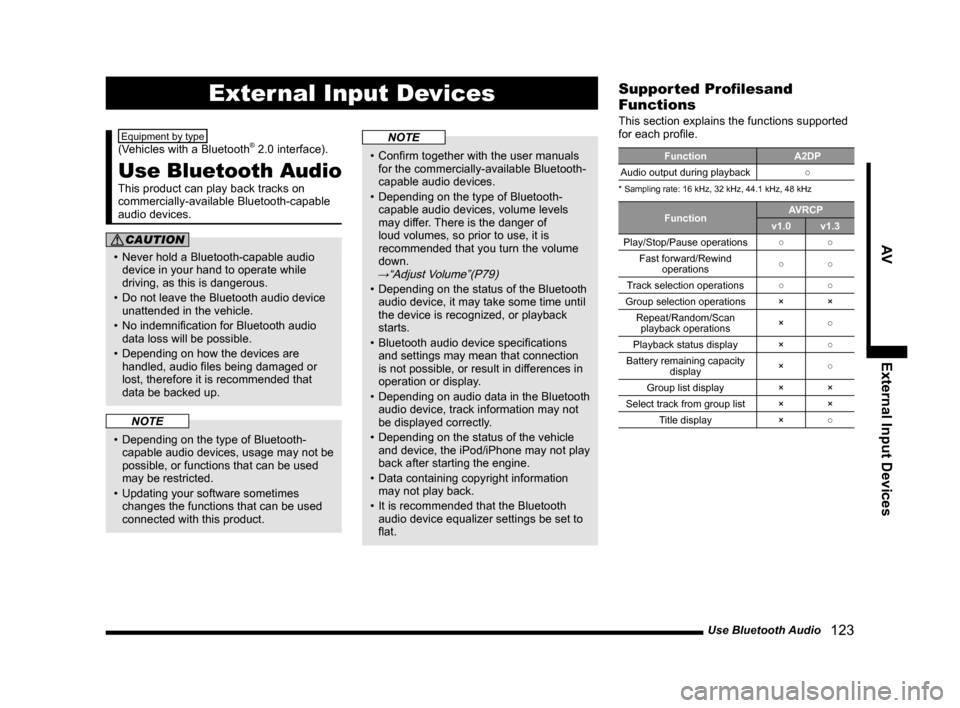
Supported Profilesand
Functions
This section explains the functions supported
for each profile.
Function A2DP
Audio output during playback ○
* Sampling rate: 16 kHz, 32 kHz, 44.1 kHz, 48 kHz
Function AVRCP
v1.0 v1.3
Play/Stop/Pause operations ○○
Fast forward/Rewind operations ○
○
Track selection operations ○○
Group selection operations ××
Repeat/Random/Scan playback operations ×
○
Playback status display ×○
Battery remaining capacity display ×
○
Group list display ××
Select track from group list ××
Title display ×○
Page 128 of 226
128 Use AUX
Equipment by type
Use AUX
By connecting AUX devices to this product,
you can input audio from these devices to
the product and play it back.
CAUTION
• Video from AUX devices cannot be
viewed.
• If this is used with the engine stopped,
it may run down the battery and make it
impossible to start the engine.
ADVICE
• Please refer to your vehicle's user
manual regarding how to connect AUX
devices.
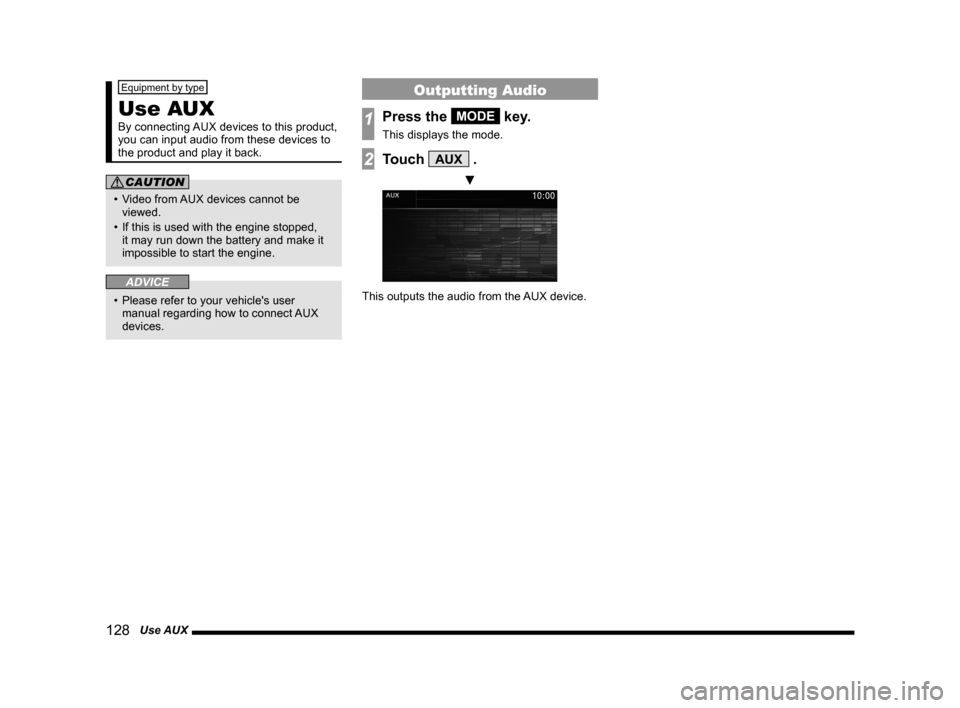
Outputting Audio
1Press the MODE key.
This displays the mode.
2Touch AUX .
▼
This outputs the audio from the AUX device.
Page 136 of 226
136 Trip
Equipment by type
Trip
You can check and set trip information.
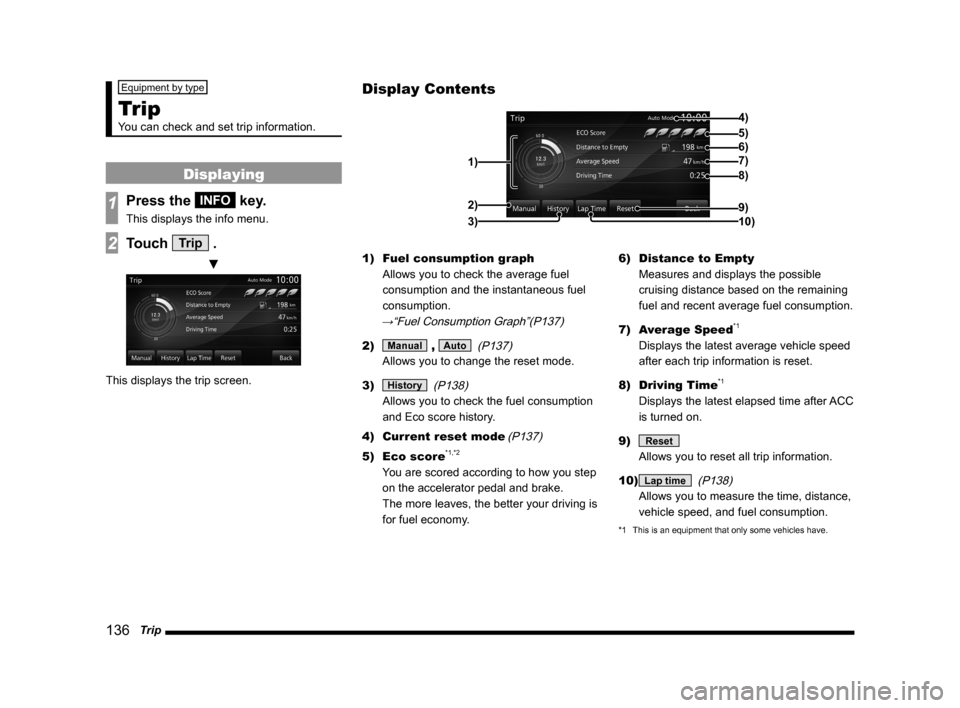
Displaying
1Press the INFO key.
This displays the info menu.
2Touch Trip .
▼
This displays the trip screen. 1)
Fuel consumption graph
Allows you to check the average fuel
consumption and the instantaneous fuel
consumption.
→“Fuel Consumption Graph”(P137)
2) Manual , Auto (P137)
Allows you to change the reset mode.
3)
History (P138)
Allows you to check the fuel consumption
and Eco score history.
4) Current reset mode
(P137)
5) Eco score*1,*2
You are scored according to how you step
on the accelerator pedal and brake.
The more leaves, the better your driving is
for fuel economy. 6)
Distance to Empty
Measures and displays the possible
cruising distance based on the remaining
fuel and recent average fuel consumption.
7) Average Speed
*1
Displays the latest average vehicle speed
after each trip information is reset.
8) Driving Time
*1
Displays the latest elapsed time after ACC
is turned on.
9)
Reset
Allows you to reset all trip information.
10)
Lap time (P138)
Allows you to measure the time, distance,
vehicle speed, and fuel consumption.
*1 This is an equipment that only some vehicles have.
Display Contents
4)
6)5)
7)
8)
9)
10)
1)2)
3)
Page 137 of 226
Trip 137
INFO/SETTINGS INFO
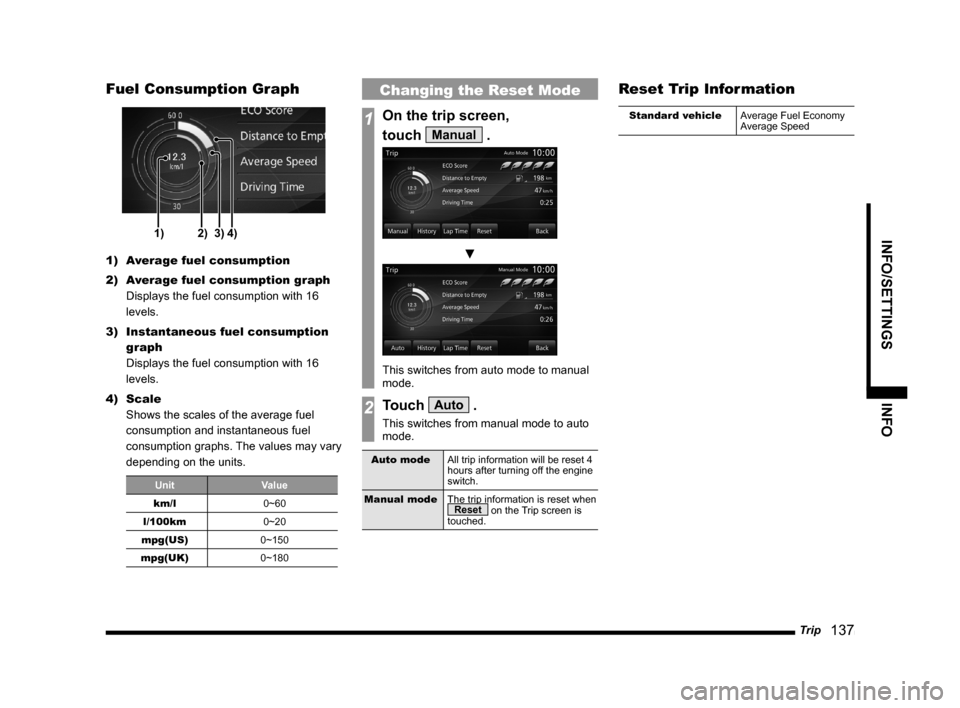
Fuel Consumption Graph
1)2)3)4)
1) Average fuel consumption
2) Average fuel consumption graph
Displays the fuel consumption with 16
levels.
3) Instantaneous fuel consumption
graph
Displays the fuel consumption with 16
levels.
4) Scale
Shows the scales of the average fuel
consumption and instantaneous fuel
consumption graphs. The values may vary
depending on the units.
Unit Value
km/l 0~60
l/100km 0~20
mpg(US) 0~150
mpg(UK) 0~180
Changing the Reset Mode
1On the trip screen,
touch
Manual .
▼
This switches from auto mode to manual
mode.
2Touch Auto .
This switches from manual mode to auto
mode.
Auto modeAll trip information will be reset 4
hours after turning off the engine
switch.
Manual mode The trip information is reset when
Reset on the Trip screen is
touched.
Reset Trip Information
Standard vehicle Average Fuel Economy
Average Speed
Page 138 of 226
138 Trip
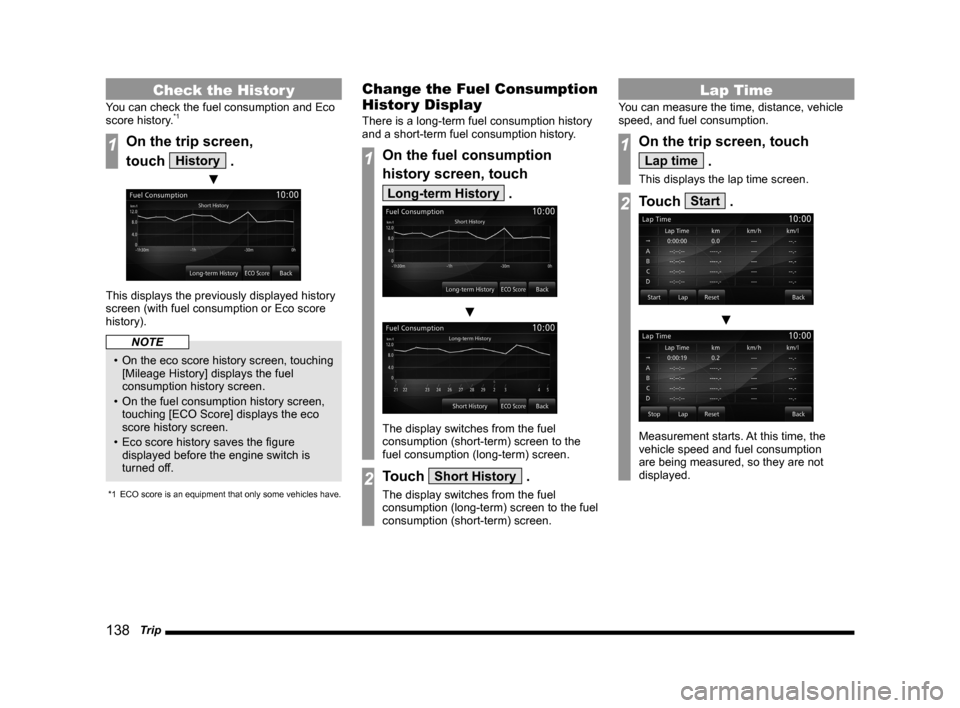
Check the Histor y
You can check the fuel consumption and Eco
score history.*1
1On the trip screen,
touch
History .
▼
This displays the previously displayed history
screen (with fuel consumption or Eco score
history).
NOTE
• On the eco score history screen, touching
[Mileage History] displays the fuel
consumption history screen.
• On the fuel consumption history screen,
touching [ECO Score] displays the eco
score history screen.
• Eco score history saves the figure
displayed before the engine switch is
turned off.
*1 ECO score is an equipment that only some vehicles have.
Change the Fuel Consumption
Histor y Display
There is a long-term fuel consumption history
and a short-term fuel consumption history.
1On the fuel consumption
history screen, touch
Long-term History .
▼
The display switches from the fuel
consumption (short-term) screen to the
fuel consumption (long-term) screen.
2Touch Short History .
The display switches from the fuel
consumption (long-term) screen to the fuel
consumption (short-term) screen.
Lap Time
You can measure the time, distance, vehicle
speed, and fuel consumption.
1On the trip screen, touch
Lap time .
This displays the lap time screen.
2Touch Start .
▼
Measurement starts. At this time, the
vehicle speed and fuel consumption
are being measured, so they are not
displayed.