Vehicle MITSUBISHI OUTLANDER 2014 3.G MMCS Manual
[x] Cancel search | Manufacturer: MITSUBISHI, Model Year: 2014, Model line: OUTLANDER, Model: MITSUBISHI OUTLANDER 2014 3.GPages: 226, PDF Size: 31.21 MB
Page 209 of 226
System Settings 209
INFO/SETTINGS SETTINGS
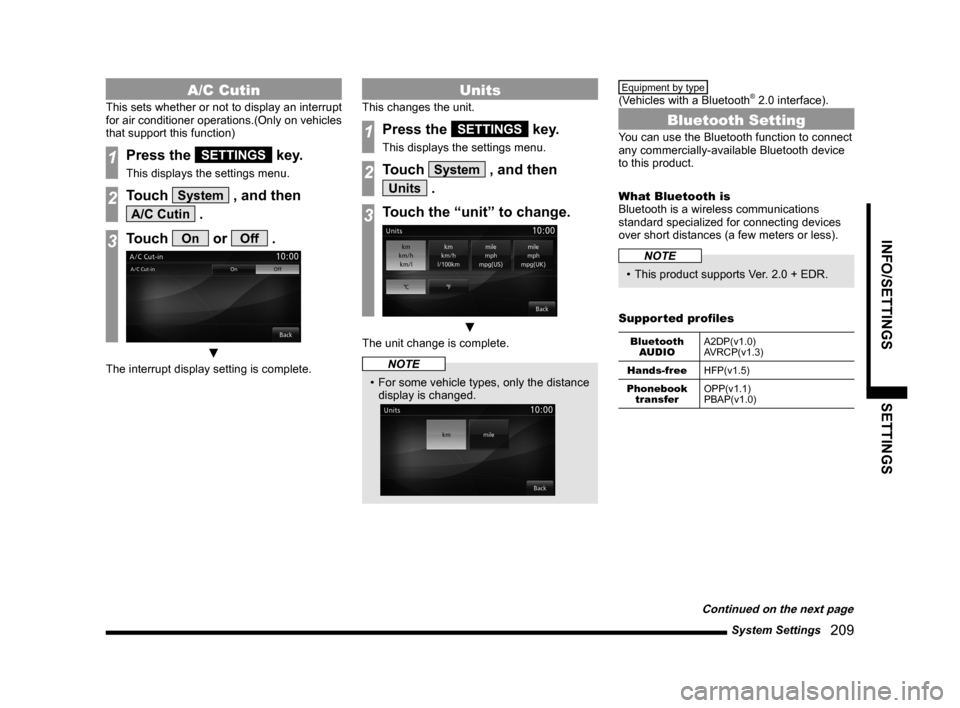
A/C Cutin
This sets whether or not to display an interrupt
for air conditioner operations.(Only on vehicles
that support this function)
1Press the SETTINGS key.
This displays the settings menu.
2Touch System , and then
A/C Cutin .
3Touch On or Off .
▼
The interrupt display setting is complete.
Units
This changes the unit.
1Press the SETTINGS key.
This displays the settings menu.
2Touch System , and then
Units .
3Touch the “unit” to change.
▼
The unit change is complete.
NOTE
• For some vehicle types, only the distance
display is changed.
Equipment by type
(Vehicles with a Bluetooth® 2.0 interface).
Bluetooth Setting
You can use the Bluetooth function to connect
any commercially-available Bluetooth device
to this product.
What Bluetooth is
Bluetooth is a wireless communications
standard specialized for connecting devices
over short distances (a few meters or less).
NOTE
• This product supports Ver. 2.0 + EDR.
Supported profiles
Bluetooth AUDIO A2DP(v1.0)
AVRCP(v1.3)
Hands-free HFP(v1.5)
Phonebook transfer OPP(v1.1)
PBAP(v1.0)
Continued on the next page
Page 210 of 226
210 System Settings
NOTE
• This function can be used on vehicles
equipped with a Bluetooth® 2.0 interface.
• Cancel functions such as the mobile
phone “dial lock”, and connect while on
the standby screen.
• While connected, operations on the
Bluetooth device (receiving calls, etc.)
may not function correctly.
• For details on how to enter the passkey
for your Bluetooth device, refer to its user
manual.
• The connection fails sometimes. Register
again.
• Depending on the distance between this
product and your Bluetooth device, the
conditions within the vehicle, and types
of screening, connection may not be
possible. In this case, put your Bluetooth
as close as possible to this product.
• Even though a device is Bluetooth-
capable, its characteristics and
specifications may mean that correct
operation is not possible.
• Some Bluetooth devices cannot be
connected.
• Depending on the Bluetooth device,
connecting may take some time.
• Up to 7 Bluetooth devices can be
registered.
If 7 devices are already registered, you
must delete one before you can register
a new Bluetooth device.
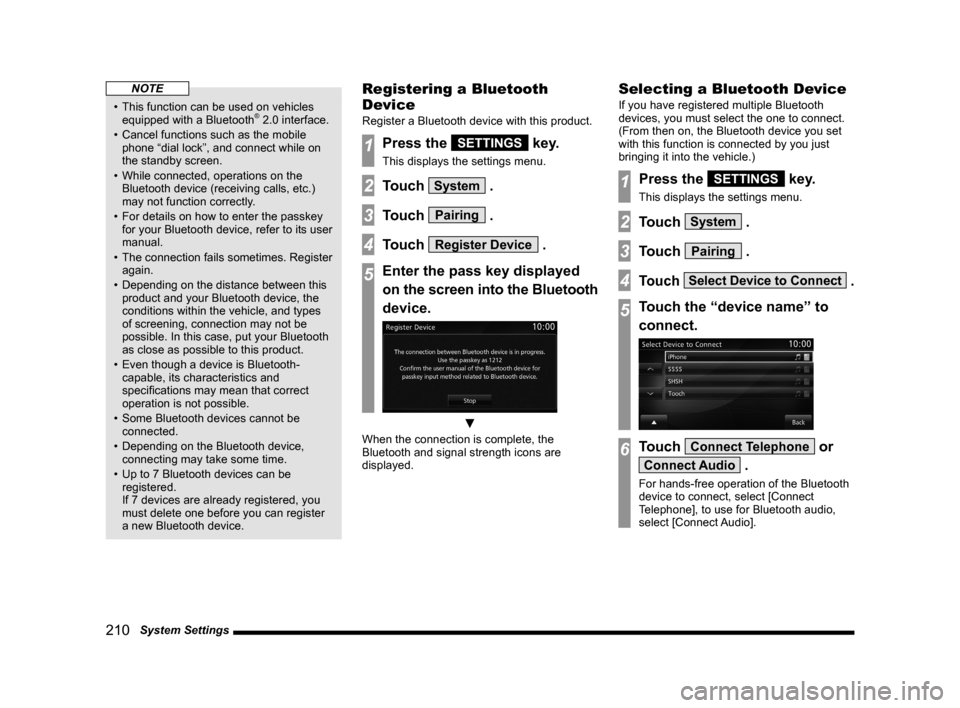
Registering a Bluetooth
Device
Register a Bluetooth device with this product.
1Press the SETTINGS key.
This displays the settings menu.
2Touch System .
3Touch Pairing .
4Touch Register Device .
5Enter the pass key displayed
on the screen into the Bluetooth
device.
▼
When the connection is complete, the
Bluetooth and signal strength icons are
displayed.
Selecting a Bluetooth Device
If you have registered multiple Bluetooth
devices, you must select the one to connect.
(From then on, the Bluetooth device you set
with this function is connected by you just
bringing it into the vehicle.)
1Press the SETTINGS key.
This displays the settings menu.
2Touch System .
3Touch Pairing .
4Touch Select Device to Connect .
5Touch the “device name” to
connect.
6Touch Connect Telephone or
Connect Audio .
For hands-free operation of the Bluetooth
device to connect, select [Connect
Telephone], to use for Bluetooth audio,
select [Connect Audio].
Page 213 of 226
Other Settings 213
INFO/SETTINGS SETTINGS
Other Settings
You can make the settings concerning the
screen and sound volume.
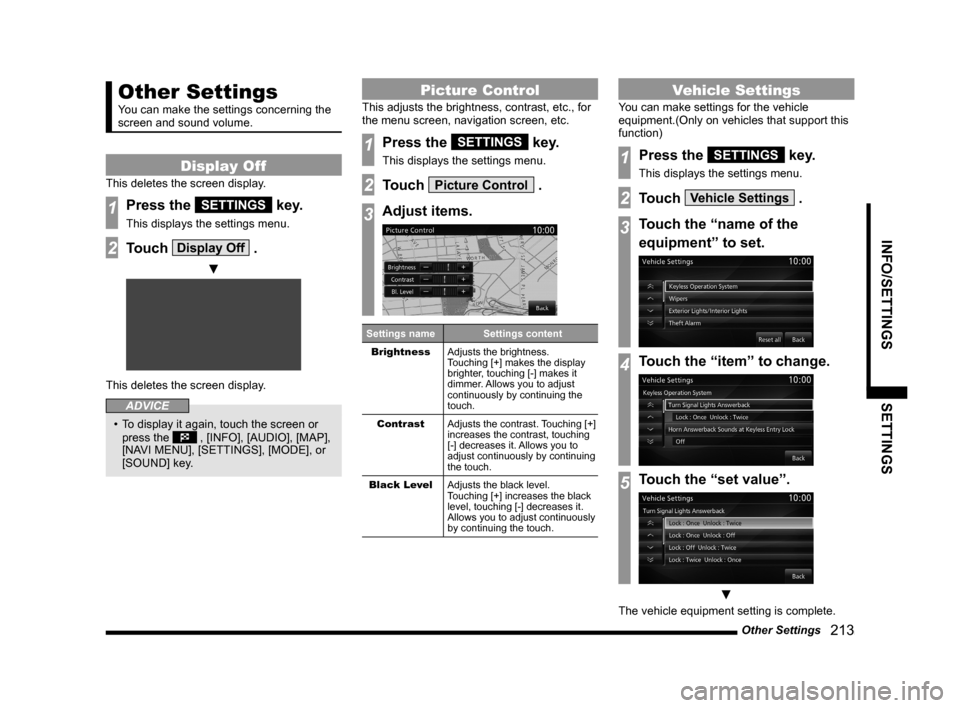
Display Off
This deletes the screen display.
1Press the SETTINGS key.
This displays the settings menu.
2Touch Display Off .
▼
This deletes the screen display.
ADVICE
• To display it again, touch the screen or
press the , [INFO], [AUDIO], [MAP],
[NAVI MENU], [SETTINGS], [MODE], or
[SOUND] key.
Picture Control
This adjusts the brightness, contrast, etc., for
the menu screen, navigation screen, etc.
1Press the SETTINGS key.
This displays the settings menu.
2Touch Picture Control .
3Adjust items.
Settings name Settings content
Brightness Adjusts the brightness.
Touching [+] makes the display
brighter, touching [-] makes it
dimmer. Allows you to adjust
continuously by continuing the
touch.
Contrast Adjusts the contrast. Touching [+]
increases the contrast, touching
[-] decreases it. Allows you to
adjust continuously by continuing
the touch.
Black Level Adjusts the black level.
Touching [+] increases the black
level, touching [-] decreases it.
Allows you to adjust continuously
by continuing the touch.
Vehicle Settings
You can make settings for the vehicle
equipment.(Only on vehicles that support this
function)
1Press the SETTINGS key.
This displays the settings menu.
2Touch Vehicle Settings .
3Touch the “name of the
equipment” to set.
4Touch the “item” to change.
5Touch the “set value”.
▼
The vehicle equipment setting is complete.
Page 214 of 226
214 Other Settings
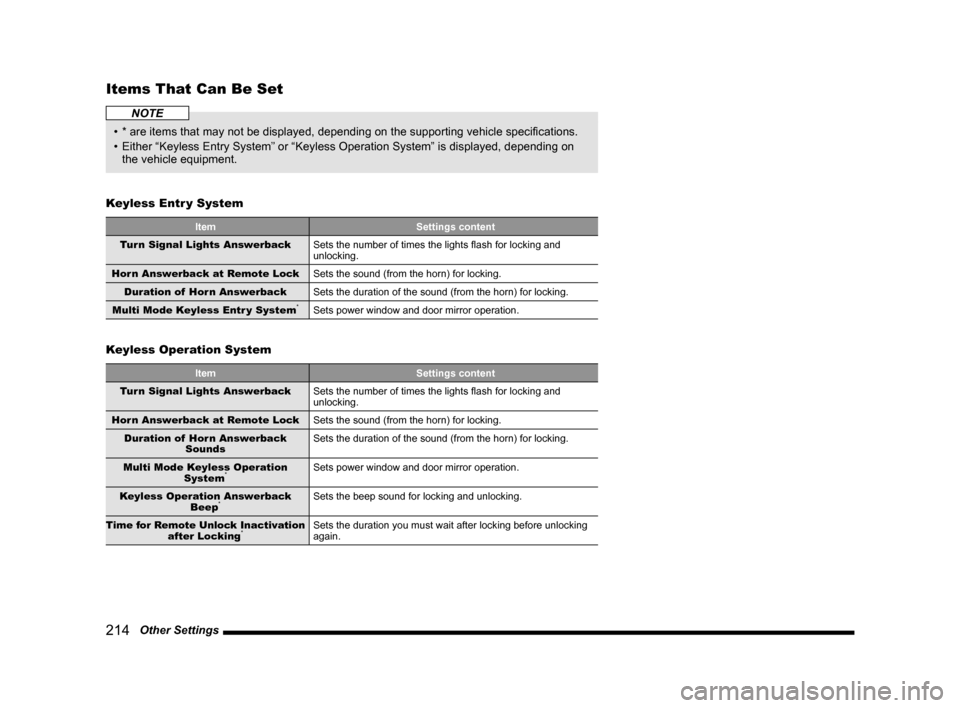
Items That Can Be Set
NOTE
• * are items that may not be displayed, depending on the supporting vehicle specifications.
• Either “Keyless Entry System” or “Keyless Operation System” is displayed, depending on
the vehicle equipment.
Keyless Entr y System
Item Settings content
Turn Signal Lights Answerback Sets the number of times the lights flash for locking and
unlocking.
Horn Answerback at Remote Lock Sets the sound (from the horn) for locking.
Duration of Horn Answerback Sets the duration of the sound (from the horn) for locking.
Multi Mode Keyless Entr y System
*Sets power window and door mirror operation.
Keyless Operation System
Item Settings content
Turn Signal Lights Answerback Sets the number of times the lights flash for locking and
unlocking.
Horn Answerback at Remote Lock Sets the sound (from the horn) for locking.
Duration of Horn Answerback Sounds Sets the duration of the sound (from the horn) for locking.
Multi Mode Keyless Operation System
*Sets power window and door mirror operation.
Keyless Operation Answerback Beep
*Sets the beep sound for locking and unlocking.
Time for Remote Unlock Inactivation after Locking
*Sets the duration you must wait after locking before unlocking
again.
Page 215 of 226
Other Settings 215
INFO/SETTINGS SETTINGS
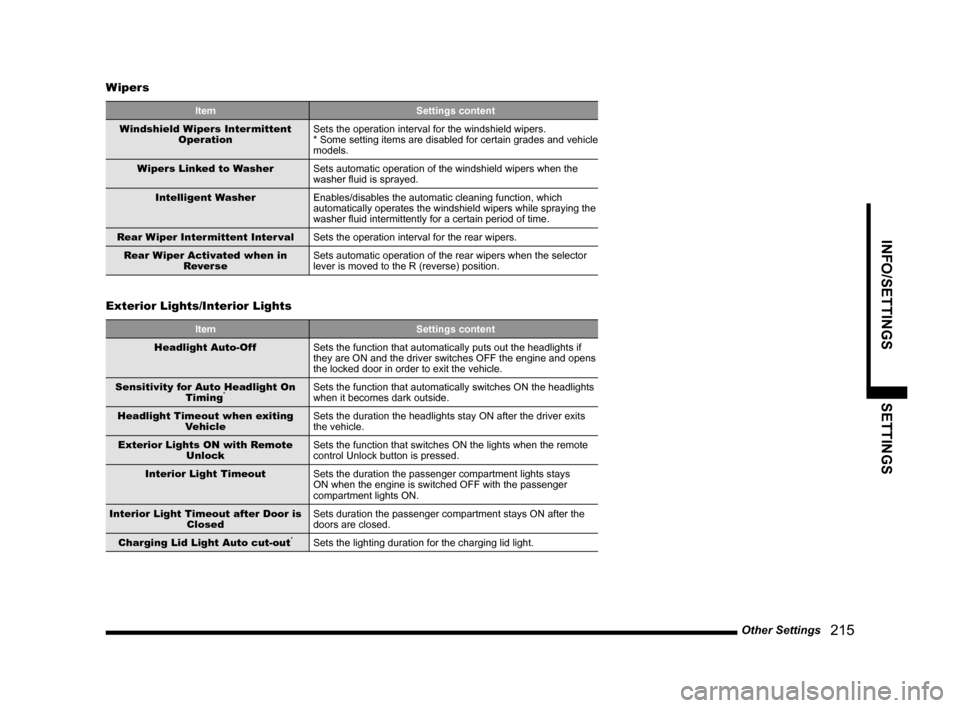
Wipers
Item Settings content
Windshield Wipers Intermittent Operation Sets the operation interval for the windshield wipers.
* Some setting items are disabled for certain grades and vehicle
models.
Wipers Linked to Washer Sets automatic operation of the windshield wipers when the
washer fluid is sprayed.
Intelligent Washer Enables/disables the automatic cleaning function, which
automatically operates the windshield wipers while spraying the
washer fluid intermittently for a certain period of time.
Rear Wiper Intermittent Inter val Sets the operation interval for the rear wipers.
Rear Wiper Activated when in Rever se Sets automatic operation of the rear wipers when the selector
lever is moved to the R (reverse) position.
Exterior Lights/Interior Lights
Item
Settings content
Headlight Auto-Off Sets the function that automatically puts out the headlights if
they are ON and the driver switches OFF the engine and opens
the locked door in order to exit the vehicle.
Sensitivity for Auto Headlight On Timing
*Sets the function that automatically switches ON the headlights
when it becomes dark outside.
Headlight Timeout when exiting Vehicle Sets the duration the headlights stay ON after the driver exits
the vehicle.
Exterior Lights ON with Remote Unlock Sets the function that switches ON the lights when the remote
control Unlock button is pressed.
Interior Light Timeout Sets the duration the passenger compartment lights stays
ON when the engine is switched OFF with the passenger
compartment lights ON.
Interior Light Timeout after Door is Closed Sets duration the passenger compartment stays ON after the
doors are closed.
Charging Lid Light Auto cut-out
*Sets the lighting duration for the charging lid light.
Page 216 of 226
216 Other Settings
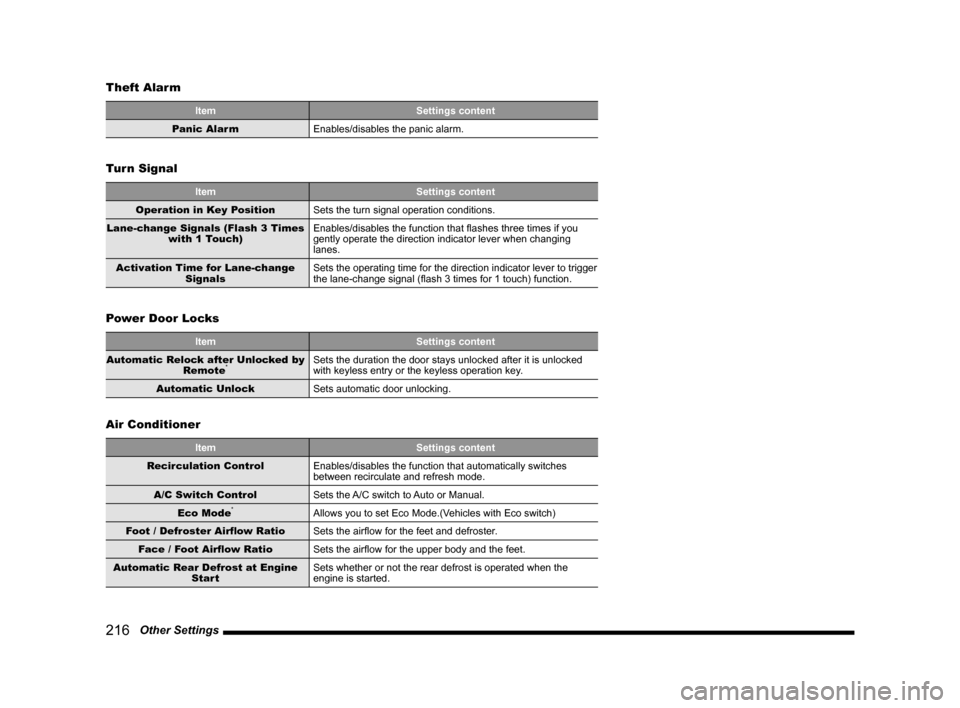
Theft Alarm
Item
Settings content
Panic Alarm Enables/disables the panic alarm.
Turn Signal
Item Settings content
Operation in Key Position Sets the turn signal operation conditions.
Lane-change Signals (Flash 3 Times with 1 Touch) Enables/disables the function that flashes three times if you
gently operate the direction indicator lever when changing
lanes.
Activation Time for Lane-change Signals Sets the operating time for the direction indicator lever to trigger
the lane-change signal (flash 3 times for 1 touch) function.
Power Door Locks
Item
Settings content
Automatic Relock after Unlocked by Remote
*Sets the duration the door stays unlocked after it is unlocked
with keyless entry or the keyless operation key.
Automatic Unlock Sets automatic door unlocking.
Air Conditioner
Item Settings content
Recirculation Control Enables/disables the function that automatically switches
between recirculate and refresh mode.
A/C Switch Control Sets the A/C switch to Auto or Manual.
Eco Mode
*Allows you to set Eco Mode.(Vehicles with Eco switch)
Foot / Defroster Airflow Ratio Sets the airflow for the feet and defroster.
Face / Foot Airflow Ratio Sets the airflow for the upper body and the feet.
Automatic Rear Defrost at Engine Start Sets whether or not the rear defrost is operated when the
engine is started.
Page 217 of 226
Other Settings 217
INFO/SETTINGS SETTINGS
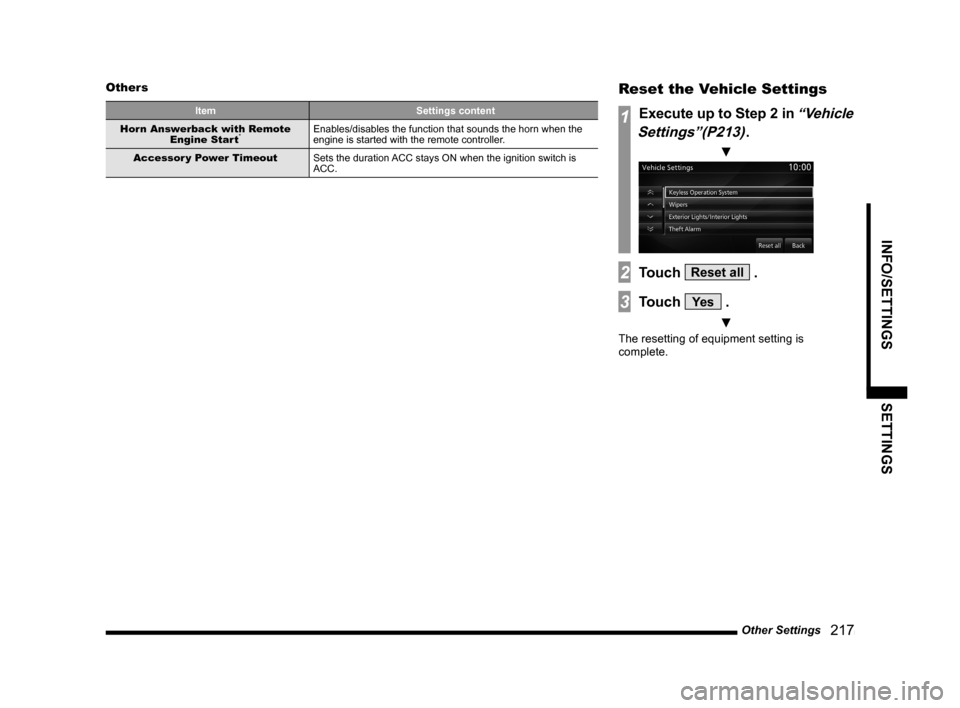
Others
Item Settings content
Horn Answerback with Remote Engine Start
*Enables/disables the function that sounds the horn when the
engine is started with the remote controller.
Accessor y Power Timeout Sets the duration ACC stays ON when the ignition switch is
ACC.
Reset the Vehicle Settings
1Execute up to Step 2 in “Vehicle
Settings”(P213)
.
▼
2Touch Reset all .
3Touch Ye s .
▼
The resetting of equipment setting is
complete.
Page 219 of 226

Troubleshooting 219
Other
Other
Troubleshooting
Please check these items if a message appears on the screen, or if you t\
hink something is not working properly.
If This Message Appears...
A message is displayed on the screen of this product according to the sit\
uation.
Navigation Functions
Message CauseResponse
End of map coverage area. The map was scrolled to an area for which there is no
map data.Scroll the map back to where there is data.
Scale will be changed. The centre of your car and cursor was moved from a
location with a scale being set to a location without it.
Or returned to a location where the scale is set.-
No POI found. A POI search was performed, but there is no POI in
this product that matches the specified information.Search using different conditions.
The programme cannot be written to the map card.
Check the map card that is in the map slot. The map card is in the “Lock” state and cannot be
written.Take out the map card and unlock the “Lock”.
Map data cannot be read.
Check the map card that is in the map slot. Map data cannot be read from the map card.
If the system does not recover after a few minutes, stop
your vehicle in a safe location, then check if the MAP
card is properly inserted.
→“SD Cards”(P14)If this does not fix the problem, consult with your dealer.
Restore the map card system program using the
program disc. Consult with your dealer.
→“If This Product Does Not Start Up”(P224)
No map card is inserted into the map slot.Insert the map card.→“Insert an SD Card”(P15)
The map card has malfunctioned for some reason.Consult with your dealer.
Page 220 of 226
220 Troubleshooting
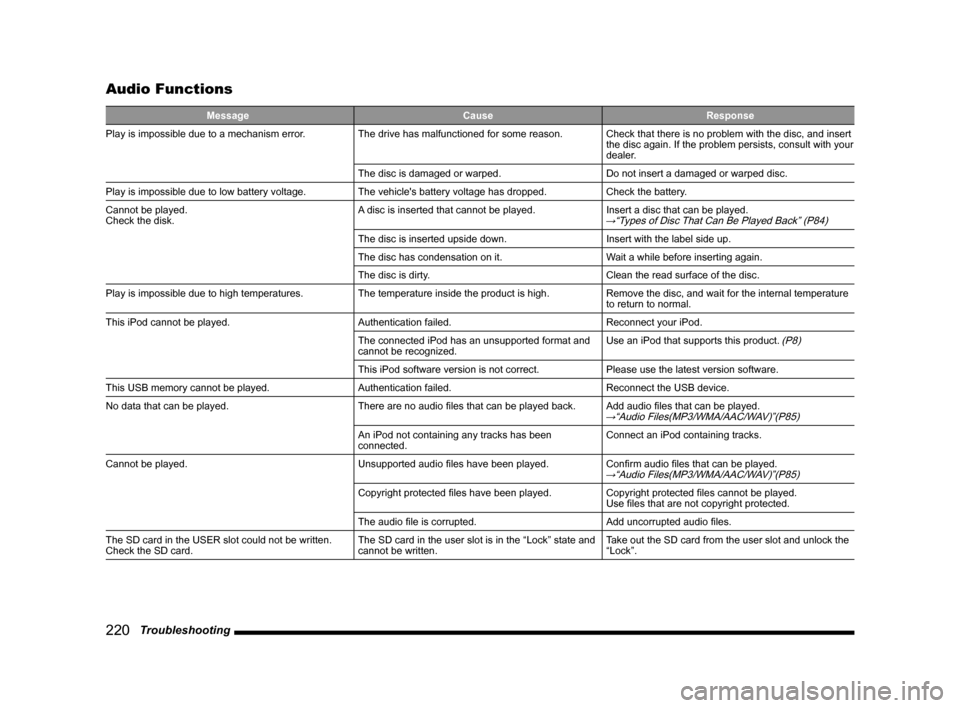
Audio Functions
Message CauseResponse
Play is impossible due to a mechanism error. The drive has malfunctioned for some reason.Check that there is no problem with the disc, and insert
the disc again. If the problem persists, consult with your
dealer.
The disc is damaged or warped. Do not insert a damaged or warped disc.
Play is impossible due to low battery voltage. The vehicle's battery voltage has dropped.Check the battery.
Cannot be played.
Check the disk. A disc is inserted that cannot be played.
Insert a disc that can be played.
→“Types of Disc That Can Be Played Back” (P84)
The disc is inserted upside down.Insert with the label side up.
The disc has condensation on it. Wait a while before inserting again.
The disc is dirty. Clean the read surface of the disc.
Play is impossible due to high temperatures. The temperature inside the product is high.Remove the disc, and wait for the internal temperature
to return to normal.
This iPod cannot be played. Authentication failed.Reconnect your iPod.
The connected iPod has an unsupported format and
cannot be recognized. Use an iPod that supports this product.
(P8)
This iPod software version is not correct.
Please use the latest version software.
This USB memory cannot be played. Authentication failed.Reconnect the USB device.
No data that can be played. There are no audio files that can be played back.Add audio files that can be played.
→“Audio Files(MP3/WMA/AAC/WAV)”(P85)
An iPod not containing any tracks has been
connected.Connect an iPod containing tracks.
Cannot be played. Unsupported audio files have been played.Confirm audio files that can be played.
→“Audio Files(MP3/WMA/AAC/WAV)”(P85)
Copyright protected files have been played.Copyright protected files cannot be played.
Use files that are not copyright protected.
The audio file is corrupted. Add uncorrupted audio files.
The SD card in the USER slot could not be written.
Check the SD card. The SD card in the user slot is in the “Lock” state and
cannot be written.Take out the SD card from the user slot and unlock the
“Lock”.
Page 221 of 226

Troubleshooting 221
Other
If You Think Something Is Not Working Properly...
Here is a list of symptoms, causes and responses if you think something \
is not working properly.
Common
Symptoms CauseResponse
The operation sound is not made. The operation sound is set to [OFF].Set the [Navi Voice/Others] “Beep Sound Volume” to [1]
to [3].
→“Navi Voice/Others”(P202)
Nothing is displayed on the screen. The screen is turned OFF.Stop the vehicle in a safe location, apply the parking
brakes, then perform the operation to turn the screen
back ON
(P213).
The vehicle's battery voltage has dropped. Charge or replace the battery.
The temperature inside the product is high. Please wait for the temperature to drop.
The monitor screen is dark. The monitor brightness is not correctly adjusted.Adjust the monitor brightness.
→ “Picture Control”(P213)
The vehicle's lights are ON.The factory default setting is that when the vehicle's
lights are ON, the screen becomes dark. Press the
key and change this setting. → “Main Unit
Panel”(P12)
Day & night colors setting is “Set Night”. Press the key and change this setting. →“Main
Unit Panel”(P12)