input MITSUBISHI OUTLANDER 2014 3.G MMCS Manual
[x] Cancel search | Manufacturer: MITSUBISHI, Model Year: 2014, Model line: OUTLANDER, Model: MITSUBISHI OUTLANDER 2014 3.GPages: 226, PDF Size: 31.21 MB
Page 90 of 226
90 Audio Files(MP3/WMA/AAC/WAV)
What Is WAV?
WAV is an abbreviation of “RIFF wave
form Audio Format” and is mostly used
on Windows. This audio data format was
developed by Microsoft and IBM. Normally
WAV files are not compressed and that is the
only type of WAV file that this product can
handle.
CAUTION
• WAV files different from the standards
above may not be played back correctly
or file/folder names may not be displayed
correctly.
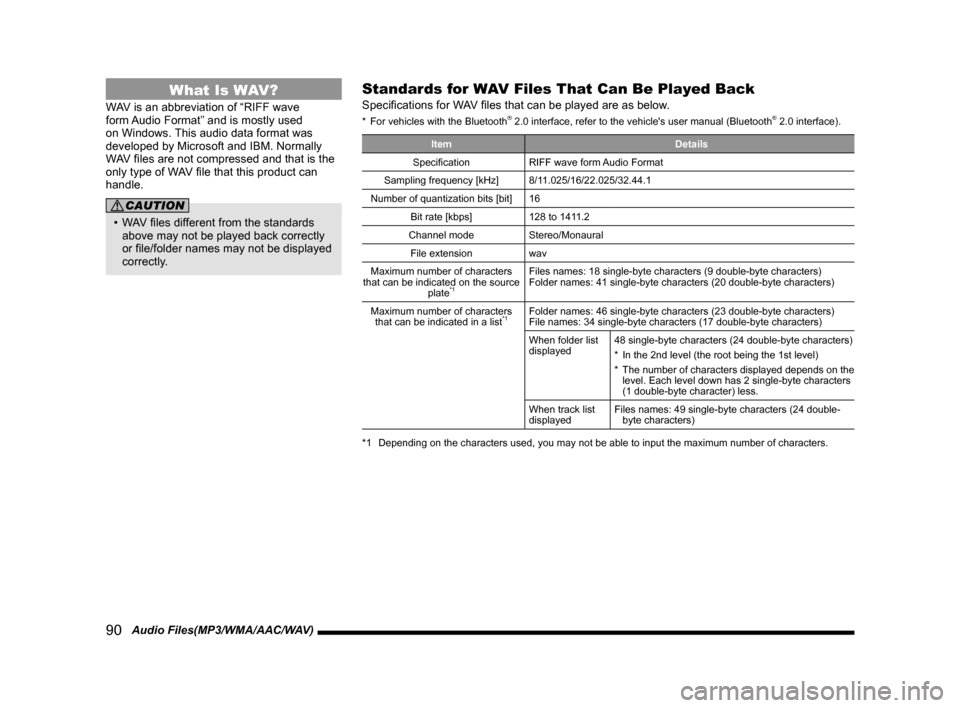
Standards for WAV Files That Can Be Played Back
Specifications for WAV files that can be played are as below.
* For vehicles with the Bluetooth® 2.0 interface, refer to the vehicle's user manual (Bluetooth® 2.0 interface).
Item Details
Specification RIFF wave form Audio Format
Sampling frequency [kHz] 8/11.025/16/22.025/32.44.1
Number of quantization bits [bit] 16
Bit rate [kbps] 128 to 1411.2
Channel mode Stereo/Monaural
File extension wav
Maximum number of characters
that can be indicated on the source plate
*1
Files names: 18 single-byte characters (9 double-byte characters)
Folder names: 41 single-byte characters (20 double-byte characters)
Maximum number of characters that can be indicated in a list
*1Folder names: 46 single-byte characters (23 double-byte characters)
File names: 34 single-byte characters (17 double-byte characters)
When folder list
displayed 48 single-byte characters (24 double-byte characters)
*
In the 2nd level (the root being the 1st level)
* The number of characters displayed depends on the
level. Each level down has 2 single-byte characters
(1 double-byte character) less.
When track list
displayed Files names: 49 single-byte characters (24 double-
byte characters)
*1 Depending on the characters used, you may not be able to input the maxim\
um number of characters.
Page 99 of 226
Listen to Satellite Radio 99
AVRadio
Search for Your Favorite
Channel.
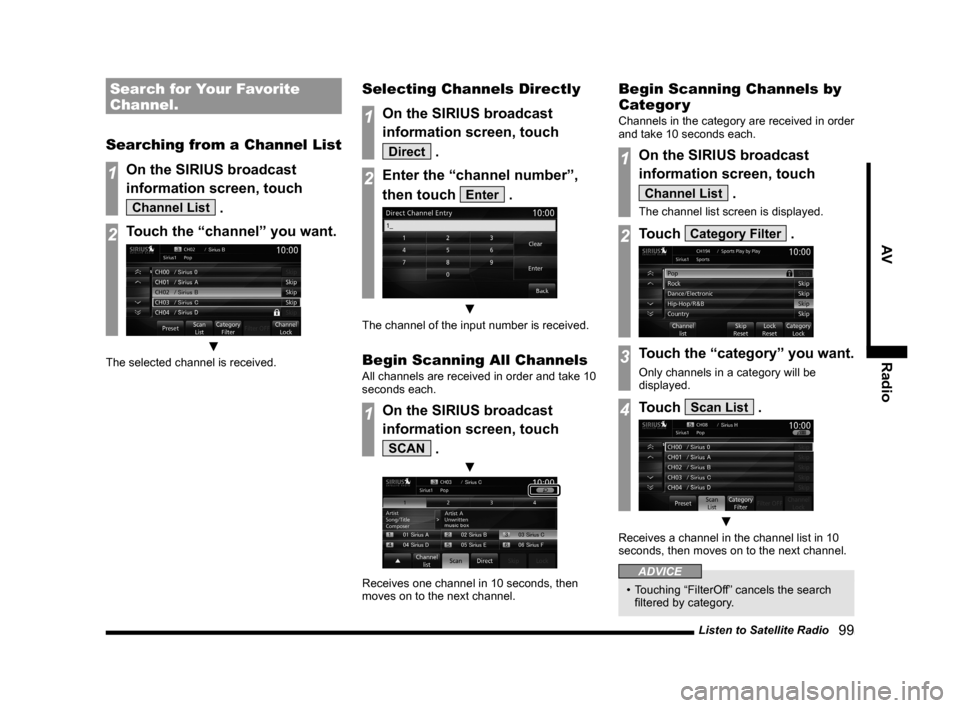
Searching from a Channel List
1On the SIRIUS broadcast
information screen, touch
Channel List .
2Touch the “channel” you want.
▼
The selected channel is received.
Selecting Channels Directly
1On the SIRIUS broadcast
information screen, touch
Direct .
2Enter the “channel number”,
then touch
Enter .
▼
The channel of the input number is received.
Begin Scanning All Channels
All channels are received in order and take 10
seconds each.
1On the SIRIUS broadcast
information screen, touch
SCAN .
▼
Receives one channel in 10 seconds, then
moves on to the next channel.
Begin Scanning Channels by
Categor y
Channels in the category are received in order
and take 10 seconds each.
1On the SIRIUS broadcast
information screen, touch
Channel List .
The channel list screen is displayed.
2Touch Category Filter .
3Touch the “category” you want.
Only channels in a category will be
displayed.
4Touch Scan List .
▼
Receives a channel in the channel list in 10
seconds, then moves on to the next channel.
ADVICE
• Touching “FilterOff” cancels the search
filtered by category.
Page 117 of 226
Listen to Audio Files on a USB Device/SD Card 11 7
AViPod/USB/SD
Equipment by type
Listen to Audio Files
on a USB Device/SD
Card
By connecting commercially-available
USB devices such as USB memory to this
product, you can play back audio files on
these through the product.
By loading an audio SD card into the user
slot, you can play back audio files recorded
onto the SD card through the product.
CAUTION
• Never hold the USB device or SD card
in your hand to operate while driving, as
this is dangerous.
• Do not leave the USB device/SD card
unattended in the car.
• Do not use hard discs, card readers, or
memory readers, as damage may occur
to these or to the data contained therein.
If these are erroneously connected,
then turn the engine ignition “OFF”, then
remove.
• No indemnification for USB device or
audio SD card data loss will be possible.
• Depending on how the devices are
handled, audio files being damaged or
lost, therefore it is recommended that
data be backed up.
NOTE
• USB devices can be used in vehicles that
have a USB port.
• For information regarding details such
as types of USB devices, usage of USB
input ports, and types of files that can be
played back, if your car is equipped with
a Bluetooth
® 2.0 interface, refer to the
vehicle's user manual; if your car is not
equipped with a Bluetooth
® 2.0 interface,
refer to this manual.
• Please refer to your vehicle's user
manual regarding how to connect USB
devices.
• Depending on the type of USB device or
SD card, usage may not be possible or
the functions that can be used may be
restricted.
• The recommended file system for USB
memory and SD cards is FAT32.
• The maximum supported capacity for
USB memory or an SD card is 32GB
(SDHC standard supported).
• Operate the USB device containing
recorded audio files while connected to
this product or the SD card containing
audio files while inserted into this product.
• This manual refers to SD cards inserted
into the user slot as “audio SD cards”.
• When connecting a USB device, use a
commercially-available connection cable.
Failure to use a connection cable when
connecting may place undue load on, or
damage the USB connector.
NOTE
• Set up the device in order that no
unsafe actions, such as plugging in the
connection cable are taken while driving.
• When inserting or removing a USB
device or an SD card, for safety's sake
first stop the car.
• Do not insert other than audio devices
into the USB port. Damage to the device
or equipment may result.
• Depending on the status of the USB
device or SD card, it may take some time
until the device is recognized, or playback
starts.
• Depending on USB devices, buttons on
the product will not operate while the
USB device is connected.
• Data containing copyright information
may not play back.
• USB device/SD card specifications and
settings may mean that connection is
not possible, or result in differences in
operation or display.
• Depending on audio data in the
USB device or on the SD card, track
information may not be displayed
correctly.
• Depending on the status of the vehicle
and device, the iPod/iPhone may not play
back after starting the engine.
Continued on the next page
Page 123 of 226
Use Bluetooth Audio 123
AVExternal Input Devices
External Input Devices
Equipment by type
(Vehicles with a Bluetooth® 2.0 interface).
Use Bluetooth Audio
This product can play back tracks on
commercially-available Bluetooth-capable
audio devices.
CAUTION
• Never hold a Bluetooth-capable audio
device in your hand to operate while
driving, as this is dangerous.
• Do not leave the Bluetooth audio device
unattended in the vehicle.
• No indemnification for Bluetooth audio
data loss will be possible.
• Depending on how the devices are
handled, audio files being damaged or
lost, therefore it is recommended that
data be backed up.
NOTE
• Depending on the type of Bluetooth-
capable audio devices, usage may not be
possible, or functions that can be used
may be restricted.
• Updating your software sometimes
changes the functions that can be used
connected with this product.
NOTE
• Confirm together with the user manuals
for the commercially-available Bluetooth-
capable audio devices.
• Depending on the type of Bluetooth-
capable audio devices, volume levels
may differ. There is the danger of
loud volumes, so prior to use, it is
recommended that you turn the volume
down.
→“Adjust Volume”(P79)
• Depending on the status of the Bluetooth
audio device, it may take some time until
the device is recognized, or playback
starts.
• Bluetooth audio device specifications
and settings may mean that connection
is not possible, or result in differences in
operation or display.
• Depending on audio data in the Bluetooth
audio device, track information may not
be displayed correctly.
• Depending on the status of the vehicle
and device, the iPod/iPhone may not play
back after starting the engine.
• Data containing copyright information
may not play back.
• It is recommended that the Bluetooth
audio device equalizer settings be set to
flat.
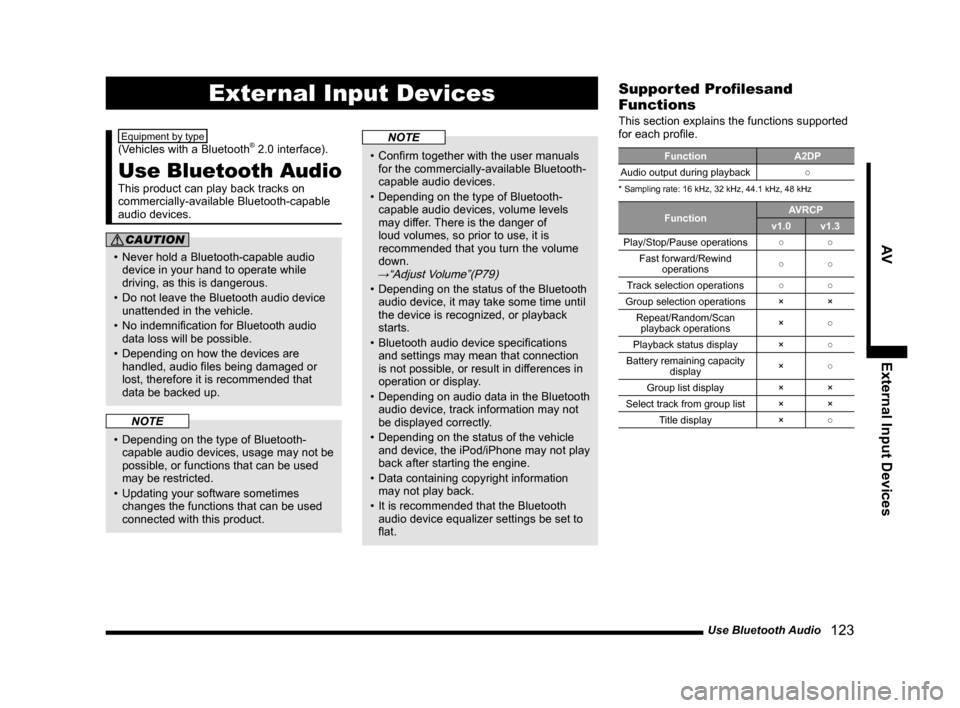
Supported Profilesand
Functions
This section explains the functions supported
for each profile.
Function A2DP
Audio output during playback ○
* Sampling rate: 16 kHz, 32 kHz, 44.1 kHz, 48 kHz
Function AVRCP
v1.0 v1.3
Play/Stop/Pause operations ○○
Fast forward/Rewind operations ○
○
Track selection operations ○○
Group selection operations ××
Repeat/Random/Scan playback operations ×
○
Playback status display ×○
Battery remaining capacity display ×
○
Group list display ××
Select track from group list ××
Title display ×○
Page 125 of 226
Use Bluetooth Audio 125
AVExternal Input Devices
Display Contents
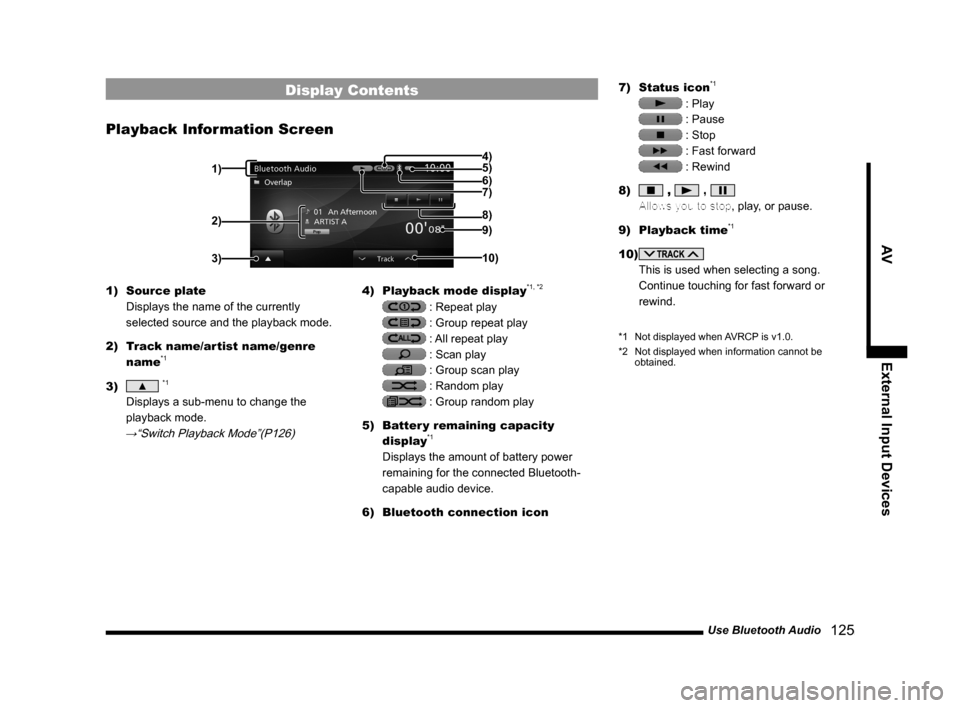
Playback Information Screen
2)
3)
4)
5)
6)
7)
9)
10) 8)
1)
1) Source plate
Displays the name of the currently
selected source and the playback mode.
2) Track name/artist name/genre
name
*1
3) ▲ *1
Displays a sub-menu to change the
playback mode.
→“Switch Playback Mode”(P126)
4) Playback mode display*1, *2
: Repeat play
: Group repeat play
: All repeat play
: Scan play
: Group scan play
: Random play
: Group random play
5) Batter y remaining capacity
display
*1
Displays the amount of battery power
remaining for the connected Bluetooth-
capable audio device.
6) Bluetooth connection icon 7)
Status icon
*1
: Play
: Pause
: Stop
: Fast forward
: Rewind
8)
, ,
Allows you to stop, play, or pause.
9) Playback time
*1
10)
This is used when selecting a song.
Continue touching for fast forward or
rewind.
*1 Not displayed when AVRCP is v1.0.
*2 Not displayed when information cannot be
obtained.
Page 127 of 226
Use Bluetooth Audio 127
AVExternal Input Devices
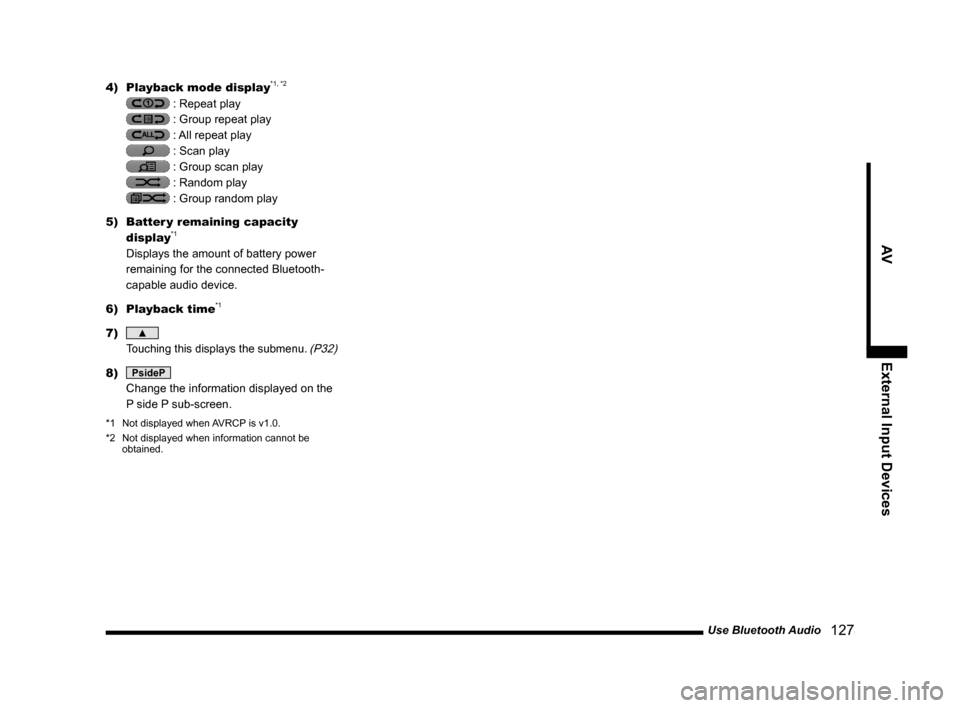
4) Playback mode display*1, *2
: Repeat play
: Group repeat play
: All repeat play
: Scan play
: Group scan play
: Random play
: Group random play
5) Batter y remaining capacity
display
*1
Displays the amount of battery power
remaining for the connected Bluetooth-
capable audio device.
6) Playback time
*1
7) ▲
Touching this displays the submenu. (P32)
8) PsideP
Change the information displayed on the
P side P sub-screen.
*1 Not displayed when AVRCP is v1.0.
*2 Not displayed when information cannot be
obtained.
Page 128 of 226
128 Use AUX
Equipment by type
Use AUX
By connecting AUX devices to this product,
you can input audio from these devices to
the product and play it back.
CAUTION
• Video from AUX devices cannot be
viewed.
• If this is used with the engine stopped,
it may run down the battery and make it
impossible to start the engine.
ADVICE
• Please refer to your vehicle's user
manual regarding how to connect AUX
devices.
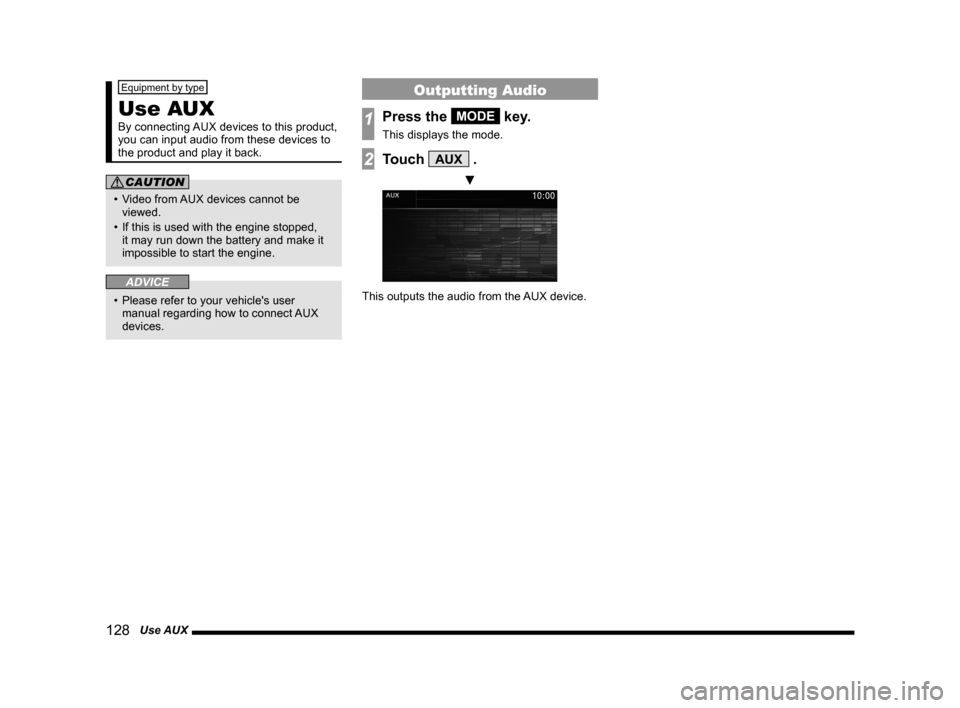
Outputting Audio
1Press the MODE key.
This displays the mode.
2Touch AUX .
▼
This outputs the audio from the AUX device.
Page 131 of 226
Calendar 131
INFO/SETTINGS INFO
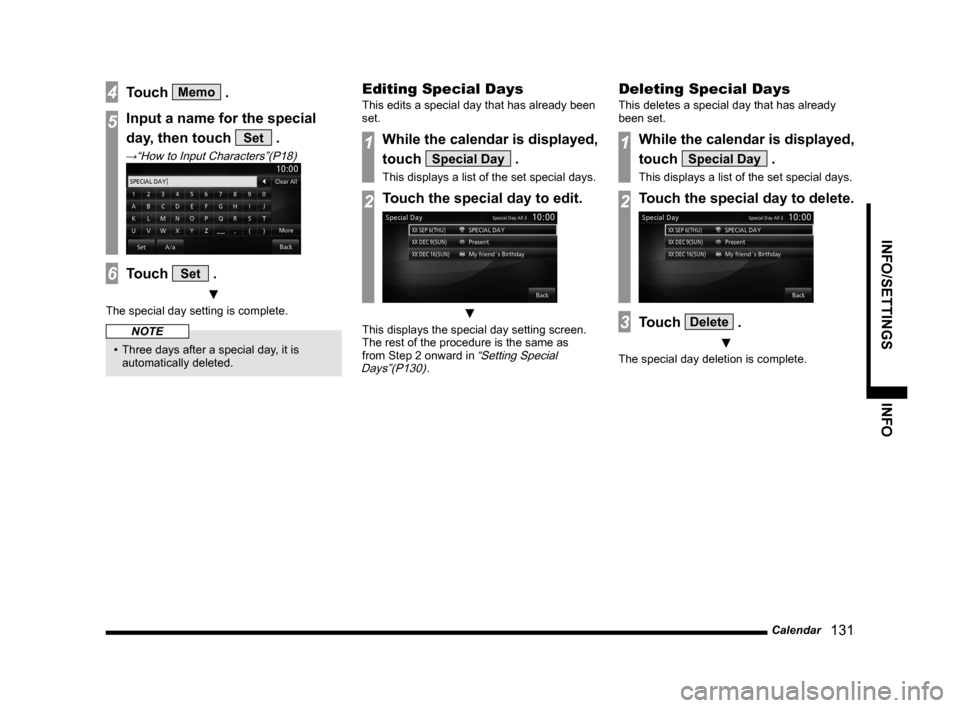
4Touch Memo .
5Input a name for the special
day, then touch
Set .
→“How to Input Characters”(P18)
6Touch Set .
▼
The special day setting is complete.
NOTE
• Three days after a special day, it is
automatically deleted.
Editing Special Days
This edits a special day that has already been
set.
1While the calendar is displayed,
touch
Special Day .
This displays a list of the set special days.
2Touch the special day to edit.
▼
This displays the special day setting screen.
The rest of the procedure is the same as
from Step 2 onward in
“Setting Special
Days”(P130).
Deleting Special Days
This deletes a special day that has already
been set.
1While the calendar is displayed,
touch
Special Day .
This displays a list of the set special days.
2Touch the special day to delete.
3Touch Delete .
▼
The special day deletion is complete.
Page 132 of 226
132 Calendar
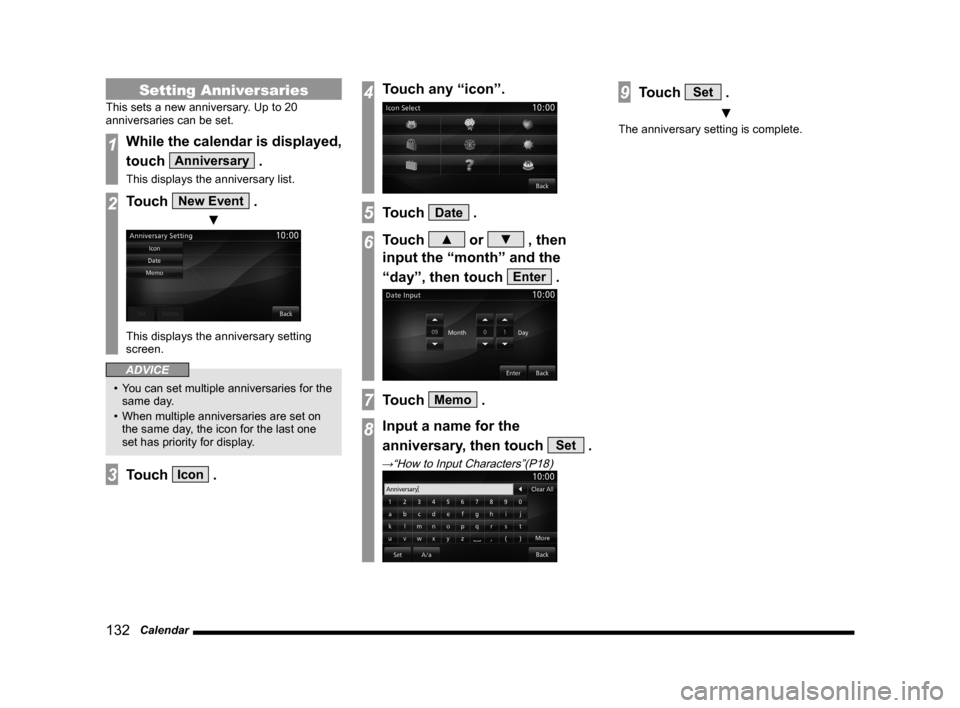
Setting Anniversaries
This sets a new anniversary. Up to 20
anniversaries can be set.
1While the calendar is displayed,
touch
Anniversary .
This displays the anniversary list.
2Touch New Event .
▼
This displays the anniversary setting
screen.
ADVICE
• You can set multiple anniversaries for the
same day.
• When multiple anniversaries are set on
the same day, the icon for the last one
set has priority for display.
3Touch Icon .
4Touch any “icon”.
5Touch Date .
6Touch ▲ or ▼ , then
input the “month” and the
“day”, then touch
Enter .
7Touch Memo .
8Input a name for the
anniversary, then touch
Set .
→“How to Input Characters”(P18)
9Touch Set .
▼
The anniversary setting is complete.
Page 143 of 226

Mobile Phone 143
INFO/SETTINGS INFO
Equipment by type
(Vehicles with a Bluetooth® 2.0 interface).
Mobile Phone
Connecting your mobile phone to this
product with Bluetooth lets you use the
hands-free function.
WARNING
• The driver should not hold the mobile
phone in their hand while driving.
• Do not leave your mobile phone
unattended in the vehicle. If your mobile
phone rolls underfoot when you stop
the vehicle or when you go around a
curve and it get under the brake pedal,
it can interfere with driving and cause an
accident.
Connect Your Mobile Phone
This product and your mobile phone use the
Bluetooth function to connect.
For details on how to connect, refer to
“Bluetooth Setting”(P209).
Operation methods below describe situations
once connection has been completed.
NOTE
• This requires a mobile phone that can be
connected to the Bluetooth.
• For the equipment supported, refer to the
vehicle's user manual.
• Cancel functions such as the mobile
phone “dial lock”, and connect while on
the standby screen.
• Some equipment cannot be connected.
Display the Phonebook
There is the vehicle phonebook registered in
this product and the mobile phonebook that
can draw on the data in your mobile phone.
1Press the INFO key or touch
Mobile Phone .
The mobile phone screen is displayed.
2Touch ▲ , and then
PhoneBook .
▼
The vehicle phonebook screen or the mobile
phonebook screen is displayed.
The phonebook displayed now is the one that
was being displayed the last time.
NOTE
• Telephone numbers in the mobile
phonebook cannot be registered, edited,
or deleted from this product.
• If the vehicle phonebook screen is
being displayed and you want to look
at the mobile phonebook, touch [Mobile
Phonebook].
• If the mobile phonebook screen is being
displayed and you want to look at the
vehicle phonebook, touch [Vehicle
Phonebook].
Register in Phonebook
Telephone numbers can be registered.
Input and Register the
Telephone Number
Registration is done with the vehicle
phonebook.
1Press the INFO key or touch
Mobile Phone .
The mobile phone screen is displayed.
2Touch the “telephone number”
to register.
3Touch ▲ , and then
Registration .
4Input each type of telephone
number.
Continued on the next page